
Print Mailing Labels for Your Holiday Cards with Apple’s Contacts App
Much of the work of sending holiday cards is addressing all those envelopes. However, with the Contacts app on your Mac, you can easily print mailing labels for all your friends and family rather than writing addresses out by hand.

If mailing your holiday cards (which you designed in Photos with a plug-in like Motif or Mimeo Photos, right?) is made harder by having to write addresses on envelopes, you can skip the handwriting step this year. Although many people don’t realize this, it’s easy to print mailing labels on standard label stock using the Contacts app on the Mac. You can even add a personal touch by including a graphic and using a custom color and font choice. Follow these steps:
1. In Contacts, choose File > New Group to create an empty group into which you can collect your card recipients. Name the group something like Holiday Cards.
2. Click All Contacts to see your full collection of contacts, and then drag your recipients from the center column to copy them into the Holiday Cards group. Note that you have to click and hold briefly before Contacts lets you start dragging a contact. You can drag contacts one at a time or select several at once and drag the entire selection. This doesn’t move contacts out of All Contacts—you’re just adding them to the Holiday Cards group, which functions like a playlist in Music.
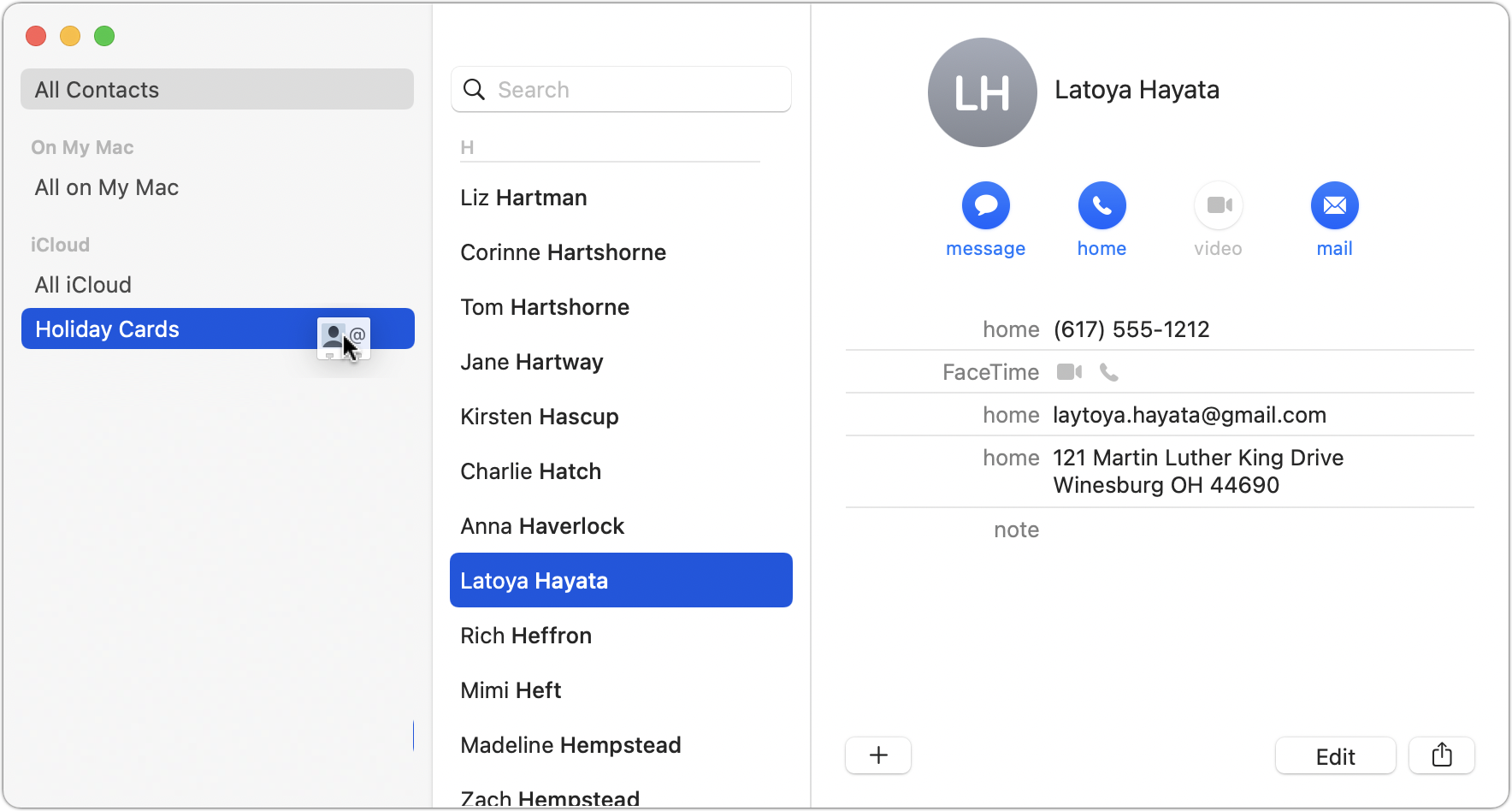
3. Once the Holiday Cards group contains all your recipients, click its name in the sidebar, and then choose File > Print to open the Print dialog.
4. To set up your cards, you need to see details in the Print dialog, so at the bottom of the Print dialog, click the Show Details button (if it’s already called Hide Details, you’re all set). You also need to see the special controls for Contacts, so make sure Contacts is chosen from the pop-up menu underneath the page range fields. Then from the Style pop-up menu, choose Mailing Labels.
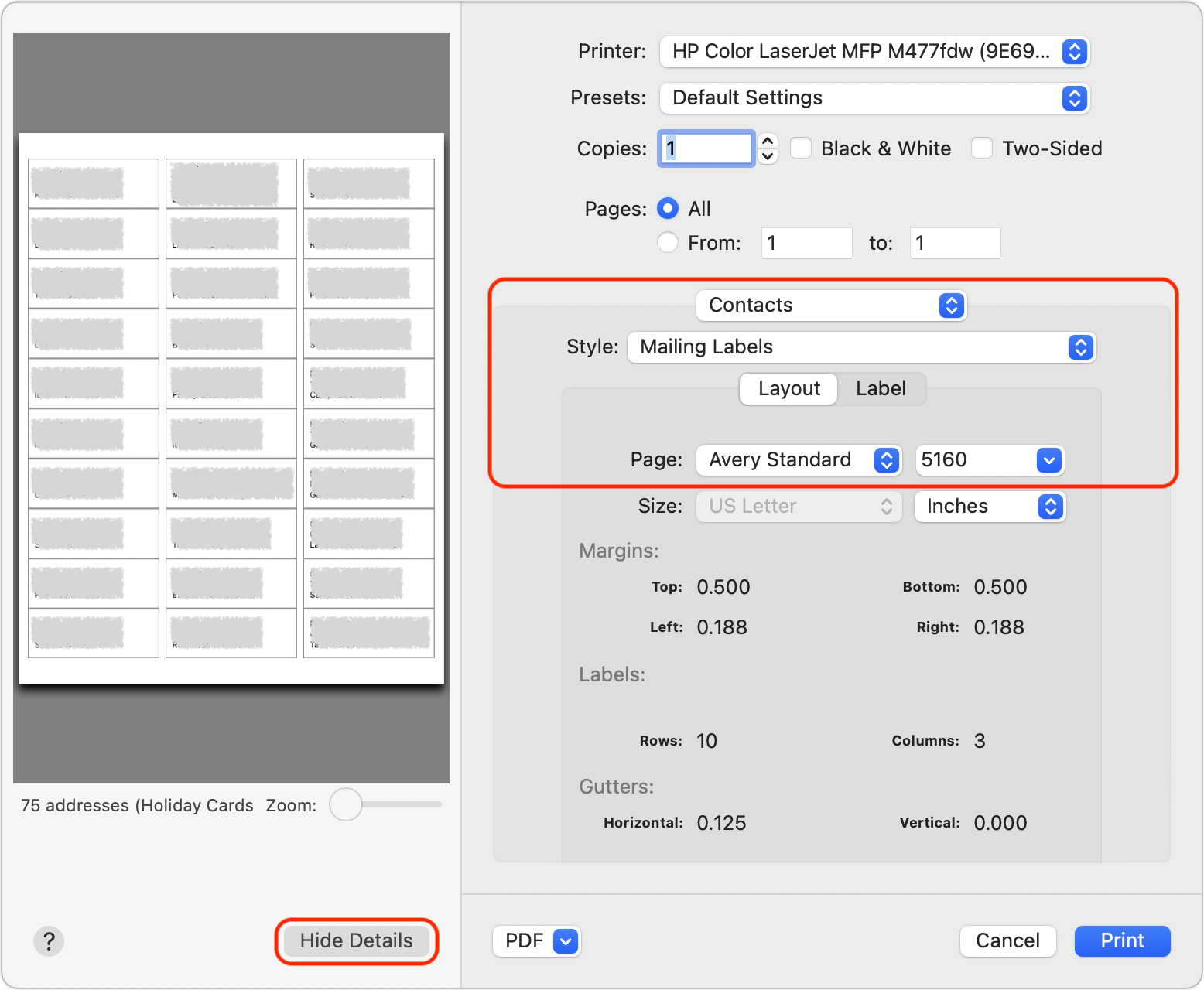
5. Beneath the Style pop-up menu, make sure Layout is selected, and then in the Layout view, from the Page pop-up menus, choose the manufacturer of your labels and the number associated with the labels. (Avery 5160 is a particularly common label type and is readily available at office supply stores and online.)
6. Click Label to switch to the Label view. From the Addresses pop-up menu, choose the type of address you’re using. Home is likely the most appropriate; if you choose All, Contacts will print both Home and Work addresses if available. You can also select the checkboxes for Company and Country here, and if you print the country, you can exclude your own country, which makes it easy to include overseas friends and relatives without printing the country for most people.
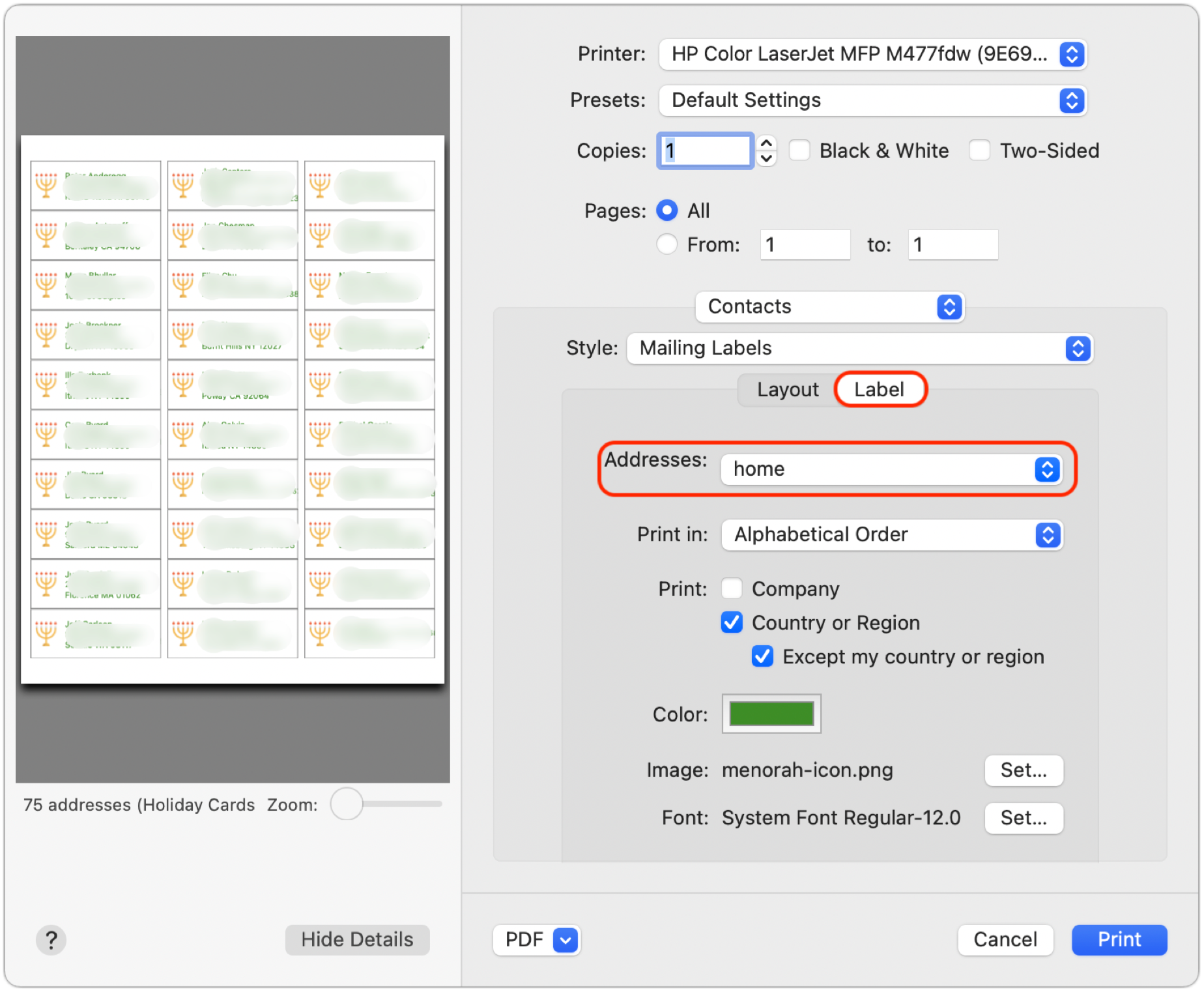
7. Although the defaults are fine, you can change the color of the label text, select a small image to print next to each contact, and change the font.
8. It’s time to print, but not on your label stock just yet! Click the Print button to print a draft of your labels on plain paper. You’ll use this draft for two things—checking the addresses for accuracy and verifying that the labels will print properly on the label stock. To check if the labels will print correctly, stack a page from the draft on top of a sheet of blank labels, and then hold them up to a bright light or sunlit window. You should be able to see whether the positioning is right—it should be in most cases. If not, make sure you’ve chosen the right label in the Print dialog, and if all else fails, create a custom label with your own margins and gutters to make it work. You may also want to increase or decrease the font size, making sure that even your longest addresses will fit.
9. Once you’ve fixed addresses for everyone who has moved recently and verified your positioning, you can print for real on your label stock.
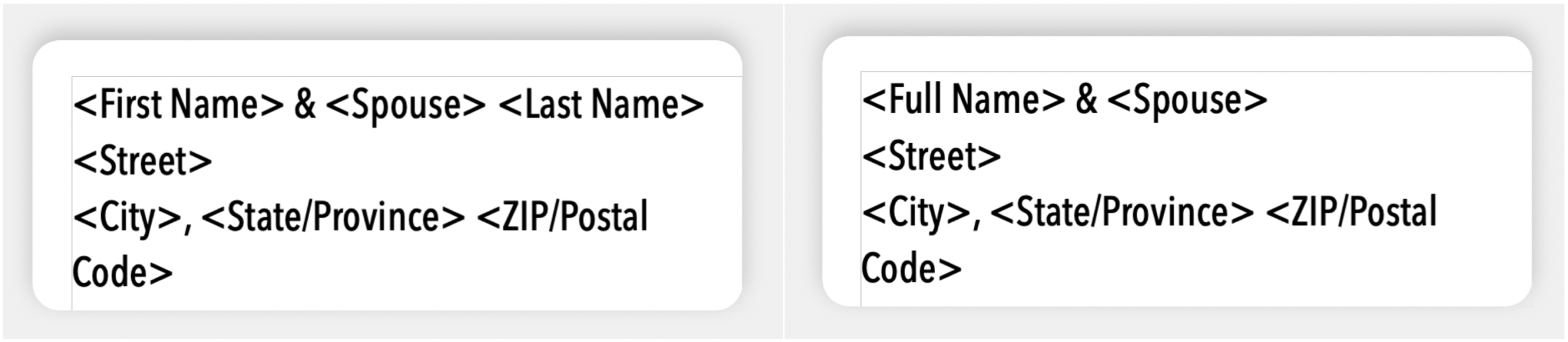
There’s only one limitation to using Contacts to print your labels. If you’re a perfectionist, you might want to customize how the names of couples appear on the label. Even though it has the necessary Spouse relationship field that links contacts together, Contacts doesn’t support different name formats on labels. For instance, if you’re sending a card to a couple who share a last name, you might want the name line to read “Barack and Michelle Obama.” The same goes for couples who don’t share a last name, like “Ellen DeGeneres and Portia de Rossi.” The solution for this picky conundrum is Belight Software’s $9.99 Swift Publisher app, which lets you create label templates using individual fields from Contacts.
But that’s overkill for most of us, who care more about what’s inside the envelope. Most of the work comes in selecting people, making sure their addresses are right, and updating those that have changed—actually printing labels takes only a few minutes. As you stick your labels on envelopes, you can revel in the knowledge that it will go even faster next year!
(Featured image by iStock.com/Bet_Noire)
FaceTime Gains Cool New Features in Apple’s Latest Operating Systems
FaceTime has joined the big leagues in iOS 15, iPadOS 15, and macOS 12 Monterey. Read on to learn about FaceTime links, its cross-platform Web app, special mic modes and video effects, grid view, screen sharing, and SharePlay.

It’s no exaggeration to say that videoconferencing went mainstream during the pandemic. However, Apple’s FaceTime didn’t stack up well against Zoom and others due to its emulation of the telephone call experience, questionable interface decisions, and lack of cross-platform compatibility. However, with iOS 15, iPadOS 15, and macOS 12 Monterey, Apple has nearly brought FaceTime into feature parity with Zoom and others and it has even added a few features that break new ground.
FaceTime Links
One of the smallest new features in FaceTime may be the most important. No longer do you have to call others via FaceTime, an awkward approach left over from the days of landlines. That’s still possible, but it’s easier and more considerate to make and share a FaceTime link instead, which lets others join your call when they’re ready. FaceTime links make it effortless to rejoin a call if you have to drop off or if something goes wrong, and they simplify switching from one device to another. You can share FaceTime links like any other Web link, through Messages, email, discussion systems like Slack, or posting on a Web page.
To create a FaceTime link, launch the FaceTime app and use the Create Link button in the upper left. If you’re creating it in iOS 15 or iPadOS 15, you can add a name before copying or sharing the link in the share sheet. In Monterey, clicking the button presents a sharing menu with similar appropriate options.
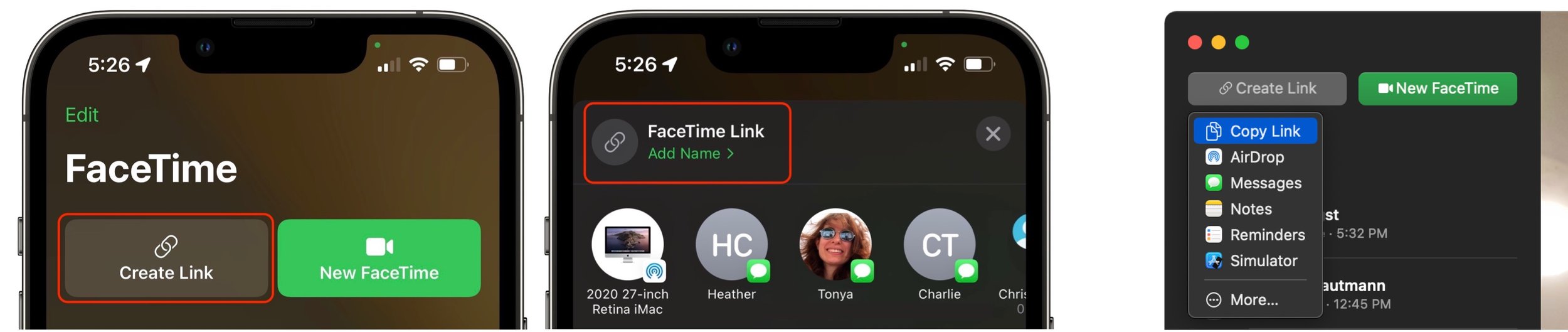
To join a call, all a recipient of the link has to do is tap or click the link. If they’re running one of Apple’s latest operating systems, the call will also appear in the FaceTime app, under Upcoming.
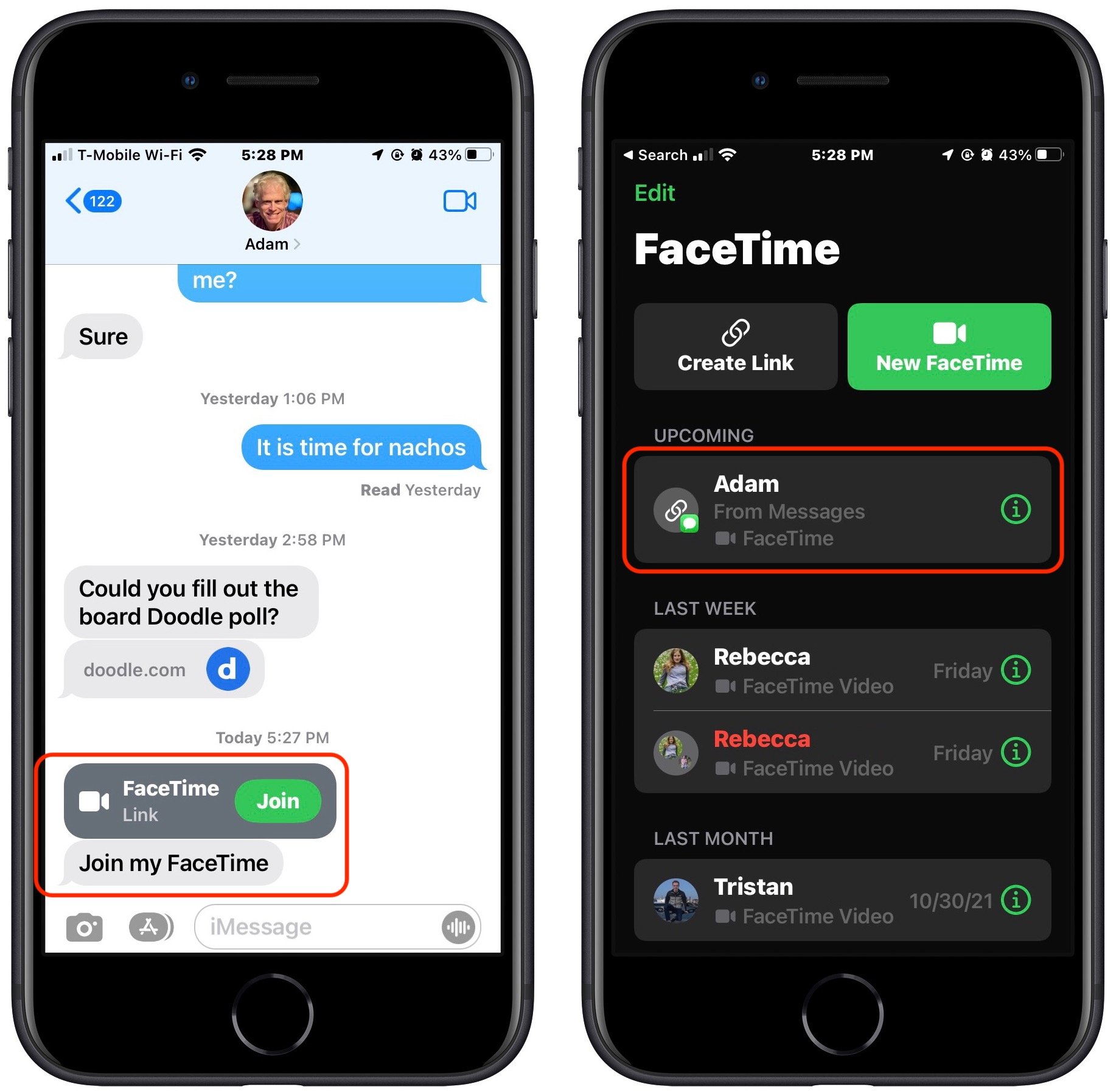
Either way, people joining the call get a preview window in which they can adjust their video and mic settings. After they hit the Join button, the organizer is notified that they’re waiting and can add them to the call. (That may seem like an unnecessary extra step, but it ensures random trolls can’t join FaceTime calls whose links have been shared publicly.)
If you’re scheduling a call, you can create a FaceTime link within an event in Calendar. That’s handy to make sure you have the link available at the right time, to make it available on all your devices, and to let others access it via a shared calendar. Use the Location or Video Call field, and select FaceTime when it’s offered. The event then gets a Join button that makes it easy to access the call. (If you’re sharing the calendar with someone who isn’t using one of Apple’s latest operating systems, they’ll just see a link they can click.)
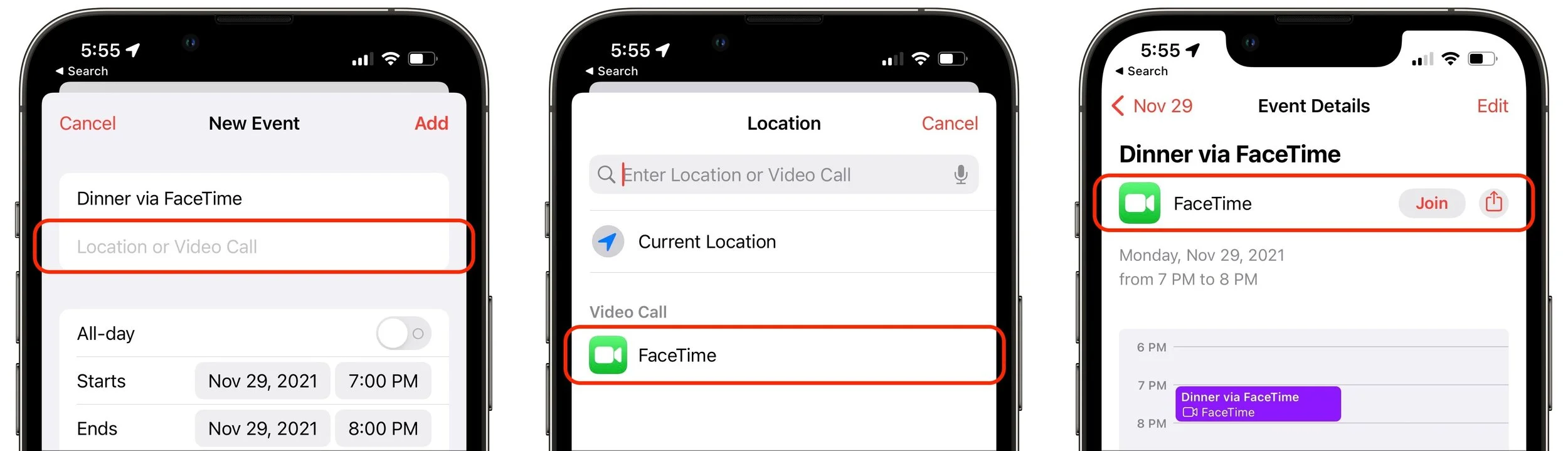
Despite being associated with an event, such FaceTime links aren’t time-specific. You can start the call any time you want, and anyone else can attempt to join it at any time, but they’ll be able to get in only if you as the organizer let them in. So it won’t do them any good to join before or after the scheduled time.
FaceTime Web App
FaceTime links are also essential for allowing FaceTime calls to include those who aren’t running Apple’s latest operating systems. If you’re still on macOS 11 Big Sur or iOS 14, opening a FaceTime link switches to Safari and opens the FaceTime Web app. That also works for those using Android, Windows, or Linux, as long as they have a compatible Web browser, which means Google Chrome or another Chrome-based browser like Brave or Microsoft Edge. Firefox won’t work.
For the most part, the FaceTime Web app works just like the native FaceTime app, with the ability to change basic camera and microphone settings and support for grid view. There are two notable limitations:
FaceTime Web app users can only join calls, not initiate them.
Advanced options like the mic modes and video effects aren’t available.
Mic Modes and Video Effects
In an effort to catch up with the likes of Zoom, Apple added several audio and video features to FaceTime. There are now three mic modes that you can enable in Control Center during a call:
Standard: FaceTime does nothing special to the audio.
Voice Isolation: FaceTime focuses on your voice, working to eliminate non-vocal sounds and other background noise.
Wide Spectrum: FaceTime expands its attention to all the sounds in the room, which is essential for things like music lessons.
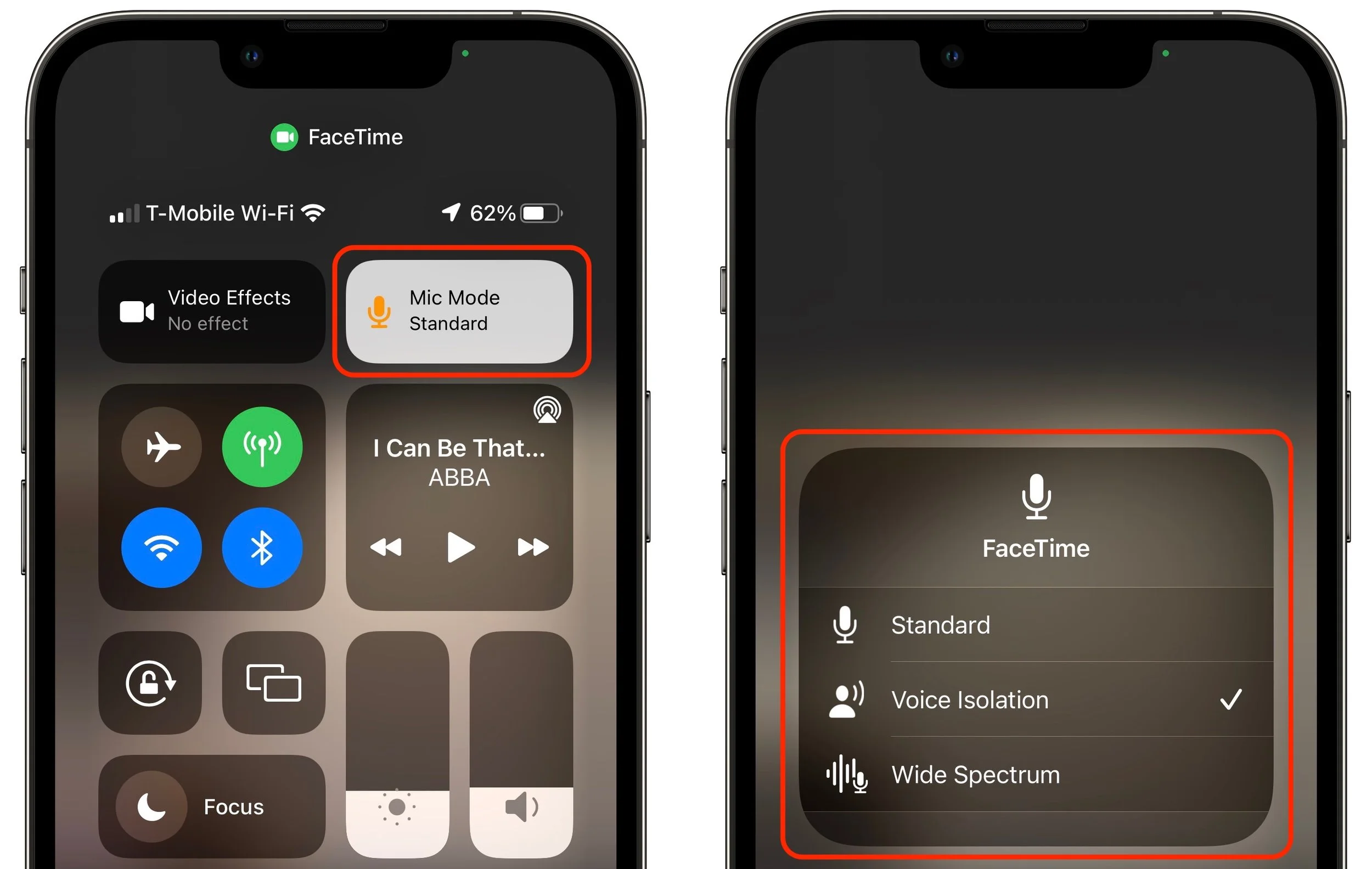
Although the equivalent Control Center button is labeled Video Effects, there’s only one at the moment: Portrait mode. It works exactly as it does in the Camera app for photos, keeping you in focus and blurring the background. Perhaps Apple will add other video effects in the future, much like Zoom’s virtual backgrounds and immersive sets. You can also toggle Portrait mode by tapping the Video Effects button in your FaceTime tile.

The Voice Isolation and Wide Spectrum mic modes, and the Portrait mode video effect, are available only on iPhones and iPads that have an A12 Bionic chip or later, or an M1 chip. Similarly, they work only on M1-based Macs, not older Intel-based Macs.
Grid View
When Apple first introduced FaceTime group calls, participants’ tiles would swim around on the screen, moving and expanding to indicate who was speaking. It was dizzying. Happily, Apple finally listened to annoyed users and has now introduced a simple grid view like every other videoconferencing app on the planet.
Once there are four or more participants in a call on an iPhone or iPad, a Grid button appears when you tap the screen to reveal the FaceTime controls. Tap it to switch into or out of grid view. In Monterey, there’s an always-visible Grid button in the upper-right corner.
Screen Sharing for iPhones and iPads
As helpful as FaceTime links are, our favorite new feature of FaceTime is screen sharing for those using an iPhone or iPad. (Macs can’t currently participate in FaceTime screen sharing but have their own screen sharing capabilities, accessed through the Conversations menu in Messages.) With a couple of taps, you can share your screen with someone else, or they can share their screen with you, all while maintaining the video call. For many remote workers, this feature is essential, whether you are collaborating on a project or showing your work to your boss. Another obvious use is remote tech support. If someone is having trouble accomplishing something on their iPhone or iPad, you can see what’s going wrong live on a FaceTime call. And kids, no doubt, will find many fun things to do together.
To share your screen during a FaceTime call, tap anywhere on the screen to reveal the FaceTime controls, tap the screen sharing button on the right, and tap the Share My Screen confirmation prompt. After a 3-second countdown, others on the call can see your screen, even as you switch away from the FaceTime app and use your iPhone or iPad however you want.
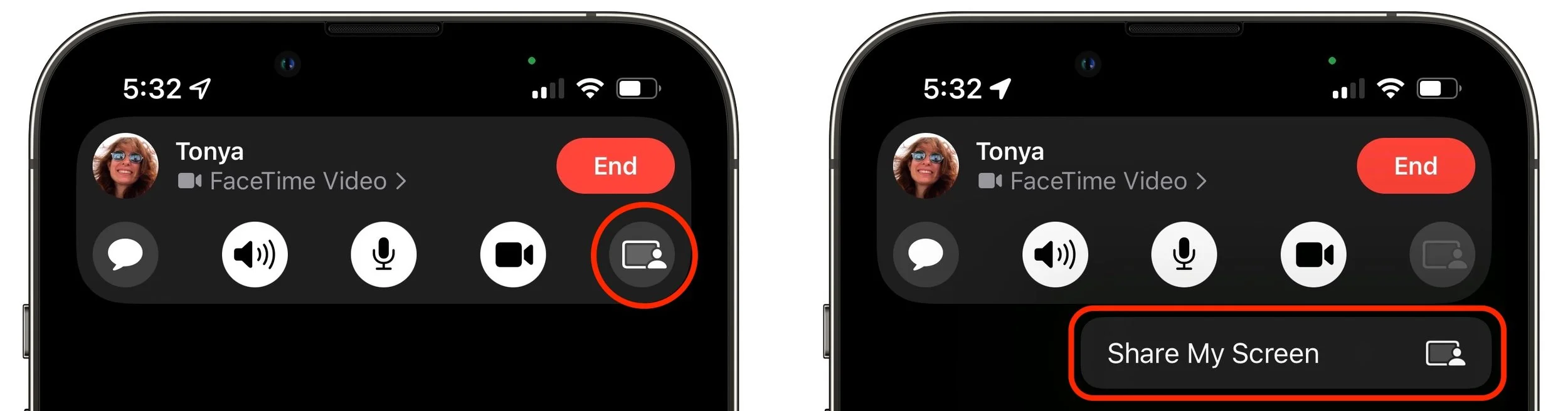
While you’re sharing your screen, a purple status icon reminds you that others can see what you’re doing. To stop sharing your screen, tap someone’s video tile to switch back to the FaceTime app and tap the screen sharing button again.
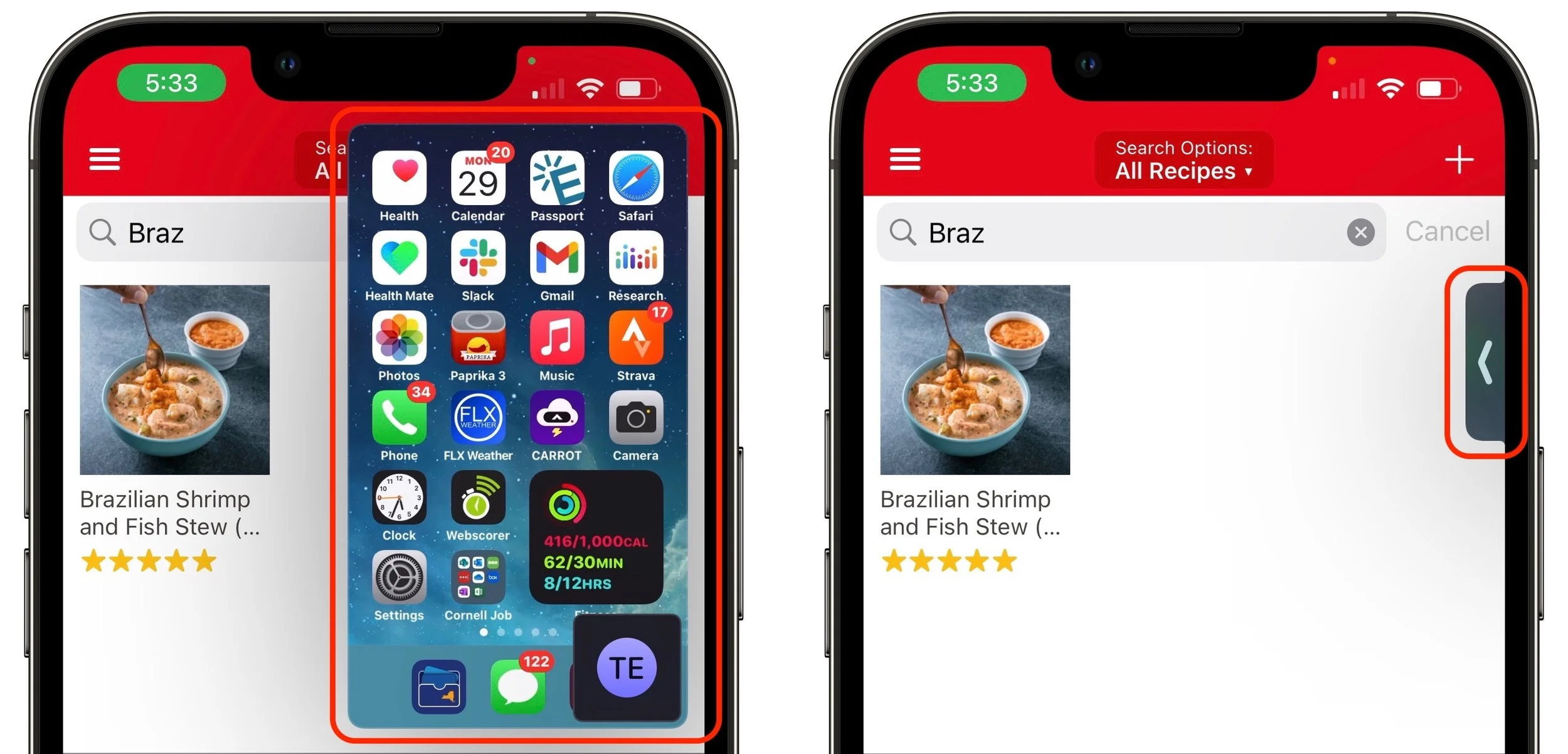
When someone shares their screen with you, a Picture-in-Picture (PiP) window of their screen appears. Tap it to expand it to the entire screen, moving the FaceTime call video to its own PiP window. Tap that FaceTime PiP window to return to the call. If you switch to another app, as shown below, the shared screen returns to being a PiP window. If any PiP window is in your way, you can drag it to another corner or swipe it off the screen to the left or right to hide it entirely. A tab appears to indicate the hidden PiP window; tap it to bring the window back.
SharePlay
People will either love SharePlay or ignore it entirely. It enables everyone on a FaceTime call to watch the same video or listen to the same audio while continuing the conversation. The big caveat is that everyone must have legal access to the content, which generally means a subscription to whatever service is being used, whether that’s Apple Music, Apple TV+, Disney+, HBO MAX, or Paramount+. Currently, SharePlay works only in iOS 15 and iPadOS 15 and on the Apple TV running tvOS 15. It’s slated to appear in a future version of Monterey, perhaps 12.1.
Initiating a SharePlay session is easy: simply navigate to Apple’s TV or Music app, or another app that supports SharePlay, and start playing something. You may be asked if you want to play it for everyone or just for yourself, or you may be told the content will play automatically. Assuming everyone on the call has the necessary subscription, the audio or video starts playing instantly.

What’s a little freaky about SharePlay is that, with one minor exception, everyone is an equal participant. If you start playing something, someone else can pause it or rewind it, say, and the video will pause or rewind for everyone. The exception is that only the person who started playing a video can stop it (tap the screen to reveal the controls), although anyone can start playing something else to replace it.
If you have an Apple TV, you can initiate video playback from the Apple TV or move something that’s already playing to the Apple TV. While you’re on a FaceTime call on your iPhone or iPad, press and hold the TV button on the Apple TV’s remote to open Control Center, and then select the SharePlay button that appears there to get started.

With all these new features, it’s time to rethink how you use FaceTime, and that’s especially true if you haven’t been using FaceTime because it lacked the features in some other videoconferencing app.
(Featured image by iStock.com/jacoblund)
Apple’s Evolution of Do Not Disturb Helps You Focus
Do you want more control over Do Not Disturb on your Apple devices? How about muting notifications while a particular app is active or while you are at a certain location? All this and more is now easy to set up with Apple’s new Focus feature—learn how at:

Between texts, alarms, reminders, calls, and myriad other notifications on our iPhones, iPads, and Macs, it’s a miracle we get anything done at all. To free us from this onslaught, Apple previously provided Do Not Disturb, which let you set times during which you could be free from interruption.
In iOS 15, iPadOS 15, and macOS 12 Monterey, Apple has gone even further. Do Not Disturb is now called Focus, and Apple has made it more powerful and flexible. Focus can turn on automatically at certain times, at particular locations, or when you’re using certain apps so you can avoid interruptions during activities like working out, doing homework, eating dinner, or gaming. But not all interruptions—you can allow certain people and apps to break through the cone of silence. A Focus can also hide or show certain Home screen pages, prevent notifications from appearing on the Lock screen, and more. Plus, all your devices can share the same Focus settings—we’re showing iPhone screenshots below, but the interface is identical in iPadOS and similar on the Mac, where you’ll find it in System Preferences > Notifications & Focus > Focus.
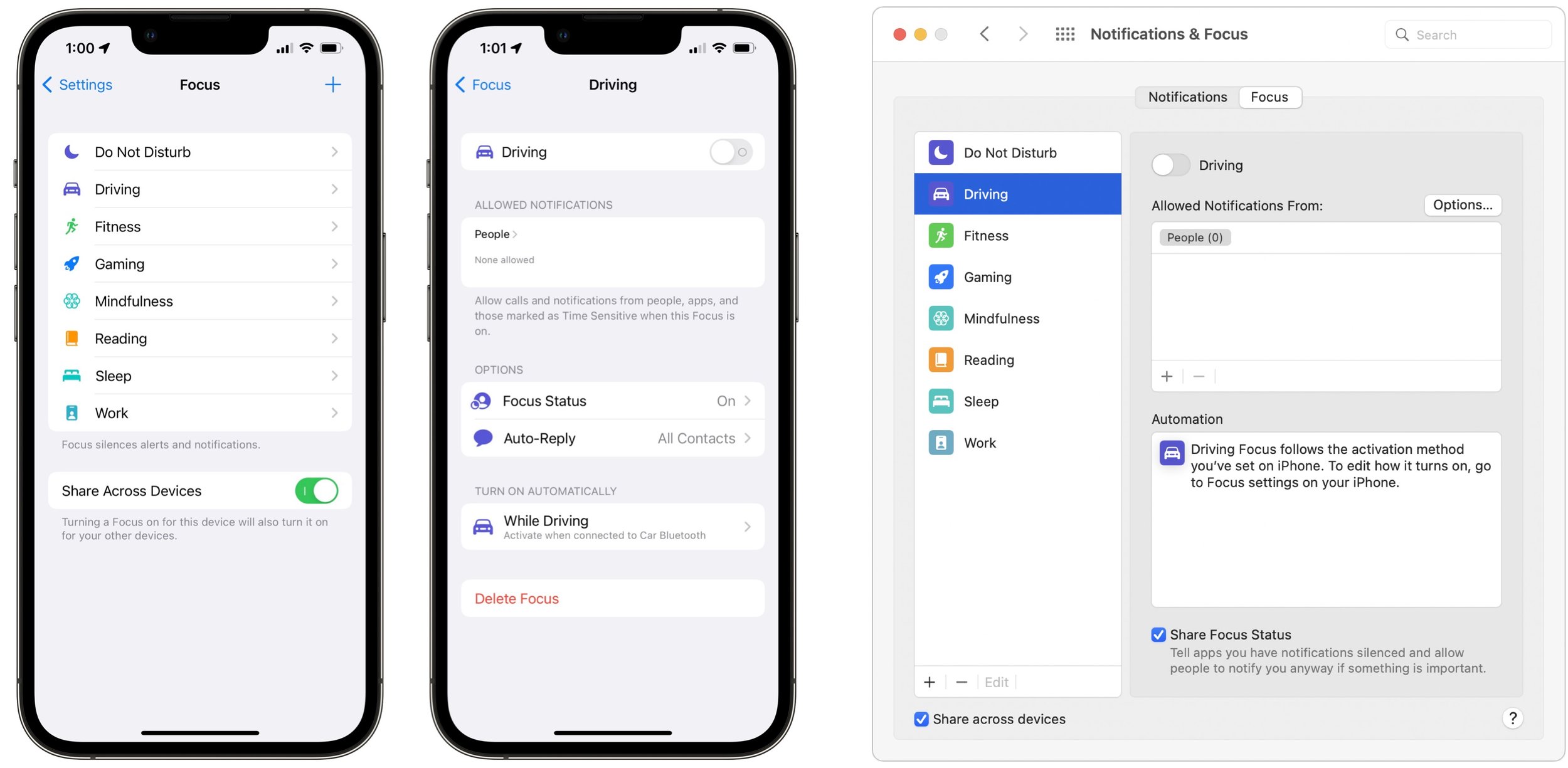
In Settings > Focus, Apple provides a pre-built Focus for Do Not Disturb, Driving, and Sleep to match the old Do Not Disturb options:
Do Not Disturb: This catch-all Focus takes over from the old Do Not Disturb setting.
Driving: This Focus replaces the old Do Not Disturb While Driving option. It’s unusual in that it doesn’t allow any app notifications through at all (eyes on the road!). It also lets you write a custom auto-reply for those who text you while you’re driving.
Sleep: If you use Apple’s sleep management features in the Health app, you’ll use this Focus to control which notifications can get through while you’re asleep.
Apart from those, Apple makes six suggestions: Personal and Work (in the main list), and Fitness, Gaming, Mindfulness, and Reading (when you add a new Focus). You can also create a custom Focus from scratch.
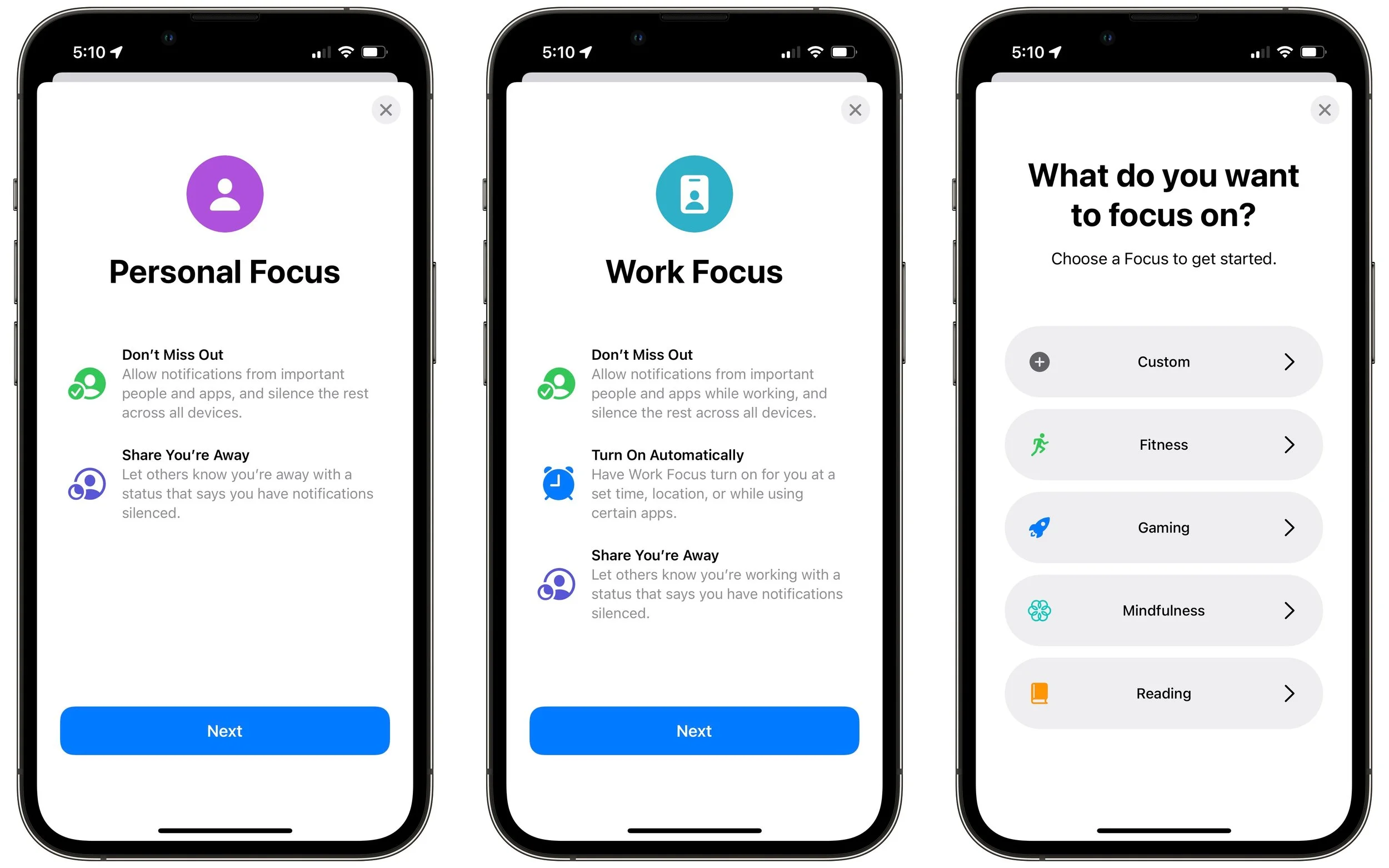
Apple’s suggestions are special in one important way. Fitness, Gaming, and Mindfulness can turn on automatically: when you’re engaged in a workout, when you connect a wireless controller, and when you’re in a Mindfulness session started from your Apple Watch, respectively.
When configuring a suggested Focus or creating a new one from scratch, Focus runs you through several setup screens. One has you choose people whose notifications you want to come through regardless, and what to do about incoming phone calls. The other screen lets you pick which apps can notify you when the Focus is active, with an additional option to allow notifications marked as Time Sensitive through regardless. (Time Sensitive notifications include timed Reminders alerts, for instance, and are usually best left enabled.)
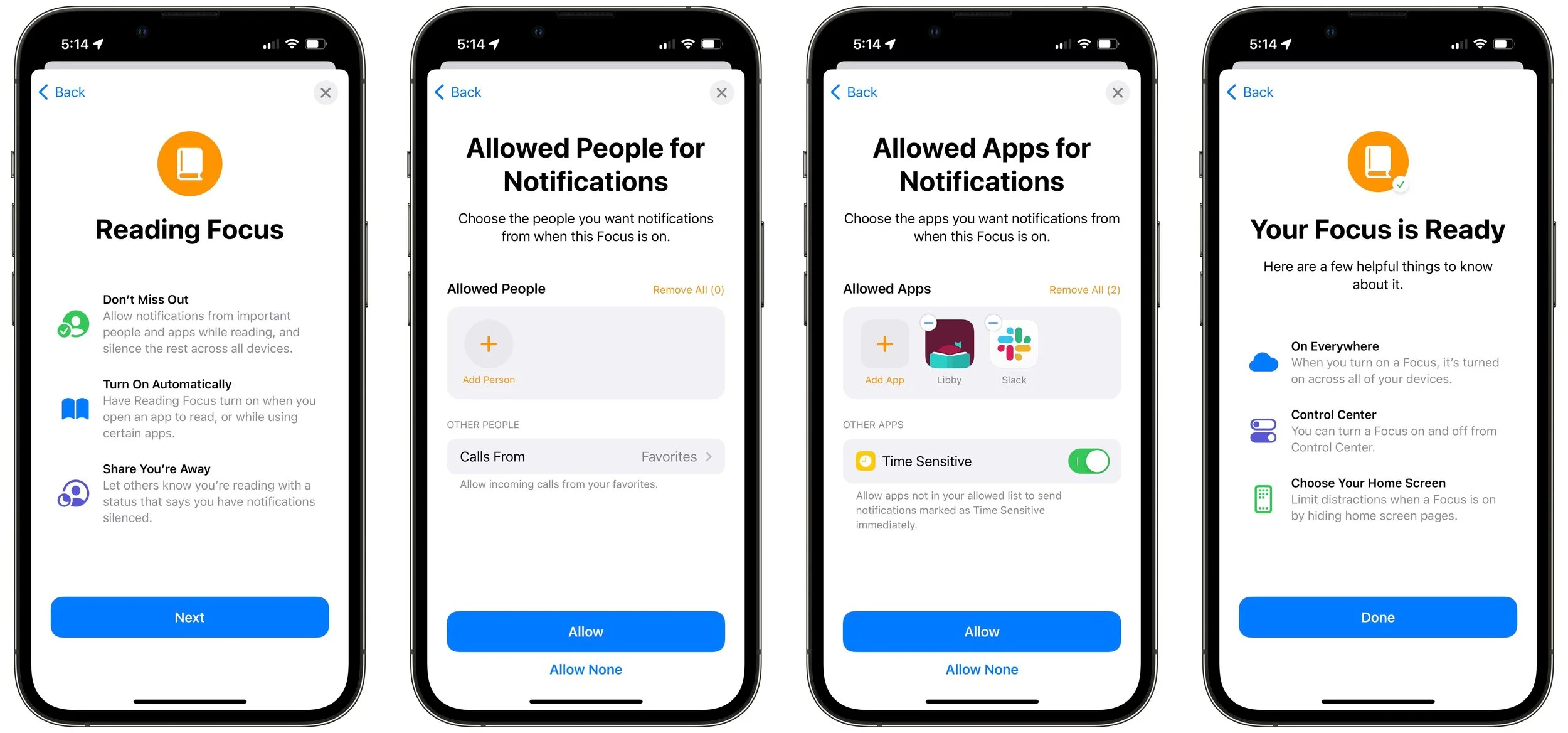
Once your Focus is ready, you can configure various options, including:
Focus Status: Enable this option to allow apps to alert those who message you that you have notifications silenced.
Home Screen: If your Focus involves you using the Home screen a lot, you can have it hide notification badges that might lure you into another app or even hide entire Home screen pages that could be distracting.
Lock Screen: If you might be looking at your Lock screen while the Focus is active, you can have it dim automatically and hide or show silenced notifications as appropriate.
Schedule or Automation: Although you can turn on any Focus from Control Center, it may be easier to have it turn itself on automatically at certain times, in particular locations, or when certain apps are active.
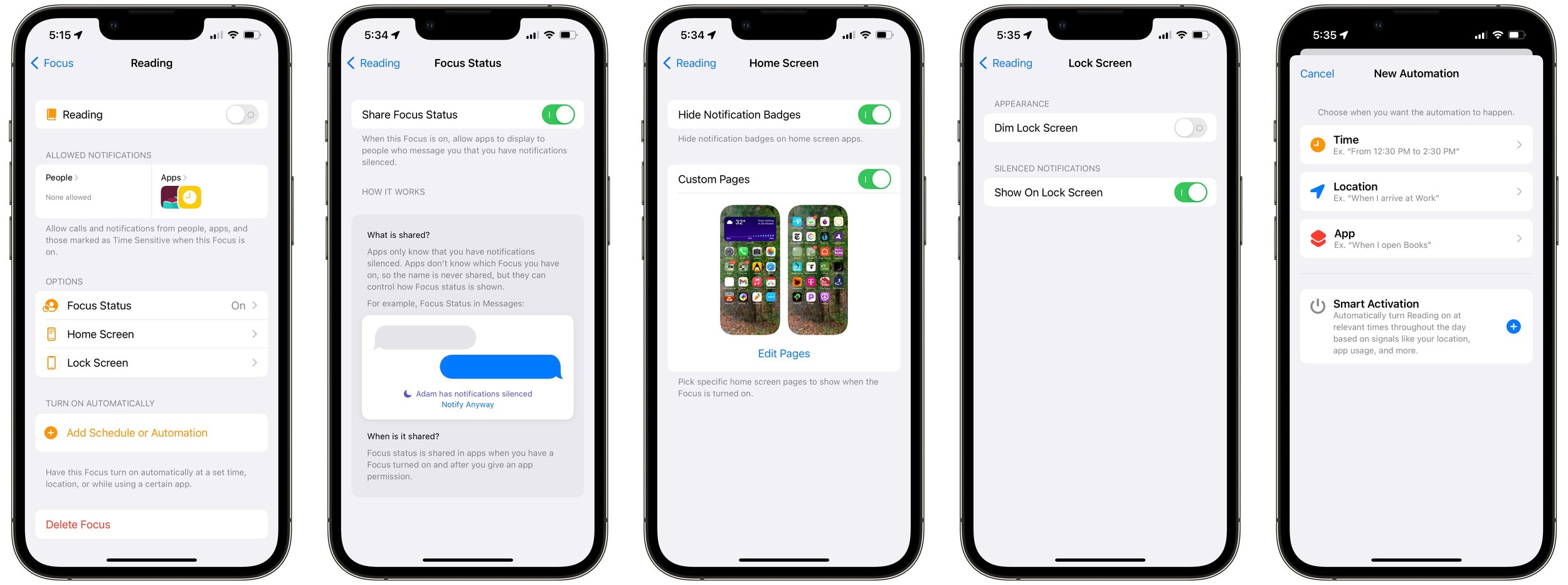
As with any new feature, it’s going to take a bit to figure out how to make Focus work best for you. We’re still learning it ourselves, but here are some recommendations:
To identify when a Focus would be helpful, wait until you find notifications irritating and then think about which ones you’d want a Focus to block.
Create just one or two Focuses at first. You don’t want to end up with a bunch that interact in unexpected ways and cause you to miss important notifications.
Be careful with schedules and automations. An automation that invokes the Reading Focus when Books is open might work well for reading before bed but could be problematic if you read while waiting for a meeting to start.
It may be safest to allow silenced notifications to appear on the Lock screen so you can easily see what you missed afterward and adjust the Focus as necessary.
You can manually invoke a Focus by tapping the Focus button in Control Center and selecting the one you want. Tap the ••• button to the right of the Focus to specify when it should turn off automatically, or just tap the Focus again to turn it off.
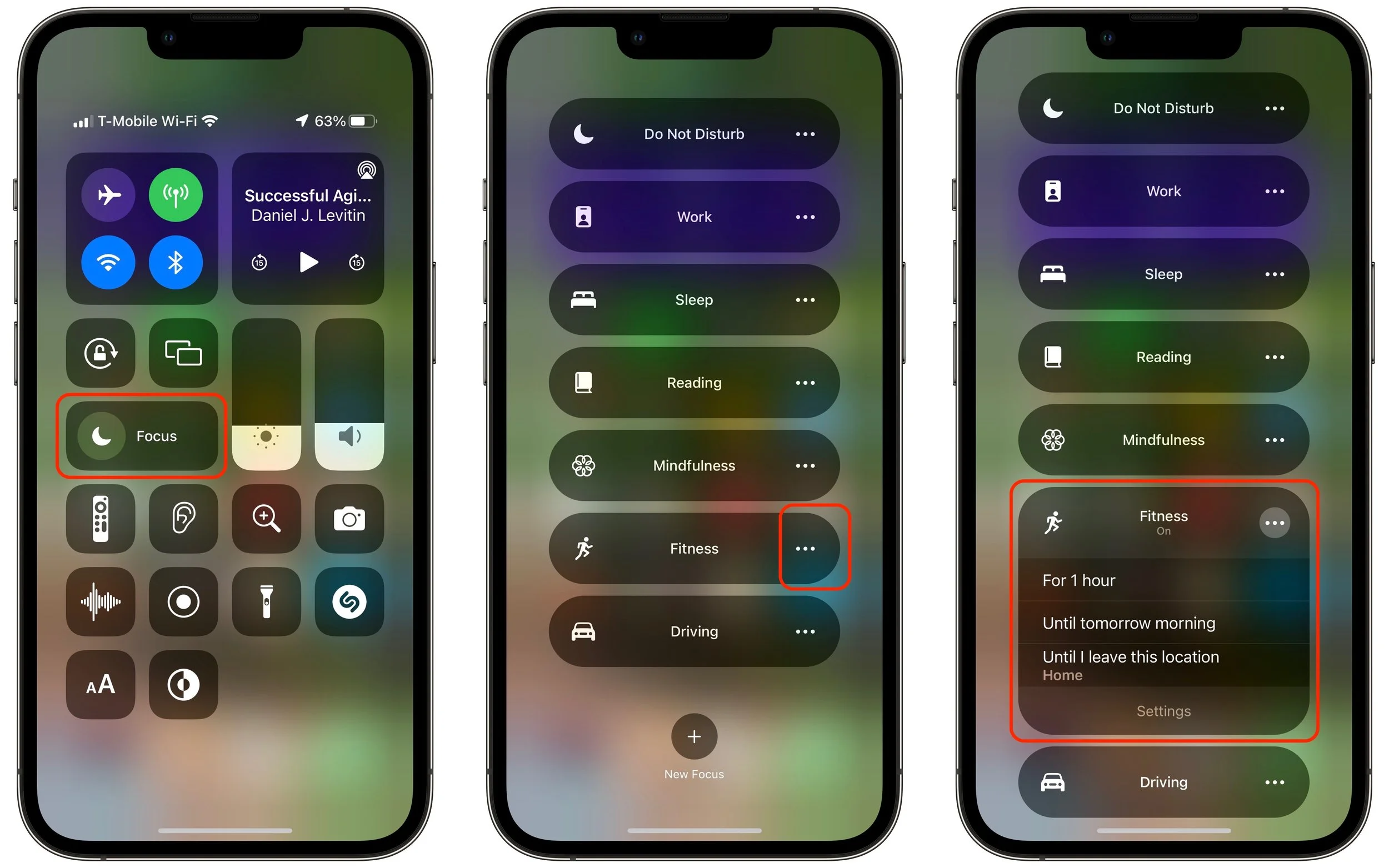
Newness aside, Focus looks like it will help us all cut down on distracting notifications. And if all else fails, stick with just Do Not Disturb, Driving, and Sleep to replicate what we had before.
(Featured image by iStock.com/Daisy-Daisy)
Should You Use Apple’s New Password Manager in iOS 15, iPadOS 15, and macOS 12 Monterey?
Should you start using Apple’s built-in password manager? Most Apple users probably have at least some passwords stored there already, and our article explains who can benefit from it right away and how it differs from popular third-party password managers.

We continually recommend that every Apple user rely on a password manager like 1Password or LastPass for creating, managing, and entering passwords securely. What we haven’t encouraged as heavily is relying on Apple’s built-in password management features. Although they’re free, they’ve been too basic and hard to use over the years, relying largely on an ancient utility called Keychain Access.
However, with the release of iOS 15, iPadOS 15, and macOS 12 Monterey, Apple has at long last created a coherent platform-wide interface—the bluntly named Passwords—for viewing, editing, and deleting passwords on each of its platforms. You might wonder if you need a separate password manager anymore. First, let’s dispense with two common scenarios:
Start if you’re new to password management: If you have so far resisted adopting a password manager, you should start using Passwords on your Apple devices immediately. In all likelihood, you already have some login credentials stored there.
Don’t switch if you like your password manager: If you’re already using another password manager that you like, there’s no reason to switch to Apple’s password manager. It’s fine, but it doesn’t offer any capabilities beyond most independent password managers.
Those who are already using a password manager but aren’t entirely happy with it or would prefer not to pay for it face a tougher decision. How much your password manager is worth to you is a question only you can answer, but would Apple’s Passwords provide the features you need? Here’s what it can do:
Create strong passwords: Safari suggests strong passwords when it detects that you’re creating a new login. In iOS and iPadOS, make sure Settings > Passwords > AutoFill Passwords > AutoFill Passwords is enabled. On the Mac, make sure Safari > Preferences > Autofill > User Names and Passwords is selected.
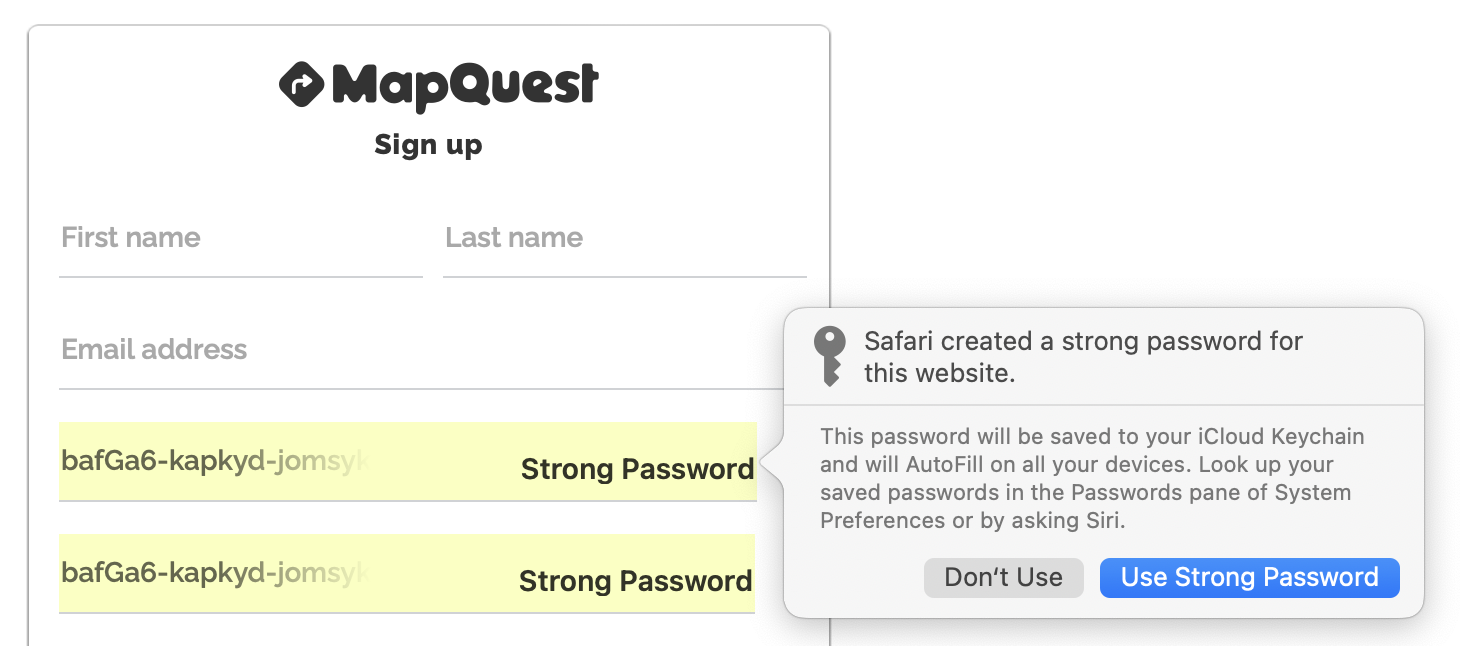
Manage passwords: To see all your passwords, look in Settings > Passwords in iOS 15 and iPadOS 15, and in System Preferences > Passwords in Monterey. Tap or click one to view its details; once inside, use Edit to make changes. You can delete an unused login while editing or from the list. In iOS and iPadOS, swipe left on a login and tap Delete; on the Mac, Control-click the login and choose Delete.
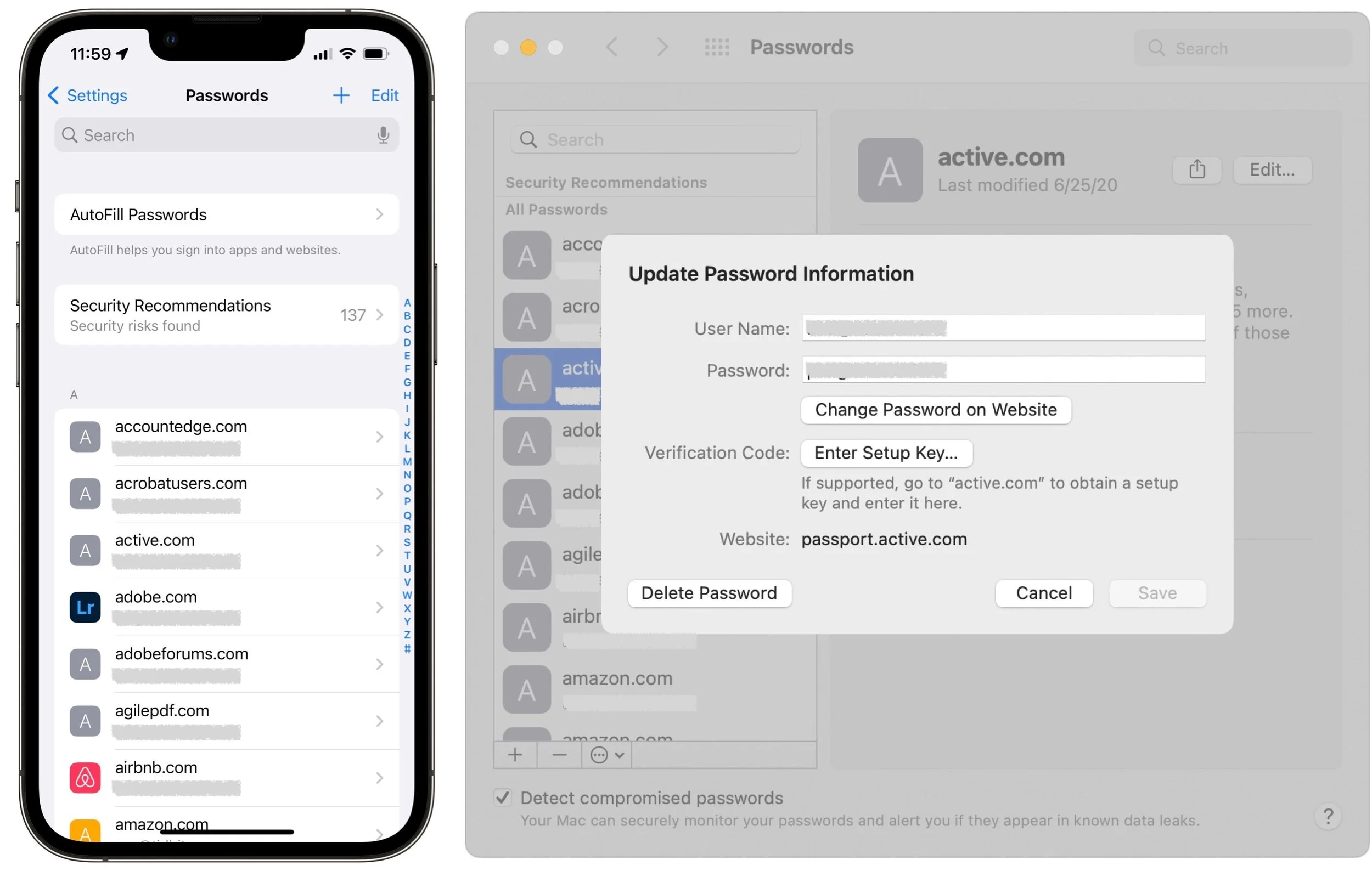
Sync passwords: Passwords are most useful when they’re accessible on all your devices. That will be true as long as Settings > Your Name > iCloud > Keychain > iCloud Keychain is enabled in iOS and iPadOS, and System Preferences > Apple ID > iCloud > Keychain is selected on the Mac. And, of course, all your devices must be signed in to the same iCloud account.
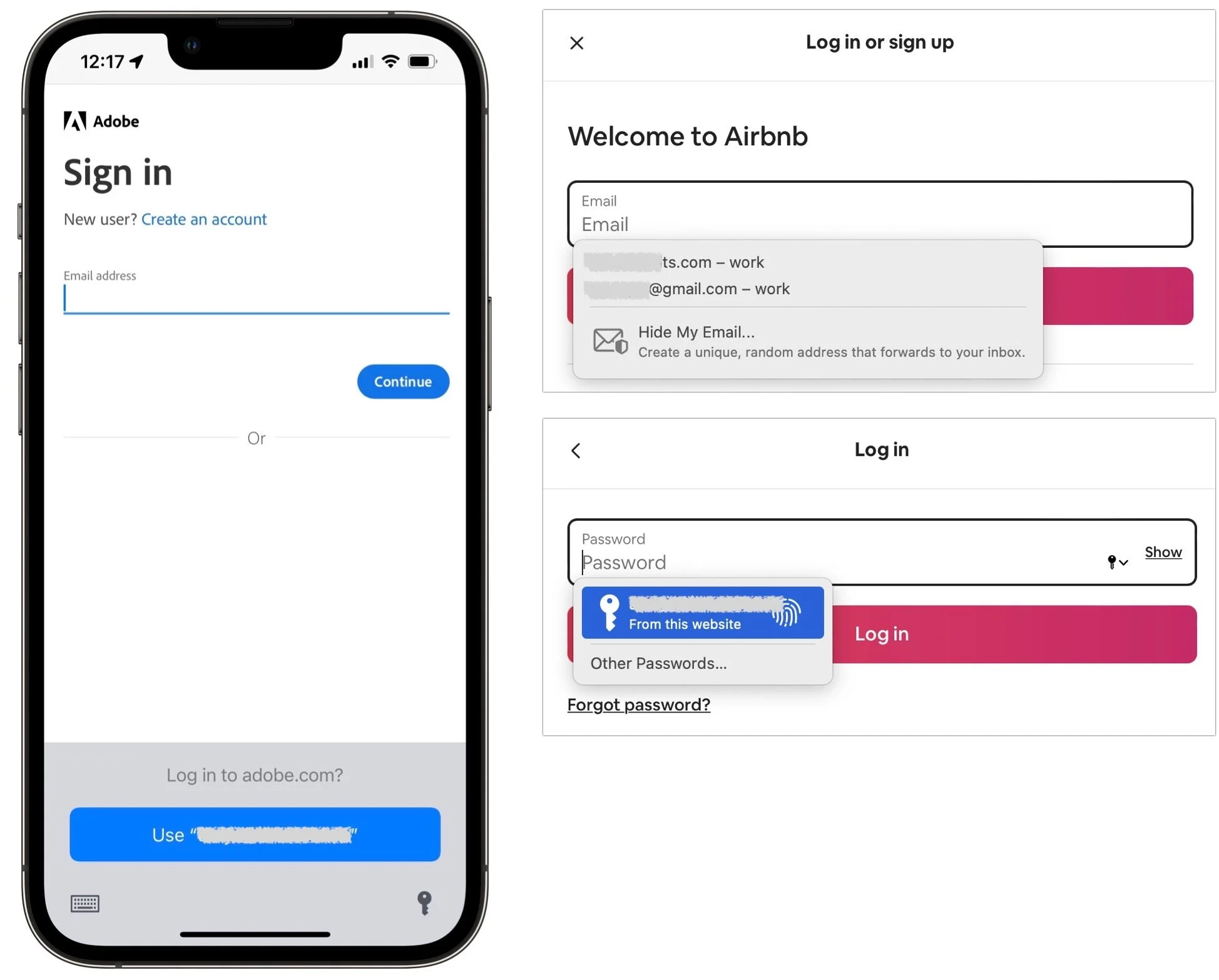
Autofill passwords: As long as the autofill settings mentioned earlier are active, Safari will offer to autofill passwords when you log in to a site whose credentials you’ve stored. iOS and iPadOS apps also support autofill through the keyboard.
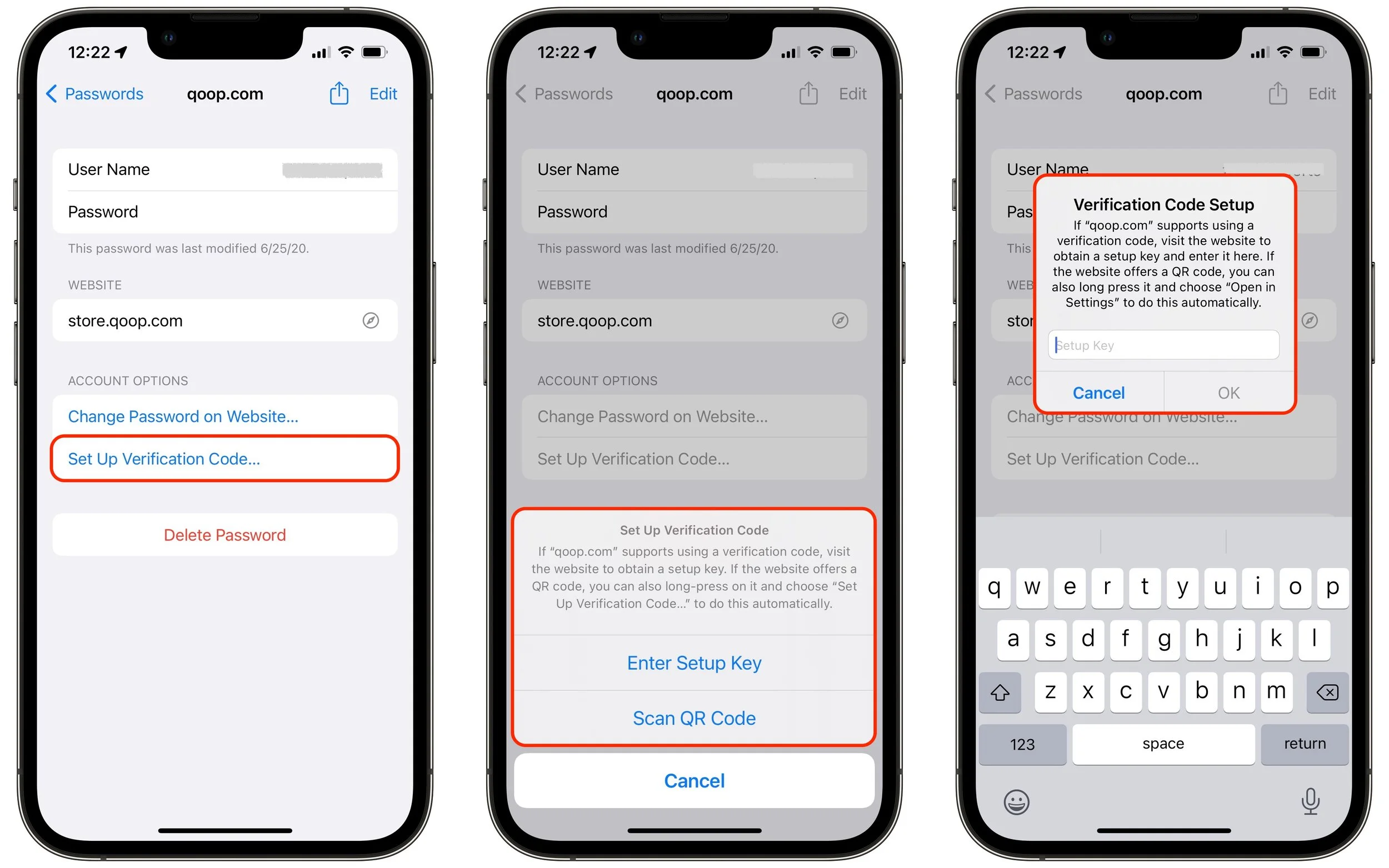
Support two-factor authentication (2FA): This new feature allows you to add the setup secret (usually a scanned QR code or manually entered key) that enables the creation and automatic entry of 2FA codes.
Import and export passwords: In the Passwords preference pane on the Mac, you can now import and export passwords, simplifying migration.
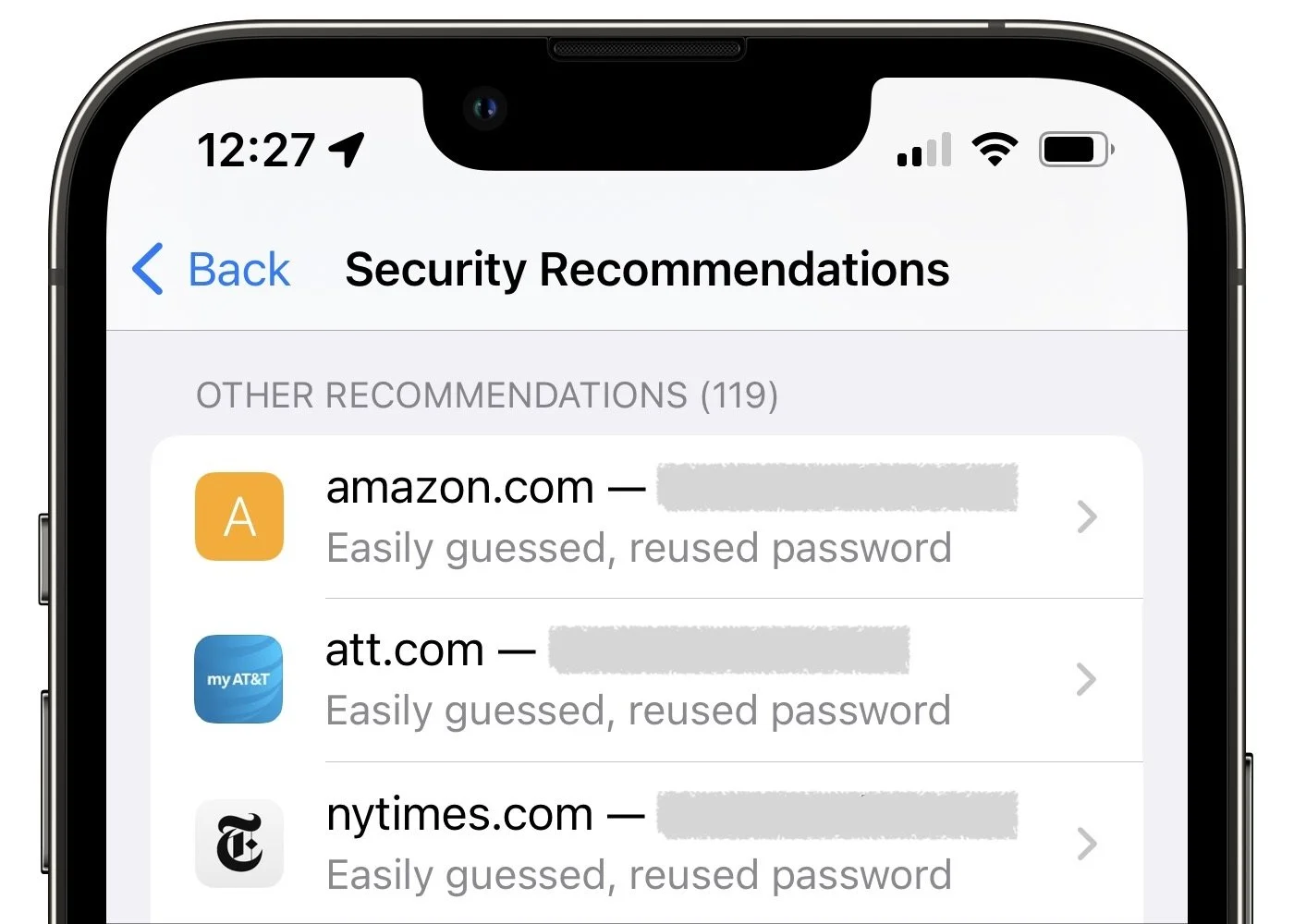
Report questionable passwords: We all have passwords that are easily guessed or reused on multiple sites—the Passwords interface calls out such passwords so you can change them.
Share passwords: If you need to share a password with a family member or colleague, the Share button lets you do that via AirDrop. Passwords are saved into the recipient’s keychain directly.
Detect compromised passwords: Both Settings > Passwords > Security Recommendations and System Preferences > Passwords have a Detect Compromised Passwords option. Select it to be alerted if any of your login credentials are compromised in a site’s security breach.
That’s a solid set of features, and for many people, it will be sufficient. However, independent password managers like 1Password and LastPass have evolved over many years and boast very real advantages:
Multiple platforms and Web browsers: Apple’s password management features focus on Apple operating systems and Safari. There is an iCloud Passwords Chrome extension for Windows, and Web browsers in iOS and iPadOS can tie into the system-wide password features. But for broad support across platforms and use within browsers other than Safari, stick with an independent password manager.
Data beyond Web logins: Want to store your bank account numbers, driver’s license, credit cards, vaccination card, and the like in your password manager? Many independent password managers support secure storage of types of data beyond logins. They also often let you leave notes on items and include file attachments—a screenshot of a screen summarizing login requirements, for instance.
Families and teams: Although Apple is inching in this direction with the forthcoming Digital Legacy program, in which you can specify someone as a Legacy Contact so they can access to your iCloud account in the event of your death, the group sharing features of independent password managers are much more useful here and now. Share key passwords with your spouse or your college-bound child to ensure that everyone will have the access they need to shared accounts.
One-time password sharing: 1Password added this feature recently, and there are independent sites like 1ty.me and onetimesecret.com that provide it as well. In essence, it lets you securely share a single password with anyone else, embedding it in a link that can be viewed only once. That prevents passwords from being sent around in email or text messages where they could be stolen.
In the end, Apple’s new password management features are like so many other built-in features. They offer the basic capabilities that most users need while leaving plenty of room for enterprising developers to offer compelling additional features. Use Apple’s Passwords or another password manager, whichever you prefer. Just don’t rely on a simple text file or physical notebook to manage passwords. It’s more work, easily lost, and far less secure.
(Featured image by iStock.com/peshkov)
Need to Resize Images in Various Ways? Give Preview a Try
If you need to work with graphics occasionally but lack professional tools and experience using them, give Preview a try. It’s on every Mac and is surprisingly capable. Follow along with our tutorial at:

Even those of us who don’t work with graphics professionally often find ourselves needing to resize images. Perhaps you have a large square headshot, but the site to which you’re uploading requires it to be exactly 100 by 100 pixels. Or maybe you have an iPhone 13 Pro photo that’s 4032 by 3024, but you need the long side to be 1280 pixels and the short side to be 800 pixels. You might even need to cut out an 800-by-600 rectangle from a much larger image.
These tasks are easily accomplished with professional graphics apps like Photoshop, but you don’t need to pay for or learn Photoshop for a quick resizing and cropping of an image. That’s because Preview, which is built into macOS, can do many of these tasks with aplomb.
One note: You can resize images to be smaller with little or no loss of quality, but you can’t make images bigger without them looking fuzzier unless you employ specialized tools.
Shrink an Image without Changing Aspect Ratio
Let’s take our first example above. We have a square headshot that we need to upload to an account, but the site won’t accept an image larger than 100 pixels square. To shrink the image to the specified size, we’ll first make a copy in the Finder or we’ll open the file in Preview and choose File > Duplicate. Then, with the image open in Preview, we’ll choose Tools > Adjust Size, make sure “pixels” is chosen to the right of the Width and Height fields, and enter 100 into the Width field. Because Scale Proportionally is selected, Height automatically changes to 100 to match. We’ll click OK to exit the dialog and then save the file.

Shrink an Image and Crop to Different Dimensions
Let’s move on to our second example above. We have a photo of some home-baked bread loaves that we’ve taken with the iPhone, and we need to resize it to 1280 by 800 pixels before uploading it to our food blog. There are two problems: the image is much larger than we need to start, and when we try resizing it to the desired pixel count in one dimension, the other dimension is wrong.
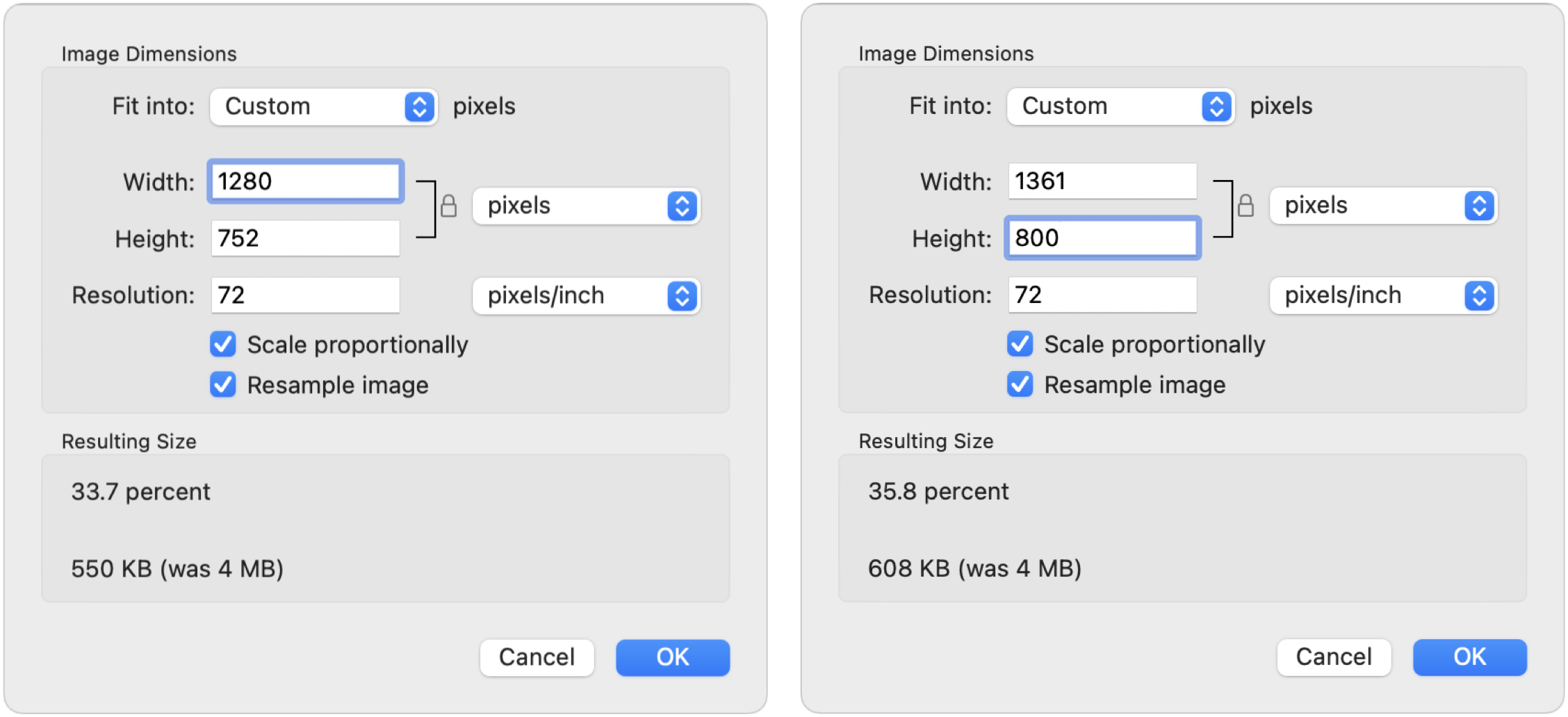
We’ll start the same way we did before, by making a copy of the original and in Preview choosing Tools > Adjust Size. In the Image Dimensions dialog, we’ll first type 1280 into the Width field. In this example, doing that causes the Height field to change to 752, which is too small (below left). Remember, shrinking images is easy and works well, but expanding them is hard. So instead, we’ll type 800 into the Height field, which causes the Width field to change to 1361 (below right). That’s good; we’ll click OK to resize the image. It will look small, but we can zoom it back to the window size by choosing View > Zoom to Fit.
For the next step, we need to get the image width down from 1361 to 1280 pixels, which we do by cropping. Choose Edit > Select All (or just press Command-A), and notice that there’s a selection rectangle around the entire image, with blue drag handles in the middle of each side and at each corner. We’ll need to take some off each side to keep the loaves centered, so we’ll drag the left side in a little to start. If you have trouble grabbing the blue drag handles instead of the edge of Preview’s window, choose View > Zoom Out to zoom out one step and separate the handles from the window edges.

Next, we’ll drag the right side in. Notice that as we drag, Preview displays the image dimensions in a little lozenge (at the right in the screenshot)—we’ve stopped at 1280. Since we’re moving only the edges, only the width changes—resizing from the corners would be much harder because both dimensions would change simultaneously.
One tip. If you’ve gotten the selection rectangle to 1280 by 800, but the content under it isn’t centered as you’d like, press and hold the left or right arrow key to move the selection rectangle to the left or right.
Once we have the selection rectangle at the right size and in the right place, we’ll choose Tools > Crop to discard the image content outside the selection.
Extract a Portion of an Image with Specific Dimensions
For our final example, let’s assume that we have a large picture of cherry tomatoes, and we need to cut out just the black tomatoes for a Web page that requires an 800-by-600 image. Once again, the image is too large, but the trickier problem is that we only need a small portion of it.
We’ll start by dragging out a selection rectangle that’s roughly 800 by 600, using Preview’s measurement lozenge. All we’re doing here is getting a sense of what the shape of 800 by 600 looks like. Then we make another selection around the black cherry tomatoes that’s roughly the same aspect ratio, wider than it is tall. The details don’t matter much at this point.

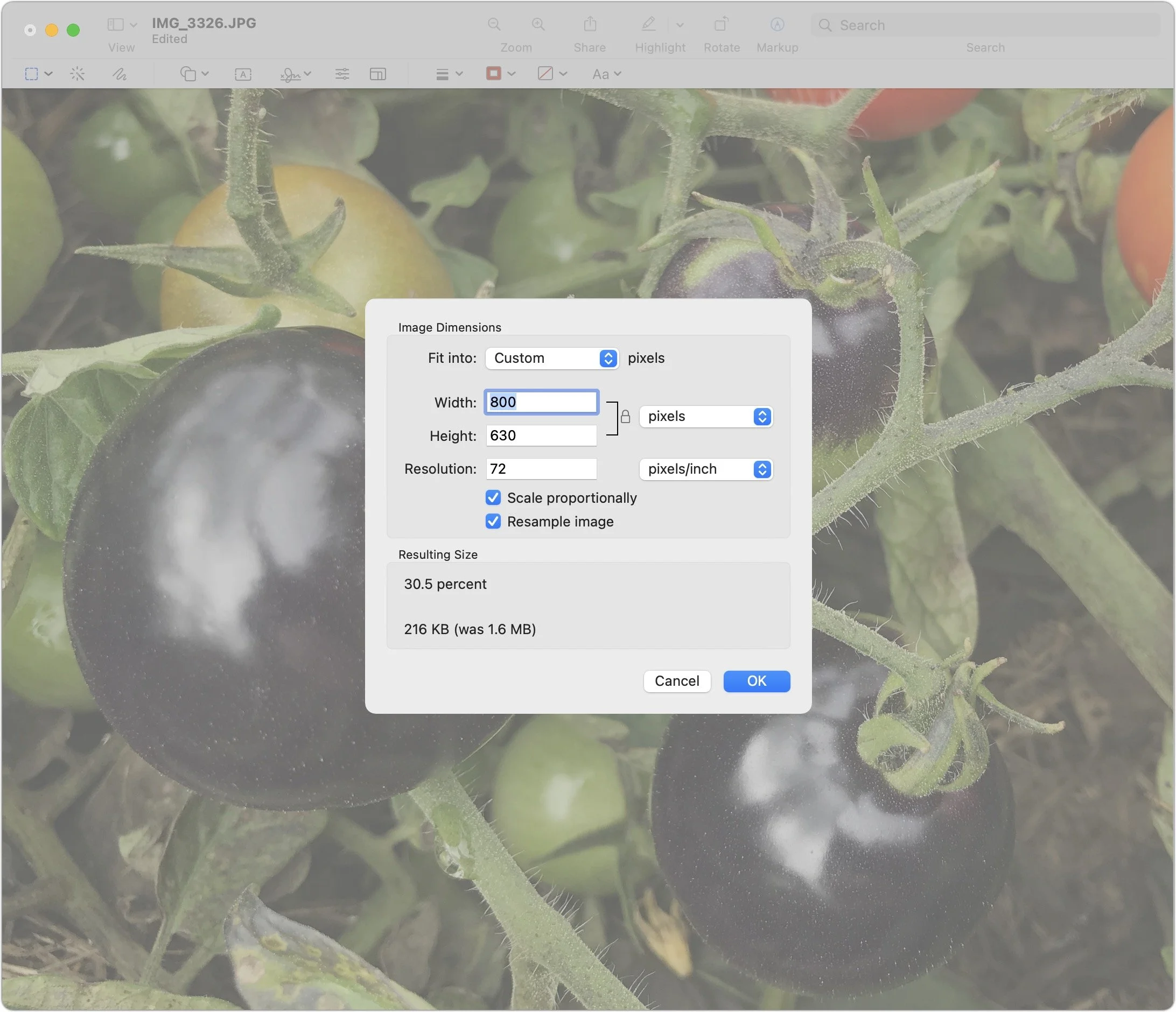
The next step is to crop the photo to the selection with Tools > Crop. Then we choose Tools > Adjust Size and set the Width field to 800 to get the width correct. That reveals that the height of our rough crop was slightly too large, at 630 pixels. We’ll click OK to resize the image to those dimensions.
Finally, we’ll use the same technique we did in the example above, with Select All, dragging the top handle down until the dimensions are 800 by 600, and then using Tools > Crop to discard the extra content.

As you can see, you can do a lot with just three basic techniques in Preview:
Using Tools > Adjust Size to resize the entire image
Dragging out selection rectangles while paying attention to the measurements
Using Tools > Crop to get rid of content outside the selection rectangle
We won’t pretend that Preview is the ultimate graphics tool, but it’s capable, easy to use, and on every Mac.
(Featured image by iStock.com/Gearstd)
Live Text Digitizes Text in Photos in iOS 15, iPadOS 15, and macOS 12 Monterey
Perhaps the most magical feature of iOS 15, iPadOS 15, and macOS 12 Monterey is Live Text, which turns words in photos and other images into text you can select and then copy, look up, or translate. Learn how at:

The most magical feature of Apple’s latest crop of operating systems—iOS 15, iPadOS 15, and macOS 12 Monterey—may be Live Text. You’re probably familiar with the concept of optical character recognition (OCR), which turns all the text on a scanned page into normal text you can select, copy, and edit. Live Text does exactly that in Photos, Safari, and the Camera app, plus lets you search for text in photos. And it does it in not just in English, but also Chinese, French, German, Italian, Portuguese, and Spanish.
Thanks to the incredible processing power of Apple’s recent devices, this digitization of graphics to text takes place instantly—hence “live” text. Apple says it works on any Mac that can run Monterey, but on the iPhone and iPad, it requires a model with an A12 Bionic processor or later, which means anything in this list (check your device in Settings > General > About > Model Name):
iPhone XR, XS, XS Max, and later, including the iPhone SE (2nd generation)
iPad Pro 12.9-inch (3rd generation) and later
iPad Pro 11-inch
iPad Air (3rd generation) and later
iPad (8th generation) and later
iPad mini (5th generation) and later
Live Text in Photos
The main place you’ll use Live Text is in Photos. In iOS and iPadOS, when viewing a picture containing text, touch and hold a bit of text until it highlights in blue. (For text-intensive images, Photos displays a Detect Text button in the lower-right corner; tap it to highlight recognized text.) The familiar text popover then appears. Drag the blue selection handles to adjust the selection as desired or tap Select All. Then you’ll most likely want to copy the text, switch to another app, and paste, though you can also do a Web search by tapping Look Up or have the device read the text out loud by tapping Speak.
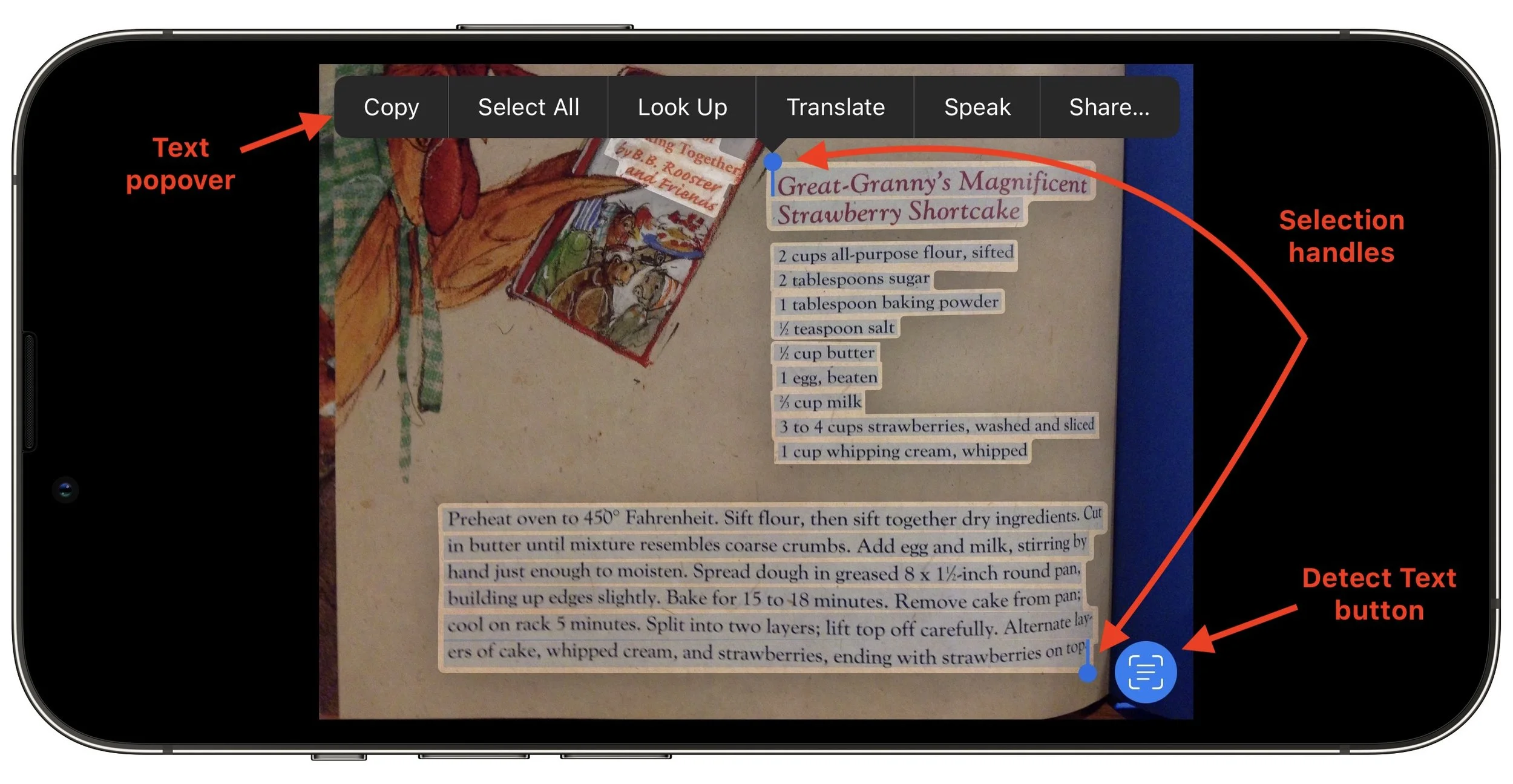
Two quick tips:
Want to copy text from an app that doesn’t even let you select text? Take a screenshot of the app and use Live Text to copy it.
If you have an animated Live Photo that contains text, touch and hold the text to select it; touch and hold away from the text to animate the photo.
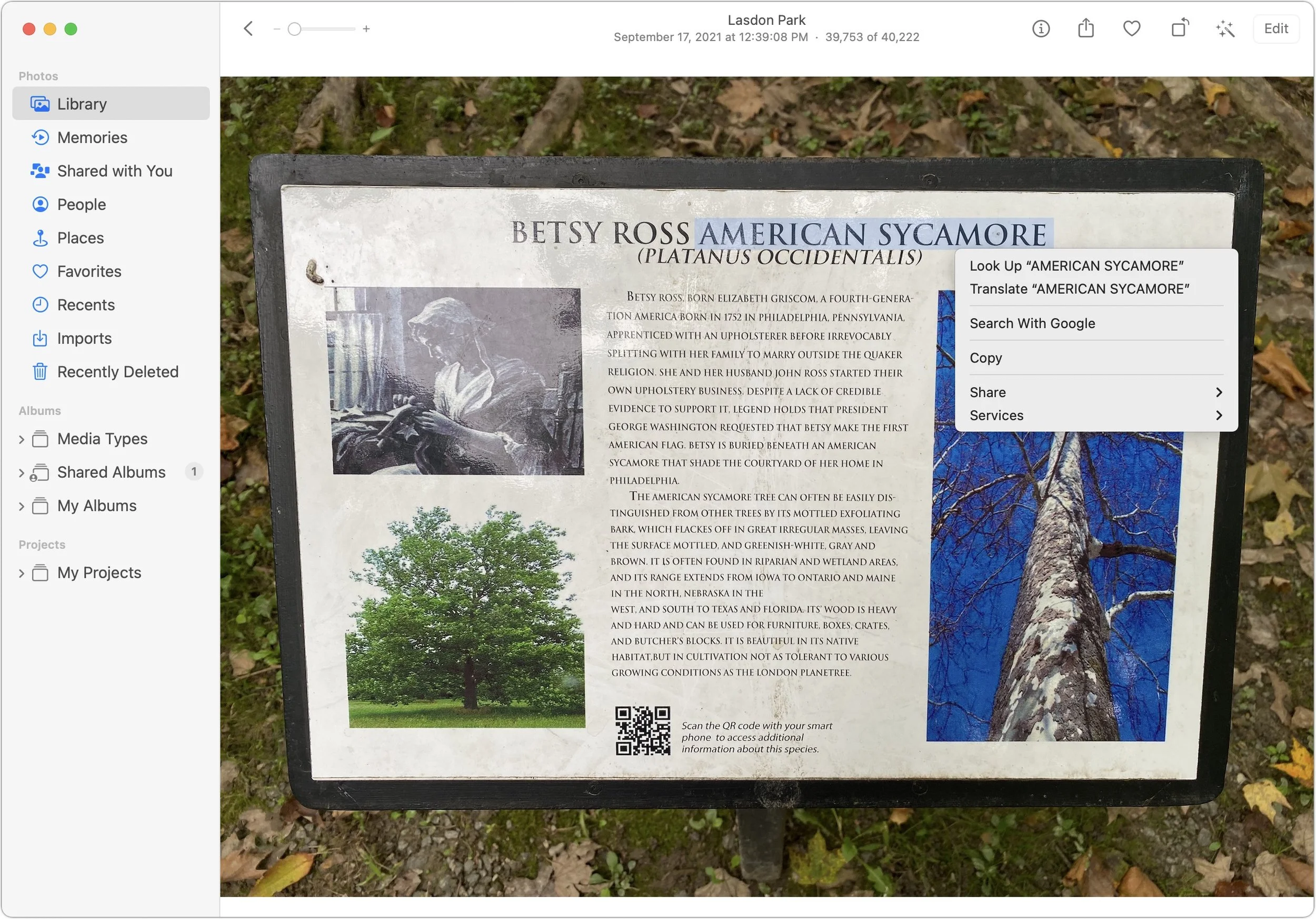
In Monterey, move the pointer over the text so it turns to a text selection cursor, then select the text, after which you can copy it as you would any other text. You can also Control-click the selected text to access Look Up or Translate.
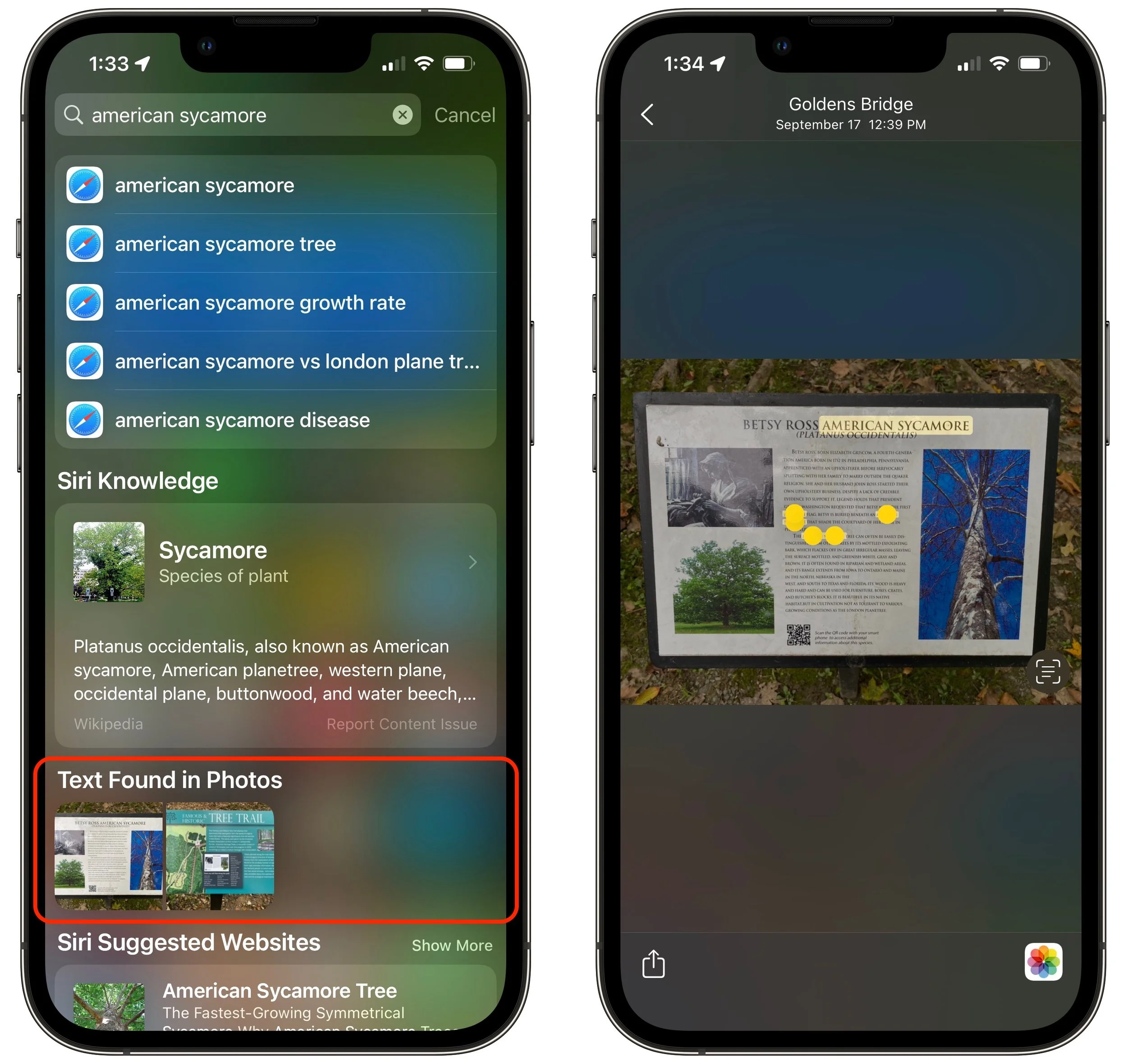
As a bonus in iOS 15 and iPadOS 15, text from Photos that Live Text has recognized is indexed by the system-wide search. So when you pull down from the middle of the Home screen and search, a Text Found in Photos section shows images that contain the search text. Tap one to view it, and note that there’s a Detect Text button in the preview that identifies text you can select right there. Or tap the Photos button in the lower-right corner to open the image in Photos.
Live Text in the Camera App
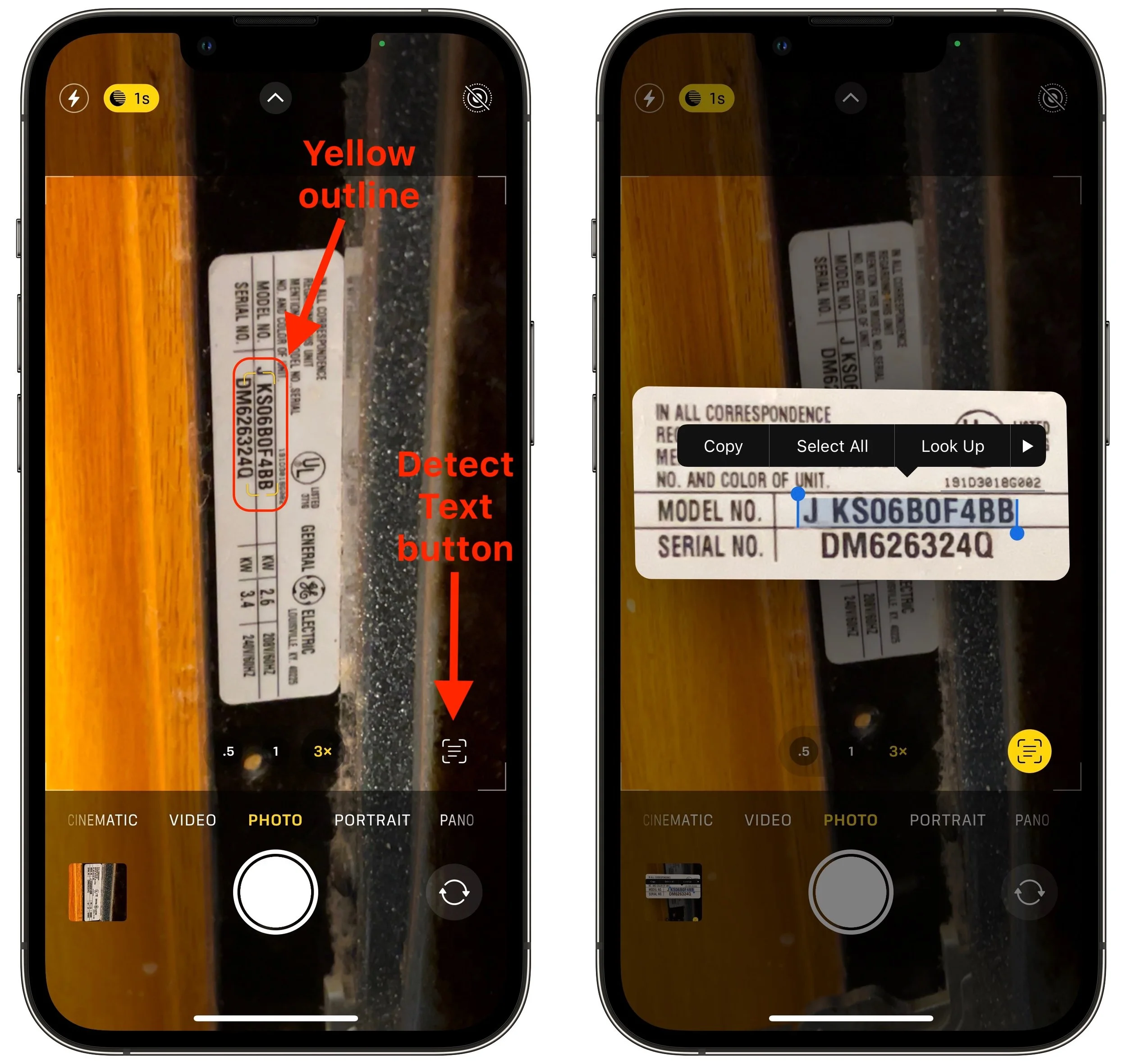
Sometimes you may want to capture some text in the real world without having a photo to store and later delete—getting an appliance’s model or serial number is a perfect example. When Live Text detects text in the Camera app’s viewfinder, it puts a faint yellow outline around it and displays the Detect Text button. Tap the Detect Text button to freeze and zoom the selection—it even rotates sideways text to be readable—and then tap the text to select and copy it. Tap the Detect Text button again when you’re done.
There’s another way to use Live Text in conjunction with the iPhone or iPad camera that’s useful if you need to insert a large amount of text directly into a document. In an app that supports Live Text, like Notes, tap in the text entry area and then tap the Scan Text button. A viewfinder appears on the bottom half of the screen, with a yellow outline around detected text, and the recognized text above. If that’s what you want, tap the Insert button to put the text into your note or document.

Live Text in Safari and Other Apps
Because Apple integrated Live Text into its operating systems, it’s available nearly anywhere you might see an image that contains text. For instance, in Safari, you’re likely to run across such images, or you might have embedded photos in Notes that contain text. Selecting text using Live Text works exactly the same as in Photos—either touch and hold on an iPhone or iPad, or just select the text on the Mac. And on the Mac, Live Text even works when you select an image in the Finder and press the Space bar to view it in Quick Look.

Other Live Text Tricks
Identify types of data: When Live Text recognizes text that contains an email address, phone number, postal address, or date, you can touch and hold it to bring up special options to send an email, call the number, map the address, or make an event or reminder.
Translate Live Text: The Translate app in iOS 15 and iPadOS 15 is now a system-wide service, so it can translate any text you can select, including text recognized by Live Text in a photo or in the Camera app. Just select it and tap Translate.
Hear Live Text: If you rely on VoiceOver to help you navigate your iPhone or iPad, note that you can leverage Live Text to get VoiceOver to read text in your photos out loud. Go to Settings > Accessibility > VoiceOver > VoiceOver Recognition and turn on Text Recognition. Then, while viewing a photo, tap the text in the photo to have VoiceOver read to you.
It may take a little while to remember that you can select and copy, look up, or translate nearly any text you see in a picture—or in your camera viewfinder—but once you’ve tried Live Text a few times, we’re betting that you’ll find it surprisingly useful.
(Featured image by Adam Engst)
Avoid Unusual Top-Level Domains in Custom Domain Names
Tempted to get a short, memorable domain name ending in .xyz or .shop? As we explain, that’s a bad idea if you care about user perception, email and text message deliverability, and not being blocked by social media and firewalls. Details at:

Remember the heady dotcom days, when businesses were desperate to get a short, memorable, easily typed .com domain? It quickly became difficult to get what you wanted—so much so that deep-pocketed companies paid exorbitant sums for just the right domain.
Before we go any further, let’s make sure we’re all on the same page. Domain names are necessary because computers on the Internet are all identified by inscrutable numeric IP addresses. You can remember and type apple.com easily; 184.31.17.21 not so much. Domain names have two or more parts: the top-level domain (read from the end, such as com) and the second-level domain (like apple), plus optional third-level domains (which could give you support.apple.com).
Since the days of speculating in .com domains, however, hundreds of additional top-level domains have been opened up, including domains from .aaa to .zone. There are now top-level domains for .doctor, .florist, .lawyer, and many more, including the general .xyz. It might be tempting to switch from the awkward dewey-cheatham-howe.com to the shorter and more memorable dch.lawyer. And even if there isn’t a profession-specific top-level domain that works for you, you may think that if abc.xyz is good enough for Google’s parent company Alphabet, surely it’s good enough for you.
Alas, much as we appreciate the creativity and flexibility offered by these alternative top-level domains, we’d like to dissuade you from using one, if possible. Problems include:
Email deliverability: If you’re sending email using an alternative top-level domain or including links to that domain, it’s much more likely that your email will be considered spam by receiving systems.
SMS deliverability: Some SMS text message providers will automatically delete messages containing URLs with alternative top-level domains in an effort to protect their customers from phishing attacks.
Social media spam filtering: As with SMS text messages, social media posts that include URLs with alternative top-level domains may be categorized as spam or as linking to a malicious site.
Firewall blocking: Abuse of alternative top-level domains has become so commonplace by scammers that some companies prevent their employees from accessing websites using certain alternative top-level domains at the firewall level.
User perception: Although there’s no telling how anyone will react to a particular top-level domain, people won’t think twice about .com but might think .ooo seems sketchy. (We would.)
Obviously, it may not be possible to get the domain name you want in .com. What to do? There are a few strategies:
Expand or abbreviate: At this time, people mostly don’t see, remember, or type domains apart from those that go with businesses that do a lot of real-world advertising. So if you need to add or subtract words (or letters) in your domain to find a unique one, that can work.
Use a country domain: Two-letter top-level domains are restricted for use by countries, so .us is for the United States, .ca for Canada, and .au for Australia. Every country has different rules for who can register them. For instance, it’s possible to get a domain ending in .it (Italy) as long as you work through a registrar that acts as your representative there. .io (British Indian Ocean Territory) and .ai (Anguilla) are popular top-level domains among tech companies.
Stick with better, pricier alternatives: Not all alternative top-level domains are equally problematic. The classic .net and .org are fine, and .biz isn’t bad. But how to determine that? When you’re checking to see if a domain name is available, compare prices. For instance, at one domain name registrar, iphonewhisperer.xyz costs only $1 per year, whereas the iphonewhisperer.biz version is $4.98 per year, iphonewhisperer.net is $9.18 per year, and iphonewhisperer.studio is $11.98 per year. The more you pay, the less likely that domain has been abused by spammers and marked for filtering.
In the end, when it comes to domain names, it’s best to be conservative and stick with a top-level domain that won’t cause people or filters to think twice. That’s probably .com, if you can make the rest of the name work for you.
(Featured image by iStock.com/BeeBright)
The Best Apple-Related Gifts for 2021
Looking for the perfect holiday gift for the Apple user in your life? Given supply chain problems, it’s not too early to start shopping. Here are our suggestions for the top Apple-related gifts for 2021.
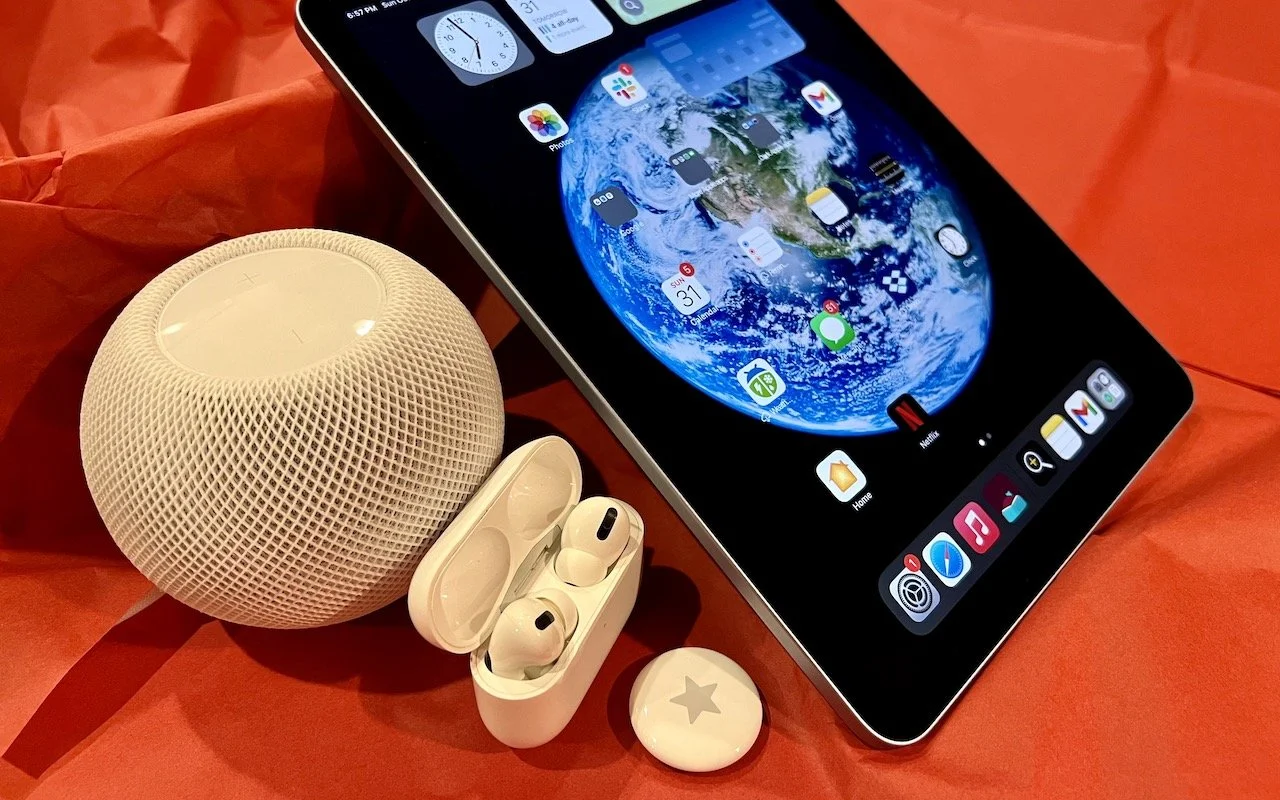
It may seem early to start thinking about the holiday shopping season, but with the global supply chain suffering pandemic-related slowdowns, there’s no telling how long it will take to get something you order today. Apple has generally done a good job of managing its supply chain issues, but even still, if you want to make sure you have an Apple something for that special someone, we recommend buying it soon. Here are our recommendations.
AirTag
Do you know someone who’s always misplacing their keys, purse, or backpack? Apple’s new AirTag tracker is the perfect gift for such a person. Attach one to a keyring (with a separate $29 AirTag Loop or $39 AirTag Leather Loop) or drop it in a bag, and from then on, the person can use the Find My app to see where they left their stuff. Support for ultra-wideband enables precision finding with an iPhone 11 or later—with earlier iPhones, the detected location won’t be quite so precise. AirTag uses the Find My network, so even if the item is far away, passing Apple devices that detect it can securely share its location with you. One AirTag costs $29, or you can get a pack of four for $99. You can even have Apple personalize each AirTag with custom text and emoji.

AirPods and AirPods Pro
Apple’s wireless earbuds remain popular, and the company just released the third-generation AirPods to supplement the second-generation AirPods and the AirPods Pro. All three make excellent gifts. The second-generation AirPods cost $129, have a relatively long stalk, and boast up to 5 hours of listening on one charge. The $179 third-generation AirPods shrink the stalk, switch to a force sensor for controls, add support for spatial audio with dynamic head tracking, feature sweat and water resistance, have a MagSafe wireless charging case, and last up to 6 hours on a single charge. For $249, the AirPods Pro include the features of the third-generation AirPods and add silicone ear tips and active noise cancellation with optional transparency mode, but they have only 4.5 hours of listening time. All three have charging cases, support Hey Siri commands, and automatically switch between Apple devices.

HomePod mini
Earlier this year, Apple discontinued the full-size HomePod, which wasn’t a big hit at its relatively high price of $299. However, the $99 HomePod mini remains available, and Apple is now selling it in five colors, with blue, orange, and yellow joining white and black. (The new colors will become available at some point in November.) The grapefruit-sized HomePod mini may be small, but it produces great sound for its size, and it can do pretty much everything the larger HomePod could do. You can control it entirely via Siri, pair two for stereo sound, use it as a hub for your HomeKit home automation accessories, and even have it play the sound from your Apple TV. Put a HomePod mini in different rooms in the house, and you can use Intercom to communicate with family members using your voice. If you’re giving it as a gift, remember that it’s best when paired with an Apple Music subscription.

iPad and iPad mini
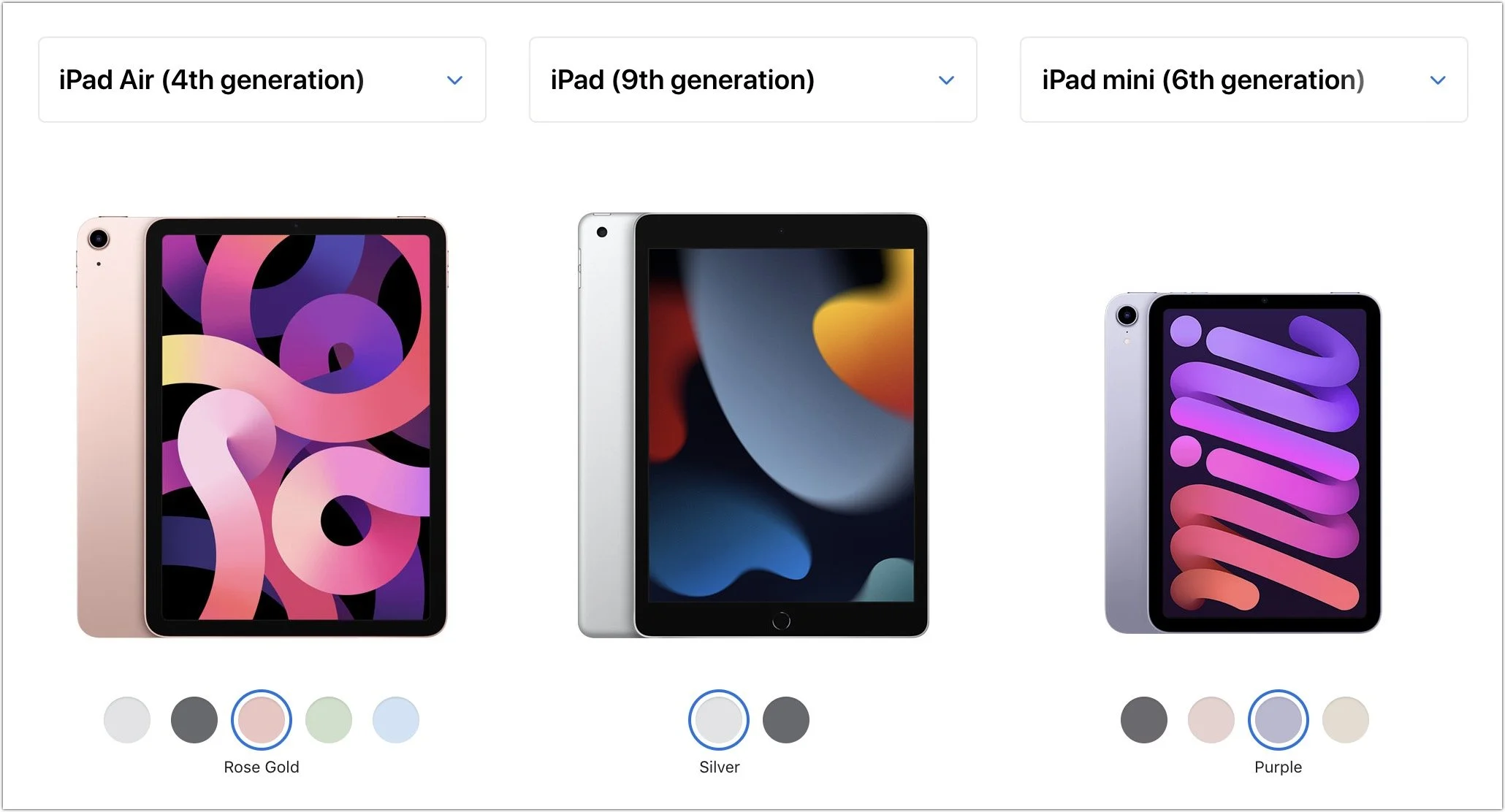
If you’re looking to give an iPad as a gift, you have a lot of choice. The top-of-the-line iPad Pro may be overkill for most given its power and price—$799 for the 11-inch model and $1099 for the 12.9-inch model. But the fourth-generation iPad Air, which starts at $599, provides sufficient power for even the most intensive tasks, especially when coupled with a second-generation Apple Pencil ($129) and either a Magic Keyboard ($299) or Smart Keyboard Folio ($179).
If those possibilities seem pricey for an iPad that’s destined for a kid or an adult with basic needs, look no further than the new ninth-generation iPad, which remains a bargain at $329. It works with the first-generation Apple Pencil ($99), and those who need to write can add the $159 Smart Keyboard. Finally, don’t forget the sixth-generation iPad mini, which benefited from a major redesign back in September. It’s now more like a diminutive version of the iPad Air, with more colors and a squared-off industrial design compatible with the second-generation Apple Pencil. It’s $499, and if you need a keyboard, you’ll have to look to a third-party manufacturer or use a standard Bluetooth wireless keyboard.
Apple Watch Gift Certificate
Last but far from least, we love the Apple Watch, and it would seem to make a great gift. However, we urge caution. Apple provides a dizzying number of options for case size, material, and color, plus the band and color, making it difficult to know what would be most appreciated. So we’d encourage giving a certificate that’s good for a conversation about what to purchase. Then sit down with the recipient to run through all the decisions in the Apple Watch Studio.
There are three options this year: the new Apple Watch Series 7 (starting at $399), last year’s less expensive Apple Watch SE (starting at $279), or the much older Apple Watch Series 3 (starting at $199). Get the Series 7 if you want an Always-On Display, blood oxygen sensor, and ECG capabilities—it also boasts a larger screen than last year’s Series 6 while remaining compatible with all the bands. The Apple Watch SE lacks the Series 7’s advanced sensors and has a slightly smaller screen size, but it still provides the compass, altimeter, and fall detection features. The screen on the Series 3 is smaller yet, and it lacks a number of key features. Unless keeping the cost to a minimum is essential, we have a hard time recommending the Series 3—it’s getting too old. Apple has a helpful comparison tool.

You may have noticed that we didn’t include any Macs in this article. They are worthy gifts, but they’re quite a bit more expensive and more difficult to select without extensive discussion of the recipient’s needs. Let us know if you need help choosing the right Mac for someone on your list, but we’re partial to the M1-based MacBook Air and 24-inch iMac for many users.
(Featured image by Adam Engst)