
First Wave of Apple Intelligence Features Appear in macOS 15.1 Sequoia, iOS 18.1, iPadOS 18.1
Apple Intelligence is here! These initial features won’t upend your Apple experience, but welcome additions include notification summaries in Messages, message list summaries in Mail, Clean Up in Photos, and audio transcripts and summaries in Notes.
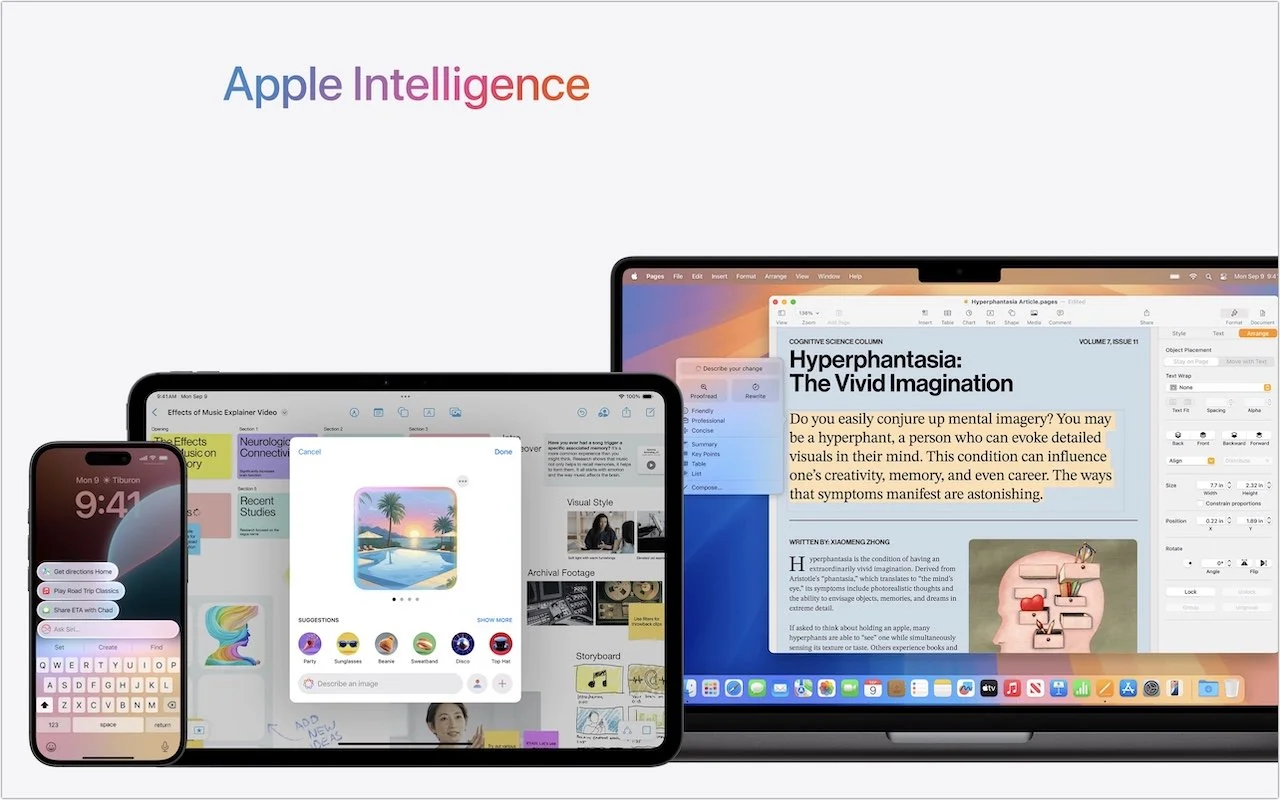
Is it time to make your Apple devices smarter? Apple has just released macOS 15.1 Sequoia, iOS 18.1, and iPadOS 18.1 with an initial collection of Apple Intelligence features and a promise of more coming in December. The company is making a big deal about Apple Intelligence, calling it out as a key feature of the recent updates to the iPad mini, iMac, Mac mini, and MacBook Pro.
You may need some of that new hardware to take advantage of Apple Intelligence. Its features work only on a Mac with Apple silicon, an iPad with an A17 Pro or M-series chip, or an iPhone 15 Pro or any iPhone 16. Intel-based Macs and older iPhones and iPads can’t play.
Although we have no problem with recommending that you upgrade your iPhone and iPad to iOS 18.1 and iPadOS 18.1, we recommend more caution when it comes to upgrading your Mac to macOS 15.1 Sequoia. There aren’t any general showstoppers, but you shouldn’t upgrade until you’re confident your particular workflows are fully compatible.
What will Apple Intelligence do for you if you upgrade? Here’s what you need to know.
Writing Tools Everywhere
The Apple Intelligence Writing Tools will help you craft and polish your prose—or just make your email sound more professional. Writing Tools provides three core functions:
Proofread: The Proofread tool will significantly reduce spelling, punctuation, and grammar mistakes in your text. While it may not match up with a human proofreader, using it will make your text cleaner.

Rewrite: If you’re unhappy with the tone of your text, use the Rewrite tool to improve it or make it friendlier, more professional, or shorter. Even if you don’t adopt the complete rewrite, some of its phrases or word choices might take your writing up a notch.
Summarize: A straight summary might be useful for condensing text, and specialized summaries can list key points, make a list, or create a table. These features are probably most useful when working with text you’ve been given and need to edit into shape.
Writing Tools are available in nearly all apps that accept text. Either look for an Edit > Writing Tools menu or Control-click a text selection and look in the Writing Tools submenu. Right now, Apple apps like Mail and Notes provide proofreading controls that let you see (and revert) each change independently. With the Rewrite and Summary tools and Proofread in other apps, you have to compare the original and the rewrite manually, with your only options being to replace the selected text or copy the suggested revision.
Photos Enhancements
Photos benefits from Apple Intelligence in three ways as well:
Clean Up: Many a great photo suffers from a random bystander or distracting telephone pole. Clean Up removes people and objects from your photos, either identifying them automatically or working from your manual selection. It’s not perfect, but Clean Up is a hugely welcome addition to Photos.

Descriptive search: We’ve been able to search for objects in photos for several years now, but with Apple Intelligence, you’ll be able to find photos and videos based on more extensive and natural descriptions, like “Halloween in 2014.”
Descriptive memory movies: The Memories feature in Photos automatically creates movies based on photos it thinks you might want to see together. With Apple Intelligence, you can describe the photos you’d like it to include.
Notification Summaries
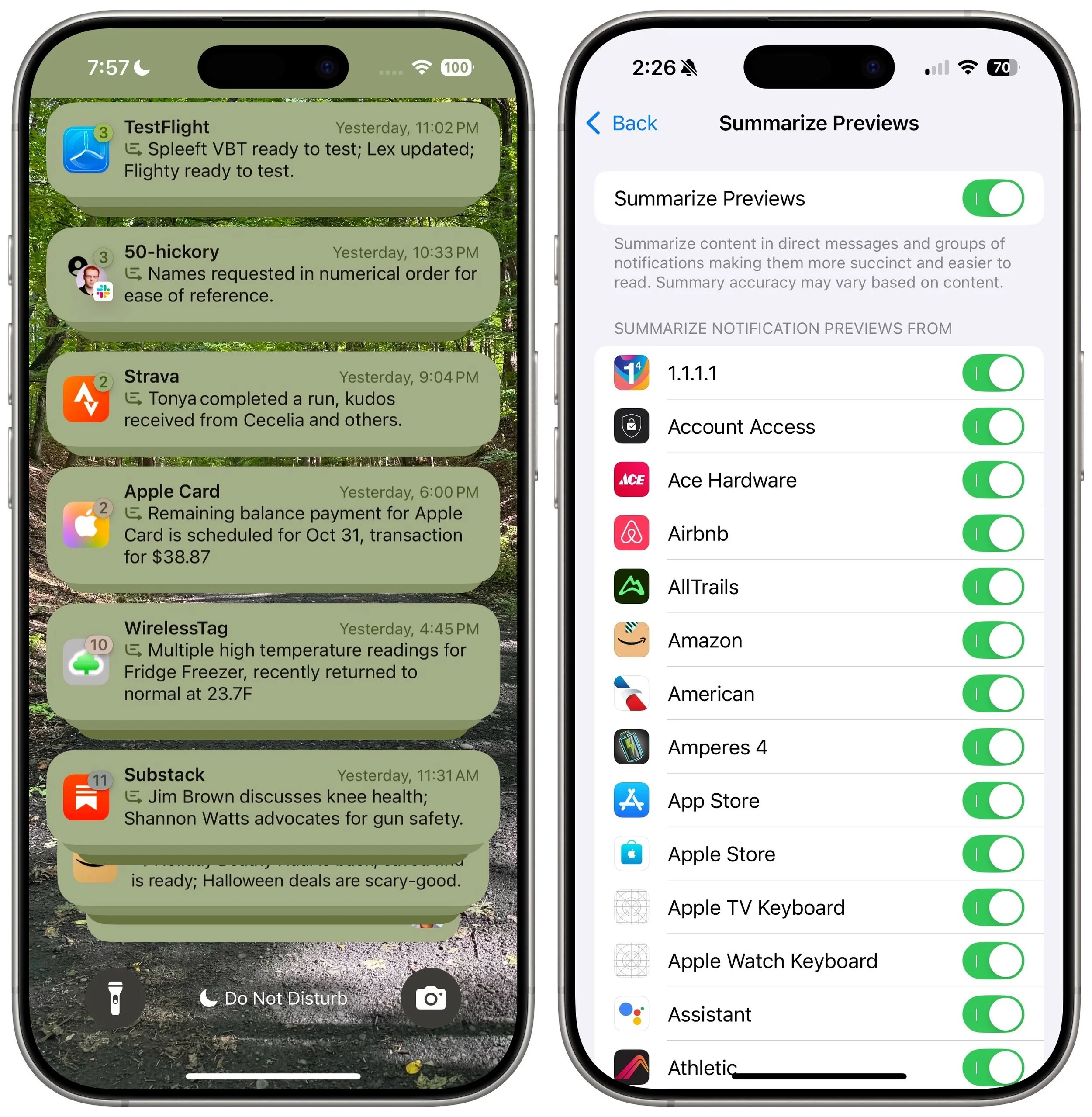
Apple has long been sensitive about how distracting our devices can be due to numerous apps posting notifications throughout the day. Apple Intelligence tries to help by summarizing lengthy individual notifications and groups of notifications. Notification summaries probably won’t rock your world, but it can be nice to have a sense of what’s going on with a group of notifications before you wade into an involved conversation. If you don’t like the summaries for particular apps, turn them off in Settings > Notifications > Summarize Previews.
Mail (and Messages) Enhancements
Speaking of summaries, in Mail, the most welcome Apple Intelligence change is to replace each first-line snippet in message lists with summaries of the message or conversation content. It makes scanning email for important messages easier.

Other Apple Intelligence changes include moving priority messages—those that require a quick reply—to the top of the message list and the option to summarize long messages or conversations using a Summarize button at the top of the message pane. Both Mail and Messages also offer a Smart Reply feature that suggests reasonable replies. They’re like tapback responses on steroids.
Audio Recording, Transcription, and Summarization
Apple Intelligence offers major advances for the Notes and Phone apps: audio recording, transcription, and summarization. Be aware that the Phone app alerts participants when you start recording—just joke, “For quality assurance…” before tapping the record button.
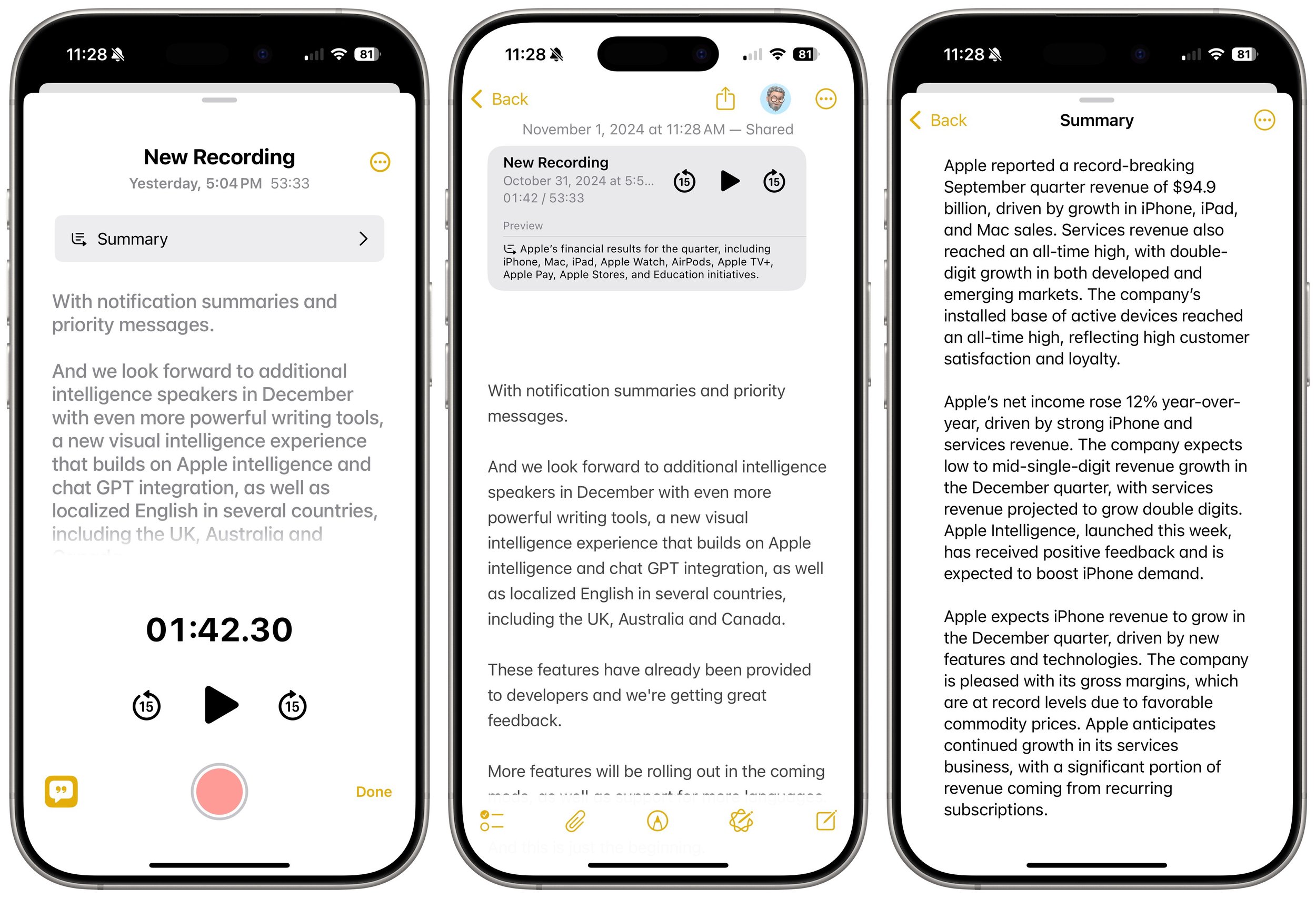
The big win comes with Notes (on the iPhone, iPad, and Mac), which can record a meeting and provide a transcript for later searching and summarization. The clearer the audio, the better. It stumbles on many names and doesn’t differentiate between speakers, but transcripts can be hugely helpful. You can keep a transcript in its recording (left), where you can jump around in the audio by tapping the associated text, or you can use the ••• button to export it to its enclosing note (middle) or tap a button to get a summary (right).
Siri Enhancements
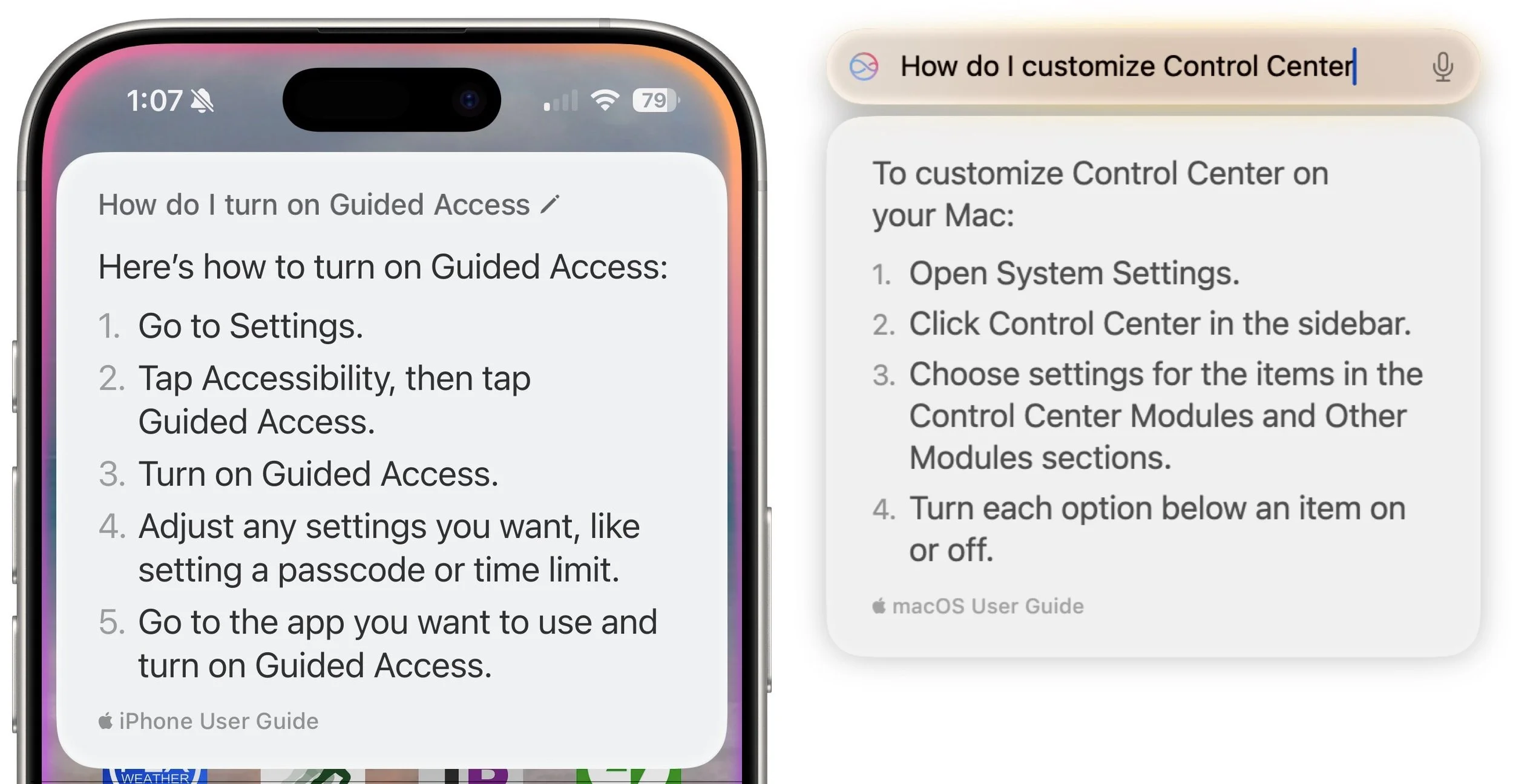
Apple has promised a lot for Siri but hasn’t delivered much. A new interface replaces the animated circle with a glowing light and the option to type your query rather than speak it. However, the only functional improvement from Apple Intelligence so far seems to be Siri’s awareness of the iPhone, iPad, and Mac user guides. If you’re unsure how to accomplish a built-in task, try asking Siri.
What’s Coming Next
Welcome though they may be, the initial wave of Apple Intelligence features won’t set the world on fire. But Apple has big plans for Apple Intelligence, with new features slated for release in December 2024 and more coming in 2025. Things you can look forward to in a few months include:
ChatGPT will make its promised appearance, bringing world knowledge into Writing Tools and Siri.
You can jazz up your conversations in Messages with original Genomoji merely by describing the emoji you’d like to see. “Penguin on a surfboard,” anyone?
The Image Playground feature will let you generate original images in various styles, though none are photorealistic on purpose—no deepfakes from Apple.
Image Wand will enhance your Apple Pencil sketches by turning them into polished images, and if you circle an empty space, Image Wand will create an image from the surrounding area.
Writing Tools will let you describe a specific change you want to apply to your text, like adding more descriptive words to a blog post. We hope Apple puts more thought into the workflow so it’s easier to compare the before and after.
The Camera Control button on the iPhone 16 line will tap Apple Intelligence to help users learn about objects and places in the iPhone’s viewfinder.
Further out, Apple says that Priority Notifications will surface your most important notifications, and Siri will learn how to draw from your personal context, take action in numerous apps, and gain awareness of onscreen information. We’re still curious to see how Apple will integrate a more intelligent Siri into the HomePod and Apple TV.
(Featured image by Apple)
How to Minimize Downtime and Lost Work from Tech Failures
Macs may be more reliable than ever, but they still suffer from hardware and software failures. Follow our advice to minimize the impact of inevitable failures.

Macs are much more reliable than in the past, but it remains the case that computers and apps can fail in a wide variety of ways. And they’ve become so integral to daily life that an occasional failure is almost inevitable. Unfortunately, if you aren’t prepared for that eventuality, you may lose work and suffer from unnecessary downtime. A little forethought can significantly minimize the impact of app crashes, lost connectivity, storage failures, and overall hardware hiccups.
App Failures
The most common problems occur in apps, where you have to worry about crashes and file corruption. (Cosmetic bugs and broken features are annoying, but apart from reporting them, there’s nothing you can do about them and they shouldn’t cause you to lose work.) To protect yourself from crashes and corruption, we recommend the following:
Save new files immediately: Although many apps auto-save, not all do. Whenever you start a new file, save it immediately and frequently as you work. That way, a crash can’t cause you to lose everything you’ve done.

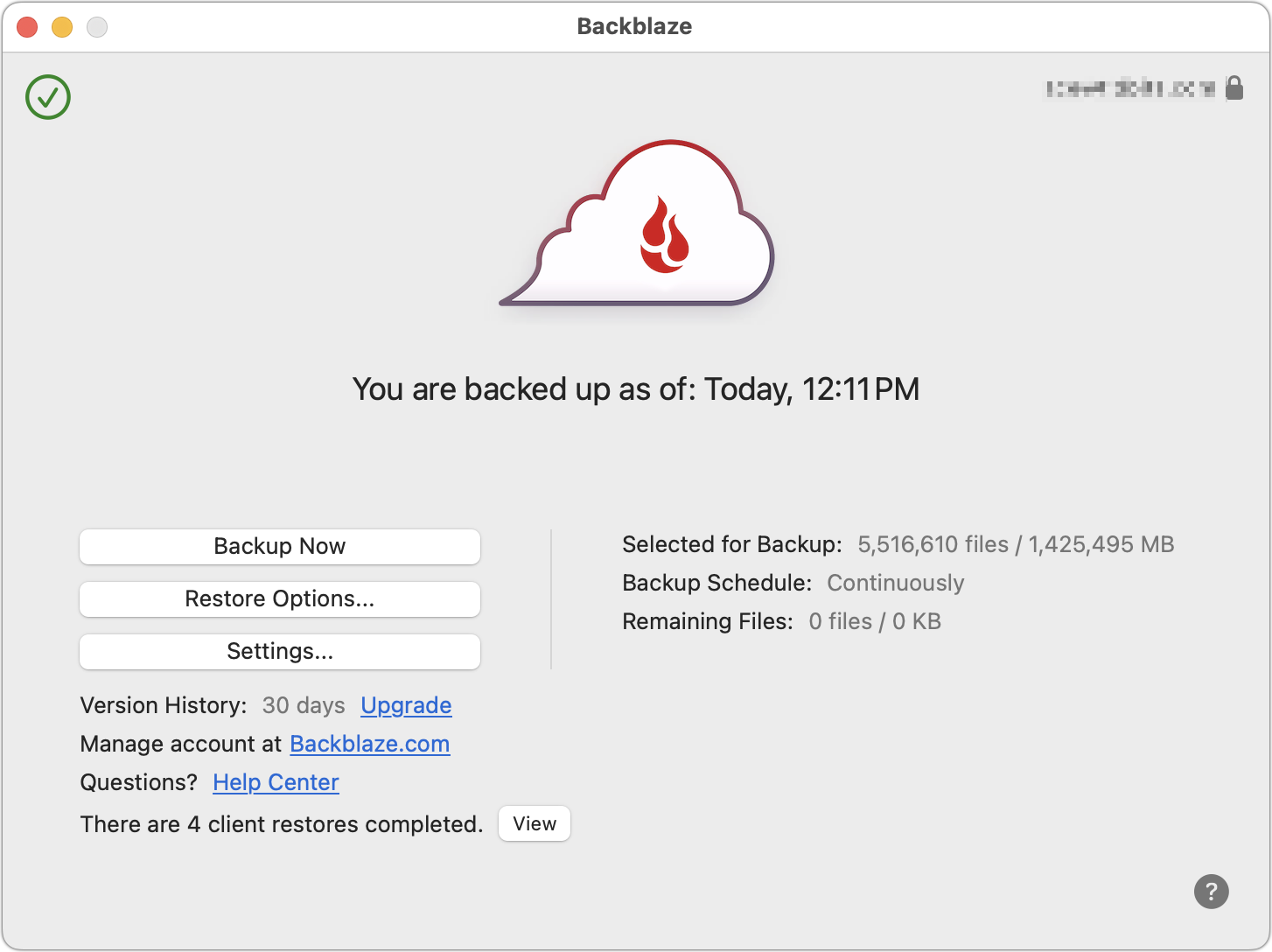
Use always-on backup software: Backup software like Time Machine and Backblaze run throughout the day, making versioned backups that let you restore earlier versions of a file. Those backups can be a lifesaver if your document becomes corrupted.
Make manual versions of critical files: For documents where losing work would threaten your continued employment, we recommend making manual versions at least daily, preferably on a cloud storage service. Append a version number to each file, and keep all the versions until you complete the project.
Connectivity Failures
As more of our work has moved online or requires access to online resources, always-available connectivity has become necessary. Many people feel incapable of getting things done without Internet access. Here are some workarounds:
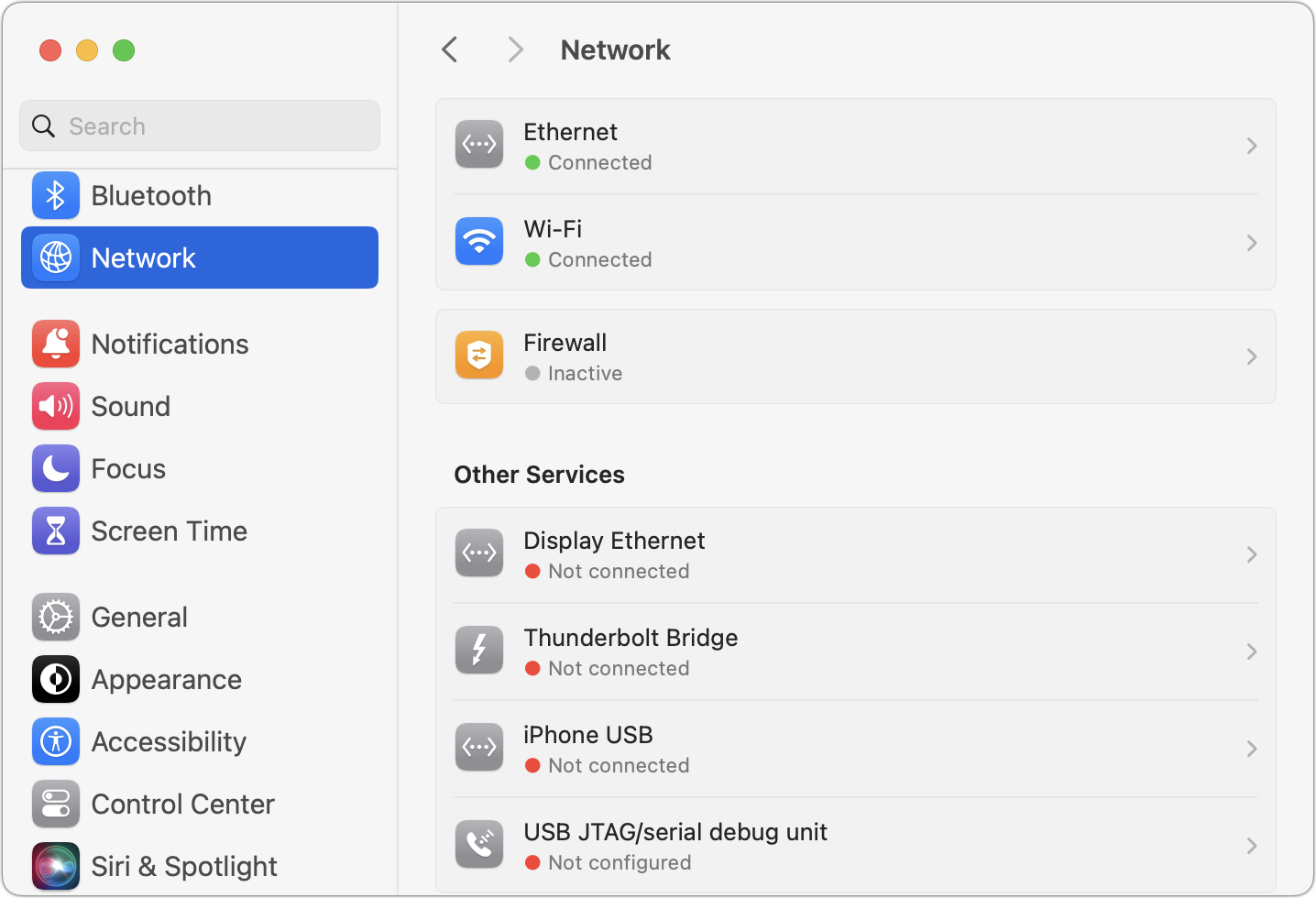
Be able to switch between Wi-Fi and Ethernet: If one method of connecting to your local network fails, switching to the other can let you get on with your work with minimal interruption. A wireless access point failure could send you to wired Ethernet, or Ethernet cable damage could make Wi-Fi the only option. One shortcut for this is to keep both network adapters active in System Settings > Network, so the Mac can use either.
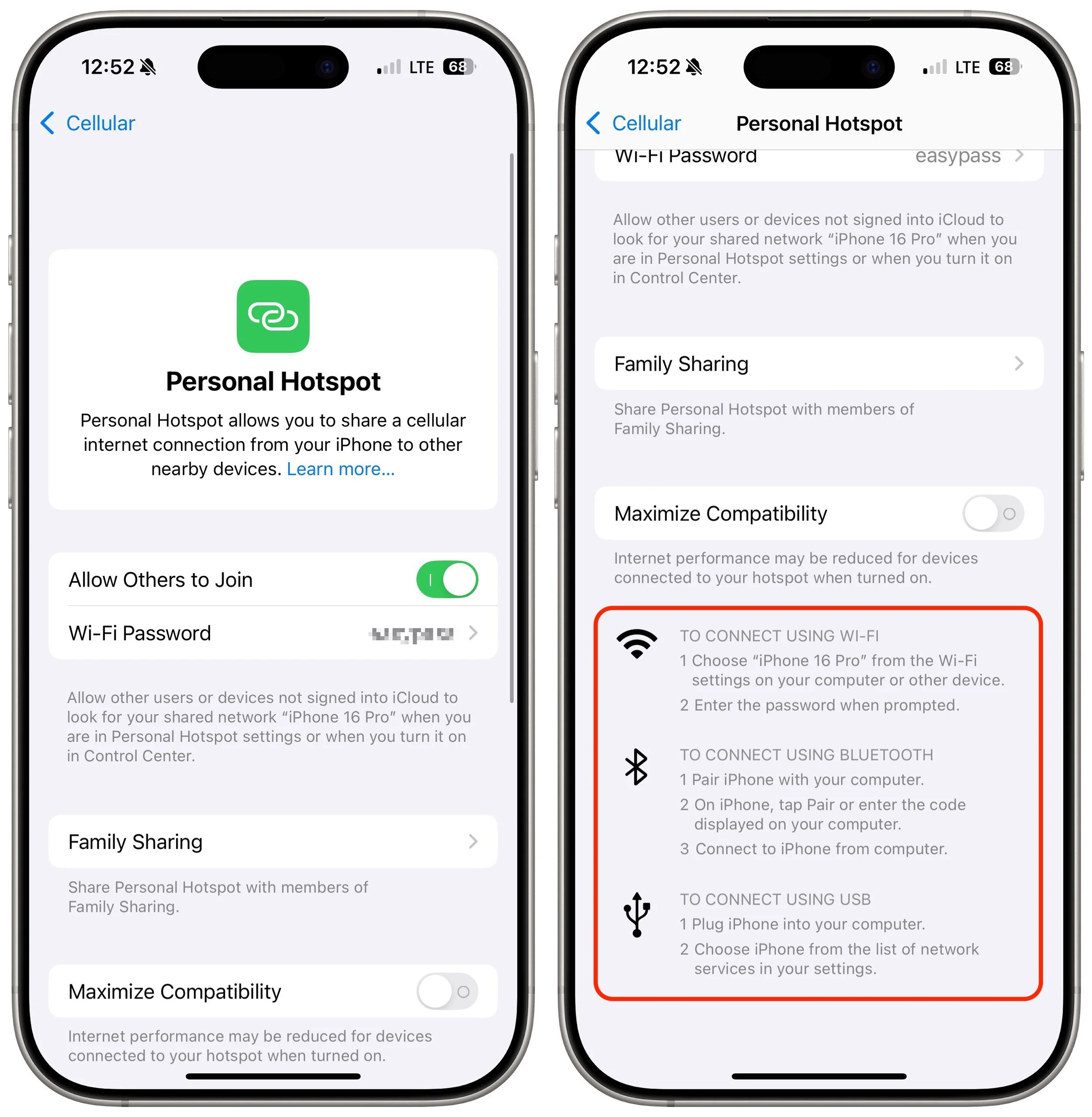
Turn on a personal hotspot: If your Internet connection goes down, the fastest way to get your Mac back online may be to connect to your iPhone’s personal hotspot. Set it up in Settings > Cellular > Personal Hotspot and choose it from your Mac’s Wi-Fi menu.
Identify a public hotspot: Assuming you have a Mac laptop, the better part of valor may be to go somewhere with Internet access, whether a coffee shop, the public library, or the house of a friend or family member. If your problem falls outside business hours, you might even be able to access a public network from a nearby parked car.
Purchase backup networking hardware: Organizations should maintain backups of their networking gear. In the event of hardware failure, being able to swap a backup router, access point, switch, or cable into place will minimize downtime. Make sure to record your networking configurations so you can configure the new devices quickly.
Storage Failures
Historically, the most failure-prone aspect of a Mac was its hard drive because of its moving parts and insanely tight tolerances. Flash storage used by solid-state drives is far more reliable and resilient to physical bumps and drops. However, it’s still in constant flux as macOS and apps constantly read and write data, so software bugs can result in directory errors and other forms of corruption. We recommend a three-part backup strategy to protect against storage failures—make sure to dedicate drives for backups rather than using them for general storage.
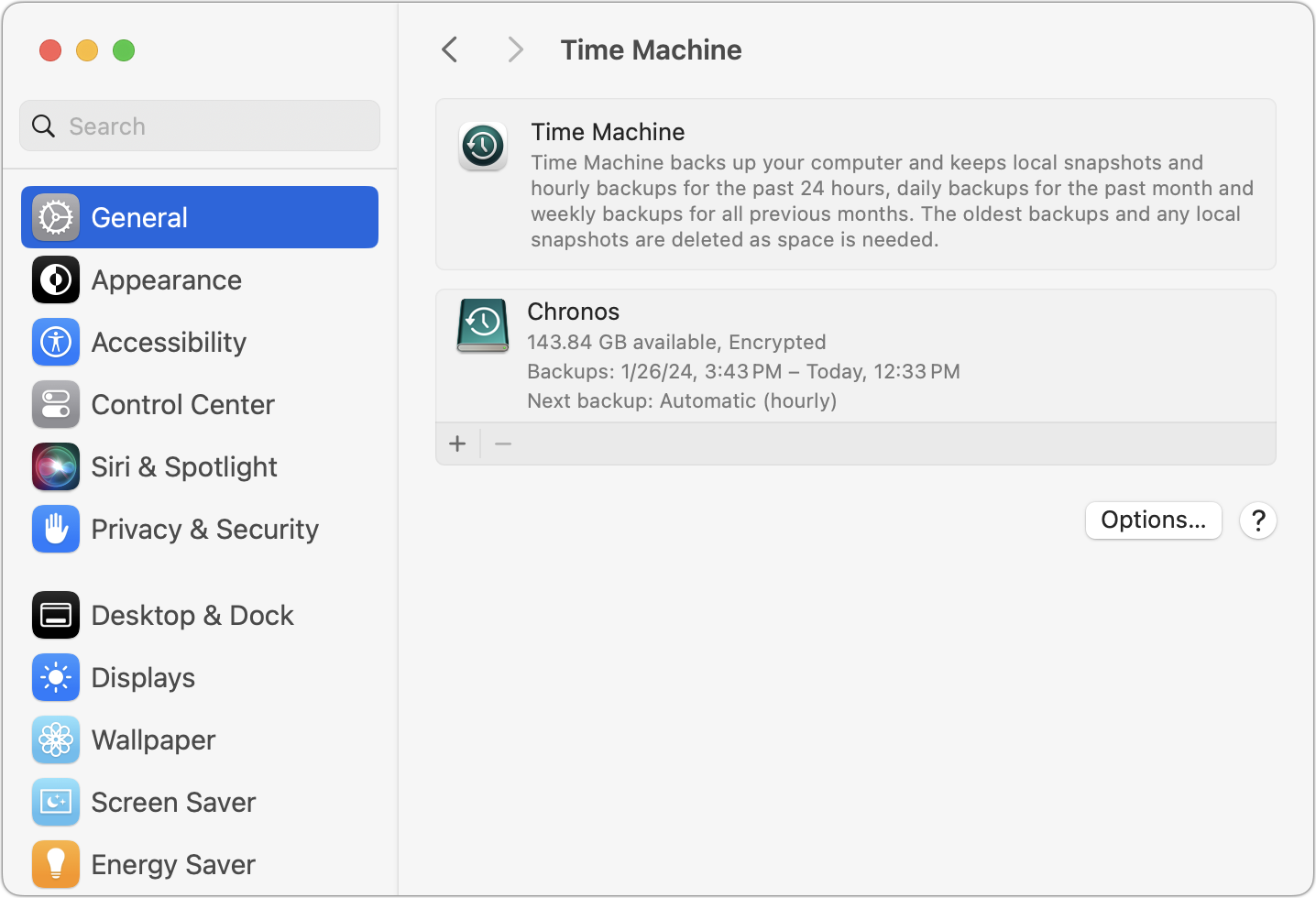
Back up with Time Machine: Time Machine works well and is tightly integrated into macOS. Use it to create versioned backups of your data so you can restore either individual files or your entire drive.
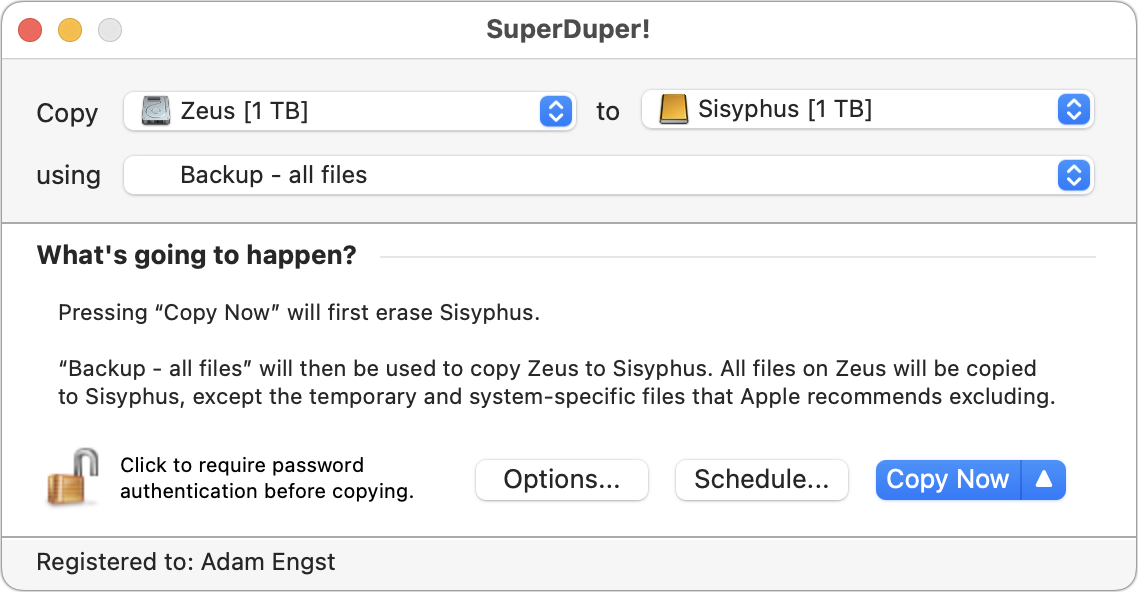
Make nightly duplicates: Bootable duplicates that could take over for a dysfunctional boot drive used to be an essential part of a Mac backup strategy, but the difficulty of making them and booting a Mac from an external drive has reduced their utility. Nevertheless, the fastest and easiest way to restore data is often by copying it from a duplicate. Duplicates also provide secondary backups if something were to go wrong with your Time Machine drive. Carbon Copy Cloner and SuperDuper are the most popular backup apps for duplicates.
Overall Mac Failures
Macs may be reliable, but they’re still vulnerable to physical damage, particularly laptops you carry with you all the time. Bumps and drops can damage a screen or internal connectors that connect the keyboard and trackpad. You can do a few things to minimize the impact of a broken Mac.
Use the desktop/laptop approach: Although Mac laptops are powerful and expandable enough for all but the most intensive tasks, supplementing a powerful desktop Mac with a less expensive laptop gives you more flexibility and provides a backup if your primary Mac fails.
Maintain an extra keyboard, trackpad, and display: Getting your work done requires a functional keyboard, trackpad or mouse, and monitor. If any of those accessories were to fail, having an extra one around would let you get back to work with minimal fuss.
Keep an old or extra Mac as a backup: Those relying on a single Mac should consider keeping an older Mac around as a backup if you have to send your current Mac to Apple for repair. This approach works only if your old Mac can run your current apps. An organization might maintain a backup Mac that could be temporarily swapped in for any employee’s broken Mac.
Borrow a Mac from a colleague, friend, or family member: If you don’t have an extra Mac that’s sufficiently capable for your work needs, perhaps someone you know does. It’s easy to create a new user account that will keep your data and theirs separate and private. Start in System Settings > Users & Groups.
Remember Apple’s 14-day return policy: If all else fails, remember that you can buy a Mac from Apple (in person or online) and return it with its included accessories and packaging within 14 days for a full refund. It’s a generous policy that shouldn’t be abused, but it could be a lifesaver if you’re under deadline when your Mac dies.
Of course, you’re welcome to call us for advice about working around any of these tech failures, but these suggestions should get you back in the saddle quickly and with minimal loss of work.
(Featured image by iStock.com/fizkes)
In iOS 18 and iPadOS 18, Control Center Is Now Highly Customizable
The new Control Center in iOS 18 and iPad OS 18 is vastly more customizable and has more options. Our article tells you what’s on offer and how to use it.

Control Center has been a part of our iPhone and iPad experience for over a decade, first appearing in iOS 7 in 2013. It provides direct access to important controls so we don’t have to hunt through Settings or apps. On the whole, it has been a welcome addition.
Although Control Center has changed a bit over the years, it provided relatively minimal customization options until iOS 18 and iPadOS 18. Previously, in Settings > Control Center, you could choose which controls appeared and in what order, though a few essential controls always appeared at the top.
With this year’s operating system updates for the iPhone and iPad, Apple decided to give us nearly free rein to personalize Control Center, even allowing us to add multiple pages of controls. While some people will go wild and utterly reimagine what Control Center can do for them, we expect most to employ more modest tweaks that make it slightly easier to use.
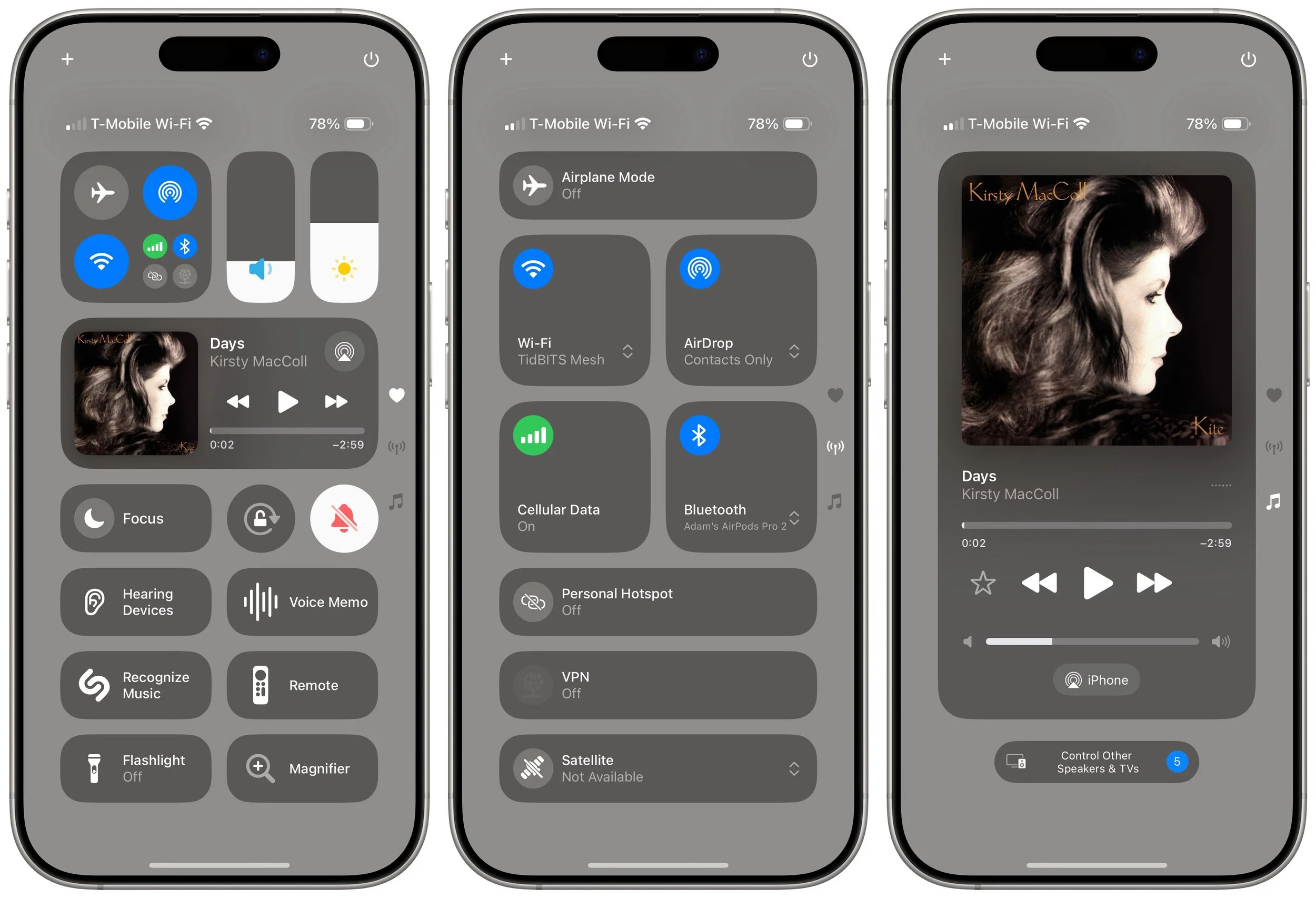
Here’s what you can do in iOS 18 and iPadOS 18:
Learn the basics of getting around in Control Center:
Open Control Center: Swipe down from the upper-right corner of the screen.
Move between Control Center pages: During the initial swipe to open Control Center, keep swiping down to navigate to later Control Center pages, represented by tiny icons on the right side of the screen. Once Control Center is open, swipe up or down anywhere on the screen to move between pages or tap the icons.
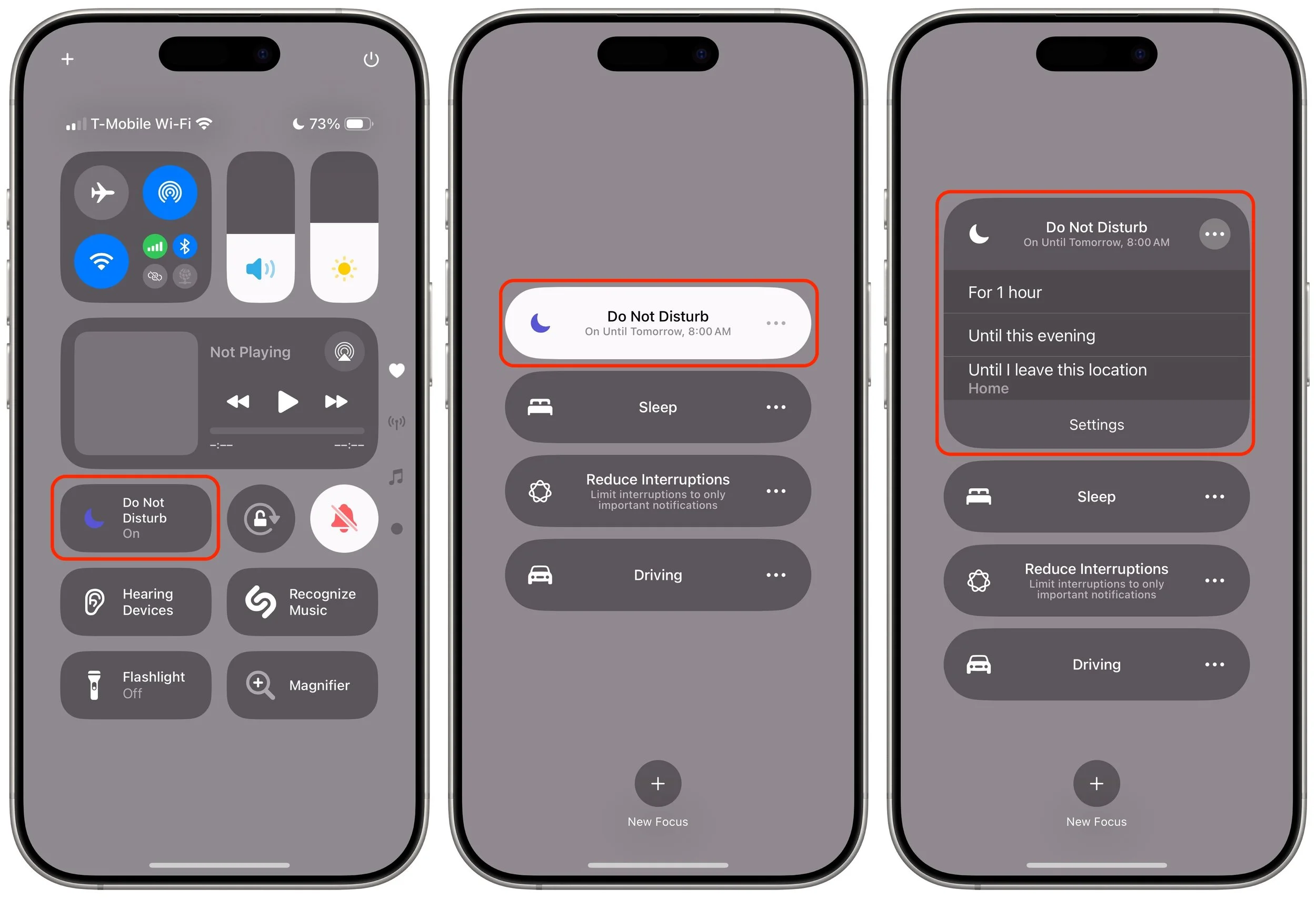
Use controls: Tapping an icon in Control Center usually either toggles a setting (like Orientation Lock and Silent Mode) or opens an app (like Magnifier or Wallet). Many display additional options when you touch and hold them (tap the Focus icon to toggle Do Not Disturb; touch and hold it to access more options, each of which offers even more settings). A few controls allow direct manipulation (like Now Playing, Volume, and Brightness).
Add, organize, and remove items from Control Center:
Enter and leave editing mode: Tap the + icon in the upper-left corner, or touch and hold on any empty part of the Control Center screen, much like you enter wiggle mode on the Home Screen. You can swipe between screens in editing mode as well. When you’re done, tap any empty area to leave editing mode.
Add a control: In editing mode, tap Add a Control at the bottom of the screen, search or browse for available controls, and tap the one you want to add to the current screen. Note that many apps now provide controls, vastly increasing the actions available from Control Center.
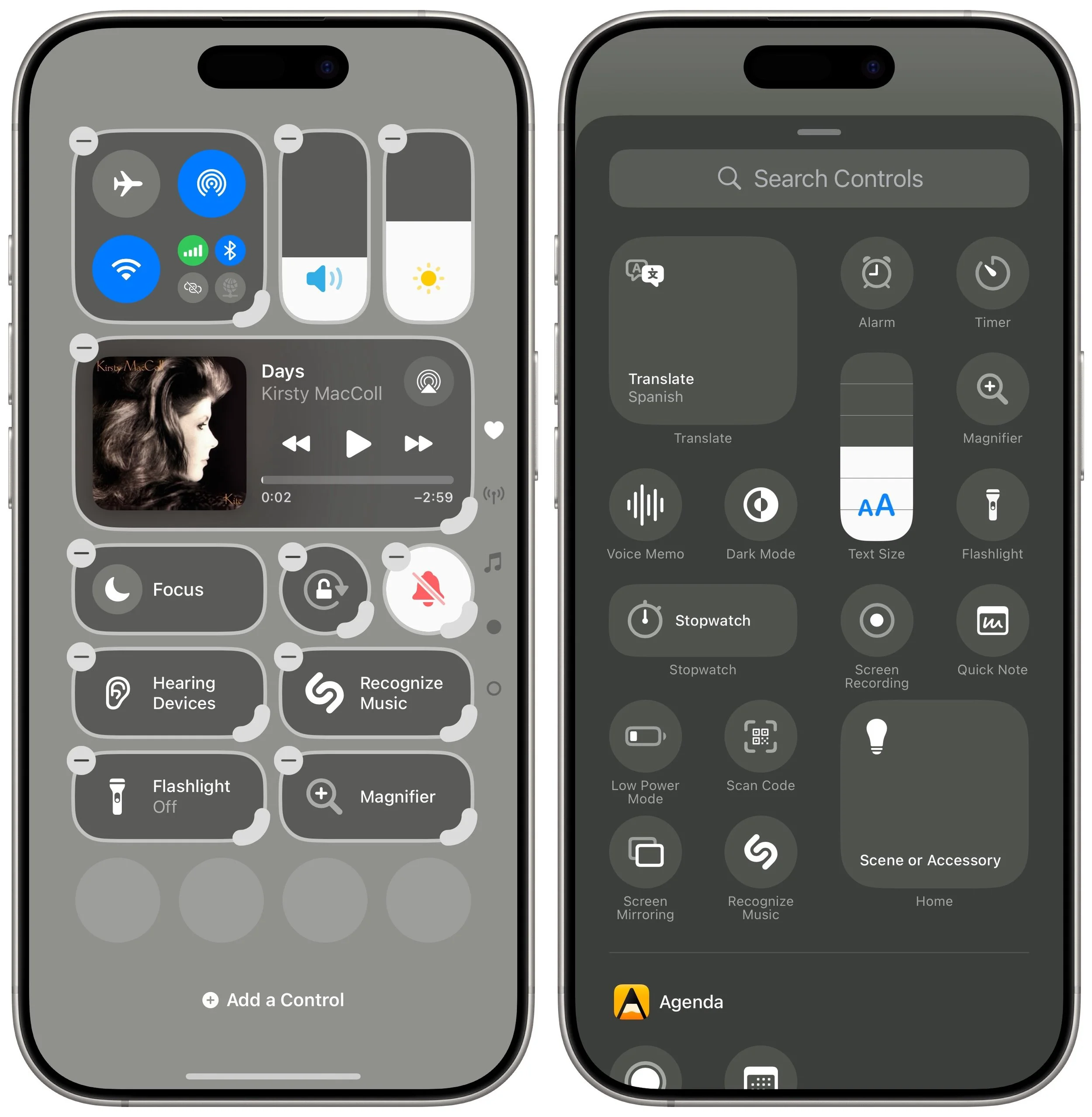
Move a control: Touch and hold a control and drag it to the desired location. While holding the control, drag it to the bottom or top of the screen to move it to a different page.
Add a new page: When you’re in editing mode, a new empty page always appears at the bottom. To make it stick around after you exit editing mode, add or move a control to it.
Resize a control: If a control has a curved resize handle on the lower-right corner of its icon, drag that handle to make the control larger or smaller. Most offer only 1-slot, 2-slot, and 4-slot sizes, with the latter two adding the name—we’re partial to the 2-slot size because we have trouble recognizing little icons. (Control Center would benefit from an option to display names under 1-slot icons as it does on the Add a Control screen.) A few controls, notably Now Playing, are more malleable—it offers two 4-slot sizes, an 8-slot size, a 16-slot size, and a full-page 32-slot size.
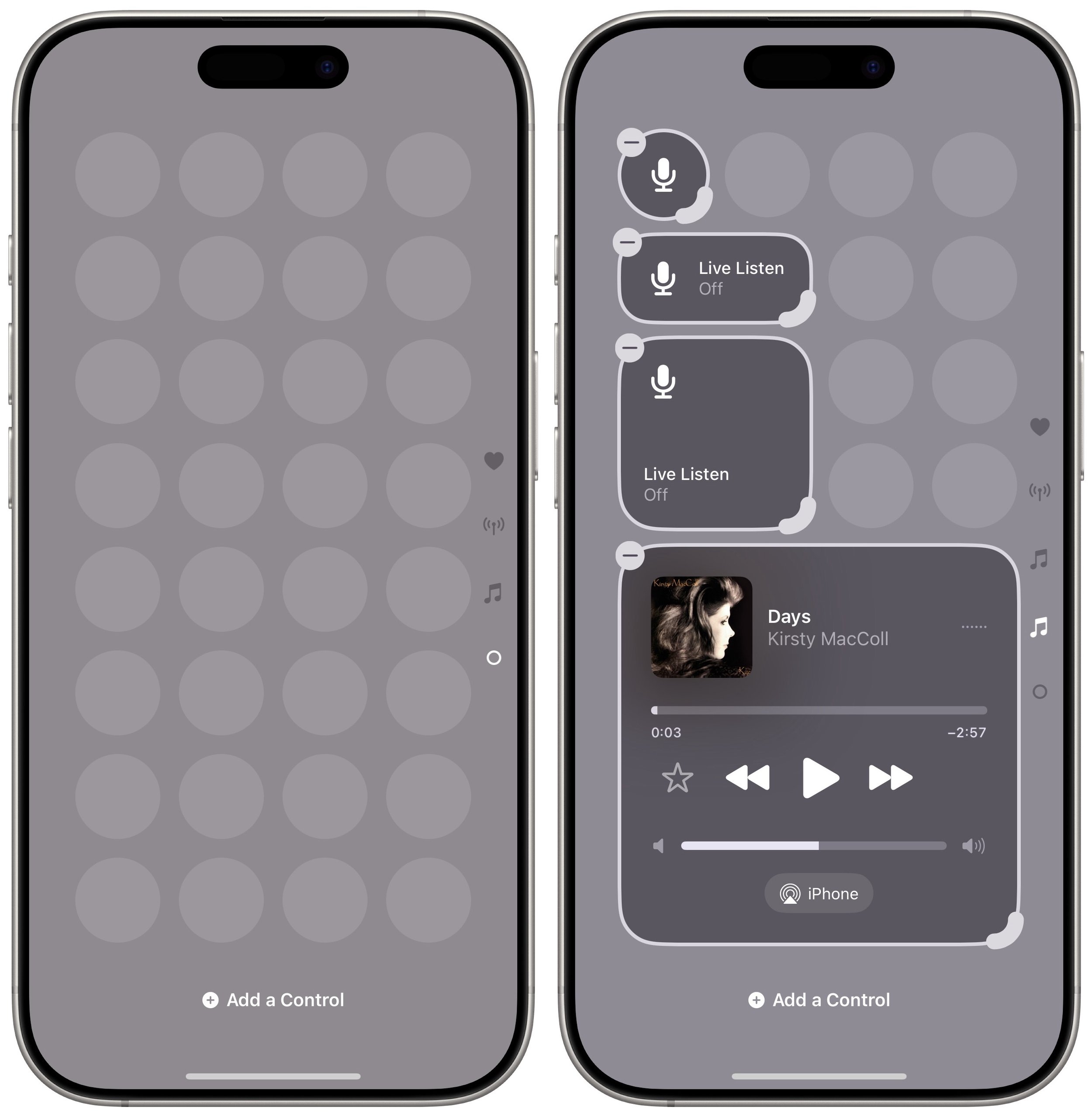
Delete a control: To remove a control, tap the – button in the upper-left corner of the icon.
Reset the layout to the default: It’s easy to go overboard and end up with a mad scientist layout. To return to the default set of controls, go to Settings > Control Center > Reset Control Center.
Take advantage of extra Control Center tips and settings:
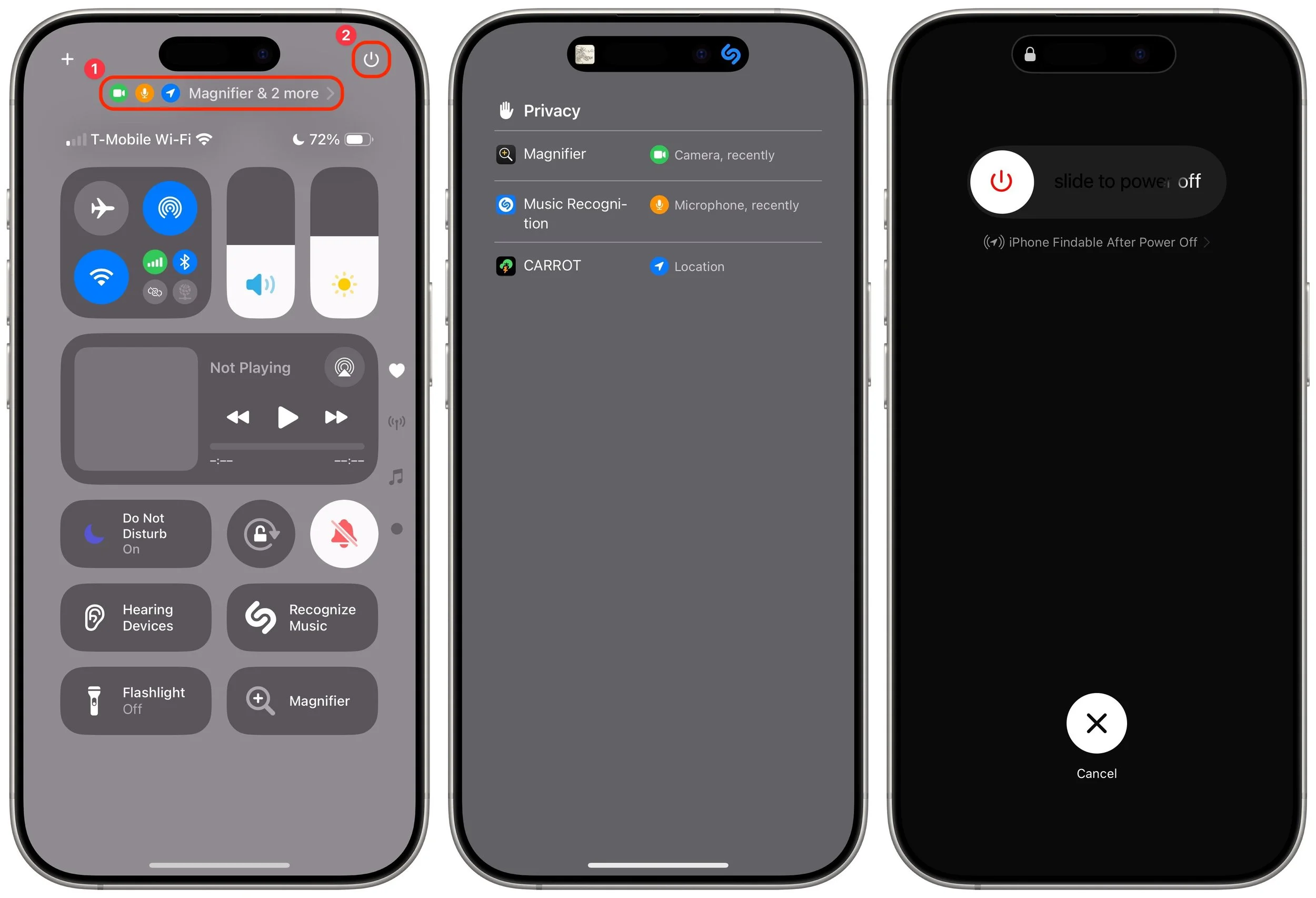
Check privacy status alerts: In the middle of the screen, you may see one or more small icons and an app name ➊. That indicates the app has permission to do things like track your location, use the camera, or record with the mic. Tap that area to see more details.
Power down the device: Touch and hold the power button at the upper-right corner of the screen ➋. It’s similar to holding the physical side button and one of the volume buttons for a few seconds, except the physical buttons also provide sliders for viewing your Medical ID and making an Emergency SOS call. Even if you cancel the power-off action, you must enter your passcode to re-enable FaceID.
Turn off Control Center access in apps: If you accidentally invoke Control Center in apps because you want to swipe near the top right of the screen, go to Settings > Control Center and turn off Access Within Apps.
It’s easy to become overwhelmed with Control Center’s customization possibilities. There’s no harm in sticking with the default layout, but our initial advice is to think about what you use Control Center for now and make sure those actions are well-represented by icons on the first page. Also, if you have trouble remembering what particular icons do, resize them to the 2-slot size so you can see their names. Later on, you can look through the full list of available controls and add those that seem appealing.
(Featured image by iStock.com/yacobchuk)
Setting Up and Managing iCloud+ Storage
Although it may not be exciting, having more iCloud+ storage significantly improves the experience for those with multiple Apple devices. We explain what iCloud+ provides, how much you should get, and how to get started.
Apple’s online iCloud storage underpins many of the company’s services, including iCloud Photos, iCloud Drive, iCloud Backup (for iPhones and iPads), iCloud Mail, and Messages in iCloud. Numerous independent apps also rely on iCloud storage to sync data between devices.
Apple gives everyone 5 GB of storage for free, which is enough for core services, like iCloud Keychain, and to try the other services. However, those who wish to take full advantage of iCloud Photos and iCloud Drive, in particular, must subscribe to iCloud+. Along with extra storage, iCloud+ subscribers can use:
iCloud Private Relay, which blocks tracking of Safari traffic, DNS queries, and most non-HTTP Web traffic
Hide My Email, which creates random, unique email addresses that automatically forward to your inbox
Custom Email Domains, which lets you register your own custom email domain and use it in a personalized email address
For now, though, we’ll focus on storage. Apple’s iCloud+ rates are similar to those for storage at Google Drive and Microsoft OneDrive, though the specifics vary slightly by service. Apple charges:
50 GB: $0.99 per month
200 GB: $2.99 per month
2 TB: $9.99 per month
6 TB: $29.99 per month
12 TB: $59.99 per month
Audit Your Storage Needs
How much you should get depends on how much data you wish to upload to start and how quickly you expect that amount to grow. For most people, iCloud Photos consumes more storage space than anything else, although syncing your Desktop and Documents folders between Macs using iCloud can also chew up space.
If you’re not currently using iCloud, use File > Get Info to determine the size of your Photos Library (located in your Pictures folder), and do the same for your Desktop and Documents folders if you want to sync them. You can also anticipate iPhone and iPad backups consuming up to 20 gigabytes or more.
Remember that you can share iCloud+ storage space with people in your Family Sharing group. Checking how much space others in your family would also like to use is worthwhile.
Get Started with iCloud+
Subscribe to iCloud+ in Settings/System Settings > Your Name > iCloud > Upgrade to iCloud+. (In pre-2024 versions of Apple’s operating system, tap Manage Account Stor-age and Change Storage Plan.)
Then, you can turn on iCloud Photos in Photos > Settings > iCloud on the Mac or Settings > Apps > Photos on the iPhone and iPad. (We recommend having one Mac use “Download Originals to this Mac” so you have a local copy of everything.) If it’s compelling for you, turn on Desktop and Documents folder syncing in System Settings > Your Name > iCloud > iCloud Drive on each of the Macs you want to participate—you don’t need to do anything on iPhones or iPads because everything from your Macs automatically appears in the iOS Files app. The initial sync, which uploads and deduplicates everything, can take days, depending on the upstream bandwidth of your Internet connection.
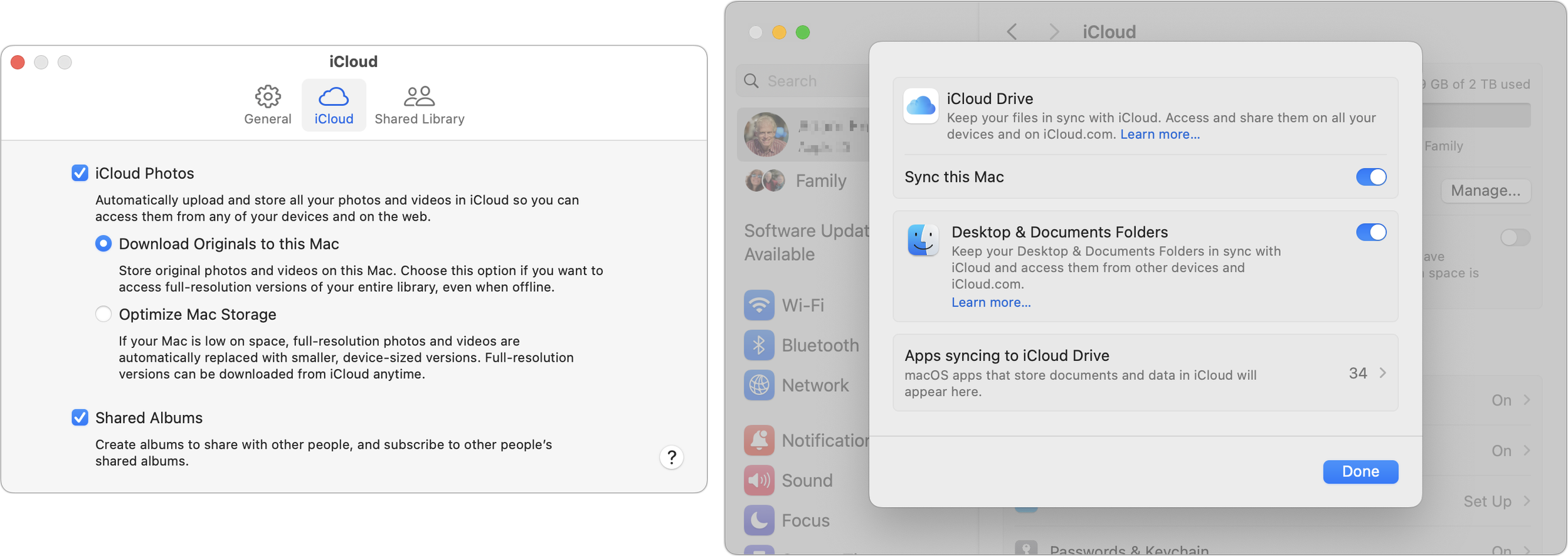
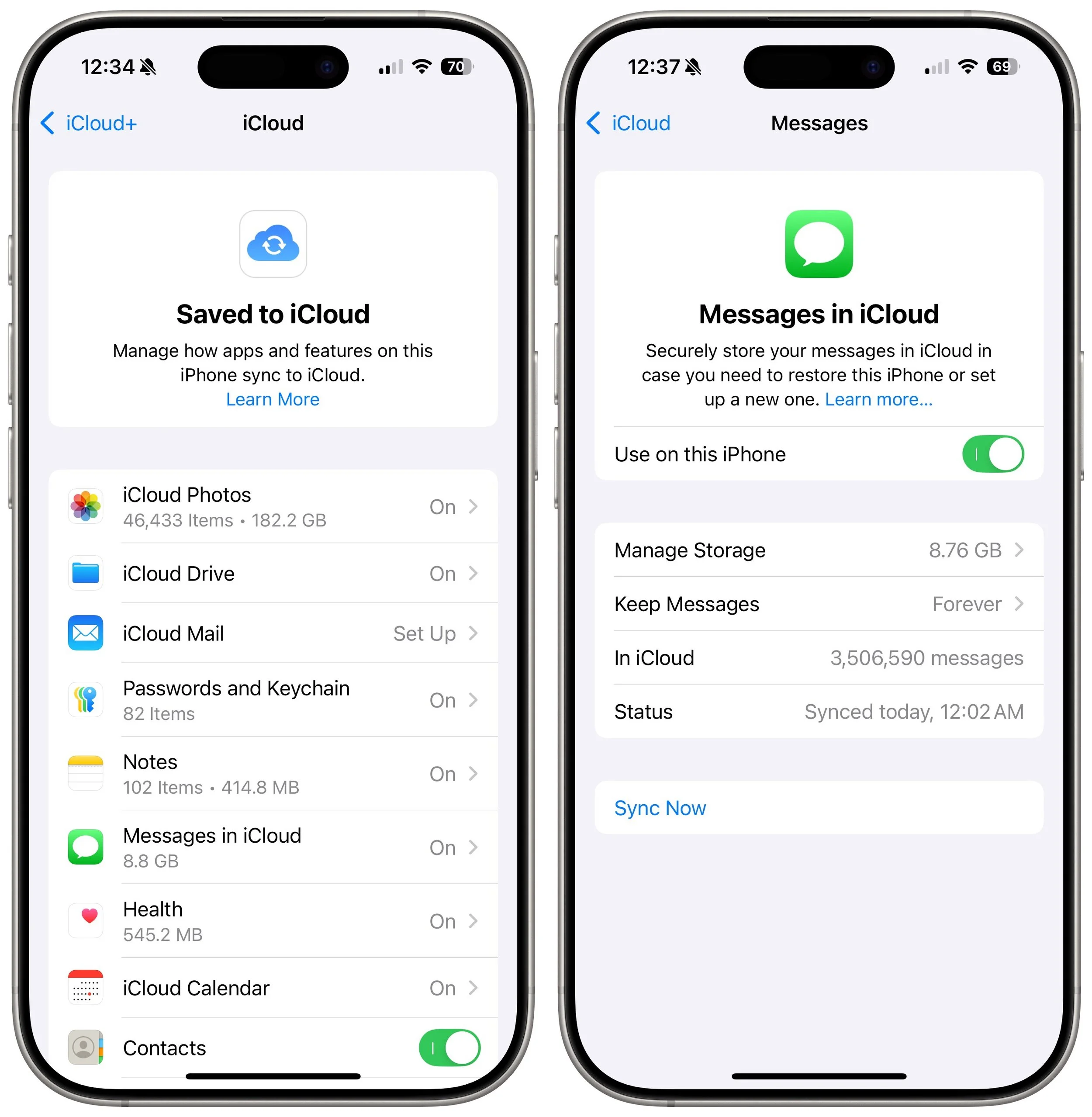
Once you’re set up, you can see and manage all the apps and services using iCloud. Go to Settings/System Settings > Your Name > iCloud, and next to Saved to iCloud, tap See All. Tap any app to see more information and change its settings.
Running Low on Storage Space
Like a physical drive, your iCloud account can run out of space. When that happens, you can delete data or pay for more space. To see how much you’re using and how that breaks down across different apps, open Settings/System Settings > Your Name > iCloud and, at the top, tap Storage or click Manage. You can then drill down to see more details about each app. For Photos, iCloud Drive, Backups, and Messages, Apple provides suggestions for removing large files to save significant amounts of space quickly. Most other apps offer only an option to delete all your data. Generally speaking, you should delete an app’s data only if you don’t anticipate ever using the app again.
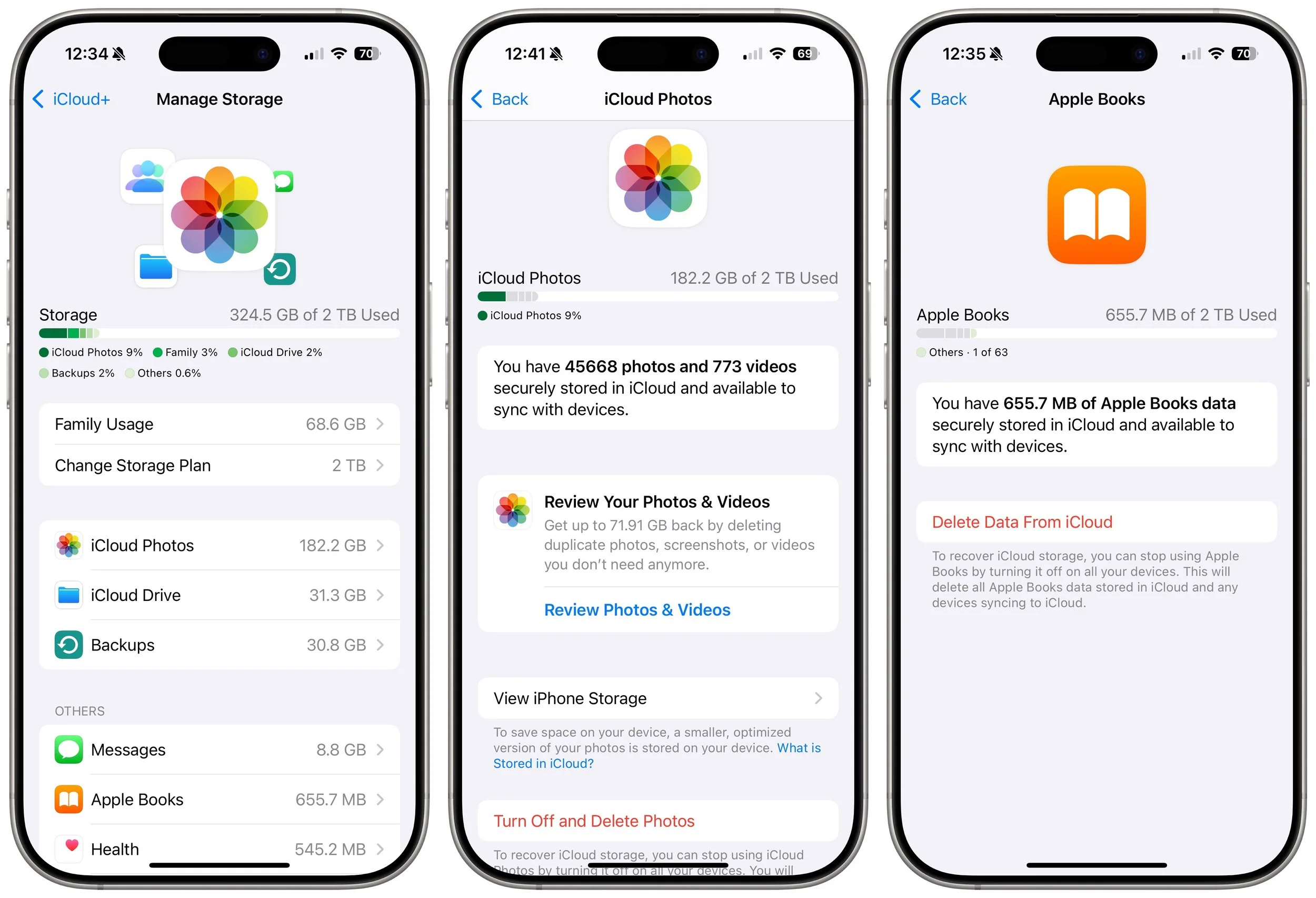
As you get close to your space limit, your devices will prompt you to upgrade so you don’t encounter failures caused by a lack of space. Unsurprisingly, Apple makes it easy to upgrade to a larger tier.
Although there’s nothing exciting about online cloud storage, having more iCloud+ storage significantly improves the experience for those with multiple Apple devices who would appreciate a seamless photo experience with iCloud Photos, accessing their files anywhere, and backing up their iPhones and iPads without needing to con-nect to a Mac. iCloud storage works well and is reasonably economical for what you get.
(Featured image with background by iStock.com/wing-wing)
Passwords Becomes a Real App in macOS 15 Sequoia, iOS 18, and iPadOS 18
Apple’s new Passwords app in macOS 15, iOS 18, iPadOS 18, and visionOS 2 makes the company’s longstanding password storage and syncing features more straightforward and easy to use. It’s password management for the rest of us!

Although we’re still fans of 1Password, and there are plenty of other good password managers out there, like BitWarden and Dashlane, Apple has finally removed the last hurdle to using its built-in password management capabilities.
Starting in macOS 15 Sequoia, iOS 18, iPadOS 18, and visionOS 2, Passwords is now a real app rather than being trapped inside Safari, System Settings, and Settings. If you have resisted using a password manager or don’t wish to continue subscribing to an alternative, give Apple’s Passwords a try. It makes creating, maintaining, and entering passwords faster, easier, and more secure than doing it by hand. Those already using a password manager can export their accounts and import into Passwords.
What You’ll Find in Passwords
We’ll focus on the Mac version here, but the other versions are nearly identical apart from their screen sizes.
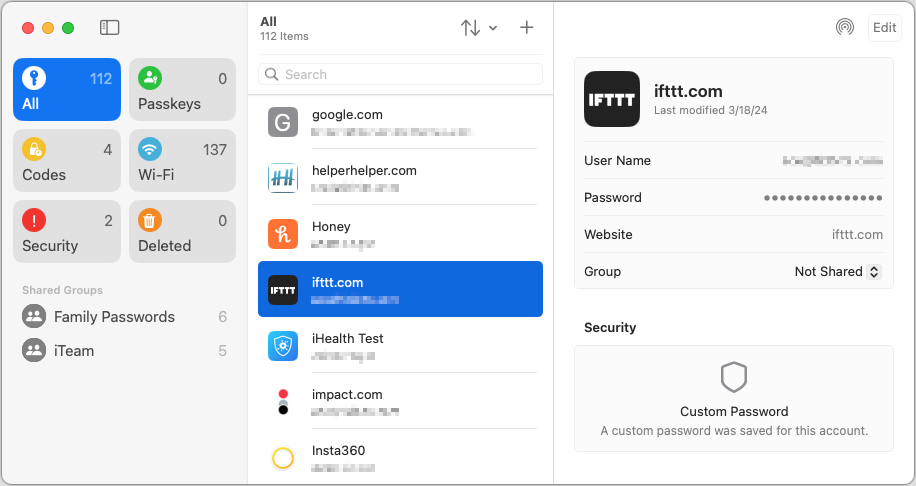
The left-hand sidebar, reminiscent of Reminders, provides categories of accounts:
All: Select All to see all your accounts, regardless of what shared group they may be in.
Passkeys: If you have any passkeys for large websites like Apple, Google, and others, they’ll appear here.
Codes: Passwords can create, store, and enter two-factor authentication codes for sites that support them. If you need to look one up manually because Pass-words couldn’t autofill it, you’ll find the associated account here.
Wi-Fi: This category contains stored passwords for all the known Wi-Fi networks on your device. Because known Wi-Fi networks aren’t synced between devices, the number of these will vary between your devices.
Security: If you have any accounts with weak passwords, accounts you previously shared and stopped sharing, or accounts whose passwords were leaked in a security breach, they’ll appear here. Edit these accounts and click the Change Password button to start the process; when the password changes, they’ll disappear from this category.
Deleted: Any accounts you delete stay here for 30 days before being deleted for good. You can delete any of these accounts immediately or restore them to their previous group.
Shared Groups: If you use Family Sharing, you automatically get a Family Passwords group to simplify sharing important accounts with your family members. But you can also share accounts with other groups of Apple device owners. To move an account to a group, choose it from the Group pop-up menu.
The middle pane lists the accounts in the selected category. You can sort the list using the menu with vertical arrows, search for a specific account, and manually add a new one with the + button. Otherwise, scroll through the list and click an account to view it in the right-hand pane.
At the top of the right-hand pane is an AirDrop button and an Edit button. Click AirDrop to share an account with someone nearby or Edit to make changes or set up a two-factor verification code. If you want to copy information, click the User Name, Password, Verification Code, or Website item to get a Copy menu. The password becomes visible when you mouse over it. Clicking Website also offers an Open Website option and lets you add more sites where the password should autofill.
Setup Requirements
Most people shouldn’t need to do anything to start using Passwords. However, if you have trouble, check the following items:
Turn on Password AutoFill: If your device isn’t entering passwords for you, turn on AutoFill Passwords and Passkeys in Settings/System Settings > General > AutoFill & Passwords. Also, ensure that Passwords is enabled in the AutoFill From section if multiple password managers are installed.
Turn on iCloud Keychain: If you want your passwords to sync securely among your devices, which makes life a lot easier, go to Settings/System Settings > Your Name > iCloud > Passwords and turn on Sync This Device.
Set up iCloud Passwords for other browsers: Apart from Safari, Chromium-based Web browsers (Arc, Brave, Google Chrome, Microsoft Edge, etc.) can access and autofill your saved passwords if you install Apple’s iCloud Passwords Chrome extension. (There’s also now an iCloud Passwords add-on for Firefox.) The overall experience is not as seamless as in Safari, requiring a once-per-launch code, and you have to create new accounts in Safari or manually in Passwords, but it works.

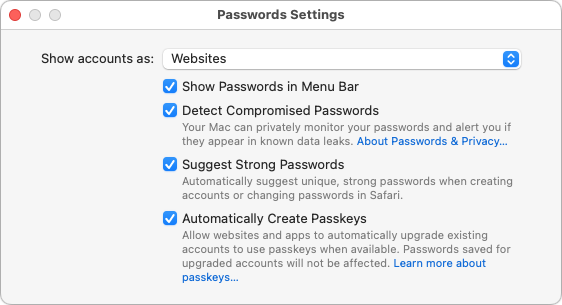
Configure settings: Choose Passwords > Settings (or look in Settings > Apps > Passwords for iOS 18 and iPadOS 18) to access options. Generally speaking, it’s fine to keep them all turned on.
If you have additional questions, check Apple’s documentation for detailed instructions for all the platforms on which Passwords runs. But realistically, Passwords is easy to use, and although the app itself is new, the underlying password management features and syncing have been in place for years, so they’re stable and reliable.
(Featured image by iStock.com/designer491)
When Should You Should Upgrade to macOS 15 Sequoia, iOS 18, iPadOS 18, watchOS 11, tvOS 18, and visionOS 2?
Apple is gearing up to release macOS 15 Sequoia, iOS 18, iPadOS 18, watchOS 11, tvOS 18, and visionOS 2. We briefly examine the features worth upgrading for and suggest when to upgrade each of your Apple devices.
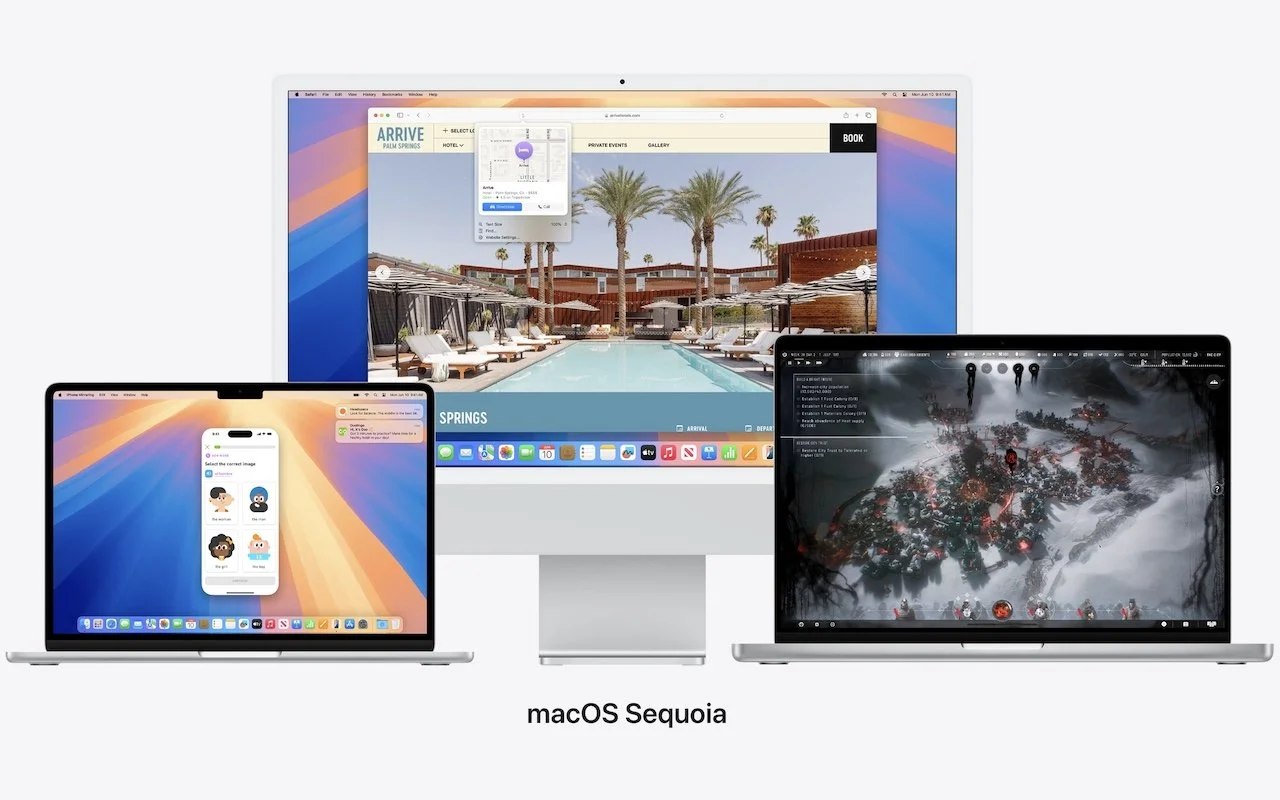
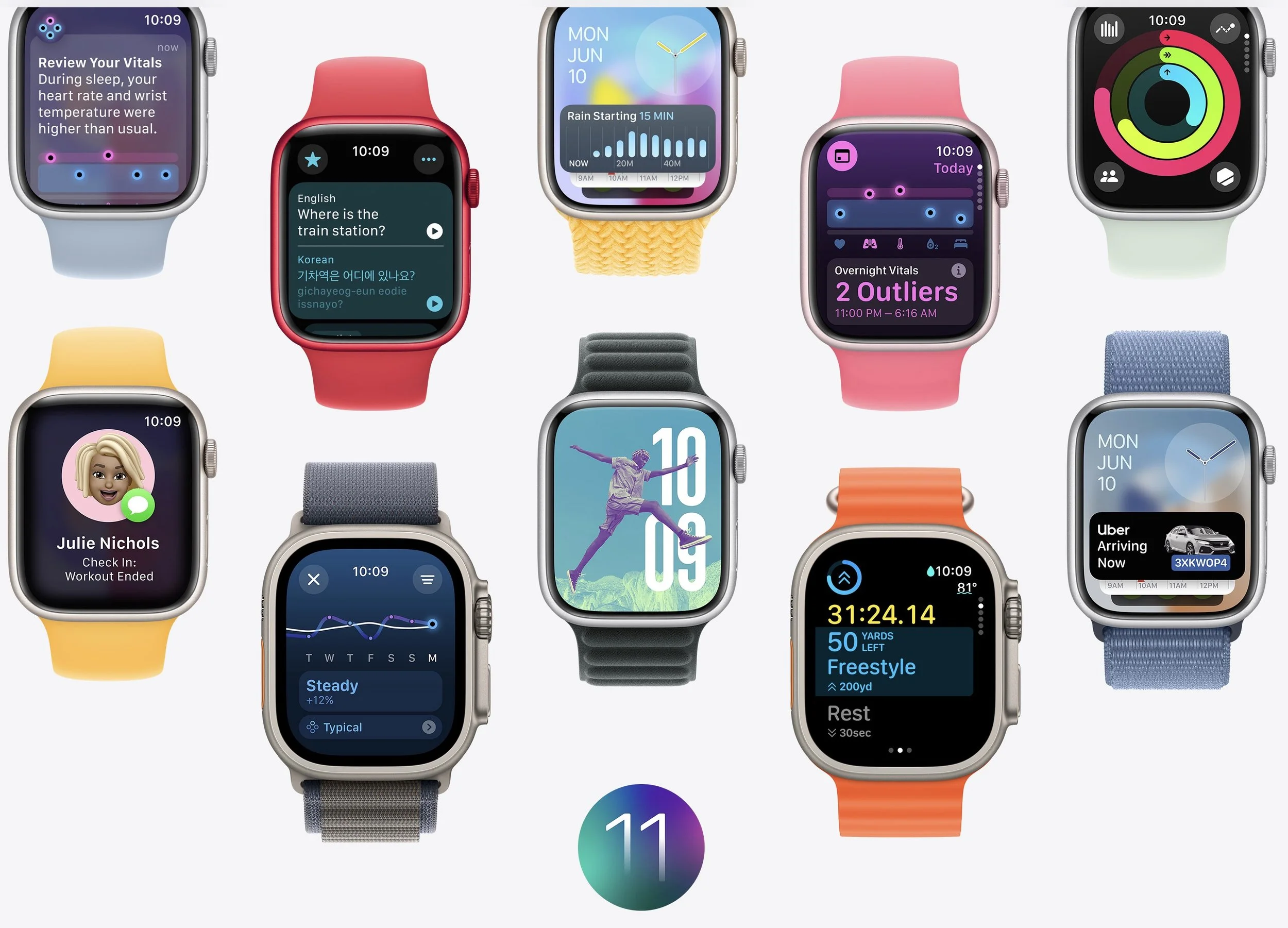
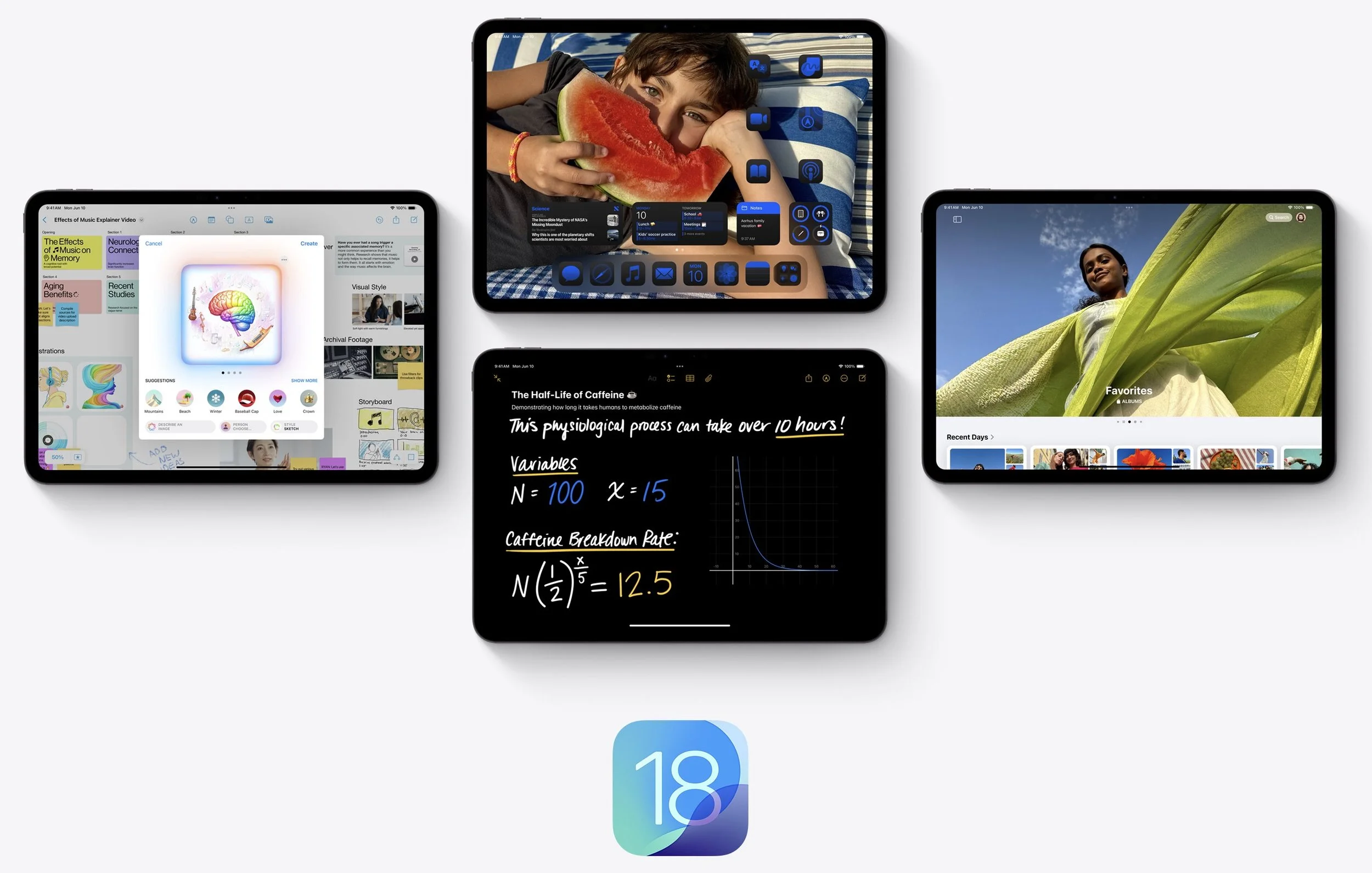
The calendar has flipped over to September, so Apple will soon release major upgrades for all its operating systems. iOS 18 and watchOS 11 will undoubtedly ship alongside new iPhone and Apple Watch models mid-month. iPadOS 18 is likely to accompany iOS 18, as are tvOS 18 and visionOS 2. Although Apple has sometimes delayed the release of macOS until later in the year, we anticipate that Apple will release macOS 15 Sequoia earlier this year, probably with its siblings. That’s because the company has already said it will release the initial Apple Intelligence features in iOS 18.1, iPadOS 18.1, and macOS 15.1; those will probably debut in October or November.
Apple previewed these releases at its Worldwide Developers Conference in June, and many people have been testing the public betas since. Once Apple judges each of its operating systems to be ready for public consumption, the question arises—when should you upgrade?
Note that we say when and not if. There’s no harm in delaying a major operating system upgrade until Apple has sanded off any rough edges that slipped through testing. But waiting too long puts you at risk from security vulnerabilities, increases compatibility annoyances, and prevents you from taking advantage of new features. Plus, when you buy a new Mac, iPhone, or iPad after these operating systems have shipped, you’ll get the latest version, which could pose problems for your existing apps or compatibility with older hardware or workflows. It’s best to be prepared if you have to replace a device unexpectedly.
Given that we don’t know precisely when each operating system will come out, here’s our recommendation for the general upgrade order that we anticipate and how long we suggest waiting after the release appears. We also share a few new features that might encourage you to upgrade, assuming you have a device that’s new enough to take advantage of them.
Remember, always make a backup before upgrading a Mac, iPhone, or iPad so you can revert if necessary.
iOS 18
It’s usually safe to upgrade iOS fairly quickly because Apple puts significant effort into ensuring that the new iOS version is a good experience for those who buy the new iPhones that come with it. However, because iPhones are so crucial to our everyday lives, it’s worth delaying the upgrade to iOS 18 for a week or two, just in case. After that, you can install it and enjoy the new features.
Even before the Apple Intelligence features start appearing in iOS 18.1, there’s plenty to look forward to in iOS 18. Messages via satellite will let you stay in touch even when there’s no cellular or Wi-Fi service. You’ll be able to personalize your Home Screen layout more by placing apps and widgets wherever you want. App icons and widgets get a new Dark look, and you can even tint them all a certain color. Keep prying eyes out of sensitive apps by requiring Face ID to open them. You can now rearrange and resize controls in Control Center, plus create groups of controls accessible with a single continuous swipe. You can even swap out the flashlight and camera icons on the Lock Screen for other controls. Photos has been redesigned (and simplified after public outcry during the beta). Messages lets you use bold, italics, underline, and strikethrough, but more interesting is the ability to send tapback responses with any emoji or sticker—it’s a great way to respond quickly to messages. Maps gains topo maps and trail networks, including all US national parks, and a new Passwords app extracts your logins and passwords from the Settings app.
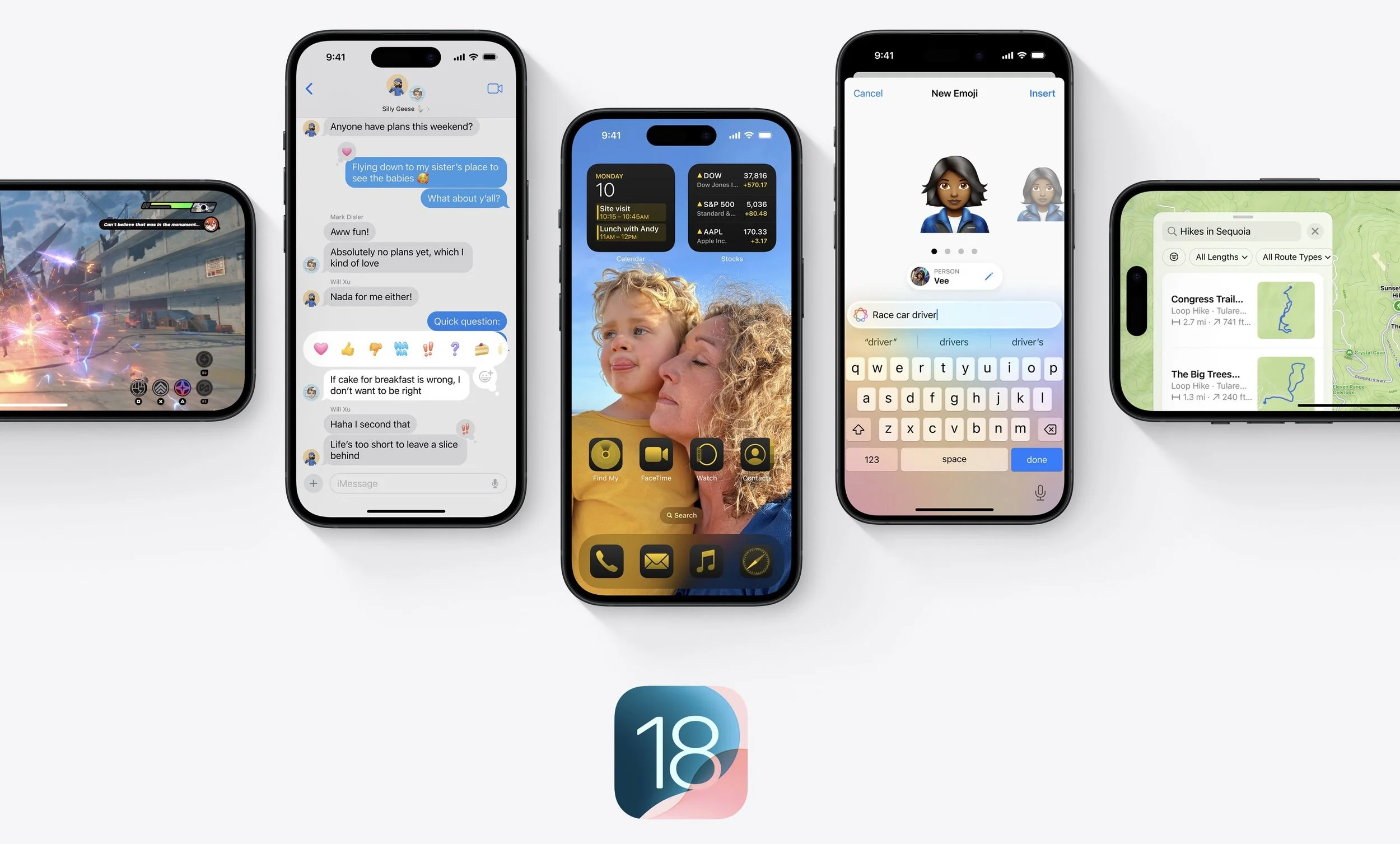
As noted, Apple Intelligence features will start shipping with iOS 18.1 and will continue appearing in new versions throughout 2025. They include a smarter Siri, categorization in Mail, writing tools that correct your grammar and summarize long texts, and generative AI image creation—you’ll even be able to make your own emoji. Apple says these features will require an iPhone 15 Pro or iPhone 15 Pro Max; it’s likely that all the upcoming iPhone 16 models will be compatible, though Apple could hold out Apple Intelligence as a reason to buy a Pro model.
watchOS 11
Once you upgrade your iPhone to iOS 18, there’s no reason to delay upgrading your Apple Watch to watchOS 11. Few of the changes are likely to require significant adjustments in your usage patterns, and some may be quite welcome.
When you wear your watch overnight, the new Vitals app displays your heart rate, respiratory rate, wrist temperature, blood oxygen (on units that have it enabled), and sleep duration, showing a typical range and identifying outlier metrics. You can now adjust Activity ring goals for every day of the week or put your rings on pause if you need to take a break for any reason. The Activity app now shows your training load so you can adjust the intensity of your workouts. The Smart Stack interface now includes Live Activities and has been improved to be more intelligent, suggesting widgets based on time, date, location, and daily routines. Finally, Apple enhanced the Photos watch face to select photos automatically, optimizing the subject’s position with the frame and creating a sense of depth. Its Dynamic mode shows a new image on every raise of your wrist.
iPadOS 18
Our general advice is that it’s OK to install iPadOS 18 shortly after it ships. For the most part, iPadOS is a superset of iOS, so if you’re comfortable upgrading to iOS 18, think of iPadOS 18 similarly. The main caveat is when you rely heavily on a particular app. In that case, check with the developer to ensure your app is compatible before upgrading.
Along with most of the features in iOS 18 that aren’t specific to the iPhone (like Messages via satellite), iPadOS 18 finally gains a Calculator app that goes well beyond the basics, offering the Math Notes feature that solves equations written with the Apple Pencil. The Notes app gains live audio transcription, styled highlighting, collapsible sections, and Smart Script, which refines your handwriting to be smoother, straighter, and more legible. You can also paste in typed text, correct spelling inline, touch and drag to reflow text, and scratch out writing to delete it. A new tab bar at the top of the screen promises to provide easier navigation in apps and quick access to app sidebars.
tvOS 18
Regardless of when Apple releases tvOS 18, it’s safe to update within a week or two of release, depending on the level to which you depend on your Apple TV.
tvOS 18 introduces several notable features to enhance the Apple TV experience. In-Sight provides real-time information about actors, characters, and music from Apple TV+ content, similar to Amazon Prime Video’s X-Ray feature. Apple updated the Enhance Dialogue to provide greater vocal clarity for a broader range of speakers. Subtitles have also received enhancements and now automatically appear when you mute the TV or skip back, or when content is in a different language. People with projectors will appreciate the added support for the 21:9 aspect ratio. New screensaver options include Snoopy and Woodstock, Portraits, and scenes from Apple TV+ shows.

If nothing in that list encourages you to upgrade as soon as tvOS 18 ships, let your Apple TV (the fourth-generation model and later) upgrade itself when it gets around to it, assuming you have automatic updates turned on in Settings > System > Software Updates.
visionOS 2
Since the Vision Pro has been out for less than a year and hasn’t seen widespread adoption, most people can upgrade to visionOS 2 shortly after it comes out. People with mobility issues or disabilities that make the Vision Pro an essential aspect of everyday life should probably wait until early adopters have given the upgrade a thumbs up.
The promised new features should enhance the overall Vision Pro experience. New hand gestures let you open the Home View and Control Center more easily. You can also personalize the Home View in a manner similar to moving icons around on the iPhone Home Screen. The Mac Virtual Display feature now supports an ultra-wide display equivalent to two 4K monitors, making it more useful for travelers who need a lot of screen real estate on the road. Beta testers have praised the new capability to convert 2D photos to 3D spatial photos. SharePlay in Photos lets you and other Vision Pro users on a FaceTime call share and interact with spatial photos, videos, and panoramas. There’s a new Bora Bora environment, and whatever environment you’re in, your Magic Keyboard or MacBook keyboard appears in front of you to ease typing. Finally, the Guest User feature now saves your most recent guest’s eye and hand data so they can skip the setup on subsequent uses.

macOS 15 Sequoia
For most of us, the hardest upgrade decision revolves around upgrading your Mac to macOS 15 Sequoia. Most people should be able to upgrade because Apple dropped support only for two MacBook Air models from 2018 and 2019; otherwise, everything that can run macOS 14 Sonoma can upgrade to Sequoia. (If you have one of those MacBook Airs, consider this an excuse to upgrade—you’ll love the current MacBook Air.) The problem with upgrading macOS is that Apple’s changes are seldom more compelling than keeping your Mac working the way it is now. It can take a few months before the apps you use every day all work without compromise.
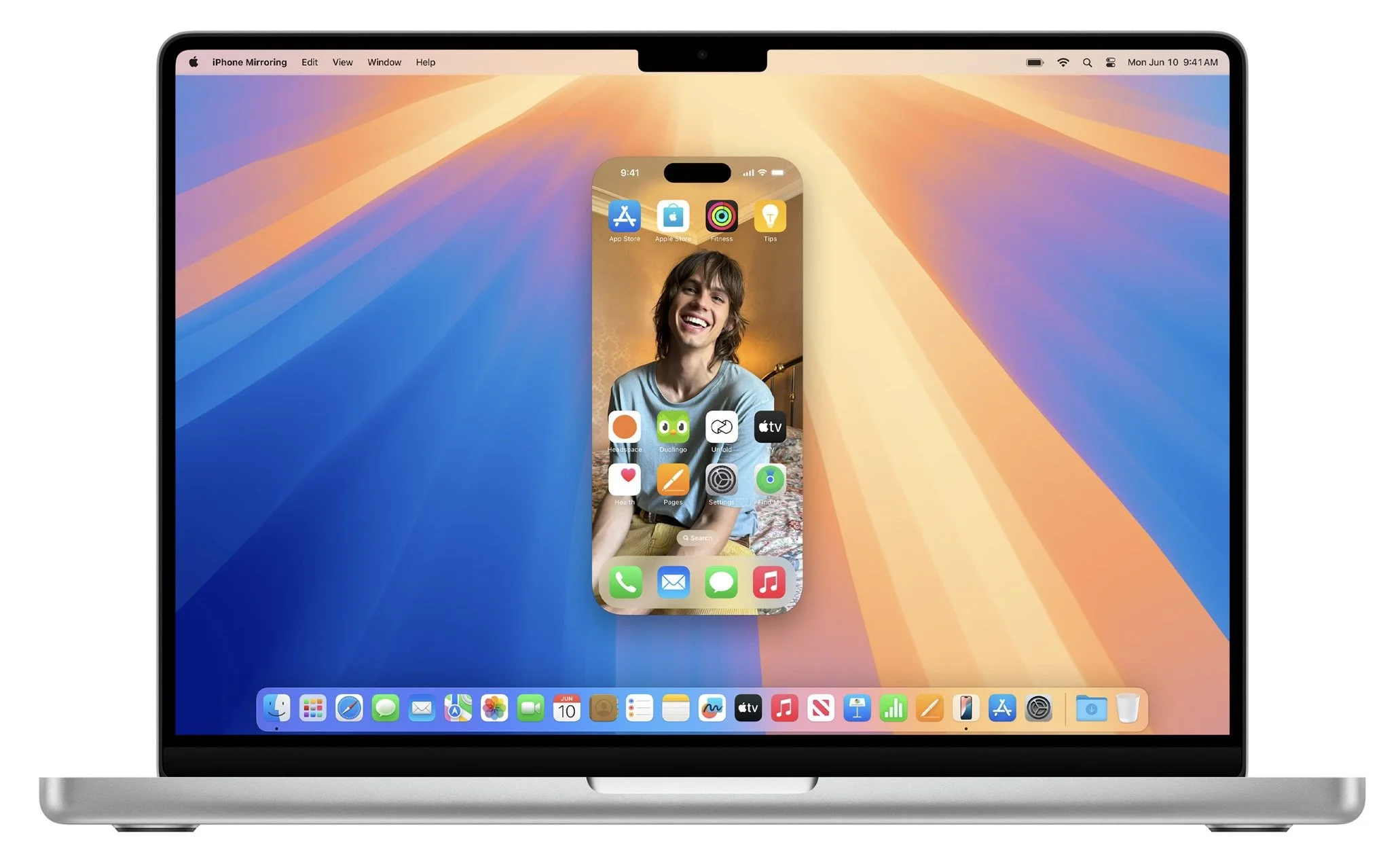
What capabilities does Sequoia promise? The big one is iPhone mirroring, which will let you view and interact with your iPhone right on your Mac screen. iPhone notifications can appear on your Mac, and later this year, you’ll be able to drag and drop files, photos, and videos between your Mac and iPhone. New window tiling features make it easy to arrange windows in side-by-side tiles on your desktop by dragging or using keyboard or menu shortcuts. Those who do video calls all day will appreciate background replacements and a presenter preview that shows exactly what you’ll share before displaying it to everyone. The new Passwords app appears on the Mac and syncs securely across all your Apple devices. And you’ll enjoy the same updates to Mail, Maps, Messages, Notes, and Photos as are in iOS and iPadOS.
We always encourage caution when upgrading to a new version of macOS. Wait at least a month or two before upgrading your primary Mac to Sonoma. App compatibility is less of a long-term problem with iOS and iPadOS, but many people rely on older Mac apps that may not work in the latest version of macOS. Even once you’re confident that your apps will work adequately in Sequoia, there may be workflow or intra-office compatibility concerns if some people upgrade and others don’t. And, of course, unanticipated bugs could crop up at inconvenient times—important work takes place on Macs!
Please do not upgrade to Sequoia without first checking with us. With luck, the bug fixes and app updates necessary to give the green light will have appeared by the end-of-year break, which provides some welcome downtime during which you can install and spend some time exploring the new features.
(Featured image by Apple)
Introducing macOS Sequoia
Introducing macOS Sequoia, the latest evolution of Apple's operating system, designed to bring a harmonious blend of power, beauty, and simplicity to your Mac.
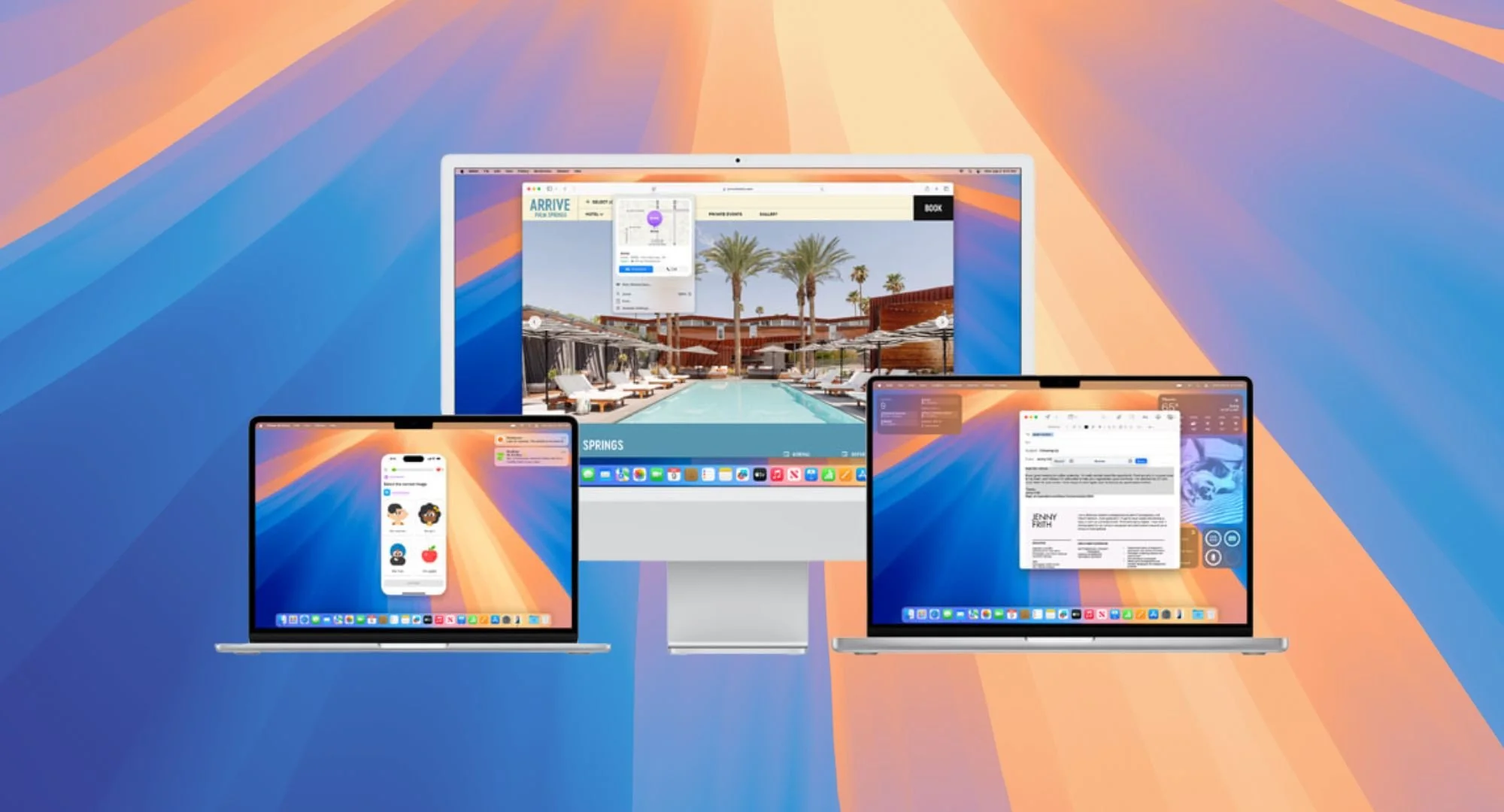
Introducing macOS Sequoia, the latest evolution of Apple's operating system, designed to bring a harmonious blend of power, beauty, and simplicity to your Mac. Inspired by the strength and longevity of the mighty sequoia trees, this update focuses on enhancing both performance and user experience, while maintaining the elegance you love. It is loaded with new features.
Monday September 16th, Sequoia became available for everyone.
With macOS Sequoia, you'll enjoy:
Smoother Performance: Optimized to make your Mac faster and more responsive, even with heavy multitasking.
Enhanced Privacy and Security: New tools to keep your data safe and your Mac secure, with even more control over your privacy settings.
Refined Design: A fresh, clean look that’s both modern and familiar, with subtle improvements across the interface.
Seamless Integration: Connect effortlessly across all your Apple devices, with Continuity features that make working between your iPhone, iPad, and Mac easier than ever.
Improved Battery Efficiency: Smart energy management for longer battery life without sacrificing performance.
To prepare for installing macOS Sequoia, follow these simple steps to ensure a smooth upgrade:
1. Check Compatibility
Make sure your Mac is compatible with macOS Sequoia. Generally, newer Mac models (from the past 5-7 years) are supported. Check Apple’s official website for a list of supported devices.
macOS Sequoia is compatible with these devices.
MacBook Air (2020 and later)
MacBook Pro (2018 and later)
iMac (2019 and later)
iMac Pro (2017)
Mac Pro (2019 and later)
Mac Studio (2022 and later)
Mac mini (2018 and later)
2. Backup Your Data
Before upgrading, back up your Mac using Time Machine or another preferred method. This ensures that if anything goes wrong during the installation, you won’t lose important files.
3. Check Available Storage
Make sure you have enough free storage space for the update. Typically, major macOS updates require around 15-20GB of space, but it’s good to have some extra room for future updates and performance.
4. Make sure your Apps are all compatible with the upgrade
Ensure that your apps are up to date. Some apps may need updates to work properly with macOS Sequoia. Check the App Store and any third-party apps for available updates.
MacOS Sequoia is designed for anyone who values enhanced performance, security, and a polished Mac experience, making it a worthwhile upgrade for both casual users and professionals alike.
One thing we like to stress when a new system comes out, there is no reason to be the first person on the block to install it. Let us be the guinea pigs. Let Apple come out with their first incremental update. Ask us what we think or As always we are available at GeekHampton to help you with this. Please call or come in.
Apple Announces iPhone 16 Lineup, Apple Watch Series 10, and AirPods 4
Apple has introduced the iPhone 16 lineup, the Apple Watch Series 10, and two models of the AirPods 4, plus smaller changes. The upgrades are welcome but incremental, making them most compelling to those upgrading from much older devices.
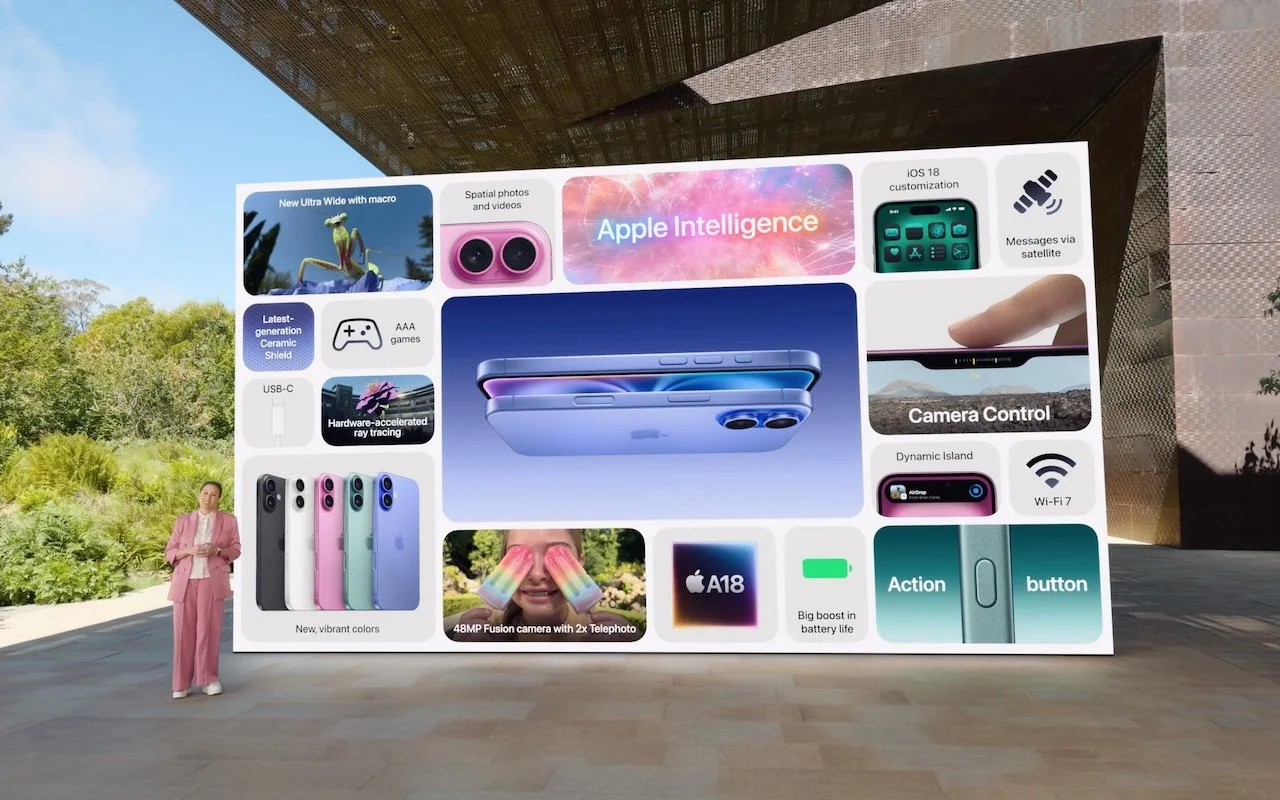
It’s September, which brings the annual Apple crops: new iPhones, Apple Watches, and AirPods. At its recent Glowtime event, Apple unveiled the new iPhone 16 lineup, Apple Watch Series 10, and AirPods 4, alongside smaller announcements about existing products. As always, the enhancements in the new products are evolutionary, making them attractive to anyone already looking to buy a new iPhone, Apple Watch, or pair of AirPods. But those who are happy with their current Apple devices may not find the changes worth opening their wallets to upgrade. Pre-ordered products will be delivered and become available in stores on September 20.
After the announcement, Apple revealed on its website that all its next-generation operating systems—macOS 15 Sequoia, iOS 18, iPadOS 18, watchOS 11, visionOS 2, tvOS 18, and HomePod Software 18—will ship on September 16. Wait a week or two before upgrading essential devices to avoid any last-minute bugs, and hold off on Sequoia for a few months or until you’re confident your necessary Mac apps are compatible. Regardless of when you upgrade, make a backup right before in case an unexpected problem forces you to erase and restore.
Let’s look at the new products.
iPhone 16 Lineup
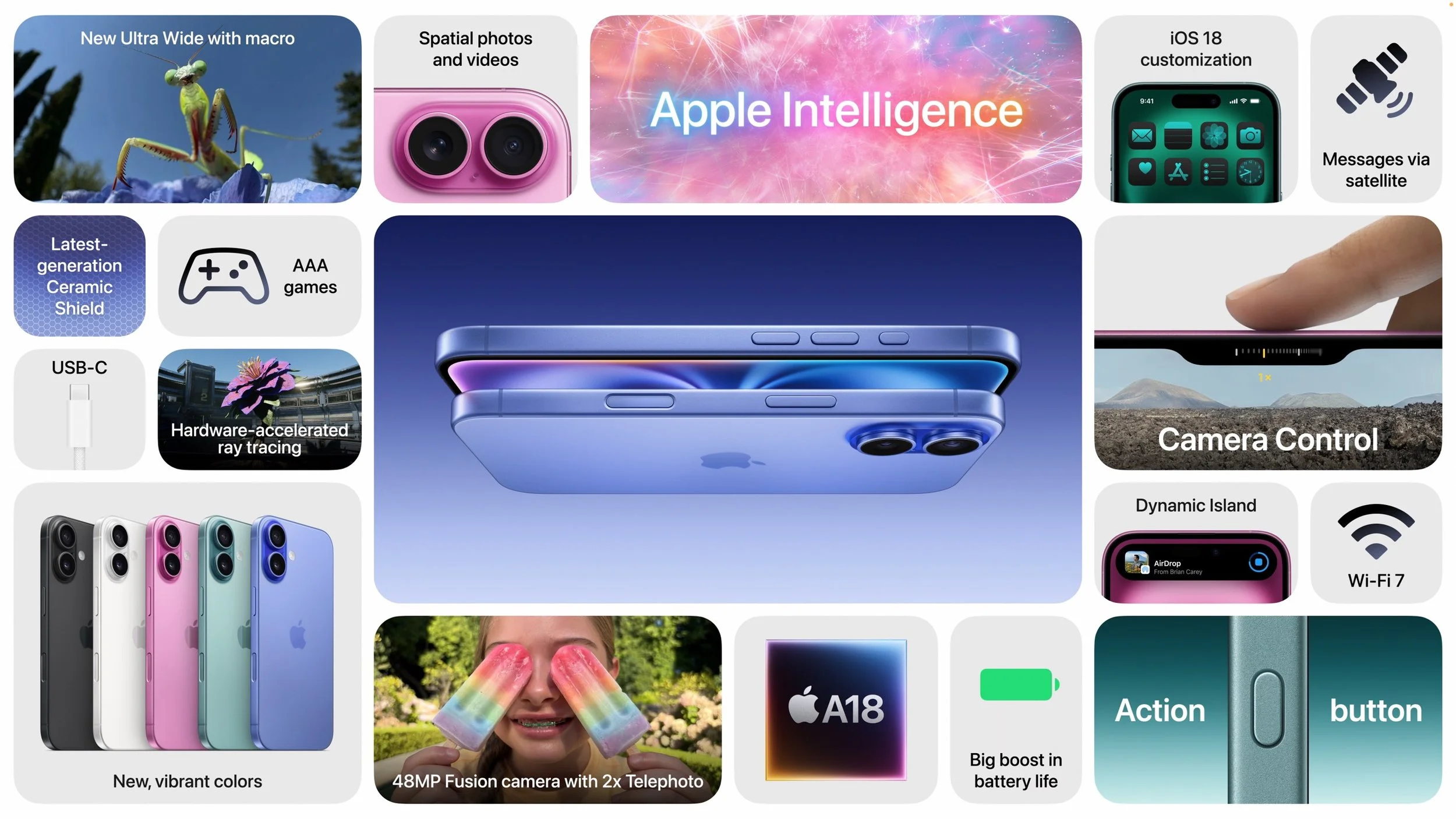
Apple has continued its four-part iPhone lineup this year, with the 6.1-inch iPhone 16 and 6.7-inch iPhone 16 Plus aimed at everyday users, and the 6.3-inch iPhone 16 Pro and 6.9-inch iPhone 16 Pro Max for professional users. The aluminum-cased iPhone 16 models come in brighter colors than last year, including black, white, pink, teal, and ultramarine, with color-infused back glass. The iPhone 16 Pro models are once again encased in titanium in muted metallic colors, this time in black, white, natural, and desert titanium.
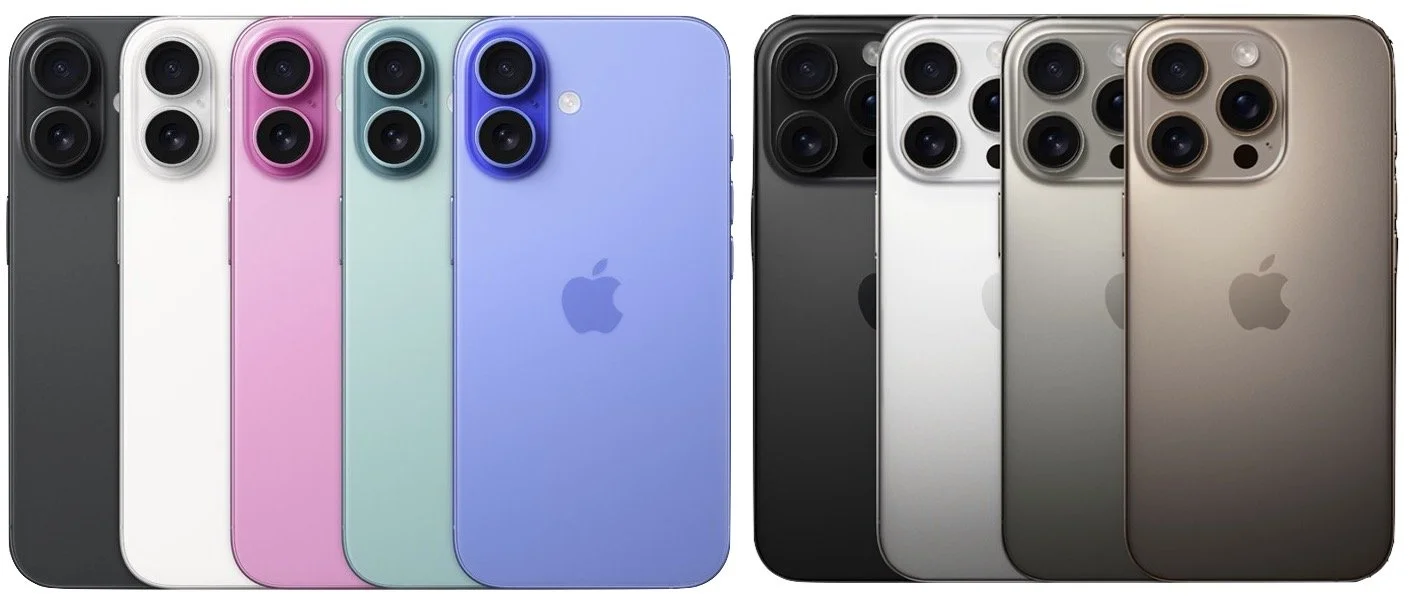
Notable features shared by all the iPhone 16 models include:
Action button: Introduced in the iPhone 15 Pro models last year, the Action button replaces the Ring/Silent switch above the volume buttons (top iPhone below) with a button whose function you can configure. The Action button is now standard across all models.
Camera Control: The multifunction Camera Control below the side button provides flexible control of the Camera app (bottom iPhone below). Click it once to open the app; click again to take a photo or click and hold to record a video. A light press lets you access common camera functions by sliding your finger along the Camera Control.
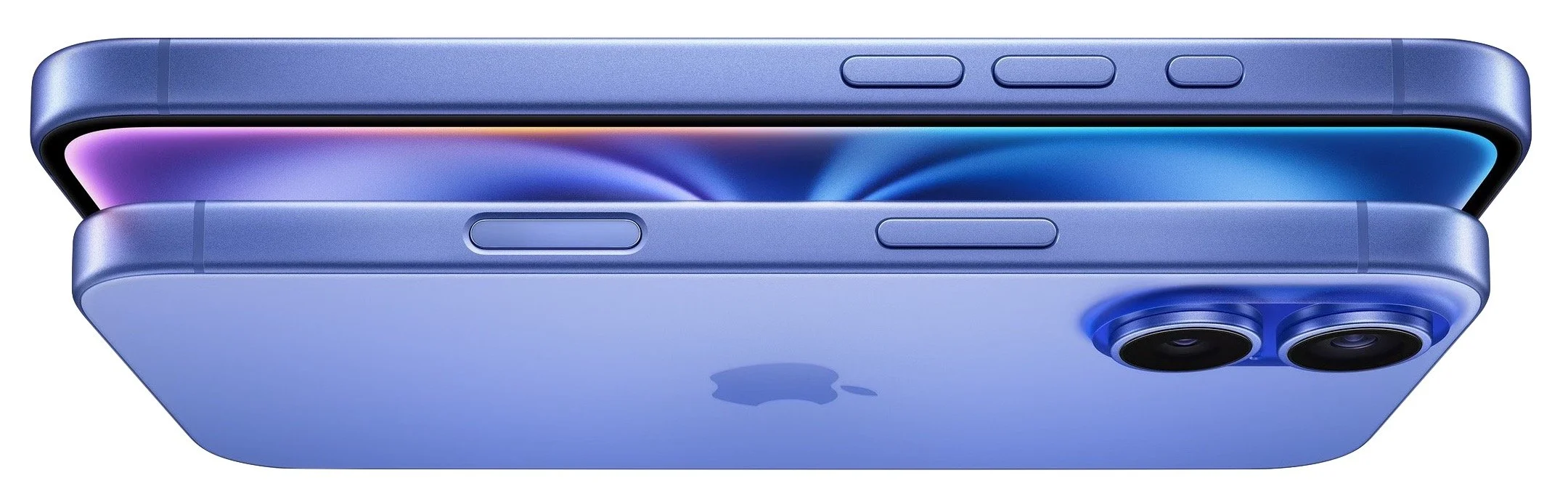
A18 and A18 Pro chips for Apple Intelligence: The base iPhone 16 models are now powered by the new A18 chip, and the iPhone 16 Pro models get the faster A18 Pro. This key upgrade ensures the entire lineup will receive Apple Intelligence features once they ship in October in iOS 18.1. As far as we can tell, the Apple Intelligence feature set is the same across the board, but some features may work more quickly on the Pro models.
Enhanced photo, video, and audio features: The Pro model cameras are notably more capable, but all iPhone 16 models can now take spatial photos and videos for playback on the Apple Vision Pro. Plus, the new Audio Mix feature lets users adjust the sound of a video after capture to focus on the voice of the person on camera, make it sound like it was recorded in a professional studio, or put voices in front of environmental sound.
Longer battery life: Although it’s tricky to provide real-world estimates, Apple increased the battery size and life in all four models, claiming that the iPhone 16 Pro Max has the longest battery life of any iPhone yet.
Messages via satellite and Emergency SOS Live Video: With Messages via satellite, you’ll be able to carry on text chats even when there’s no cellular service, and Emergency SOS Live Video lets you share live video with participating 911 dispatchers. Although these features are compelling, they’re also available to the iPhone 14 and iPhone 15 lineups in iOS 18.
The iPhone 16 and iPhone 16 Plus may not be as technologically capable as their Pro siblings, but they’re closer than ever before, thanks to the addition of the Action button, Camera Control, and A18 chip. Other improvements that set them apart from previous models include an improved 48-megapixel Fusion camera and an enhanced 12-megapixel Ultra Wide camera that enables macro photography.
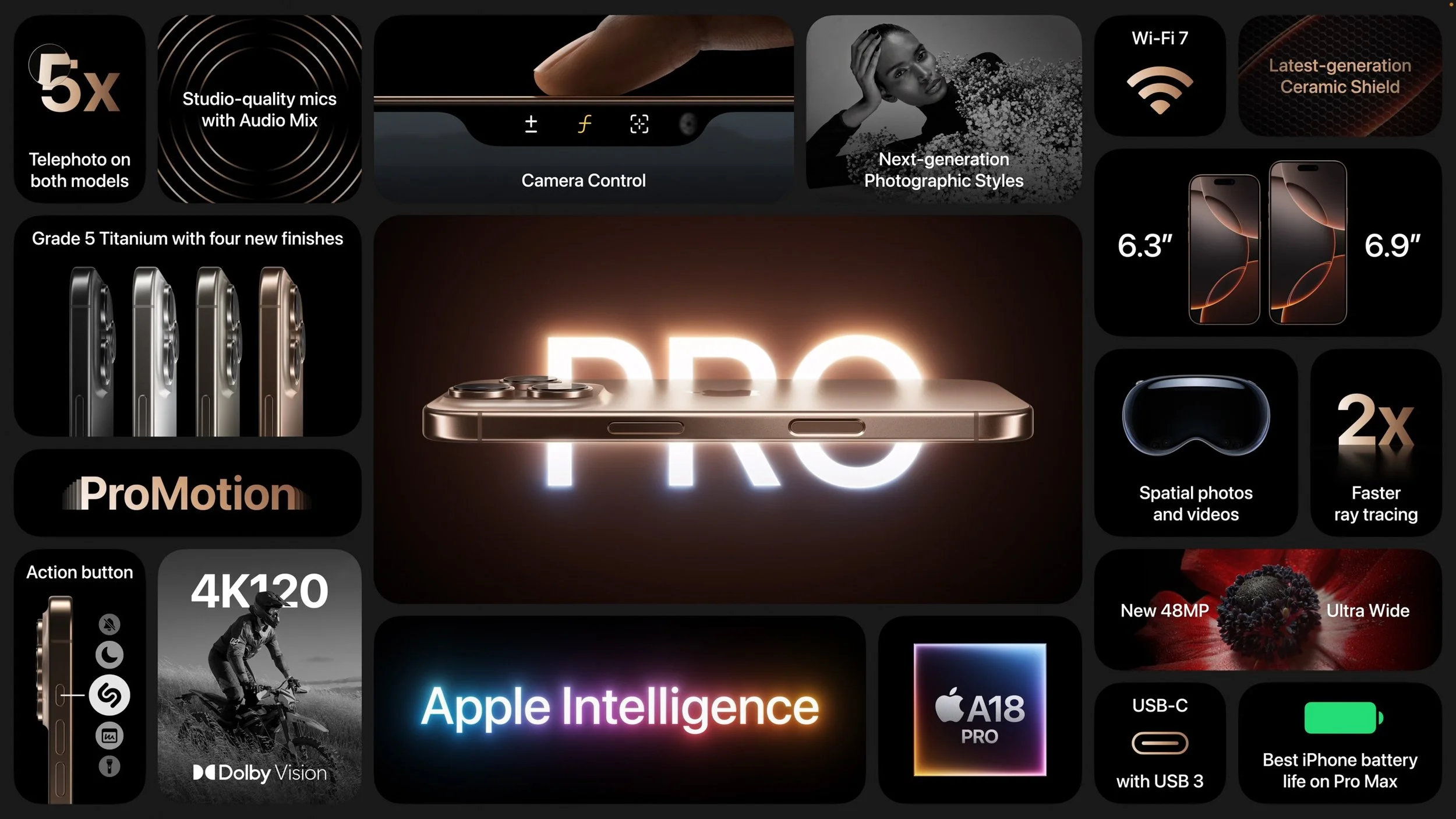
Despite the improvements in the base models, the iPhone 16 Pro and iPhone 16 Pro Max stand apart with larger screens and advanced pro features. Last year, Apple introduced a 5x Telephoto camera in the iPhone 15 Pro Max thanks to a tetraprism design; both iPhone 16 Pro models now feature that camera. The Ultra Wide camera also jumps from 12 to 48 megapixels, increasing the quality of macro shots. The main 48-megapixel Fusion camera now provides a faster quad-pixel sensor that enables recording of 4K video at 120 frames per second in Dolby Vision. That sensor is twice as fast as before, eliminating shutter lag when taking 48-megapixel ProRAW or HEIF photos. Audio capture is better, too, thanks to four “studio-quality” mics, and machine-learning algorithms reduce wind noise when capturing audio. It’s also worth noting that the Pro models feature USB 3 transfer speeds of up to 10 gigabits per second (with a supported cable), while the base models are still limited to USB 2.0’s pokey 480 megabits per second.
Pricing remains the same, with the iPhone 16 and iPhone 16 Plus starting at $799 and $899 for 128 GB of storage, with 256 GB and 512 GB options. The iPhone 16 Pro costs $999 for 128 GB, with 256 GB, 512 GB, and 1 TB storage options. The iPhone 16 Pro Max is $1199 for 256 GB, with 512 GB and 1 TB storage options. If those prices are too steep for your budget, the iPhone SE ($429), iPhone 14 ($599), and iPhone 15 ($699) all remain for sale, but none of those will support Apple Intelligence.
Should you upgrade? Nothing in the new models is essential. The new Camera Control may encourage upgrades for those who take a lot of photos, and the iPhone 16 Pro’s new 48-megapixel Ultra Wide camera and 5x Telephoto camera are significant. Apple Intelligence features will require an iPhone 15 Pro or iPhone 16. Otherwise, the older your current iPhone, the more you’ll be impressed by the new lineup’s capabilities.
Apple Watch Series 10
Apple surprised many by introducing the Apple Watch Series 10 with a thinner, lighter design that still provides a larger, brighter screen and works with all existing bands. Apple also swapped stainless steel for lighter titanium in the higher-end models. Those expecting a new Apple Watch Ultra were disappointed; the existing Apple Watch Ultra 2 received a new black titanium finish and matching black Titanium Milanese Loop band.
Notable changes in the Apple Watch Series 10 include:
Thinner and lighter: The new case is just 9.7 millimeters thick, nearly 10% thinner than recent models. The aluminum models are 10% lighter, whereas the new titanium models are 20% lighter than the previous stainless steel models.
Larger, brighter display: The case sizes grow by 1 millimeter to 42mm and 46mm, but Apple increased the display size to provide 30% more screen area than the Apple Watch Series 4–6 and 9% more than the Apple Watch Series 7–9. The display is also 40% brighter when viewed from an angle and so much more power efficient that the Always-On display can now update once per second rather than once per minute.
Faster charging: New features in watchOS 11 encourage wearing the watch at night, so Apple made the Apple Watch Series 10 charge to 80% in just 30 minutes. Daily use can be satisfied with 15 minutes of charging, and 8 minutes is all that’s necessary for overnight sleep tracking.
Sleep apnea notifications: The Apple Watch Series 10 can identify sleep apnea by detecting interruptions in normal respiratory patterns using the accelerometer. Sleep apnea affects over 1 billion people worldwide, 80% of whom remain undiagnosed. The feature will also appear in watchOS 11 for the Apple Watch Series 9 and Apple Watch Ultra 2.
Audio playback through speakers: Apps could generate audio through the speakers of previous Apple Watch models, but they couldn’t play music or podcasts. That’s now possible with the Apple Watch Series 10, letting you listen even if you’ve forgotten your AirPods.
Depth and water temperature sensors: Divers will still want to focus on the Apple Watch Ultra 2, but the Apple Watch Series 10 now features a depth gauge that works down to 6 meters and a water temperature sensor.
No blood oxygen sensing in the US: Although the pulse oximeter from previous models remains in the hardware and is available in other countries, a patent dispute prevents Apple from enabling it for units sold in the United States. If Apple can settle the dispute, the feature will become available with a software update.
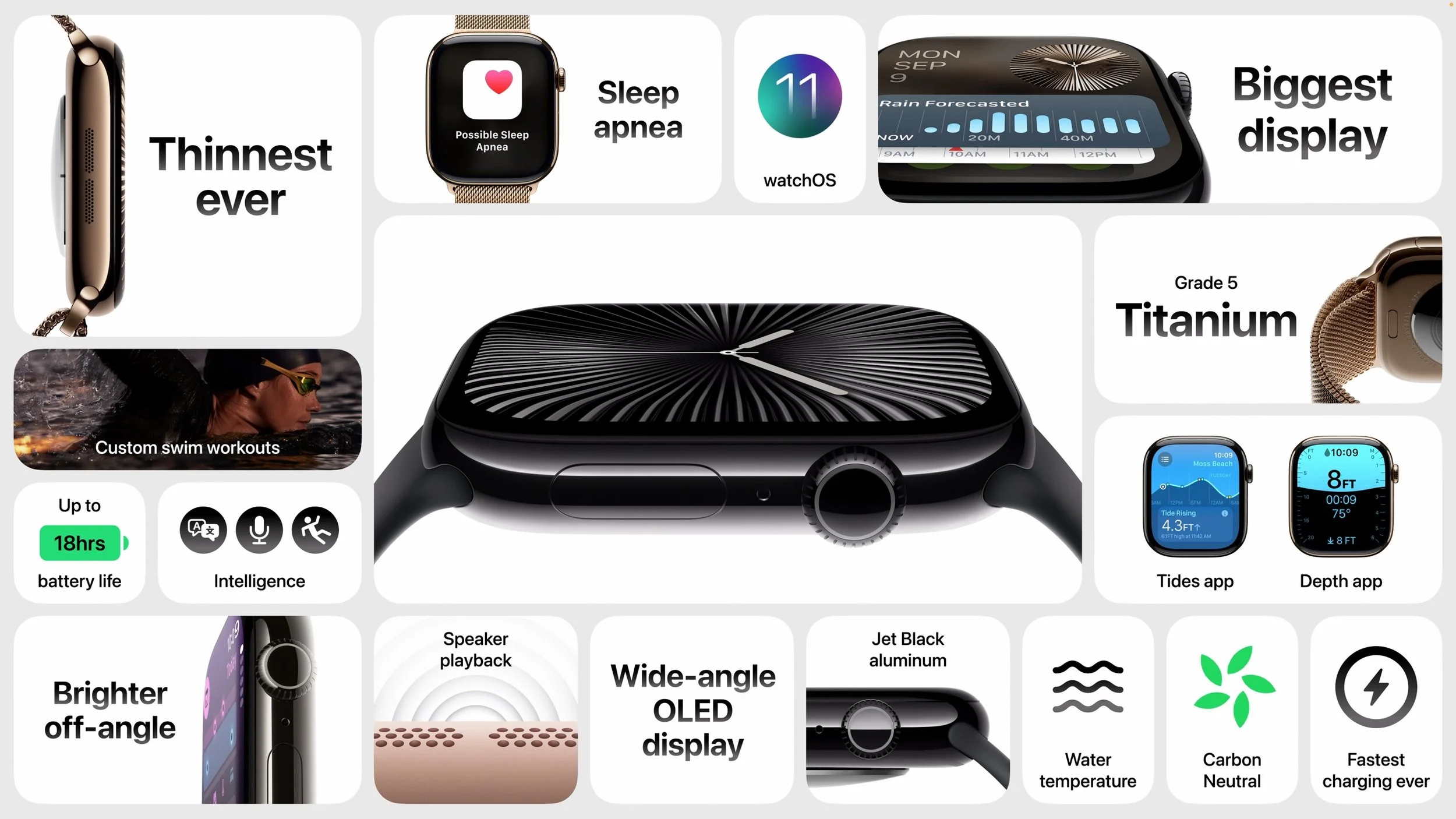
The Apple Watch Series 10 starts at $399 for a 42mm aluminum GPS-only model; 46mm models cost $30 more, and cellular connectivity adds $100. It’s available in silver, rose gold, and a new polished jet black. Pricing for the titanium models starts at $699 for a 42mm model and includes cellular connectivity; the 46mm models are $50 more. Colors include natural, gold, and slate. Rubber and some textile bands are included at no extra cost; other textile and all stainless steel bands cost $50 to $300 more.
If you don’t already have an Apple Watch Series 9 or Apple Watch Ultra 2, the sleep apnea notifications might be reason enough to upgrade. Being able to listen to podcasts without AirPods might also be compelling for some. Otherwise, there’s little reason to upgrade from an older but fully functional model. That said, the Apple Watch Series 10 is an excellent option for those getting started or upgrading from a much older version. Don’t forget that Apple still sells the Apple Watch SE, which lacks the Always-On display and ECG capabilities but is $150 cheaper. Apple’s comparison page can help you tease out the differences.
AirPods 4, USB-C AirPods Max, and Hearing Aid Feature for AirPods Pro
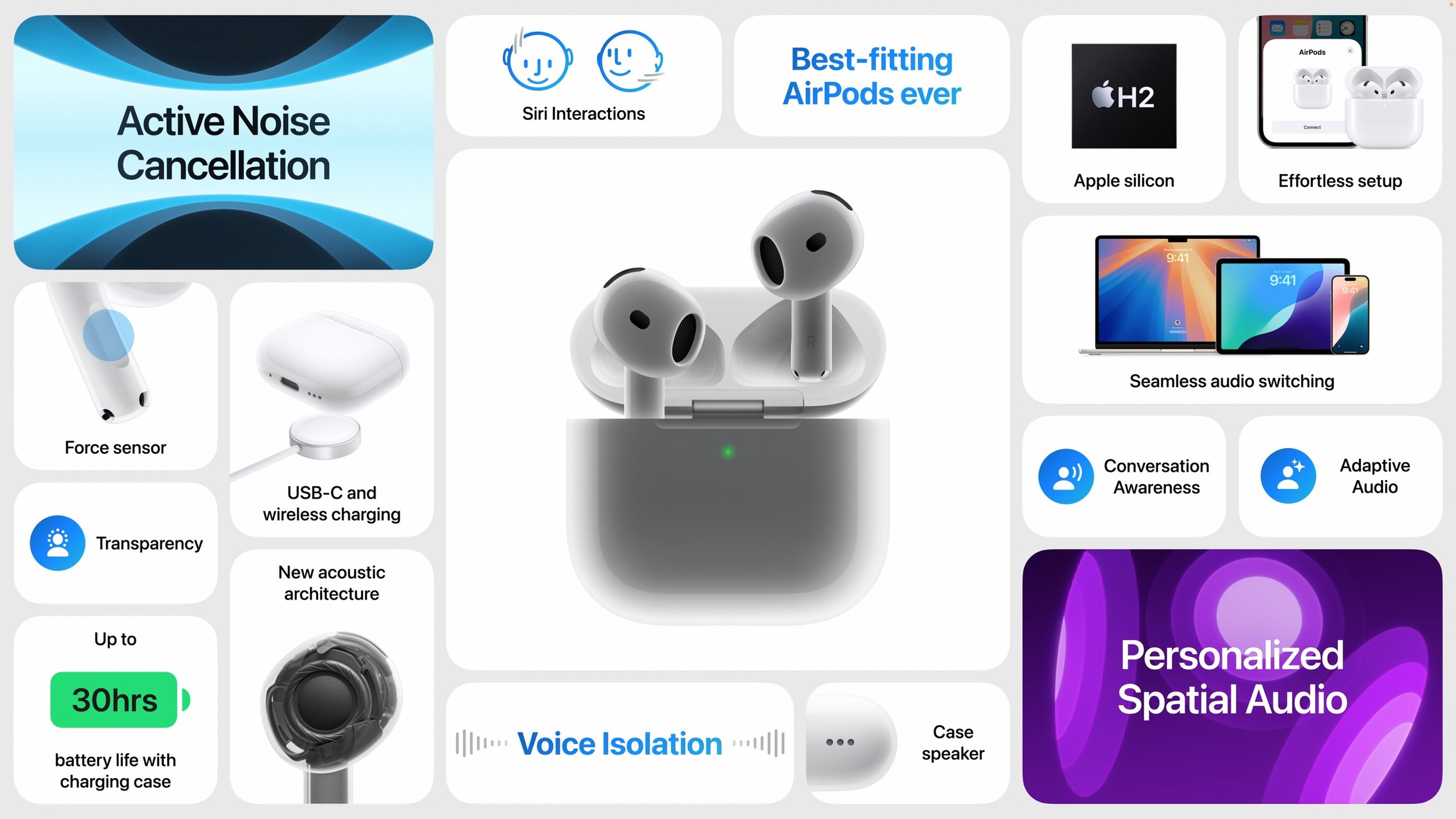
Apple released a notable update to its AirPods open-ear headphones, refining the AirPods 4 design to provide a single shape that fits more users. It boasts better sound quality thanks to a new acoustic architecture, low-distortion driver, and high dynamic range amplifier. With help from Apple’s custom H2 chip, the new AirPods provide Personalized Spatial Audio with dynamic head tracking, add voice isolation for clearer call quality in challenging environments, and let you respond to Siri announcements by nodding your head yes or shaking it no. The charging case now uses USB-C and can charge wirelessly using a MagSafe, Apple Watch, or Qi charger.
In fact, there are two models of the AirPods 4. (Really, Apple?) The AirPods 4 with Active Noise Cancellation retain the industrial design of the standard AirPods 4 but upgrade the microphones to add modes previously available only on the AirPods Pro, including Noise Cancellation (reduces environmental noise), Transparency (allows environmental noise through), Adaptive Audio (intelligently combines the two), and Conversation Awareness (lowers media volume and reduces background sounds when you start speaking).
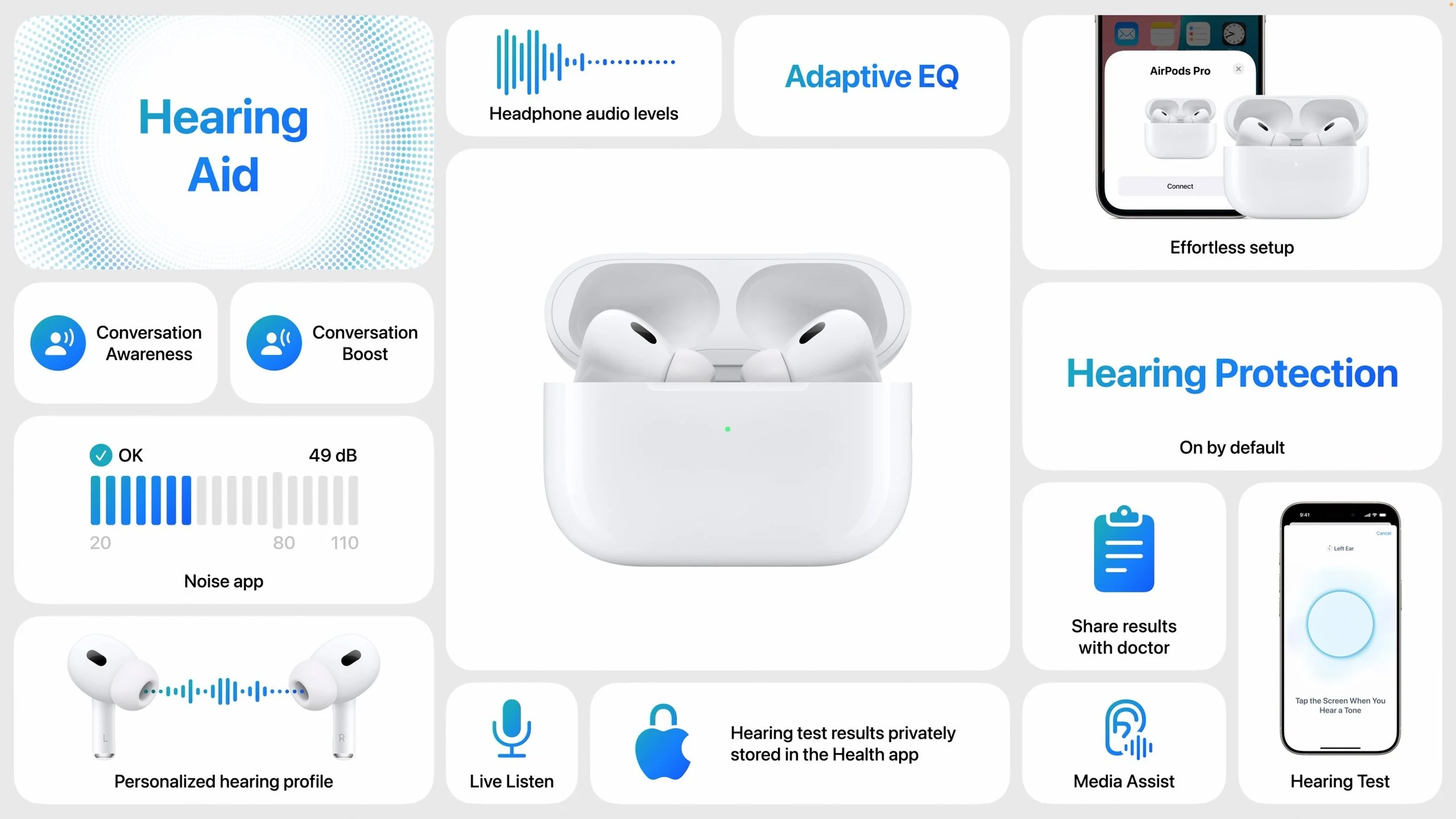
Perhaps even more interesting are the changes Apple is bringing to the existing AirPods Pro 2. To improve hearing health, Apple has leveraged findings from the Apple Hearing Study. All modes now feature Hearing Protection, which automatically reduces louder, intermittent noises. A new Hearing Test feature, triggered from an iPhone or iPad, helps users check their hearing. Most notably, a new Hearing Aid feature leverages the personalized profile generated from the Hearing Test to boost nearby sounds, turning the AirPods Pro into what Apple calls a “clinical-grade hearing aid” for mild to moderate hearing loss. These features will be available later this year with iOS 18 or iPadOS 18.
Finally, Apple refreshed the AirPods Max line of over-ear headphones with new colors—midnight, starlight, blue, orange, and purple—and USB-C charging capabilities.
The standard model of the AirPods 4 costs $129, while the AirPods 4 with Active Noise Cancellation are $179. The AirPods Pro 2 remain priced at $249, and the AirPods Max are still $549. It may be hard to justify upgrading from existing AirPods that work fine, but keep these features in mind when it comes time to replace a pair of lost or broken AirPods.
(Featured image by Apple)