
Improve Your Hearing with the AirPods Pro 2 and iOS 18
Apple’s AirPods Pro 2 can help you hear more—or less. We examine both possibilities and explain how easy it is to use the AirPods Pro to take a clinically validated hearing test and enjoy the new clinical-grade Hearing Aid feature.

For many, Apple’s AirPods are just another pair of earbuds: a convenient way to listen to media. But with the latest versions of iOS and automatically applied firmware updates, the AirPods Pro 2 have become significantly more interesting.
They have long had noise cancellation features, which we find helpful in open office environments and for turning down the volume on everything from airplanes to vacuum cleaners. The more recent addition of Adaptive mode, which bridges between Transparency and Noise Cancellation modes and changes with your surroundings, makes them useful in dynamic urban environments. The Loud Sound Reduction feature can be a godsend at concerts where the music would otherwise be painfully loud. Personalized Volume adjusts the volume of media in response to your environment, and although it can be a bit disconcerting, Conversation Awareness drops the media volume and reduces background noise when you start speaking to others.
However, the newest and most important feature of the AirPods Pro 2 comes with iOS 18.1: Hearing Health. Many people don’t realize they have hearing loss, so Apple now provides a clinically validated Hearing Test and a clinical-grade Hearing Aid feature that can compensate for mild to moderate hearing loss. Even if you don’t think you have any hearing problems, we recommend taking Apple’s hearing test so you have a baseline to compare against future tests.
Here’s how to check your hearing and get started with the hearing assistance and protection features. Before you start, make sure you’ve paired your AirPods Pro with your iPhone and haven’t been exposed to loud noises for at least 24 hours. (It can take that long for your hearing to return to normal.)
Take a Hearing Test
The Hearing Test has three parts: setup, the actual test, and presenting the results. In the setup phase, the iPhone guides you through finding a quiet place to take the test, inserting your AirPods Pro correctly, and testing the fit.
The fit test is important because the AirPods Pro silicone ear tips help block outside noise, allowing the earbuds to boost or lower the volume of particular sounds or frequencies to improve audio clarity. The AirPods Pro come with four sizes of ear tips, from extra small to large (medium is the default), and the fit test helps you determine which ear tip best combines efficacy and comfort.
To start the test, open the iPhone’s Settings app and tap the name of your AirPods Pro—that option appears only when the case is open or they’re in your ears. In the AirPods screen, tap Take a Hearing Test. The test involves tapping the screen every time you hear a pulse of three tones. As a game, it’s boring but not easy—most people will probably be able to hear the first few tones, but subsequent ones become significantly more difficult to discern. Don’t worry if you miss a tone because you’ll have multiple chances to hear each one. The test focuses first on one ear and then the other.

At the end, the test presents your results. dBHL stands for decibels Hearing Level and indicates the softest sounds you can hear at various frequencies. If you have little to no hearing loss—dBHL under 20—there’s no need to do anything more. dBHL numbers between 20 and 40 suggest mild hearing loss and indicate that you may have difficulty hearing soft or distant sounds, such as whispers or quiet conversations. Numbers from 41 to 55 indicate moderate hearing loss, which can make it difficult to understand normal speech, particularly in loud environments. For higher levels of hearing loss, or if you’re experiencing noticeable problems, consult an audiologist.
Turn On Hearing Assistance
If your hearing test suggests mild to moderate hearing loss, the AirPods Pro Hearing Aid feature can help. It uses the hearing test results to adjust what you hear to improve voice and audio clarity. You can turn it on at the end of the hearing test if indicated, or at any time in Settings > AirPods Pro > Hearing Assistance. (If your results indicate little to no hearing loss, the trick to turning on the Hearing Aid feature is to tap “Learn About Hearing Aid” at the end of the test or by selecting a hearing test result and then tapping Next.)
Apple has created a particularly flexible solution here. In the Hearing Aid section, you can control whether the AirPods Pro adjust external sounds for greater clarity. To tweak the specifics, tap Adjustments and use the amplification, balance, tone, and ambient noise reduction sliders. The Conversation Boost switch enhances face-to-face conversations by focusing on the person in front of you.
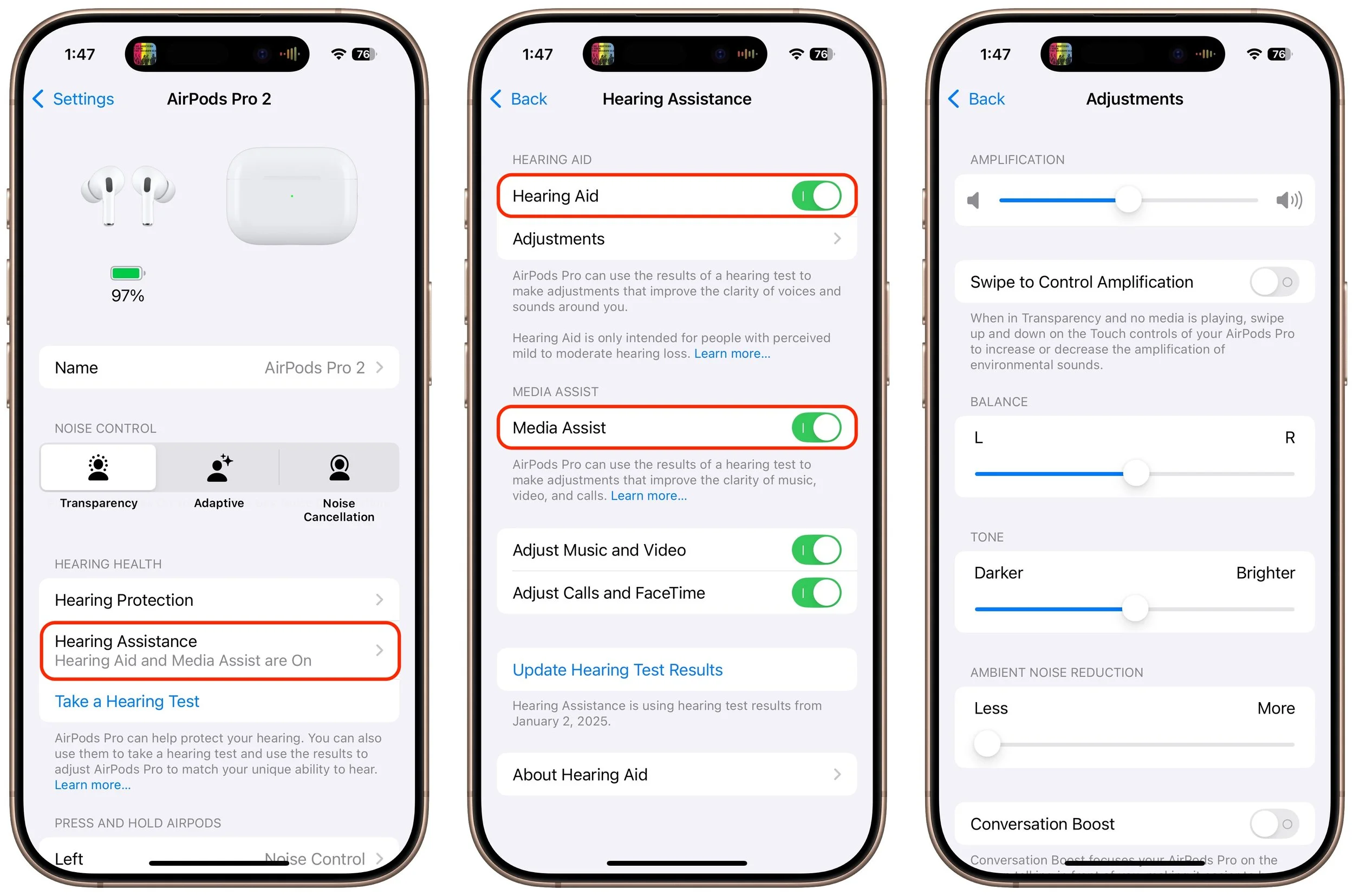
Also helpful is Media Assist, which uses your hearing test results to improve music, podcasts, and other audio played through the AirPods Pro. Separate switches let you apply it to Music and Video along with Calls and FaceTime.
Improve and Protect Your Hearing
If you own a pair of AirPods Pro 2, we highly recommend that you take a hearing test and try the Hearing Aid feature. Even if you have little or no hearing loss, you may find that the Media Assist option makes your music sound better. It’s easy to test—just play a song you love (turn it on from Control Center) and toggle Media Assist on and off while it plays.
Also, we’ve started wearing the AirPods Pro in situations where we might not have thought to in the past. It’s obvious that the Noise Cancellation mode would be helpful on an airplane, but we also use it to block unwanted noises to aid our concentration at work. We’ve also found that Transparency and Adaptive modes can be helpful on city streets and in loud restaurants. Plus, because Loud Sound Protection is automatically enabled in Transparency and Adaptive modes, it lets us enjoy front row seats at a concert without worrying about our hearing or suffering from ringing ears the next day.
We know that AirPods Pro aren’t for everyone. Many people prefer the AirPods 4, which provide some noise cancellation without blocking the ear canal with silicone ear tips. But they can’t compete with the AirPods Pro for noise cancellation and lack the new Hearing Health features. Between the Hearing Test and Hearing Aid features and how the AirPods Pro can protect and enhance hearing, we think they will become a more common sight among older adults who otherwise wouldn’t consider wearing earbuds in public. If you have questions or concerns about your hearing, give them a try.
(Featured image by iStock.com/Julija Matuka)
What You Can Do with the December Wave of Apple Intelligence Features
We look at the latest wave of Apple’s AI features and help you start using them for discussions with ChatGPT, creating images, making custom emoji, learning about your environment, and more.

The first set of Apple Intelligence features appeared in macOS, iOS, and iPadOS in October. Apple has now debuted the second set in the December releases of macOS 15.2 Sequoia, iOS 18.2, and iPadOS 18.2. Apple still considers them to be in beta, which is a nice way of saying that they may not work perfectly. However, they usually do what they promise.
Remember, Apple Intelligence features work only on a Mac with Apple silicon, an iPad with an A17 Pro or M-series chip, or an iPhone 15 Pro or any iPhone 16. Intel-based Macs and older iPhones and iPads can’t play. If you’ve been holding off on upgrading, this is a fine time to make the jump. Regardless, you must turn on Apple Intelligence, which you do on the Mac in System Settings > Apple Intelligence & Siri and in Settings > Apple Intelligence & Siri on the iPhone and iPad.
What can you look forward to with this second set of Apple Intelligence features?
Image Playground Helps Make Fun Images
With Image Playground, Apple is dipping its toe into AI-driven image generation. The standalone Image Playground app lets you create amusing images with text descriptions, either starting from scratch or from a photo. You can choose from two styles: Animation, which Apple describes as “a modern 3-D animated look,” and Illustration, which “offers images with simple shapes, clear lines, and colorblocking.” (A third Sketch style will appear in a future release, and you can use ChatGPT in Writing Tools to create images in many other styles.) You can also create images directly in Messages, Freeform, Keynote, and other apps.
Once you’ve entered a few words of description or selected a person, you can embellish the image by tapping the buttons for suggested themes, costumes, accessories, and places. Each addition causes Image Playground to generate a new image, and swiping left on that image pushes it to try again. Tap the ••• button to save or share an image you like. Saved images become available on all your devices.

Genmoji Spice Up Chats on the iPhone
Less ambitious but potentially more fun are Genmoji, which are custom emoji that you create with text descriptions. Want to emote about the cold to a fellow musician? Create an emoji featuring two cellos wearing scarves.
To do this, switch to the emoji keyboard, tap the Genmoji button to the right of the search field, and describe your desired emoji. As with Image Playground, you can keep swiping left on the generated image to create more variations. When you get what you like, tap it to insert it into your chat or document.
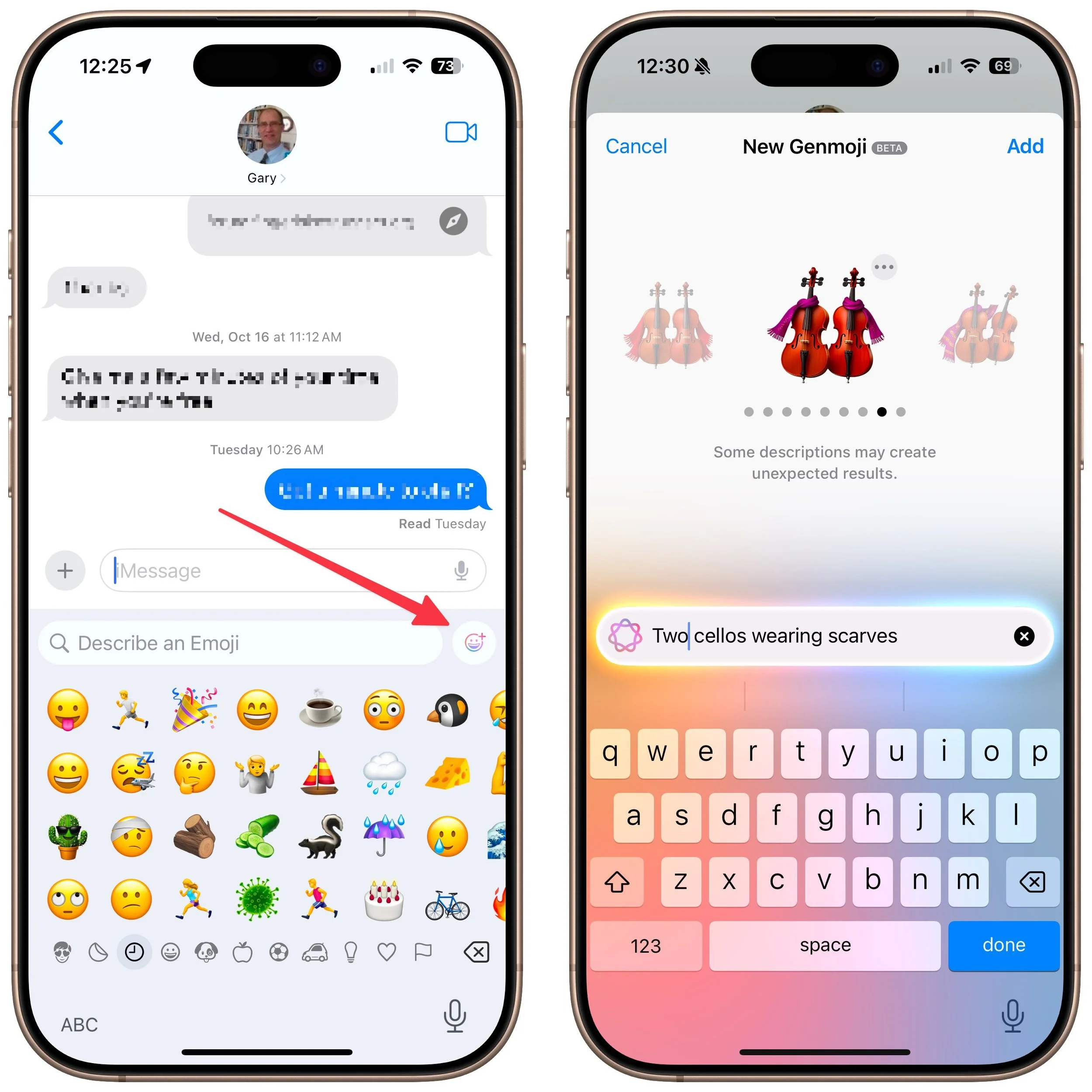
Remember that a single emoji sent by itself in Messages is quite large; two or three emoji are medium-sized, and inserting any more than that or adding text causes them to display at the smallest size.
Created Genmoji are added to your emoji collection on all your devices, but they’re actually stickers. You can remove them by tapping the ⊕ button in Messages, tapping Stickers, and using touch-and-hold on a Genmoji to access the Remove button. You can’t create Genmoji in macOS right now, but Apple has promised that feature for a future release.
Image Wand Cleans Up Apple Pencil Sketches
In iPadOS 18.2, the Notes app now offers an Apple Intelligence-powered Image Wand tool for those taking notes with an Apple Pencil. Make a rough sketch with your Apple Pencil, select Image Wand, draw a circle around your sketch, and Image Wand will turn it into a polished image. If your circle also contains text, Image Wand considers it when building the final image.

Visual Intelligence Explains What You See
When you upgrade to iOS 18.2 on an iPhone 16, the Camera Control button gains a new capability: Visual Intelligence. Press and hold it (whenever the Camera app isn’t already open, since that will trigger video recording), and Visual Intelligence presents Ask and Search buttons on either side of the shutter button. Tapping Ask causes ChatGPT to describe the image and lets you pose follow-up queries, and tapping Search performs a Google reverse image search; tap any of the results to load it. (If you can’t immediately tap Ask or Search, press the Camera Control button again or tap the shutter button to freeze the image temporarily.)

Siri Channels ChatGPT
Perhaps the most anticipated enhancement to Apple Intelligence is the integration of ChatGPT into Siri. Unfortunately, if your goal is to converse fluidly with ChatGPT, you may be better off using OpenAI’s ChatGPT app, perhaps triggered by the Action button or a widget. The problem is that unless you explicitly direct a Siri query by starting with “Ask ChatGPT,” Siri may try to answer with its own Web search or trigger a command, leading to inexplicable and unhelpful responses. Even when you get Siri to ask ChatGPT for a response, there’s no option to have it read back to you aloud, as with ChatGPT’s Advanced Voice Mode.
If you want to use ChatGPT through Siri, turn the feature on in Settings > Apple Intelligence & Siri > ChatGPT. While you’re there, you’ll probably want to turn off Confirm ChatGPT requests, which otherwise ask if you want to use ChatGPT every time it comes up. Although it may not be obvious, once you’re in a conversation with ChatGPT, you can keep talking as long as the Siri animation continues around the edge of the screen. Unfortunately, you cannot scroll back to any previous response while Siri is channeling ChatGPT; for full transcripts, you must revert to the ChatGPT app or website.

ChatGPT Enhances Writing Tools
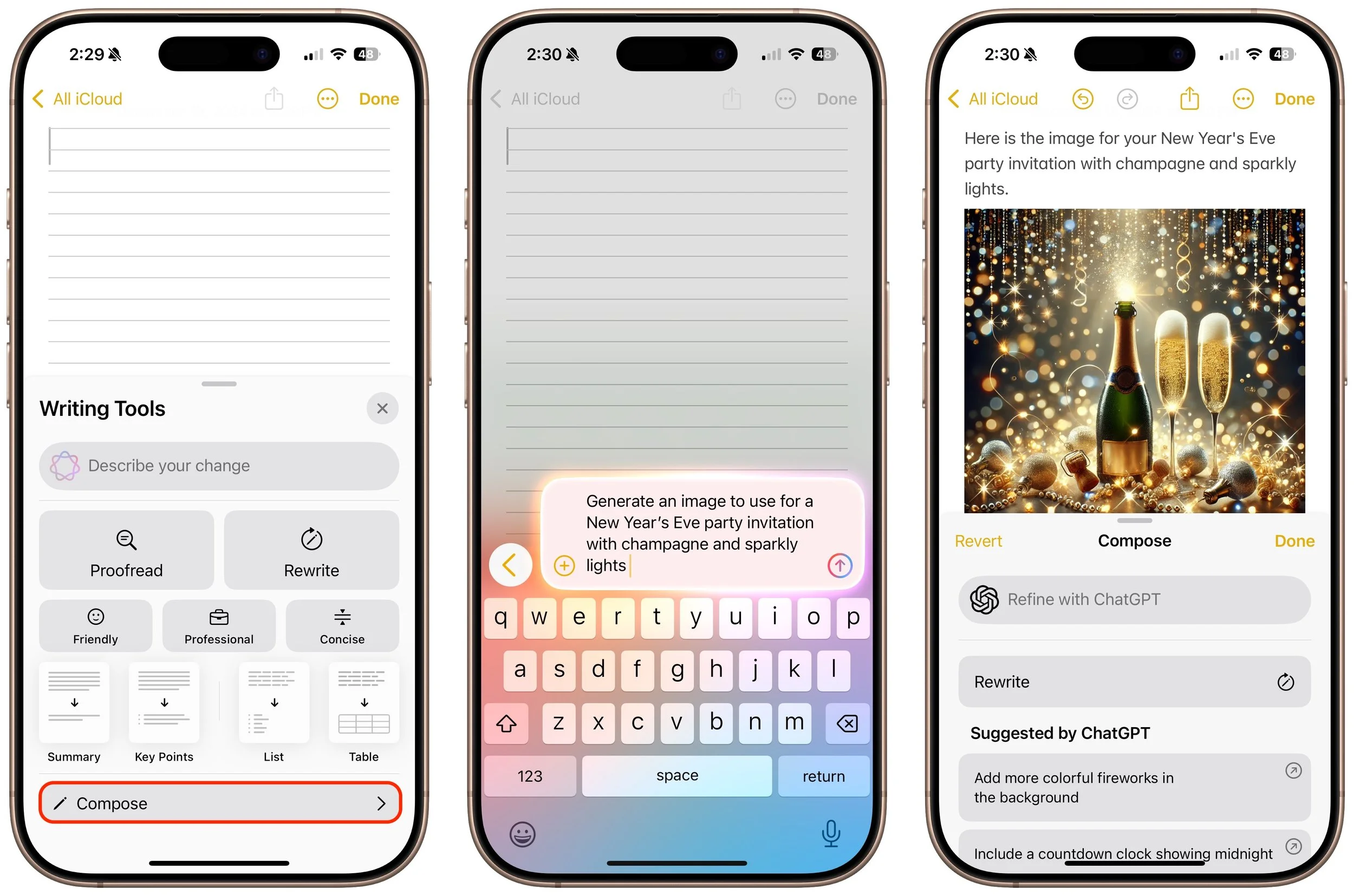
The final place ChatGPT appears in Apple Intelligence is in Writing Tools, which may be more useful than its Siri integration. The new Compose option leverages ChatGPT to generate content wherever you’re writing, and you can also use it to create images using ChatGPT’s image-generation capabilities. Writing Tools also now allows users to request their own changes to selected text (including recasting it as a haiku, for example) instead of relying solely on the canned options to make the text friendlier, more professional, or more concise.
To do this, bring up Writing Tools in any app (by choosing Edit > Writing Tools > Show Writing Tools or Control-clicking selected text and choosing from the Writing Tools menu). Tap Compose and describe what you want ChatGPT to create. If it’s not quite what you want, which is likely, keep asking for refinements or go in a different direction.
What’s Next for Apple Intelligence?
Although this second wave of Apple Intelligence features largely fulfills Apple’s main promises, a few major additions remain for 2025. Most notable are significant changes to Siri that will enable it to take your personal context—your email, messages, and photos, for instance—into account. Siri will also gain onscreen awareness to include what you see in its responses. Finally, Apple is giving Siri access to hundreds of new actions in Apple and third-party apps, which should make it more capable of acting on your behalf. The other notable upcoming change is Priority Notifications, which will evaluate the notifications from all your apps and help you focus on the most important ones.
We also hope Apple will continue to refine and improve the existing Apple Intelligence features. While they’re well integrated into the overall Apple experience, they seldom measure up to ChatGPT, Claude, Gemini, and other leading AI systems.
(Featured image by Apple)
Use Quick Look to Preview Files and Folders in the Finder, Spotlight, and Open Dialogs
With a press of your Mac’s Space bar, you can use Quick Look to preview the contents of nearly any selected file, saving you time looking for the right file, comparing files, evaluating photos, and more. Try it in apps other than the Finder, too!

Finder icons sometimes hint at their file's contents, but if you find yourself opening file after file to look at the contents quickly, the Mac has a little-known feature just for you: Quick Look. To give it a spin, select a file in the Finder and press the Space bar or Command-Y. If Quick Look supports that type of file, it instantly displays a standalone window showing the contents of the file without opening it in its native app. Press the Space bar again to close the window.
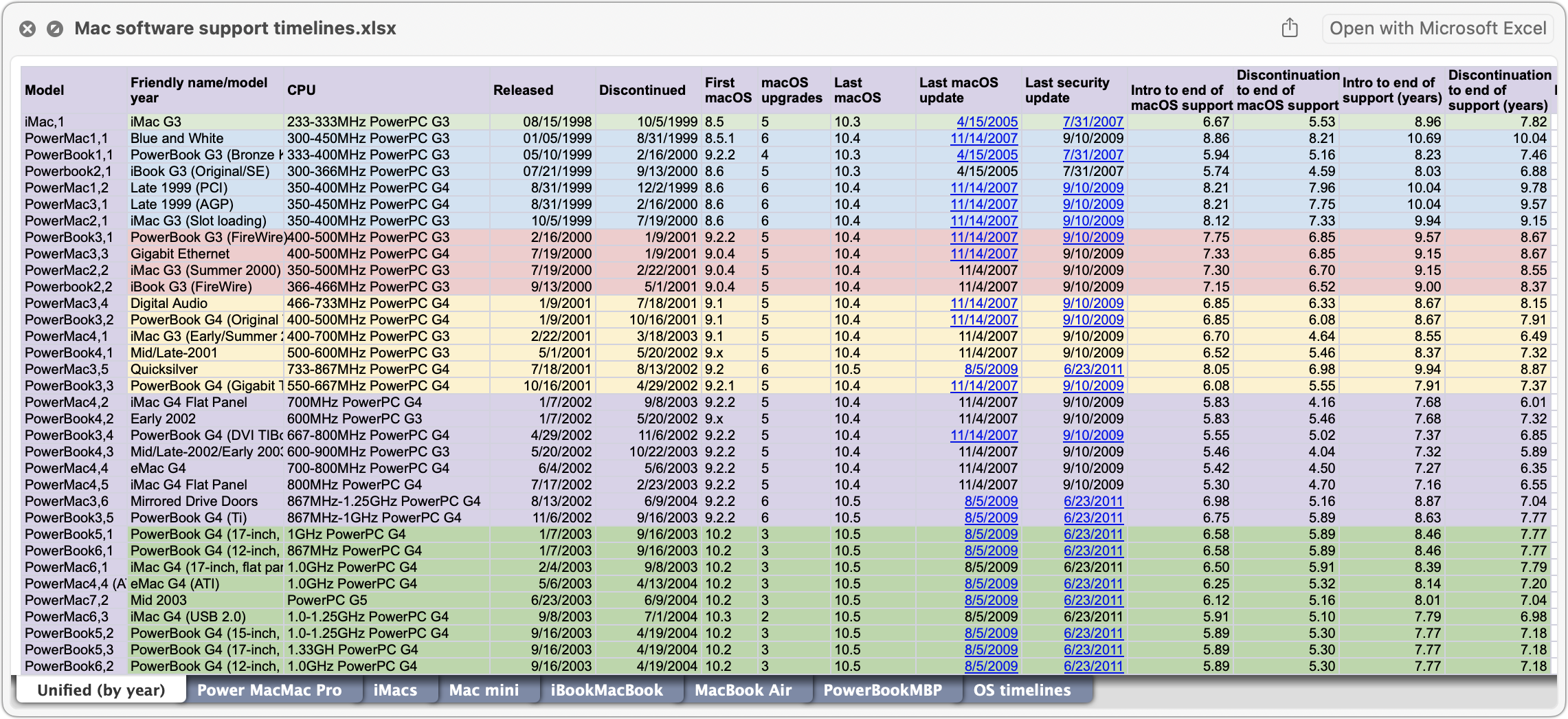
If the document you’re previewing has multiple pages, you’ll see thumbnails along the right side that you can scroll through using your mouse or trackpad, or by pressing the Page Up/Page Down keys. But you aren’t limited to just viewing a file: click the Open With button to open the file in its default app, or click the Share button in the upper right to send it to someone else via email, Messages, or another sharing service. PDFs and images will also show the Markup button that lets you annotate the file directly, and images have a Rotate button.

If you need to scan through a set of files in a folder, you can press the arrow keys while the Quick Look window remains open—how you move among the files depends on the Finder window’s view. In List view, for instance, using the Up and Down arrow keys can be a great way to browse through a collection of pictures. You can even interact with the Finder while using Quick Look, which means you can delete an unwanted photo by pressing Command-Delete while previewing it.
Quick Look works well for evaluating or comparing multiple files. Select a bunch of files and press the Space bar to open them all in Quick Look. The Left and Right arrow keys let you cycle through your selection; there are also Back and Forward arrow buttons at the top left of the Quick Look window. To the right, you’ll see a Thumbnail button that displays the selected files in a grid—click any thumbnail to focus on just that item.

To remove the distraction of your desktop, click the Zoom button in a Quick Look window. If you have multiple files selected, you can even start a simple slideshow from the zoomed Quick Look window—it’s a quick way to show off a folder of images. Another way to get to a zoomed Quick Look window is to select the files in the Finder and press Option-Space.
What file types does Quick Look work with? Not everything, but out of the box, Quick Look supports text files, RTF files, HTML files, images, audio, video, PDFs, iWork documents (Keynote, Numbers, and Pages), Microsoft Office files, fonts, and more. Third-party apps can extend Quick Look to support proprietary formats, and developers have released independent Quick Look extensions. Many people appreciate these three extensions:
Folder Preview (free) displays the contents of folders in Quick Look.
BetterZip (free for viewing) lets you look inside Zip archives and other compressed files.
Peek ($7.99) not only supports 530 file types but also lets you copy, search, navigate, and more directly within the Quick Look window.
Although it’s best known in the Finder, Quick Look is available elsewhere on the Mac, including the examples below, so it’s always worth selecting what you want to preview and pressing the Space bar to see if it works.
Spotlight: Preview search results to see if they’re what you want
Open dialogs: Preview files before you open them
Time Machine: Preview versions of files before restoring them
File transfer apps: Preview files on remote servers before downloading
Messages: Preview files added to conversations before opening them
Mail: Preview attachments to email messages
To manage your Quick Look extensions, open System Settings > General > Login Items & Extensions, scroll to the bottom, and click the ⓘ button next to Quick Look.
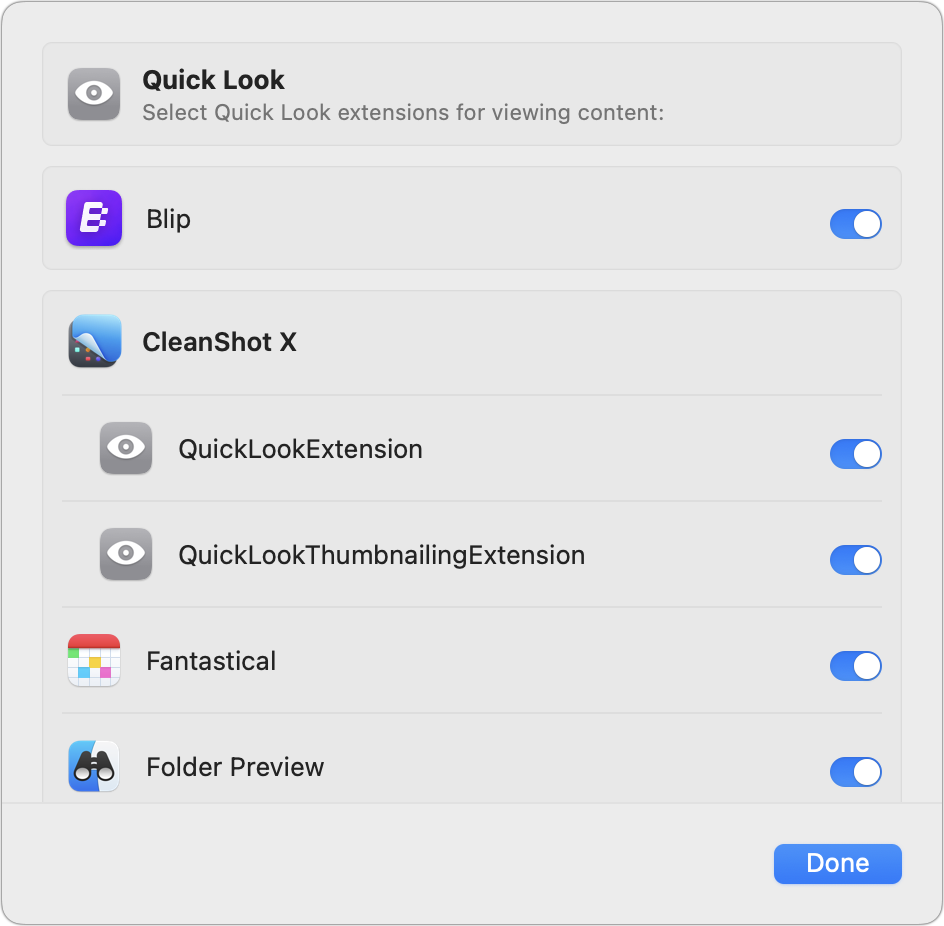
Finally, note that if your Mac has a trackpad, you can invoke Quick Look by force-touching a Finder icon (press deeply until you feel a click) instead of pressing the Space bar.
Quick Look takes just moments to learn, but it can save you hours of time poring through files on your Mac!
(Featured image by iStock.com/megaflopp)
Safari 18 Adds Highlights, Distraction Control, Redesigned Reader, and Video Viewer
Safari 18 debuts some notable new features, including Highlights, Distraction Control, a redesigned Reader, and—on the Mac—a new Video Viewer that supports Picture in Picture.

Alongside this year’s crop of operating systems comes Safari 18, the latest version of Apple’s Web browser. Most of what you do in Safari depends on the websites you use, of course, but Apple has added a handful of features aimed at improving your overall browsing experience, including Highlights, Distraction Control, a redesigned Reader, and Video Viewer.
We’ll focus on the Mac with macOS 15 Sequoia, but these features other than Video Viewer are also available on the iPhone and iPad with iOS 18 and iPadOS 18. Macs still running macOS 13 Ventura or macOS 14 Sonoma can get Safari 18 but miss out on the Highlights feature. Regardless of platform or macOS version, you access all these new features from the Page menu at the left of Safari’s address bar, which takes over from the previous Show Reader View button in Safari 17.
Highlights
Sometimes, when you visit a website, you just want a quick bit of information, like a restaurant’s address or a store’s hours. For those running Sequoia, once you turn on Safari 18’s Highlights feature, the Page menu icon in Safari’s address bar will show a purple sparkle if it detects information on the page that it can call out for you. Click it to learn more.

It can be hard to predict what Highlights will call out. It’s fairly reliable at showing location and business information extracted from Maps, and it may display biographical information about people on pages about them. For long articles, it may provide a quick summary you can use to see if it’s worth reading more. Apple says Highlights will also offer quick links to learn more about people, music, movies, and TV shows.

Distraction Control
Every website wants you to SUBSCRIBE TO A NEWSLETTER! and WATCH OUR VIDEO! and SHARE THIS ARTICLE! It’s exhausting. In Safari 18, Apple has added a feature that can help you turn down the volume on websites that constantly try to lure you into doing something other than what you intend. Distraction Control lets you remove annoying parts of a Web page. It works on nearly anything on the first use, but Apple warns that “hiding distracting items will not permanently remove ads and other content that updates frequently.” (That’s what most people want, of course, but such a capability would anger advertisers and publishers whose business models rely on ads.)
To clean up a Web page, click the Page menu and choose Hide Distracting Items. Then, move the pointer over areas of the screen you want to remove—if Safari can identify an item as a discrete object, it will gain a blue outline. Click it to make it disappear in a cloud of digital dust. Additional clicks will remove more items; Safari keeps count in the location bar. Click the Done button in the location bar to save your changes, or click Cancel if you were just testing. As you can see in the right-hand sidebar of the Yahoo page in the image below, the result is a cleaned-up view with much less dis-traction.

Redesigned Reader
Another way to eliminate distractions when reading on the Web is to use Safari’s Reader mode. When you click the Page menu and select Show Reader, Safari reformats the text and images in an article, removing extraneous ads and gewgaws. Once you’re in the redesigned Reader, click the Page menu icon again to access the customization options that let you choose from four color themes, nine different font faces, and various zoom levels
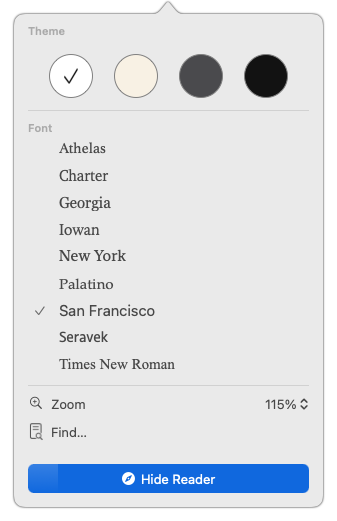
With Apple Intelligence on a Mac with Apple silicon, Reader also offers to summarize long articles. It may also provide a table of contents if the article contains appropriate headings, but it’s hard to predict when that will work.
Video Viewer
Finally, those who watch a lot of Web video will appreciate Safari 18’s new Video Viewer, available only on the Mac. Whenever you’re watching a video embedded in a Web page, clicking the Page menu reveals a new Video Viewer command. Choose that to expand the current video to fill the Safari window, overwriting whatever else might have been on the page so you can focus on the video.
Once you’re in the Video Viewer, switching to another tab in Safari or another app whose window obscures at least half the Video Viewer window causes Safari to switch to Picture in Picture, moving the video to a small window that floats above all other apps. You can resize that window and move it to any screen corner while it’s open, and it remembers its size and location for subsequent uses. Although multiple tabs and windows can use Video Viewer simultaneously, only one can be in Picture in Picture at a time.

Even if these changes aren’t world-changing for everyone, they make Safari an ever more capable Web browser, so it’s worth giving them a try to see if they’ll improve your Web experience.
(Featured image based on an original by iStock.com/Kanoke_46)
The Importance of Properly Offboarding Employees
Regardless of whether an employee is leaving voluntarily or being terminated, it’s essential to walk them through a systematic offboarding process to revoke their digital access, retrieve devices, and preserve organizational data. We have thoughts.

Employers and their employees part ways for all sorts of reasons. People may move on because of a contract’s completion, to take a new job, or because they’re retiring. Employees may also leave due to being laid off or fired. Whatever the reason, offboarding—the process of managing an employee’s departure from an organization—is essential.
Without a systematic offboarding protocol, organizations face significant risks relat-ed to data security, device mismanagement, operational disruptions, and compliance violations. In a particularly troubling example, a fired employee allegedly hacked Disney World’s menu creation system, changing prices, adding profanity, and—most problematically—adjusting allergen information in ways that could have caused someone allergic to peanuts to order food that contained them.
Obviously, offboarding has various administrative aspects. We’ll focus on those associated with technical infrastructure, but it’s also important to consider how you’ll communicate internally about the departure and any human resources and legal matters.
Our overarching advice regarding offboarding is to establish a formal protocol so everyone knows what’s involved. That’s particularly important for departures that happen with little notice. When building your offboarding plan, consider these three parts of the process: revoking access, retrieving devices, and preserving the organization’s data.
Revoke Digital Access
When offboarding an employee, the most important thing to consider is how you’ll revoke their digital access to organizational resources such as email, a shared password manager, and core service accounts. For those who are retiring or staying to train their replacement, access revocation can proceed gradually on a schedule. This approach provides sufficient time to transition ongoing projects and communications.
However, in most cases, it’s safest to revoke access immediately, especially when an employee has been terminated involuntarily due to layoffs, performance problems, or misconduct, or when dealing with employees in high-security roles, such as IT administrators, members of the legal team, or high-ranking executives. Even if their departure isn’t contentious, the risk of data leakage is too high.
Revoking access is significantly easier if you’re using Apple Business Manager and an MDM platform. Because Apple Business Manager lets you use federated Apple Accounts, it’s simple to revoke access to iCloud and other Apple services. Plus, because Apple Business Manager makes it possible to separate personal Apple Accounts and their associated data, employees can move their personal data off an organization’s device more easily.
MDM—mobile device management—is even more important because it enables administrators to revoke access to organization-managed email accounts, VPNs, Wi-Fi networks, and cloud services. If a device isn’t returned, an MDM platform can remotely lock, wipe, or reset it. For BYOD scenarios (Bring Your Own Device, where employees use their own devices rather than organization-owned ones), a properly configured MDM allows the removal of organizational data and profiles without affecting personal data.
Using an identity provider like Google Workspace, Microsoft Entra ID, or Okta with a single sign-on system makes revoking access even more straightforward. These services tie access to an organization’s apps, resources, and devices to a single login, so deactivating a departing employee’s account in the identity provider instantly cuts off access to all connected systems. Otherwise, you’ll find yourself doing the dance of deactivating Google, then Adobe, then Slack, and so on. It’s tedious and potentially error-prone.
Finally, the combination of an MDM system with single sign-on can also help monitor employee behavior during the offboarding period for unusual activities. You’ll want to know if a terminated employee logs in to a confidential database that they have no reason to access immediately after receiving notice.
Retrieve Organization Devices
Another key aspect of your offboarding plan should revolve around retrieving organization-owned devices. Even if you can use MDM to revoke access, you need to get your devices back so they can be given to other employees or held in reserve as backups. Apple Business Manager helps here, too, since it tracks all registered devices owned by the organization and can reassign devices to new users.
The real win of Apple Business Manager in this regard is that it lets you turn off Activation Lock on all supervised devices, whether it was turned on using a federated Apple or personal Apple Account. Without Apple Business Manager, you may have to work with the employee to regain access to the device. If that’s not possible, Apple support may be able to help unlock the device if you can provide proof of purchase and ownership.
To ensure you don’t end up in such an awkward situation, follow these best practices when using Apple Business Manager:
Make sure to purchase Apple devices through Apple Business Manager-compatible channels.
Use Automated Device Enrollment to ensure that devices are supervised and managed by MDM out of the box.
Rely on federated Apple IDs to ensure the organization retains control over organizational content within Managed Apple Accounts.
Preserve Organization Data and Communications
Finally, think about what the departing employee was doing. You’ll want to transfer or archive everything they worked on, including their organizational email account. In most cases, someone else will have to take over their responsibilities and may need access to emails, files, contacts, and more.
An identity provider can help by transferring ownership of cloud-based files and other data stored in Google Workspace or Microsoft 365. Without one, you’ll have to review all their online files and reassign ownership manually.
Email requires additional thought. You’ll probably want to forward the departing employee’s email to whoever is taking over. If that’s not feasible, set up an auto-reply explaining that the employee is no longer available and providing alternative contacts. In that case, it’s also worth scanning the incoming email periodically to ensure essential communications aren’t being missed.
Next Steps
If you don’t have a formal offboarding policy, we recommend developing one soon to ensure that you aren’t at risk for data security, device mismanagement, or operational disruptions. It’s one of those tasks that are easy to put off until it’s too late, at which point you have to scramble. You can find offboarding policy templates and other resources online, and we’re happy to discuss the tech-specific aspects when you’re ready.
Of course, if you’re not already using Apple Business Manager and an MDM solution, getting started with them is even more important to implement right away. Contact us to discuss what’s involved.
(Featured image by iStock.com/yacobchuk)
Website Owners: Identifying Copyright Infringement Link Insertion Scams
If you receive what looks like a copyright infringement message complaining about an image on your website, don’t panic—it might be a scam. We help you identify such scams and explain what to do if the message turns out to be real.

We regularly warn Internet users about online scams and phishing attacks. Most of these are relatively easy to identify and avoid once you’re aware of telltale signs. Unfortunately, we’ve encountered a newer type of scam that’s more difficult to identify, partly because it plays on fears of legal action.
Website owners are the target of this scam email, which purports to come from a lawyer. The message states that an image on your site has been used without permission. Such a claim is all too believable for many, especially those who may not have been as careful about usage permissions in the distant past as they are today. The message includes a link to the image, a link to the purportedly infringing page, and a threat to initiate legal action if certain actions aren’t taken within five business days
Unusually, the email doesn’t ask you to take down the infringing image or pay a retroactive licensing fee. Instead, it says you must credit the image’s copyright holder and include a link. Such a simple request seems like a huge win—instead of paying a licensing fee or worrying about being sued, you can twiddle a little HTML and move on with your life.
Don’t do it! This is what’s called a “link insertion scam.” It exploits the search engine optimization principle that links on reputable sites provide legitimacy to linked sites, helping them move up in the search rankings. Unfortunately, the reverse is also true; linking to a scammer from your website will cause Google and other search engines to penalize your site in the search rankings.
Unfortunately, these copyright infringement scams look legitimate at first glance, as you can see in this example. The From and Subject lines don’t seem forged or malformed, and there are no obvious grammatical errors or indications that the writer doesn’t speak fluent English. And when you click the link in the signature, you end up at what appears to be the website of a real law firm. What should you do if you receive a message like this?

First, don’t panic. Just because the message looks legitimate doesn’t mean it comes from a real lawyer. Also, don’t call your lawyer unless they’re willing to work for free. You can save stress, time, and money by evaluating the message yourself.
A few details in the message suggest that it’s not real:
The domain in the From line’s email address—elitejusticeadvisors.biz—sounds sketchy and doesn’t match the company name.
The Subject line of “DMCA Copyright Infringement Notice” sounds official, but those familiar with the DMCA will know that it can be used only for a formal notice-and-takedown process, not to make demands for attribution or payment. But most people won’t know that.
The message is addressed to the generic “Dear owner of,” whereas legitimate messages from a lawyer would be addressed to a specific entity.
The required link URL points to a telecom news site in Sri Lanka, and it’s odd that an Arizona lawyer would be working for such a client.
The example of the purportedly infringing image is hosted at Imgur, a consumer image-hosting site known for funny pet pictures and cringeworthy GIFs. Legal firms would always use some sort of case management site.
Those details may feel wrong, but they’re insufficient to prove it’s a scam. You’ll need to dig deeper. Here are some ways you can do that:
Investigate the domain: Do a Web search on the domain in question: elitejusticeadvisors.biz. Because others have written about this scam, articles identifying it as a scam will appear on the first page of the results.
Search for the lawyer and firm: The lawyer’s name is too generic to yield revealing results, but if you do a Web search on “Dean Parker Commonwealth Legal Services,” you’ll once again see that others have identified it as a scam.
Check a state bar association directory: Most state bar associations or state courts have a searchable directory of licensed legal professionals. A quick search of the State Bar of Arizona’s member directory reveals that no “Dean Parker” is licensed in Arizona.
See if the headshot matches a real person: If the website provides a headshot, you can copy the image (Control-click it and choose Copy Image) and paste it into the TinEye reverse image search engine. Since all the results say “generated.photos,” it’s a good bet that the image was AI-generated.

Search for the company’s full name and address: As with the name of the lawyer, the generic-sounding name of the law firm will probably match other companies. However, if you search for the full name and address, you’ll likely turn up articles about it being fake.
Visit the address virtually: With Apple Maps and Google Maps, you can verify that a business is present at a location (or not) and often view the offices using Google Street View. Both mapping tools show no law firm at the provided address. Additionally, the building does not have a fourth floor, as specified in the address.

Ask ChatGPT: Now that ChatGPT has access to current Web information, it’s worth pasting the complete contents of the message into a ChatGPT conversation and asking it to tell you about the message. Start generally, but then ask if it thinks the message might be a scam, and if so, to suggest ways you could verify your suspicions.
Some of the above search suggestions identify the scam only because the scammer has reused the same company name, lawyer name, physical address, and website. If you were the first to be targeted by a new scam, the state bar association search and physical address check would be the most likely to expose it.
Let us leave you with an important caveat. You shouldn’t assume that all copyright infringement messages are scams. A legitimate DMCA takedown notice will ask you to remove the content, and a real copyright infringement message—probably from a company that specializes in such matters rather than a lawyer—will likely demand payment. In both cases, take down the offending image right away. If you really were using an image without permission, some payment may be required, and if the amount feels excessive, contact a lawyer specializing in copyright infringement cases. They may be able to negotiate a lower payment or point out issues that will make the claim go away.
(Featured image based on an original by iStock.com/Olivier Le Moal)
Perturbed by Location Tracking Revelations? Here’s How to Protect Yourself
If you don’t like the idea of private companies being able to track your every move in the physical world, follow our advice to block iPhone and iPad apps from surreptitiously sharing this information.

Recent news reports have revealed that a little-known company called Babel Street can track iPhone and Android user locations. Babel Street does this by leveraging data from mobile advertising data brokers. Investigators from data removal firm Atlas Privacy discovered they could use Babel Street’s Locate X tool to identify patients at a Florida abortion clinic, jurors in a New Jersey trial, attendees at a Los Angeles synagogue and a Dearborn mosque, and even children in a Philadelphia school.
Much of this is possible because people use apps that reveal their location to data brokers, who package the information and resell it to companies like Babel Street. Apple does have an advantage here—Atlas estimated they could locate roughly 80% of Android phones but only 25% of iPhones. That’s due to Apple’s App Tracking Transparency feature, introduced in iOS 14.5, which requires apps to get permission from users before tracking them for third-party advertising purposes. Unfortunately, many people unthinkingly grant such permissions, and location and identification data can also leak out in other ways.
Although it’s difficult to avoid being tracked by data brokers entirely, you can drastically reduce the likelihood and frequency of tracking, which helps ensure that any location information that does become available isn’t sufficient to identify you personally. Your employer may also consider your location to be sensitive information and want you to restrict it to the extent possible. To achieve this, you’ll need to adjust settings in several parts of Settings > Privacy & Security on your iPhone (and iPad, if you regularly use it in multiple locations).
Turn Off Allow Apps to Request to Track
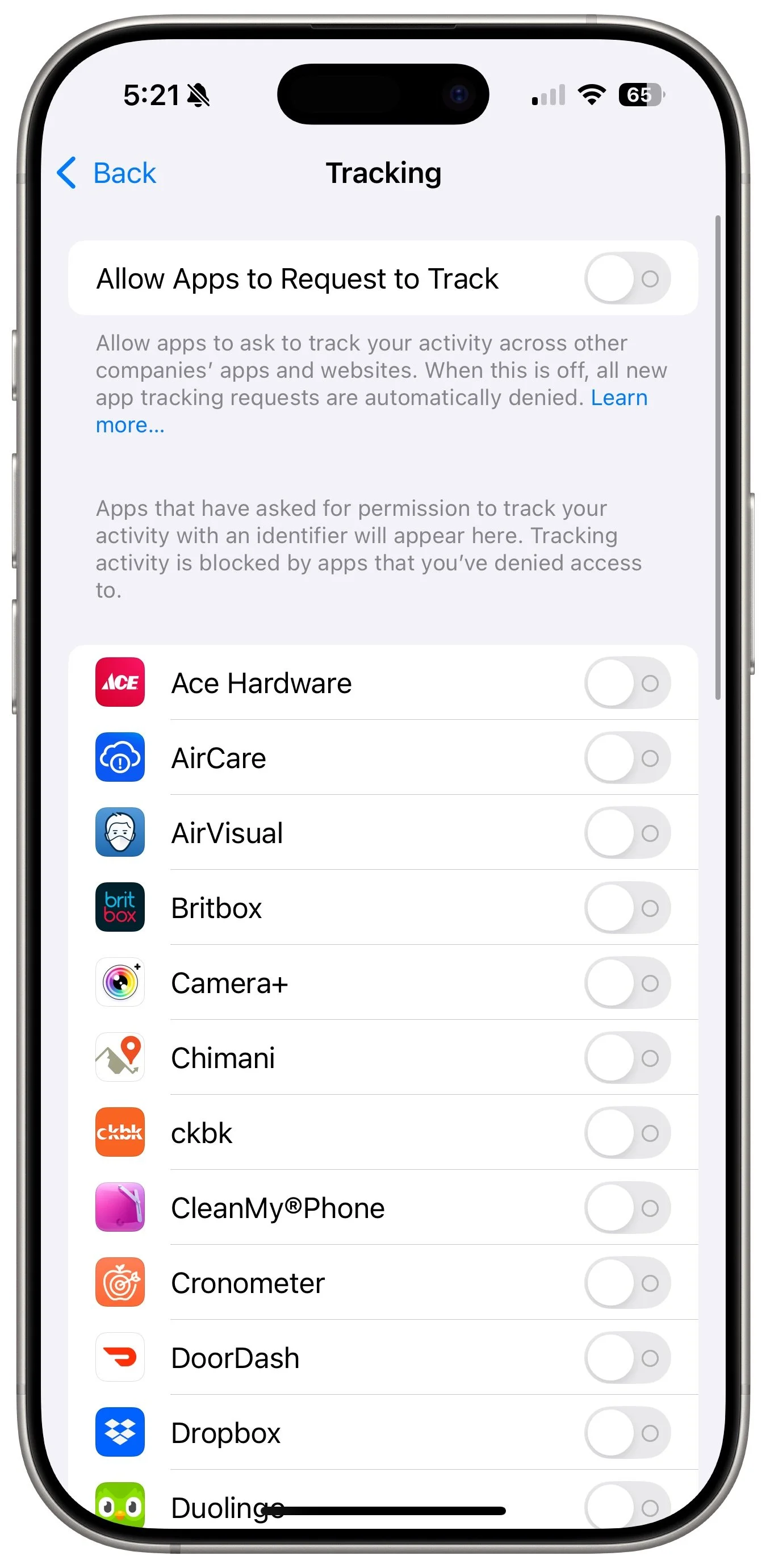
You’ll find the most important setting in Settings > Privacy & Security > Tracking. At the top of the screen is a switch labeled Allow Apps to Request to Track. Make sure that is off! If it has been on in the past, apps that have requested permission will appear below.
By preventing apps from even asking if they can track you, you keep them from sharing a unique identifier associated with your iPhone with other apps and websites. Otherwise, advertisers can follow you from app to app and website to website, gathering information about you—often including your physical location—as you go about your life.
Don’t let apps persuade you to turn this setting on or allow them to track you. Apple’s rules explicitly forbid them from reducing functionality to those who refuse to allow tracking.
Allow Location Access Only for Apps That Need It
While you can turn off Allow Apps to Request to Track with a single switch, preventing apps from seeing your location requires more targeted work. Although Settings > Privacy & Security > Location Services has a big Location Services switch, turning that off will drastically reduce the utility of your iPhone. You won’t be able to get directions from Maps, tag photos with their location, share your location with family members, and much more.
Instead, for each app in the list, determine what level of location access you want to grant based on its function and description of why it needs access. Grant the minimal level of access necessary, which varies by app. Navigation apps need location access to work at all. Camera apps need it to geotag photos. Weather apps use it to provide custom weather reports and extreme weather notifications. But do you want to give a social media app access to your location at all times?
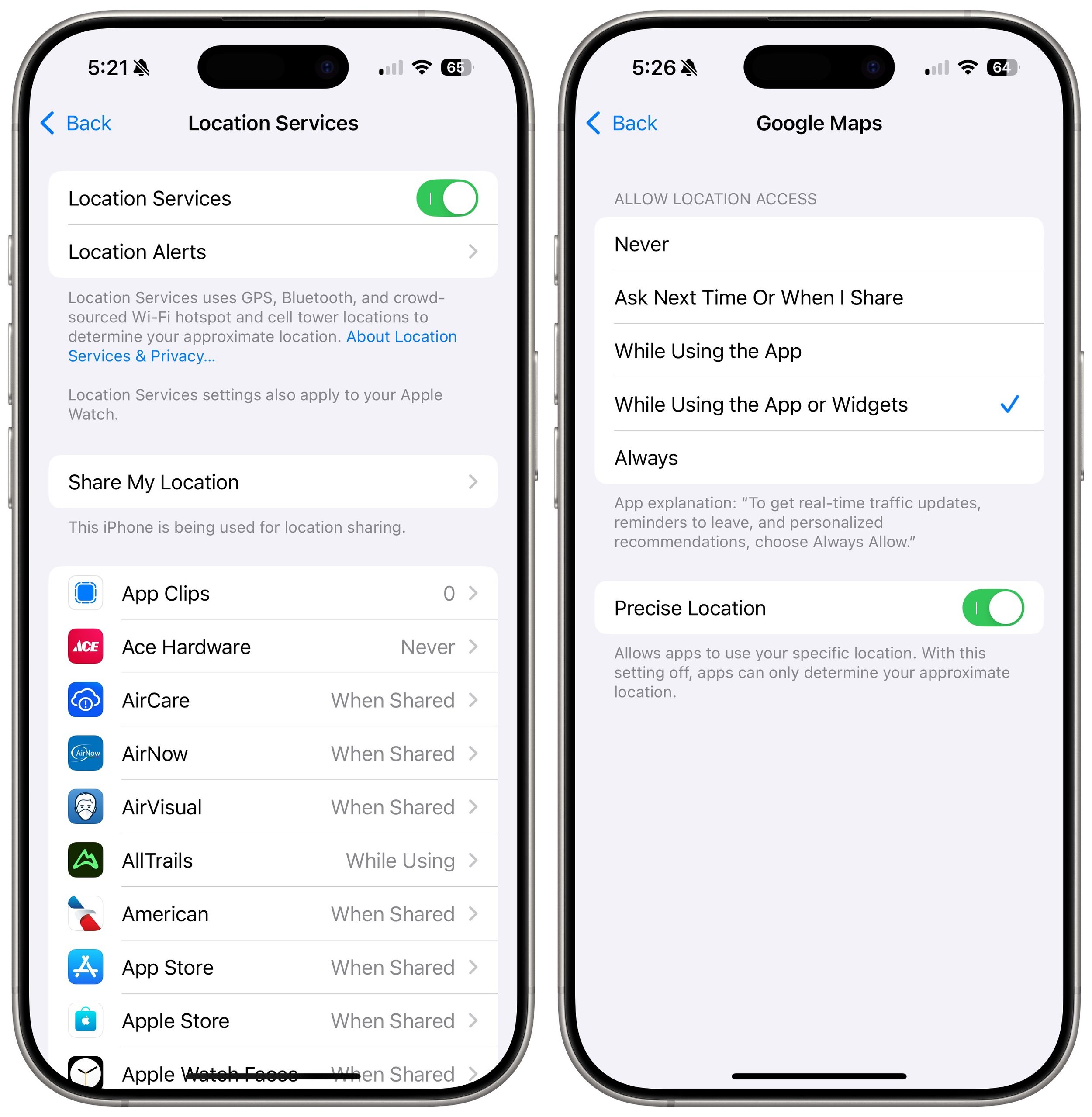
Apple provides five location access levels:
Never: Choose Never for any app with questionable explanations of why location access is requested.
Ask Next Time or When I Share: If you’re unsure if you want to allow or deny location access for an app, select this option. The app will prompt you the next time it wants your location, enabling you to make an informed decision based on your actions.
While Using the App: For most apps you want to allow to see your location, choose While Using the App. It’s entirely reasonable that a location-requiring app be allowed to determine your location while you’re using it.
While Using the App or Widgets: This option only appears for apps with widgets; choose it only if you use a widget that needs location access.
Always: Grant Always access only to apps that generate location-related notifications when the app is not open. The most common example is a weather app that provides notifications of incoming storms.
The Precise Location option becomes available if you allow location access for an app. Turn it on only if the app needs to know your location within 15 to 200 feet (5 to 60 meters). An Uber or Lyft driver will need to know where to pick you up, for instance, so those apps should have Precise Location turned on, as should navigation and camera apps. For most others, turn off Precise Location. Your approximate location—a variable radius between 2.5 to 12 miles (4 and 20 kilometers)—is usually sufficient to locate you in the right part of the world.
Block Bluetooth and Local Network Access for Apps That Don’t Need It
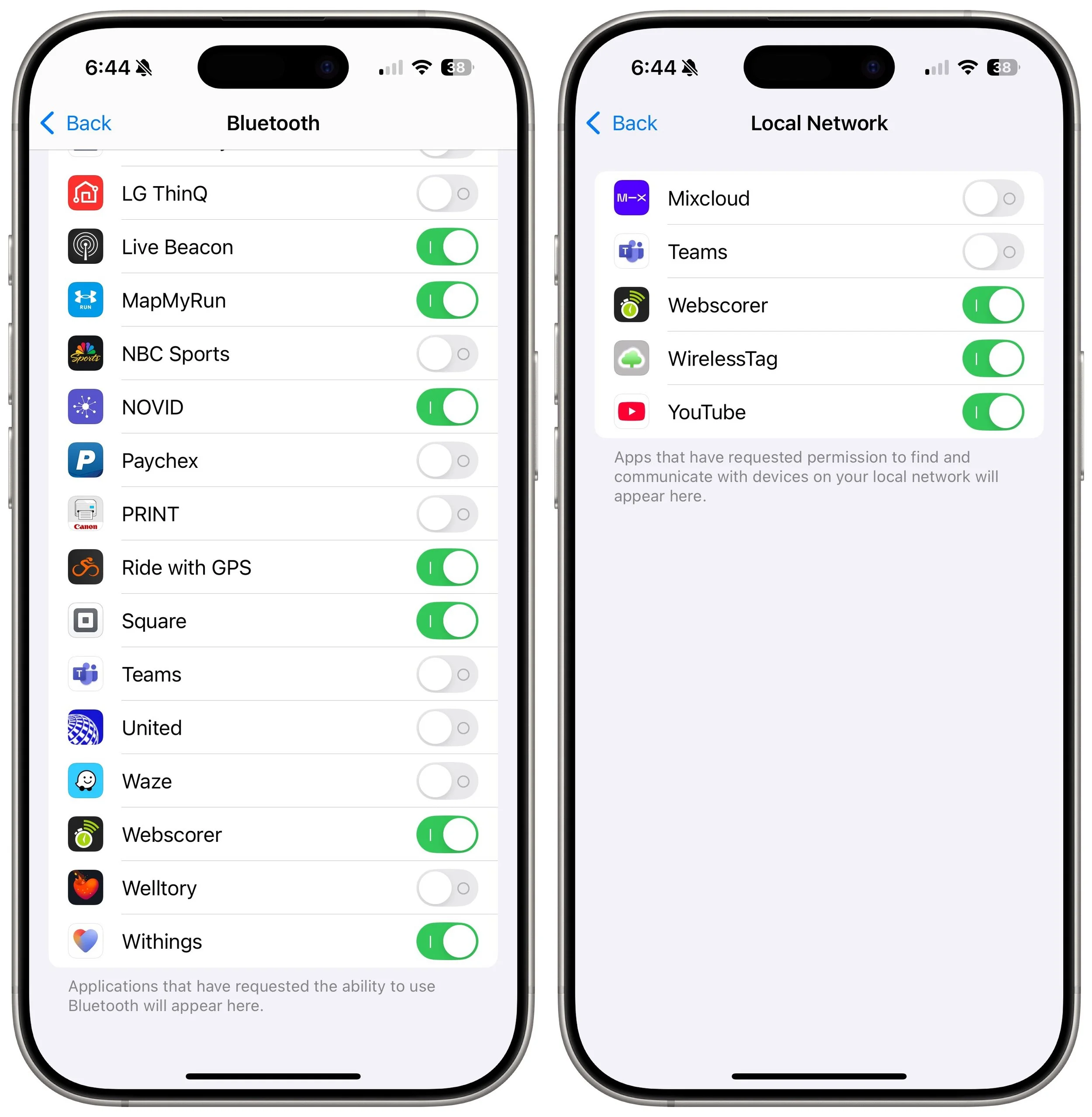
Apps can use Bluetooth to infer your general location through interactions with other Bluetooth devices and movement patterns, so Apple requires apps to ask to use Bluetooth. As a result, just as with location, you should go through the apps listed in Settings > Privacy & Security > Bluetooth and revoke permission from any that don’t seem as though they should need it. Most will be legitimate—an app designed to communicate with a Bluetooth-connected device, for instance. Any app that needs access to Bluetooth and doesn’t have it should prompt you when you next open it.
Similarly, Apple now requires apps to request permission to use your local network. For the most part, these requests are reasonable—apps may need to discover network-connected devices like routers, printers, speakers, smart home gadgets, and more. Or games may need to discover other players on the network. However, because your network can reveal information about your location, it’s best to revoke access for any apps that don’t seem as though they should need it. There’s no harm in doing so; they’ll ask again if they need access.
Ultimately, all we can do is stay vigilant about what we’re allowing on our devices, encourage Apple to add even more privacy protections, and lobby our elected representatives for legal protection. It’s unconscionable that private companies can gather extensive location data on hundreds of millions of citizens.
(Featured image by iStock.com/Chayada Jeeratheepatanont)
Apple Brings the M4 Chip Family to the iMac, Mac mini, and MacBook Pro
Apple has started moving the Mac lineup to the M4 family of chips with the updated iMac, redesigned Mac mini, and enhanced MacBook Pro. They’re great machines, particularly for those who need to upgrade from an Intel-based Mac.
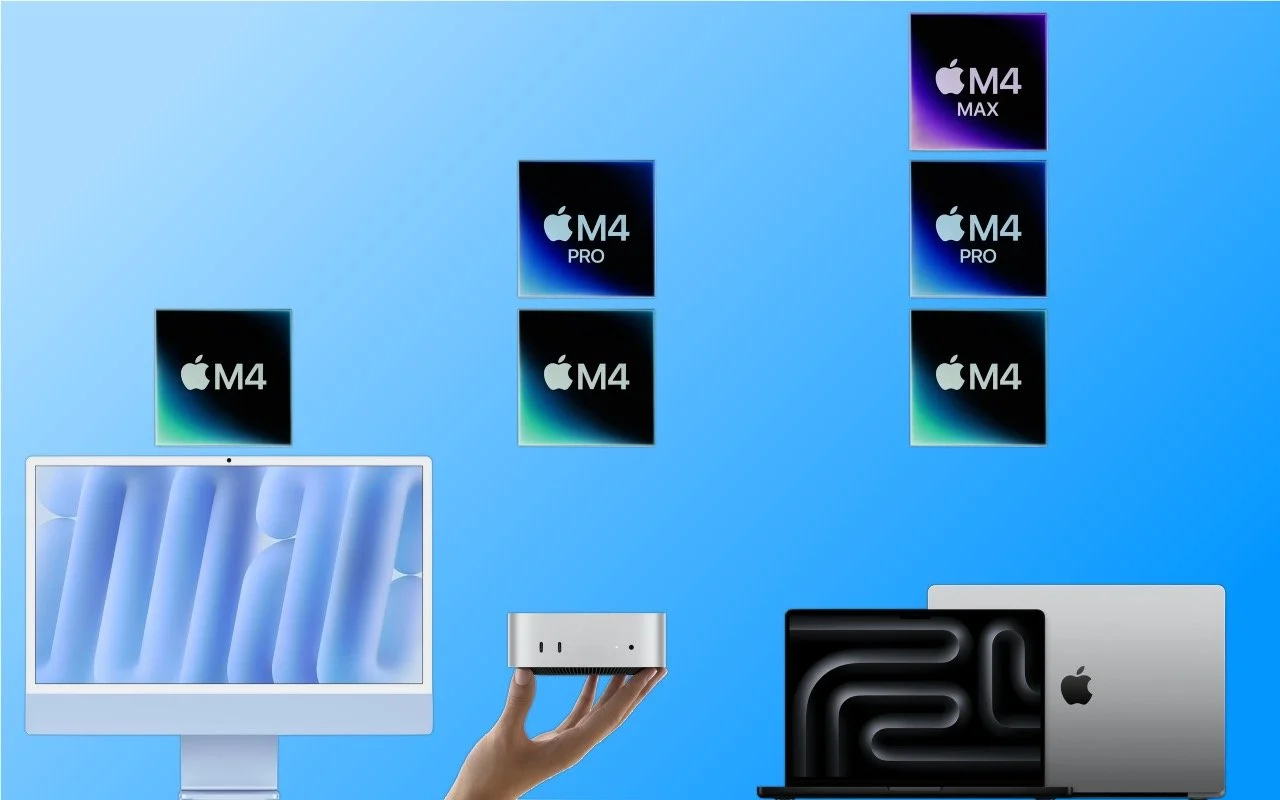
Apple has concluded a three-day release of the first Macs to use the M4 chip family, which debuted earlier this year with the iPad Pro. The updated iMac and MacBook Pro retain the same industrial designs as in the past, while Apple took a shrink ray to the Mac mini.
These are highly compelling Macs, with the M4, M4 Pro, and M4 Max chips providing best-in-class performance; the iMac and MacBook Pro gaining an iPhone-like 12-megapixel Center Stage camera; Thunderbolt 5 offering faster data transfers; and a nano-texture glass option available for those battling glare and screen reflections. If you’re pondering your next Mac, here’s what you can look forward to.
iMac Adds M4 Chip, 12MP Center Stage Camera, and Nano-Texture Glass
Apple’s colorful all-in-one iMac is popular as a public-facing Mac or household workhorse. The M4 chip packs even more power into the iMac’s svelte frame without changing its low starting price of $1499 ($1299 for a two-port model with several odd limitations). To ensure optimal performance with Apple Intelligence, the company increased the base memory from 8 GB to 16 GB, and you can up that to 24 GB for $200 more or 32 GB for $400.

The iMac still boasts a 24-inch 4.5K Retina display that provides crisp text and vibrant graphics. For $200, you can get it with nano-texture glass that cuts down on reflections and glare from windows or bright lights. Apple also replaced the 1080p FaceTime HD webcam at the top of the screen with a new 12-megapixel Center Stage camera that pans and zooms to keep you in the frame as you move around during video calls. (Not having to sit perfectly still makes those lengthy virtual meetings easier to handle.)
Lastly, the M4 chip supports Thunderbolt 4, so the higher-end model of the M4 iMac gives you four Thunderbolt 4 ports instead of the two Thunderbolt and two USB 3 ports in the previous model.
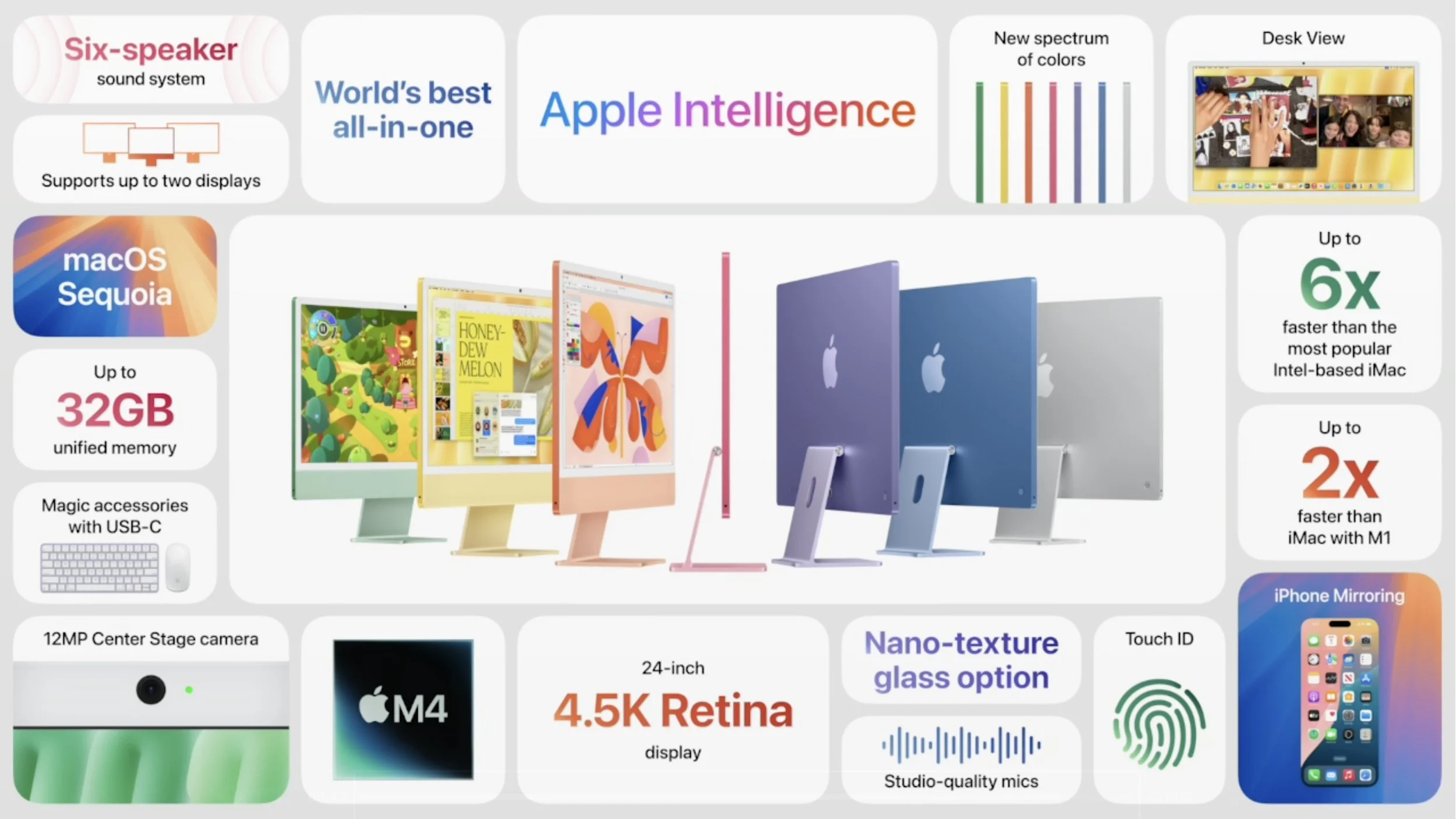
Along with the new colors, Apple is shipping color-matched versions of the Magic Keyboard, Magic Trackpad, and Magic Mouse. They all now charge using USB-C rather than the outdated Lightning. Apple left the Magic Mouse’s charging port on the bottom, which prevents it from being used while plugged in.
While the M4 is roughly twice as fast as the M1, most current users probably won’t benefit greatly from upgrading, and it’s even less of an improvement over the previous M3 iMacs. However, for anyone upgrading from an Intel-based Mac or transitioning from a PC, the new M4 iMac is an extremely attractive option.
Smaller Mac mini Gains M4 and M4 Pro Chips, Plus Thunderbolt 5
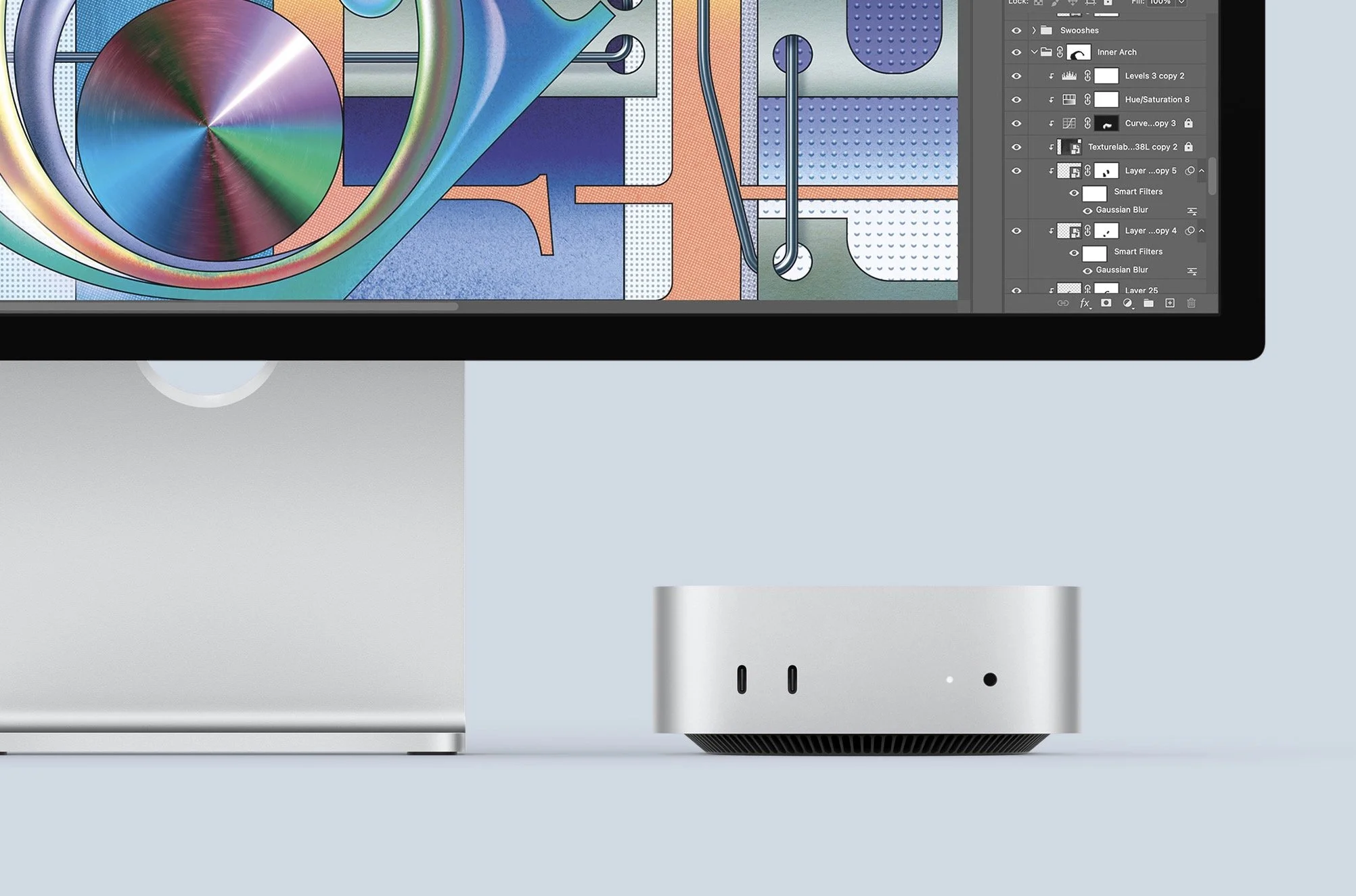
The entire point of the Mac mini is the “mini” part—it’s supposed to be small and inexpensive. With the new M4 Mac mini, Apple has reduced its footprint even more, dropping its depth and width from 7.7 to 5.0 inches. To maintain airflow, Apple had to add some height, so it’s now 2.0 inches tall, up from 1.4 in the previous model.
The price for the base M4 model remains $599, and it now includes 16 GB of memory and 256 GB of storage. The M4 Pro model has increased by $100, now starting at $1,399 for 24 GB of memory and 512 GB of storage. You’ll still need to supply your own keyboard and mouse, but Apple updated the Magic Keyboard, Magic Trackpad, and Magic Mouse to charge using USB-C rather than Lightning.
As with the iMac, the M4 model is roughly twice as fast as the M1 version of the Mac mini, and Apple says the M4 Pro is two to three times as fast as the M2 Pro it replaces. It’s probably not worth upgrading for performance alone unless you’re coming from an Intel-based Mac or relying on resource-intensive apps.
Apple also positioned two USB-C ports and a headphone jack on the front panel for easy access. That’s a win unless you connect speakers to the headphone jack, at which point your Mac mini will always have a cable sticking out. The back side features Gigabit Ethernet for networking, HDMI for a display, and three Thunderbolt ports for connectivity. On the M4 model, those ports are Thunderbolt 4; on the M4 Pro model, they use Thunderbolt 5 to provide high-speed data transfers up to 120 gigabits per second.
Finally, those who need lots of screen real estate will appreciate the fact that the M4 Mac mini can support up to three external displays.
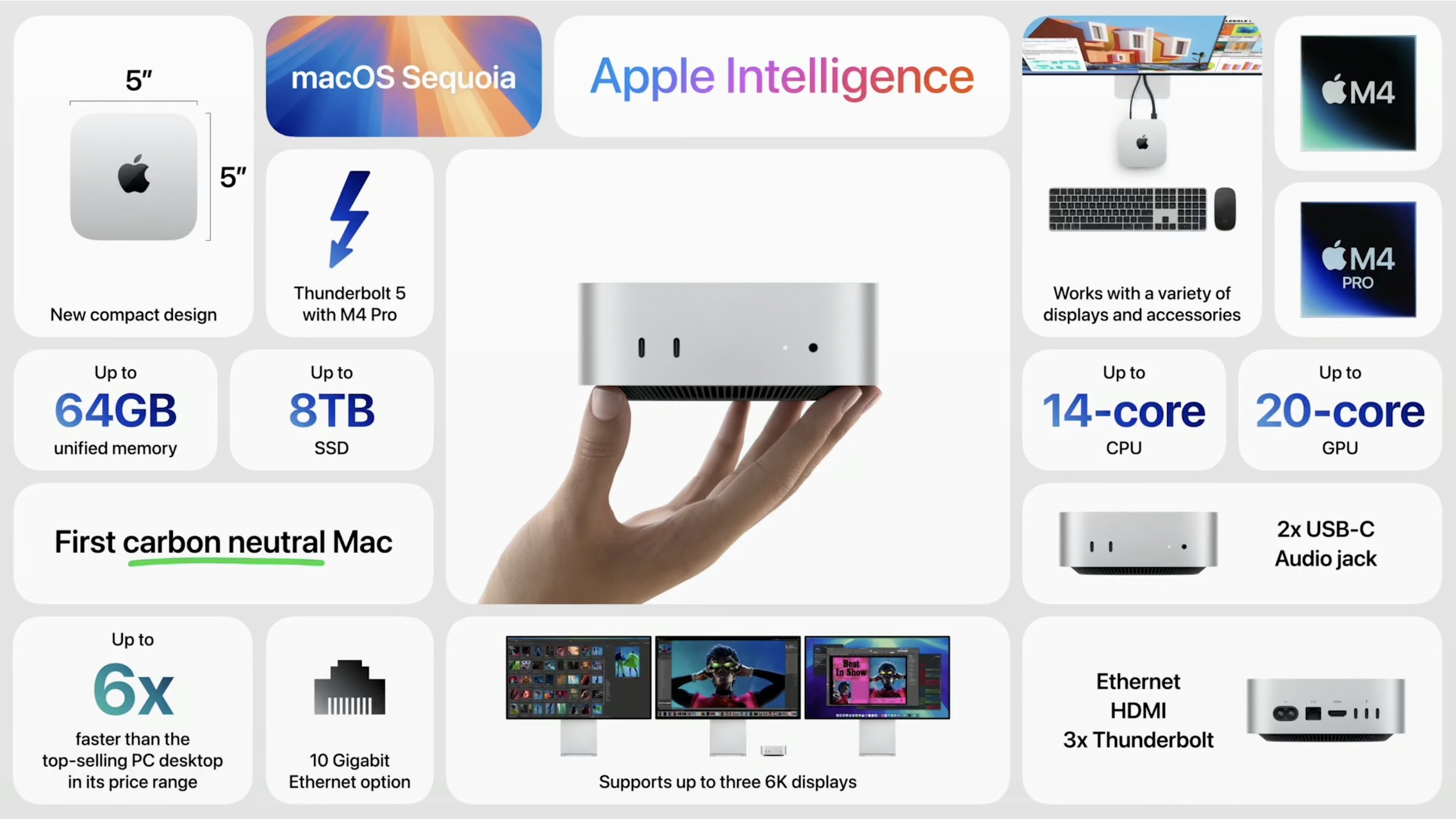
As much as the new Mac mini is an impressive and inexpensive package, it has a few trade-offs compared to the previous model. Along with the M4 Pro model’s price increasing by $100 and the possible annoyance of plugging speakers into the front, the previous M2 Pro Mac mini had four Thunderbolt ports, one more than in the new version. Plus, it had two USB Type-A ports, which remain popular despite the ascendance of USB-C. But the strangest thing? The power button is on the bottom, so you must pick up the Mac mini to turn it on or off.

Even if current Mac mini users don’t have much incentive to upgrade, the M4 Mac mini is compelling for anyone still using an Intel-based Mac. In particular, those still using 27-inch iMacs would do well to consider an M4 Mac mini and Apple Studio Display—the performance gains will be incredible.
Powerful MacBook Pros Leverage M4, M4 Pro, and M4 Max Chips, Add 12MP Center Stage Camera and Thunderbolt 5
Apple’s final announcement of the week put all the pieces together. The new 14-inch and 16-inch MacBook Pro models feature:
A choice of the M4, M4 Pro, or M4 Max chip, with a dizzying array of processor core and memory options that provide everything up to insanely great performance
A 12-megapixel Center Stage camera that enhances video calls by panning and zooming to keep you in the frame as you move around
A nano-texture glass option to make the screen easier to read outside in bright sunlight
Thunderbolt 5 in the M4 Pro and M4 Max models for high-speed data transfers
Along with those improvements from the iMac and Mac mini releases, Apple also added some welcome tweaks specific to the MacBook Pro:
All models of the M4 MacBook Pro feature brighter Liquid Retina XDR screens rated at 1000 nits outdoors, up from 600 nits.
The M4 14-inch MacBook Pro now includes three Thunderbolt 4 ports, a step up from the two ports in the M3 version.
The M4 14-inch MacBook Pro can now drive two external displays along with its built-in screen. The M3 version could do that only if you closed the lid.
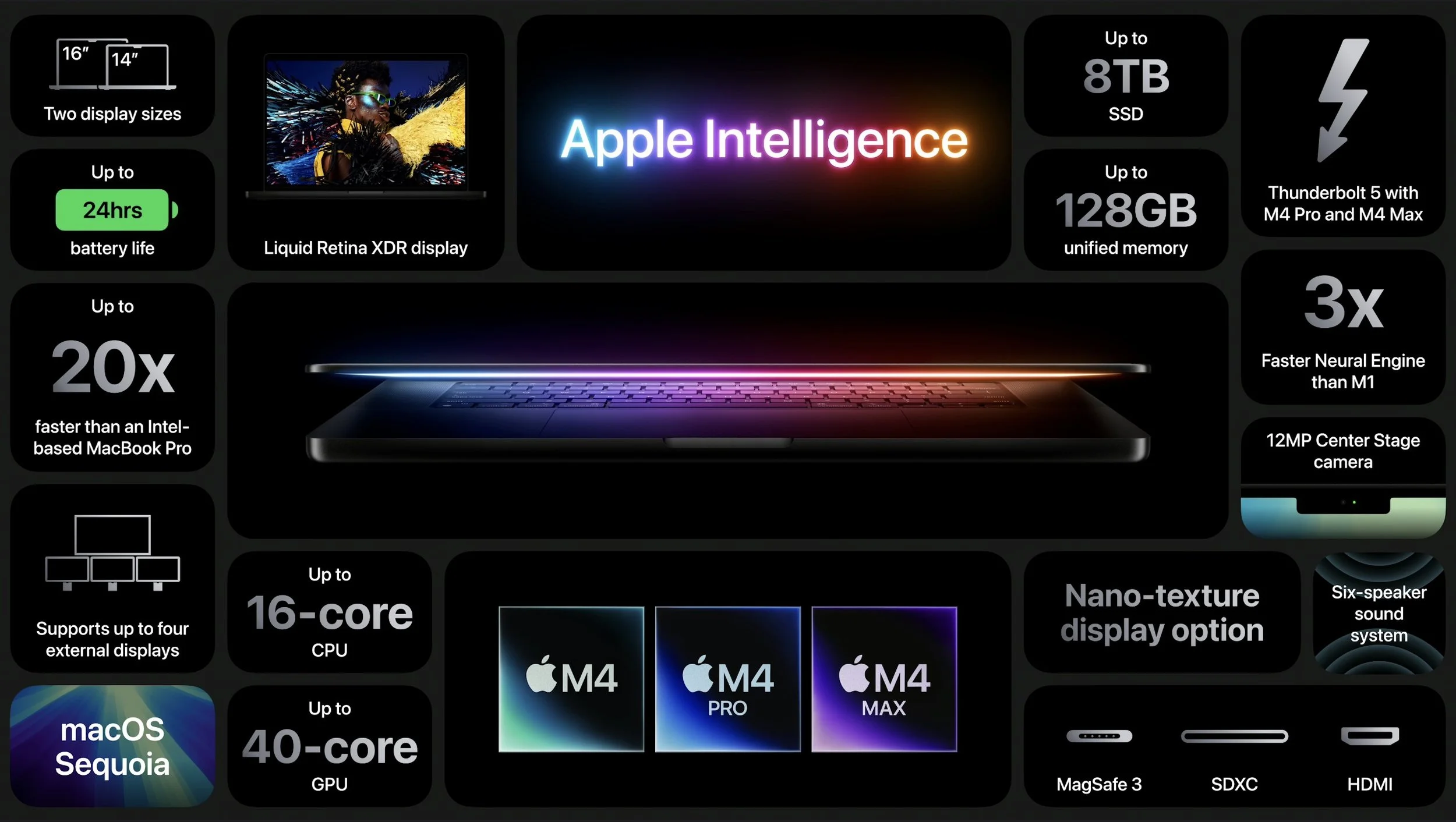
The 14-inch MacBook Pro starts at $1,599 with an M4, $1,999 with an M4 Pro, and $3,199 with an M4 Max. The 16-inch MacBook Air starts at $2,499 with an M4 Pro and $3,499 with an M4 Max.
These new MacBook Pro models are nearly ideal. (More ports would always be welcome, but a Thunderbolt hub will help.) The only hurdle is the price, which increases rapidly as you choose faster M4 chips, more memory, and additional storage. You can’t swap chips or expand memory later, but you can save some money by putting less storage onboard and expanding capacity with inexpensive external SSDs.
MacBook Air Models Now Start with 16 GB of Memory
Finally, we can expect Apple to upgrade the MacBook Air, Mac Studio, and Mac Pro to the M4 family sometime next year. Until then, however, Apple has quietly raised the base level of memory for its M2 and M3 models of the MacBook Air from 8 GB to 16 GB. That’s likely to ensure optimal performance for Apple Intelligence, which is rather resource-intensive. Whatever the reason, the M2 MacBook Air still starts at $999 and the M3 model at $1,099, both with 16 GB of memory and 256 GB of storage. They’re great little machines, but if you can wait, the M4 version can’t be too many months away.
(Featured image based on originals by Apple)