
Never Save Your Work in These Locations
We won’t name names, but we’ve seen too many people saving important data in locations that are likely or even guaranteed to disappear. Here’s a list of places to avoid and another of spots that warrant caution.
In every job that involves interaction with the public, amusing “Can you believe…” stories about customers abound. They’re often triggered by seemingly reasonable behaviors that experts recognize as problematic. A well-known example from the early days of personal computing is a college student who kept track of his floppy disk by attaching it to his fridge with a magnet, not realizing that magnetic fields could disrupt the disk’s magnetic patterns and corrupt files. The advice from tech support? “Don’t do that.”
No one is sticking floppies to their fridge anymore, but we still occasionally see the modern equivalent: saving data or documents in places that are likely to disappear. Just as you shouldn’t write the only copy of essential information on an easily erased whiteboard, you shouldn’t store important data in any of these locations:
Unsaved documents: While autosave is becoming more common, it isn’t universal and often doesn’t activate until a document has been saved for the first time. When you create a new document, always save it right away, before you do anything else. Otherwise, you risk losing all your work if the app crashes, the Mac kernel panics, or the power goes out.
Trash: We know, we know! Who would put something in the Trash that they want to keep? But it happens. Don’t do that! On the other hand, there’s also no reason to empty your Trash regularly unless you’re low on space. A good compromise is to choose Finder > Settings > Advanced and select “Remove items from the Trash after 30 days.” This way, you’ll always have a 30-day grace period to recover mistakenly deleted items.
Clipboard: Most people know that the clipboard serves as a temporary holding place, overwritten with each new Copy or Cut. However, if you’re unaware of this, you might write something lengthy, use Cut to place it on the clipboard with the intention of pasting it elsewhere, and then forget to do so right away, resulting in data loss on the next use of Copy or Cut. Always paste anything you cut immediately. Many utilities (such as Copy ‘Em, Keyboard Maestro, LaunchBar, Pastebot, and Raycast) provide clipboard history so you don’t lose clipboard data immediately, but you still shouldn’t rely on it persisting indefinitely.
Email Drafts mailbox: There’s nothing wrong with starting an email and coming back to it later to finish—that’s the point of the Drafts mailbox. It’s also a sensible way to begin a message on one device and complete it on another. However, avoid storing anything in Drafts for an extended period, and be aware that items there may disappear without warning. (And never, ever store anything in your email Trash mailbox—it will be deleted eventually.)
Temporary folders: Thanks to its Unix roots, macOS includes several temporary folders, one located at /tmp and others specific to each user. These folders are cleared regularly, such as when the Mac is restarted, left idle for a long time, or when drive space is low. Storing important data in a temporary folder is a digital version of Russian roulette.
Downloads folder: Although the Downloads folder isn’t inherently volatile, it’s unwise to store anything important there. You might forget about that document while tidying up and accidentally delete it, or you might use a cleanup tool in the future that does it for you.
USB flash drives: There is nothing wrong with putting files on a USB flash drive. However, avoid storing the only copy of an important file on one, as it is too easy for the drive to be lost or damaged.
Public computers, virtual machines, and sandboxed environments: This scenario is unlikely but not impossible. Imagine you’re working on a public computer in a lab and save a file on the desktop. When that computer reboots, it will likely delete all data to return to a fresh state for the next user. The same could apply to a virtual machine used for testing or a sandboxed environment that you log in to remotely.
There are also a few locations that generally aren’t problematic but deserve extra attention due to the higher likelihood of losing data:
Third-party app folders in ~/Library: Some apps store their data in folders they maintain within your user account’s Library folder. While this is acceptable for data managed by those apps, we advise against putting anything else in these folders since it’s impossible to know how the app might deal with data it doesn’t recognize during a cleanup or major update.
Desktop: It’s fine to work on documents stored on the desktop, but we recommend filing them away carefully when you’re finished. If you frequently move files in and out of your desktop, it’s all too easy to delete something important accidentally. Additionally, if you have iCloud Drive’s Desktop & Documents folder syncing enabled, you might unintentionally delete files from another Mac due to being in a different context.
Box, Dropbox, Google Drive, iCloud Drive: Cloud storage services are entirely acceptable locations for important data, but they all offer options that store files only online, downloading them only when necessary. These options may prevent online-only files from being accessible when you’re offline or from being backed up locally. Worse, if you share cloud storage with others for collaboration, they could accidentally delete your data. Be sure to enable any available version history options and ensure everything is backed up locally.
External drives or network storage: Many individuals and organizations store essential files and data on external drives and network storage. This approach is perfectly valid, provided that these locations are backed up. When designing your backup system, remember to include your external drives, network servers, and NAS devices. Lastly, if an external drive is encrypted, ensure that you have a backup of both its data and the decryption key.
If you want to avoid all these issues, save your files in your Documents folder and make sure you have a solid backup strategy.
(Featured image based on an original by iStock.com/shutjane)
How (and Why) to Use iPhone Mirroring on Your Mac
The new iPhone Mirroring app in macOS 15 Sequoia lets you use your iPhone running iOS 18 in a window on your Mac. It’s a welcome feature that offers the possibility of increased productivity and fewer distractions.
One of the flashiest features of macOS 15 Sequoia and iOS 18 is iPhone Mirroring, which allows you to use your iPhone in a window on your Mac. You might think, “But I can just pull my iPhone out of my pocket if I need to use it!” While that may be true, not everyone has their iPhone so readily accessible, even if it’s close by.
iPhone Mirroring Benefits
iPhone Mirroring provides a handful of benefits, including:
Centralized notification management: Once you’ve set up iPhone Mirroring, notifications from your iPhone can also appear on your Mac, ensuring you stay informed while maintaining focus on your work.
Increased productivity with a keyboard: Typing on a physical keyboard is faster and more efficient than using the iPhone’s virtual keyboard, making iPhone Mirroring a helpful tool for entering and editing lengthy texts.
Reduced physical distractions: Keeping your iPhone out of sight helps you avoid being distracted by it. With iPhone Mirroring, you can access important apps and notifications without letting the physical iPhone capture your attention.
Simplified file transfer: Certain apps allow file transfer between the iPhone and Mac using a straightforward drag-and-drop method.
Access to iPhone-only apps on the Mac: Many apps are available only for iOS, and iPhone Mirroring lets you interact with them directly from your Mac, removing the need to switch devices.
iPhone Mirroring Requirements
A few requirements must be met before you can begin using iPhone Mirroring:
Your iPhone must have iOS 18 or later, and your Mac needs macOS 15 Sequoia or later.
Both devices must have Wi-Fi and Bluetooth turned on.
The devices should be in close proximity and signed into the same Apple Account.
Handoff must be enabled for the iPhone in Settings > General > AirPlay & Continuity and on the Mac in System Settings > General > AirDrop & Handoff.
Mac App Limitations
Once everything is set up correctly, launch the iPhone Mirroring app on your Mac. A few splash screens explain the basics during the first launch, and afterward, your iPhone will appear in a window. You can move it anywhere you wish and treat it like any other Mac app, with one notable exception—resizing. It does not have a green zoom button, and you cannot resize it by dragging the window edge, but it does offer three size options you can choose from the View menu.
iPhone Hardware Limitations
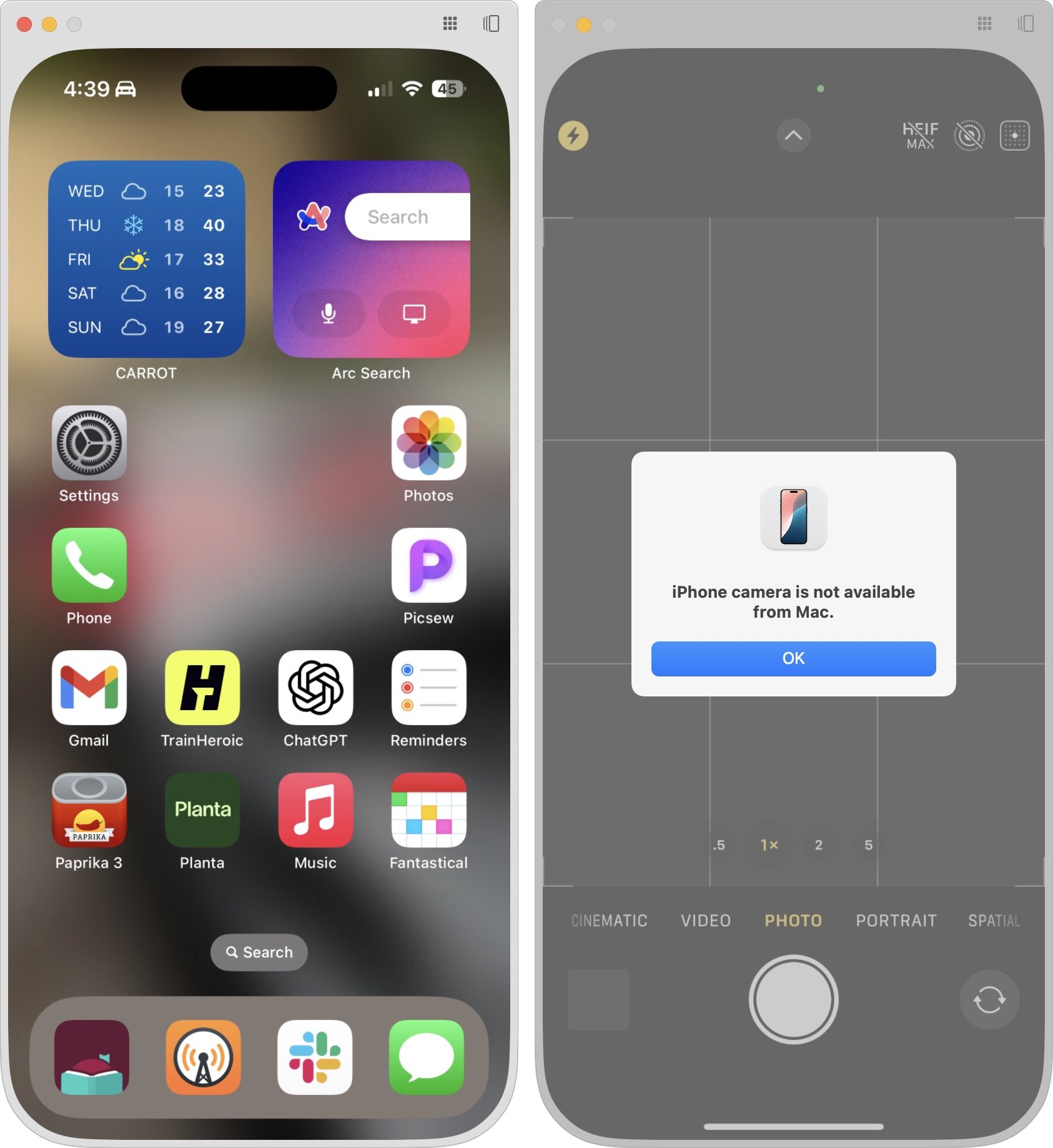
Using iOS and iPhone apps works pretty much as you’d expect, but there are some limitations. Notably, the iPhone camera and microphone aren’t available, although audio from the iPhone plays through the Mac. Face ID and Touch ID are also not accessible for obvious reasons, which may block access to apps and features protected by biometric authentication. There’s no way to access Notification Center or Control Center, nor to switch apps by swiping the Home indicator—presumably because those three swipes are special due to being at the edge of the iPhone screen. You cannot access the Lock Screen or perform any action that requires a physical button. Finally, you can use only one Continuity feature at a time, so other Continuity features like Universal Clipboard and AirDrop won’t function while you are using iPhone Mirroring.
Core iPhone Interactions
You’ll pick up the basic iPhone interactions quickly. Clicking is like tapping, Control-click acts like touch-and-hold, and swiping on a trackpad behaves like swiping on the iPhone screen. If your Mac has a mouse without swipe gestures instead of a trackpad, click and drag to swipe or use a scroll wheel (hold Shift to scroll horizontally with a scroll wheel). Buttons in the iPhone Mirroring window’s title bar take you back to the Home Screen and open the App Switcher—those actions involve swipes that would be difficult or impossible. Even easier are the keyboard shortcuts in the View menu for Home Screen (Command-1), App Switcher (Command-2), and Spotlight (Command-3).
File Transfer
Although the lack of Universal Clipboard prevents copying between your Mac and a mirrored iPhone, you can transfer files from apps that support it, like Files and Photos. Simply drag and drop between the Mac and the iPhone Mirroring app in either direction. With Files and Photos, it’s usually easier to use iCloud Drive in the Finder and the Mac version of Photos, but other apps may not be as well integrated.
Ending and Restarting Mirroring
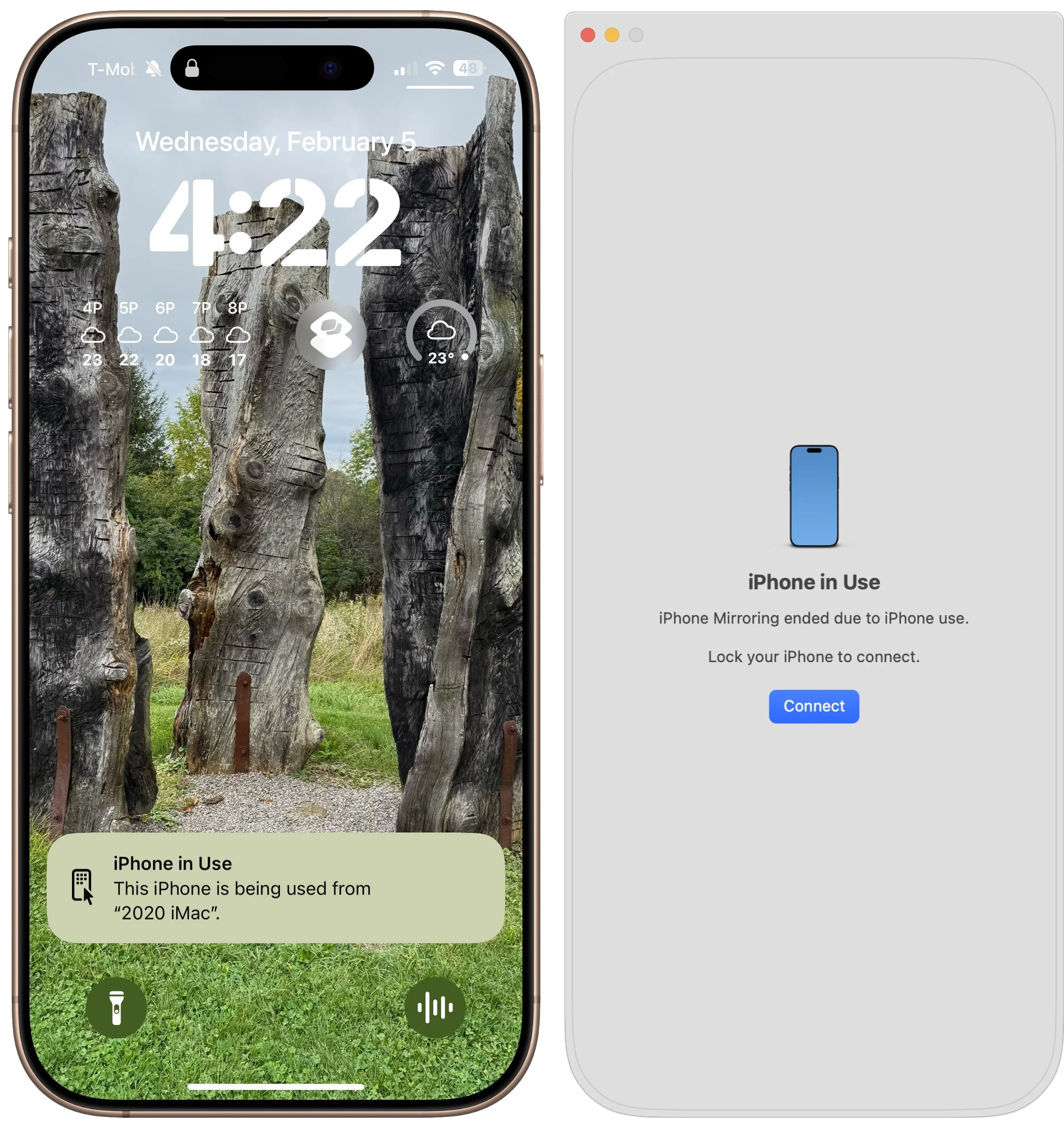
Switching back to using the iPhone directly is simple—just unlock it to disconnect from the Mac. When you’re done, lock the iPhone and click the Connect or Resume button to resume.
Dealing with Multiple Macs and iPhones
Connecting an iPhone to multiple Macs is not an issue, although only one can use it at a time. To remove access for a Mac, use the iPhone to navigate to Settings > General > AirPlay & Continuity > iPhone Mirroring, tap Edit, and then tap the red delete button. If you have more than one iPhone available for iPhone Mirroring, you can select which one to use in System Settings > Desktop & Dock, just below the “Use iPhone widgets” setting—the menu appears only when the Mac detects multiple iPhones nearby.
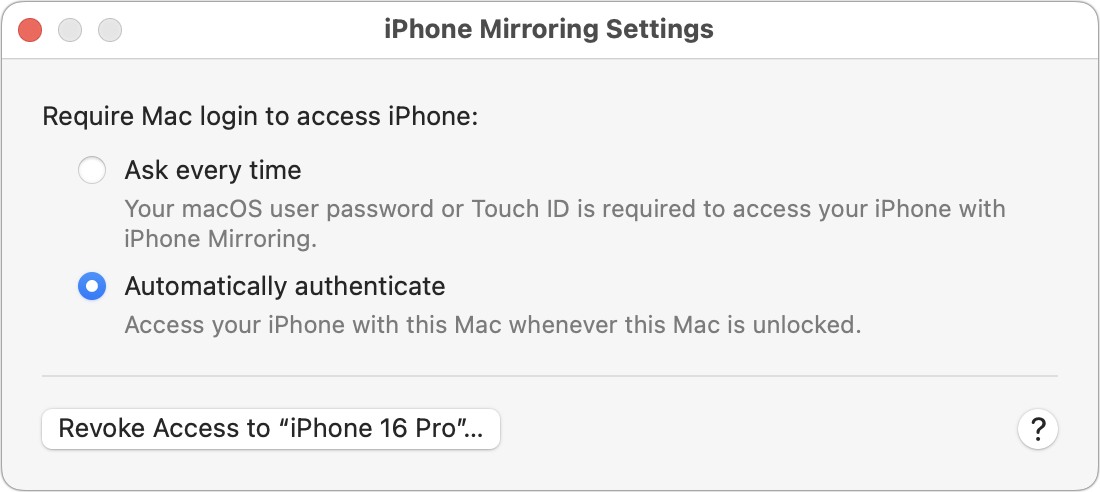
On final note. In iPhone Mirroring > Settings, you can choose whether to require your Mac login for every connection or to authenticate automatically. Set it to “Ask every time” if your Mac is shared with others, if others know your Mac password, or if you want to enhance protection against potential malicious software. It’s more secure but slightly more inconvenient.
In the end, if you frequently find yourself reaching for your iPhone while working on your Mac or wish it were more accessible, try iPhone Mirroring. It’s an easy, effective way to work between the devices and reduce unnecessary interruptions.
(Featured image by iStock.com/Diego Antonio Maravilla Ruano)
New iPhone 16e Redefines Budget iPhone Choices
Apple has unveiled the iPhone 16e for $599 and discontinued the iPhone SE and iPhone 14. It’s much more capable than the models it replaces, but the iPhone 16 may be worth $200 more. Read our buying advice here:
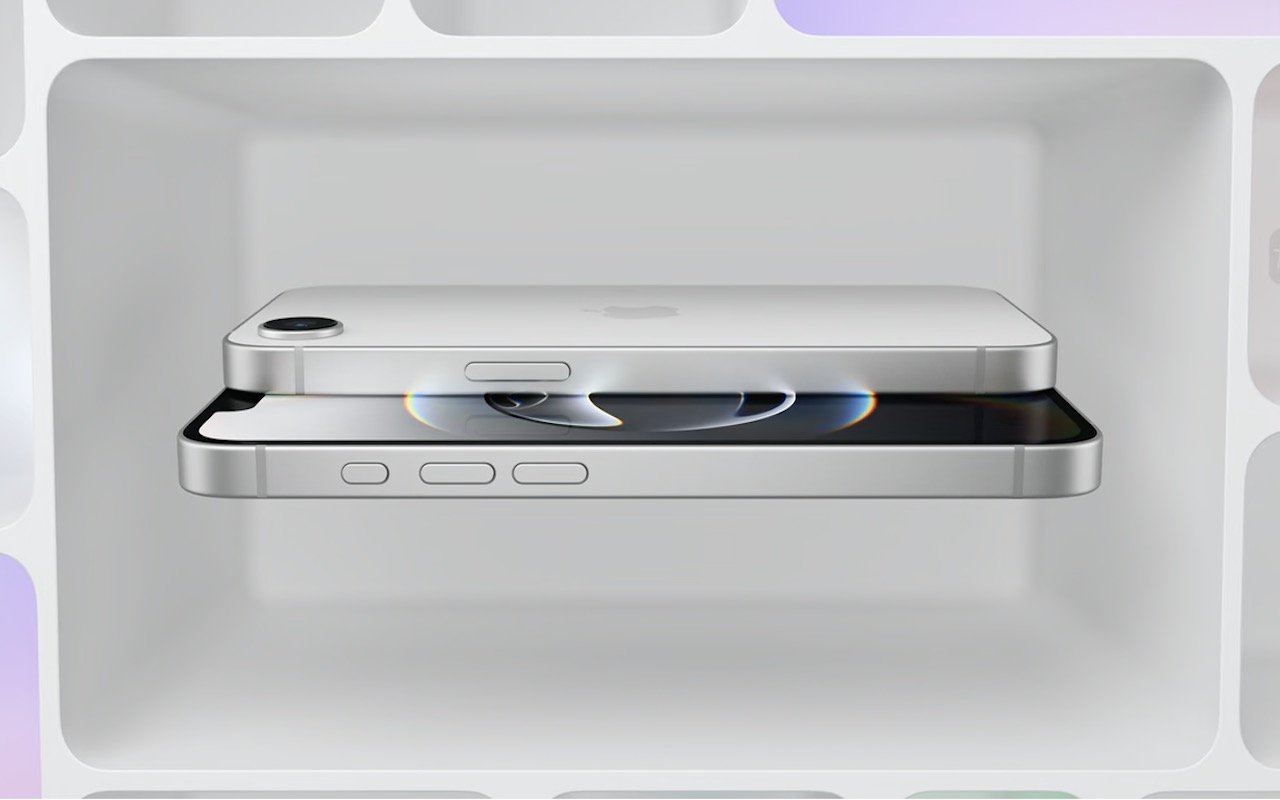
We know iPhones can get pricey—a top-of-the-line 1 TB iPhone 16 Pro Max costs $1,599, and that’s before AppleCare. To make the lineup more affordable, Apple has long sold the iPhone SE and kept previous years’ models available. Until February 18, you could buy a 64 GB iPhone SE for $429 or a 128 GB iPhone 14 for $599. Apple has now simplified the low-end choices by dropping those two older models in favor of the new iPhone 16e, which also starts at $599 for 128 GB of storage. It’s available in black or white.
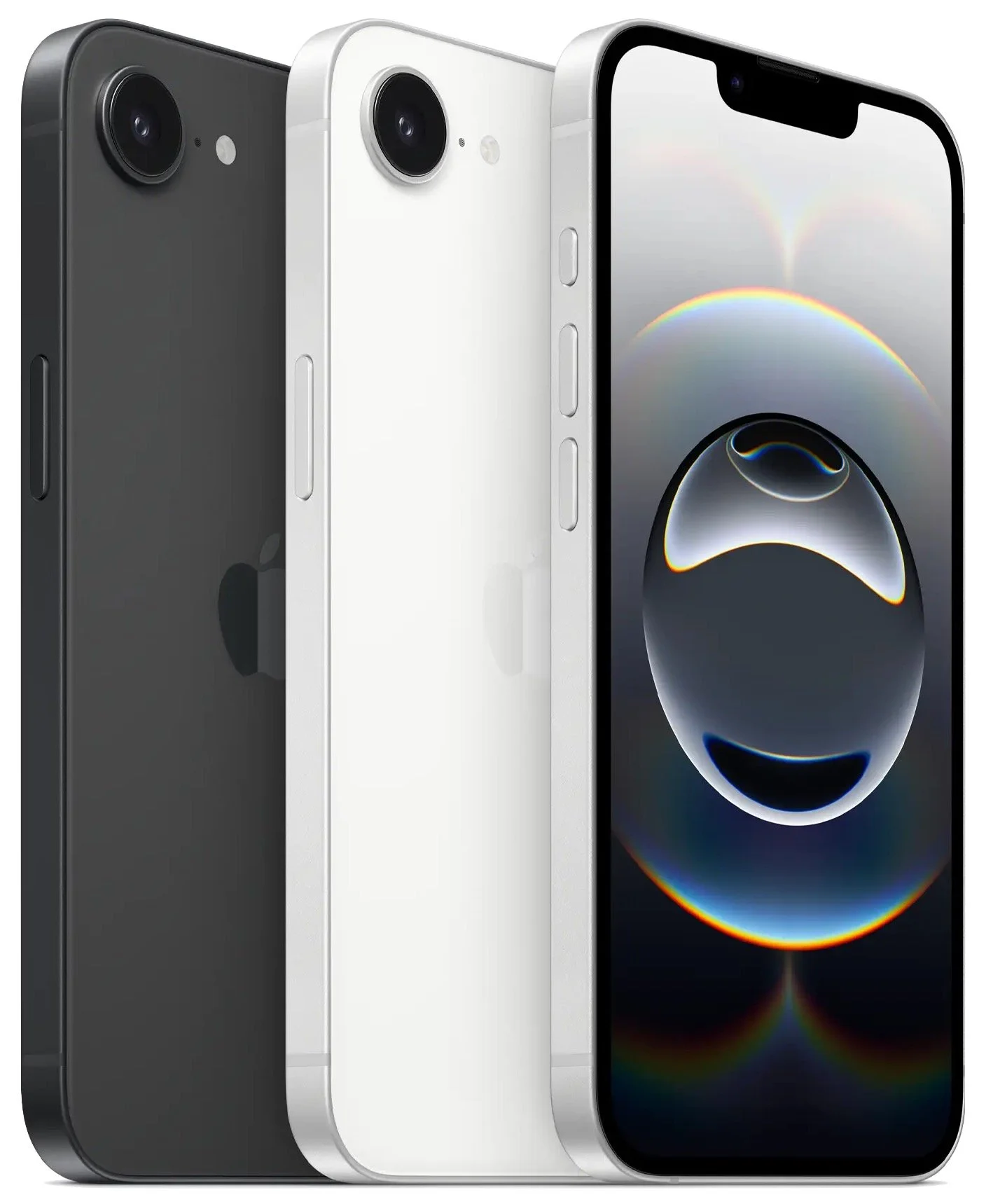
Physically, the iPhone 16e is a cross between the iPhone 14 and the iPhone 16. Its case dimensions match those of the iPhone 14, and it has the older notch design instead of the iPhone 16’s Dynamic Island. However, the iPhone 16e incorporates the iPhone 16’s Action button and uses USB-C.
What the iPhone 16e doesn’t do is replace the third-generation iPhone SE in terms of price or size. At $599, it’s $170 more than the 64 GB iPhone SE and $120 more than the comparable 128 GB model. That’s a significant increase for the most affordable iPhone. Moreover, while the iPhone SE’s compact size made it popular among those with smaller hands and pockets, the iPhone 16e is significantly taller, wider, thicker, and heavier. Anyone moving from an iPhone SE will feel the difference.
In exchange for its higher price and larger size, the iPhone 16e delivers significantly more technology than the iPhone SE. It replaces Touch ID with Face ID, boasts a much larger, brighter screen, sports notably improved front and rear cameras, and is powered by an A18 chip that is 40% faster than the iPhone SE’s A15 Bionic and supports Apple Intelligence features. The Action button can be customized to perform nearly any function and will soon also provide access to Visual Intelligence. The iPhone 16e also offers satellite connectivity for Messages, Roadside Assistance, and Emergency SOS in areas without cellular coverage, and it can alert emergency services after a car crash. Finally, it’s even more water- and dust-resistant.
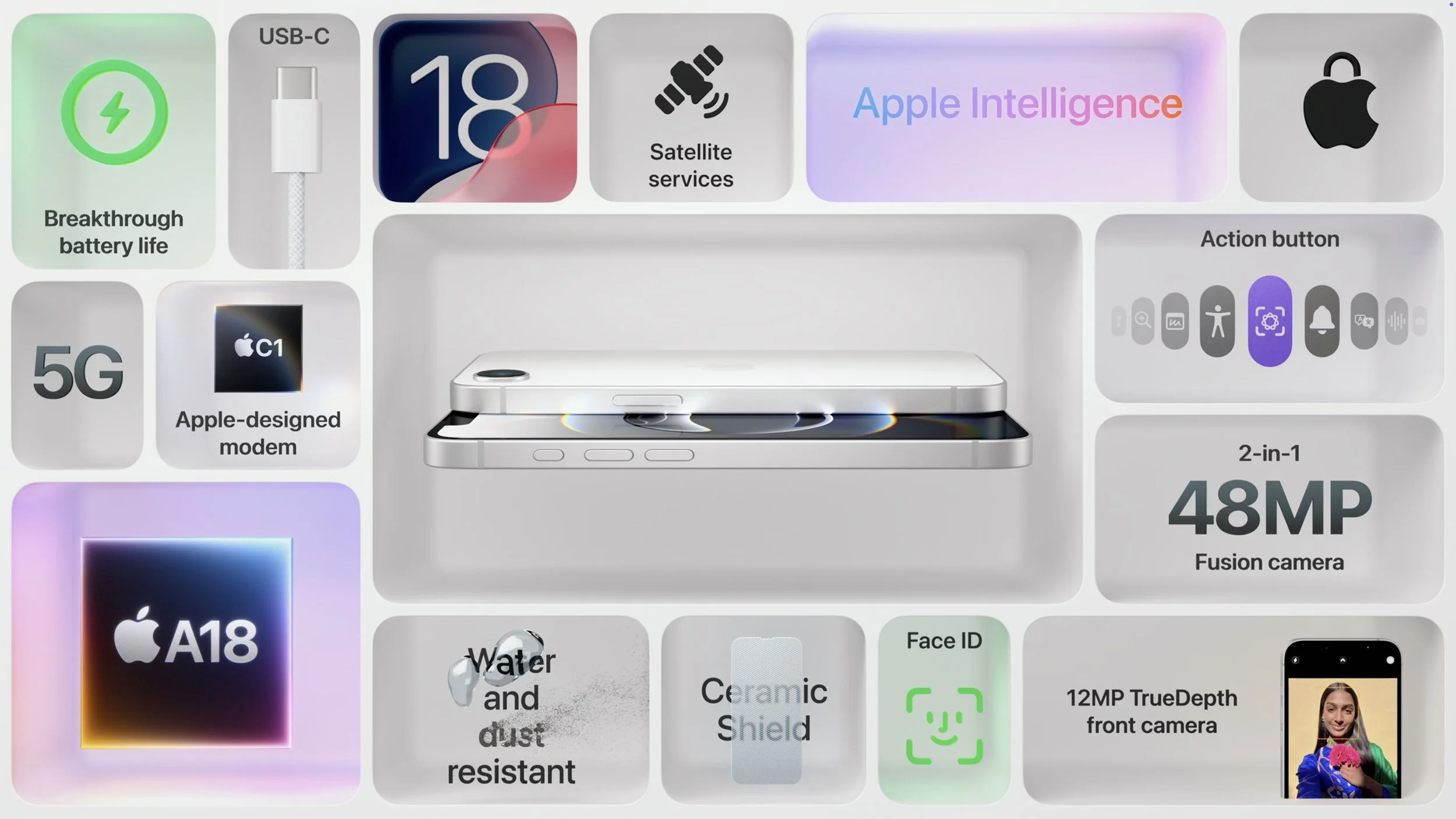
However, it’s also worth comparing the iPhone 16e to the iPhone 16, which starts at $799. That $200 premium gets you a lot, including a brighter screen, the Dynamic Island instead of a notch, a Camera Control button, a more advanced dual-camera system featuring a 12-megapixel Ultra Wide camera, a slightly more powerful A18 chip, 25-watt MagSafe charging with support for MagSafe accessories, and Ultra Wideband for precise Find My locating. Additionally, the iPhone 16’s camera system provides macro and spatial photography, as well as video features like cinematic mode, action mode, spatial videos, and macro recording. It may also deliver better optical image stabilization.
The only area where the iPhone 16e outperforms the iPhone 16 is in battery life. In Apple’s benchmarks, the iPhone 16e provides 12% to 18% longer runtime. The enhanced endurance is partly due to the power efficiency of Apple’s new C1 wireless communications chip. Apple also said it redesigned the internals of the iPhone 16e to accommodate a larger battery. The longer battery life may be especially welcome for those who expect to keep their iPhones for years.
Apple’s new C1 chip is a big deal, and the company wants to use it in future iPhone models to improve battery life and wireless performance. However, it’s worth keeping in mind that the C1 may suffer teething pains that Apple will address in software updates. Although Apple undoubtedly believes the C1 will work well, there’s no telling what will happen in the real world, and the company’s engineers may need to tweak it to address performance or reliability issues.
If you’re in the market for a new iPhone, what should you choose? The iPhone 16e is the best option for those on a tight budget since it’s the most affordable. (Last year’s iPhone 15, which is still available, starts at $699 and doesn’t support Apple Intelligence.) However, if you can afford that extra $200, the iPhone 16 is significantly more capable thanks to its superior rear camera system, Camera Control button, MagSafe compatibility, and Dynamic Island. For all the differences, check Apple’s iPhone comparison tool.
Finally, those seeking a smaller, lighter iPhone are out of luck. Their best hope lies with the rumored iPhone 17 Air, which is expected to arrive in September and could be thinner and lighter while maintaining the same height and width.
(Featured image by Apple)
When Purchasing a Fireproof Safe, Pay Attention to the Details
If the wildfires in Los Angeles have you considering a fireproof safe to safeguard backups and important documents, make sure to research temperature ratings over time and be mindful of water and impact resistance.
The devastating losses caused by the Los Angeles wildfires have underscored the need to protect data from catastrophic events. A traditional offsite backup—periodically moving a hard drive to another location—might not have sufficed in areas affected by wildfires, where many structures were destroyed. An online backup using a service like Backblaze or CrashPlan is often a better solution, although it can become costly for multiple Macs, and some individuals and organizations are uncomfortable storing their data online, even with encryption.
What about a safe? Would storing one or more backup drives in a safe provide adequate protection? Possibly, but the details are critical. Some safes are designed solely to guard against theft, focusing on preventing thieves from opening the door. However, paper ignites at 451ºF (it chars around 387ºF), and most house fires reach temperatures between 800ºF and 1200ºF, so you may think that all you need to do is look for a “fireproof” safe. That’s a good start, but paper is actually much more resilient than magnetic and optical media.
Fireproof safes come with ratings that indicate the internal temperature they can maintain, with the most common being:
Class 350: Safes maintain an internal temperature of 350ºF, suitable only for paper.
Class 150: Safes keep the interior below 150ºF, which should protect magnetic media.
Class 125: Safes maintain temperatures under 125ºF, appropriate for optical media.
It is also important to determine how long the safe can maintain that temperature. Generally speaking, a fireproof safe is rated for 1 or 2 hours, indicating it can maintain the specified internal temperature for at least that duration. Time ratings represent minimums, not maximums, so the actual protection time may be longer.
In most cases, the protection time is likely to be longer. That’s because safes are tested in furnaces at temperatures that can be two to three times hotter than the average house fire. For example, Underwriters Laboratory (one of several independent testing labs) conducts tests at 1700ºF or 1850ºF. Additionally, while a house fire may burn for several hours, the average fire will consume everything near the safe within 20 minutes and then move on.
Wildfires are a different story. In extreme conditions, wildfire temperatures can range from 1500ºF to 2200ºF, approaching or exceeding the testing conditions. Wildfires also last longer, so a safe in a destroyed building may remain in embers for hours or even days before it can be recovered.
While temperature over time is the main factor to consider when researching a fireproof safe, also look for two other variables being mentioned as well:
Water resistance: Where there’s fire, there’s usually water. Thousands of gallons of water, some of which will undoubtedly affect the safe. Not all fireproof safes are waterproof, so verify whether a specific safe can withstand being doused by firefighters.
Impact protection: If the floor collapses, a safe on an upper story could fall a considerable distance. If you are considering such a location, ensure the safe can withstand the impact. To simulate realistic fire conditions, the test may involve withstanding a 30-foot drop onto a concrete floor, followed by reheating.
Finally, remember that if your safe is in a fire, the heat will cause its insulation to swell up, rendering the lock useless, regardless of its type. Typically, you will need to hire a locksmith to access the safe using instructions from the manufacturer.
If you’re going to trust your data to a fireproof safe, do your research to ensure that whatever you buy will meet your needs for fire, water, and impact protection. It won’t be cheap—depending on the size and other factors, a good fireproof safe can cost many hundreds or even thousands of dollars. However, this is one area where you definitely shouldn’t cut corners.
(Featured image based on originals by iStock.com/phive2015 and Hanna Plonsak)
Businesses, Don’t Overlook Email Backup
Cloud-based email services like Google Workspace and Microsoft 365 provide excellent uptime and availability. However, an independent email backup solution is essential to protect against accidental deletion, cyber threats, and other data loss concerns.

Cloud-based email services such as Google Workspace and Microsoft 365 dominate the market for organizational email for good reason. Dealing with the constant onslaught of spam and online attacks is hard, as those traumatized by running mail servers in the “good old days” can attest.
While email service providers excel at their primary functions of sending, receiving, and storing emails, they prioritize availability and uptime over backup and recovery. Depending solely on their built-in protection systems can leave organizations vulnerable to data loss. Although it’s exceedingly rare for email service providers to lose data due to system failures—all modern email systems are distributed and replicated in virtualized storage—they cannot safeguard against every risk. Here are some scenarios we’ve encountered where a separate email backup solution was useful:
Recover from human error: This is the big one. People often accidentally delete important messages or clean out old messages too aggressively, inadvertently including critical conversations in a mass deletion. Backups ensure that these messages can be retrieved.
Ease employee turnover: When employees leave, it’s essential to deactivate their email accounts for security reasons. However, information in their accounts may be vital for ongoing projects or legal purposes. Backups preserve this data for future access.
Mitigate cyber threats: Phishing attacks are commonplace today. If an employee falls victim to one, their email account could be compromised and data lost. Worse still, the attacker could install malware—even ransomware, though that’s not a significant real-world concern for Apple-only installations—that could result in email data loss. While training employees to recognize and avoid phishing attacks is crucial, backups provide an essential safety net for anyone who makes a mistake.
Facilitate data migration and archiving: Organizations often need to migrate email data from one system or user to another. While it’s rarely necessary or desirable to migrate everything—all the mail from the past year may be sufficient—it can be helpful to maintain archival access to historical communications.
In fact, both Google and Microsoft explicitly state that they store data for only a limited time and recommend employing a backup service. (The specifics may differ, but generally, you can retrieve a deleted email within 30 days, after which it may be recoverable for an additional 14 or 30 days.) Numerous companies provide email backup services, many of which are quite similar. The list below highlights some of the most common services, but we encourage you to reach out for recommendations based on your email service provider and organization size.
CloudAlly offers unlimited data retention and extends its backup capabilities beyond email to encompass platforms such as Box, Dropbox, and Salesforce.
CubeBackup focuses exclusively on Google Workspace and Microsoft 365. It provides a cost-effective solution by allowing users to utilize their own local or remote storage.
Backupify and Datto SaaS Protection are from the same company and offer the same backup capabilities, but they serve different market segments. Datto further enhances its branded services with a range of business continuity and data protection tools.
Dropsuite provides unlimited storage and also supports QuickBooks Online backup. It features a flexible backup cadence, with email backups up to 12 times per day.
MSP360 Managed Backup is a feature-rich solution that, while more complex and potentially more expensive than those from competitors, offers extensive customization and supports a wide range of storage providers.
Spanning goes beyond Google Workspace and Microsoft 365 with Salesforce backups. It offers highly granular restores, enabling the recovery of individual emails. Its FLEXspend feature simplifies backup expenditures when transitioning between platforms.
SpinBackup offers disaster recovery services at an affordable price point, and its developer, Spin.ai, provides a wide range of security solutions beyond backup, including data leak and ransomware protection.
Synology Active Backup includes free add-ons for Google Workspace and Microsoft 365 that back up cloud data to a Synology NAS. It’s an excellent solution for avoiding ongoing expenses.
As important as an email backup solution is for protecting against data loss, we urge you to proceed carefully when selecting one. If you end up with data that exists solely in a particular solution, legal retention requirements or the inability to export data in a non-proprietary format may lock you into paying for it indefinitely. Ideally, keep all data live so you can transition to a different solution to meet changing needs. Again, please contact us for help picking the most appropriate solution for your needs.
(Featured image by iStock.com/Rasi Bhadramani)
Apple’s January 2025 Releases Enhance Apple Intelligence Features
Apple’s third update to Apple Intelligence introduces changes to notification summaries (including disabling controversial news headline summaries), enhancements to Visual Intelligence on the iPhone 16, and Genmoji creation on the Mac.
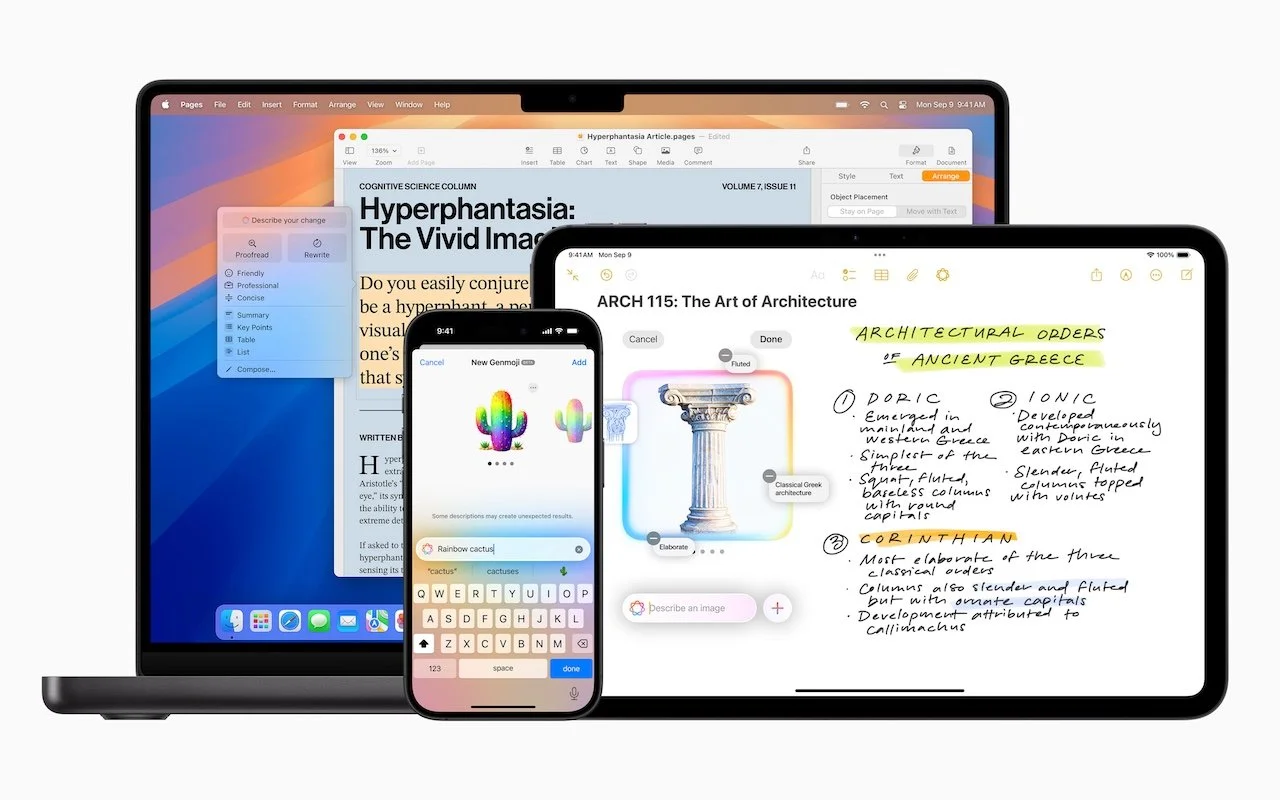
Apple unveiled Apple Intelligence in October 2024 and expanded its extensive collection of AI-powered features with its December updates. The company’s January 2025 releases of macOS 15.3 Sequoia, iOS 18.3, and iPadOS 18.3 enhanced the feature set in several notable ways. Remember, Apple Intelligence features operate only on a Mac with Apple silicon, an iPhone 15 Pro or any iPhone 16, or an iPad with an A17 Pro or M-series chip.
Although Apple still considers Apple Intelligence to be in beta, the January operating system releases enabled it by default. From Apple’s perspective, this makes sense because so many features depend on Apple Intelligence, and the company aims to ensure a consistent user experience for everyone. Those features include:
Photos: Clean Up, natural language searching, and improved Memory movie creation
Text and Writing: Writing Tools with ChatGPT integration for any app
Communication: Priority messages in Mail, Smart Reply and summaries in both Mail and Messages
Notes and Phone: Audio transcription summaries
Creative Tools: Genmoji and Image Playground for image generation, Image Wand for Apple Pencil sketches
Focus: Intelligent Breakthrough & Silencing and Reduce Interruptions Focus
Notifications: Summaries for busy apps and conversations
Siri: Enhanced capabilities, but primarily ChatGPT integration
Camera: Visual Intelligence lookups (iPhone 16 only)
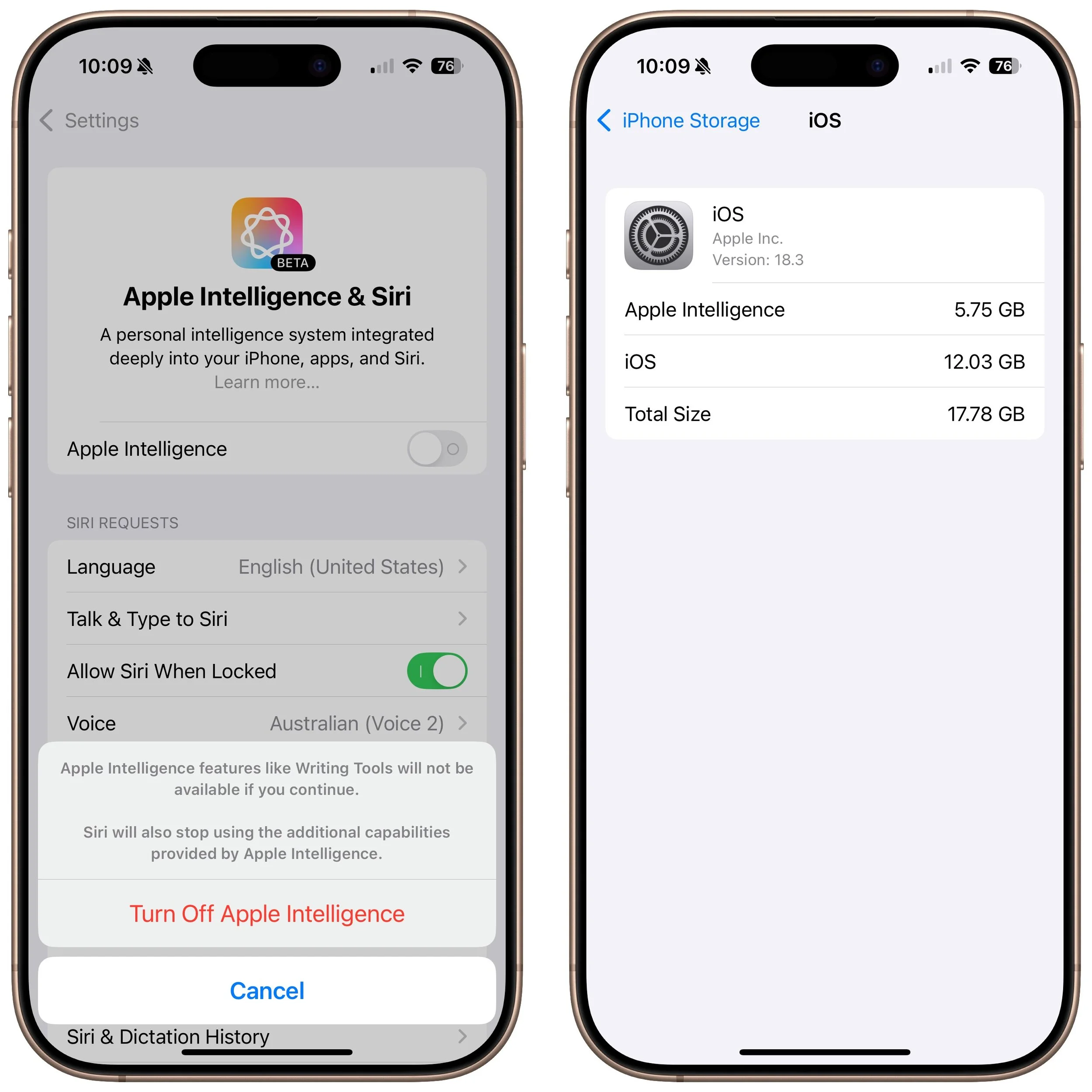
Apple Intelligence requires up to 7 GB of storage space (we see it occupying 5 GB in macOS 15.3 and 5.75 GB in iOS 18.3), so if your Mac, iPhone, or iPad is low on space, you may want to turn it off to free up room for photos, movies, and apps. Do that in the Apple Intelligence & Siri section of System Settings or Settings. However, you might not notice recovered space until your device decides to reclaim it. To check your space usage on a Mac, navigate to System Settings > General > Storage > macOS, and on an iPhone or iPad, go to Settings > General > iPhone/iPad Storage > iOS/iPadOS.
Assuming you intend to keep it enabled, what can you expect from this third update to Apple Intelligence features?
Changes to Notification Summaries
Notification summaries have proven to be Apple Intelligence’s most controversial feature. They have generated blatantly incorrect news summaries and misidentified spouses, resulting in complaints from major publications and widespread mockery. In response, Apple has temporarily turned off notification summaries for all apps in the App Store’s News & Entertainment category.
Apple also italicized all the text in notification summaries to better distinguish them from standard notifications. Previously, the only indicator of a summarized notification was a tiny icon.
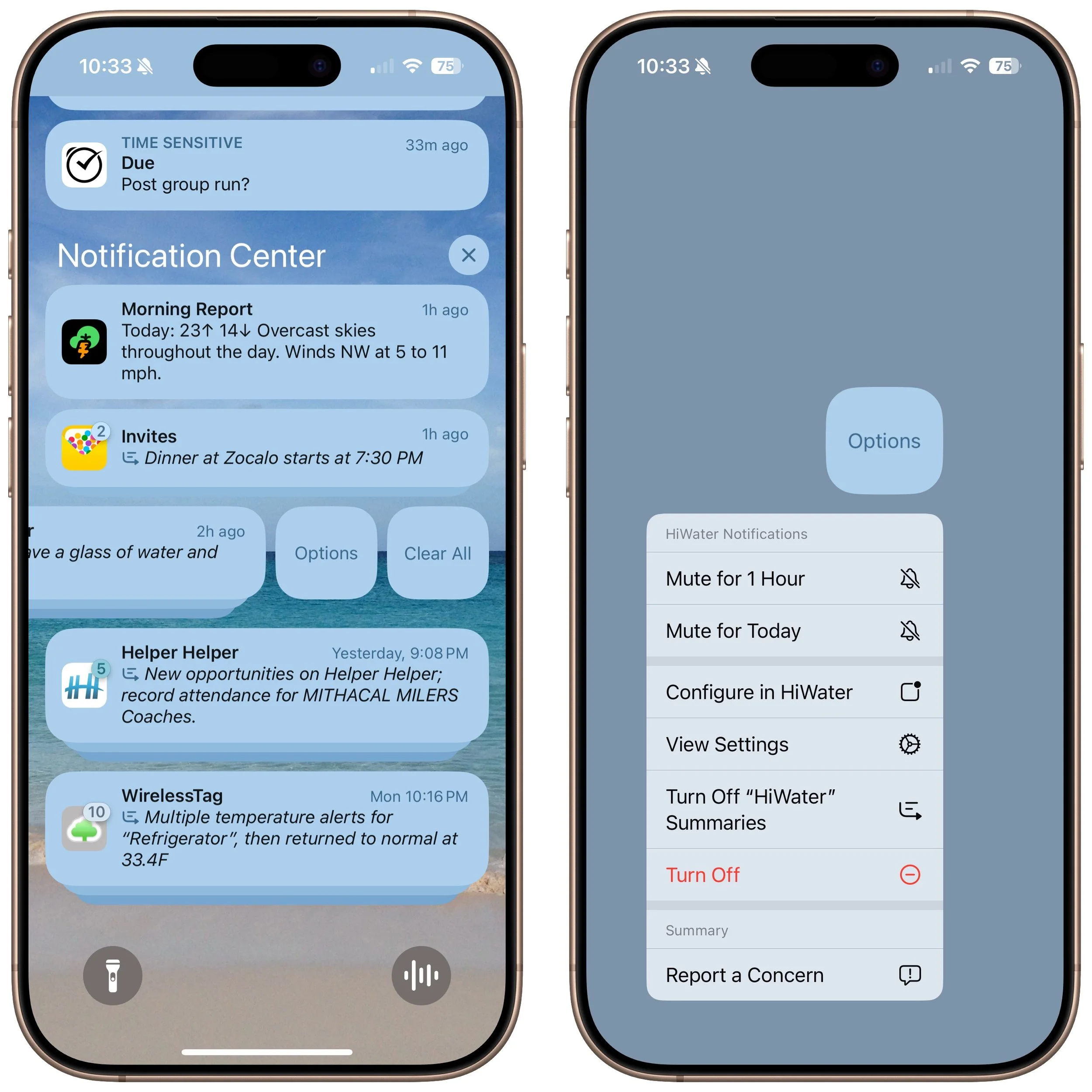
Finally, Apple made it easier to manage settings for notification summaries from the Lock Screen. On an iPhone, for instance, you can swipe right to reveal an Options button, tap it, and then tap Turn Off AppName Summaries. You can also report a concern with a summary—Apple solicits feedback as part of the Apple Intelligence beta.
Visual Intelligence Adds Scheduling and Plant and Animal Identification
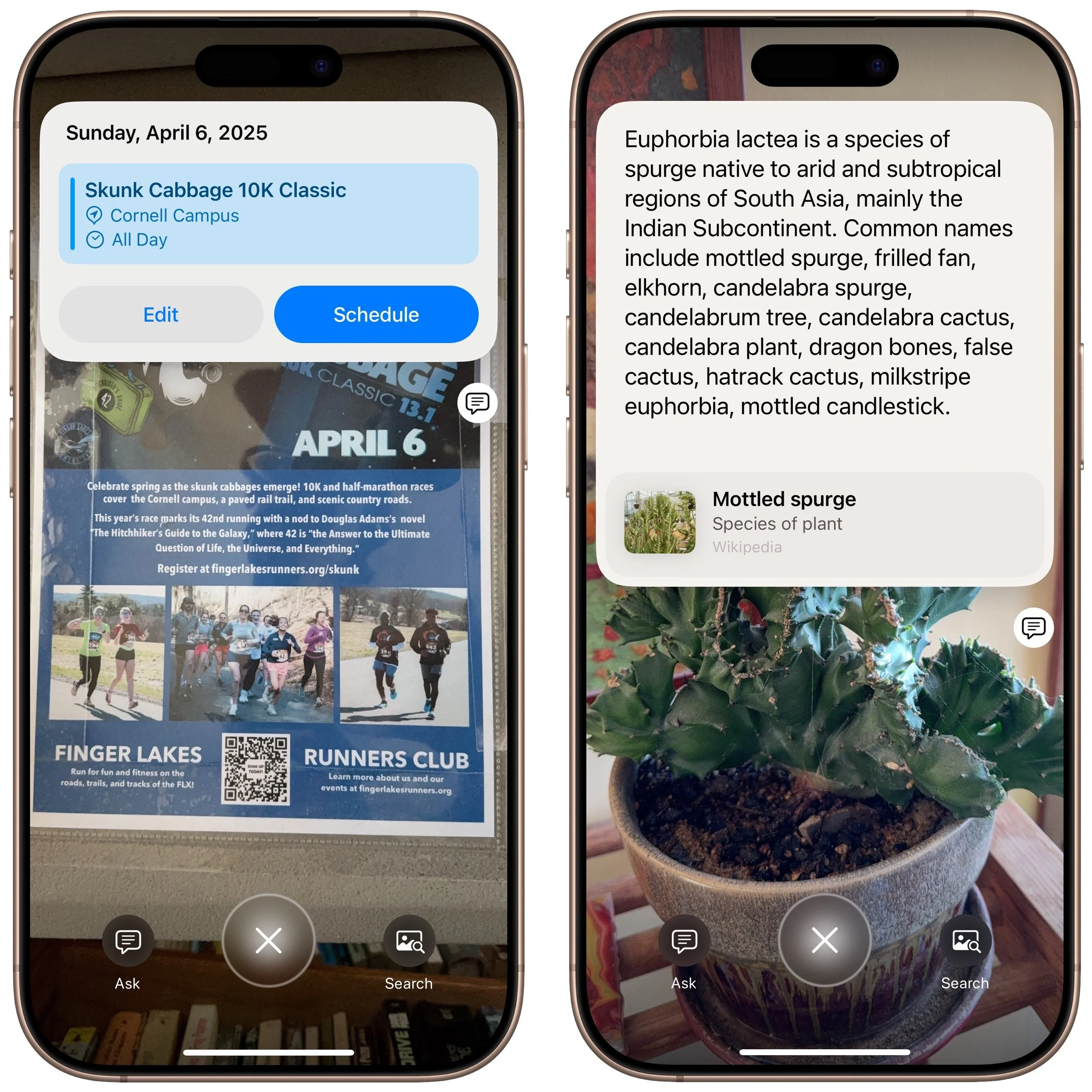
Apple Intelligence enhances the new Camera Control button on iPhone 16 models, enabling it to respond based on what’s in the viewfinder. Initially, it could only ask ChatGPT about what it saw or conduct a Google image search. Now, when you press and hold the Camera Control, Visual Intelligence can also detect whether you’re pointing at a poster or flyer and suggest creating a calendar event. Additionally, if it identifies a plant or animal within the frame, it will recognize it and provide more information with a tap.
Genmoji Become Available on the Mac
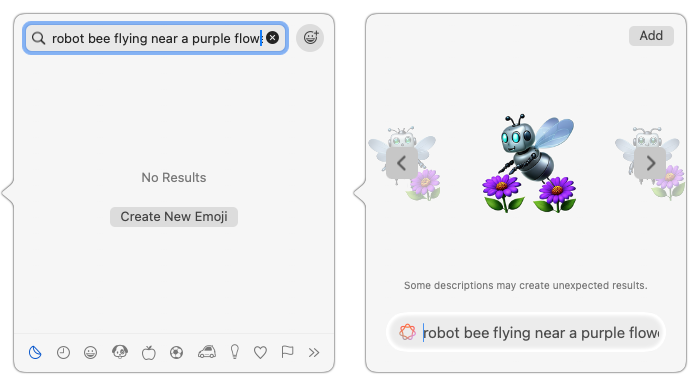
iOS 18.2 and iPadOS 18.2 introduced the custom emoji Apple calls Genmoji, but macOS 15.2 did not include this feature. With macOS 15.3, the Mac has now caught up. The functionality remains the same—you describe what you want to see in a few words, and the Genmoji can be based on a picture of a person. The Genmoji you create are essentially stickers, but you can use them just like regular emojis.
To create one, open the emoji picker, type a few words of description, and click Create New Emoji. You can then experiment with different descriptions and scroll through Apple Intelligence’s variants before clicking Add to save your Genmoji and insert it wherever you’re typing.
We expect at least one more major release related to Apple Intelligence, likely in early March, coinciding with the .4 operating system updates. If Apple’s engineers meet their targets, these releases will enable Siri to access and leverage your personal information for more context-aware responses. Siri will also be able to perform actions within apps. Additionally, Apple has promised priority notifications to ensure that we are quickly alerted to the most critical messages while minimizing distractions from less important ones.
In the meantime, explore the Apple Intelligence features currently available and see if they enhance your Apple experience.
(Featured image by Apple)
Feel Free to Upgrade to macOS 15 Sequoia When You’re Ready
When should you upgrade to macOS 15 Sequoia? There’s no need to install it today, but we think it’s safe for those who want to take advantage of the new features and integration with Apple’s other operating systems.
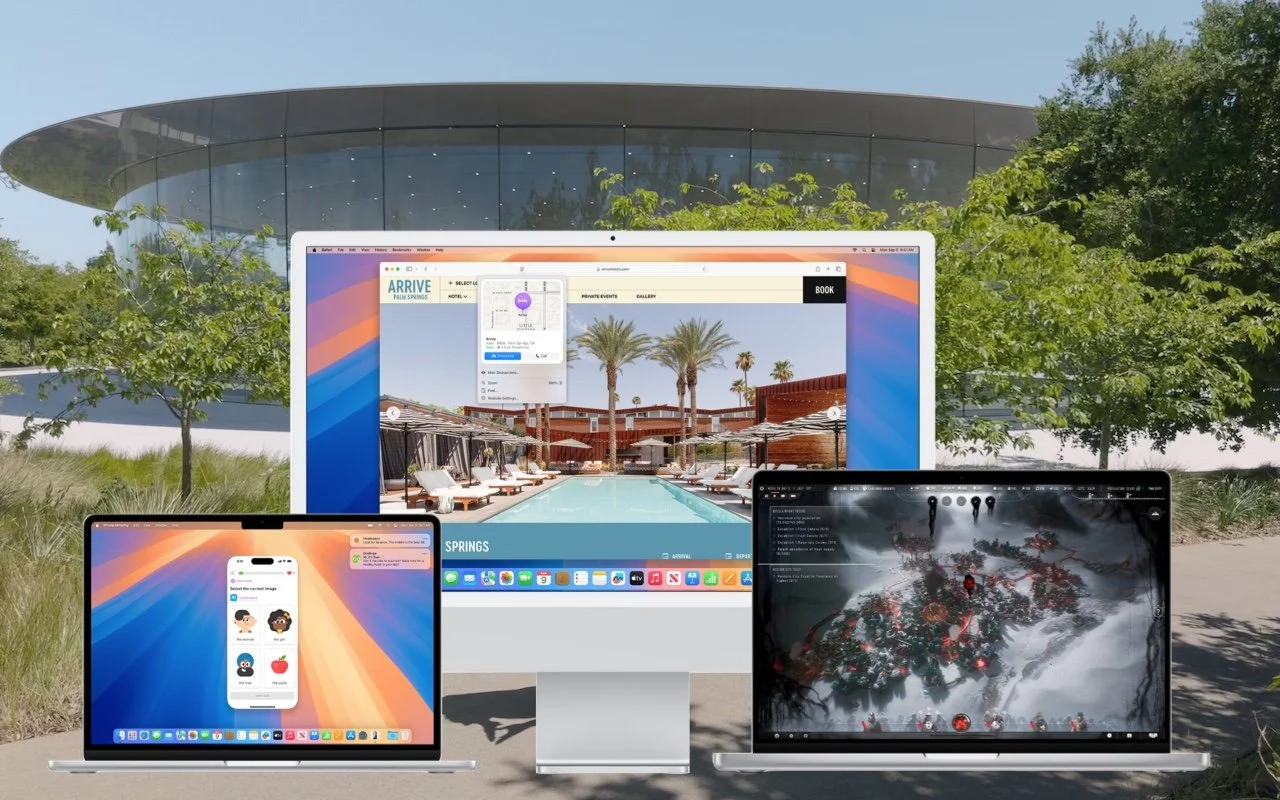
While we typically advise caution when considering upgrades to the latest major macOS release, we believe Apple has sufficiently refined macOS 15 Sequoia to warrant an upgrade for those interested. You don’t need to upgrade immediately, but there are no significant reasons for most people to delay further.
The big win in upgrading now is that Apple has released betas of most of its promised Apple Intelligence features for Macs with Apple silicon. In other posts, we’ve looked at the artificial intelligence-driven features that arrived in macOS 15.1 and macOS 15.2, including:
Writing Tools for proofreading, rewriting, summarizing, and composing text
Clean Up in Photos for removing background objects, plus natural language searches
Audio recording in Notes, with transcription and summarization
Summaries replacing snippets in Mail message lists, plus summarization of long messages or threads
A Smart Reply feature in Mail and Messages for quick replies
Notification summaries that reduce distractions from chatty apps
Integration of ChatGPT with Siri
Image Playground for generating custom images based on your descriptions
Sequoia has been quite stable, with two caveats. First, there have been some networking issues related to Apple’s built-in firewall and VPNs; we don’t yet know if macOS 15.2 resolves these. Second, macOS 15.2 introduced a new bug that causes problems for backup apps trying to make bootable backups on Apple silicon Macs. Although that’s annoying and will likely be fixed shortly, Apple has been deprecating bootable backups for years in the name of security. The modern approach is to install macOS from macOS Recovery, then use Migration Assistant to restore from Time Machine or a data-only backup.
Apple will continue to release macOS updates in 2025. If past performance is any indication, you can expect macOS 15.3 in January, 15.4 in March, and 15.5 in May with a few new features, plus a few security and bug fix updates in between.
That said, you can put off the Sequoia upgrade as long as you’re running macOS 13 Ventura or macOS 14 Sonoma and are staying current with Apple’s security updates. Earlier macOS versions no longer receive security fixes, rendering them more vulnerable to attack. Possible reasons to continue delaying include:
You’re too busy. The upgrade process will take a few hours, plus some additional time to configure everything properly afterward. When you are ready to upgrade, aim for when a little downtime will be convenient.
You rely on incompatible software. The jump from Ventura or Sonoma to Sequoia isn’t a big one, so most modern apps should have been updated by now. But if a necessary app is known to have issues, you’ll either need to wait for an update or switch to an alternative that works.
Sequoia may not transform your experience of using a Mac, but it has new features you might appreciate beyond Apple Intelligence. The most noticeable is probably iPhone mirroring, which lets you use your iPhone in a window on your Mac. Also potentially interesting are its new window tiling features that let you quickly arrange windows, the standalone Passwords app, Highlights and Distraction Control in Safari, and collapsible headers in Notes.
Before You Upgrade
Once you’ve decided to upgrade to Sequoia, you have three main tasks:
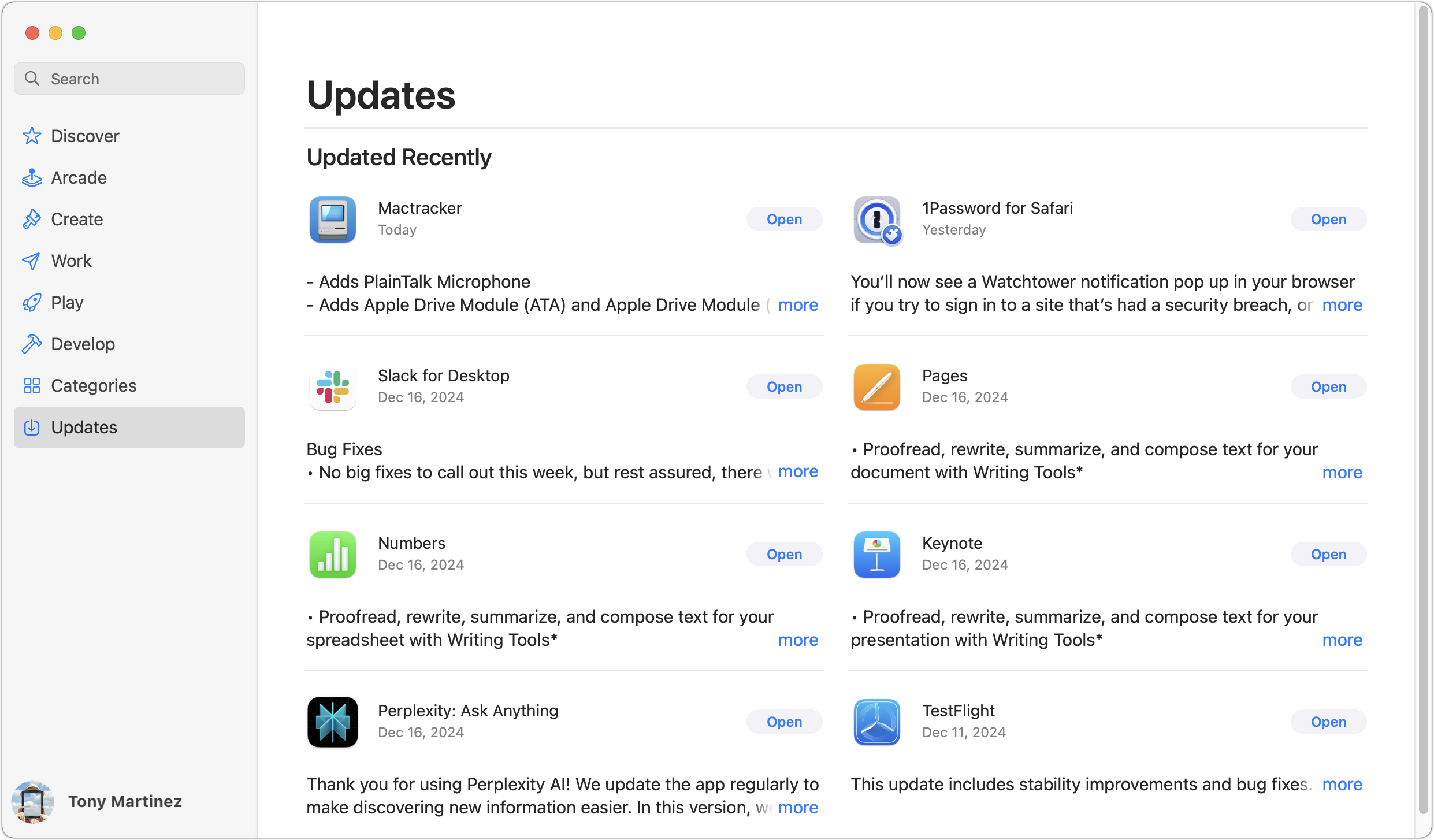
Update apps: Make sure all your apps are as up-to-date as possible. If you regularly put off updates, now’s the time to let them complete so you have Sequoia-compatible versions.
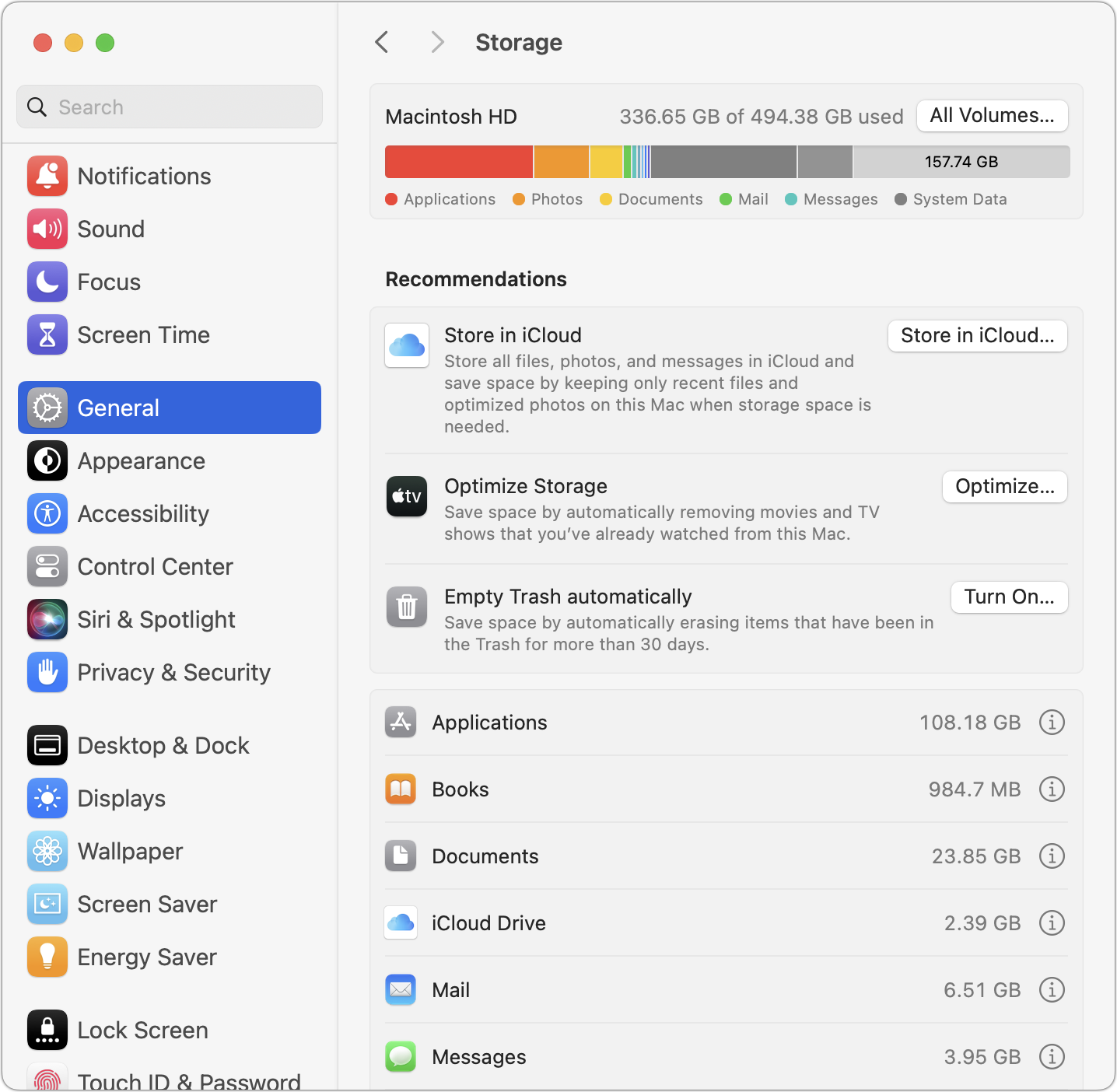
Clear space: Sequoia may need as much as 25 GB of free space to upgrade, and the Sequoia installer itself is nearly 15 GB, so we recommend making sure you have at least 50 GB free. Don’t cut this close—you should always have at least 10–20% free space for virtual memory, cache files, and breathing room. Check in Sonoma or Ventura by choosing System Settings > General > Storage; in earlier versions of macOS, choose About This Mac from the Apple menu and click Storage. System Settings provides quick ways to free up space. Another easy option for iCloud Drive users is to Control-click large folders and choose Remove Download to “evict” the local versions of those files temporarily; Box, Dropbox, and Google Drive have similar features.
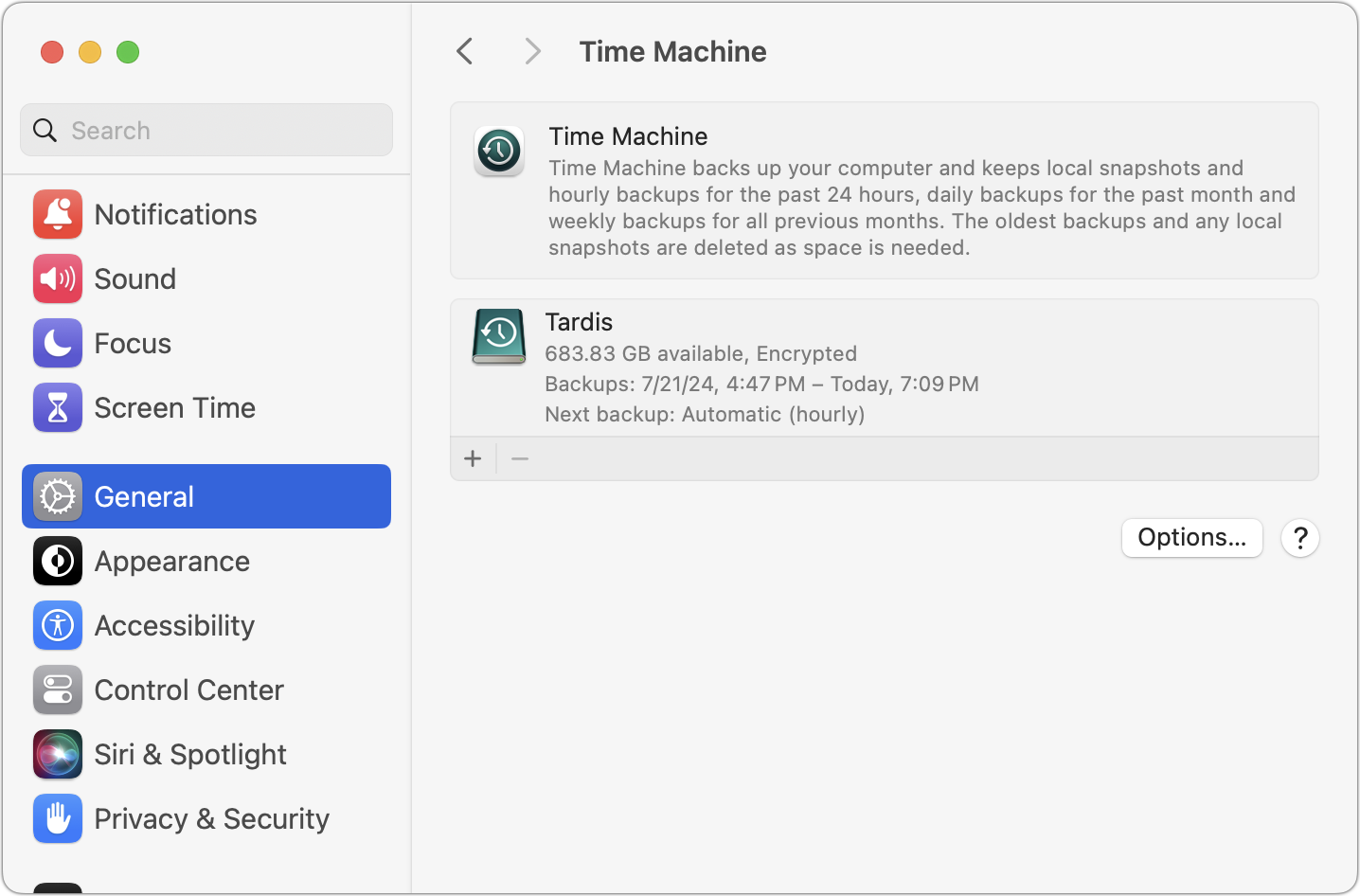
Make a backup: Never, ever install an update to macOS without ensuring you have at least one current backup first. In an ideal world, you’d have an updated Time Machine backup, a data-only duplicate, and an Internet backup. That way, if something goes wrong, you can quickly revert.
Upgrading
After completing those tasks, ensure you won’t need your Mac for a few hours. There’s no telling exactly how long the upgrade will take, so never start an upgrade if you need the Mac soon.
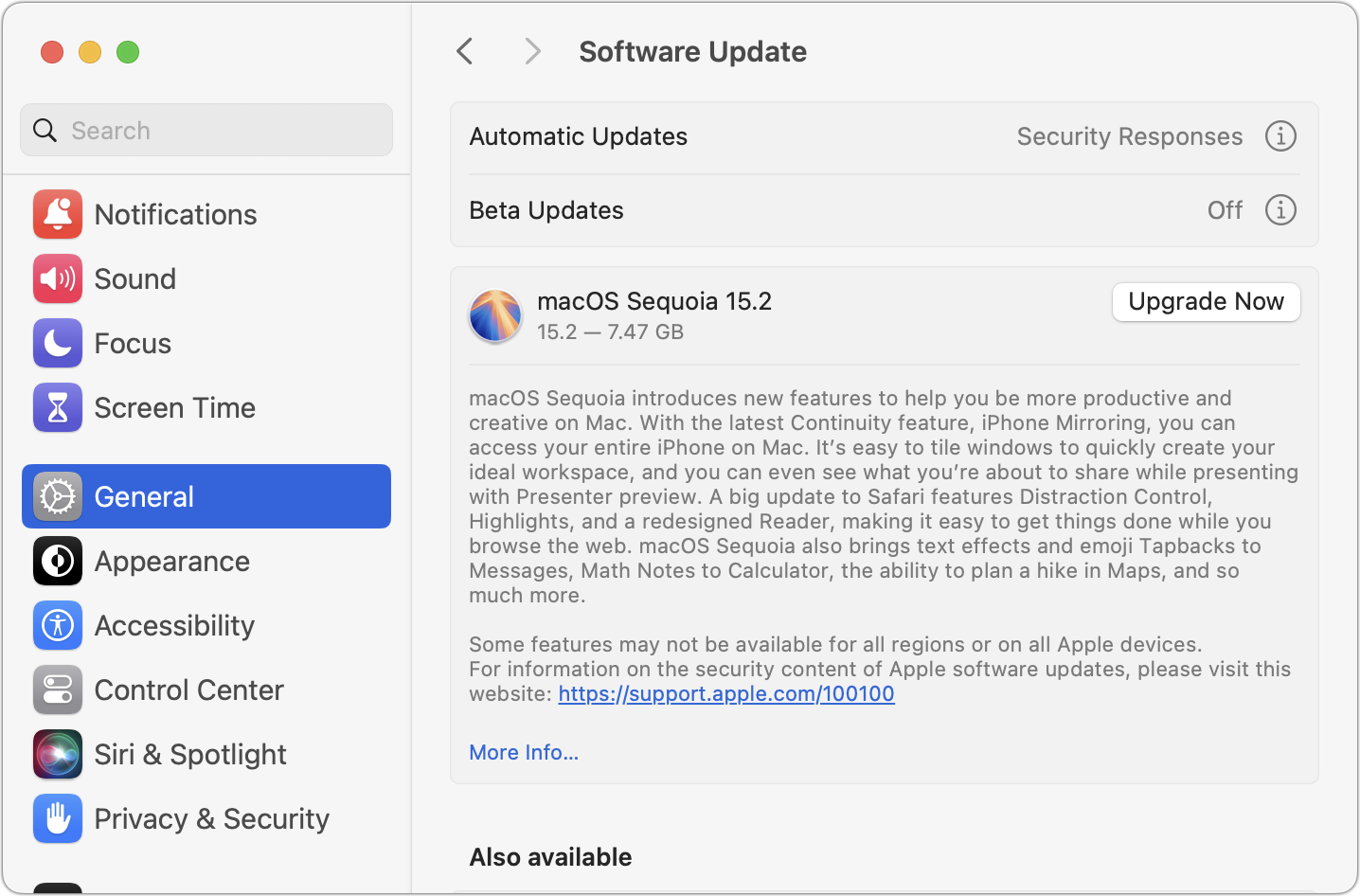
To initiate the upgrade, open System Settings > General > Software Update in Sonoma or Ventura (System Preferences > Software Update in previous versions of macOS), click the Upgrade Now button, and follow the instructions. If you’d like more guidance, check out Joe Kissell’s ebook Take Control of Sequoia.
After You Upgrade
Part of the reason to set aside plenty of time for your Sequoia upgrade is that there are usually cleanup tasks afterward. We can’t predict precisely what you’ll run into, depending on what version of macOS you’re running now and what apps you use, but here are a few situations we’ve noticed in the past:
macOS may need to update its authentication setup by asking for your Apple ID password, your Mac’s password, and, if you have another Mac, its password. Don’t worry that malware has compromised your Mac—these authentication prompts are fine.
Some apps may have to ask for various permissions even though you previously granted them. Again, that’s fine.
If you use your Apple Watch to unlock your Mac and apps (and you should; it’s great!), you may need to re-enable that in System Settings > Touch ID & Password (or Login Password on a non-Touch ID-enabled Mac). In older versions of macOS, it was in System Preferences > Security & Privacy > General.
If you use Gmail, Google Calendar, or other Google services, you may need to log in to your Google account again.
Websites that usually remember your login state may require you to log in again. However, if you’re using a password manager like Apple’s Passwords or 1Password, that’s easy.
You may have to re-enable text message forwarding to your Mac. You do this on your iPhone in Settings > Messages > Text Message Forwarding.
With all that housekeeping done, it’s time to check out all the new features in Sequoia!
(Featured image by Apple)
Mail on the iPhone Can Categorize Your Messages in iOS 18.2
A noticeable change in iOS 18.2 is Mail Categories, which divides your incoming email into Primary, Transactions, Updates, and Promotions. It can be helpful, but you may want to adjust its settings, and if you still don’t like it, it’s easy to turn off.

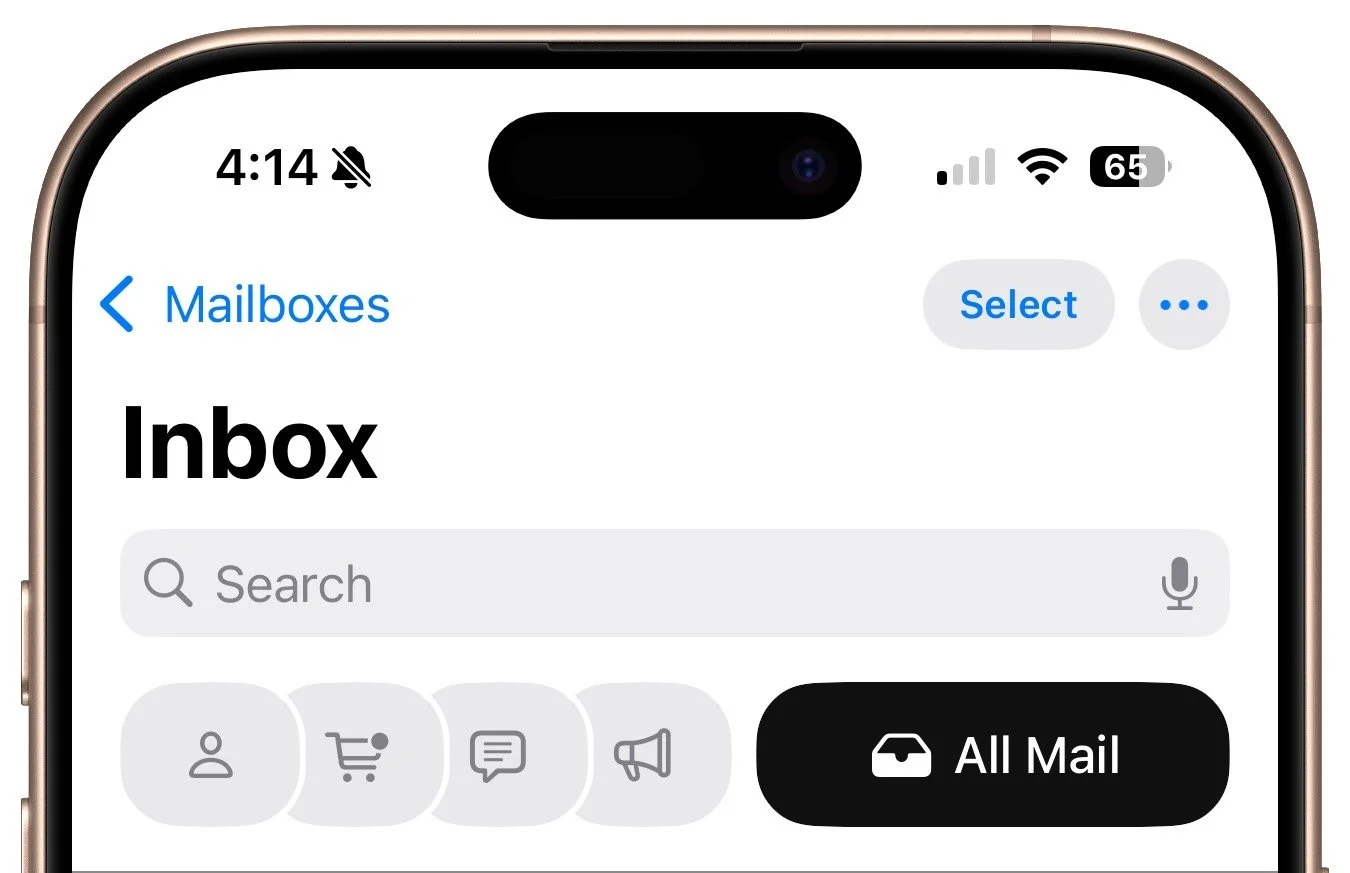
Apple slipped a significant new feature into Mail in iOS 18.2 that has nothing to do with Apple Intelligence: Categories. Like Gmail and other email apps, Mail can now automatically categorize messages into four buckets: Primary, Transactions, Updates, and Promotions. The idea is that categories make it easier to pay attention to important messages while collecting other messages for later processing. Tap the buttons at the top to switch between categories.
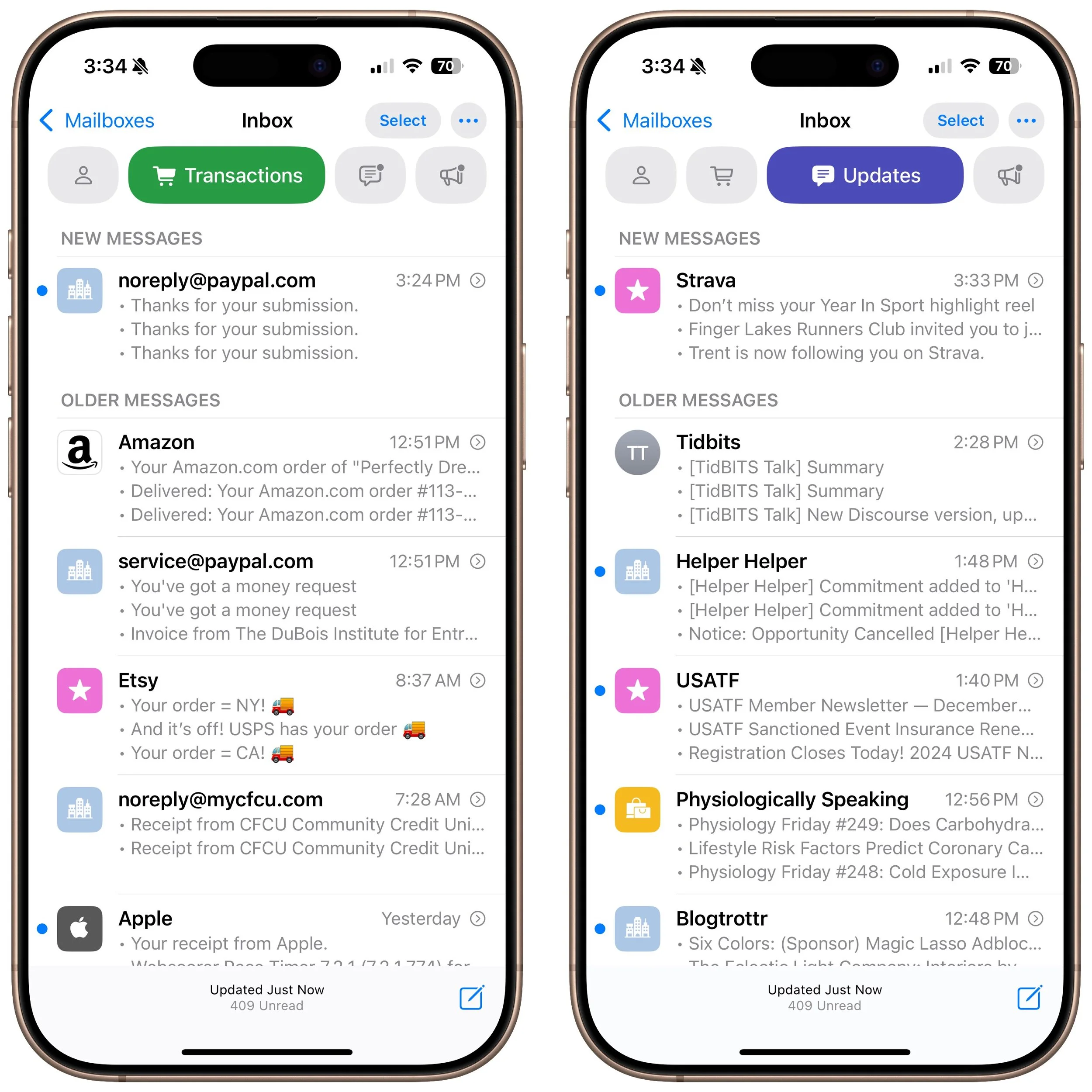
Oddly, Categories are currently available only on the iPhone. To maintain the same email experience across all Apple devices, you’ll have to wait for future versions of Mail on the iPad and the Mac.
Here are answers to questions we’ve heard about Mail Categories.
Can You Turn Mail Categories Off?
Apple turned Categories on by default in iOS 18.2, but not everyone appreciates the change. If you have your own organizational system, find the extra sections distracting, or just want to see all your email in one list, you can turn the feature off. Tap the ••• button at the top right of the Mail screen and select List View.
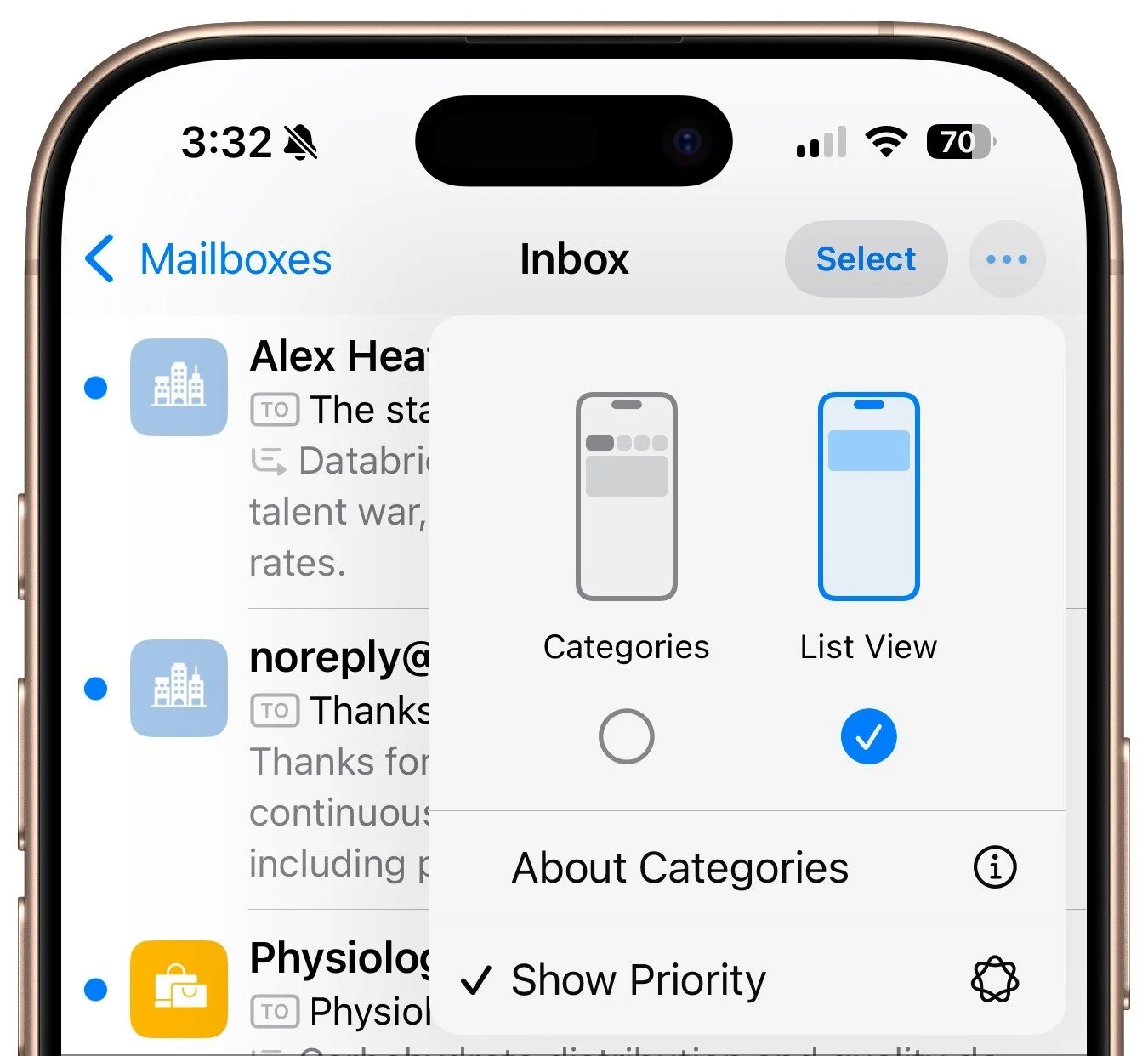
It's also possible to keep Categories turned on but still see all your messages in a simple chronological list. Swipe left on the line of buttons to switch to an All Mail category that shows exactly what you’d see in List View.
What Appears in Each Category?
With Categories turned on, Mail automatically separates your mail into four categories:
Primary: Personal messages, plus time-sensitive information from another category
Transactions: Order confirmations, receipts, and shipping notices
Updates: News, mailing lists, newsletters, and social media updates
Promotions: Sale announcements, new products, coupons, and anything commercial
These categories are built-in, so you can’t select some but not others. Nor can you add your own.
Is There a Way to Recategorize Messages?
Unfortunately, Categories isn’t very good at categorizing messages at the moment. (Perhaps it should use Apple Intelligence!) In particular, we see newsletters and other items that should be in Updates incorrectly showing up in Promotions. Fortunately, you can easily recategorize messages from particular senders so Mail can correctly categorize similar messages in the future. How you recategorize messages depends on whether a message is in Primary or another category. For messages in Primary, tap the left-pointing blue arrow at the bottom of the screen and then tap Categorize Sender. For messages in other categories, tap the ••• at the top right of the screen and then tap Categorize Sender.
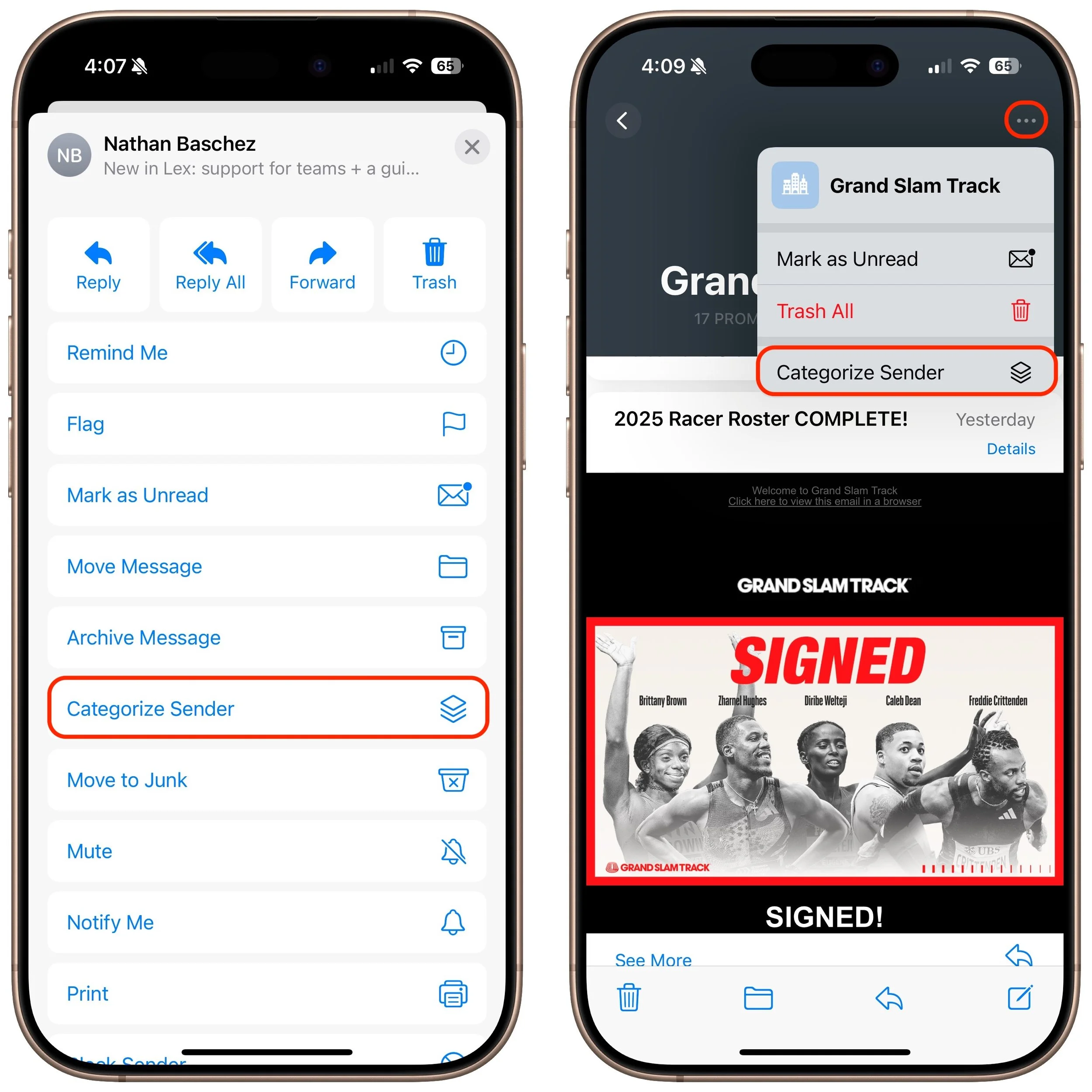
In either case, tap the desired category on the next screen and confirm your action.
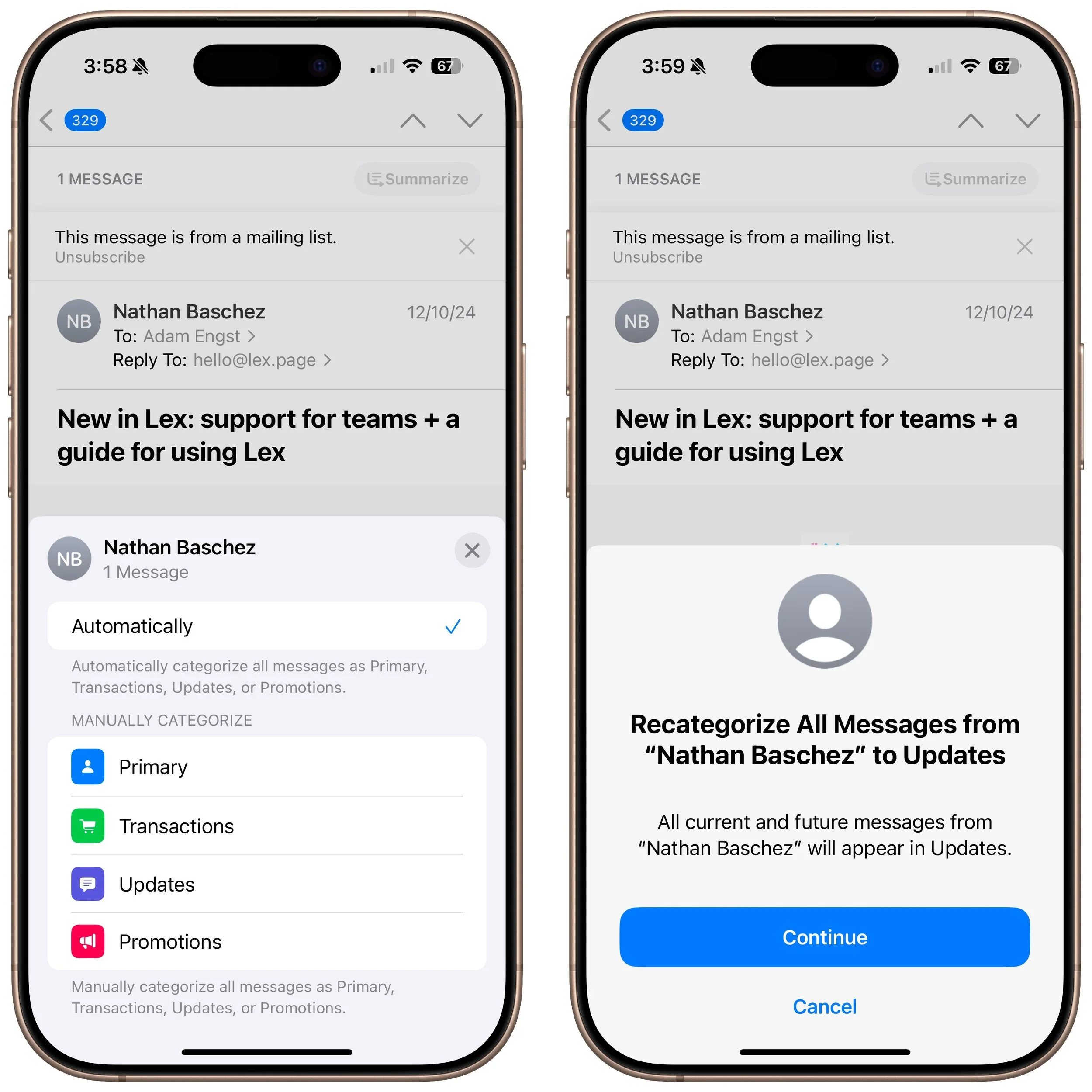
The main problem with recategorizing is that messages from discussion-based mailing lists may be identified by their senders, not the list, so you may have to recategorize every sender from the list separately.
Why Are Messages from the Same Sender Grouped?
When you open a message in Transactions, Updates, and Promotions, you may be surprised to see a digest view that displays all the other messages from that sender. It’s often a helpful way to keep like messages together. Opening a message shows the most recent message, but you can scroll to see the rest. Whether you scroll up or down depends on whether Settings > Apps > Mail > Most Recent Message on Top is turned on. Additionally, how many lines appear in the message view depends on what you’ve selected in Settings > Apps > Mail > Preview.
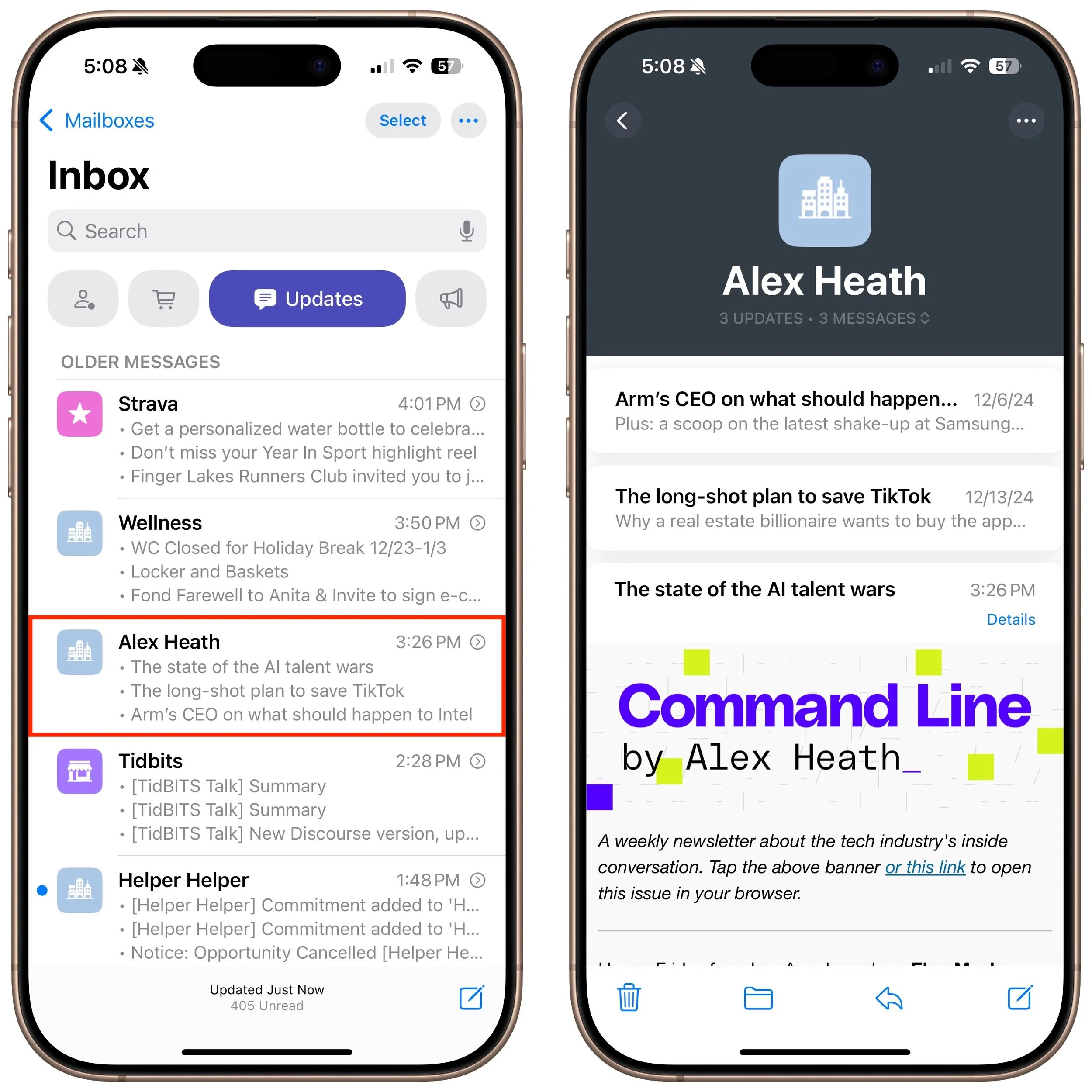
Not a fan of the sender groups? You can turn the feature off for each of Transactions, Updates, and Promotions by tapping the ••• at the top right and deselecting Group by Sender.
What Are Priority Notifications?
If you’re using an iPhone 15 Pro model or any iPhone 16 with Apple Intelligence turned on, you may see priority notifications on the Primary screen. It’s designed to surface the most important messages, as determined by Apple Intelligence. If you don’t like it, tap ••• in the upper right and deselect Show Priority.
Overall, Mail Categories feels like Apple is playing catch-up with other email apps. If it works with your email stream and you find it useful, that’s great. But if not, don’t hesitate to turn it off and return to your familiar email workflow.
(Featured image by iStock.com/Giulio Fornasar)