
Use AirPlay to Mirror or Extend Your Mac’s Display
Want to demo something on a big screen? AirPlay can mirror your Mac’s display—or just specific windows—to an Apple TV-equipped TV or another Mac. It’s perfect for presentations, sharing content with a group, or increasing your screen space.

Apple’s AirPlay is one of those low-level technologies that’s more capable than many people realize. In addition to allowing you to stream video and audio from an iPhone, iPad, or Mac to an Apple TV connected to a large-screen TV, AirPlay also enables you to use that TV as an external Mac display, either mirroring what’s on your Mac’s screen or extending the desktop. It even allows you to turn one Mac into a display for another.
The big win of connecting to a TV comes when you want to demo something from your Mac to a group—it’s a compelling reason to have an Apple TV-equipped screen in a conference room—or when you want to use one Mac’s display from another without the hassle of rearranging cables. In this article, we focus on these external display features, which are helpful to both individuals and businesses alike. There are three ways to use AirPlay to enable another display: mirroring the entire screen, mirroring selected apps or windows, and extending the desktop.
Set Up AirPlay to Receive Video
First, ensure that all devices have Wi-Fi turned on and are connected to the same network. If you’re using AirPlay to a Mac, note the minimum system requirements (primarily macOS 12 Monterey or later). Additionally, if you’re using your own devices, it’s best to be signed in to the same Apple Account.
Second, make sure the screen to which you want to mirror is accessible:
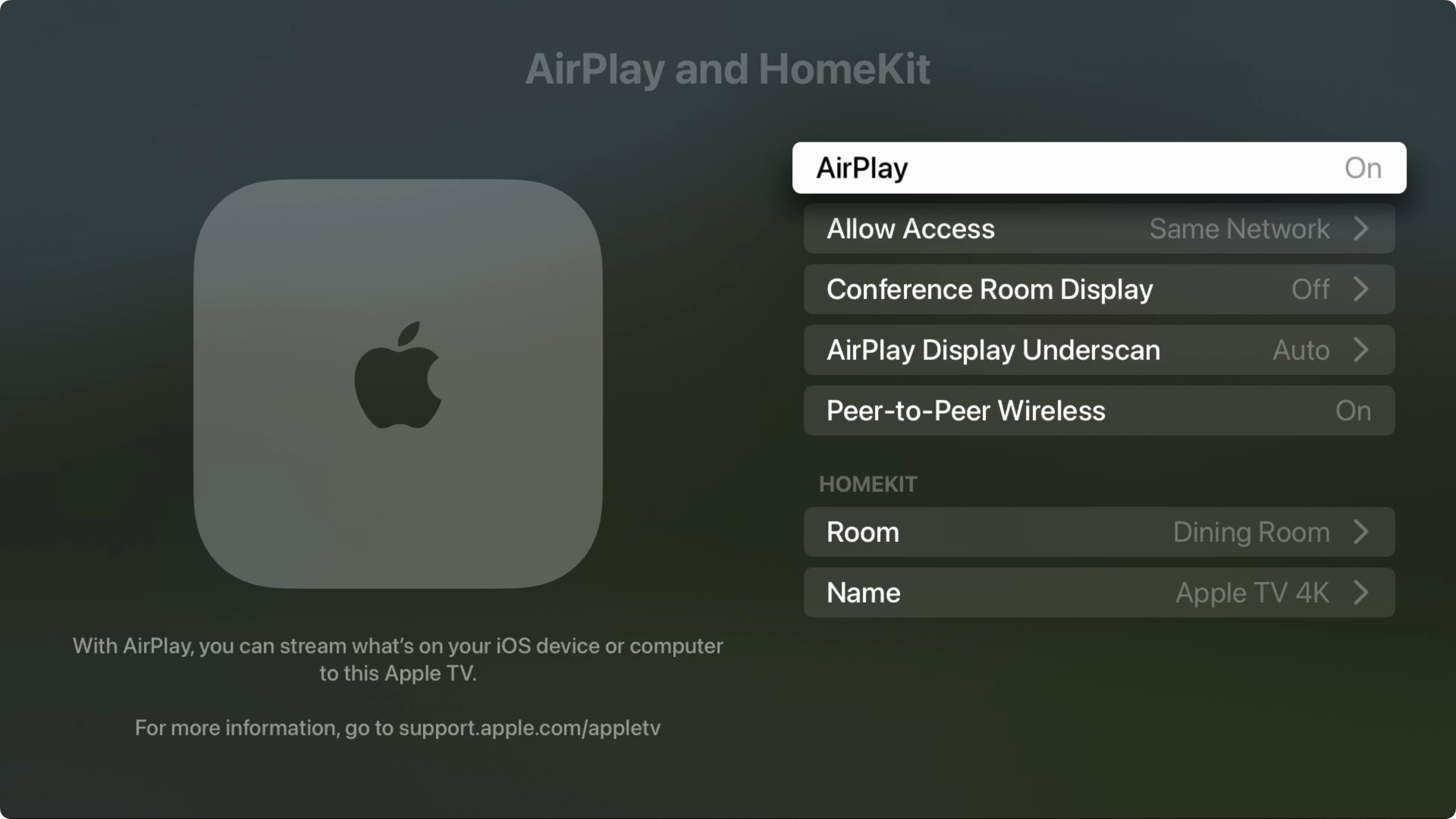
On an Apple TV, the settings are likely already enabled; however, if not, navigate to Settings > AirPlay and HomeKit and turn on AirPlay. You can also set who can gain access (everyone, anyone on the same network, or only people sharing this home) and require a password. For an office environment, you can turn the Apple TV into a conference room display that provides connection instructions with the screen saver, requires a PIN, and allows you to set a custom message and background photo. Also, note the AirPlay Display Underscan option, which you can turn on to reduce the chance of the screen being cropped or turn off to eliminate black bars. Auto tries to choose for you—in our testing, cropping was sometimes unavoidable.
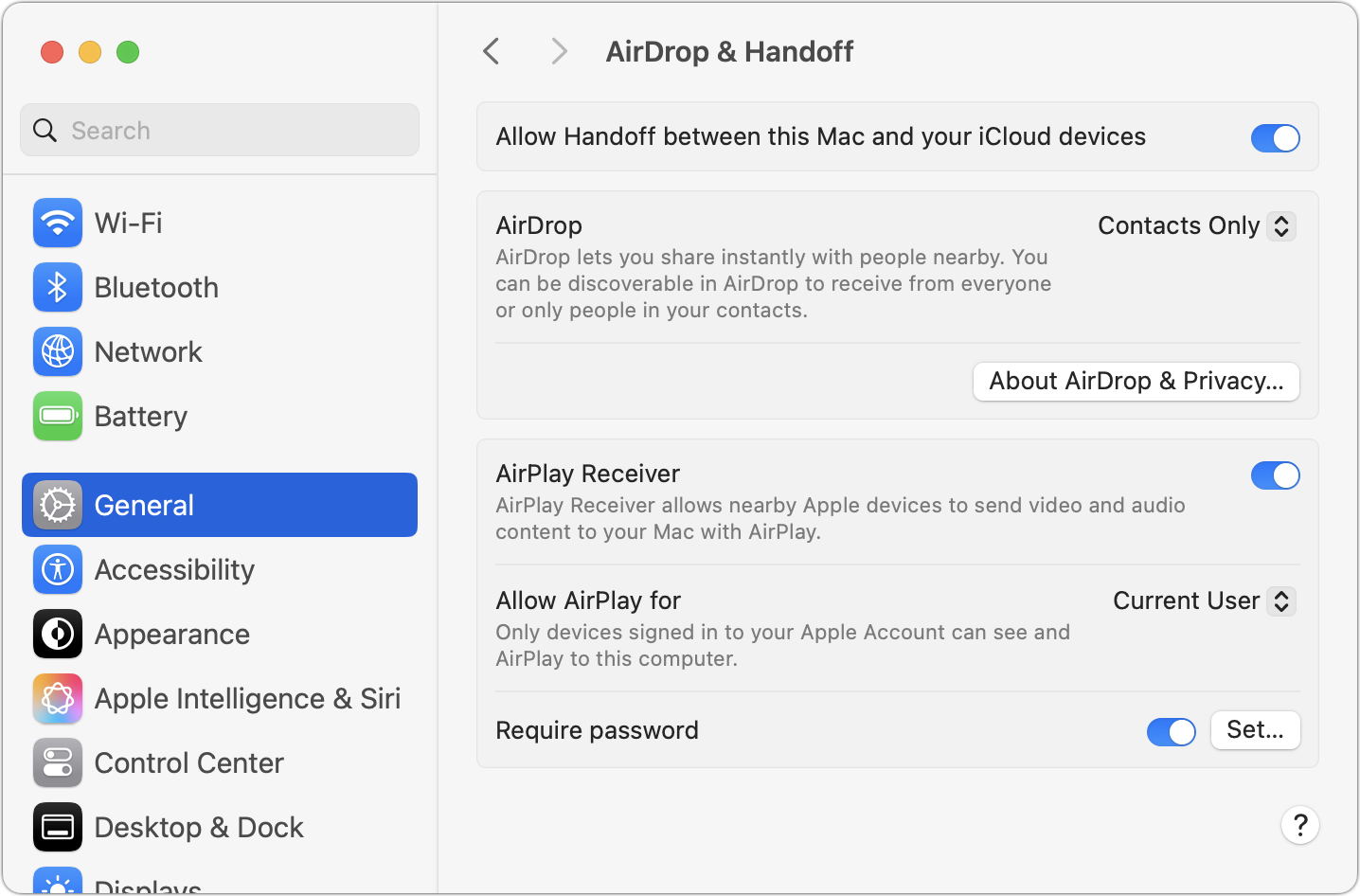
On a Mac, go to System Settings > General > AirDrop & Handoff and turn on AirPlay Receiver. The “Allow AirPlay for” menu lets you specify who can access it, and you can require a password.
Mirror Your Mac’s Screen
Apple’s recommended method for mirroring your screen is to open Control Center by clicking its icon at the right side of the menu bar, click Screen Mirroring, and select the desired Apple TV or Mac from the list. Once you do that, your Mac’s screen will appear on the external display.
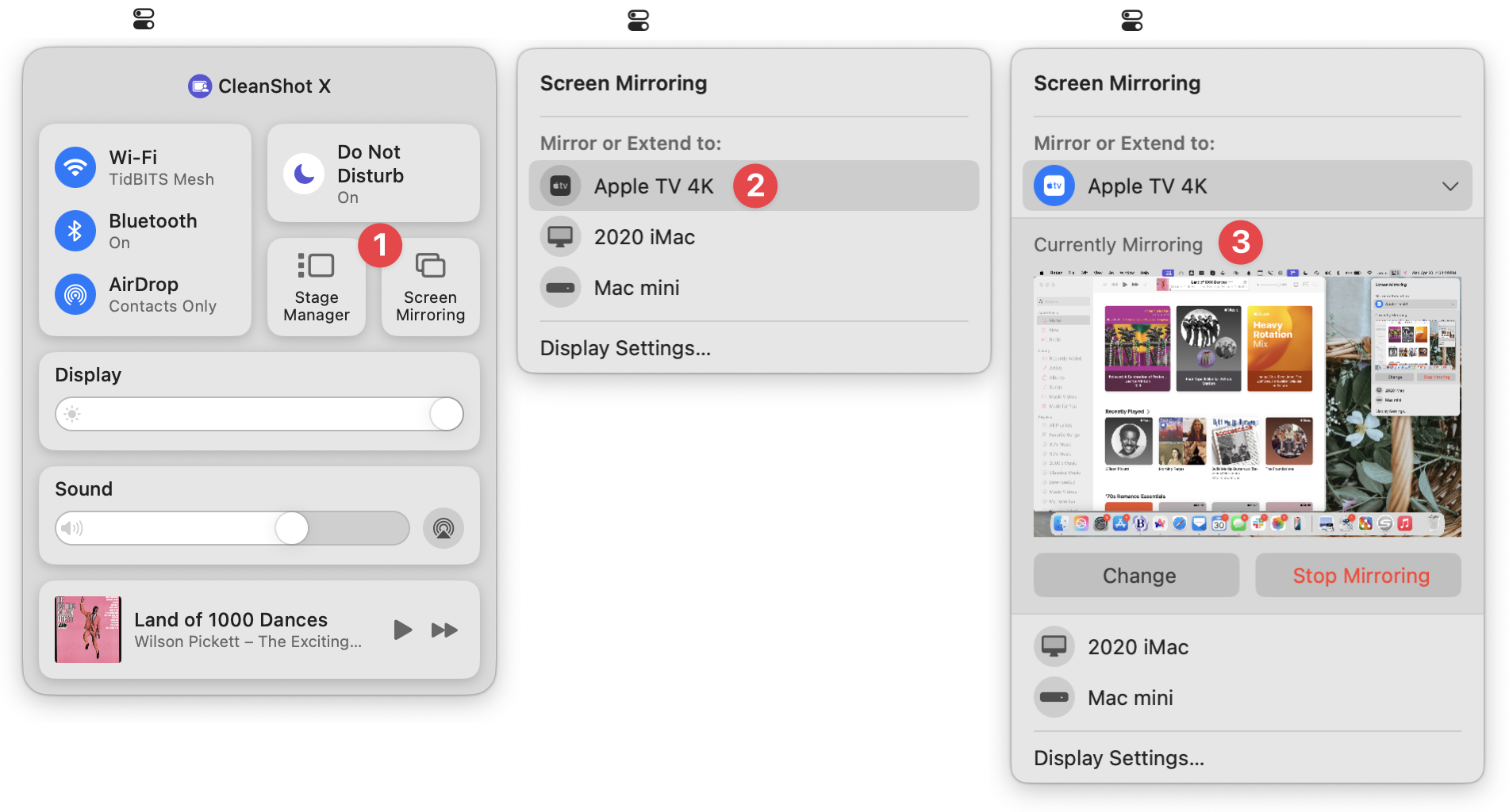
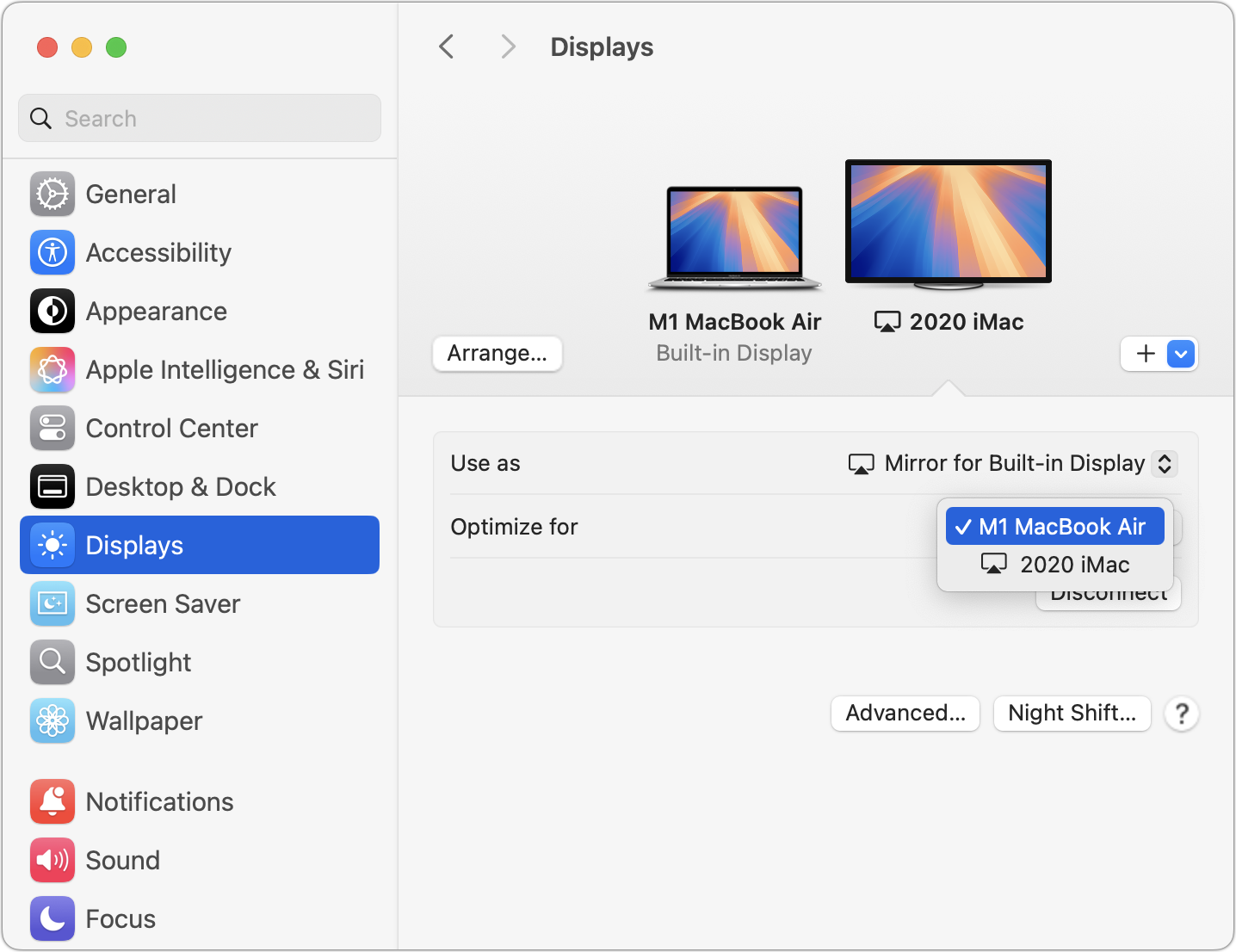
However, it may not display at a usable resolution. You control the resolution in System Settings > Displays, and you can jump there by clicking Display Settings in either of the two rightmost windows shown above. In the Displays settings screen, from the Optimize For pop-up menu, choose either your Mac or the external display. If you choose the external display, you can select from all available resolutions.
If you’re mirroring to a Mac with multiple displays, a small, dark lozenge in the upper-left corner of the destination screen provides a menu from which you can choose which display to use.
Mirror Selected Apps or Windows
Mirroring your entire desktop is often overkill when all you want to share with the group is one or two windows. As of macOS 15.2 Sequoia, that’s now possible. An added benefit is that you don’t have to worry about others seeing your messy desktop or potentially sensitive information in other windows.
To mirror one window or all the windows in an app, open Control Center, click Screen Mirroring, select the destination display, and then click Change or Choose Content. In the dialog that appears, select Window or App and click Choose Window or App.
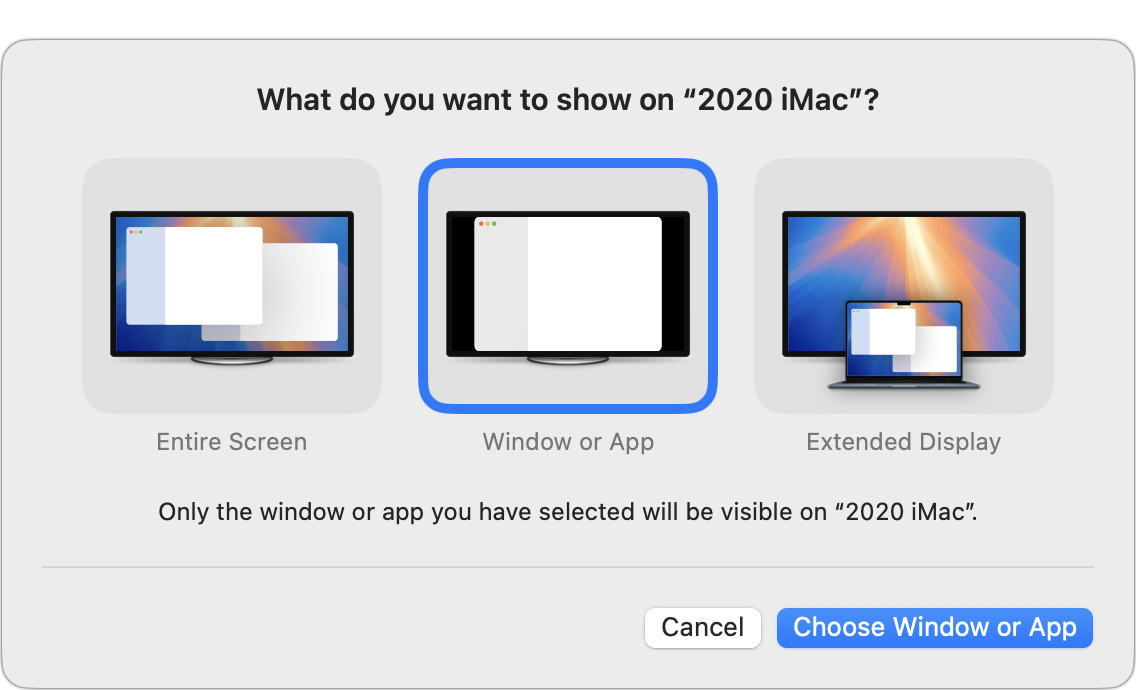
Then select the desired window and click either Mirror This Window or Mirror All Application Windows.
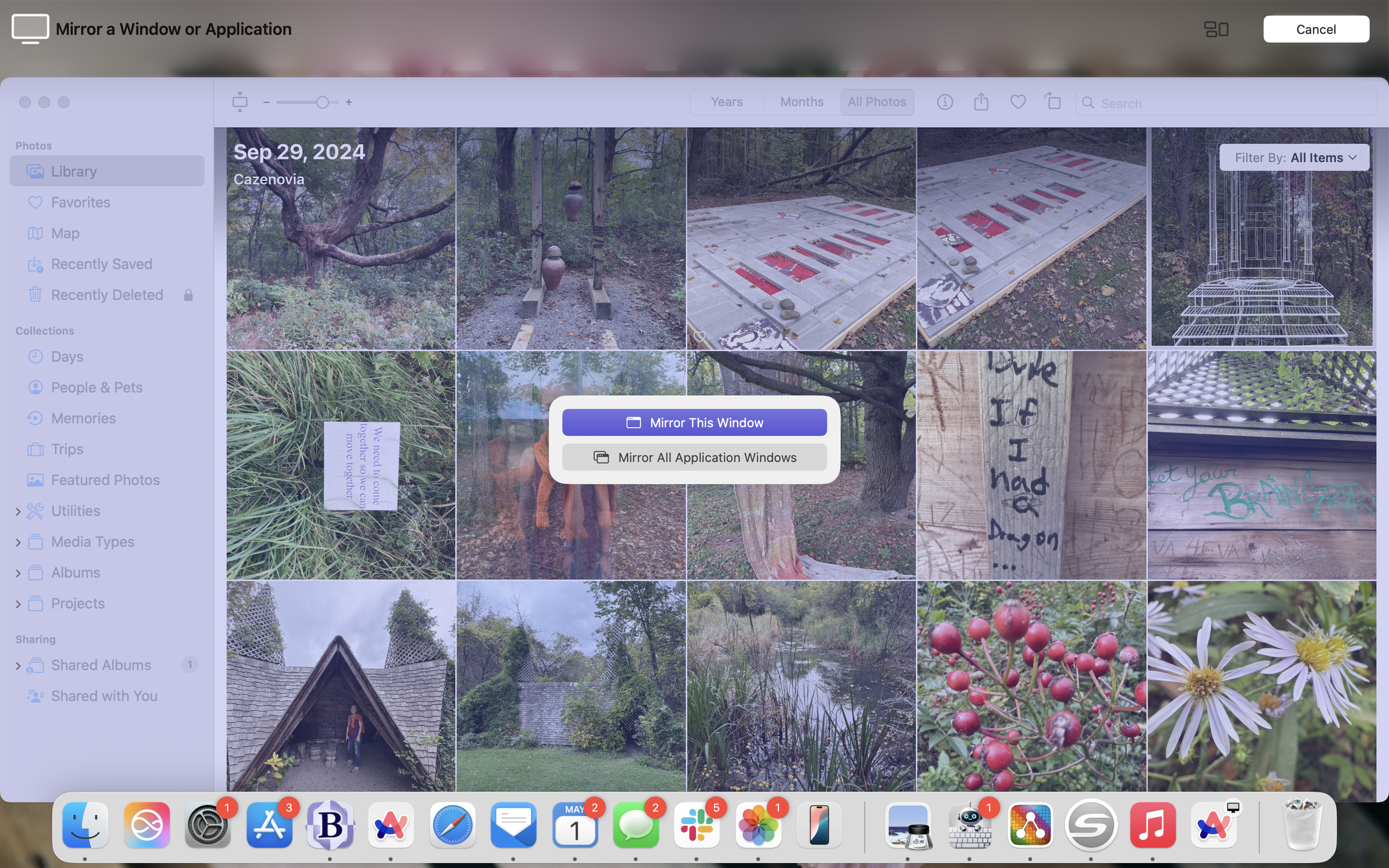
You’re not limited to windows from a single app. You can add additional windows by clicking the purple Screen Mirroring menu in the menu bar, clicking Add Windows, and selecting another window. (If you want to stop mirroring one and start mirroring another, select the current window to see a Stop Mirroring This Window button.)
Extend Your Mac’s Desktop
Mirroring is useful for presentations or working with a group, but if you instead want to boost your productivity with additional screen real estate, you can opt to extend your Mac’s desktop to another Mac or TV.
To do so, open Control Center, click Screen Mirroring, select the destination display, click Change, and in the dialog that appears, select Extended Display and click Extend Display.
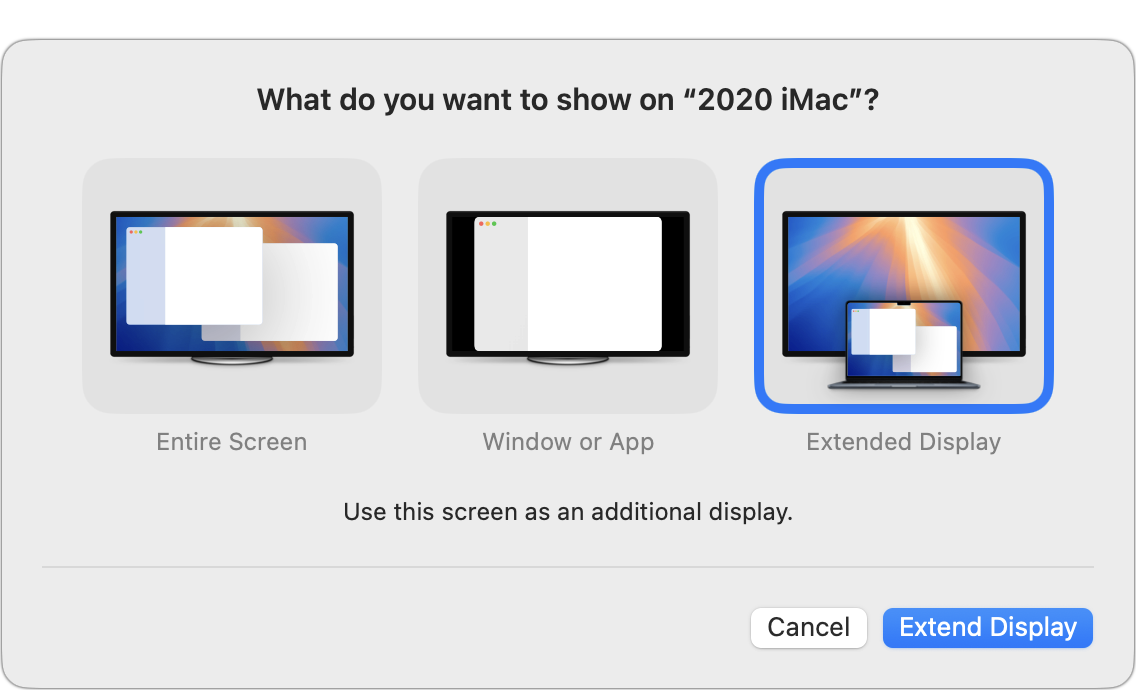
This option often requires additional configuration to get everything looking the way you want. Open System Settings > Displays and click the second display. First, you may want to select a different resolution to see more or less content on the second display. Clicking Show All Resolutions expands the list, but many of the additional resolutions won’t be ideal. Unfortunately, some desirable resolutions are marked with a “low resolution” tag—they’ll be fuzzier than ideal.
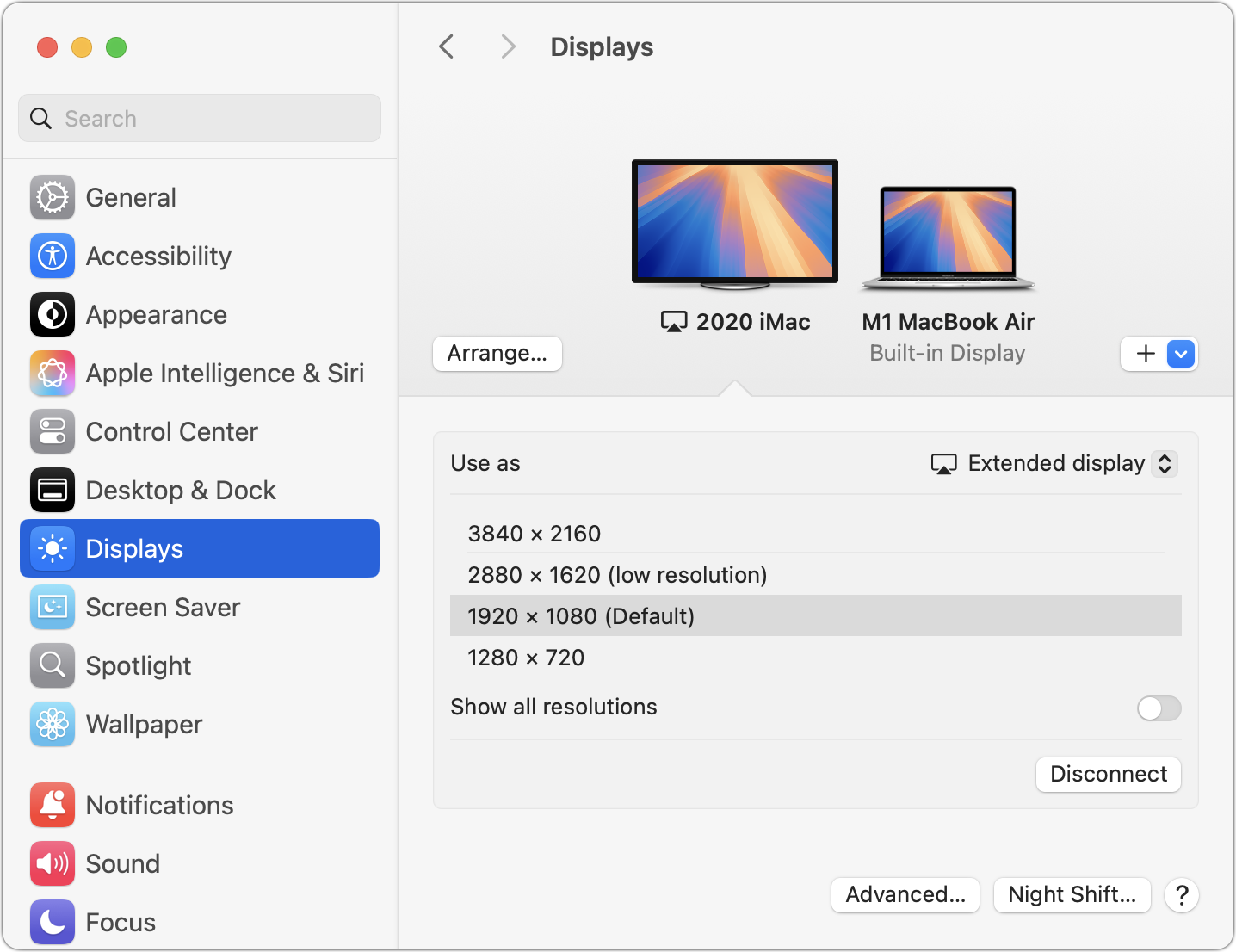
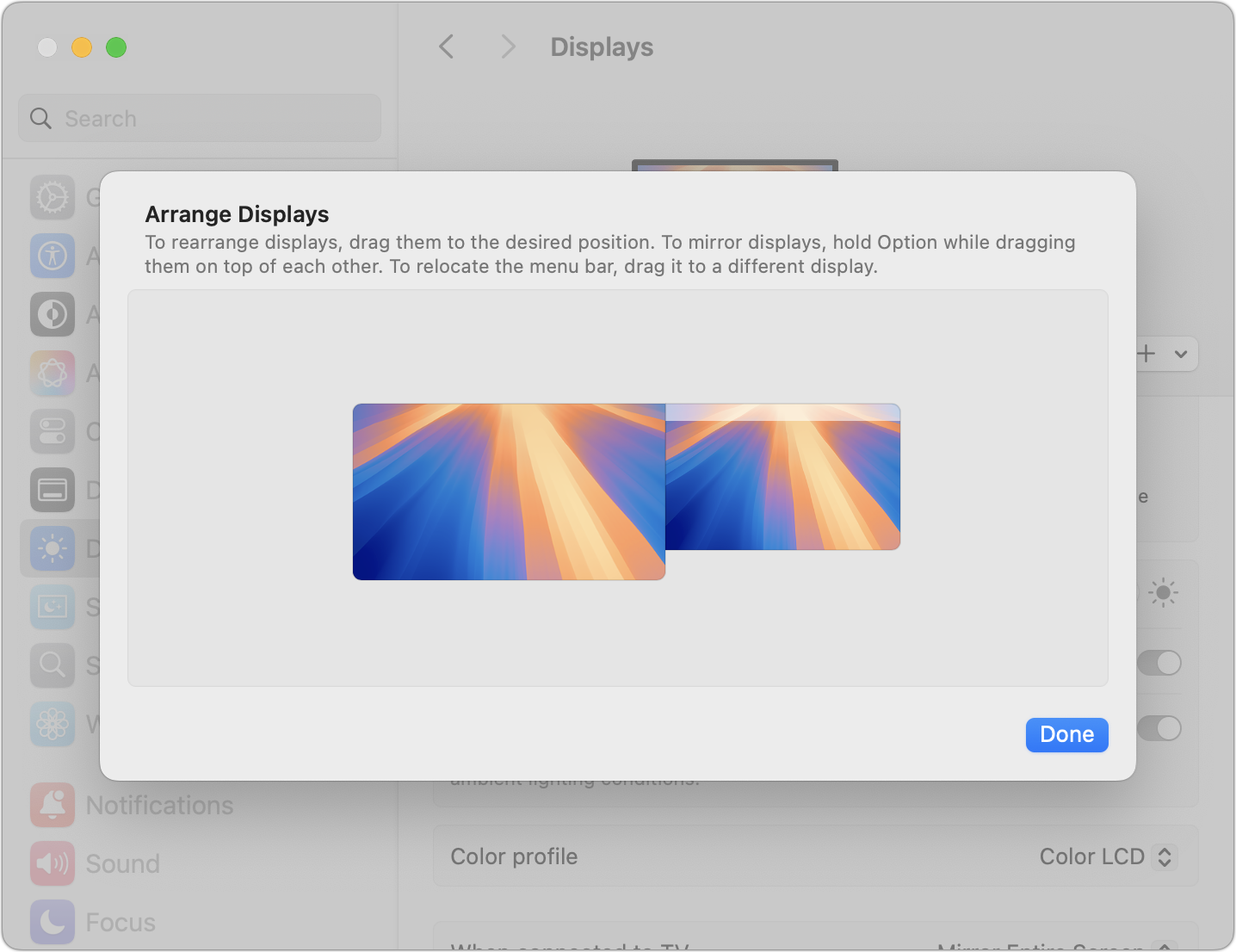
Once you have your desired resolution, you need to arrange the screens appropriately. It’s usually best to match the real-world positioning, so if your second display sits to the left of your Mac, move its representation there so dragging windows and other items on the extended desktop works as you expect. Click the Arrange button, drag the second display into the desired location, and click Done.
Regular Use and Stopping Mirroring
Although it’s simple to start mirroring or extending your desktop and to switch among the various modes, you’ll probably use one of the modes most of the time. The good news is that macOS remembers your previous choice, so if you mirror your entire screen or extend your desktop, clicking Screen Mirroring in Control Center will default to that option the next time you invoke it. Mirroring windows always requires that you pick the window to share.
Regardless of how you’re mirroring your screen, you can stop by clicking Stop Mirroring in the purple Screen Mirroring menu in the menu bar. Alternatively, open Control Center, click Screen Mirroring, and click Stop Mirroring. Or click the Disconnect button in Displays.
On the remote Mac, that small, dark lozenge also provides an X button that ends screen mirroring when clicked from the remote Mac. Turning off the remote Apple TV also works.
Using AirPlay to mirror or extend your Mac’s display to another Mac or TV may not be something that you use on an everyday basis, but it’s a big win when you need to share content with a group, do a presentation, or ramp up your productivity without rearranging cables.
(Featured image by iStock.com/Ratchapon Supprasert)
Working with Time Zones in Apple’s Calendar Apps
Managing time zones in Apple’s calendar tools is straightforward if you remember two key points. Our article clarifies your options and explains how to handle common scenarios.

Calendar events are usually straightforward. For instance, if you schedule a meeting for 3 PM on Thursday, an alert will remind you to leave 30 minutes beforehand.
However, since we live in an increasingly global world, we occasionally have to consider time zones when scheduling meetings. Business travelers have long needed to keep track of meeting times as they move across time zones, and the number of online meetings spanning the globe has skyrocketed since the pandemic. Whether you’re scheduling appointments on the other side of the country or collaborating with a remote team, it’s essential to be able to work effectively with time zones on your iPhone, iPad, and Mac. Here’s what you need to know.
Fact 1: All Events and Reminders Have Time Zones
The first thing to understand is that every calendar event and reminder has an associated time zone. However, that’s not always obvious—you won’t see any options for adjusting time zones in Calendar on the Mac unless you enable an advanced setting, and reminders never show their time zone.
By default, events use the local time zone of the device on which you create them, which is usually appropriate. However, you can adjust an event’s time zone to make sure you’re notified at the right time after traveling.
Unlike calendar events, timed reminders in the Reminders app are permanently linked to the time zone in which they were created, and this setting cannot be altered. When traveling across time zones, reminders’ local times will adjust accordingly, triggering alerts at unexpected times.
Fact 2: Time Zone Display Can and Will Change
The second point to grasp is that calendar apps display the times of events based on two factors:
Device time zone: Apple devices typically set their time zone automatically based on location. If you live in Virginia and fly to Oregon, your iPhone will switch from Eastern Time to Pacific Time as soon as you take it out of airplane mode, and your Mac will do the same once it connects to the Internet. You can manually set the device time zone in Settings/System Settings > General > Date & Time, but that’s seldom necessary.
Calendar time zone overrides: You can make the Calendar app display events as if you were in a different time zone. This feature can help you confirm that events scheduled in another time zone show up at the correct times. On the iPhone or iPad, enable Settings > Apps > Calendar > Time Zone Override. Be careful not to forget about this override, or it may lead to confusion later. On the Mac, go to Calendar > Settings > Advanced, select “Turn on time zone support,” and choose a time zone from the pop-up menu that appears near the upper-right corner of the window.
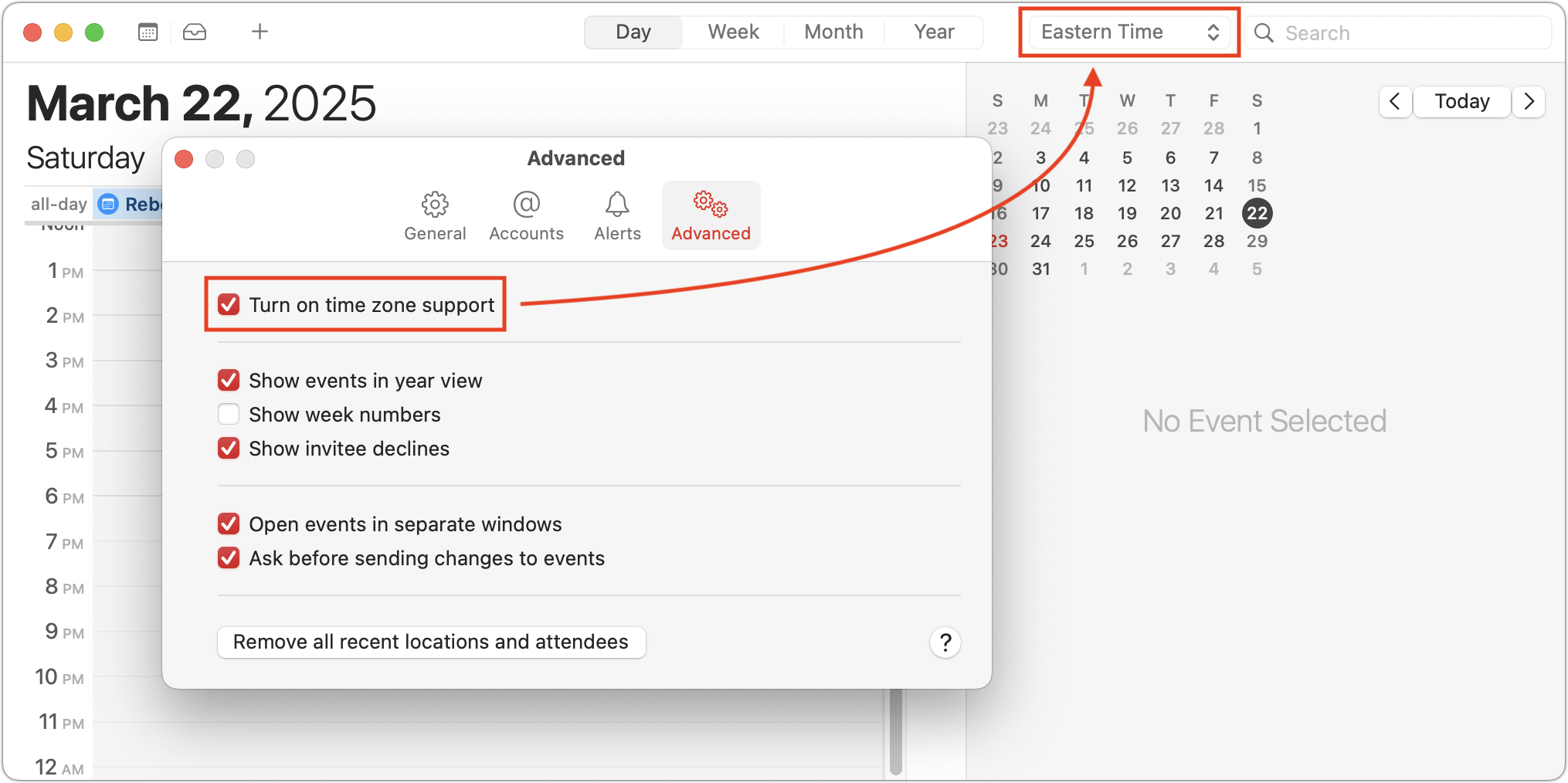
When an event’s time zone differs from your device’s current time zone or the time zone override setting, Calendar will indicate the discrepancy. For example, an event at 2 PM Eastern Time event viewed on a device set to Pacific Time will display as 11 AM, with the original time zone noted in parentheses.

Working with Event Time Zones
When creating events where the time zone might be significant, you have three options:
Stick with the local time zone: Since all events are associated with a time zone, if you do nothing when creating an event, it will default to your current time zone. This is appropriate when the event will be shared with someone in another time zone through an invitation or shared calendar. However, it poses issues when creating events related to a trip.
Change to a remote time zone: When scheduling your future self in another time zone—perhaps for business meetings or conference sessions—you can set those events to the time zone of your destination, ensuring they appear at the correct time once you arrive. On the iPhone and iPad, choose the time zone when setting the start time. On the Mac, with time zone support enabled, select it from the Time Zone menu.
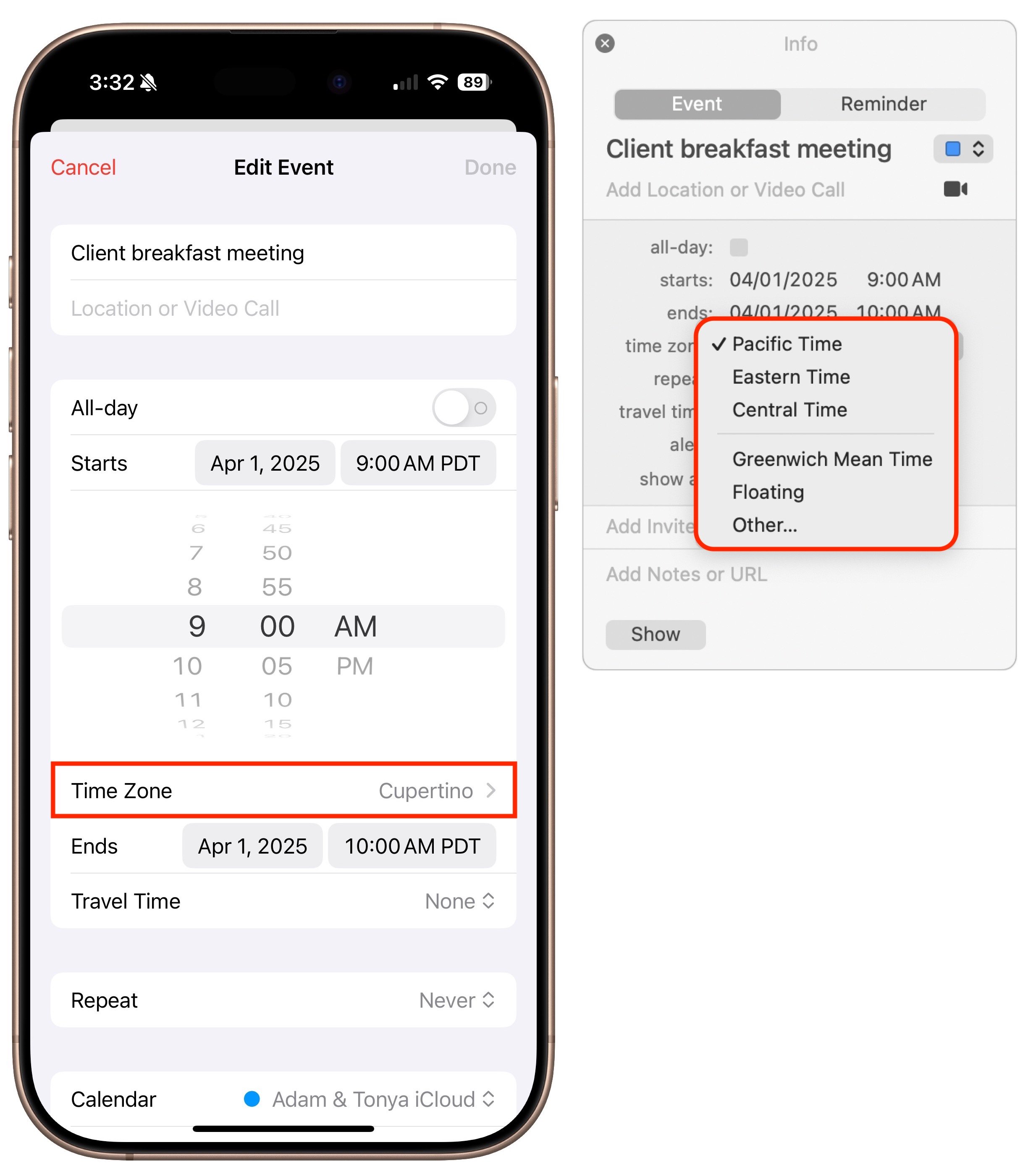
Switch to the floating time zone: For travelers who frequently cross time zones, Apple supports a special “floating time zone” that ensures events appear at the same local time regardless of location. For example, a noon lunch meeting set with a floating time zone will always appear at noon, whether you’re in Boston or Denver. However, the floating time zone does have its limitations. While all Apple devices synced through iCloud honor the floating time zone, you can create events with it only on the Mac, not on the iPhone, iPad, or iCloud.com. Additionally, syncing events through Google Calendar or Microsoft Exchange should work, but if you edit an event on the Web or with non-Apple apps, it will revert to the local time zone.
Common Time Zone Scenarios
Now that you understand that events are always associated with time zones, how they appear in Calendar, and how to specify particular time zones for events, let’s look at some common time zone scenarios:
When traveling to another time zone: For events during an upcoming trip, you can either manually set the event’s time zone to match your destination or use the floating time zone. The manual approach ensures that events appear at the correct local time once you arrive, although it may be confusing to visualize before departure. The floating time zone maintains the same “wall clock time” regardless of your location, making it easier to plan your schedule before you leave.
Creating events while away: Conversely, when scheduling an appointment back home while traveling, set the event time zone to your home time zone. The event will appear on your calendar at the correct adjusted time. The floating time zone works well as an alternative for personal events that should take place at the same local time, no matter where you are.
Trips with multiple time zones: For complex itineraries involving flights and travel transitions with departure and arrival times in different zones, the Calendar app on the iPhone and iPad allows you to create events that start and end in different time zones. Tap the Time Zone option beneath the Start and End time pickers to set different time zones. Although you cannot create these multi-zone events on the Mac, they will display correctly on all your synced devices.
Remote scheduling: When inviting people from different time zones to an event or scheduling meetings with team members in various locations, create the event in your local time zone. The invitations and shared events will automatically adjust to each recipient’s time zone. When searching for optimal meeting times across multiple time zones, use a tool like World Time Buddy, which provides visual guidance for overlapping business hours.
Reminders can be tricky: Since reminders always use the time zone where they were created, their local times will shift as you travel, leading to notifications at unexpected times. The only workaround is to edit their times manually when you arrive at your destination and again when you return home. Alternatively, consider using an app like Due that keeps reminders consistent with “wall clock time.”
Scheduling global events: When planning a webinar or other online event that people in many different time zones might attend, use a tool like Every Time Zone to identify suitable times across various regions. After creating the event at the selected time, drag it from Calendar to the desktop to generate an ICS file for sharing with participants. This file will reflect your local time zone, and when attendees double-click it to import, their calendar app will display it at the appropriate time for them.
Although we’ve focused on Calendar on the iPhone, iPad, and Mac here, the same concepts—except for the floating time zone—apply to other apps like Microsoft Outlook and Google Calendar. By keeping these time zone concepts in mind, you can avoid calendar confusion and ensure that you don’t miss important meetings, regardless of where in the world you find yourself.
(Featured image by iStock.com/STILLFX)
Security Precautions to Take While Traveling
Security at home is one thing, but what about when you’re on the road? Many of the same precautions apply, but depending on your level of concern and where you’re going, additional techniques can help keep you and your data safe.

When we think about digital and device security, we mostly think about the fixed locations where people spend most of their time—home, school, and work. But what about when you’re traveling? Some security concerns remain the same when you’re on the road, but new ones crop up.
We’ll assume that you already keep your devices up to date, use FileVault on Macs, have at least a six-digit iOS passcode, have strong password habits, and use multi-factor authentication wherever possible. Other options are more specific to travel.
As with our more general article about increasing security last month, we’ve divided our list of suggestions into two parts: things that everyone should do and measures that only people who worry about being specifically targeted should employ.
Sensible Travel Security Precautions for Everyone
These suggestions are appropriate for everyone who travels, and they’re aimed primarily at avoiding relatively common problems: loss, theft, data loss, and generalized snooping:
Focus on physical security: As a tourist, you may be targeted by thieves, so it’s important to keep your iPhone in a secure pocket whenever you’re not using it. Carry an iPad or laptop in a bag that can’t be snatched, or leave them locked or at least concealed in your hotel room.
Enable Find My for all your devices: You should have already done this, but if not, enable Find My to improve your chances of finding a device you lose or accidentally leave behind. It might help if the device is stolen, but local police cooperation for recovering stolen items can vary widely. Don’t attempt to recover a stolen device yourself.
Put AirTags in your luggage and laptop bags: AirTags can help you track down lost luggage—you can now share their locations with airlines—and prevent you from accidentally leaving bags behind. An AirTag may also help with locating a stolen item, but always work with local law enforcement.
Enable biometric authentication and Stolen Device Protection: Using Face ID or Touch ID wherever possible and having Stolen Device Protection enabled on your iPhone in Settings > Face/Touch ID & Passcode is even more important when traveling.
Use a VPN or iCloud Private Relay: Because you may be using Wi-Fi networks whose security you know nothing about, it’s best to use a VPN like Mullvad VPN, NordVPN, or ProtonVPN to encrypt all your traffic. At a minimum, use iCloud Private Relay, which requires an iCloud+ subscription and won’t encrypt traffic from most non-Apple apps.
Use iCloud Photos or another backup option: To ensure you don’t lose precious vacation photos, use iCloud Photos so all your photos are uploaded to the cloud whenever you have access. This will almost certainly require an iCloud+ subscription for sufficient storage space. If Wi-Fi and cellular are too slow or unavailable, consider an external SSD to which you can manually export photos and videos for backup. To speed up the process, you could create a shortcut that automatically copies all photos taken that day.
Use iCloud Backup: It’s best to use iCloud Backup to back up your entire iPhone every night. That way, if your iPhone is lost or destroyed, you may be able to buy a replacement and restore from backup in relatively little time. You will probably need an iCloud+ subscription to have enough backup space.
Practice dealing with a lost or stolen device: If the worst happens and you lose one of your devices while traveling, you need to know what to do. Immediately go to Find My on another device or iCloud.com and mark the device as lost. If there’s a chance of getting it back, stop there. However, if you believe the device was stolen, your data is at risk, and tracking it is no longer useful, use Erase This Device in Find My to wipe it. Activation Lock will remain enabled to prevent anyone from reusing the device.
Increasing Travel Security for People Who May Be Targeted
Not all travel is fondue and gamelans. If you’re a journalist, activist, government employee, or corporate executive with access to sensitive data, you could be a target while traveling. This is particularly true if you are headed to countries like China, Russia, or others with authoritarian governments and powerful intelligence agencies. Along with the suggestions above, we recommend:
Be aware of local laws and government practices: It’s important to read up on regional laws regarding data access and potential government capabilities at your destination. Knowing what to expect can help you reduce your risks and take appropriate precautions.
Use caution with cellular access: Even if your carrier allows roaming, consider using a dedicated eSIM for international travel, separate from your personal one. That way, you can use local cellular networks without revealing your home number. Be aware that your traffic may be monitored.
Enable Lockdown Mode: If you’re concerned about your iPhone or iPad being targeted by local law enforcement or government intelligence agencies, turn on Lockdown Mode in Settings > Privacy & Security > Lockdown Mode. To increase security, it blocks most attachment types in Messages, complex Web technologies, incoming FaceTime calls from unknown callers, non-secure Wi-Fi network connections, and incoming invitations to Apple services. Plus, it excludes location information from shared photos, requires approval to connect accessories, and more.
Reduce and protect your use of cloud services: While using a VPN is essential, you should still avoid using cloud services much if government entities might have access to stored files. If you need to upload files, encrypt them first using the free and open-source Cryptomator.
Know how to disable Face ID and Touch ID: If you find yourself in a situation where you believe you may be compelled to unlock your iPhone or iPad with your face or fingerprint, press and hold the side or top button and either volume button to display the power off slider. This temporarily disables biometric authentication, requiring your passcode for the next unlock.
Use dedicated travel devices and accounts: If you’re traveling to a potentially hostile part of the world, we strongly recommend carrying only devices—preferably iPhones or iPads, which are more secure than Macs—configured to contain none of your personal data or regular accounts. Keep them with you at all times, assume they could be confiscated, and be aware you might be compelled to share passcodes or other account information. Create a separate Apple Account for such devices.
Best of luck in your travels! With just a little preparation, you can reduce the chances that something bad will happen during a vacation. If you’re traveling on business to somewhere more concerning, putting in additional effort could prevent truly problematic things from happening.
(Featured image by iStock.com/metamorworks)
Keep Your Browsing Organized with Browser Profiles
Tired of juggling work and personal tabs in one browser? Learn how browser profiles can keep your online life organized and distraction-free, plus get step-by-step tips for setting them up in Safari, Chrome, and Firefox.
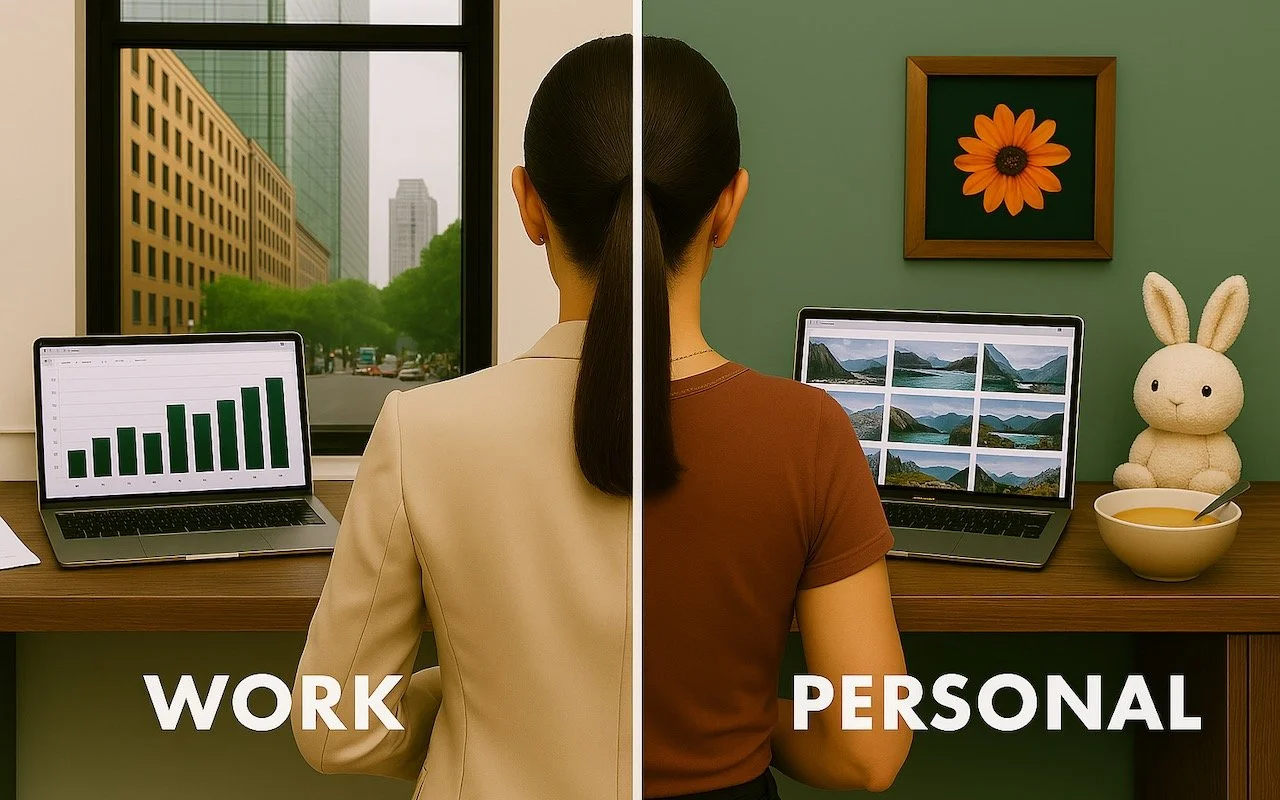
As more of our lives shift online, it becomes increasingly important to establish boundaries between different aspects of our digital activities. Many people maintain separate work and personal email addresses for this reason. But you don't have to stop there.
Modern Web browsers offer profiles, a powerful but often overlooked feature. Whether you're juggling work and personal browsing or managing multiple projects, browser profiles can make your digital life more organized and efficient.
Why Use Browser Profiles?
The overarching reason to use browser profiles is to make it easier to focus on one thing at a time. Imagine you’re working on a bathroom remodel at home while negotiating a new contract with an important client at work. You probably don’t want to be distracted by tabs showcasing countertop surfaces when you should be estimating client deliverable dates. That’s especially true if you use the same Web apps—Gmail, Google Docs, Slack, Trello—to manage both personal and professional projects.
By setting up separate browser profiles, you can keep your work and personal browsing completely separate. That includes different bookmarks, sets of tabs, and account logins for the same websites. When you open Google Docs in your personal profile, you will find sheets that track the timeline for your bathroom remodel in your personal account; switch to your work profile to view only documents in your work account.
Other common uses for browser profiles include separating clients—particularly when managing accounts for them—keeping research projects or hobbies distinct, and maintaining a clean browser environment for testing.
What’s Stored in a Browser Profile?
Each browser profile maintains its own distinct set of browsing data and settings. While specifics may vary slightly among browsers, options include:
Bookmarks/favorites: Saved websites, possibly in hierarchical folders
Browsing history: The chronological list of websites you have visited
Saved passwords: Login credentials for websites if you rely on the browser rather than an independent password manager
Extensions and their settings: Which browser extensions are installed and how they’re configured
Cookies and site data: These store website preferences, login status, and site-specific information
Stored forms and autofill data: Saved addresses, payment methods, and other form data
Browser settings and preferences: Search engine preferences, home page and startup settings, theme and appearance options, and privacy and security settings
Open tabs and windows: Including tab groups and recently closed tabs
When you switch between profiles, you get a completely fresh browser environment with its own set of everything listed above. You can log in to the same website using different accounts in various profiles, and your activity in one profile won’t impact or be visible in another.
Setting Up and Switching Between Profiles
Getting started with profiles is simple. Here’s how to create and switch between them in Safari (in macOS 14 Sonoma and later), Google Chrome, and Firefox. Before you get started, though, a few tips:
Give profiles descriptive names and distinct colors so they’re easy to identify.
Keep the number of profiles manageable because too many can become con-fusing.
If you create profiles for clients or projects, periodically review and tidy up unused ones.
Keep in mind that profiles are intended for organization and efficiency, not security—anyone with access to your Mac can switch to any profile.
Chrome and Firefox profiles are stored on a particular computer—they won’t sync with another copy of those browsers on another computer.
Safari
Safari profiles share more data than those in Google Chrome and Firefox, and unlike the other two, Safari profiles automatically sync between devices. All bookmarks and saved passwords are accessible to all profiles, although you can choose a separate primary bookmark folder for each profile. Note that Safari stores its current settings in a permanent Personal profile that becomes visible only after you create a new one. To create a new profile in Safari:
1. Choose Safari > Settings > Profiles.
2. If this is your first new profile, click Start Using Profiles. Otherwise, click + to create a new profile.
3. Enter a name, and choose a symbol and color.
4. Select a folder within your bookmarks to hold the profile’s primary bookmarks.
5. Click Create Profile.
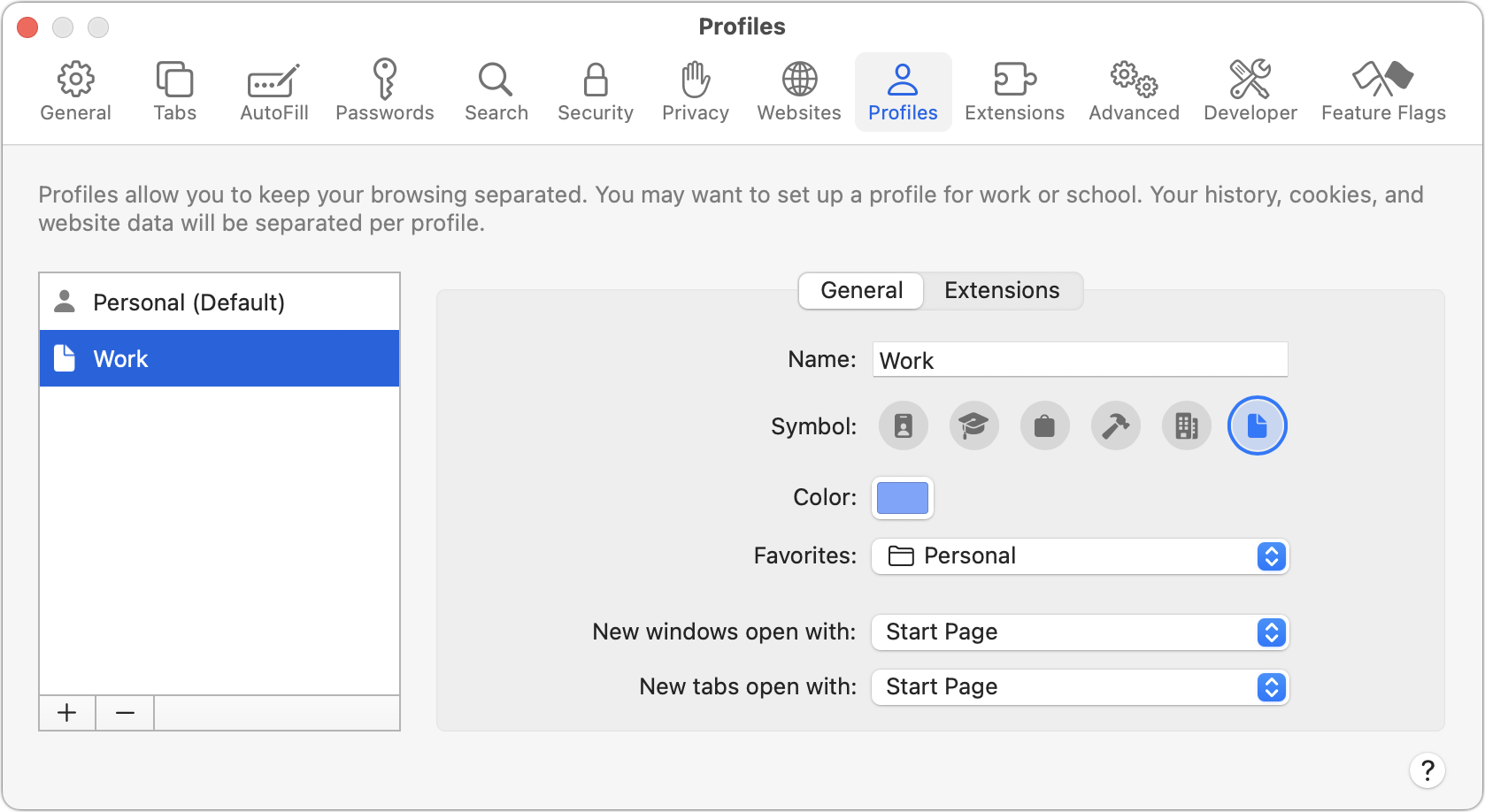
6. Choose how new windows and tabs open.
7. Click the Extensions tab, and select the extensions you want to use with the profile.
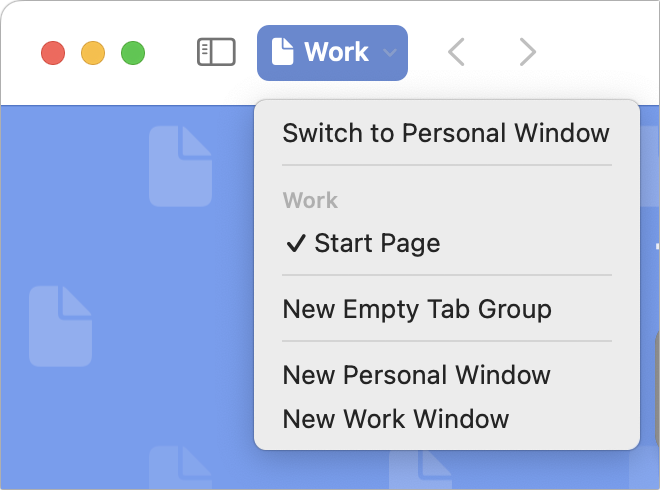
Every window in Safari is associated with a profile, so switching between them can be as simple as clicking another window or using the Window menu. At most, you have to open a new window for the desired profile:
Choose File > New Profile Window. If you have three or more profiles, the command becomes File > New Window > New Profile Window.
With the sidebar closed, click the profile button and choose New Profile Window to create a new window. When viewing the Start page, you can choose Switch to Profile Window to change the profile for the current window.
Google Chrome
Google Chrome has had browser profile support for many years. Like Safari, you start with a default profile. To create a new profile in Chrome:
1. Choose Profiles > Add Profile. Click to continue without an account or sign in with a different Google account.
2. Enter a name and pick an icon for the profile.
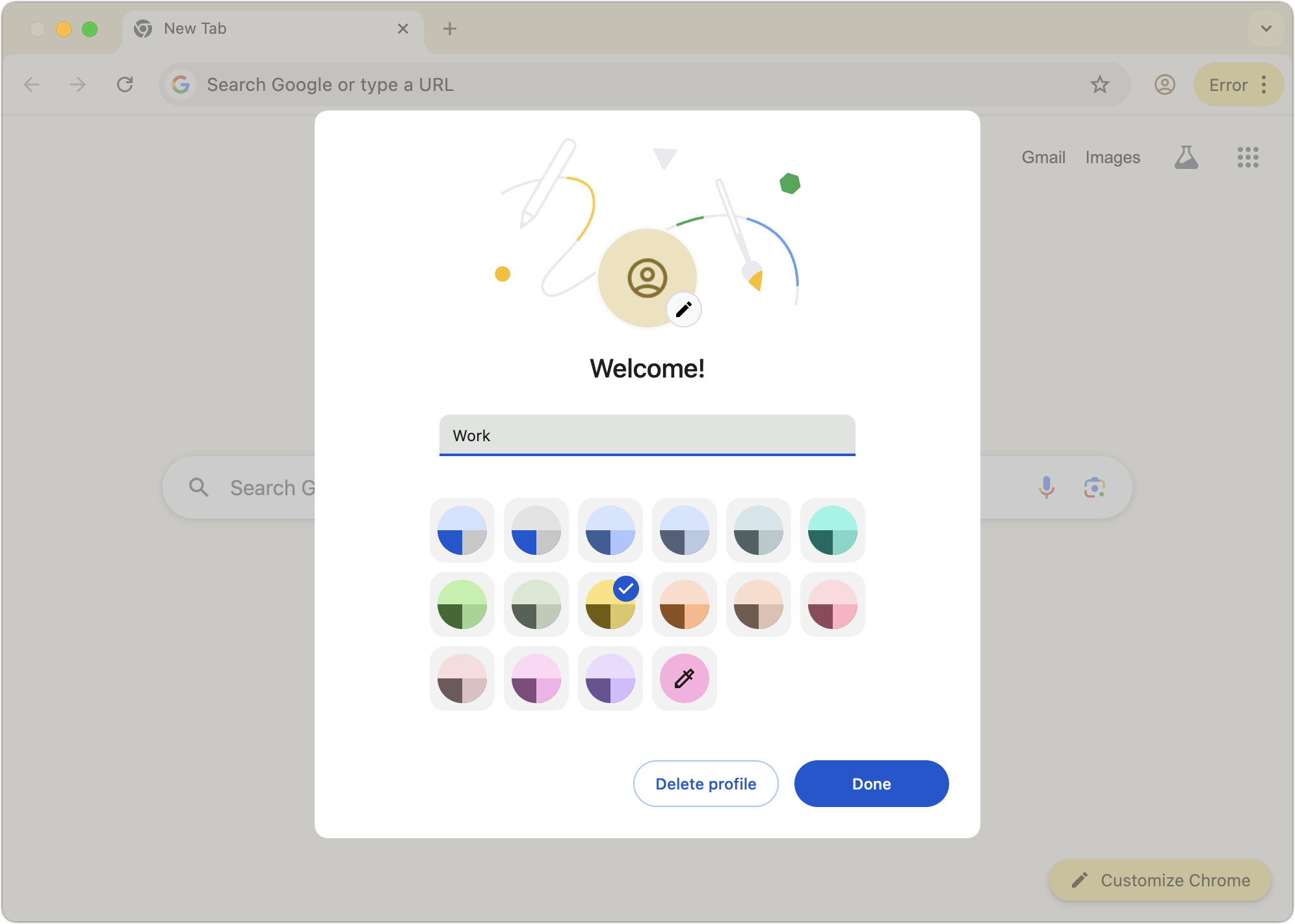
3. If desired, choose Chrome > Settings to adjust settings and active extensions for the new profile.
Every window is associated with a profile, so switching is often just a matter of clicking the desired window or choosing it from the Window menu. To open a window for a different profile:
Choose Profiles > MyProfile.
Click the profile icon in the toolbar and choose the profile you want.
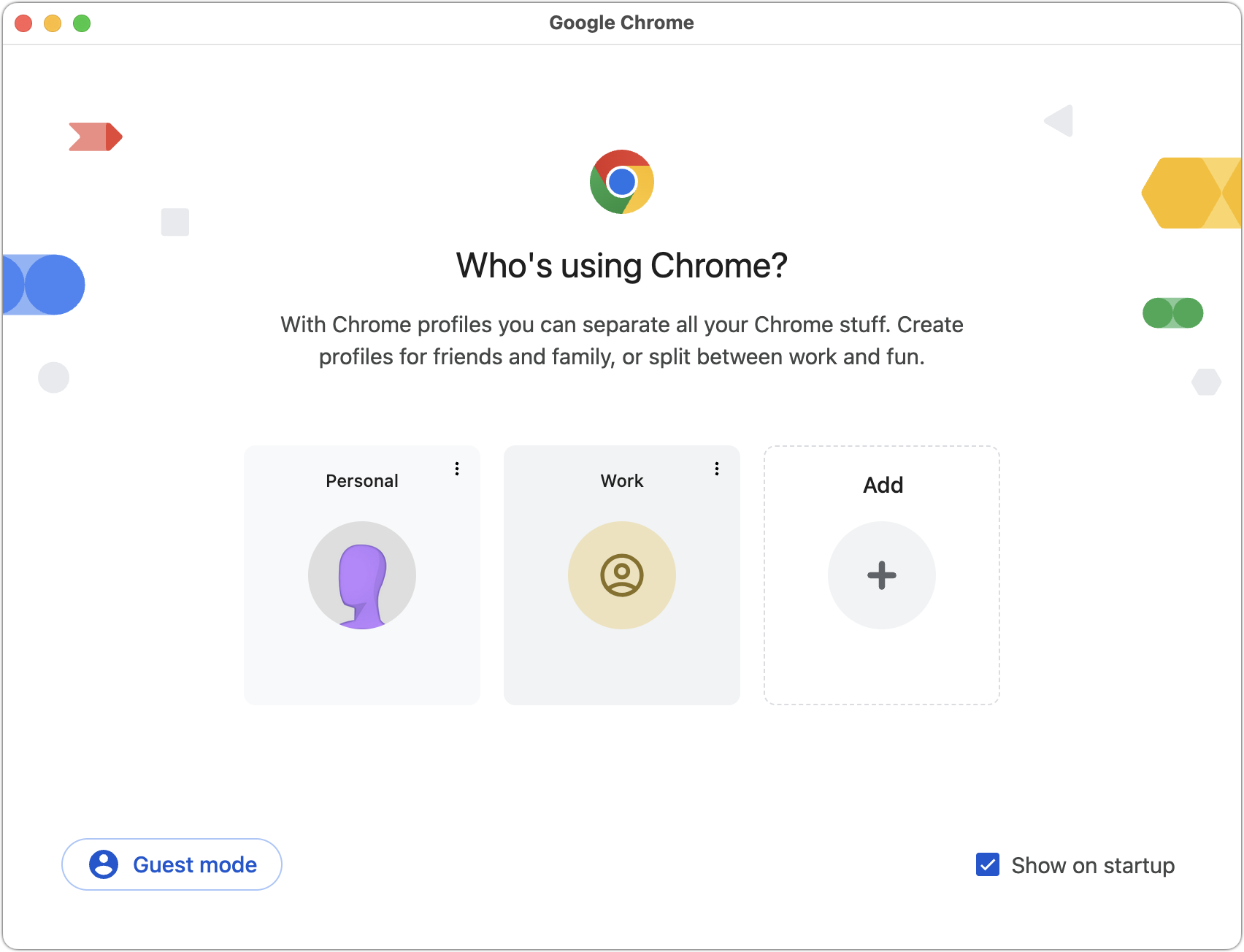
Once you have multiple Chrome profiles, the app will ask you which to open on each launch. From this screen, you can also remove a profile by clicking the vertical dot menu and choosing Delete. If you deselect “Show on startup,” Chrome will open the last used profile at startup. You can always access this screen by clicking the profile icon in the toolbar and choosing Manage Chrome Profiles.
Firefox
Although Firefox was the first browser to support profiles, they remain poorly integrated into its interface and can be confusing because each opens in another instance of Firefox— a new Firefox icon appears in the Dock for each. To create a new profile in Firefox:
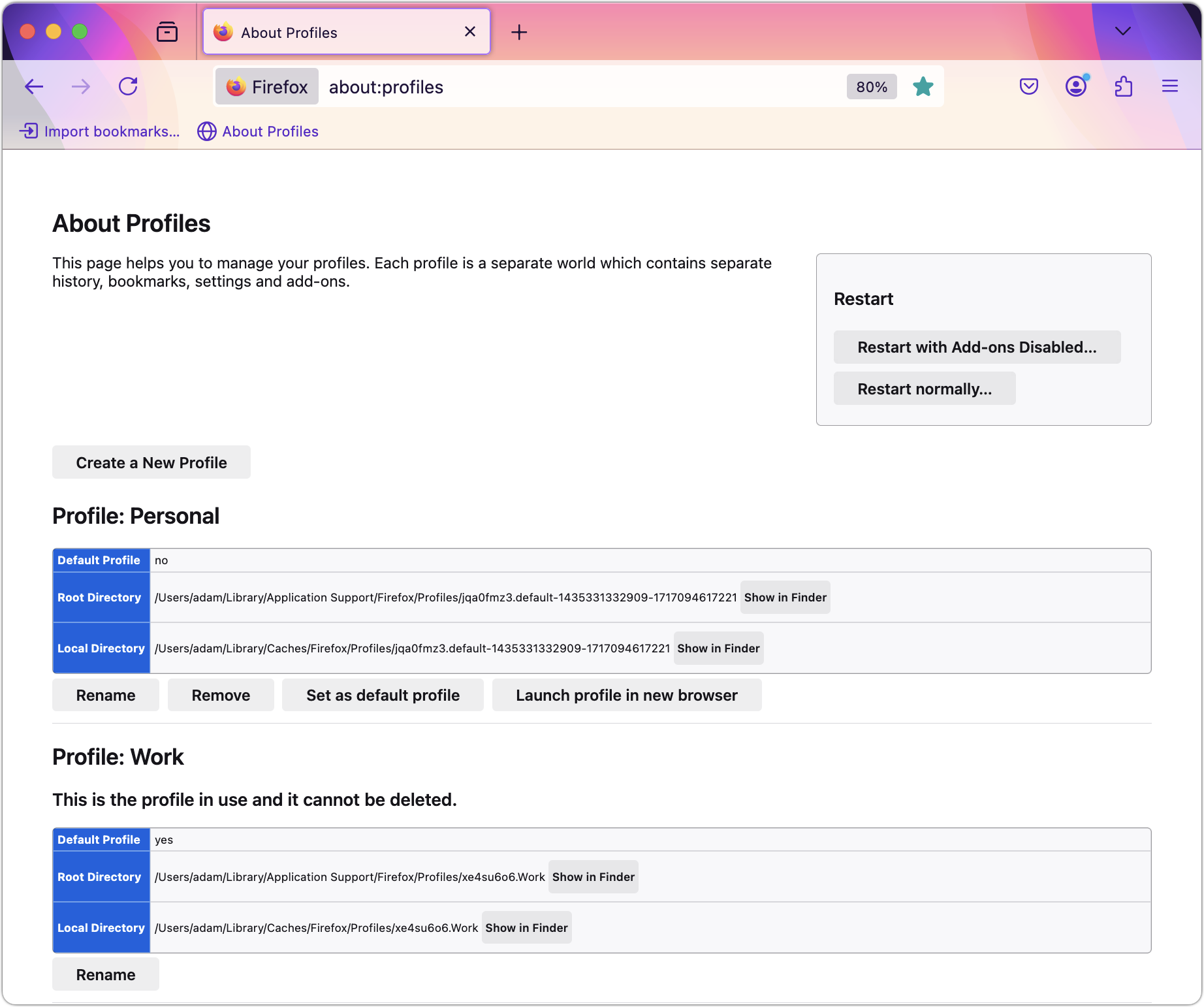
1. Type about:profiles in the address bar to open the About Profiles page.
2. Click Create a New Profile.
3. Name your profile and optionally select a custom location for profile storage.
4. On the About Profiles page, in the listing for your new profile, click “Launch profile in new browser” to open a new instance of Firefox with it.
5. Configure this new instance of Firefox as desired.
Opening a new profile instance can be tricky since it’s essentially like opening another app, but there’s only one Firefox icon in your Applications folder. While there are command-line tricks to make switching easier, this is the simplest approach:
1. Type about:profiles in the address bar to open the About Profiles page.
2. In the listing for the profile, click “Launch profile in new browser.”
To simplify this process, open the About Profiles page in each profile and drag its proxy icon to the Bookmarks toolbar. That way, you can click the bookmark in the toolbar for quick access to About Profiles.
Once multiple profile instances are open, you can switch between them by clicking their windows or Dock icons.
Be Careful with External Links
Browser profiles struggle with one scenario: opening links from other apps. Imagine you’re busy in your Work profile but take a quick break to check your personal email. You receive a link from your bathroom designer with possible lighting options, so you click it. Since your browser is using your Work profile, the link opens there, and you have to transfer it manually to your Personal profile or risk muddying your organization.
However, this is a minor obstacle, given how beneficial browser profiles can be for organizing your online activities, whether you’re juggling multiple projects or simply keeping your work and personal browsing distinct.
(Featured image generated by ChatGPT)
Run a Business? Sign Up with Apple Business Connect
Discover how Apple Business Connect helps businesses stand out in apps like Maps, Spotlight, Calendar, and Wallet. From custom Place Cards to branded email, Apple Business Connect can enhance your brand and help you reach your audience more effectively.
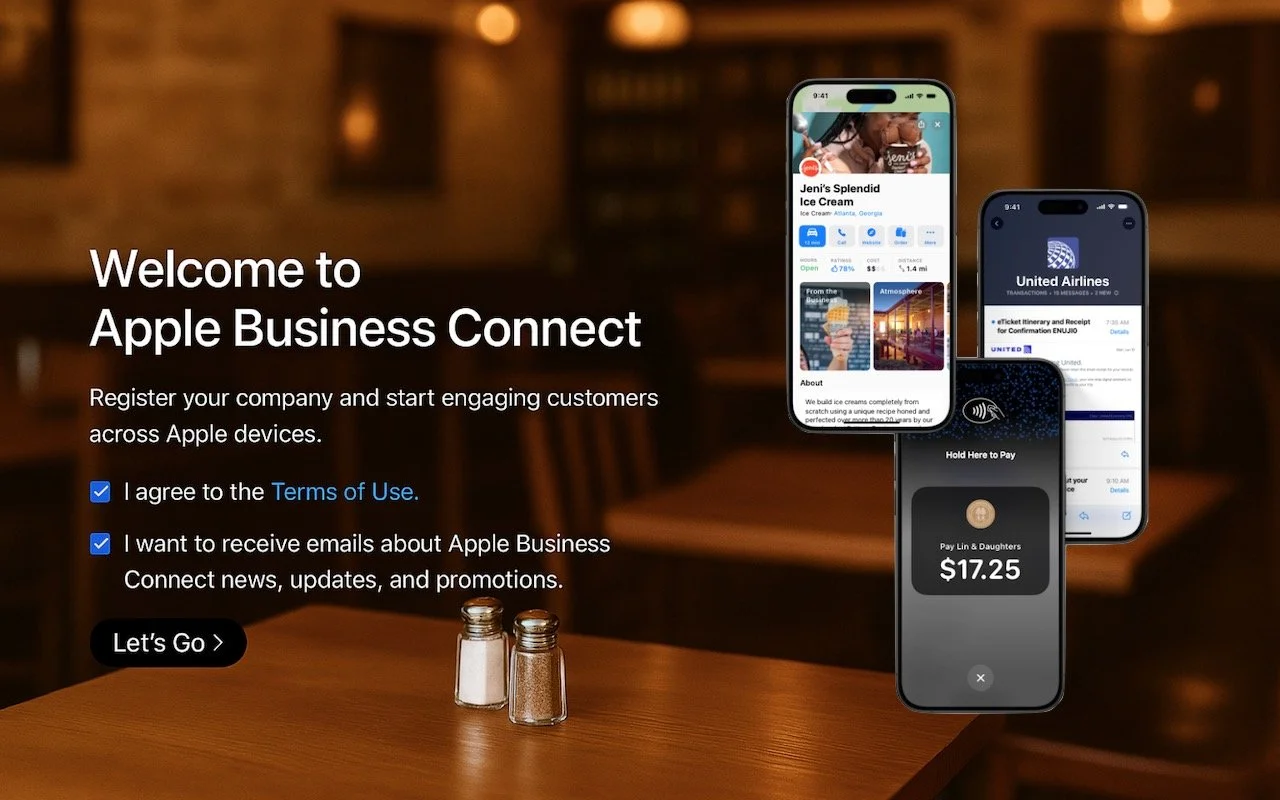
Every company today conducts business online, by sending email, if nothing else. That’s true even if your firm operates primarily in the physical world—customers undoubtedly find you by browsing in Apple Maps, searching in Spotlight, and asking Siri for directions. If you sell products, you probably take Apple Pay.
Apple Business Connect is a free program designed to help businesses enhance their brands everywhere they appear on Apple devices, including Maps, Wallet, Siri, Calendar, Messages, Spotlight searches, and more. Once you sign up for Apple Business Connect (we’ll resist the temptation to say it’s as easy as ABC) and are verified by Apple, you can:
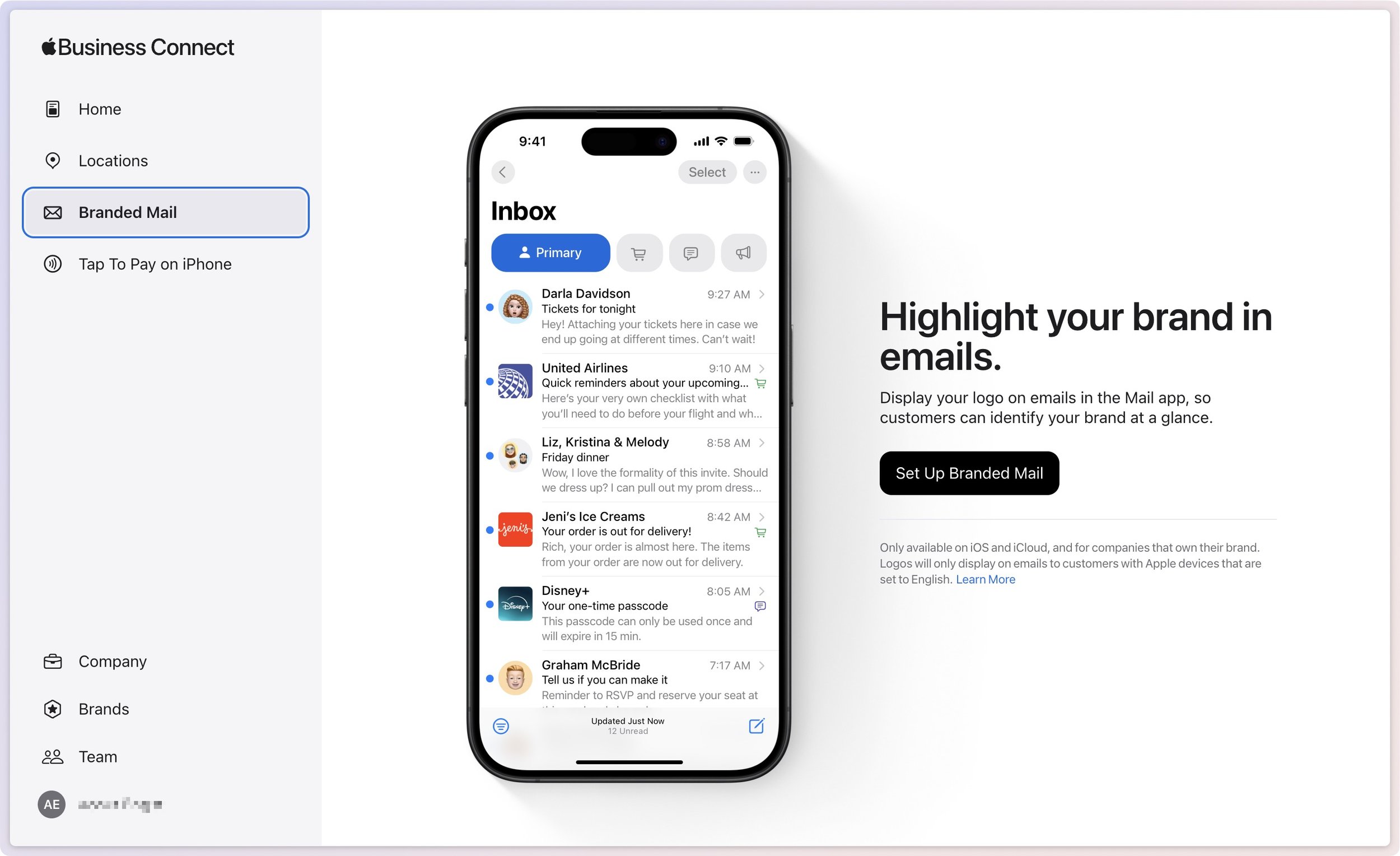
Set up Branded Mail: With Branded Mail, email sent from specific addresses or your entire domain will be branded with your logo in the Mail app on Apple devices, helping users identify your brand.
Configure location information: Simple addresses don’t always connect with store entrances, so you can precisely specify the entrance to each of your locations.
Customize Place Cards: When customers find you in Maps, add your address to Calendar, or ask for your location from Siri, Apple displays a Place Card. With Apple Business Connect, you can customize the Place Card.
Add custom action links: Your Place Card can contain custom action links that point to your website or other Web-accessible platforms. For instance, a restaurant might add custom action links for Menu, Reservations, Takeout, etc.
Create Showcases: A Showcase is a module on the Place Card that lets you highlight sales, deals, new items, or other promotional content. If someone is looking for you, why not promote your latest offerings?
Get Insights: Apple records valuable information about customer search behavior, including search locations, discovery methods, and actions customers take after finding your business.
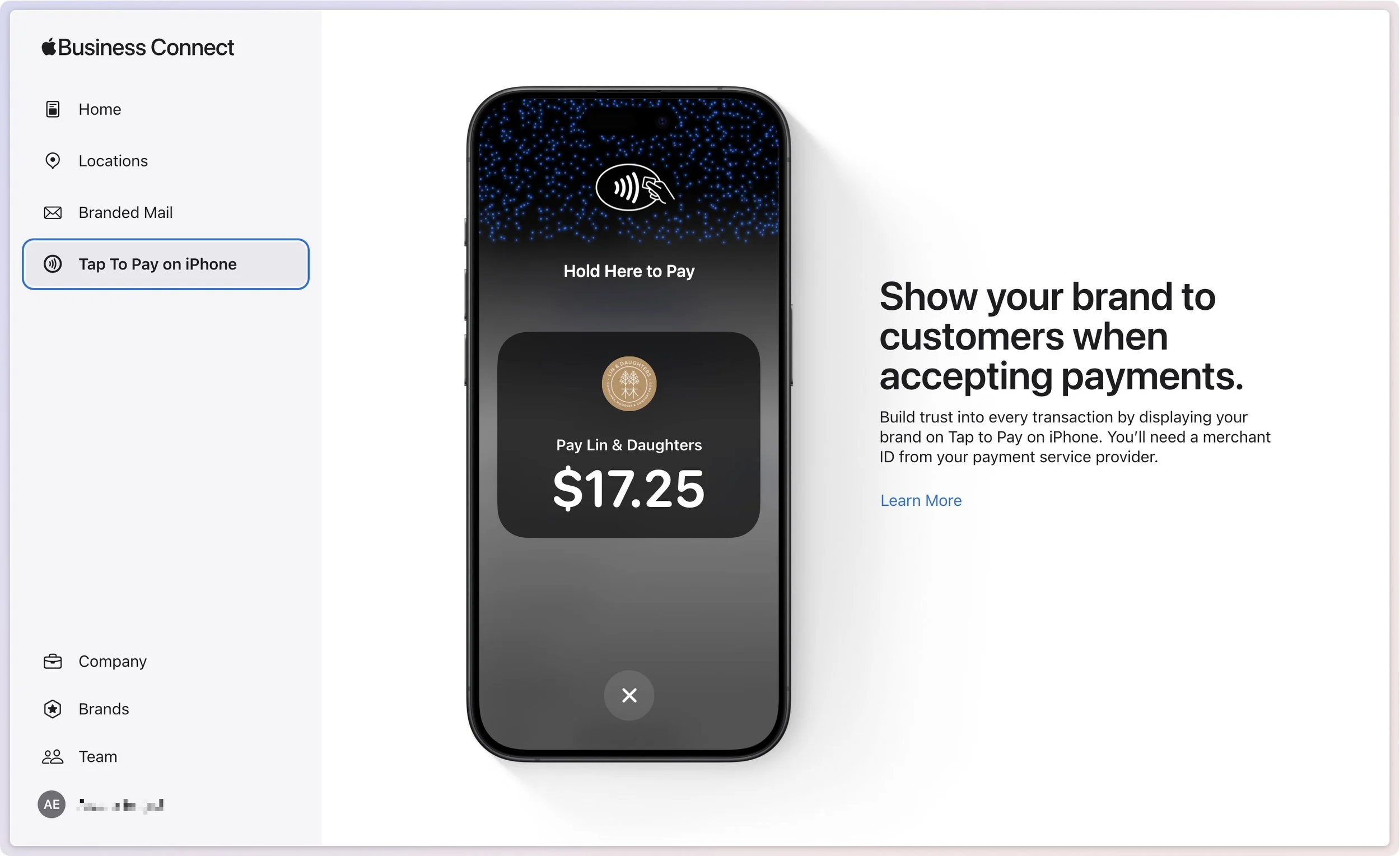
Add Tap to Pay on iPhone: For those who don’t already have a point-of-sale system, Tap to Pay on iPhone lets you accept contactless payments on an iPhone without an extra terminal or hardware.
Apple has also announced Business Caller ID, slated to ship in 2025, which will display your brand’s name, logo, and even a specific department when you call someone using an iPhone. That should help people realize that a call from your company is legitimate and not some telemarketer, making them more likely to pick up.
Getting started with Apple Business Connect is simple, but verification can take up to a week. It’s best to work through Apple’s clear documentation for registering your business, but the basics are:
Sign in with your Apple Account (use your Apple Business Manager account if you have one).
Enter your company details.
Set up a brand by giving its name, category, geographic location, and logo.
Turn on Branded Mail by adding a domain or email address, and verifying your company.
Add a location by specifying its address and hours.
Create a Place Card, add a Showcase, and create custom actions.
Needless to say, Apple Business Connect only impacts how you appear to people using Apple devices and apps. For everyone else, we recommend setting up a Google Business Profile, which provides similar features, though primarily for businesses with physical locations and upsells for advertising on Google.
However, it’s absolutely worth working with Apple Business Connect to enhance how you and your brand appear to customers. If you need help setting it up, contact us.
(Featured image based on an original by Apple)
You Can Now Migrate Purchases from One Apple Account to Another
After decades of users asking to be able to merge Apple Accounts, Apple has just published documentation on how to migrate purchases from one of your Apple Accounts to another. Hallelujah!

Ever since Apple launched the iTunes Store in 2003 with online accounts known as Apple IDs—now referred to as Apple Accounts—many users have ended up with multiple accounts. This situation arose partly because the early Apple IDs were tied to accounts users created with iTools and its successor, .Mac, which later evolved into MobileMe and then iCloud. Especially after Apple introduced the App Store in 2008, it was common for individuals with several Apple IDs to have their purchases scattered across different accounts.
Throughout that time, users have clamored to be able to merge accounts. Apple’s response was to let devices have a primary Apple Account for iCloud and other key features, plus another specifically for Media & Purchases. Others worked around the limitation by adding the second account to a Family Sharing group. That sufficed for most people but was never ideal, and we continue to field questions from people who want to merge the accounts.
It now appears that climate change has caused hell to freeze over, as Apple recently published three support articles detailing how to migrate apps, music, TV shows, books, and other digital purchases from one of your Apple Accounts to another:
Migrate purchases from one Apple Account to another Apple Account
Undo a migration of Apple Account purchases between accounts
It’s important to note that migrating purchases from a secondary account to a primary account is not exactly the same as merging them. iCloud data, account balances, and personalized recommendations in Apple’s media apps won’t transfer from the secondary account to the primary, nor will TestFlight betas for those who test apps for developers. Additionally, you will not be able to edit App Store reviews created with your secondary Apple Account after migration. The secondary account doesn’t go away, which also prevents certain other uses.
Normally, we’d tell you how to perform the migration, but because there are so many details and caveats, we recommend that you carefully read and follow Apple’s documentation linked above instead, especially since Apple may update it with new information as the feature gets more use. It explains:
Why you might want to migrate purchases
What happens when you migrate purchases
What doesn’t migrate with your purchases
What happens to your secondary account after migration
Who can migrate purchases
What to do before you migrate purchases
How to migrate purchases
What to do after migrating purchases
Why you might not be able to migrate purchases
What to do if you decide to undo a migration
How to undo a migration of purchases
What happens if you undo a migration of purchases
What to do after you undo a migration of purchases
We’re happy to walk you through a migration, but if you can’t migrate purchases, you should call Apple Support. The list of reasons why a migration may not work is long and technical, and Apple Support may have access to internal data that will explain the problem.
If you have long chafed at having to maintain multiple Apple Accounts because of a decision you made many years ago, now’s your chance to clean up the mess. Good luck!
(Featured image based on an original by iStock.com/metamorworks)
New M4 MacBook Air Features Faster Performance and Improved Video Calls
Apple has updated the MacBook Air with an M4 chip and higher memory ceiling for added performance, a 12-megapixel Center Stage camera for better video calls, and enhanced multi-display support for greater productivity. And it’s $100 less.
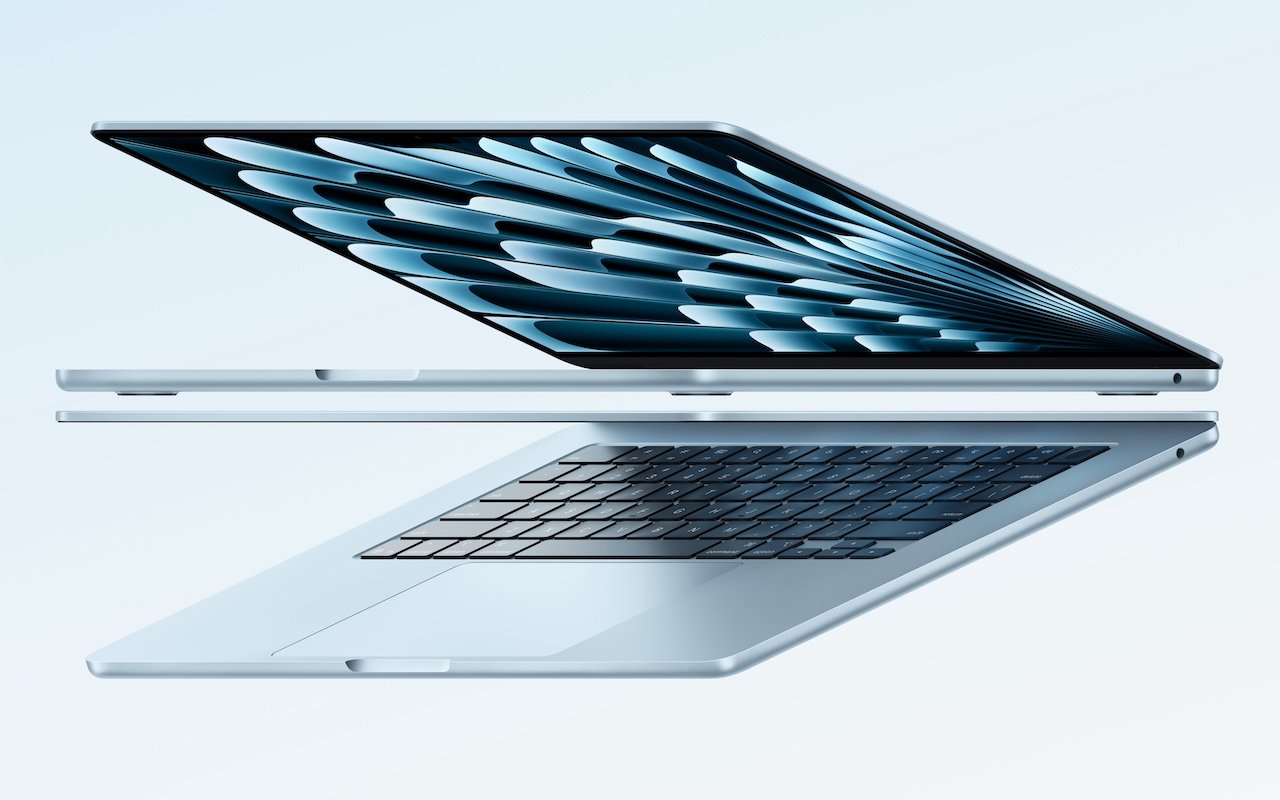
Apple has unveiled an update to the MacBook Air, which it touts as the world’s most popular laptop. While the MacBook Air has long been a compelling option for many consumers, the new 13-inch and 15-inch M4 MacBook Air models improve performance, boast a new 12-megapixel Center Stage camera, and fully support two external displays, making them even more appealing.
Adding to that appeal is a $100 price drop that brings the starting price back to $999 after Apple raised it several years ago. In concert with the return to the lower starting price, the company dropped the M2 MacBook Air and M3 MacBook Air from the official price list, though refurbished units remain available temporarily for discounted prices.
The jump from the M3 to the M4 increases performance, though Apple doesn’t say by how much. Independent benchmarks suggest that it may be about 20% faster. What’s more important for those considering an upgrade is that the M4 MacBook Air is up to twice as fast as the M1 MacBook Air and a whopping 23 times faster than the fastest Intel-based MacBook Air.
The base level of the M4 MacBook Air now comes with 16 GB of unified memory, up from 8 GB. This increase is partly aimed at enhancing Apple Intelligence performance. It also reduces the necessity for many users to consider upgrading, which we had previously recommended. For most people, 16 GB is sufficient, but for optimal multitasking performance and to future-proof your investment, consider upgrading to 24 GB. Only those with demanding workflows will need the new maximum of 32 GB, and in such cases, it may be worthwhile to consider a 14-inch MacBook Pro.
Apple also significantly improved video calls by swapping the MacBook Air’s previous 1080p FaceTime HD camera for the 12-megapixel Center Stage camera. As you move around during a call, Center Stage zooms and pans to keep you in the frame. Not having to stay stationary during calls can make a day with too many virtual meetings less exhausting. The camera also supports Desk View, which lets you show off items below the camera, essentially on top of the keyboard. It’s a niche feature, but one that some people find useful.
The final improvement in the M4 MacBook Air is subtle but may be compelling for some users. The M1 MacBook Air and M2 MacBook Air could drive a single external display in addition to the built-in screen, and the M3 MacBook Air supported two external displays at once, but only if you closed the lid and used an external keyboard and trackpad. With the M4 MacBook Air, you can now connect two external displays while keeping the lid open, which gives you three screens and lets you use the built-in keyboard and trackpad. Increasing screen space boosts productivity by allowing you to see more on-screen at once, so we recommend you give multiple displays a try.

The new M4 MacBook Air comes in four colors: silver, starlight, midnight, and a new sky blue that replaces the previous space gray. The 13-inch model starts at $999, and the 15-inch model at $1,199. Memory upgrades include 24 GB for $200 or 32 GB for $400, and storage options beyond the base 256 GB carry the usual price premiums: 512 GB for $200, 1 TB for $400, and 2 TB for $800.
Put simply, the M4 MacBook Air is impressive. It boasts serious power in a svelte, lightweight package that makes very few compromises. It’s equally at home on the road as a laptop or at a desk connected to external displays, making it the perfect Mac for nearly any student and many average Mac users. Only those who require significant processing power or prefer a desktop Mac need to look at the Mac mini or MacBook Pro.
(Featured image by Apple)
In Times of Uncertainty, Increase Your Digital Privacy and Security
If world events have you worried about your online privacy and security, you may be interested in minimizing your exposure. We recommend some simple steps that everyone can take and other actions for those who are especially concerned.

With so many troubling things happening in the world, some clients have inquired about ways to enhance their security. While we don’t want to encourage paranoia, there are many legitimate threats, and everyone will have their own levels of worry about each one.
The effort and inconvenience that different people are willing to endure also vary. Higher levels of security often necessitate significant effort and inconvenience. We have divided our list of suggestions—roughly organized from easiest to hardest—into two sections: actions we believe everyone should take and security measures mainly for those most concerned and willing to tolerate some fuss.
Before we delve into the details, it is important to remember that privacy and security are not the same thing. Privacy refers to the proper collection, use, and governance of personal data. Security, conversely, is concerned with protecting data from unauthorized access and malicious threats. It entails defending data against external dangers, while privacy ensures that the management and use of that data adhere to agreed-upon standards.
Security Improvements for Everyone
These actions are generally beneficial for most users. They don’t require much technical knowledge and can often be accomplished with easily accessible tools and settings:
Keep apps and operating systems up to date: Nearly every operating system update from Apple addresses numerous security vulnerabilities, and the same is often true for major apps. Always ensure you’re running current versions to take advantage of all those security improvements.
Enable FileVault: While all data on the internal SSDs of Macs with Apple silicon and Intel-based Macs with the T2 chip is automatically encrypted to prevent unauthorized access if the SSD is removed, it is automatically decrypted whenever the Mac boots, even before you log in. To link decryption to your user account, which makes your login password necessary to decrypt all data, enable FileVault in System Settings > Privacy & Security > FileVault. There are essentially no drawbacks.
Improve your passcode: For nearly a decade, it has been easy to set a six-digit passcode on the iPhone and iPad, greatly enhancing security compared to the previous standard four-digit passcode (1 million possible combinations versus only 10,000). If you still use four digits, consider switching to six digits, a custom number of digits, or a custom alphanumeric passcode in Settings > Face ID/Touch ID & Passcode > Change Passcode > Passcode Options. Alphanumeric passcodes offer the highest level of security but are more challenging to type.
Turn on biometric authentication and Stolen Device Protection: If you aren’t already using Face ID or Touch ID on your iPhone or iPad, that’s a mistake. Both provide significantly stronger security than repeatedly entering your passcode, which could be observed. Turn on biometric authentication and Apple’s Stolen Device Protection in Settings > Face/Touch ID & Passcode.
Adopt strong password habits: If security matters at all to you, you must use a strong, unique password for each online account and never reuse a password. It’s easy and secure as long as you create and store passwords with a password manager like Apple’s Passwords or 1Password.
Enable MFA whenever it’s available: Multi-factor authentication greatly enhances security, safeguarding you even if your password is compromised in a breach. It typically requires entering a six-digit code that you retrieve from an app or receive via text message. Apple’s Passwords and 1Password can both automatically enter MFA codes for many websites.
Use an ad blocker: Much of today’s surveillance society relies on ads to track you. Anything you can do to block ads will enhance your privacy, so use ad blockers whenever possible. Highly regarded options include 1Blocker, AdGuard, NextDNS, and uBlock Origin.
Enable privacy and security features in Web browsers: Safari can prevent cross-site tracking and hide your IP address, along with other privacy and security features. In Safari > Settings, review all the options in the Privacy and Security screens and enable those that are appropriate. (Keep cookies and JavaScript enabled; many sites won’t function properly without them.) If you don’t use Safari, choose Brave or Firefox instead of Google Chrome.
Utilize secure DNS services: To enhance browsing privacy and protect against DNS leaks, configure your devices to use a privacy-focused DNS service like Cloudflare’s 1.1.1.1 or Quad9’s 9.9.9.9.
Minimize app exposure: Be vigilant about iPhone or iPad apps that might be sharing information about you with data brokers without your knowledge. Specifically:
Turn off Settings > Privacy & Security > Tracking > Allow Apps to Request to Track.
Rescind location tracking permissions for all apps except those that require it, such as navigation or weather apps, in Settings > Privacy & Security > Location Services.
Delete apps you’re not using to prevent them from spying on you.
Security Improvements for the Particularly Concerned
Implementing these actions may require extra steps, specialized knowledge, or significant changes in habits. They’re primarily for those with heightened concerns or those at greater risk, such as journalists, activists, and individuals handling sensitive data:
Use independent search engines: Google and Microsoft are known for collecting information about their users. To keep your searches private, use a search engine that prioritizes privacy, such as DuckDuckGo, Brave Search, Kagi, or Startpage.
Protect network traffic: While we used to recommend ensuring you were using secure HTTP (HTTPS) connections, that’s now the bare minimum. For greater privacy while browsing the Web with Safari, turn on iCloud Private Relay in Settings/System Settings > Your Name > iCloud > Private Relay. (This requires an iCloud+ subscription and won't encrypt traffic from most non-Apple apps.) More broadly, you can safeguard all your traffic by using a trusted VPN service like Mullvad VPN, NordVPN, or ProtonVPN.
Activate Advanced Data Protection: End-to-end encryption (E2EE) keeps your online data private from everyone, including cloud providers. However, it requires you to manage your encryption keys, which means no one can help recover your data if you lose those keys. You can enable E2EE with Apple services using Advanced Data Protection; turn it on in Settings/System Settings > Your Name > iCloud > Advanced Data Protection.
Use encrypted messaging: The iMessage system used by Apple’s Messages app for blue bubble conversations is highly secure, particularly with Advanced Data Protection enabled. However, for the most secure messaging with E2EE, look to Signal. While WhatsApp also offers E2EE, its backups might not be encrypted, and its parent company, Meta, is one of the most egregious privacy abusers on the planet.
Regularly review and revoke permissions: Periodically check and manage app permissions on your device to ensure that no apps have unnecessary access to sensitive information, such as your contacts or location. Work through the options in Settings/System Settings > Privacy & Security and revoke permissions for anything that seems inappropriate. Apps that require additional permissions will always prompt you again.
Encrypt cloud-stored data: To ensure that cloud storage services like Box, Dropbox, Google Drive, and OneDrive cannot read your data, use the free and open source Cryptomator to encrypt it first.
Use encrypted email: While it’s impossible to ensure that email will remain private because you can’t control your recipients’ actions, the most privacy-focused email services are ProtonMail and Tuta Mail. They employ E2EE for emails sent to other users of the same service and allow the encryption of email messages sent to any external recipient.
Reduce reliance on cloud services: If you have general concerns about cloud services, consider exploring peer-to-peer alternatives that remove the need for a central provider. You can find peer-to-peer solutions for file storage, file sharing, chat and messaging, videoconferencing, collaborative documents, cloud-based notes, and more.
Avoid social media: Posting on social media, especially on platforms owned by large corporations, allows those companies to create a comprehensive profile of you that is shared with advertisers and is vulnerable to data breaches. Further, any information you disclose about yourself could be exploited by hackers in social engineering attacks targeting your accounts. Consider replacing social media with independent forums devoted to your interests and private messaging spaces for friends and family.
Ultimately, enhancing privacy and security is your responsibility. Apple and other companies may offer tools to assist, but it’s up to you to implement them and stay vigilant against new threats. We’re also happy to provide advice and assistance.
(Featured image by iStock.com/andreusK)