
Combat Smart TV Privacy Abuses with an Apple TV
While you’re watching TV, your smart TV is watching you. Find out how manufacturers track your viewing habits and learn simple steps to protect your privacy with an Apple TV.
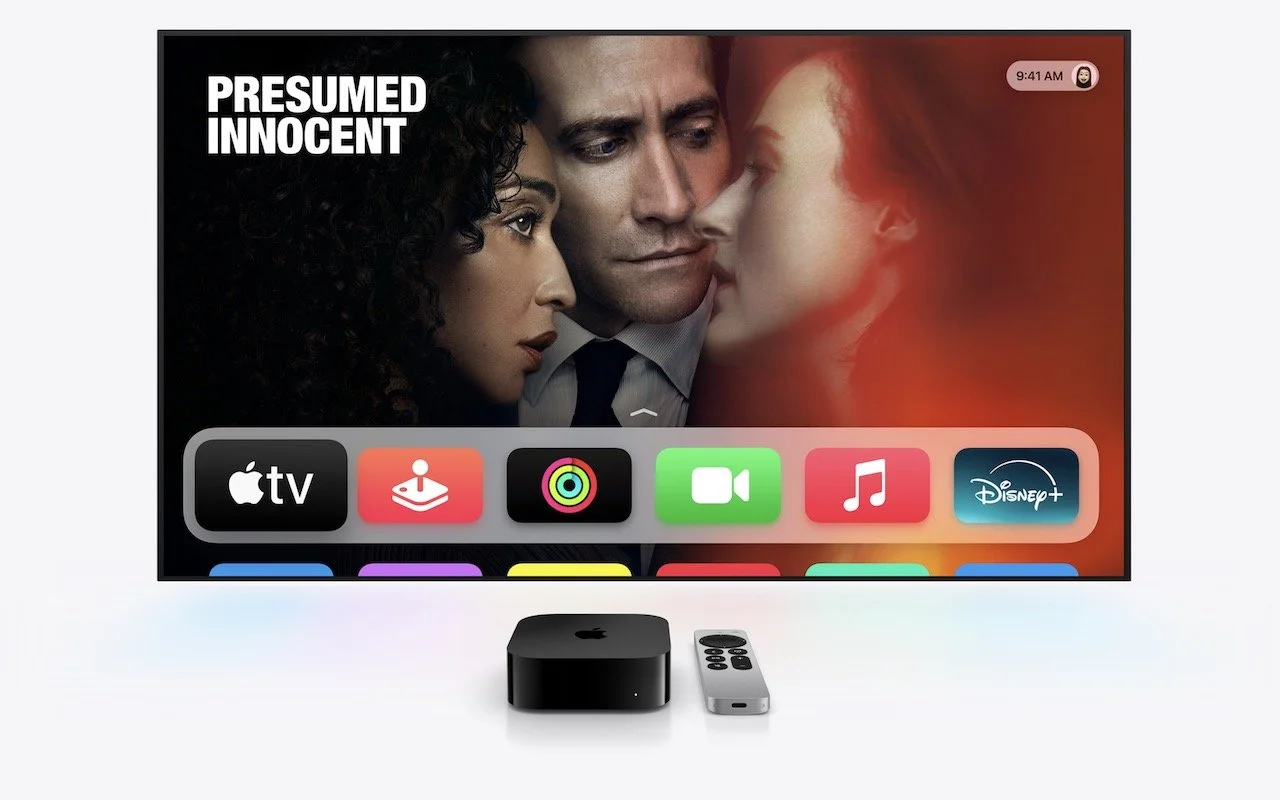
If you own a smart TV or are shopping for a new one, you should be aware of a troubling trend: modern TVs have evolved from simple screens into sophisticated surveillance devices. You can protect your privacy by using an Apple TV as your streaming device rather than relying on built-in smart TV features.

If you have an older non-smart TV that meets your needs, you’re in luck—an Apple TV provides streaming capabilities while avoiding the privacy concerns that plague modern TVs. For everyone else, here’s what you need to know about how TV manufacturers are monetizing your viewing habits and how an Apple TV protects you.
Data Mining: How TV Makers Profit from Your Viewing Habits
Arguably, the longevity of large-screen TVs has contributed to this trend. In the past, TV manufacturers focused on selling as many TVs as possible. Consumers see less need to upgrade when a modern 55-inch TV offers little beyond what a 15-year-old TV of the same size can provide. Sure, it might be a bit brighter, have better color accuracy, or provide higher refresh rates, but for most people watching streaming video in a dark room, such changes aren’t very noticeable.
In response, TV manufacturers have lowered prices to boost sales and turned to alternative revenue streams, including collecting and selling viewer data and displaying ads. Data can be sold to companies like Nielsen, a data and marketing measurement firm, and leveraged to provide advertisers with targeted audiences. Smart TV ad revenue is estimated to reach $46 billion worldwide this year, up 20% after another 20% increase in 2024. These ads appear on the smart TV’s home screen and in free, ad-supported streaming channels.
TV manufacturers track viewing habits using a technology called automatic content recognition (ACR). Software loaded on the smart TV captures frame-by-frame screenshots of content, creates a fingerprint for each frame, and then matches the fingerprint against an online database to determine what you’re watching. It works with all types of viewing, from standard TV to gaming. Since that data is tied to your specific household, companies can create audience segments and either use it for their own advertising or sell it to third parties. One analyst suggests you’re worth about $20 per year.
Wait, it gets worse! Many smart TVs feature microphones to enable voice commands, and some also include cameras to support video calling capabilities. Manufacturers can use captured audio and video to monitor viewer engagement—are you actually watching the show, or is it just playing in the background? That data also feeds into the profile that the TV manufacturers maintain about you.
If all this feels creepy to you, you’re not alone. Most annoyingly, apart from the opportunity to buy a cheap TV, there’s essentially no ongoing benefit to you in having your viewing habits packaged and resold. At most, you might get to ignore slightly more targeted ads.
Protect Your Viewing Privacy with an Apple TV
If you currently have a smart TV or are looking to replace an older TV, there’s an easy solution: use an Apple TV instead of the smart TV’s built-in apps or a similarly problematic media streaming box from the likes of Amazon, Google, and Roku. Although Apple isn’t perfect when it comes to privacy, the Apple TV provides a complete streaming solution that doesn’t share your viewing data with advertisers and data brokers. Here’s how:
No ACR tracking: Apple has confirmed that the Apple TV doesn’t use ACR at all.
No built-in advertising: Unlike Roku OS and Samsung’s webOS, the Apple TV doesn’t display ads on the home screen or in the screensaver.
Privacy-first setup process: During setup, you’re given the opportunity to disable Siri, location services, and analytics.
Limited data collection: Even when you do allow Apple to collect data, it’s done in ways that guarantee anonymity and used only in aggregate. No personal information is ever shared with Apple.
Strong third-party app tracking controls: tvOS apps must ask for permission to track you, just like iOS apps. You can (and should) always reject such requests or prevent them from asking at all by going to Settings > Privacy > Tracking > Allow Apps to Request to Track.
Even with an Apple TV, you’ll need to take a few additional steps to protect your privacy since smart TVs can still track content playing through HDMI connections:
Disable ACR tracking: Turn off ACR in your TV’s settings to prevent it from analyzing what you’re watching. This setting can be tricky to find since TV manufacturers deliberately make it difficult and use different names. Consumer Reports provides instructions for many TV models and streaming media devices.
Consider blocking Internet access: For maximum privacy, you can prevent your TV from connecting to your Wi-Fi network and accessing the Internet, though this comes with trade-offs. While it ensures that no data leaves your TV, you’ll miss out on bug fixes, security updates, and certain features like picture calibration. You may also encounter connection error messages, and some TVs require occasional Internet connectivity for validation purposes. You may have to connect periodically to keep it working.
By turning off ACR, disconnecting the smart TV from the Internet, and using an Apple TV instead of a smart TV’s built-in apps or other streaming devices, you can enjoy your favorite shows without feeling like you’re being watched.
(Featured image by Apple)
Consider Personal Cyber Insurance
With Americans losing $12 billion to fraud in 2024, personal cyber insurance is becoming essential. Learn what it covers, what to look for in a policy, and how it complements good security practices.

As digital threats become increasingly sophisticated, individuals need protection just as much as businesses do. According to the Federal Trade Commission, Americans lost $12 billion to fraud in 2024, with a significant portion coming from digital scams. While we’d all like to think we’re too savvy to fall for such schemes, even security experts can become victims: Troy Hunt, creator of the Have I Been Pwned site that tracks data breaches, recently fell prey to a sophisticated phishing attack.
As cyber threats evolve and become more convincing, personal cyber insurance is becoming increasingly common, either as a standalone policy or as an add-on to a standard homeowner’s or renter’s policy. It can help you recover from cyberattacks, online fraud, ransomware, identity theft, social media hijacking, cyberbullying, and similar threats.
The financial impact of these incidents can be significant. The average loss from identity theft is between $500 and $1,500; however, sophisticated scams can result in far greater damages. For example, an individual lost $30,000 to a “pig-butchering” scheme, though they fortunately recovered $25,000 through their cyber insurance policy.
What Personal Cyber Insurance Covers
Although the specifics vary by policy, personal cyber insurance typically protects in three key areas:
Financial protection:
Identity theft recovery: Coverage for expenses related to restoring your identity, including legal fees, lost wages, and document replacement
Fraud reimbursement: Recovery of money stolen through cyber attacks, including unauthorized charges, stolen bank funds, and deceptive transfer fraud
Cyber extortion coverage: Payment for ransom demands and professional negotiation services if your data is held hostage
Technical support:
Data breach response: Professional IT services to recover compromised data and restore systems
Device recovery: Assistance with cleaning infected devices and replacing damaged smart home systems
Credit monitoring: Ongoing surveillance of your credit reports and financial accounts
Personal assistance:
Cyberbullying support: Coverage for counseling, private tutoring, and reputation management
Legal assistance: Access to legal professionals specializing in cyber-related incidents
Identity restoration: Dedicated help with replacing documents and clearing fraudulent records
However, as with other forms of insurance, it’s important to be aware of common exclusions that cyber insurance won’t cover:
Prior incidents: Cyber policies won’t cover known compromises that occurred before the policy’s start date.
Intentional acts: Self-inflicted losses or intentional policy violations are not covered.
Business-related incidents: Coverage is for personal activities only unless otherwise specified.
Cryptocurrency scams: Most policies don’t cover cryptocurrency losses.
Poor security practices: Failing to maintain basic security measures may void coverage.
Physical device damage: Standard damage to devices is typically covered by homeowner’s or renter’s insurance.
Getting Personal Cyber Insurance
For many people, the easiest way to get personal cyber insurance is as an endorsement (an add-on) to an existing homeowner’s or renter’s policy. That’s the case with State Farm, for instance. These endorsements are often quite affordable, with fees as low as an additional $25 per year, and they provide coverage up to $100,000.
Those who need a dedicated cyber insurance policy can look into the broker-sold Cyberboxx Home, which NFP sells directly as DigitalShield in many states, and Allstate Identity Protection, which focuses on identity theft. Prices start around $65 per year.
For most people, the most straightforward and economical approach is adding an endorsement to an existing policy. Contact your insurance broker and see what they can provide—even if your policy doesn’t offer what you want, they may be able to put together similar coverage for you. Of course, if you don’t yet have an insurance policy or are looking to switch providers, it’s worth reviewing exactly what’s covered, along with costs and coverage limits, when comparing policies or insurers.
Don’t Ignore Key Security Practices
Having cyber insurance doesn’t allow you to skimp on security. Even if an insurance policy recompenses you for lost money, having your identity stolen or being tricked into transferring funds to a scammer will be a huge hassle. Worse, being sufficiently negligent could prevent you from receiving coverage.
To reduce the chance that you’ll need to file a cyber insurance claim—and to ensure your policy remains valid—follow these essential security practices, which we’ve recommended many times:
Use strong, unique passwords with a password manager.
Enable two-factor authentication wherever available.
Keep all devices and software updated.
Maintain backups of important data.
Be cautious with unexpected links or attachments.
Monitor financial accounts regularly.
While personal cyber insurance can’t prevent attacks, it provides crucial financial protection in our increasingly digital world. As scammers ramp up the sophistication of their tactics, having a safety net becomes ever more important.
(Featured image by iStock.com/inkoly)
Choosing the Best Mac for a College-Bound Student in 2025
Which Mac is best for a college student in 2025? Our short answer is either the 13-inch or 15-inch M4 MacBook Air. However, students with substantial processing needs (such as audio or video editing) might want to consider the 14-inch MacBook Pro.

Is your child heading off to college soon? Now is a good time to consider getting them a new Mac, especially if their current computer is old or unreliable, is shared with other family members, or was a school loaner. If you haven’t been keeping up with Apple’s Mac lineup, you might be unsure which model is the best choice.
First, check with the college before making a purchase. Although less common than in the past, some college departments have specific requirements based on the software used by students in their classes. Generally, these requirements focus on processor type, amount of RAM, and storage space. Current Macs should meet or exceed all of these requirements. A more significant issue arises if the college requires a Windows machine; in that case, determine whether the requirement is based on specific Windows-only software or simply a preference by the IT staff to maintain a uniform support environment. Second, see if the college offers educational pricing—most do—to save a few hundred dollars off the prices listed below. Regardless, Apple often has a Back to School offer.
Choose a laptop instead of a desktop Mac. Students lead mobile lives and need to work in various locations on campus, so having to head back to the dorm to use an iMac or Mac mini will be limiting. Plus, they often need to work during breaks, so they need a Mac that’s easy to carry home. A student accustomed to taking notes on an iPad with a keyboard and Apple Pencil might manage to use that alongside a desktop Mac, but most students should opt for laptops.
In the past, deciding on the best model for a given student was more challenging, but Apple’s speedy and power-efficient M-series chips make the decision easier. We see three primary scenarios:
Most students: Buy Apple’s MacBook Air, the company’s lightest and least expensive laptop. Within the MacBook Air lineup, there are three options. The most affordable is the 13-inch M1 MacBook Air from 2020, which costs $649 and is exclusively available at Walmart. Purchase it only if budget is the primary concern. The other options include the 13-inch or 15-inch M4 MacBook Air models introduced in March 2025. The 13-inch M4 MacBook Air features a 13.6-inch screen, much faster performance than the M1, a memory ceiling of 32 GB, and up to 2 TB of storage, starting at $999. For those interested in a larger display, the 15-inch M4 MacBook Air is a great choice, beginning at $1,199. Otherwise, it’s nearly identical to its smaller sibling.
Better specs: If performance is more important than price—especially if your student will be working on processor-intensive tasks like video editing—consider the 14-inch MacBook Pro. It features a powerful M4, M4 Pro, or M4 Max chip, and the M4 Pro and M4 Max models can be configured with significantly more memory. While its 14.2-inch screen is physically slightly smaller than that of the 15-inch MacBook Air, it offers a somewhat higher resolution. The price starts at $1,599 but increases quickly with the M4 Pro and M4 Max chips. (There’s also a 16-inch MacBook Pro, which is available only in M4 Pro and M4 Max configurations and exceeds the needs of most students.)
Windows compatibility: The only downside of the transition to Apple silicon is that it’s more challenging to run Windows using virtualization software like Parallels Desktop (available at half price for students) or VMware Fusion (free for personal use). If Windows compatibility is a bonus but not essential, either of those with the Arm version of Windows 11 should work for most apps. However, if Windows compatibility is crucial, your options are a used Intel-based MacBook Pro or—much as we hate to say it—a PC laptop that runs Windows natively.
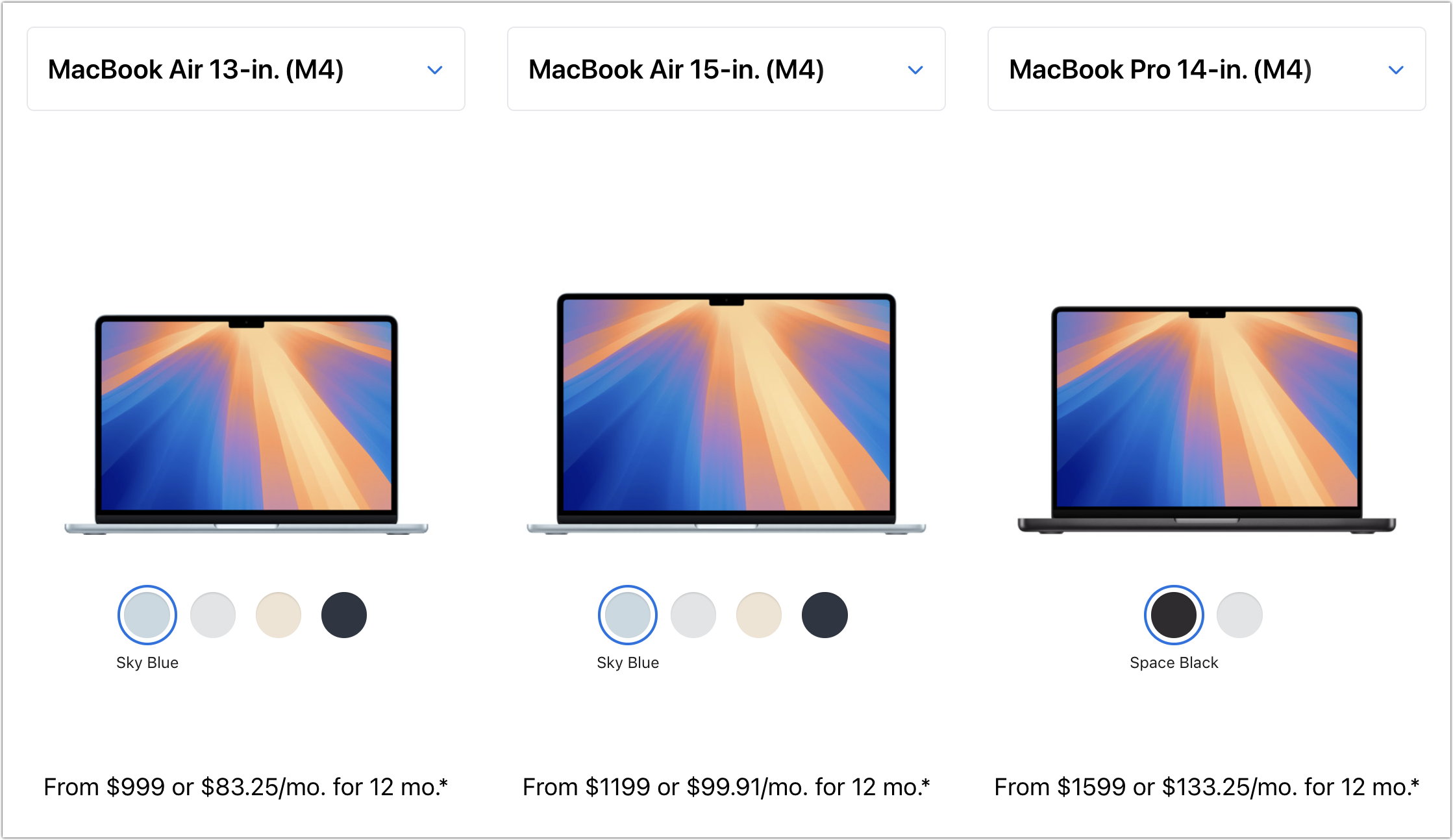
No matter which laptop you choose, you’ll need to select a processor, memory size, and storage capacity:
Processor: With the 13-inch M1 MacBook Air, you’re limited to the M1 chip with an 8-core CPU and a 7-core GPU. The 13-inch M4 MacBook Air models always come with a 10-core CPU, but you can pay $100 to upgrade from an 8-core GPU to a 10-core GPU. The 15-inch M4 MacBook Air comes standard with a 10-core GPU. Although the performance difference isn’t likely noticeable with everyday apps, it might be worth upgrading for $100, just in case. The 14-inch MacBook Pro offers a choice between the M4, M4 Pro, and M4 Max; the decision ultimately comes down to balancing potential performance needs against increased costs. Few students will need—or even notice—an M4 Pro, and even fewer will need an M4 Max.
Memory: The 13-inch M1 MacBook Air from Walmart comes with only 8 GB of memory, which is sufficient for most college students. The M4 MacBook Air models start at 16 GB and offer options for 24 or 32 GB. With the 14-inch MacBook Pro, the memory capacity varies with the chip. The M4 chip offers 16, 24, or 32 GB, similar to the MacBook Air. The M4 Pro comes standard with 24 GB, but you can choose to upgrade to 48 GB. The M4 Max has a standard memory spec of 36 GB, with upgrade options to 48, 64, or 128 GB. Students can typically stick with 16 GB or choose 24 GB for more demanding tasks—few will require 32 GB or more.
Storage: For all MacBook Air models, 256 GB is the minimum storage option, and you can upgrade to 2 TB on all devices sold by Apple. The 14-inch Mac-Book Pro starts at 512 GB and provides upgrades up to an impressive 8 TB. Choose the storage capacity based on two factors: budget (storage can get expensive quickly) and anticipated usage (audio and particularly video production can consume a lot of space, as can large quantities of photos, but most other uses don’t require as much). Keep in mind that connecting an external Thunderbolt SSD or hard drive is an easy way to offload large files that don’t always need to be readily available. Large files can also be kept in cloud-based storage.
For most students, the best choice for a Mac that is likely to last throughout four years of college is the 13-inch or 15-inch M4 MacBook Air, equipped with a 10-core GPU, 16 GB of memory, and 512 GB of storage. While the 15-inch model has a larger screen, it’s also heavier and takes up more space in a backpack, so consider portability when making your final decision. Be sure to budget for AppleCare+ as well; it’s almost guaranteed that some mishap will occur with a student laptop, and AppleC-are+ covers up to two incidents of accidental damage each year.
We recommend talking with your child to learn more about what they think they’ll need—and make sure to compare it to the college’s recommendations—but if you have any questions afterward, feel free to reach out to us.
(Featured image by iStock.com/Zbynek Pospisil)
Ten Tips for Making the Best Use of AI Chatbots
Getting the most out of ChatGPT and Claude requires a different approach than using a traditional search engine. Learn ten essential tips for better prompting, from being conversational to leveraging context and even role-playing.

Since ChatGPT launched in late 2022, people have been using AI chatbots to brainstorm, speed up research, draft content, summarize lengthy documents, analyze data, assist with writing and debugging code, and translate text into other languages. Recently, the major chatbots have gained Web search capabilities, allowing them to access live information beyond their training model data.
Using a chatbot effectively requires new approaches to thinking and working, especially when it comes to searching for information. Just as with a human assistant, you need to play to their strengths when figuring out the best ways to get the results you want. Incorporate these tips into your chatbot conversations, and you’ll see significantly better outcomes.
1. Be specific and complete: Decades of search engine use push us toward short, focused search phrases with keywords that will appear in the results. In contrast, chatbots thrive on specificity and detail. For instance, prompting a chatbot with “iCloud photos syncing” won’t generate nearly as useful a response as “Tell me what might prevent iCloud from syncing photos between my Mac and iPhone.” Also, don’t shy away from negative prompting—tell the chatbot what not to include or consider in its response. You can even be specific about formatting the output as a bullet list, table, or graph.

2. Every prompt is a conversation: We are accustomed to standalone searches, where, if the search fails, you must start over. You’ll achieve much better results with chatbots if you consider everything a conversation. Even responses to specific, detailed prompts may not fully address your question or could lead you to think of additional ones. Ask follow-up questions, clarify what you want to find out or accomplish, provide feedback, or redirect the conversation as needed. (For the ultimate chatbot conversational experience, try voice mode in the ChatGPT or Claude apps, where they talk back to you. It’s excellent for capturing ideas, refining your thinking, or just doing a brain dump.)
3. Edit your last prompt: If the most recent response from a chatbot is entirely unsatisfactory, you may have better luck editing and resubmitting it rather than informing the chatbot that it has made a mistake. There’s usually an edit link or pencil button that appears when you hover over it.

4. Context can help: Most chatbots maintain libraries of previous conversations, allowing you to search through them to find old ones easily. Because chatbot responses improve with more context, it can be helpful to return to one of those conversations when you want to explore that topic further. Similarly, if you’re asking a chatbot to create something similar to something you’ve already done, provide the previous work as an example.
5. Ask it to role-play: Another way to increase context is to ask the chatbot to “act as” a particular type of professional, such as an editor, coach, marketer, or software developer. In essence, you’re asking the chatbot to respond in the context of a certain role. Conversely, it can be helpful to ask it to tailor its response as if you were a high school student, someone with a basic understanding of the topic, or an expert in the field.
6. Know when to start over: Although context is key, chatbots have a limited memory, so long conversations can overwhelm what’s called the “context window.” If you notice the chatbot hallucinating, starting to repeat itself, or going off into the weeds, try saying, “Please summarize what we’ve discussed in a prompt I can use to continue working on this topic.” Then, copy that prompt into a new chat before continuing the conversation.
7. Force Web searches as necessary: Most chatbots make it explicit when they are searching the Web, which means you can also tell when they aren’t searching and are thus relying on potentially outdated training data. If you want to ensure that you’re getting the latest information, tweak your prompt to start with something like “Search for…”
8. Test its limits: Since every chatbot response is based on just what you say in the prompt, it won’t necessarily go as deep as you would like. Try asking it to critique its own output, generate multiple options, or present the best argument for different perspectives. You can even request it to be more cautious or more creative. It’s fine to challenge a chatbot in ways that would be socially inappropriate with another person.
9. Save and reuse effective prompts: When you identify prompts that work particularly well for recurring tasks—such as generating meeting summaries, analyzing data, or drafting specific types of content—save them for reuse so you don’t have to start over each time.
10. Don’t believe everything you read on the Internet: While chatbots are incredibly confident and often truly astonishing in what they can produce, it’s your responsibility to verify important facts and details (just as with human-created information, which isn’t necessarily any more trustworthy). The statistical models they use can lead to completely fabricated information. Although this is less true with Web searches, even there, they can combine information in ways that simply aren’t accurate.
11. Try deep research: Bonus tip! Many chatbots offer a so-called deep research mode, which allows the chatbot to go off for 5 or 10 minutes to gather information, analyze it over multiple steps, and produce a much more comprehensive response. Deep research is too slow for a conversation, but it can provide a good foundation when you’re exploring a new topic that requires a lot of detail.
While AI chatbots are powerful tools, they work best when you think of them as collaborative partners rather than magical solutions. The key is experimentation—try different approaches, refine your prompting style, and don’t hesitate to push the limits of what they can do. Start with these fundamentals, but remember that becoming proficient is an ongoing process.
(Featured image by iStock.com/Memorystockphoto)
At WWDC 2025, Apple Unveils Liquid Glass and Previews New OS Features
At its Worldwide Developer Conference, Apple unveiled the first major interface change to its operating systems in many years, along with a boatload of new features, many powered by Apple Intelligence. Here are a few of our favorites.
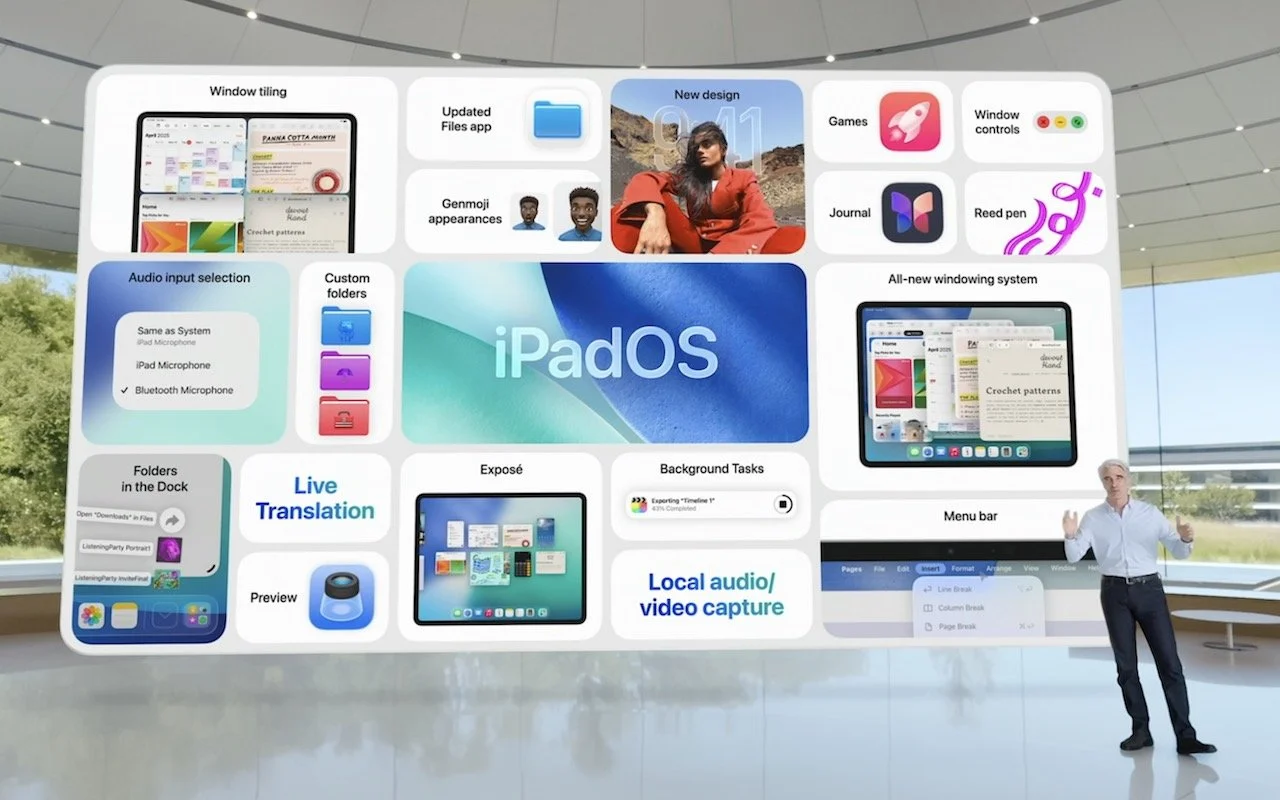
Apple’s Worldwide Developer Conference keynote was a lightning-fast 92-minute tour of Apple’s vision for how we’ll use its products in the next year. Apple wove two themes through the presentation: the new Liquid Glass design language will provide a consistent look and feel across all its platforms, and Apple Intelligence-powered features will continue to appear throughout the ecosystem. The other overarching news is that Apple is adopting a new annual versioning approach, similar to car model years, so the version number for each operating system will be 26.
Apple previewed numerous features during the keynote and listed even more on its website afterward. Below, we’ll focus on those we think will make the most difference to your Apple experience, but we also encourage you to read Apple’s pages for each platform to learn more about what’s coming. Those are linked here, along with basic hardware requirements, so you can determine if your devices will be eligible to upgrade this fall:
macOS 26 Tahoe: MacBook Air with Apple silicon (2020 and later), MacBook Pro with Apple silicon (2020 and later), MacBook Pro (16‑inch, 2019), MacBook Pro (13‑inch, 2020, four Thunderbolt 3 ports), iMac (2020 and later), Mac mini (2020 and later), Mac Studio (2022 and later), Mac Pro (2019 and later)
iOS 26: iPhone SE (2nd generation), iPhone 11, and later
iPadOS 26: iPad (8th generation and later), iPad mini (5th generation and later), iPad Air (3rd generation and later), iPad Pro 11‑inch (1st generation and later), iPad Pro 12.9‑inch (3rd generation and later), and iPad Pro (M4)
watchOS 26: Apple Watch SE (2nd generation), Apple Watch Series 6 and later, and Apple Watch Ultra and later
visionOS 26: All Vision Pro headsets
tvOS 26: Apple TV 4K
First, let’s look at Liquid Glass, after which we’ll examine a handful of changes we think Apple users will find most interesting.
Liquid Glass Gives Apple’s Platforms a Fresh Look
Apple’s last major interface redesign occurred in 2013 with the release of iOS 7. Since then, the company’s hardware and graphics technologies have advanced significantly, enabling the new Liquid Glass interface design. It brings to life a new glass-like “material” for interface elements that blurs the line between the physical and the virtual. Liquid Glass is both translucent and malleable, allowing background content to refract through the controls, which can morph, flex, and illuminate in response to user interaction.
Liquid Glass encompasses all of Apple’s platforms and extends to every aspect of the interface, including controls, navigation bars, tabs and sidebars, alerts, widgets, icons, the menu bar, and the Dock. Functionally, Apple has taken the opportunity to improve some interactions, so alerts appear from where you tap rather than taking over the entire display, and context menus expand into scannable lists rather than requiring awkward horizontal scrolling. When you interact with toolbars or other controls, they expand and become more prominent, but as soon as you’re done, they minimize themselves to let you focus on the content. Watch Apple’s intro video to get a feel for it.

The main concern with Liquid Glass is that it may lack contrast and be difficult to read for those whose vision isn’t perfect. In the past, Apple has provided a Reduce Transparency option in the Accessibility settings for macOS, iOS, and iPadOS to eliminate any color bleeding through translucent menus and dialogs; we’ll see if such an option proves necessary for some.
iPadOS 26 Takes Lessons from macOS
Ever since the introduction of the iPad, people have been frustrated by the extent to which it was a larger iPhone rather than a smaller, touch-sensitive Mac. Apple took small steps toward enhancing productivity by adding features like Slide Over and Split View, but they were fussy to use and never achieved widespread acceptance. With iPadOS 26, Apple has finally acknowledged that the iPad should just work more like a Mac. To that end, iPadOS 26 will offer Mac-like features in the following areas:
Window management: Every app can now be transformed into a standalone window that you can move and resize freely. Windows remember their size and position, and you can tile them flexibly, with options to split the screen into two, three, or four sections. The familiar traffic light window controls from the Mac reappear along with the macOS Move & Resize and Fill & Arrange options. Swiping up invokes Exposé, allowing you to view all windows and switch to your desired one easily.
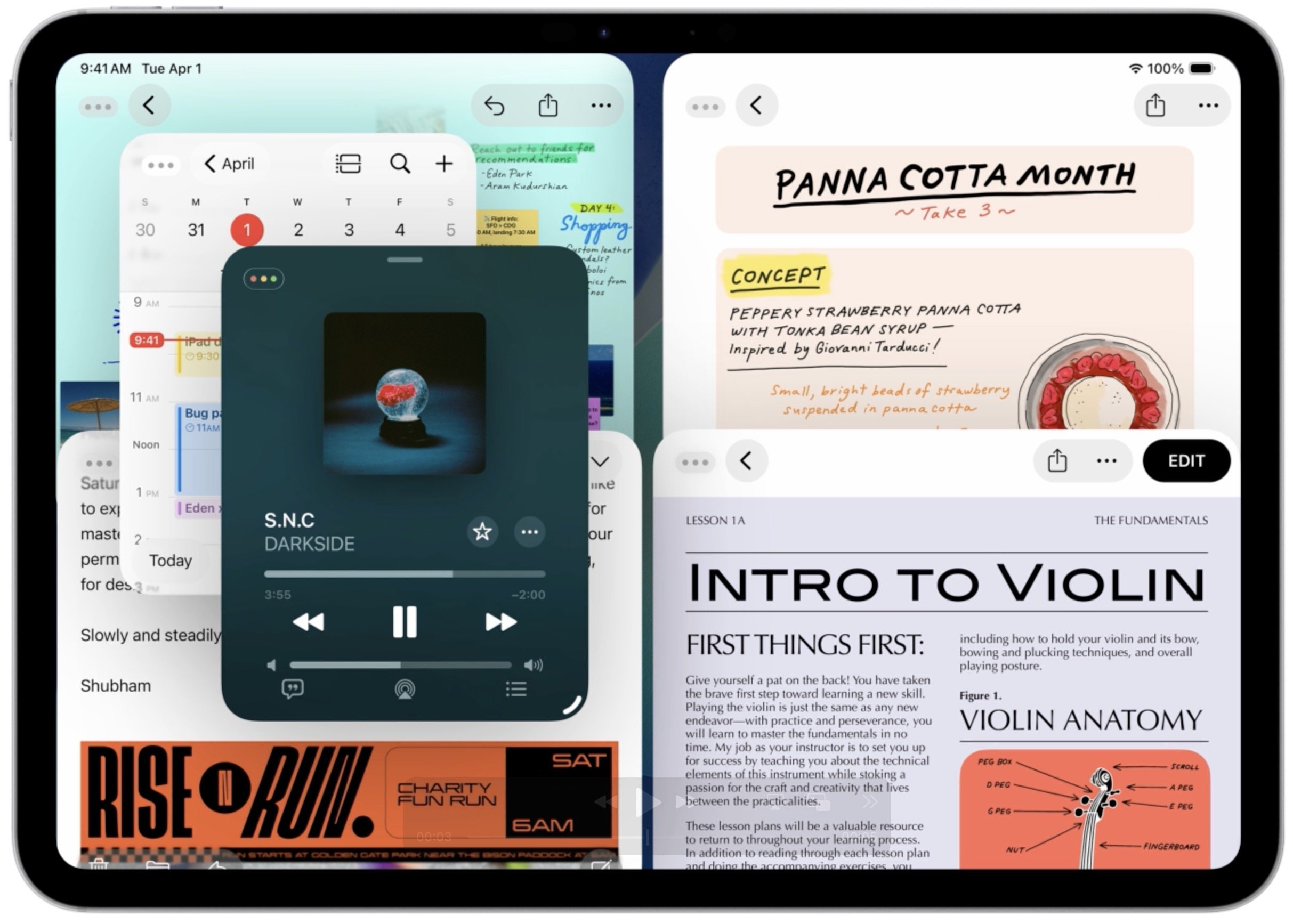
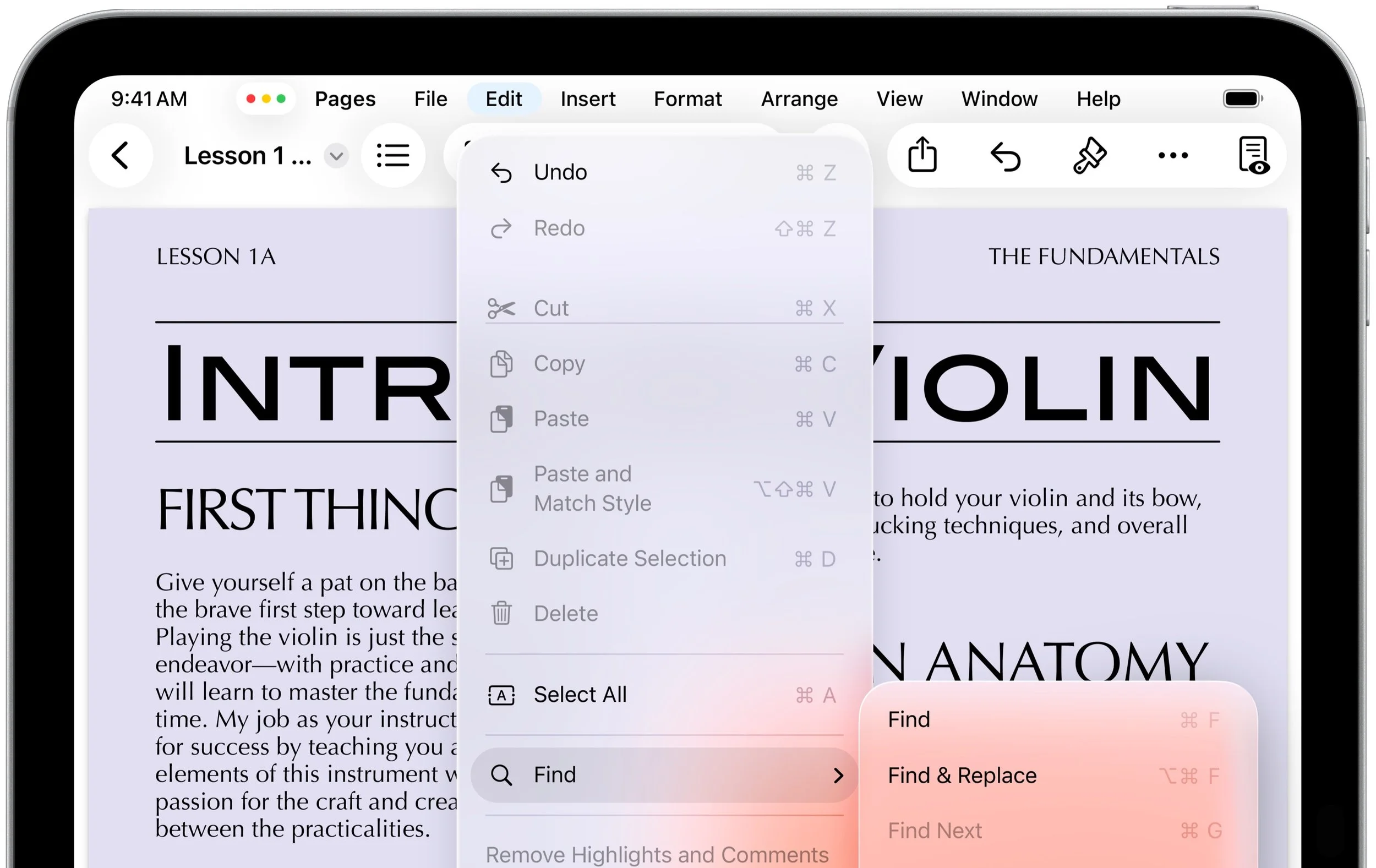
Menu bar and Dock: iPadOS gains a menu bar that looks and works like the one on the Mac, but it only appears when you swipe down from the top of the screen. You can also put folders in the Dock and access their contents in much the same way docked folders appear as a stack on the Mac.
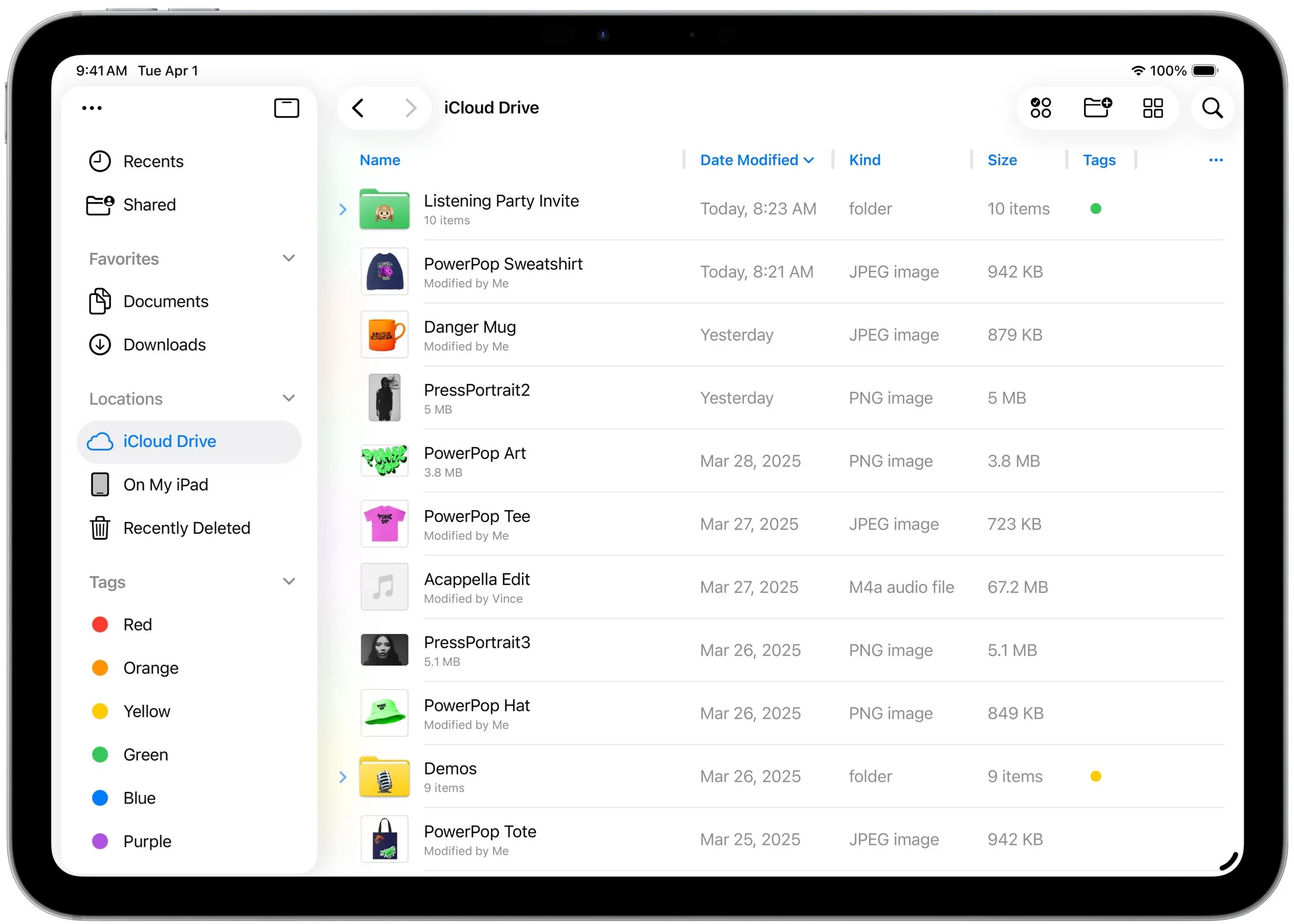
Filesystem access: The Files app resembles a Finder window much more now, thanks to the addition of collapsible folders and resizable columns. It allows you to select which apps will open specific document types and even modify the defaults. Additionally, you can customize folders with colors and icons.
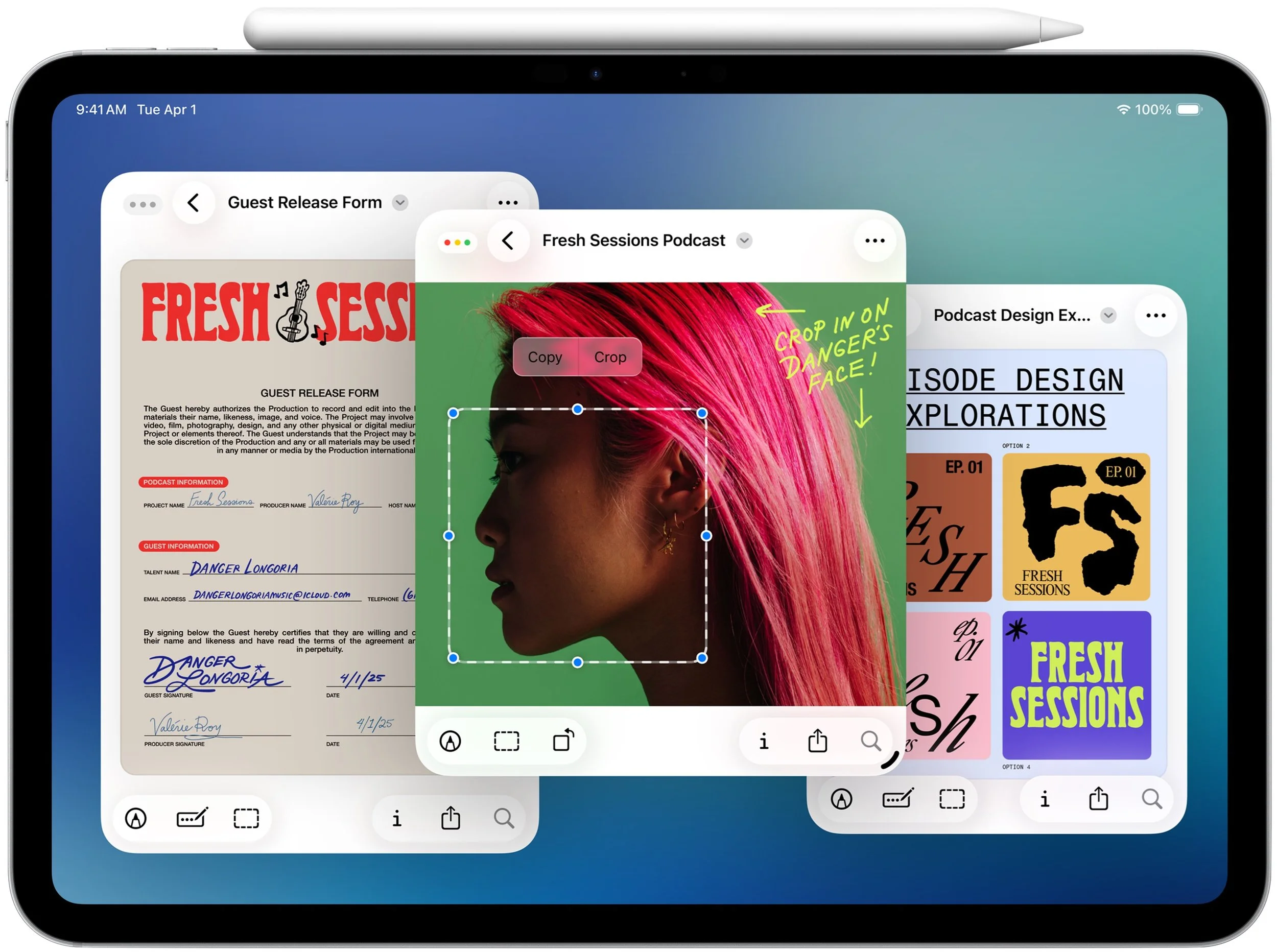
Preview makes the move: One of the core Mac apps, Preview, is coming to the iPad. Just as on the Mac, you can use Preview for viewing and editing images and PDFs, and it offers full support for the Apple Pencil.
Background processing: Computationally intensive processes and other activities that take a long time, like exporting edited videos and downloading large files, can now run in the background while you engage in other tasks.

Apple Intelligence Expands Across the Ecosystem
Apple Intelligence has been far from a rousing success, with Apple’s failure to deliver last year’s promised update to Siri being the most prominent misstep. But Apple isn’t giving up and will be tapping into Apple Intelligence in many more places across all its operating systems and apps.
Even more important, the company announced that it is opening Apple Intelligence to developers, so we can expect to see features powered by Apple’s on-device large language models appearing in third-party apps this fall. That’s a big deal because Apple’s models provide fast response times, prioritize privacy, and incur no per-prompt costs.
Some of the new and expanded uses of Apple Intelligence include:
Visual Intelligence: You can now use Visual Intelligence to learn more about and act on information displayed on your iPhone screen. You could research a piece of clothing you see while browsing, or create a calendar event based on a social media banner. You can also ask ChatGPT about anything you see on screen.
Shortcuts gets Apple Intelligence: New intelligence actions in Shortcuts enable you to leverage Apple Intelligence to summarize text, create images, and more. Interestingly, shortcuts can even access Apple Intelligence’s Private Cloud Compute for more power-intensive tasks.
Image Playground & ChatGPT: When using Image Playground, you can create images in a wider variety of styles with ChatGPT.
Combine emoji for Genmoji: Previously, you could use text descriptions to create custom Genmoji; now, you can make them by combining existing emoji.
Messages backgrounds: Chats in Messages will offer shared backgrounds, and users can create custom backgrounds with Image Playground.
Messages polls: Group chats in Messages will gain polls—where should we go for dinner tonight?—and Apple Intelligence will automatically detect when a poll might be helpful and suggest one.
Wallet order details: With Apple Intelligence, the Wallet app can identify and summarize order details, including tracking information.
Workout Buddy: In the watchOS 26 Workout app, Apple Intelligence powers a virtual workout buddy that talks to you while you exercise, offering motivation, real-time stats, and post-workout feedback.
These new applications of Apple Intelligence may not rock your world, but together, they offer some appreciated enhancements. We also look forward to seeing how developers leverage Apple Intelligence models in innovative ways.
Live Translation Edges Toward the Universal Translator
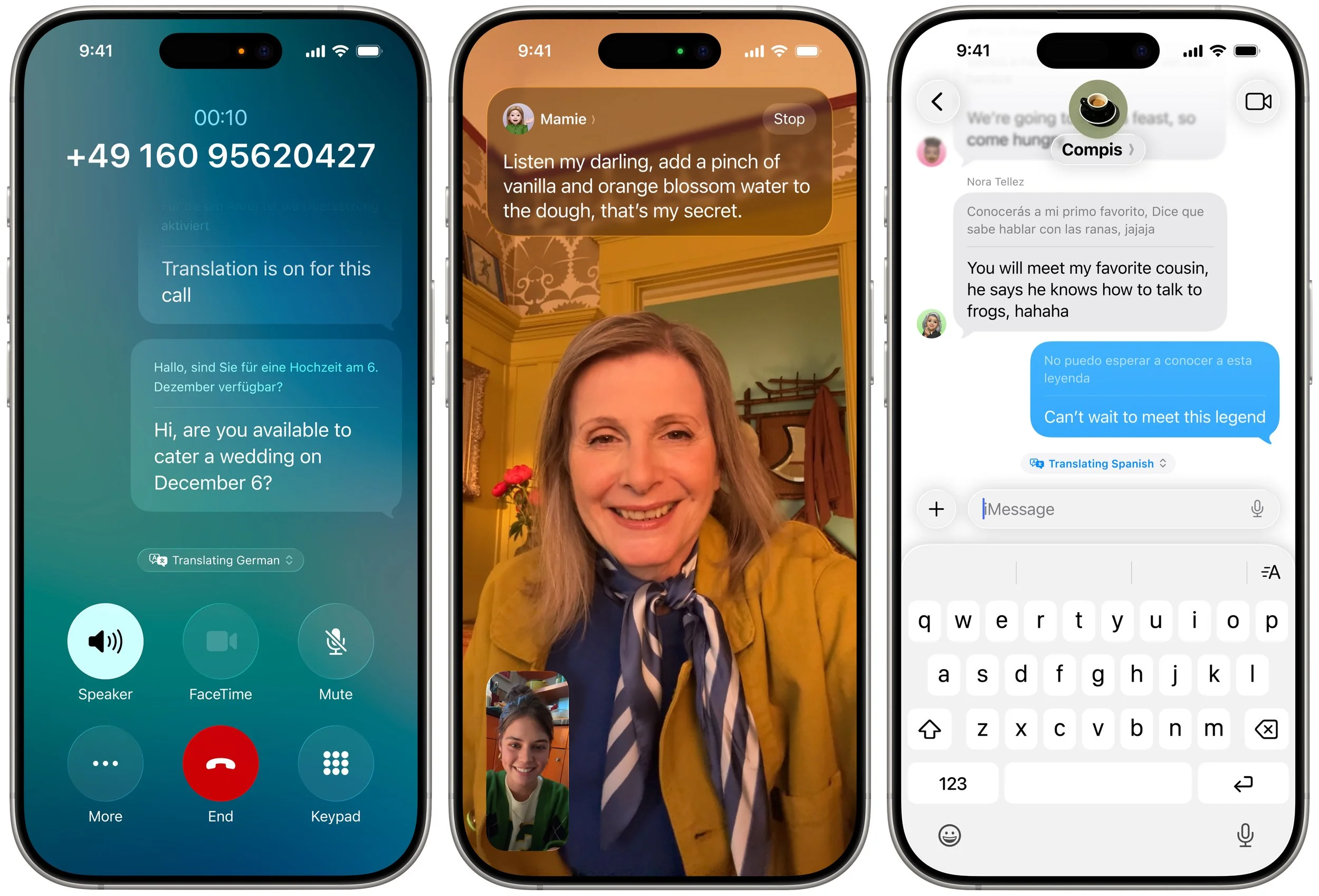
Perhaps the most significant additional feature driven by Apple Intelligence in the new operating systems is Live Translation. It’s integrated into the Phone, FaceTime, and Messages apps. In the Phone app, you get spoken translations between supported languages. In FaceTime, you see the other person’s translated text as a caption, and Messages translates their text. Live Translations may prove to be a lifesaver on your next international trip.
Spotlight Gains Enhanced Capabilities
Whenever you do a search on the Mac, you’re using Spotlight. It can also search within apps like Contacts and Calendar, access various online sources, open documents, launch apps, and more. Despite that, Spotlight has paled in comparison to launchers like Alfred, LaunchBar, and Raycast. No more.
In Apple’s new operating systems, Spotlight will enable users to perform hundreds of actions across various apps. It will also be capable of understanding what you’re working on and suggesting relevant files, apps, or actions. For instance, you’ll be able to start a timer, create calendar events, generate a new email message with pre-filled fields, play a podcast episode, and more.

Spotlight also introduces the concept of “quick keys,” which are short, custom mnemonics for specific actions. For instance, you might type sm to trigger Spotlight to send a message or ar to add a reminder.
In addition, Spotlight becomes a clipboard manager, providing access to recently copied items, including text, images, and links. You can browse, search, and insert previous clipboard entries directly through Spotlight.
Phone App Introduces Call Screening and Hold Assist
Phone calls may not be the primary use of the iPhone for many people, but they remain a fact of life. With iOS 26, Apple has introduced two features that, if they work as promised, will alleviate two common pain points associated with calls.
Call Screening builds on the Live Voicemail feature by automatically answering calls from unknown numbers, without even alerting you. Once the caller provides their name and the reason for their call, the Phone app rings and presents information to help you decide whether to answer.
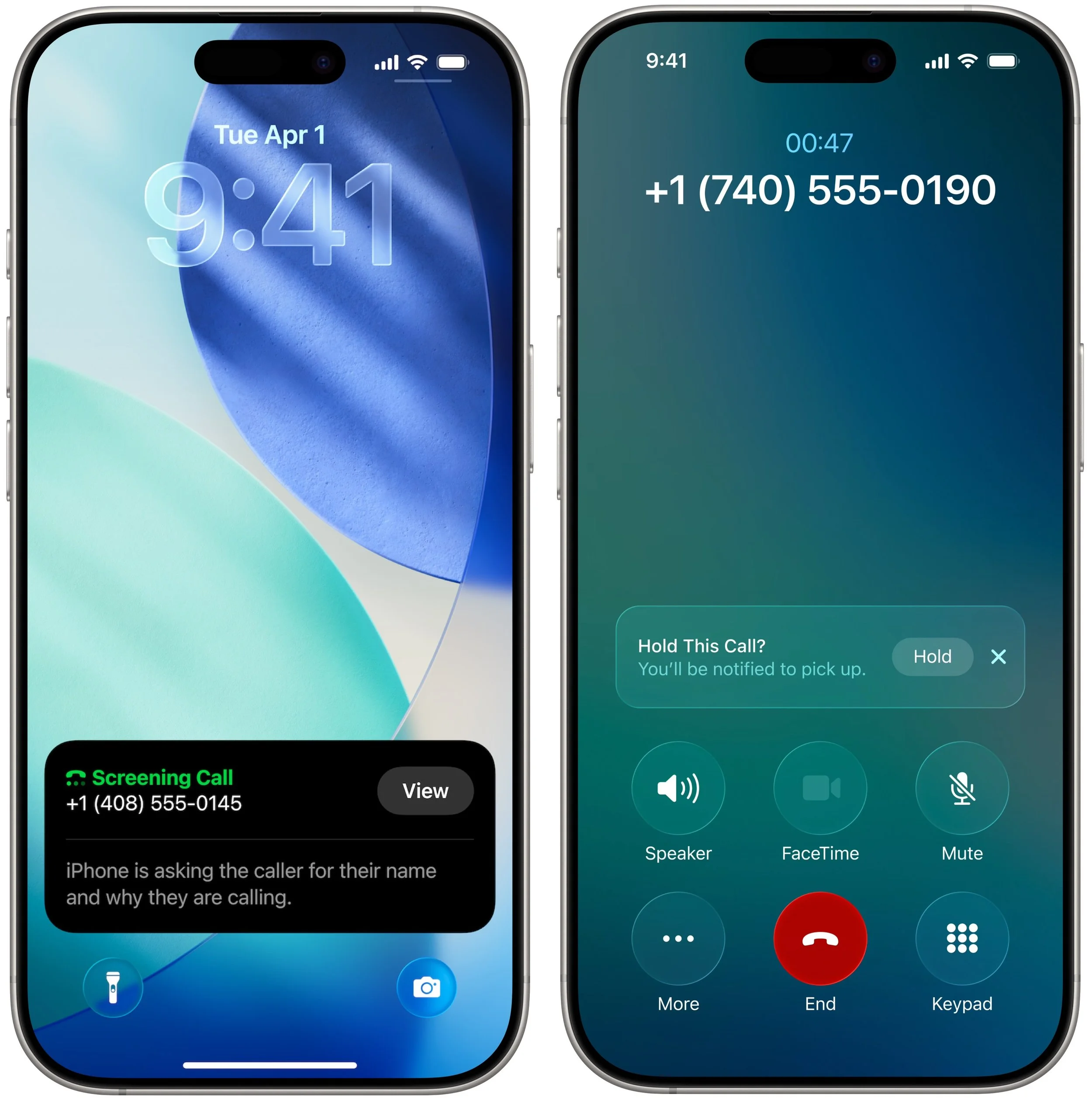
The other new feature is Hold Assist, which automatically detects hold music and asks if you want it to wait on hold for you, allowing you to attend to other tasks. When someone on the other end picks up, it informs them that you’ll be there shortly and notifies you that it’s time to return to the call.
Although we think of using the Phone app exclusively on the iPhone, Apple is also bringing it to macOS 26 and iPadOS 26, thanks to Continuity. Once you upgrade, you’ll be able to take advantage of these features—and Live Translation—on those platforms as well.
Dismiss Notifications with the Flick of a Wrist
Finally, watchOS 26 introduces a new gesture that we believe will be popular: the wrist flick. Whenever a notification appears on screen, you can quickly rotate your wrist away from you to dismiss it. This feature is a great little addition to the Apple Watch interaction model.

If none of these changes seem earthshaking to you, we agree. With six operating systems and billions of users, Apple can’t move as quickly as smaller companies. While Liquid Glass will dramatically change the look of our Apple devices, the other new features shouldn't require us to learn completely new methods of interaction.
(Featured image by Apple)
Why Passkeys Are Better than Passwords (And How to Use Them)
Passkeys are finally gaining mainstream traction, with support from Apple, Google, Microsoft, and numerous major websites. Find out why they’re more secure than passwords and how to start using them.

No one likes passwords. Users find managing them annoying, and website managers worry about login credentials being stolen in a data breach. The industry has developed a better solution: passkeys.
Passwords versus Passkeys
Traditional multi-factor authentication involves three methods of authentication, at least two of which are required for protection. They include something you know (a password), something you have (usually a code from an authenticator app or text message), and something you are (biometric authentication). Most systems primarily use the first two, but that leaves room for attack because someone could acquire your password and an authentication code through nefarious means.
Passkeys change the model. Instead of how passwords and codes use words and numbers that can be copied and shared, passkeys are pairs of cryptographic keys: a public key and a private key. Websites keep the public key, and the private key is stored securely within an encrypted vault, such as in iCloud Keychain or a 1Password vault. Authenticating with a website requires providing the private key that matches the account’s public key, something that Apple users with modern devices can usually initiate with Touch ID or Face ID.
Instead of generating security with something you have and something you know, passkeys rely on possession (do you have the device?) and presence (are you physically in front of the device?). This approach is fundamentally more secure than passwords because the private key can’t be phished, copied, or used remotely, and you must be physically present to unlock your device. Nor can you be tricked into providing a passkey to a malicious website. (Neither approach protects against physical coercion.)
Where Can You Use Passkeys?
In practice, since you use passkeys primarily to sign into websites, passkeys are stored alongside account details in your password manager. For Apple users, Safari (in iOS 16 or macOS 13 Ventura and later) with Apple’s Passwords app provides the most integrated passkey experience. However, most independent password managers, such as 1Password, Bitwarden, and Dashlane, also enable you to store, share, and enter passkeys and can take over for or work alongside Apple’s Passwords. They provide consistent passkey functionality across all major Web browsers, although experiences may vary slightly due to differences in how they handle authentication prompts and platform integration.
You’ll also find robust support in the Password Manager built into Google Chrome and other Chromium-based browsers, including Arc, Brave, Edge, Opera, and Vivaldi. Firefox’s native passkey support is more limited, but third-party password managers work well with Firefox.
Although website support for passkeys was initially slow, an increasing number of sites now support them. That includes the big three of Apple, Google, and Microsoft, of course, as well as Amazon, Best Buy, Discord, eBay, GitHub, Intuit, Netflix, Notion, PayPal, Robinhood, Stripe, Target, Walmart, and WhatsApp.
Setting Up Passkeys
The process of setting up passkeys varies a little by website, but is generally remarkably easy. You may be prompted to create a passkey while signing in, or you may need to navigate to the security options associated with your account.
Google offers both approaches. Setting up a passkey for a Google Account can be as simple as agreeing to do so while logging in. If you’re already logged in, Google’s Passkeys and security keys page lets you make one. Once you click Create a Passkey, you’ll be prompted to save it in either Apple’s Passwords or another password manager like 1Password. That’s it.
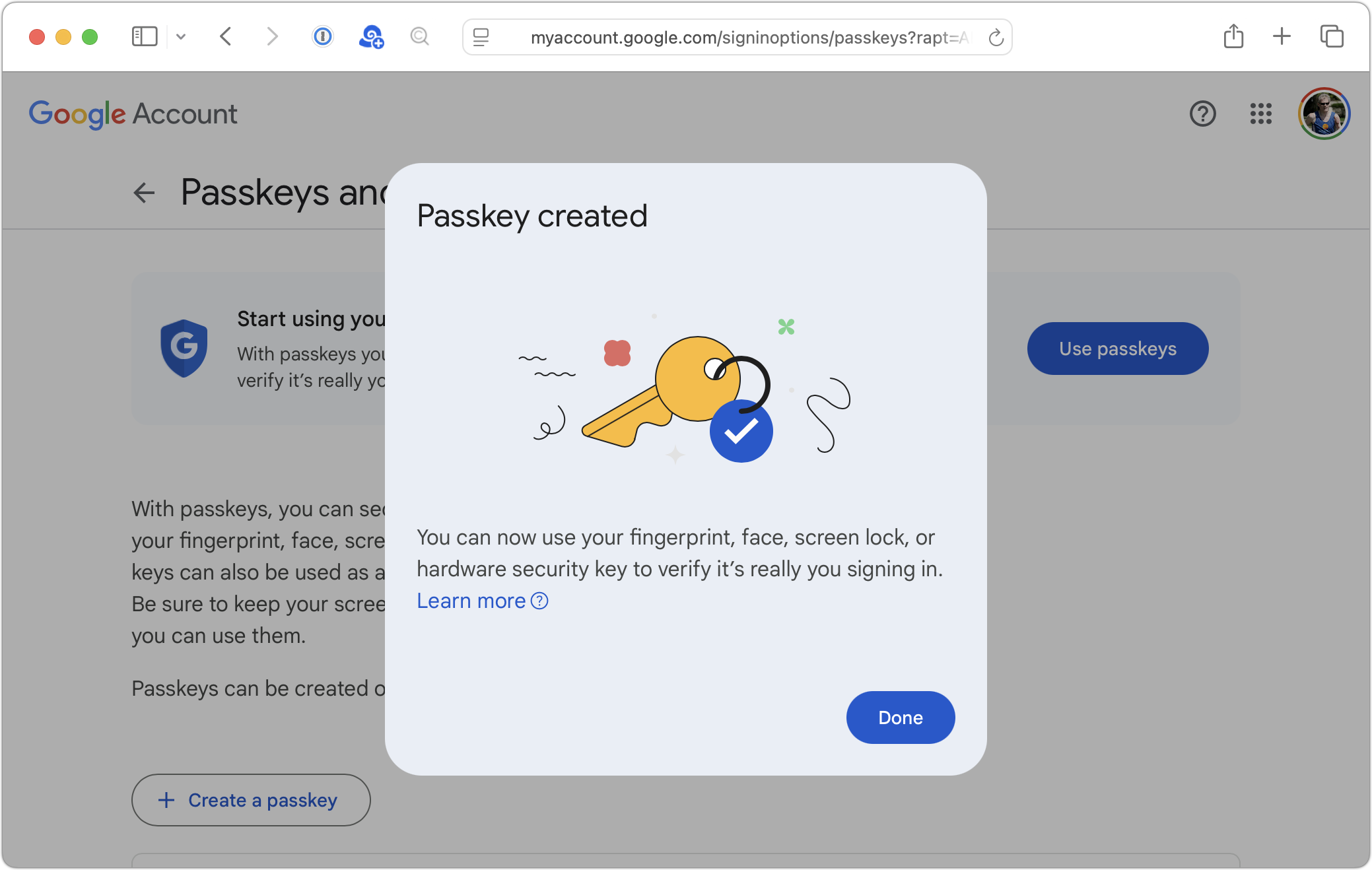
Note that if you use both Passwords and another password manager, you can save the passkey in only one, and only that one can use it to sign in later. However, most sites that support passkeys let you add multiple passkeys, so you could save separate passkeys in different password managers.
Signing in with Passkeys
Similarly, using a passkey to sign in is trivially simple. You navigate to the website’s login page, enter your username, choose the passkey sign-in option if necessary, and then authenticate.
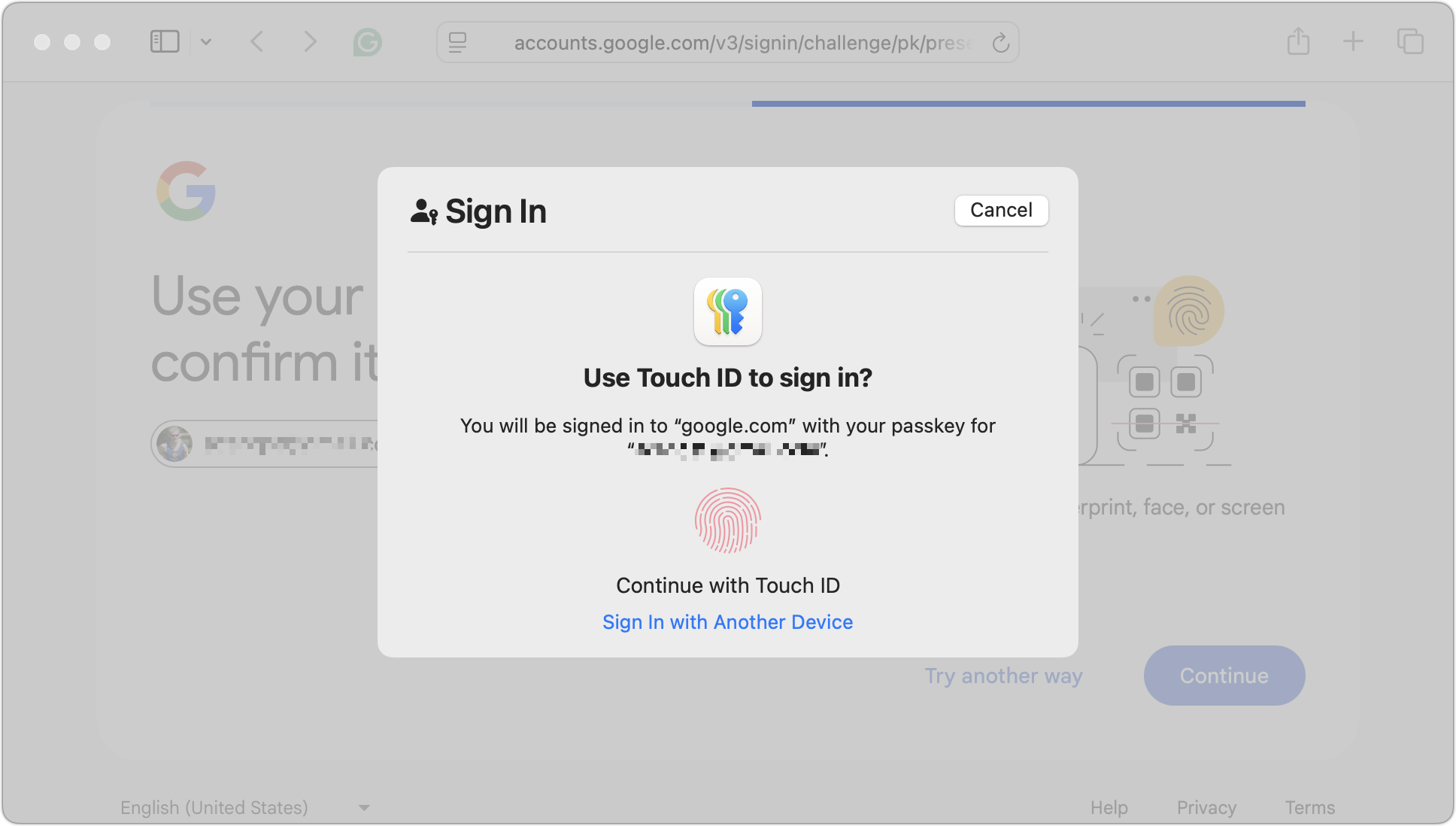
Exactly how you authenticate depends on the device you’re using and your password manager. On the Mac, Passwords will ask you to use Touch ID if available (above) or a dialog otherwise (below, left). 1Password, once unlocked for the session, presents a dialog with a Sign In button (below right).

On the iPhone and iPad, an authentication dialog appears at the bottom of the screen asking if you want to sign in with your passkey. Tap Continue and authenticate with Face ID or Touch ID (with a fallback to your passcode if necessary).
Unsurprisingly, Apple makes it particularly easy to sign in to Apple websites like iCloud.com using a passkey. As soon as you navigate to such a site in Safari, the device prompts you to sign in using your current Apple Account username and an implicit passkey.
When using other browsers or another Mac that lacks access to your passkey, selecting the passkey sign-in option displays a QR code that you need to scan with an iPhone or iPad that has the passkey stored on it.
Managing and Sharing Passkeys
As noted, passkeys are stored in accounts managed by a password manager. In fact, passkeys are currently stored alongside passwords in each account. There’s nothing to see or edit, although you can delete passkeys like any other data. Although deleting the passkey on your device guarantees that it can’t be used to sign in again, it’s best to also delete the passkey at the website where you created it to avoid confusion.
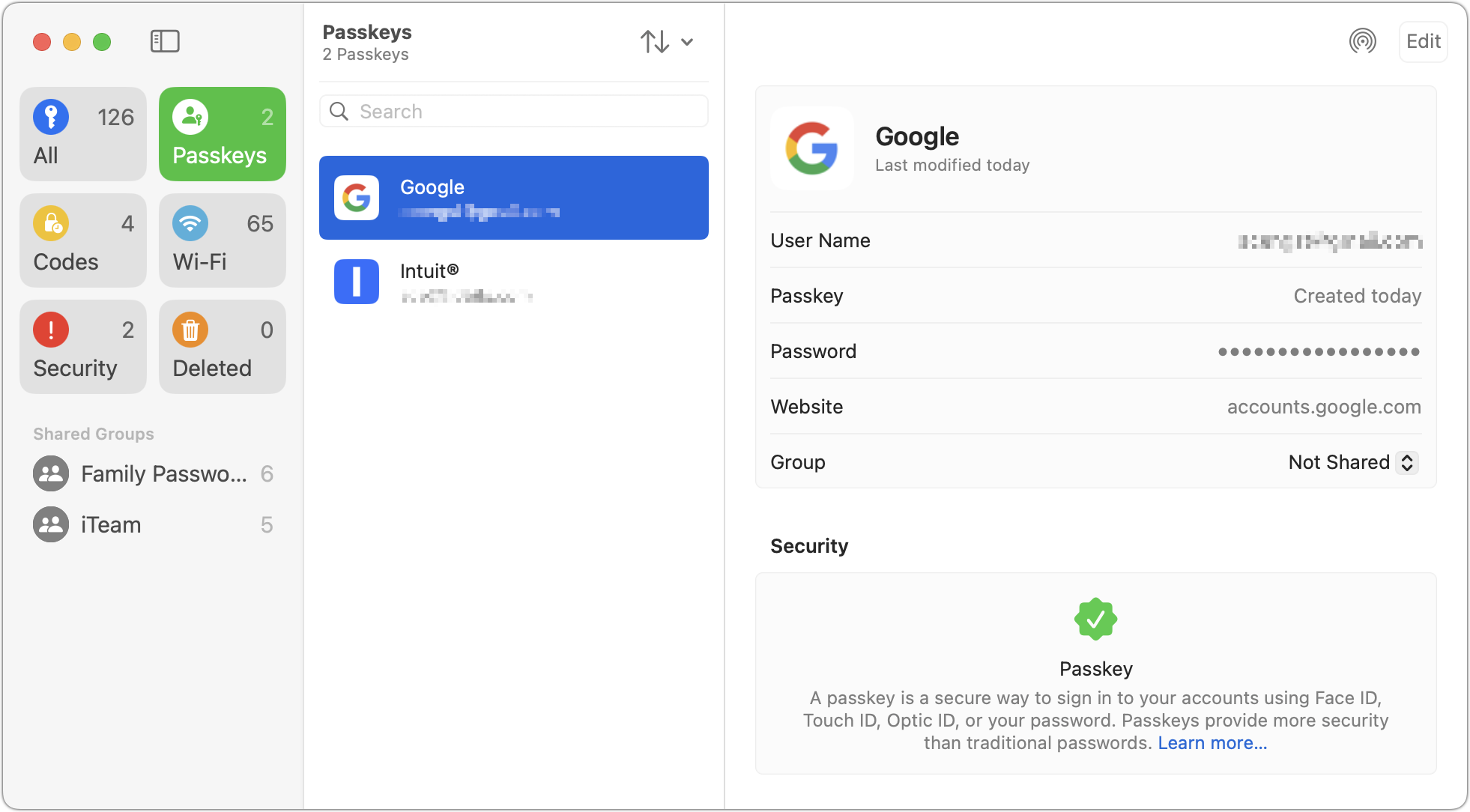
Passkeys are automatically synced among all your devices by the password manager so you can take advantage of them everywhere, but note that syncing is specific to just one password manager—for instance, iCloud Keychain doesn’t sync with 1Password or other third-party managers. The authentication method varies by device, but the overall experience remains the same.
You can also share passkeys with other people in your family or workgroup, just as you would with password-only accounts. They can log in to your passkey-protected accounts because they can prove possession (they have the passkey) and presence (they’re authenticating). In essence, you’re saying, “This person is authorized to act as the account holder.”
Passkey Concerns
Although passkeys are a big step forward in usability and security compared to passwords, they’re not without limitations or concerns, which have slowed adoption:
Account recoverability: Because passkeys are tied to devices, if a user loses all their devices and doesn’t have a cloud backup option (such as registering a new iPhone to an existing Apple Account or adding a new device to a 1Password account), it’s impossible to recover an account. This is primarily a concern for those who have only a single device and no one with whom to share.
Sharing hurdles: If you want to give someone else passkey access to an account—perhaps a shared bank account—you must log in on their device and then create an additional passkey that is stored on their device.
Lack of portability: Although passkeys can be synced between devices using the same platform (iCloud Keychain, 1Password account, etc.), there’s no way to export a passkey from one platform and import it into another. You have to recreate passkeys from scratch for each platform. Vendors are working on the problem, but as you can imagine, enabling export/import opens up security concerns.
User confusion: People are, understandably, still unfamiliar with passkeys, leading many to avoid them on principle. It hasn’t helped that using passkeys is slightly different on every website. The industry is working to standardize the user experience, but we’re not there yet.
Passwords still exist: No major websites allow passkey-only accounts. Since all accounts still have passwords that can be stolen, passkeys aren’t increasing security nearly as much as they could.
Enterprise support: Large organizations want to know if a passkey was generated on a secure device, if it can be revoked or rotated, and if the user employing the passkey has truly been verified. Support for these requirements is still evolving.
Digital inheritance: When passkey-only accounts become commonplace in the future, passkeys may be more challenging to manage in situations involving the user’s death. For now, the solution is to share passkey-protected accounts with family members in advance using a password manager. The industry would do well to establish standards around this inevitability.
Nonetheless, the perfect shouldn’t be the enemy of the good. Passkeys improve on passwords in both usability and security, and the best way to get to an easier, more secure future is to start using passkeys wherever possible today.
(Featured image by iStock.com/tanit boonruen)
Why Every Business Needs an AI Policy
Shadow AI is commonplace in workplaces, with half of employees using unauthorized AI tools and many sharing sensitive data. Learn why your business needs a formal AI policy to harness the benefits of AI while safeguarding against its significant risks.

Are employees at your company surreptitiously using artificial intelligence tools like ChatGPT, Claude, Copilot, and Gemini for everyday business tasks? It’s likely. An October 2024 Software AG study found that half of all employees use “shadow AI” tools to enhance their productivity, and most would continue using them even if explicitly banned by their employer.
Increased productivity is a good thing, but unsanctioned and unregulated AI use poses risks. A February 2025 TELUS Digital survey found that 57% of enterprise employees admit to entering high-risk information into publicly available chatbots. This includes personal data about employees or customers, product or project details, and confidential financial information like revenues, profit margins, budgets, and forecasts.
A clear AI policy will help a business minimize the risks of using AI tools. These risks include leaks of confidential information, compliance failures, accidental copy-right violations, and reputational damage. As AI becomes a routine part of knowledge work, every business—even small firms—must establish an AI policy to maximize the benefits of using AI while safeguarding the company, its employees, and its clients.
Risks Addressed by a Formal AI Policy
Unauthorized AI use can create several types of problems:
Data security: Employees routinely paste sensitive data—including customer information, financial records, and unreleased products—into public AI tools, thereby losing control over how that data is used. That can make security audits nearly impossible and drive IT staff crazy. Notably, the free versions of ChatGPT (by default, it can be turned off) and Google’s Gemini can incorporate user data into their training models, making it possible that the information could be included in a discussion with someone else.
Legal and compliance risks: Sharing protected information with noncompliant AI systems could result in penalties during regulatory audits, even if no actual data breach or harm occurs. For instance, using such systems to summarize patient records could violate HIPAA, while using them to analyze customer data could run afoul of the California Consumer Privacy Act (CCPA).
Unintentional discrimination: Without clear guidelines, the use of AI can lead to unintentional discrimination in hiring, customer service, and decision-making. This may violate ethical standards and expose the company to legal liability.
Employee confusion: The lack of a coherent AI policy leads to inconsistent practices and uncertainty about acceptable tools and proper procedures, resulting in reduced productivity and increased anxiety about AI use.
Essential Elements of an AI Policy
The specifics of an AI policy vary by the type and size of company, but at minimum, most AI policies should include the following:
Permitted AI uses and tools: Clear guidelines on the types of tasks employees may undertake with AI assistance and a list of approved AI platforms for business activities
Data privacy and legal compliance: Rules for safeguarding confidential, personal, and proprietary information when using AI, coupled with rules that ensure adherence to relevant industry-specific regulations and privacy laws
Human oversight and transparency: Requirements that employees thoroughly review AI-generated content before use and disclose AI involvement when appropriate in client-facing or public materials
Risk reporting and incident response: Clear instructions for reporting AI-related errors, security incidents, or potential misuses
Ownership and intellectual property clarifications: Statements affirming that work products created with AI assistance belong to the company. These statements should also address any intellectual property considerations.
Building Your AI Policy
If your company doesn’t already have an established process for generating policies, AI tools can themselves provide a starting point when used thoughtfully. Here’s an approach:
Prompt an AI tool like ChatGPT or Claude to generate a basic AI policy template. Be explicit about your company’s size, industry, and other relevant details, and be sure to specify that it must cover the elements listed above—you can paste them in. Iterate as necessary until the template has all the required sections.
Review the generated template carefully, removing generic content and noting areas that need company-specific details.
Ask for feedback on the draft from key stakeholders, including:
Leadership to align with company goals and values
IT team to verify technical feasibility and security measures
Legal counsel to ensure compliance with relevant regulations
Department heads to confirm that it will be practical to implement the policy
Incorporate the feedback to create a policy that reflects your company’s specific needs while maintaining necessary protections.
Remember: An AI-generated template is for starting the conversation. The final policy must be tailored to your organization’s specific needs and thoroughly vetted by relevant stakeholders.
The rise of AI tools in the workplace isn’t just a trend—it’s a fundamental shift in how work gets done. Whether your employees are already using AI tools without oversight or are hesitant to use them due to uncertainty, now is the time to establish a formal AI policy. Start with the template approach outlined above, engage your stakeholders, and develop guidelines that work for your organization. A well-crafted AI policy will help your business harness the benefits of AI while minimizing its risks.
(Featured image by iStock.com/girafchik123)
Consider Business Cyber Insurance
Cyber insurance can protect your business from crippling financial losses after a security breach. Learn what’s covered, what’s not, and how to shop for the right policy for your company.

When discussing digital security, we typically focus on preventive measures, such as using strong passwords with a password manager, enabling multi-factor authentication, keeping systems up to date, maintaining regular backups, and training employees to recognize potential security threats. While these practices are essential, they don't guarantee complete protection.
No one is immune to online attacks—the most security-conscious organizations and individuals can still become victims. Even security experts occasionally click something they shouldn’t have or forget to keep a little-used system up to date. A single employee opening a convincing phishing email, a momentary lapse in judgment, or a zero-day vulnerability can lead to devastating consequences.
According to the FBI’s Internet Crime Complaint Center (IC3), cybercrime-related losses from 2020 through 2024 are estimated at $50.5 billion, with IC3 receiving 4.2 million complaints. Most concerning is the rising trend in the frequency and severity of these attacks.

Given these statistics and the reality that perfect security is impossible, many are looking to protect themselves from possible financial losses. Just as fires and accidents make home and auto insurance necessary, these ever-increasing threats from phishing, malware, and other forms of digital attack make cyber insurance an important consideration for both companies and individuals. We’ll focus on businesses here and explore personal cyber insurance in a future article.
What Is Business Cyber Insurance
Cyber insurance for businesses helps companies recover from security breaches and online attacks. Unlike traditional business insurance policies, cyber insurance focuses on the risks of using technology to operate or to store sensitive data online. Businesses of all sizes are vulnerable, but small and medium-sized businesses are often targeted because they lack the robust security infrastructure of larger enterprises.
Industries that are especially at risk include healthcare, financial services, retail, and professional services, but no sector is immune. You may have cause for additional concern if your company collects customer information, processes payments, or maintains a significant online presence, but realistically, every business that uses email or conducts online banking is vulnerable.
What’s Covered
A business cyber policy typically includes two core types of coverage:
First-party coverage: This coverage responds to direct costs incurred by your company, including legal expenses, data breach response and notification costs, ransomware payments and recovery expenses, business interruption losses, data restoration, system replacement, and crisis management.
Third-party coverage: Also known as liability insurance, this coverage protects you against claims from others affected by the breach, including legal defense costs, settlements, regulatory fines and penalties, and PCI-related fines associated with credit card processing.
What’s Not Covered
However, it’s essential to be aware of common exclusions to business cyber insurance, the most important of which are:
Weak security processes: Insurance doesn’t exempt you from maintaining a strong security stance—if you aren’t requiring strong passwords, providing security training, and correcting known vulnerabilities, the policy won’t cover you. Insurers will likely require verification of minimum cybersecurity practices before providing coverage.
Prior breaches: Just as health insurance may not cover pre-existing conditions, cyber insurance typically does not cover events that occurred before the policy was taken out.
Insider attacks or misconduct: Deliberate or fraudulent acts by company leadership or employees generally aren’t covered. Employees are a company’s greatest resource, but they can also be its greatest weakness.
Shopping for Business Cyber Insurance
How much will business cyber insurance cost? It varies based on your company size and revenue, industry sector, type and amount of sensitive data stored, security practices, coverage limits and deductibles, and claims history. That said, small businesses with yearly revenues under $1 million typically have annual premiums ranging from $500 to $2,000. Mid-sized firms often pay between $2,000 and $10,000, and large companies can expect premiums in the tens of thousands.
It’s common—and entirely understandable—to hesitate to purchase cyber insurance due to concerns about the cost. However, the potential financial impact of an incident is often significant. IBM’s 2024 Cost of Data Breach Report found that the average cost of a data breach was $4.9 million globally, but $9.4 million in the United States. Although IBM doesn’t break out costs by company size, those costs are likely for larger companies. Nonetheless, a Financial Times report notes that users at small and medium-sized businesses were twice as likely to encounter threats as those at large companies.
Choosing the right cyber insurance broker is as important as selecting the policy itself, and you’ll want to involve your security team in the search. Look for someone specializing in cyber coverage who has technical expertise in cybersecurity practices, strong relationships with underwriters, and a track record of providing active claims support. A good broker will not only find competitive pricing but also help tailor coverage to your specific risks and ensure you’re prepared to meet underwriting requirements.
When comparing cyber insurance options, pay attention to the details. Confirm that the policy addresses risks specific to your situation and provides sufficient financial protection for your potential exposure. Pay close attention to exclusions—there will be more than those listed above. Research the insurer’s claims process and reputation for responsiveness, as timely support during an incident is crucial. Finally, inquire about additional risk management services offered by the insurer that may provide valuable preventative resources to complement your coverage.
Start Researching Cyber Insurance Now
Unfortunately, the frequency and risk of cyber attacks are on the rise. Proactive security measures are key, but a single mistake or oversight could have dire outcomes. Cyber insurance provides an important safety net in the event of a breach or attack that evades your best efforts.
We won’t pretend that finding and purchasing cyber insurance is simple, but we can help with finding a good cyber insurance broker, evaluating the policy, answering application questions, and ensuring that your company meets the necessary security requirements.
(Featured image by iStock.com/Who_I_am)