
Apple Unveils New iPhone 17 Lineup, Updated Apple Watches, and AirPods Pro 3
Apple’s September harvest brings the new iPhone 17 lineup and the iPhone Air, three new Apple Watch models, and the AirPods Pro 3, plus release dates for iOS 26 and macOS 26 Tahoe. Get the details and our upgrade advice.
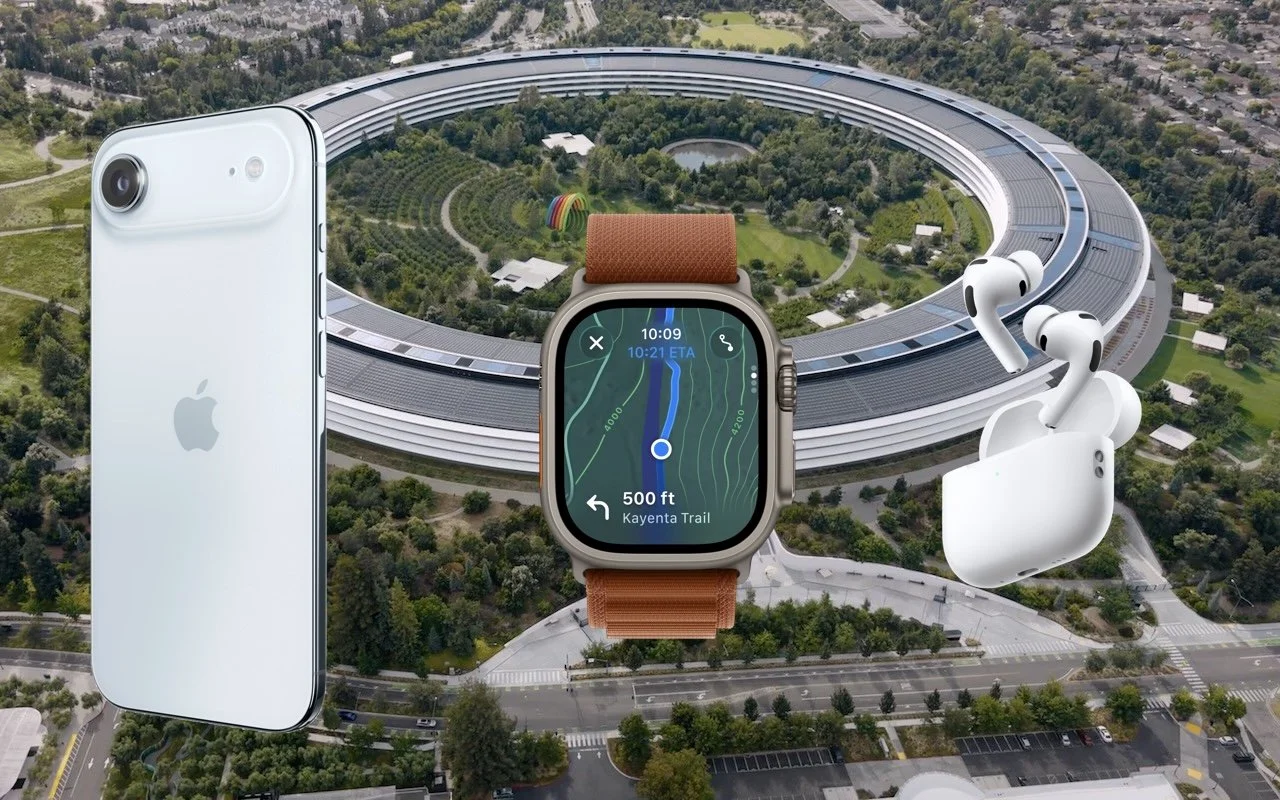
In the tech world, September brings the fruits of Apple’s harvest: new iPhones, Apple Watches, and AirPods. At its recent Awe Dropping event, Apple introduced the new iPhone 17 lineup, the ultra-thin iPhone Air, the Apple Watch SE 3, Apple Watch Series 11, Apple Watch Ultra 3, and the AirPods Pro 3.
These are updates to mature product lines, so the changes from last year’s versions may not be enough to persuade you to upgrade. However, this year’s releases are attractive for anyone wanting to replace an old iPhone, Apple Watch, or set of AirPods that is showing its age or suffering from weak battery life. Pre-ordered products will be delivered and become available in stores on September 19.
After the announcement, Apple revealed on its website that all its next-generation operating systems—macOS 26 Tahoe, iOS 26, iPadOS 26, watchOS 26, and visionOS 26, and likely tvOS 26 and HomePod Software 26—will ship on September 15. Wait a week or two before upgrading essential devices to avoid any last-minute bugs, and hold off on Tahoe for a few months or until you’re confident your necessary Mac apps are compatible. Regardless of when you upgrade, make a backup right before, in case an unexpected problem forces you to erase and restore.
Let’s look at the new products.
iPhone Air and iPhone 17 Lineup
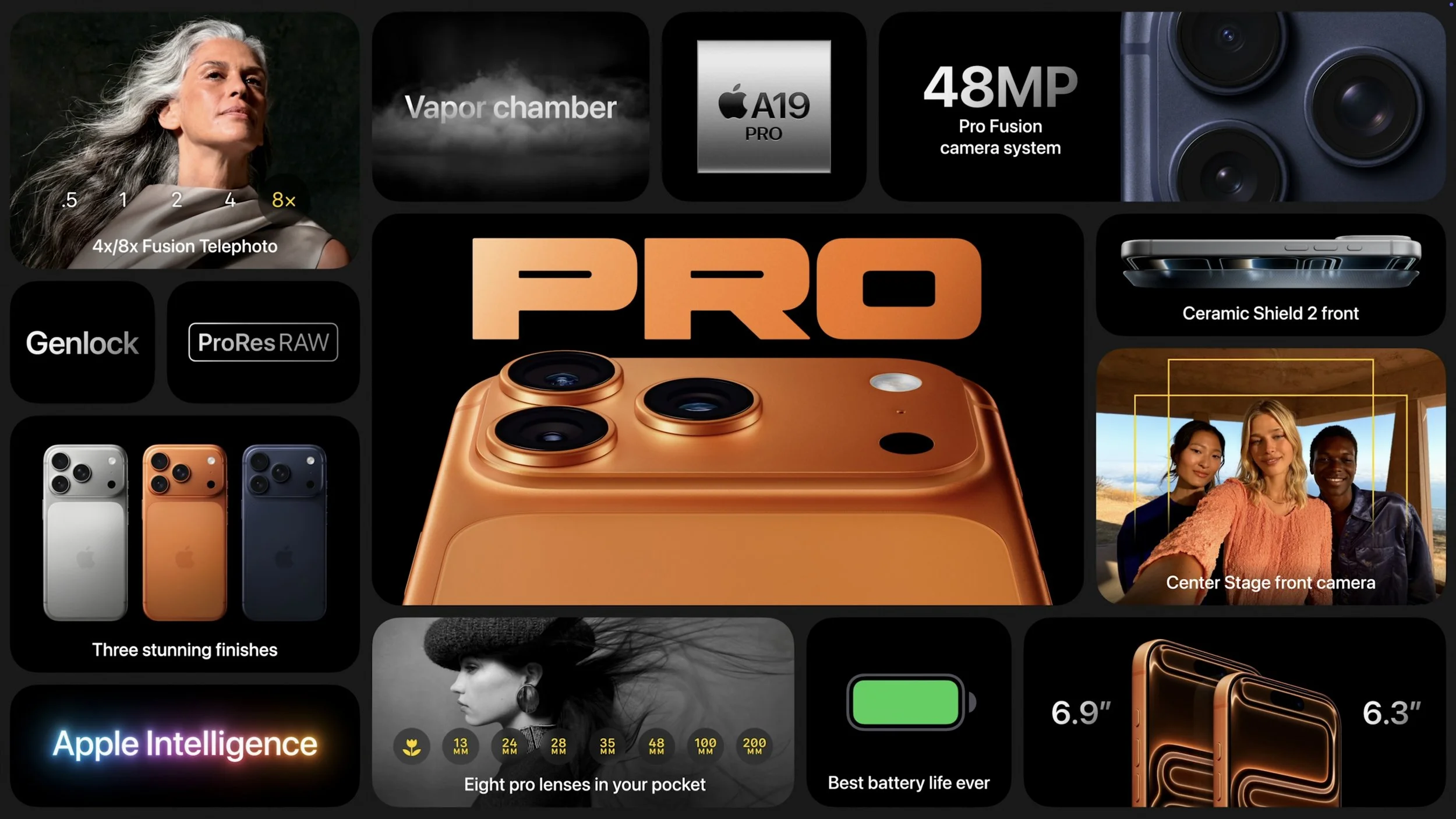
As with the last few years, the best bang for your iPhone buck comes from the new iPhone 17, which gains even more features previously exclusive to the Pro models and is available in black, white, mist blue, sage, and lavender. Apple replaced the Plus model with the ultra-thin iPhone Air, available in space black, cloud white, light gold, and sky blue. Lastly, the company enhanced the iPhone 17 Pro and iPhone 17 Pro Max to make them even more compelling to professional photographers and videographers. These models come in three anodized aluminum colors: silver, deep blue, and cosmic orange.
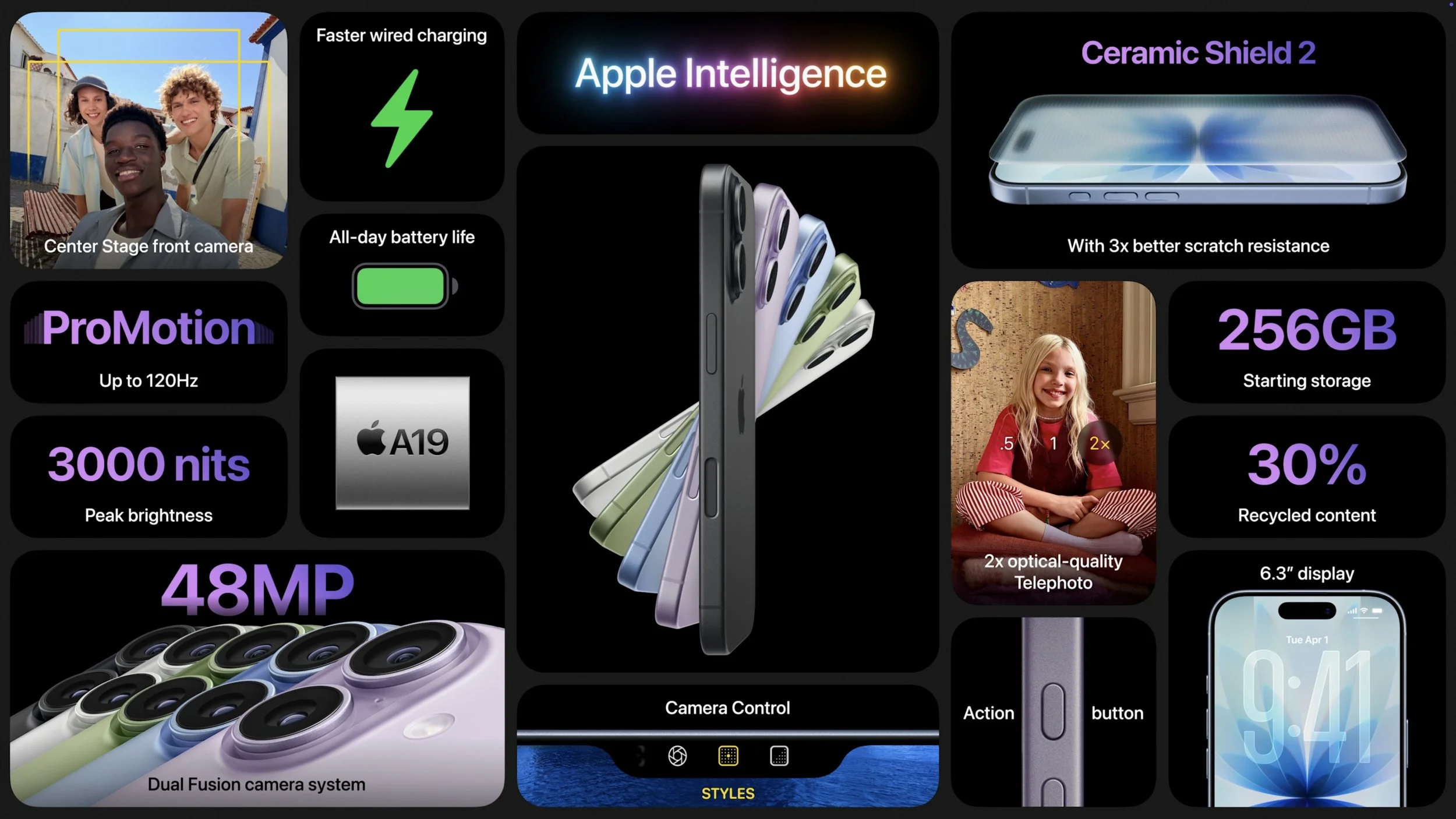
Notable features shared by all the new models include:
Center Stage front camera: Powered by a new square sensor, the new selfie camera automatically reframes shots to keep multiple people in view without rotating the phone. The 18-megapixel sensor also promises higher-resolution photos and stabilized video. You can even now record video using both the front and rear cameras at the same time.
A19 and A19 Pro: The latest generation of Apple silicon boosts CPU and GPU performance, with the A19 Pro adding neural accelerators to each GPU core for faster AI processing. The A19 powers the iPhone 17 and iPhone Air; the iPhone 17 Pro models rely on the A19 Pro.
Enhanced scratch and crack resistance: Apple made much of its new Ceramic Shield 2 coating, which reportedly provides three times better scratch resistance for the front glass. The iPhone Air and iPhone 17 Pro models also feature Ceramic Shield 2 for the back glass, where Apple says it’s four times more resistant to cracks.
Better battery life: All the iPhone 17 models have improved battery life compared to last year’s models, and although the iPhone Air has less internal space for the battery, it still offers the same battery life as last year’s iPhone 16 Plus.
Brighter displays: All models now support 3000 nits of brightness outdoors, making them easier to read in sunlight.
More storage: 256 GB has become the new standard in storage levels. You can upgrade to 512 GB on the iPhone 17, choose 512 GB or 1 TB on the iPhone Air and iPhone 17 Pro models, and go up to 2 TB on the iPhone 17 Pro Max.
N1 wireless chip: All new models now rely on an Apple-designed N1 chip that provides Wi-Fi 7, Bluetooth 6, and Thread networking. You won’t notice this—wireless should just work.
More specifically, the iPhone 17 gains a new 6.3-inch display, up from the 6.1-inch screen in the iPhone 16. The display also supports ProMotion adaptive refresh rates up to 120 Hz and includes always-on functionality. Additionally, the display can scale its refresh rate down to 1 Hz to preserve battery life. The iPhone 17’s Dual Fusion camera system is also a significant upgrade from the previous generation, moving from a 12-megapixel Ultra Wide camera to a 48-megapixel Ultra Wide camera that delivers more detail in landscapes and macro photos.
Thanks to a titanium frame, the iPhone Air measures just 5.6 mm thick, making it the thinnest iPhone ever. However, its 6.5-inch screen places it between the iPhone 17 and 17 Pro (6.3-inch) and the iPhone 17 Pro Max (6.9-inch) — it’s slim but not small. To make space for the internal components and battery, Apple replaced the traditional asymmetrical camera bump with a wider “plateau” that runs across the entire back of the iPhone Air. The biggest compromise in the iPhone Air, which may drive many potential buyers toward the iPhone 17 or 17 Pro, is the single 48-megapixel Fusion camera system, which lacks the Ultra Wide camera found in other models or the Telephoto camera in the iPhone 17 Pro. Its photos are likely fine, but they won’t match the quality of those taken with other iPhones if you want to zoom in or out. Lastly, the iPhone Air uses Apple’s new C1X cellular modem chip, which improves upon the C1 introduced in the iPhone 16e. We still don’t know how it compares to the Qualcomm chips in the iPhone 17 models.

The iPhone 17 Pro and Pro Max trade last year’s titanium frames for aluminum that provides better thermal conductivity with only a 7-gram weight gain. Heat dissipation was a focus this year, with Apple also adding a vapor chamber—that’s right, there’s water inside. All three of the iPhone 17 Pro’s Fusion cameras are now 48 megapixels, up from 12 megapixels for the Telephoto camera in last year’s models. You can now enjoy 4x optical-quality zoom with 48-megapixel shots and 8x optical-quality zoom with 12-megapixel images. Professionals will also appreciate ProRes RAW capture and Genlock synchronization support.
In terms of prices, the iPhone 17 starts at $799, the iPhone Air at $999, the iPhone 17 Pro at $1099, and the iPhone 17 Pro Max at $1199. If those prices are too steep for your budget, the iPhone 16e ($599), iPhone 16 ($699), and iPhone 16 Plus ($799) remain for sale.

Should you upgrade? Probably not from one of last year’s models or an iPhone 15 Pro, all of which support Apple Intelligence. With an older iPhone, the decision largely depends on whether you want a larger screen and a better camera (all three have the helpful Camera Control that debuted last year). Also consider how weak your current battery is—that’s often what prompts people to upgrade. You can’t go wrong with an iPhone 17, and even though the iPhone 17 Pro is pricey, you’ll get the best cameras and top performance. Even if it sacrifices some photo quality, the iPhone Air certainly makes a design statement.
Apple Watch SE 3, Apple Watch Series 11, Apple Watch Ultra 3
Last year saw only the release of the Apple Watch Series 10, featuring a thinner case and larger screen, while this year brings new models across all three Apple Watch lines: the Apple Watch SE 3, the Apple Watch Series 11, and the Apple Watch Ultra 3.
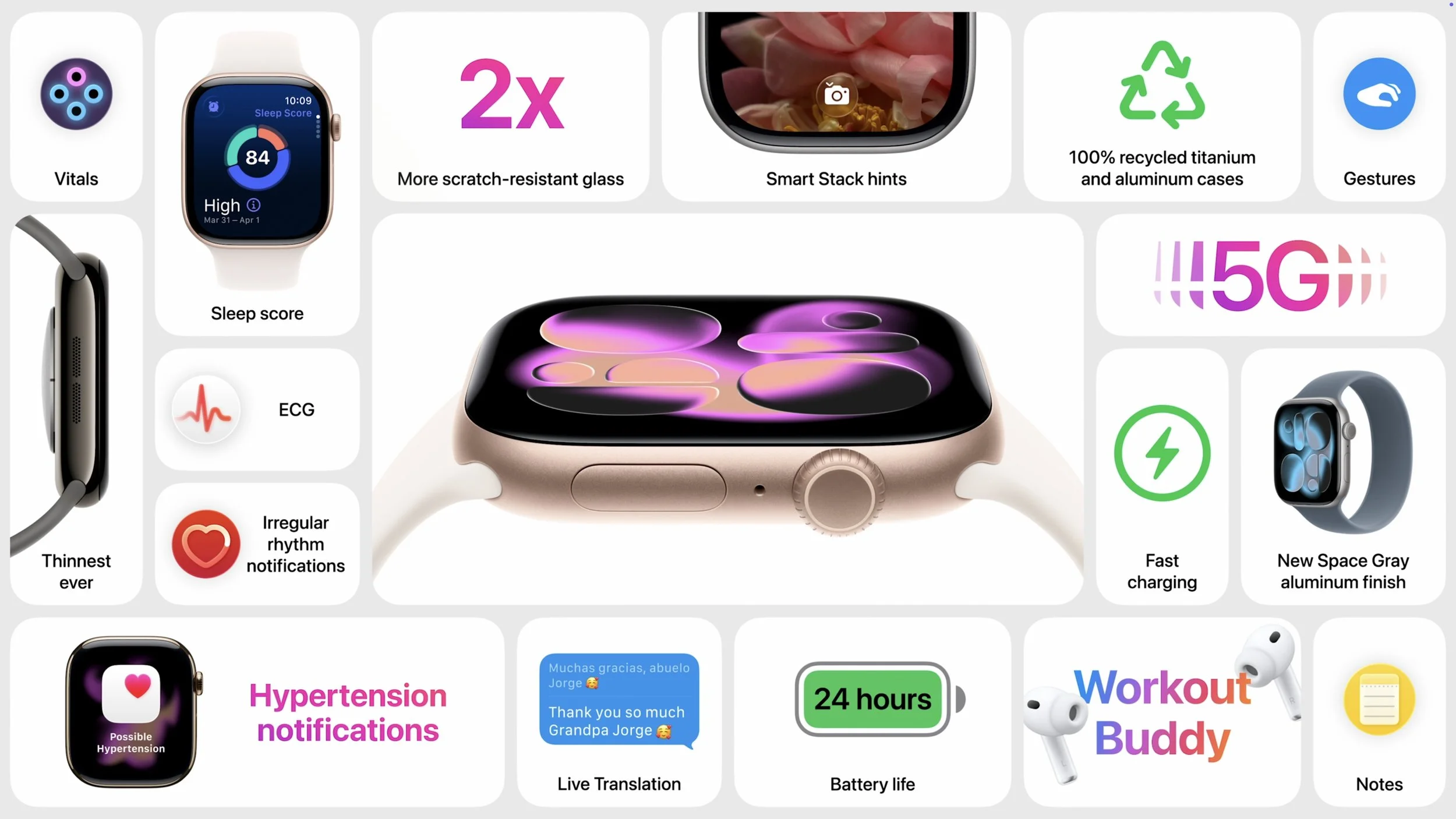
Apple Watch SE 3: The new entry-level model improves on its predecessor with a welcome always-on display. Its new S10 chip enables features like double-tap and wrist flick gestures, along with on-device Siri processing. It provides sleep apnea notifications, and the addition of temperature sensing allows cycle tracking. Fast charging and the ability to play media through the built-in speaker round out the major upgrades, along with 5G cellular capabilities for better connectivity. It’s available in midnight and starlight colors, starting at $249 (cellular adds $50). The Apple Watch SE 3 is a solid option with many fewer compromises than in the past, though it still lacks the ECG app, blood oxygen monitoring, and hypertension detection. It also has a smaller, less-bright display and a shorter battery life (18 versus 24 hours).
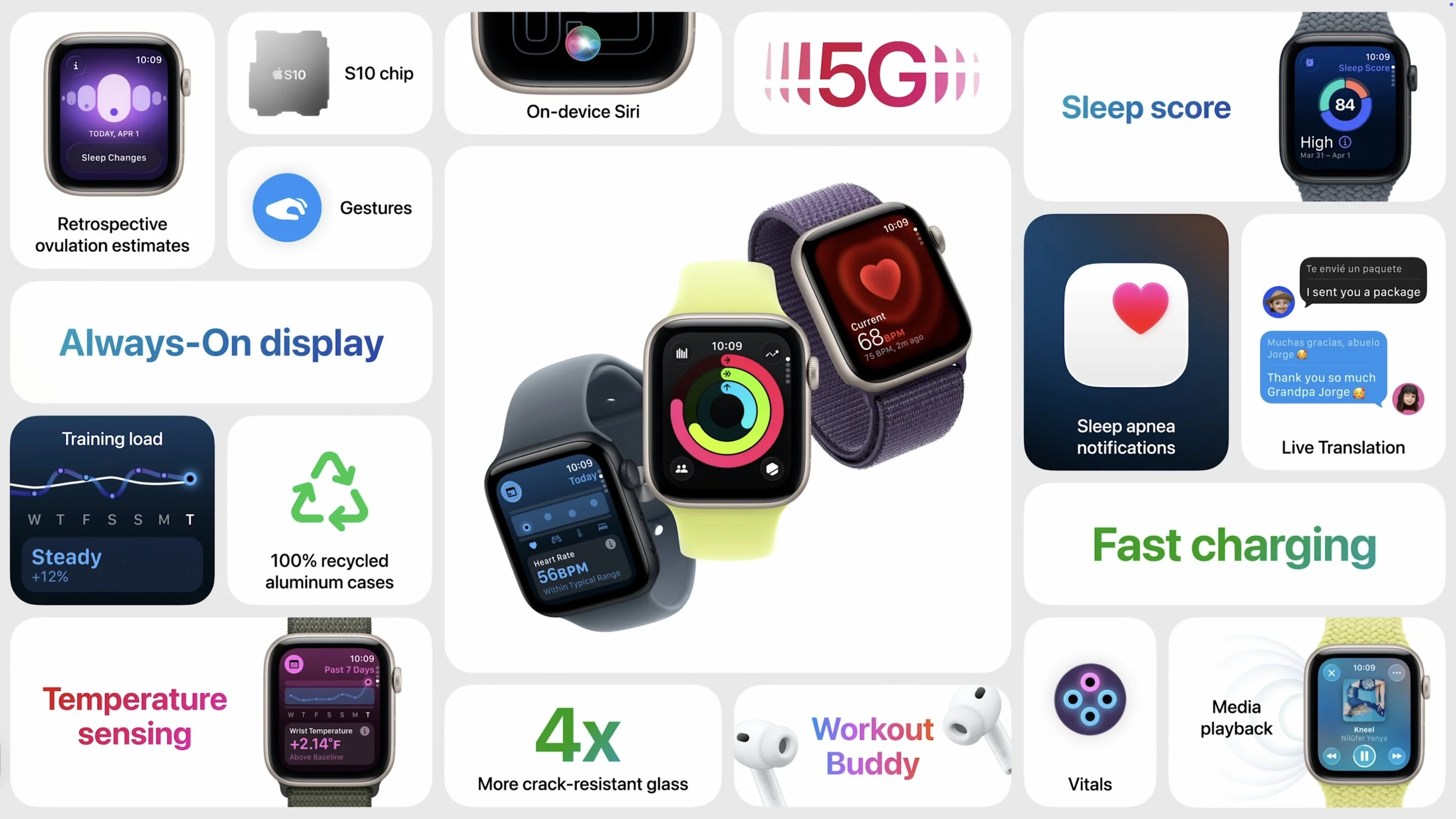
Apple Watch Series 11: There are few changes from last year’s Series 10. A new ceramic coating improves scratch resistance, and 5G connectivity for cellular-enabled models may provide better wireless performance with less battery drain. The battery life is now rated at up to 24 hours. Apple also touted the new hypertension detection and sleep score, but both are features of watchOS 26 and will be available on some earlier models as well. The Apple Watch Series 11 is available in aluminum (jet black, silver, rose gold, and space gray) and titanium (natural, gold, and slate) finishes starting at $399 (cellular adds $100).
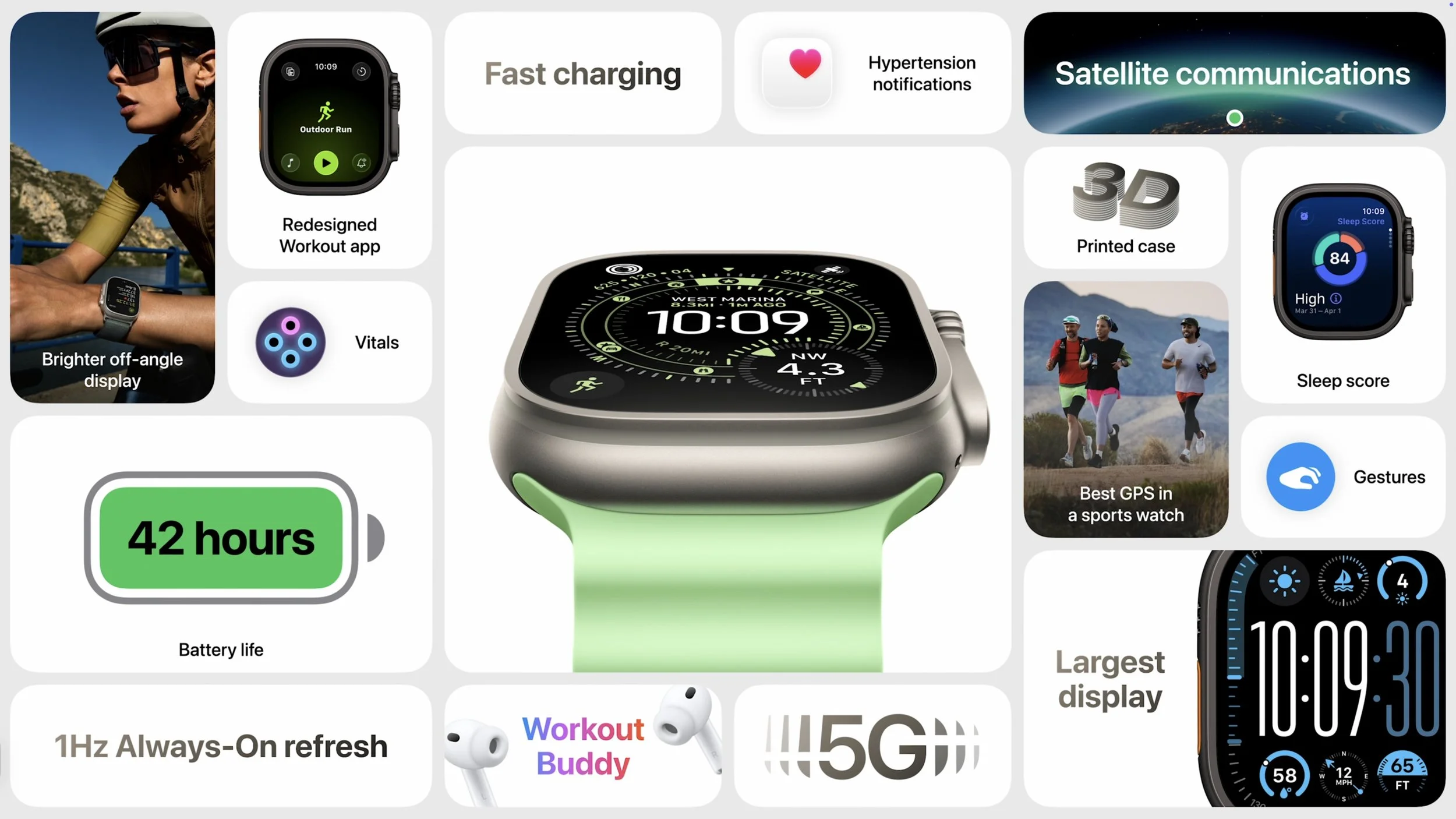
Apple Watch Ultra 3: The most technologically impressive change is support for Messages, Find My, and Emergency SOS via satellite, much like the iPhone 14 and later. There are caveats—you’ll need a cellular plan for Messages and Find My via satellite to work, and sending and receiving SMS/MMS messages requires a powered-on iPhone connected to the Internet, though it doesn’t need to be nearby. It also supports 5G cellular. Another enhancement is a larger display that’s easier to see at off angles and can refresh once per second to show a ticking seconds hand. It also offers up to 42 hours of battery life and up to 72 hours in Low Power Mode. The Apple Watch Ultra 3 is available in natural or black titanium, starting at $799.
It’s difficult to recommend upgrading from an Apple Watch Series 9 or Series 10—the Series 11 is just too similar. However, the Apple Watch SE 3 offers real-world improvements over previous Apple Watch SE models and may also be sufficient for many users upgrading from an old Series 4 or similar. The main reason to upgrade to the Apple Watch Ultra 3 is for satellite connectivity; if you frequently go off-grid, it might be worth trading in an older Apple Watch Ultra.
AirPods Pro 3
The smallest new product Apple announced might be one of the most popular: the upgraded AirPods Pro 3. Apple’s premium earbuds have gained many fans due to their excellent noise cancellation, which effectively blocks out sounds like airplane engines, construction machines, and more—they even let you enjoy loud concerts without worrying about your hearing.
The new AirPods Pro 3 feature an internal redesign and new foam-infused eartips to provide twice the noise cancellation of the AirPods Pro 2 and four times that of the original AirPods Pro. Apple also slightly reduced their size, improved stability, and now offers five sizes of eartips, all designed to make the AirPods Pro 3 more comfortable. Those who exercise with AirPods will appreciate the new IP57 sweat and water resistance, along with heart rate tracking during workouts. The AirPods Pro 3 can even detect your movements and automatically start up to 50 workout types in the Fitness app on your iPhone. Finally, Apple boosted battery life to 8 hours with noise cancellation active (up from 6 hours) and up to 10 hours in Transparency mode.
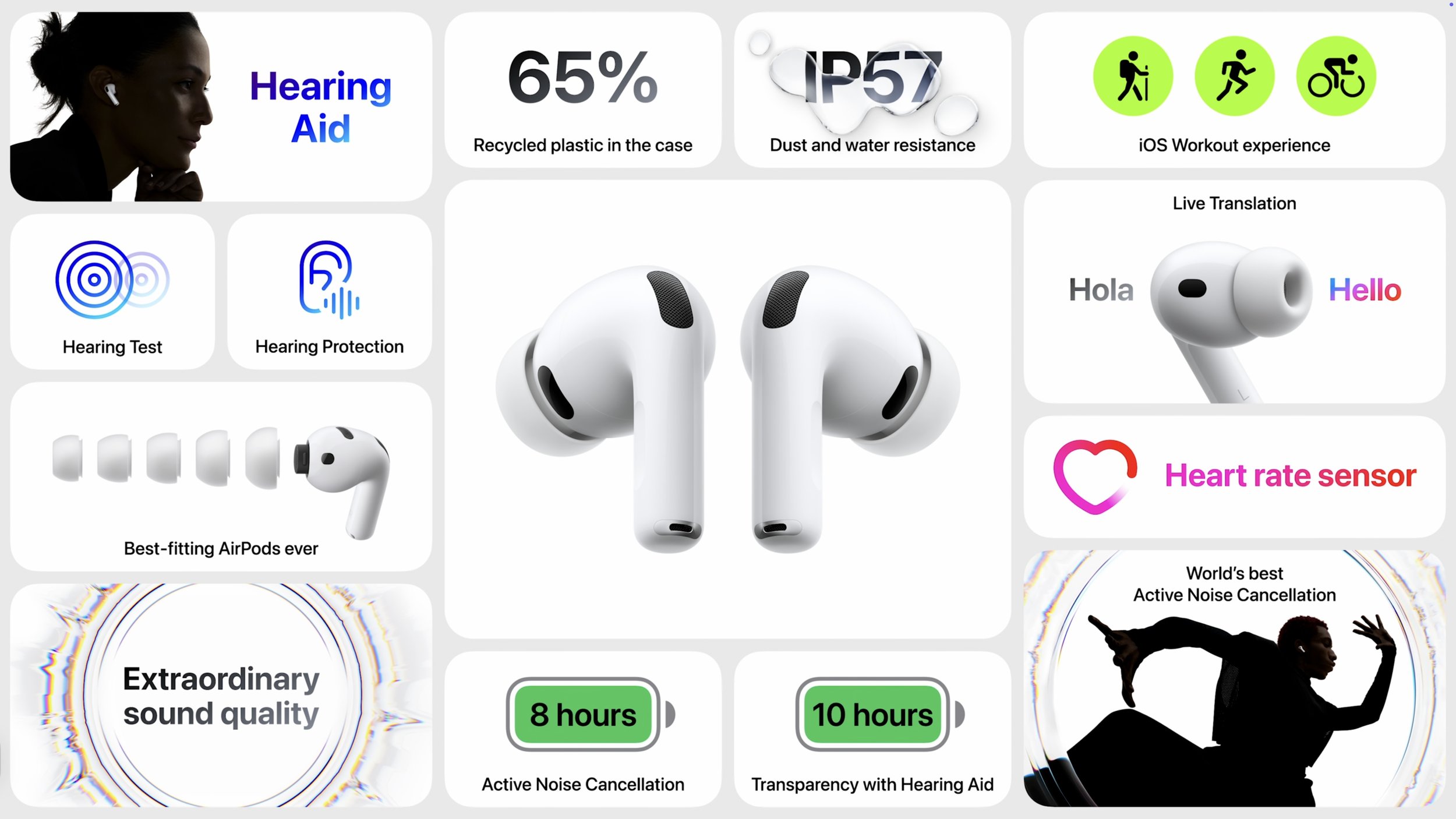
The most impressive AirPods demo during Apple’s event was Live Translation, which enables real-time translation of face-to-face conversations in English, French, German, Portuguese, and Spanish initially, with Italian, Japanese, Korean, and Chinese coming later this year. If the other person isn’t wearing supported AirPods, you can use your iPhone as a horizontal display to show your speech in their language. Live Translation is powered by computational audio on an Apple Intelligence-enabled iPhone running iOS 26, and it also works on the AirPods Pro 2 and AirPods 4 with Noise Cancellation.
The AirPods Pro 3 remain priced at $249 with a wireless charging case. If noise cancellation is important to you, they’re an easy upgrade, especially if you’re coming from regular AirPods or the original AirPods Pro.
(Featured image by Apple)
What Is Safe Mode, and When Should You Use It?
Having Mac problems? Before trying more complex solutions, restart in safe mode—your Mac’s stripped-down troubleshooting environment. It disables non-essential software and clears system caches to help identify and resolve common issues.
Although Macs are highly reliable, unusual problems can still rear their ugly heads. Often, these issues are caused by software you’ve installed or accessories you’ve connected. If you’re experiencing Mac misbehavior that isn’t easily fixed by restarting, updating software, or unplugging a dodgy device, try safe mode. (Seriously, before checking if safe mode will help with a problem, you should always restart, ensure you’re running the latest version of macOS and any involved apps, and unplug non-essential peripherals.)
Safe mode is one of macOS’s key troubleshooting tools, though many users don’t know when or how to use it. By starting up your Mac with minimal required software and services, safe mode can help identify and resolve various system issues.
How to Enter Safe Mode
The process for entering Safe Mode varies depending on whether you have a Mac with Apple silicon or an Intel-based Mac.
For Macs with Apple silicon:
1. Shut down your Mac.
2. Press and hold the power button until the startup options appear.
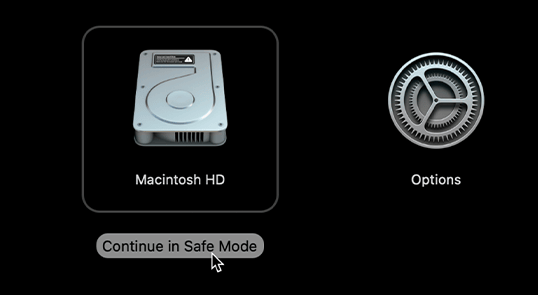
3. Select your startup disk.
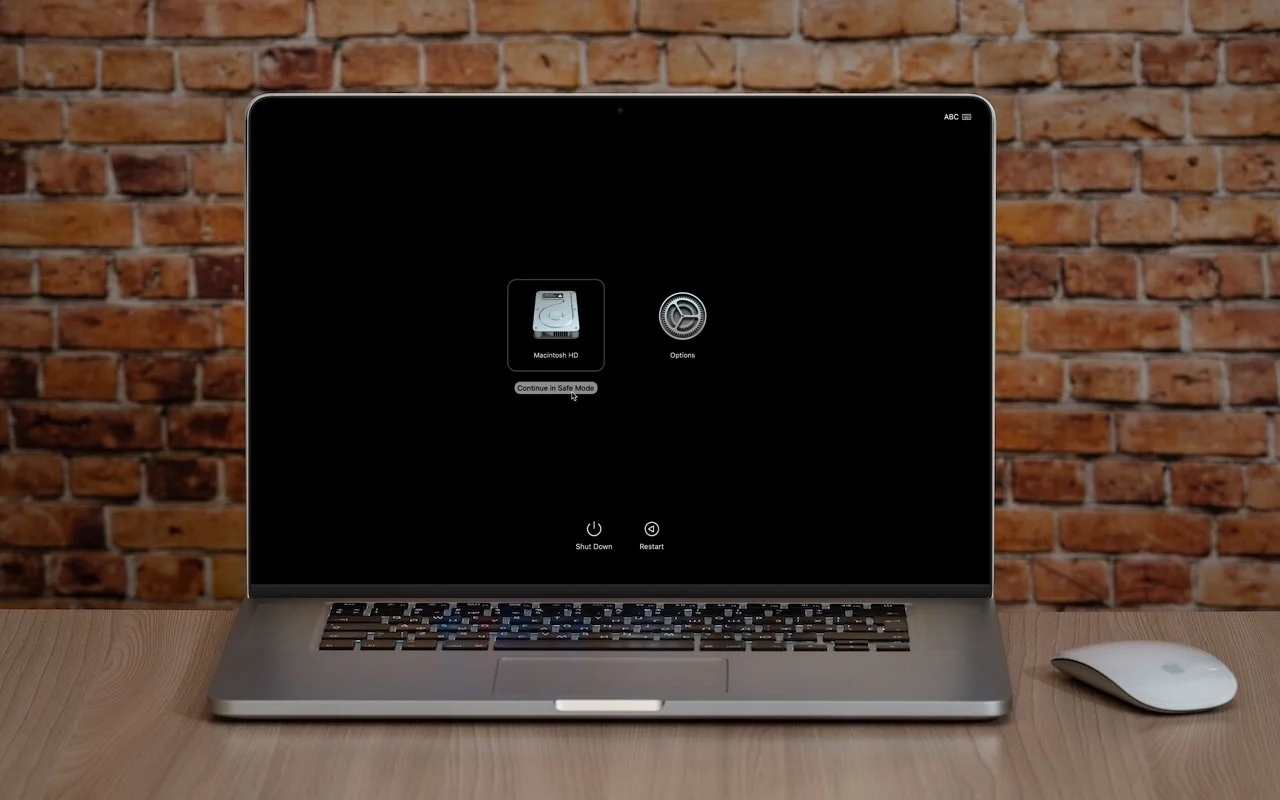
4. Hold the Shift key and click Continue in Safe Mode.
5. Log in (you may need to do this twice). You’ll see “Safe Boot” in red in the menu bar on the login screen.

For Intel-based Macs:
Restart your Mac.
Press and hold the Shift key until you see the login window.
(If you have a firmware password, you must remove it in Recovery before starting up in safe mode.)
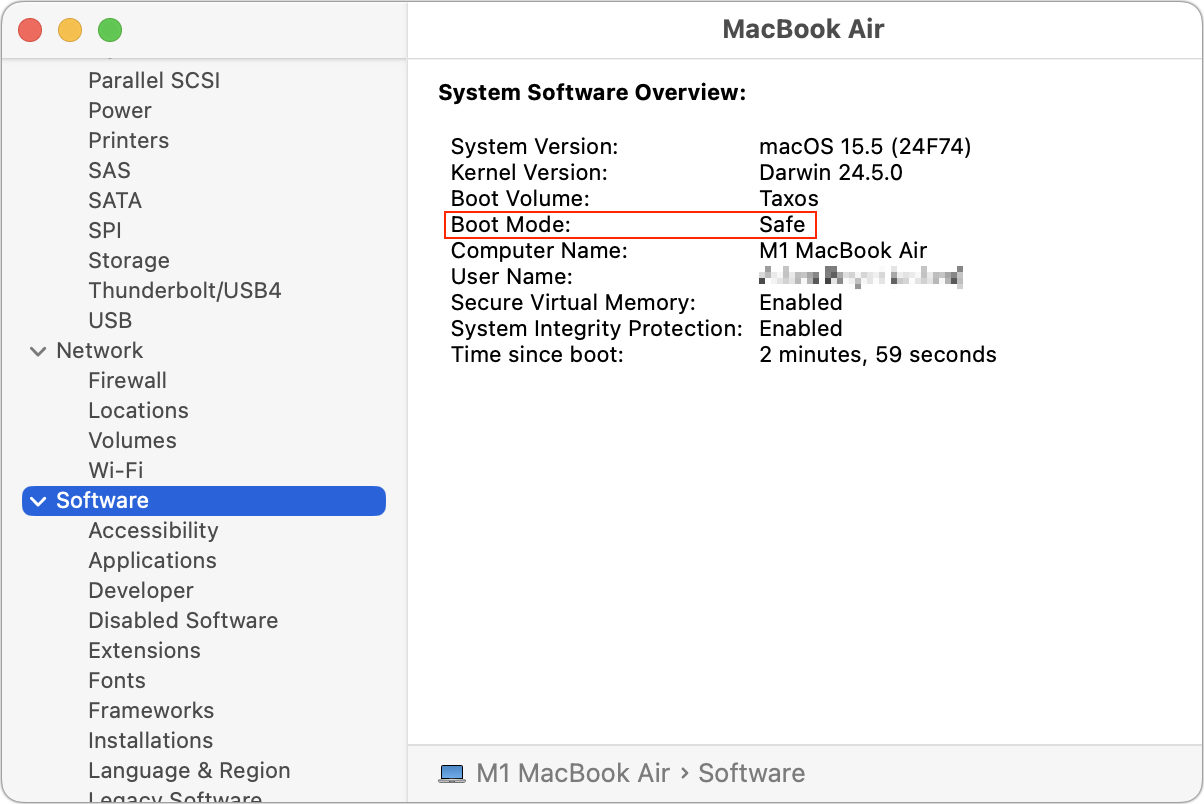
To verify that you’re in safe mode, click the Apple menu while holding the Option key, select System Information, and look for “Boot Mode: Safe” under Software. To exit safe mode, just restart your Mac normally.
What Safe Mode Does
When your Mac boots in safe mode, it performs several important functions designed to eliminate troubleshooting variables:
Prevents non-essential software from loading, including third-party login items, kernel extensions, system extensions (the modern replacement for kernel extensions), and fonts not installed by macOS
Clears some system caches, including font caches and the kernel cache
Apple also says that safe mode performs a basic check of your startup disk, but research from the community suggests that this check is no different from the one performed during a normal boot. If you suspect disk-related problems, use the First Aid feature of Disk Utility to conduct a more comprehensive (and much slower) test.
This minimal environment helps identify whether the problems are caused by software that loads during startup or by core system components. Safe mode also prevents many customizations and modifications from taking effect, making it easier to determine if third-party software is the cause of the issues.
However, the downside of using safe mode is that some macOS features may not work. According to Apple, these include “video capture, graphics performance, file sharing, Wi-Fi, accessibility, audio devices, and devices connected via USB, Thunderbolt, or FireWire.” In practice, some of these will work fine, but the main point is that you might not be able to do everything you want while in safe mode. It’s designed for troubleshooting, not regular use.
When to Use Safe Mode
Safe Mode is beneficial in several common scenarios:
Identifying extension conflicts: If your Mac is misbehaving, booting in safe mode can help determine if third-party kernel or system extensions are the cause.
Troubleshooting startup problems: If your Mac doesn’t start normally, safe mode might help you get in and address the issue.
Installing updates: Although this is less necessary in recent versions of macOS, if a macOS update fails to install properly, trying again in safe mode often resolves the issue.
Fixing update issues: Problems that appear after a macOS update—likely caused by outdated third-party software incompatible with the new version of macOS—can often be resolved by starting in safe mode.
Performance problems: If your Mac is running slowly, safe mode can help identify whether login items or extensions are causing the issue.
General diagnostics: Safe mode is a worthwhile initial step for diagnosing issues before attempting more complex solutions.
What Comes After Safe Mode
Once you’re in safe mode, it’s up to you to reproduce the problem you experienced earlier. Then, there are two possibilities:
The problem persists in safe mode: While this result is not ideal, safe mode has still provided you with more troubleshooting information by eliminating third-party login items, extensions, and fonts from consideration, along with clearing certain caches. Since those aren’t the cause, try testing in a clean user account, disconnecting remaining peripherals, and reinstalling macOS.
The problem goes away in safe mode: Great! First, restart your Mac to see if the problem has disappeared, as would be the case if it were related to corrupt caches. If the problem returns after restarting, you can narrow down the cause to third-party login items, extensions, or fonts. Remove third-party log-in items in System Settings > General > Login Items & Extensions. (We recommend taking a screenshot with Command-Shift-5 first, so you can remember how you were set up.) You can also disable extensions in System Settings > General > Login Items & Extensions by toggling their switches. Restart and test again. If that still doesn’t fix it, try testing in a clean user account to rule out any software issues tied to your main account.
The beauty of safe mode is that it’s easy to enter and entirely non-destructive. It may not help identify all possible problems, but it’s always worth trying after the simple steps of restarting your Mac, updating associated software, and unplugging non-essential peripherals.
(Featured image based on an original by iStock.com/Armastas)
Watch Out for Modern Tech Support Scams
Think you can spot a tech support scam? Today’s fraudsters are using everything from spoofed caller ID to manipulated search results. Here’s what to watch for and how to stay safe.

Although Apple’s products and services generally live up to Steve Jobs’s phrase “it just works,” problems do occur, opening the door to scams targeting users seeking tech support. As professional providers of technical support, we’ve seen firsthand how these frauds have evolved from simple pop-ups to disturbingly convincing operations and how easy it is to fall for them if you’re caught off guard. Here’s what to watch for and how to protect yourself.
Tech Support Scam Tactics
Tech support scams have evolved over the years, but the playbook remains the same: get you on the phone, make you panic, and extract money or sensitive information. Here’s what you need to watch out for, based on what clients are reporting to us:
Phishing texts claiming suspicious activity: You receive a text purporting to be from Apple, warning of “unusual activity” or an “unauthorized Apple Pay transaction” and urging you to call an Apple Support number. The message looks official, but the number connects you to a scammer, not Apple.

Robocalls and emails about iCloud changes or breaches: In this scam, you receive an automated call or email purporting to be from Apple, often with the caller ID spoofed to Apple’s actual support number. You’re told to press a number or call back, and once you’re talking to a scammer, they try to get you to grant remote access and change your password so that they can take over your account.

Fake support numbers in Google search results: A particularly sneaky scam manipulates Google search results and ads. When you search for support (e.g., “Apple help,” “HP support”), you may see ads or top results that appear official. As Malwarebytes Labs reports, clicking these can inject a fake support number directly into the search field on the company’s real website. Call that number, and you’re routed to a scammer who may demand remote access, payment for bogus repairs, or your personal data.

Pop-ups, ads, and emails mimicking Apple: Fake pop-ups, ads, or emails warn of urgent issues, such as the egregiously expensive Apple TV subscription in the example below, and provide numbers to call to rectify the situation. As always, provided phone numbers lead to scammers.

How to Protect Yourself from Tech Support Scams
In an ideal world, you’d be able to identify every scam for what it is and simply move on with your life. Unfortunately, because technical problems make many of us anxious, the scams can cause people to panic and lose their critical thinking skills. To stay safe, remember these rules:
Never respond to unsolicited tech support contacts: Ignore phone calls, texts, emails, or pop-ups claiming to be from Apple, Microsoft, Google, Amazon, or any other company.
Don’t trust caller ID or search results: Scammers can spoof numbers and manipulate search results or ads. Always confirm contact info directly from the company’s official website—type the URL yourself or use a bookmark.
Be wary of urgent demands: Real tech support doesn’t threaten you or create artificial urgency.
Never allow remote access unless you initiated the contact: If you didn’t reach out to a trusted provider, don’t let anyone access your device.
Use only official support channels: When you do need support, contact the company directly. For Apple, use support.apple.com or call 1-800-275-2273 in the United States (look here for other countries’ phone numbers).
If you work with us and we need to call you (for example, because of proactive monitoring), we’ll always identify ourselves clearly. If you’re unsure, hang up and call us back at a number you already have—we won’t be offended.
How to Recover from Being Scammed
What should you (or someone you’re helping) do after falling for a tech support scam? First, we’re here to help for real, so don’t be shy or embarrassed about contacting us for assistance. There are three main areas to focus on:
Change passwords: Immediately change any passwords that you may have shared or entered during a remote access session. If you use the same passwords on any other websites, change those passwords too. Wherever possible, turn on two-factor authentication. A password manager like 1Password or Apple’s Passwords makes all this easier.
Run anti-malware software: If you already have legitimate anti-malware software, run it to make sure the scammer didn’t install anything malicious on your Mac. If you don’t have up-to-date anti-malware software, contact us to see what we currently recommend.
Protect your finances: If you paid for any bogus services, call your credit card company and reverse the charges; you’ll also undoubtedly get a new credit card number. Monitor financial accounts for unauthorized transactions and document any suspicious activity.
Finally, if you do fall prey to a scam, watch out for subsequent “refund scams.” Months after the initial incident, you might get a call offering a refund or compensation, or claims that the scam company is being investigated. These are almost always also scams designed to extract more money or information. If anyone contacts you about a previous tech support interaction, verify their legitimacy independently via official channels.
(Featured image by iStock.com/Supatman)
Heat Wave Survival Guide for Your Apple Devices
Think your Apple devices can handle the summer heat? Think again. Discover how high temperatures can damage your iPhone, iPad, and Mac—and what you can do to keep them safe.
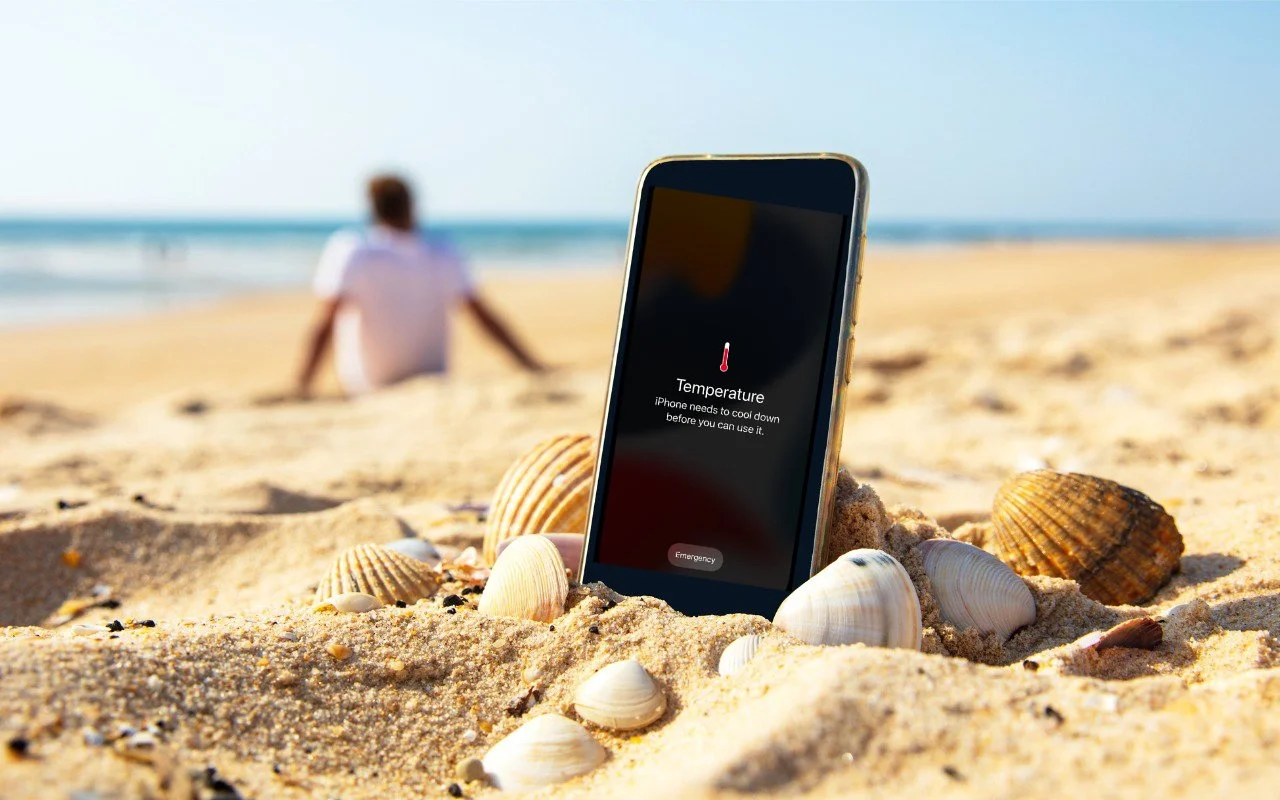
A massive heat dome earlier this summer exposed large swaths of the United States to heat index values approaching or exceeding 120ºF, underscoring the importance of protecting our devices from heat damage. Overheating can degrade performance, in-terrupt charging, disable features, and cause general device instability.
When Temperature Becomes a Problem
You might be surprised by how sensitive electronic devices are to high temperatures. Apple says that most Apple devices—whether we’re talking about an iPhone or iPad, AirPods, Apple Watch, or Mac—work best in ambient temperatures under 95ºF (35ºC). The Apple Watch Ultra is a notable exception, capable of operating in temper-atures up to 130ºF (55ºC), but even then, Apple recommends charging at a lower temperature.
These temperature limits are frequently surpassed in everyday situations. A parked car in direct sunlight can reach 130ºF (54ºC) within an hour, even with windows cracked open, and continue climbing from there. Just as you’d never leave children or pets in a parked car, your iPhone, iPad, or MacBook shouldn’t be left behind dur-ing a trip to the beach. Even when powered off, Apple devices shouldn’t be stored in temperatures above 113ºF (45ºC).
The risk isn’t limited to vehicles. Poorly ventilated homes and offices without air conditioning can become surprisingly hot, particularly affecting computers that run continuously and lack proper airflow. If you have a second-generation HomePod or HomePod mini—both of which have temperature and humidity sensors—you can ask Siri, “What’s the temperature in here?”
How Heat Hurts Your Devices
An often overlooked point is that electronic devices generate significant heat during operation, and high ambient temperatures make it harder for them to shed that heat effectively, increasing the risk of thermal throttling or shutdown. Under heavy work-loads, internal components like an iMac’s CPU can reach temperatures as high as 212ºF (100ºC)—literally the boiling point of water.
Temperatures that exceed component design specs can have the following detri-mental effects:
Chip instability: As heat rises, electrons vibrate more intensely (thermal noise), leading to increased error rates and timing issues in chips. This can re-sult in unpredictable behavior or system crashes.
Battery degradation: While lithium-ion batteries actually perform well in high temperatures, the accelerated chemical reactions inside them can reduce their long-term lifespan.
Physical damage: Repeated heating and cooling cycles can create microscop-ic stress fractures as different materials expand and contract at varying rates, potentially leading to component failure.
While some heat-related issues resolve themselves once devices cool down, others can cause permanent damage. Prevention is crucial.
Your Mac will typically warn you of dangerous temperatures by ramping up its cool-ing fans. (The fanless MacBook Air can’t provide this warning.) If you notice your Mac’s fans running at a high speed for several minutes:
Close unnecessary apps, especially those that heavily tax the CPU.
If the fans continue at full speed, restart to eliminate problematic background processes.
If restarting doesn’t quiet the fans, shut down your Mac and let it cool off.
An overheated Mac may exhibit erratic behavior or shut down unexpectedly. Be par-ticularly cognizant of potential heat-related issues during initial device setup, restor-ing from backup, using graphics-intensive apps or games, and streaming high-quality video, all of which can drive up internal temperatures on their own.
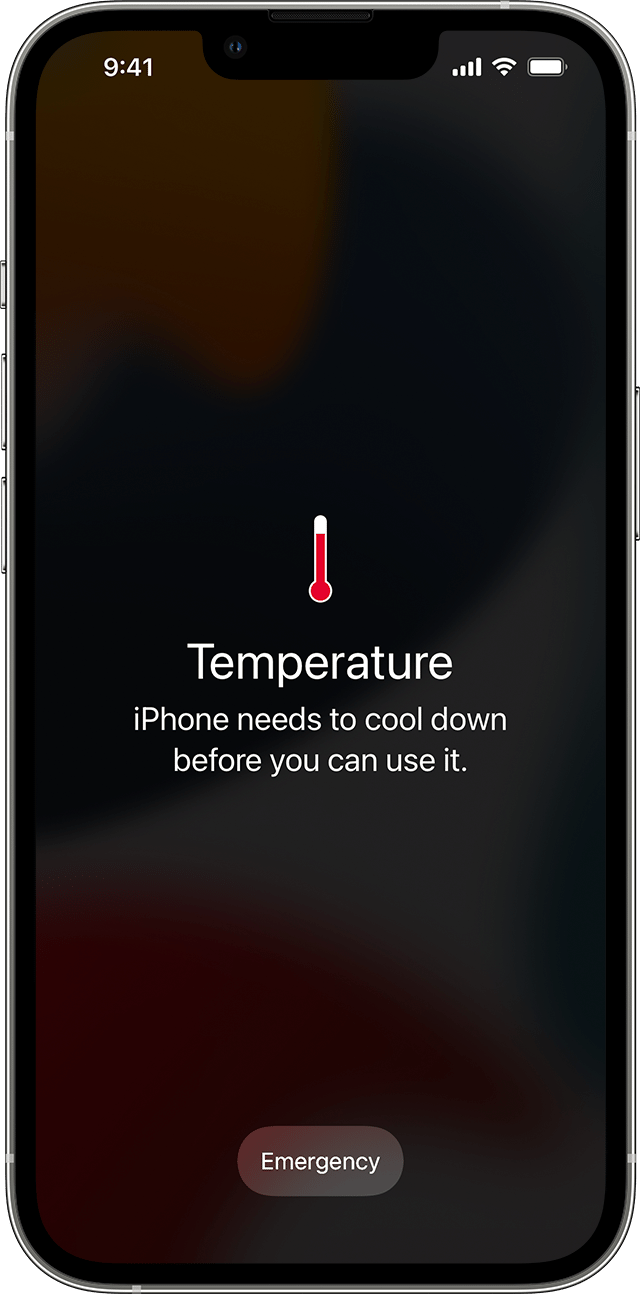
Without cooling fans, iPhones and iPads rely on other methods to manage high tem-peratures. When these devices detect dangerous heat levels, they’ll display a warning and automatically protect themselves through various measures. Apple says you might notice some of the following behaviors with an overheating iPhone or iPad:
Slowed or interrupted charging (including wireless charging)
Automatic display dimming—it might even go entirely dark
Weakened cellular signals as radios enter a low-power state
Disabled camera flash and other features
Reduced performance, especially in graphics-heavy apps
Navigation deserves special mention: if your iPhone overheats during GPS navigation, it may display a “Temperature: iPhone needs to cool down” alert instead of the map view. Don’t worry—you’ll still receive voice guidance, and the screen will briefly ac-tivate to show important turns.
Apple Watches will also display a special warning screen if they get too hot.

Preventing Heat Damage
Protecting your Apple devices from heat damage mostly comes down to following these common-sense guidelines:
Limit high-temperature use: When ambient temperatures exceed 95ºF (35ºC), as happens outside in Phoenix from May through September, minimize device usage or, ideally, avoid it entirely.
Never leave devices in parked cars: The greenhouse effect can quickly cre-ate dangerous temperatures. If it happens accidentally, allow the device to cool completely before use.
Ensure proper ventilation:
Keep Mac ventilation ports unobstructed.
Avoid using laptops on soft surfaces like beds or pillows.
Periodically clean ventilation ports with compressed air.
Never cover an open laptop’s keyboard.
Don’t stack items on top of a Mac mini or Mac Studio.
Watch server areas: Monitor temperatures in server closets and ensure ade-quate cooling through ventilation, fans, or air conditioning.
Remember: if you’re feeling uncomfortably hot, your devices probably are too. The temperatures that stress electronics tend to be similarly stressful for humans, mak-ing your comfort a good gauge of potential risk to your devices.
(Featured image based on an original by iStock.com/margouillatphotos)
Advice for Good Office Ergonomics
Don’t let poor ergonomics get in the way of getting your work done. Get expert advice on adjusting your chair, positioning your display, and arranging your desk to prevent discomfort and boost productivity at your Mac.

Let’s look at how to keep your body comfortable and healthy when you interact physically with your Mac. In a word: ergonomics. You’ll find it easier to focus and be productive if nothing hurts. Plus, you want to avoid long-term problems like carpal tunnel syndrome and chronic neck strain.
While some workplace setups may be outside your control, there are usually ways to improve your ergonomics. Here’s what to check and adjust to make your workspace more comfortable and productive. We also recommend working through the Cornell Ergonomic Workstation Advisor, a 35-question worksheet.
Chair Setup
Your chair is the linchpin of an ergonomic office setup. Adjust the seat height so your feet rest flat on the floor and your knees are at roughly 90º–120º. Use a stable footrest if you can’t put your feet flat on the ground without compressing your thighs. Note that if you are smaller or larger than average, you may need a chair designed for your size.
You should be able to sit up straight comfortably, which may be aided by a lower back support. If your chair lacks one, consider adding a firm bolster or even a rolled towel for more support. Make sure armrests support your elbows without forcing you to raise your shoulders.

Once your chair is adjusted correctly, it’s time to consider the desk surface, which affects the placement of your display, keyboard, and mouse or trackpad.
Screen Position and Height
When it comes to your Mac’s display, there are two vital measurements to reduce neck and shoulder strain: the distance from your eyes and the height off the desk surface.
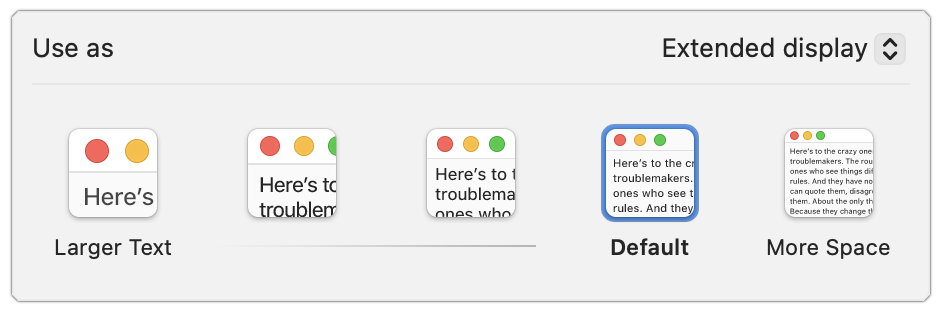
Roughly speaking, the display should be positioned at arm’s length, or 18–36 inches (45–91 cm) away. However, that depends on your vision—if the text isn’t clear at the recommended distance, you should either have your prescription checked or move the display until you can read it easily. If you find yourself bringing it too close, use the Larger Text options in System Settings > Displays to make the text readable at a reasonable distance.
For height, with modern large displays, aim to have your eye level about a quarter of the way down the display, so that three-quarters of the display is below your eye level. That generates a slight downward gaze to the center of the screen. If you wear bifocals, position the display a little lower to account for how you raise your head to look through the different viewing zones in your lenses.
Some displays have highly configurable stands, making it easy to adjust their height. For those that offer only tilt adjustments, you can raise the screen by placing a properly sized book or printer paper underneath it; just make sure it’s stable. If your desk doesn’t lend itself to the necessary positioning, a monitor arm could make it easier to adjust.
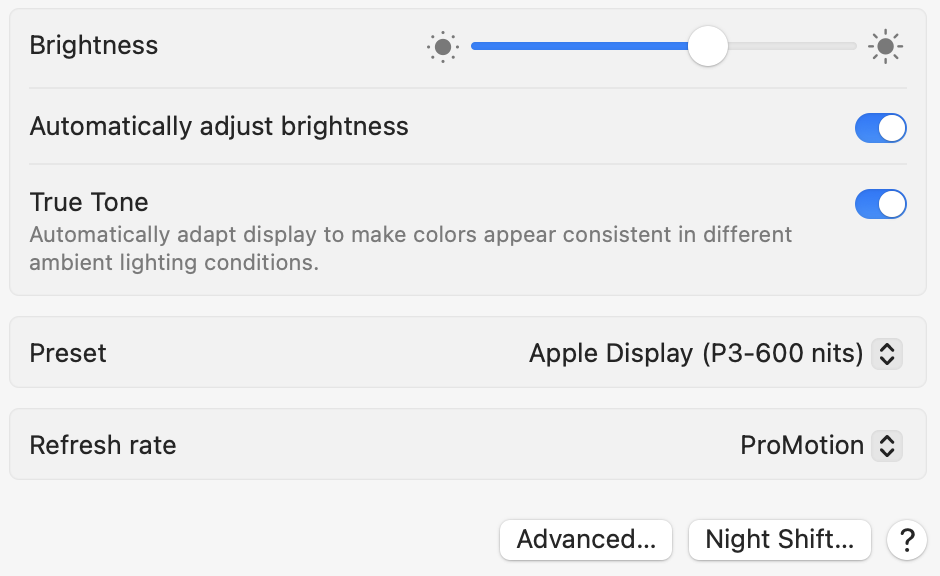
It’s important to minimize glare from lights above you or windows behind you. Tilting the top of the display slightly away from you can reduce glare and enhance comfort, but more significant adjustments may be necessary to avoid harsh natural light. If you need bright light for reading physical documents, opt for task lighting and keep the room lighting indirect. Regardless, you should always adjust the Mac’s brightness to match the room lighting; the Automatically Adjust Brightness switch in System Settings > Displays can help. If you use your Mac before bed, turning on Night Shift may improve sleep.
What about multiple displays? Depending on their size, you may inadvertently create a situation where the text is too far away to read comfortably, causing you to lean in. Nor do you want to be working with your head turned all the time.
If you have a primary display, position it in front of you and put the secondary display off to the side, angled in. If you have two identical displays, angle them in slightly to create a visual arc and sit so that you can work comfortably on the inner halves of each screen. Those connecting a laptop to two displays can keep it below them. However you arrange your displays, click Arrange in System Settings > Displays to rearrange the virtual screens so they match your physical layout.

Keyboard and Mouse/Trackpad Placement
For comfortable typing and mousing, your hands should be level and straight, with your elbows comfortably close to your body and your shoulders relaxed. To make that happen, the keyboard and pointing device should be at elbow height when you’re sitting and close enough that you don’t need to lean forward. The mouse or trackpad should be as close to the keyboard as possible so you don’t have to reach for it.
Getting the height of the keyboard and pointing device right—while also keeping the display at the right height—can be tricky because many desks aren’t very adjustable. If the desk is too high and can’t be lowered, consider an adjustable keyboard tray to reposition the keyboard and mouse/trackpad at the correct height.
It’s also important that you don’t compress your wrist by pressing down on the desk surface or even a soft wrist rest. To rest your hands when you’re not typing, use a cushioned palm rest in front of your keyboard.
Special Considerations for Laptops
Unfortunately, it’s impossible to maintain good ergonomics on a laptop because there’s no separation between the keyboard and the display. That’s fine for shorter work sessions and when you have no control over your environment, such as on an airplane or in a coffee shop. But if you work on a laptop all day long, choose one of two basic options to improve your ergonomics:
Continue to use the laptop’s keyboard and trackpad at a good typing height, but add an external display at the ergonomic viewing height. You can continue to use the laptop’s display for ambient apps—such as Messages, Calendar, and Music—that you glance at and use briefly.
Elevate the laptop so its display is at the correct viewing height, and add an external keyboard and mouse/trackpad at the correct typing height. A wide variety of laptop stands are available for this purpose.
The first approach may be more expensive, but it can increase productivity by allowing you to view more content on the screen at once.
Movement and Breaks
No matter how ergonomic your setup is, it’s terrible for the human body to remain in one position for extended periods. Research suggests that sitting for more than 8 hours daily, especially without physical activity, is associated with cardiovascular disease, diabetes, obesity, cancer, depression, and even cognitive decline. Luckily, it’s easy to reduce these risks:
Change positions frequently; chairs that allow movement can help activate muscles and improve circulation.
Take regular breaks every 30–60 minutes. Standing or walking for 5 minutes is ideal, but even a minute or two helps. Even if you work at a standing desk, you must still move around.
Consider a sit-stand desk that allows you to switch between sitting and standing.
Look away from your screen at least every 20 minutes for 20 seconds, focusing on an object at least 20 feet away.
Exercise regularly to counterbalance being sedentary—experts recommend a weekly regimen of 150–300 minutes of moderate exercise or 75–150 minutes of vigorous exercise.
Remember: Small ergonomic adjustments can make a big difference in comfort. If you experience persistent discomfort in an office environment, consult with your supervisor or HR department about your ergonomic equipment options. Your organization may also provide access to an ergonomics expert who can come to your workspace and ensure that your chair and other workspace items are adjusted for optimal comfort.
(Featured image by iStock.com/dragana991)
Stay Connected Off the Grid: How to Use Messages via Satellite in iOS 18
When storms knock out cell networks or hiking takes you off-grid, you can now text via satellite if you have an iPhone 14, 15, or 16 running iOS 18. Learn how Messages via satellite lets you stay connected when cell networks fail or aren’t available.

If you own an iPhone 14, 15, or 16 and are in the US, Canada, or Mexico, you now have access to a feature that could make all the difference the next time you find yourself staring at the dreaded SOS icon in your status bar. With iOS 18, Apple introduced Messages via satellite, a technology that lets you send and receive text messages even when you’re completely out of range of cellular and Wi-Fi networks. While it’s not a substitute for your usual messaging habits, it’s a powerful tool for minor emergencies, remote travel, or moments when the infrastructure fails you.
Why Messages via Satellite Matters
Cellular coverage is nearly ubiquitous—until it isn’t. It’s all too easy to find yourself without a signal in rural areas, and increasingly frequent natural disasters like hurricanes and wildfires can disrupt cell networks for days or even weeks. In those situations, the ability to communicate can range from a minor convenience to a literal lifesaver.
Apple’s satellite connectivity, first introduced with Emergency SOS and Find My features in iOS 16 and expanded to Roadside Assistance with iOS 17, has already proven its worth in real-world emergencies, most notably during the Maui wildfires. Now, with iOS 18 and a compatible iPhone, you can use Messages to let someone know you’re safe during a storm, get help from a friend if your bike gets a flat in a remote area, check in with family while hiking in rural regions, and stay in touch during large-scale network outages, all without a cell tower within range.
Who Can Use Messages via Satellite?
Messages via satellite is available on all iPhone 14, iPhone 15, and iPhone 16 models, and it currently works only in the US, Canada, and Mexico. The feature is included for free for two years after activating a supported device, and Apple has already extended this window once without indicating any plans to charge for the service.
Messages via satellite works best when both you and your recipient are running iOS 18 or later. However, SMS fallback is available for non-iPhone users and those on older iOS versions. If you haven’t messaged someone recently, you may be prompted to use SMS instead of iMessage. The best approach may be to send them a regular iMessage while you’re still online to “prime” the conversation for satellite use.
How to Access Messages via Satellite
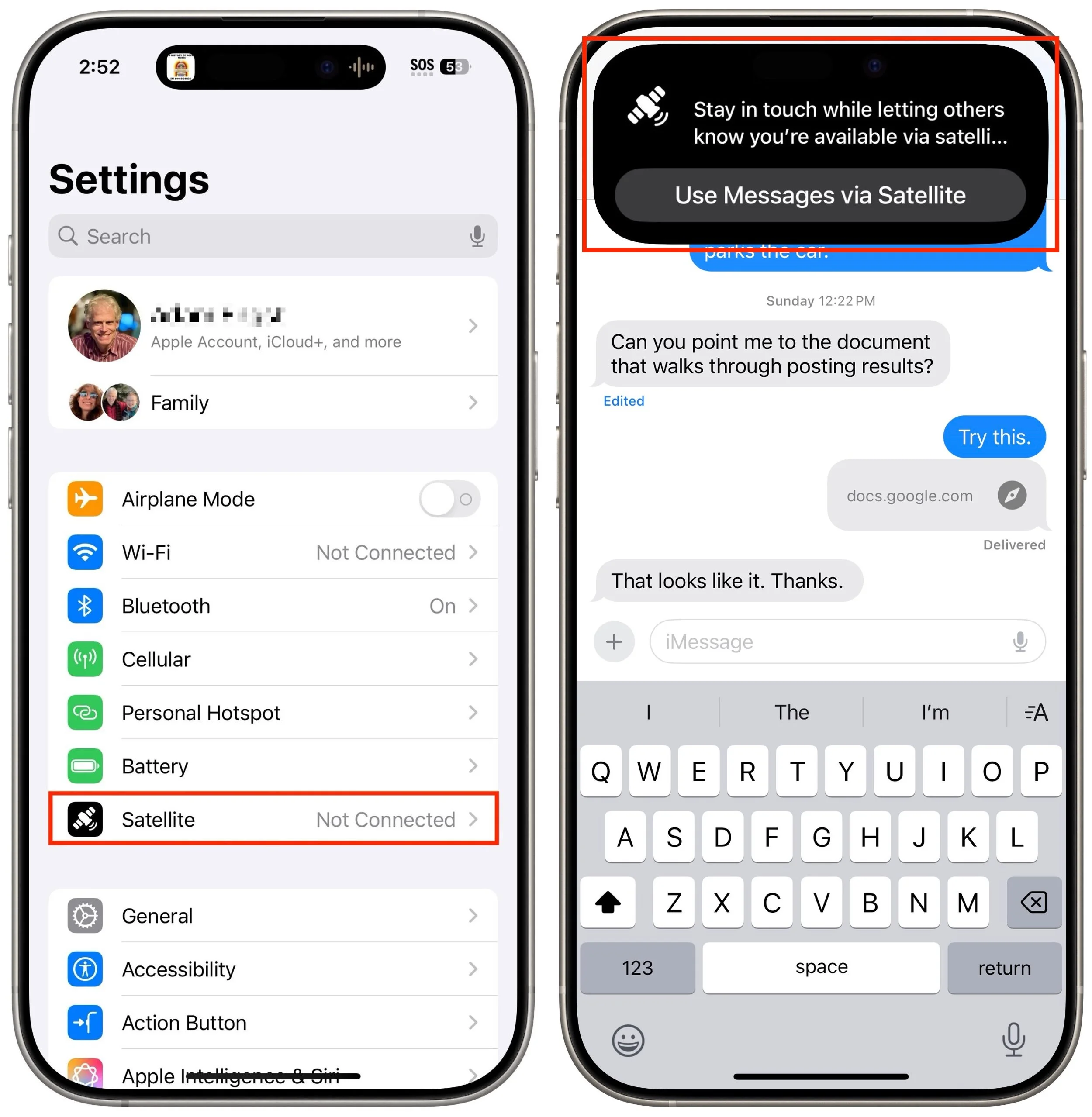
Apple designed Messages via satellite for use only when you truly need it. You can’t just switch it on whenever you want—your iPhone will offer the option only when there’s no cellular or Wi-Fi connection available. When this happens, the SOS icon in your status bar indicates that Messages via satellite can be used. It may or may not have a satellite icon next to it.

To get started, open the Messages app. If you’re in SOS mode, you’ll see a prompt to enable satellite messaging. Alternatively, go to Settings, where a Satellite option will appear under Battery. Apple also provides a Satellite Connection demo (accessible from Control Center) so you can practice connecting your phone to a satellite even when you have connectivity. We recommend trying this demo at least once—don’t try Messages via satellite for the first time when you actually need it.
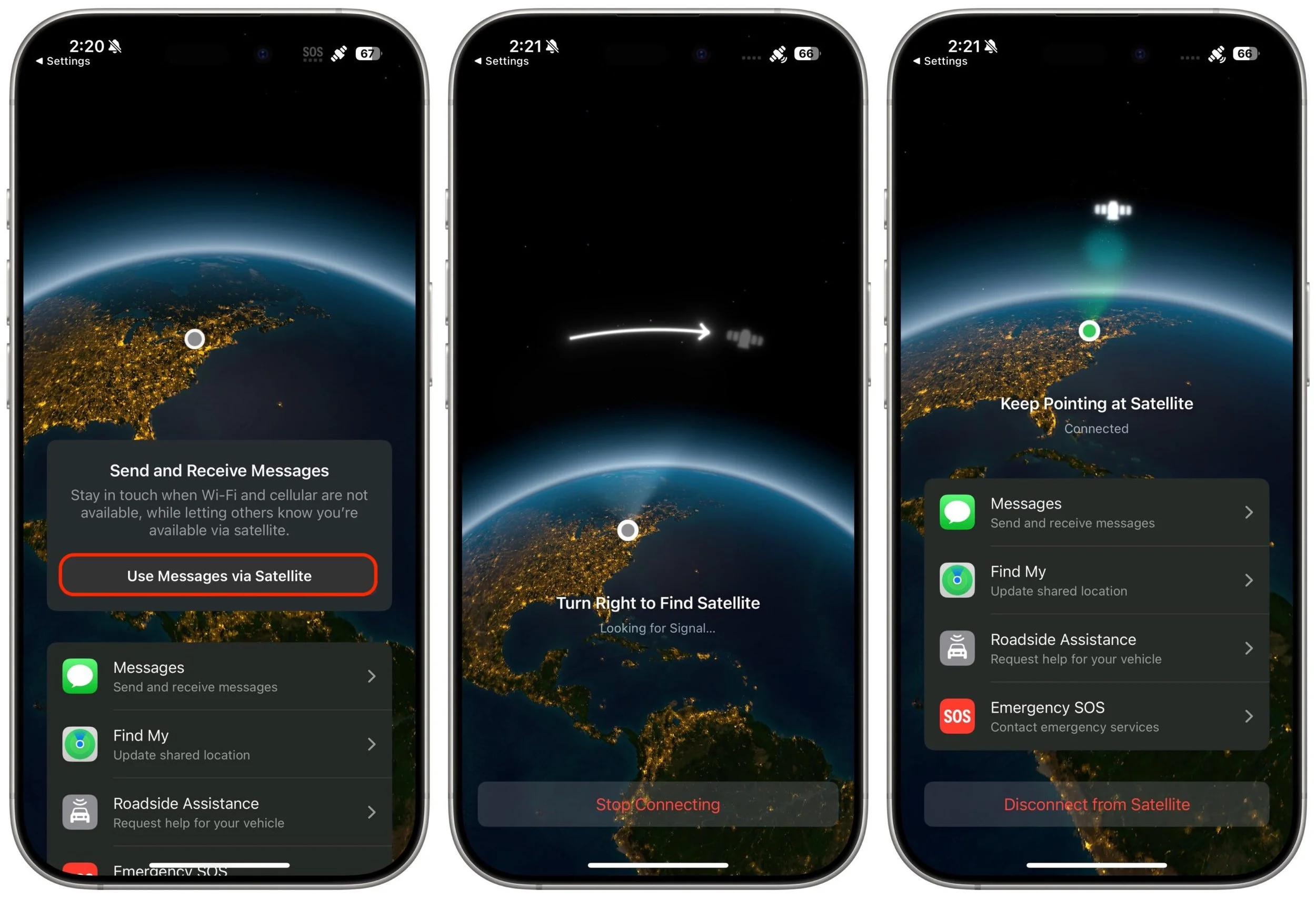
Once you’re ready to send a message, follow the on-screen instructions to point your iPhone at the sky. The phone will guide you to align with an available satellite, and you’ll see a green haze on the connection screen or a checkmark in the Dynamic Island when you’re connected. If you lose the connection, you’ll need to realign, as satellites move quickly across the sky. (Yes, you might look a bit eccentric waving your phone around in a field, but that’s a small price to pay for satellite connectivity.)
What You Can—and Can’t—Do
Messages via satellite has impressive capabilities, but it does come with some restrictions and quirks:
Text-only chats: You can send and receive text messages using iMessage or SMS. No photos, videos, audio messages, stickers, or other attachments are supported. However, emoji and tapbacks work.
Message length limits: iMessage conversations are restricted to 500 characters per message, while SMS messages are capped at 140 characters. If you go over these limits, the send button becomes disabled.
No group chats: Group conversations aren’t supported, even if everyone is using iMessage.
No location sharing in Messages: While you can’t send your location directly in a satellite message conversation, you can update your Find My location via satellite, which can then be viewed by those you’ve shared it with.
Slower delivery: Messages take longer to send and receive, anywhere from 30 to 60 seconds per message. You must stay connected to the satellite to receive replies.
Incoming message restrictions: Only emergency contacts and members of your Family Sharing group can initiate messages to you while you’re offline, and only via SMS. Their messages are delivered once you establish a connection to a satellite.
End-to-end encryption: iMessage conversations via satellite are end-to-end encrypted, but SMS messages are not.
Practical Tips for Using Messages via Satellite
To make the most of Messages via satellite when you need it, keep these tips in mind:
Practice connecting: Try Apple’s Satellite Connection demo before you need it. Familiarity with the process will save you time and stress in a real-world situation.
Update emergency contacts: Make sure your emergency contacts and Family Sharing members are current. They are the only people who can reach you first when you’re off the grid.
Prime important contacts: If you anticipate needing to reach someone while offline, send them a message while you still have coverage. This helps ensure the conversation is ready for satellite use.
Stay connected for replies: Keep your phone pointed at the satellite until you get a response. Dropping the connection will interrupt the flow of messages.
Don’t expect instantaneous service: Patience is key—sending and receiving messages via satellite is much slower than what you’re used to.
Messages via satellite is a significant step forward in making iPhones more useful in challenging situations. While we certainly hope you don’t need it every day, it’s a feature that’s good to have in your back pocket. The next time you see the SOS icon on your iPhone, don’t panic. Open Messages, follow the prompts, and stay connected when it matters most. It’s not magic, but it’s close enough for most practical purposes.
(Featured image by iStock.com/Jacob Wackerhausen)
Upgrade Soon: Intel-based Macs and Apps Are On Their Way Out
Still using an Intel-based Mac or app? With Apple’s recent announcement of end dates for both macOS and Rosetta 2 support, it’s time to plan your transition to Apple silicon.

In 2020, Apple introduced the M1 chip, the first of the family of Apple silicon chips that now power the entire Mac lineup. At the time, Apple said it would “continue to support and release new versions of macOS for Intel-based Macs for years to come.”
Since then, it has become clear that Macs with Apple silicon are notably better than Intel-based Macs in nearly every way, and we’re now up to the impressive M4 chip family. Nonetheless, some people continue to hold onto their Intel-based Macs. Now we know precisely when those Macs will ride off into the sunset. Intel-based Macs had a good run, but it’s time to move on to Macs with Apple silicon.
macOS Support for Intel-based Macs
During WWDC 2025, Apple announced that macOS 26 Tahoe will be the last version of macOS to support Intel-based Macs, specifically these four models:
16-inch MacBook Pro from 2019
13-inch MacBook Pro with four Thunderbolt ports from 2020
27-inch iMac from 2020
Mac Pro from 2019
macOS 27, expected in 2026, will run only on Macs with Apple silicon. However, the Intel-based Macs listed above will continue to receive security updates for macOS 26 for another two years. That means that all Intel-based Macs will have lost security viability by 2028.
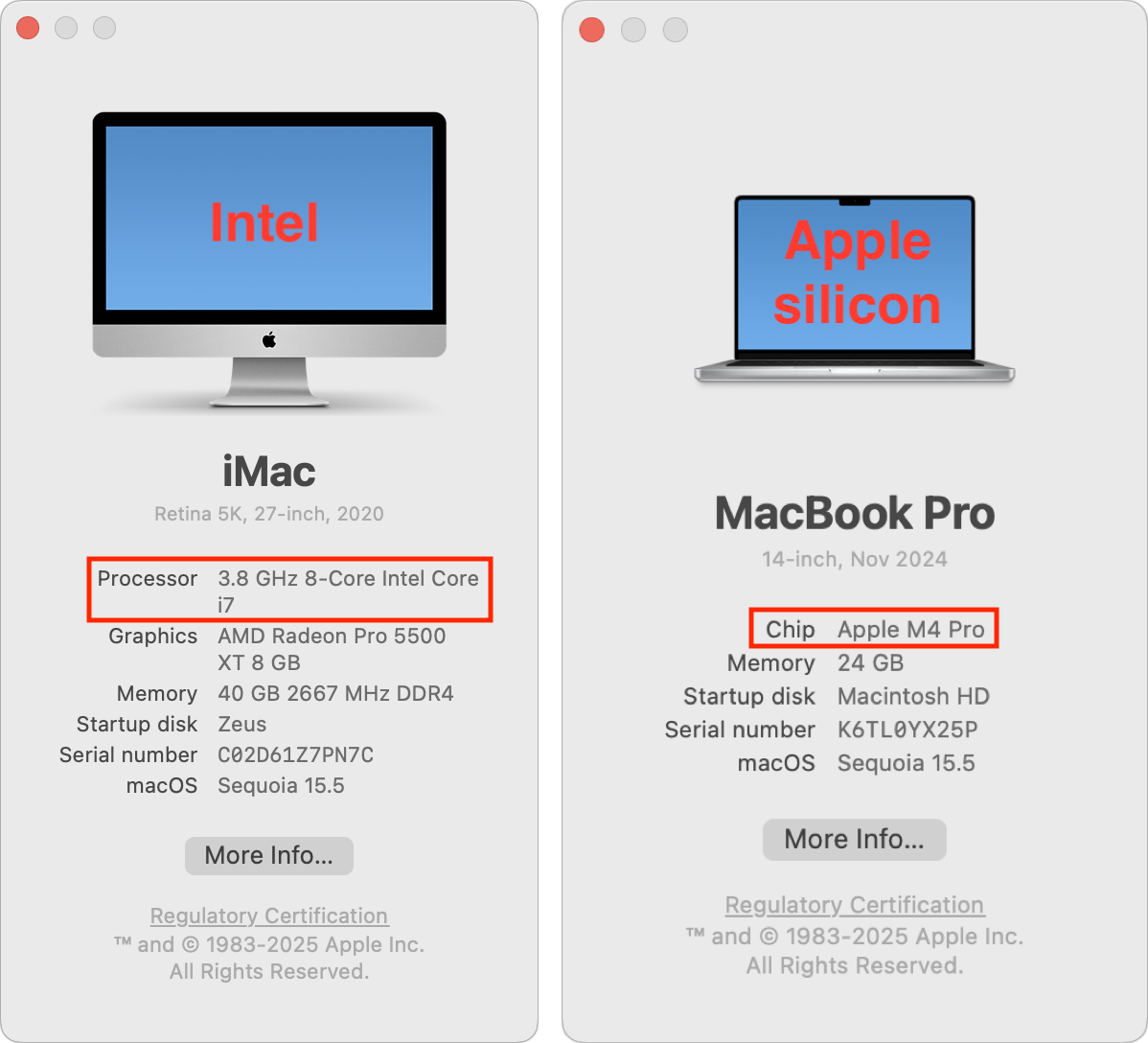
How can you determine the type of Mac you have if you’re unsure? Choose About This Mac from the Apple menu and look at the Processor or Chip line.
Rosetta 2 Support for Intel-based Apps
There’s another aspect to Apple’s waning support for Intel-based Macs: Rosetta 2. The Rosetta translation environment allows apps written for Intel-based Macs to run on Macs with Apple silicon. The process is almost transparent because macOS downloads Rosetta the first time it needs it, and after that, Intel-based apps just work. They may be slower than native Apple silicon apps, but Apple’s M-series chips are so fast that the translated apps often run faster than on Intel-based Macs.
During WWDC, Apple published documentation clarifying the future of Rosetta. Apple plans to keep Rosetta available in its current state in macOS 26 and next year’s macOS 27. After that, however, Apple says it “will keep a subset of Rosetta functionality aimed at supporting older unmaintained gaming titles that rely on Intel-based frameworks.”

Given that Apple silicon has been the future since 2020, nearly all developers have updated their apps to run natively on the M-series chips. Very few actively maintained apps still require updates; Rosetta is primarily useful for those who rely on obsolete apps or older versions of current apps.
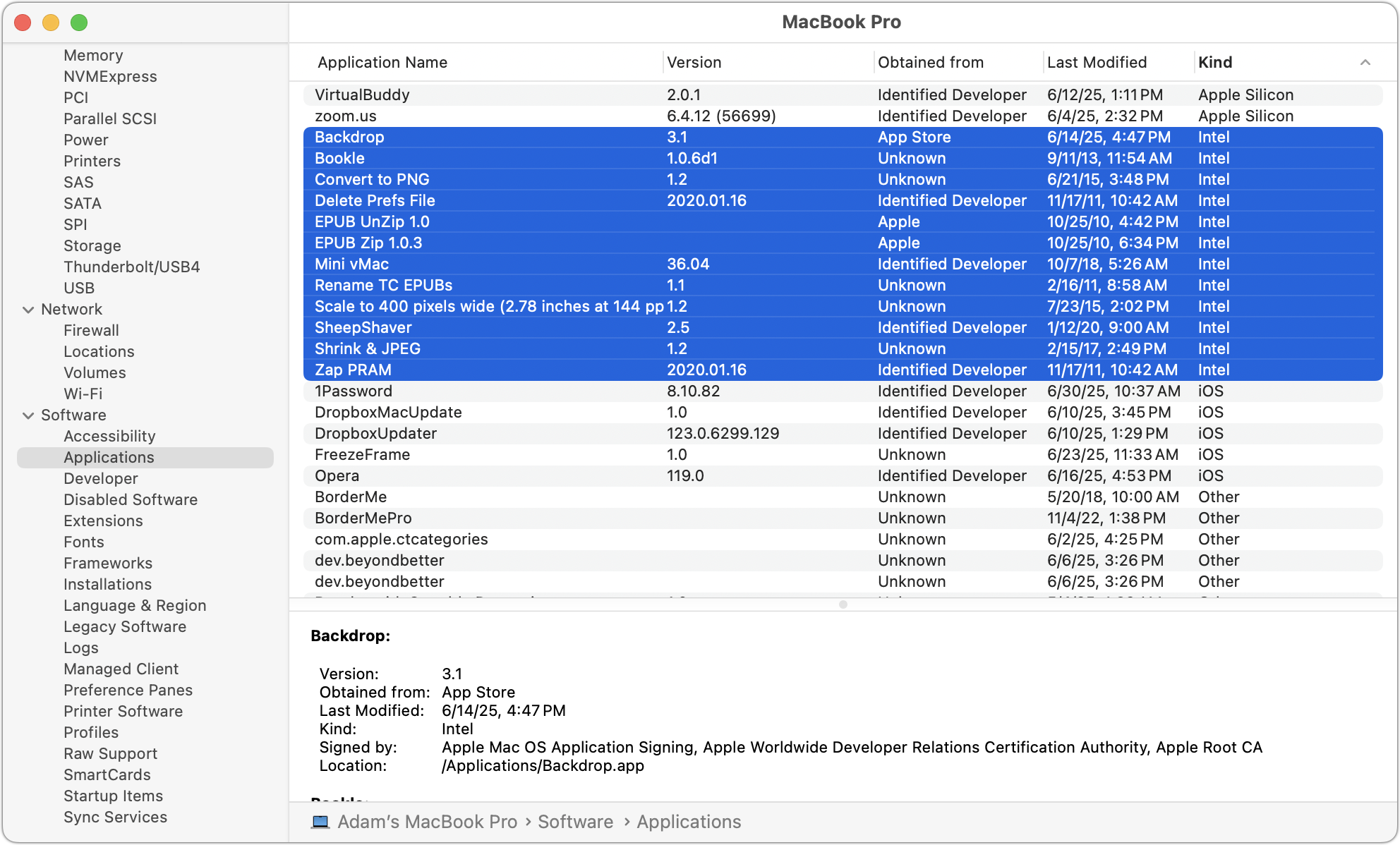
How can you find out whether an app you rely on is Intel-based? Open System Information (it’s in your Applications folder, nested in the Utilities folder), click Applications in the sidebar, click the Kind column header, and then scroll to find all the apps listed as Intel. To find out where one of these apps is stored on your Mac, select its listing and look at the Location field at the bottom of the window.
What All This Means
There’s a difference between what’s possible and what’s recommended.
Apple’s announcements draw a line in the sand at 2028 for when it will be too dangerous to continue using the last batch of supported Intel-based Macs. Older Intel-based Macs will cease to receive security updates even sooner—two years after they are no longer supported by macOS. If budget or compatibility with obsolete software or hardware prevents you from upgrading to a Mac with Apple silicon, it is possible to limp along with an Intel-based Mac for a bit longer.
Similarly, Rosetta will make it possible for you to continue using an obsolete Intel-based app on a Mac with Apple silicon through macOS 27, which will cease to receive security updates in 2029. Old games may continue to work for longer.
If we don’t sound enthusiastic about those possibilities, we’re not. Even the very first M1-based Macs outperform Intel-based Macs, and the performance difference is far wider with today’s M4, M4 Pro, and M4 Max chips. You aren’t doing yourself any favors by hanging onto an Intel-based Mac if you can afford to buy a new one.
Because so much time has passed, it’s likely that any Intel-based app that has not already been updated to run on Apple silicon will never be updated, so we recommend that you start looking for a replacement.
With both hardware and software, the longer you wait, the more problems you’re likely to encounter when upgrading. In part, that’s because both professional and community expertise fades with time—people who solved the problems you’ll encounter did so years before and may no longer remember the details. We also often see small conversion utilities built to help with transitions, but those tend to disappear or stop working after most people have moved on.
Most businesses upgrade their Macs every three to five years because the frequency of problems in that time frame increases to the point where employee downtime and maintenance and consulting costs outweigh the cost of upgrading. That financial equation is less evident to individuals, but it applies similarly.
So if you’re still using an Intel-based Mac or app, you now have a firm end date. But seriously, don’t wait that long.
(Featured image by Apple)
Choosing the Best AI Chatbot for Your Needs
Want to harness AI but feel overwhelmed by all the choices? Skip the lesser-known options and focus on the major players. Here’s our guide to choosing the right chatbot for your needs, whether they involve writing, research, coding, or more.

Questions about AI from our clients keep coming in, with many asking which tools to choose. It’s understandable confusion—the number of AI chatbots has skyrocketed, and lesser-known ones are often highlighted or promoted on social media as the next big thing. The rapid pace of change in the field can be overwhelming, with major announcements happening every month.
For those who don’t want to spend time getting to know all the different AI tools, here’s our advice on the best options right now. This isn’t an area to go for an underdog—if you want to get serious work done, stick with one of the major systems. That means choosing from these five, which make up about 90% of the market:
ChatGPT from OpenAI
Gemini from Google
Claude from Anthropic
Copilot from Microsoft
Perplexity from Perplexity AI
That’s roughly the order in which we recommend you choose, although there are particular areas where one outperforms the others. Realistically, though, you’ll be fine with any of them, so the decision may come down to which feels the best during your interactions on the Web and through the system’s mobile app.
Although you can test all five chatbots for free, you’ll get much better results if you pay for an account to unlock unlimited access to all models and features. The free accounts use older, less advanced models and will cut you off if you try to use them too much in a day. All these chatbots cost $20 per month, other than the full version of Microsoft 365 Copilot, which is $30 per month and requires an annual commitment.
Let’s explore different usage scenarios that could make one chatbot a better fit for your needs.
General Purpose Usage: ChatGPT and Gemini
If you’re unsure about what you want to do with a chatbot but want to explore all options, the best overall choice is ChatGPT, with Gemini as a close runner-up. Both excel at generating text and images, can include content from real-time Web searches in their responses, offer a voice mode that lets you speak and hear responses, provide a choice between fast and advanced models, and can conduct in-depth research.
Writing and Editing: ChatGPT and Claude
ChatGPT is regarded by many as the top choice for writing, thanks to its fluency across different styles. It provides excellent rewriting and summarizing capabilities, and its GPT-4.1 model is currently the favored option in the AI-enhanced Lex word processor, which merits honorable mention for those who do a lot of writing. Claude also performs well with writing, especially when you’re interested in a deep understanding of structure, tone, and intent. If your writing mostly happens in Microsoft Word and Outlook, the Copilot add-on offers useful integration. Likewise, if you live in Google Docs, you might prefer Gemini for its integration.

Research and Current Information: Perplexity and ChatGPT
Many people think of—and interact with—chatbots as souped-up search engines. That’s not entirely helpful because chatbots can do vastly more than search the Web, but incorporating current information from the Web is essential for many tasks. Although most chatbots can now access the Web, you’ll get the best results from Perplexity and ChatGPT, with Gemini being a close second. Claude had the weakest search in our experience.

Image and Video Generation: ChatGPT
ChatGPT shines here as the front end for OpenAI’s DALL-E 3. What makes it stand out from most other chatbots is its prompt understanding—how well it translates your request into a desired image—and its ability to do “inpainting.” Before DALL-E 3, most artbots refined images by changing the prompt and starting over each time, which often led to frustrating results when all you wanted was a specific change. With inpainting, you can ask ChatGPT to modify an image—such as changing a person’s hair color—without affecting the rest of the picture. Although generating videos with a chatbot is mostly a gimmick right now, using Sora through ChatGPT will also provide the best results.

Voice Mode: ChatGPT and Gemini
One of the most impressive tricks of chatbots is their ability to engage in natural conversations with you about nearly any topic. ChatGPT’s Voice Mode is generally regarded as the best, and its speech can be highly realistic, down to pauses, occasional “um” insertions, and varied inflection. Gemini is also good, and both are noticeably better than Claude at this time. When you use voice mode in the chatbot’s iPhone app, you can turn on the camera and ask it questions about what it sees.

Coding and Data Analysis: Claude and ChatGPT
Here’s where Claude takes top honors. Many developers say that Claude does the best job of helping you write code, providing a nuanced understanding of existing code and top-notch capabilities for solving complex coding problems. ChatGPT also performs well with coding if your needs tend more toward smaller and more specialized development environments like AppleScript, shell scripts, and Shortcuts.

Deep Research: Perplexity, ChatGPT, and Gemini
Most chatbot responses are quick and relatively brief, but if you want a much more detailed answer on a topic, enable a “deep research” option. That causes the chatbot to break the task into smaller steps, perform each one in order, and assemble the result into a detailed report. It might take 10–15 minutes or longer. Perplexity, ChatGPT, and Gemini are the top tools in this area and are worth trying for a range of possibilities, from gift ideas and travel plans to background information on home projects.

Choosing Your AI Assistant
If you’re just getting started with AI chatbots, we recommend beginning with ChatGPT. It’s the most well-rounded option, excelling in most categories and providing a solid foundation for exploring what AI can do for you. It’s also easy to start with Perplexity even without subscribing to the Pro plan, especially if you want to use the chatbot primarily as a research assistant. Gemini and Microsoft Copilot may be better options if you’re heavily invested in the Google or Microsoft ecosystems, though Copilot costs more than the others. Claude isn’t quite as consumer-focused as the others, but it may be your best option if you plan to do extensive coding and data analysis.
Keep in mind that these tools are advancing rapidly, with new features and capabilities emerging on a monthly basis. The best approach is to choose one that feels comfortable and learn how to use it well, rather than constantly switching between options. All are quite capable, and the differences are often less important than your familiarity with their particular quirks and capabilities.
(Featured image by Adam Engst)