
New Features in iOS 26.1
Struggling with Liquid Glass transparency or accidental camera launches? iOS 26.1 addresses both and adds a safer slide to stop alarm control, swiping to switch songs in Music, Background Security Improvements, and more Live Translation languages.
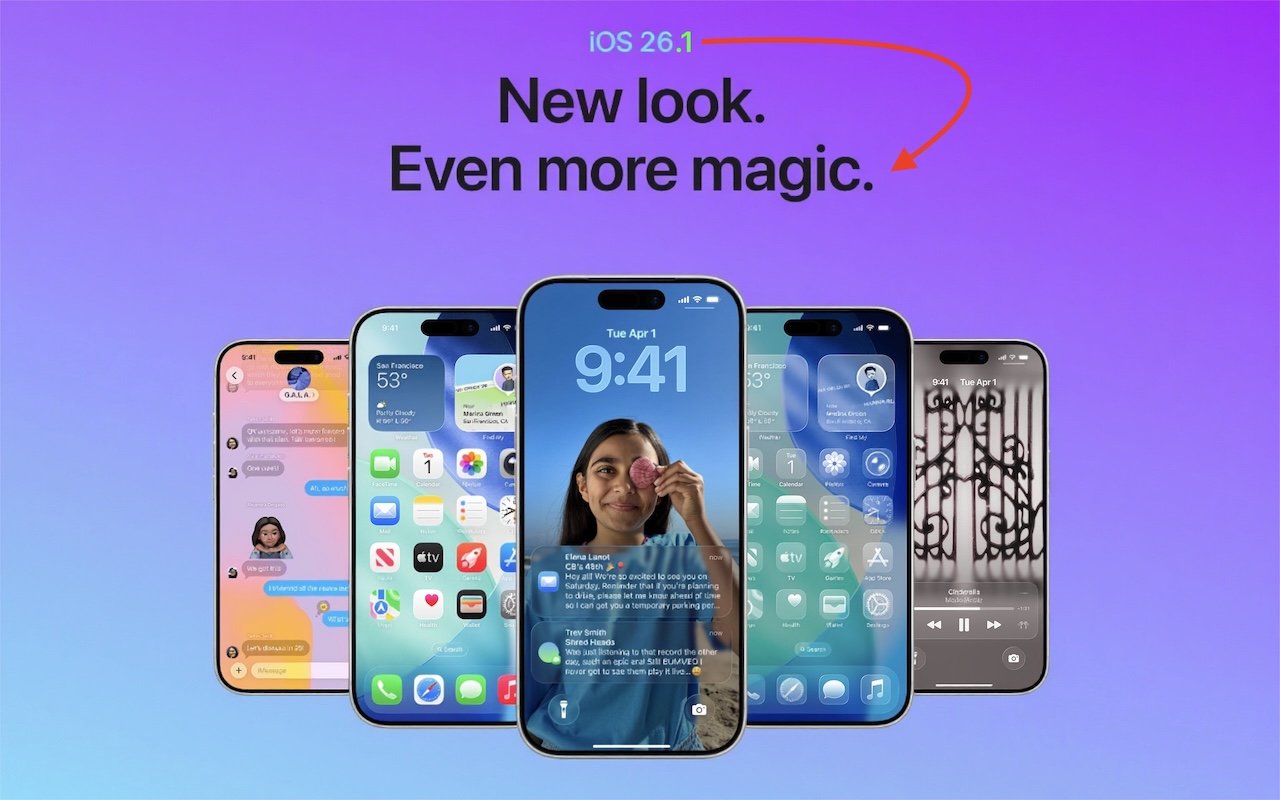
The first feature update to iOS 26 is now available—go to Settings > General > Software Update to install iOS 26.1. It doesn’t introduce any game-changers, but there are a few new options and tweaks worth knowing about.
Tinted Option for Liquid Glass
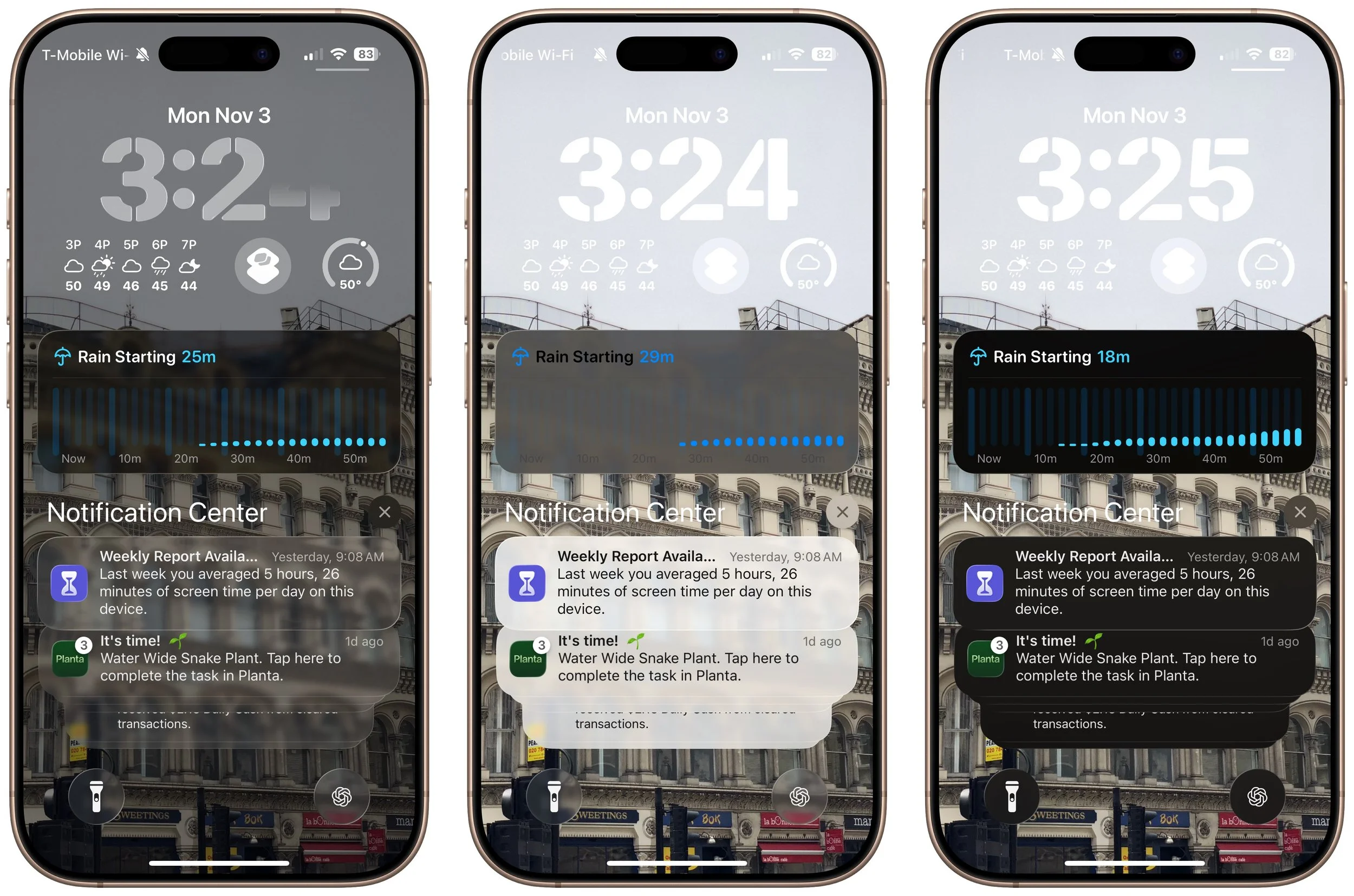
For many people, Liquid Glass’s aggressive transparency can make some interface elements, especially notifications, difficult to read. Until now, your best bet for improving readability was to turn on Settings > Accessibility > Display & Text Size > Reduce Transparency. In iOS 26.1, Apple bowed to user feedback and added a new Tinted view in Settings > Display & Brightness > Liquid Glass, which adds a subtle tint and increases the opacity of many Liquid Glass interface elements. In the screenshot below, the left image uses the default Liquid Glass Clear view, the middle one uses the Tinted view, and the right one uses Clear with Reduce Transparency. You can decide which you like best.
Disable Lock Screen Camera Swipe
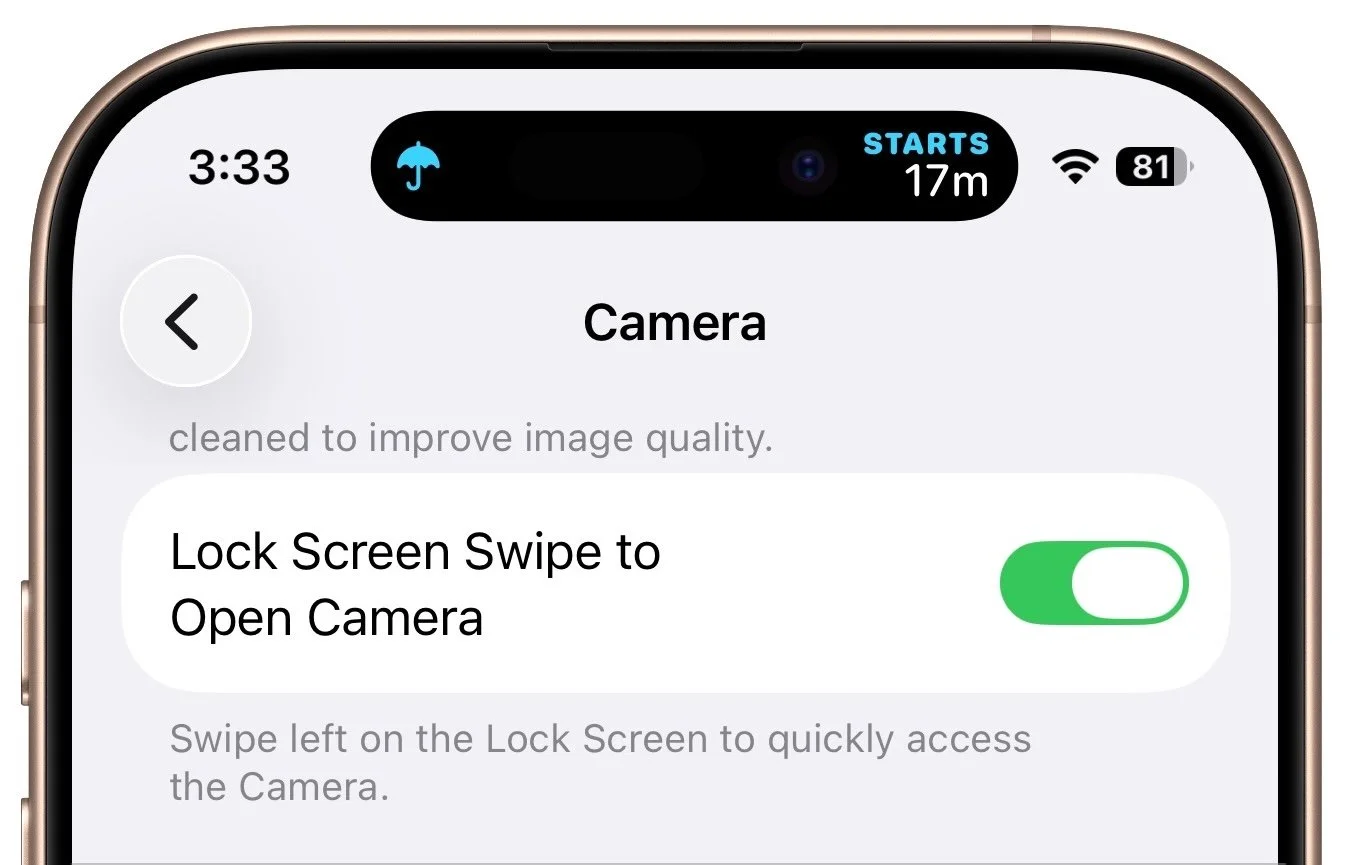
For many years, a fast way to get to the Camera app has been to swipe left on the Lock Screen. With new iPhones featuring the Camera Control button for quick access to the Camera app, Apple has given us the option to disable the Lock Screen left swipe. If you find yourself accidentally opening the Camera app from the Lock Screen, you can now prevent that from happening by turning off Settings > Camera > Lock Screen Swipe to Open Camera.
Background Security Improvements
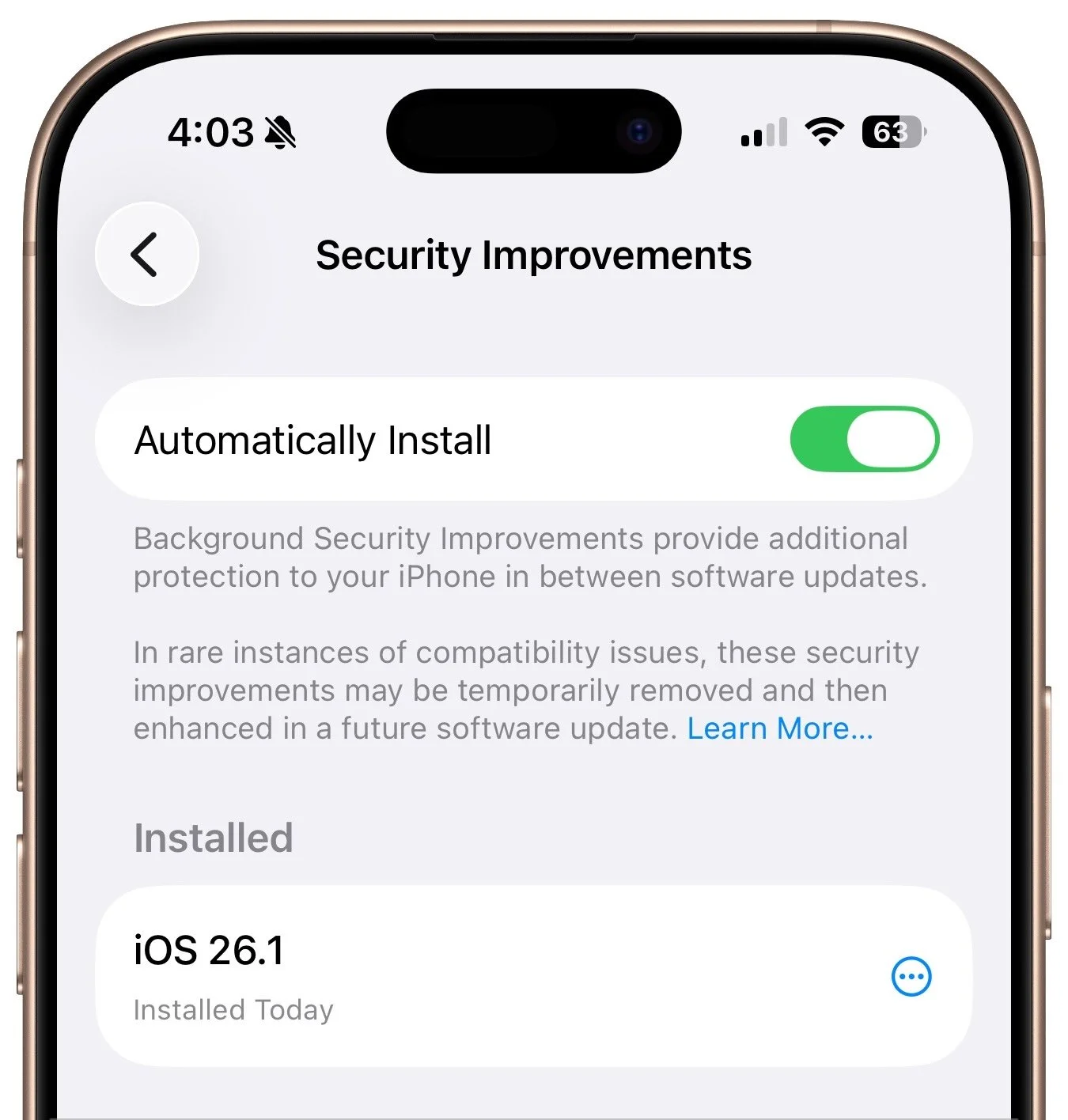
Several years ago, Apple introduced Rapid Security Responses, focused security updates that aimed to reduce update hesitancy with small downloads, automatic installation, and easy reversal. For unknown reasons, Apple used them only a couple of times before reverting to traditional operating system updates. Now, Rapid Security Responses seem to have returned under a new name: Background Security Improvements. They’re enabled by default in Settings > Privacy & Security > Background Security Improvements > Automatically Install. If you prefer to approve these updates in advance, you can turn that off. (A similar setting is available for macOS 26.1.)
Slide to Stop Alarms and Timers
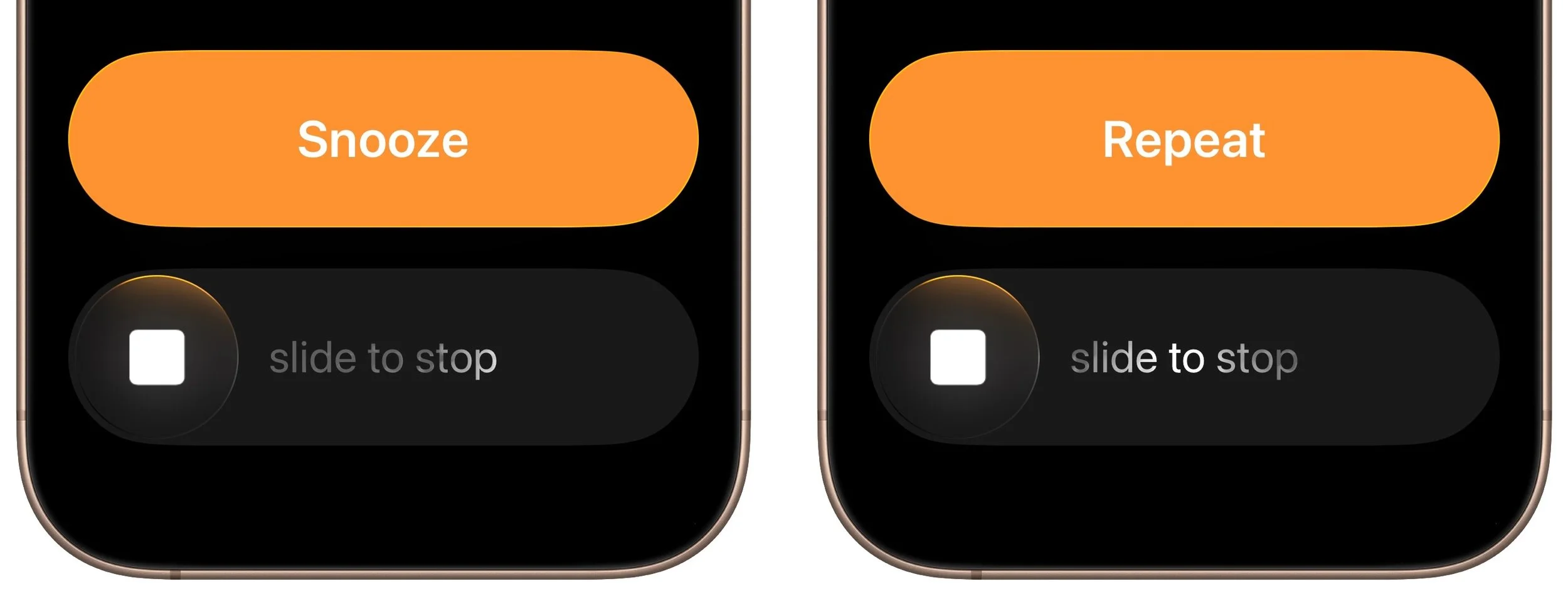
In iOS 26, Apple increased the size of the buttons that appear when alarms or timers go off, but the large Stop button was easy to hit when you meant to tap Snooze (for alarms) or Repeat (for timers). Apple made that mistake much less likely in iOS 26.1 by requiring you to slide the on-screen control to stop the alarm or timer.
Swipe Between Songs in Music
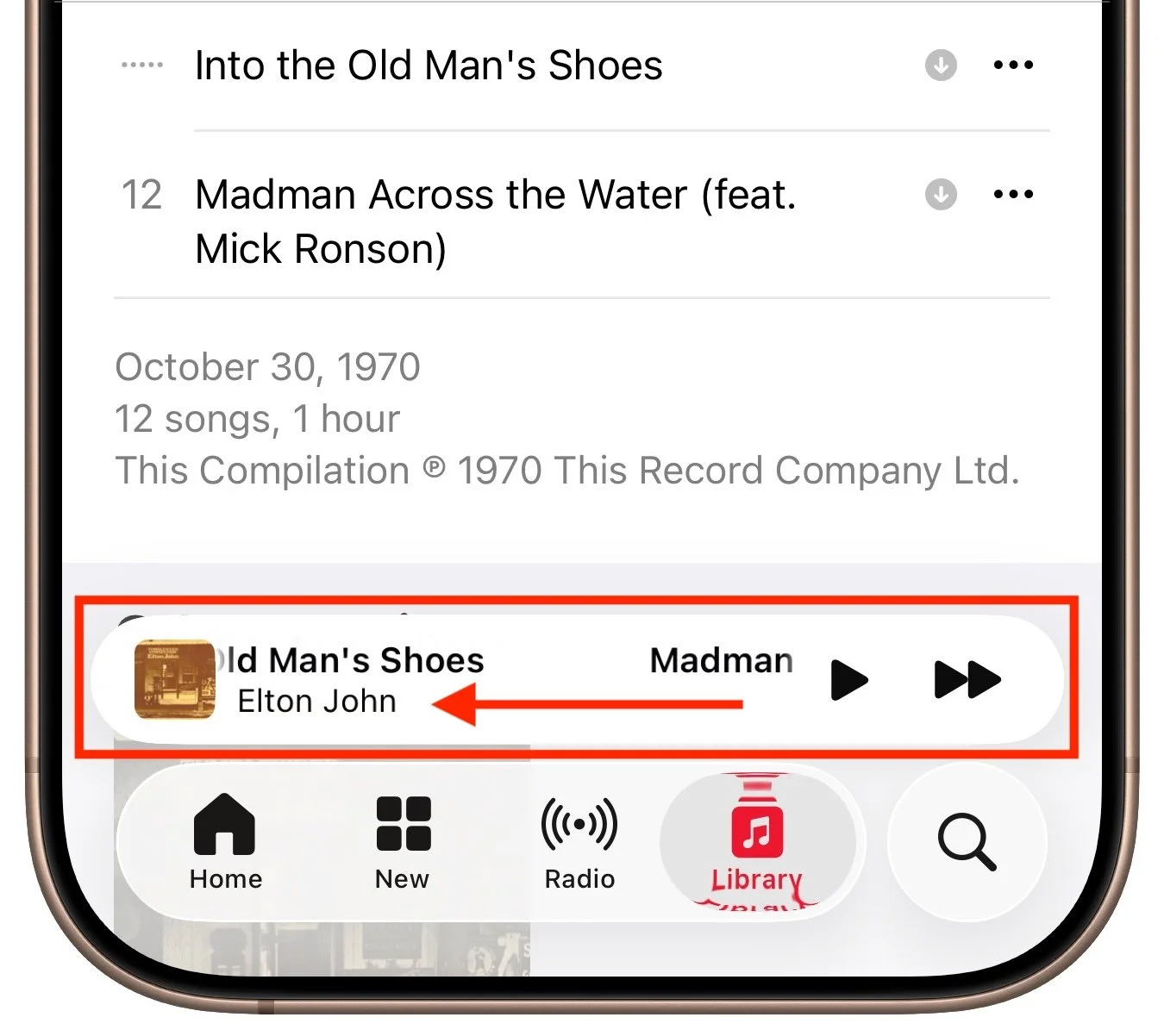
Sure, you could just tap a song in the album or playlist you’re viewing, but iOS 26.1 adds a subtle way to move to the next or previous track: swipe left (next) or right (previous) on the MiniPlayer at the bottom of the screen.
More Languages for Live Translation
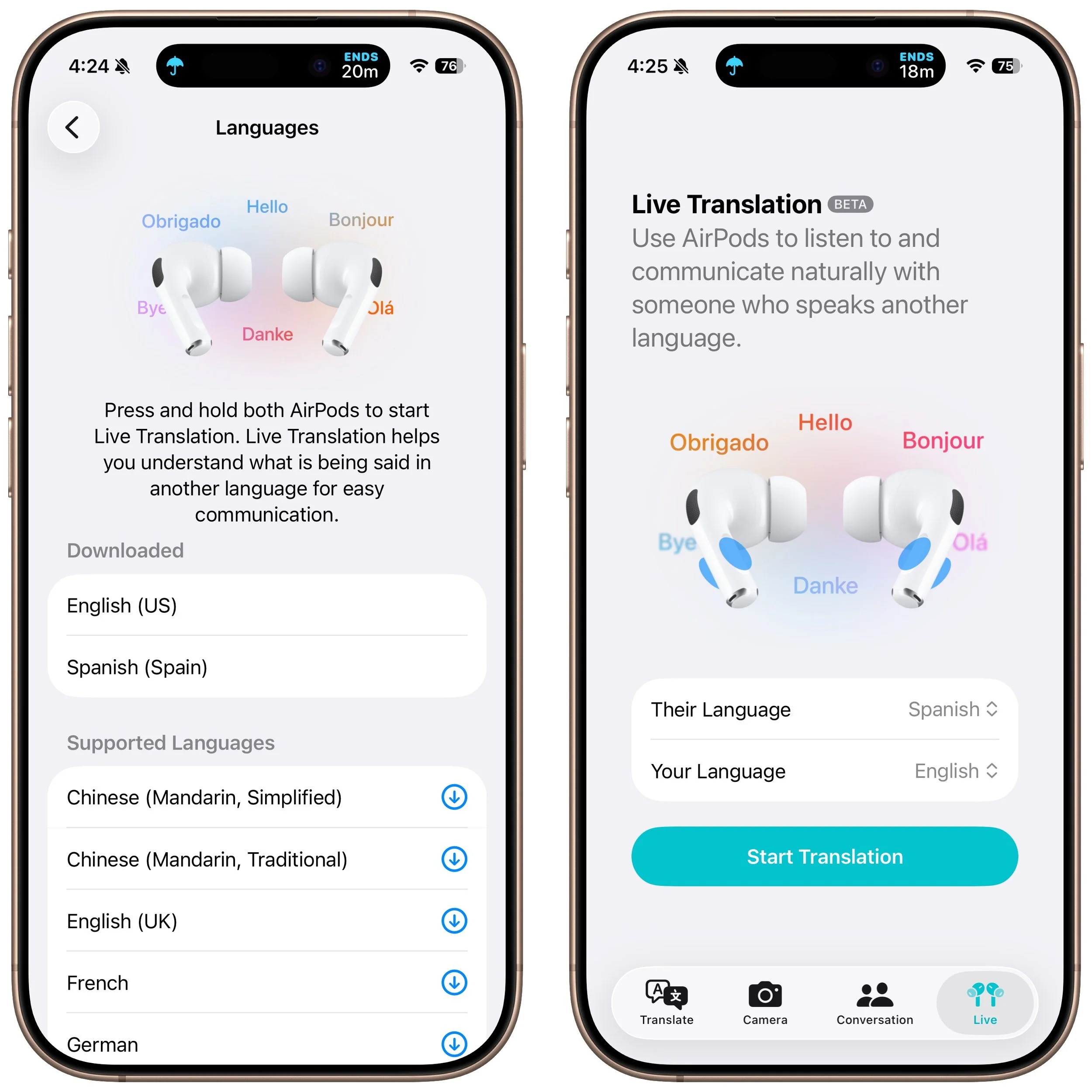
iOS 26 introduced Live Translation with the AirPods 4 with Active Noise Cancellation, AirPods Pro 2, and AirPods Pro 3. Initially, it supported English (US and UK), French, German, Portuguese (Brazil), and Spanish (Spain). In iOS 26.1, Apple added Chinese (Mandarin, simplified and traditional), Italian, Japanese, and Korean. To avoid delays in getting new languages when you are out and about, download the languages you expect to need ahead of time, when you have a fast Internet connection. Go to Settings > Bluetooth and tap the ⓘ next to your AirPods. Scroll to and tap Languages, then select the desired language. For actual use, open the Translate app, tap Live, and select the two languages you want to translate between.
There are a few other tweaks that most people won’t notice, such as support for the new AutoMix transitions between songs in Music when playing over AirPlay, better FaceTime audio quality in low-bandwidth conditions, manual logging of workouts in the Fitness app, and improvements when recording audio with external USB mics.
If you’re already running iOS 26, we recommend updating to iOS 26.1—the changes (and numerous security fixes) are worthwhile. If you haven’t upgraded from iOS 18 yet, now’s a fine time to make the jump.
(Featured image based on an original by Apple)
Make the Most of Visual Intelligence on the iPhone
With its visual intelligence feature, Apple Intelligence brings super-powers to your iPhone’s camera and screen. Just point and hold to identify objects, translate text, create calendar events, and get answers about anything you see.
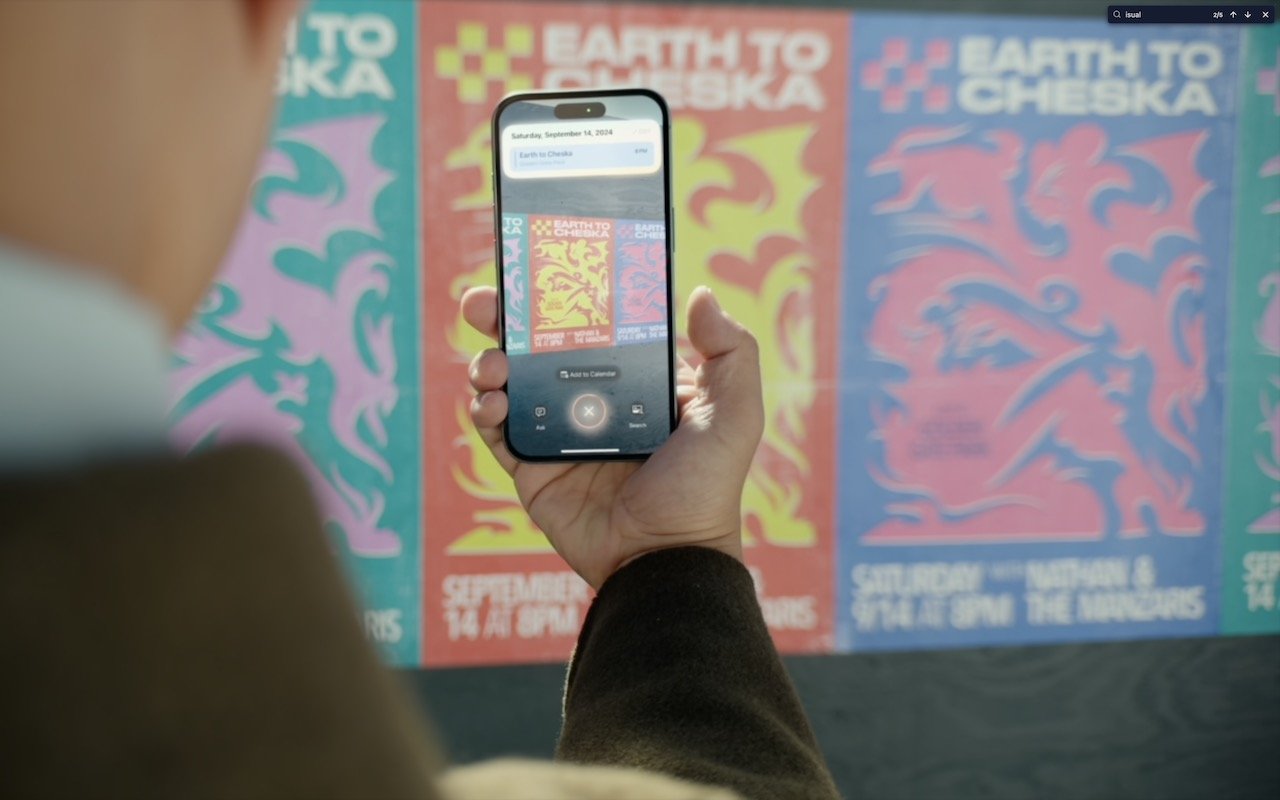
The “visual intelligence” aspect of Apple Intelligence leverages the artificial intelligence capabilities of your iPhone to make what you see through the iPhone’s camera or on its screen interactive and actionable in ways that weren’t previously possible. It’s one of the most useful aspects of Apple Intelligence.
Triggering Visual Intelligence
We offer numerous examples of visual intelligence’s superpowers later in this article, but first, let’s make sure you know how to activate its two modes: camera mode and screenshot mode. Use camera mode to learn more about the world around you; use screenshot mode for help with something on your iPhone’s screen. Here’s how to trigger each mode:
Camera mode: Press and hold the Camera Control button on all iPhone 16 models (except the iPhone 16e), all iPhone 17 models, and the iPhone Air. Press the Camera Control again or tap the shutter button to lock the image for visual intelligence. On the iPhone 15 Pro, iPhone 15 Pro Max, and iPhone 16e, which support Apple Intelligence but lack the Camera Control, use the Action button, a Lock Screen button, or a Control Center button.
Screenshot mode: Simultaneously press the side button and volume up button to display an interactive preview of what was on the screen.
Visual intelligence analyzes the content of your image and provides relevant action buttons based on what it detects. While the Ask and Search options are always available, other buttons appear contextually depending on the content.
Ask: Tapping the Ask button lets you pose a question about the image to ChatGPT. (But we’ve found that Apple won’t pass on health-related questions or queries with certain types of sensitive data.)
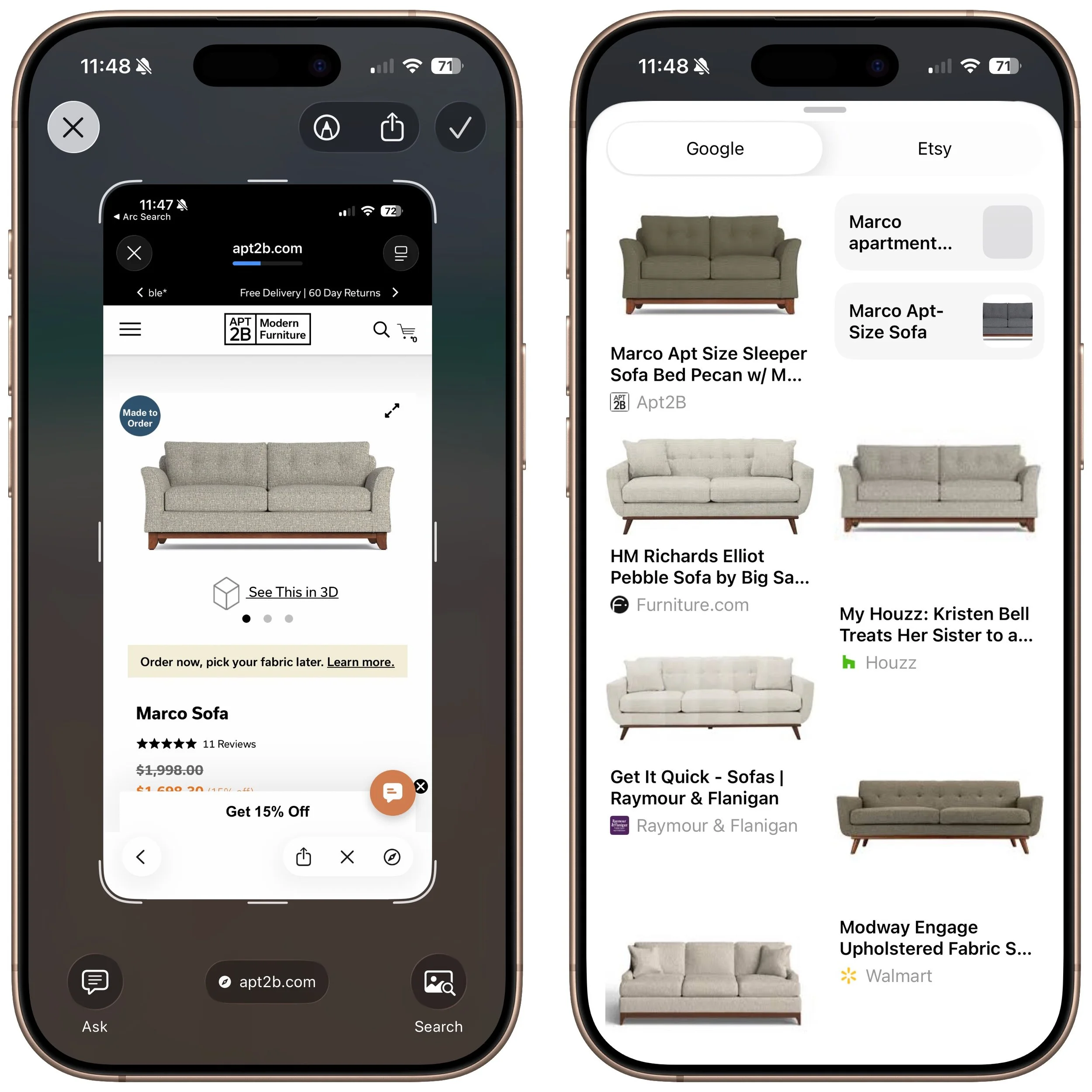
Search: Tapping the search button conducts a Google Image search for similar items. It may also display tabs for search results from other apps, such as Etsy or eBay.
Recognized objects: When visual intelligence identifies an object, such as a specific plant or animal, it displays a button that brings up more details.
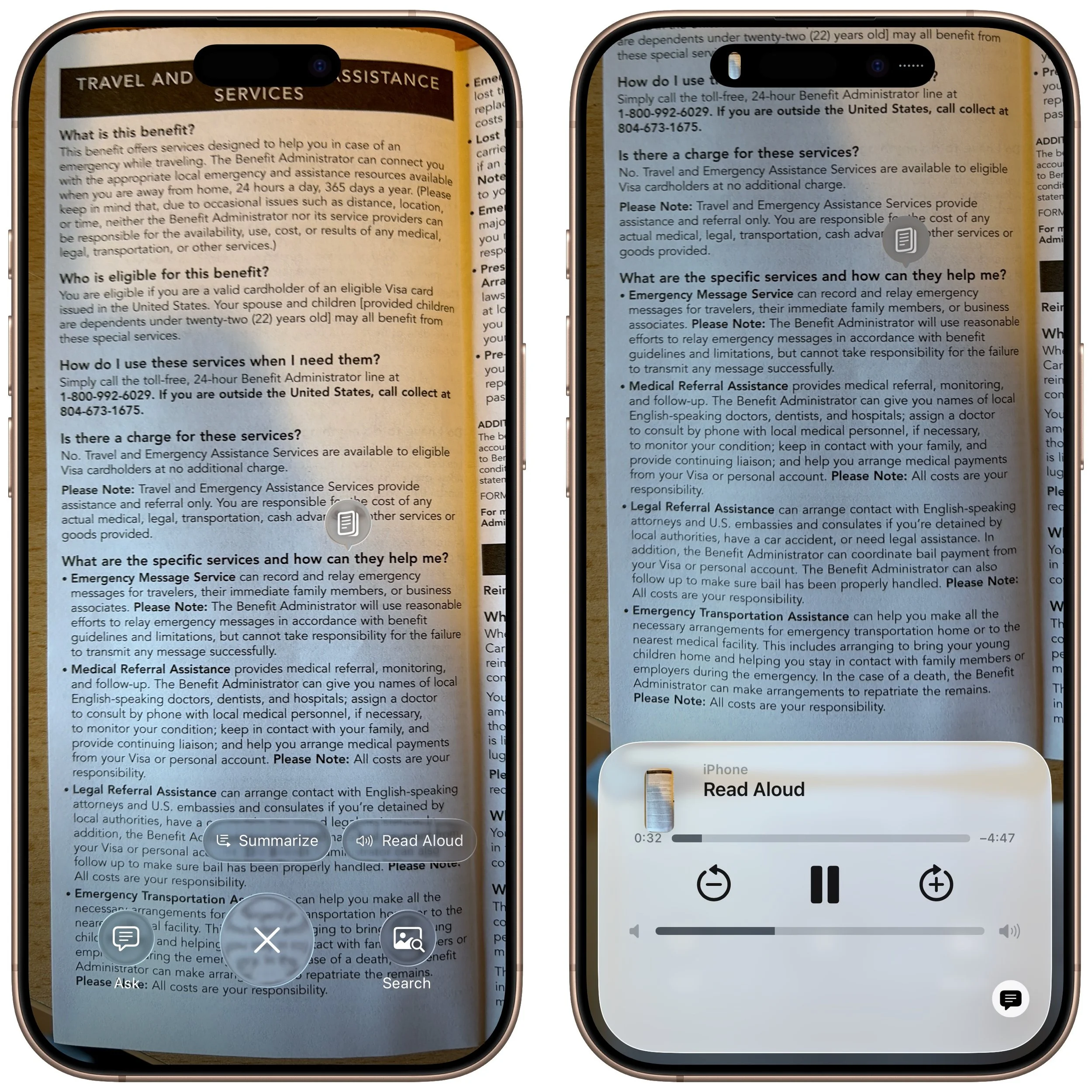
Text: When it detects blocks of text, visual intelligence provides buttons to summarize the text, read it aloud, or translate it.
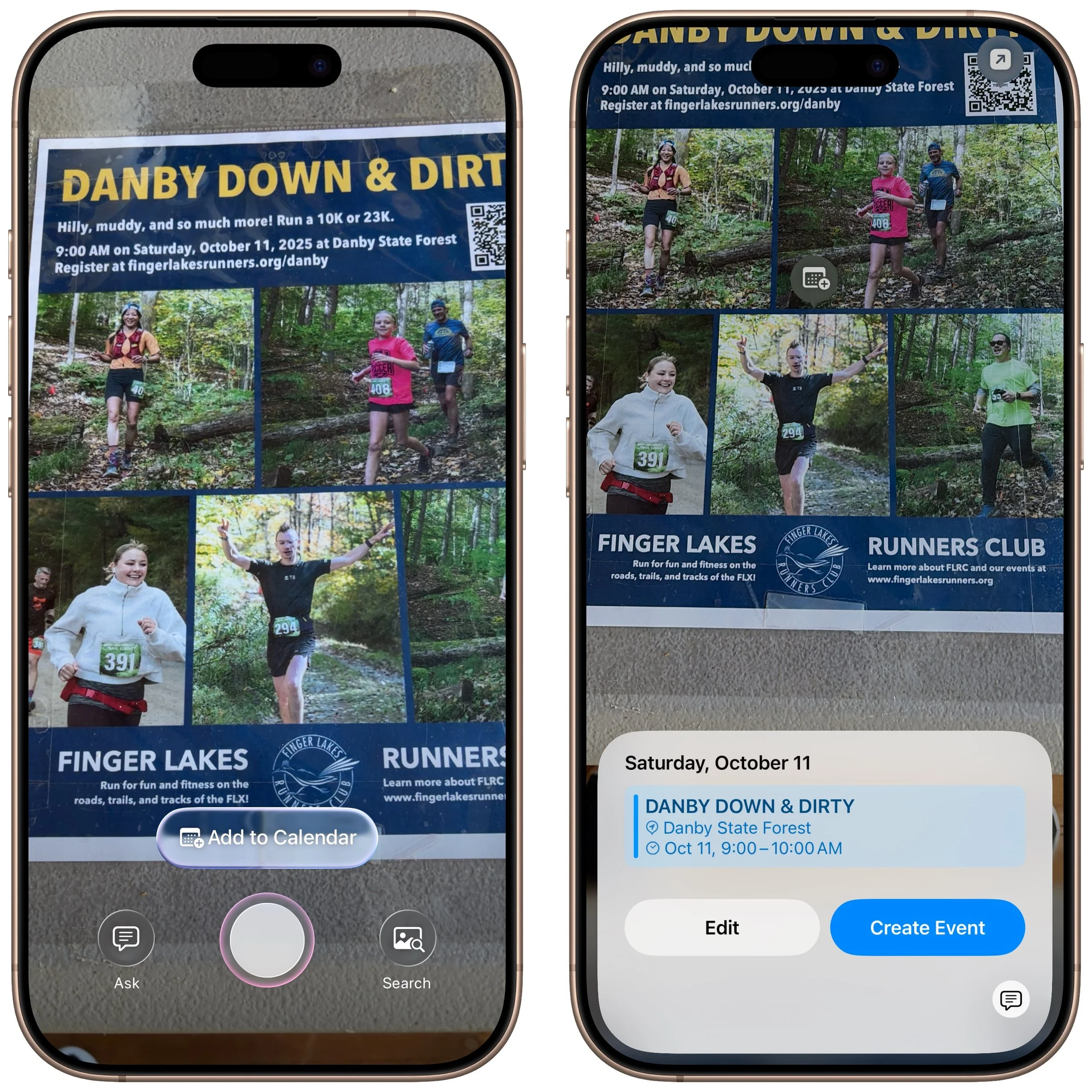
Dates: If it detects a date in text, visual intelligence displays an Add to Calendar button.
Contact info: When details like email addresses or phone numbers appear in the image, visual intelligence can help you call or message the number, or send email.
Addresses: When it identifies a physical address in text, visual intelligence displays a button that opens the address in Maps.
URLs: This works in the virtual world as well—a URL embedded in an image prompts visual intelligence to display a button that opens the website in Safari.
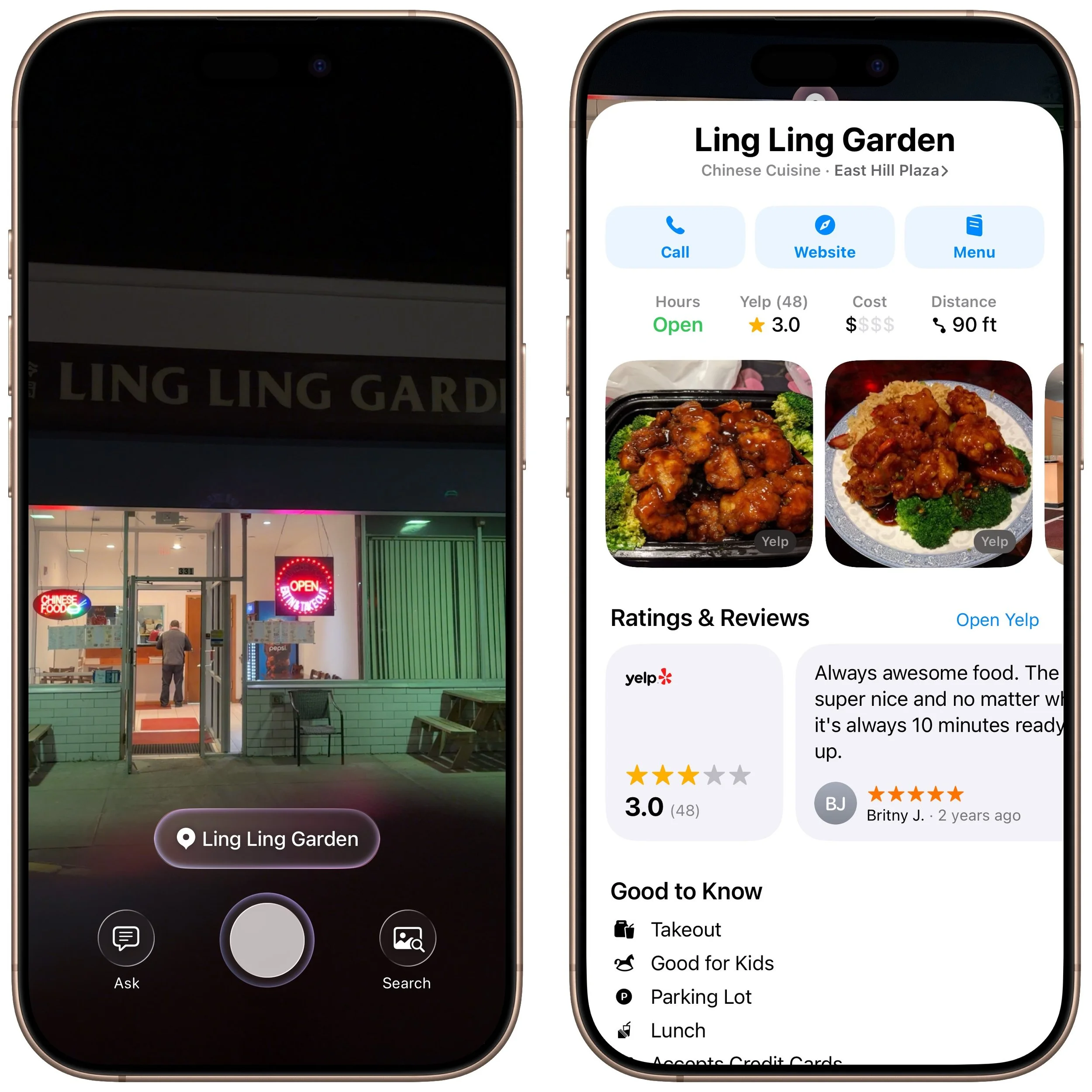
Businesses and locations: When you capture an image of a business or other location that’s known in Maps, visual intelligence can show hours, menus, reviews, and more.
Real-World Uses for Visual Intelligence
It can be challenging to think of uses for visual intelligence at first, simply because it’s a new way of engaging with the world around you and what you see on your iPhone. We’re used to taking pictures of event flyers we want to attend, doing Google searches for things we see, asking questions of chatbots, and using specialized apps to identify plants and animals—visual intelligence can do all that and more. Here are a few practical ways to use visual intelligence today:
Create calendar events: Create calendar events from posters, flyers, invitations, or Web pages. When you point the camera at a poster or take a screenshot of an event page, an Add to Calendar button allows you to create an event directly from the on-screen details.
Find business information: Point the camera at a business to retrieve details such as hours, menu/services, phone number, and website. It’s the same information you’ll find in Maps, but it’s easier to pull up using visual intelligence.
Search for products: Shopping for something? Once you find an example of what you like—such as this mid-century modern sofa—take a screenshot, circle the picture with your finger, and browse the search results for similar items.
Summarize and read text aloud: When you’re faced with a large amount of text, especially if the font size is difficult to read, visual intelligence can provide a summary or even read it aloud. The option to have text read aloud can be particularly helpful for those with low vision.
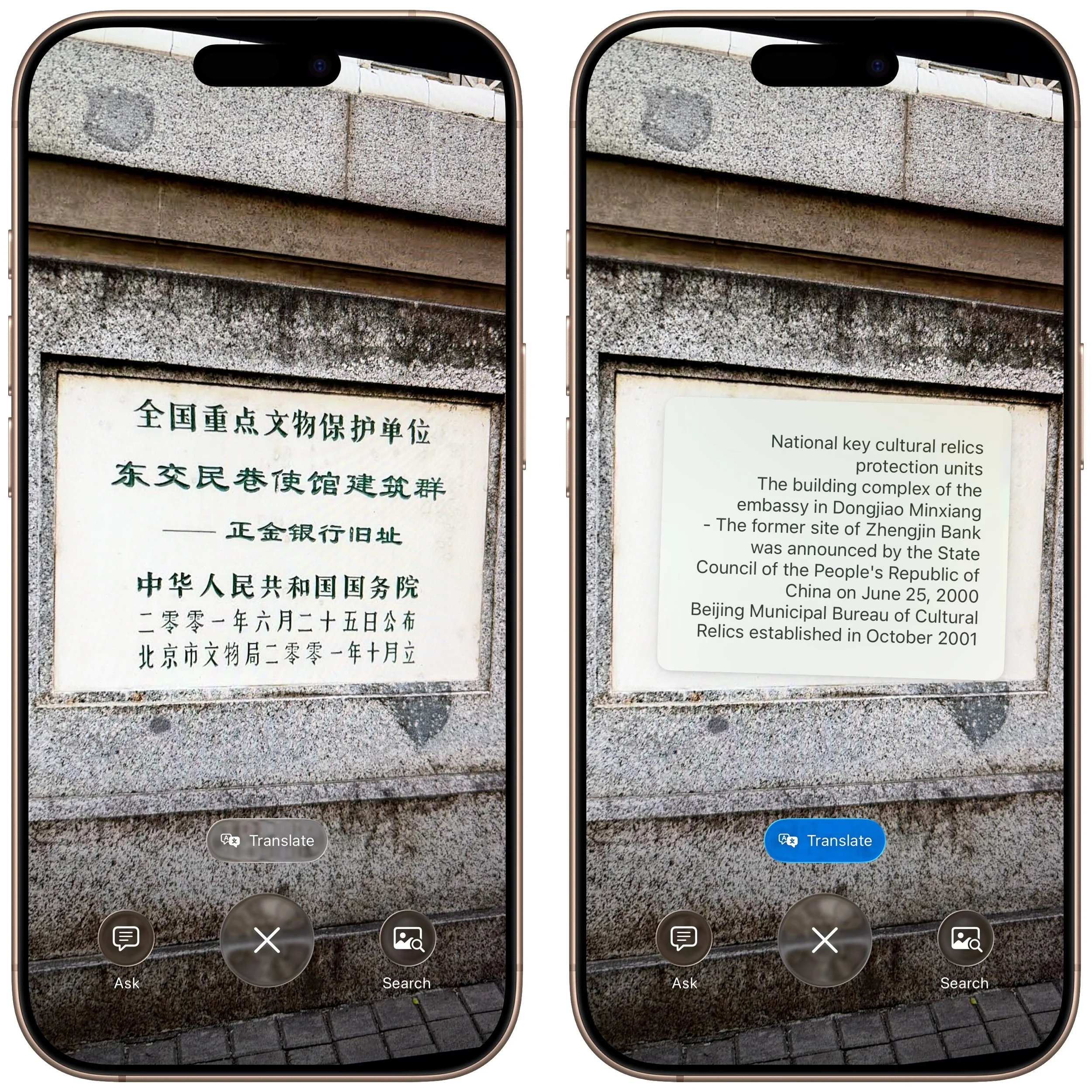
Translate text: iOS offers multiple ways to translate text in unfamiliar languages, including the Translate app, but visual intelligence is often the fastest way to get a quick translation of a sign or placard.
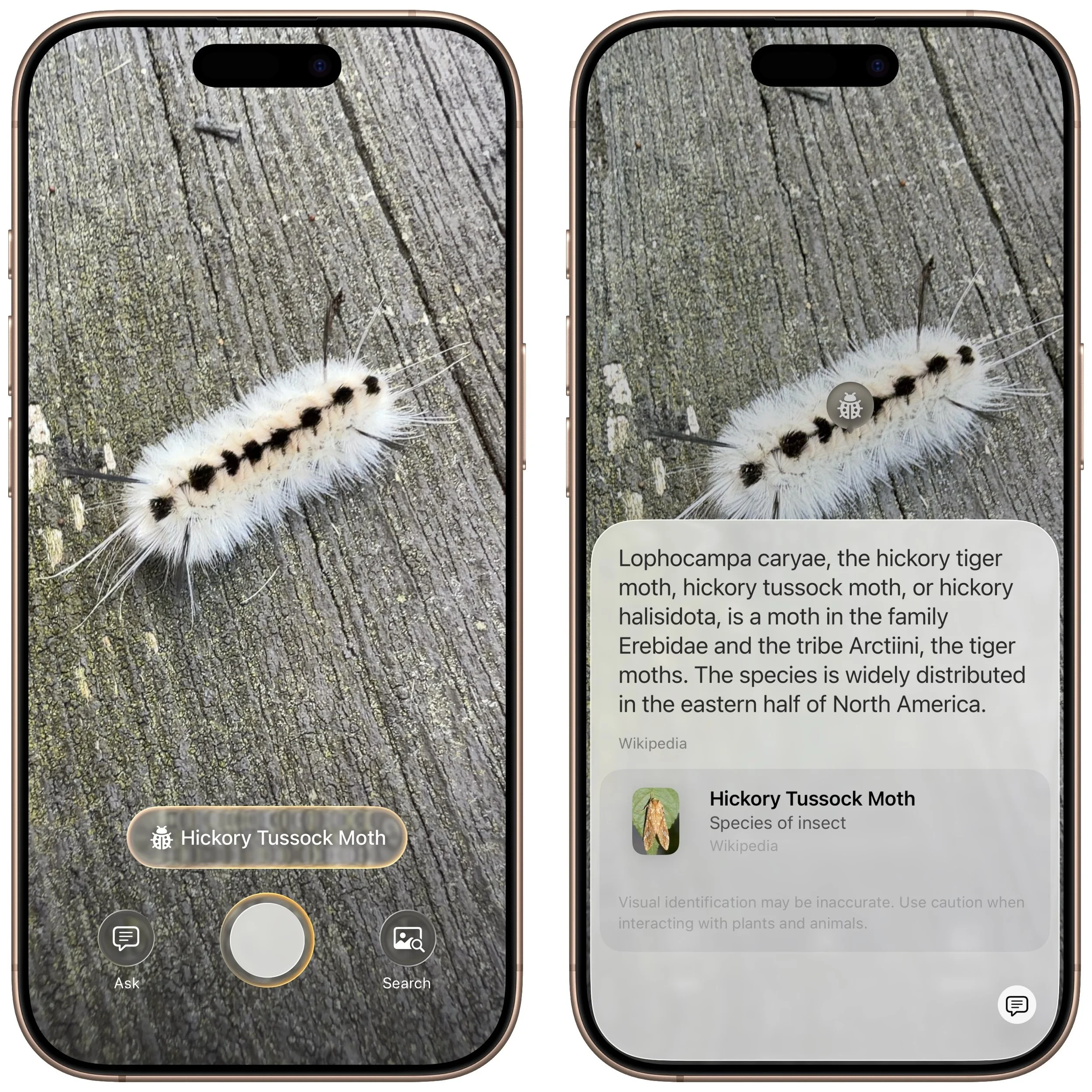
Quick object identification: We’ve all wondered what some plant or animal is—using visual intelligence, you can point your camera at it to find out quickly. Just tap the name that appears to get more details.
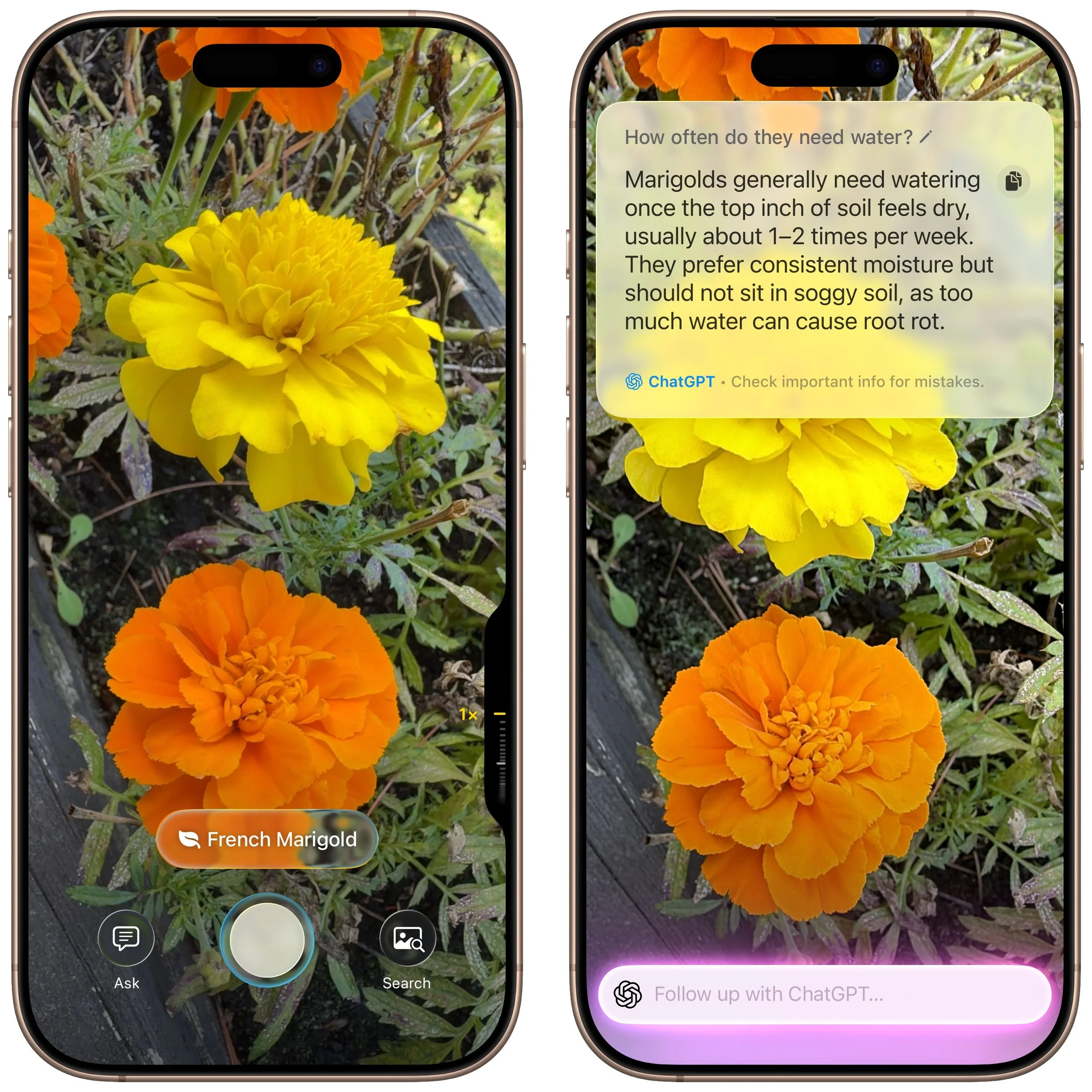
Research questions: Sometimes, you know what you’re looking at but have questions about it. Instead of starting a new search, you can use visual intelligence, tap the Ask button, and pose your question to ChatGPT. Tap the response to ask a follow-up question. If you connect Apple Intelligence to your ChatGPT account in Settings > Apple Intelligence & Siri > ChatGPT, your conversations will be saved in ChatGPT, where you can review and continue the discussion.
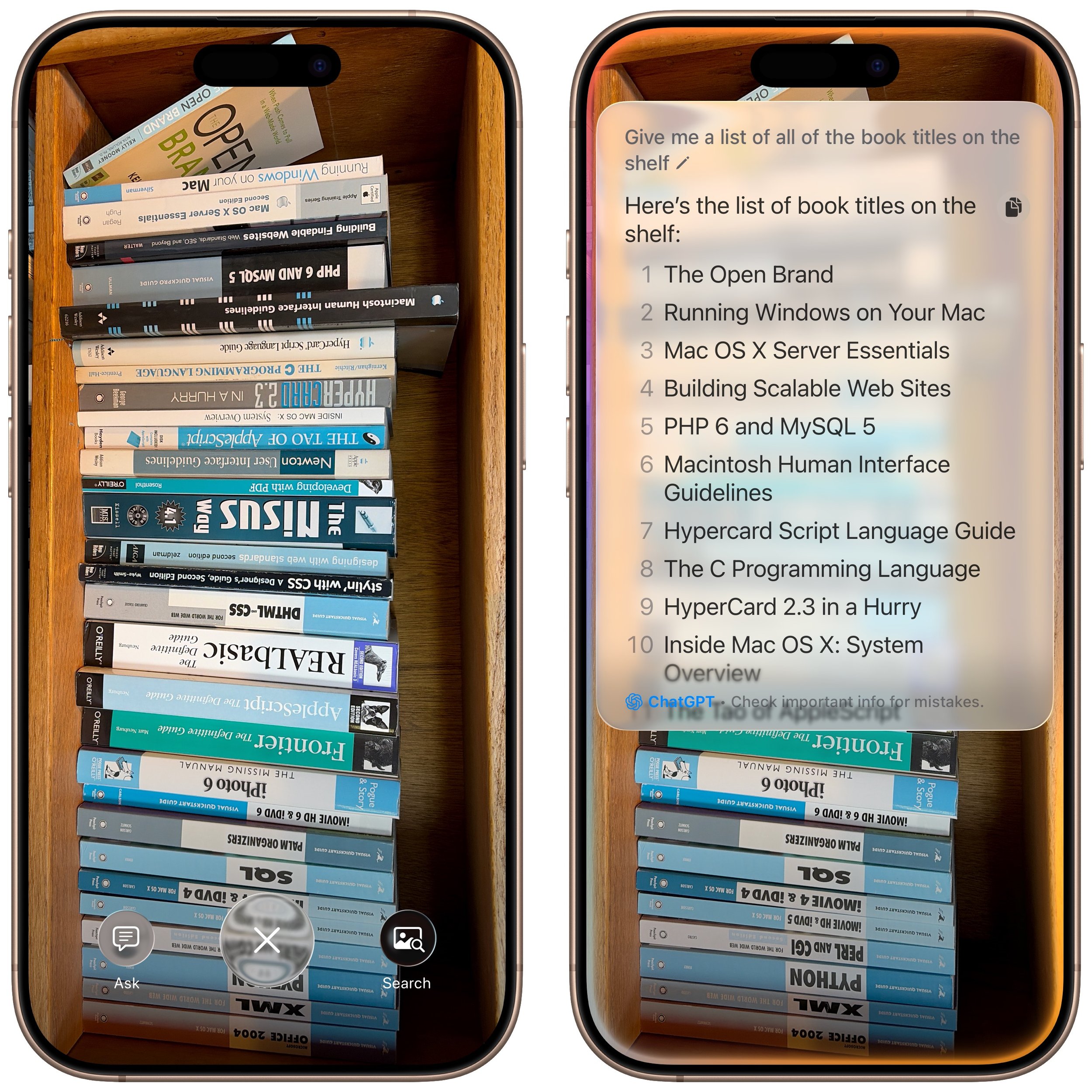
Manipulate real-world data: Anything that can be photographed or captured in a screenshot can be used as data for other manipulations. For example, you could take a picture of a bookshelf and ask for a list of all the titles, or take a screenshot of a recipe and request the calorie count per serving.
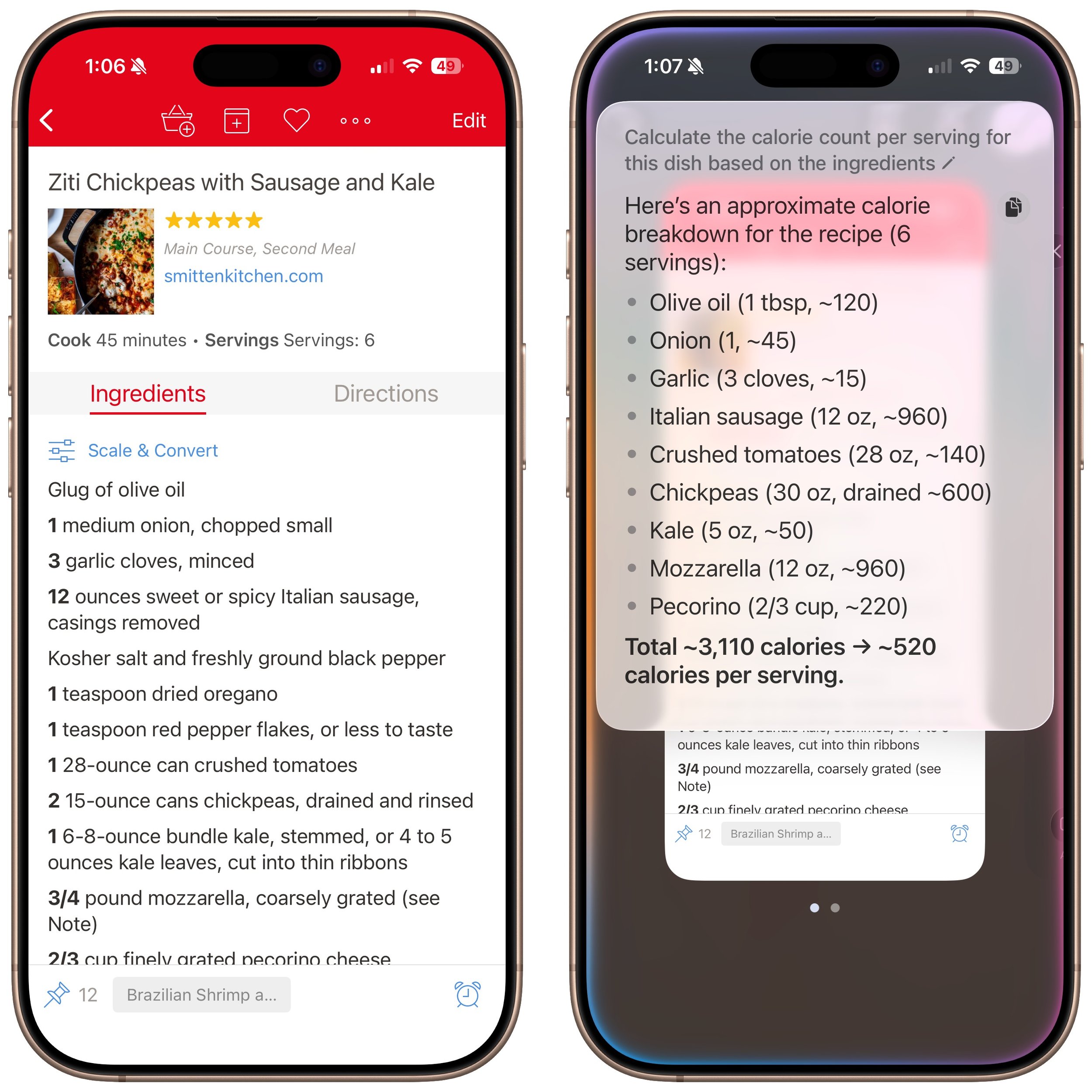
How does visual intelligence compare to apps like ChatGPT, Claude, Gemini, and others? It outdoes them in two ways but falls short in one. Thanks to its deep integration with iOS and the iPhone’s Camera Control, it’s easier to activate visual intelligence than any other app. It also transfers data more effectively to other apps, such as sending URLs to Safari, phone numbers to Phone or Messages, addresses to Maps, and more. However, chatbot apps—which can also analyze photos and screenshots—are more conversational, offer more detailed information, and are willing to discuss potentially sensitive topics that Apple won’t touch, such as health and politics. We use visual intelligence for straightforward tasks, but for more complex situations, we often turn to a chatbot app instead.
(Featured image by Apple)
Notable User Interface Changes to Expect in macOS 26
From transparent menu bars to customized folders, macOS 26 Tahoe introduces the most significant visual update in years. Discover the key interface changes that will influence your daily Mac use... and which you can turn off.
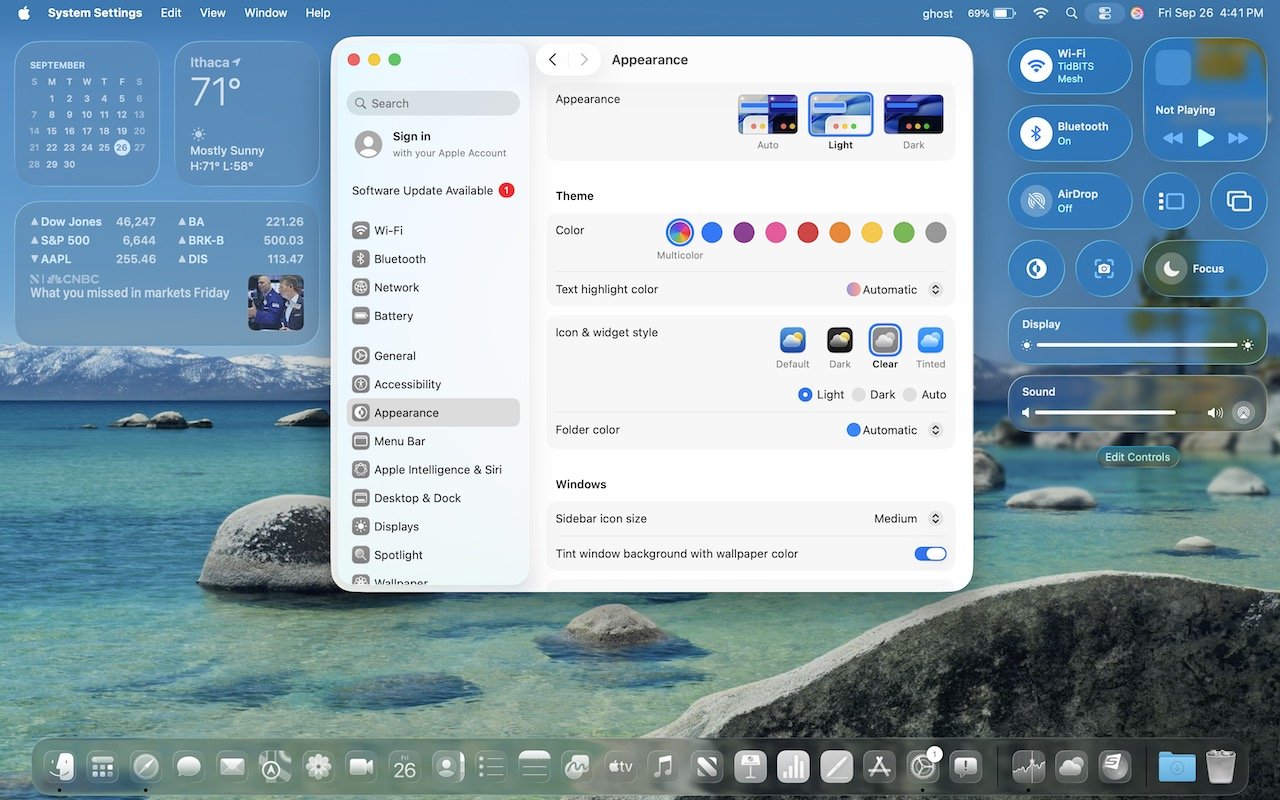
macOS 26 Tahoe is a larger visual leap than any recent upgrade. Although we don’t yet recommend that everyone upgrade, we want to show you some of the user interface changes that will impact your everyday experience of using the Mac.
Liquid Glass Changes
Many of these changes stem from Apple’s new Liquid Glass design language, which we’ve previously covered in more detail. Familiar macOS interface elements with a new Liquid Glass appearance include:
Rounded corners: You may be surprised by the more rounded corners in many interface elements, including windows. There’s no option to adjust the corner radius.
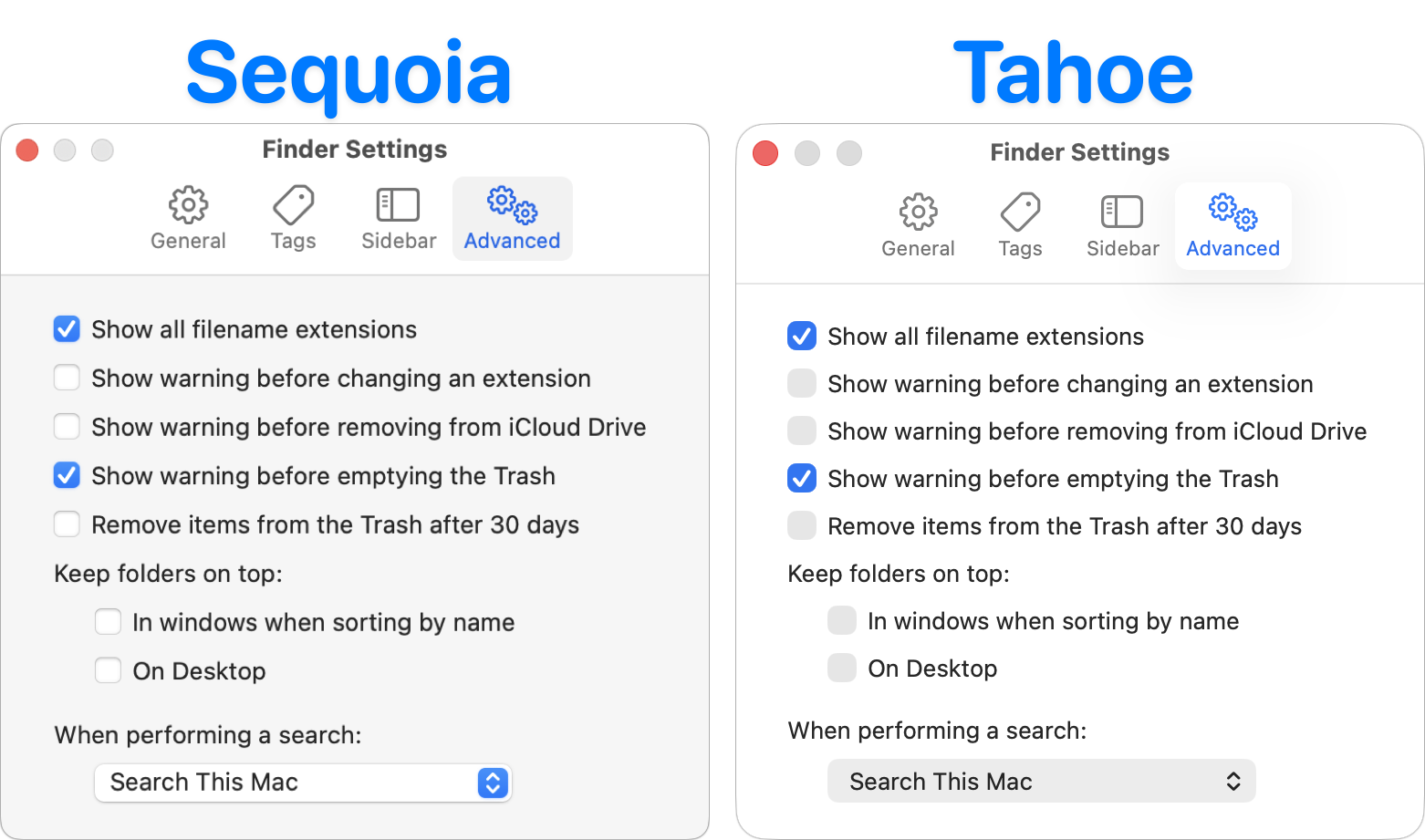
Menu bar: Tahoe’s menu bar is now transparent, allowing app windows or desktop wallpapers to show through, which can make it less visually prominent at the top of the screen. To make it opaque, go to System Settings > Accessibility > Display > Reduce Transparency. This setting also affects many other transparent interface elements.

Icon style: Many developers are updating their icons to conform to Apple’s Liquid Glass guidelines. A more notable change is that users can now switch to dark mode icons, clear icons, or tinted icons in any color. Make these changes in System Settings > Appearance > Icon & Widget Style.

Widget style: Desktop widgets are now mostly transparent when any window is open on the desktop, and they become solid only when the last window is closed or hidden. You can adjust this setting in System Settings > Desktop & Dock > Dim widgets on desktop. Widgets also adopt the same clear or tinted style used by icons.

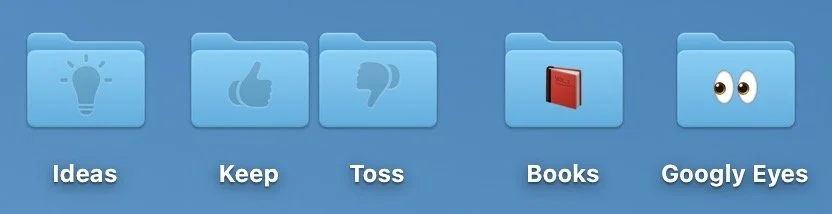
Customized folders: Folders start out blank, but you can Control-click one, choose Customize Folder, and pick an icon (monochrome) or emoji (colored) to brand the folder.
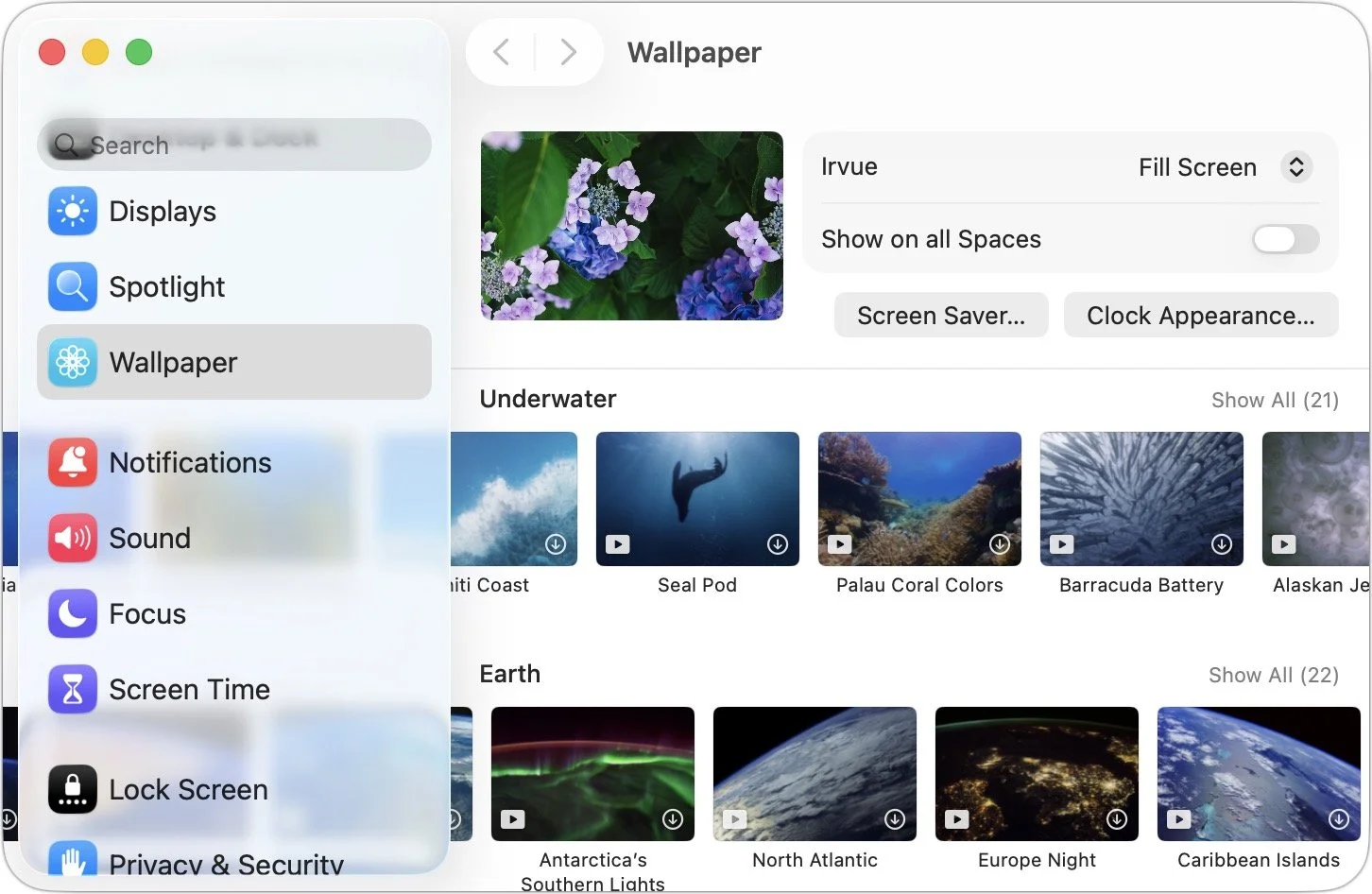
Sidebars: Although they’re less transparent than other items, sidebars become subtly tinted based on what’s under them. That occasionally results in some awkward overlays, such as in System Settings > Wallpaper, where the thumbnails can scroll underneath the sidebar.
Safari
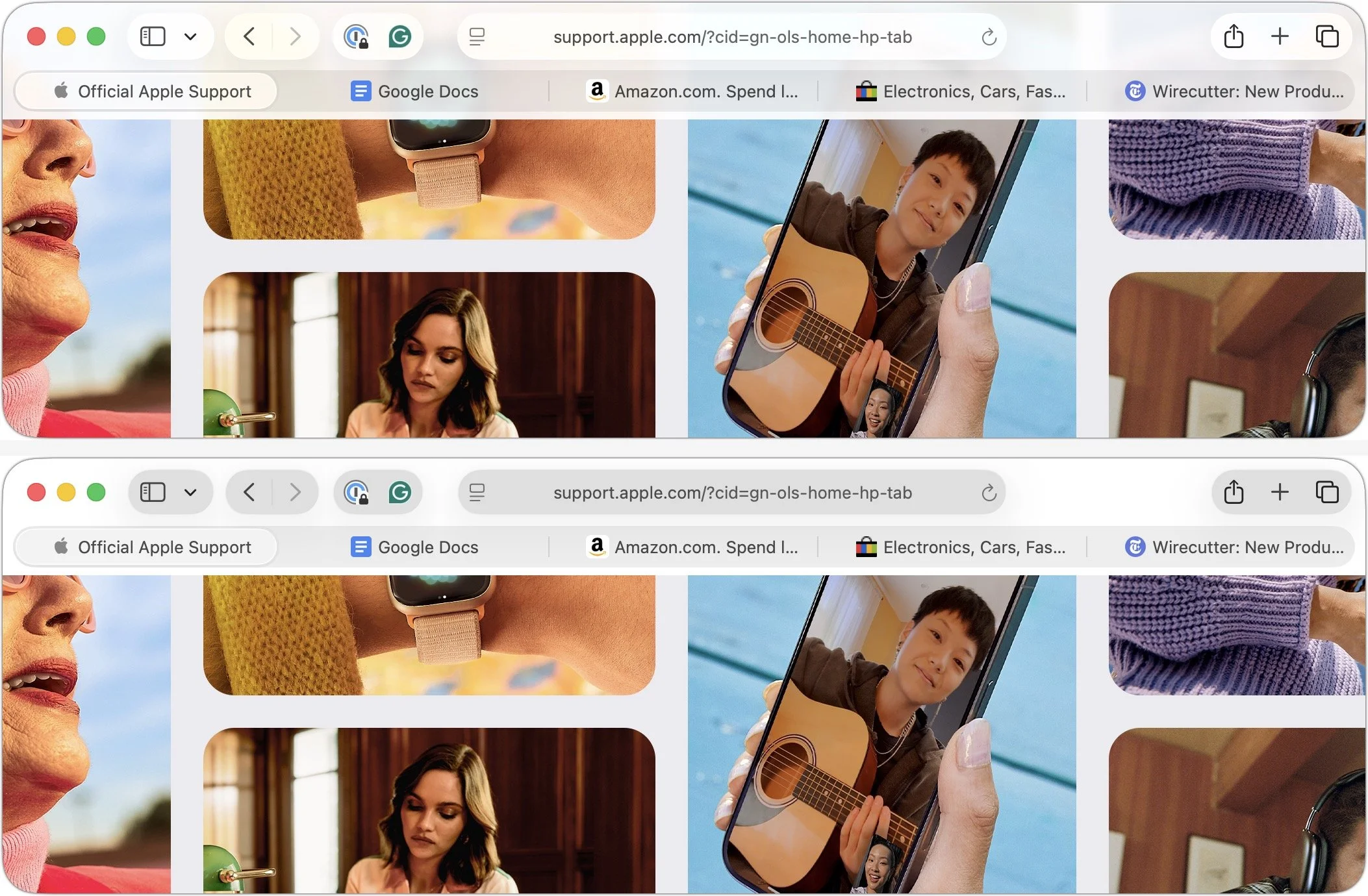
With Safari, Apple’s Liquid Glass interface causes the toolbar controls and the tab bar at the top to float over the page content underneath. On some sites, this can be distracting or make tab titles hard to read (below, top). If that bothers you, turning on System Settings > Accessibility > Display > Reduce Transparency separates the controls from the content more clearly, but also gives them a gray background (below, bottom).
Control Center
In Tahoe, Control Center not only receives a Liquid Glass makeover but also gains notable new features. Similar to iOS and iPadOS, you can now fully customize the buttons, sliders, and other interface shortcuts in Control Center, removing those you don’t need and adding others. To get started with personalization, click Edit Controls at the bottom of Control Center.
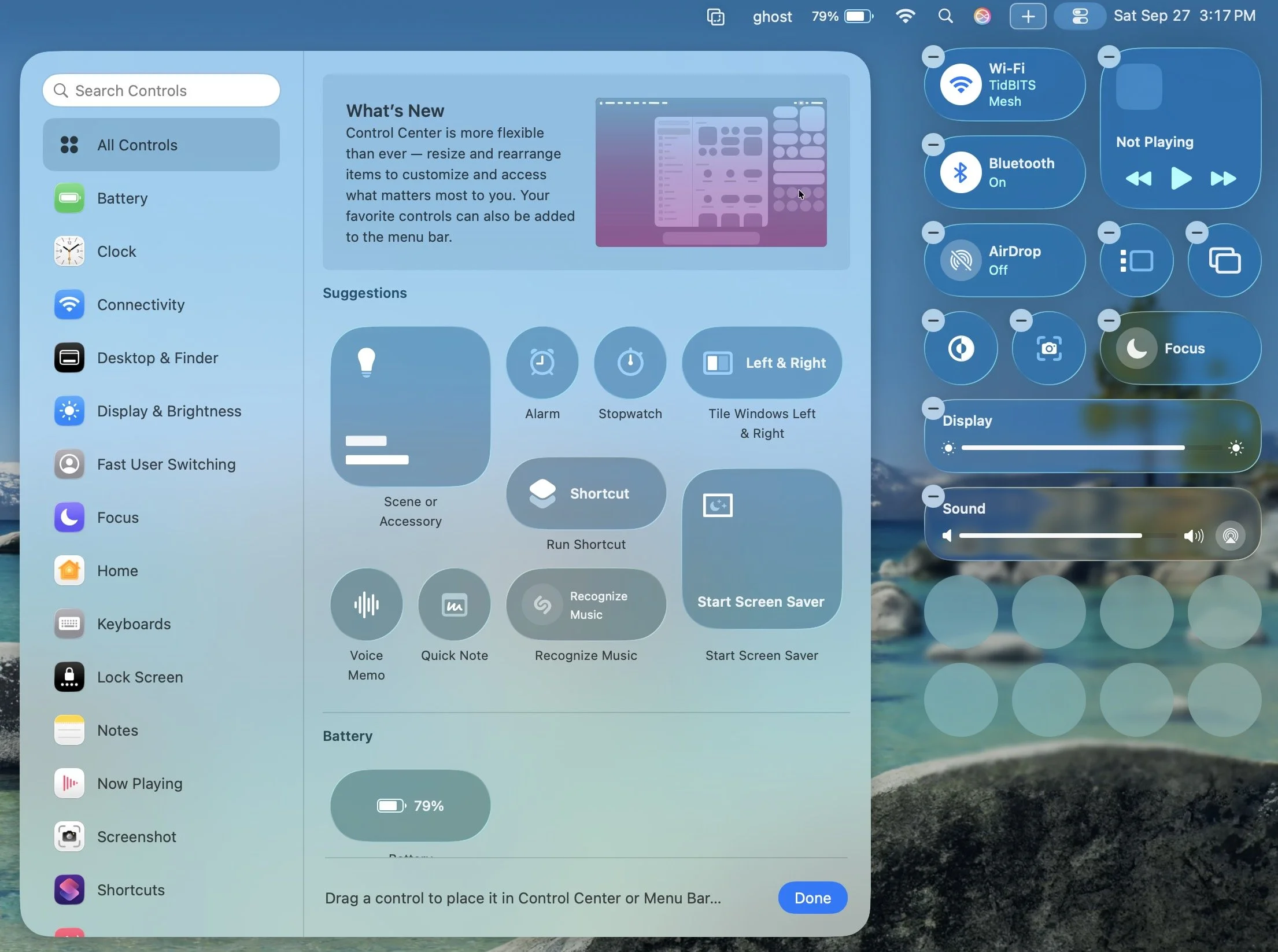
The selection of commands is impressive enough on its own, but Apple also promises that independent developers will be able to offer controls for their apps. Clicking the + button in the menu bar provides the equivalent of additional Control Center pages from iOS: another menu bar icon that displays a different set of Control Center items. You can have as many of these extra Control Center pages as you want.
Lastly, note that you can add many items from Control Center directly to the menu bar, where they can function as toggles or quick access shortcuts.
Spotlight
Apple revamped Spotlight in Tahoe, adjusting its interface (yes, it’s transparent by default, too) and introducing clipboard history. When you activate Spotlight with Command-Space and move the pointer, four buttons appear to filter your search by apps, files, shortcut actions, and clipboard history—Command-1 through 4 serve the same purpose.
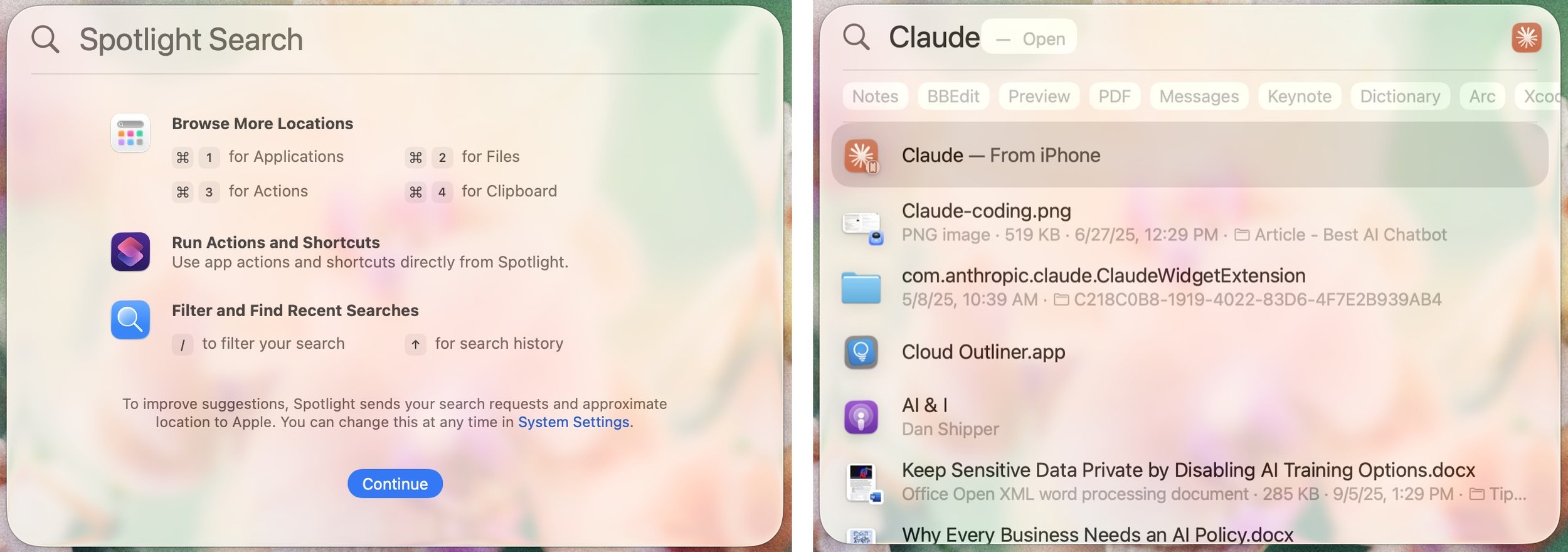
Previously, Spotlight separated different result types vertically; now you can click buttons just below the search box to filter results by category. Spotlight also remembers past searches, allowing you to use the arrow keys to browse backward and forward through your search history.
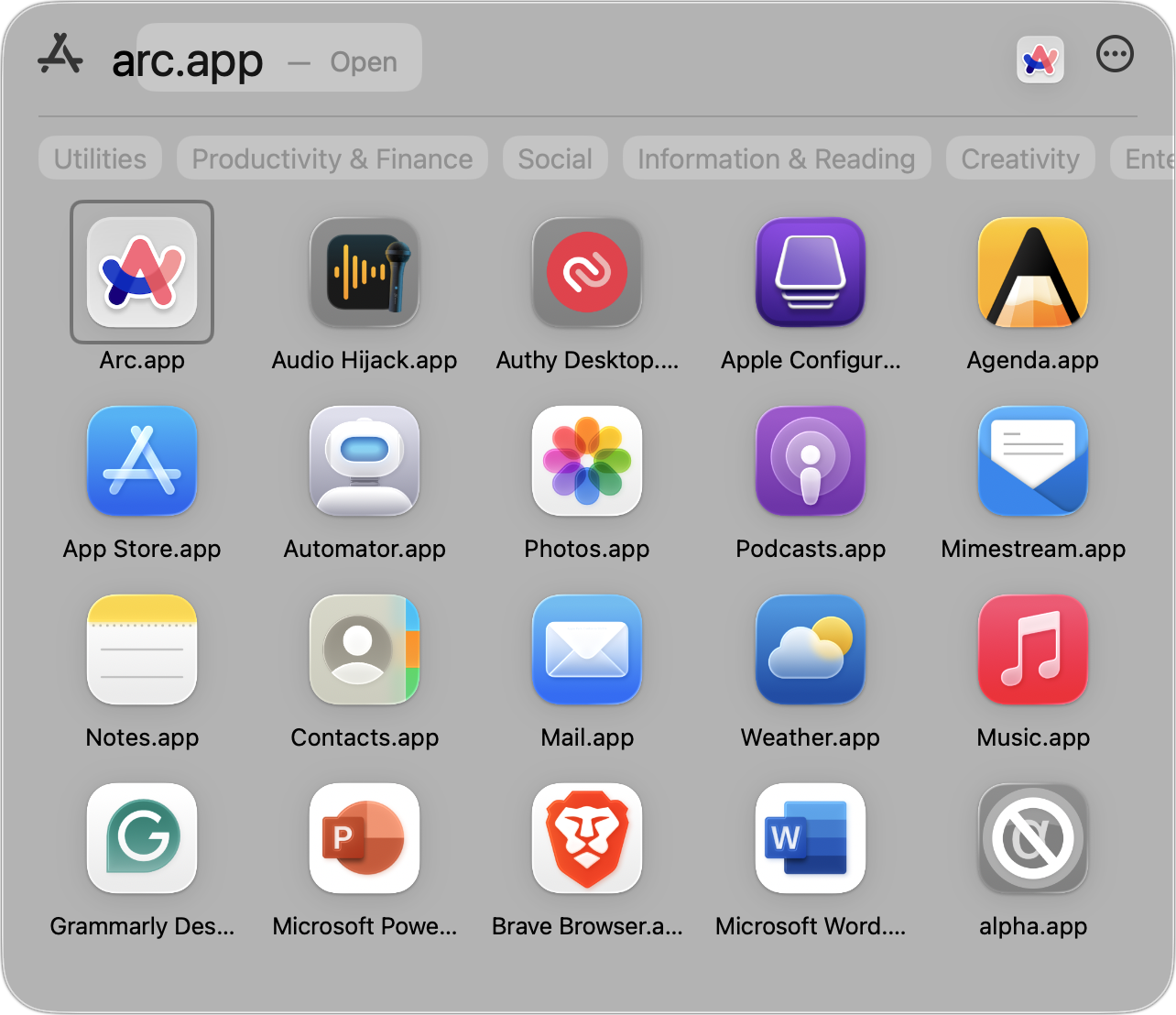
Spotlight’s new Apps view, which gets its own icon on the Dock, also replaces the longstanding but little-used Launchpad. If you want a full-screen grid of app icons, similar to Launchpad, consider Launchie, AppHub, or AppGrid Launcher.
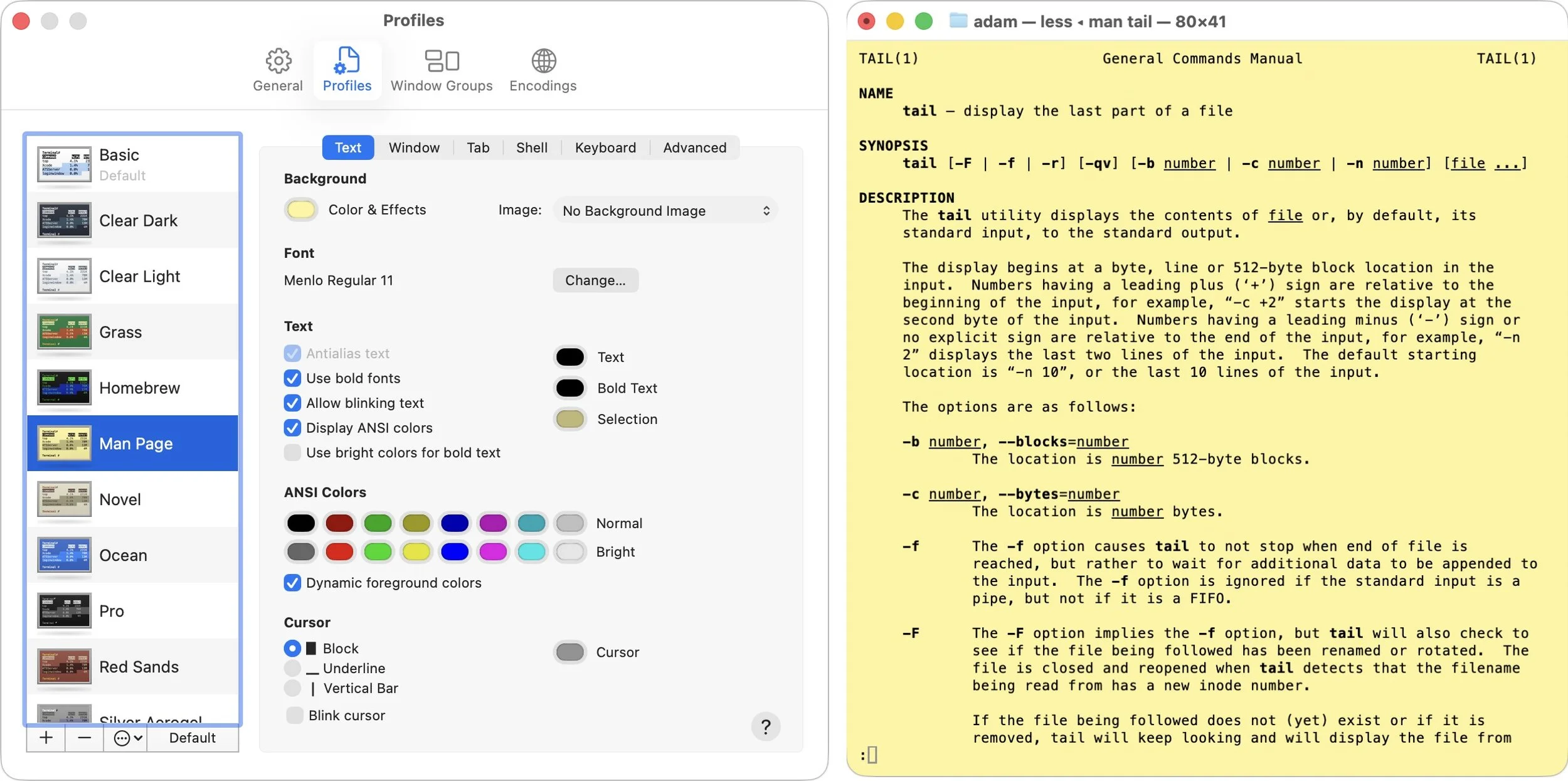
Terminal
Although many people never open the Terminal app, which gives access to the Unix command line hidden in macOS, Apple has finally updated it to allow for more customization. Fortunately, Terminal still features completely opaque windows—transparency won’t make reading command-line output any easier. Each profile offers various customization options beyond appearance, so those who frequently use Terminal can tailor it to their preferences.
While we don’t want to downplay the impact these visual changes may have on your Mac experience, we’ve also found they’re easy to get used to or turn off. After using Tahoe for a few weeks, most of these changes will become the new normal. Apple will undoubtedly continue to polish Liquid Glass over the next year, refining its smoothness and eliminating awkward bits.
(Featured image by Apple)
Apple Adds M5 Chip to MacBook Pro, iPad Pro, and Vision Pro
Apple has brought its new M5 chip to the MacBook Pro, iPad Pro, and Vision Pro, boosting performance but changing little else. The updates maintain existing designs and price points.

Apple’s fall harvest has yielded the new M5 chip, leading to updates for the entry-level 14-inch MacBook Pro, the iPad Pro lineup, and the Vision Pro. All three benefit from the M5’s significant performance boosts, but remain mostly unchanged otherwise. Availability starts on October 22. We anticipate that Apple will release M5 versions of the iMac, Mac mini, and MacBook Air in the coming months, along with M5 Pro and M5 Max chips in early to mid-2026.
With the M5 chip, Apple continues to focus on boosting AI performance. Its new 10-core GPU promises up to four times the peak GPU compute performance of the previous M4 chip—an impressive leap. The GPU also provides enhanced graphics capabilities and ray tracing that deliver results up to 45% faster than the M4. The 10-core CPU, with six efficiency cores and four performance cores, provides up to 15% faster multithreaded performance than the M4, a more typical performance increase between chip generations. Additionally, Apple increased unified memory bandwidth from 120 GBps to 153 GBps, which speeds up many different operations.
14-inch MacBook Pro
The most mainstream of the updated devices is the entry-level 14-inch MacBook Pro, which benefits from the improved performance of the M5 chip. Apple claims improvements in various tasks ranging from 20% to 80% compared to the M4 model it replaces. Even more compelling is the comparison with the M1-based 13-inch MacBook Pro, where the M5 MacBook Pro is 2 to 7 times faster.
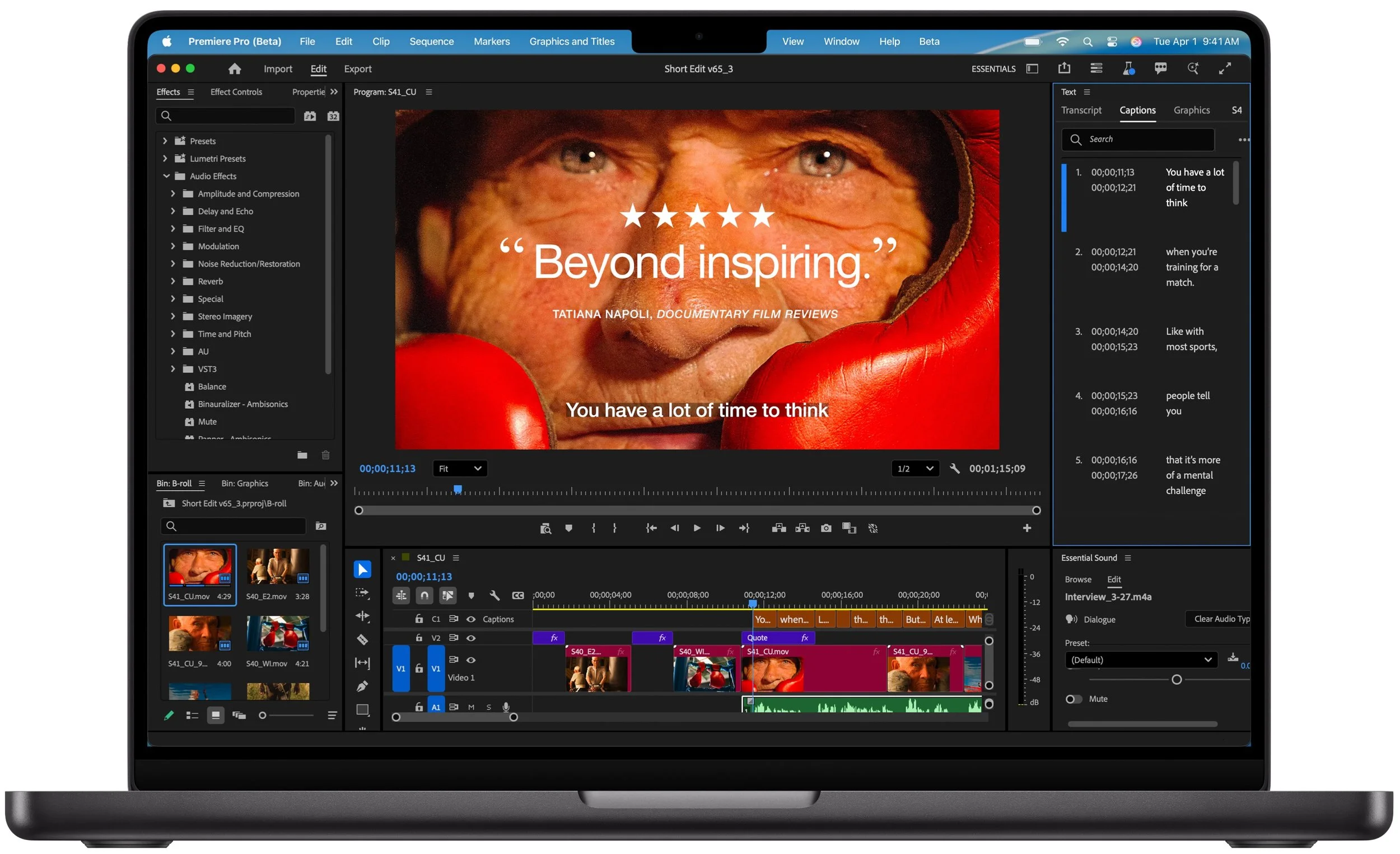
Apple also increased SSD performance by up to 2x, which we suspect should give the new M5 model read/write speeds comparable to those of the M4 Pro and M4 Max models of the MacBook Pro.
The final update is that the M5 MacBook Pro can now be equipped with 4 TB of storage, a $1,200 option previously reserved for the M4 Pro and M4 Max models. They remain for sale, and although Apple didn’t share any benchmarks, we suspect they will continue to outperform the M5 model at most tasks.
Otherwise, the new M5 MacBook Pro continues to feature three Thunderbolt 4 ports, an HDMI port, an SDXC card slot, and MagSafe 3 charging. Its 14.2-inch Liquid Retina XDR display with ProMotion remains unchanged, as does the physical design. Pricing is also the same, starting at $1,599 for 16 GB of unified memory and 512 GB of storage.
For now, the M5 model of the 14-inch MacBook Pro is notably more capable than the M4 models of the MacBook Air, which was less true of the M4 MacBook Pro it replaces. That said, you won’t go wrong with the more affordable MacBook Air or the higher performance of the M4 Pro and M4 Max models of the MacBook Pro.
11-inch and 13-inch iPad Pro
The M5 models of the 11-inch and 13-inch iPad Pro deliver similar performance improvements over the previous M4 models, with Apple highlighting up to 2x faster AI image generation and up to 2.3x faster AI video upscaling. The enhancements are even more pronounced when compared to the M1 iPad Pro models, where benchmarked tasks are 2x to 7x faster. Additionally, the M5 iPad Pro models feature up to 2x faster storage, although they are limited to 2 TB.
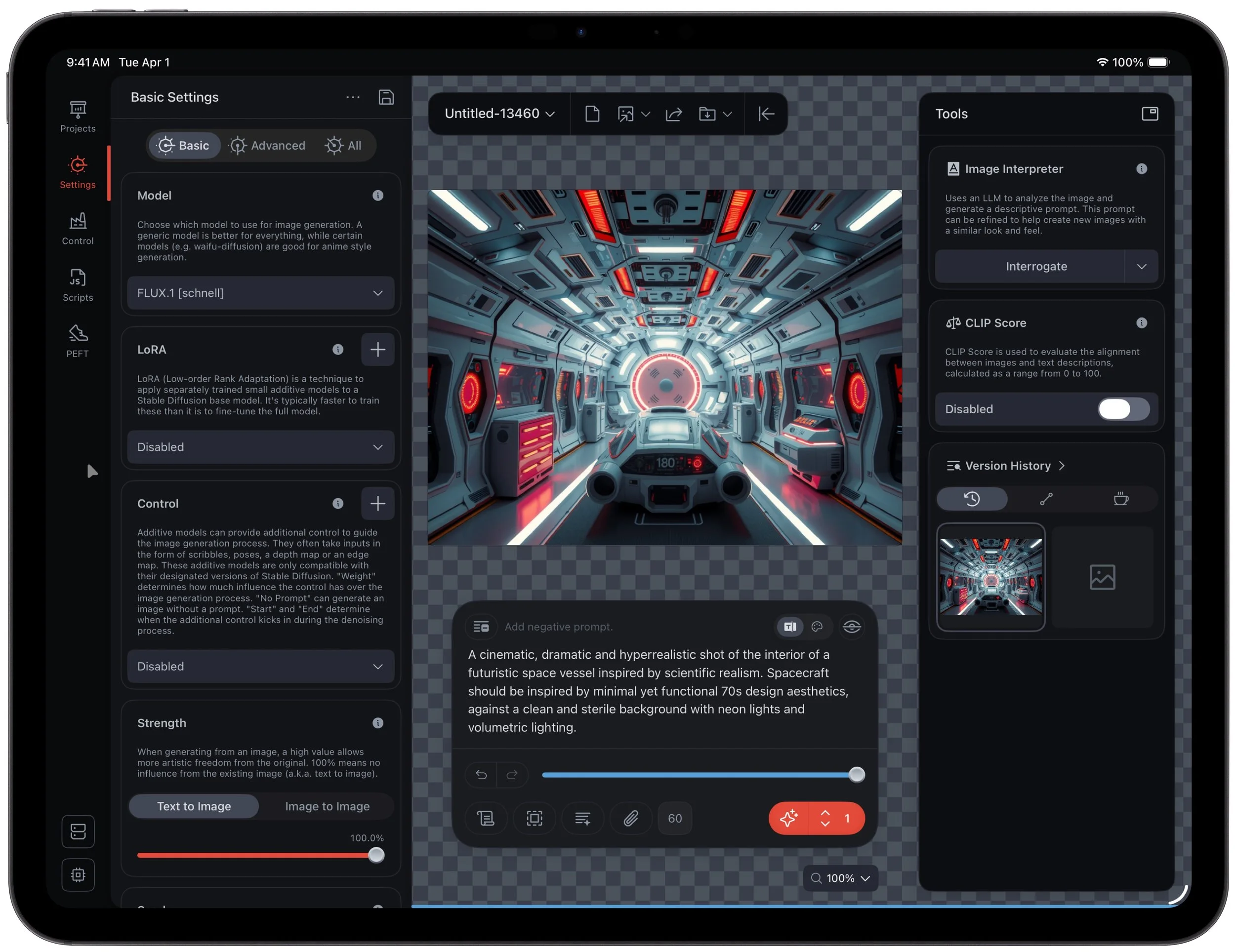
Apple didn’t stop there. The 256 GB and 512 GB configurations have 50% more unified memory, increasing from 8 GB to 12 GB, while the 1 TB and 2 TB configurations have 16 GB. The new models also feature enhanced external display support, enabling them to drive external 4K displays at up to 120 Hz with Adaptive Sync, which reduces latency and enhances gaming performance. Lastly, Apple introduced fast charging that provides 50% power in 30 minutes with an appropriate charger.
Two other notable changes probably won’t be evident to most users. The M5 models of the iPad Pro utilize Apple’s new C1X cellular modem and N1 wireless network chip, which enable Wi-Fi 7, Bluetooth 6, and Thread networking. Apple claims faster cellular and Wi-Fi performance, along with lower power consumption, but official battery life estimates remain unchanged.
Otherwise, the new iPad Pro models remain nearly identical to their predecessors. They retain the same Ultra Retina XDR display, cameras, ports, and accessory ecosystem (Magic Keyboard and Apple Pencil). The case and industrial design are the same.
Pricing for the 11-inch iPad Pro starts at $999 for Wi-Fi models and $1,199 for Wi-Fi + Cellular models. The 13-inch iPad Pro starts at $1,299 with Wi-Fi and $1,499 for Wi-Fi and cellular connectivity.
Creative professionals already using a previous generation of the iPad Pro may consider upgrading, but for most people, we recommend either the low-cost iPad or the mid-range iPad Air.
Vision Pro
In the first hardware update to its Vision Pro “spatial computer,” Apple replaced the M2 chip with the more powerful M5. This upgrade boosts performance, allowing the Vision Pro to render 10% more pixels, resulting in a sharper image with crisper text and more detailed visuals. The M5 also increases the Vision Pro’s maximum refresh rate to 120 Hz from 100 Hz, helping to reduce motion blur. Battery life receives a slight boost, providing an additional 30 minutes of general use (up to 2.5 hours) and video playback (up to 3 hours). The only other change is a new Dual Knit Band, which Apple says is more comfortable.
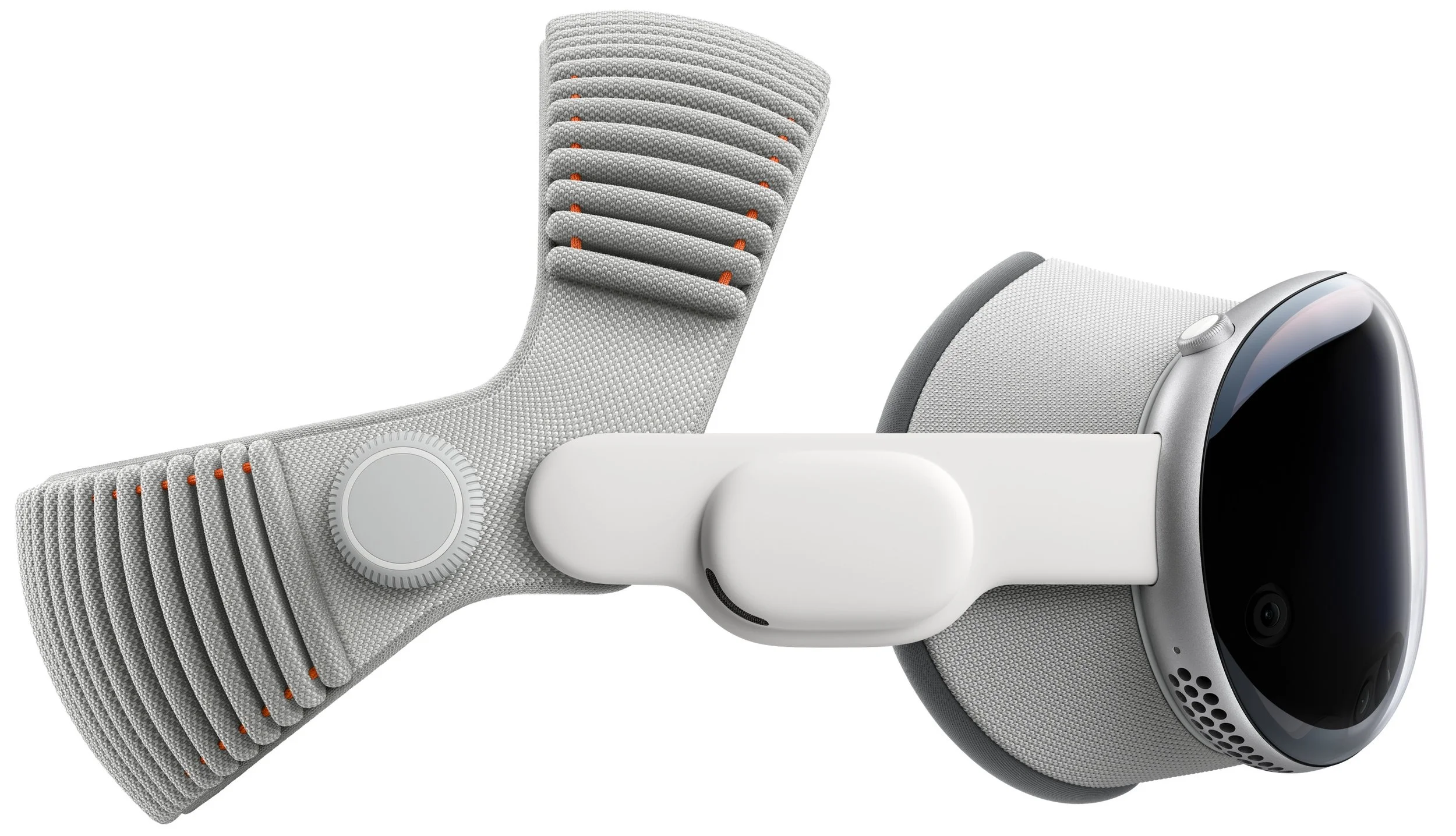
Apart from the M5 and Dual Knit Band, the Vision Pro remains unchanged in form, function, and philosophy. Nor did Apple lower the Vision Pro’s price, which is still $3,499. Although these changes undoubtedly improve the Vision Pro experience a bit, they won’t change anyone’s purchasing decision.
(Featured image by Apple)
Ten Useful New Features in iOS 26’s Phone App
iOS 26 supercharges the Phone app with call screening, live translation, and hold music detection. But that’s not all! You can make calls from a Mac or iPad, share your screen during calls, see a contact’s call history, and more.

Although it’s easy to joke about how little we use our iPhones for actual phone calls, telephony remains a core feature that everyone depends on to some degree. In iOS 26, Apple put significant effort into improving the phone experience, delivering the most notable upgrade to the Phone app in years. Here’s what you’ll find.
Unified View
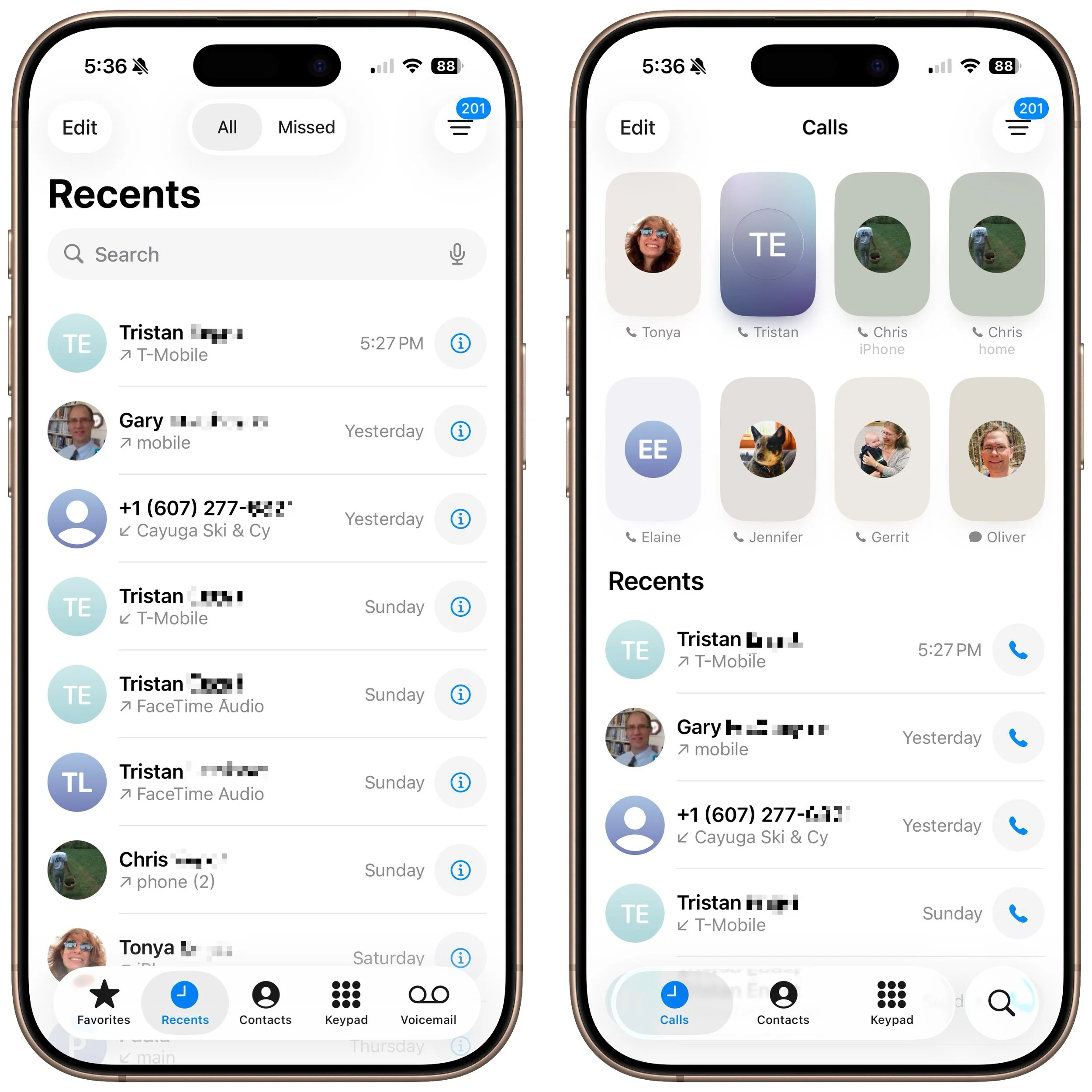
The Phone app has traditionally featured a toolbar with buttons for Favorites, Recents, Contacts, Keypad, and Voicemail, along with a separate Search field. iOS 26 retains this layout as Classic view (below, left) and introduces a new Unified view (below, right) that aims to simplify the interface by reducing the toolbar to four buttons: Calls, Contacts, Keypad, and Search, with the Calls screen combining favorites and recent calls. You can switch between these views by tapping the Filter button in the top-right corner and choosing the preferred layout. The Filter menu also lets you specify which calls appear below, including voicemail.
Call Screening
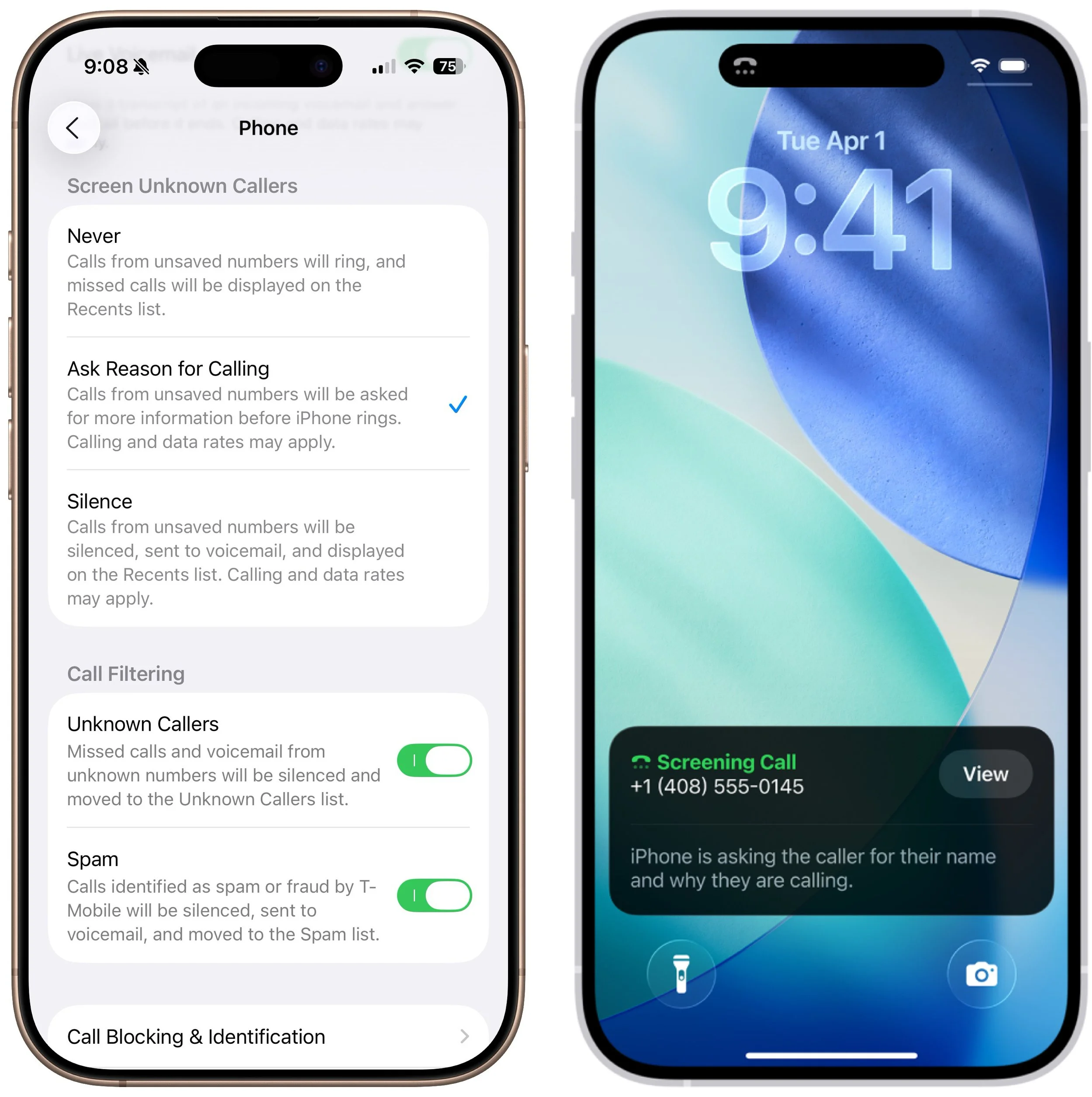
A new Call Screening feature, configurable in Settings > Apps > Phone > Screen Unknown Callers, intercepts incoming calls from unknown numbers and prompts the caller to “state their name and reason for calling” before the iPhone even rings. If the caller responds, you’ll see a transcript or snippet of their response, allowing you to decide whether to answer or ignore the call. In our experience, it mainly causes spammers and telemarketers to hang up instantly, which is equally effective.
Unknown Call Lists
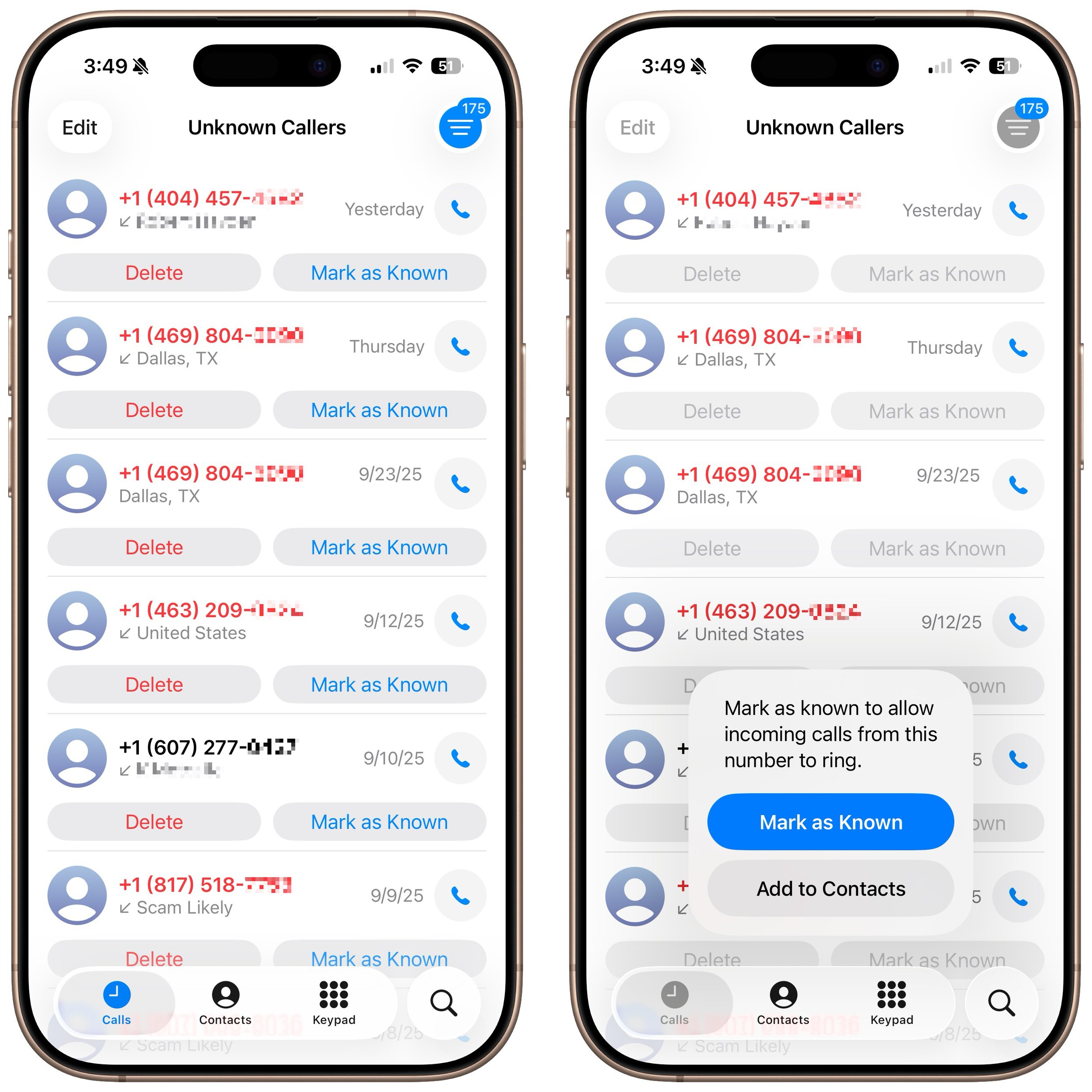
The Phone app has long been able to silence calls from unknown numbers—those not in your contacts or numbers you haven’t called—and send them directly to voicemail. This feature, now called Unknown Callers, remains available in Settings > Apps > Phone > Call Filtering, as does the previous Silence Junk Callers option, now called Spam. What’s new is that when these options are turned on, lists for Unknown Callers and Spam appear in the Filter menu, so they don’t clutter your Calls list. You can delete calls from unknown callers, mark their numbers as known, or add them to Contacts so they aren’t silenced next time.
Spam Voicemail Reporting
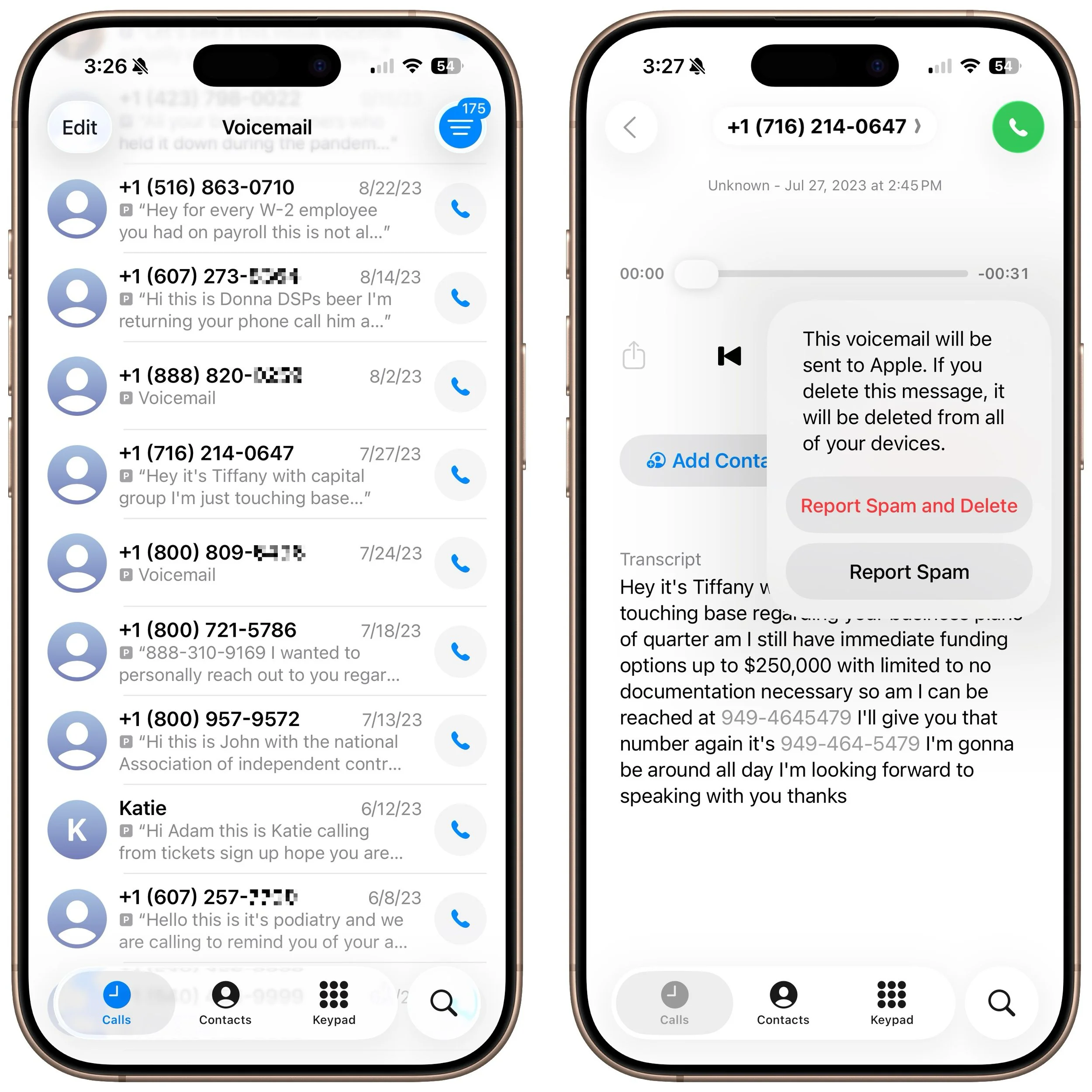
With most spam calls going to voicemail, your inbox may fill up with unwanted messages. You’ve always been able to delete them, but now, when you view a voicemail from an unknown number, a Report Spam button appears. Tap it to report the voicemail to Apple and delete it. We don’t know if reporting spam voicemails will make any difference, but it’s more satisfying than just deleting them.
Hold Assist
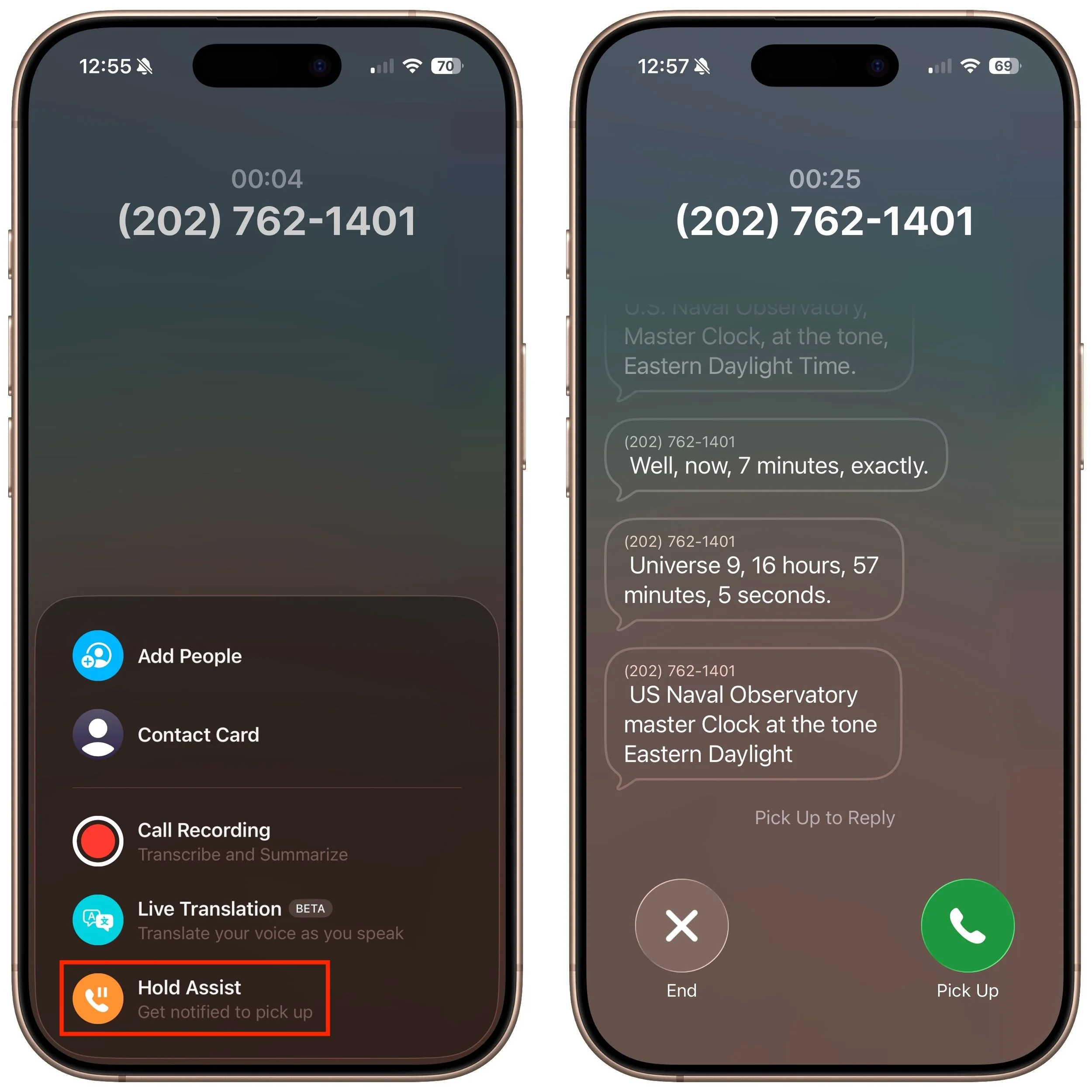
The Phone app’s new automatic Hold Assist feature is somewhat hard to test, but we hope it works when you need it. When Hold Assist Detection is enabled in Settings > Apps > Phone, Apple says that if you’re placed on hold by a customer service agent, the Phone app can detect hold music, silence it, and notify you when the agent comes back on the line. You can also manually tap the More button, tap Hold Assist, and then see a transcript of the hold message while you wait. Tap Pick Up when you’re ready to talk.
Live Translation in Calls
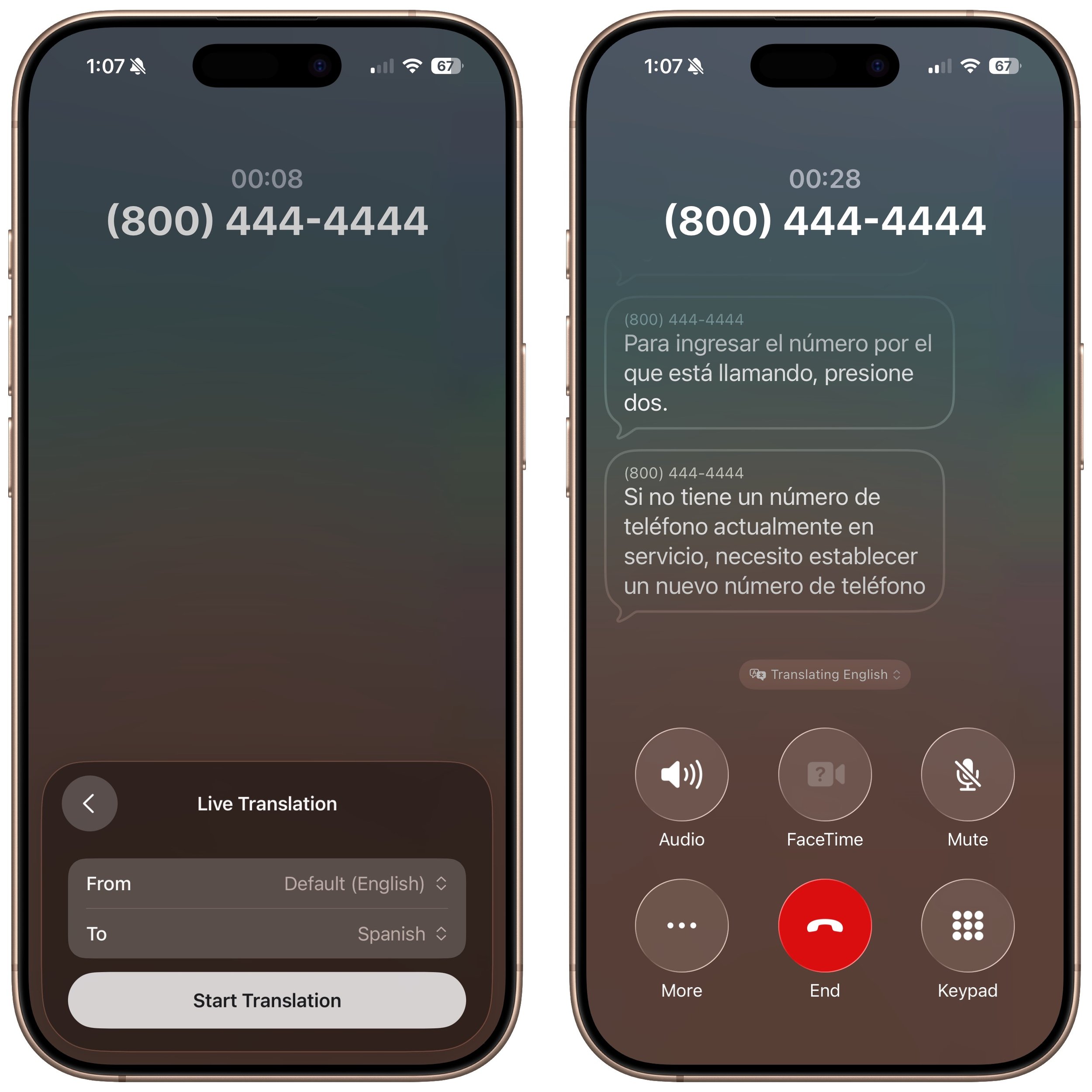
If you need to call someone who speaks a different language (as long as it’s English, French, German, Portuguese, or Spanish), the new Live Translation feature might be helpful. Once you’re on the call, tap the More button, then tap Live Translation, and choose the languages for From and To. We highly recommend testing this feature before you actually need it, as it can take a few minutes to download a new language for the first time. After that, tap Start Translation to hear spoken translations and have your voice translated for your caller. You’ll also see a transcript of both sides of the conversation.
Type to Siri During Calls
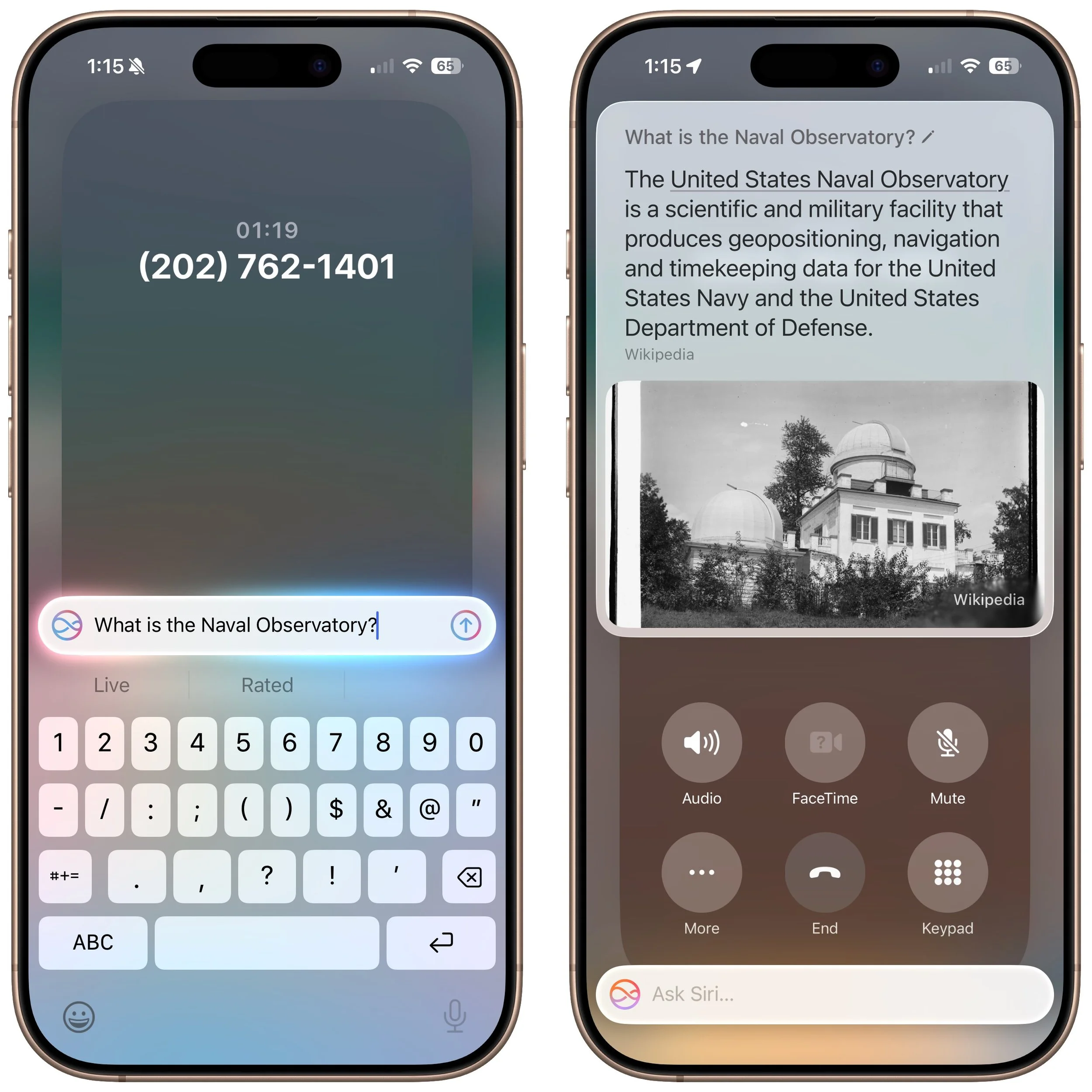
If you desperately need to use Siri during a phone call, you can now activate Type to Siri. Make sure it’s turned on in Settings > Apple Intelligence & Siri > Talk & Type to Siri, and then double-tap the bottom edge of the iPhone to open a Siri text entry field.
Screen Sharing and SharePlay in Calls
When you’re on a call with someone using iOS 26, iPadOS 26, or macOS 26, you can now initiate Screen Sharing or SharePlay with that person during the call. Access these features from the More button. Screen Sharing can be helpful for explaining how to perform an action on the caller’s device or troubleshoot a problem, and SharePlay lets you and the caller listen to the same audio or watch the same video in a supported app.
Call History
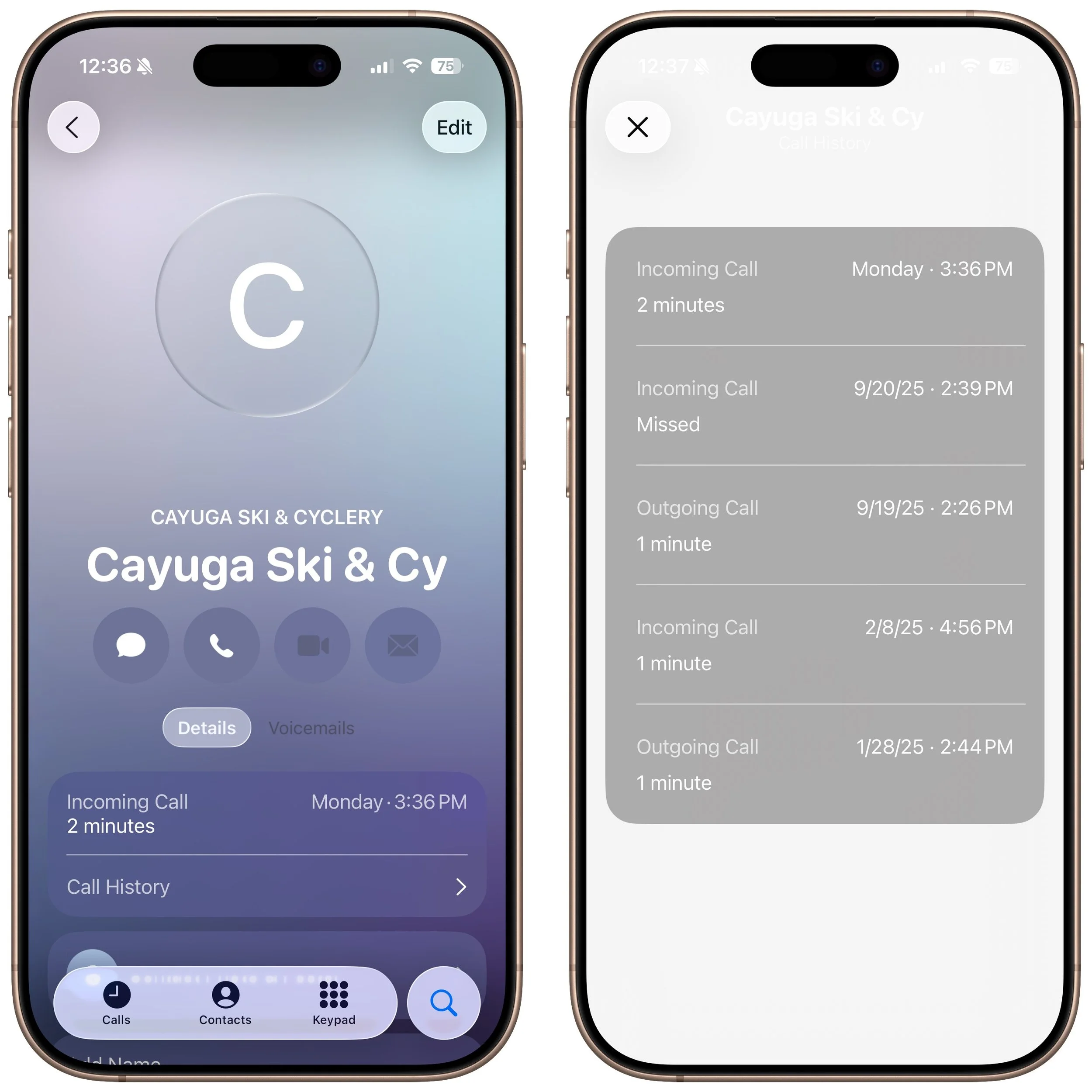
When you view a contact from within the Phone app (not the Contacts app), a Call History option appears, and tapping it shows your call history with that number, which could go back years.
Phone App Comes to macOS, iPadOS, and visionOS
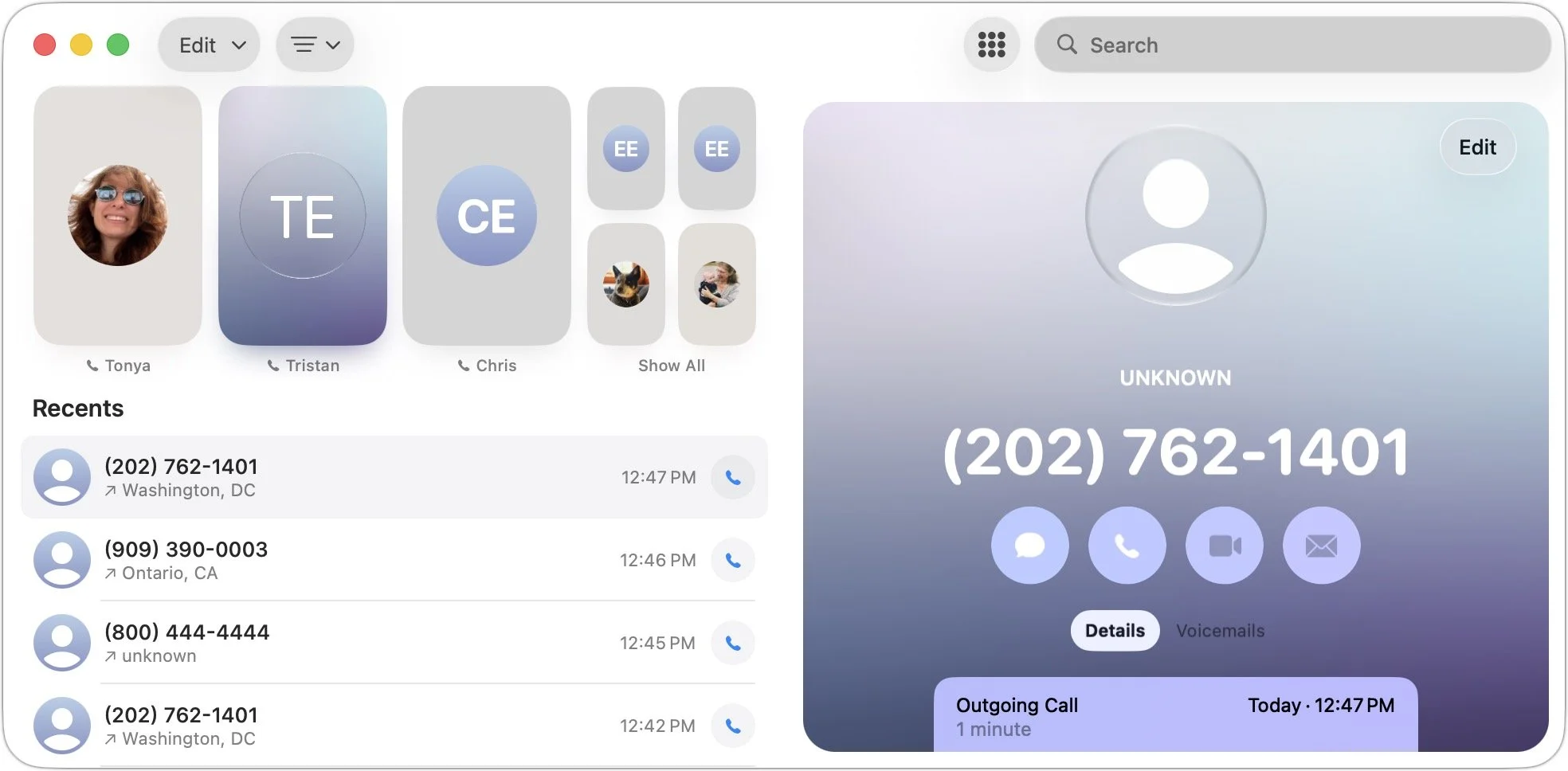
Wait, did we just say you could be on a call with someone using the Phone app on a Mac or iPad? Exactly! With macOS 26, iPadOS 26, and even visionOS 26, the Phone app has expanded to the iPhone’s sibling platforms. It looks and works very similarly, with the benefit of displaying more information at once. To use one of these Phone apps, your iPhone must be on the same Wi-Fi network and signed in to the same Apple Account.
(Featured image based on an original by iStock.com/sergeyryzhov)
What’s Liquid Glass, and What to Do If You Don’t Like It
Apple’s new Liquid Glass interface brings semi-transparent, floating controls to all your devices. Here’s what that means and how to customize it to optimize your experience.
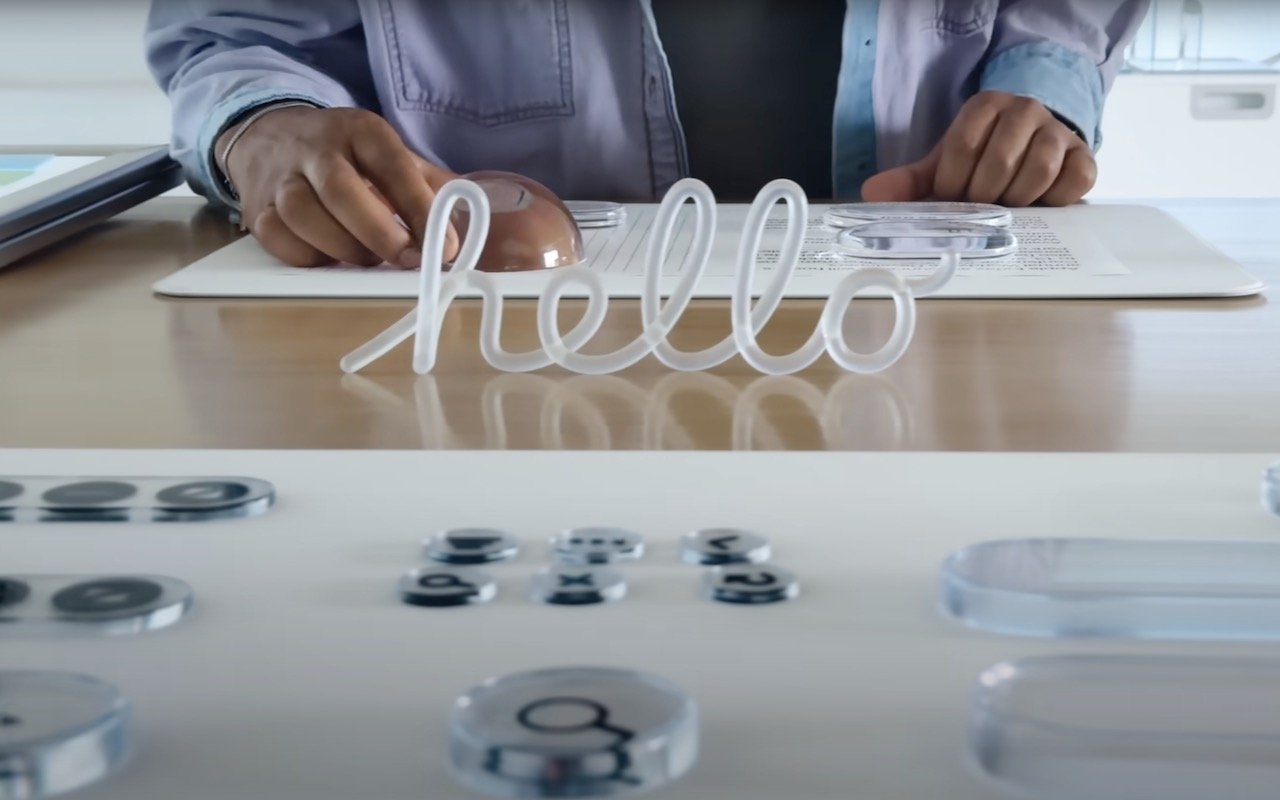
If you’ve been following Apple’s recent product releases, you’ve probably heard the term “Liquid Glass.” That’s what Apple calls its newest design language, a combination of an aesthetic look and functional philosophy for the user interface in iOS 26, iPadOS 26, and macOS 26 Tahoe, in particular, but also in watchOS 26, visionOS 26, and tvOS 26 (we think of them collectively as OS 26). Apple describes Liquid Glass as a “translucent material that reflects and refracts its surroundings, while dynamically transforming to help bring greater focus to content.” The company claims that Liquid Glass “makes apps and system experiences more expressive and delightful while being instantly familiar.” Apple even has an intro video.
Beyond the marketing speak, that means most of the controls you’ll interact with in Apple’s new operating system will be semi-transparent and appear to float above the content, blurring what’s underneath and adjusting to the underlying content’s color. That may make it easier for you to focus on your content, or it may make the interface harder to read. Liquid Glass also features subtle animations that may seem fun or make everything feel a little squishy.
Like many of Apple’s interface changes over the years, Liquid Glass has sparked strong reactions—some love it, while others dislike it. While we’ll explore the pros and cons below, it’s worth acknowledging upfront that Liquid Glass represents Apple’s vision for the future of its interfaces. Although you can adjust various settings to make it more comfortable to use (which we’ll cover shortly), Liquid Glass will be part of all Apple operating systems going forward. The good news is that, as with previous major interface changes, such as Aqua in Mac OS X and iOS 7, we’ll all adapt to it over time as Apple continues to refine and enhance the experience.
Liquid Glass Pros
Although Liquid Glass might appear to be just a fashionable cosmetic update, Apple’s designers had some serious objectives:
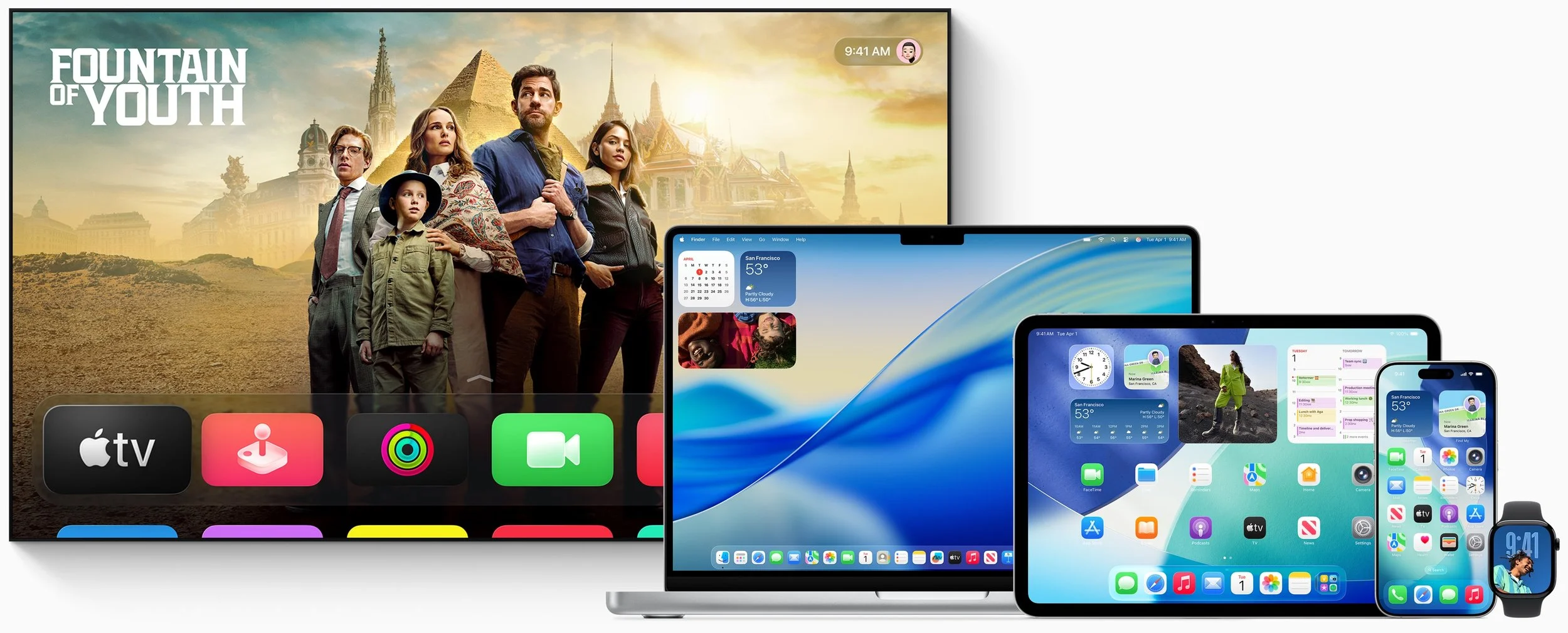
Cross-device platform consistency: Many Apple users own an iPhone, iPad, Mac, Apple Watch, and Apple TV. The interfaces for these operating systems have all evolved somewhat independently due to differences in their development, usage, and screen sizes. Liquid Glass is Apple’s effort to unify the design language across its devices, making each device feel like part of a cohesive design philosophy.
Focus on content: Between the translucent look that refracts the content behind it and by having interface elements morph and fade when not in use, Apple designed Liquid Glass to help you focus on your content rather than cluttering the screen with controls.
Modern look and feel: While longtime Apple users may prioritize functionality and familiarity, one of Apple’s main goals is to attract new users by convincing them to switch from Android and Windows or encouraging them to start with Apple devices. Liquid Glass draws inspiration from futuristic devices seen in science fiction shows and movies, which might especially appeal to younger users who have grown up with these visual references.
Fluid animations: By adding subtle animations to Liquid Glass, Apple makes the interface come alive in a way that wouldn’t be possible otherwise. Again, that may attract new users or impress possible switchers.
Personalization: Some people have a strong aesthetic desire to see their interfaces be clear or tinted rather than have every icon in its own bold color. With Liquid Glass, you can customize your icons, widgets, and folders to work better in dark mode, be clear, or have any tint you prefer.
Technical showcase: Liquid Glass’s complex real-time blurring and lighting effects require a significant amount of processing power, but Apple’s A-series and M-series chips are up to the task. This is another case of competitive advantage—Apple is showing off by saying, “Our devices have so much power that we can use it to make the interface snazzy looking.”
Liquid Glass Cons
Just because Apple describes Liquid Glass as “delightful” doesn’t mean everyone will agree. Many users dislike change, and numerous user experience experts have criticized aspects of Liquid Glass. Some of the concerns include:
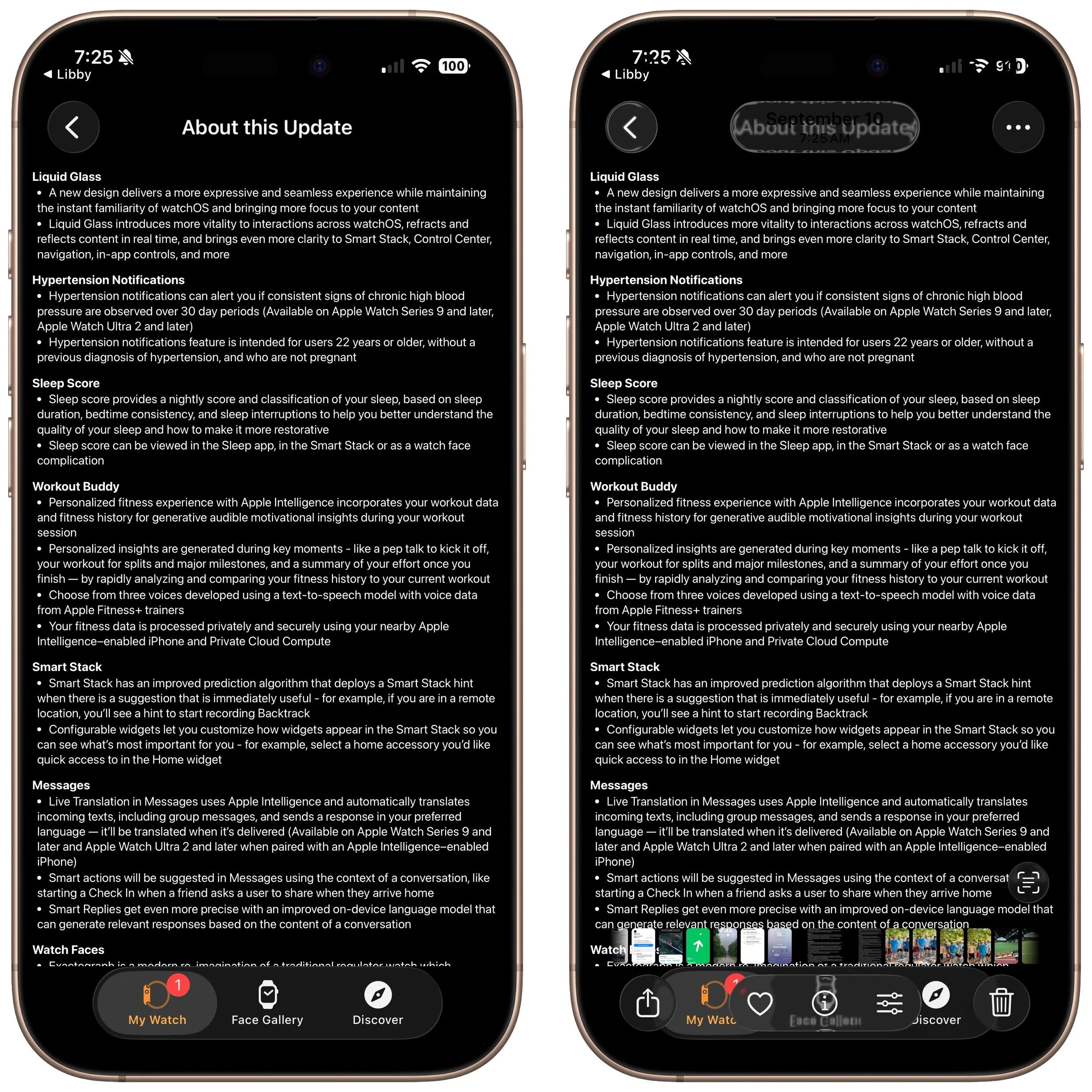
Readability: When Liquid Glass displays light gray text on a clear control positioned over a dark background with additional text, it becomes almost unreadable. While this is an extreme case, many floating translucent controls over backgrounds can cause legibility issues, especially for those whose vision isn’t perfect. As you can see in this screenshot of iOS 26’s release notes (below, left), the Liquid Glass controls in Photos are notably awkward (below, right).
Learning curve: Apple can say that the interface changes in Liquid Glass are for the better, but there’s no denying that everyone will need to learn something new. That’s easier for some users than others, and many people will be boggled by controls moving around.
Matter of taste: Not everyone shares Apple’s design aesthetics. Some people find Liquid Glass to be cartoonish or distracting.
Inconsistent design: While Liquid Glass aims to create a uniform design language across all Apple platforms, it will take time for even Apple to update everything. Some third-party apps will never receive updates, and some developers may refuse to modify their interfaces to support Liquid Glass. We’ll be dealing with inconsistent interfaces for several years.
Performance issues: On some older devices, Liquid Glass may feel sluggish or drain the battery more quickly due to heavy GPU usage. Although Apple doesn’t intend to create a bad user experience for anyone, performance issues may nudge some people to upgrade sooner than they planned.
Liquid Glass to Solid Metal
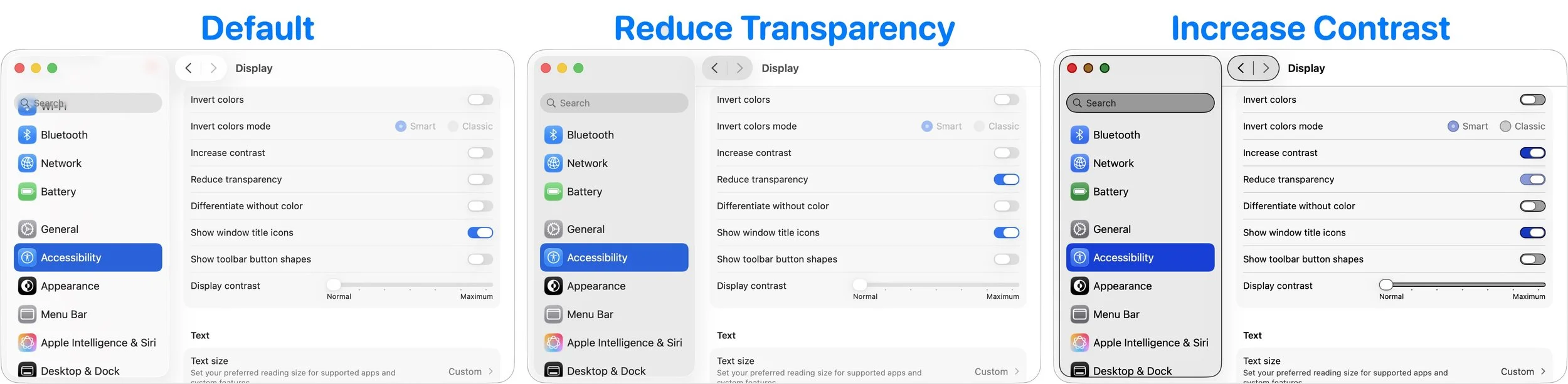
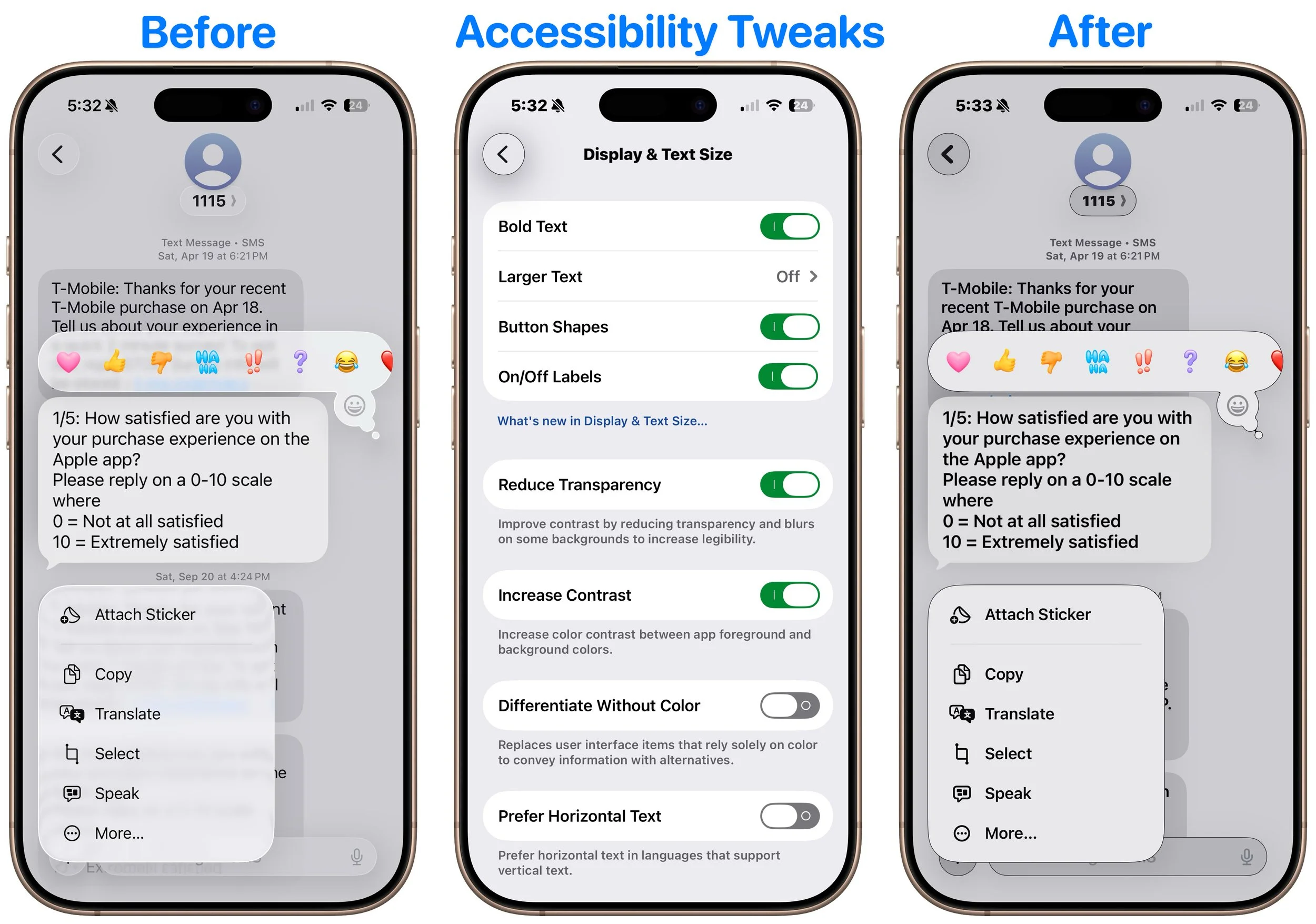
You can’t turn off Liquid Glass, but three Accessibility settings will make it less liquid and less glassy on the iPhone, iPad, and Mac. There are also a few additional settings that may make the iPhone and iPad easier to use. All these settings are independent, so you can mix and match to find the combination that gives you the look you prefer. (Paths are for the iPhone and iPad; on the Mac, start with System Settings and note slight naming differences.)
Reduce Transparency: Turning on Settings > Accessibility > Display & Text Size > Reduce Transparency significantly improves Liquid Glass readability by making translucent panels opaque, adding solid backgrounds, and reducing blur. On the Mac, this setting restores the solid menu bar. However, Reduce Transparency may make certain aspects of the interface look awkward, such as when a previously transparent toolbar suddenly covers a much larger part of the screen.
Increase Contrast: Enabling Settings > Accessibility > Display & Text Size > Increase Contrast makes interface elements stand out more by sharpening borders and reducing the tendency for controls to meld with the background. Keep in mind that Increase Contrast can also significantly alter the colors of many interface elements.
Reduce Motion: If Liquid Glass’s animations, blurring, and parallax effects make you a little queasy, turn on Settings > Accessibility > Motion > Reduce Motion. While you’re here, turn on Prefer Cross-Fade Transitions to minimize motion for interface controls that slide in and out. A warning—without transitions, some parts of the iPhone and iPad experience might seem abrupt.
The next three settings are exclusive to the iPhone and iPad, and you’ll find them in Settings > Accessibility > Display & Text Size:
Bold Text: Flipping this switch makes all interface text bold, which can make it much easier to read, particularly when transparency renders thin glyphs nearly invisible.
Button Shapes: It’s harder to find controls that benefit from turning Button Shapes on, but if you want a true button instead of blue text or underlines that show a label is clickable, turn this on.
On/Off Labels: Turning this setting on displays small | and O labels for On and Off on all switches to help clarify if the change from gray (Off) to colored (On) isn’t clear.
Again, Liquid Glass is the foreseeable future of Apple interface design, and while it’s far from perfect right now, we anticipate Apple improving and refining it over the next few releases. You can help nudge that process in the direction you want by submitting feedback to Apple.
(Featured image by Apple)
Follow This Advice Before Switching to a New iPhone 17
It’s exciting to get a new iPhone, but don’t dive in willy-nilly. Instead, take a few minutes to read our advice on what you should do before and after transferring your data from your old iPhone.
Are you considering getting one of the new iPhone 17 models? While it’s always tempting to unbox a new device and dive right in, taking a methodical approach to setup will save you from potential frustrations down the road. When you’re ready to transfer your data—and, for many people, that means much of your digital life—to the new iPhone, follow these step-by-step instructions. For visual learners, Apple provides helpful setup videos as well.
Before anything else, ensure that both your current iPhone and Apple Watch (if you have one) are running the latest versions of iOS and watchOS. Remember that these updates can take some time to install, so don’t leave them for the last minute.
Ensure you have your login details ready: you’ll need your iPhone and Apple Watch passcodes, along with your Apple Account credentials.
Back up your old iPhone to iCloud or your Mac. If you choose to back up to a Mac, make sure you encrypt the backup; otherwise, it won’t include passwords, Wi-Fi settings, browsing history, Health data, and call history. For safety, consider backing up to both. We recommend iCloud backups because they are more straightforward and avoid issues like unreliable USB cables. If you don’t typically back up to iCloud, Apple offers temporary iCloud storage for 21 days when transferring to a new iPhone. To start an iCloud backup, go to Settings > Your Name > iCloud > iCloud Backup and tap Back Up Now.
If you have an Apple Watch, you can transfer it to the new iPhone during the setup process. If the automatic transfer doesn’t work for some reason, you can unpair the Apple Watch manually from the old iPhone and pair it again to the new one. If you choose the manual route with a cellular Apple Watch, you’ll be prompted to keep or remove your cellular plan. Assuming that you intend to keep your Apple Watch and repair it with your new iPhone, be sure to keep the plan.
Your phone number should transfer automatically during activation if you ordered your new iPhone through Apple and linked it to your cellular carrier account during purchase. The same is true if you bought directly from your carrier. iPhones sold in the US rely exclusively on eSIM, and rumors suggest the iPhone 17 will also go eSIM-only in countries other than China, meaning that transferring the SIM card from the old iPhone to the new one should be a thing of the past for most people.
Transfer your data, settings, apps, and purchased content using one of these three methods. None of them will be quick, despite the first one’s name, so start the transfer only when you have plenty of time.
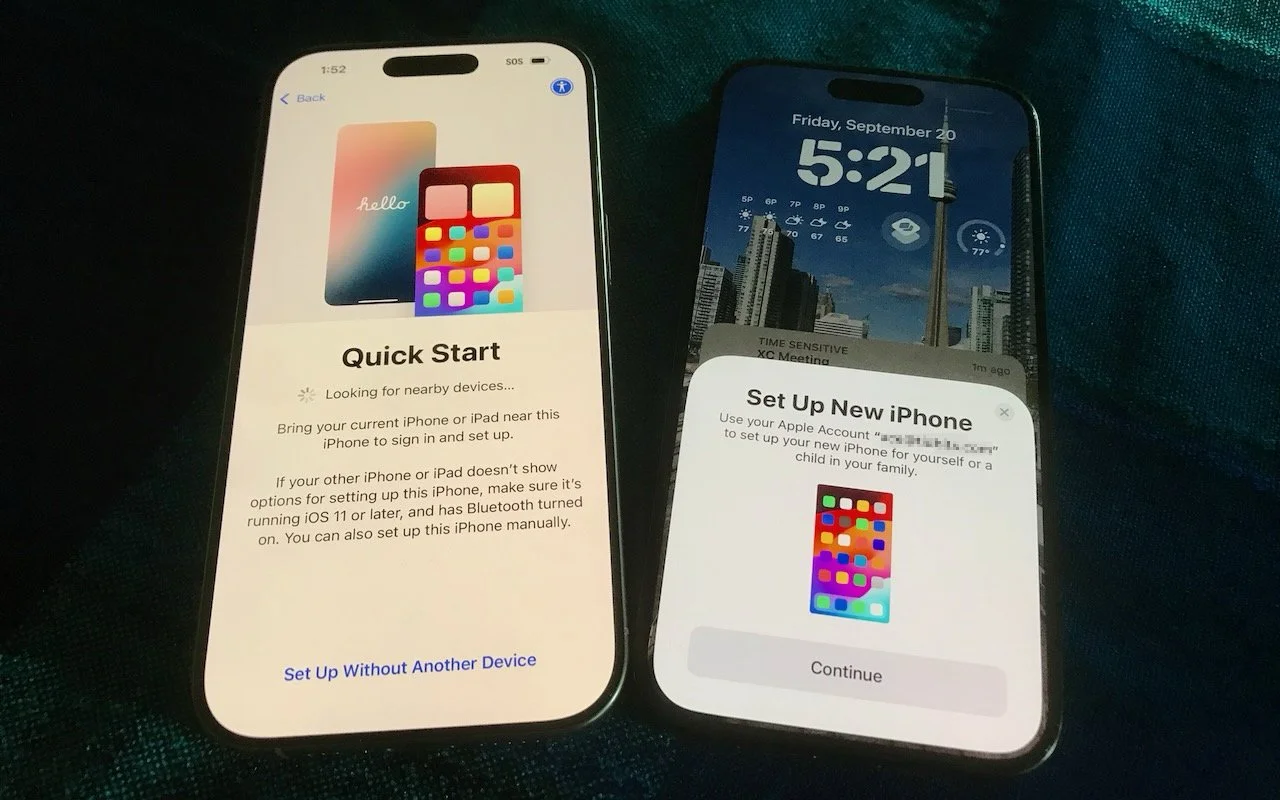
Quick Start: With the Quick Start feature, content from your old iPhone copies directly to your new one. We recommend this method because it’s more likely to preserve app logins, which is less certain when restoring from an iCloud backup. Make sure both iPhones are charged above 50% or plugged into power before starting. Put your iPhones next to each other, use the old iPhone to scan the animation on the new one, and then follow the remaining steps that appear.
iCloud: This method allows the new iPhone to download your content from the old iPhone’s iCloud backup, making it ideal if the old iPhone is not available. After connecting to a Wi-Fi network on the new iPhone and tapping the From iCloud Backup button, select the correct backup—probably the most recent one you just created. Keep your new iPhone plugged into power to ensure all your content syncs during this process.
Finder or iTunes: Use this method to restore your old iPhone’s data from a backup saved to your Mac. Connect your new iPhone to your Mac using an appropriate cable. Then, open a Finder window (or iTunes if your Mac is still running macOS 10.14 Mojave or earlier) and select your device in the sidebar on the left. Next, click Restore Backup and select the correct backup—likely the newest one.
Complete post-transfer tasks. Some app data needs to sync, so open the Mail, Contacts, and Calendar apps to check for your information; it may take a few minutes to populate. Verify you can make and receive calls. If necessary, pair your Apple Watch with the new iPhone. Also, pair your Bluetooth accessories—including AirPods—with your new device. Apps might ask for notification permissions again, and you might need to download content and in-app purchases.
If you use two-factor authentication with an app like 1Password, Authy, or Google Authenticator, confirm that your codes appear on the new iPhone. Many apps now sync codes automatically once you log in, but don’t assume—verify before wiping the old phone.
Finally, if needed, set up single sign-on for work or school. Most enterprise authentication systems now support automatic device migration, but check with your IT department about their specific requirements. For systems that require manual activation, you’ll need to activate your new iPhone and deactivate the old one. Go to the standard single sign-in login page for your organization, find the link to manage your logins, click it, and follow the instructions.
Although Apple works hard to make transferring from an old iPhone to a new one as smooth as possible, some things may not transfer perfectly. We strongly recommend keeping your old iPhone for a week or so to ensure the new one can do everything the old one did. During that time, thoroughly test the new iPhone, checking each app you need.
(Featured image by Adam Engst)
Watch What You Say in AI-Recorded Meetings
In virtual meetings, AI recording tools often capture and share everything—even those casual chats that occur after most attendees have left. Learn how to avoid having sensitive conversations broadcast to your whole team.

You’re in a meeting with colleagues, and after everyone else has trickled out, you talk about a sensitive topic with a trusted friend. That would typically be no problem with an in-person meeting, but with a modern virtual meeting, where an AI records a transcript, summarizes what was said, and automatically emails it to all participants, you might not want everyone to know about your coworker conflicts, job search, health issues, relationship troubles, or countless other confidential matters.
This issue affects all major videoconferencing platforms—Zoom, Microsoft Teams, Google Meet, and others. Many organizations also use standalone AI recording tools that can join meetings as participants, such as Otter.ai, Fireflies.ai, and tl;dv.
No one should feel ashamed of using AI-generated meeting summaries, nor should these tools be categorically avoided. They’re undeniably helpful, allowing people to focus on the discussion instead of taking notes or worrying about forgetting action items. We know people who consider them life-changing.
However, the fact remains: unlike a person tasked with taking notes, these tools record everything, including pre-meeting chatter, small talk, and personal asides that a person would know not to include. Making matters worse, AI notetakers are often configured to distribute transcripts and summaries automatically to all attendees—including those who were invited but didn’t attend. While this helps people catch up on missed meetings, it can cause problems if the absent individuals were themselves the topics of discussion. And we won’t even get into the potential legal and HR implications of certain conversations being made public.
Practical Solutions
Given the utility of AI-generated meeting summaries, what can you do to reduce the chances of potentially embarrassing or problematic conversations being shared inappropriately?
Warn attendees: Although most videoconferencing tools alert users that recording is happening, everyone is used to these notifications. For a more explicit warning, the meeting host can remind everyone that summaries will be shared with all attendees.
Pause/resume recording: While not all videoconferencing and AI recording tools offer the option to pause and resume, it can be useful. The meeting host can wait to start recording until everyone has arrived and the pre-meeting chatter has died down, and then stop it once the last agenda item has been discussed. The challenge is that this requires the host to remember to start and stop at the right times, and any valuable conversation before or after these points will be lost.
Restrict distribution: Another option is to configure the system so meeting summaries are sent only to the host, who can then review and edit them if needed before sharing with the rest of the attendees. The drawbacks here are the extra work for the host and the delay in participants receiving the notes, which can hold them back from starting on action items.
Watch what you say: Just as with social media posts, it’s important to think before you say something you might regret. If you assume that everything you say could be shared with your entire organization—including HR and your boss—you’ll be much less likely to get into trouble. Of course, this requires everyone to be sufficiently self-aware to avoid problematic topics.
Use private channels: If you anticipate needing to discuss sensitive information with a remote colleague—the kind of thing you’d shut your office door to keep passersby from overhearing—use a private channel like a personal meeting room, direct message, or phone call. And if someone starts to say something problematic in a group meeting, gently suggest moving it to a private channel.
Although having AI-generated summaries of conversations you thought were private circulated to others may feel like a modern problem, variants have been around for a long time: the romantic message misaddressed to the company-wide email list, the list of layoffs left in the copy machine, or even a conversation that continues across stalls in the bathroom without realizing someone else has come in. Ultimately, all we can do is be mindful of what we say and who might hear it.
(Featured image by iStock.com/ArnoMassee)