
Why Cloud Storage Isn’t a Backup
Do you think using Dropbox or iCloud Drive means your files are backed up? Wrong. Delete or corrupt a file, and that change syncs everywhere instantly. Here’s why cloud storage isn’t a backup—and what to do about it.

Many people assume that storing files in iCloud Drive, Box, Dropbox, Google Drive, or OneDrive means those files are backed up. After all, the files exist on remote servers maintained by large companies with professional IT teams and redundant storage. But that doesn’t mean they are backed up.
Cloud storage is tremendously useful and can play a valuable role in recovering from disasters, but it is not a backup. Understanding the difference could save you from a devastating data loss.
What Makes a Backup a Backup?
A true backup creates a separate copy of your files through a process that’s distinct from your normal saving. With cloud storage, saving is syncing—the moment you save a file (or it auto-saves), that exact version propagates everywhere. There’s no separate copy, just one file that exists in multiple places simultaneously.
With a real backup system like Time Machine, backing up is an independent operation. You work on your file, saving changes as you go, and separately, on its own schedule, Time Machine backs up that file. If something happens to that file at 2 PM, you can still recover it from the 1 PM backup.
Risks Not Mitigated by Cloud Storage
Why might you need a real backup? Computers and apps are significantly more reliable than they used to be, but they’re not perfect. Plus, human error is always a risk, and you can never discount the possibility of unexpected events.
Cloud storage won’t fully protect you from these scenarios:
Inadvertent deletion: It’s all too easy to delete important files or folders. With cloud storage, those deletions are synced across all your devices and the cloud. (Though hopefully you can pull them out of the trash—never empty it immediately after deleting files.)
Accidental changes: A misbehaving app could corrupt data in an important file, or, more likely, you could change or delete data within the file that you later decide was a mistake. With cloud storage, those changes sync instantly, making it difficult or impossible to revert.
Account compromise: Cloud storage is protected only by your password. If you don’t use a strong, unique password, an online thief could use it to access your account and delete or encrypt your files.
Account problems: Even if an attacker doesn’t compromise your account, if you lose the password, have billing issues, or do something that the provider considers a terms-of-service violation, you could be locked out of your account and all your files.
Ransomware: If malware encrypts all your files, those encrypted files will be synced to the cloud and become unrecoverable everywhere. Ransomware isn’t a significant problem on the Mac today, but that could change at any time.
How to Back Up Cloud Storage Files
The solution to these problems is not to stop using cloud storage, but to back up your cloud storage files just like you back up everything else. However, there are two things to keep in mind when backing up cloud storage.
First, verify that the local copies of your cloud storage files are being backed up. By default, the local versions of cloud-based files are stored in ~/Library/CloudStorage/ for everything but iCloud Drive, which puts files in the hidden folder ~/Library/Mobile Documents/. Time Machine automatically backs up your entire user folder, including cloud storage folders, but other backup apps may exclude them.
Second, cloud storage services can optionally store data only in the cloud to save local disk space, showing just placeholder icons on your Mac. These cloud-only files won’t be backed up by Time Machine or most other backup apps, though Carbon Copy Cloner can download them, back them up, and then evict the local data to save space.
How do you ensure cloud storage files are also kept locally? All cloud services offer an option to Control-click a folder or file and choose a command like Keep Downloaded, Make Available Offline, or Always Keep on This Device. That works, but requires manual intervention.
For all the major cloud storage services other than Box, you can also set a preference to keep files locally at all times:
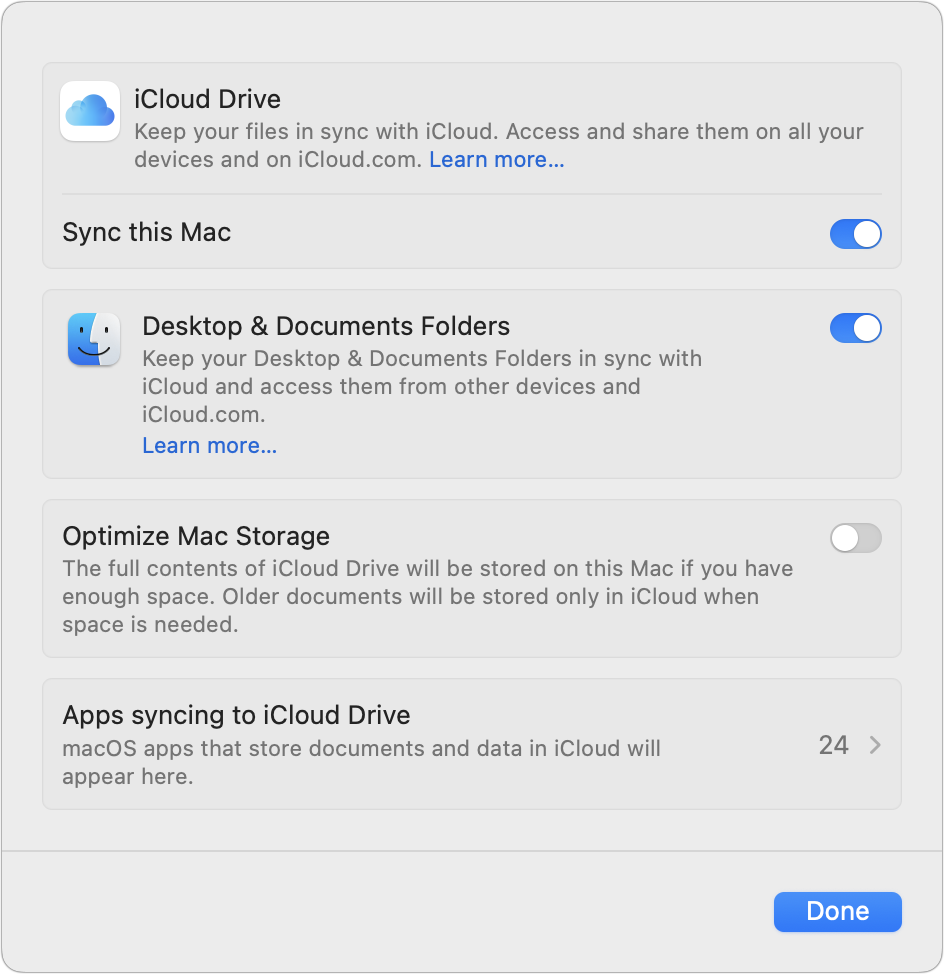
iCloud Drive: Turn off System Settings > Your Name > iCloud > iCloud Drive > Optimize Mac Storage.
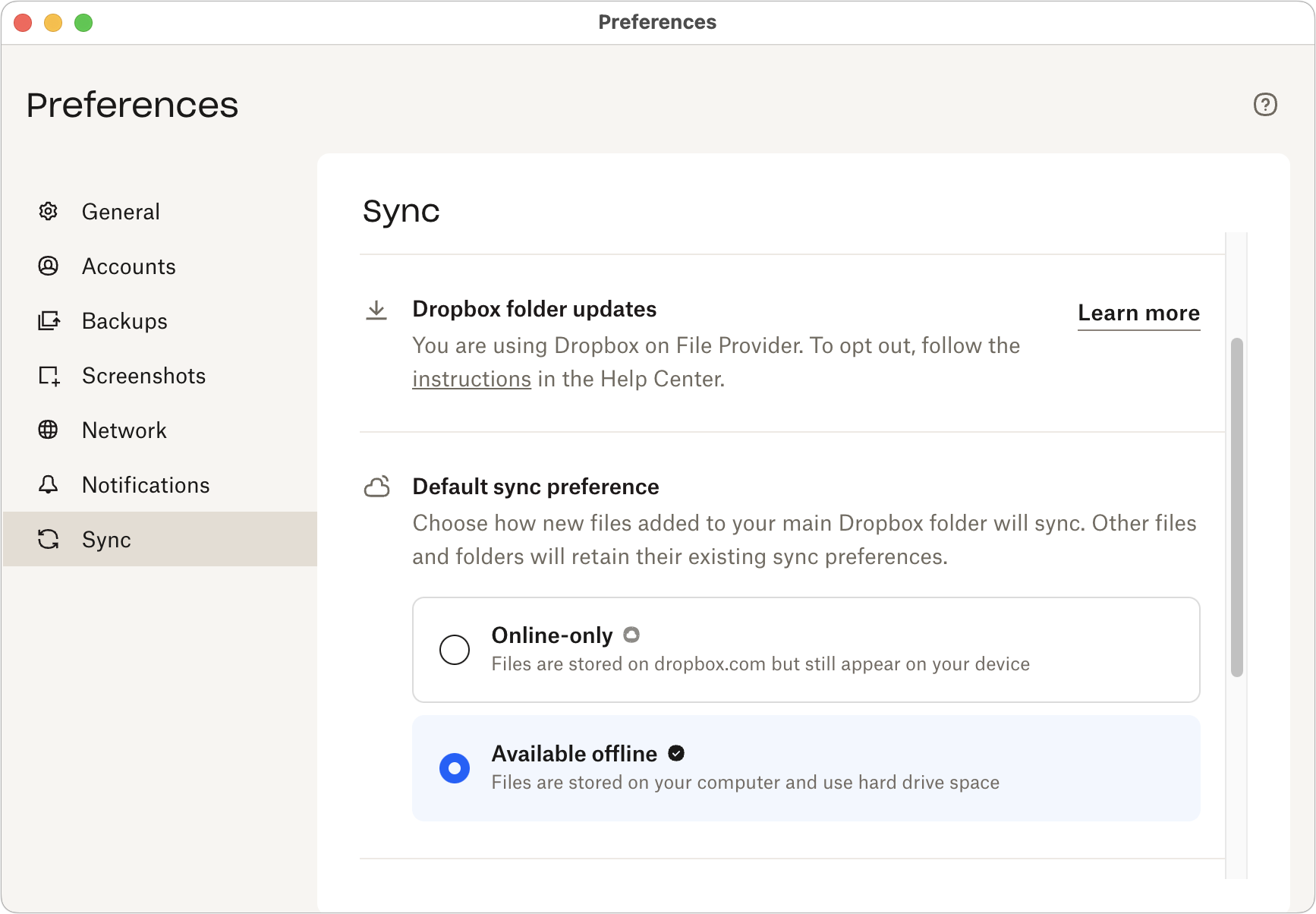
Dropbox: Click the Dropbox icon in the menu bar and then, in Dropbox > Account > Preferences > Sync, choose Available Offline for the Default Sync Preference. Note that this applies only to new files!
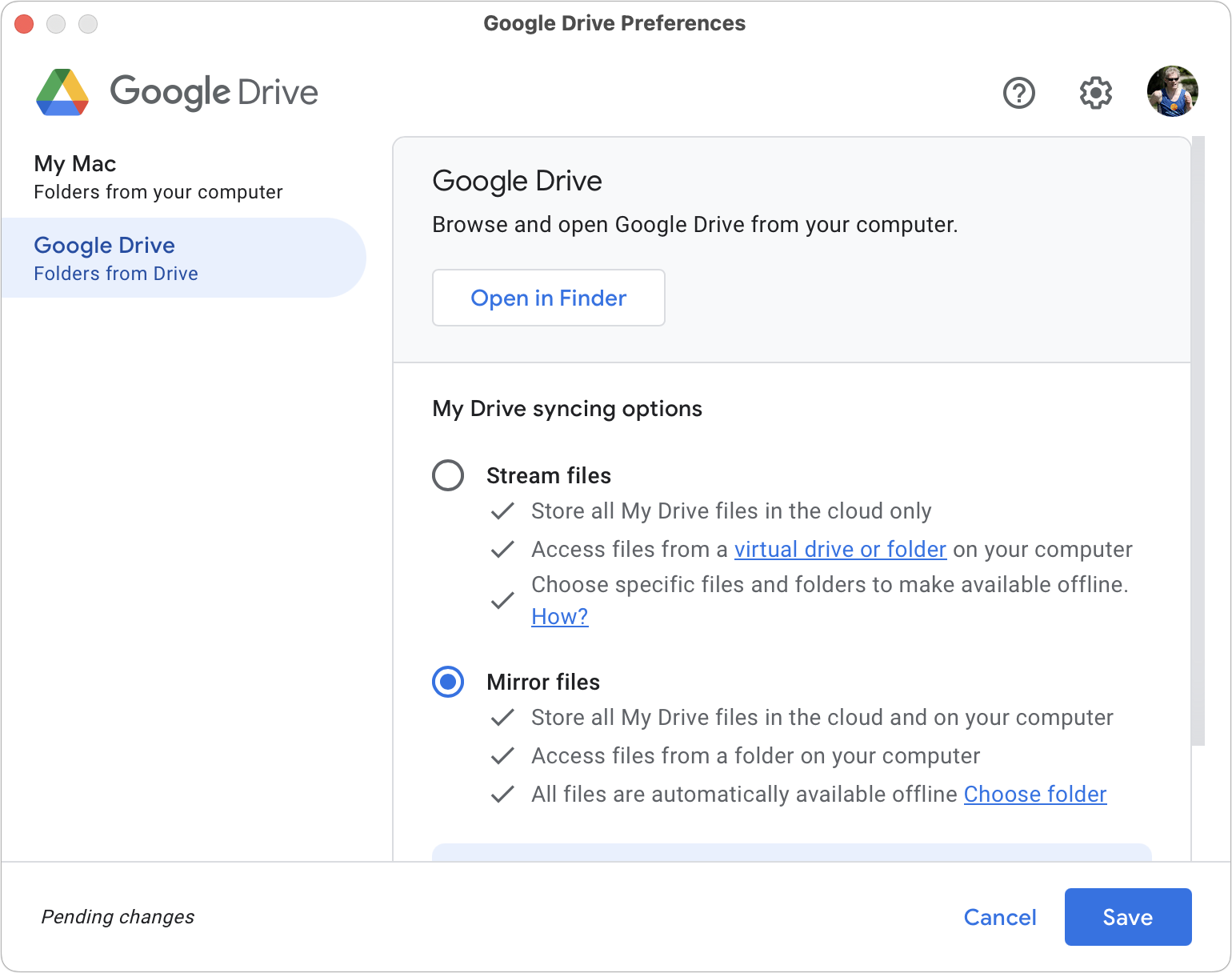
Google Drive: Click the Google Drive icon in the menu bar, click the gear menu, choose Preferences, click Google Drive, and select Mirror Files for the My Drive syncing options.
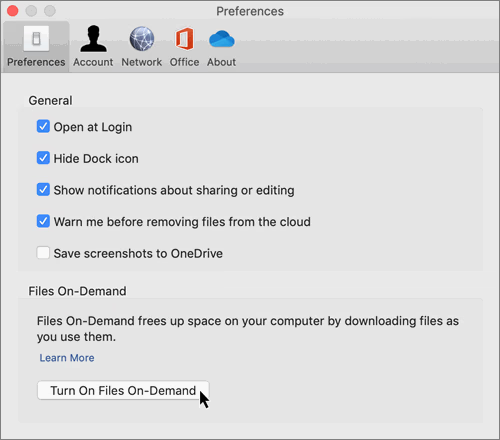
OneDrive: Click the OneDrive icon in the menu bar, click More, click Preferences, and in the Preferences screen, make sure Files On-Demand is turned off.
What About Version History?
Most cloud storage services other than iCloud Drive offer version history, allowing you to restore previous versions of changed or deleted files. Version history provides a safety net against inadvertent deletions or modifications, but it’s not a substitute for comprehensive backups. It has two notable limitations:
Time: Version history is typically limited to 30–180 days, depending on your plan. You might not realize you need a deleted file or that your database has become corrupted until after that window closes.
Trouble: Restoring many files from version history can be tedious compared to restoring from a proper backup. It might be fine for a file or two, but recovering from a more significant disaster might be difficult.
The Real Value of Cloud Storage
None of this means cloud storage is useless for disaster recovery. If your Mac fails, is stolen, or is destroyed in a fire, you can access all your cloud storage files as soon as you sign in to your account from a new or repaired Mac. You can even get to them from an iPhone or iPad. That also applies to Web apps like Google Docs, where data is never stored locally.
But cloud storage won’t protect against accidental deletion, file corruption, ransomware, or account issues. For that, you need separate, independent backups of all your files—including those stored in the cloud.
(Featured image by iStock.com/ismagilov)
Why Your Windows Reopen (Or Don’t) As You Expect
Frustrated when your Mac apps don’t remember their windows—or when they stubbornly reopen old documents? Two little-discussed settings control this behavior. Here’s how Apple’s Resume technology really works.

Have you noticed that when you restart your Mac or relaunch an app, your previous windows and documents sometimes reappear exactly as you left them, but at other times you’re greeted with a clean slate?
This behavior is controlled by Resume, a technology introduced in OS X 10.7 Lion back in 2011. Resume automatically reopens app windows and documents so you can pick up where you left off after a restart or app relaunch. Apple’s goal was to make macOS work more like iOS, which tries to preserve your place in apps. However, many Mac users found it confusing when apps opened old documents or appeared in unexpected positions when the number of displays changed. Some also objected to how long it took to open old documents that were not relevant to the task at hand. Apple quickly reversed course and made reopening apps and windows optional.
Users are much more familiar with how the iPhone and iPad work now, so you may wish your Mac apps remembered their open documents and window positions. Various settings control this behavior, but it can be hard to find them and understand what they’ll do. Let’s explore how Resume works and how you can make it do what you want.
First, note that Resume operates in two distinct situations. One applies only at restart or logout, and you decide at that moment. The other governs what happens every time you quit and relaunch an app and is controlled by a persistent system setting.
The “Reopen Windows” Option at Restart
Whenever you restart, shut down, or log out of your Mac, macOS asks whether you want to reopen your apps and windows when you log back in. You’ve undoubtedly seen the checkbox in the confirmation dialog: “Reopen windows when logging back in.” When the checkbox is selected, macOS dutifully relaunches the currently running apps after you log in, putting you back where you were. If you uncheck it, your Mac will start fresh, without reloading previously open apps.
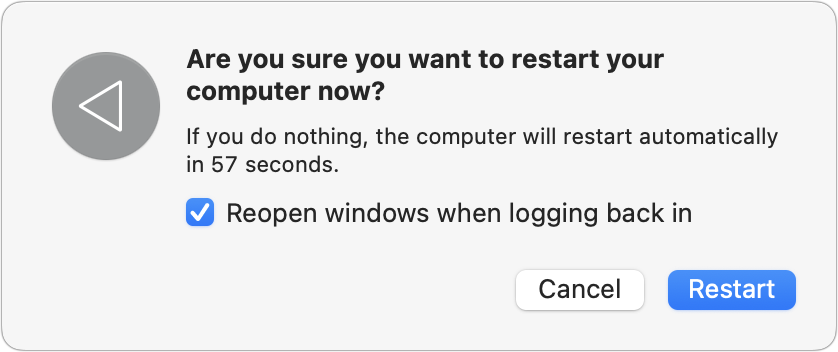
macOS remembers how you’ve selected this checkbox, so if it’s checked when you click Restart, it will also be selected the next time you restart, and vice versa. If you ever perform a forced restart or skip the dialog by holding the Option key when choosing Restart or Shut Down, macOS uses the last known state of that checkbox on the next startup.
Many users either love or hate the “Reopen windows” behavior. For those who enjoy having their entire workspace restored after a reboot, keeping that checkbox checked makes sense. For others, including many IT professionals, the point of a reboot is to start fresh. Pick whichever behavior you prefer.
Controlling Resume When Relaunching Apps
Resume also governs what happens each time you quit and reopen an individual app. This behavior is controlled by a switch in System Settings > Desktop & Dock under the Windows section, labeled “Close windows when quitting an application.”
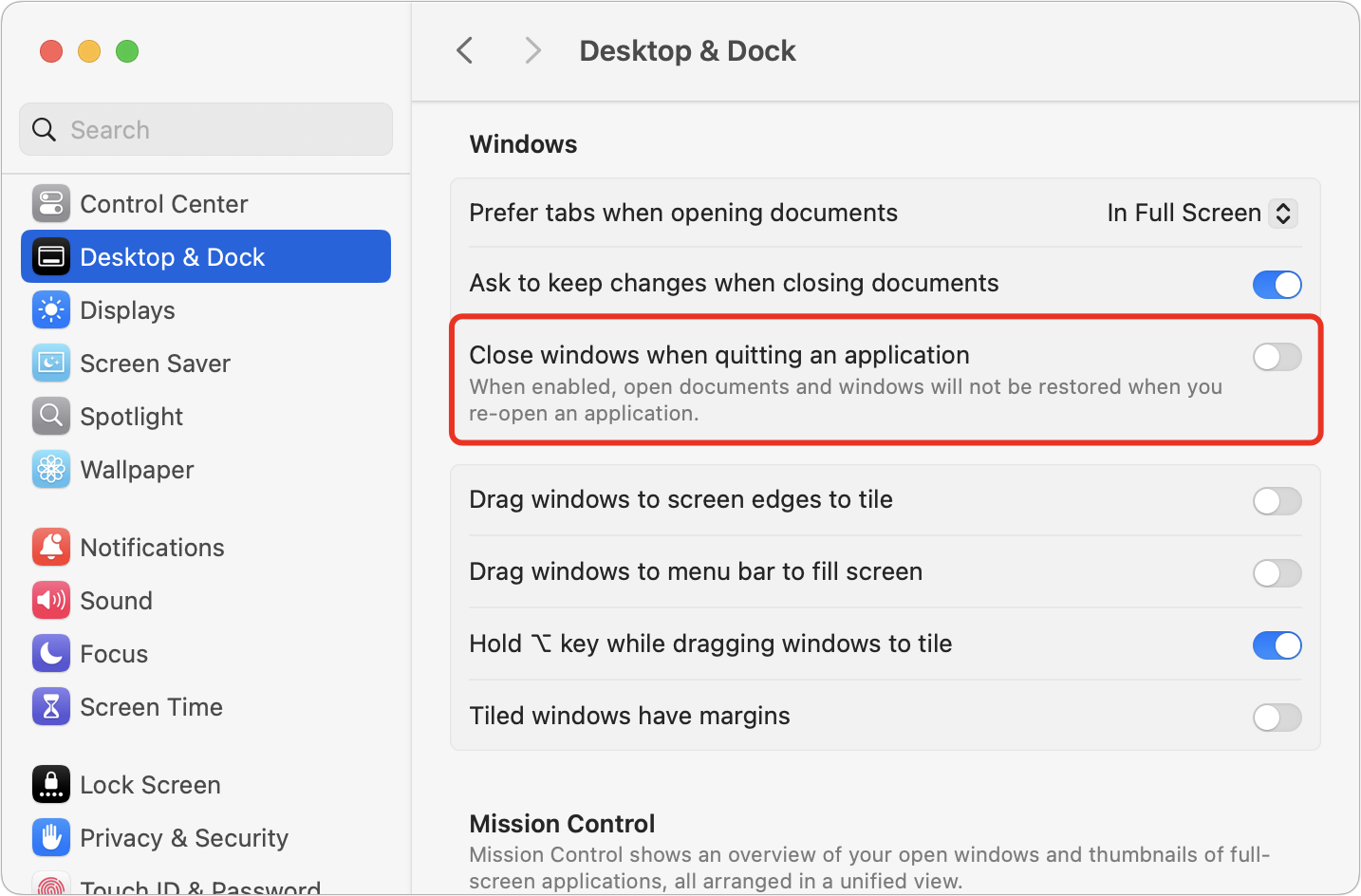
When this “Close windows” switch is turned on—it’s the default—macOS will close all windows and discard their restorable state before allowing an app to quit. Because macOS has closed the windows before quitting, there’s nothing for Resume to restore when you next launch that app. Effectively, the app will always start fresh with no memory of past windows (unless it has its own session-restore mechanism).
On the other hand, when this option is turned off, quitting an app will not discard its windows, so when you reopen the app later, Resume will automatically restore whatever documents and windows you had open, putting you right back where you left off.
There are three main scenarios where Resume can have effects that you may or may not like:
Document-centric apps: With these apps, like Pages and Numbers, you work on individual documents, each of which opens in its own window. When “Close windows” is enabled, apps start fresh on each launch; when it’s disabled, the documents you were working on when you quit reopen automatically.
Unsaved documents: As a corollary to the previous scenario, if you have unsaved documents open when “Close windows” is on, you’ll be prompted to save your changes before the window is closed. When “Close windows” is off, you won’t be prompted because those documents—with all their unsaved changes—will open automatically at the next launch.
Window-based apps: Other apps, like Mail and Messages, display their content in a main window. They’ll open this window regardless of the “Close windows” setting. However, Resume determines where that window appears. If “Close windows” is turned on, macOS does not remember which display or Space the window occupied, so the app often reopens on the primary display, even if that’s not where it was when it quit.
Most users have no idea that this “Close windows” setting exists or what it does. If you’re irritated by having to reopen Pages documents you were working on before or reposition Mail’s window after every relaunch, make sure “Close windows” is turned off. Conversely, leave it on if you want apps to start fresh.
Exceptions and Caveats
For most people, controlling Resume using the “Reopen windows” checkbox and the “Close windows” switch is sufficient. However, some people may want more control or wonder why some apps ignore those settings.
Nonstandard apps: Everything we’ve said so far describes the behavior of standard apps using Apple’s recommended development frameworks and tools. Some apps don’t use Apple tools or play by Apple’s rules—we’re looking at you, Microsoft—and will ignore the Resume settings. Don’t be surprised if Word, Excel, and PowerPoint fail to act as described.
Turn off Resume per launch: If you set apps to restore their windows by turning off the “Close windows” switch, you can override that on a one-off basis in some apps by holding the Shift key down as they launch. This trick doesn’t work in all apps, but it’s worth trying.
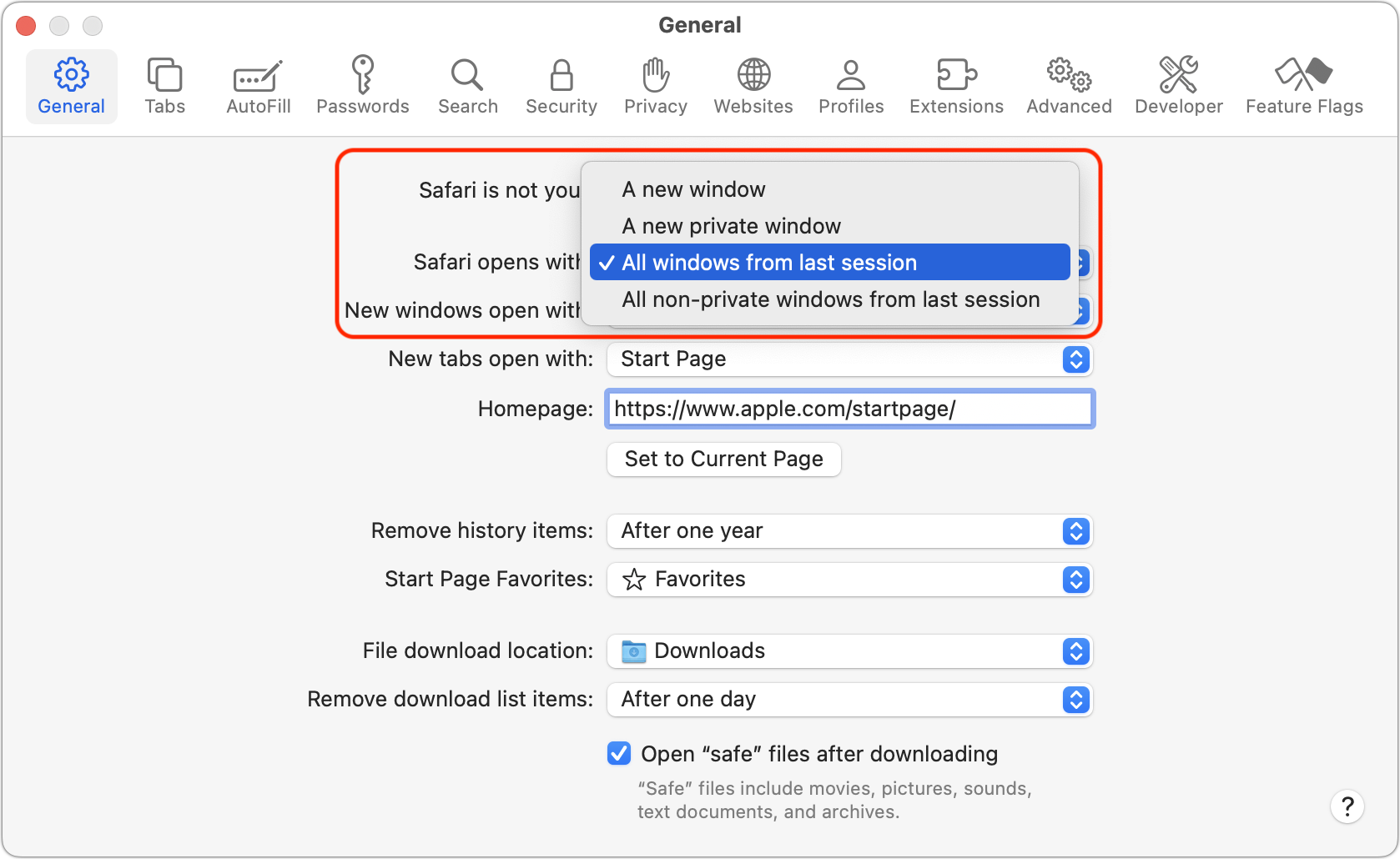
Custom session restore: Some apps manage session restoration on their own, most notably Safari and apps built with the Electron framework, such as Slack, Discord, and Notion. For instance, in Safari > Settings > General > Safari opens with, you can choose a new window, a new private window, all windows from the last session, or all non-private windows from the last session. With such apps, look for internal settings that control their behavior.
Login Items: Even if you deselect “Reopen windows” when restarting, apps and documents that you’ve added as login items in System Settings > General > Login Items & Extensions > Open at Login will still open. Think of this as a manual Resume—you’ll restart to a preset workspace, not to the way things were when you restarted. Some software may also install helper apps that control what appears at launch.
Full-screen apps and Spaces: Apps that were last used in full-screen mode reopen into their own Spaces when “Close windows” is disabled. After a restart or relaunch, the app may appear not to have reopened because it is occupying a separate Space that is currently not visible.
In practice, Resume comes down to a simple set of choices:
If you want your workspace restored after a restart, select “Reopen windows when logging back in.” Ensuring that apps—even if they’re set as login items—open full-screen or in particular Spaces also requires “Close windows when quitting an application” to be turned off.
If you want apps to remember documents (even unsaved documents), window positions, and displays when you quit and relaunch them, turn off “Close windows.”
If you want a clean slate, deselect “Reopen windows” and leave “Close windows” turned on.
When windows don’t appear as you expect, check these two settings as your first troubleshooting step.
(Featured image by iStock.com/BigNazik)
Be Very Careful with AI Agents!
AI agents like OpenClaw promise to automate tedious tasks, but recent security vulnerabilities highlight the dangers of using them. Learn the risks and how to protect yourself—and your organization—if you choose to use an agent.

AI agents—software that can take actions on your behalf using artificial intelligence—are having a moment. The appeal is obvious: imagine a robot butler that triages your inbox, manages your calendar, and handles tedious tasks while you focus on more important work.
That’s the promise driving the recent surge in popularity of OpenClaw (formerly known as Clawdbot and Moltbot), which is now all the rage in tech circles. Token Security found that at least one person is using it at nearly a quarter of its enterprise customers, mostly running from personal accounts. That’s a shadow IT nightmare—employees connecting work email and Slack to an unsanctioned tool that IT doesn’t know about and can’t monitor. Whether you’re an individual tempted by OpenClaw’s promise or a manager wondering what your users are up to, you need to understand the risks these AI agents pose.
OpenClaw is an AI agent built around “skills”—installable plugins that let it integrate with your messaging apps, email, calendar, and more. You communicate with OpenClaw via Messages, Slack, WhatsApp, and similar apps. Because it’s open source, you’ll need to provide your own API keys for AI services like OpenAI or Anthropic, which means ongoing costs that can add up quickly—people have reported spending $10–$25 per day.
The more serious problem? Security researchers have discovered serious vulnerabilities, including misconfigured instances exposed to the internet that leak credentials, API keys, and private messages, and a supply chain vulnerability where malicious skills uploaded to the ClawdHub library can execute arbitrary commands on users’ systems. Even beyond specific bugs, OpenClaw’s fundamental design encourages users to grant broad access to sensitive accounts.
Why AI Agents Are Risky
Security concerns aren’t unique to OpenClaw—they apply to any AI agent that acts on a user’s behalf. Here’s what’s at stake:
Credential exposure: For an AI agent to send emails, manage your calendar, or post to Slack, it needs your authentication tokens or login credentials. If the agent software stores these credentials insecurely, or an attacker gains control, they could be exposed.
Prompt injection: AI agents work by following instructions, but they can’t easily distinguish between prompts and data in the content they use. A class of attacks called “prompt injections” trick AI systems by hiding malicious content in emails, websites, or documents that will be processed. An attacker could embed instructions in an email that would cause your agent to search for and forward email messages containing passwords or financial data, follow links to malware sites, or take other harmful actions. There is currently no foolproof defense against this class of attack.
Data exfiltration: An AI agent with access to your email and your computer’s filesystem could be manipulated to extract information from elsewhere on your computer—financial data, customer lists, or personal details—and send it to an attacker.
Unvetted extensions: OpenClaw and similar AI agents let users install “skills” or plugins to extend functionality. Libraries that allow users to share custom skills often have minimal or no security vetting, making it easy for attackers to submit poisoned skills. Installing such a skill could grant malicious code access to everything your agent can touch.
Exposed control interfaces: Security researchers found OpenClaw control servers exposed on the Internet, potentially leaking API keys, VPN credentials, and conversation histories. This risk is unique to OpenClaw at the moment, but future AI agents may suffer from similar vulnerabilities, particularly as they’re adopted by less technically savvy users.
How to Reduce Your Risk
We’ll come right out and say it: we strongly recommend against installing OpenClaw or other AI agents on your Mac. In a year or so, Apple may have updated Siri to provide many of these capabilities with significantly stronger privacy and security. But for now, just say no.
If you decide to use AI agents despite these risks, here are practical steps to protect yourself:
Use dedicated accounts: When possible, create separate accounts specifically for agent use rather than linking your primary personal or work accounts.
Limit permissions: Grant the agent access only to accounts it absolutely needs. If you only want help with your calendar, don’t also connect your email and messaging services.
Avoid connecting sensitive services: Never connect anything involving money, healthcare, or confidential business information. The liability is too high if something goes wrong.
Review agent actions: If the platform offers logs or activity feeds, check them regularly. Look for unexpected messages sent, files accessed, or connections made.
Vet extensions carefully: Don’t install skills or plugins from unknown sources, and even with known libraries, look for evidence of others using and reviewing the skills. Treat skills like any other software you’d install on your computer.
Keep software updated: Security patches for OpenClaw and similar tools address known vulnerabilities. If you’re running an agent, keep it up to date.
Run agents in isolated environments: Technical users should consider running agents in sandboxed environments or virtual machines to limit potential damage.
If you run a business, you should assume that some employees have already installed OpenClaw or will soon, and may have connected their work email and Slack accounts without realizing the associated risks. Here’s what you can do:
Educate before it’s a problem: Proactively explain the risks to employees. People are more receptive before they’ve already invested time setting something up.
Update acceptable use policies: Make clear that connecting work accounts to unsanctioned AI agents is prohibited, and explain why.
Offer sanctioned alternatives: If employees want AI assistance, point them toward safer options that don’t require handing over credentials to sensitive accounts.
What About Claude Cowork and OpenAI Codex?
Not all AI agent platforms carry the same level of risk. Anthropic’s Claude Cowork and OpenAI’s Codex take a different architectural approach from OpenClaw. Rather than requesting authentication tokens for your email, messaging, and other personal services, they operate within their own controlled, sandboxed environments. These systems work primarily with files, code, and data you explicitly place into their workspace, which substantially limits the fallout from an attacker gaining some level of control.
This containment approach reduces risk, but does not eliminate it. Prompt injection remains a concern whenever an AI system processes untrusted content, even inside a sandbox. An AI agent analyzing a malicious document could still be manipulated into taking unintended actions within its allowed environment. Similarly, any code generated by these systems—particularly code that touches the network or executes system commands—should be reviewed carefully to make sure it hasn’t been compromised by prompt injection.
The key distinction is scope. Claude Cowork and Codex are designed to operate within a defined workspace, whereas tools like OpenClaw require standing access to your most sensitive accounts. From a security perspective, a compromised sandbox is a recoverable incident; a compromised email or messaging account may not be.
The Bottom Line
AI agents promise a lot and may provide genuine convenience, but at a cost beyond just paying for API tokens. Before you or anyone in your organization connects an AI agent to sensitive accounts, consider: What’s the worst that could happen if this system were compromised by an attacker? If the answer involves passwords being stolen, private email being exposed, or photos being posted to social media without your knowledge, proceed with extreme caution. If you can imagine a way financial accounts could be accessed or business data stolen, don’t proceed at all.
(Featured image by iStock.com/Thinkhubstudio)
What Can You Do With the iPhone’s Action Button? Nearly Anything!
Your iPhone’s Action button can do much more than toggle Silent Mode. Try it for quick translations or voice memos—or explore the many options in Controls and Shortcuts to trigger nearly any action with a long press.

Starting with the iPhone 15 Pro and Pro Max, Apple replaced the Ring/Silent switch on the top-left edge of the iPhone with the Action button, making the new button standard across the iPhone 16 and iPhone 17 lineups in subsequent years. The Action button is a dedicated hardware button you can configure to perform one of many different tasks. Although Apple prompts everyone setting up a new iPhone to configure the Action button, our experience is that many people haven’t integrated it into their everyday usage.

Taking advantage of the Action button isn’t hard, but there are obstacles. The Ring/Silent switch had only one function, whereas the Action button offers so many options that it’s easy to fall prey to decision paralysis. Also, because the Action button is configurable, it behaves differently even if you leave it set to Silent Mode. The Ring/Silent switch was a physical switch that also showed its state with an orange indicator. With the Action button, you can’t tell at a glance if Silent Mode is on, and activating it requires a relatively long press-and-hold. Finally, the Action button’s ultimate power lies in its Controls and Shortcuts options, but many users are unaware of the wide-ranging possibilities these unlock.
So let’s look at how to make the most of the Action button. To configure the Action button, go to Settings > Action Button and swipe through the choices. The choice on screen when you exit Settings will be active. Although there are no bad choices here, many of the options Apple provides can be activated just as easily through Control Center or Siri, so you might not want to dedicate the Action button to them.
Silent Mode: Toggle call and alert sounds on and off. This is the default setting, but unless you regularly need to toggle the ringer, it’s not worth dedicating the Action button to such a seldom-used option. You can toggle Silent Mode in Control Center just as easily.
Focus: Activate or switch Focus modes such as Do Not Disturb. We recommend using Focus sparingly because it can block desired notifications, but if you’re a fan, the Action button might be a good way to switch between them. Focus modes are also easy to select in Control Center and turn on with “Siri, turn on Do Not Disturb.”
Camera: Launch the Camera app. If your iPhone has the Camera Control (as do all Action button-equipped models except the iPhone 15 Pro/Pro Max and iPhone 16e), the Camera Control is the best way to open the Camera, but the Action button might still be helpful for opening the Camera app to a specific mode: Photo, Selfie, Video, Portrait, or Portrait Selfie.
Visual Intelligence: Launch Apple’s AI-powered object recognition feature. Again, pressing and holding the Camera Control (if available) is a better way to access Visual Intelligence.
Flashlight: Turn the flashlight on or off. This may be a good choice if you use the flashlight regularly, but if so, you’re probably already accustomed to tapping its icon on the iPhone’s Lock Screen. If your hands are too full, try “Siri, turn on the flashlight.”
Voice Memo: Start recording audio in the Voice Memos app. If you use Voice Memos heavily, you may like this use of the Action button. Alternatively, just say, “Siri, record a voice memo.”
Recognize Music: Use Shazam to identify music that’s playing nearby or on your iPhone. Another way to invoke Shazam quickly is to ask, “Siri, what’s playing?”
Translate: Starts listening to translate between the default languages you set up in the Translate app. This use of the Action button is a great shortcut if you’re traveling in another country and need quick translations, but most people don’t need it every day.
Magnifier: Launch the Magnifier app to make it easier to see tiny text and small objects. Those with low vision may particularly appreciate this use of the Action button, but the Magnifier app is also easily accessed from a Control Center button or by saying, “Siri, open Magnifier.”
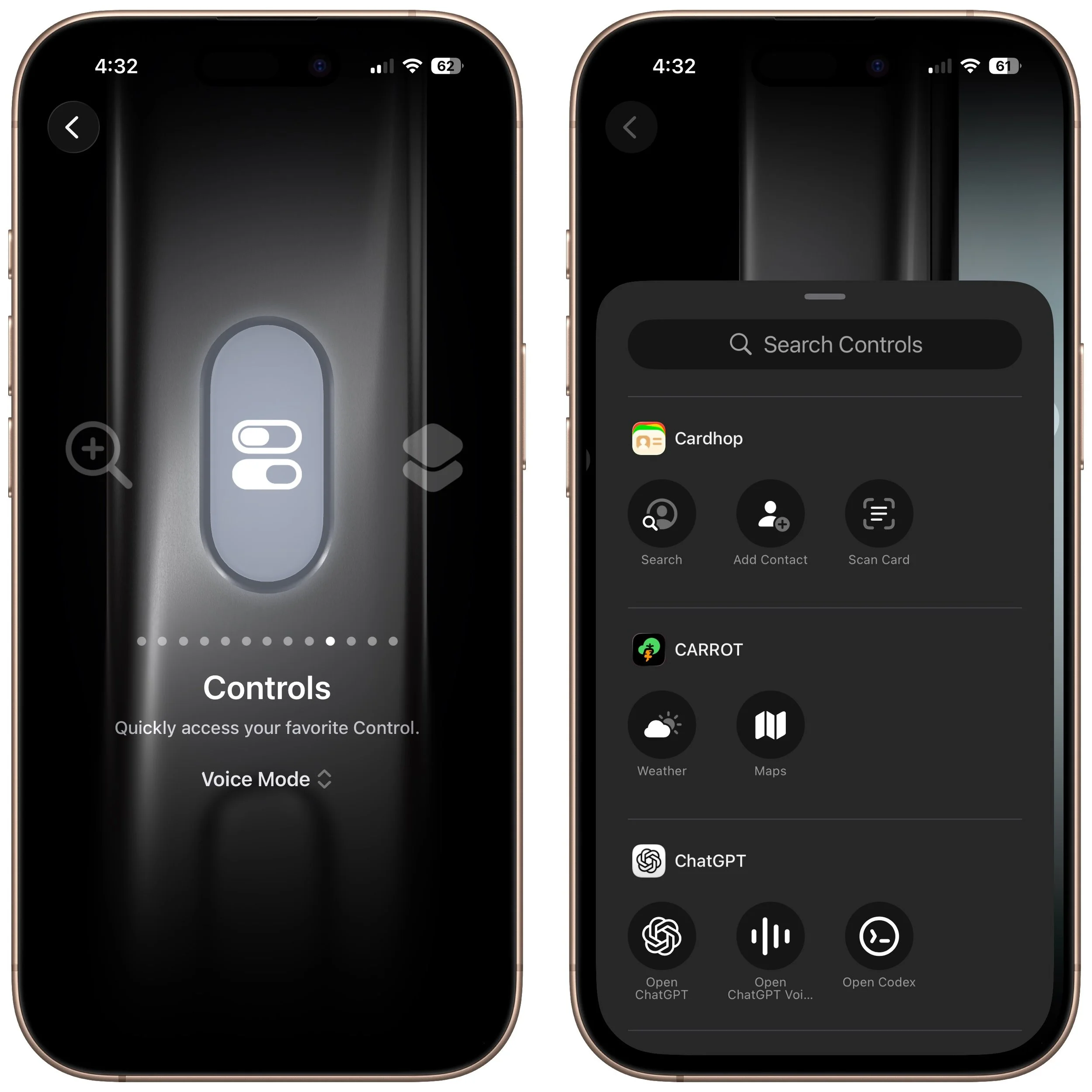
Controls: Invoke any Control Center control. Here’s where things get interesting! Starting with iOS 18, iPhone apps can create controls in Control Center. With the Controls option, you can choose any available control, so you could have the Action button start a ChatGPT conversation, add a task to TickTick, create a new event in BusyCal, or myriad other options. We strongly encourage you to scroll through the available controls to see if any catch your interest.
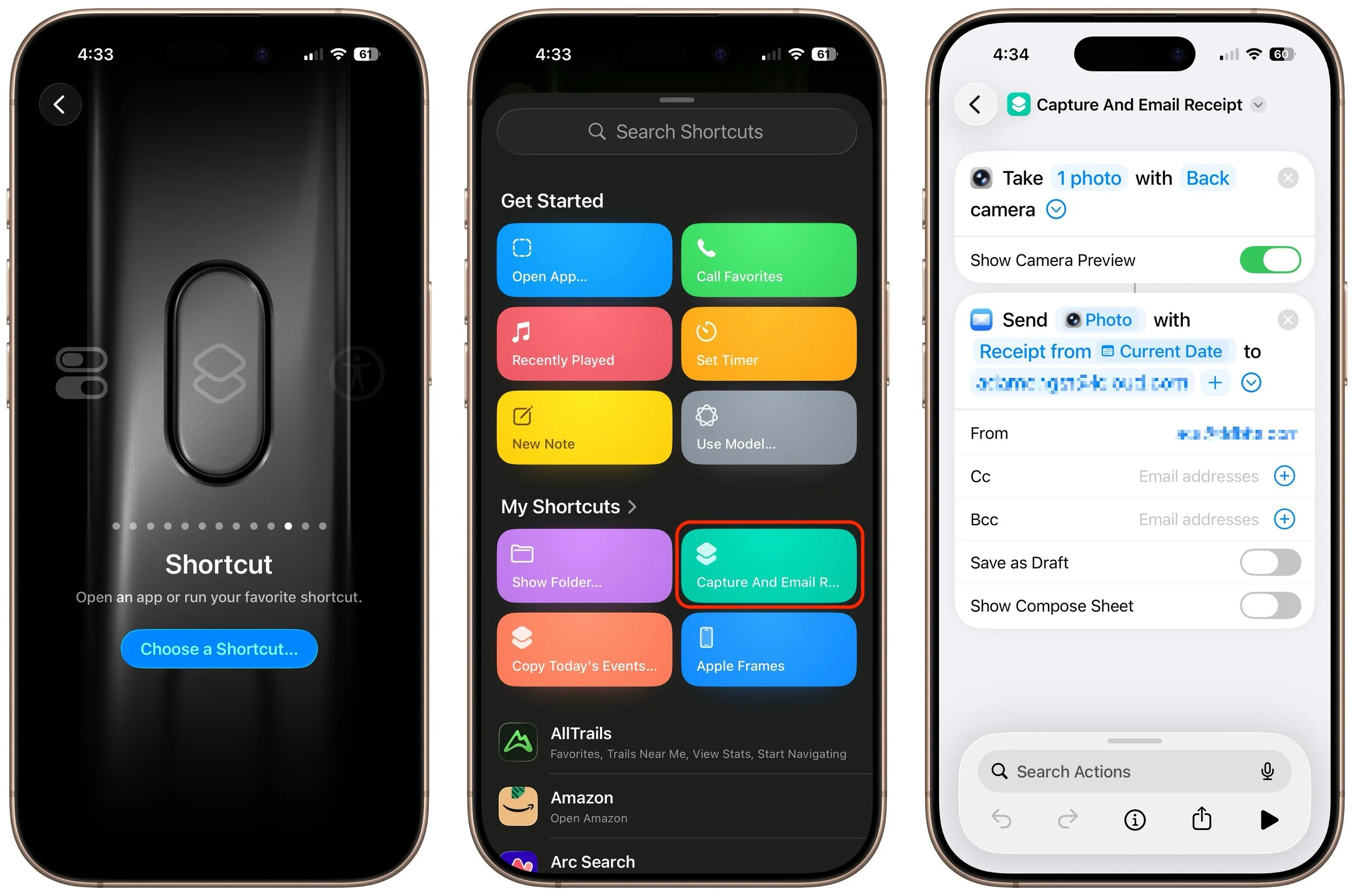
Shortcut: Activate any custom Shortcut for personalized actions. The previous Controls choice is brilliant, but what if you want even more options? With Shortcuts, you can create custom actions that can even leverage multiple apps to do exactly what you want. For instance, you could create a shortcut that takes a photo of an expense receipt and sends it to a specific email address, all triggered by a long press on the Action button. The sky is the limit here.
Accessibility: Quick access to accessibility features like VoiceOver, Zoom, Speak Screen, Apple Watch Mirroring, Live Captions, Conversation Boost, and more. Don’t assume these options are only for people with disabilities; many have broader utility.
No Action: The final option is No Action, which is useful only if you accidentally press the Action button frequently and don’t want it to do anything.
So there you have it! If you’re not currently using the Action button, take a spin through the available options to see which can make a difference in your everyday iPhone experience.
(Featured image by Adam Engst)
How to Encourage Successful AI Use in Your Organization
Casual AI use won’t impact your organization. To see real productivity gains with AI projects, avoid top-down mandates and instead empower frontline teams, document workflows, and centralize support.

The AI hype train continues to gain momentum, with breathless reports of rapid user growth, billion-dollar deals, and sky-high company valuations. At the same time, it’s easy to highlight AI pilot failures, problematic uses, and worries about job losses.
As always, reality lies between the extremes. AI is just another technological tool, like spreadsheets, email, and the searchable Web. Like them, casual usage won’t automatically increase an organization’s productivity. At best, many people have begun using AI chatbots as a smarter search engine, and while that’s a fine start, it’s unlikely to make a notable difference. Many others are technology skeptics who are uncomfortable with any new technology, let alone one as fuzzy as AI. Even those who are interested and capable are often overwhelmed by their existing work and don’t have time to learn yet another tool.
So how do you set up an organization to make effective—even transformative—use of AI?
Get Buy-In from Management
Ideally, the desire to adopt AI would come from the top of the organization, with leadership discussing and modeling the kind of usage they want to see. But what’s absolutely essential is lower-level management creating the culture, resources, and time necessary for employees to experiment with AI.
Evangelize from the Bottom, Don’t Mandate from the Top
Although management must be on board, a CEO memo mandating immediate AI adoption won’t have the desired effect. Unlike many other technologies, AI solutions tend to be highly specific rather than one-size-fits-all. Frontline employees know where they’re wasting time with inefficient workflows, and they have first-hand knowledge of what customers want, so they’re more likely to be able to leverage AI tools when they are involved in the development and deployment. Solutions created without their participation likely won’t benefit the business’s bottom line, customers, or employees.
Centralize Testing and Support
A top-down approach does make sense for tool analysis and testing. The explosive growth of the AI market means that there are numerous similar options for any desired workflow. To save time, avoid future chaos, and reduce tool jumping, it can be helpful to have a single IT team evaluate the numerous possible tools, make recommendations, suggest best practices, establish basic data handling and privacy guidelines, and provide support.
Adopt a Documentation Mindset
A key to automating workflows with AI is being able to document the necessary tasks clearly first. Some organizations already have a documentation mindset, where they write everything down, define processes, and record decisions. If that’s not the case for your organization, it’s better to focus on building such documentation before creating automation tools that are unlikely to deliver the desired results. Consider using AI to help with documentation, such as by interviewing people who understand the workflows and using AI to extract an outline from the transcript of the recording.
Think of AI Tools Like a Junior Employee
The hard part of using AI is defining your goals and determining where AI can make a difference. It’s much like training a new hire. What are you trying to achieve by hiring them? What do they need to learn to do their job? What level of excellence do you expect? What common mistakes and pitfalls should they avoid? You can only automate something if you have a clear idea of what success entails and precisely what’s necessary to achieve it.
The Bottom Line
Ultimately, successful AI implementation comes down to defining what you want to achieve, giving people the time they need to explore possibilities, and providing guidance rather than mandates.
(Featured image by iStock.com/FabrikaCr)
How to Ensure You Don’t Miss Reminders
Apple’s Reminders app offers more than simple notifications—from location-based alerts to the new alarm feature in iOS 26.2, here’s how to make sure you never miss an important task.

Recording a task in Apple’s Reminders app on your Mac, iPhone, or iPad is just the first step—the app captures what you need to do—but what matters more is being reminded to take action at the right moment. (The most important step, of course, is following through, but that’s on you.)
Here’s how to configure Reminders to get your attention at the right moment, whether through time-based alerts, location triggers, or when you chat with someone in Messages. Particularly helpful is the new alarm feature in iOS 26.2 that ensures you can’t miss time-based alerts. We’ll focus on the iPhone here, but the iPad and Mac interfaces are similar.
Time-Based Notifications
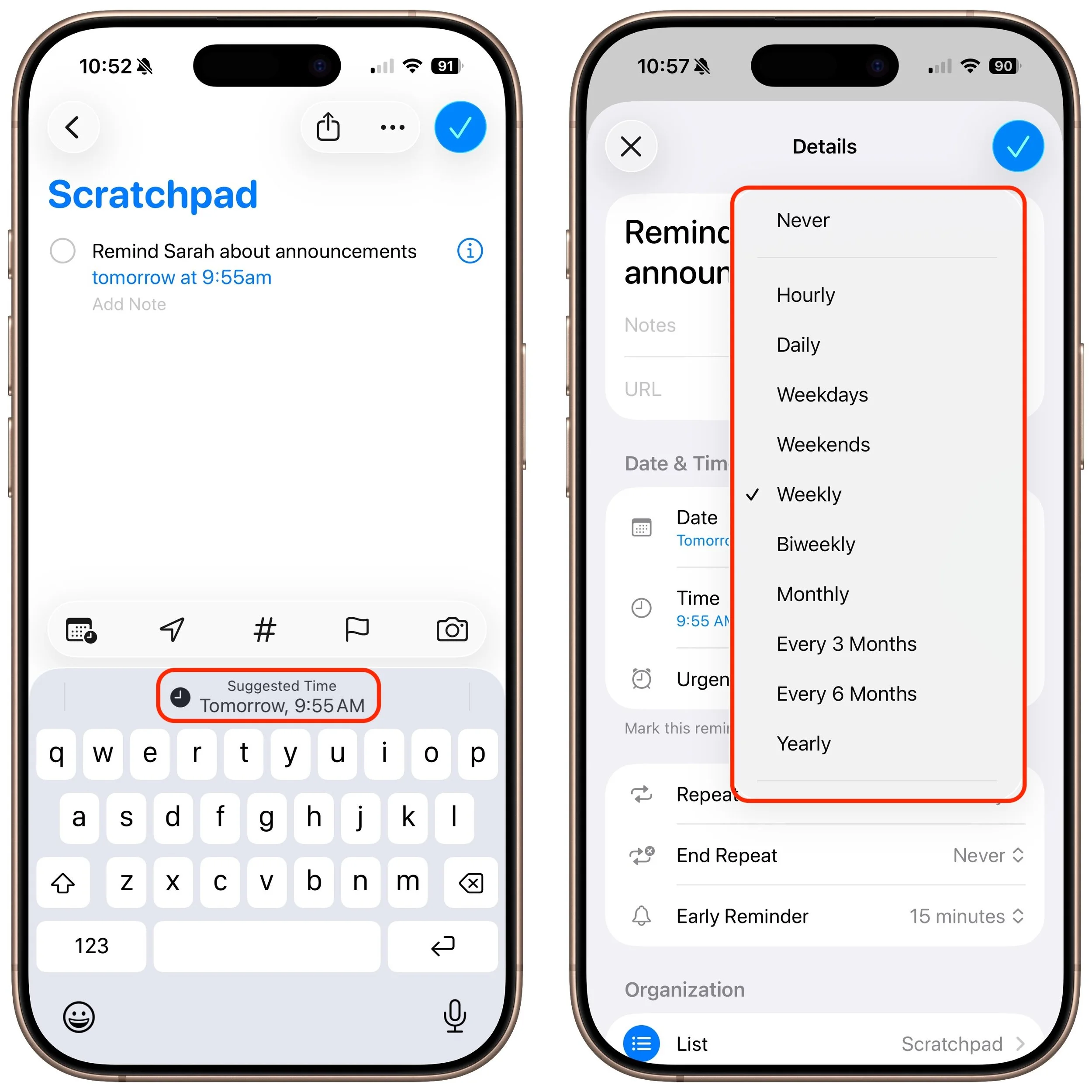
The most straightforward way to be reminded is at a specific date and time. When creating or editing a reminder, turn on the Date and Time switches to set when you want to be notified. You can also enter natural language times in the title, such as “tomorrow at 3 PM”—tap the autocomplete suggestion to convert it to the actual notification time. Voice commands via Siri also work especially well, such as “Siri, remind me to call my mother at 8 PM.” When the time arrives, you’ll receive a standard notification banner on your iPhone, iPad, Mac, or Apple Watch.
For recurring tasks, after setting a date, select an option from the Repeat menu: daily, weekly, monthly, yearly, or custom intervals. Recurring reminders are perfect for routine tasks such as taking out the recycling or submitting weekly reports. (Medication reminders are often used as an example of recurring reminders, but they’re more effectively handled in the Health app.)
Early Reminders
Although reminders are seldom as time-sensitive as calendar events, where you can set multiple alerts ahead of the actual event, it can still be helpful to receive an additional notification to prep for the reminder’s time. For instance, you might want an early notification a week before “Cancel free trial subscription” to evaluate whether you want to keep the service.
After setting a date and time for a reminder, choose an item from the Early Reminder menu to receive an additional notification minutes, hours, or even days before the scheduled time. This gives you a heads-up that something is coming due without replacing the original notification at the scheduled time.
Alarms in iOS 26.2 and iPadOS 26.2
For most reminders, it isn’t important that you start the task as soon as the notification appears. It doesn’t matter exactly when you cancel the free trial, as long as it happens before the renewal date, so a notification that remains on the Lock Screen is sufficient. But for other tasks, missing a notification would be a big problem. If the turkey needs to go in the oven at 2 PM so it’s ready for Thanksgiving dinner, you don’t want to get distracted by the football game and miss the notification.
To help, Apple added an alarm feature in iOS 26.2 and iPadOS 26.2 that lets Reminders trigger full-screen alarms that behave like those in the Clock app. It’s essential for critical reminders that absolutely cannot be missed. Alarms only work for the person who created the reminder, even if the reminder is on a shared list.
To enable an alarm for a reminder, set a date and time, then turn on the Urgent switch. (It doesn’t appear to be possible to enable Urgent via Siri.) When the reminder comes due, instead of a simple notification banner, you’ll see (and hear) an alarm on your iPhone (and Apple Watch) with options to dismiss or snooze it for 9 minutes. The alarm will continue to sound until you respond, making it much harder to ignore than a standard notification. You can even reschedule snoozed alarms if necessary.
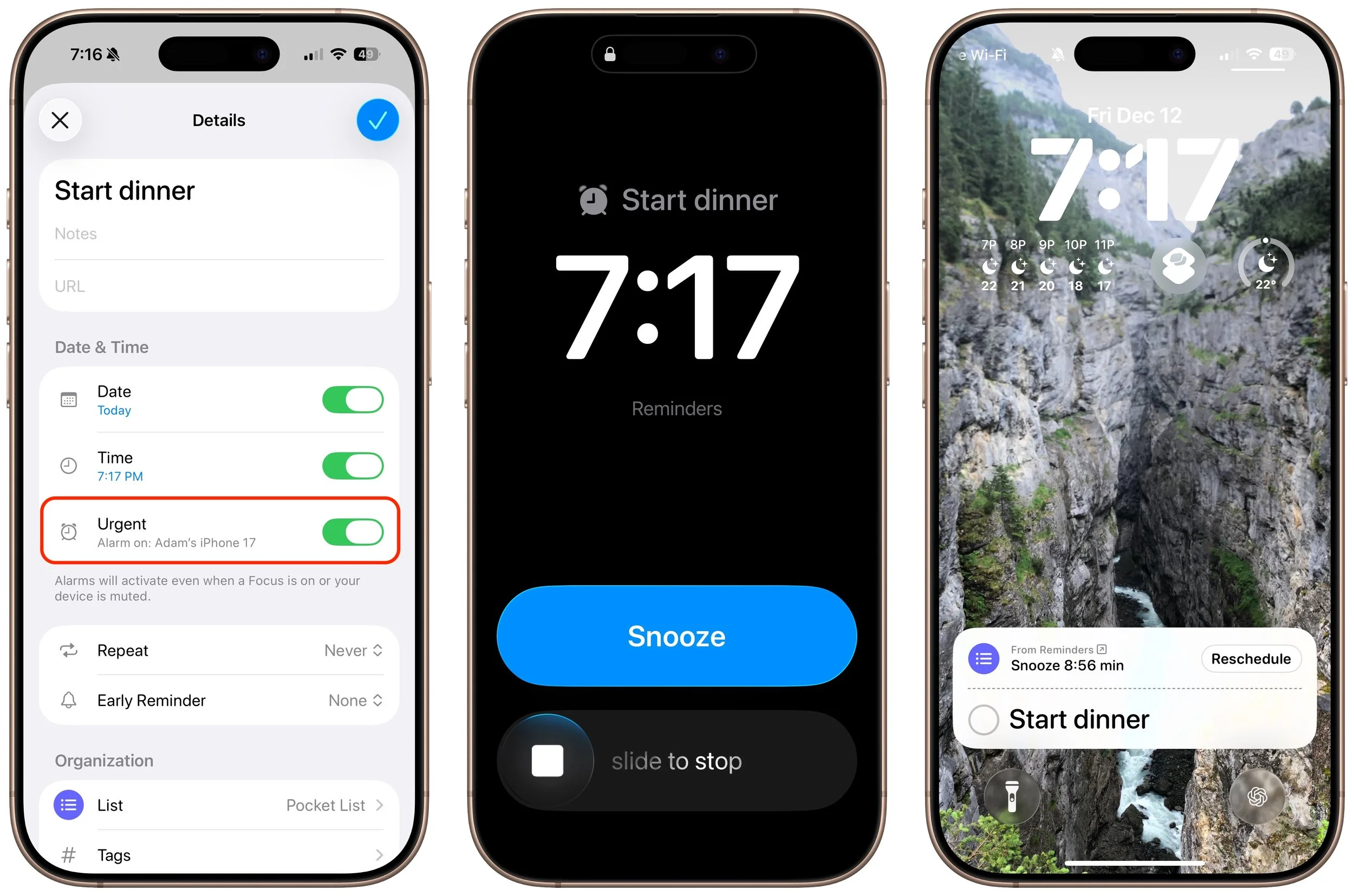
This feature can be a lifesaver for time-sensitive tasks like picking up a prescription before the drugstore closes, joining crucial meetings, or any reminder where a simple banner notification isn’t enough. We hope Apple adds alarms to the Calendar app as well.
Location-Based Reminders
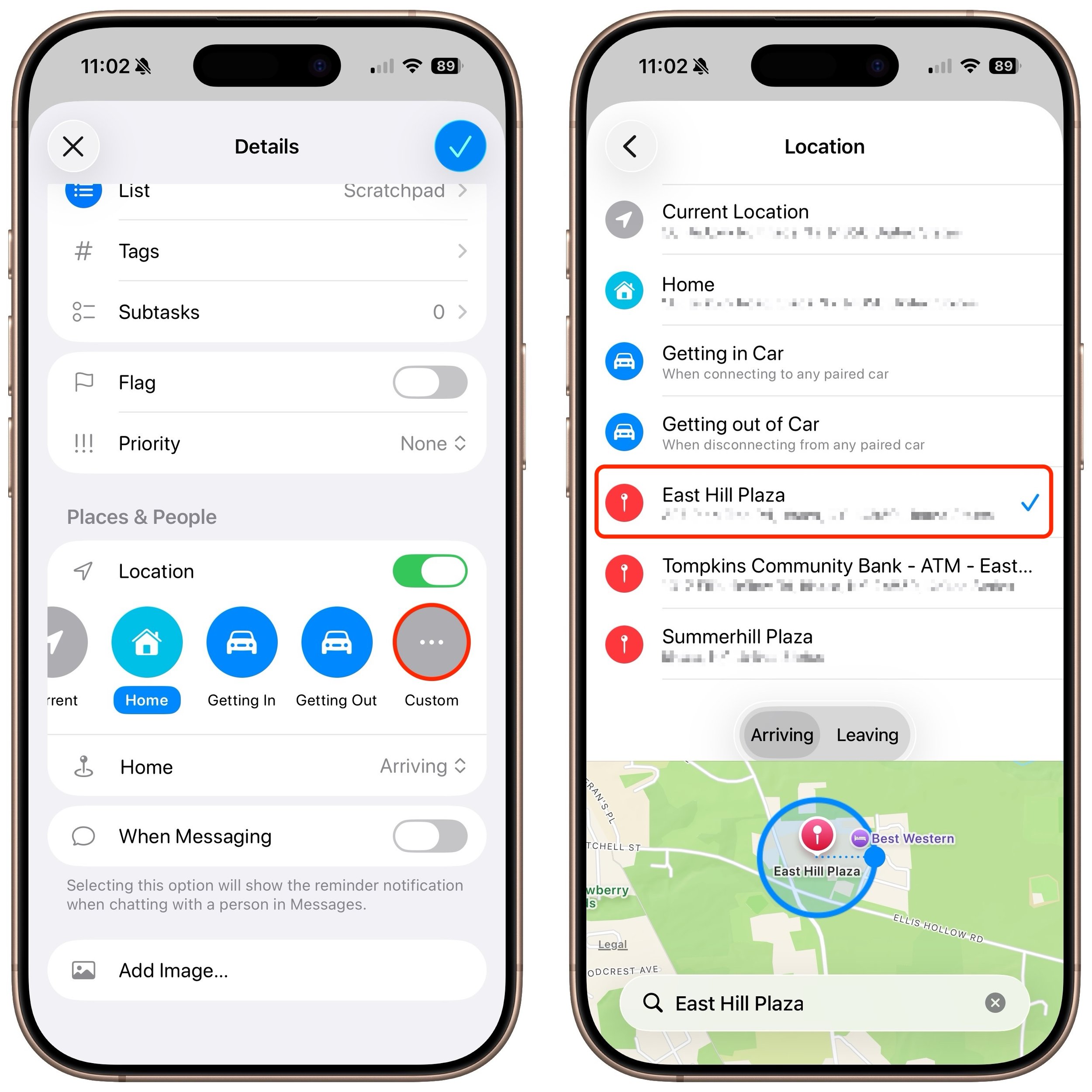
Reminders can also be triggered based on where you are. Location-based reminders are ideal for tasks like “Pick up dry cleaning” when you’re near the cleaners or “Defrost the chicken for dinner” when you arrive home.
Turn on the Location switch when creating a reminder to choose from options like:
Current location
Saved locations like Home and Work
Custom locations
Getting In or Getting Out (of a car; these options require a CarPlay or Bluetooth connection to your vehicle)
For the location options, you can request alerts when you arrive or leave. To set a custom location, search for an address or point of interest. You can adjust the geofence radius to control how close you need to be for the reminder to trigger.
When Messaging Someone
If you associate something you want to remember with a particular person, Reminders can notify you when you’re communicating with them in Messages. It’s perfect for things you want to mention but aren’t important enough to warrant starting a conversation—“Ask John about their new puppy.”
When editing a reminder, enable When Messaging and select a contact. The next time you open a Messages conversation with that person, a notification will appear reminding you of the task.
Choosing the Right Alert Method
Each notification type serves different purposes:
Time-based notifications work well for scheduled tasks and deadlines, with early reminders for advance warning and alarms for critical tasks that can’t be missed.
Location-based reminders are ideal for errands and place-specific tasks.
When Messaging ensures you remember to discuss something with a specific person.
By combining these options, you can ensure that essential tasks receive the attention they deserve and are delivered in the way most likely to prompt action.
(Featured image by iStock.com/champpixs)
Five Invisible Characters That Still Matter in Word Processing and Layout
Spaces, tabs, and returns seem simple—but using the wrong invisible character can wreck your document’s layout. Learn when to use non-breaking spaces, tabs, and soft returns to create cleaner, more professional documents.

In earlier eras of word processing, users were much more likely to encounter explanations of document structure—not because everyone had to become an expert, but because knowledge was shared differently. Software shipped with detailed manuals, user groups and training classes focused on how documents worked under the hood, and power users routinely shared mental models and tips. (Who remembers being turned onto WordPerfect’s Reveal Codes?) Today’s writing tools are simpler to use and much better at hiding complexity, but that also means fewer opportunities for users to learn that invisible characters even exist, much less that they have different attributes and consequences.
We’ll look at five invisible characters that shape how text behaves: the regular space, non-breaking space, tab, hard return, and soft return. You already use regular spaces and hard returns, but understanding the other three—and when to employ them—can help you create cleaner, more professional documents and troubleshoot layout problems.
How to See Invisible Characters
Nearly every text editor, word processor, and page layout app includes an option to show “invisibles” (the term may vary, but the concept is the same). When Show Invisibles is enabled, you’ll see dots, arrows, paragraph marks, and other symbols that represent normally invisible characters. They typically appear in a color different from the default text color, such as the blue characters in the screenshot below.

Regular Spaces Versus Non-Breaking Spaces
Everyone knows what a space is—it’s a breakable separator between words. By “breakable,” we mean the next word can wrap down to the next line of text. A regular space expresses the default intent: separate words and allow normal line wrapping.
However, there are situations when you want two words to stay together because it could be confusing if the second one wraps down to the next line. In those situations, you can use a non-breaking space—inserted by pressing Option-Space on the Mac or (usually) Control-Shift-Space in Windows, and represented in HTML by . Word processors usually distinguish non-breaking spaces from regular spaces when showing invisibles—for example, Microsoft Word uses a small open circle for non-breaking spaces and a dot for regular spaces.
When would you use non-breaking spaces?
Numbers with units: The most common use of non-breaking spaces is to keep numbers with their units, such as “1 TB” or “72 ºF.”
Names with titles, and initials with surnames: Non-breaking spaces are also useful for names with titles, such as “Mr. Spock,” and for people who go by their initials, such as “J. K. Rowling.”
Short phrases that function as a single unit: Some short phrases are conceptually one piece and should not be split across lines. This includes dates (“January 19”), times (“9:41 AM”), version numbers (“iOS 26”), and textual references (“Figure 4”).
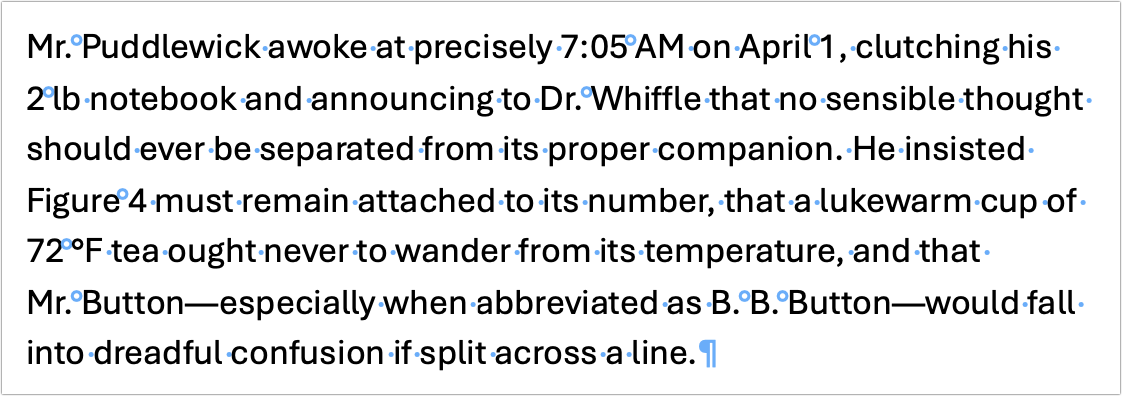
If you are using page layout software, check whether it has character styling that keeps words together, such as Adobe InDesign’s No Break style.
Tabs Versus Spaces
Because spaces separate words, many people overuse them to increase visual separation between words and to align text, such as in a résumé with a job title on the left and the associated dates on the right.
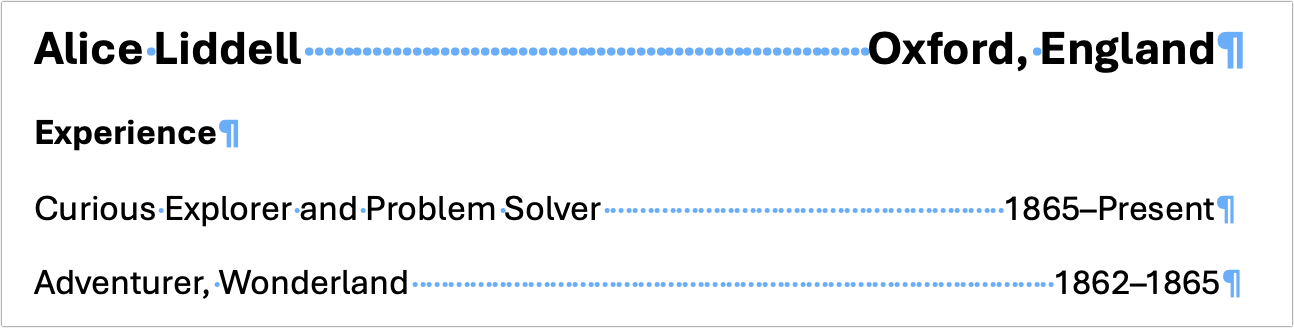
Unfortunately, spaces work poorly for aligning text because most fonts are proportional, meaning a lowercase i is thinner than an uppercase W. Therefore, spaces can’t align text perfectly—not because spaces differ in width, but because the characters before them do. Ragged alignment in a printed document is easily noticeable and looks unprofessional.
The simple solution is to use a tab, which aligns to a fixed position marked by a tab stop. Pressing the Tab key inserts a tab to the next tab stop, which can usually align text to the left, right (shown below), center, or decimal point. Most apps have a few default tab stops, and you may never need anything different. However, you can usually customize the behavior and location of the tab stops. First, put your insertion point in the paragraph you want to work in, or select a swath of paragraphs. Then, either use the ruler to customize the stops or use dedicated tab controls, such as in Microsoft Word’s Format > Paragraph > Tabs dialog. More advanced users will want to customize tab stops within paragraph styles.
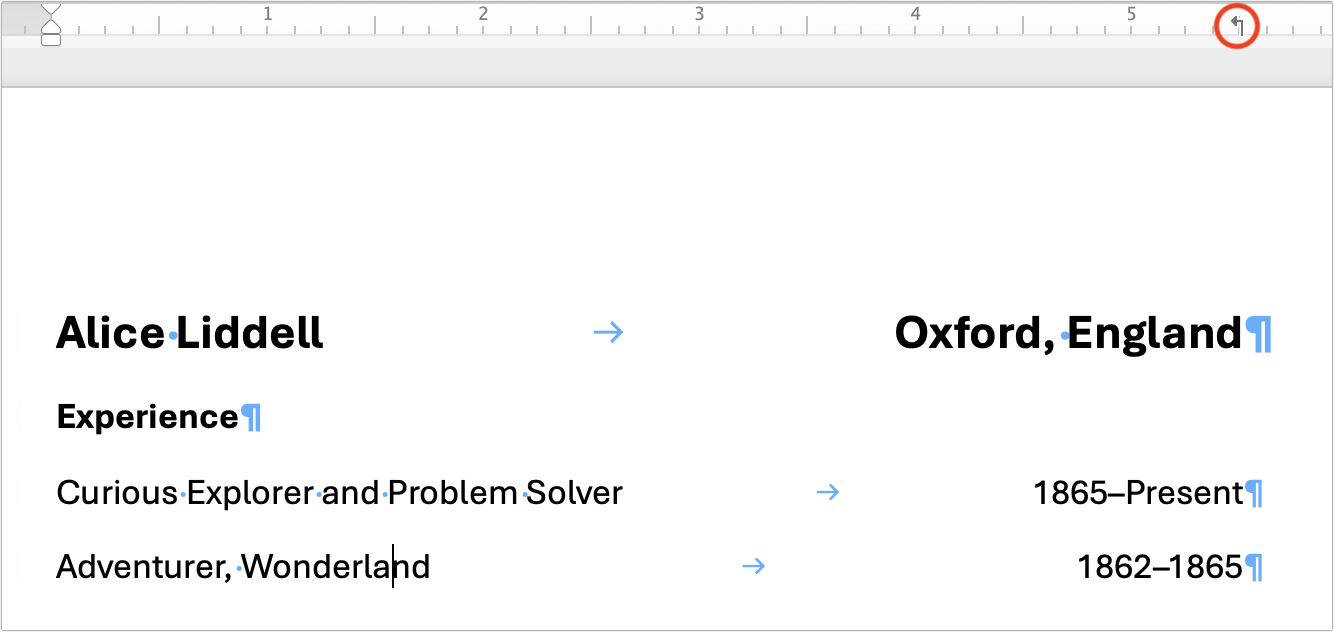
Although we can now use tables and layout tools for much of what tabs were necessary for in the early days of word processing, tabs remain useful in some situations, such as:
Horizontal placement: If you want your signature to appear below a letter on the right, you could right-align the entire line, but a right-aligned tab stop gives you more control over where the signature appears.
Simple lists: For a short contact list that includes name, phone, and email, setting a few tab stops could be easier than inserting and formatting a table.
Quick outlines: When creating a quick outline, such as an agenda with left-aligned times and indented session titles, use tabs to create indentation. This preserves the outline structure and makes it easier to adjust later.
If you’re trying to align text rather than separate words, a tab expresses that intent far better than spaces ever can.
Hard Returns Versus Soft Returns
Most people understand hard returns, which separate one paragraph from the next. Pressing Return (Mac) or Enter (Windows) creates a hard return. For example, you’d put a return between a heading paragraph and the following body paragraph. Less well-known are soft returns, which start a new line within a paragraph, but do not end the paragraph. An important side effect of a soft return is that whatever paragraph formatting is applied to the paragraph will continue to apply to the new line. To type a soft return, type Shift-Return or Shift-Enter. (In HTML, paragraphs are marked with a pair of <p></p> tags, while soft returns use the <br> tag.)
The most common reasons to use soft returns include:
Multi-line formatting: Some blocks of text are conceptually single paragraphs displayed across multiple lines. Think of postal addresses, poetry, and song lyrics.

Maintain numbering or outline level: In lists and outlines, hard returns increment a list number or add a new outline entry, whereas soft returns insert a line break without creating a new number or outline entry. (HTML uses <li></li> tags to denote list items, but you can still use <br> tags within list items.)
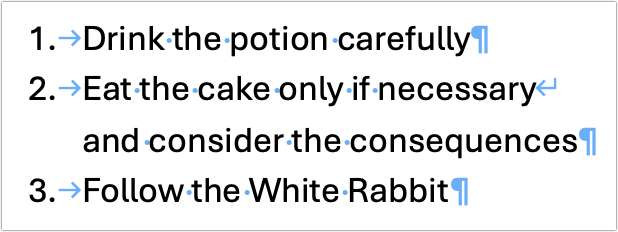
Narrow layouts: Soft returns are often necessary to force text down to the next line in columns, sidebars, captions, and callouts. They are a helpful supplement to non-breaking spaces.
Intentional formatting: In multi-line headings, captions, and labels, aim to keep lines roughly equal in length, with the last line slightly longer than the others. Use soft returns to adjust line lengths as needed.

In short, use hard returns to separate paragraphs that are standalone units of text. Use soft returns to add line breaks within a chunk of text that is conceptually a single paragraph.
When Invisible Characters Cause Problems
Understanding non-breaking spaces, tabs, and soft returns is important because they can appear in your text without you noticing. Someone might have intentionally added them, or you might have accidentally included them by copying and pasting from PDFs or the Web. Some common invisible character issues you might encounter while formatting include:
Short lines: If a line appears unusually short, it could be caused by a soft return moving text to the next line or a non-breaking space causing two words to wrap down together.
Fragile alignment: If aligned text shifts when you change fonts or alignment, it’s usually because spaces are being used instead of tabs.
Text gaps: If there’s unexpected white space between words, check if a tab is there instead of a space.
Broken list numbering: In an automatically numbered list, broken numbering may be explained by a soft return being used instead of a hard return. Fix it by deleting the return between the misnumbered line and the one above, pressing Return to insert a new hard return, and repeating as needed.
Remember, you don’t have to type with invisible characters showing, but if your text has mysterious white space or odd line wrapping, you can likely resolve those problems quickly by viewing invisible characters and making sure they are doing what they should.
(Featured image by iStock.com/Fabio Principe)
Stay Safe in 2026 with These New Year’s Resolutions
Kick off 2026 with smart security habits: back up every device, stay current on software updates, outsmart phishing attempts, avoid sketchy sites, and streamline your logins with a password manager.

We’re approaching the end of 2025, so we encourage you to consider your New Year’s resolutions. For many people, the new year offers an opportunity to reflect on habits we’d like to adopt or solidify. Although we support reducing social media use and making other positive lifestyle changes, we’d like to suggest a few additional resolutions to improve your digital security and reduce the risk of bad things happening to you online.
If you read through this list and think, “I’m already doing all that,” then you’re done. Keep up the good work!
Back Up All Your Devices Regularly
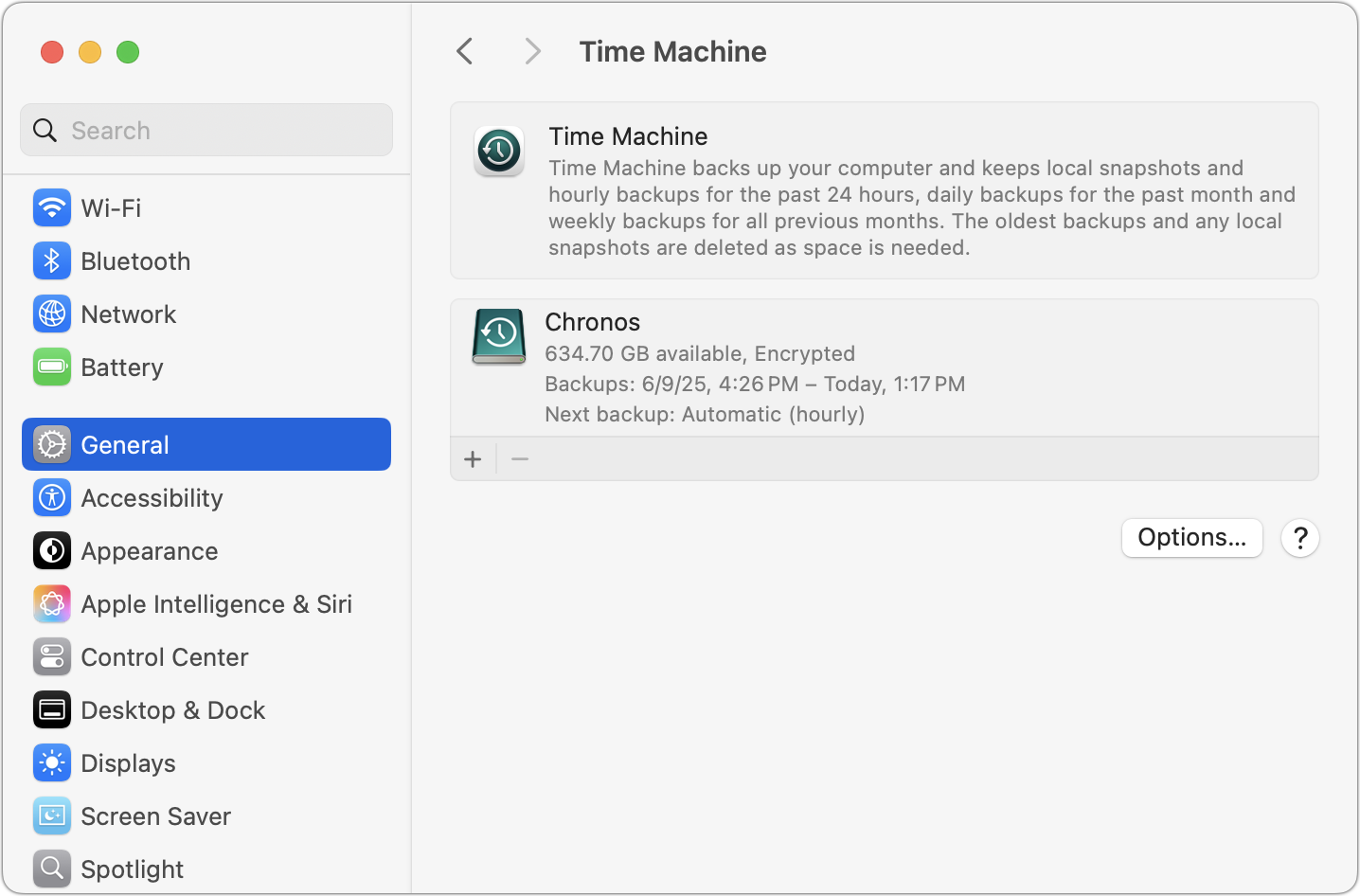
The most important thing you can do to avoid digital disasters is to back up your data regularly. Bad things happen to good devices, like a Mac’s SSD failing, an iPhone falling into a pool, or data being lost due to theft, fire, or flood. With a solid backup plan, you can recover from nearly any problem.
For the Mac, the easiest way to back up is to use an external drive with Time Machine, but an off-site or Internet backup is also essential. Backblaze is a good choice, but there are numerous online backup services. For iPhones and iPads, it’s simplest to back up to iCloud, which automatically happens every night if you turn it on in Settings > Your Name > iCloud > iCloud Backup. You can also back up iPhones and iPads to your Mac if you do not have enough iCloud storage space. Apple Watches automatically back up to their paired iPhones, and that Watch data is included in iPhone backups, making restores straightforward. Whatever your setup, restore a few files periodically as a test to make sure your backups are working.
Always Install Security Updates
An important step to enhance your security is to install new operating system updates and security updates promptly after Apple releases them. While the specifics rarely make headlines because they are highly technical and detailed, you can gauge the significance of security updates by noting that a typical update fixes 10–30 vulnerabilities identified by Apple or external researchers. Other security updates include only one or two fixes, as they’re aimed at addressing zero-day vulnerabilities currently being exploited in the wild.
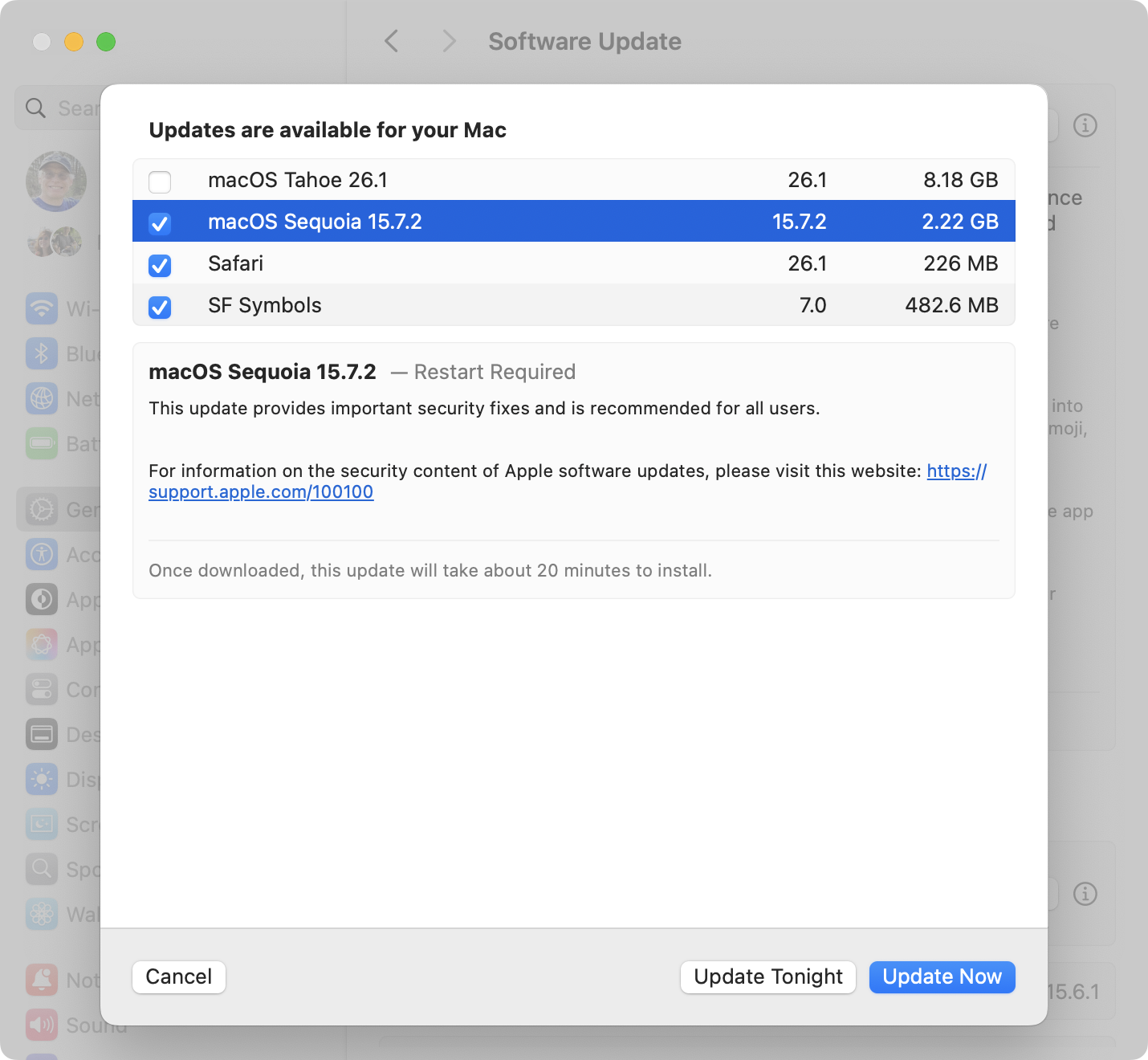
It’s usually wise to wait a few days after an update appears before installing it, in case it causes any undesirable side effects. Although such problems are rare, when they do happen, Apple quickly pulls the update, resolves the issue, and releases a new version, typically within a few days.
Use a Password Manager
We’ll keep emphasizing the importance of a password manager until passkeys—the replacement for passwords—become widespread, which will take years. Until then, if you’re still typing passwords manually or copying and pasting from a list stored in a file, please start using a password manager like 1Password or Apple’s Passwords, which is now pretty good. A password manager provides six significant benefits:
It generates strong passwords for you. Password1234 can be hacked in seconds.
It stores your passwords securely. Anyone walking by your unlocked Mac can read an Excel file on your desktop.
It enters passwords for you. Wouldn’t that be easier than typing them in?
It audits existing accounts. How many of your accounts use the same weak password, which has likely been stolen in multiple breaches?
It lets you access passwords on all your devices. Logging in to websites is just as easy on the iPhone and iPad!
It can store and enter two-factor authentication codes. Whenever possible, protect important accounts with two-factor authentication so even a stolen password won’t provide access.
A bonus benefit for families is password sharing. It allows couples to share essential passwords or parents and teens to share specific passwords.
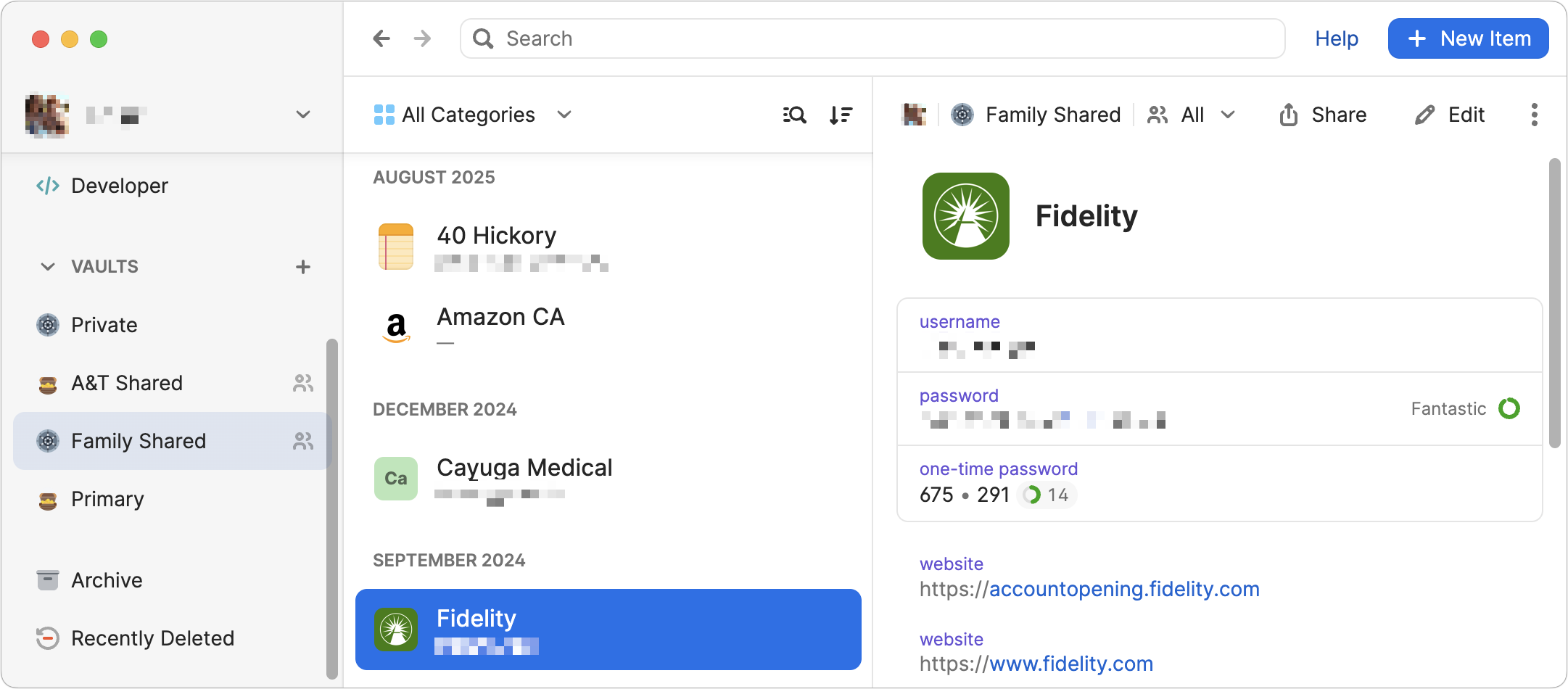
Using a password manager is quicker, simpler, and more secure. If you need assistance getting started, reach out.
Beware of Phishing Email
Individuals and businesses often experience security breaches due to phishing, which involves fake emails that trick someone into revealing login details, credit card numbers, or other sensitive data. While spam filters catch many of these attacks, you must stay alert. Here’s what to watch out for:
Any email that tries to get you to reveal information, follow a link, or sign a document
Messages from unfamiliar people, asking you to take an unusual action
Direct email from a large company for whom you’re an anonymous customer
Forged email from a trusted source requesting sensitive information
Urgent threats like “account locked,” “unauthorized charge,” or “action required”
All messages that contain numerous spelling and grammatical mistakes
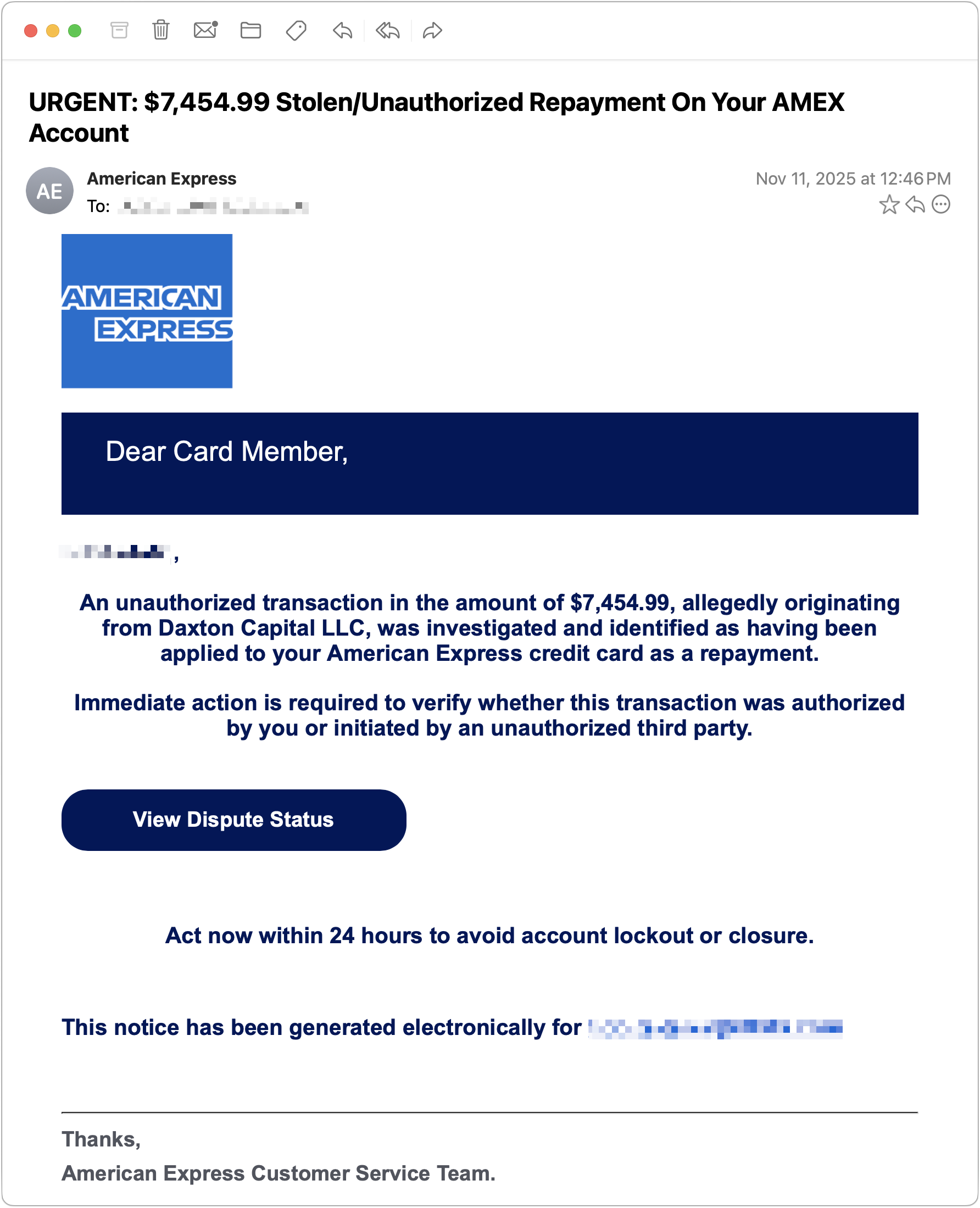
When unsure, avoid clicking the link or replying to the email. Instead, reach out to the sender via another method to verify the message’s authenticity. Legitimate companies—especially Apple, financial institutions, and cellular carriers—will never ask for your password or two‑factor codes by email, text, or voice.
Never Respond to Unsolicited Calls or Texts
Phishing attacks increasingly take place via texts and phone calls—and even some via deepfake audio and video. Because of weaknesses in the telephone system, these messages and calls can appear to come from trusted companies like Apple and Amazon. Other common scams warn about unauthorized logins or payments to trick recipients into calling scammers, advertise fake deliveries with malicious tracking links, or send fake two-factor authentication messages that prompt recipients to click a link to “secure” their account.
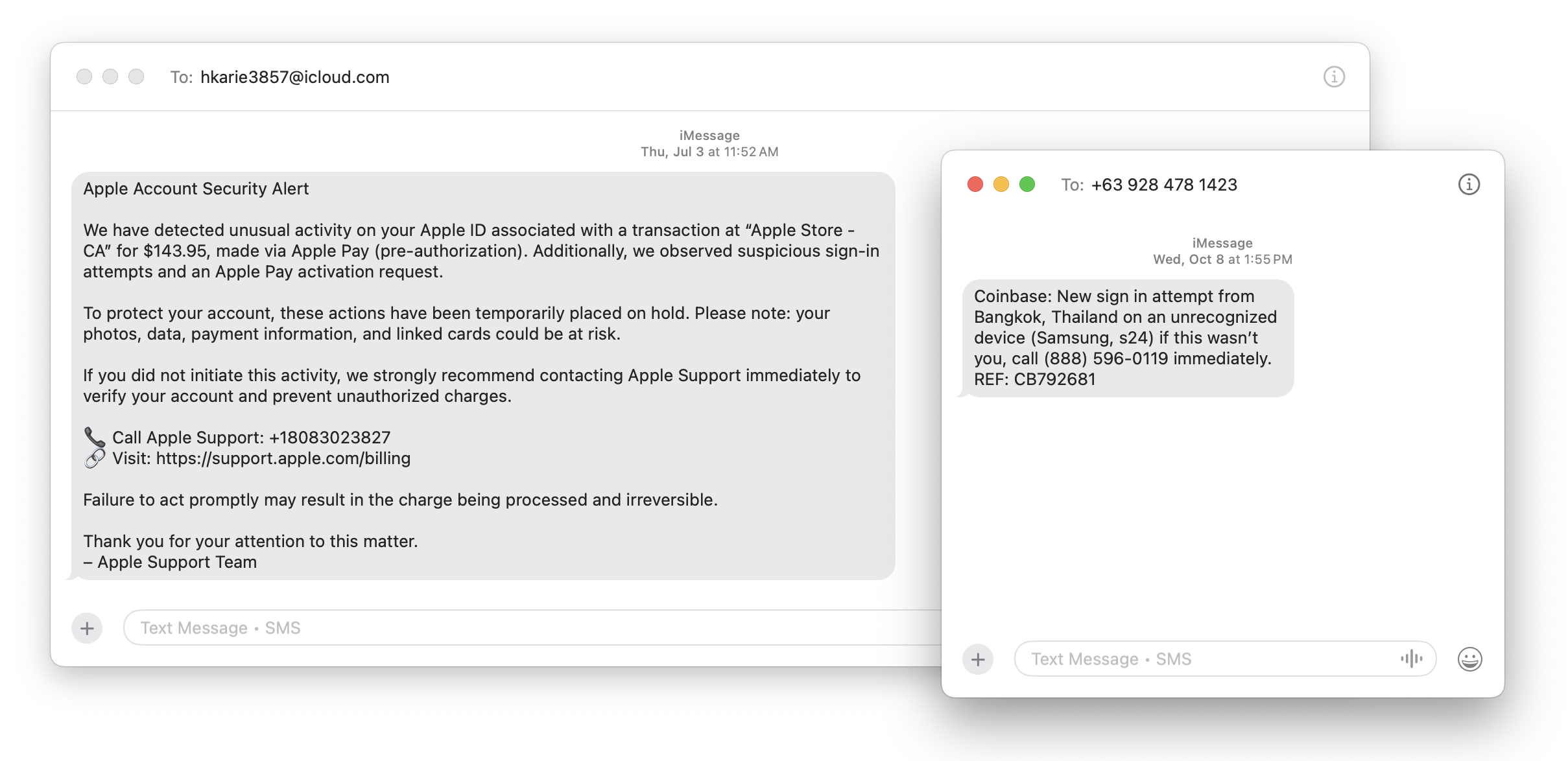
Avoid clicking links in texts unless you recognize the sender and it makes sense for you to receive that link. (For example, Apple might send text messages with delivery details for a recently placed order.) Never enter login information on a website you reach through a link because you can’t be sure it’s legitimate. Instead, if you’re interested in more details, go directly to the company’s official website by typing its URL into your browser, then log in from there.
For calls from companies, unless you’re expecting a callback regarding a support ticket you opened, don’t answer—caller ID can be spoofed. Let the call go to voicemail, and if you believe it’s important to respond, look up the company’s phone number from a reliable source and contact someone at that number instead of using the one provided by voicemail.
Avoid Anything Associated with Sketchy Websites
We won’t dwell on this last point, but it’s worth noting that you’re much more likely to encounter malware on fringe websites or those that cater to societal vices. The more you can steer clear of sites that deal with pirated software, cryptocurrency, adult content, gambling, or the sale of illicit substances, the safer you’ll be. That’s not to say reputable sites haven’t been hacked and used to spread malware, but such cases are far less frequent.
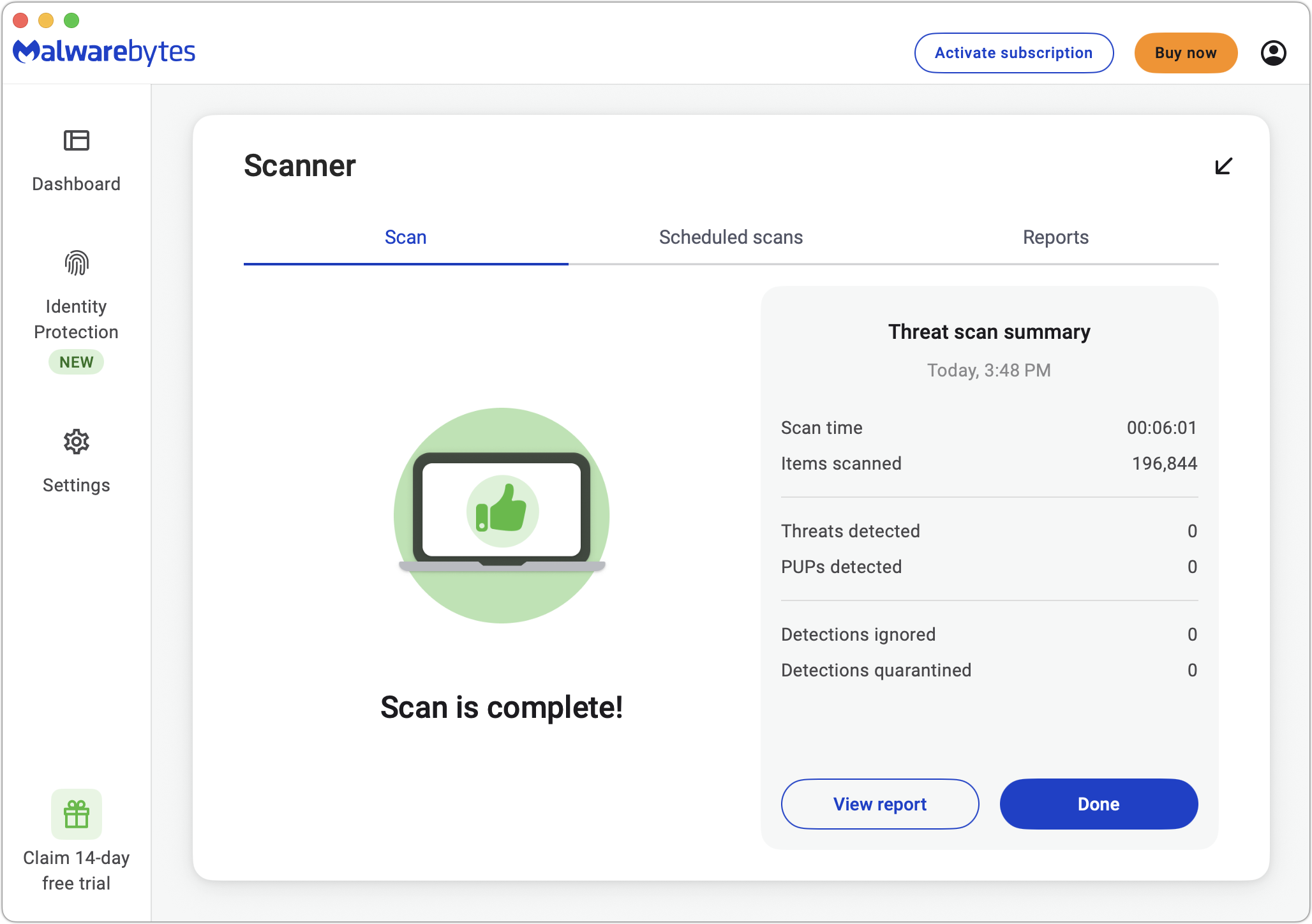
Don’t call numbers from pop‑ups or ads, don’t grant remote access, and don’t pay for any service you didn’t seek out unprompted. Instead, go directly to the company’s official site (type the URL) or contact us for help. And never paste commands into Terminal from websites or “verification” pages—you could install malware without realizing it. If you’re worried after spending time in the darker corners of the Web, stop by GeekHampton and we’ll get Malwarebytes set up for you and run a full scan to make sure your Mac is clean.
Let’s raise a glass to staying safe online in 2026!
(Featured image by iStock.com/Marut Khobtakhob)