
10 Reasons to Upgrade to Apple’s Version 27 Operating Systems This Fall
From a smarter Siri AI to faster app launches and better parental controls, here are 10 reasons Apple’s version 27 updates may entice you to upgrade when they ship this fall.

Apple’s Worldwide Developer Conference keynote—the final public appearance for outgoing CEO Tim Cook—was different this year. Although it was still a tour of the changes we’ll see in version 27 of Apple’s operating systems, the company broke it into three parts. The first focused on interface refinements, performance improvements, and feature tweaks that smooth rough edges in our current user experience. The second revolved around changes Apple is making to its parental controls and child safety features. And the third was devoted to showing off Apple Intelligence and the new Siri AI.
Apple previewed numerous features during the keynote and listed even more on its website afterward. Below, we’ll focus on those we think are most likely to entice you to upgrade your Apple devices, but we encourage you to read Apple’s pages for each platform to learn more about what’s coming. Those are linked here, along with hardware requirements, so you can determine if your devices can upgrade this fall:
macOS 27 Golden Gate: Only Macs with Apple silicon, including the MacBook Neo (2026), MacBook Air (2020 and later), MacBook Pro (2020 and later), iMac (2021 and later), Mac mini (2020 and later), Mac Studio (2022 and later), and Mac Pro (2023)
iOS 27: iPhone SE (2nd generation and later) and iPhone 11 and later (unchanged from iOS 26)
iPadOS 27: iPad (9th generation and later and A16), iPad mini (6th generation and later and A17 Pro), iPad Air 11-inch (4th generation and later, M2, M3, and M4), iPad Air 13-inch (M2 and later), iPad Pro 11‑inch (2nd generation and later), iPad Pro 12.9‑inch (4th generation and later), and iPad Pro (M4 and later)
watchOS 27: Apple Watch SE 3, Apple Watch Series 9 and later, and Apple Watch Ultra 2 and later
visionOS 27: All Vision Pro headsets
Siri AI Everywhere
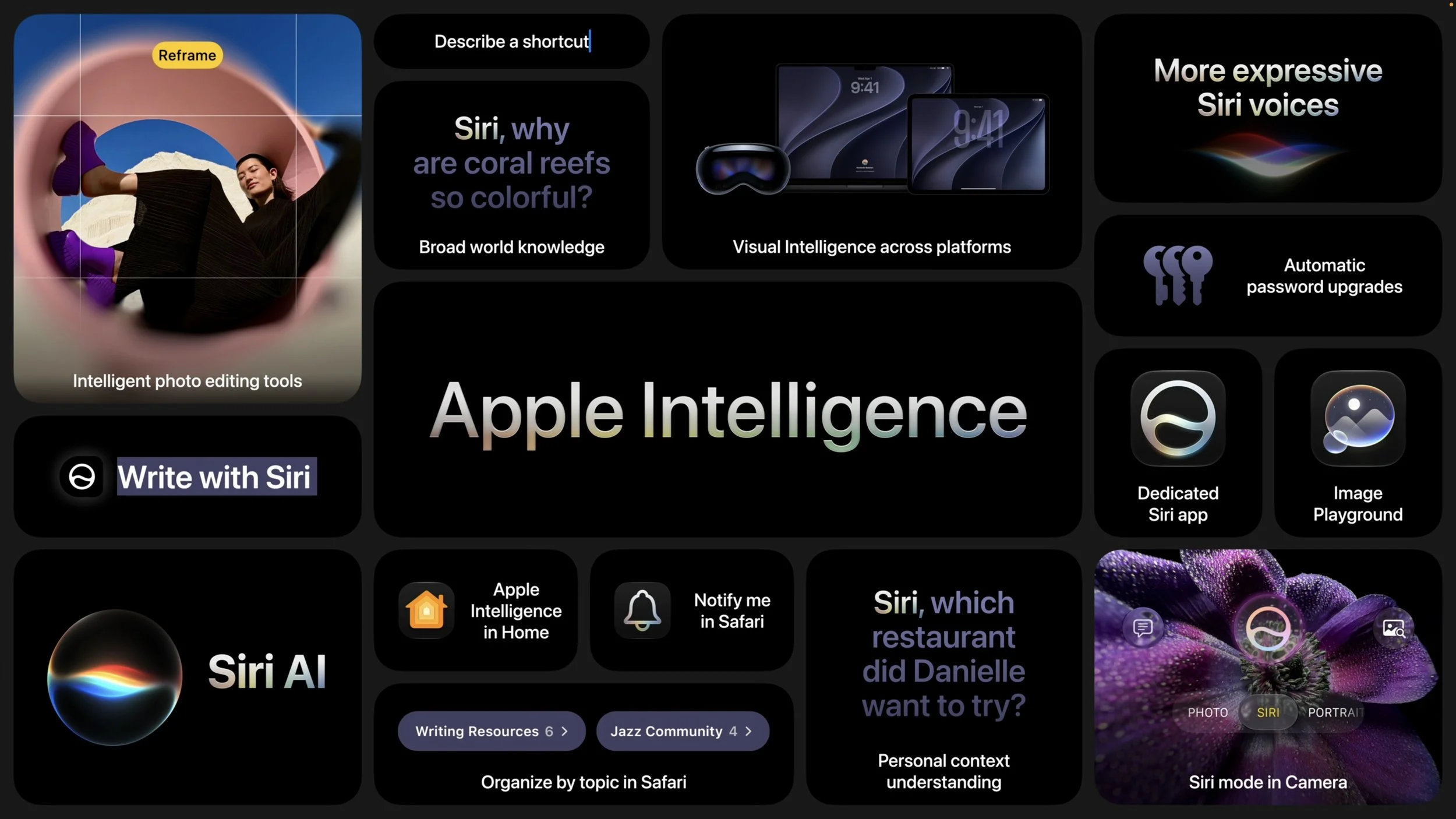
The long‑promised “more personalized” Siri, now called Siri AI, is slated to ship later this year as a dedicated app that lets you carry on conversations much like with ChatGPT, Claude, or Gemini. Apple is integrating Siri AI deeply into its platforms, so you can invoke it by swiping down from the Dynamic Island on an iPhone or via Spotlight on the Mac. Contextual menu commands on the Mac will let you focus Siri AI on images, files, and text. You’ll even be able to use Siri AI with AirPods and in CarPlay.
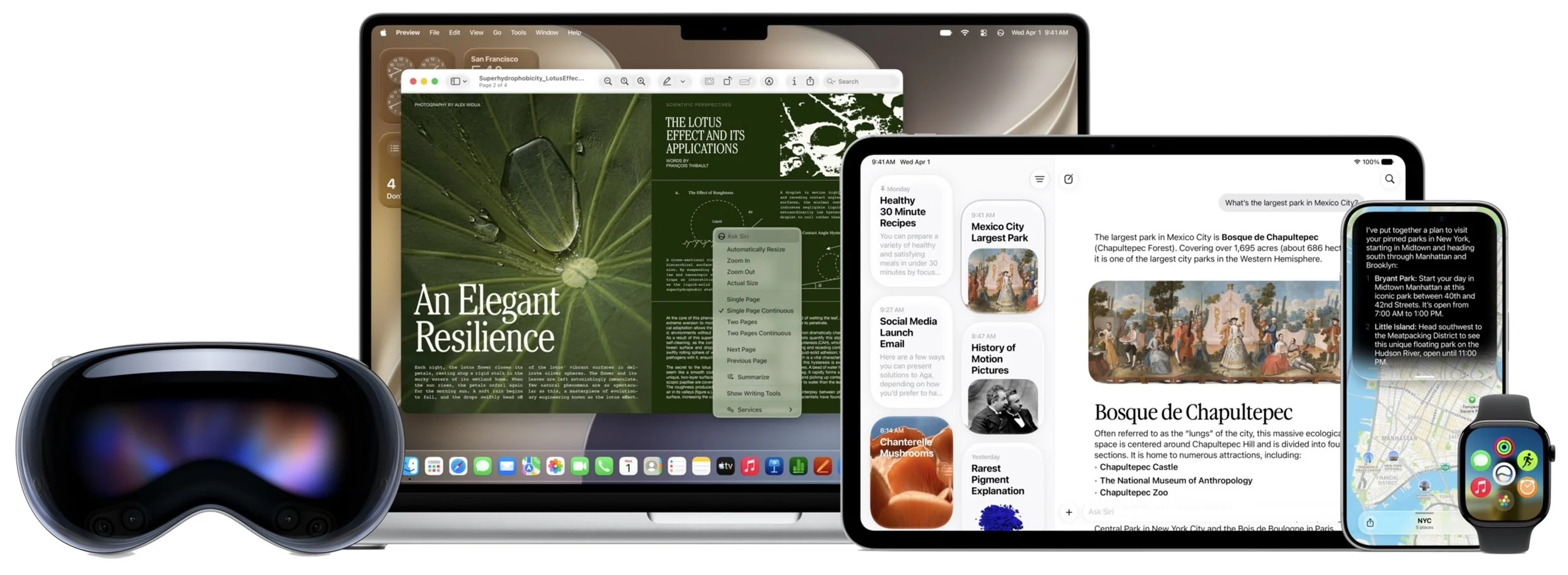
Personal context enables Siri AI to tailor its responses and actions based on your messages, emails, calendar events, photos, and other data. It will also be aware of what’s showing on screen, so you can ask Siri about what you’re looking at or direct it to take actions based on what’s showing. Siri AI will be able to work directly with compatible apps, creating contacts, sending email, calling people, and much more, depending on developer support. Finally, Siri AI will be able to respond with broad-based world knowledge gleaned from Web searches.

On sufficiently powerful devices, Siri AI provides more expressive voices and more advanced dictation. For that, you’ll need an iPhone Air or iPhone 17 Pro, an iPad with M4 or later, or a Mac with M3 or later.
Better Performance
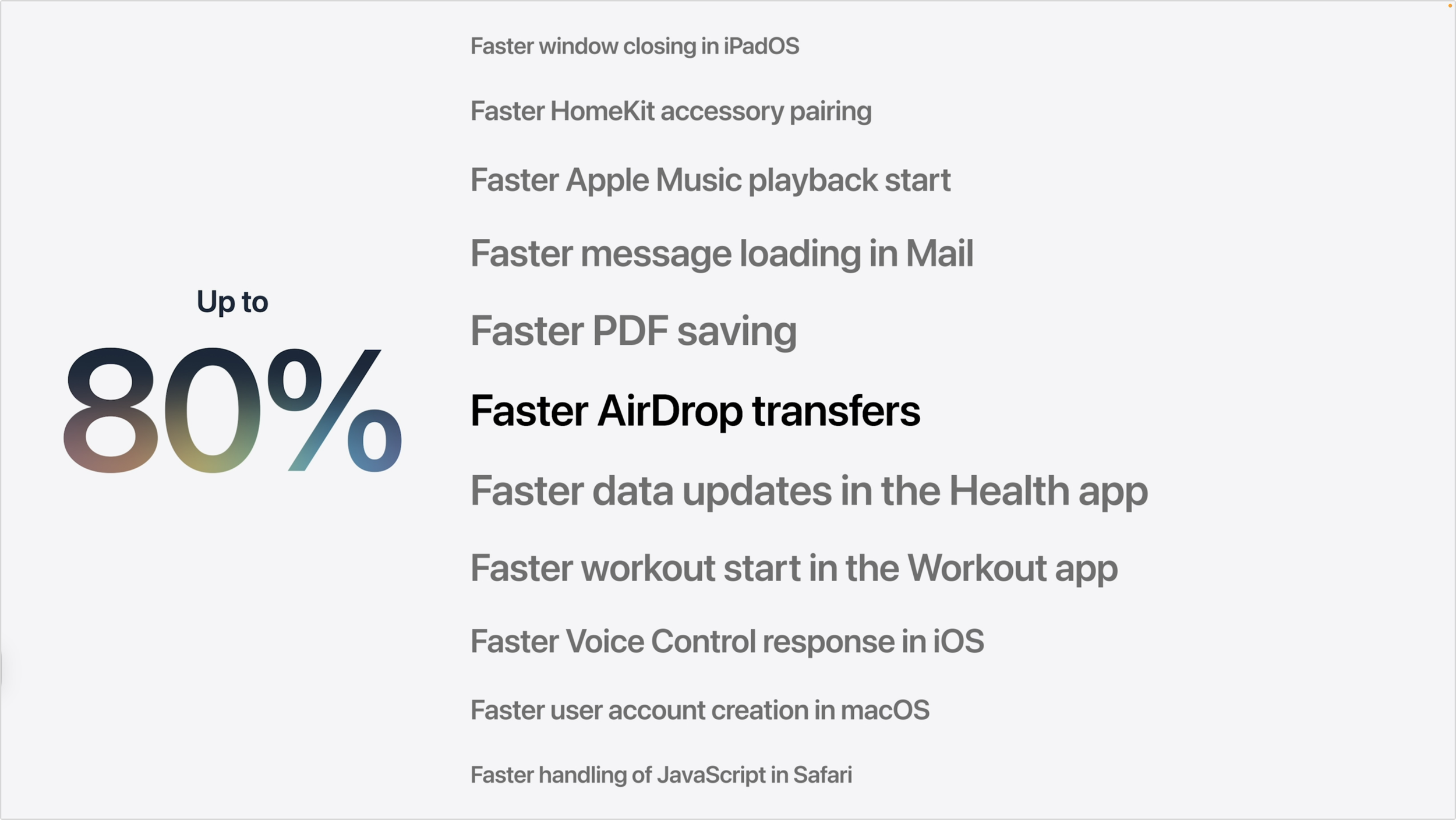
Although we don’t think of our Apple devices as slow, Apple has improved performance across many areas. iPhone and iPad apps launch up to 30% faster, new photos appear in the Photo Library up to 70% faster, files transfer via AirDrop up to 80% faster, and files can be copied from an iPad to an external drive up to 5x faster, matching macOS transfer speeds. People with older iPhones will particularly appreciate the effort Apple put into improving general performance with a new CPU scheduler.
More Reliable Spotlight
We’ve all encountered the frustration of Spotlight failing to find a file we know exists. In response, Apple has rearchitected Spotlight’s search index to make it faster and more comprehensive. Searching in Mail and Photos also benefits from the new search index.

Liquid Glass Refinements
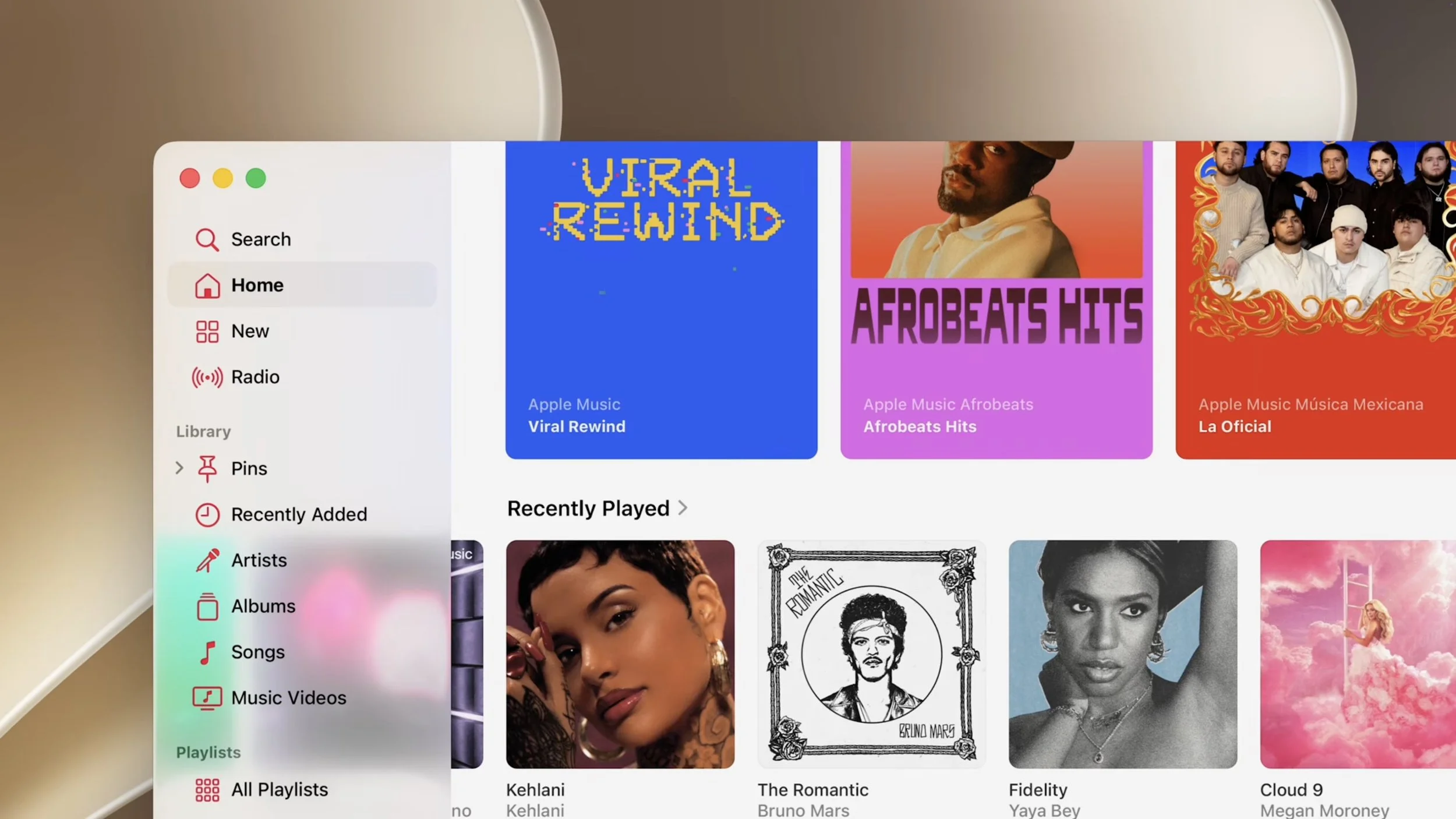
Apple showed several refinements to the Liquid Glass interface that debuted last year, addressing common requests for more control and legibility. Most notably, a transparency slider lets you adjust Liquid Glass from ultra-clear to fully tinted. macOS apps get a new uniform toolbar to improve legibility, and macOS sidebars will extend to the edges of windows and regain colored icons.
Visual Intelligence on More Devices
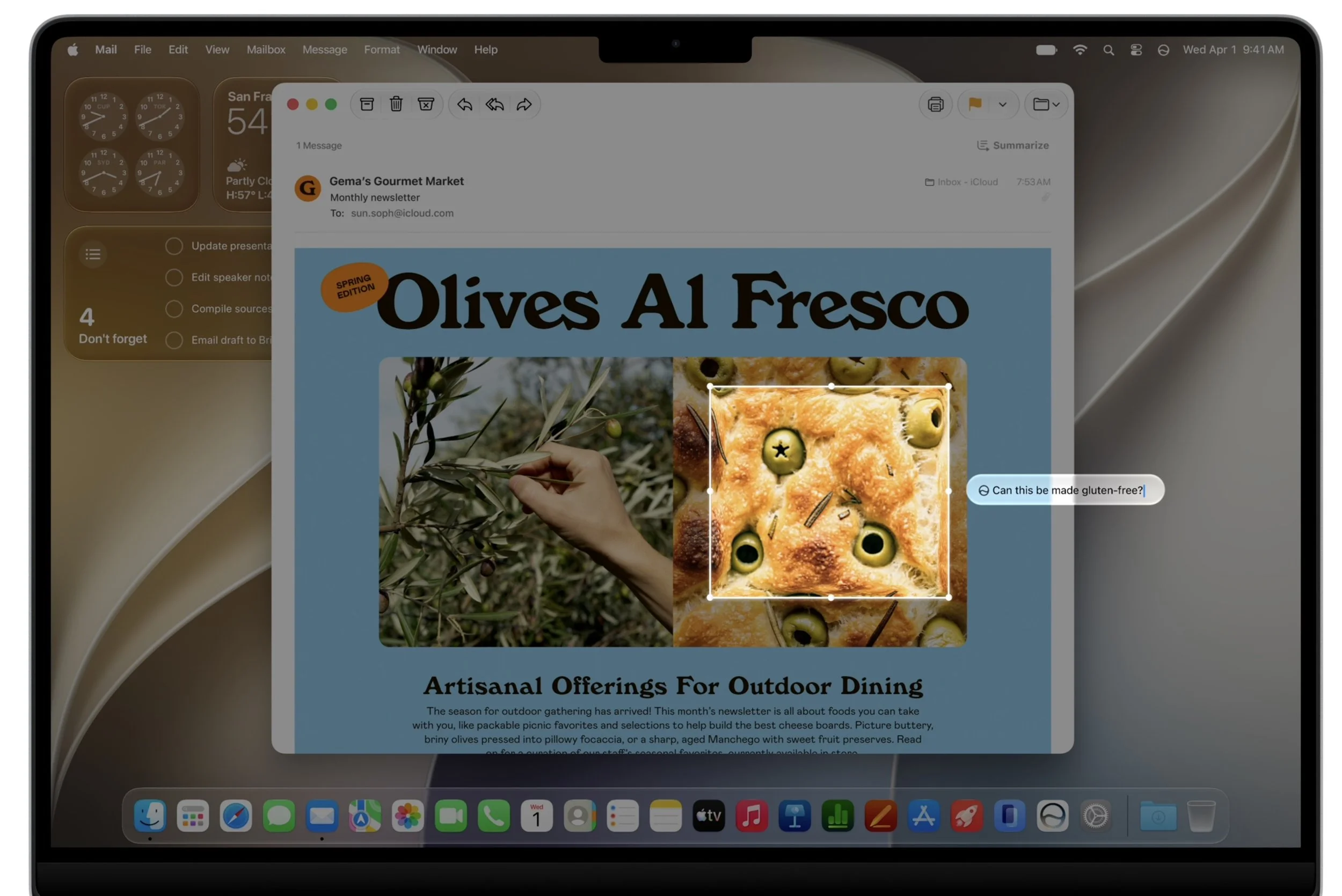
So far, Visual Intelligence, which can tell you about anything in the camera viewfinder, has been limited to iPhones with the Camera Control. Apple is moving it to a dedicated Siri mode in the Camera app, which brings it to the iPad; on the Mac, you’ll be able to select on-screen items and ask about them.
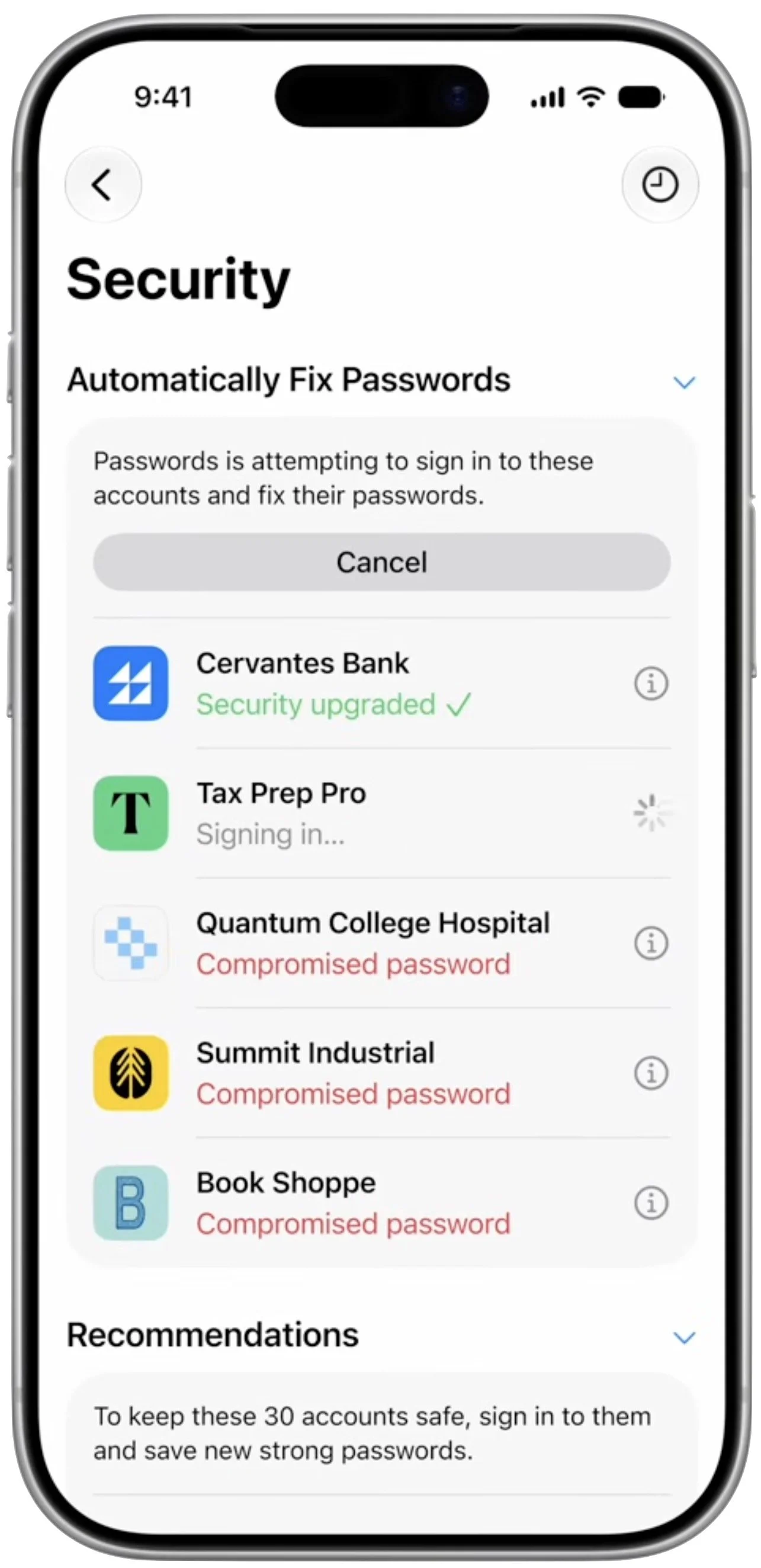
Automatic Updates to Weak or Compromised Passwords
We all have old accounts with weak or compromised passwords that we’ll get to changing real soon now. Apple recognizes this, so it’s adding Apple Intelligence to the Passwords app, enabling it to log in to eligible websites and change your password to something strong and unique.
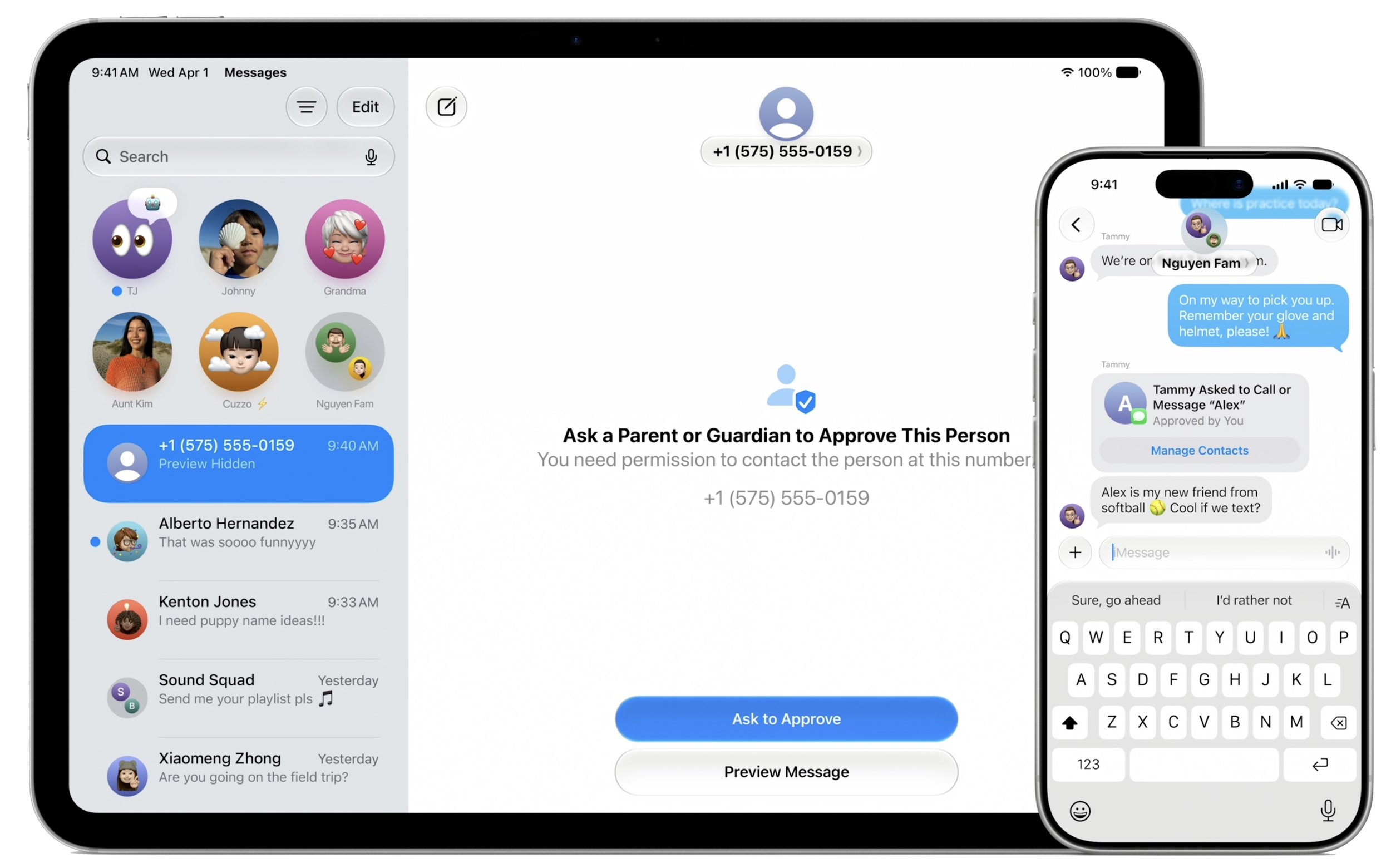
More Comprehensive Parental Controls
To address parental criticism and potentially head off governmental regulation, Apple beefed up its parental controls. A new setup assistant helps parents configure child accounts, which now feature Ask to Browse (parental permission to visit specific websites) and communication controls (permission to communicate with people outside the family). Communication Safety now warns about gore and violence along with nudity, and a redesigned Screen Time app provides an at-a-glance view of a child’s device usage.
New Photos Features
The Clean Up tool that debuted with Apple Intelligence has been popular, and Apple says it now does an even better job of removing distractions and filling backgrounds realistically. A new Extend feature expands images outward, adding a realistically generated background around the photo’s subject. Even more impressive is the new Reframe feature, which lets you reposition the virtual camera after taking a photo. You can use it to shift perspective or change the zoom, generating new content only for the shifted areas.

Build Shortcuts with Natural Language
It’s often useful to automate tasks in Shortcuts—say, notifying your spouse when you leave the office—but many people have found it too hard to create those automations. Thanks to Apple Intelligence, you’ll now be able to describe what you want a shortcut to do, and it will be created for you. If it doesn’t work quite right the first time, you can keep iterating until it’s what you want.
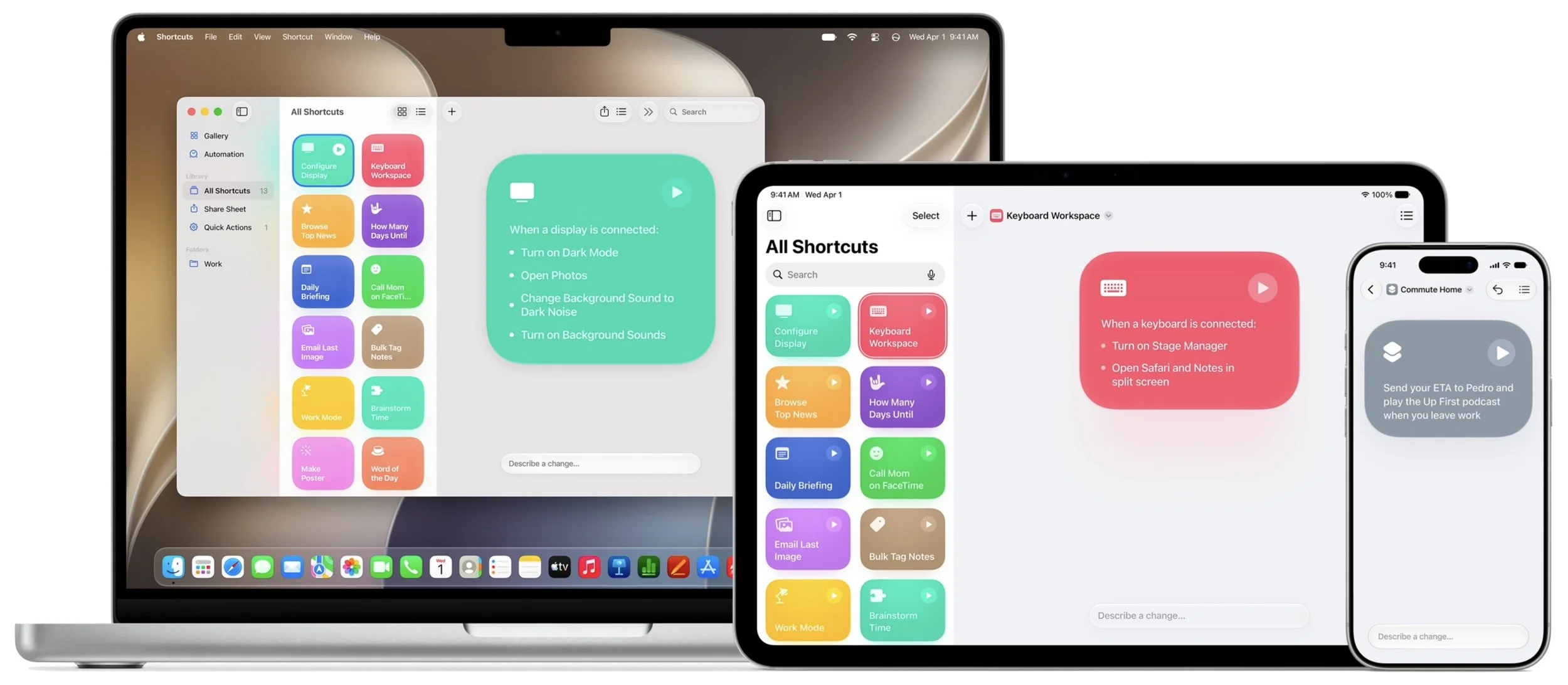
Image Playground Gets More Productive
The images Image Playground has been able to create so far have been on the childish side. Apple says that Image Playground will now be able to create photorealistic images, incorporate multiple people from Photos, transform images with natural language descriptions, and generate images in multiple dimensions. It won’t replace a professional illustrator, but it might help you generate quick images for a presentation, website, or invitation.
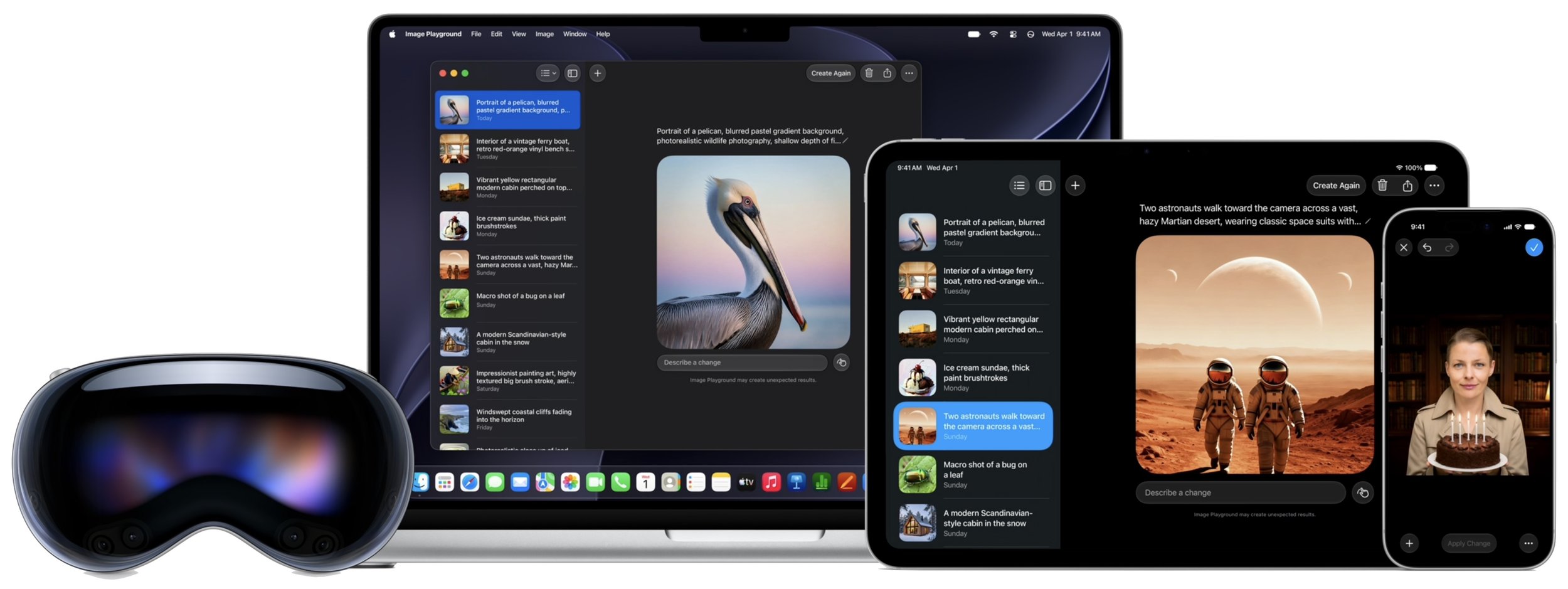
Apart from Siri AI, these aren’t earth-shaking features, and that’s the point. Apple wants to keep improving the user experience, but part of that is not changing too much too fast. We’ll write more about when we recommend upgrading each of your devices after the beta this summer.
(Featured image by Apple)
Speed Up Mac and iOS Typing with Text Expansion
Tired of typing the same email address, phone number, or tricky words over and over? Text expansion on Mac and iOS can save you keystrokes every day.
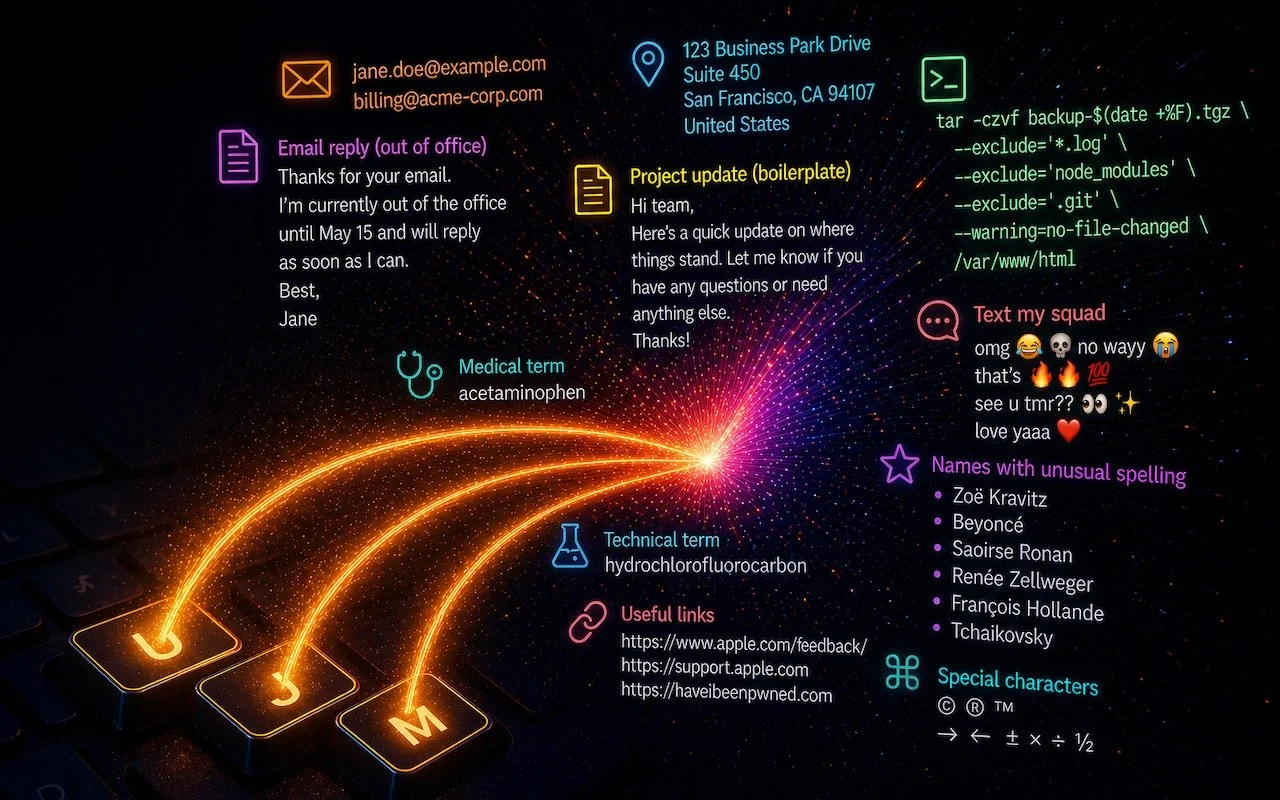
Silicon Valley thinks everyone wants to delegate writing to AI, which is why Apple Intelligence constantly suggests replies for you in Messages and Mail. But there’s an excellent way to supercharge your typing speed without sounding like a chirpy chatbot or resorting to teenage texting abbreviations: text expansion.
Text expansion speeds up typing words or phrases that you use regularly, and it’s especially helpful for character combinations that your fingers find awkward—just try touch-typing “Hyundai IONIQ 5” or “acetaminophen.” Apple has long offered text expansion capabilities in macOS, iOS, and iPadOS, and third-party utilities take them even further.
Configuring and Using Text Expansion
To configure the built-in text expansion on the Mac, look in System Settings > Keyboard > Text Replacements; in iOS and iPadOS, go to Settings > General > Keyboard > Text Replacement. In each, a text replacement consists of a shortcut and a replacement phrase.
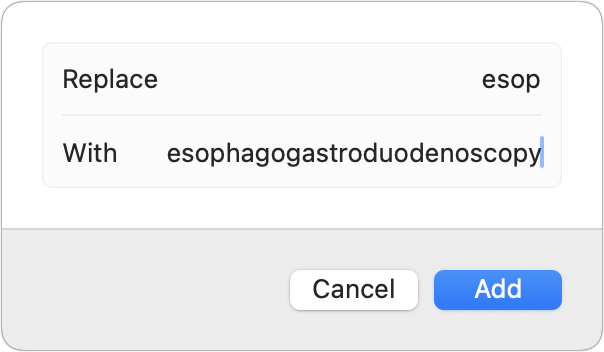
Then, in almost any app, type the shortcut, followed by a space or a punctuation character, and its phrase will replace it. If text expansion doesn’t work in a Mac app like Mail or Safari, make sure Edit > Substitutions > Text Replacement is selected.
If you’re signed into the same Apple Account on all your devices, text expansions sync between them automatically. So, you can type omw and tap the Space bar to have “On my way!” typed out for you, regardless of what device you’re using.
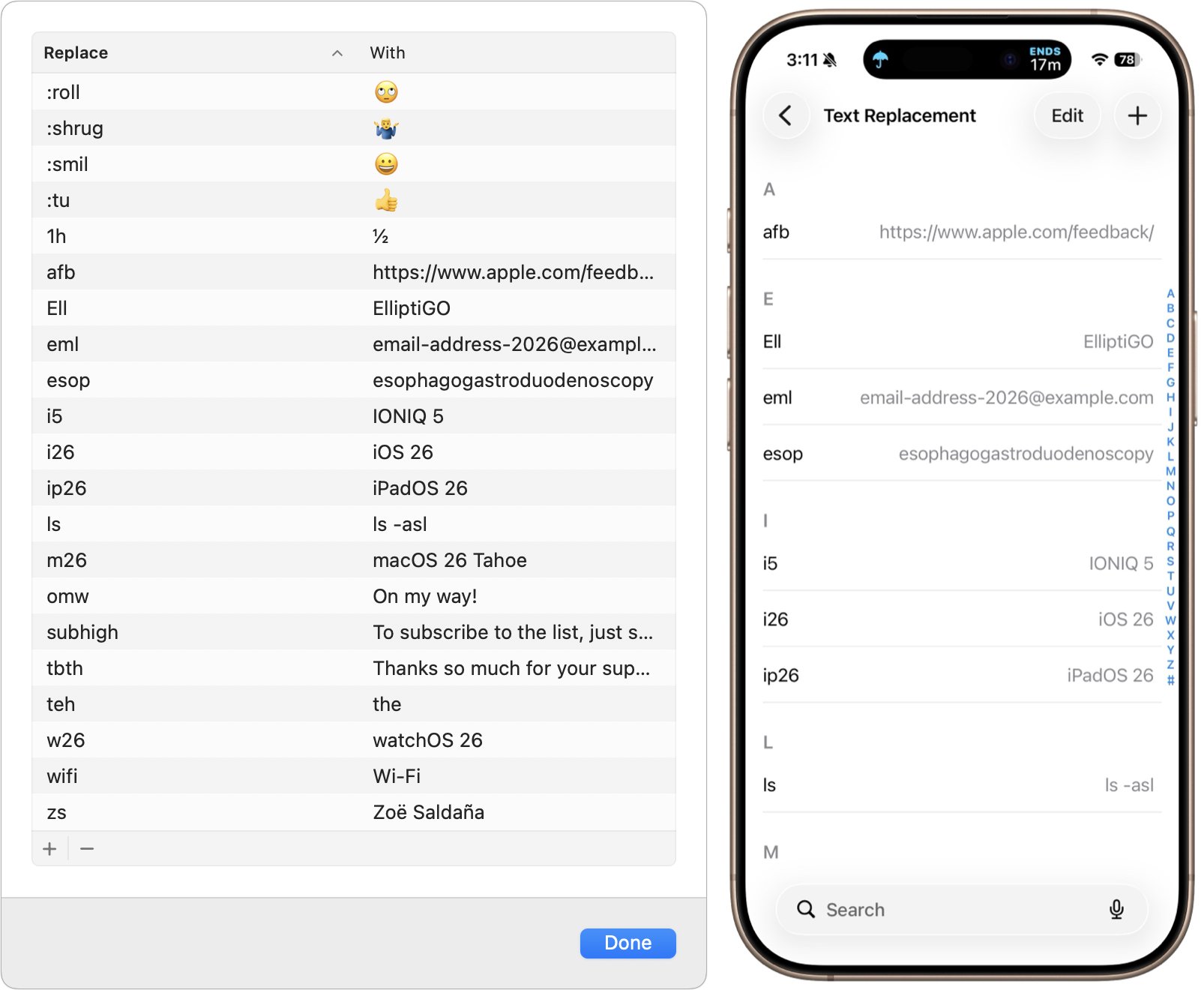
Tip: To create replacements more quickly, you can export a list of text replacements, edit the list, and re-import it; Apple provides instructions. This export/import capability also lets you share text replacements with someone else.
What Text to Expand
Replacements can be as short or long as you like—up to about 1900 characters—and can contain anything you can type from the keyboard, including spaces, returns, symbols, accented characters, and emoji. It can be hard to know where to start, but once you try text expansion, possibilities quickly become obvious. A few common categories include:
Your email address, phone number, and postal address
Boilerplate text for common email replies (“To subscribe to our mailing list…”)
Email signoffs (“Sincerely, your close personal Internet friend…”)
Frequently shared URLs or email addresses (https://www.apple.com/feedback/)
Long scientific, medical, or technical terms (esophagogastroduodenoscopy)
Proper nouns with unusual spelling, capitalization, or accents (Zoë Saldaña)
Words you consistently misspell or mistype (teh)
Unix commands with arguments (ls -la)
Shortcuts are usually shorter than their replacements, but you can also use text expansion to simplify entering individual characters that are hard to access.
Commonly used emoji (🙄 or 👍)
Special characters (½ or →)
One helpful convention is to start shortcuts for special characters with a colon. For example, :roll for 🙄 or :tu for 👍. The colon prefix makes these shortcuts easy to remember and prevents accidental expansions. Make sure not to create shortcuts that you’ll also want to type normally. It might seem like a good idea to use mm for “Mickey Mouse,” but that will get in the way of writing about 35mm film.
Third-Party Text Expansion
With such a useful feature built into macOS and iOS, why would you want to spend money on a third-party utility like TextExpander (macOS and iOS), Typinator (macOS and iOS), or TypeIt4Me (macOS)?
Apple’s built-in text expansion works well for most everyday uses, but it has some limitations—its interface is cramped, it doesn’t work in every app, and you can’t include formatted text or images in your expansions. Third-party utilities fill those gaps.
They can include styled text and graphics in expansions, insert the current date and time, respect case when expanding abbreviations, include the contents of the clipboard in expanded text, automatically fix common typos, and much more.
So think about which bits of text you might want to expand automatically, and give Apple’s built-in text expansion feature a try today! If it seems constraining after a while, a third-party app can take text expansion to the next level.
(Featured image generated by Adam Engst with ChatGPT)
Get to Your Files Faster by Choosing the Best Finder View
Icon, List, Column, or Gallery? Each Finder view has its strengths. Match the right view to your task and spend less time wrestling with your files.
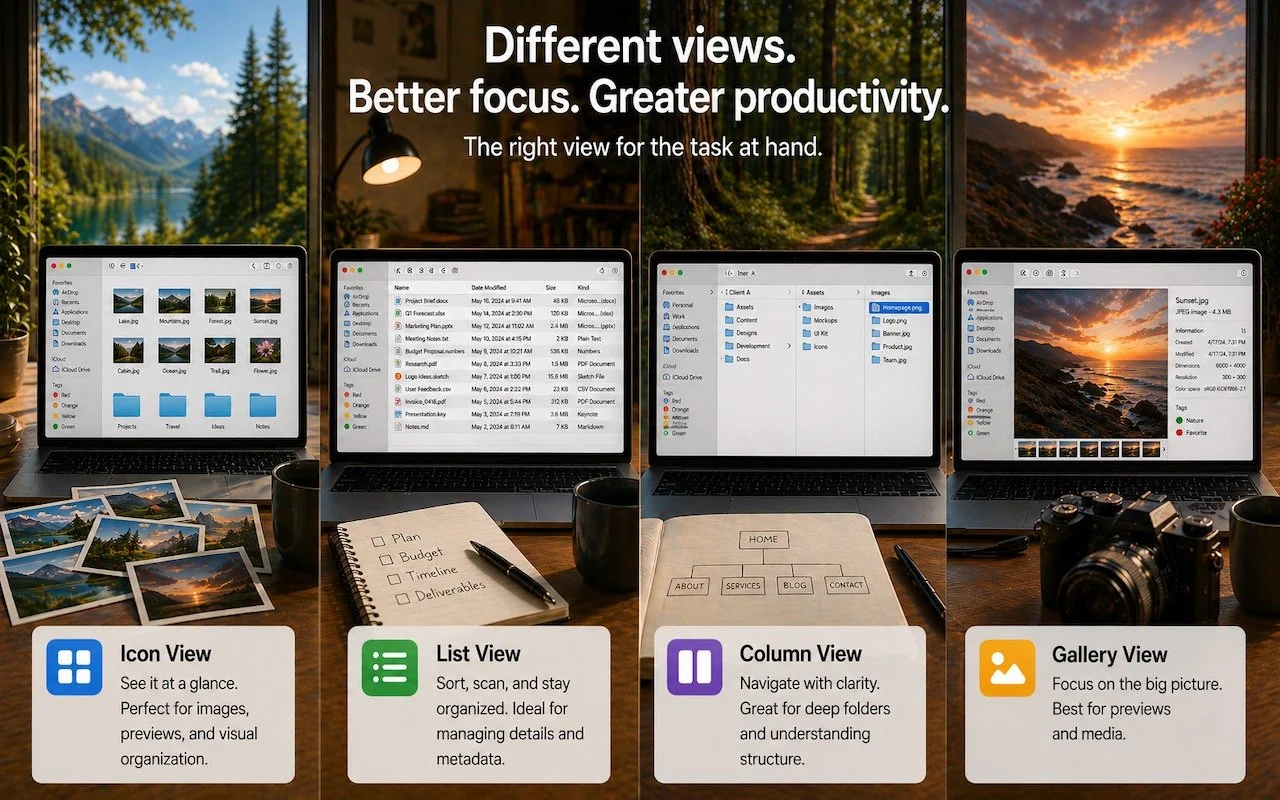
If you can work comfortably with the Mac’s four Finder views, you’ll enjoy an easier experience when you try to get to your folders and files. Each view has its pros and cons, so using the best view for the job at hand will make you more productive. Here’s a look at the Icon, List, Column, and Gallery views, plus tips on quickly switching views and setting up default views.
You switch between views in the active window by choosing View > as Icons, as List, as Columns, or as Gallery. Alternatively, click one of the view icons in a window’s toolbar. It’s worth memorizing the keyboard shortcuts for List (Command-2) and Column (Command-3) views so you can switch to them quickly if a particular window isn’t in your preferred view.
Icon View
Viewing files and folders as thumbnails is the most visual approach and works best for people who think spatially—this icon is below that other one. Such people often prefer to arrange icons manually to create memorable groupings, but the Finder can also automatically arrange them in a grid, sorted by different criteria. Icon view works well for:
The Desktop: The desktop can only display its contents in Icon view, though you can open the Desktop folder in a window and use any view in that window.
Folders with few items: When a window shows only a handful of items, icons make selection easy. That’s why most software distribution disk images use Icon view to display the app and an icon in the Applications folder.
Photos or other images: Because icons for images can show a preview of the image (rather than just the document type thumbnail), Icon view with a relatively large icon size provides a useful visual preview.
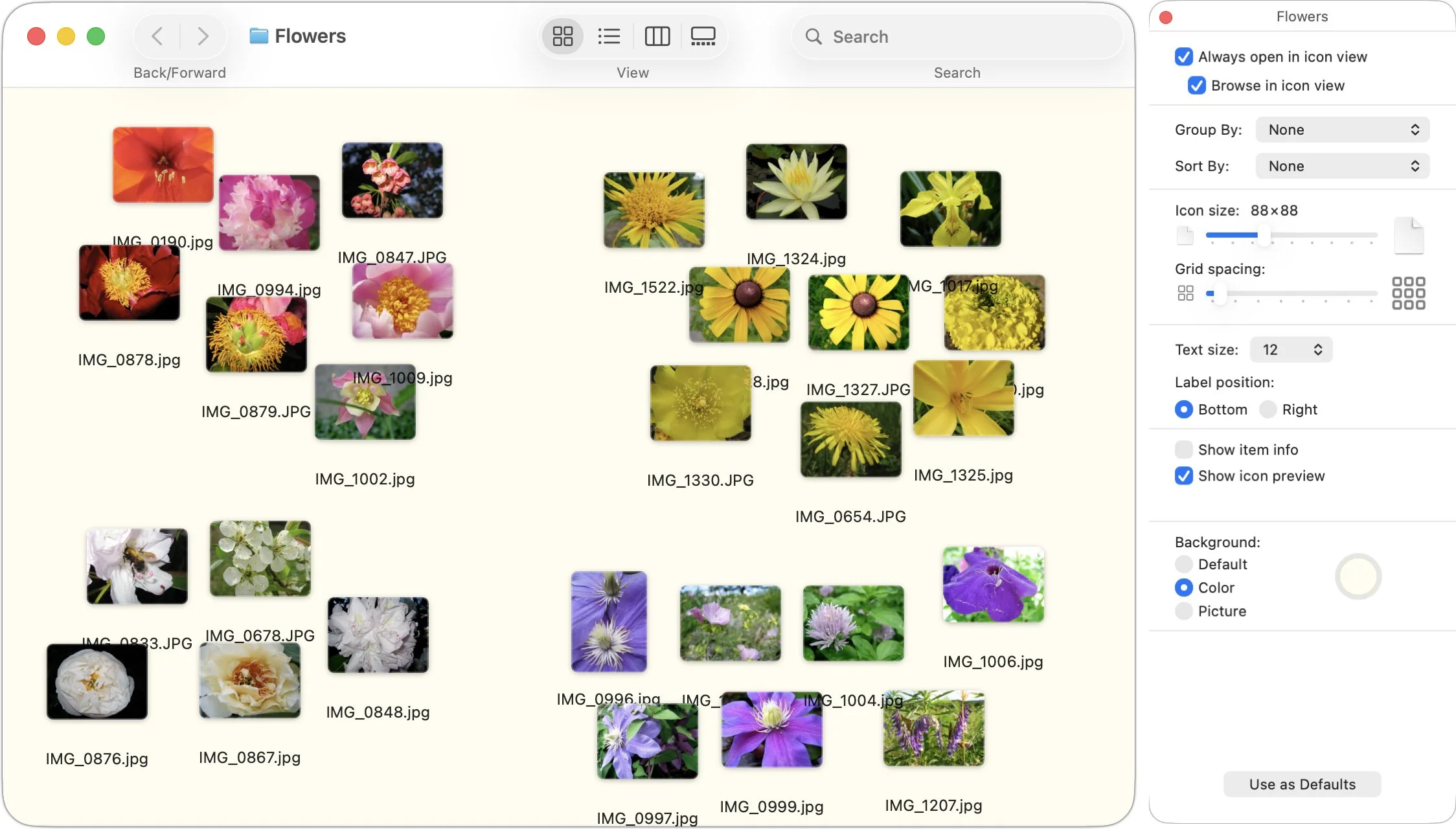
To customize Icon view, choose View > Show View Options. You can adjust icon size, grid spacing, text size, label position, and background color—or even a background photo. Group By organizes icons into categories, while Sort By keeps them organized by name, date, or other metadata. For folders containing images, increasing the icon size creates a more useful visual preview.
The main limitation of Icon view is that it shows minimal metadata—just the filename and, optionally, item info such as image dimensions. It also becomes unwieldy with more than a few files, since scrolling through numerous icons is inefficient.
List View
When a folder contains more than a few items, List view is usually the most efficient way to work with it. It displays files in rows with sortable columns showing metadata such as date modified, size, kind, and more. List view is ideal for users who think about files in terms of attributes—when something was created, how large it is, or what type it is—rather than visual appearance. Use it for:
Folders containing many items: Once a folder has more items than fit without scrolling, List view makes it easier to view and select items.
Sorting folders by date or size: Whenever you want to see the most recent files at the top, or quickly identify which consume the most disk space, you can click the Date Modified or Size column header to sort by that criterion.
Work with nested folders: Disclosure triangles let you view the contents of multiple nested folders without opening a new window, making it easier to see and move items between them.
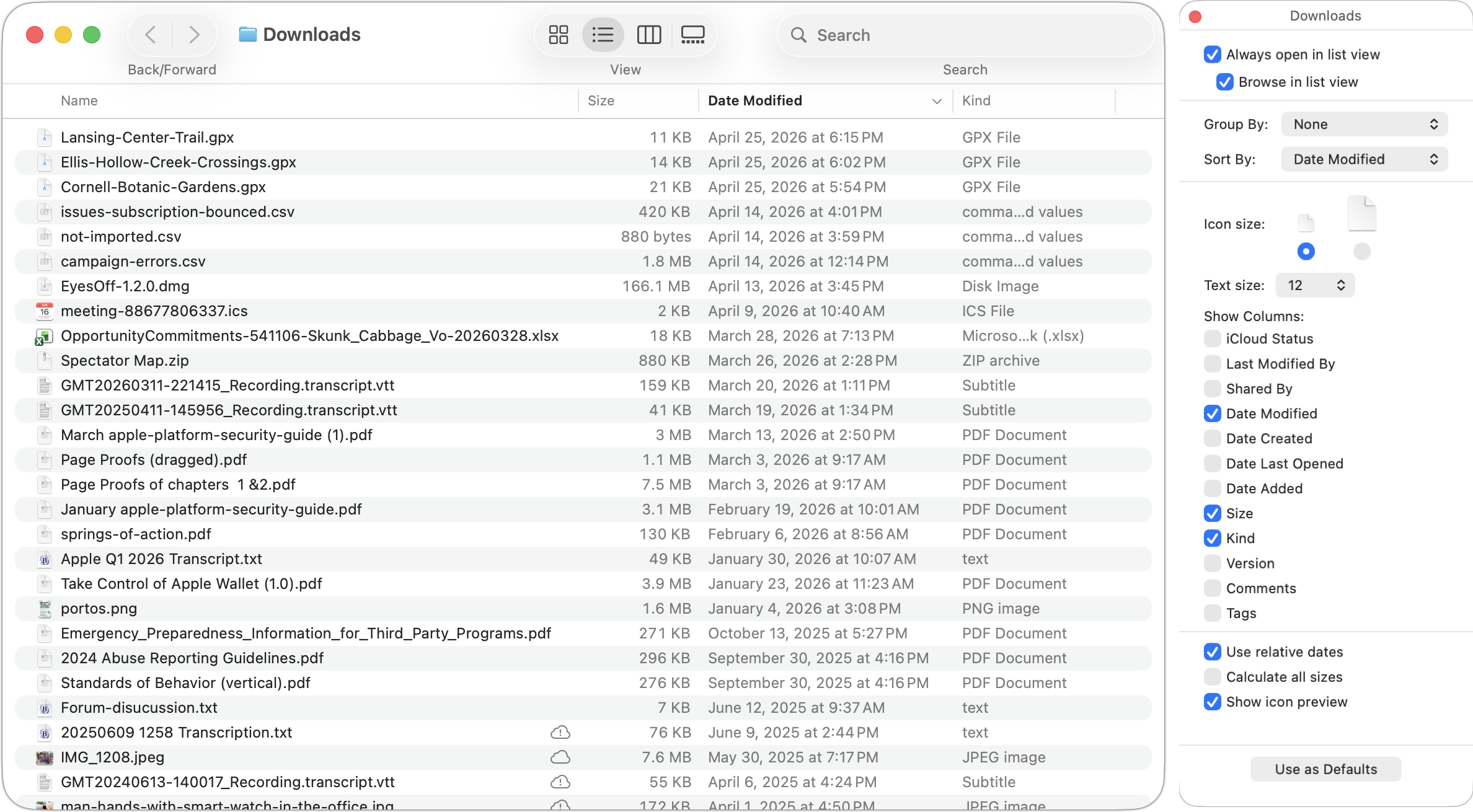
Customize the visible columns by choosing View > Show View Options or by Control-clicking any column header. You can add columns for tags, version, comments, and other metadata. Drag column headers to rearrange their order, and drag the dividers between headers to adjust column widths. Sort columns by clicking a column header; click it again to reverse the sort.
Column View
Column view shows your folder hierarchy as a series of columns, with each column representing one level of the hierarchy. Selecting a folder reveals its contents in the next column to the right, while selecting a file displays a preview and metadata in the rightmost column. Column view is popular with power users who frequently navigate between folders and appreciate seeing the path to the current location. It’s perfect for:
Navigating deep folder structures: Move through nested folders quickly without opening multiple windows.
Understanding file locations: The column layout shows exactly where a file sits in your folder hierarchy.
Quick previews: Select any file to see a preview without opening it or using Quick Look.
Drag-and-drop organization: Easily drag files between folders visible in different columns.
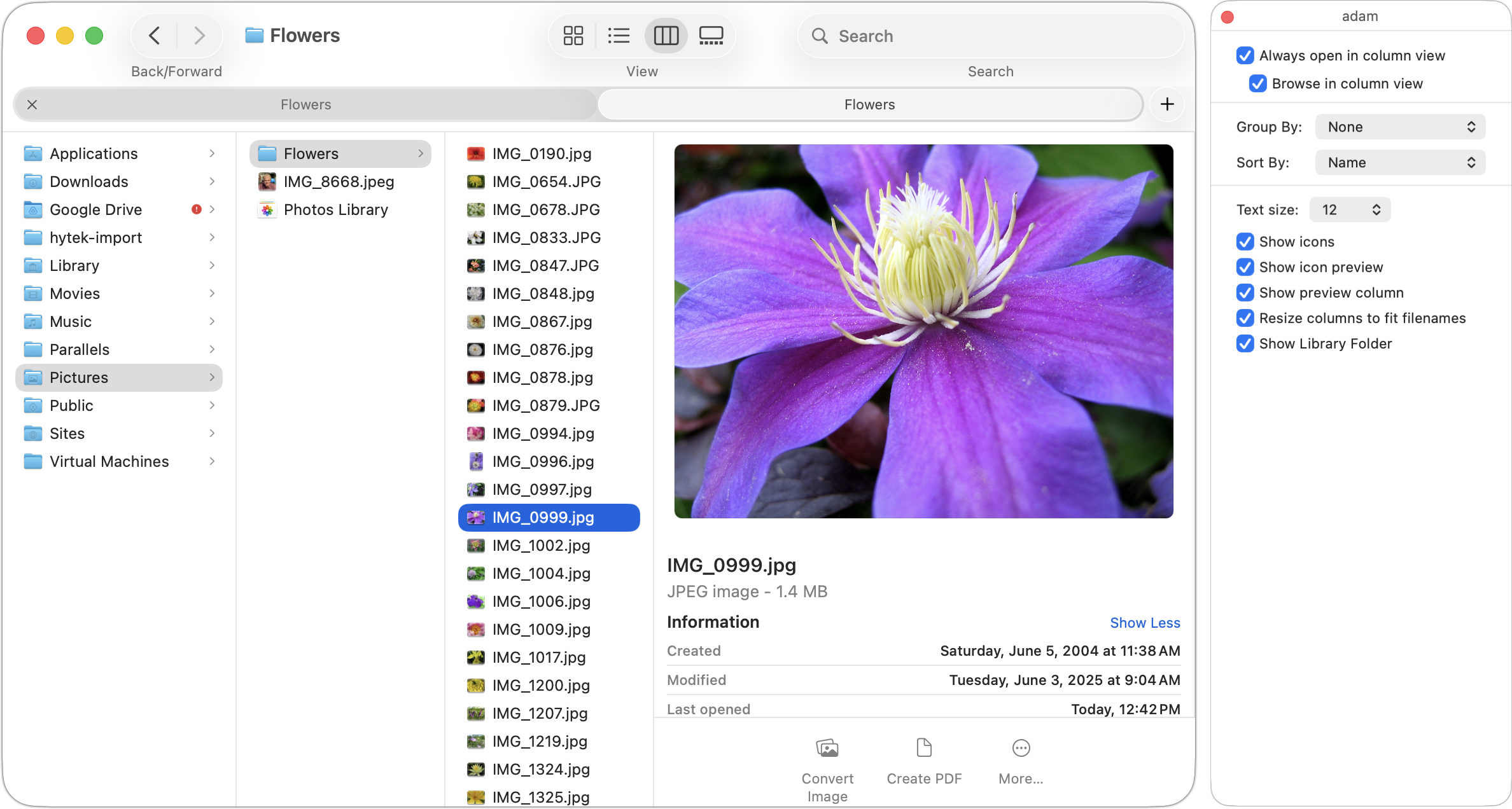
One useful option in View > Show View Options is “Resize columns to fit filenames,” added in macOS 26.1, which automatically adjusts column widths to accommodate the longest visible filename. Alternatively, you can manually resize all columns at once by Option-double-clicking any column divider. You can also set a default column width and choose whether to show icons and the preview column.
Gallery View
Gallery view dedicates most of the window to a large preview of the selected file, with a row of thumbnails along the bottom and a metadata sidebar on the right. Those who work primarily with images find it useful. It’s designed for:
Reviewing photos and videos: The large preview makes it easy to evaluate images without opening them.
Previewing documents: PDFs, presentations, and other documents display their first page, which can help with identifying similarly named files.
Quick Actions: The sidebar includes Quick Action buttons for common tasks such as rotating images, using markup tools, creating PDFs, and trimming video.
Checking metadata: The sidebar can show detailed information, including EXIF data for photos.
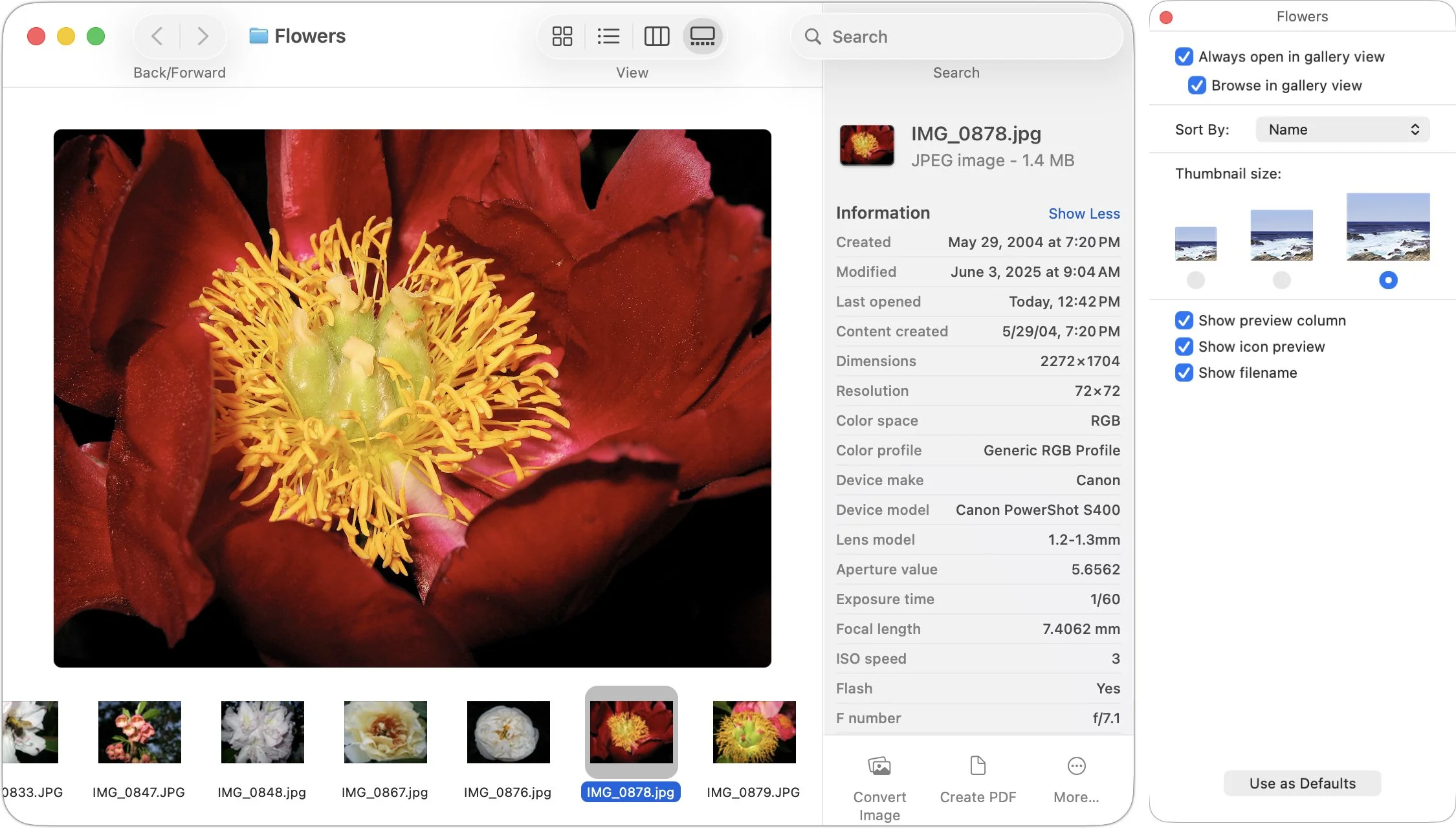
Gallery view becomes less useful for folders containing mostly text documents or applications, where the large preview adds little value. Honestly, we seldom use it.
Setting Default Views
The Finder remembers your view preferences for each folder individually, so once set, they should stick. However, if you’re in Column or List view and open a folder set to appear in Gallery view by selecting it or clicking its disclosure triangle, you’ll stay in the previous view. To open the folder in its assigned view, double-click its icon.
When you create a new Finder window with File > New Finder Window, it opens the folder specified in Finder > Settings > General. Set that folder to your preferred view so new windows open as you like.
To ensure a specific folder always opens in a particular view, select it, choose View > Show View Options, and select the Always Open In checkbox. To have its subfolders open in that view too, also select Browse In, if available.
You can also apply view settings to other folders. In View Options, configure the settings exactly as you want—icon size, text size, visible columns, and so on—then click Use as Defaults. This makes those settings the default for any folder displayed in that same view type (Icon, List, or Gallery) that doesn’t have its own custom settings. You must set defaults separately for each view type; Column view lacks this option entirely. To revert to system defaults, hold the Option key and the button changes to Restore Defaults.
There’s no need to commit to one view. Switch freely based on what you’re doing—List view for finding recent files or cleaning up, Column view for navigating a folder hierarchy, or Gallery or Icon view for reviewing images. The best view is whichever helps you accomplish your current task most efficiently.
(Featured image generated by Adam Engst with ChatGPT)
Understanding New MacBook Battery Charging Features
Is your MacBook’s battery stuck at 80%? That’s Apple protecting your battery’s long-term health. macOS 26.4 adds new controls, including Charge Limit and a Slow Charger warning. Learn how these features work—and when to override them.
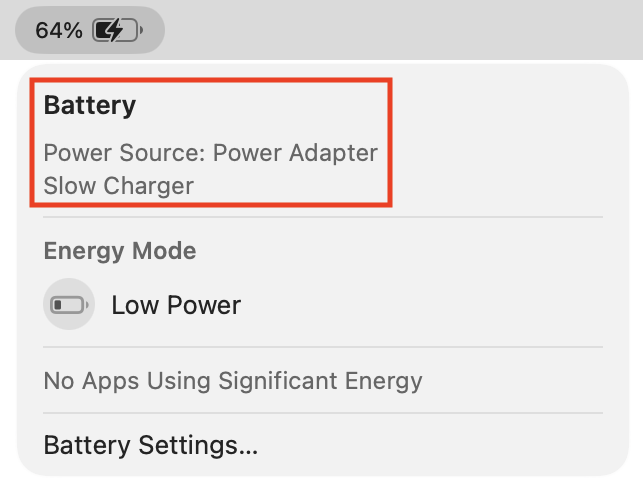
The just-released macOS 26.4 Tahoe introduced two battery-related features for MacBook users, helping them understand and control MacBook charging. A Slow Charger indicator now appears in the battery status menu and in Battery settings when your Mac is connected to a charger that isn’t delivering the minimum recommended wattage. More significantly, a new Charge Limit feature lets you manually set a ceiling for what the Mac considers a full charge—between 80% and 100%.
These additions are the latest in Apple’s ongoing effort to extend battery lifespan. Understanding how these features work—and when to override them—can reduce frustration and help keep your MacBook battery healthy.
Why Apple Limits Charging
A battery’s lifespan depends on its “chemical age,” which is affected by charging patterns and temperature history. Lithium-ion batteries degrade faster when they spend extended time at full charge or when they generate excess heat during charging. As batteries chemically age, they hold less charge and deliver reduced performance.
Apple’s solution is to reduce the time batteries spend fully charged. This is particularly important for MacBooks that spend most of their time plugged into power at a desk—a scenario that would otherwise keep the battery at 100% and generate heat, both of which shorten battery life.
Optimized Battery Charging
Apple has rolled out optimized battery charging features on the Mac. The Optimized Battery Charging algorithm uses on-device machine learning to learn your daily charging routine, aiming to ensure your Mac is fully charged by the time you actually need to disconnect it from power and leave for the day.
If your MacBook spends most of its time plugged in at your desk, macOS may keep the battery at 80% and charge to full only when it predicts you’ll need to use it away from a power source. When Optimized Battery Charging is holding your battery at 80%, you’ll see Charging On Hold in the battery status menu. (The iPhone, iPad, and Apple Watch have similar features that learn when you typically unplug and delay charging past 80% until shortly before that time.)
The New Charge Limit Feature
Charge Limit in macOS 26.4 takes a different approach. Rather than relying on machine learning to predict when you’ll need a full charge, it lets you explicitly set a maximum charge level. Your Mac will charge to within a few percentage points of your chosen limit, then stop. If the battery drops more than 5% while connected to power, charging resumes until it reaches the limit again.
To set a charge limit, go to System Settings > Battery, click the ⓘ next to Charging, and choose a limit between 80% and 100%. When the limit is active, the battery status menu shows Charged to X% Limit.
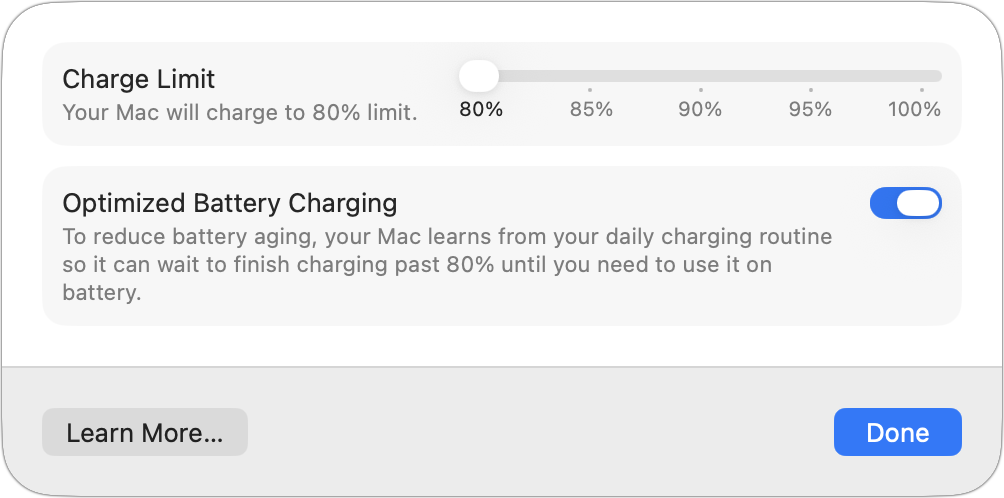
Using Charge Limit is ideal if your MacBook rarely leaves your desk. Setting an 80% limit reduces battery wear while ensuring you always have enough charge for brief periods away from power.
When You Need a Full Charge
What about when you want your MacBook’s battery to be at full strength for an unpredictable day away from power, such as for a long flight? You can override both Optimized Battery Charging and Charge Limit when you need maximum battery life:
For immediate needs: Click the battery icon in the menu bar and choose Charge to Full Now. Your Mac will charge to 100% regardless of current settings.
To disable limits temporarily: In System Settings > Battery, click the ⓘ next to Charging, turn off Optimized Battery Charging, and click the Turn Off Until Tomorrow button when prompted. Also set Charge Limit to 100%.
To disable limits permanently: Follow the same steps as the bullet above, but click the Turn Off button in the warning dialog instead. Also set Charge Limit to 100%. Remember, this will likely reduce your battery’s overall lifespan.
(Similar charging limits and workarounds also apply to the iPhone and Apple Watch. On the iPhone, go to Settings > Battery > Charging and turn off Optimized Battery Charging. For the Apple Watch, look in Settings > Battery > Battery Health on the watch itself.)
About That Slow Charger Warning
The new Slow Charger indicator helps explain why your MacBook might be charging slowly or even draining while in use. If the power adapter doesn’t deliver enough wattage for your Mac model, you’ll now see a warning in the battery menu and in System Settings > Battery.
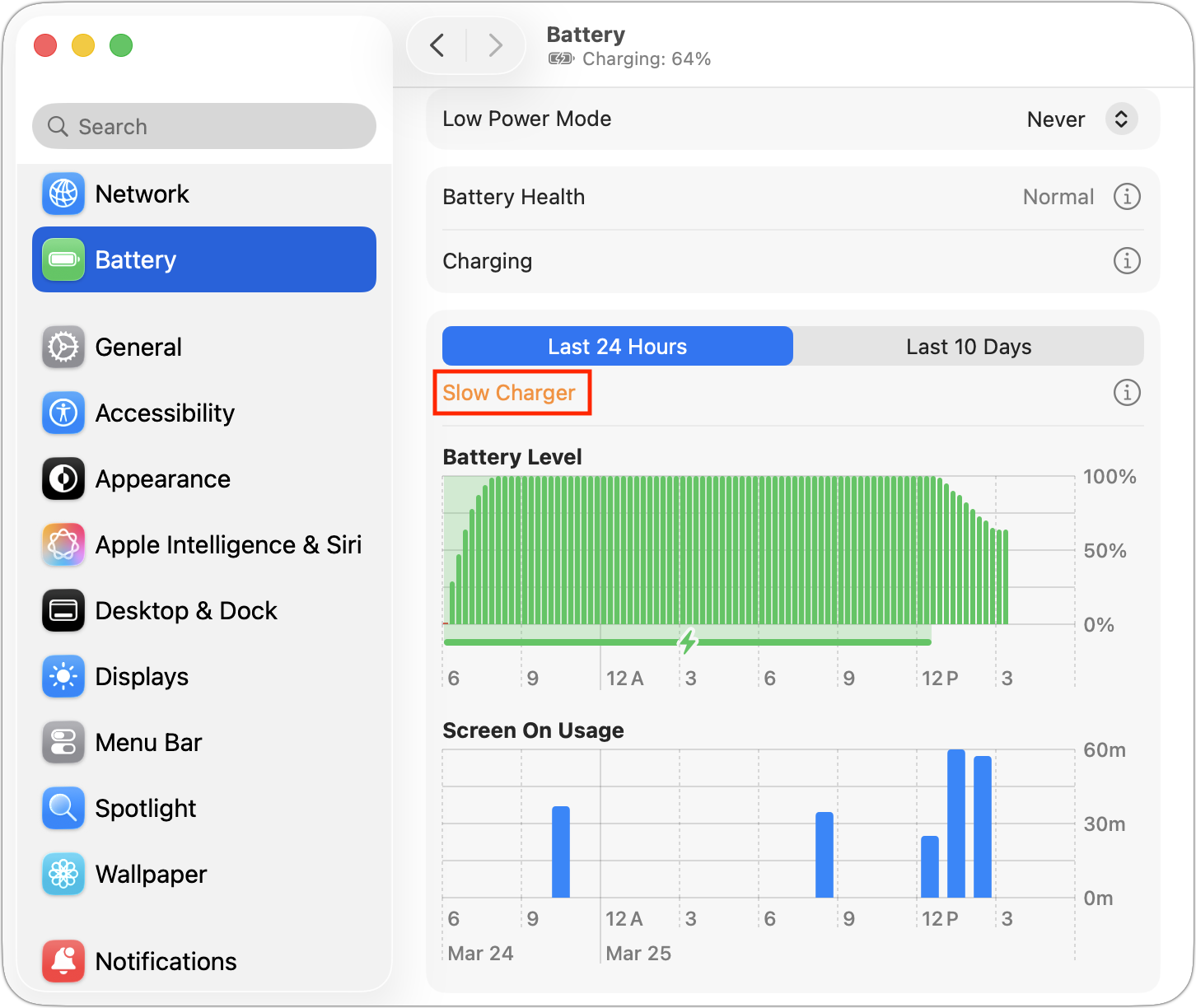
You can check your current power adapter’s wattage by reading the fine print on the charger itself, or by opening the System Information app and checking the AC Charger section in the Power screen. It’s safe to use an adapter with a higher wattage than required, but don’t go below the wattage of Apple’s included adapters.
For optimal charging, use an adapter that delivers at least the minimum wattage recommended for your Mac:
MacBook Neo: 20 watts (no fast charging available)
13-inch MacBook Air: 30 or 35 watts standard, 67 watts for fast charging
15-inch MacBook Air: 35 watts standard, 70 watts for fast charging
14-inch MacBook Pro: 70 watts standard (or 96 watts for M4 Pro and M4 Max chips); 96 watts for fast charging
16-inch MacBook Pro: 140 watts for both standard and fast charging
Using your iPhone’s 20W charger with a MacBook Pro might technically work, but you’ll now be warned that it’s not delivering adequate power.
Finding the Right Balance
Apple’s battery optimization features represent a trade-off between immediate convenience and long-term battery health. For most users, leaving Optimized Battery Charging enabled makes sense—it learns your patterns and charges to full when needed. The new Charge Limit feature offers more explicit control for those who prefer it, particularly those whose MacBooks rarely leave the desk and can be locked at 80%.
If you frequently fight these features, you may have an unpredictable schedule that the algorithms can’t anticipate. In that case, consider turning off Optimized Battery Charging or setting a higher Charge Limit. Just remember that keeping your battery at 100% more often will shorten its lifespan—a trade-off that might be acceptable depending on how long you plan to keep your laptop.
(Featured image by iStock.com/shirophoto)
Not All Your Mac’s USB-C Ports Are the Same
Your Mac’s USB-C ports look identical, but one is special—and using it can cause macOS installations or updates on external drives to fail, or trigger other errors with Thunderbolt docks. Learn which USB-C port isn’t like the others.
We recently helped a client set up an external boot drive on a Mac mini for testing, but the installation kept failing near the end with vague errors. We tried different cables, swapped drives, and more, to no avail. On a hunch, we moved the SSD to a different USB-C port, and the installation completed on the next attempt. But the port wasn’t bad—it was just the wrong port. Here’s what we mean.
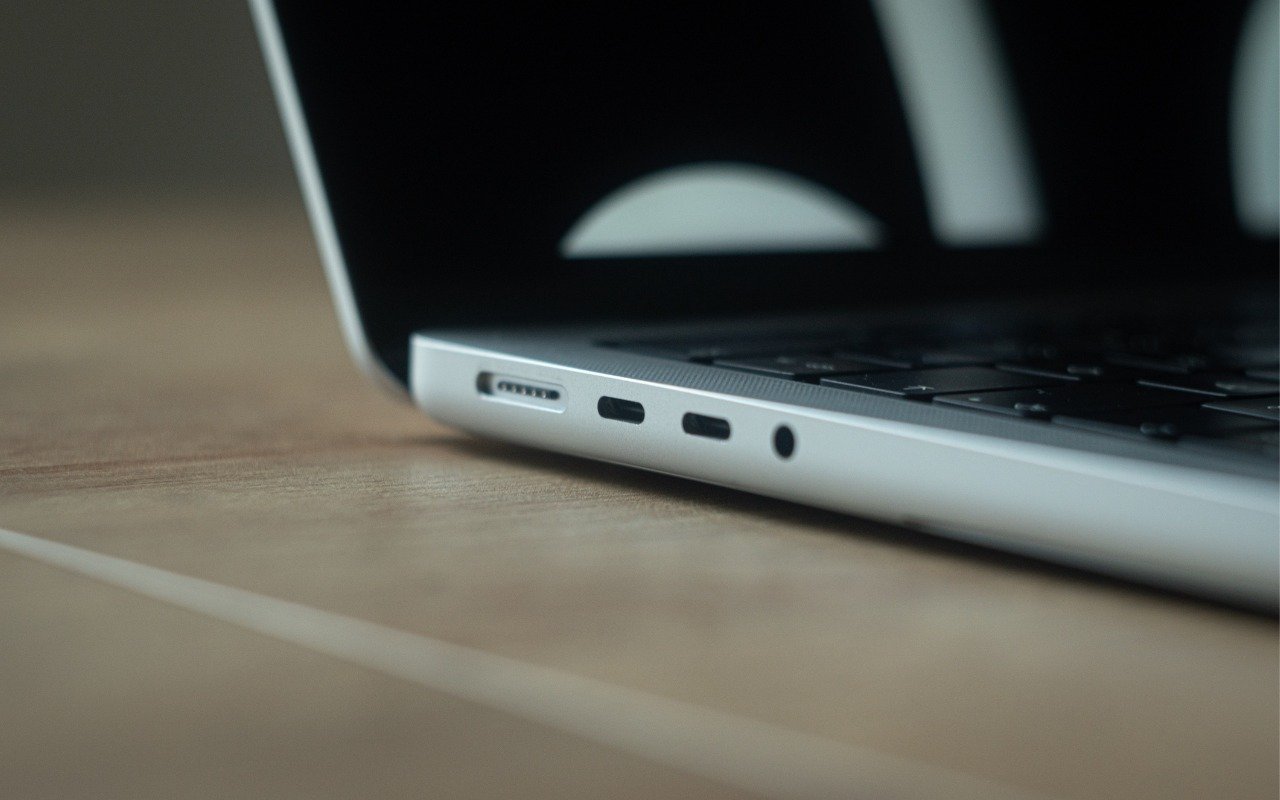
All the USB-C ports on a Mac look identical, but they don’t all behave the same way. On Macs with Apple silicon and Intel-based Macs with the T2 chip, Apple designates one port as the DFU (device firmware update) port. Most of the time, this distinction doesn’t matter—you can plug a device into any port, and it’ll work normally. But for certain tasks, using the wrong port can cause mysterious failures that waste hours of troubleshooting time.
Note that we say “USB-C” here, even though in most cases, these are Thunderbolt ports. However, Thunderbolt uses the USB-C connector, and Apple refers to the ports as USB-C ports, so we’re following Apple’s lead.
When It Matters Which Port You Use
The DFU port exists for one specific purpose: reviving or restoring your Mac’s firmware using another Mac and the Apple Configurator app. This recovery procedure requires connecting a USB-C cable (not a Thunderbolt cable!) to the DFU port. It’s extremely uncommon to need to revive a Mac in this way, but it might be necessary if the Mac starts up to an exclamation point in a circle, starts up to a blank screen, shows the status indicator light pattern for firmware recovery mode, or has problems installing macOS.
For most everyday tasks, the DFU port should work like any other USB-C port. However, Apple has documented one notable exception on Macs with Apple silicon: when installing or updating macOS on an external drive, avoid using the DFU port. If your external drive is connected to it during installation, the process may fail partway through, often without a useful error message and certainly without a clear “Connect your drive to a different port” message. You might see vague notifications like “Some updates could not be installed” or cryptic errors like “com.apple.OSInstallerSetup.error 702.” After installation or updating completes, you can connect your external drive to any port, including the DFU port.
We’ve also heard of situations where seemingly inexplicable problems, such as errors from an Apple SuperDrive attached to a Thunderbolt dock, were resolved by switching to a different port. It wasn’t always clear which port was responsible, but it’s always worth trying a different one if you have trouble.
Finding Your Mac’s DFU Port
How do you figure out which USB-C port is the DFU port? Apple maintains a support document describing the DFU port locations for each Mac model. The location varies by model and, within the same model, sometimes by generation. Apple does not explain why a particular port is designated as the DFU port or provide another way to identify it. All you can do is refer to Apple’s documentation.

Unfortunately, users have found errors on that page in the past, so if you’re experiencing unexplained installation failures or other errors, try a different port even if you believe you’re using the correct one.
DFU Port Takeaways
For everyday use—connecting displays, drives, docks, and other peripherals—you shouldn’t need to think about which port you’re using. The only time you must use the DFU port is when reviving or restoring a very unhappy Mac.
However, if you’re setting up an external boot drive or updating macOS on an external drive, take a moment to identify your Mac’s DFU port and plug your drive into a different one. And if a peripheral, even if it’s connected through a dock, behaves inexplicably, treat the port itself as a variable. Before troubleshooting cables, drives, or software, move the connection to another USB-C port. This simple step can save you from frustrating troubleshooting sessions where everything appears to work but ultimately fails.
(Featured image by iStock.com/Milosz Deptula)
View Suspicious Documents Safely with Dangerzone
Got a suspicious attachment? Dangerzone converts potentially dangerous PDFs and Office docs into safe, pixel-only copies you can view without risk. Think of it as a virtual photocopier that strips any hidden malware, JavaScript, or macros.

A standard piece of advice for staying safe online is to avoid opening attachments from people you don’t know or attachments that seem suspicious. It’s good advice, since PDFs and office documents can contain JavaScript and macros that present a security risk, or they could be maliciously crafted to take advantage of vulnerabilities in common apps to execute code on your computer.
But in the real world, unless the document is attached to a message that is obviously spam, it’s difficult to know whether you should be worried. If you could just look at the document, you might be able to tell, but how can you do that without opening it?
Enter Dangerzone, an open source app created by the nonprofit Freedom of the Press Foundation. The impetus for creating it came from journalists who need to review attachments from possibly untrustworthy sources while protecting themselves from hacking and retaliation from powerful corporate and government interests.
Dangerzone won’t tell you whether or not a document is safe. Instead, when you drop a document on its window, it creates a PDF image of the document that contains nothing of the original other than the visual representation of its pixels. Think of Dangerzone as a virtual photocopier—it makes a visual copy.
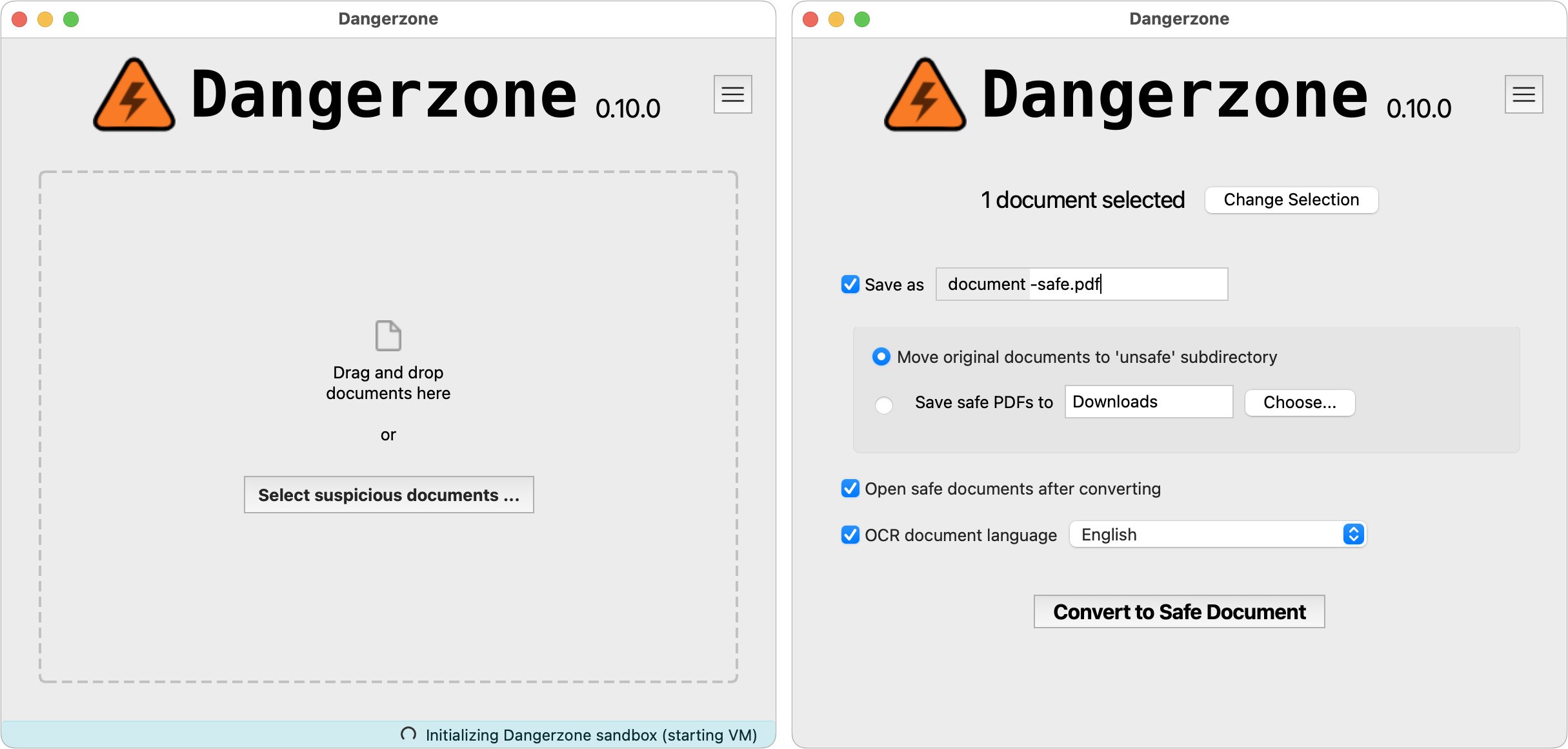
But Dangerzone is a highly sophisticated virtual photocopier, since it has to work with malicious documents without allowing them to cause harm. Behind the scenes, Dangerzone first creates a Linux container to keep the document away from your Mac. Within the container, it then creates a sandbox to protect the Linux kernel. Then it uses open source tools—LibreOffice and PyMuPDF—to convert the original document to a PDF, split that PDF into individual pages, and convert each page to RGB pixels—just colored dots. Then it quits the sandbox since the file has been sanitized, and if possible, it converts the RGB pixel data into a compressed, searchable PDF. Finally, it saves the PDF to the specified folder and archives the original file. You can process only one file or batch of files at a time to ensure that the entire secure conversion environment starts fresh each time.
Here are the document types that Dangerzone can convert into safe PDFs:
PDF (.pdf)
Microsoft Word (.docx, .doc)
Microsoft Excel (.xlsx, .xls)
Microsoft PowerPoint (.pptx, .ppt)
ODF Text (.odt)
ODF Spreadsheet (.ods)
ODF Presentation (.odp)
ODF Graphics (.odg)
EPUB (.epub)
JPEG (.jpg, .jpeg)
GIF (.gif)
PNG (.png)
SVG (.svg)
TIFF (.tif, .tiff)
Other image formats (.bmp, .pnm, .pbm, .ppm)
You won’t want to use Dangerzone on every document you receive in email. There’s no reason to fuss with it for attachments that come from people you know, in contexts where it makes sense that they’re sending you something. But if you get an attachment out of the blue that makes you think, “Why is this person sending me a document?” run the document through Dangerzone to make sure it’s safe.
(Featured image by iStock.com/shironosov)
Apple’s Focus Is Powerful but Unpredictable
Apple’s Focus can silence distractions when you need quiet time, but its complexity can cause you to miss important notifications. Learn how to configure it safely—and avoid the pitfalls that lead to missed calls and messages.

Sometimes you just don’t want your phone to ring, chirp, or even vibrate. Maybe you’re asleep, in an important meeting, having dinner with family, meditating, playing a game, or simply enjoying some quiet time.
Apple’s Focus feature on the iPhone, iPad, and Mac can silence those interruptions, but Focus is considerably more complex than the straightforward Do Not Disturb feature it replaced in 2021. Misconfiguring Focus such that it activates unexpectedly can cause you to miss important calls, messages, and other notifications.
What Focus Does
Focus lets you create customized notification environments that block unwanted interruptions while allowing important ones through. You can have a Focus for different situations—when you’re at work, eating dinner, at the gym, and more—each with its own rules about when it activates and which people and apps can reach you.
When a Focus is active, it can:
Silence notifications from selected people and apps
Allow specific people and apps to break through
Change your Lock Screen appearance
Hide certain Home Screen pages
Automatically reply to messages explaining you’re unavailable
Filter content in apps like Mail, Calendar, and Messages
Make a certain profile or tab group active in Safari
Focus can share your settings across all your Apple devices, which saves you from having to configure it on each device but can also create confusing interactions.
The Built-In Focus Modes
Apple provides three essential Focus modes that cover most people’s needs:
Do Not Disturb: A general-purpose Focus for when you need to ensure your iPhone doesn’t interrupt you. It’s ideal for doctor appointments, workouts, movies, and similar situations. You can schedule it, but it’s often best to activate it manually from Control Center for a specific amount of time or until you leave the current location.
Sleep: This Focus activates according to the Sleep schedule you set on the iPhone (in either Settings > Focus > Sleep or in the Health app) to minimize nighttime interruptions. It lets you choose a specific Lock Screen, Home Screen, and Apple Watch face to limit distractions at night.
Driving: Automatically activates when your iPhone connects to a car’s Bluetooth system or detects driving motion. (The Bluetooth connection may be best if you’re frequently a passenger and want to use your iPhone while being driven.) It blocks nearly all notifications to keep your attention on the road and can send custom automatic replies to people who text you.
For further customization, you can create additional Focus modes—Apple suggests modes for Gaming, Mindfulness, Personal, Reading, and Work. For instance, if you take a spin class every Tuesday at noon and yoga on Thursdays at 7 AM, you could create a Focus for Working Out that would automatically activate during those times.
Configuring a Focus
To set up a Focus, go to Settings > Focus on your iPhone or iPad, or System Settings > Focus on your Mac. Select the Focus you want to configure or create a new one, then:
1. Choose allowed people: Decide whether to allow or silence notifications from specific people. You can also specify whether phone calls from certain groups (Allowed People, Favorites, Contacts, or Contacts groups) can break through.

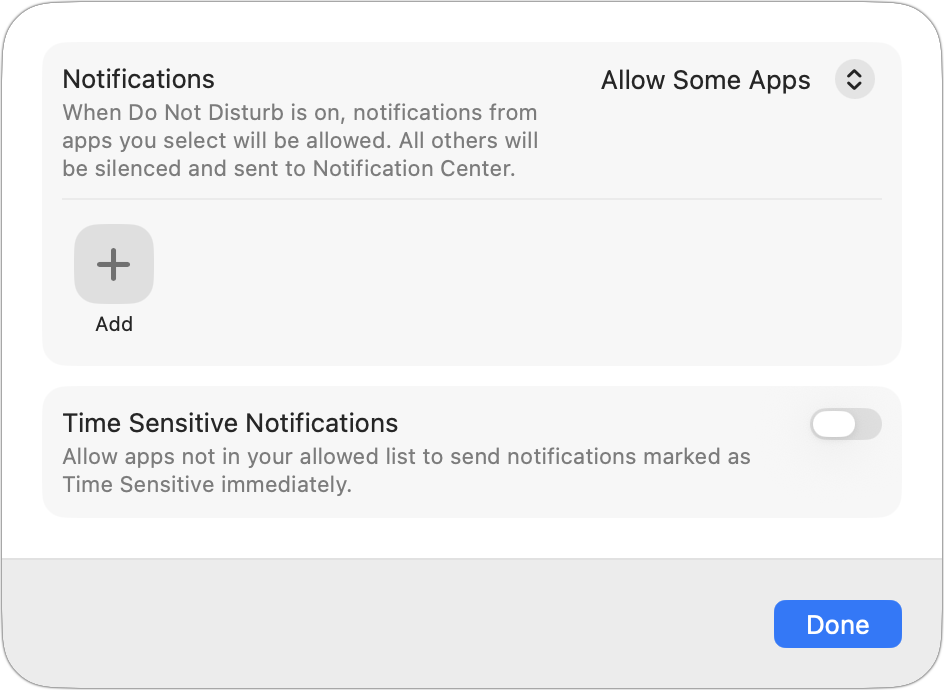
2. Choose allowed apps: Similarly, allow or silence specific apps. You can also enable Time Sensitive Notifications, which lets urgent alerts (like delivery notifications or security alerts) come through even from disallowed apps.
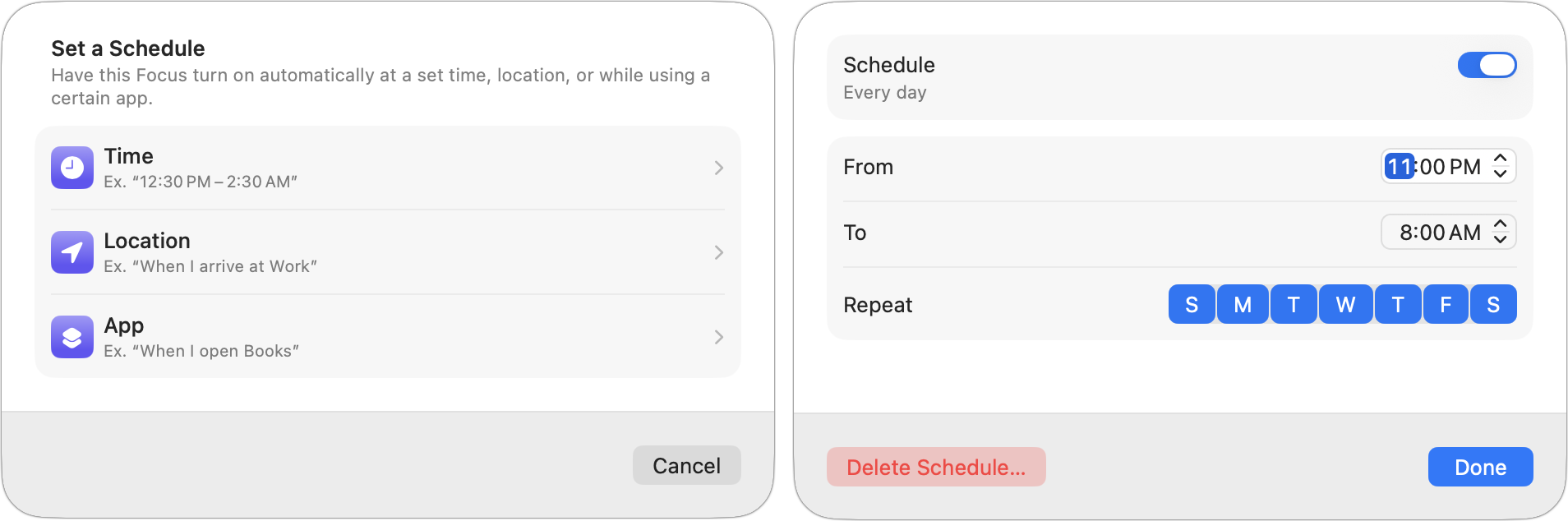
3. Set a schedule: Have the Focus turn on at certain times, locations (on when you arrive, off when you leave), or when using specific apps (but not when apps are in the background). App-based triggers are useful for presentations, live performances, and games. A Smart Activation option on the iPhone can automatically turn on a Focus based on your location, app usage, and time of day.
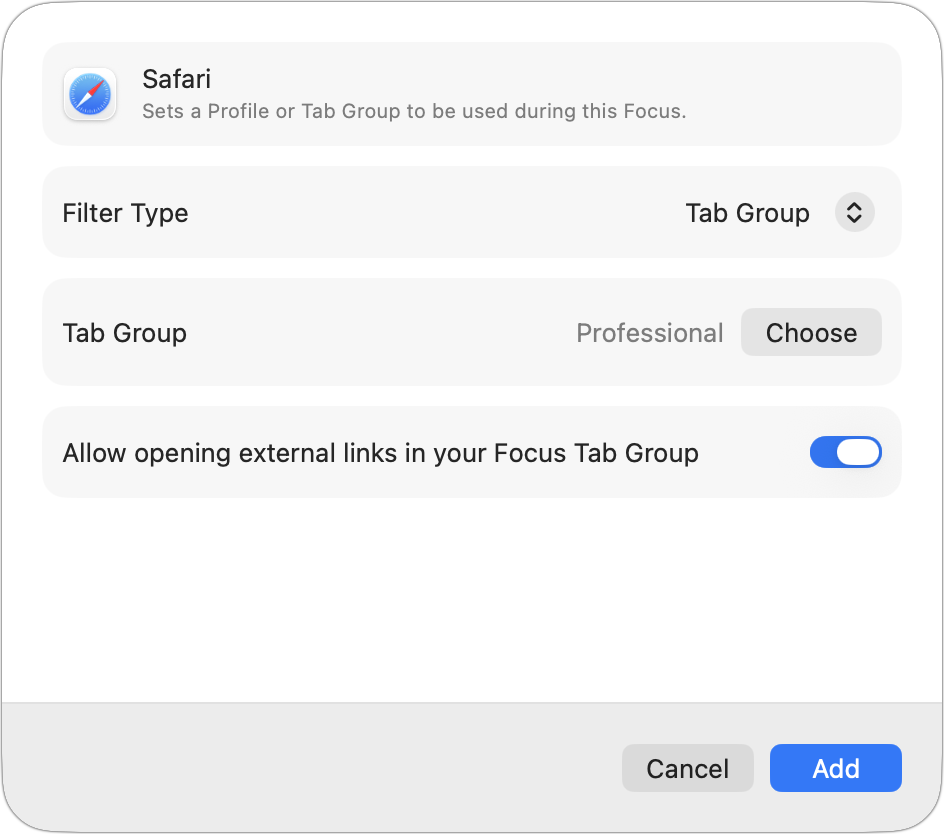
4. Add Focus Filters: Customize how Calendar, Mail, Messages, Safari, and others behave when the Focus is active—for example, showing only certain Safari tab groups and your work email accounts during a Professional Focus.
5. Intelligent Breakthrough & Silencing: If you have Apple Intelligence enabled, this option “intelligently” allows priority notifications to interrupt you and silences others. It doesn’t override your explicit settings for allowing or silencing notifications.
The Complexity Problem
While Focus is powerful, its complexity can create unpredictable behavior. Here are common pitfalls to avoid:
Unexpected activation: With automatic schedules based on time, location, and apps, it’s hard to predict when a Focus might turn on. You may not realize notifications are being silenced until you’ve missed something important. This is especially important if your routine is interrupted. Perhaps you normally work out at noon, but today you are at a professional conference or dealing with a family emergency.
Cross-device confusion: By default, Focus syncs across all your Apple devices via the Share Across Devices option. Syncing means a Focus activated on your iPhone—such as Sleep—might also silence notifications on your Mac when you’re working late and need to communicate with colleagues. Consider turning off Share Across Devices unless you’re certain you want synchronized behavior.
Unpredictable AI: Focus includes two features that rely on machine learning—Smart Activation and Intelligent Breakthrough & Silencing—to make contextual decisions about when Focus should activate and which notifications are important enough to bypass it. We recommend against using them because they make an already unpredictable scenario even more unpredictable.
Silenced notifications indicator: When a Focus is active, people who text you in Messages see that your notifications are silenced. While this can be helpful, it can also confuse others when a Focus activates unexpectedly.

The forgotten Focus: A Focus that activates automatically when you go to a specific location or open a particular app might remain active longer than you expected. For instance, what if a Focus activates when Mail is your frontmost app, but you have to leave unexpectedly and your Mac doesn’t sleep automatically, so Mail remains the active app over the weekend? That might be particularly confusing when a Focus Filter hides certain accounts or data.
Practical Recommendations
To get the benefits of Focus without the confusion:
Keep it simple: Start with Do Not Disturb, Sleep, and Driving. These three cover the needs of most people and have the most predictable behavior. If you created Focus modes you’re not using, delete them.
Be conservative with triggers: If you add schedules or triggers based on location or apps, keep them to a minimum. The more triggers you add, the harder it becomes to predict when a Focus will be active.
Allow more calls: These days, unexpected calls from people you know well are fairly uncommon, and those that do happen are more likely to be important. So consider allowing calls from family and close friends (perhaps via Favorites or a Contacts group) and enabling Allow Repeated Calls, which lets someone through if they call twice within three minutes.
Check Focus status when troubleshooting: If you or someone you know is missing notifications, check whether a Focus is unexpectedly active. The easiest place to check is Control Center.
Review Share Across Devices: If you experience unexpected Focus behavior, turn off Share Across Devices and configure each device’s Focus settings independently.
Control notifications directly: Rather than rely on Focus, limit notifications to just those that are actually important to you. Many apps are unnecessarily chatty.
Focus is a powerful tool for managing the constant stream of notifications from our devices, but it requires careful configuration. When in doubt, keep it simple: Sleep to protect your sleeping hours, Driving to block distractions in the car, and Do Not Disturb for ad hoc appointments and performances may be all you need.
(Featured image by iStock.com/DragonImages)
How Does the New MacBook Neo Compare to the MacBook Air?
Apple’s new $599 MacBook Neo offers an affordable entry into the Mac ecosystem, but its compromises mean it’s best suited for K–12 students and users with basic computing needs. Here’s how it compares to the MacBook Air.
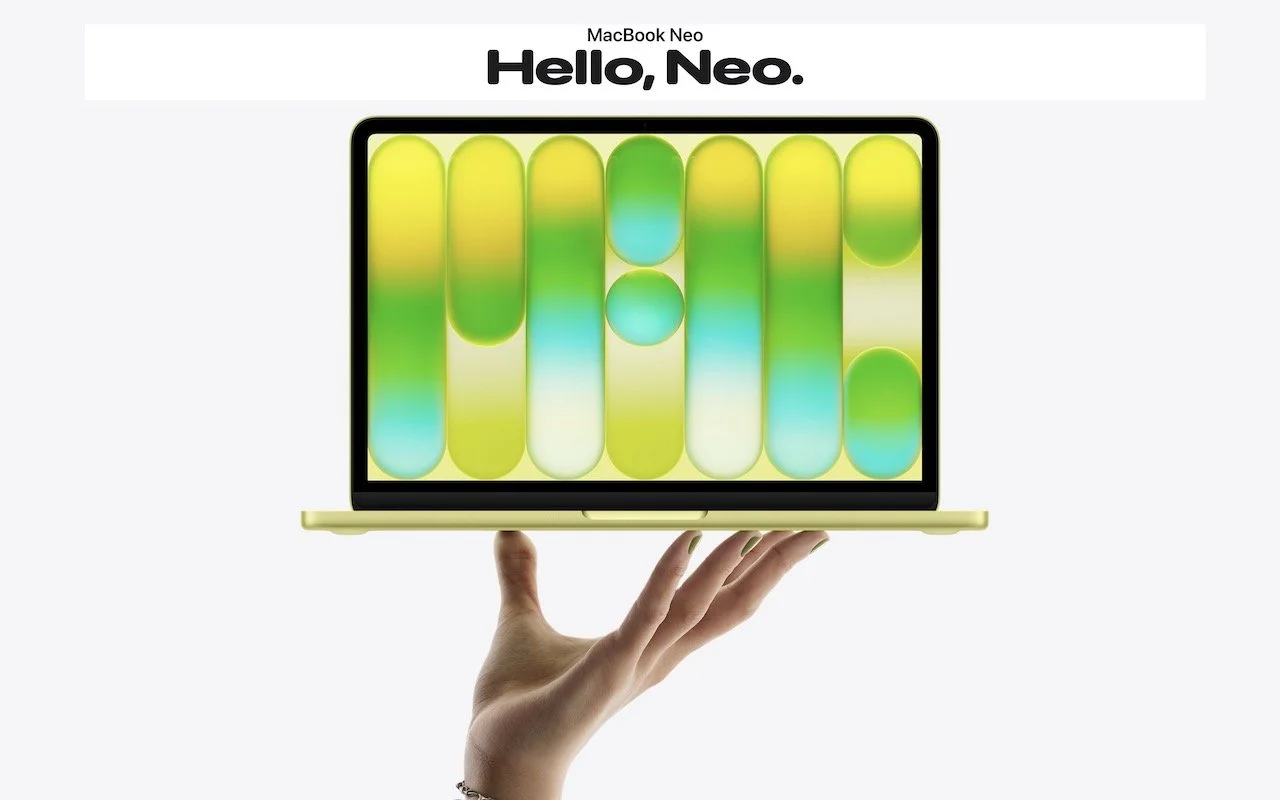
Apple has unveiled the MacBook Neo, a new entry-level laptop. With pricing starting at $599, a whopping $500 less than the MacBook Air, the MacBook Neo is positioned as an affordable computing option, particularly for families buying devices for K–12 students.
Despite its low price, the MacBook Neo is a Mac, so it works like any other modern Mac, complete with support for Apple Intelligence. A key question is how it compares to the MacBook Air, which Apple just updated with the M5 processor. Unsurprisingly, Apple made numerous compromises to hit the lower price point compared to the $1,099 13-inch MacBook Air. Those compromises may or may not make a difference for your intended usage.
Comparing the Specs
Let’s run through the MacBook Neo’s specs and see how it matches up to the MacBook Air:
A18 Pro chip: One of the main places Apple cut costs is by relying on an A18 Pro chip with 6 CPU cores and 5 GPU cores, previously used in 2024’s iPhone 16 Pro models. This is the first time Apple has used an iPhone-class chip in a Mac. For everyday tasks in a single app, performance is nearly comparable to the MacBook Air’s M5, which has 10 CPU cores and 8 or 10 GPU cores. However, the MacBook Neo will be significantly slower for multi-threaded tasks such as video editing, code compilation, or heavy multitasking.
8 GB unified memory: Another notable difference is that the MacBook Neo has only 8 GB of unified memory, whereas the MacBook Air starts at 16 GB and can be configured with 24 GB or 32 GB. Being limited to 8 GB means the MacBook Neo will struggle with memory-intensive tasks or running many apps at once, but that isn’t likely to be an issue with everyday Web browsing, email, and messaging.
256 GB or 512 GB storage: The base MacBook Neo has only 256 GB of storage, which may fill up quickly with photos, videos, and games. For $100 more, you can get 512 GB. In comparison, the MacBook Air starts with 512 GB and can be configured with 1 TB, 2 TB, or 4 TB. You can always buy an external SSD to offload little-used data.
13.0-inch Liquid Retina display: The display is another significant difference. The MacBook Neo has a 13.0-inch display that shows slightly less content on screen than the MacBook Air’s 13.6-inch display—imagine losing about a half-inch of space vertically and horizontally. The MacBook Neo also lacks True Tone, which adjusts the display for ambient light conditions, and supports only sRGB color rather than Wide color (P3), so colors will be slightly less vibrant when viewing photos or videos, though this will be unnoticeable in most apps.
1080p FaceTime camera: The MacBook Neo’s webcam is several years behind the current 12-megapixel Center Stage camera that debuted with the M4 MacBook Air in 2025. It’s fine, but it is noticeably lower quality and lacks the Center Stage feature that keeps you in the frame as you move around. The MacBook Air’s camera also supports Desk View, which shows items underneath it, but that’s not a commonly used feature.
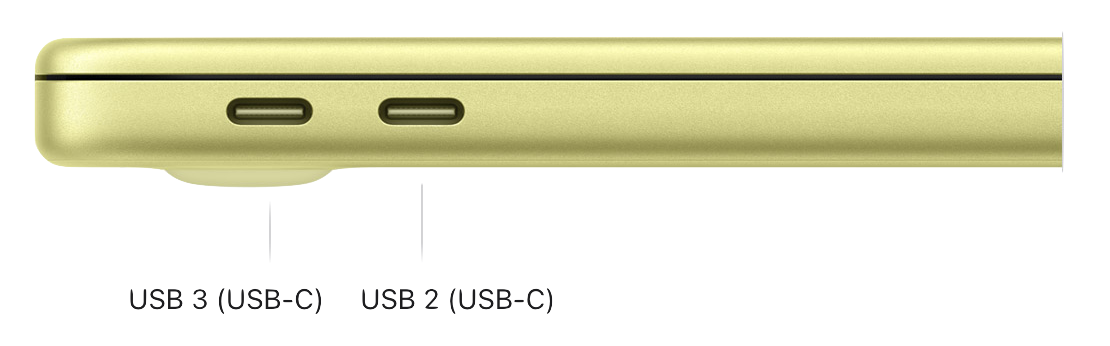
Two USB-C ports: Connectivity is another place where the MacBook Neo makes compromises. It offers two USB-C ports, but only the left one supports USB 3 at 10 gigabits per second; the right one supports only USB 2 at 480 megabits per second. You can use the left one for an external drive or a single 4K display; the right one is primarily useful for a keyboard, mouse, or printer. The MacBook Air, in comparison, has two 40 gigabits-per-second Thunderbolt 4 ports and supports up to two 6K displays. The MacBook Neo has to use one of its ports to charge, since it lacks the MagSafe charging port found on the MacBook Air.
Magic Keyboard: The $599 MacBook Neo has the same Magic Keyboard as the MacBook Air, but lacks keyboard backlighting for typing in the dark and Touch ID for authentication and Apple Pay support. Moving to the $699 model gets you Touch ID along with 512 GB of storage. All MacBook Air models have Touch ID, which is a convenience.
Multi-Touch Trackpad: The MacBook Neo uses Apple’s much older Multi-Touch trackpad with a physical click mechanism rather than pressure sensors and haptic click simulation in the MacBook Air’s Force Touch trackpad. Few people will miss Force Touch features like pressing deeply on a file in the Finder to open it in Quick Look.
Dual mics, dual speakers: For audio input and output, the MacBook Neo relies on a dual-mic array and a dual-speaker sound system. It will undoubtedly be fine, but it doesn’t match up to the MacBook Air’s three-mic array and four-speaker sound system. Both have 3.5 mm headphone jacks, or you can just use AirPods.
Wi-Fi 6E and Bluetooth 6: Although the MacBook Air has slightly newer Wi-Fi 7 support (both have Bluetooth 6), no one in the MacBook Neo’s target audience will notice the difference with Wi-Fi 6E. Few people have Wi-Fi 7 base stations yet anyway.
Battery life: Apple rates the MacBook Neo at 16 hours of video streaming and 11 hours of “wireless web” use, which qualifies it for “all-day” battery life. It’s respectable and probably sufficient for most situations, but well below the MacBook Air’s 18 and 15 hours on those benchmarks.
Size and weight: In terms of raw numbers, the MacBook Neo is slightly narrower and shallower than the MacBook Air—about a quarter of an inch— but essentially the same thickness (about half an inch) and weight (2.7 pounds). You wouldn’t notice the difference.
Who Should Consider the MacBook Neo
Apple is clearly aiming the MacBook Neo at specific audiences. Anyone working with a lot of apps at once, doing photo or video editing, playing high-end games, or using a bunch of peripherals will be better suited with the additional processing power, memory, and connectivity of the MacBook Air. And those with even more intensive workflows will gravitate to the MacBook Pro line.
But the MacBook Neo is meant to be a small, cute, and inexpensive laptop. It's entirely adequate for the kind of schoolwork that most K–12 students do: educational apps, online lessons, writing assignments, creating presentations, and conducting research. Its aluminum enclosure will withstand the rigors of daily student use, and the battery life should be sufficient for a full school day.
It would also be appropriate for budget-conscious adults with minimal computing needs. Many people do little more than browse the Web, check email, stream video, and use basic productivity apps. Those who spend most of their time in a handful of bundled Apple apps don’t need the performance of the MacBook Air.
However, we can’t recommend the MacBook Neo for most college students. Although it could handle basic word processing, Web browsing, and video streaming, college students can’t predict what they may need to do during their time in school, and it’s easy to imagine them needing to edit video, do data analysis, or work with 3D graphics. Plus, the limited port selection may be problematic for students needing to connect to external displays, storage drives, and other peripherals.
Although the same concerns apply to creative and business professionals, the MacBook Neo may be an economical travel laptop for someone who does most of their real work on a Mac mini or Mac Studio at the office. For keeping up with email, managing travel details on websites, and giving presentations, it should be more than sufficient and cheaper than most iPads with keyboards.
Pricing and Availability
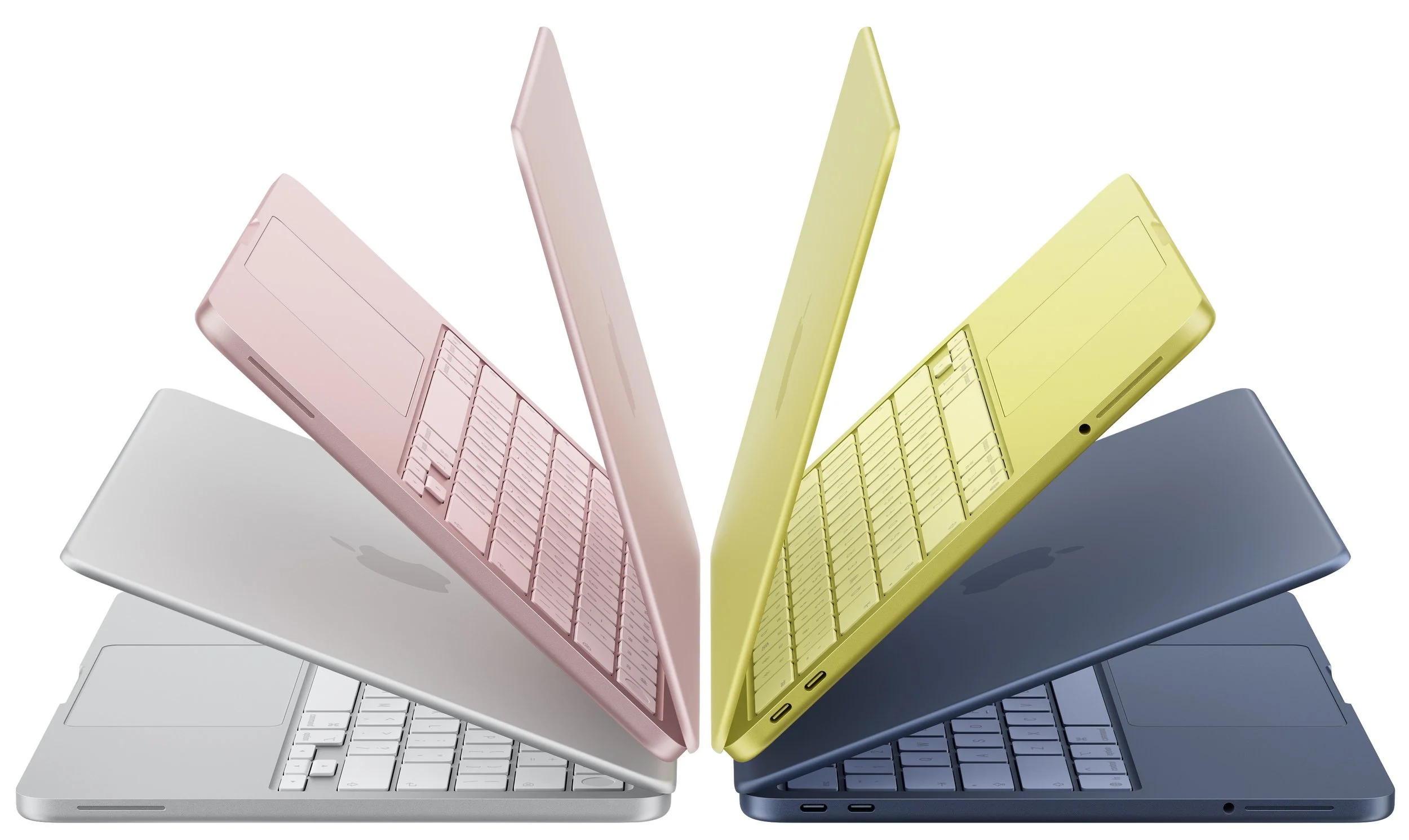
The MacBook Neo costs $599 for the 256 GB model with Magic Keyboard (no Touch ID) or $699 for the 512 GB model with Touch ID. All configurations are limited to 8 GB unified memory, and there are no other build-to-order options. It comes in four colors—silver, blush, citrus, and indigo—with color-coordinated keyboards.
(Featured image by Apple)