Not a Fan of Big Sur’s Translucent Menu Bar? Here’s How to Disable It

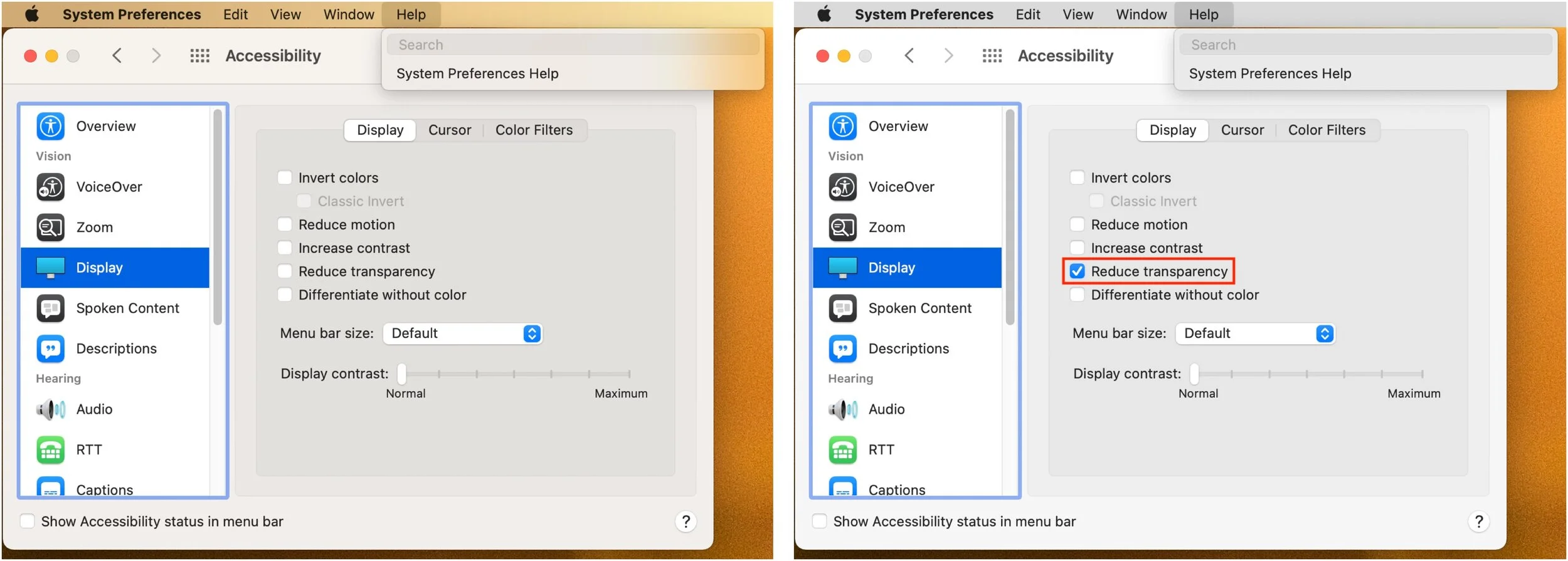
In macOS 11 Big Sur, Apple went back to a design direction from the earliest days of Mac OS X: a translucent menu bar. Since its color changes depending on the desktop picture, many people aren’t enamored of it (left, below). Luckily, reverting to the traditional opaque menu bar is simple. Open System Preferences > Accessibility > Display and select Reduce Transparency. That will turn the menu bar gray again and make other windows and menus opaque, too (right, below). Simple gray might not be as fancy as transparency, but it’s more predictable and easier to see. Come by the store anytime, no appointment needed, if you would like assistance from a Geek to do this.