
Use Quick Look to Preview Spotlight Results in Ventura
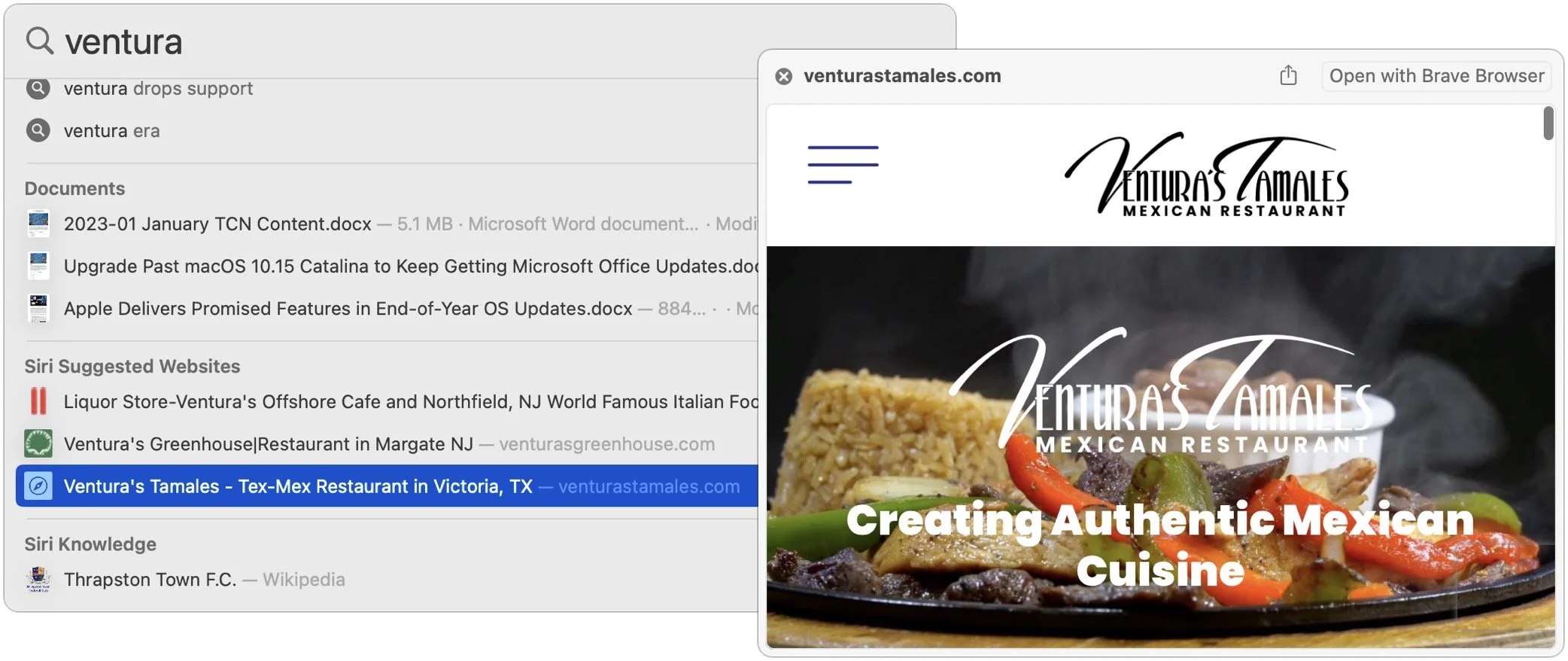
When you search using Spotlight on the Mac, it provides a decent amount of information about each result, including name and other metadata. But what if you want to see what’s behind the search result? In macOS 13 Ventura, Apple added Quick Look support to Spotlight so you can easily preview the search results. Do a search, click or use the arrow keys to select a search result, and then press the Space bar to open it in a Quick Look window. It even renders websites!
(Featured image based on an original by iStock.com/Nastco)