
Do You Keep Losing Your Pointer on a Large Screen? Try This Tip for Finding It

A large screen—or several screens!—increases productivity by helping you see more content at once. It’s a big help to refer to a Web page in one window while writing in another, for instance, or to check your calendar while composing an email. But the more screen real estate you have, the easier it is to lose track of the tiny pointer arrow. Happily, Apple added a clever trick for finding the pointer to macOS—quickly slide your finger or shake your mouse back and forth horizontally a few times to enlarge the pointer briefly.

(Featured image based on an original by iStock.com/Fanliso)
Find Apple Watch Apps Faster in List View
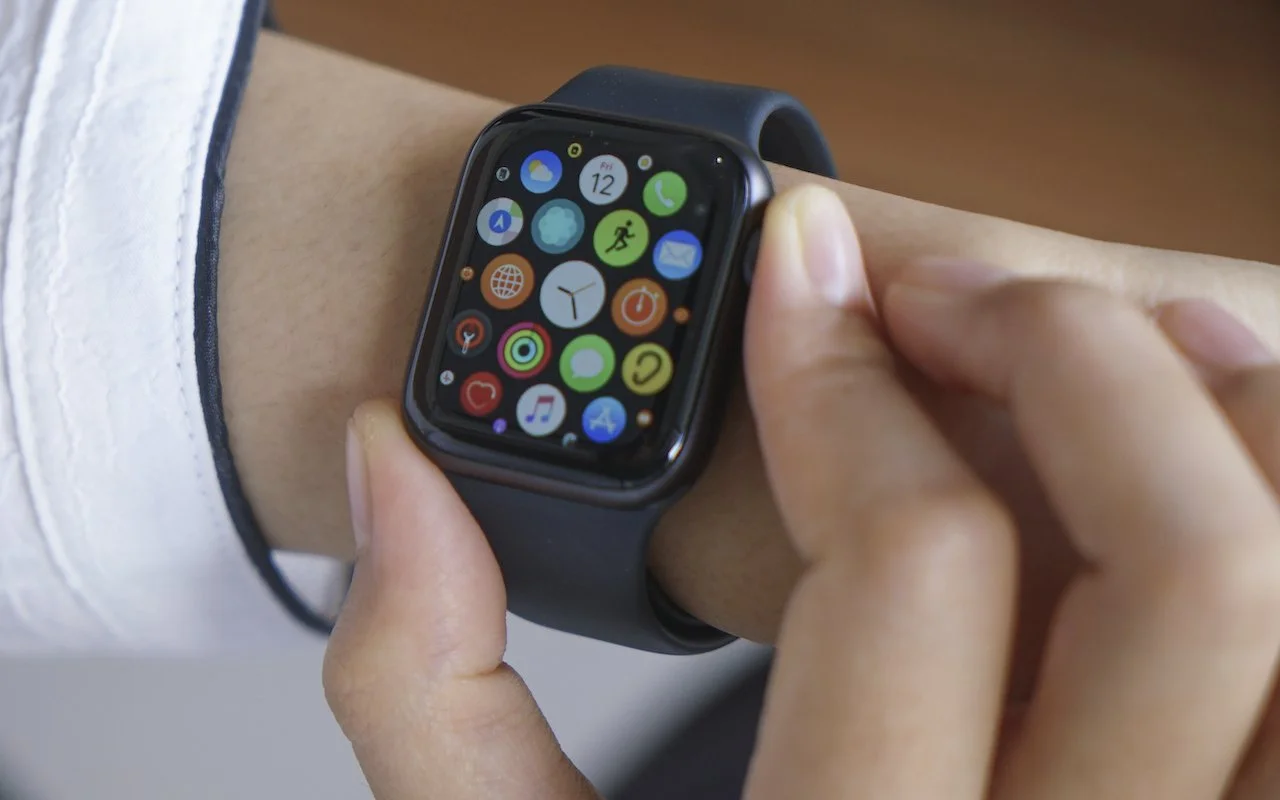
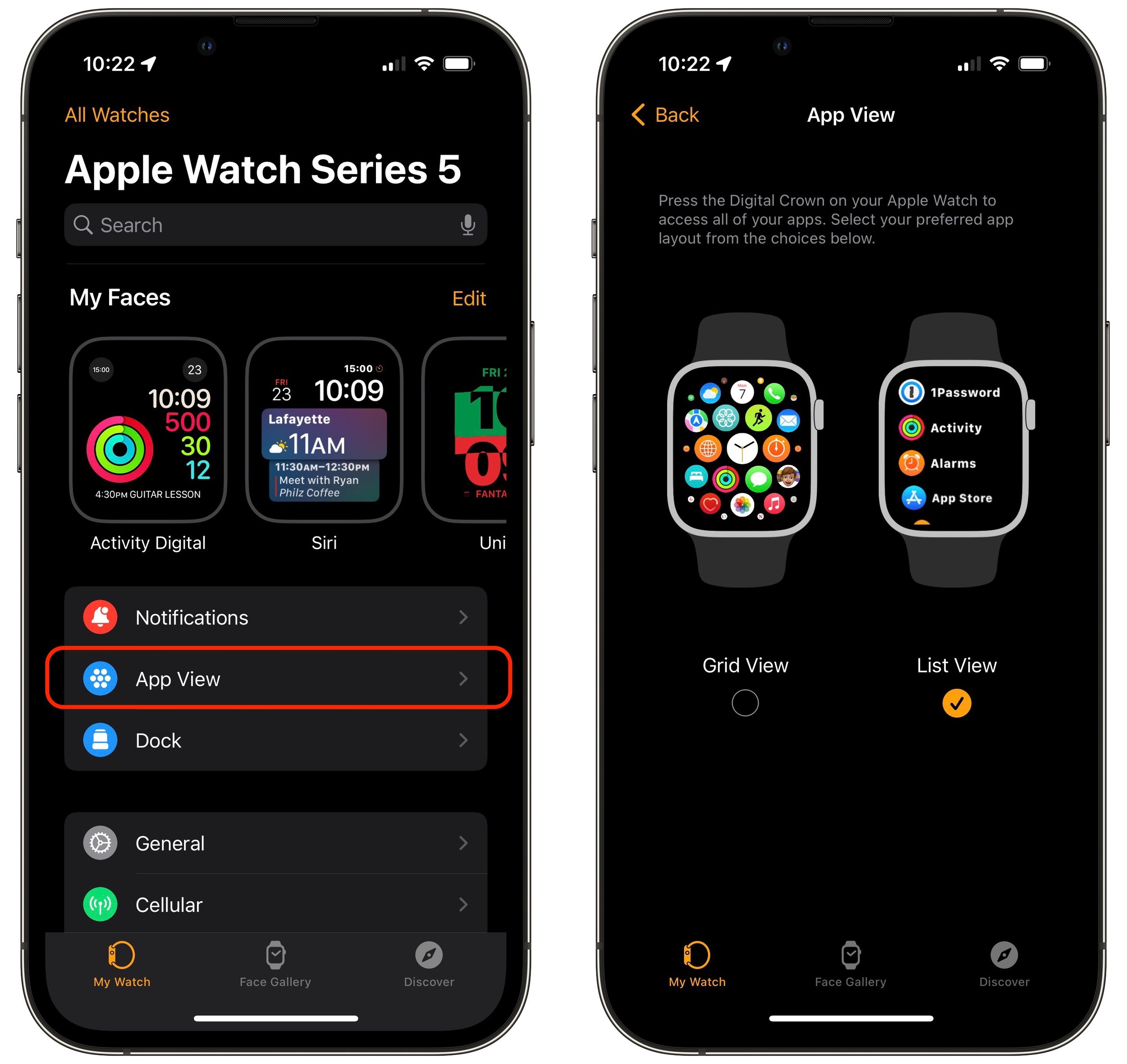
Every so often, we encounter someone struggling to find and launch an app on their Apple Watch because they have trouble seeing and interacting with the iconcentric grid view layout. If you’re in that camp, there’s a better way. In the iPhone’s Watch app, tap My Watch at the bottom, and then tap App View. Then select List View, which provides an alphabetically sorted, scrolling list of all your apps. From then on, it’s easy to press the Digital Crown to show the apps, turn it to scroll, and tap an app to launch it.
(Featured image by iStock.com/raditya)
Not Getting Full 5G When You Should? Try a New SIM Card
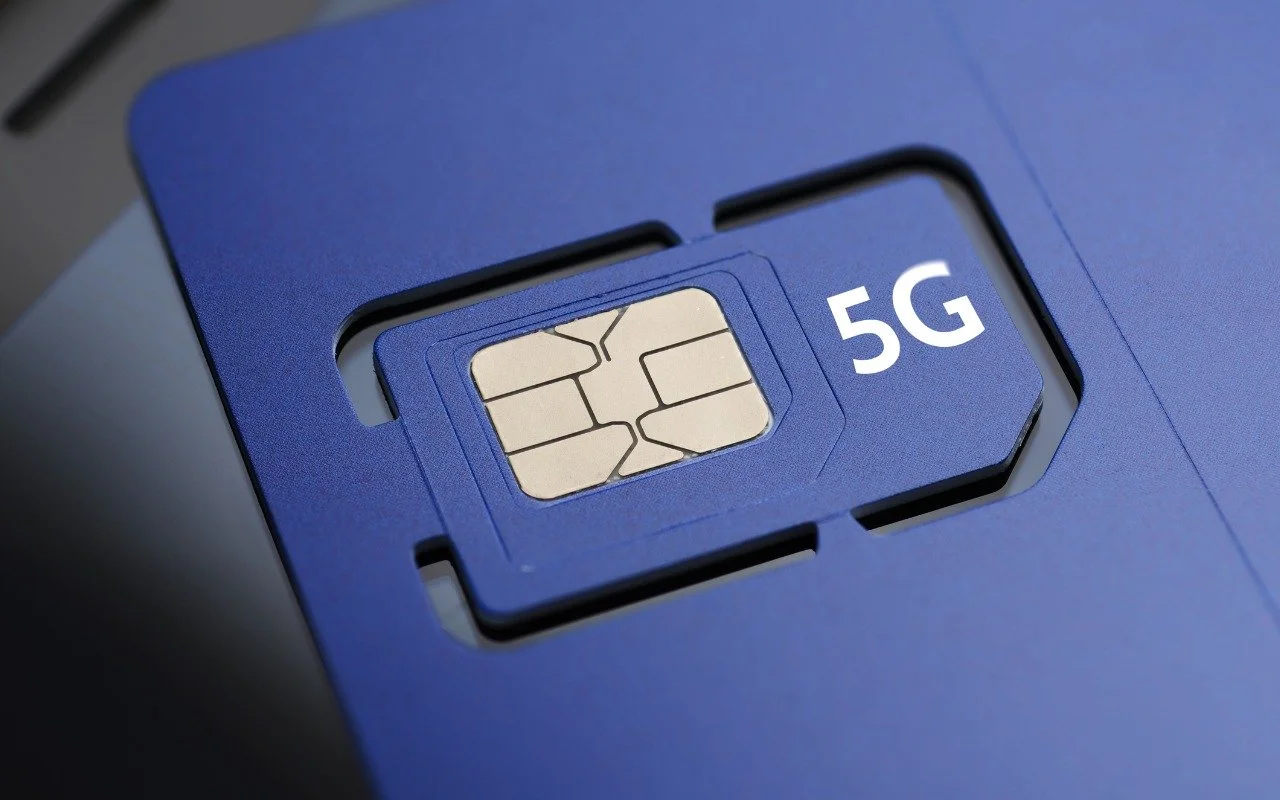
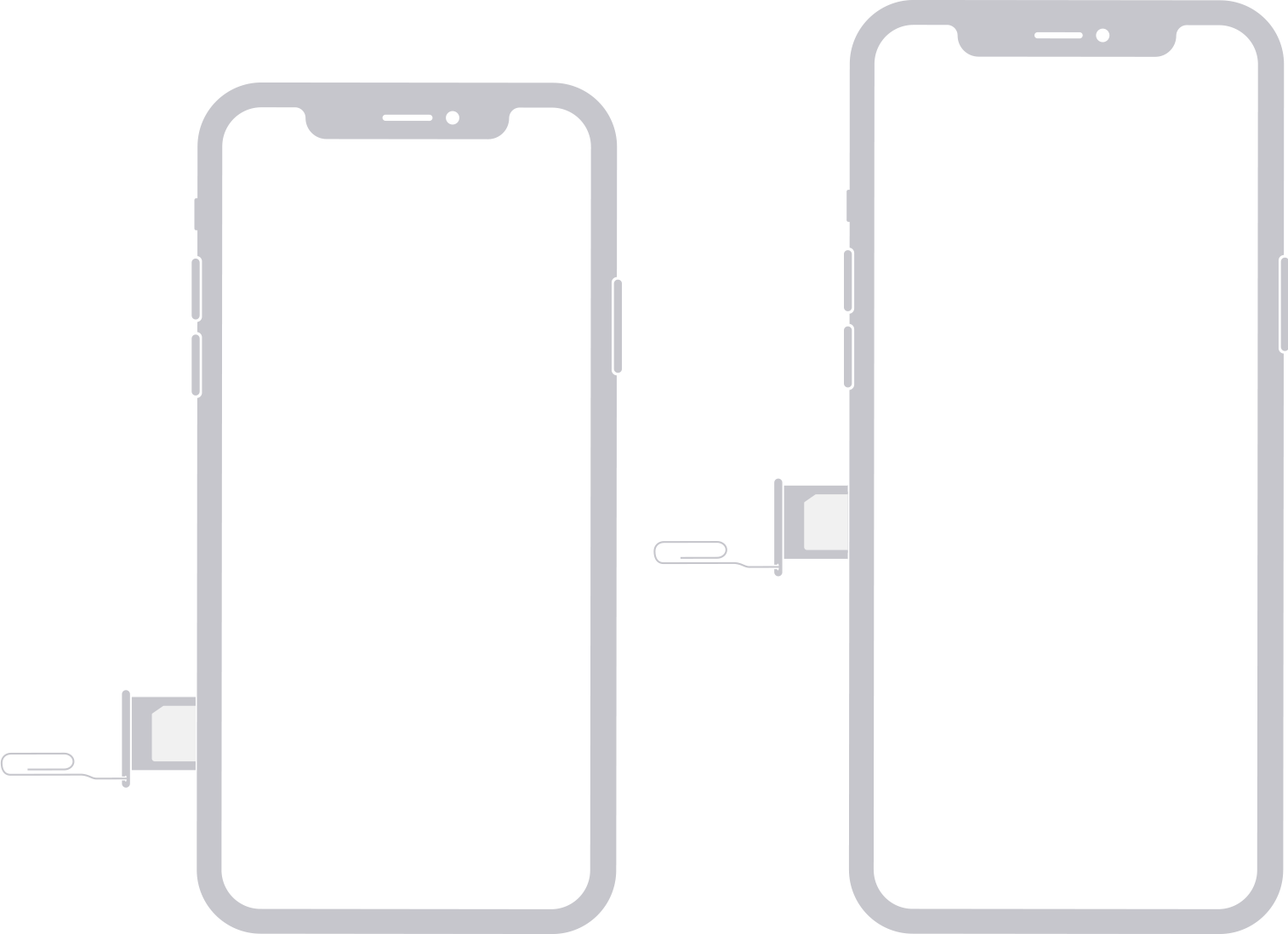
If you’ve been moving your SIM card from phone to phone over the years, you might inadvertently be preventing your current phone from taking full advantage of 5G connectivity. Cellular carriers aren’t always forthcoming about what will and will not work, but at least in the US, AT&T, T-Mobile, and Verizon all make noises about how you need a 5G-capable SIM card to use the latest and greatest 5G technologies. The solution is simple: stop by a carrier’s store or contact them to ask for a new SIM. It should be free and will take just a minute to install once the carrier support people have configured it to your phone number. Precisely where the SIM card slot is on your iPhone varies a bit by model; Apple provides full instructions.
(Featured image by iStock.com/Kuzmik_A)
Use the iPhone Camera’s Zoom to Avoid Glare, Reflections, and Shadow
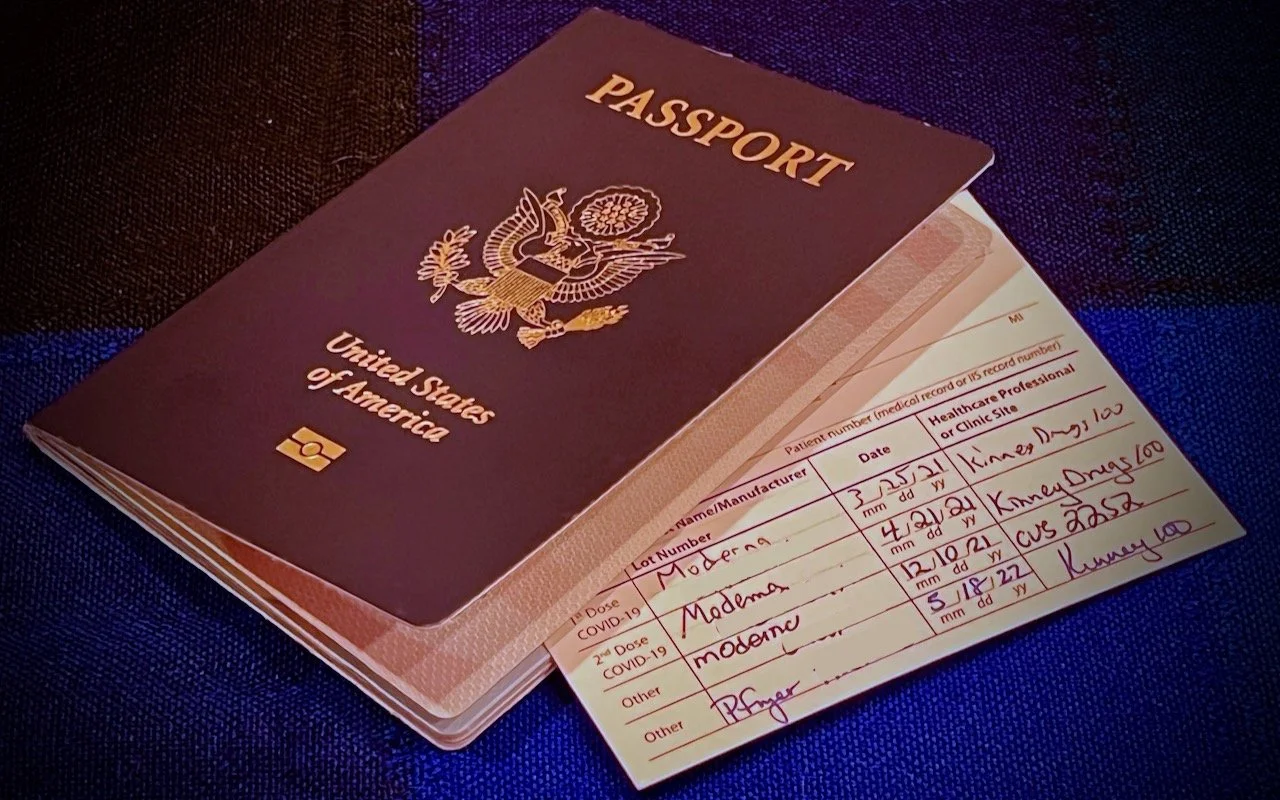
We increasingly need to take photos of documents—vaccination cards, driver licenses, passports, etc.—to submit for online verification. That’s often easier said than done, especially when taking a photo at night under lights that obscure the text with glare and shadows. Similarly, when photographing a screen to document a problem for tech support, it’s often difficult to capture it without a problematic reflection. For a possible solution, back up from the thing you’re photographing and use your iPhone’s zoom feature to enlarge the document or screen. The extra distance often lets you adjust the angle and positioning to prevent glare, shadows, and reflection.
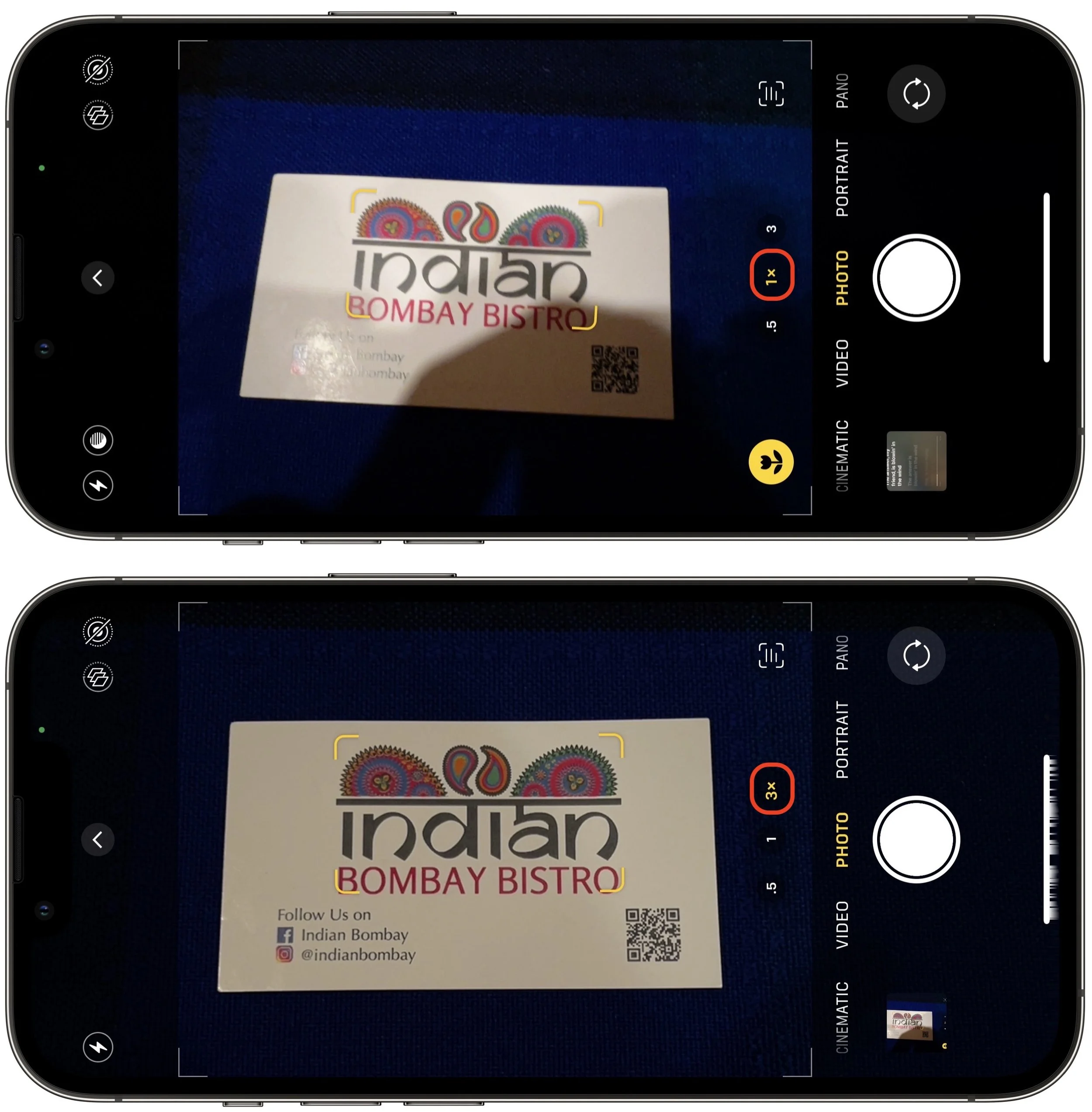
(Featured image by Adam Engst)
Where to Find Lyrics in Apple’s Music Apps

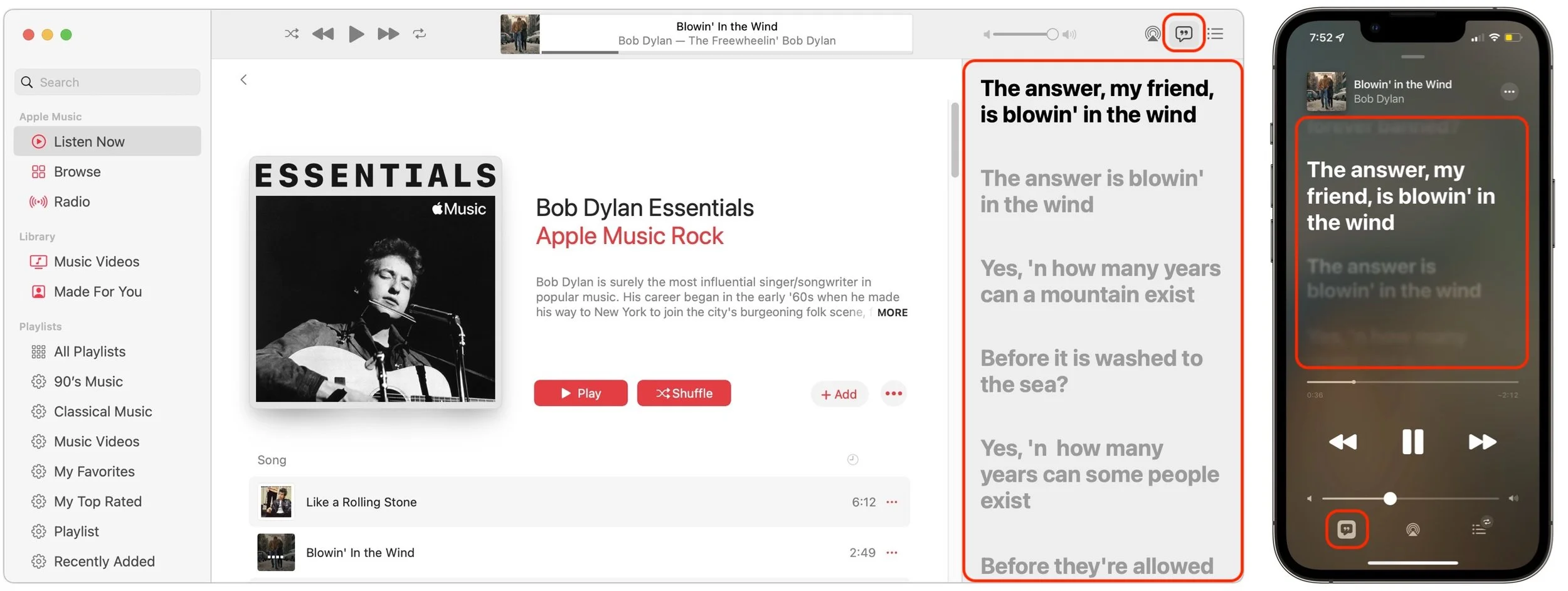
It’s often tough to figure out exactly what a singer is saying (which can lead to some amusing mistakes), but for many songs in Apple Music, you can bring up full lyrics in the Music app, regardless of which device you’re using. On the Mac, click the speech balloon button in the upper-right corner to display the lyrics pane on the right side of the window. On an iPhone, tap the playback controls at the bottom of the screen to bring up the Now Playing view, then tap the speech balloon button in the lower-left corner to show lyrics. Music on the iPad is similar to the iPhone, but the speech balloon button is on the right side. With many songs, the lyrics will scroll as the song plays, but with others, you’ll just get a static display. Either way, you’ll know that the ants, my friends, are not blowin’ in the wind.
(Featured image by iStock.com/Chattrawutt)
How to Recover from Overzealous Auto-Correct Curly Quotes

Most of the time, it’s appropriate when an auto-correct feature turns single and double hash marks into single and double curly quotes. However, there are times when the curly quotes are awkward for some reason or actively wrong. For instance, hash marks indicate feet and inches, as in 5' 6". You could attempt to disable the auto-correct feature or copy and paste a hash mark from some other place, but the simple fix is to type the hash mark, watch auto-correct change it, and immediately press Command-Z to revert to the hash mark. We can’t guarantee this will work in all situations, but it’s generally effective.

(Featured image by iStock.com/nicoletaionescu)
Easily Share Wi-Fi Passwords with Other People and Devices
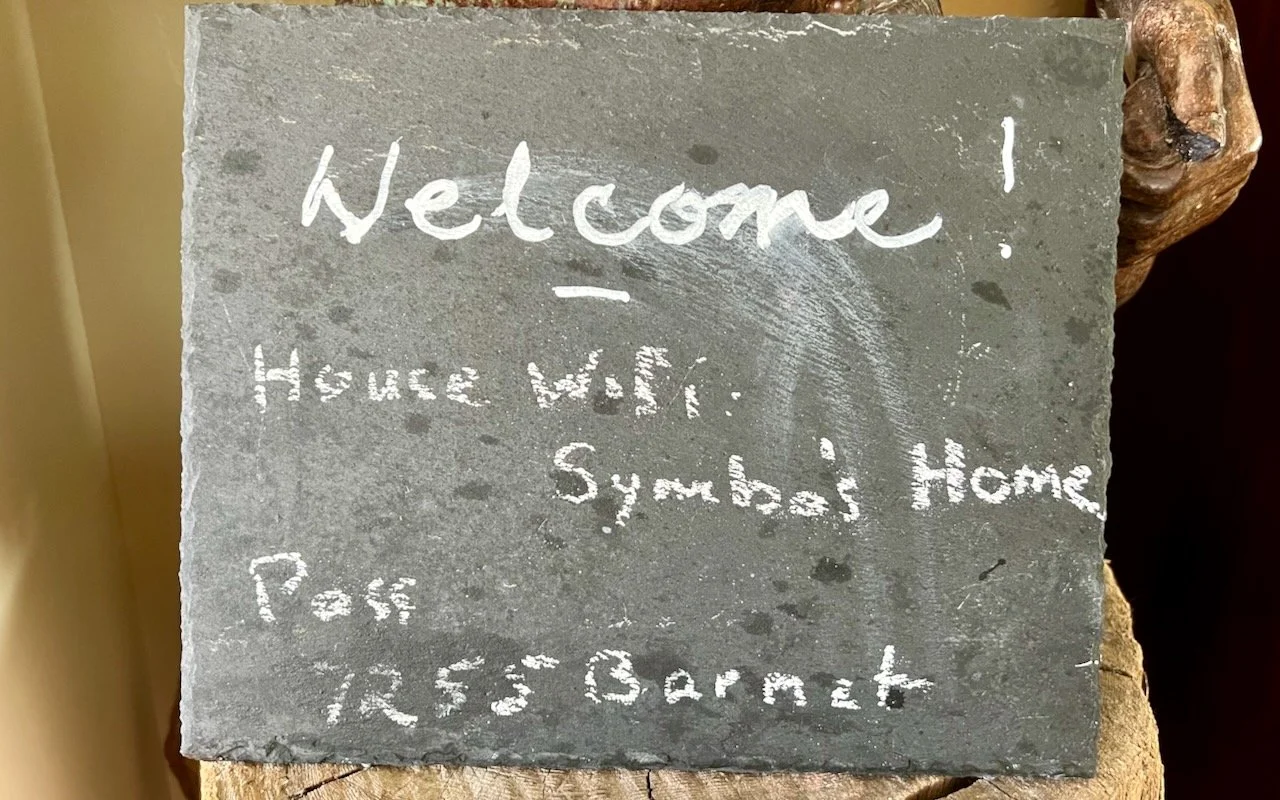
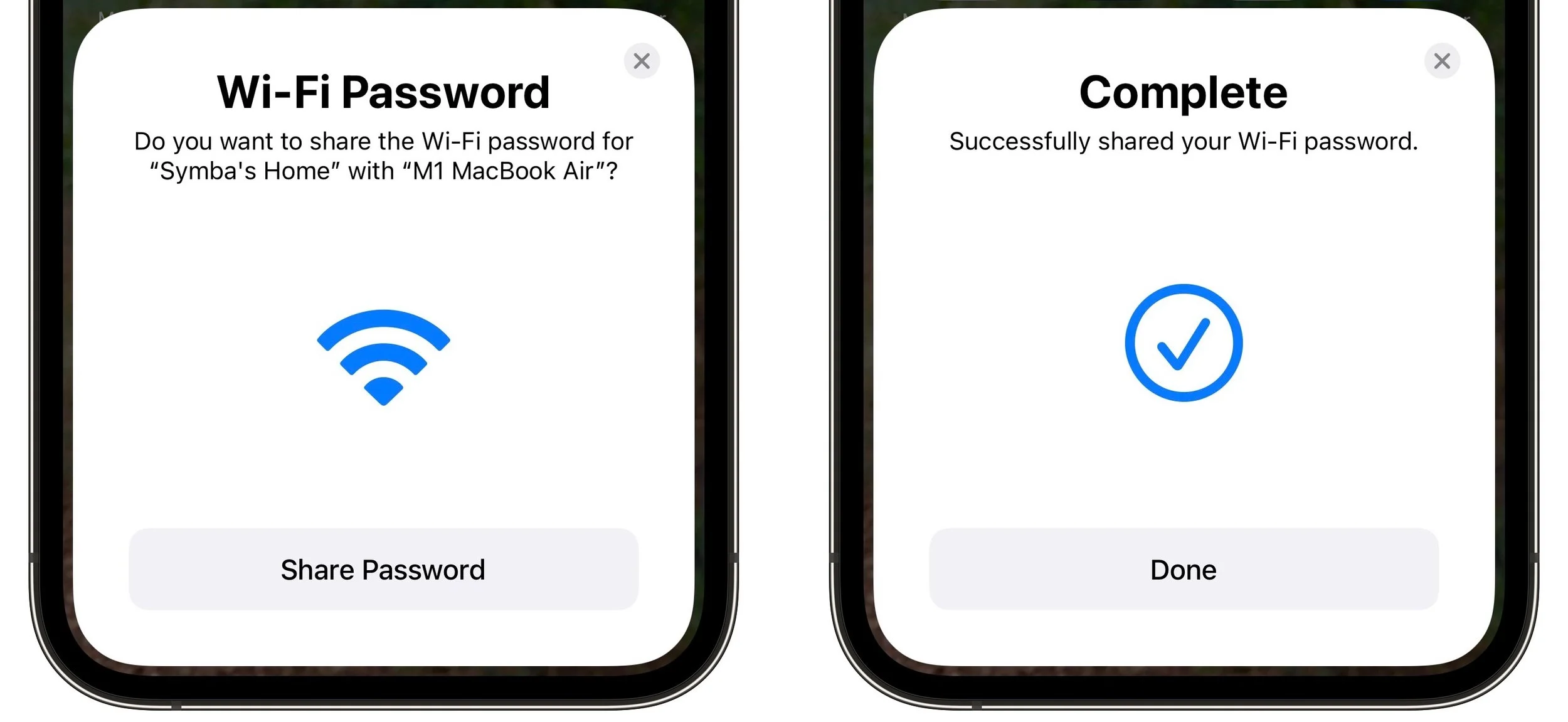
You’re on vacation with your family, staying in an Airbnb, with multiple Apple devices to connect to the apartment’s Wi-Fi. Typing the password repeatedly would be a pain, but happily, Apple has added a password-sharing feature to all its operating systems. Once you enter the password on your iPhone, whenever someone else—or another of your devices—tries to connect to the Wi-Fi network, your iPhone will prompt you to share the password. Tap Share Password and then Done. It’s also a great way to share your home Wi-Fi password with a visitor. (For password sharing to work, both devices must have Wi-Fi and Bluetooth on and Personal Hotspot disabled, and you and the other person must have each other’s Apple ID email address saved in Contacts.)
(Featured image by Adam Engst)
Put Files in the Mac’s Trash Using the Keyboard

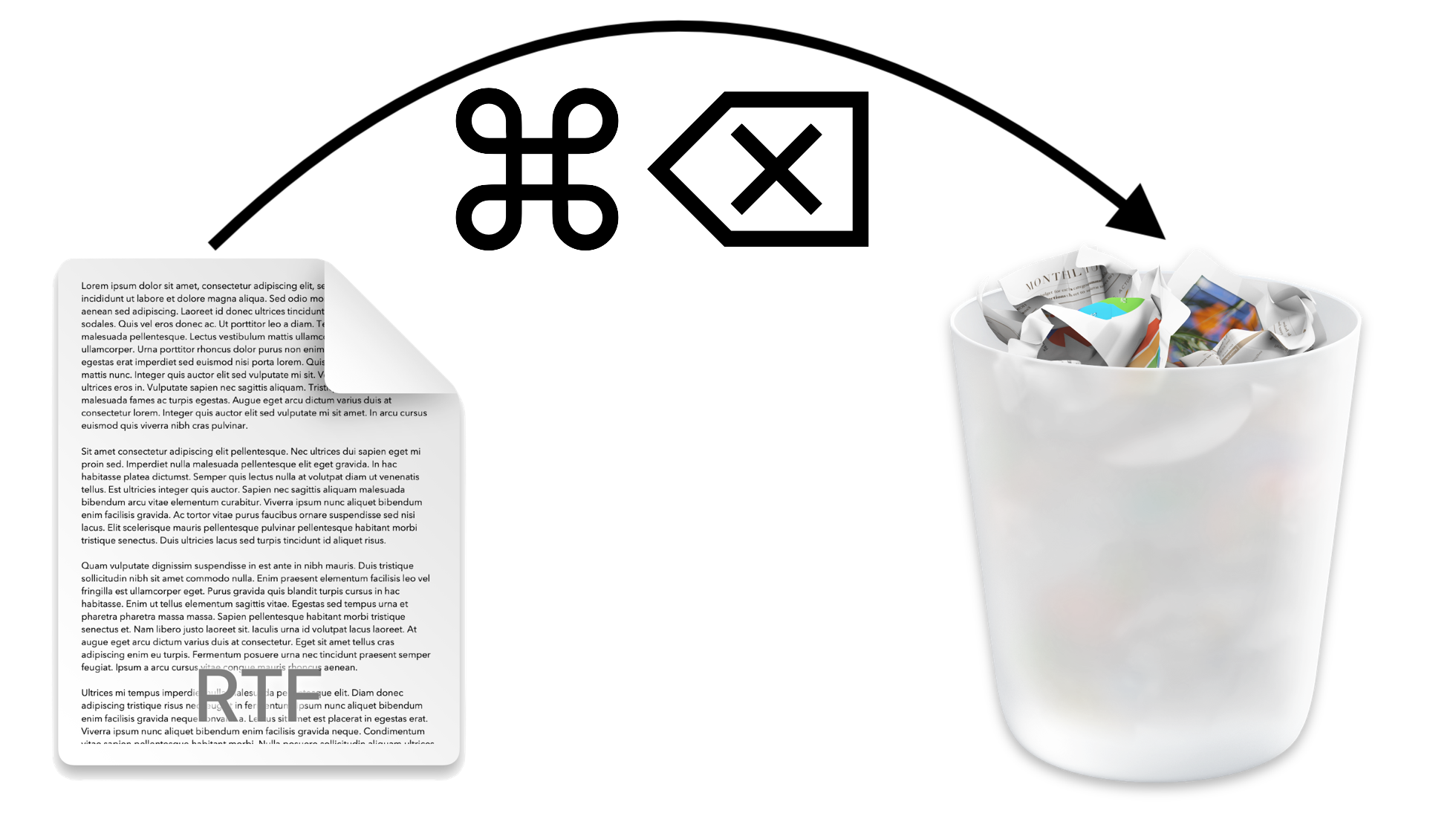
You know that you can drag files or folders to the Trash icon in the Dock for later deletion. And you probably know that you can select multiple items on the Desktop or in a Finder window by Command-clicking each one in turn (Shift-click to select a sequential range of items in a list view), after which you can drag them all to the Trash. But there’s no reason to expend effort mousing if you prefer to keep your hands on the keyboard—just press Command-Delete to send one or more selected files and folders directly to the Trash. Finally, if you need your disk space back right away, press Command-Shift-Delete to empty the Trash. However, we recommend not emptying the Trash frequently—that way, you have a chance to recover something you discover that you needed after trashing it.
(Featured image by iStock.com/FabrikaCr)