
Bring Back the Battery Percentage Indicator in iOS 16
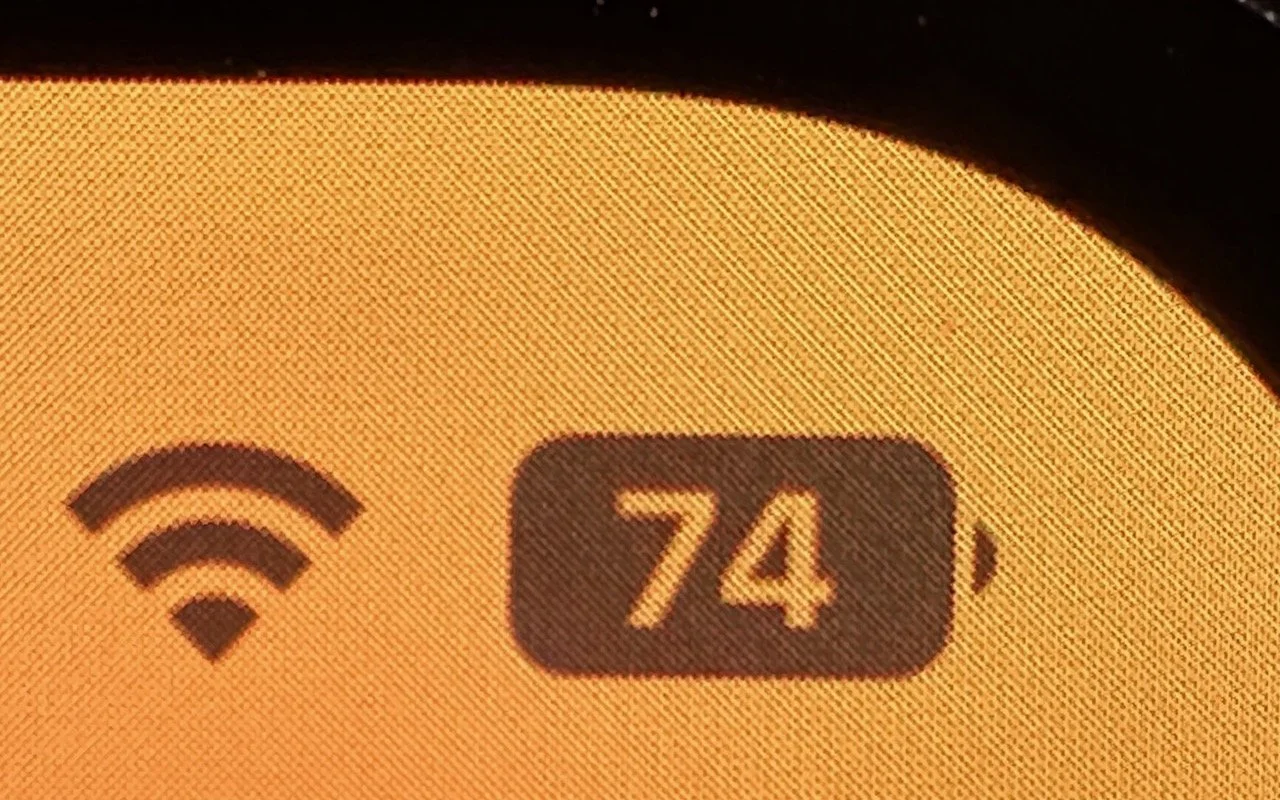
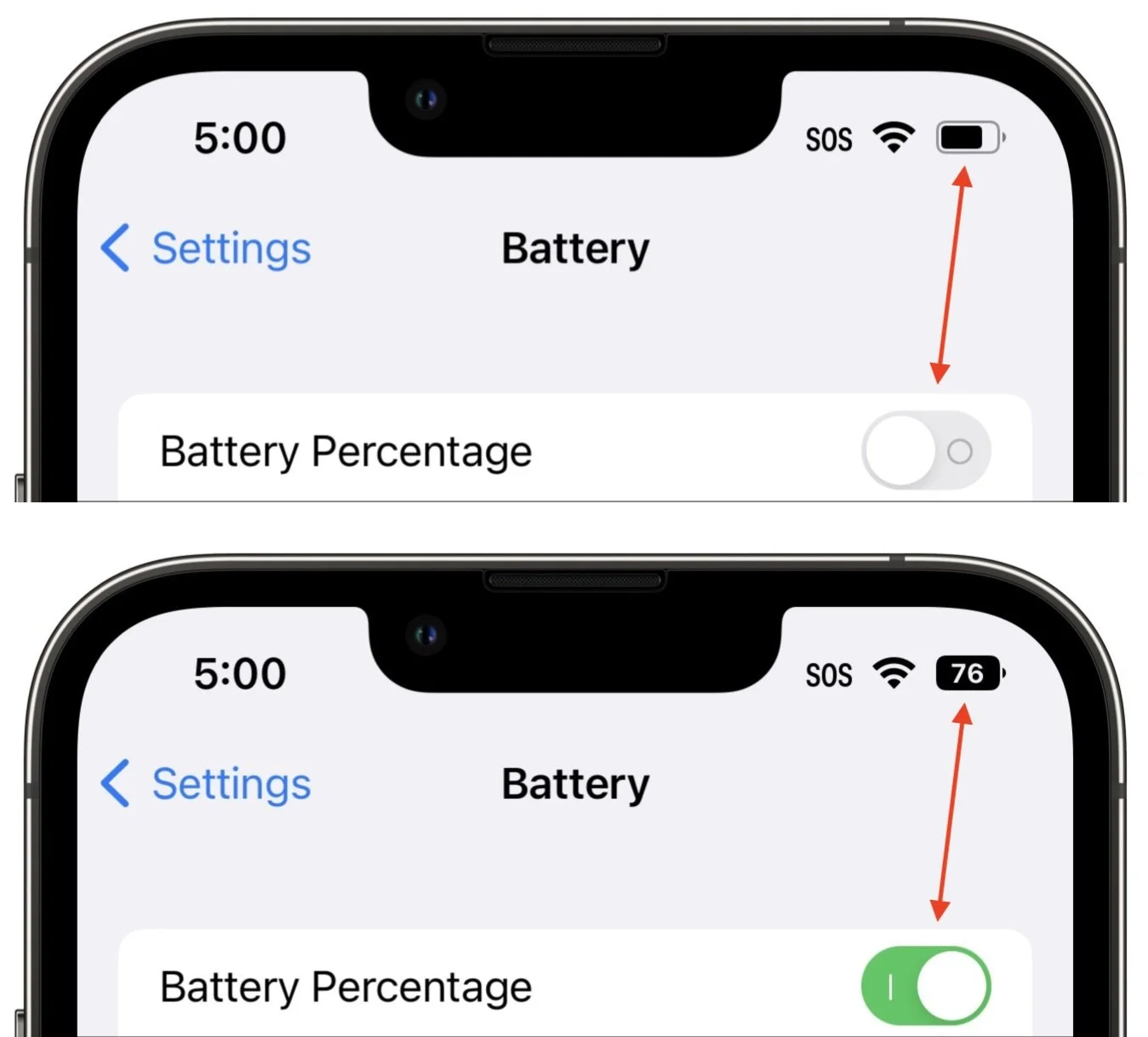
Back in 2017, when Apple added the notch to the iPhone X for Face ID, the resulting loss of usable screen real estate caused the company to remove the battery percentage indicator from the status area. Since then, you’ve only been able to estimate how much battery life you had left from the icon; you had to open Control Center to see the numeric percentage. In iOS 16, however, Apple has revived the battery percentage indicator for Face ID iPhones, building it into the battery icon itself so it doesn’t occupy more of the status bar. Unfortunately, it’s not available on the iPhone XR, iPhone 11, iPhone 12 mini, or iPhone 13 mini, perhaps due to a lack of sufficient screen resolution. Everyone else can enable it in Settings > Battery.
(Featured image by Adam Engst)
Add Haptic Feedback to the iPhone Keyboard in iOS 16

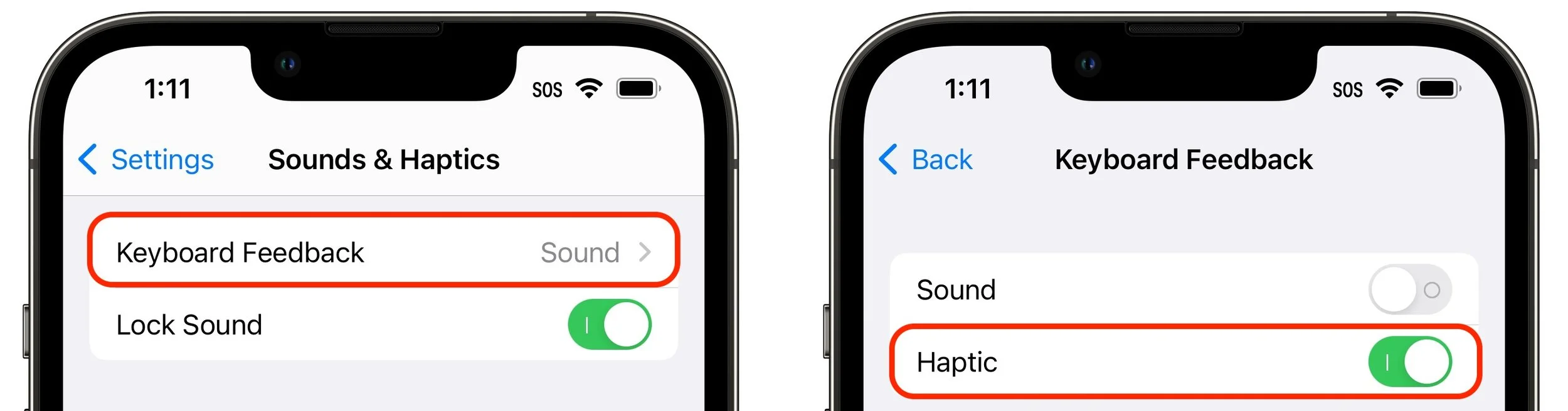
The iPhone has long been able to play clicking sounds when you tap the keys on the virtual keyboard, but that feedback, while sometimes welcome, can become annoying when you’re trying to be quiet. A new feature in iOS 16 provides haptic feed-back—tiny taps you can feel in your fingertips as you tap keys on the keyboard. It’s a subtle but highly effective way of mimicking a real keyboard, and we encourage you to try it. Turn the feature on in Settings > Sounds & Haptics > Keyboard Feedback. (While you’re there, try turning off Sound; it may no longer be necessary.)
(Featured image by iStock.com/Yosi Azwan)
Are You Paying Too Much for Internet or Cellular Connectivity?
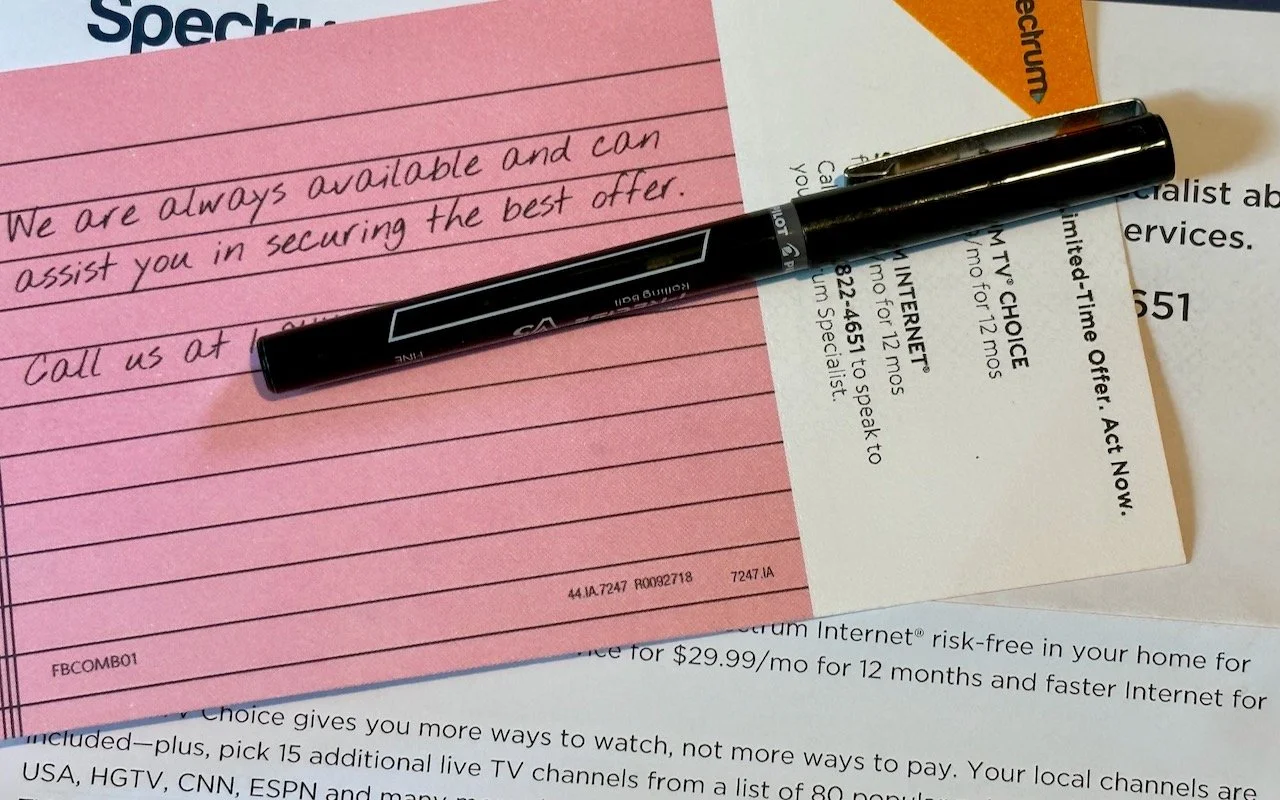
We’ve recently worked with a few clients who were paying too much for their Internet or cellular service. Internet service providers (ISPs) and cellular carriers occasionally adjust their service plans to account for new technologies, economies of scale, changing competitive landscapes, and marketing efforts. Sometimes they’ll increase speeds or capabilities across the board, but more often, when they debut new plans, current customers are grandfathered into their existing plans, often without notification. Upgrading to a new, better plan is usually simple—first, check the plan details on your ISP’s or cellular carrier’s website. Then, if they look better or cheaper—or if you don’t remember what service levels you should be getting—call the company’s support line and ask if switching plans would be beneficial. Beware that they may try to upsell you on a more expensive plan, so agree to switch only if you’ll end up paying less or getting significantly more. Remember, more speed isn’t necessarily worthwhile—most people won’t notice the difference between 250 Mbps and 1 Gbps, for instance.

(Featured image by Adam Engst)
Photos Library Showing Blank Thumbnails or Having Other Issues? Try This Trick to Repair It

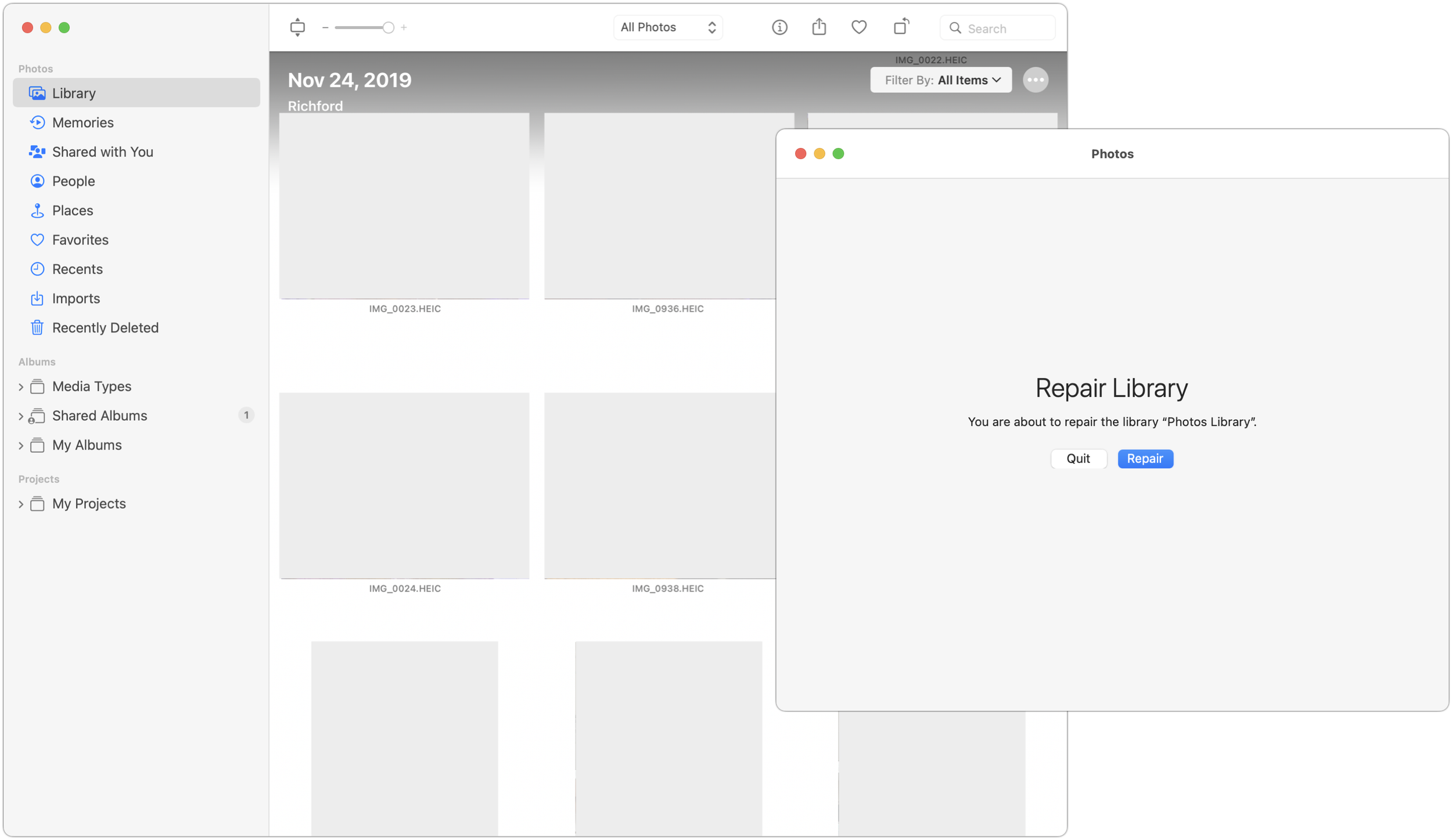
The Photos app is usually a solid performer, but it does rely on a database behind the scenes, and corruption is a possibility. If you find that your Photos library is showing blank thumbnails or otherwise acting oddly, see if the Photos Repair Library tool can fix it. First, if Photos is open, quit it. Then launch Photos again while holding down the Command and Option keys at the same time. In the window that appears, click Repair. The tool might ask for your account password, and depending on the size of your library, the repair could take some time, so don’t interrupt it. If that doesn’t fix the problem, contact us—if all else fails, we can help you recover your original photos from within the Photos Library file.
(Featured image by iStock.com/fizkes)
Remove Old-Style Today View Widgets from Your iPhone
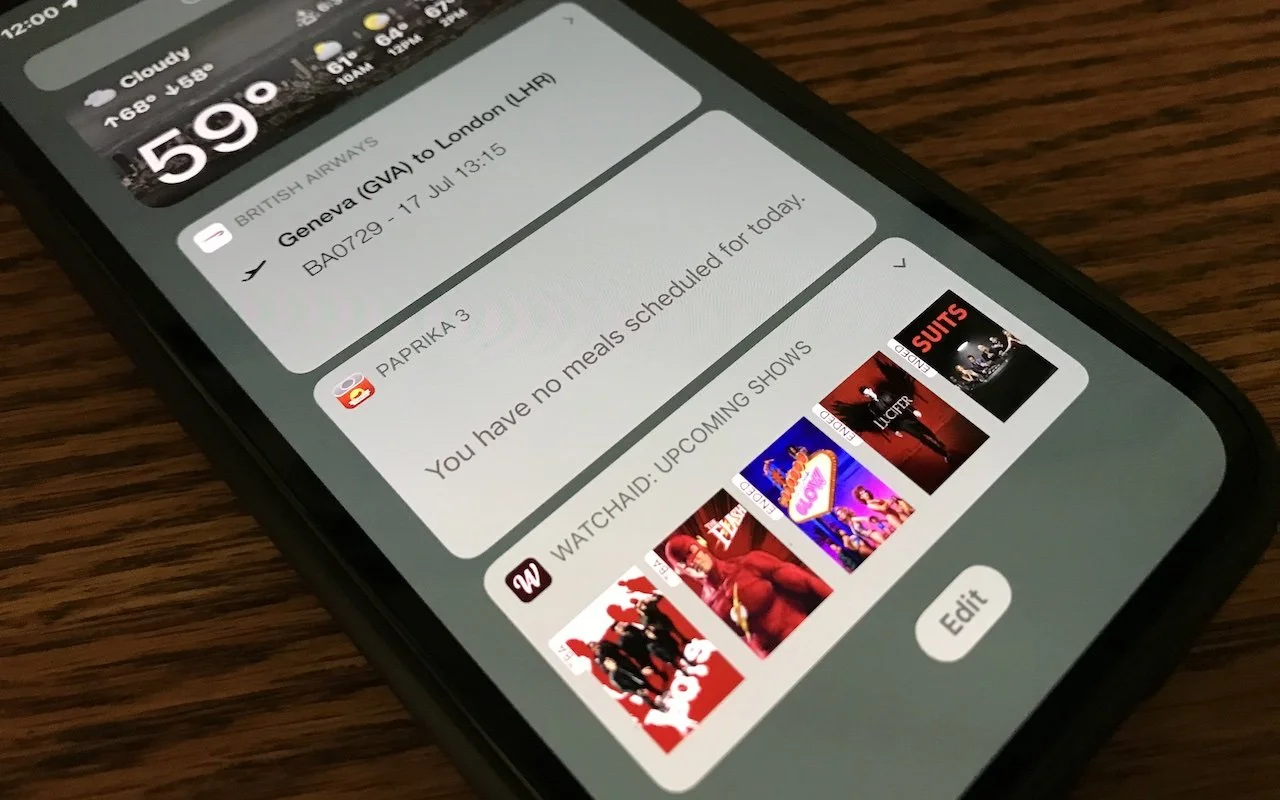
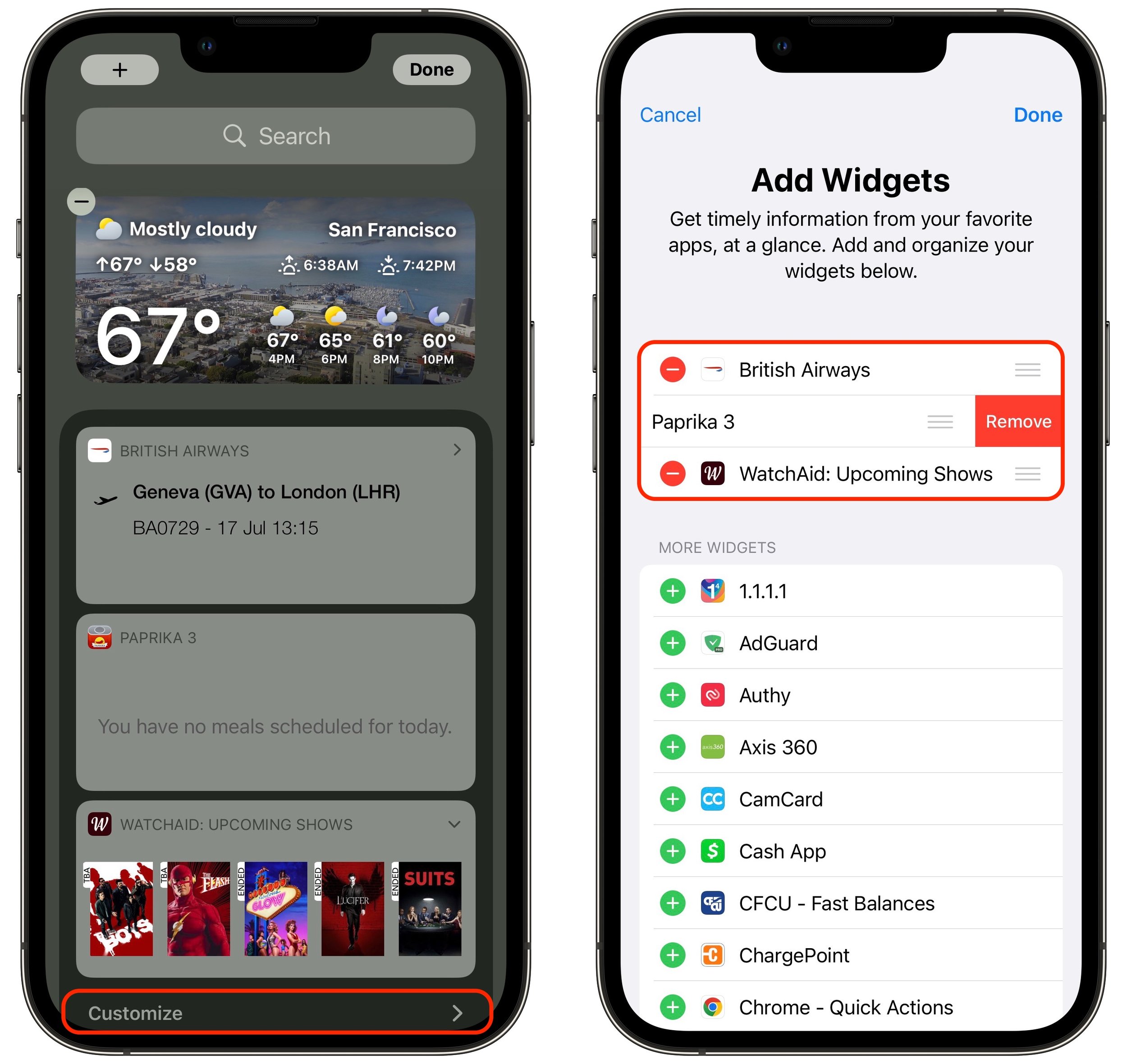
In iOS 14, Apple overhauled widgets, allowing you to add them to your Home screen in addition to the Today View accessible by swiping right on the Home screen. App developers responded with a slew of new widgets, but old-style widgets that are limited to Today View remain available. If you no longer want these older widgets cluttering the bottom of your Today View, here’s how to remove them. Swipe right on the Home screen to enter Today View. At the bottom of Today View, tap the Edit button, and at the bottom of the collection of old-style widgets (new-style widgets wiggle), tap Customize. In the Add Widgets screen, tap the red ⊖ button next to each widget you want to delete and confirm by tapping Remove.
(Featured image by Adam Engst)
Most Pantone Color Books for Adobe Creative Cloud to Require Pantone Connect License
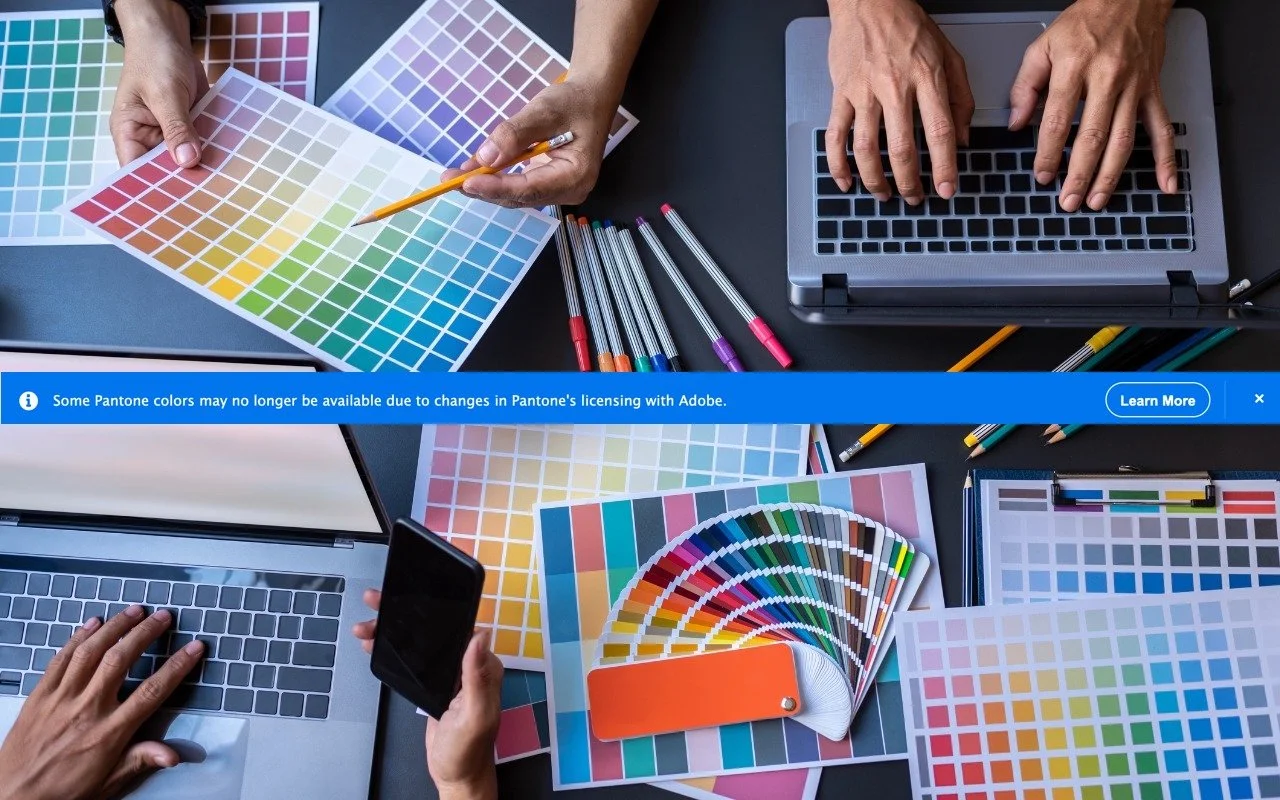
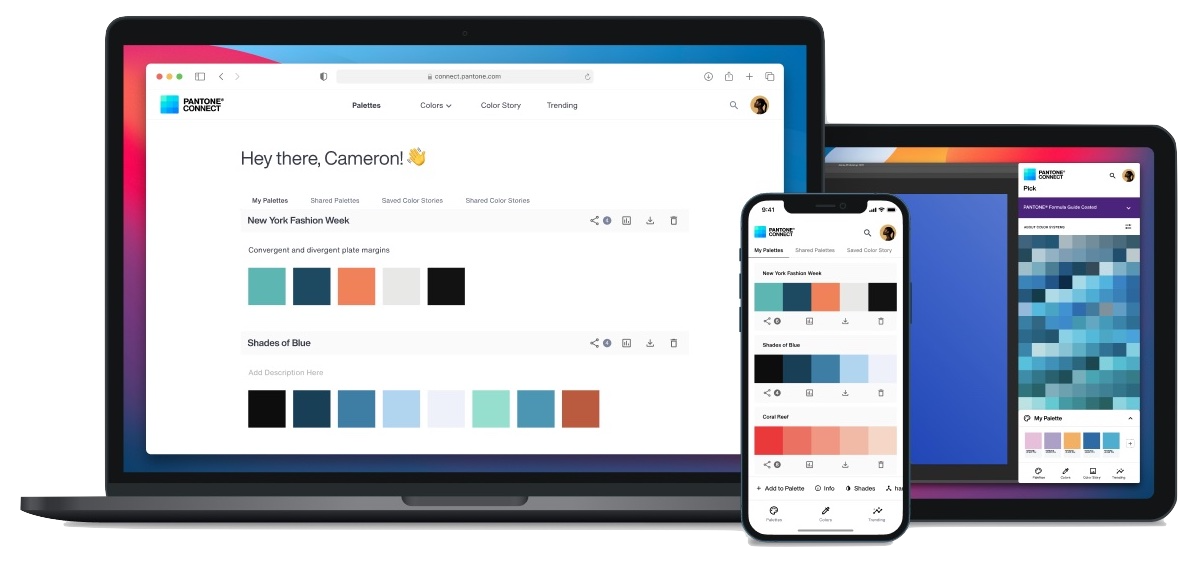
Adobe says that Pantone Color Books will be phased out of Adobe Creative Cloud apps, starting with updates to Illustrator, InDesign, and Photoshop released after August 16, 2022. After November 2022, only three Pantone Color Books will remain: Pantone + CMYK Coated, Pantone + CMYK Uncoated, and Pantone + Metallics Coated. To access all other Pantone Color Libraries, Creative Cloud users will need to purchase a Pantone Connect license and access the libraries through the Pantone Connect plug-in. Pantone Connect costs $59.99 per year or $7.99 per month. For the most part, existing files should continue to work as before, although Adobe offers details of how files in Illustrator, InDesign, and Photoshop may be affected.
(Featured image based on an original by iStock.com/Kanizphoto)
Don’t Trust an App Fully? Hide Your Precise Location from It

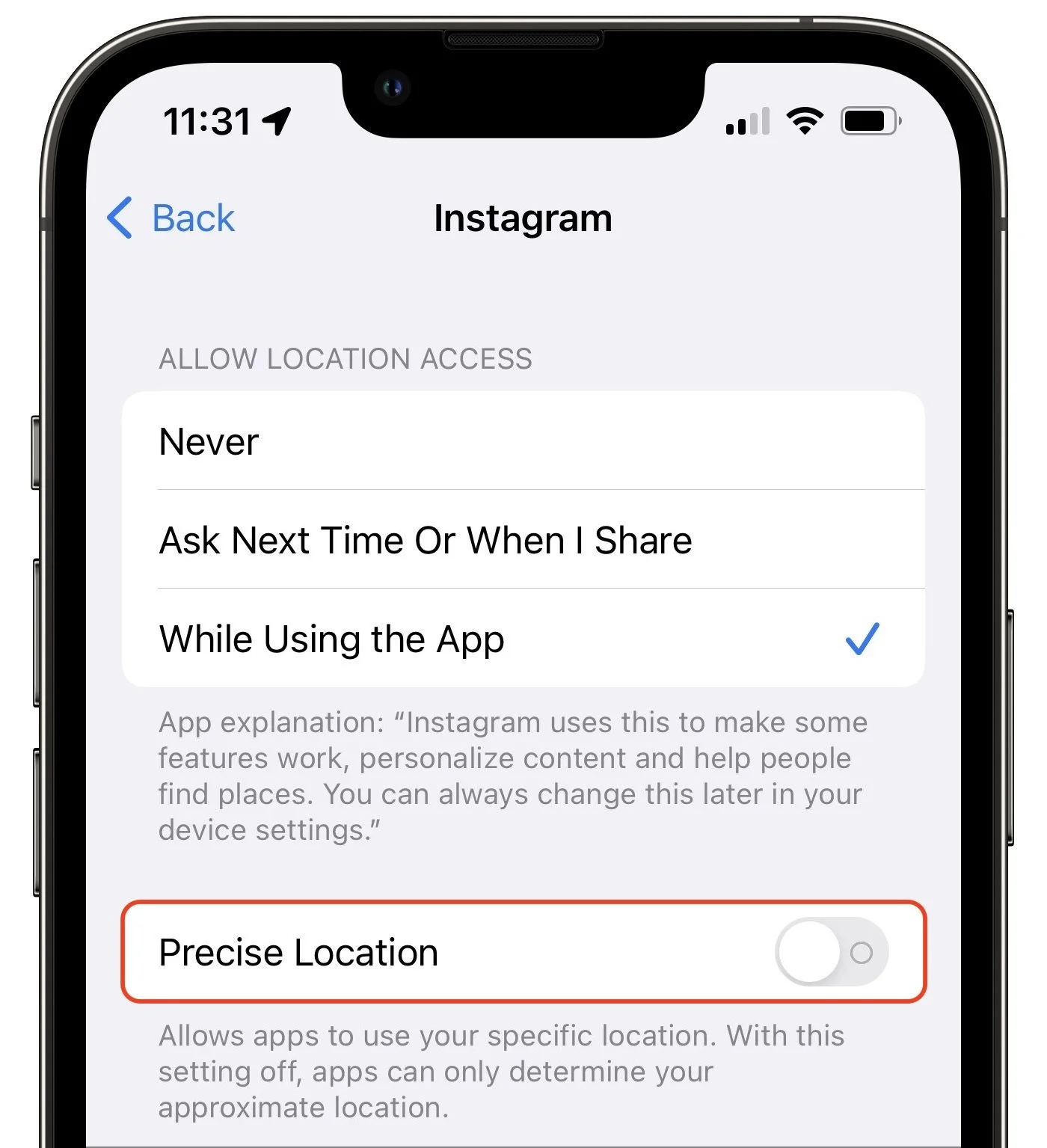
Most of the time, having your iPhone know precisely where you are is good. You want Maps to tell you exactly when to turn, not after you’ve passed an intersection. But too many apps abuse their users’ privacy. We strongly encourage you to stop using such apps entirely, but we acknowledge that it can be hard to give up apps that seem necessary for modern life. Barring that, you could prevent such apps from seeing your location at all, but even that isn’t always feasible. Since iOS 14, Apple has provided another compromise—you can prevent an app from seeing your precise location while still giving it your approximate whereabouts. Go to Settings > Privacy > Location Services, scroll down and tap the app in question, and disable Precise Location.
(Featured image by iStock.com/Melpomenem)
How to Restore Missing SMS Two-Factor Authentication Codes

Many websites, from Adobe to Zendesk, let you receive two-factor authentication codes via SMS text messages. That’s good—any form of two-factor authentication is better than none—but you’re often effectively locked out of your accounts if those text messages don’t arrive. A simple fix is to call your cellular carrier and ask to have any blocks removed from your account. Automated scam and fraud prevention systems may have installed those blocks—it wasn’t necessarily related to anything you did—and the carrier can remove them easily.

(Featured image by iStock.com/tsingha25)