
You Can Use Face ID in iOS 16 on Newer iPhones When You’re Lying on Your Side

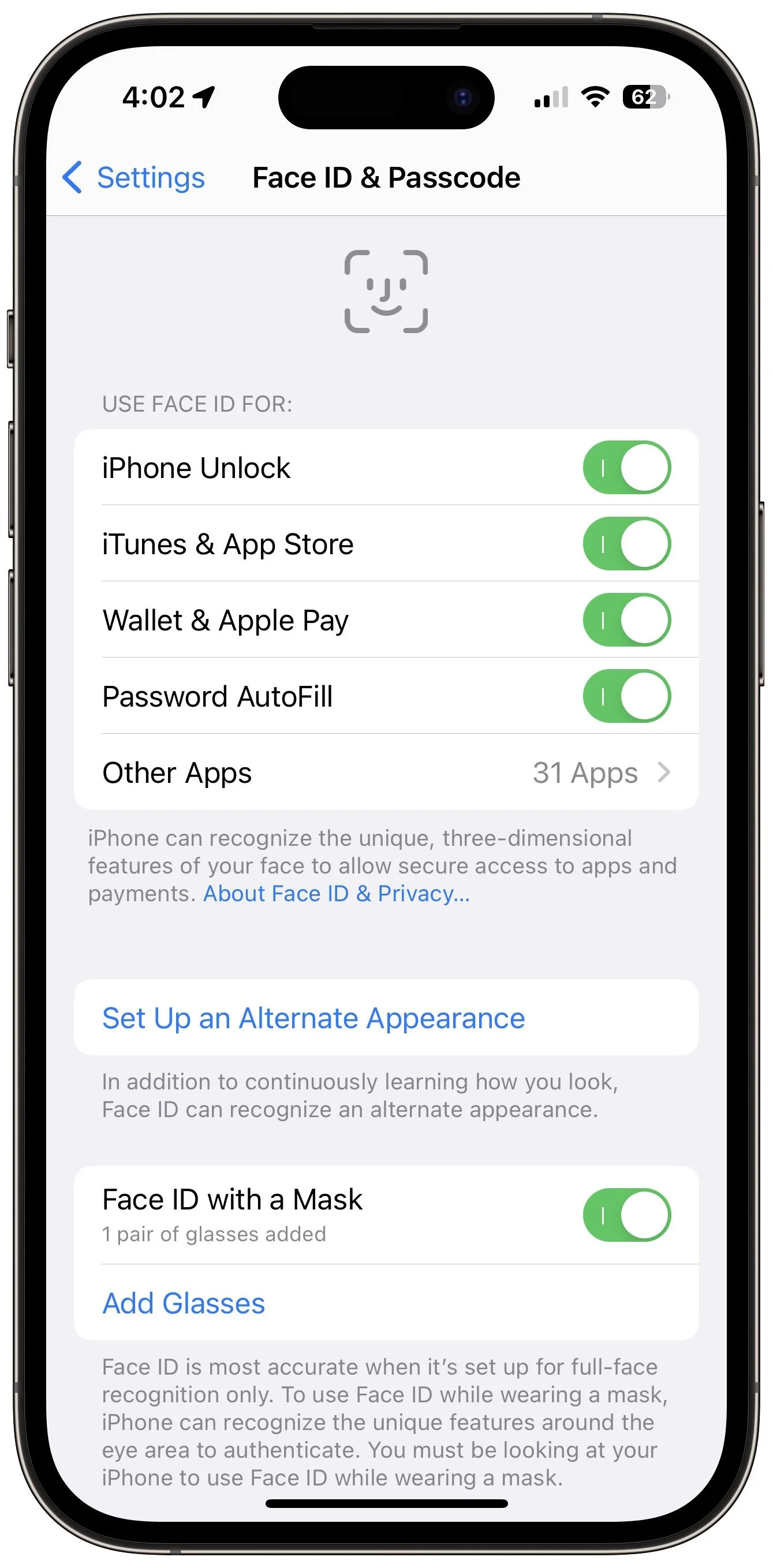
If you’ve ever tried to use Face ID to unlock an iPhone while lying on your side in bed, you may have noticed that it didn’t work. That’s because Face ID used to require that the iPhone be upright, in portrait mode. In iOS 16, however, Apple has improved Face ID so it will unlock your iPhone even when you’re lying on your side and the iPhone is in landscape orientation. Alas, this capability requires an iPhone 13 or iPhone 14, but if you have one of those phones, give it a try in bed tonight—you don’t need to adjust any settings.
(Featured image by iStock.com/Kateryna Onyshchuk)
It’s Time to Try Dictation in iOS 16 and iPadOS 16

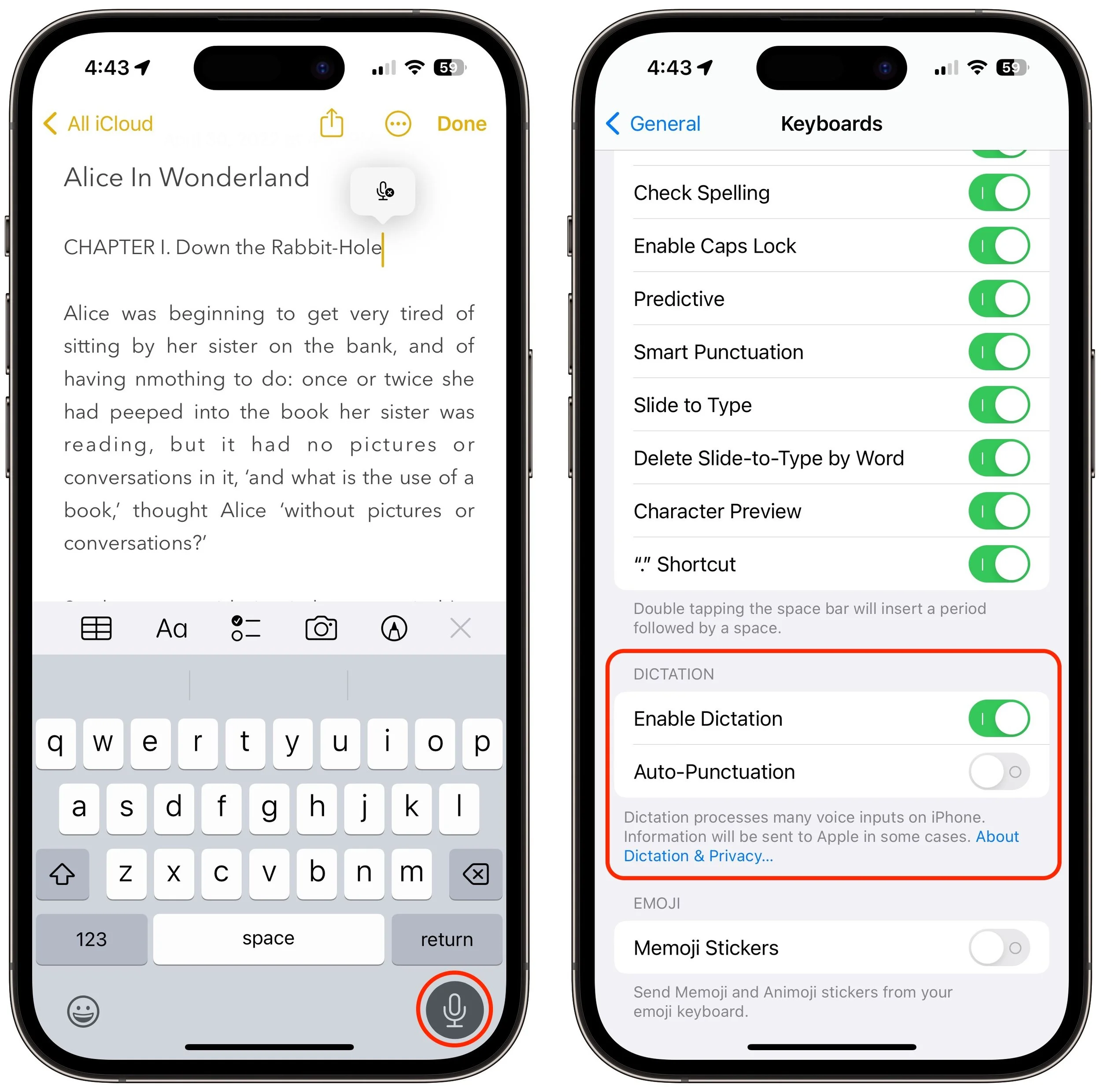
Apple has long provided a microphone button in the keyboard to invoke dictation on the iPhone and iPad. But, it wasn’t always easy to hit, and you had to switch back to the keyboard to fix the inevitable mistakes. (Apple’s dictation is a huge timesaver but far from perfect, particularly with homonyms and proper nouns.) With iOS 16 and iPadOS 16, Apple made the microphone button larger and repositioned it to make it easier to tap. More importantly, the keyboard remains available while dictation is active, enabling you to work with text manually during dictation. You can fix mistakes, reposition the insertion point, select and delete text, and so on. For instance, if dictation inserts the wrong word, double-tap the word to select it and speak the replacement. Or, if you want to add something, tap in the text to move the insertion point and start speaking again. Dictation can even add punctuation for you, but it’s a little haphazard at that, so you might want to disable that option in Settings > General > Keyboard.
(Featured image by iStock.com/fizkes)
Upgrade Past macOS 10.15 Catalina to Keep Getting Microsoft Office Updates

We aren’t quite ready to recommend that everyone upgrade to macOS 13 Ventura, but if you use Microsoft Office with macOS 10.15 Catalina, you should start planning for an upgrade. Microsoft has announced that current versions of its productivity suite—Office for Mac 2019, Office for Mac 2021, and Microsoft 365—will receive updates only if your Mac is running macOS 11 Big Sur, macOS 12 Monterey, or macOS 13 Ventura. If you keep using Catalina, your Office apps will continue to work, but they won’t receive enhancements, bug fixes, or security updates past October’s 16.66 updates. Contact us if you have questions about appropriate upgrade paths.

(Featured image based on an original by iStock.com/jewhyte)
Protect Your Hidden and Recently Deleted Albums in Photos

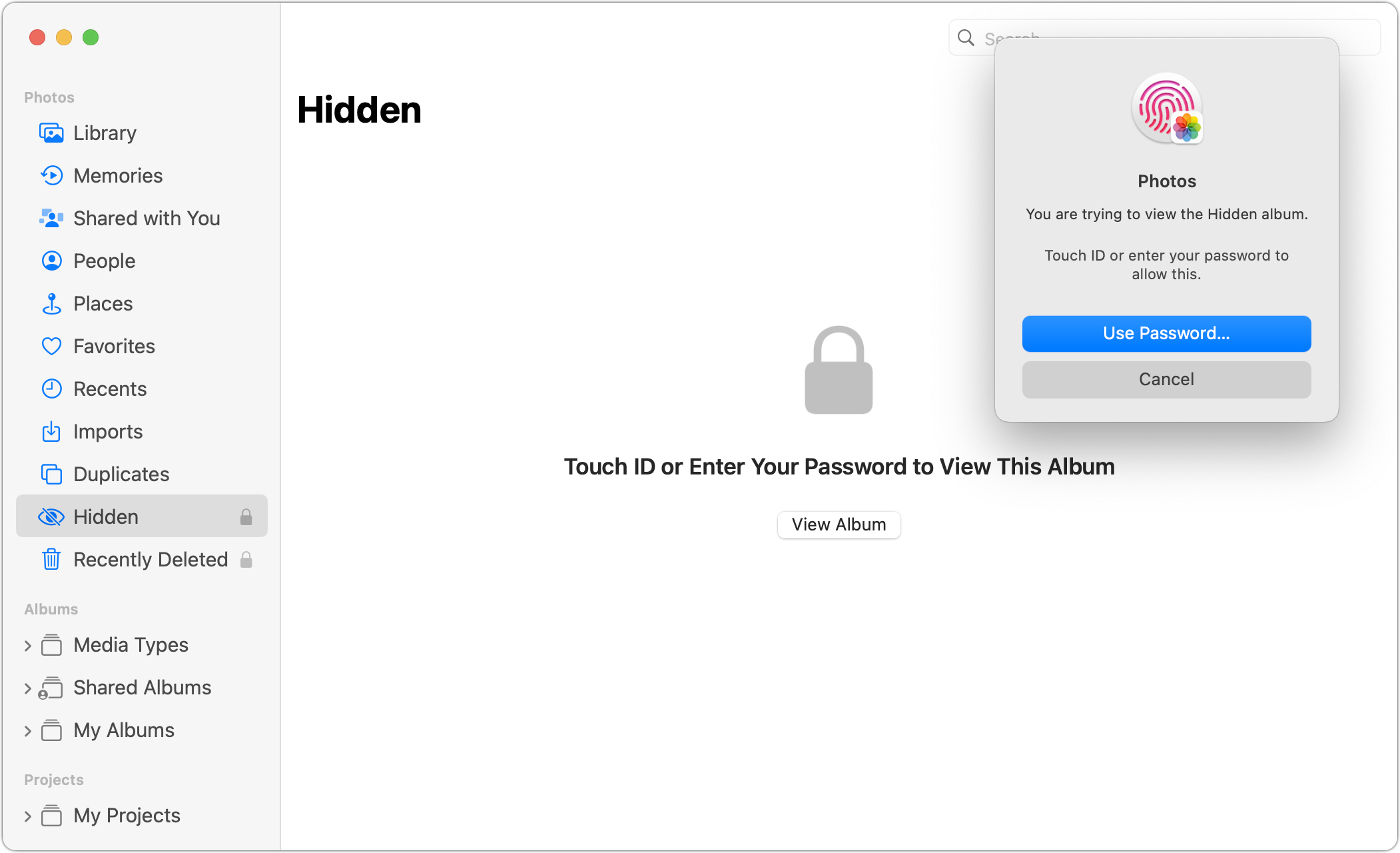
Photos has long provided a hidden album you could use to hold images you wanted to keep a little more private. Until this year, however, it was security through obscurity: anyone who knew to reveal the album in Settings > Photos on an iPhone or iPad or by choosing View > Show Hidden Album on the Mac could see its contents. Now you can protect it—and the Recently Deleted album—with Face ID or Touch ID on an iPhone or iPad, or Touch ID or your password on a Mac. You can enable this feature in iOS 16 or iPadOS 16 using Settings > Photos > Use Face ID/Touch ID; in macOS 13 Ventura, choose Photos > Settings > General and select “Use Touch ID or password.” From then on, opening those albums will require authentication.
(Featured image by iStock.com/Kenishirotie)
AutoFill in Safari Not Working? Set “My Card” in Contacts
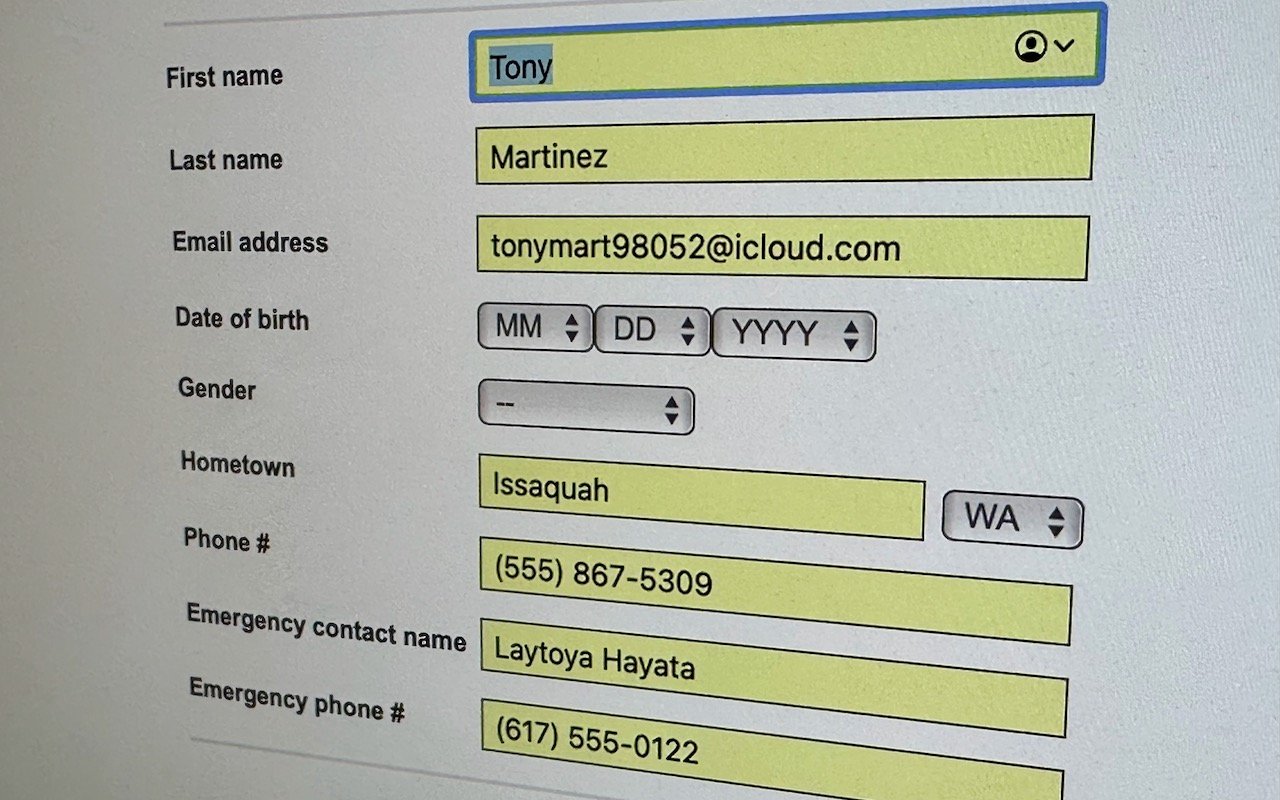
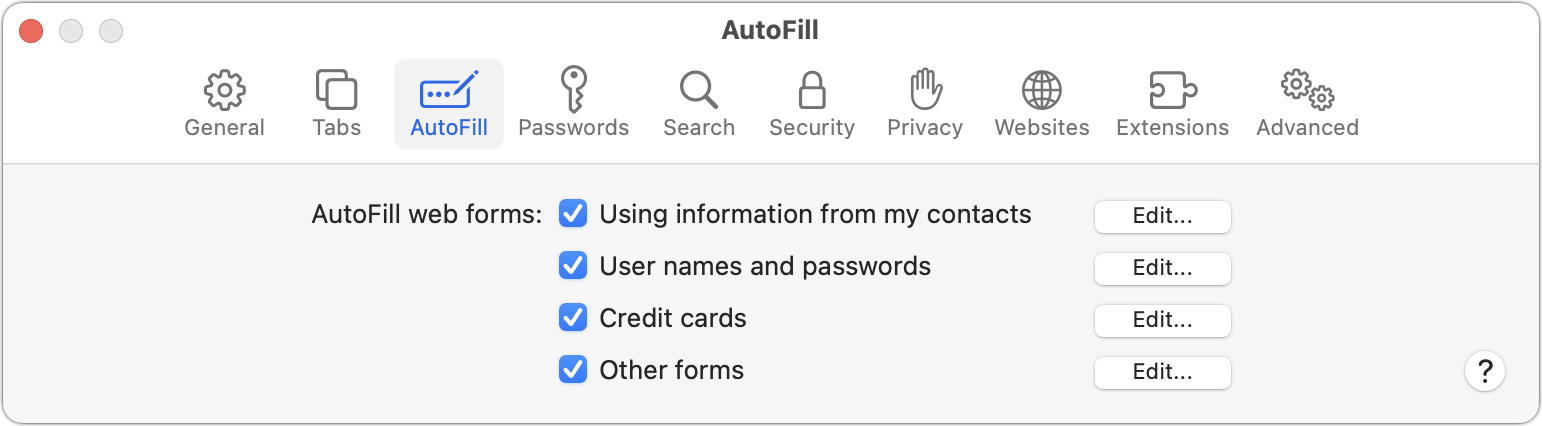
We heard from a client that AutoFill in Safari suddenly stopped entering her name and address in Web forms when she chose Edit > AutoFill Form or pressed Command-Shift-A, forcing her to enter her contact information manually, like an animal. (And yes, the “Using information from my contacts” checkbox was selected in Safari’s AutoFill preferences.) Although we have no idea what caused the problem, the solution turned out to be simple. She went into Contacts, found her personal contact card, and chose Card > Make This My Card. Give this a try if you’re having trouble with AutoFill or haven’t yet started using it in Safari.
(Featured image by Adam Engst)
If Your Holiday Gift Was a Tech Device, It’s Time to Change the Password!

Whatever consumer electronics product you can name, there’s probably a “smart” version that you configure via an app or Internet-connected interface once you’ve connected it to your Wi-Fi network. For ease of setup and to keep costs down, many such devices come pre-configured with not just a default username and password, but the same default username and password as all other units. That’s bad enough, but worse, most people never change those defaults, which is just asking hackers and malicious bots to break in and take over. This risk is real—it has happened to security cameras, baby monitors, light bulbs, DVRs, toasters, refrigerators, and even fish tanks. So, if you received any so-called “Internet of Things” devices for the holidays—or have one or more already installed on your home network—immediately change the usernames (if possible) and passwords to something more secure. Store the new usernames and passwords in your password manager for future reference.

(Featured image by iStock.com/EvgeniyShkolenko)
Need to Amuse Small Children During the Holidays? Try Slow Motion Video
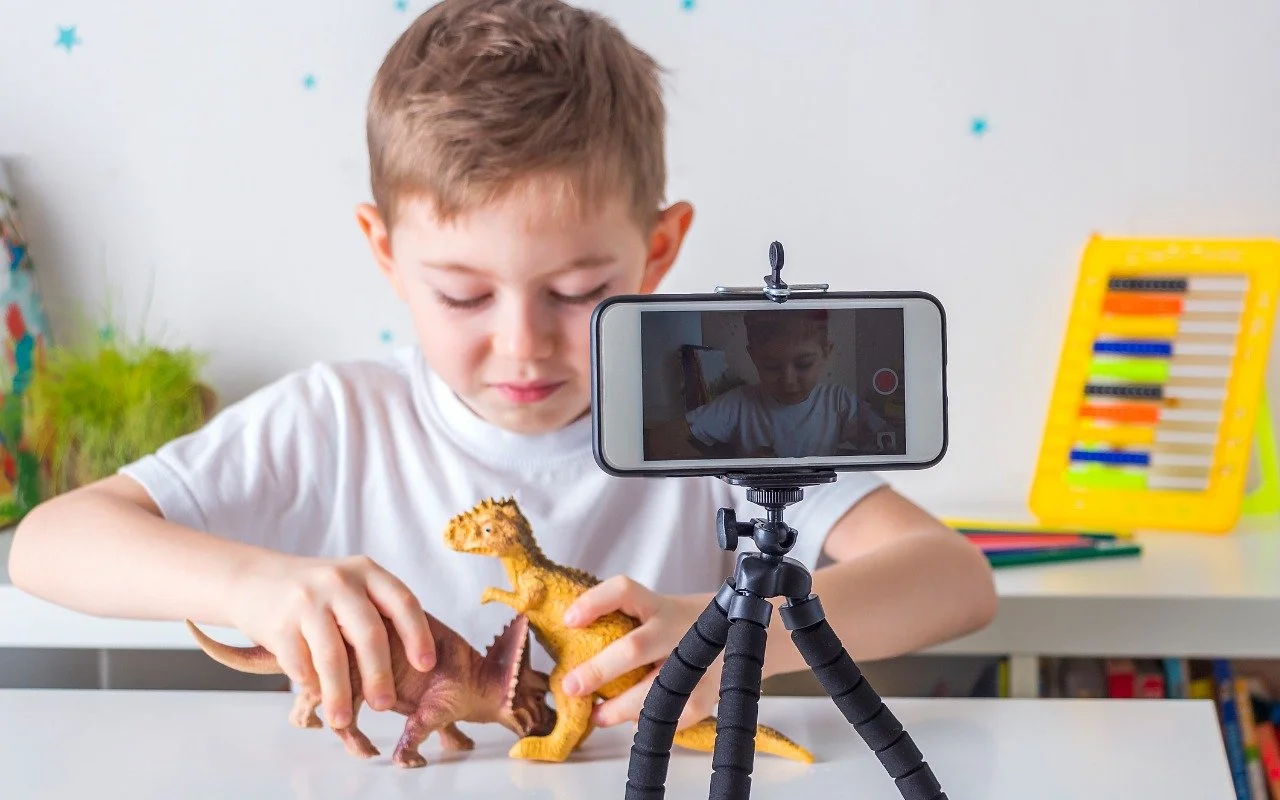
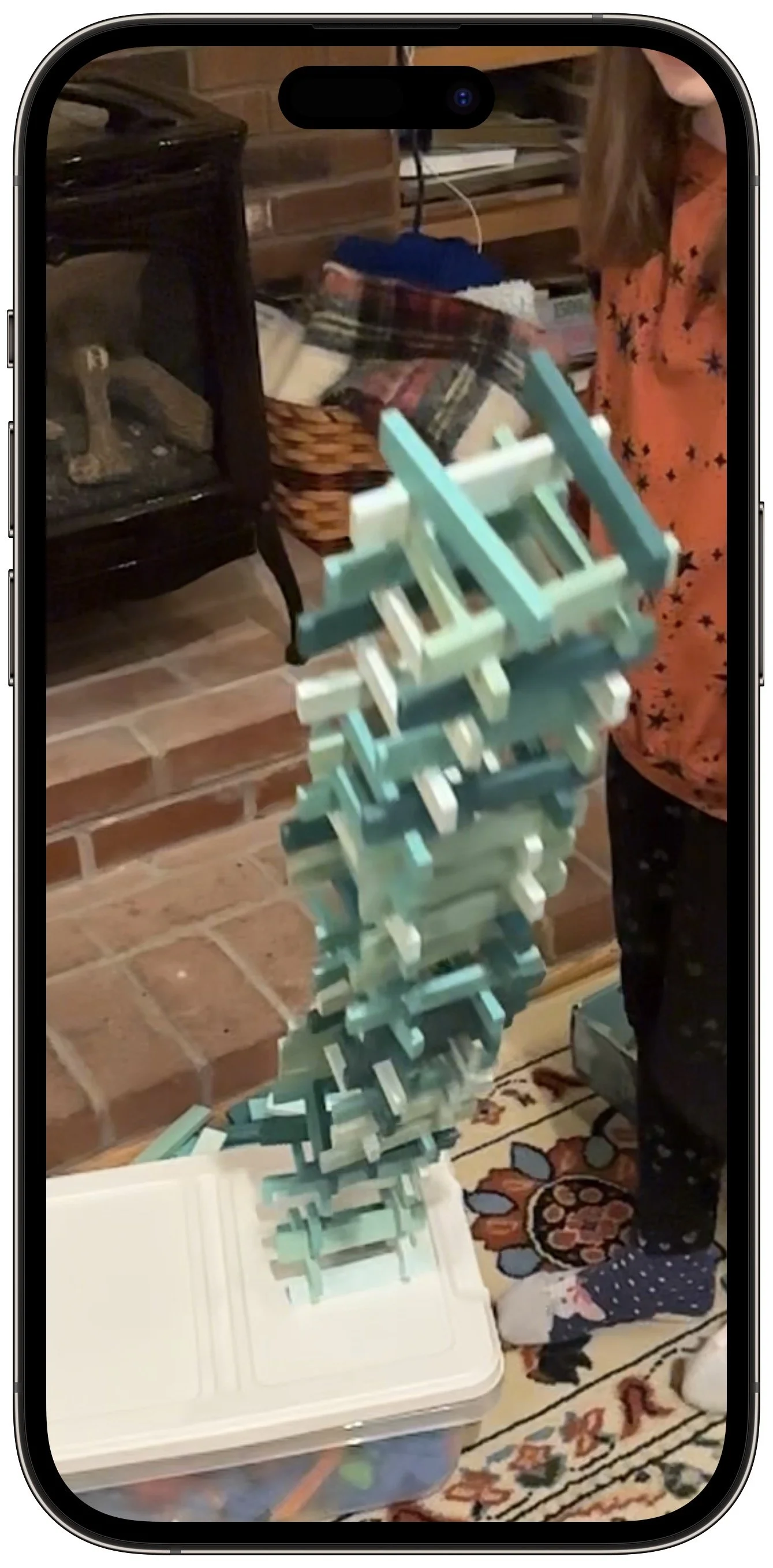
If you find yourself at a family gathering with bored children over the holidays, allow us to recommend an activity that can keep kids engaged. Figure out something the kids can do that involves motion—knocking down a tower of blocks, rolling a ball or toy car down stairs, even just making silly faces—and record them using the Slo-Mo option in the Camera app. Swipe left (iPhone) or down (iPad) on the viewfinder or labels to move from Photo mode to Slo-Mo mode, and then tap the red record button to start filming. Our test kids had fun building tall towers to knock over while filming, giggled madly while watching the videos, and went on to brainstorm other activities to film in slow motion.
(Featured image by iStock.com/Elena Vafina)
You Can Now Use Siri to Reboot Your iPhone or iPad
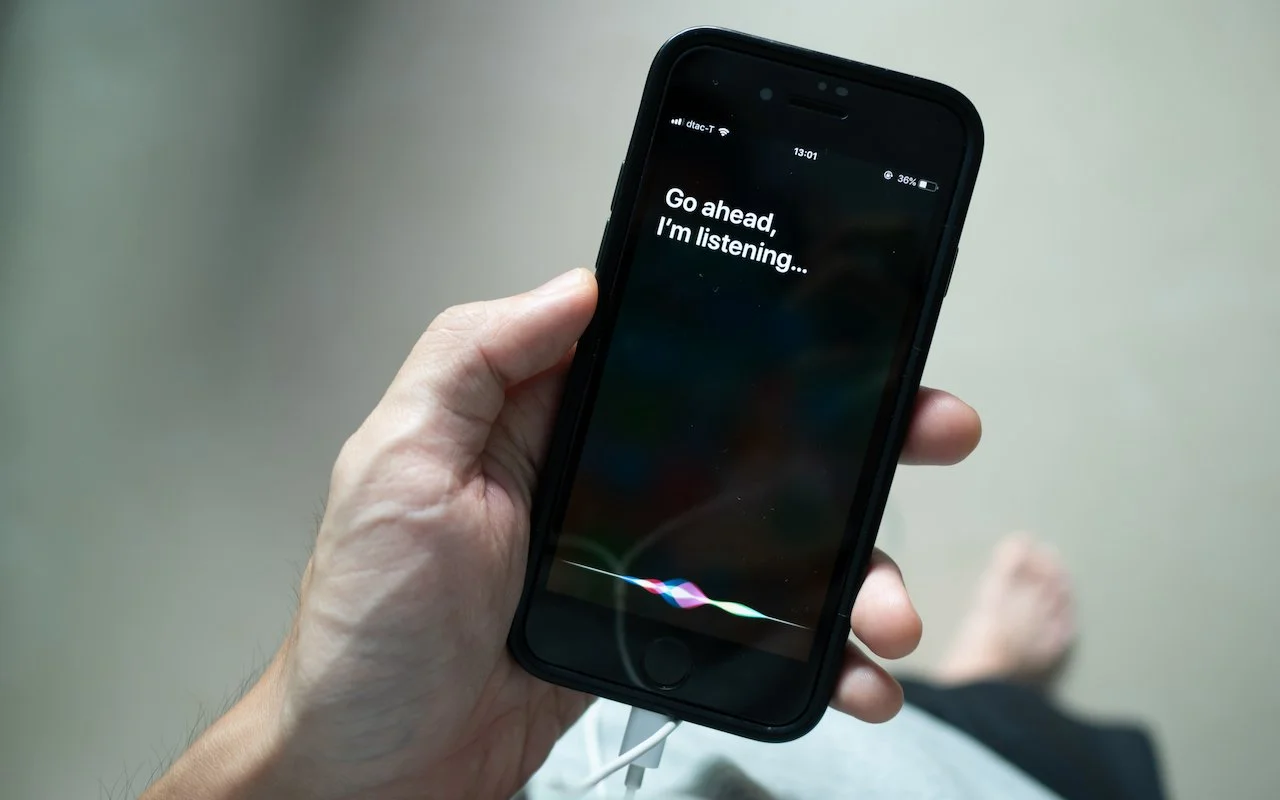
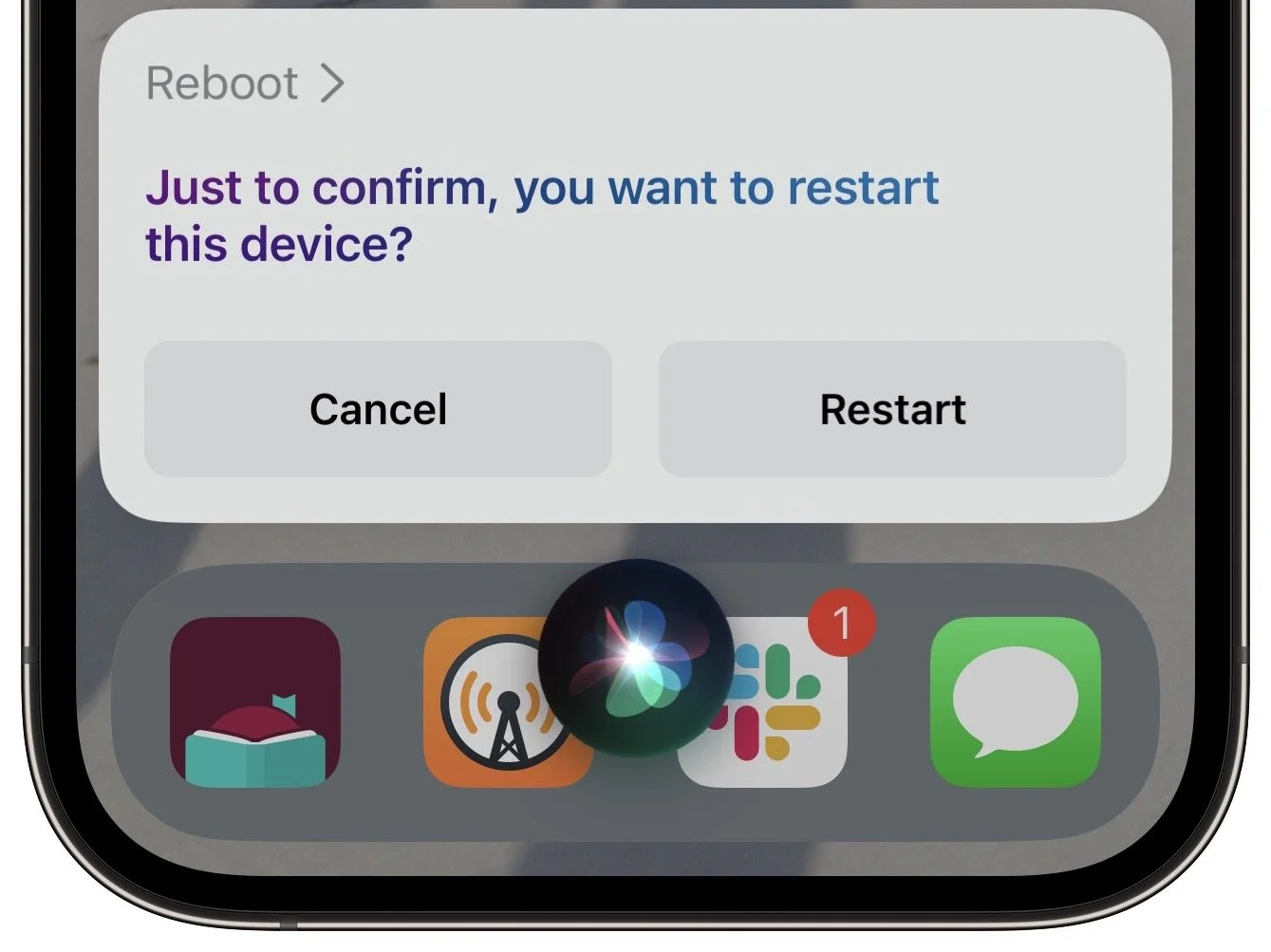
Although iOS and iPadOS are extremely stable, there are times when rebooting your iPhone or iPad can eliminate odd or problematic behavior, and there’s no harm in trying it. In the past, you’ve had to remember which buttons to press or select Settings > General > Shut Down and then press a button to turn the device back on. In iOS 16 and iPadOS 16, however, Siri has learned a new trick: how to reboot iPhones and iPads. Invoke Siri by holding the side button or Home button, and then say, “Reboot” or “Restart this device.” (Using “Hey Siri” can result in unexpected results, and saying “Restart” on its own tends to cause Music to start playing the last song.) Tap Restart, and your device reboots. If only this worked for the Apple Watch and HomePod too!
(Featured image by iStock.com/Wachiwit)