
Adjust AirPods Options in the Settings App
Baffled about where the AirPods settings screen is hiding? To find it, start by opening their case or putting them in your ears, and then look for an option near the top of the iPhone Settings app.
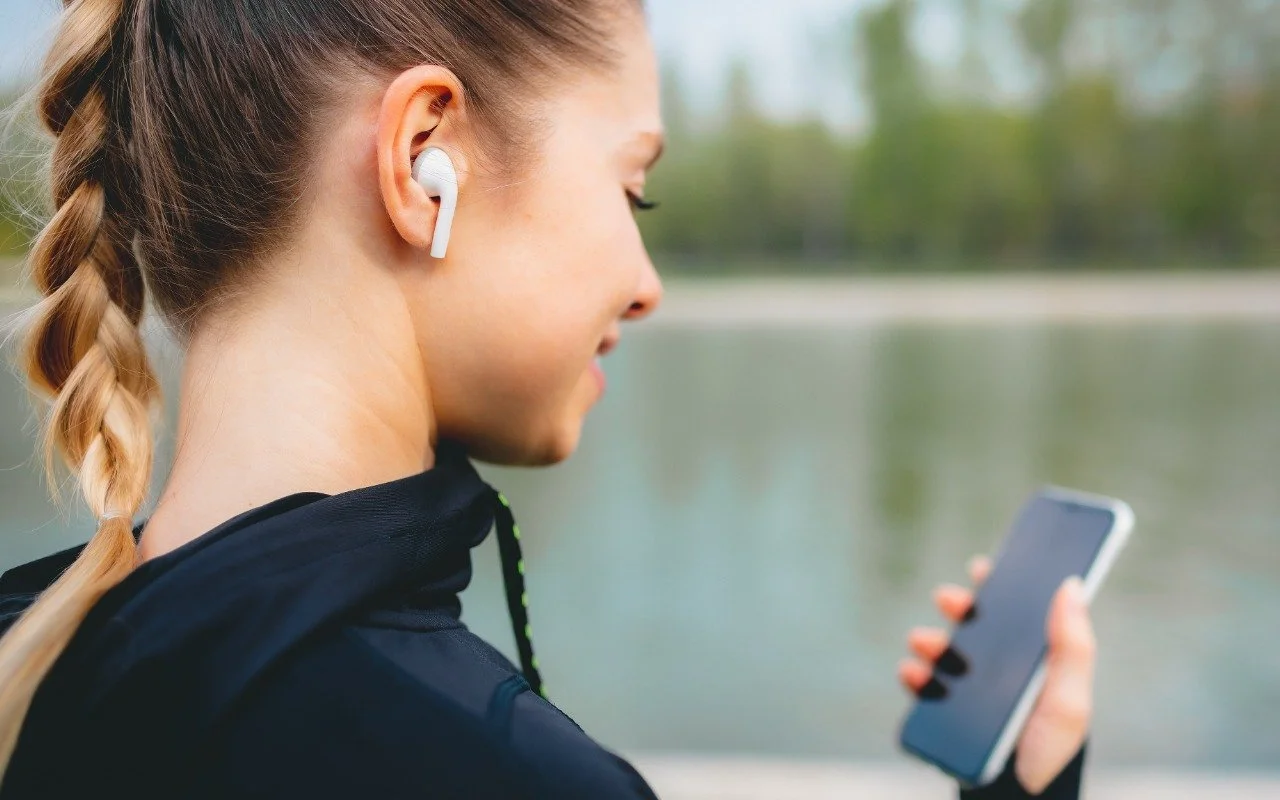
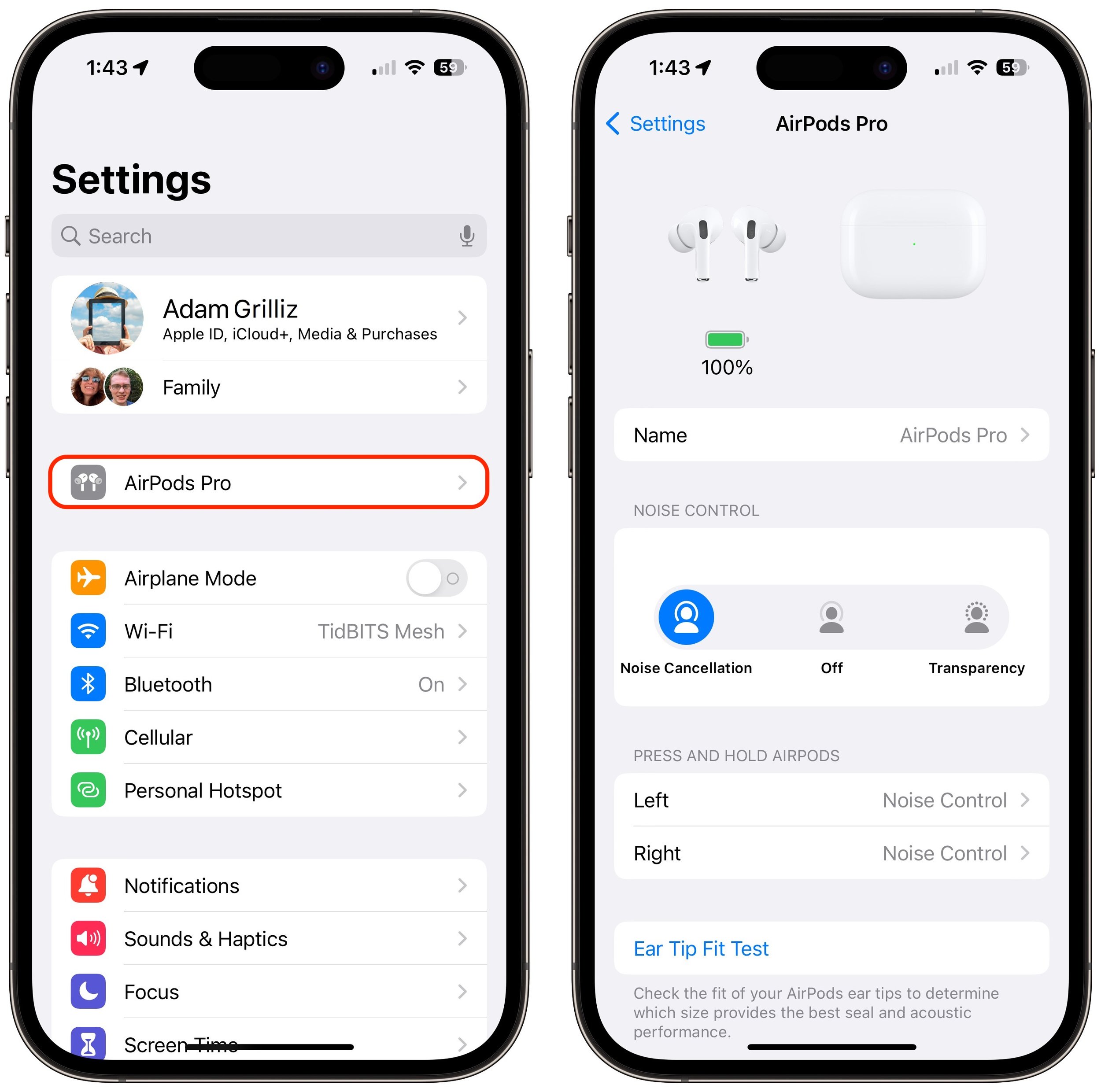
If you sometimes have trouble configuring your AirPods, here’s the trick. The AirPods settings screen is available only when the AirPods are connected to your iPhone, so you must open their case or put them in your ears. Once you do that, a new item with the name of the AirPods appears at the top of the Settings app. Tap it to switch between Noise Cancellation and Transparency, configure what the press-and-hold action does, and start ear tip tests.
(Featured image by iStock.com/Vasily Makarov)
AirNow and Paku: Two Helpful Apps for Monitoring Air Quality
With wildfire smoke causing air quality problems throughout North America, it’s important to check the Air Quality Index before spending a long time outside, particularly for exercise. We recommend the AirNow and Paku apps for the iPhone.
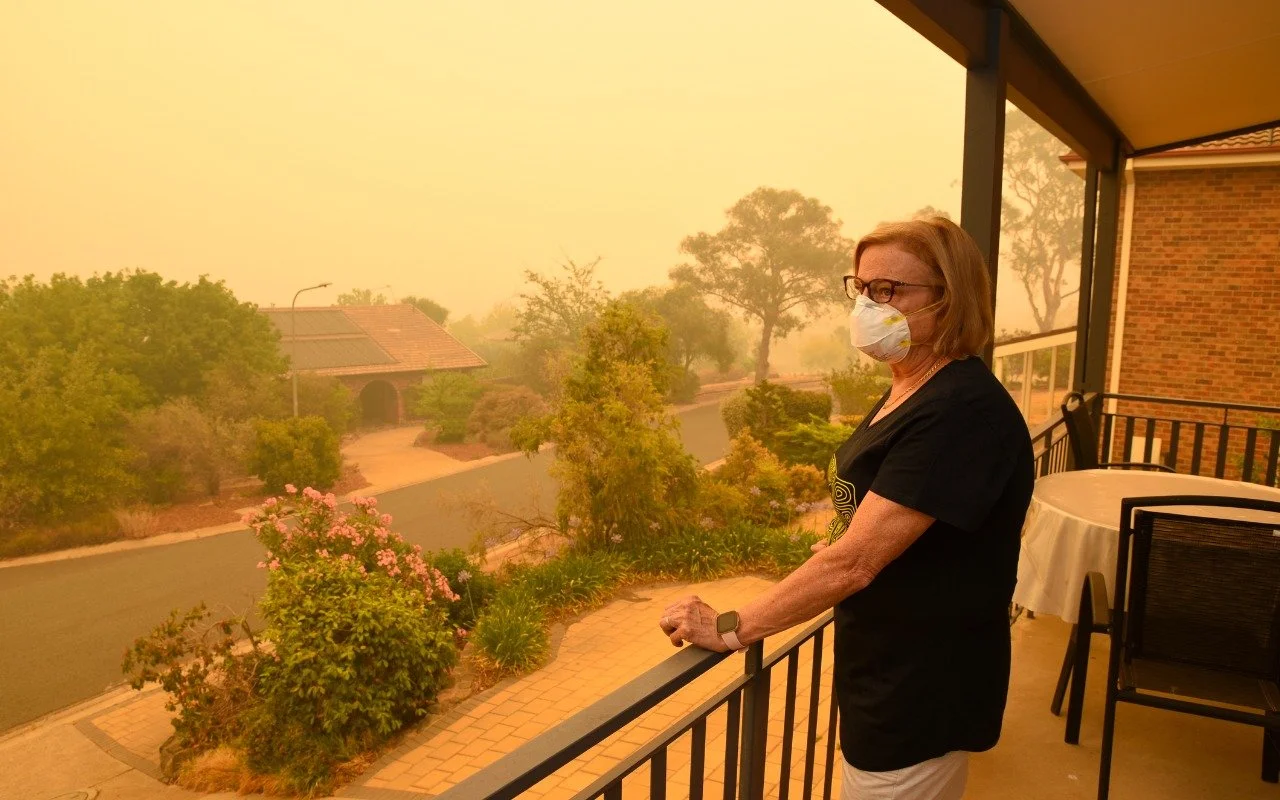
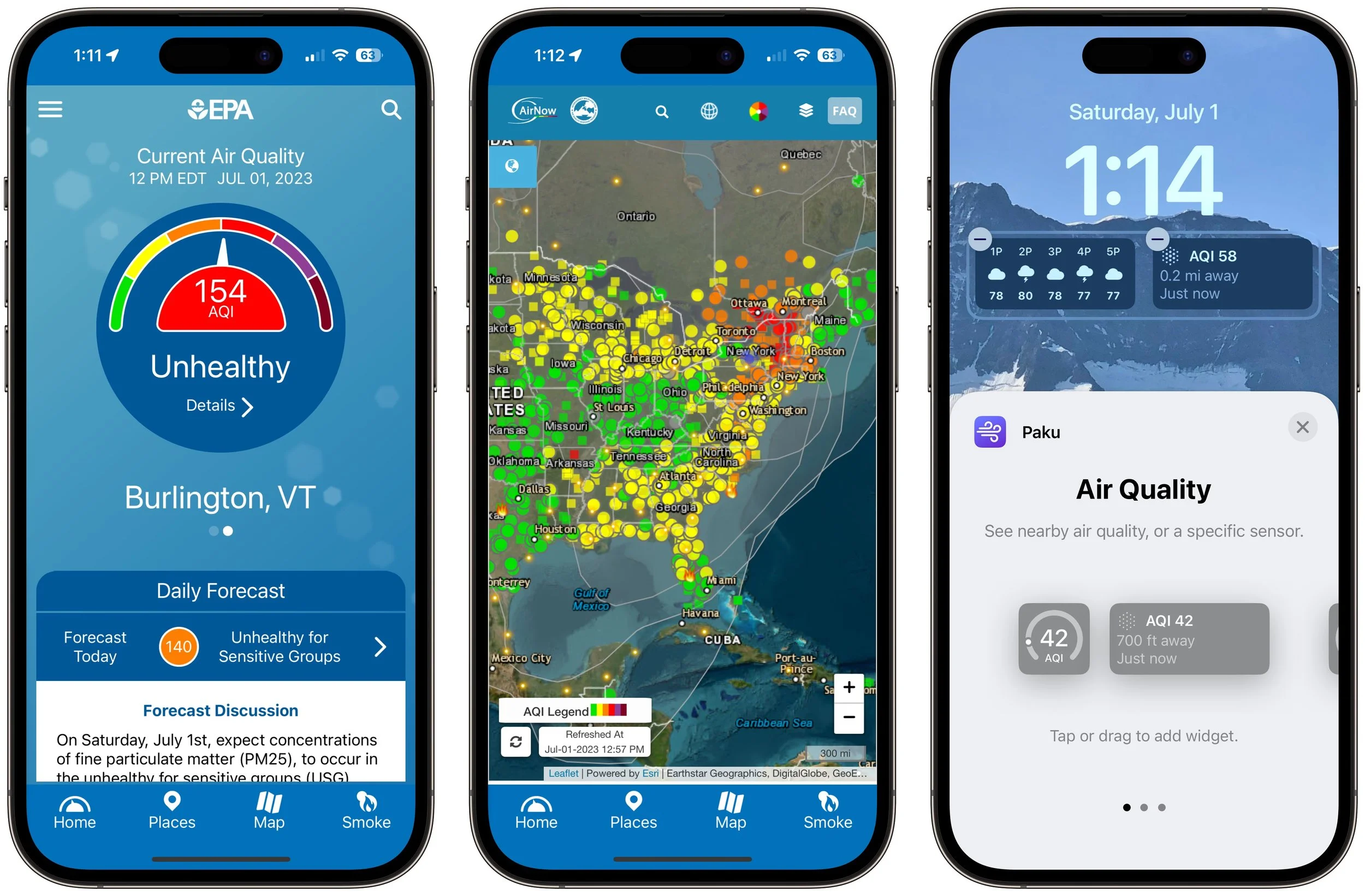
Smoke from wildfires is causing significant air quality problems for much of Canada and the US. It’s important to check the Air Quality Index (AQI) before spending a long time outside, and that’s especially true for sensitive populations (children, the elderly, anyone with asthma or other breathing issues) and for those exercising outdoors. Although numerous weather apps report air quality, their data can vary widely. Instead, turn to the official AirNow app published by the US Environmental Protection Agency. It provides the canonical AQI readings, and its Fire & Smoke Map lets you see where the smoke is and how that relates to air quality. (The AirNow website provides the same tools on a Mac, plus a lot of helpful background information.) For hyperlocal readings, check the PurpleAir network of inexpensive air monitors. PurpleAir’s website works in Safari on the iPhone, but the Paku app also provides iPhone widgets and Apple Watch complications showing the AQI from nearby monitors.
(Featured image by iStock.com/Daniiielc)
Avoid Confusion by Setting iPhone Password Autofill to Only One App
Do you suffer from dueling password managers on your iPhone or iPad? If you’re using a third-party password manager, turn off password autofill for iCloud Passwords & Keychain and any other apps to avoid confusion.
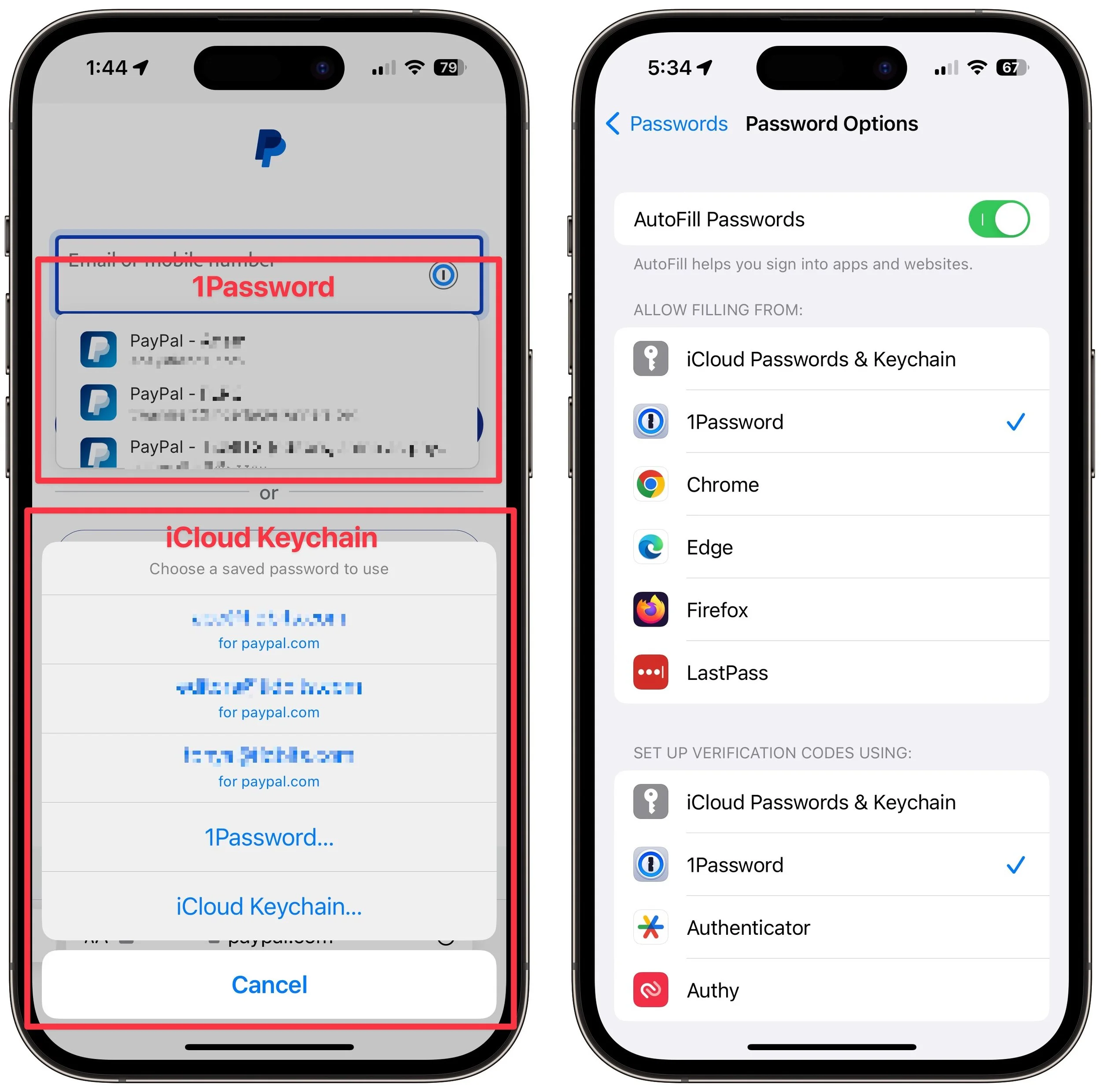
Let’s say you use 1Password (or another third-party password manager) on an iPhone or iPad. When that’s the case, it’s easy to end up in a situation where your device will present passwords from both 1Password and iCloud Keychain, possibly along with another app. That won’t break anything, but as you can see in the screenshot below, dueling password managers can be confusing, particularly if one doesn’t have up-to-date passwords. To make logging in easier, go to Settings > Passwords > Pass-word Options and select just one app in Allow Filling From. For instance, if you’re using 1Password, turn off iCloud Passwords & Keychain and all the other apps.
(Featured image based on an original by iStock.com/Kostiantyn Filichkin)
Apple Is Shutting Down My Photo Stream—Switch to iCloud Photos
Still using My Photo Stream to sync photos between your Apple devices? Apple is shutting down the service in late June, and the path of least resistance is to switch to iCloud Photos, though that might require an iCloud+ subscription.

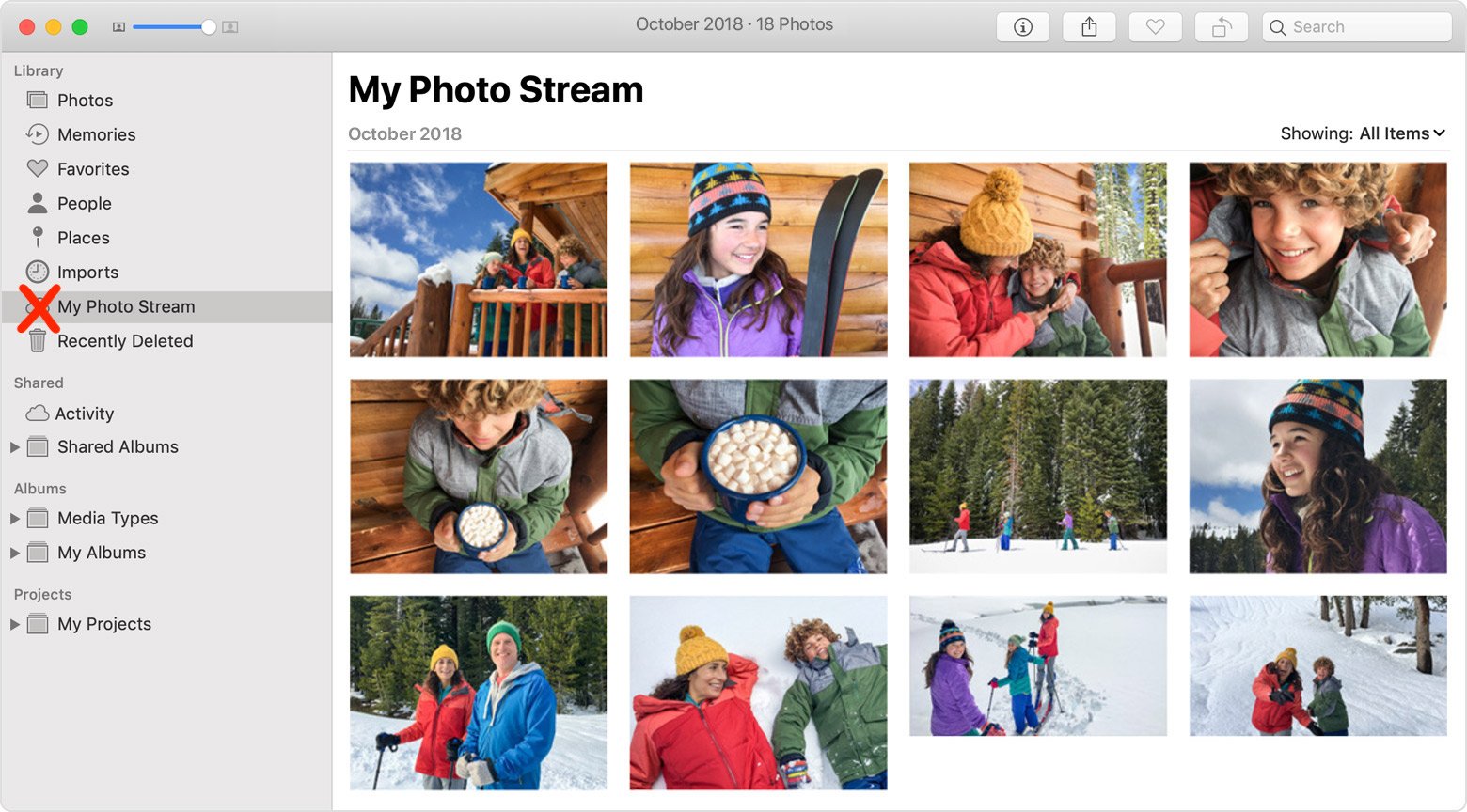
Apple has quietly announced that it is shutting down the My Photo Stream service, the company’s first iCloud-based effort at helping users sync photos between devices. My Photo Stream had numerous limitations but was free and didn’t count against iCloud storage quotas. If you’re still using My Photo Stream, note that photos will stop uploading as of June 26, and all My Photo Stream photos will be removed from iCloud on July 26; they’ll remain on your individual devices. Apple is encouraging all remaining My Photo Stream users to switch to iCloud Photos, which is more capable in every way but might require you to pay for additional iCloud+ storage to hold your photo library. Those who don’t want their photos in the cloud might check out Mylio Photos+. Contact us if you need assistance migrating to iCloud Photos or ensuring all your various photos are backed up securely.
(Featured image by iStock.com/mpiokpee)
Pay Attention to Unsolicited Facebook Password Reset Messages
If you receive unexpected password reset email messages from Facebook, don’t worry—but don’t click anything! Use them as encouragement to ensure your email and social media passwords are strong, unique, and protected with two-factor authentication.

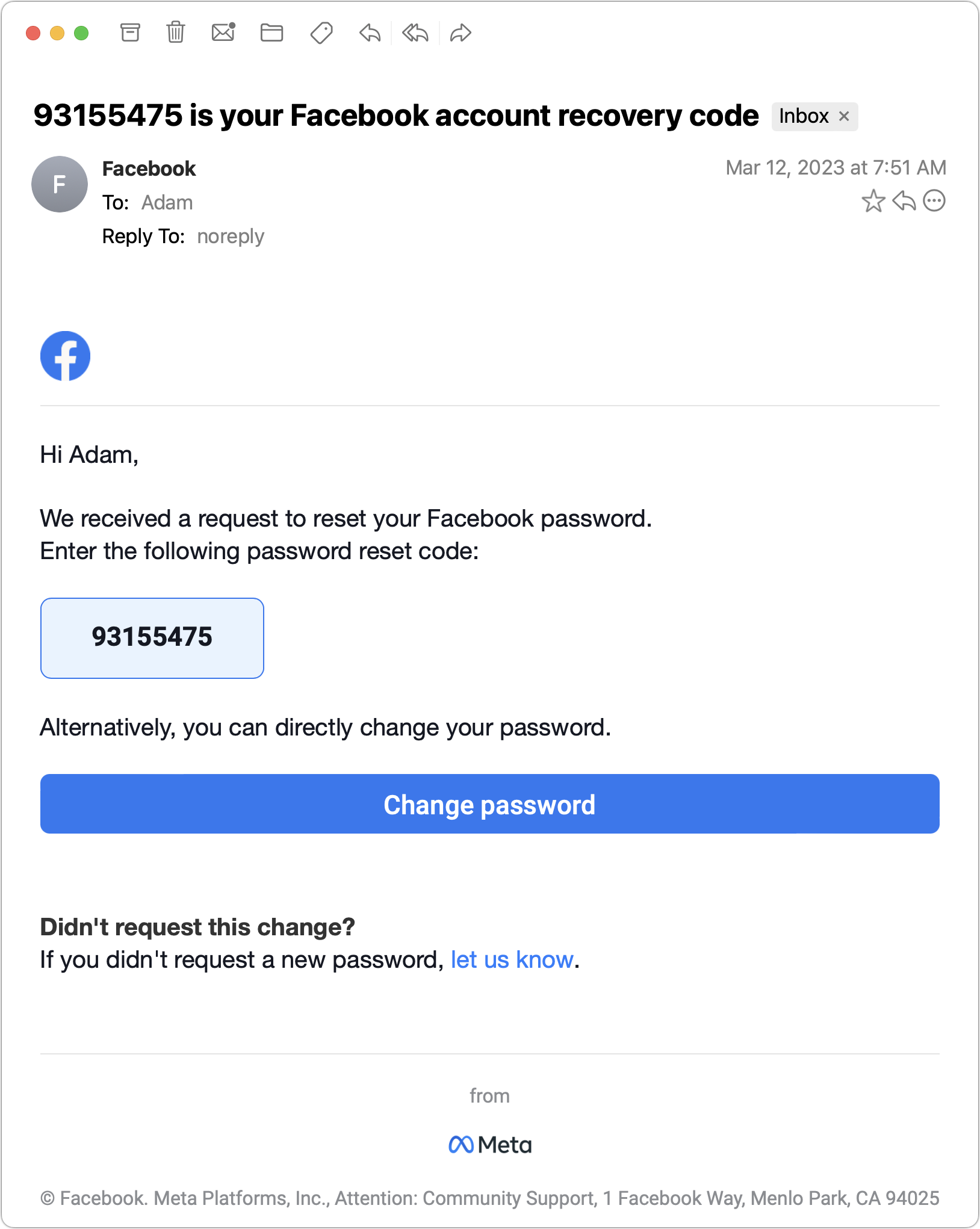
We’ve seen an uptick in attacks on Facebook accounts that generate email messages like the one below. It’s saying someone is attempting to reset your Facebook password in order to access your account. If you didn’t ask to reset your Facebook password within the past 5 minutes, do not enter the provided code! In fact, do nothing with a message like this, since you can’t easily tell if it’s a legitimate message from Facebook or a phishing attack. As long as your email account hasn’t been compromised, you have nothing to worry about, but consider any such messages as encouragement to have strong, unique passwords for your email account and any social media services. Also, we highly recommend turning on two-factor authentication for these accounts. Of course, if you get a second message saying that your password was reset, immediately secure your account.
(Featured image by iStock.com/Nicholas77)
Need to Mask Nearby Noise? Try Ventura’s Background Sounds
It can be hard to concentrate on your work in a loud office environment or with kids playing in the next room. In macOS 13 Ventura, Apple added background sounds that can help mask the noise around you—give them a try!

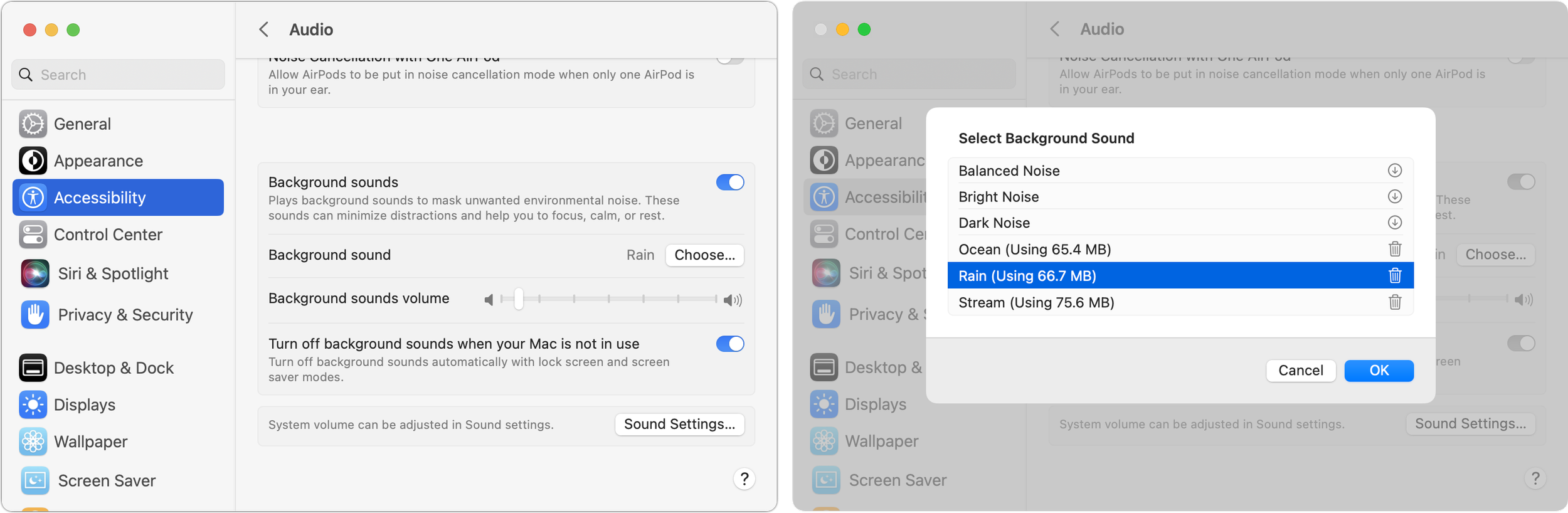
Do you have trouble concentrating at work because of a loud office environment? Or do you work at home and want to block out the sounds of kids or appliances? In macOS 13 Ventura, Apple added background sounds you can play to mask what’s going on around you. Go to System Settings > Accessibility > Audio and enable Background Sounds. You can pick a sound, set the volume, and select an option to turn the sound off when your Mac is inactive. Next time you’re mentally stewing over it being too loud to work, try this feature. A pair of AirPods (Pro or Max, in particular) might be helpful, too. If you find background sounds helpful but want more variety, look for websites like A Soft Murmur or apps like Noizio.
(Featured image by iStock.com/Apiwan Borrikonratchata)
iOS 16.4 Adds Voice Isolation Feature to Improve Cellular Calls
If you make phone calls in loud environments, you can now be heard more easily with iOS 16.4’s new Voice Isolation feature for cellular calls. The tricky part is enabling it in Control Center while talking.

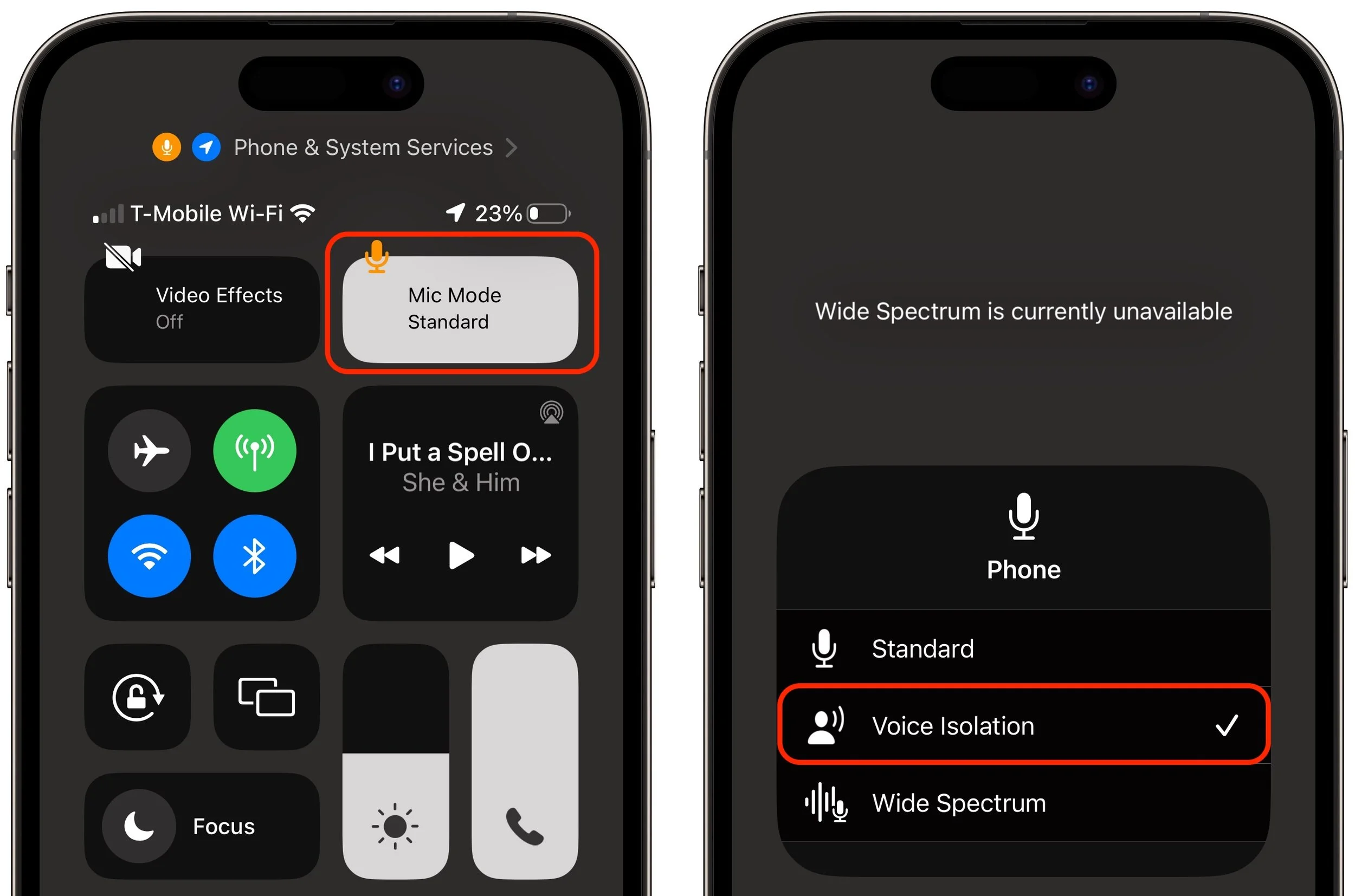
In iOS 15, Apple added the Voice Isolation feature to FaceTime calls to filter out noise around you while you’re talking, which is a boon if you’re making a call in a loud space or outside environment. With the recently released iOS 16.4, Apple has now brought that feature to cellular calls as well, but it’s not an option in Settings > Phone, as you might expect. Instead, during a call, open Control Center by swiping down from the top right of the screen (Face ID iPhones) or up from the bottom (Touch ID iPhones). Then tap the Mic Mode button and Voice Isolation. You won’t hear any difference, but the person on the other end should be able to hear you better. iOS remembers your setting, so switch back to Standard when you’re done—Voice Isolation may not sound as good as Standard in quiet spaces.
(Featured image by iStock.com/Jub Job)
Prevent Quick Screenshots from Cluttering Your Photos Library on the iPhone and iPad
Do you take temporary screenshots on your iPhone or iPad so you can message what your screen looks like to a friend? If you don’t want these images saved in Photos, read on for a tip about how to move them to the clipboard for pasting instead.

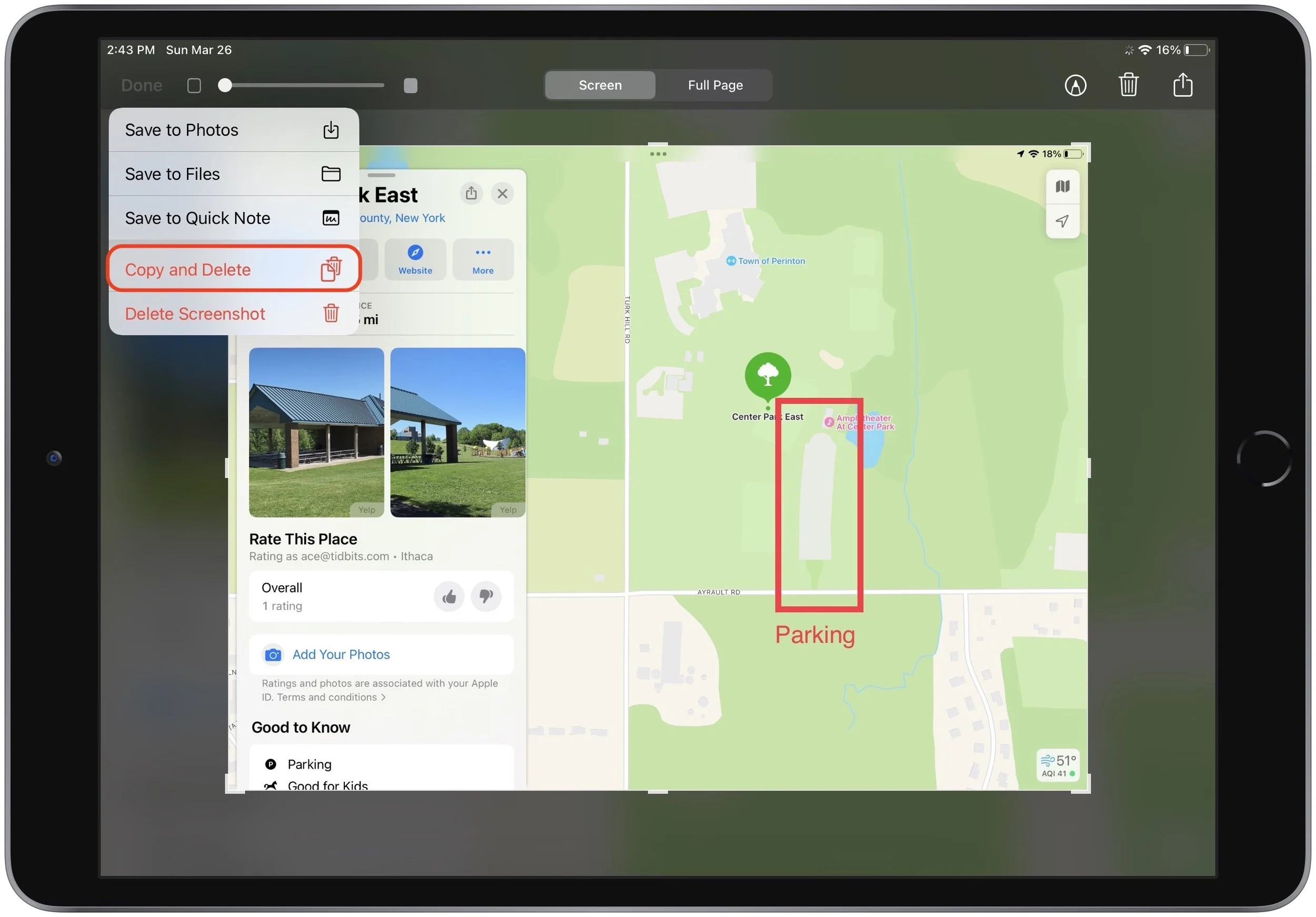
By default, when you take a screenshot (instructions for iPhone and iPad), it saves to Photos. But what if you don’t want something like a quick image of a map for a friend to clutter your Photos library? In iOS 16 and iPadOS 16, Apple has added new options. When you tap the screenshot thumbnail that appears briefly after pressing the capture buttons, you can crop and mark up your image. Or not. The key is that when you’re ready, tap Done to get an option to Copy and Delete, which is great when all you want to do is paste the screenshot into a Messages conversation or Mail message. You can also save to Photos, Files, or Notes, or just trash the screenshot if you’ve changed your mind.
(Featured image by iStock.com/simona flamigni)