
Clean Up Your Mac’s Desktop with Sort Options
We can’t help with a messy office desk, but if your Mac’s desktop is a confusing mess of randomly placed icons, using the Finder’s sort options will make it nice and orderly.

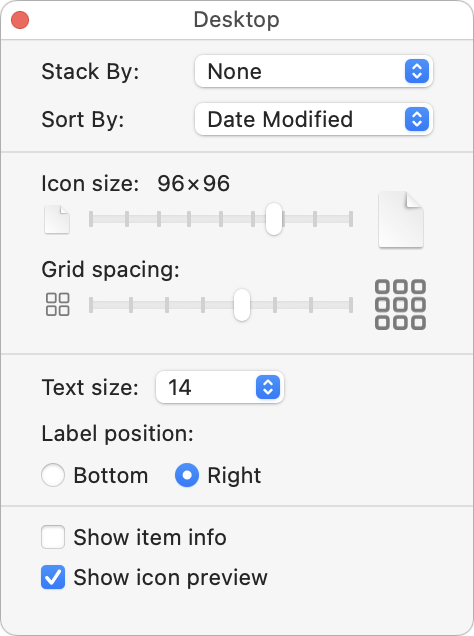
When we help someone with their Mac for the first time, we often notice that their desktop is a disaster. Icons are scattered willy-nilly and often piled on top of one another, making it hard to locate anything. For most people, the solution is easy—sort the contents of the desktop. In the Finder, choose View > Show View Options. We recommend choosing Date Modified from the Sort By pop-up menu to put your most recently used files in the upper-right, but other criteria might work better for you. If you have so many icons that they overlap, try reducing the icon size or grid spacing. You could also choose Date Modified from the Stack By pop-up menu to collect icons into stacks by date.
(Featured image by iStock.com/Liudmila Chernetska)
Consider Moving Your Mac’s Dock to the Side of the Screen
The default location of the Dock on the bottom of a Mac screen isn’t ideal because it takes valuable space that could contain content. Try hiding the Dock automatically or moving it to the side of the screen.

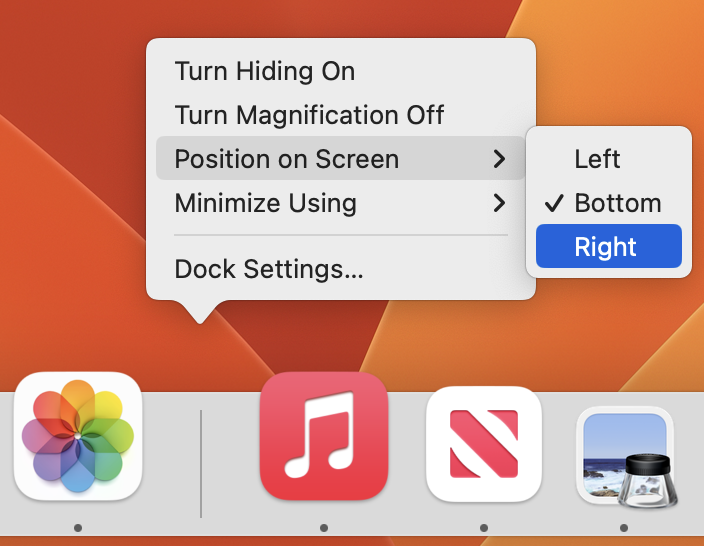
For most of us, our Mac’s screen is wider than it is tall, so longer Web pages and documents often benefit from more room from top to bottom. To maximize the amount of usable vertical space and reduce the need to scroll as much, you can set the Dock to hide automatically and appear only when you move your pointer to the bottom of the screen. A better approach is to position your Dock on the side of your screen where it’s less likely to use space you’d prefer to have available for content. Many people prefer the right side, but you can also try the left to see how it works for you. The easy way to move the Dock is to Control-click its separator bar and choose the desired side from the Position on Screen menu.
(Featured image based on an original by iStock.com/MikeLaptev)
Convert Image Formats Directly in the Finder
A hidden feature of the macOS Finder lets you quickly convert selected images from their original format to JPEG, PNG, or HEIF. If you regularly need to convert images between formats, it could save you some time.
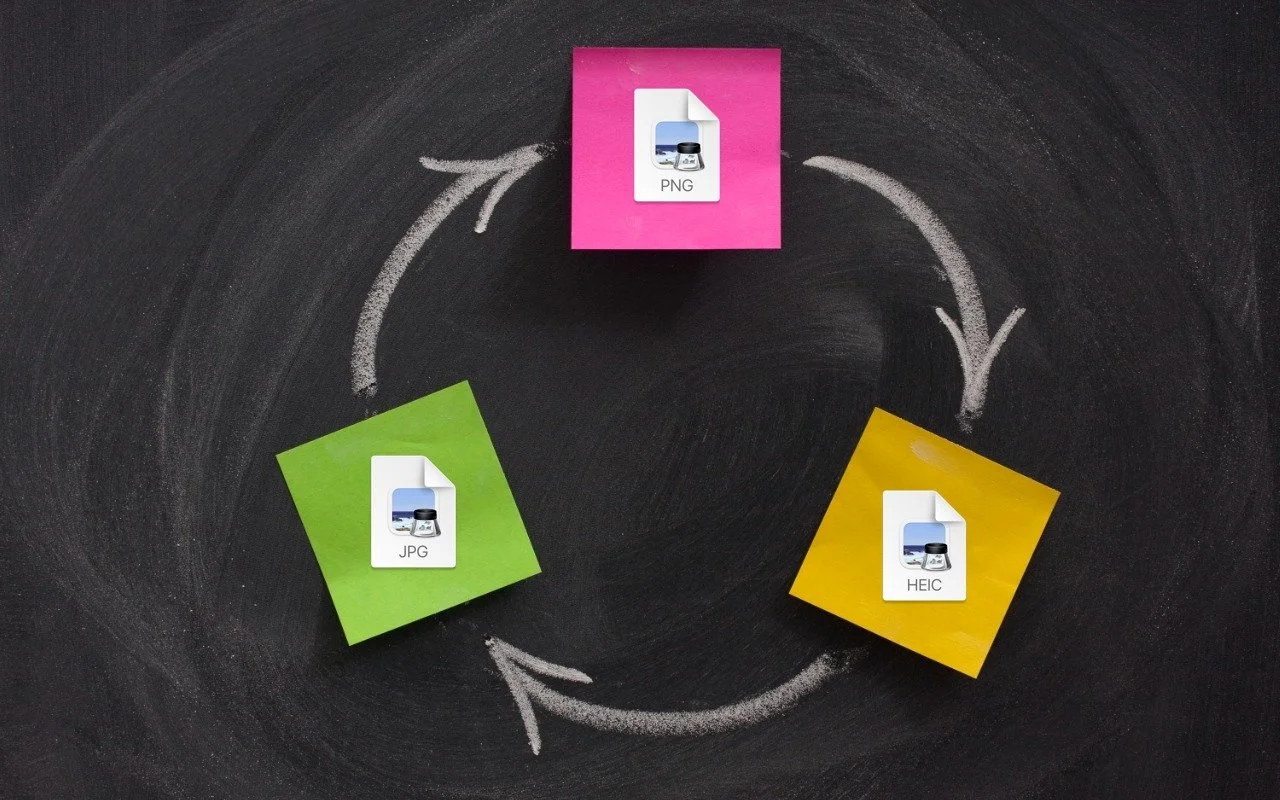
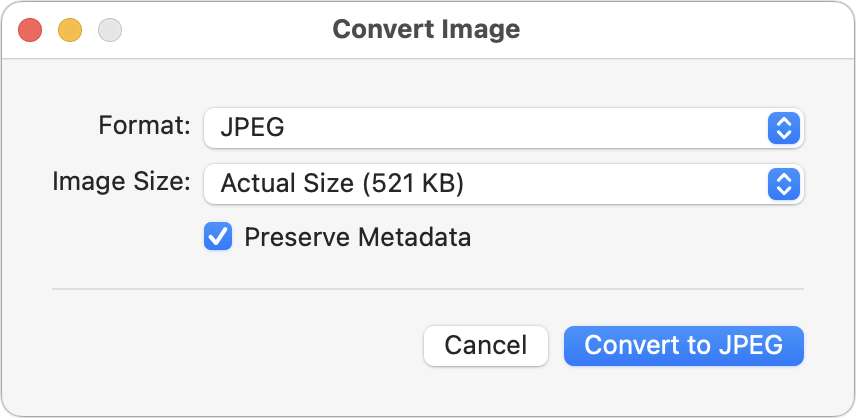
If you need to convert images to JPEG, PNG, or (unlikely) HEIF, try this hidden Finder feature: Control-click an image in one of those formats or other common image formats like TIFF, GIF, or PSD, and choose Quick Actions > Convert Image. A dialog lets you choose the destination format, the image size, and whether you want to preserve metadata. For straight conversions, stick with Actual Size, but if your goal is to shrink the file as well, you can choose a smaller image size. Leave Preserve Metadata selected unless you want to remove things like location metadata for privacy reasons. You can even select multiple files to convert them all at once.
(Featured image based on an original by iStock.com/marekuliasz)
Adjust AirPods Options in the Settings App
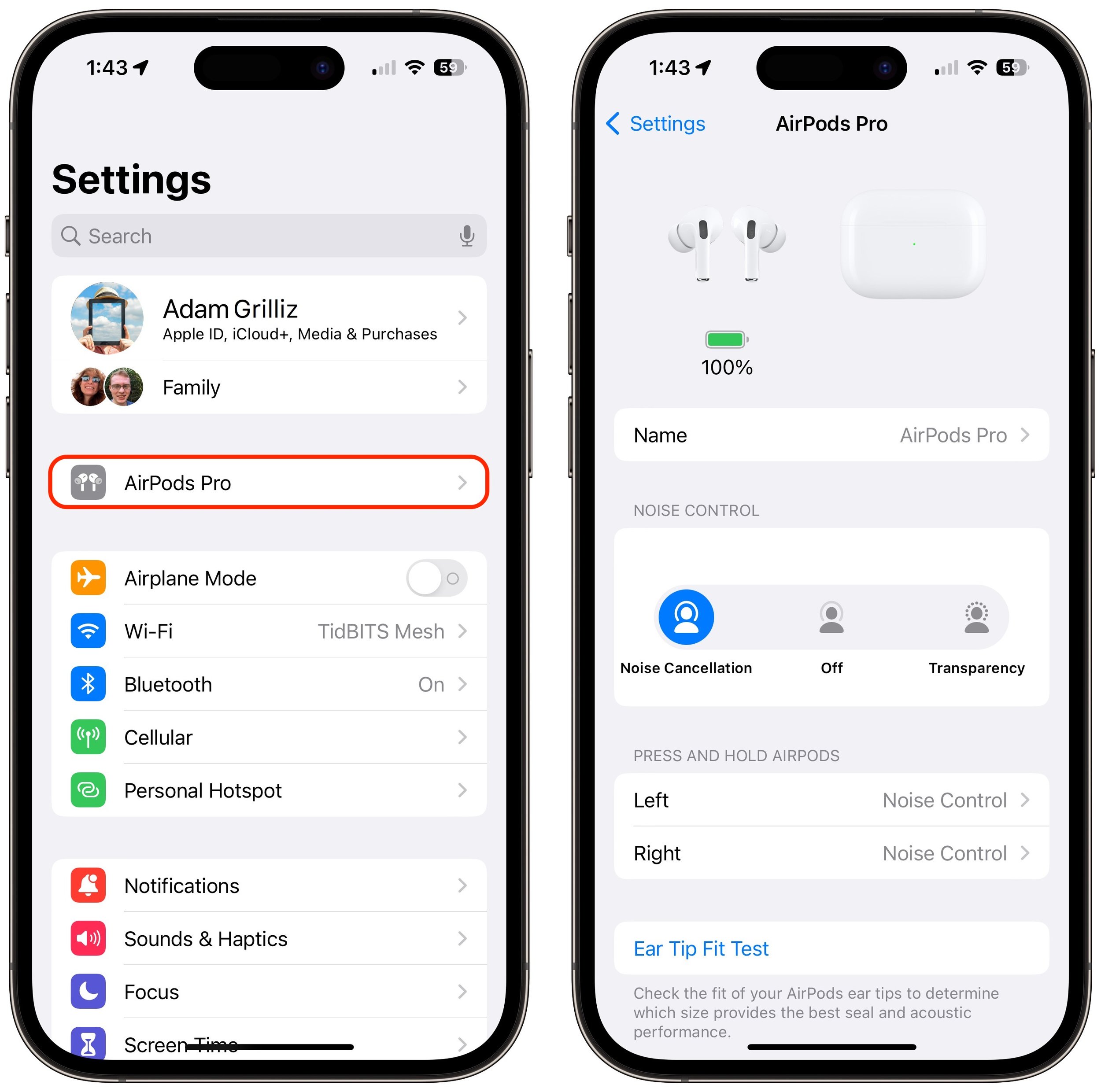
Baffled about where the AirPods settings screen is hiding? To find it, start by opening their case or putting them in your ears, and then look for an option near the top of the iPhone Settings app.
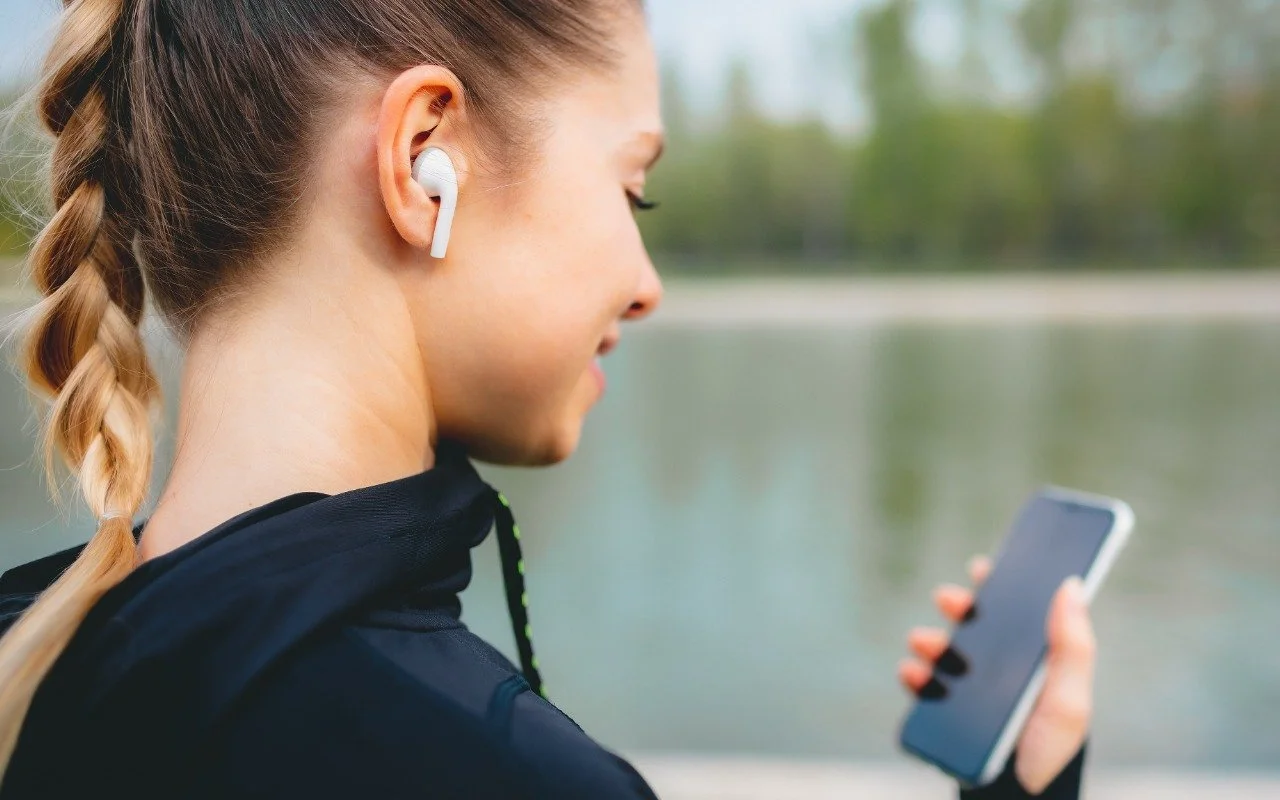
If you sometimes have trouble configuring your AirPods, here’s the trick. The AirPods settings screen is available only when the AirPods are connected to your iPhone, so you must open their case or put them in your ears. Once you do that, a new item with the name of the AirPods appears at the top of the Settings app. Tap it to switch between Noise Cancellation and Transparency, configure what the press-and-hold action does, and start ear tip tests.
(Featured image by iStock.com/Vasily Makarov)
AirNow and Paku: Two Helpful Apps for Monitoring Air Quality
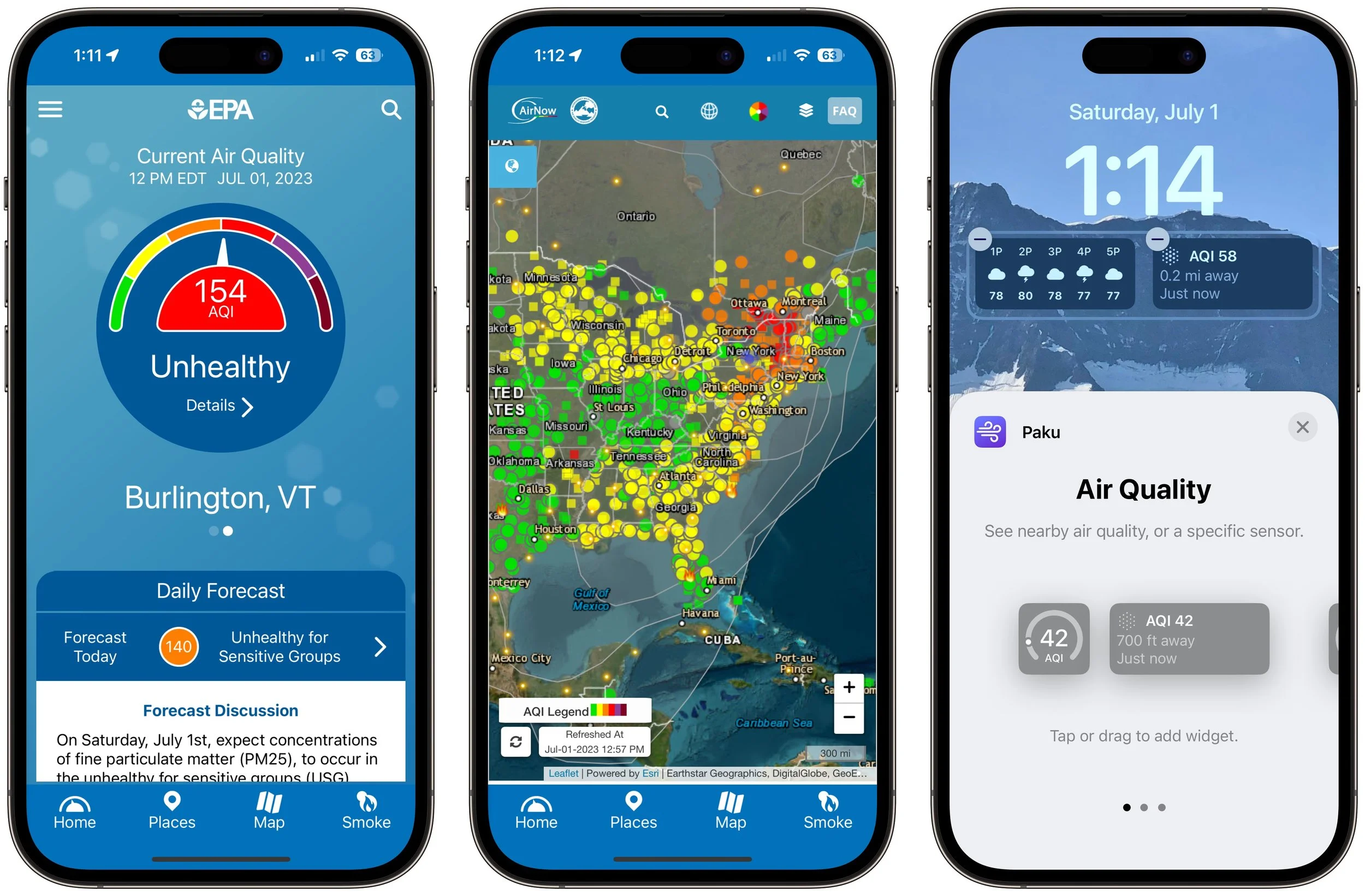
With wildfire smoke causing air quality problems throughout North America, it’s important to check the Air Quality Index before spending a long time outside, particularly for exercise. We recommend the AirNow and Paku apps for the iPhone.

Smoke from wildfires is causing significant air quality problems for much of Canada and the US. It’s important to check the Air Quality Index (AQI) before spending a long time outside, and that’s especially true for sensitive populations (children, the elderly, anyone with asthma or other breathing issues) and for those exercising outdoors. Although numerous weather apps report air quality, their data can vary widely. Instead, turn to the official AirNow app published by the US Environmental Protection Agency. It provides the canonical AQI readings, and its Fire & Smoke Map lets you see where the smoke is and how that relates to air quality. (The AirNow website provides the same tools on a Mac, plus a lot of helpful background information.) For hyperlocal readings, check the PurpleAir network of inexpensive air monitors. PurpleAir’s website works in Safari on the iPhone, but the Paku app also provides iPhone widgets and Apple Watch complications showing the AQI from nearby monitors.
(Featured image by iStock.com/Daniiielc)
Avoid Confusion by Setting iPhone Password Autofill to Only One App
Do you suffer from dueling password managers on your iPhone or iPad? If you’re using a third-party password manager, turn off password autofill for iCloud Passwords & Keychain and any other apps to avoid confusion.
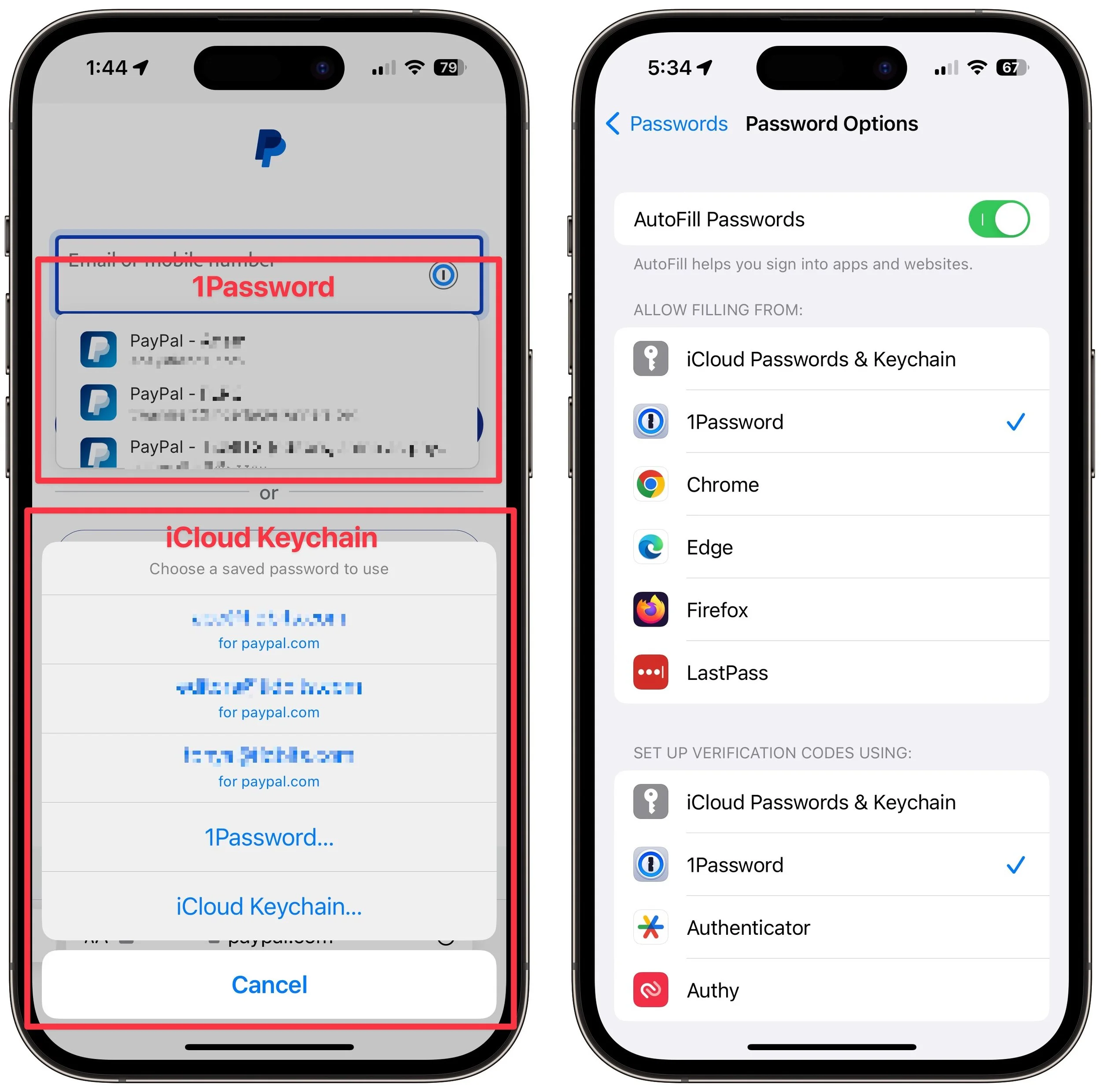
Let’s say you use 1Password (or another third-party password manager) on an iPhone or iPad. When that’s the case, it’s easy to end up in a situation where your device will present passwords from both 1Password and iCloud Keychain, possibly along with another app. That won’t break anything, but as you can see in the screenshot below, dueling password managers can be confusing, particularly if one doesn’t have up-to-date passwords. To make logging in easier, go to Settings > Passwords > Pass-word Options and select just one app in Allow Filling From. For instance, if you’re using 1Password, turn off iCloud Passwords & Keychain and all the other apps.
(Featured image based on an original by iStock.com/Kostiantyn Filichkin)
Apple Is Shutting Down My Photo Stream—Switch to iCloud Photos
Still using My Photo Stream to sync photos between your Apple devices? Apple is shutting down the service in late June, and the path of least resistance is to switch to iCloud Photos, though that might require an iCloud+ subscription.

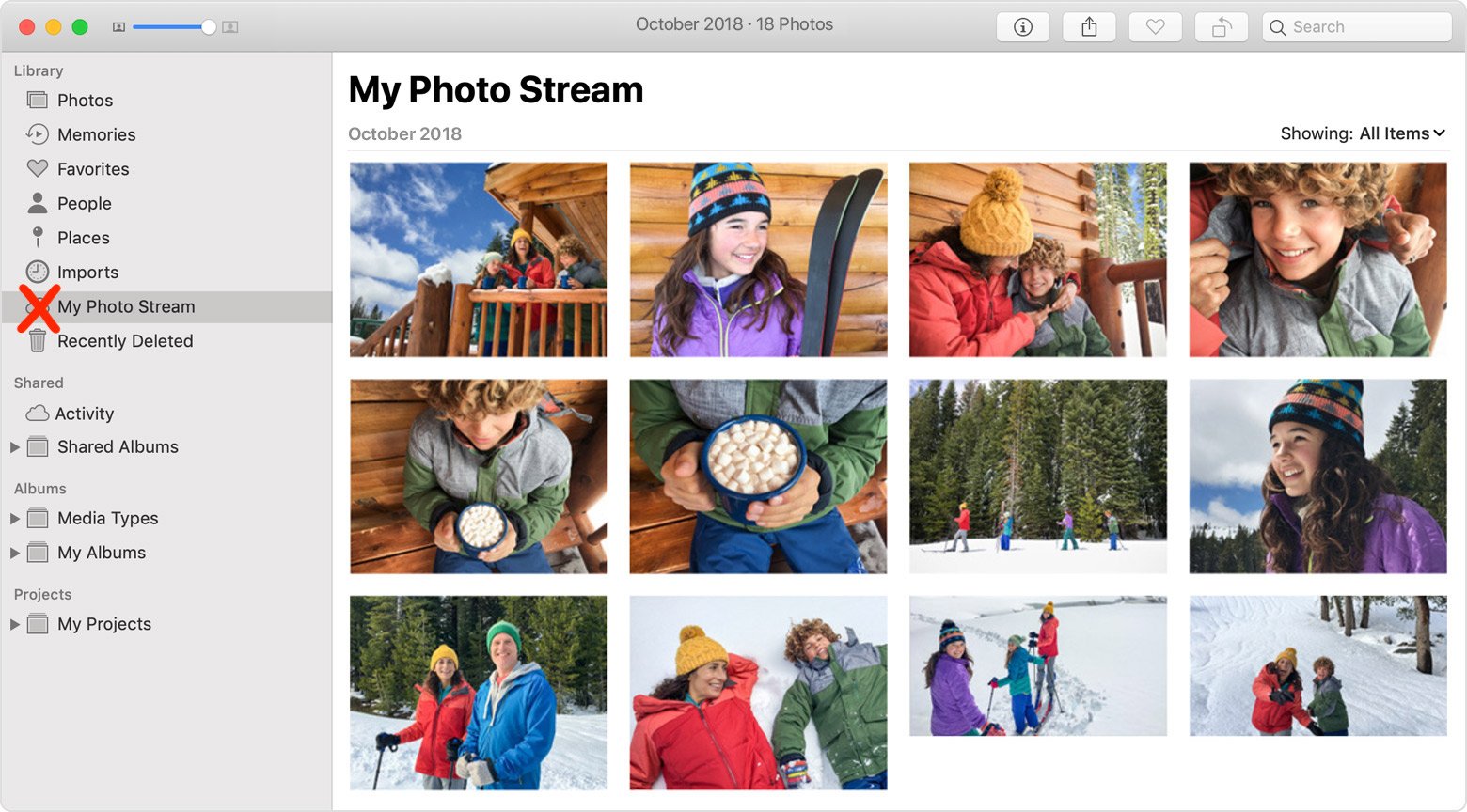
Apple has quietly announced that it is shutting down the My Photo Stream service, the company’s first iCloud-based effort at helping users sync photos between devices. My Photo Stream had numerous limitations but was free and didn’t count against iCloud storage quotas. If you’re still using My Photo Stream, note that photos will stop uploading as of June 26, and all My Photo Stream photos will be removed from iCloud on July 26; they’ll remain on your individual devices. Apple is encouraging all remaining My Photo Stream users to switch to iCloud Photos, which is more capable in every way but might require you to pay for additional iCloud+ storage to hold your photo library. Those who don’t want their photos in the cloud might check out Mylio Photos+. Contact us if you need assistance migrating to iCloud Photos or ensuring all your various photos are backed up securely.
(Featured image by iStock.com/mpiokpee)
Pay Attention to Unsolicited Facebook Password Reset Messages
If you receive unexpected password reset email messages from Facebook, don’t worry—but don’t click anything! Use them as encouragement to ensure your email and social media passwords are strong, unique, and protected with two-factor authentication.

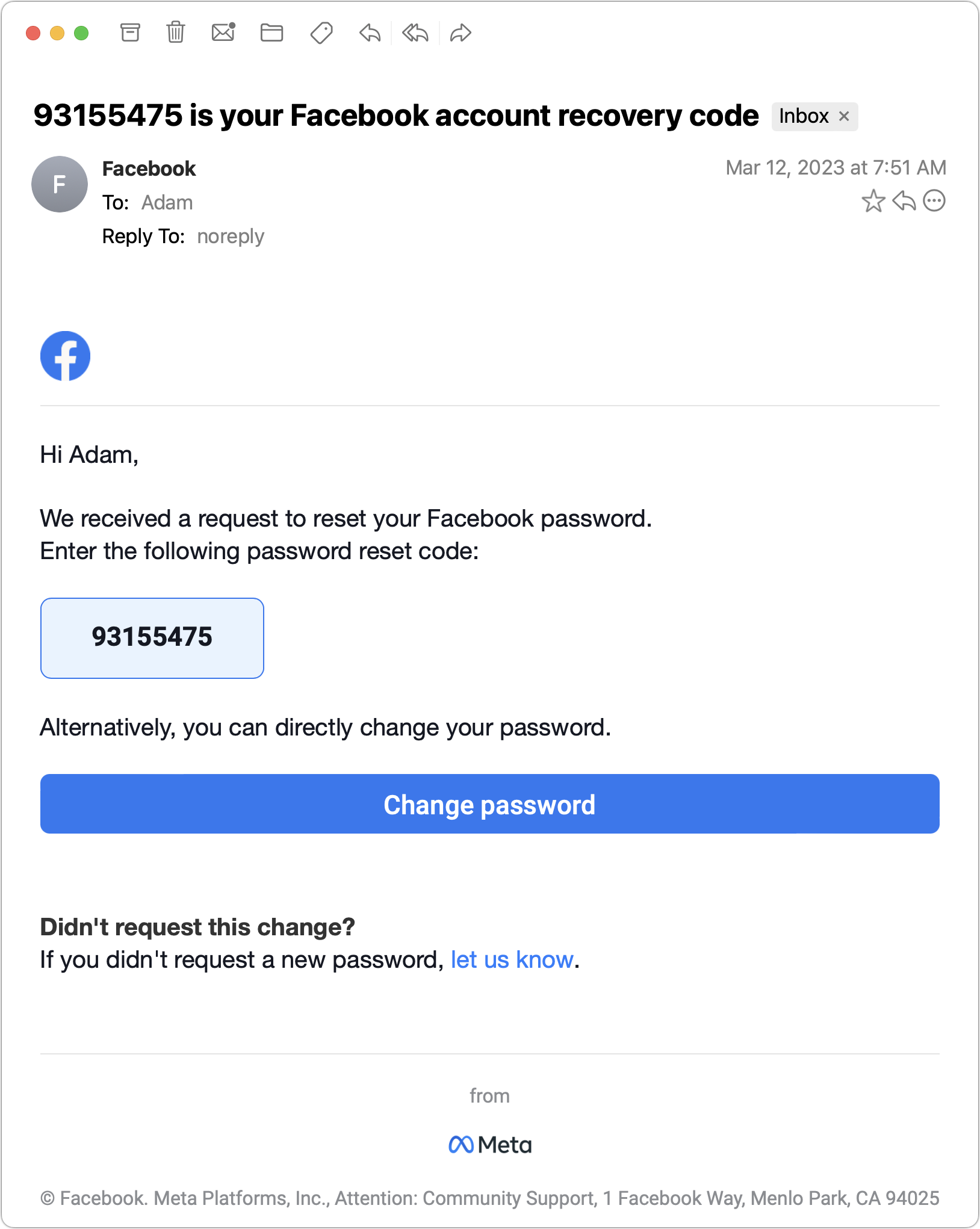
We’ve seen an uptick in attacks on Facebook accounts that generate email messages like the one below. It’s saying someone is attempting to reset your Facebook password in order to access your account. If you didn’t ask to reset your Facebook password within the past 5 minutes, do not enter the provided code! In fact, do nothing with a message like this, since you can’t easily tell if it’s a legitimate message from Facebook or a phishing attack. As long as your email account hasn’t been compromised, you have nothing to worry about, but consider any such messages as encouragement to have strong, unique passwords for your email account and any social media services. Also, we highly recommend turning on two-factor authentication for these accounts. Of course, if you get a second message saying that your password was reset, immediately secure your account.
(Featured image by iStock.com/Nicholas77)