
How to Avoid Head-Tracked Spatial Audio for FaceTime Audio Calls
If you’ve ever experienced a weird situation where sound on a FaceTime Audio call moves back and forth between your AirPods, it’s because of spatial audio’s dynamic head tracking. Learn how to turn it off.

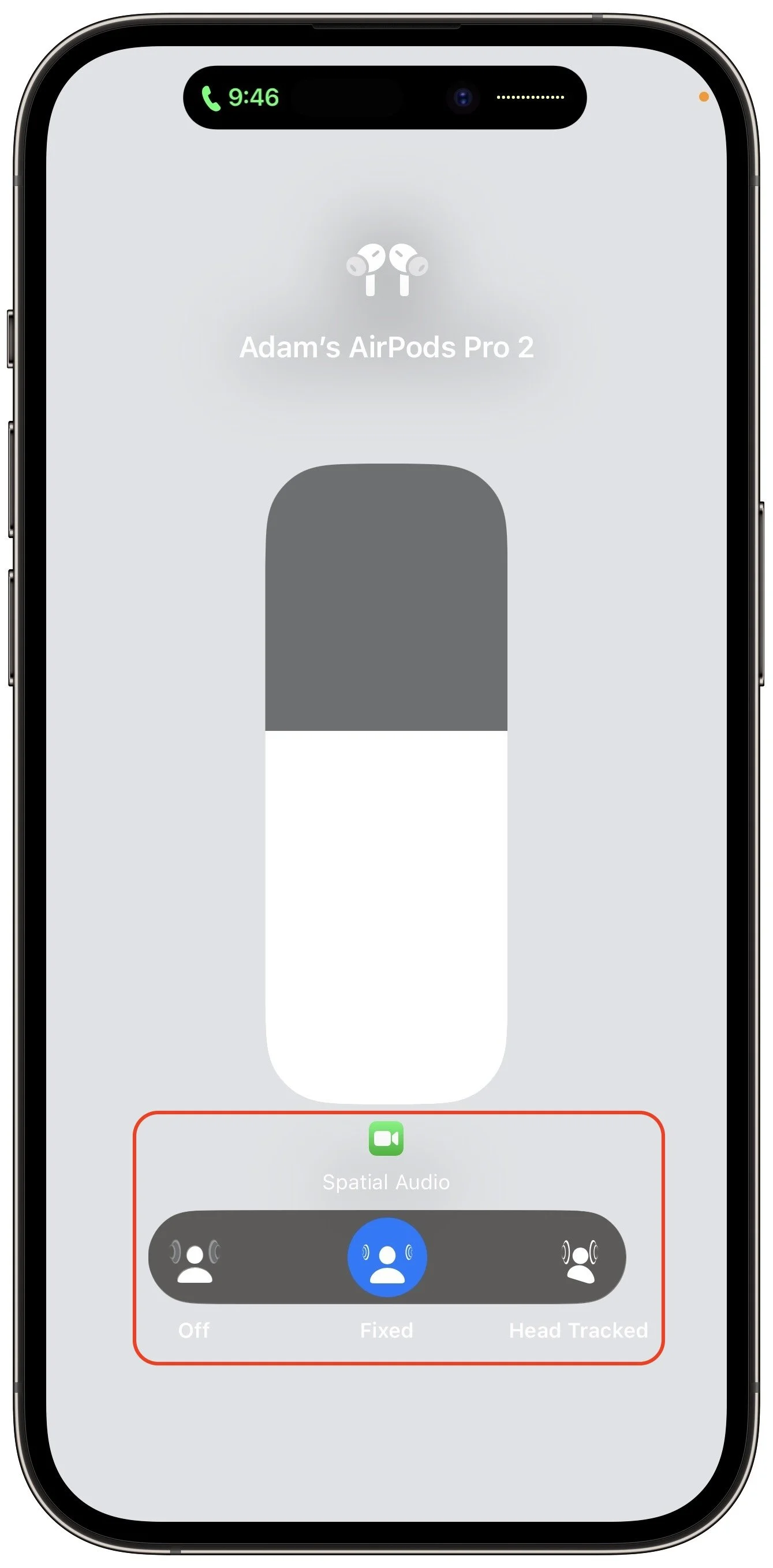
If you listen to a FaceTime Audio call using AirPods and hear the other person’s voice moving annoyingly from side to side as you turn your head, the problem is likely head-tracked spatial audio. In general, spatial audio attempts to make sounds seem to come from all around you, and its dynamic head-tracking option adjusts the audio for each ear to simulate how the sound would change as your head moves. Dynamic head tracking may be desirable for music or movies, but with a FaceTime Audio call, having the other person flip back and forth between your ears can be highly disconcerting. To stop this behavior on an iPhone or iPad, open Control Center, touch and hold the volume control, and tap either Off or Fixed instead of Head Tracked. Spatial audio isn’t an option on Mac FaceTime calls.
(Featured image by iStock.com/1550539)
Too Many Windows Open? Close Them All Quickly with These Tricks
Next time you inadvertently open a large number of windows, you can use these Option-key tricks to close them all quickly.

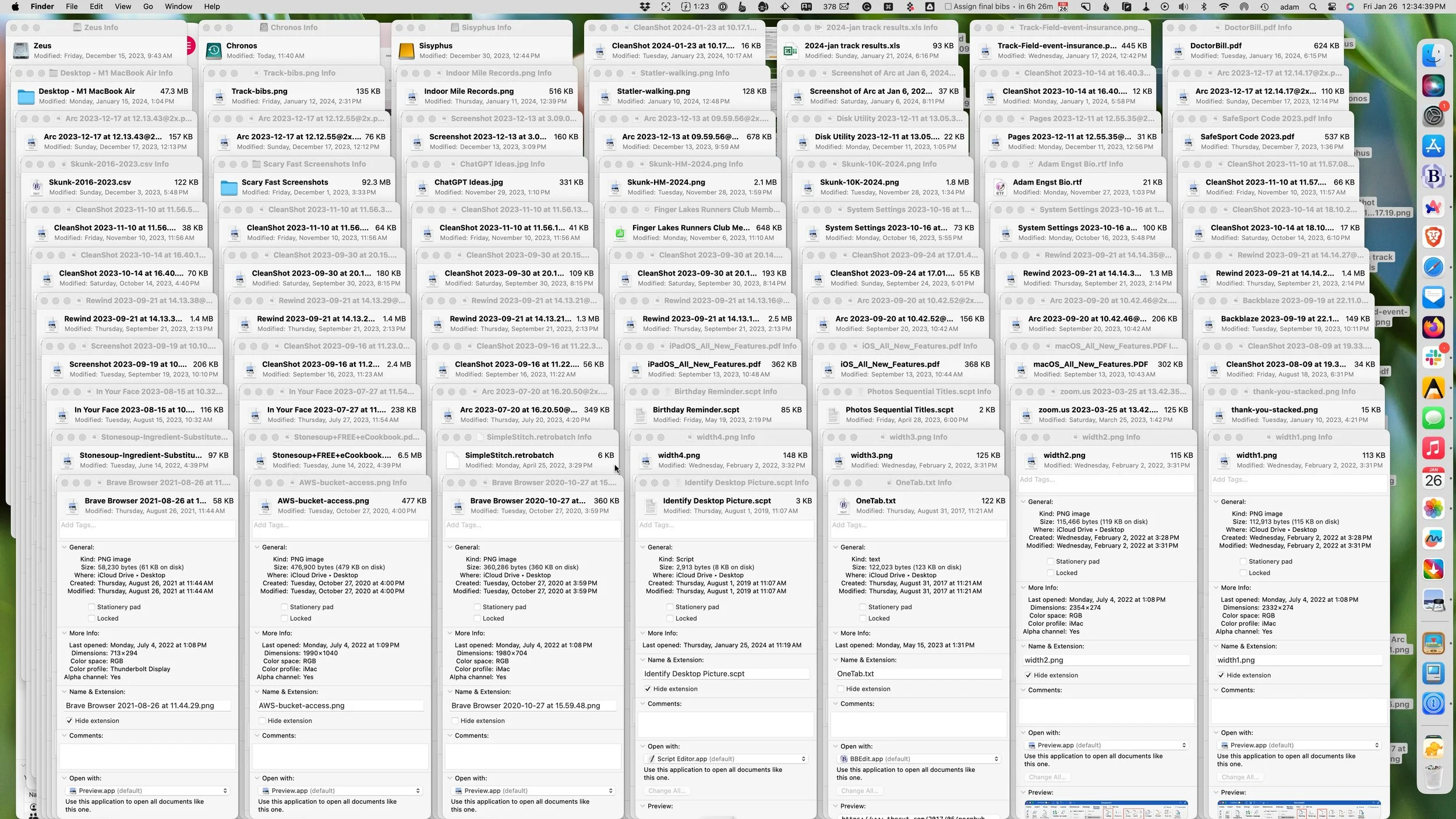
Have you ever selected a bunch of files and accidentally opened them all by double-clicking one? Or perhaps inadvertently pressed Command-I to get info, ending up with oodles of open Info windows? Here’s a quick way to recover. You can close all the windows in any well-written app with judicious use of the Option key. Press it while clicking the File menu and Close Window becomes Close All Windows. Command-W closes one window; Command-Option-W closes all of that app’s windows. If you’re a mouse person, Option-click the red close button in any window to close all the rest.
(Featured image based on an original by iStock.com/ANGHI)
Use StandBy to Make Your iPhone into a Clock, Photo Frame, and More
The new Standby mode turns your iPhone into a digital picture frame, clock, or customizable widget display—and it remembers which approach you prefer in different locations.
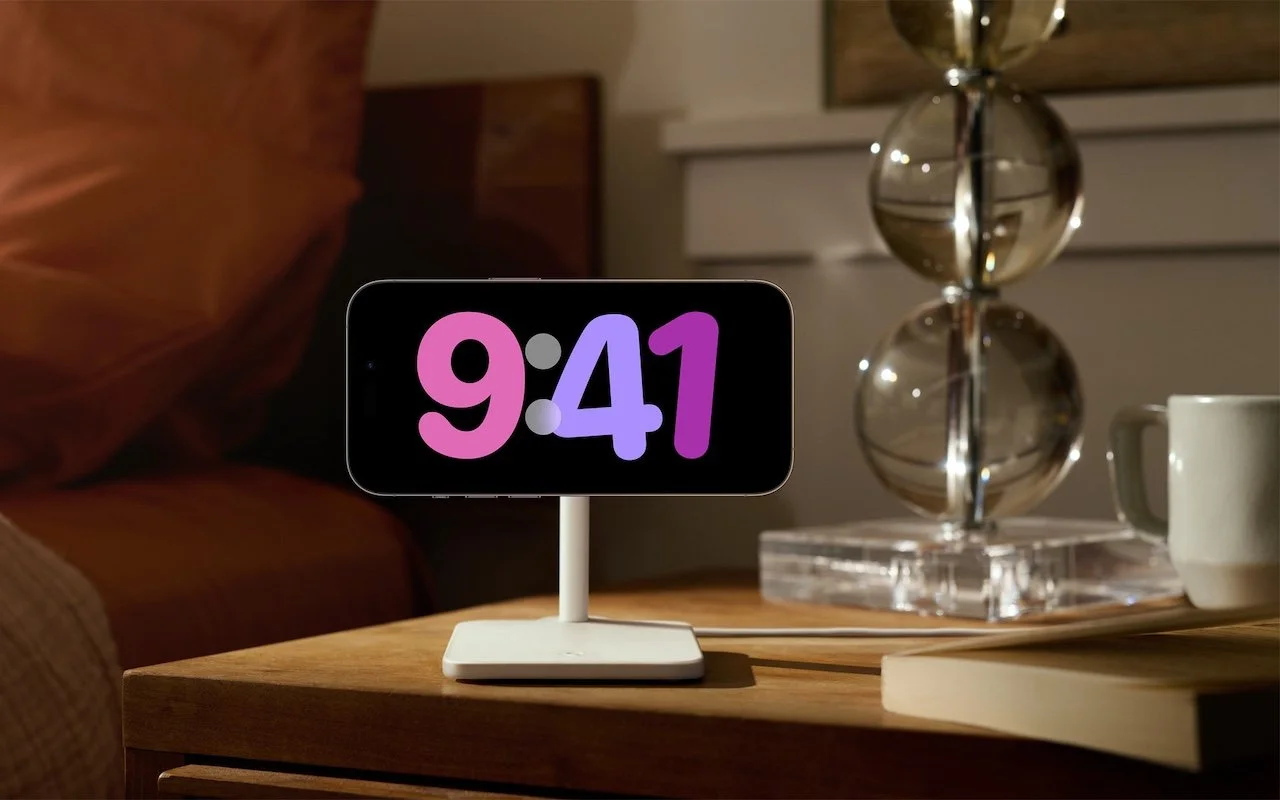
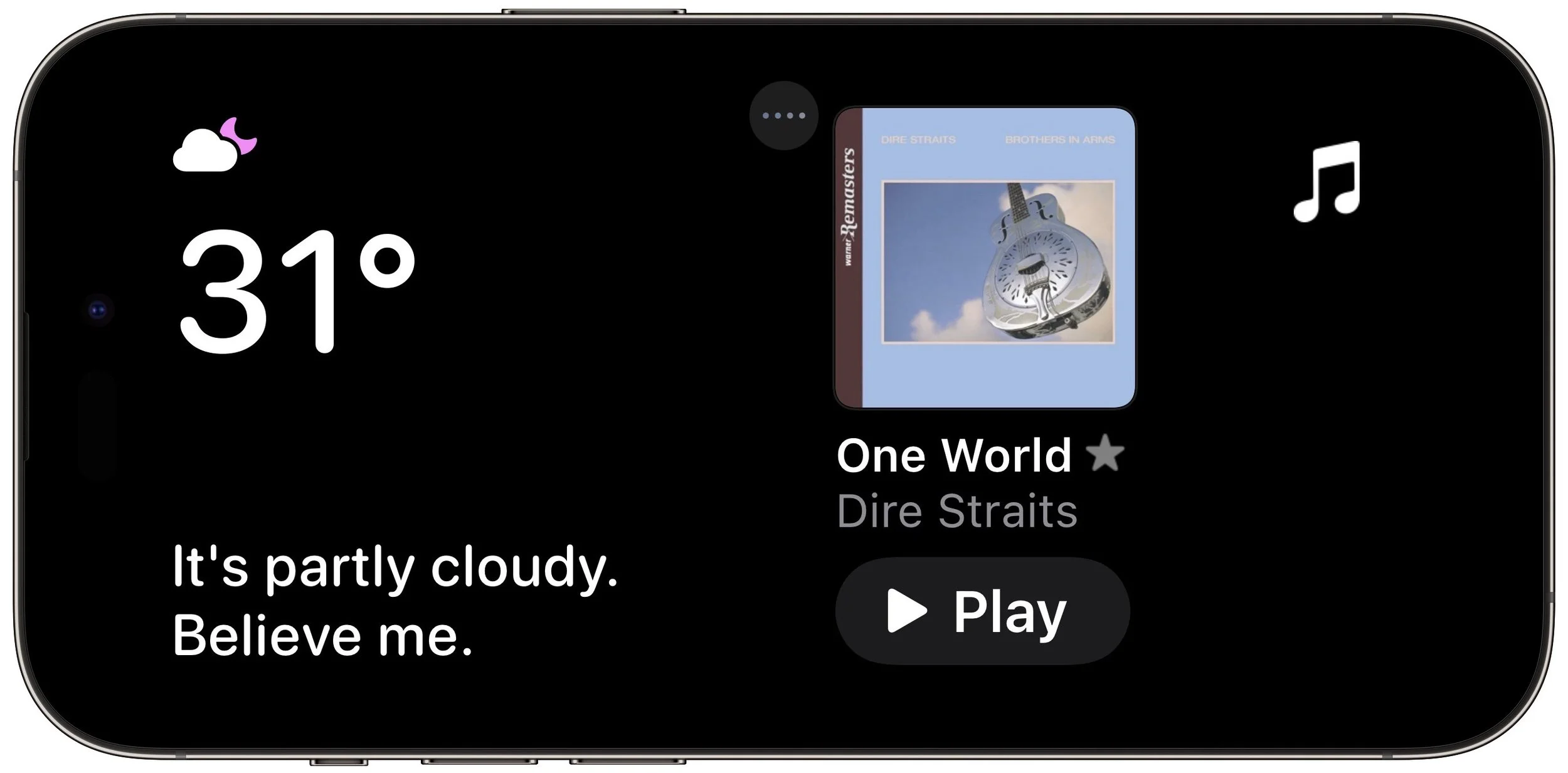
iOS 17 brings a new mode for the iPhone: StandBy. All you have to do is connect your iPhone to a charger wirelessly or with a cable, position it on its side in landscape orientation, and press the side button to lock the screen. Standby works best with a MagSafe charging stand. Swipe left or right to switch between three screens: widgets, photos, and clocks. Swipe up and down to move between widgets, photo collections, and clock styles. On the widget screen, touch and hold to add and remove widgets, and on the photo screen, to choose which collections and albums to display. You can choose how long the display stays active in Settings > StandBy > Display. By default, it will stay on all the time on iPhone models with an Always-On display; a tap or nudge will wake it on other iPhone models. Finally, StandBy remembers your preferred view in different locations, so it can be a clock in the bedroom, a photo frame in the kitchen, and a clock at the office.
(Featured image by Apple)
Keep Your Contacts Current by Adding Siri-Suggested Content
Want an easy way to add email addresses, phone numbers, and postal addresses to Contacts? If you’ve received that information in Mail or Messages, Siri can help.
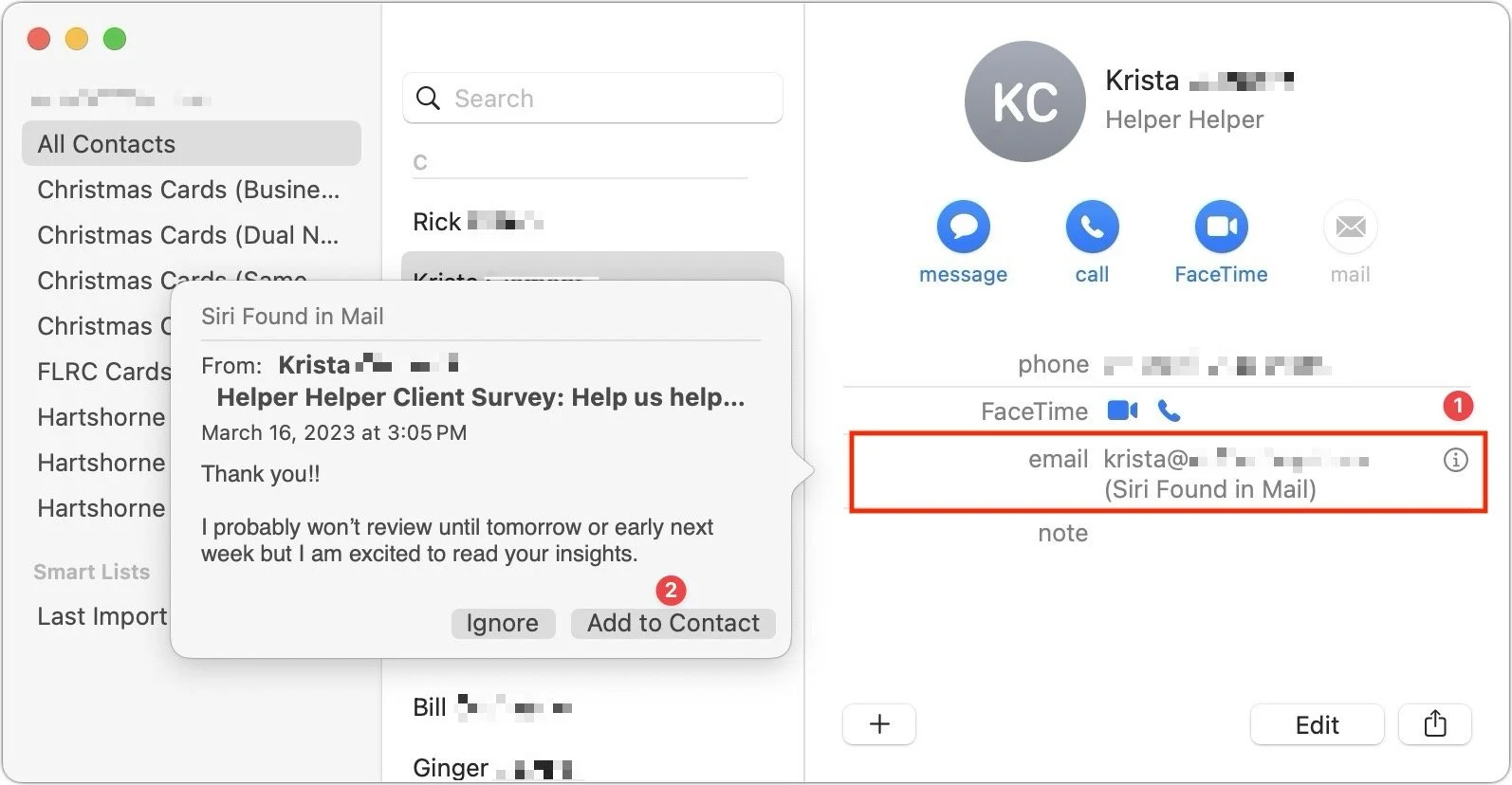
Remembering to update your contacts with new email addresses, phone numbers, and postal addresses can be hard. But if you’ve received that information in Mail or Messages, Siri’s data detection capabilities can help. Open Contacts on the Mac and press the Down arrow to cycle through your contacts. When you see one with information in light gray and a parenthetical like (Siri Found in Mail), click the ⓘ button to the right ➊ to see some context in the source message. If the information is correct, click Add to Contact ➋ to keep it.
(Featured image based on an original by iStock.com/Brett_Hondow)
How to Merge Two Similar Folders in the Mac’s Finder
If you want to merge two folders that contain some of the same data, a little-known Finder feature can do it for you.
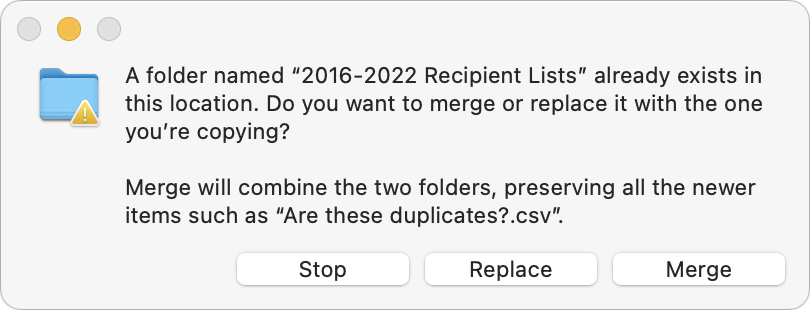
You’ve ended up with two folders whose contents—hundreds of files or more—are similar but not identical. Perhaps you’re recovering from a sync failure, or maybe you pulled an old version of the folder from a backup and aren’t sure what’s different. Regardless, here’s how you can merge them in the Finder. Make sure the folders are named identically and are in two different locations on your Mac. Press and hold the Option key, then drag the folder that contains more files to the location that contains the folder with fewer files. In the dialog that appears, click Merge to copy only newer files from the source and those not already in the destination. (It’s not a two-way sync; for that, you need an app like ChronoSync.) The Merge button appears only if the source folder contains files not in the destination; if the folders contain just different versions of identically named files, you’ll get only Stop and Replace buttons. For safety, always work on copies of your folders and check your work afterward to ensure the right things happened.
(Featured image by iStock.com/RerF)
Time Machine Now Offers Daily and Weekly Frequencies
Has Time Machine’s hourly backup frequency been problematic for you? Starting in macOS 13 Ventura, you can instead choose a daily or weekly backup schedule.

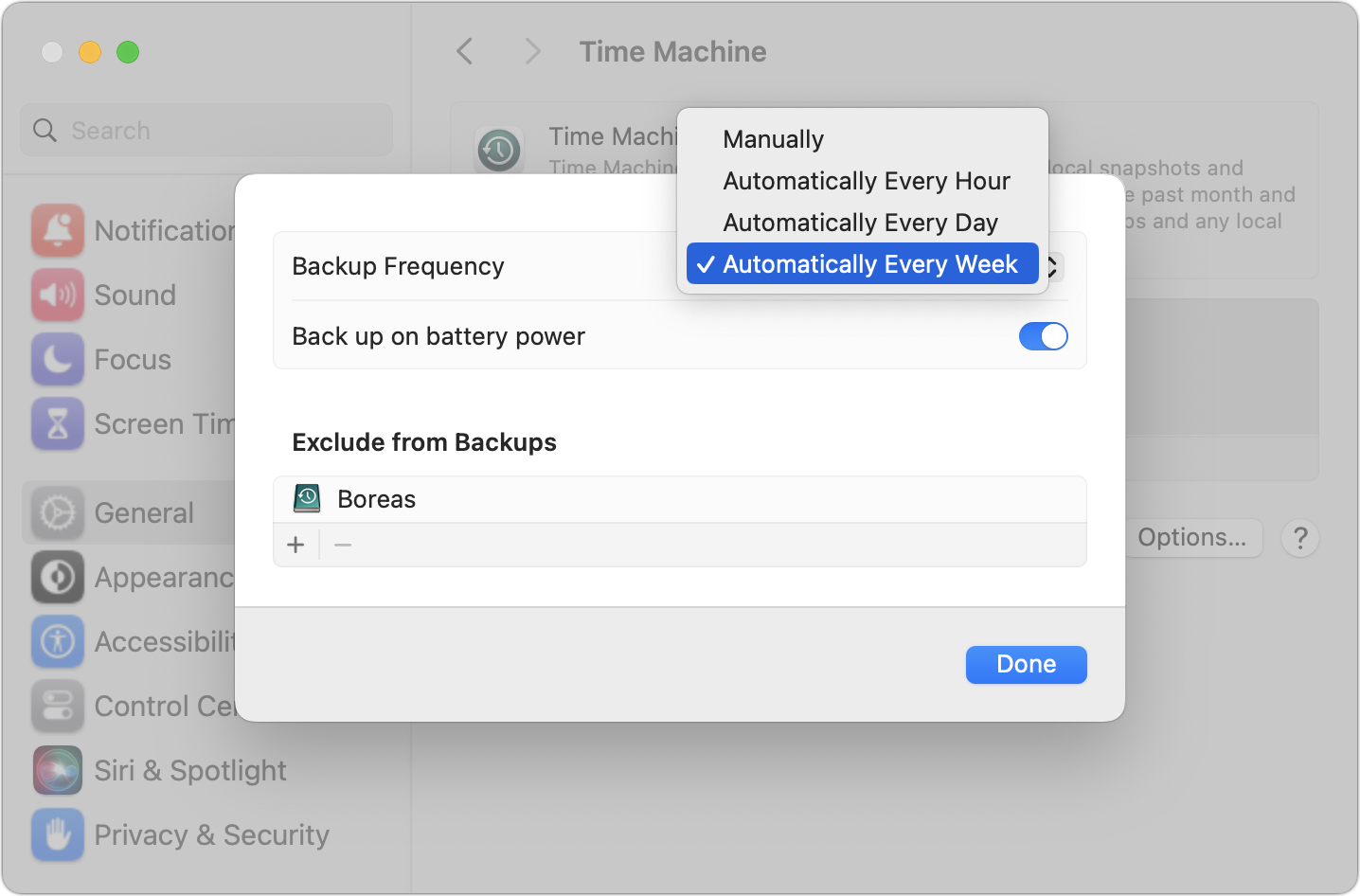
Since its inception, Time Machine has backed up on an hourly schedule. It then keeps hourly backups for the previous 24 hours, daily backups for the last month, and weekly backups back to the start of the backup. Once free space on the backup drive gets low, Time Machine deletes older backups to make room for new ones, always maintaining at least one copy of every backed-up file. The traditional hourly backups are usually fine, but starting in macOS 13 Ventura, Apple lets you choose a daily or weekly schedule instead. One of those might be useful for Macs that are turned on infrequently or where very little important data changes. It also might reduce resource usage and how much data Time Machine backs up. Most people shouldn’t need to change the backup frequency, but if you’ve always wanted to, now you can.
(Featured image based on an original by iStock.com/STILLFX)
Use This Hidden Setting to Stop Triggering Caps Lock Accidentally
If you very seldom want to type in all caps, disable or remap the Caps Lock key so an errant key press doesn’t turn it on accidentally.
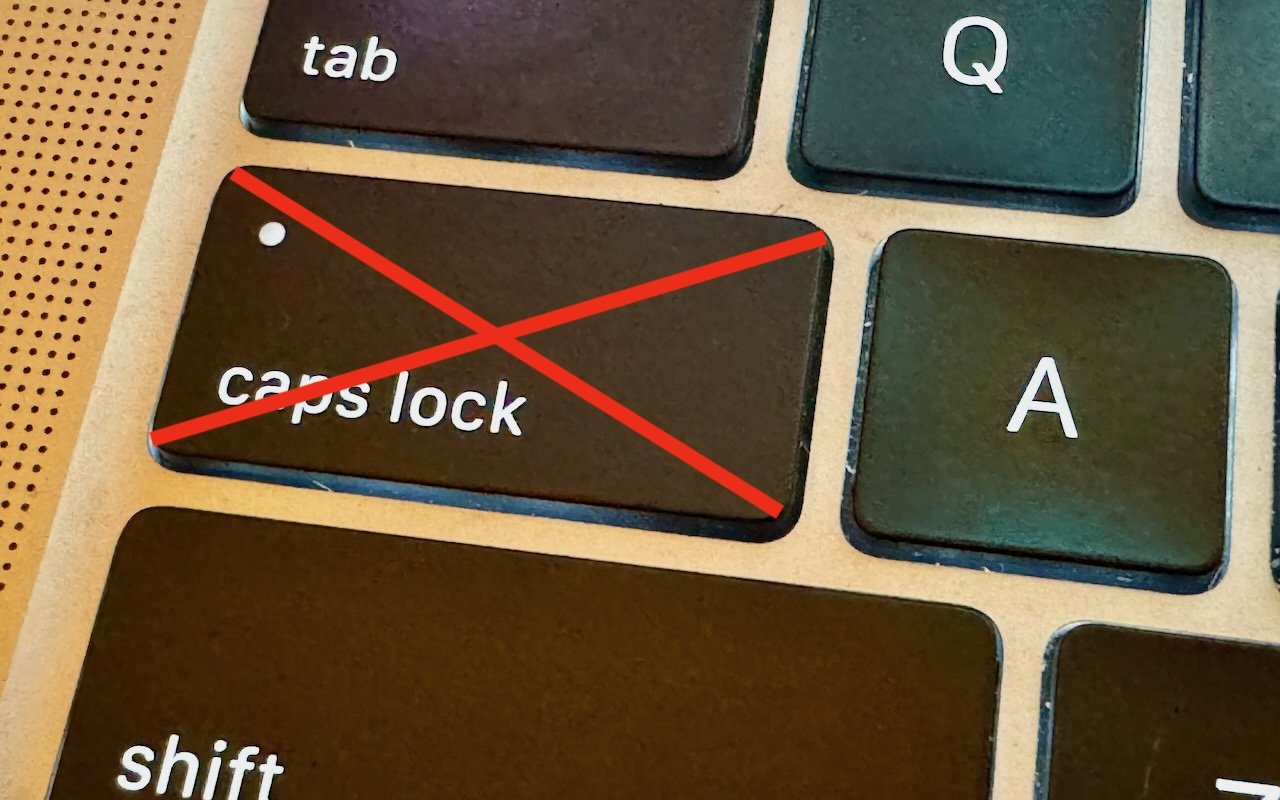
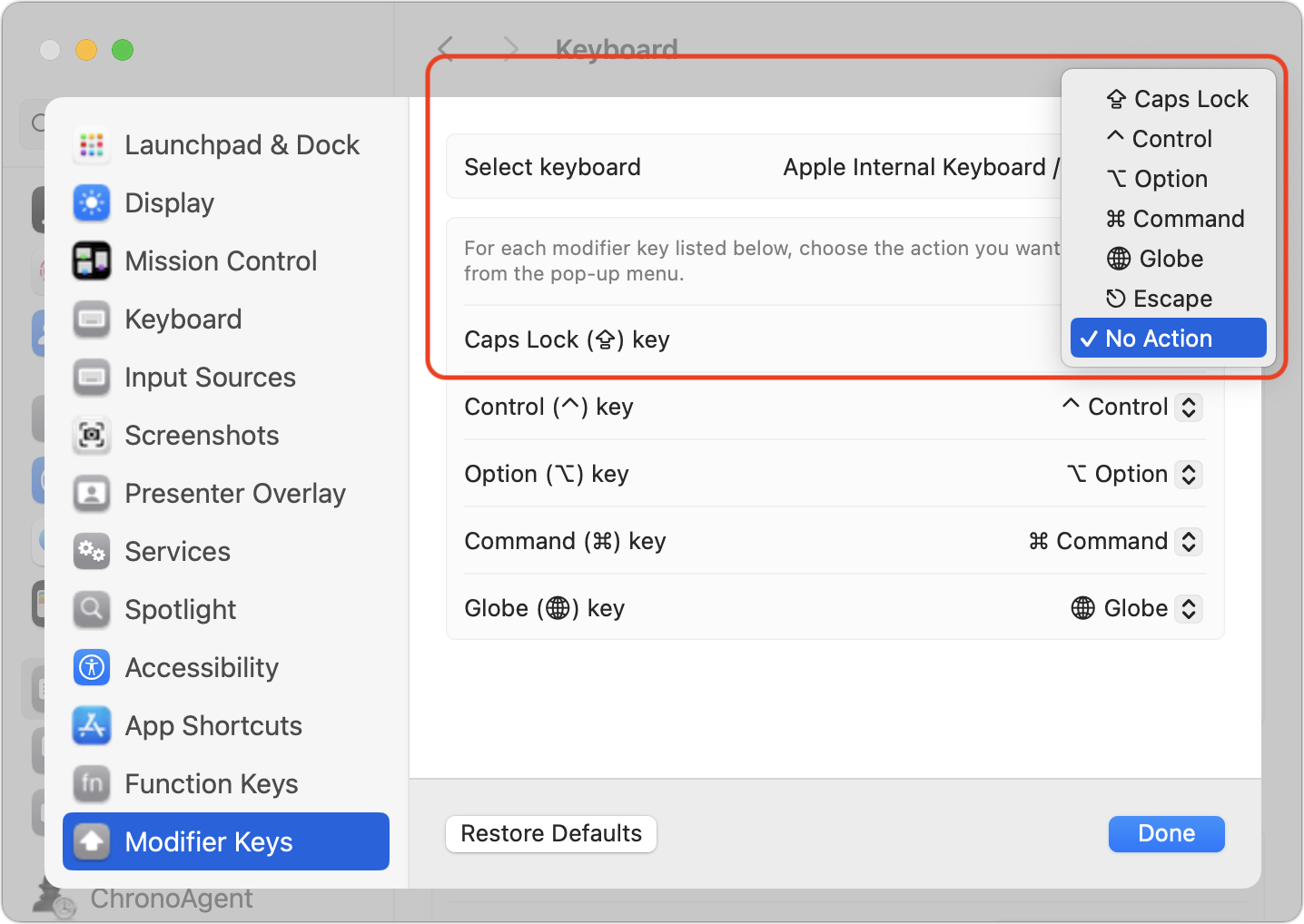
There’s little more annoying than accidentally touching the Caps Lock key while typing and having your text suddenly TURN INTO CAPITAL LETTERS, which we all know is seen as shouting. Unless you have some reason to type in capital letters regularly, you can prevent this mistake by disabling the Caps Lock key or remapping it to another modifier key. In macOS 13 Ventura and later, choose System Settings > Keyboard > Keyboard Shortcuts > Modifier Keys, and choose from the pop-up menu next to Caps Lock. (In earlier versions of macOS, open System Preferences > Keyboard > Modifier Keys.)
(Featured image by Adam Engst)
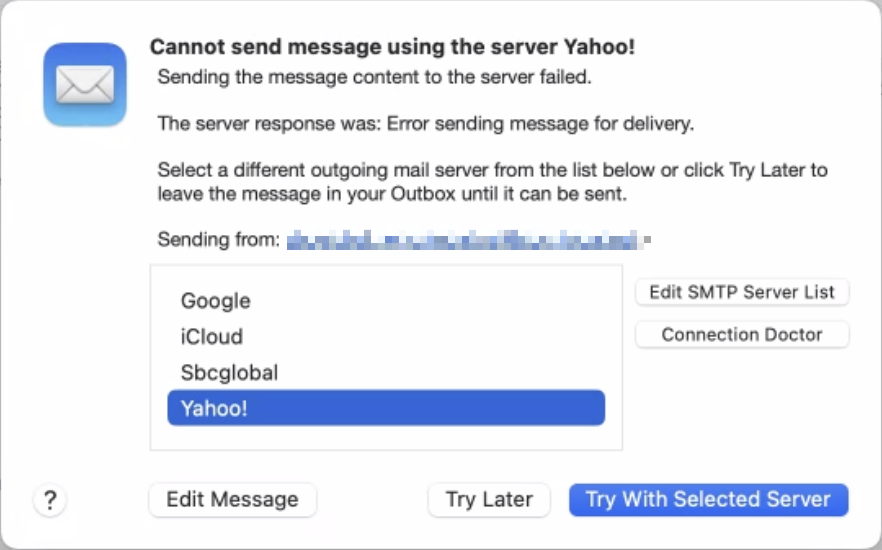
If Mail Fails to Send, Try, Try Again (Instead of Changing Servers)
If Mail on your Mac throws an error about being unable to send a message, always have it try again later rather than switching to a different server. Otherwise, your messages may look like spam and be blocked.
Sometimes, something goes wrong, causing Mail on the Mac to have trouble sending a message. When it does, you may see an error like the one below, encouraging you with a default button to try another configured server. Don’t do it! Always click Try Later. If that still doesn’t work, contact your favorite tech support professional to troubleshoot the problem with the SMTP server associated with the account from which you’re sending. Attempting to send through another SMTP server is a recipe for trouble because various anti-spam checks may fail, causing your message to be filtered as spam or bounced back to you. Worse, if you select a different server and click Try With Selected Server, Mail remembers that choice going forward, so you will have to reset it manually later.
(Featured image by iStock.com/Marut Khobtakhob)