
How to Train Yourself to Use the iPhone 16’s New Camera Control Button
The iPhone 16’s new Camera Control button is a welcome shortcut, but you may need to retrain your brain so you remember to use it.

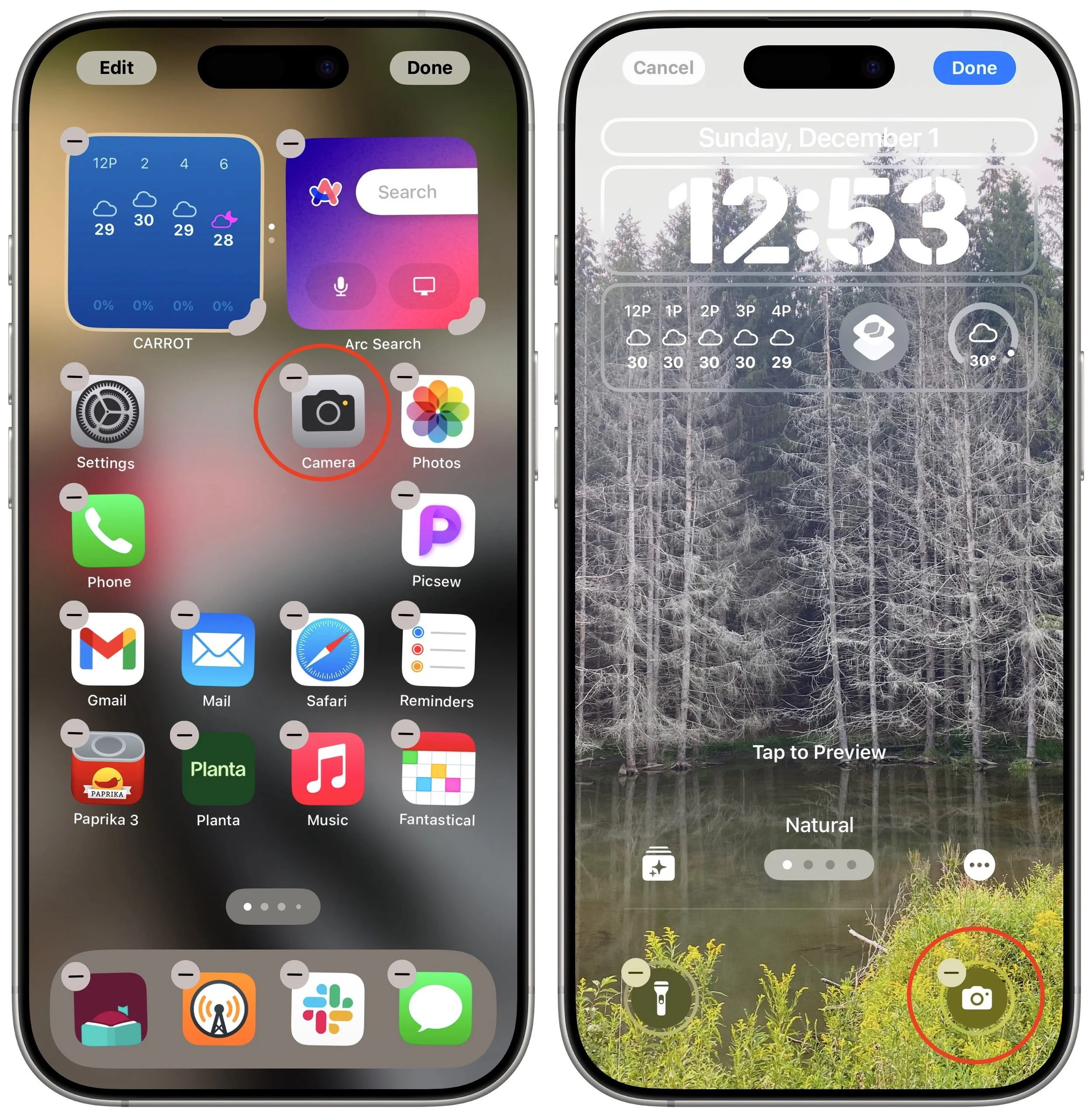
If you are accustomed to opening the Camera app on your iPhone by tapping its Home Screen app icon or Lock Screen widget icon, you may find it challenging to remember to use the new Camera Control button on the side of an iPhone 16. That button is a big win for easy access to the camera and its settings. To help retrain your camera habits, hide the Camera app icon on a secondary Home Screen or in a folder and remove it from the Lock Screen. To conceal it from your Home Screen, touch and hold it to enter jiggle mode, then drag it to another screen or into a folder. To remove it from the Lock Screen, touch and hold the Lock Screen, tap Customize, tap the Lock Screen, and then tap the minus button on the Camera widget. Replace it with another widget you’ll find useful.
(Featured image by iStock.com/valiantsin suprunovich)
Control Window Tiling in macOS 15 Sequoia
Those who are disconcerted by dragged windows suddenly resizing accidentally in macOS 15 Sequoia, take note: you can tweak settings to make Sequoia’s new window tiling feature activate only when you want.
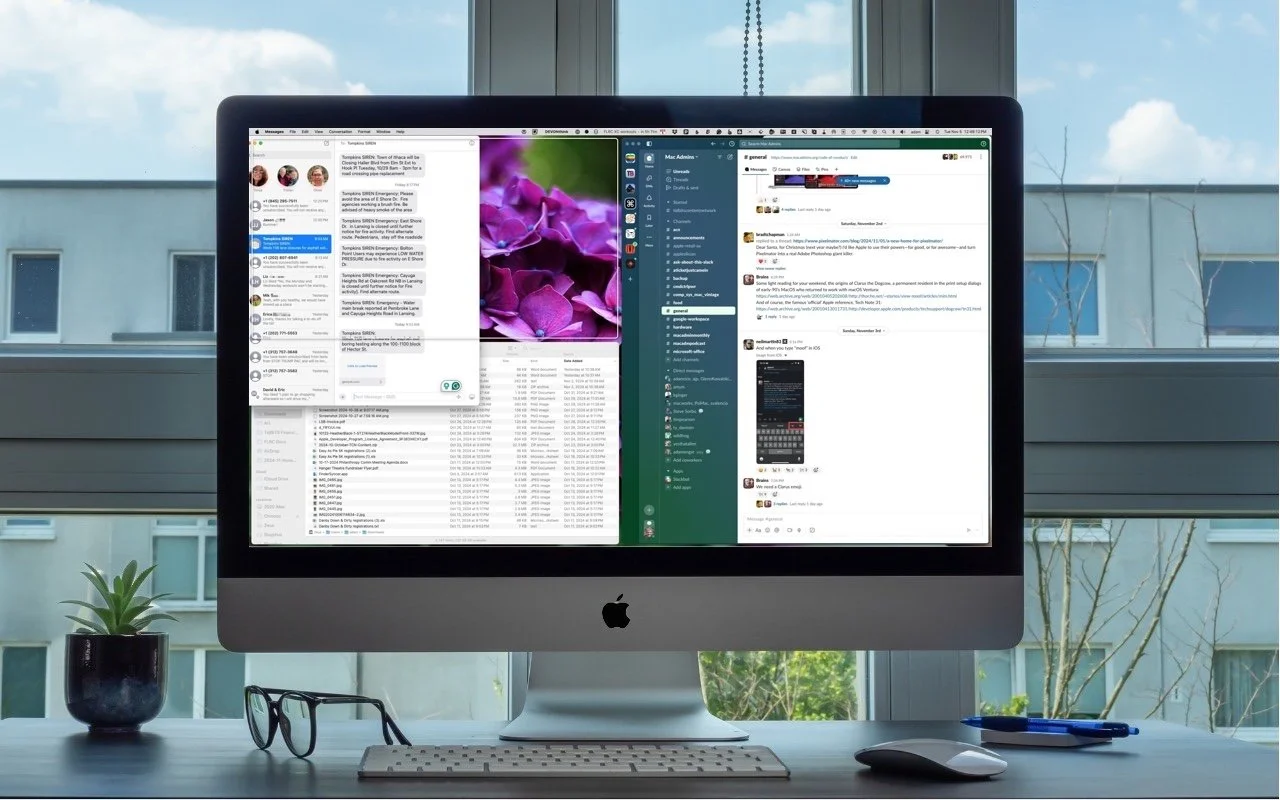
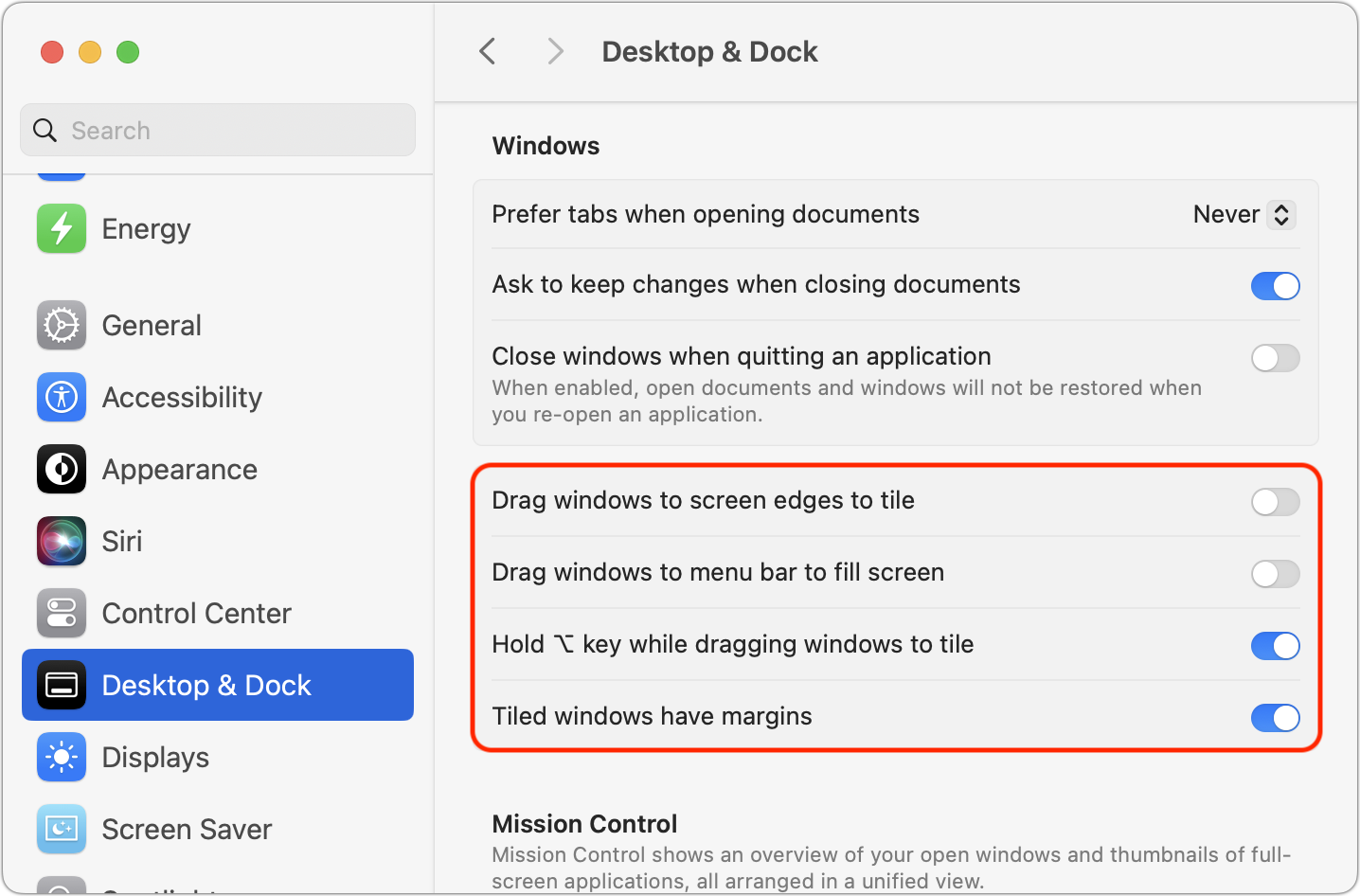
One of macOS 15 Sequoia’s most noticeable additions is a new form of window tiling. Drag a window to the menu bar to expand it to fill the screen, to the left or right edge to resize it to half the screen, or to a corner to resize it to that quarter of the screen. As you drag, a white outline shows what will happen when you drop the window. Unfortunately, accidentally invoking window tiling can be surprising and disruptive. The easiest way to ensure that dragging windows tiles them only when you want is to open System Settings > Desktop & Dock, scroll down to the Windows section, and turn off “Drag windows to screen edges to tile” and “Drag windows to menu bar to fill screen.” The important setting to leave turned on is “Hold Option key while dragging windows to tile” because from now on, your windows will tile only when you Option-drag them.
(Featured image based on an original by iStock.com/Jakob Berg)
In iOS 18 and iPadOS 18, Quickly Turn Home Screen App Icons into Widgets
A new shortcut in iOS 18 and iPadOS 18 makes it easy to convert an app’s icon on the Home Screen into a widget of any size supported by that app.
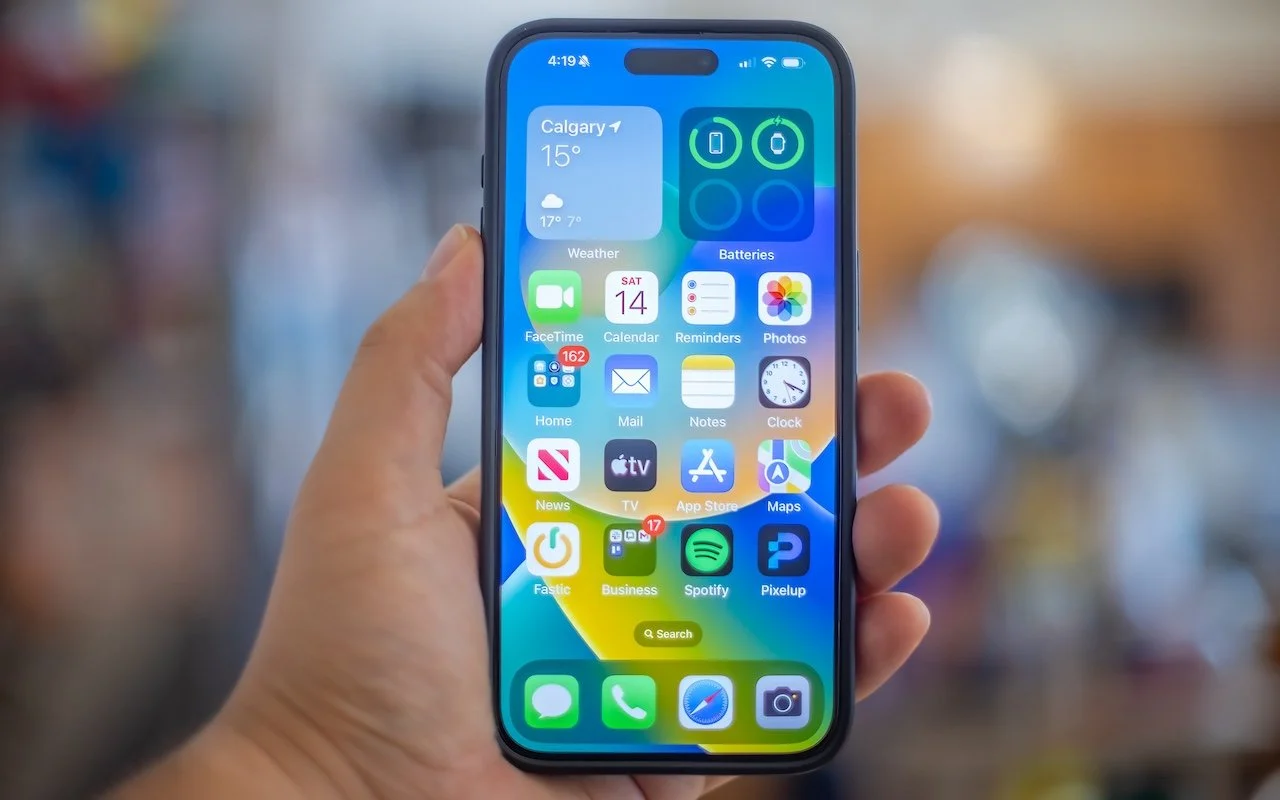
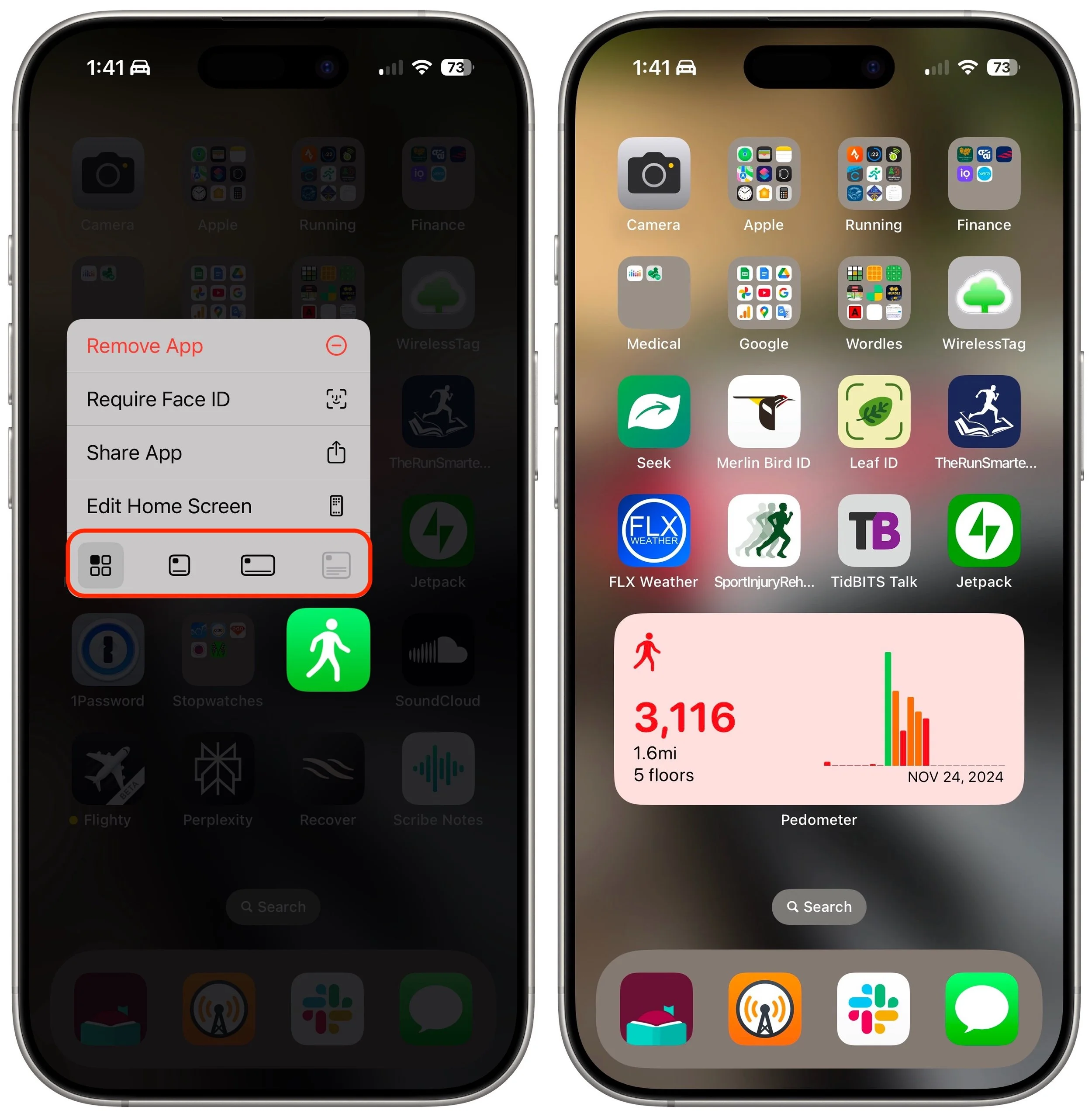
Widgets on the iPhone or iPad Home Screen are enhanced versions of app icons that display extra information. You can now bypass the complicated widget creation process and experiment with widgets more easily. No longer do you have to edit the Home Screen, tap the Edit button, tap Add Widget, choose a widget from the full set of choices, and position it as desired. Instead, touch and hold an app’s icon and tap the desired widget size from the bottom of the menu. The first icon represents a standard icon; the remaining three display the app as a 2x2 widget, a 4x2 widget, or a 4x4 widget. The menu appears only for apps with widgets, and unavailable options indicate that the app lacks a widget of that size. Repeat the process to change a widget’s size or revert a widget to an icon.
(Featured image by iStock.com/Marvin Samuel Tolentino Pineda)
Apple’s Tips App Provides Extensive User Guides and Helpful How-Tos
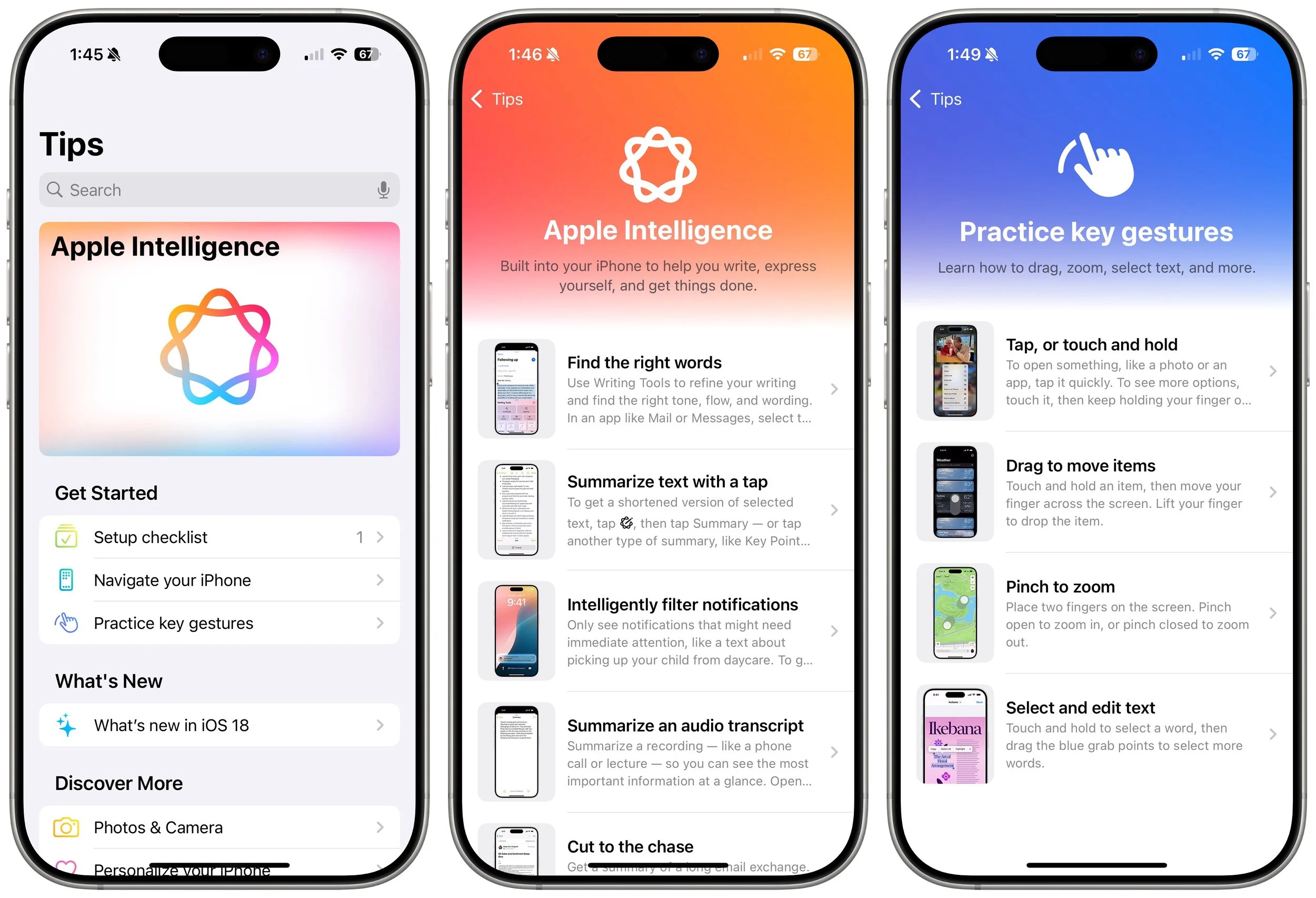
If you haven’t explored Apple’s Tips app on the iPhone, iPad, or Mac recently, check it out. Apple has added a lot more content, including device and app user guides, highlights of new features, and interactive practice guides.
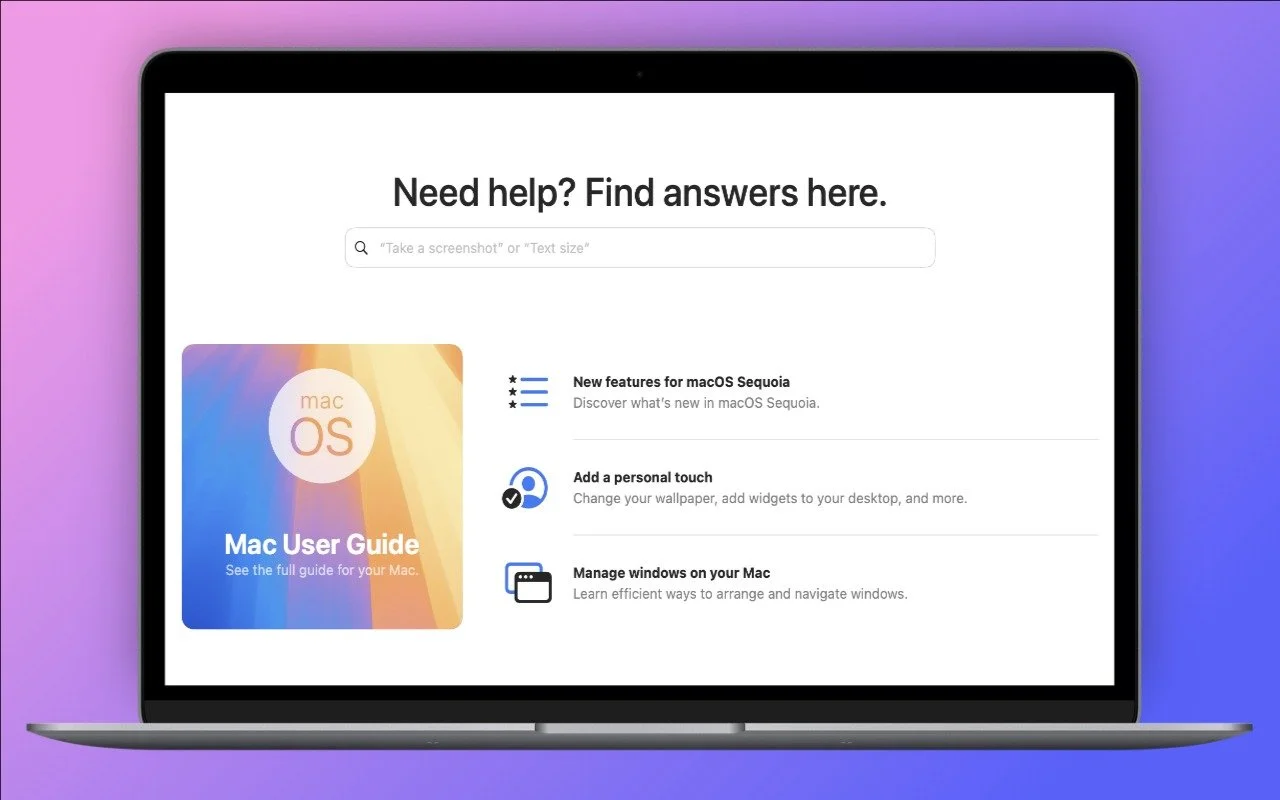
Apple has included the Tips app with the iPhone and iPad since iOS 8 in 2014 and on the Mac since macOS 10.14 Mojave in 2018. Initially, it didn’t contain much useful content, and many longtime users ignored it. However, Apple has significantly increased the amount of information in Tips over time, adding device-specific tips, full device and app user guides, highlights of new features, and more. Many tips even include short demonstration videos. Tips is worth exploring or referring to the next time you have a question. Be sure to encourage anyone you know who’s new to the iPhone, iPad, or Mac to take a look—it even helps them practice key gestures!
(Featured image by Adam Engst)
New Seventh-Generation iPad mini Adds A17 Pro for Apple Intelligence
Apple has updated the iPad mini with an A17 Pro chip for Apple Intelligence, along with more storage, faster connectivity, and support for the Apple Pencil Pro. It’s still $499 and remains an excellent option for anyone wanting a smaller iPad.

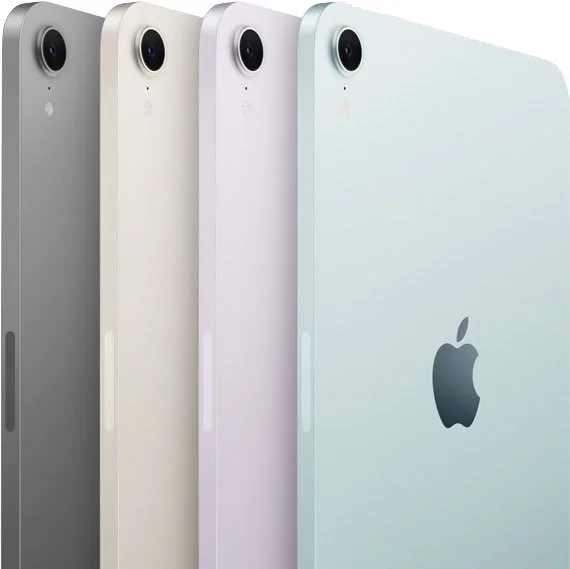
Although the first wave of Apple Intelligence features won’t upend the user experience for most people, Apple is pushing hard to ensure that all its new devices can participate. That’s largely what’s behind the recently released seventh-generation iPad mini. It’s physically unchanged other than a few new colors, but under the hood, the iPad mini sports an A17 Pro processor that makes it compatible with Apple Intelligence. Other changes from the previous generation include Apple Pencil Pro support, 128 GB of storage at the base level (up from 64 GB), 10 Gbps USB 3 (twice as fast), Wi-Fi 6E and Bluetooth 5.3 (up from Wi-Fi 6 and Bluetooth 5.0), and cellular support only via eSIM (no more physical nano SIM). The price still starts at $499, with cellular connectivity adding $150. It’s a minor update, but one that keeps the iPad mini up to date for those who prefer a more compact iPad design.
(Featured image by Apple)
Watch Out for PayPal Invoice Phishing Scams
Beware of PayPal invoice scams that might even appear to come from Apple. Should you receive one, report it to PayPal to help protect other people, but don’t mark the message as spam.

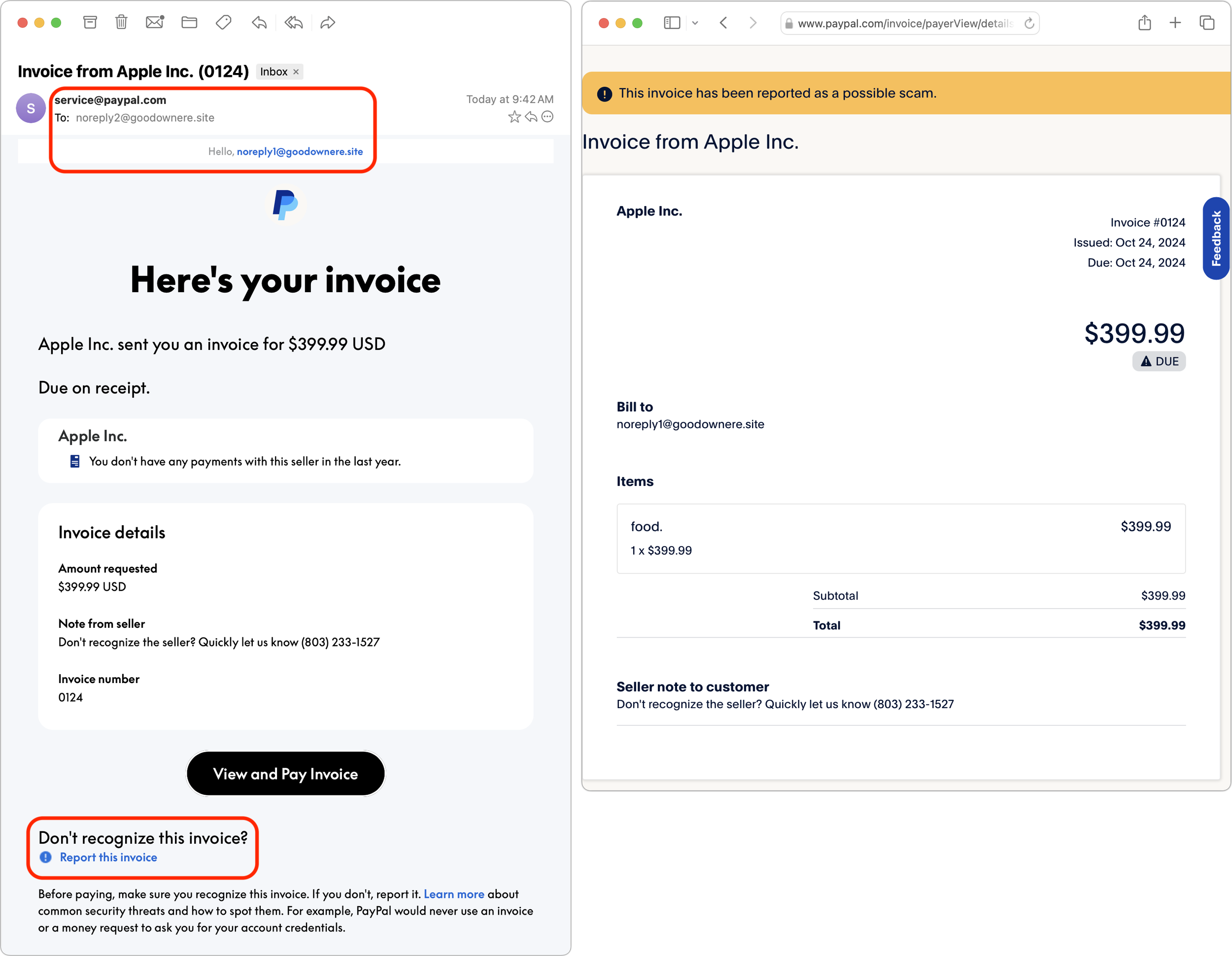
We’ve seen an uptick in fake invoices from scammers using PayPal. Because they’re being sent through PayPal itself, spam filters won’t catch them, and they have few of the usual markers of phishing email (but look for sketchy names and email addresses at the top). Some are even forged to appear as if they come from Apple. Never pay a PayPal invoice that you can’t tie directly to something you’ve ordered, and don’t call the number listed—the scammer will try to convince you that the invoice is real. If you receive one of these invoices, click the “Report this invoice” link at the bottom to help protect others who might have received it, and forward the message to phishing@paypal.com. Don’t mark the invoice as spam, though, since that will train your email client to be suspicious of legitimate messages from PayPal.
(Featured image by iStock.com/Moostocker)
Use Guided Access for Securely Allowing Others to Use an App on Your iPhone or iPad
If you’d like to allow a child, friend, or colleague to enjoy a specific app on your iPhone or iPad while keeping them focused and preventing access to everything else on the device, check out Apple’s Guided Access feature.

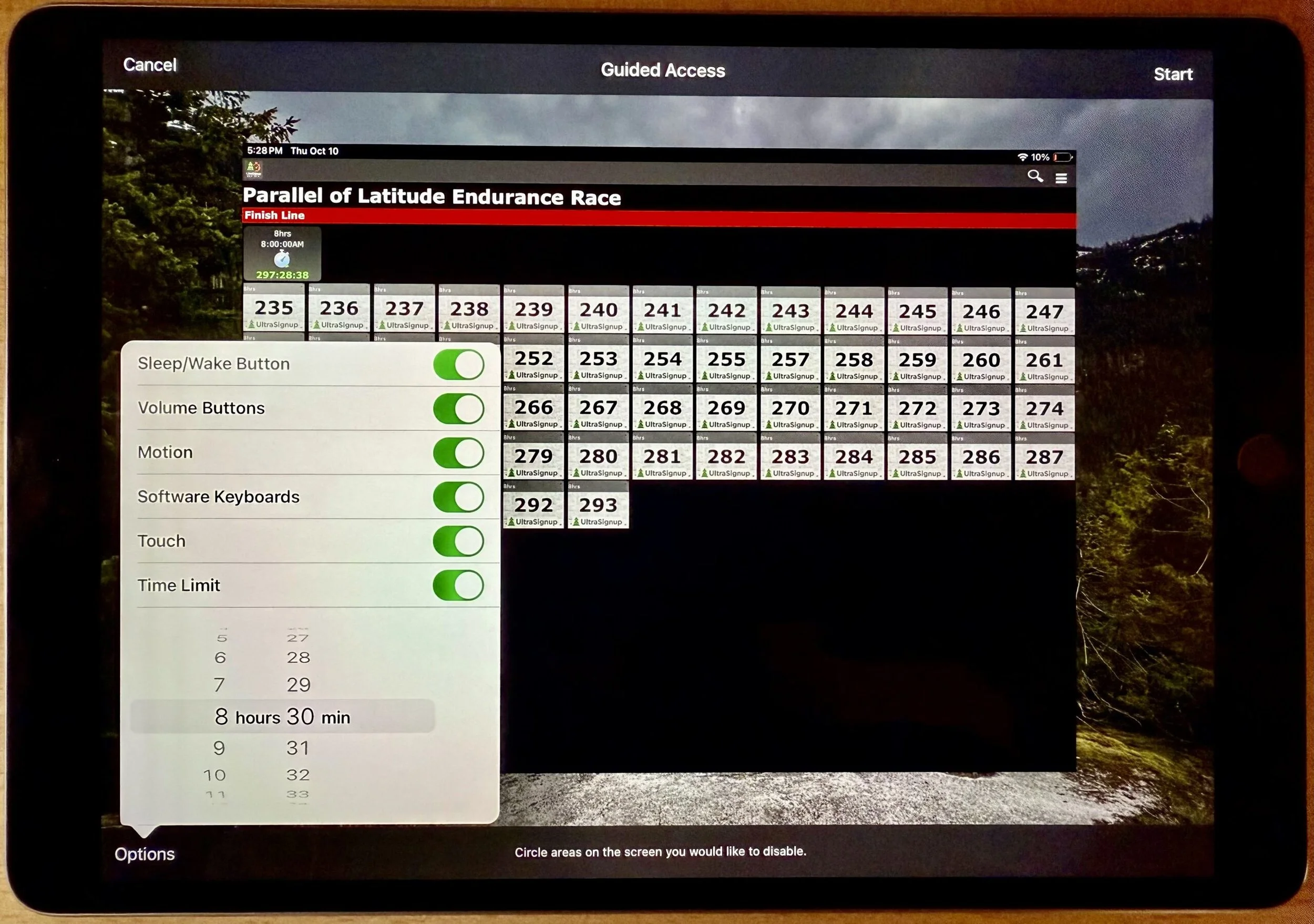
iPhones and iPads are highly personal devices, but you might want to let someone else use a particular app on yours without letting them poke through Messages, Mail, and Photos. For example, a child could play a game, a volunteer could check in attendees, or a friend could take photos. To allow this, Apple created Guided Access, which you turn on in Settings > Accessibility—give it an easily remembered passcode and decide if you want to let the display auto-lock. Then, to turn on Guided Access, open the app you want to share and triple-click the side or top button. Options let you control buttons, the accelerometer, software keyboards, touch input, and a time limit. To end a Guided Access session, triple-click the side or top button, enter the Guided Access passcode, and tap End.
(Featured image by iStock.com/Userba011d64_201)
Beware Fake “Sextortion” Scams
Scams are starting to incorporate personal information stolen in data breaches, so you may get “sextortion” threats that purport to know your phone number, address, and more.

All those data breaches are coming back to haunt us. Once our phone numbers and addresses began to be leaked, it was only a matter of time before scammers would personalize their attacks to make them seem more real. The latest “sextortion” scams purport to have compromising video of you taken from your computer’s webcam, backing it up with your phone number and a Google Street View-like image that matches your leaked address. They make a lot of claims and dire-sounding threats, but talk is cheap, and there’s nothing behind them. Do not pay the scammers!

(Featured image by iStock.com/Thapana Onphalai)