
Apple Speed Bumps iPad with A16 and iPad Air with M3
Apple’s latest iPad and iPad Air updates make them faster and more appealing without increasing prices. If you’re in the market for an iPad, the iPad remains a steal and the iPad Air offers all the performance most people will ever need.

Apple has updated the iPad and iPad Air and introduced a new keyboard for the iPad Air.
The primary change to the 11th-generation iPad ($349) is the move from the previous model’s A14 Bionic chip to the A16, which is nearly 30% faster but still won’t support Apple Intelligence or some recent games. Apple also increased the base stor-age from 64 GB to 128 GB, dropped the Nano-SIM slot from the cellular models, and updated the wireless capabilities to support current protocol versions. Although the screen remains the same 10.9-inch diagonal size, Apple now refers to it as the “11-inch iPad.” It remains an excellent and affordable entry-level device.
The 7th generation of Apple’s flagship 11-inch ($599) and 13-inch ($799) iPad Air sees only a single change—swapping the previous model’s M2 chip for the M3 to increase performance, particularly for gaming and video creation. Separately, Apple introduced a less expensive Magic Keyboard for iPad Air that adds a 14-key function row and sports a larger trackpad, though it lacks the previous model’s backlit keys and trackpad haptics. The keyboard costs $269 for the 11-inch iPad Air or $319 for the 13-inch model.

(Featured image by Apple)
HomePods Can Alert You of Smoke and Carbon Monoxide Alarms
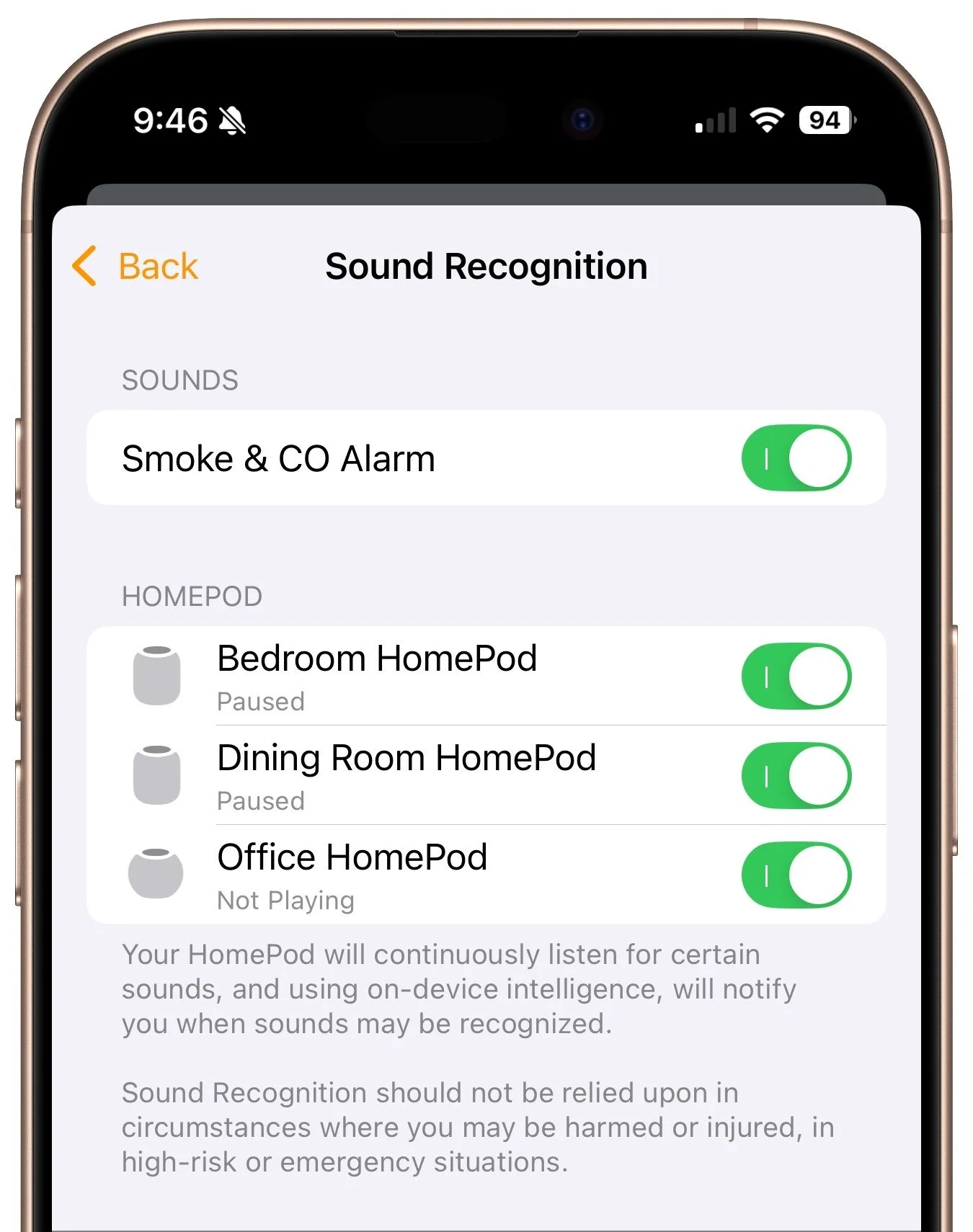
Apple’s HomePods can recognize the sound of a nearby smoke or carbon monoxide alarm and notify your iPhone, alerting you when you’re away and allowing you to inform emergency services and neighbors.

Although we think about HomePods as being useful for playing audio and responding to Siri commands for HomeKit devices, they can do more. HomePods can send a notification to your iPhone if their built-in microphones recognize the piercing squeals from smoke and carbon monoxide alarms. If you are away from home, that notification could help you alert neighbors and call 911, shaving minutes off response times. To turn the feature on, open the Home app, tap the ••• button in the upper-right corner, navigate to Safety & Security > Sound Recognition, and turn on the switches for Smoke & CO Alarm and any HomePods you have.
(Featured image by iStock.com/BrianAJackson)
Create Links to Selected Text in Long Web Pages
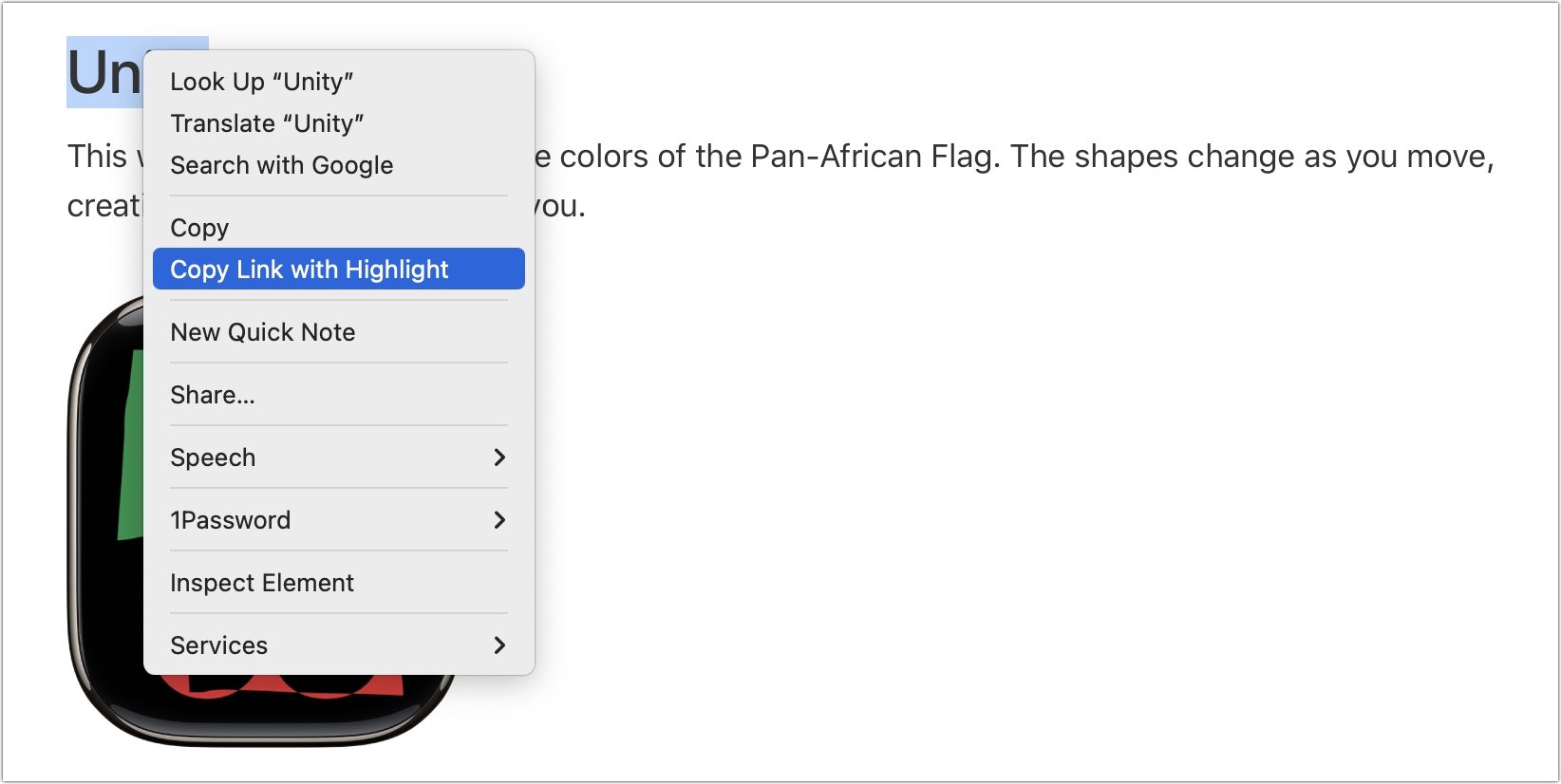
You can now create a link directly to text anywhere on a Web page with the handy Copy Link to Highlight command in many Web browsers. Here’s how to invoke the command and an example of why it’s so useful.

If you have Control- or right-clicked on text in a Web browser in the last year or two, you may have seen an oddly named command: Copy Link to Highlight. When you choose it, it puts a URL on your clipboard, not just to that page, as Copy Link Address would, but also to the selected text. You can use this URL to make a link or share it directly, and when someone follows it, their browser scrolls to the selected text, simplifying navigation on a long page. For example, compare this link to Apple’s long Apple Watch faces page with this one that points directly to the Unity watch face most of the way down. All Web browsers can follow these links, but Google Chrome was the first to let you make them, and you’ll also find the feature in Arc, Microsoft Edge, and Vivaldi. Apple recently got on board with Safari 18’s Copy Link with Highlight command. The Link to Text Fragment extension adds the feature to other Chromium browsers and Firefox.
(Featured image by iStock.com/Arkadiusz Warguła)
For Moments of Joy, Use watchOS 11’s Photos Watch Face
Let’s take a step back from how technology can enhance productivity to appreciate watchOS 11’s new Photos watch face. The way it unearths photos from your photo library on every wrist raise is delightful.
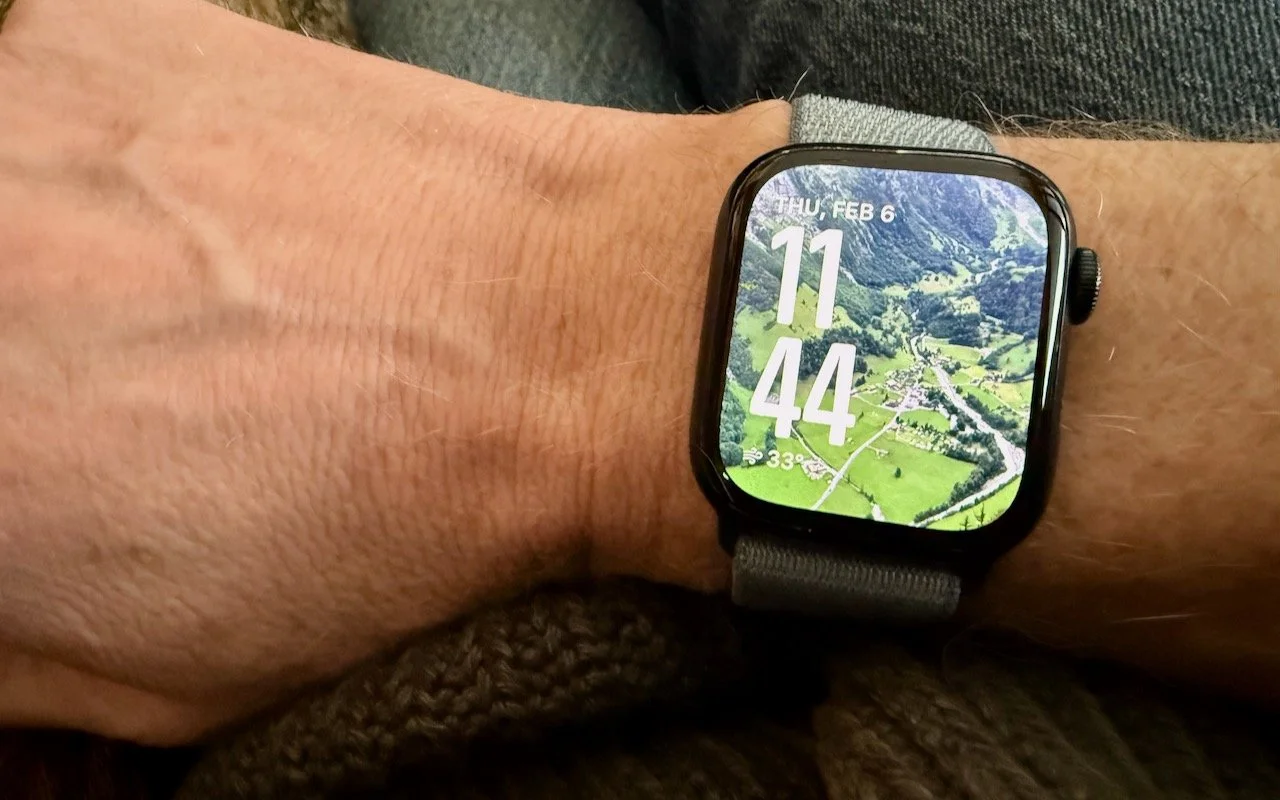
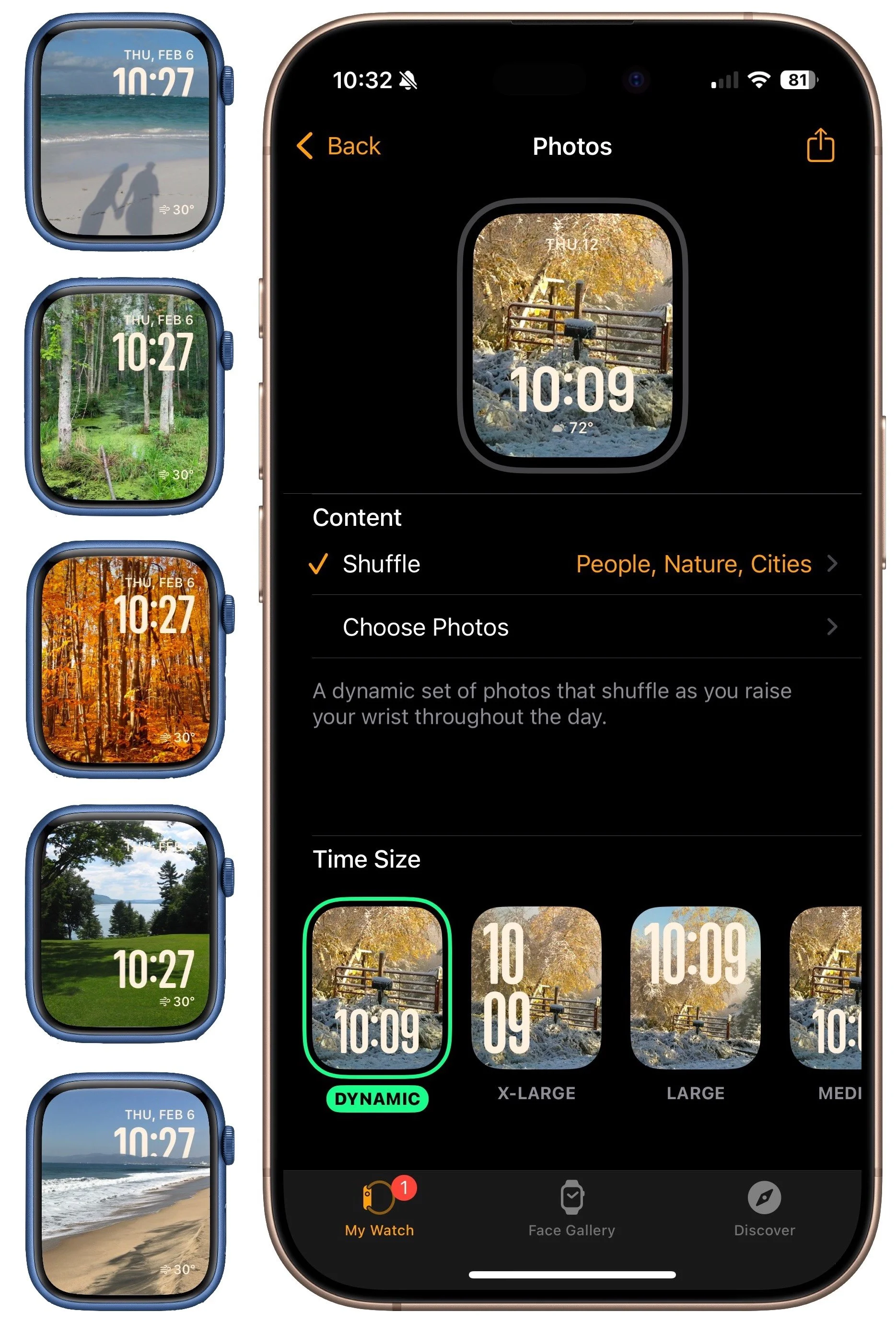
We’re taking a brief break from helping you become more productive to recommend a feature that could spark moments of joy for Apple Watch users. In watchOS 11, the new Photos watch face can display a photo from a shuffled set of images each time you raise your wrist (or tap the screen). Like the Lock Screen customization feature on the iPhone and iPad, the Photos face can dynamically select images of your favorite people, nature, and cities from your photo library. (You can also choose photos manually.) The time appears in an appropriate spot and size. Before the Photos face, we often relied on the complication-heavy Modular face, but we now find being surprised by lovely images from our photo library to be delightful. To add the Photos face to your Apple Watch, open the Watch app on your iPhone, tap Face Gallery, and tap the Photos face. Then, choose where the content will come from, select the time size, and add any desired complications. Once it’s on the Apple Watch, you can tweak style settings there too.
(Featured image by Adam Engst)
iOS 18 and iPadOS 18 Offer Better PDF Handling in Mail
Have you ever needed to sign or annotate a PDF you received in the Mail app on your iPhone? With iOS 18 and iPadOS 18, you can manage PDFs directly in Mail. Once you’re finished, you can attach the modified PDF to a reply or a new message.
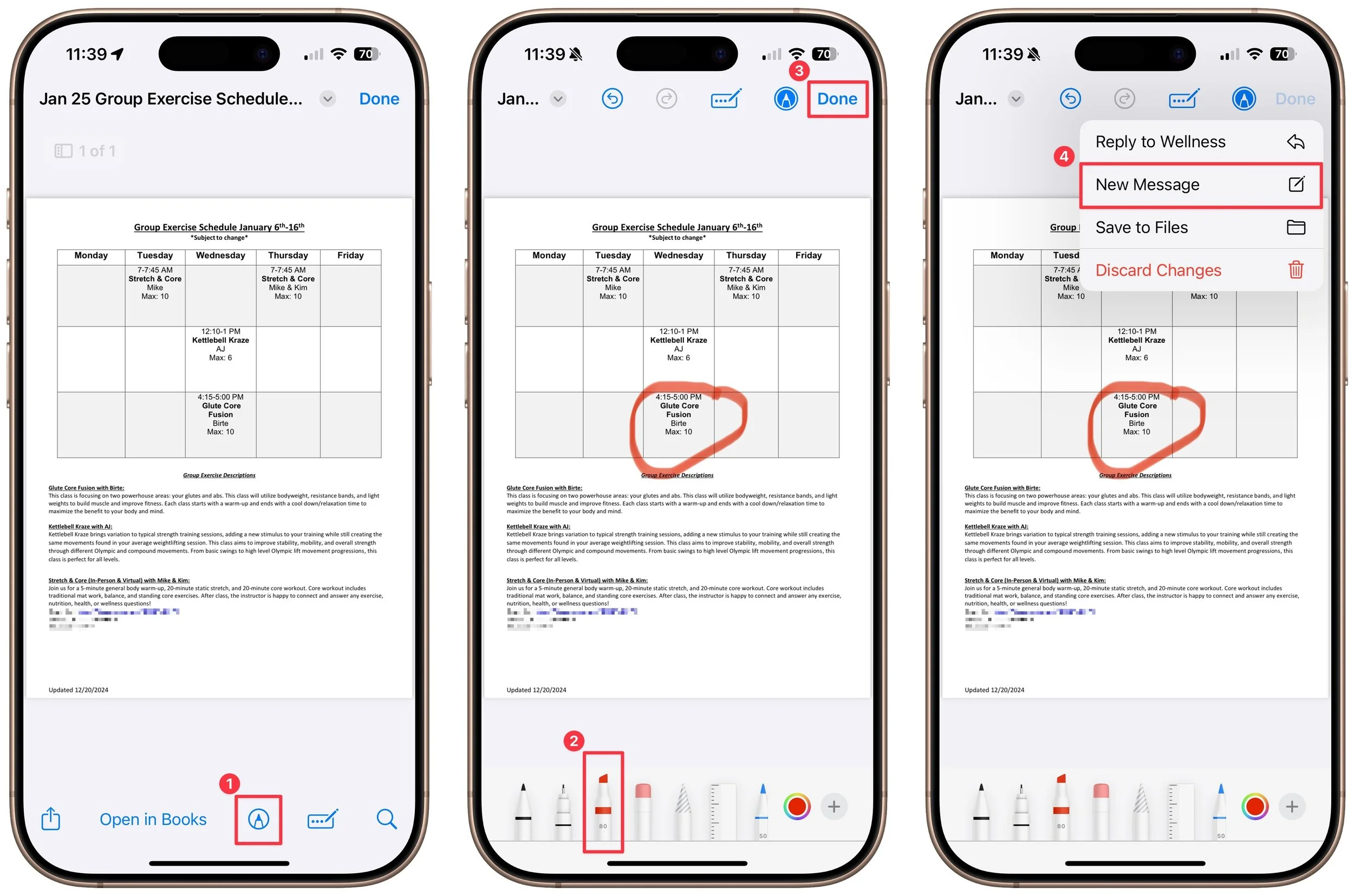
You can now work directly with PDFs received in the Mail app using a little-known feature in iOS 18 and iPadOS 18. Tap a PDF attachment in a message and use the Markup and Form Fill buttons at the bottom to access the PDF markup and filling tools. After modifying your PDF, tapping the Done button gives you options for what to do with the PDF: include it in a reply, create a new message with it, save it to Files, or discard the changes.
(Featured image by iStock.com/chanakon laorob)
Apple Brings Back the Calculator App’s Repeat Feature
Did you know that Apple’s Calculator app can repeat the last operation when you press = multiple times, which is helpful for tasks like calculating compound interest? Although this feature had briefly disappeared, it’s back now.

In iOS 18, iPadOS 18, and macOS 15 Sequoia, Apple removed a standard feature of the Calculator app that allowed users to press the = button multiple times to repeat the last mathematical operation. Following user complaints, the company reinstated this feature in iOS 18.3, iPadOS 18.3, and macOS 15.3. Now, to calculate the compound interest from investing $1,000 at 5%, you can multiply 1000 by 1.05 and press = repeatedly to see how your investment would grow. (To open the history sidebar on the Mac, choose View > Show History; on the iPhone, tap the hamburger button in the upper-left corner.)

(Featured image by iStock.com/drasko)
Apple Invites Simplifies Social Event Planning
The new Apple Invites app for iPhone simplifies inviting friends and family to social events for iCloud+ subscribers. Anyone can RSVP, even if they don’t use Apple devices.

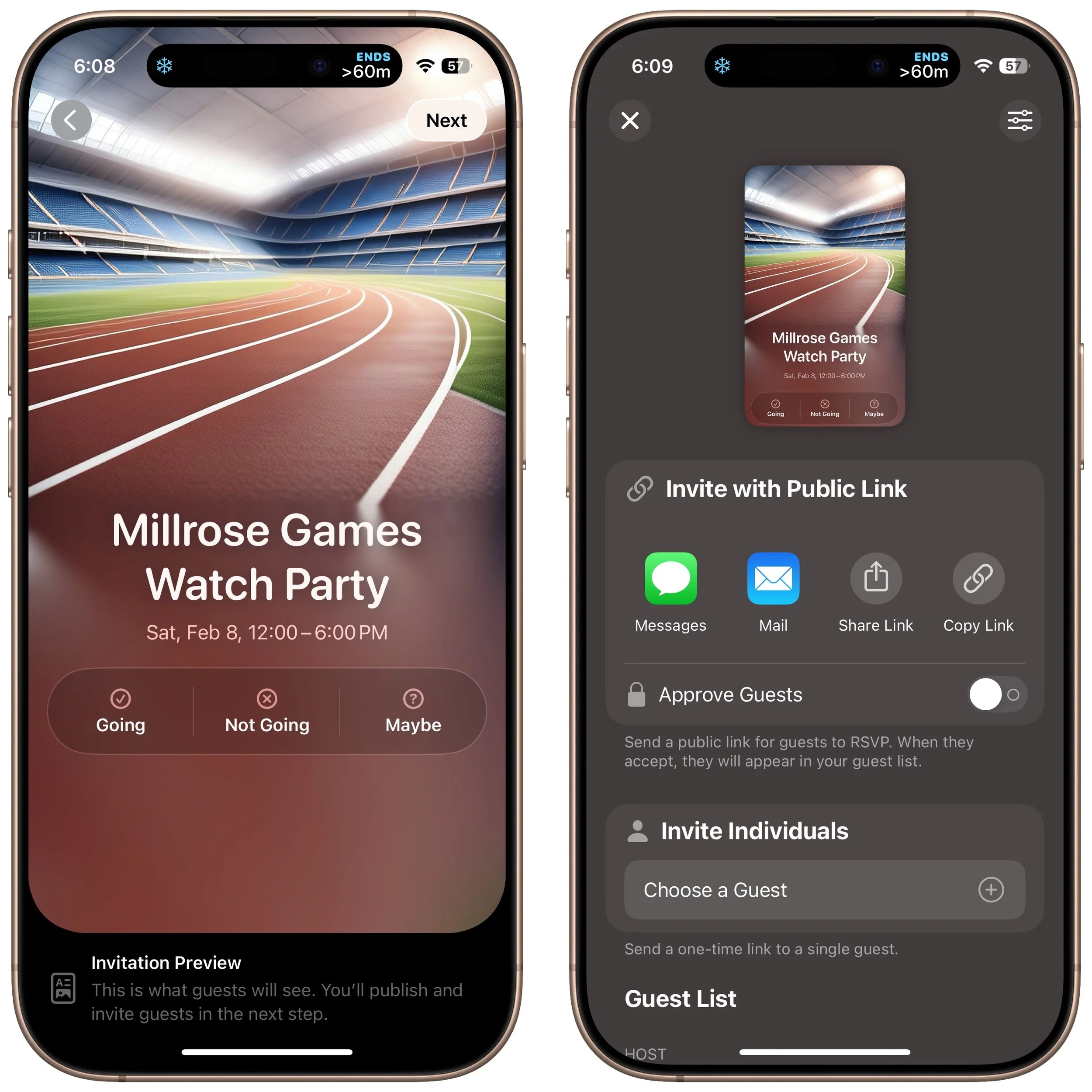
Apple has launched the new Apple Invites iPhone app for planning social events with friends and family. Apple Invites requires iOS 18 on the iPhone, and you can also use it at iCloud.com/invites on the Mac and iPad. Event creation is limited to iCloud+ subscribers (those who pay for extra iCloud storage), but anyone can RSVP for an event, even if they don’t have the app, an Apple Account, or an Apple device. Creating an event is straightforward: simply name the event, set a date and optional time, specify a location, add a description, and pick a background. You can then invite people directly or by sharing a public link. Guests can RSVP whether they’re attending, not attending, or are unsure, and they can change their name and provide a custom response. Apple Invites may not change the world, but it’s a nice alternative to ad-infested invitation services.
(Featured image by iStock.com/Jacob Wackerhausen)
Add Weather to Your Mac’s Menu Bar with This Sequoia Tip
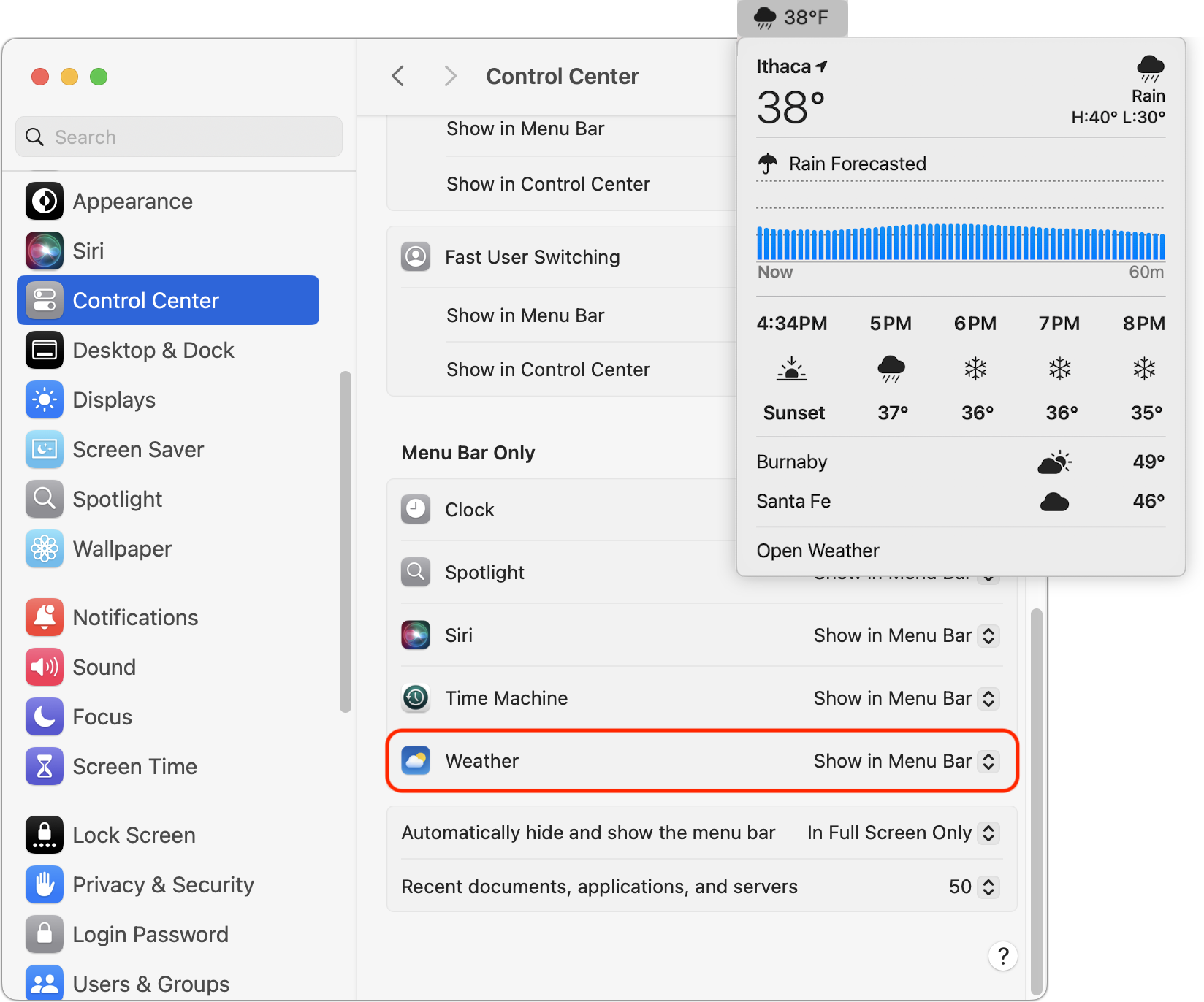
In macOS 15.2 Sequoia, you can display the current weather conditions in your Mac’s menu bar. Here’s how to enable that feature.
In macOS 15.2 Sequoia, Apple added the option to display the current weather conditions in the menu bar but hid the switch deep in the bowels of System Settings. To turn this option on, open System Settings > Control Center, scroll to the bottom, and in the Menu Bar Only section, for Weather, choose Show in Menu Bar. A new item with the current conditions at your location will appear in the menu bar; click it to see the forecast and access other locations in Apple’s Weather app.
(Featured image by iStock.com/trangiap)