
Switch Between Apps Fluidly on Face ID iPhones
The threat of tariffs raising iPhone prices has prompted many upgrades to the iPhone 16 lineup. For those new to Face ID—or anyone who isn’t familiar with it—we have an app-switching tip that everyone should know and use.
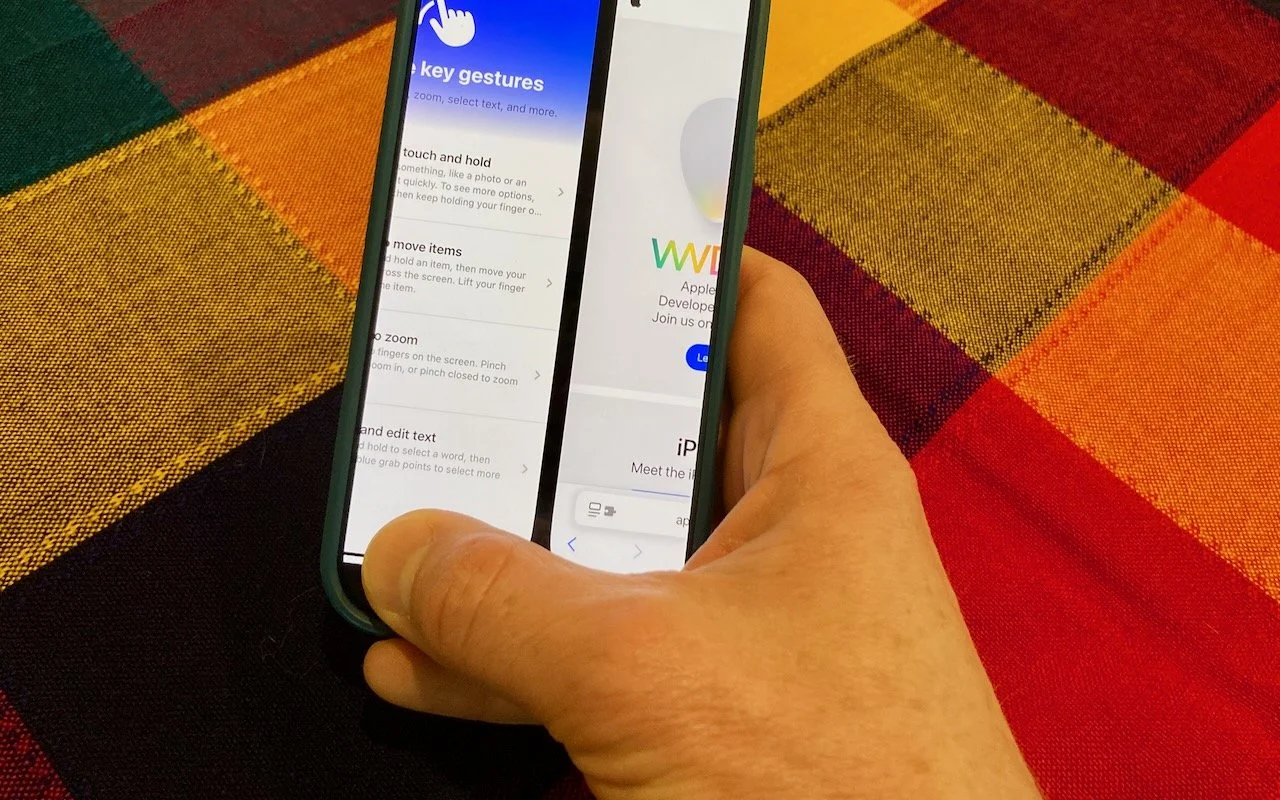
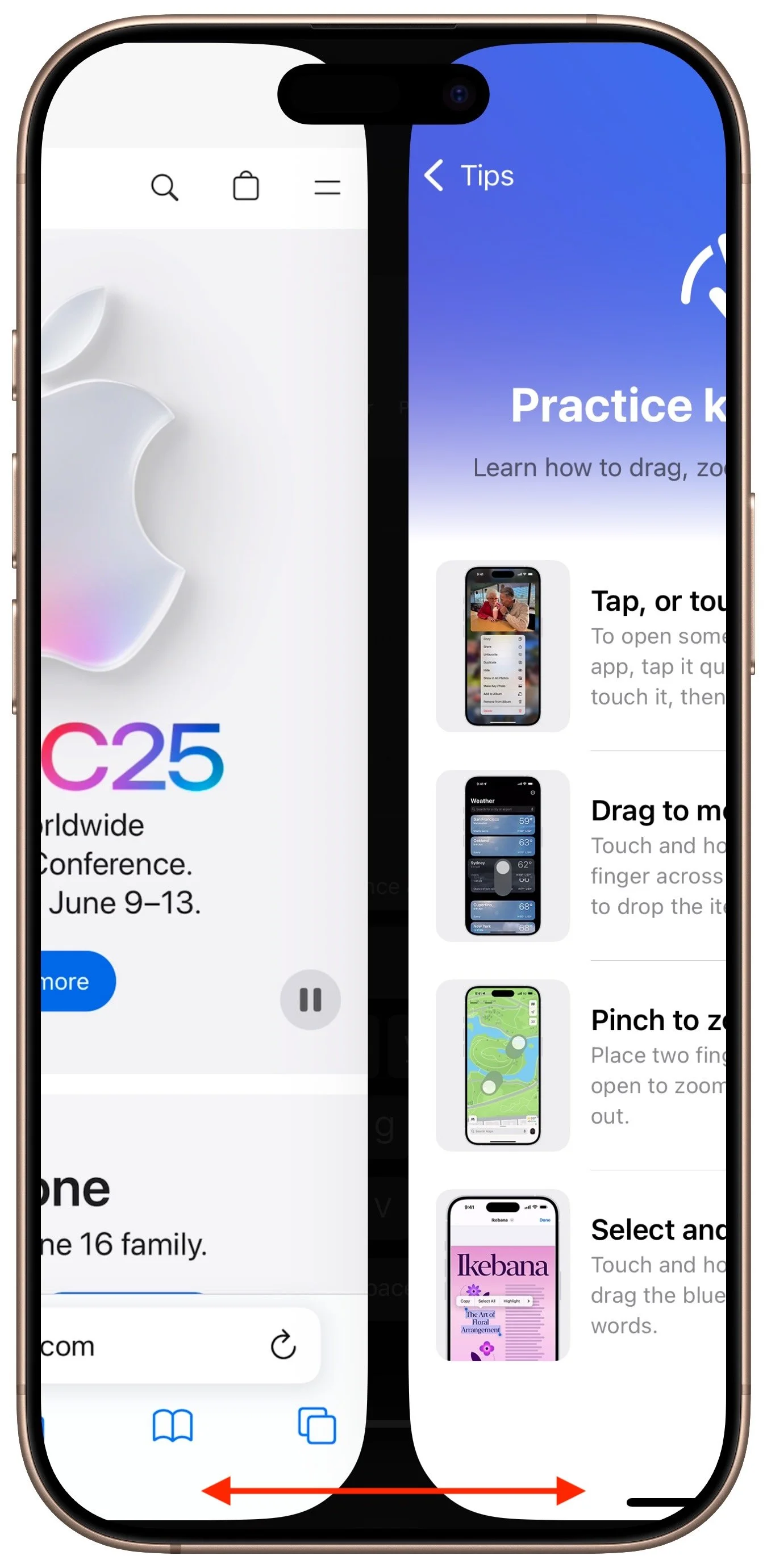
The ongoing threat of tariffs raising the price of iPhones has recently prompted some people to upgrade from an old Touch ID iPhone to a new iPhone 16. Although most have adjusted well to Face ID, few are aware of the app-switching shortcut exclusive to Face ID iPhones. To access the App Switcher on a Face ID iPhone, you must swipe up slightly from the bottom of the screen and then continue the swipe to the right. However, Face ID experts rarely do that. Instead, they just swipe right and left on the bar at the bottom of the screen to switch between apps—it’s much faster and easier, albeit hard to discover.
(Featured image by Adam Engst)
Clean Your iPhone’s Camera Lens
To prevent fingerprint smudges and other grime from impacting the quality of your iPhone photos, clean the lens occasionally with a microfiber cloth or at least the edge of your T-shirt.

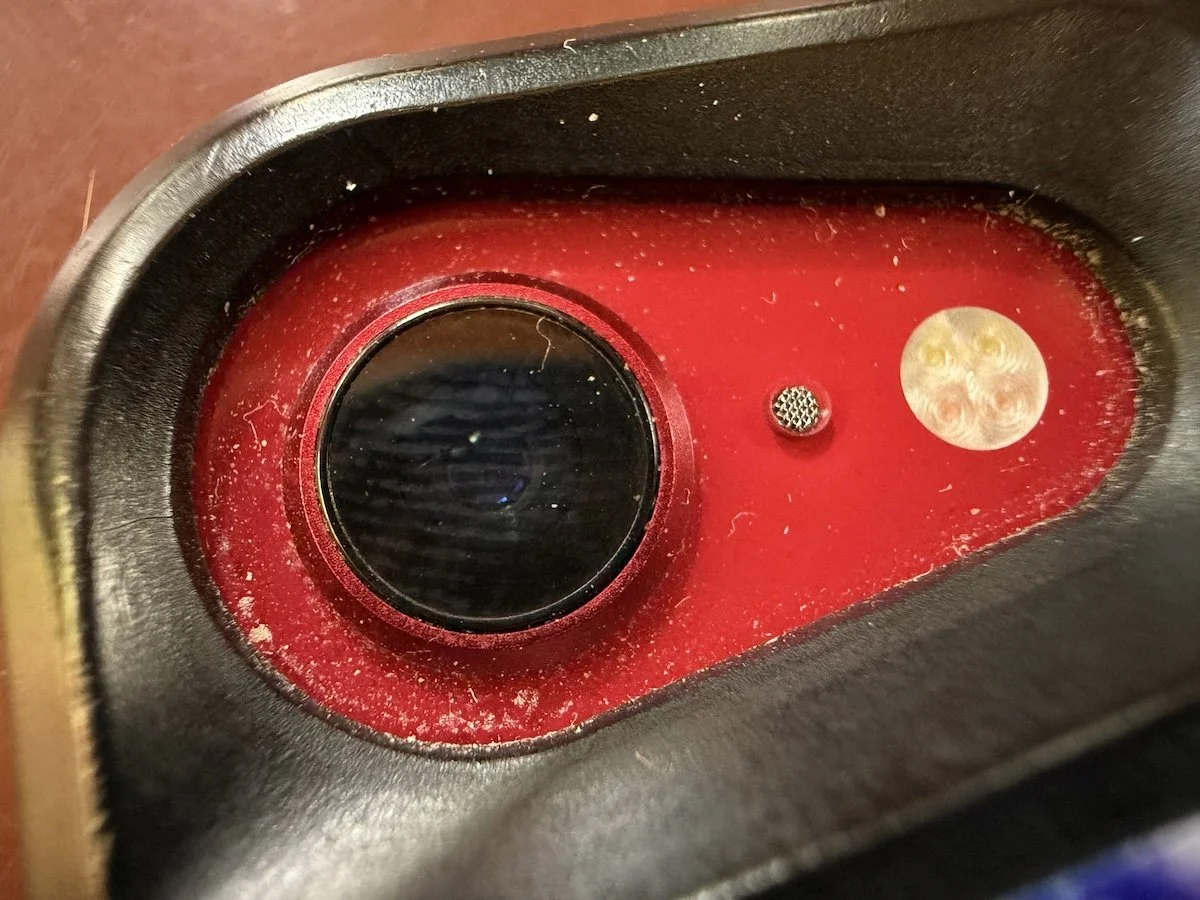
Serious photographers take care of their lenses. The rest of us just stuff our iPhones into our pockets or purses and pay no attention to the fingerprints and grime they collect. If your iPhone’s camera lens is smudged, it will impact the quality of your photos. Take a few seconds to polish it with a microfiber cloth now and then, or, you know, simply wipe it with the edge of your T-shirt. Your photos will thank you.
(Featured image by iStock.com/EyeEm Mobile GmbH)
Make Apple Devices Easier for Family to Access with Secondary Biometrics
Make accessing your iPhone, iPad, and Mac easier for trusted family members by setting them up so they can use Touch ID or Face ID.

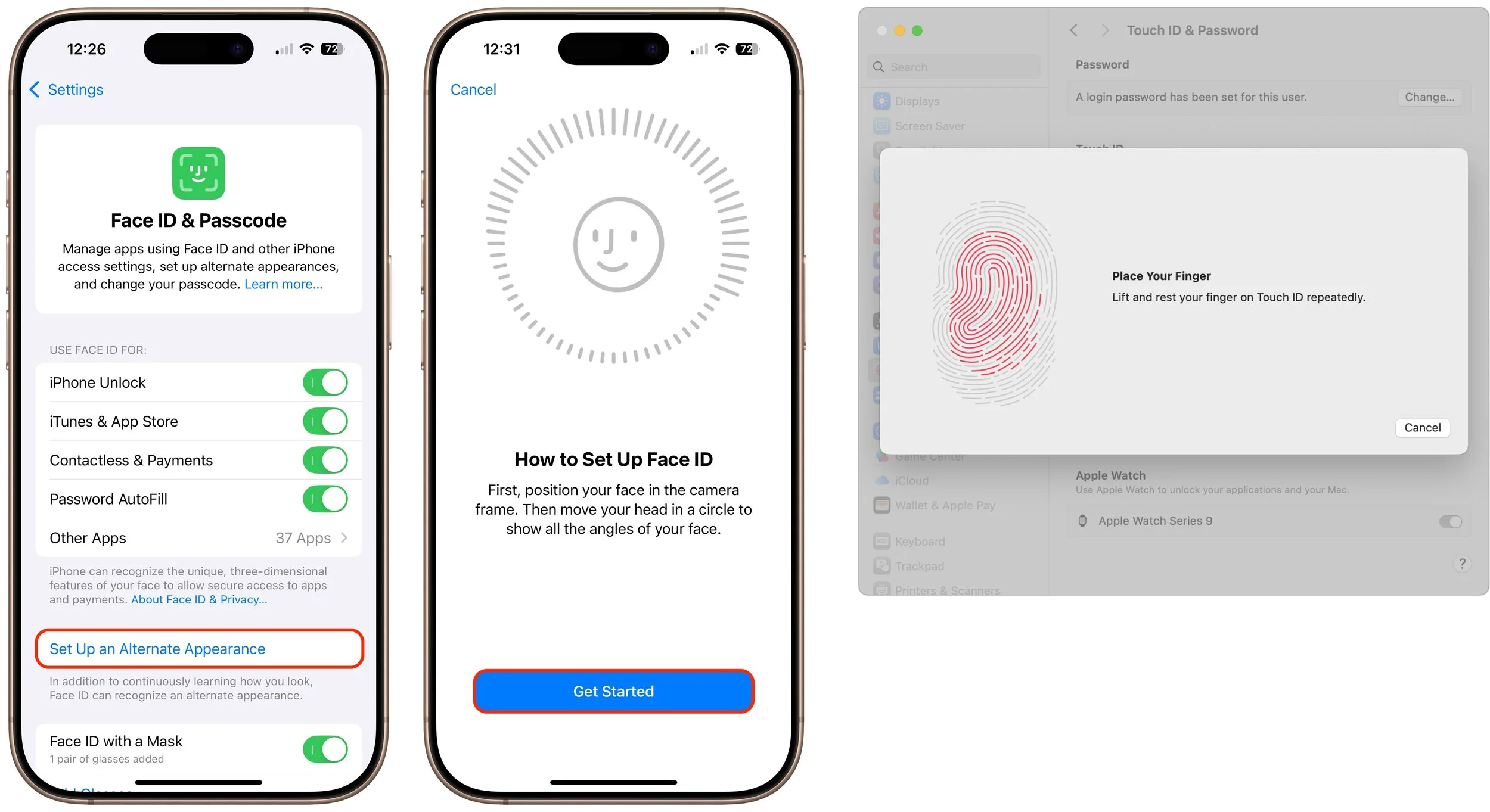
It’s only safe to share your iPhone, iPad, and Mac passcodes and passwords with people you trust completely, which typically includes family members whom you would trust with your healthcare and bank accounts. If those people also use your devices regularly, you can simplify their access by adding their fingerprint to Touch ID or their face to Face ID. Touch ID allows you to add up to five fingerprints, while Face ID provides an option for a second face. Both can be easily set up in Settings > Face/Touch ID & Passcode (iPhone and iPad) and System Settings > Touch ID & Password (Mac).
(Featured image by iStock.com/Giulio Fornasar)
Beware Domain Name Renewal Phishing Attacks
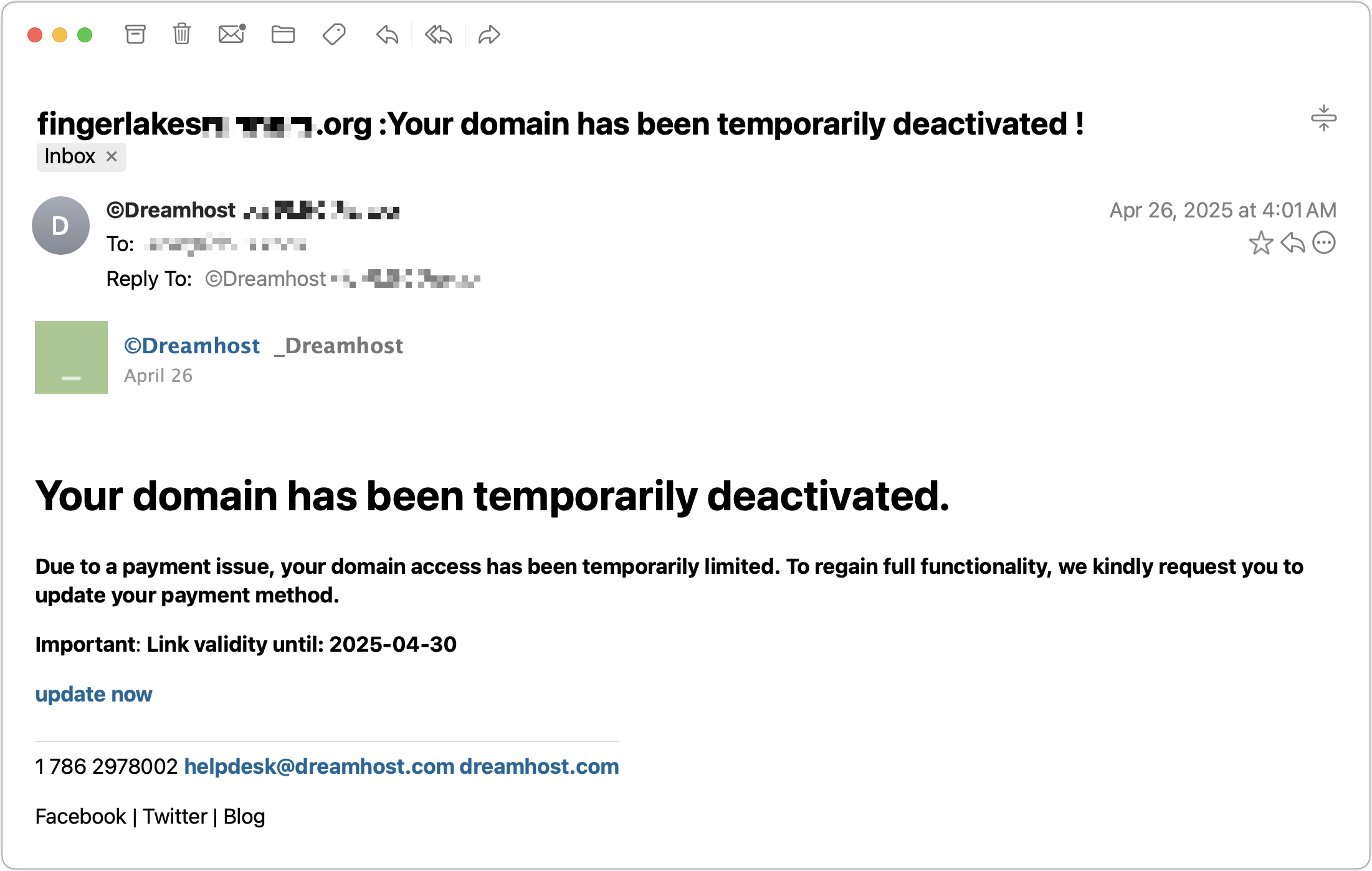
Phishing scams are becoming more sophisticated. A message that seems to come from an Internet domain host and arrives around the time of a domain renewal could deceive even experienced users.

Most phishing attacks are easy to identify, but we’ve just seen one that’s more likely to evade detection. Those who own personal or business Internet domain names—to personalize their email or provide an online presence for their website—may receive fake messages claiming that a domain has been deactivated due to a payment issue. Because scammers can determine when domain names are due to expire and the name of the company hosting the domain, the urgency triggered by a message that appears to be from the domain host and arriving near the renewal date may cause someone to click a link they shouldn’t. This particular one wasn’t even that well crafted and still caused the recipient brief concern until they manually went to DreamHost and verified that nothing was wrong with their domain payment. Stay alert out there!
(Featured image by iStock.com/weerapatkiatdumrong)
Apple Silicon Macs Can't Boot from the DFU Port
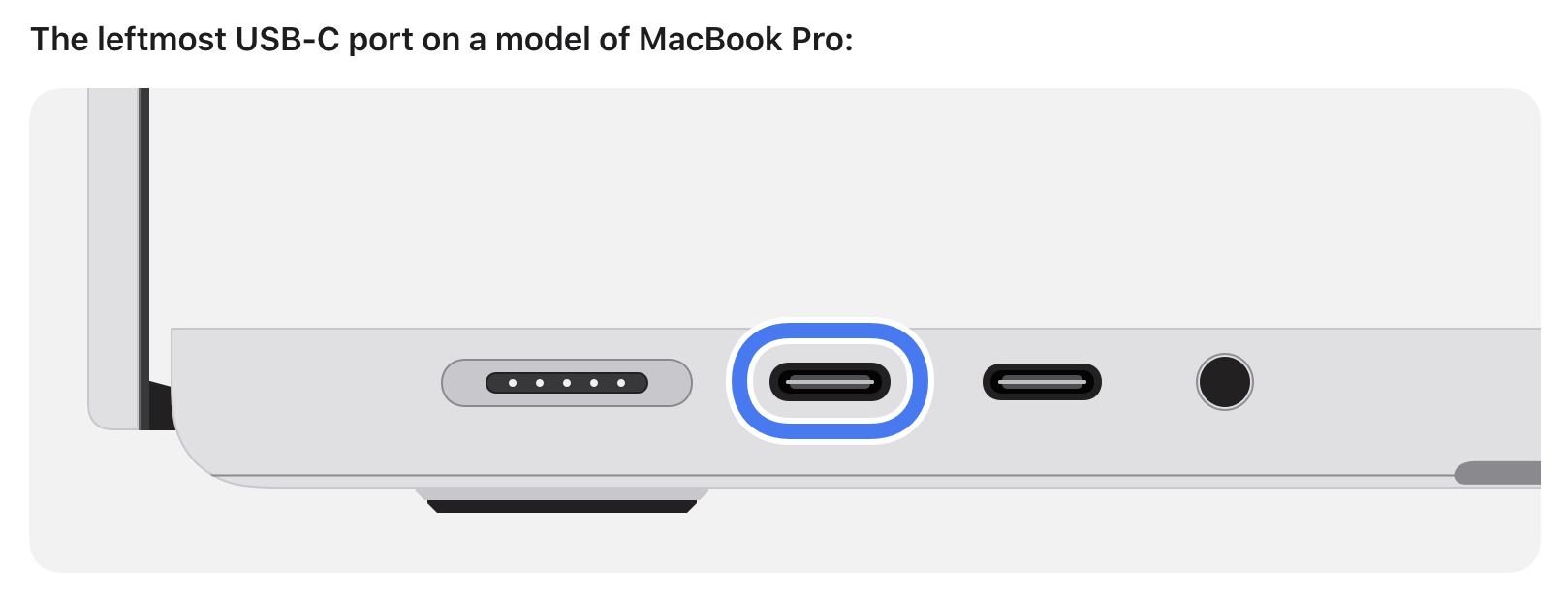
If your Apple silicon Mac won’t boot from an external drive, the issue may be related to which USB-C port you’re using—the special DFU port cannot be used for booting from external drives. Learn how to identify that port on your Mac.
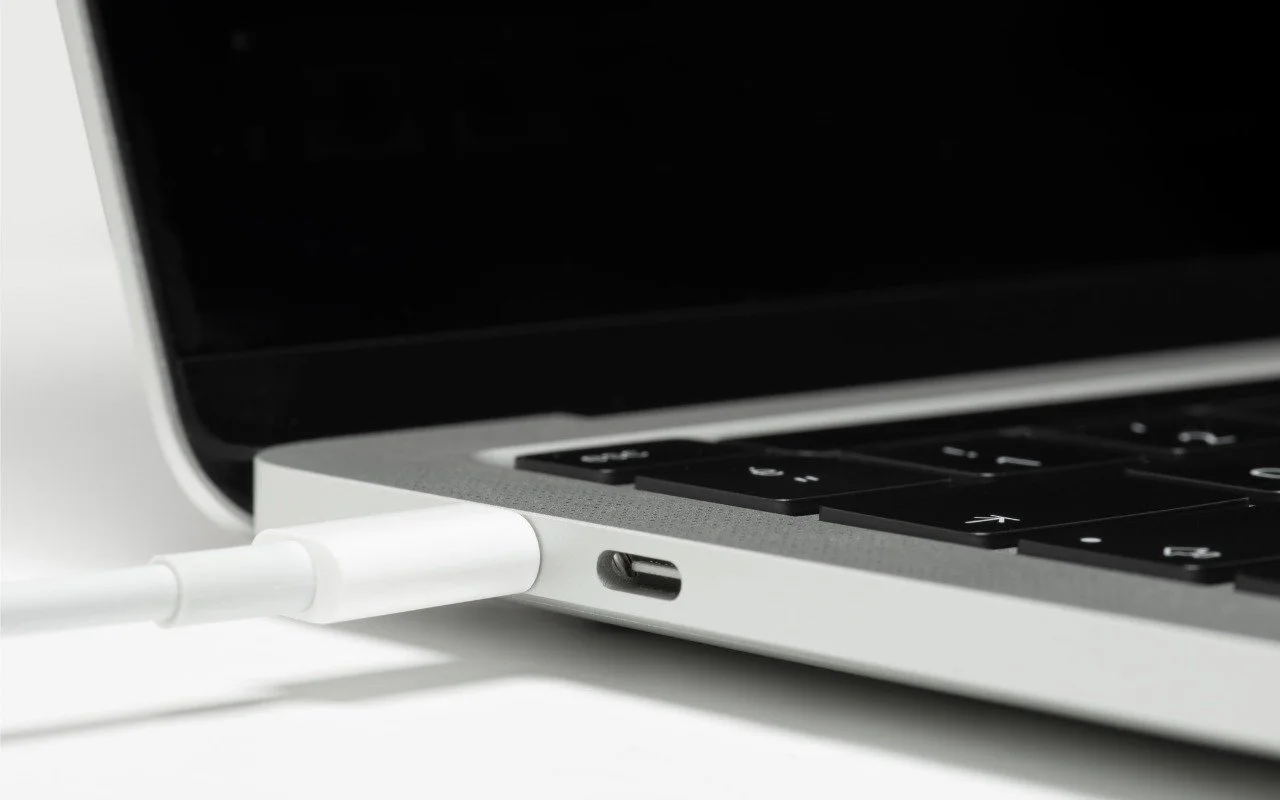
Booting from an external SSD (hard disks are too slow) provides a convenient way to test specific versions of macOS or troubleshoot problems with your Mac’s internal storage. However, a little-known gotcha has caused untold hair loss among those trying to boot from an external drive. Macs with Apple silicon cannot start up from external drives connected to their DFU (device firmware update) USB-C port. The only way to determine which port this is on a given Mac is to look it up on Apple’s website. If your Mac won’t boot from an external drive, connect it to a different USB-C port.
(Featured image by iStock.com/ardasavasciogullari)
Make Sure to Check Settings on Multiple Devices
Is your app behaving differently on different devices? The culprit might be device-specific settings. To avoid frustration, check and synchronize your preferences across all devices to ensure consistent behavior where appropriate.
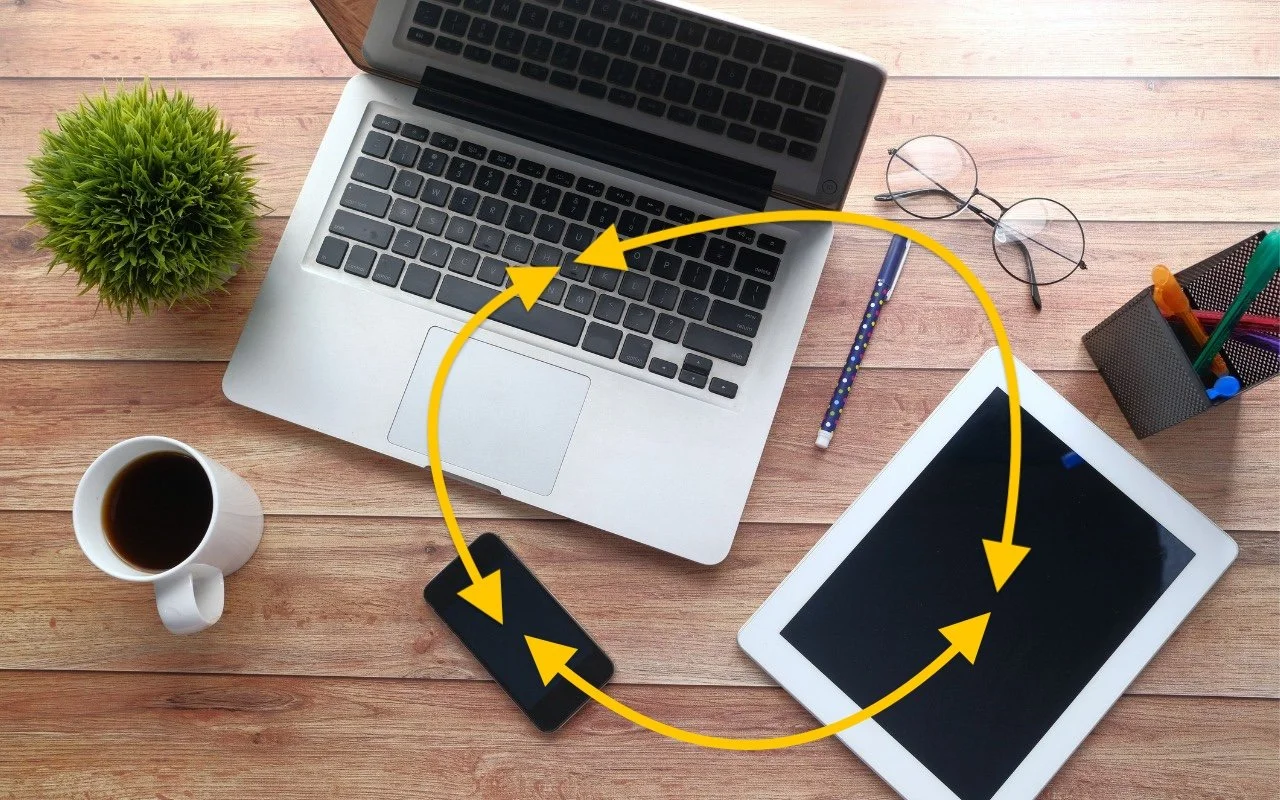
We recently helped someone having trouble with 1Password requesting their password repeatedly on their iPad, but not on their iPhone. Since 1Password’s data syncs between devices, this person didn’t realize they needed to configure the app’s security settings separately for each device. It’s appropriate for 1Password to separate security settings—one device could be used in a much more sensitive environment than another—but it’s also easy to see how a user might be confused about the difference in behavior. All this is to say that if you are annoyed by an app or operating system behaving differently depending on the device you’re using, compare the settings and ensure they’re set appropriately for each device.
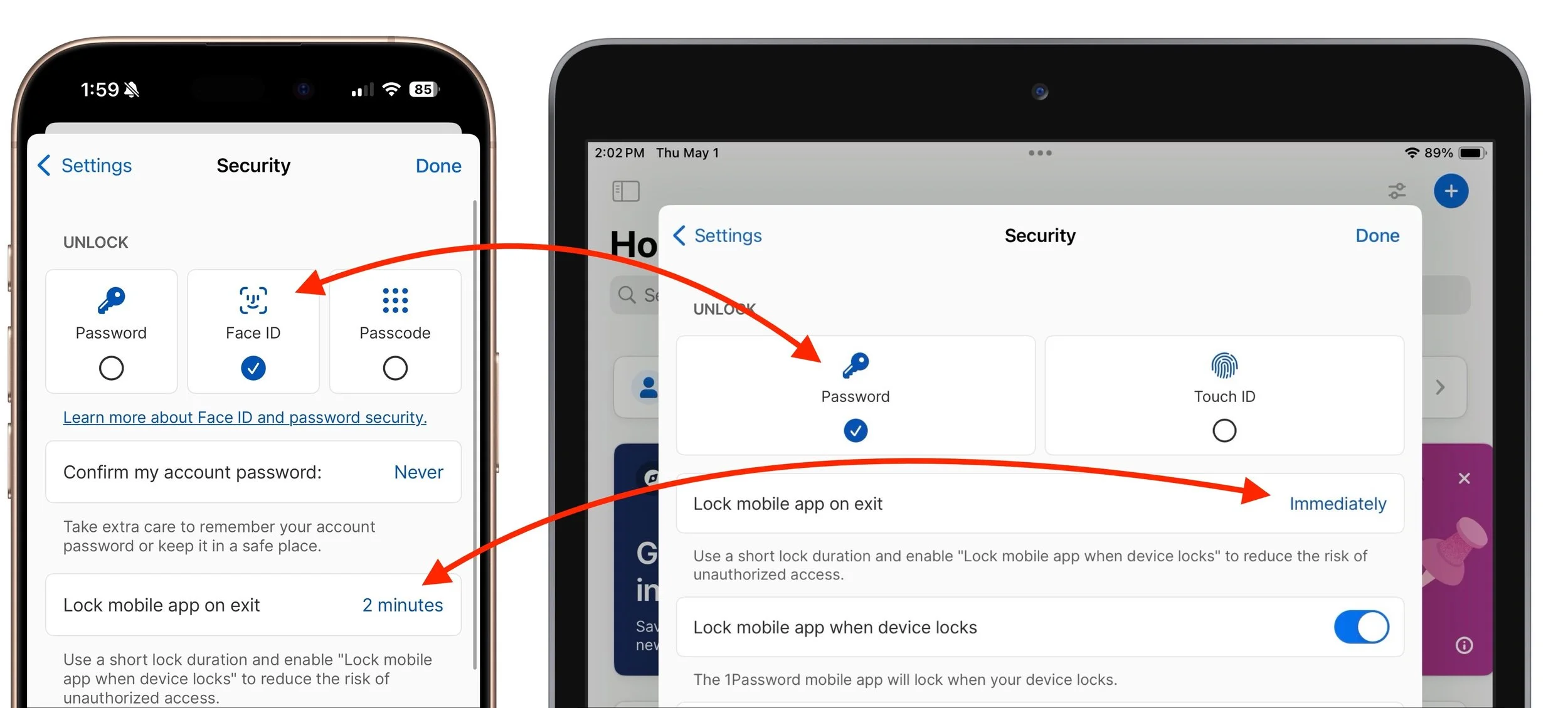
(Featured image based on an original by iStock.com/towfiqu ahamed)
Try Blip for Fast Transfers of Any Size Between Platforms
Looking for a better way to transfer large files across devices and platforms? Blip offers secure, direct file transfers between Apple devices and other platforms, with no size limits and automatic resumption of interrupted transfers.
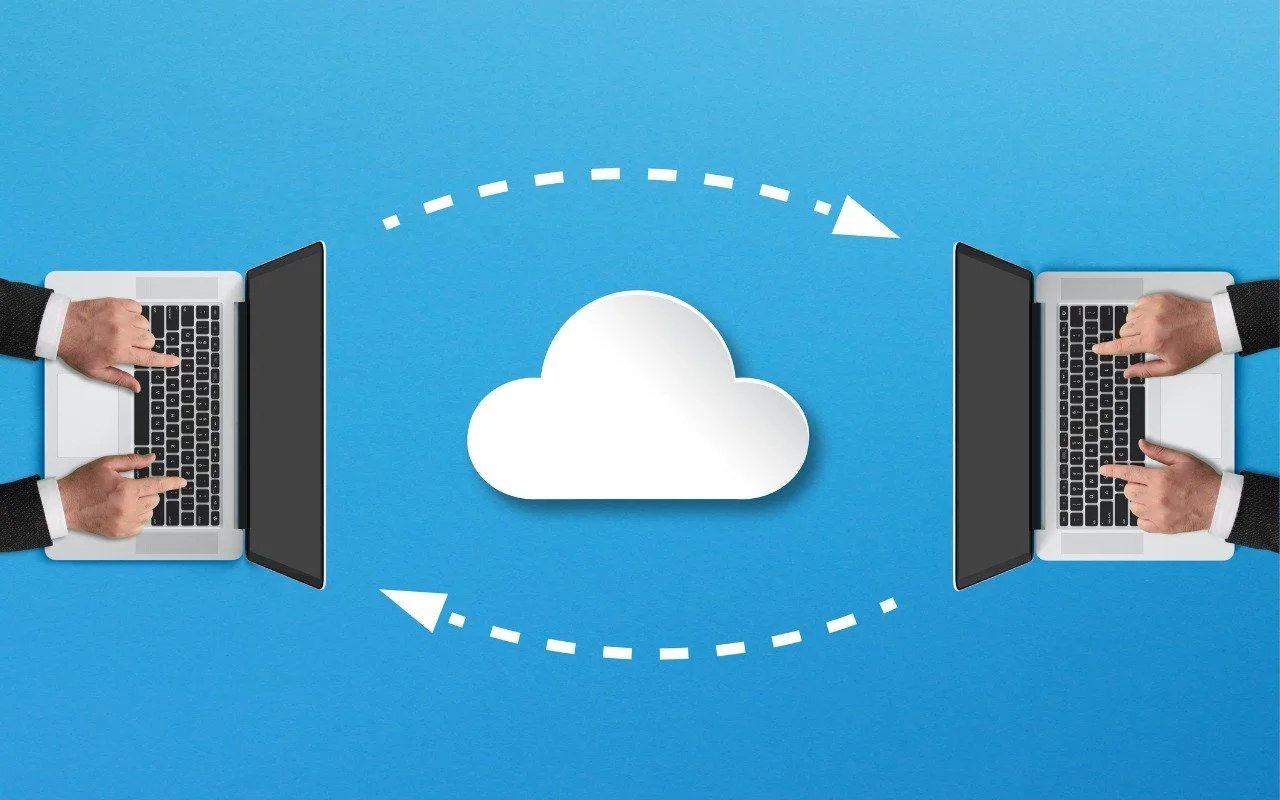
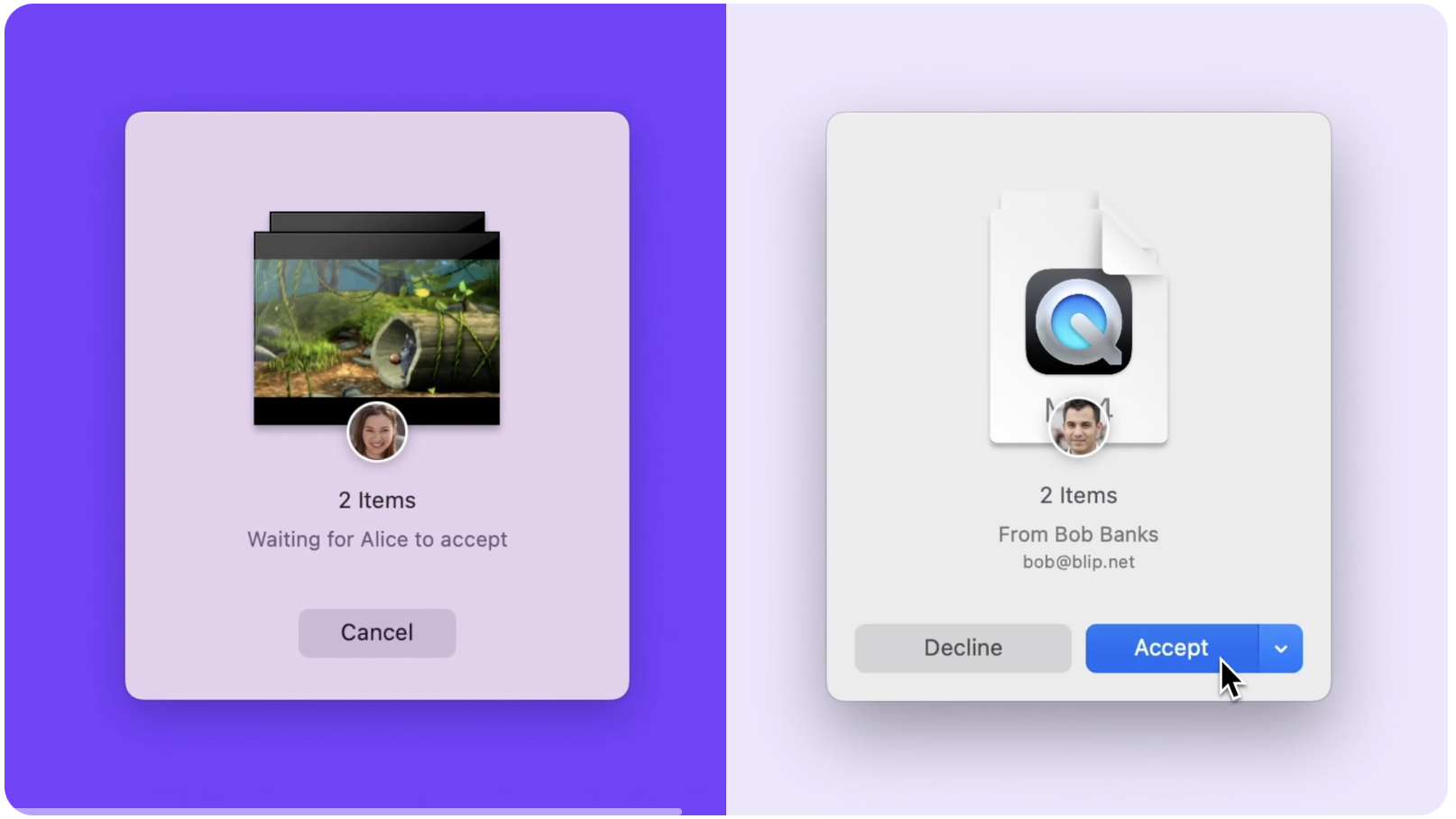
For file transfers, Apple users routinely rely on tools like AirDrop, Messages, email, cloud services, and public sharing websites, but these solutions can fall short when dealing with very large files, sharing across platforms, or confidential data. For such scenarios, Blip offers a reliable solution that works across Macs, iPhones, iPads, Android devices, Windows, and Linux machines. It transfers files of any size directly between devices, with no intermediate servers, encrypting its traffic for security. It handles uncompressed folders, offers high transfer speeds, and automatically resumes interrupted transfers—particularly valuable features when working with large media files or project folders. Blip is free for personal use or $25 per month for commercial use, making it easy to determine if it will be helpful for your business.
(Featured image by iStock.com/Makhbubakhon Ismatova)
Share Wi-Fi Network Passwords Using QR Codes
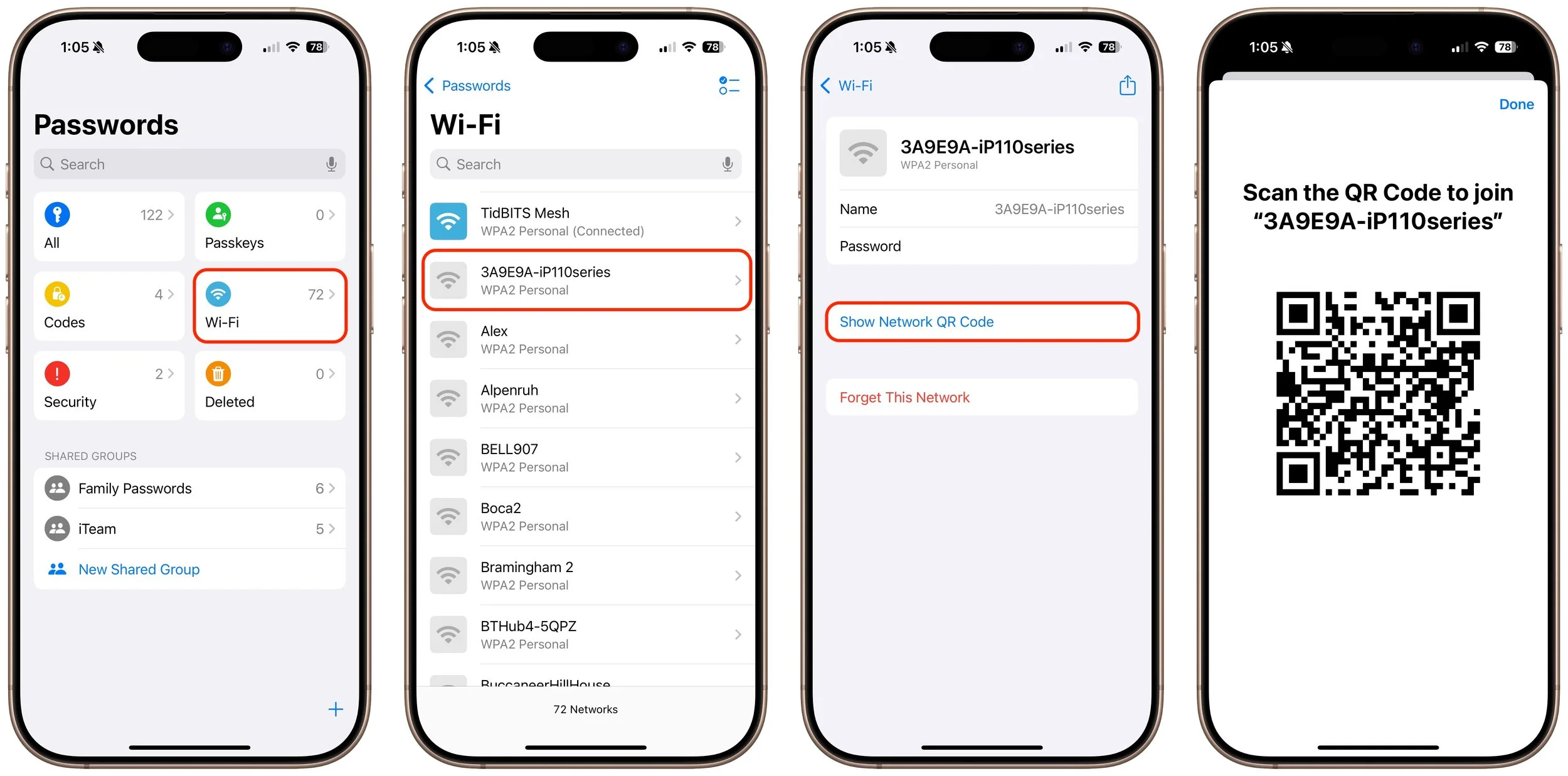
While Apple’s automatic sharing of Wi-Fi passwords feels like magic, it doesn’t work in every situation. For a more reliable manual approach, use the Show Network QR Code feature in the new Passwords app.
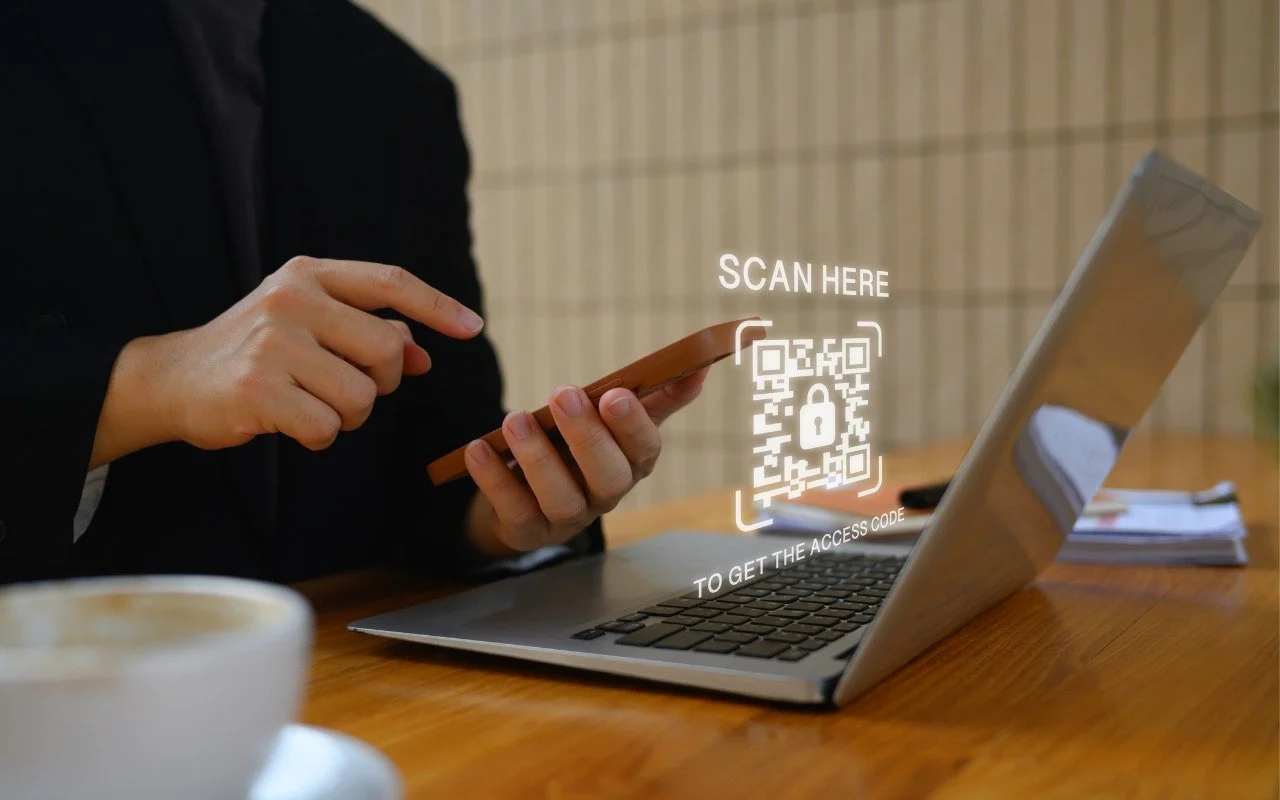
A neat feature built into iOS, iPadOS, and macOS is that when you are connected to a Wi-Fi network, your devices will offer to share the Wi-Fi password if others near you try to connect to the same network. However, for this feature to work, they must be in your Contacts, and at times, it doesn’t activate as quickly as you’d like. Apple’s new Passwords app on an iPhone, iPad, or Mac provides a manual alternative that may work better. Tap the Wi-Fi collection to see all your remembered networks, select the desired network, and tap Show Network QR Code. When others scan the QR code using their phones, they will instantly join the network.
(Featured image by iStock.com/PrathanChorruangsak)