
Drag Documents to Apps in the macOS App Switcher
Did you know you can open a file quickly by dragging it onto an app in the macOS App Switcher? Start dragging, press Command-Tab, and drop. It’s one of the App Switcher’s many tricks.
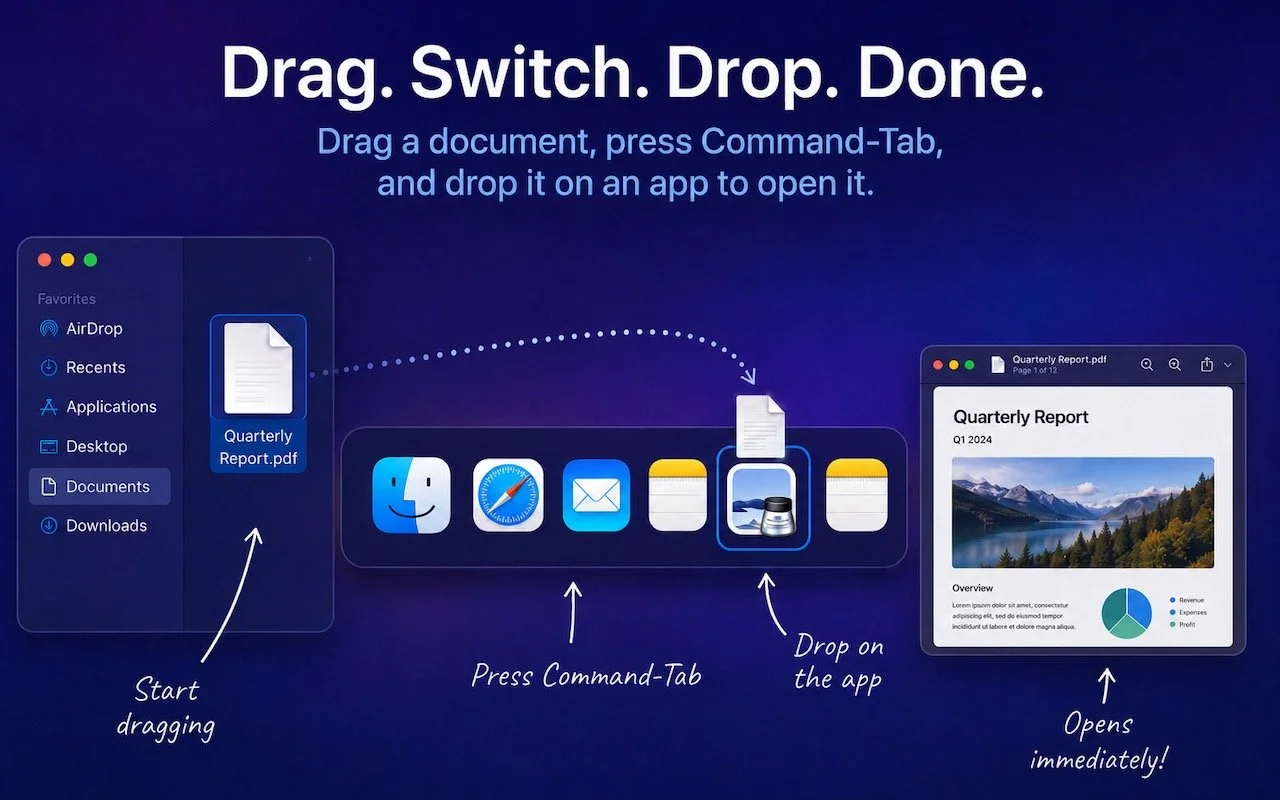
You undoubtedly know about pressing Command-Tab to bring up the macOS App Switcher and mousing to the app you want to switch to. Keyboard jockeys probably even know to keep holding Command down while pressing Tab or right-arrow to cycle to the right (press Shift-Tab, the grave accent/tilde key, or left-arrow to cycle to the left), before releasing the Command key to switch. But did you know you can start dragging something—say a document from the Finder—with your right hand, press Command-Tab with your left hand, and then drop the document on an app in the App Switcher to open it? Go ahead, give it a try!

(Featured image generated by Adam Engst with ChatGPT)
Try Swipe Typing with QuickPath on the iPhone
Tired of hunt-and-peck typing on your iPhone? Try QuickPath—just drag your finger across each letter in a word to swipe-type it. It’s surprisingly accurate and worth learning.

If you’ve had trouble moving from hunt-and-peck typing on the iPhone to the double-thumb typing approach many people prefer, consider QuickPath, better known as swipe typing. QuickPath isn’t new, but many people have never tried it seriously. With swipe typing, you put your finger down on the first letter of the desired word—say “giraffe”—and then drag it from the G to each subsequent letter in order. Although QuickPath’s detection code isn’t perfect, it does surprisingly well at recognizing the word you want most of the time. If QuickPath gets the word wrong, immediately tap the Delete key to remove the entire word and either try again (if you missed the right letters) or type it normally (if it’s an unusual word iOS doesn’t know). Learning to swipe type fluidly takes a little while, but if you’re unhappy with how well you type on the iPhone now, it’s worth trying.

(Featured image generated by Adam Engst with ChatGPT)
Use Your AirPods as a Camera Remote
Your AirPods can now double as a camera remote in iOS 26. Here's how to set it up so a press or press-and-hold triggers the shutter to take a photo or start and stop a video.

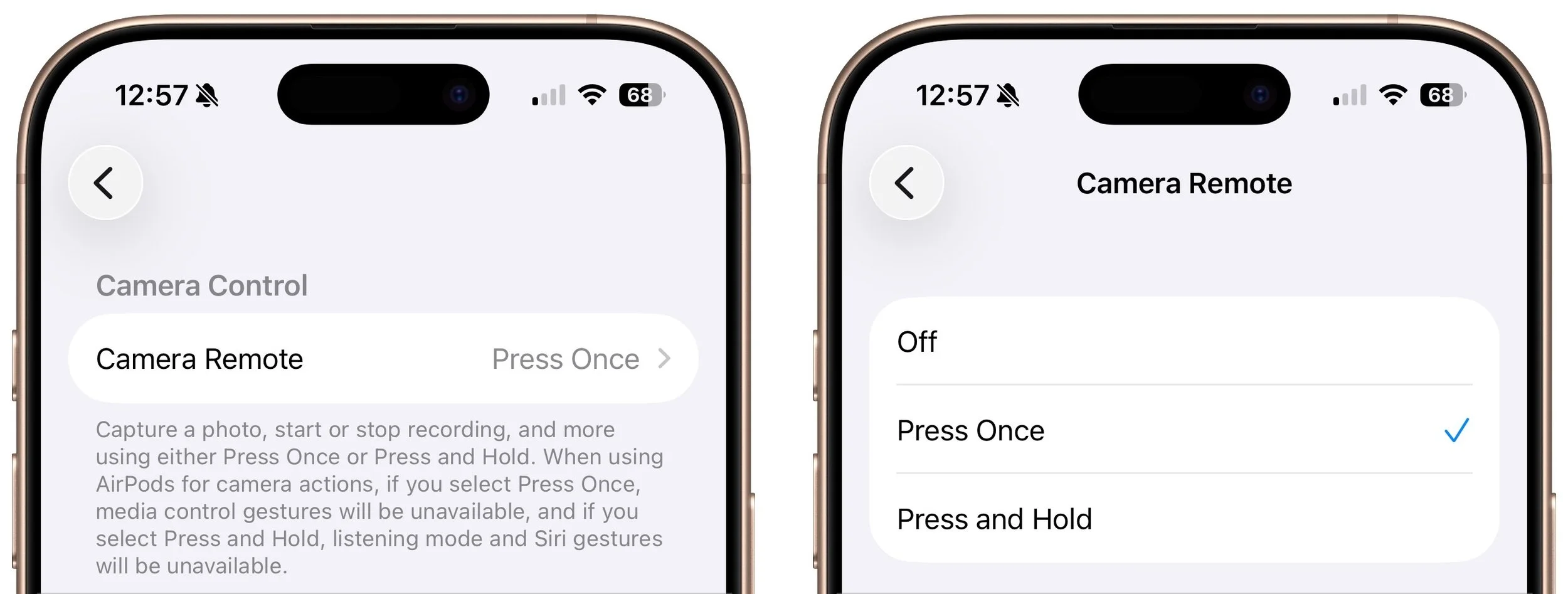
Have you ever wanted to activate the shutter button for your iPhone’s camera—for either a still photo or a video—when you’re not holding it? Selfie sticks often come with Bluetooth buttons that can do that, and starting in iOS 26, you also can use your AirPods 4 or AirPods Pro as a camera remote. While you’re wearing your AirPods, turn on the feature in Settings > AirPods > Camera Remote, where you can choose between triggering the shutter with a single press or a press and hold. Note that whichever option you turn on will override the usual actions for those triggers.
(Featured image by iStock.com/PeopleImages)
Safari’s Compact Tab Bar Returns in macOS 26.4 and iPadOS 26.4
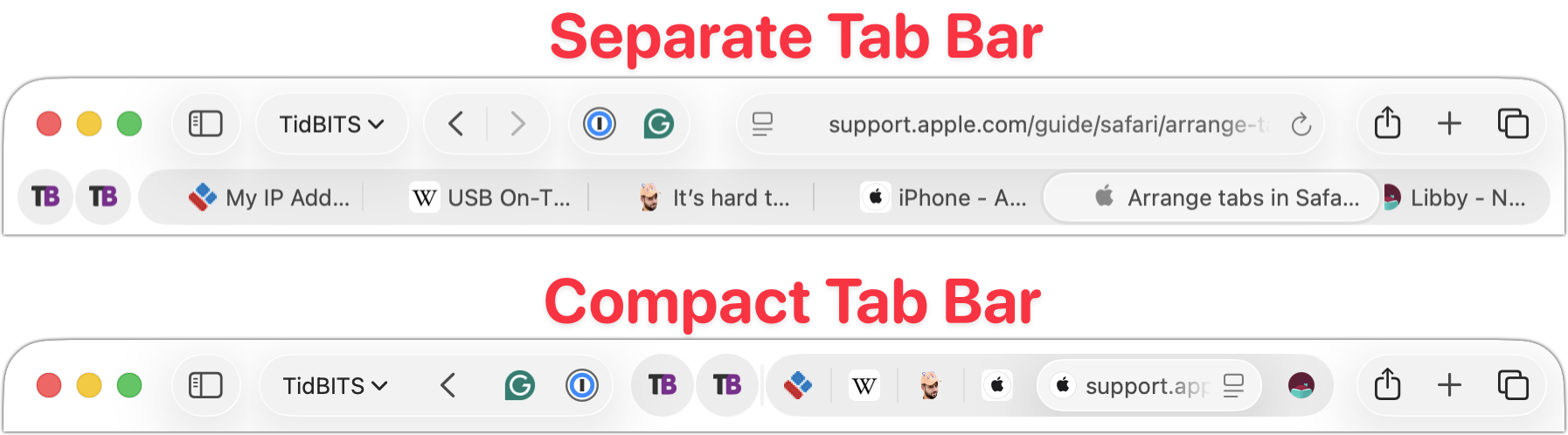
Those who have been missing Safari’s compact tab bar are in luck—it’s back as of macOS 26.4 and iPadOS 26.4. The compact tab bar is a welcome way to save vertical space for content.

Safari’s compact tab bar option, which saves vertical space by placing the address bar in the current tab, went missing in the initial releases of macOS 26 Tahoe and iPadOS 26. Only Apple knows why this helpful option disappeared (Liquid Glass?), but as of macOS 26.4 and iPadOS 26.4, it’s back! On the Mac, select it in Safari > Settings > Tabs; on the iPad, look in Settings > Apps > Safari.
(Featured image based on an original by iStock.com/czekma13)
Choose Default Apps for File Types in iOS 26 and iPadOS 26
iOS 26 and iPadOS 26 finally let you choose which app opens your files—just like on the Mac. Here’s how to use Open With and set new defaults in the Files app.
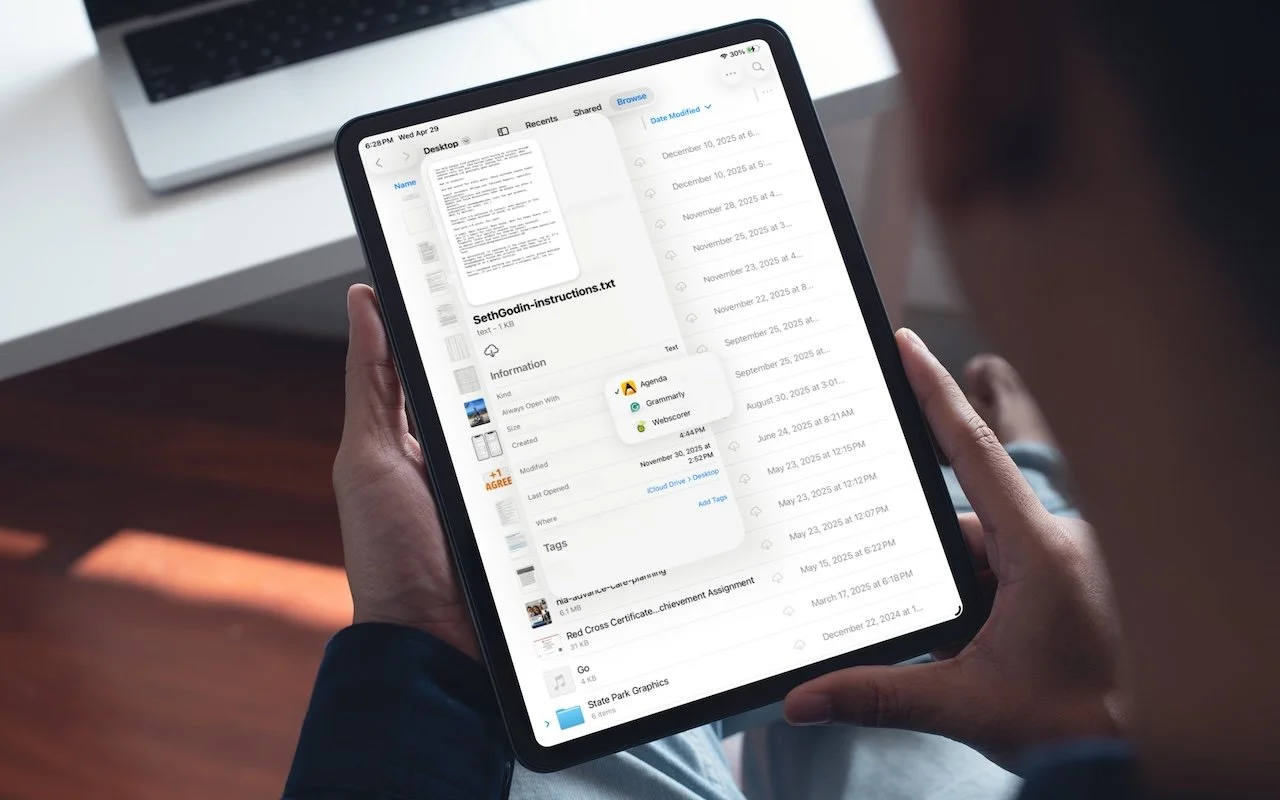
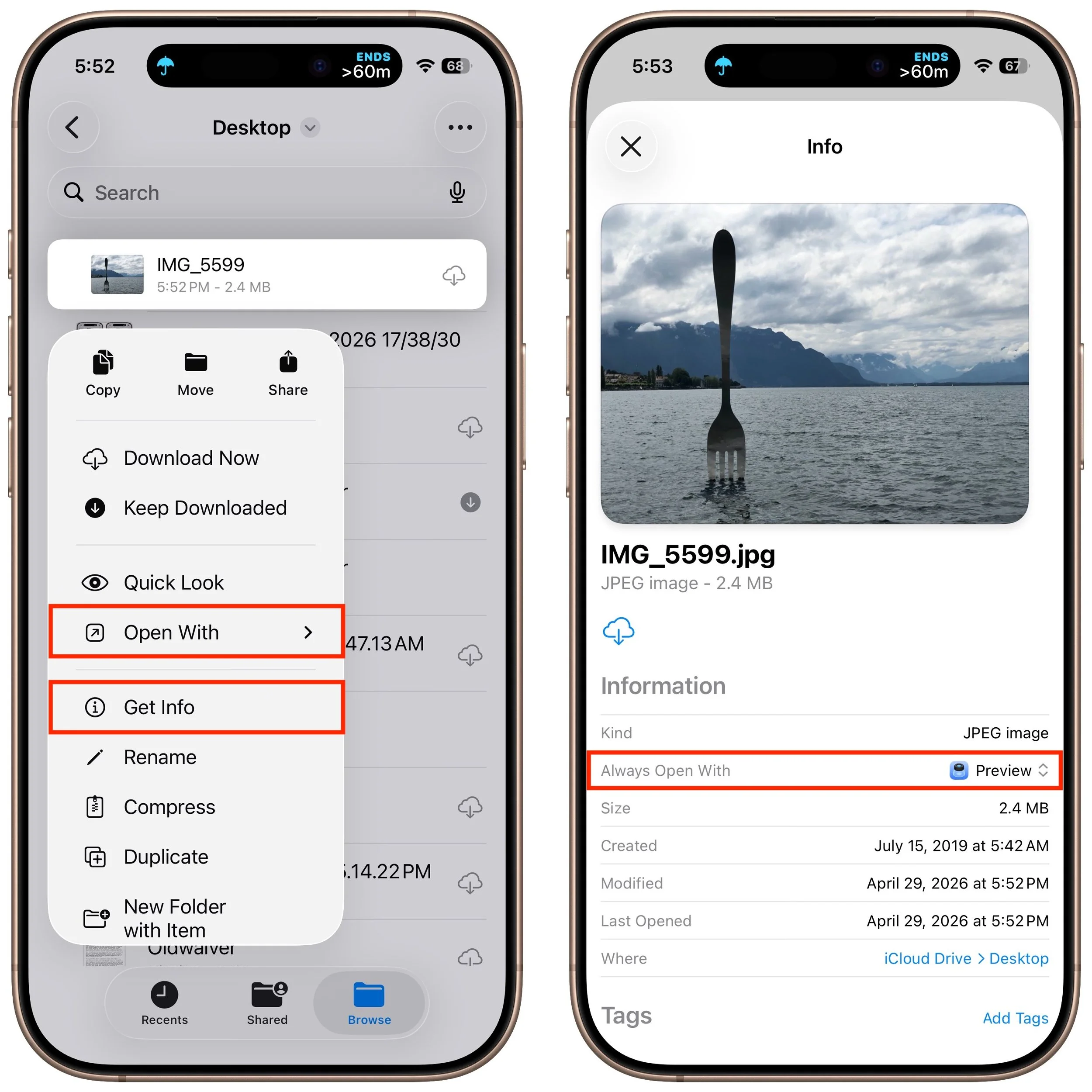
On the Mac, every file type opens in a particular app by default, but it's easy to open a PDF, image, or text file in a different app. In the Finder’s Get Info window, you can also reset the default app so that, for example, JPEGs open in Photoshop or Affinity instead of Preview. That’s all now possible in iOS 26 and iPadOS 26 as well. In the Files app on an iPhone or iPad, touch and hold a file to bring up a menu. Tap Open With, then select an app to open the file once in a different app without changing the default. To reset the default app for that file type, tap Get Info, then select an app from the Always Open With list.
(Featured image based on an original by iStock.com/Tippapatt)
Today’s Fire Prevention Tip: Avoid Cheap Lithium-Ion Batteries
A study found that nearly 8% of cheap lithium-ion batteries have dangerous manufacturing defects that can cause catastrophic failure—even fires—while name-brand cells had none. Stick with reputable brands.
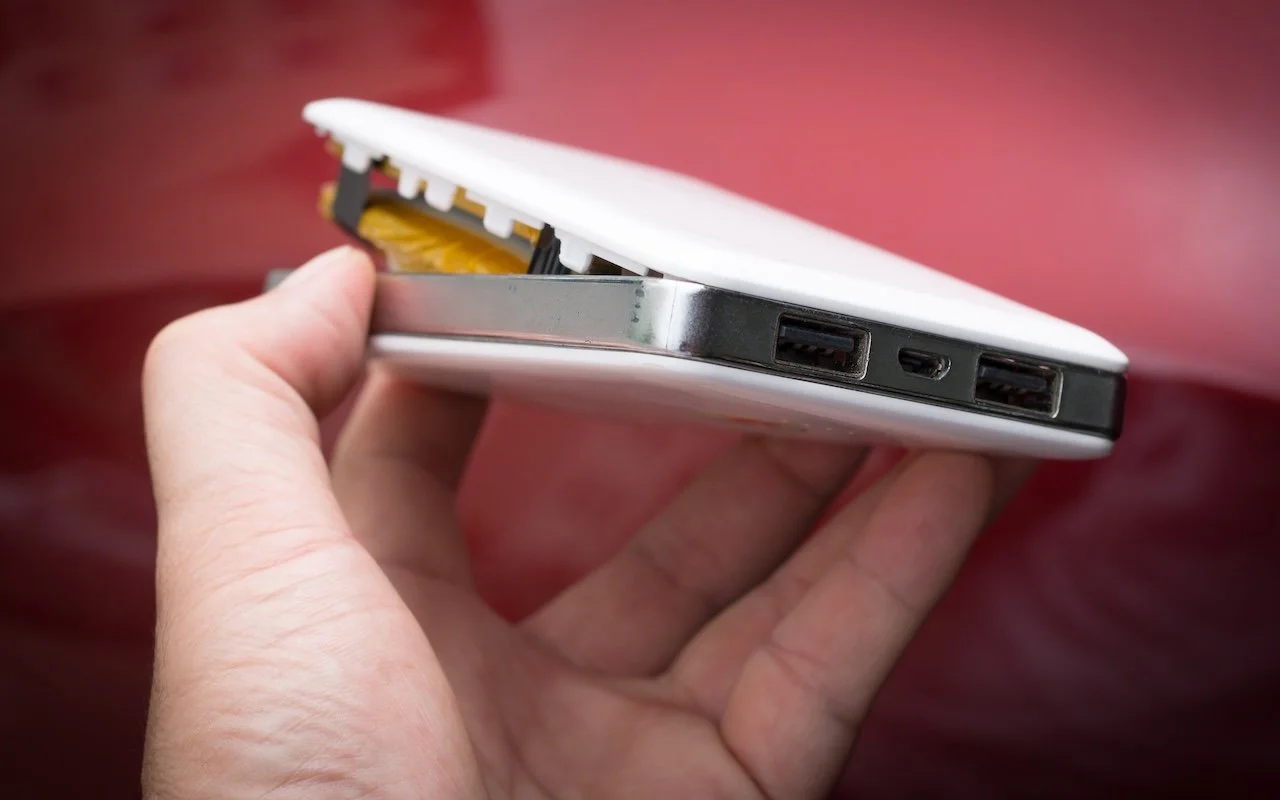
We always recommend buying from reputable manufacturers rather than no-name brands, especially for products with lithium-ion batteries, such as power banks, Bluetooth speakers, flashlights, power tools, e-bikes, and more. In a 2025 study, industrial scanning company Lumafield CT-scanned over 1,000 lithium-ion battery cells from ten different brands, including reputable manufacturers like Samsung and Panasonic, as well as low-cost and outright counterfeit brands sold through retailers like Temu. The results were troubling: nearly 8% of the low-cost and counterfeit batteries had dangerous manufacturing defects that significantly increase the risk of internal short-circuiting and battery overheating, potentially leading to fires. None of the name-brand batteries showed these defects. The few dollars you might save on a no-name battery aren’t worth the risk.

(Featured image by iStock.com/Pradit_Ph)
Intel-Based Apps Will Stop Working in macOS 28
Running macOS 26.4? You may start seeing warnings about Intel-based apps not opening. They won’t stop working until macOS 28, but now’s the time to find replacements. Here’s how to identify which apps need attention.
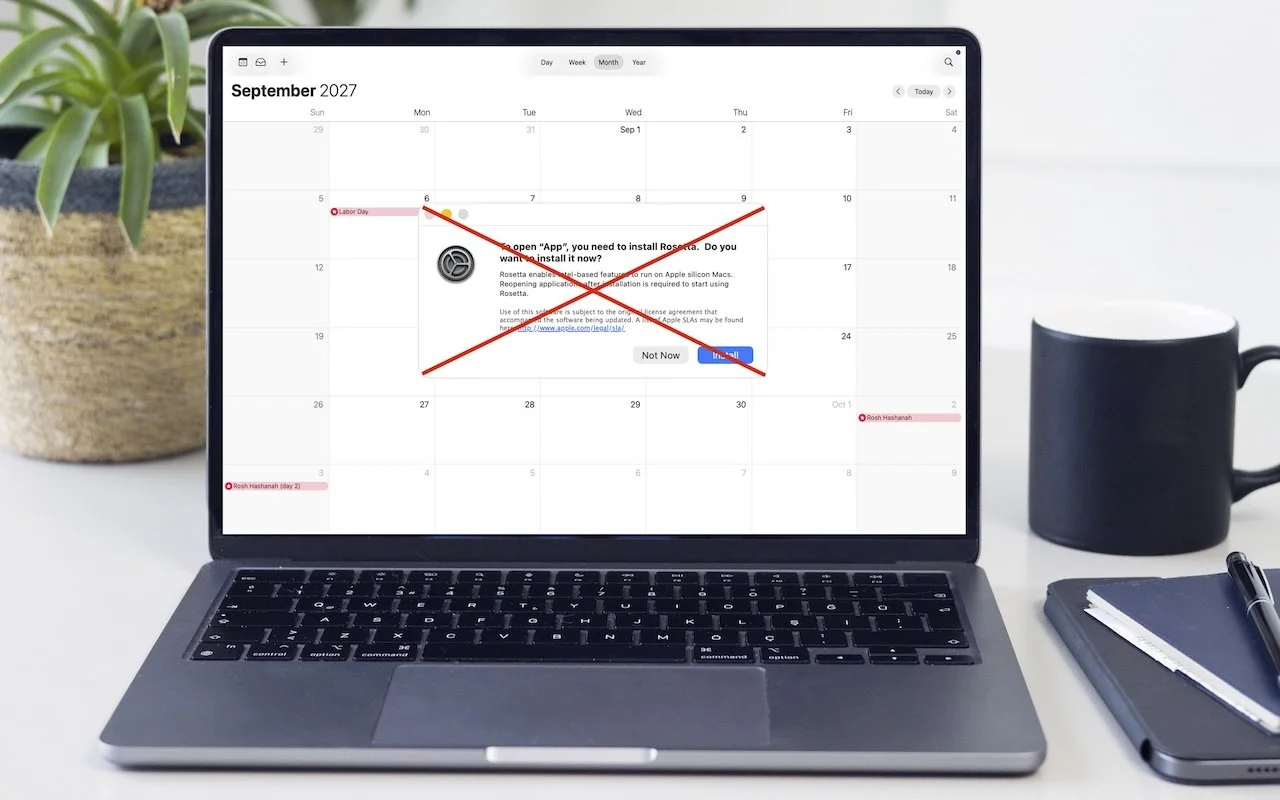
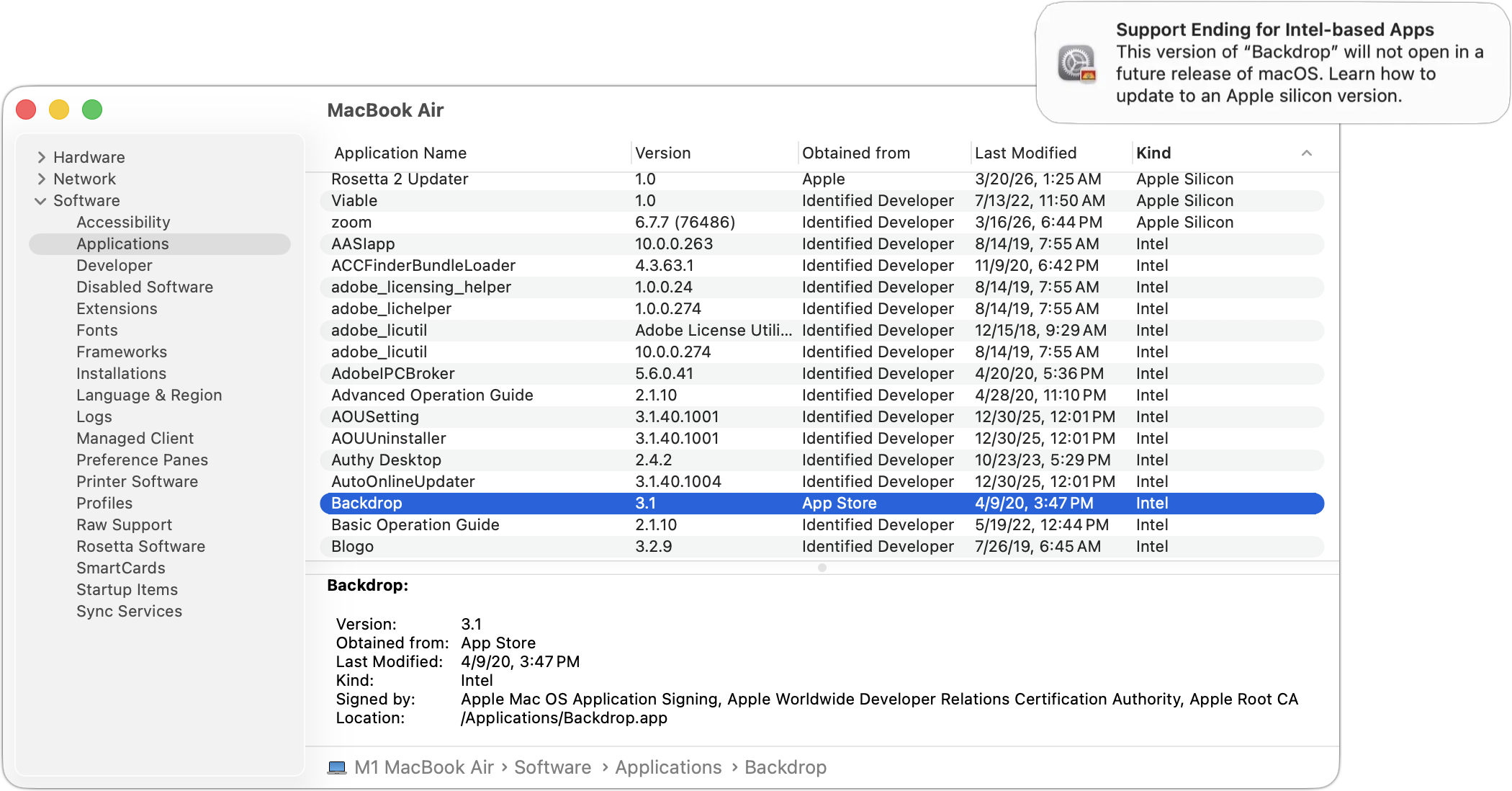
Yes, we know we’re still on macOS 26. In 2025, Apple announced macOS 27 would be the last version to support Rosetta for most Intel-based apps. (Beyond that, Apple will maintain a subset of Rosetta functionality for older, unmaintained gaming titles.) This fact has become relevant because in the just-released macOS 26.4, when you launch apps that rely on Rosetta for Intel compatibility, macOS may start warning you that they won’t open in a future version of macOS. These warnings are just reminders—nothing will change until you upgrade to macOS 28, probably in late 2027 or 2028, giving you plenty of time to find replacements. To identify Intel-based apps now, open System Information from the Utilities folder in your Applications folder, select Applications in the sidebar, and click the Kind column header to sort all your Intel apps together. iMazing’s free Silicon app does the same thing with a nicer interface.
(Featured image based on an original by iStock.com/Kurgenc)
Create AI-Powered Playlists with iOS 26.4’s Playlist Playground
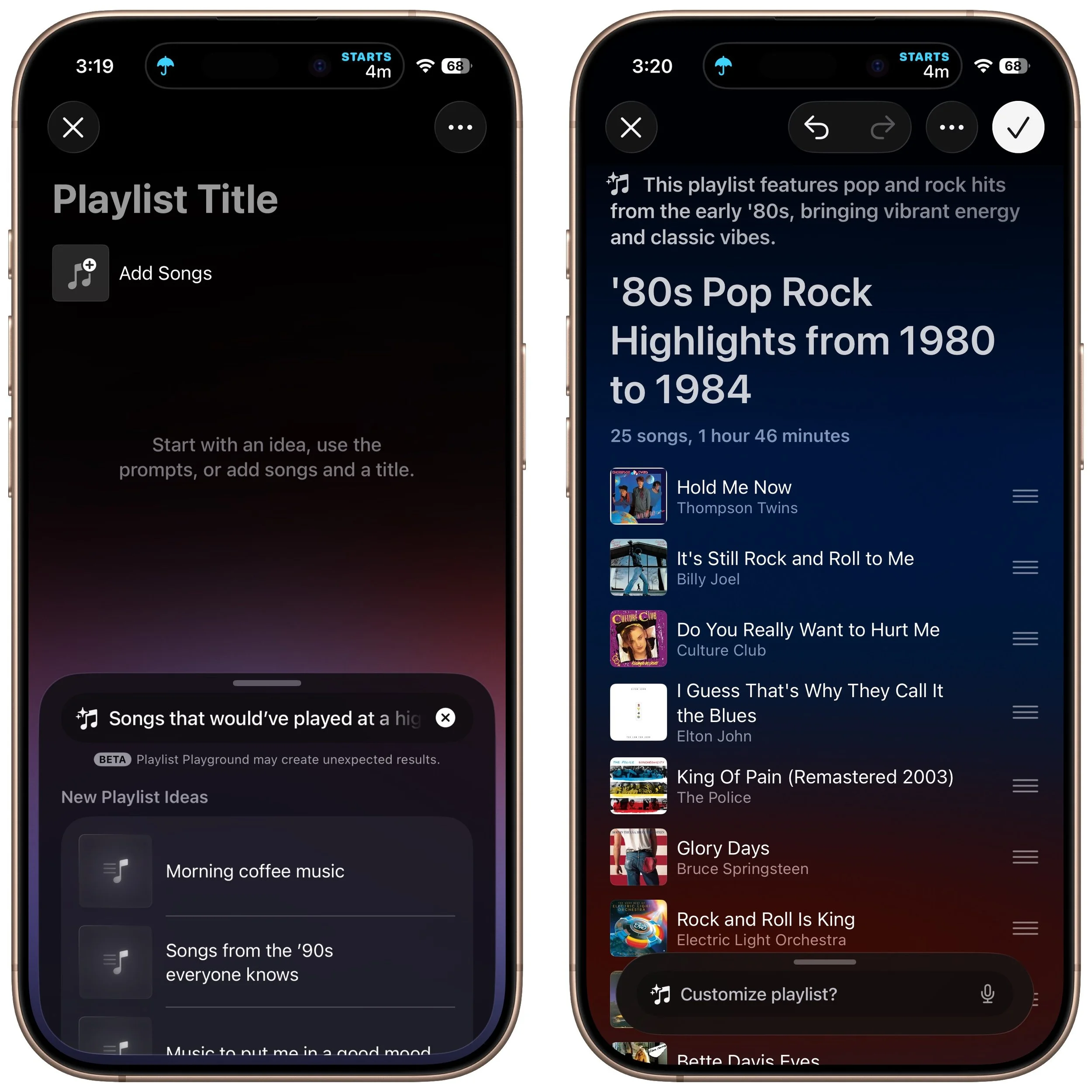
Apple Music’s new Playlist Playground in iOS 26.4 uses AI to create custom playlists based on any mood, genre, or activity you describe. Just type what you’re in the mood for and let the app do the rest.

Apple Music subscribers running iOS 26.4 can use the new Playlist Playground feature to create AI-generated playlists tailored to any mood, genre, activity, or era. To try it on your iPhone, open the Music app, tap the Library tab, tap the + button, then tap Create New Playlist. Instead of manually adding songs, tap the search field and enter a natural language description like “songs from a high school dance in the early 1980s” or “positive workout music from after 2010.” Playlist Playground will generate a playlist of songs based on your prompt. You can refine it by giving additional prompts, rearranging songs by dragging the hamburger buttons, or tapping Add Songs at the bottom. When you’re satisfied, tap the checkmark button at the top right to keep the playlist. Playlist Playground requires Sync Library to be enabled in Settings > Apps > Music, and the feature is currently available only in the U.S. and in English.
(Featured image by iStock.com/demaerre)