
How to Avoid Embarrassment During Online Presentations or Screen Sharing
When sharing your screen online, would you be embarrassed if your clients, colleagues, or bosses saw what’s on your Mac—your desktop picture, screen saver, browser tabs, email notifications, or Messages conversations? Here’s what to watch out for.

Along with the now-ubiquitous videoconferencing, screen sharing and online presen-tations have become vastly more common during the pandemic. This isn’t yet anoth-er article about how to give a better presentation or feel more confident. (Although those might happen too.) The goal of this article is to help you avoid situations that could embarrass you in front of clients, colleagues, or bosses. Follow this advice and you could avoid an unfortunate happenstance that might even cause you to be fired.
Here’s the problem. Even more so than before the pandemic, our Macs feel like per-sonal spaces. Just as you’d add a houseplant and a special photo to your desk at work, you’ve probably personalized your Mac in a variety of ways. Custom desktop wall-paper, for instance, or a screensaver that displays favorite photos. Plus, you may car-ry on personal conversations, possibly even intimate ones, if you catch our drift, us-ing the same Mac that you use for communicating with those aforementioned clients, colleagues, and bosses.
We’re not here to admonish you or nag about inappropriate behavior. (Though we will encourage you to consider some sage advice from a friend’s mother, who noted drily that you should never put anything on the Internet that you don’t want to appear on the front page of the New York Times. And that was before Twitter.)
No, as we said, the goal here is to help you avoid the embarrassment caused by peo-ple who are viewing your screen seeing things they shouldn’t see, something that the New York Times has also covered. Some areas of concern include:
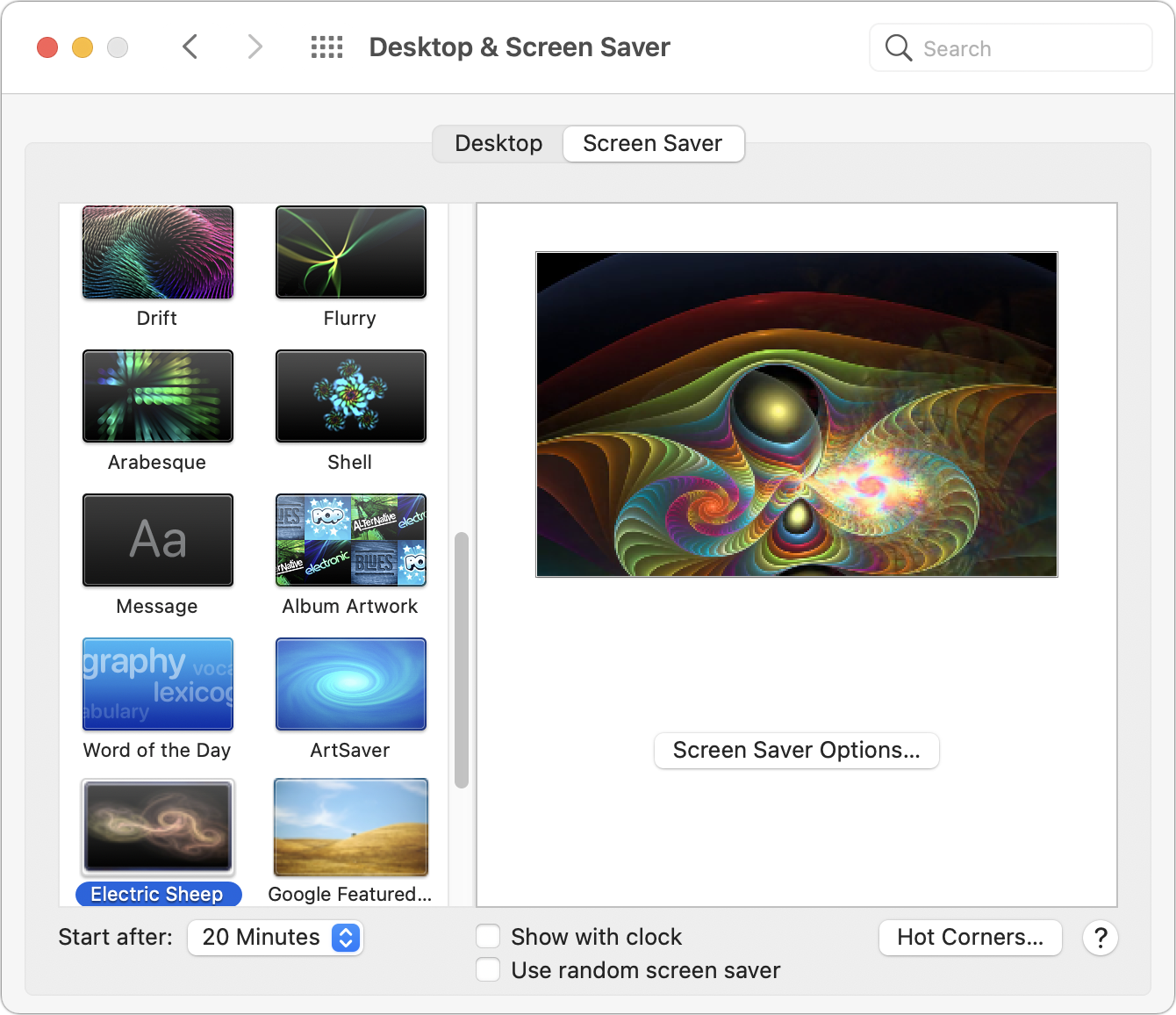
Desktop & Screen Saver: Jobs have been lost by inappropriate selections for desktop wallpaper and photo screen savers. Make sure, if you’re ever going to share your screen, that randomly chosen desktop pictures and folders of screen saver photos don’t contain anything that could be problematic. To be safe, choose an Apple-provided desktop picture and a pattern-based screen saver in System Preferences > Desktop & Screen Saver.
Icons on the Desktop: We all toss files on the desktop, but if preview icons or even filenames could cause trouble—you might not want your boss seeing Resumé.doc—corral them in another folder before you share your screen. Al-so note that many videoconferencing apps can limit their screen sharing to particular windows rather than the entire screen, which prevents people from seeing your desktop.
Web browser tabs: Limiting screen sharing to a particular window won’t help if it’s a Web browser window with multiple tabs. Even if you avoid acci-dentally navigating to a tab with NSFW content, its title alone might be prob-lematic. For safety, always start a new browser window when sharing Web content.
Open apps and documents: As with icons on the desktop when sharing your entire screen, you may not want just anyone seeing what other apps and doc-uments you have open. Again, stick to sharing a specific window. To avoid mistakes when selecting the window to share, we recommend hiding or quit-ting all unrelated apps before sharing your screen.
Document comments: When collaborating on a document, some people are less than politic with their in-document comments. If comments are visible when you’re sharing a document with people who wouldn’t otherwise see them, hard feelings could ensue. Make sure to hide or resolve such comments before sharing.
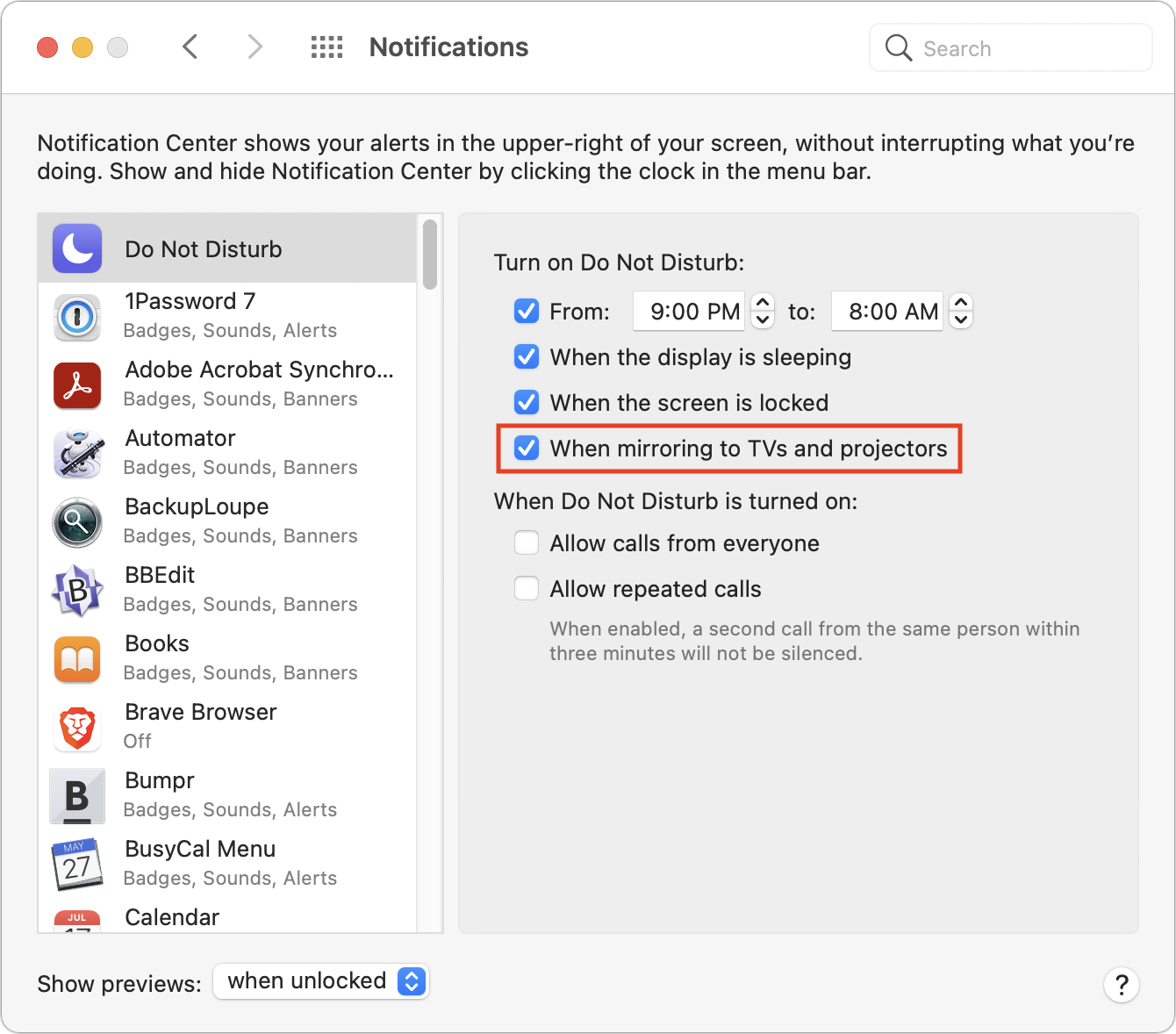
Notifications: Even if you have hidden or quit Calendar, Messages, Mail, and similar apps, their notifications could still appear at an inopportune time. You might not want colleagues to know about an ob-gyn appointment, meeting with a potential employer, or racy conversations with a coworker. The solu-tion is Do Not Disturb, easily enabled from Control Center in macOS 11 Big Sur and by scrolling up in Today view in Notification Center in earlier ver-sions of macOS. Also, although it won’t help with online screen sharing, it’s a good idea to enable the “When mirroring to TVs and projectors” option in Sys-tem Preferences > Notifications > Do Not Disturb.
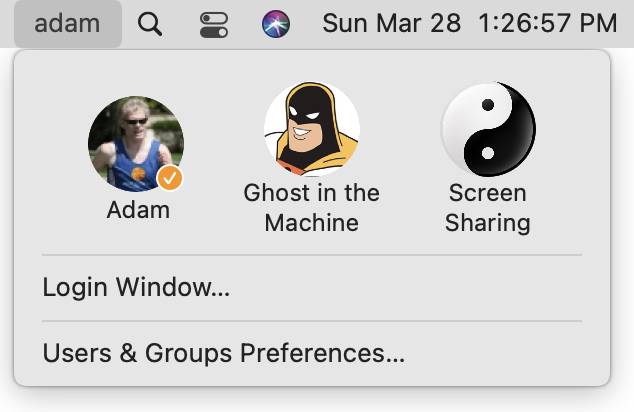
This may all sound a little overwhelming, but there is one trick that will help you avoid most of these problems at once. In System Preferences > Users & Groups, cre-ate a new user account dedicated to screen sharing and presentations. In that user ac-count, you can be sure to have innocuous desktop pictures, screen savers, clean Web browser windows, and permanent Do Not Disturb. The hardest part will be figuring out the best way to share documents you use in presentations between your ac-counts (try the /Users/Shared folder or an online file sharing solution like Dropbox). Then, before you start a call when you’ll need to share your screen, choose your new account from the Fast User Switching menu from the right side of the menu bar (set up that menu in System Preferences > Users & Groups > Login Options).
One final piece of advice. When you’ve accomplished what you need to by sharing your screen, stop sharing it and switch back to video. That way, you can’t accidental-ly do something in the shared window that might be embarrassing. Similarly, when a meeting is over or you’re dropping off for a while, it’s best to leave the call. Stopping video and muting audio are good tools, but it’s easy to click in the wrong spot acci-dentally and think you’re safe when, in fact, your mic or camera is still live.
(Featured image by Andrea Piacquadio from Pexels)
Try iCloud Drive Folder Sharing Instead of Paying More for a File Sharing Service
Tired of paying Dropbox or a similar service when you have plenty of space on iCloud Drive? With iCloud Drive Folder Sharing, you can share folders just like any other file sharing service.

Dropbox, Google Drive, and Microsoft OneDrive all have their place, but as of March 2020, Apple users no longer have to venture outside the Apple ecosystem for online folder sharing. Before then, you could share a single file in iCloud with anoth-er iCloud user, but nothing more. With iCloud Drive Folder Sharing, you can share an entire folder, complete with permissions that control what your collaborators can do with the contents of the folder.
Pros and Cons
Why use iCloud Drive Folder Sharing instead of the more established services? Cost is the main one. Say you’re already paying Apple $9.99 for 2 TB of storage so you can use iCloud Photos with a large library. Why pay one of the other services another $9.99 per month—$240 per year—when you can get the same capabilities using iCloud? (Dropbox used to be entirely usable at its free level for those who didn’t need much shared storage, but users at that tier are also limited to just three devices, rendering it problematic for anyone with an iPhone, iPad, and desktop and laptop Macs.)
The main reason not to use iCloud Drive Folder Sharing is if the people with whom you want to share documents aren’t Apple users. Such people can get a free iCloud account if they create an Apple ID and then access iCloud Drive in a Web browser. Windows users can instead install iCloud for Windows to access it in Windows Ex-plorer. But that may be too much effort for many.
iCloud Drive Folder Sharing on the Mac
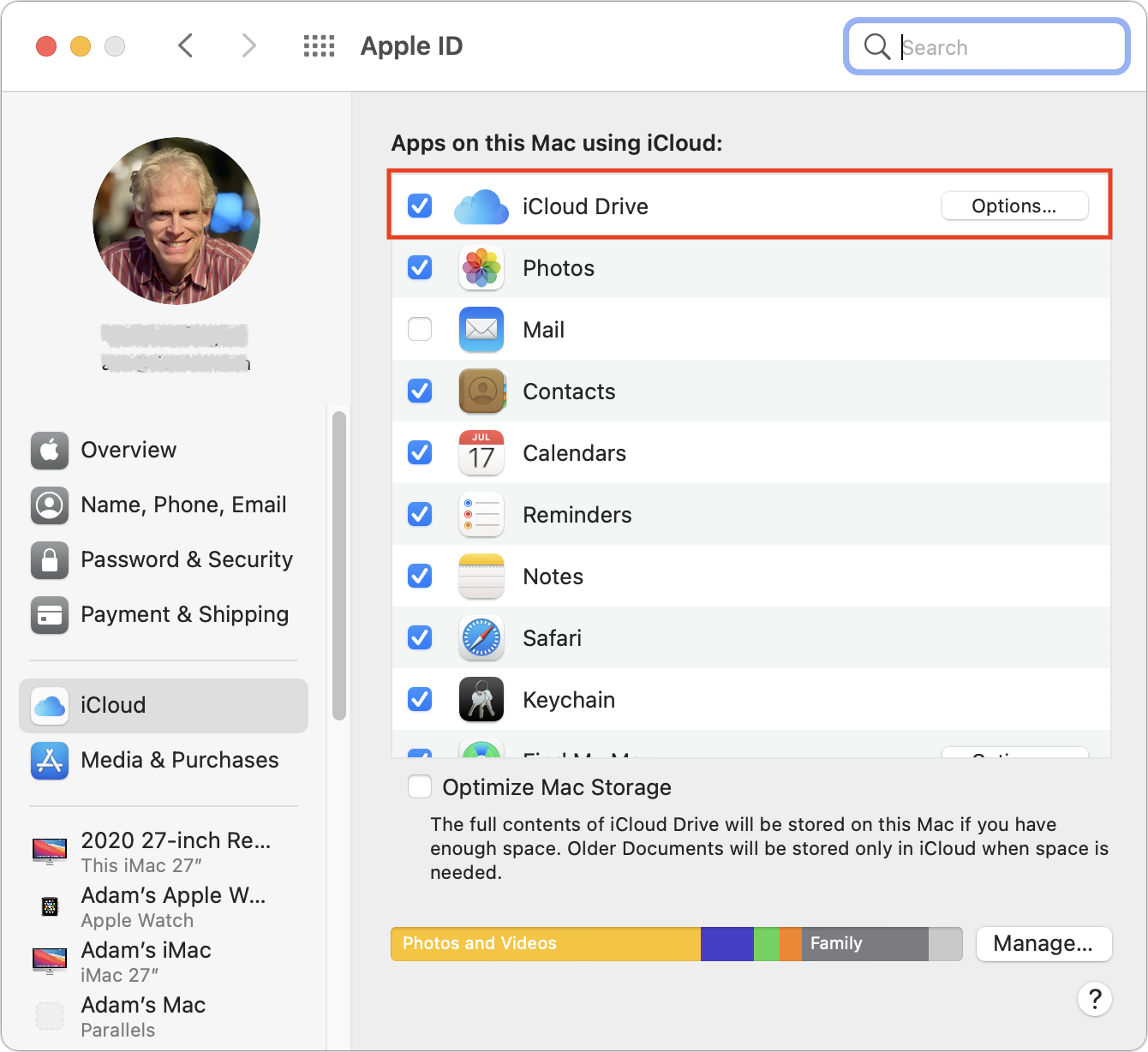
First off, make sure iCloud Drive is selected in System Preferences > Apple ID > iCloud. If you have plenty of storage, leave Optimize Mac Storage unchecked. It’s worthwhile only if your Mac’s internal drive is nearly full.
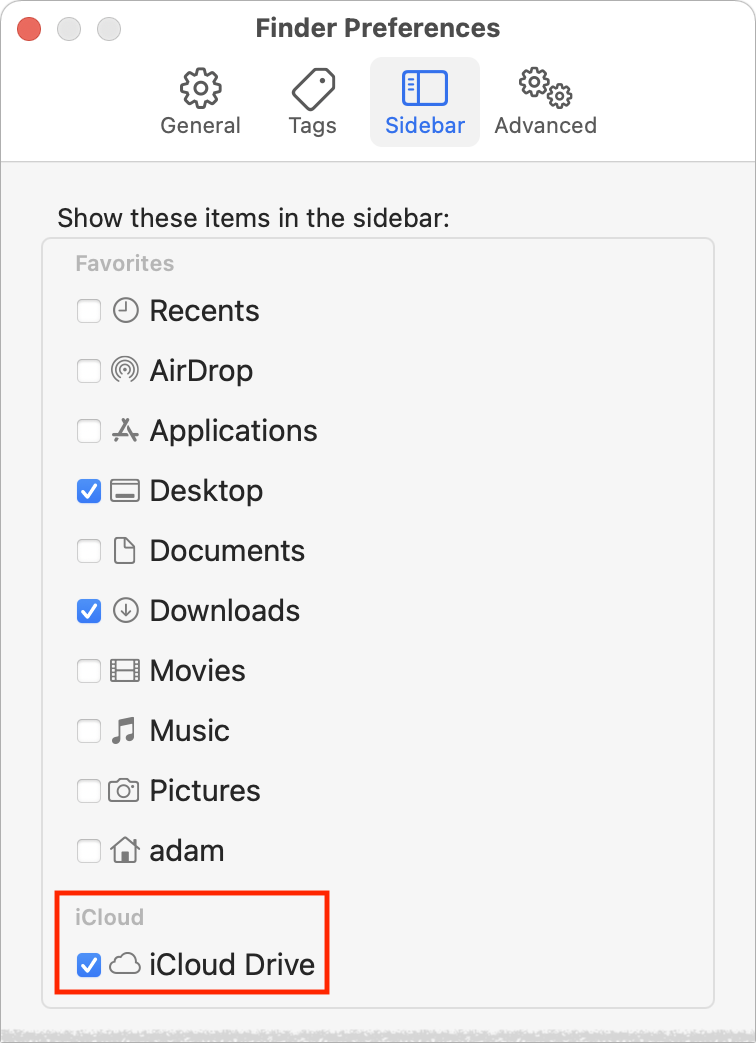
On the Mac, iCloud Drive creates a special folder to hold all the data mirrored to iCloud. You can access it by choosing Go > iCloud Drive in the Finder. It’s usually available in the sidebar of Finder windows too. If not, open Finder > Preferences > Sidebar and select iCloud Drive.
You’ll likely see quite a few folders in iCloud Drive already, with names and icons matching apps that synchronize their data and files via iCloud. These folders exist purely for you and your apps—you can’t share them. However, you can create and share other folders within iCloud Drive.
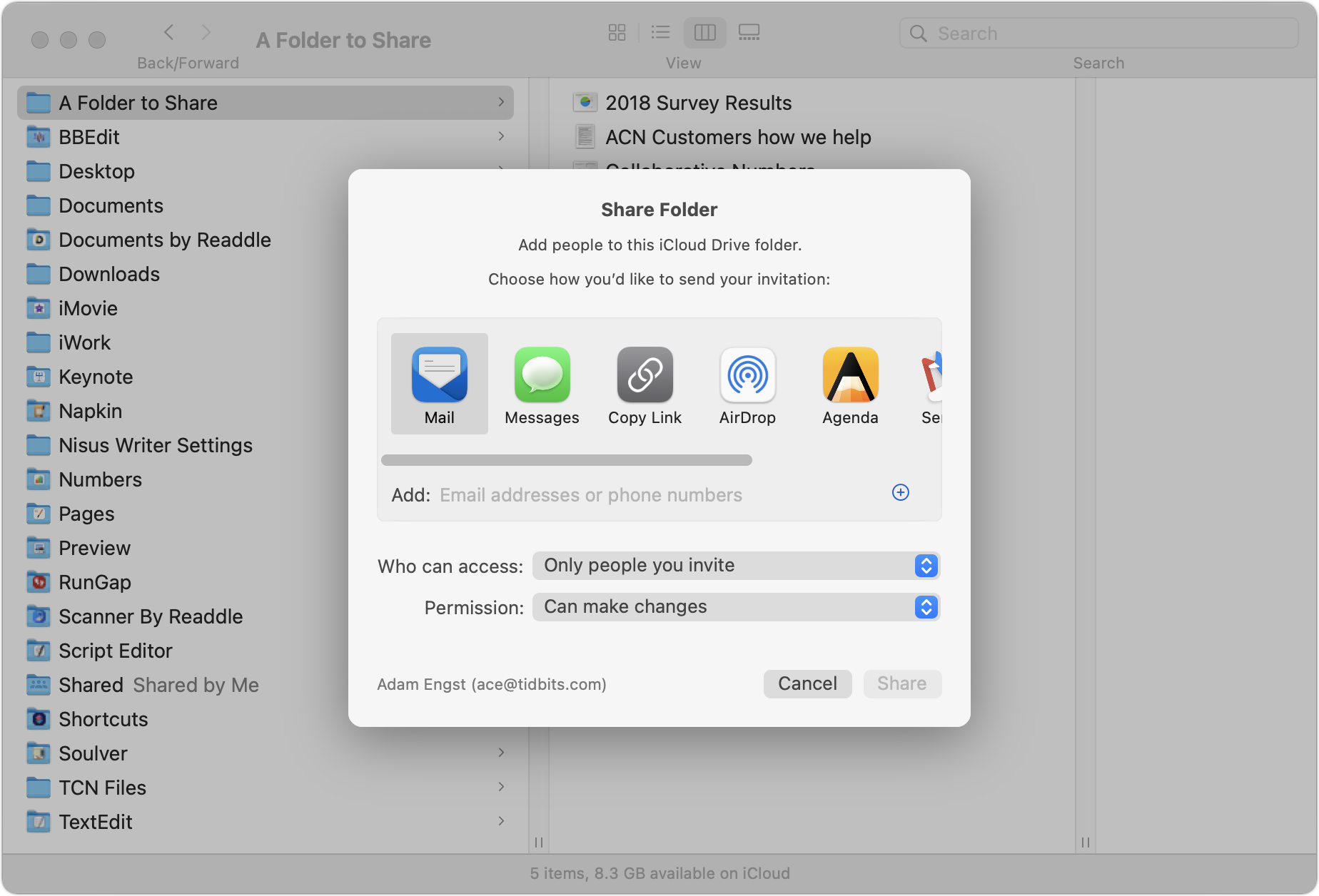
To share a folder you’ve created, Control- or right-click it and choose Share > Share Folder to display a Share Folder dialog. You need to do three things here:
From the Who Can Access pop-up menu, choose between “Only people you invite” and “Anyone with the link.” With the latter, you’re opting for security only through obscurity, so avoid that option if the data in the folder is confi-dential or important.
From the Permission pop-up menu, choose between “Can make changes” and “View only.” Think carefully about this choice—view-only users can still copy files out of the folder and change them locally on their computers. However, they won’t be able to change your versions of shared files or add new files to the folder.
Despite its position at the top of the dialog, choose the manner of sending the invitation last. If you’re sharing only with people you invite, you can select a sharing method and enter their email addresses or phone numbers. For folders shared with anyone who has the link, you don’t need to enter information for specific users.
When the people with whom you’re sharing the folder receive the sharing invitation or link and open it, the shared folder is added to their iCloud Drive folder. Its icon will have silhouettes of multiple people to indicate it’s a shared folder.
What if you need to invite more people, change permissions, get the sharing link again, or stop sharing entirely? Control- or right-click and choose Share > Manage Shared Folder (there’s also a Copy Link option there). A new dialog appears.
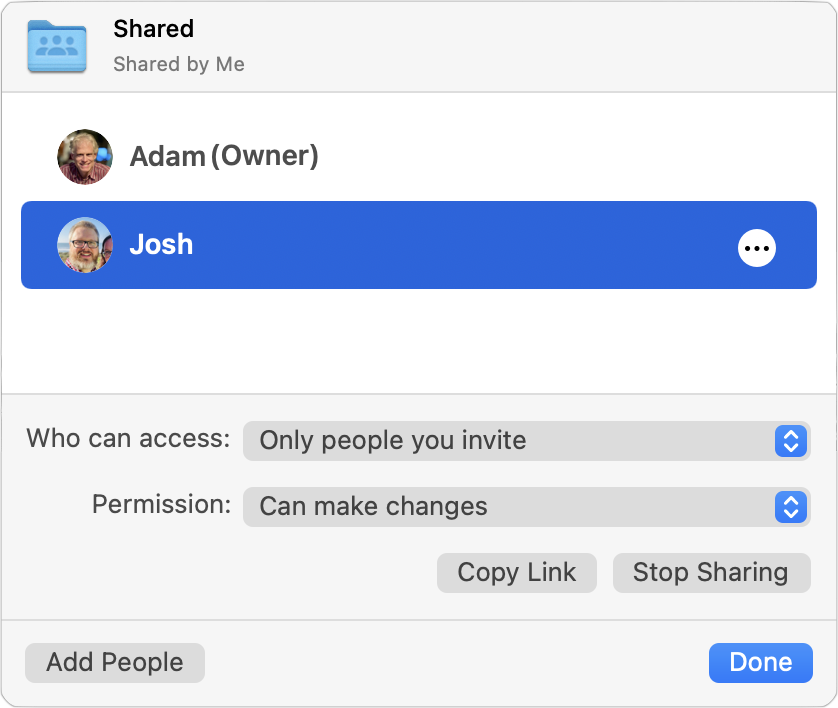
Most of the controls here are self-explanatory, but note that you can revoke a per-son’s access and change their permission level by clicking the ••• button in the row next to their name.
iCloud Drive Folder Sharing in iOS/iPadOS
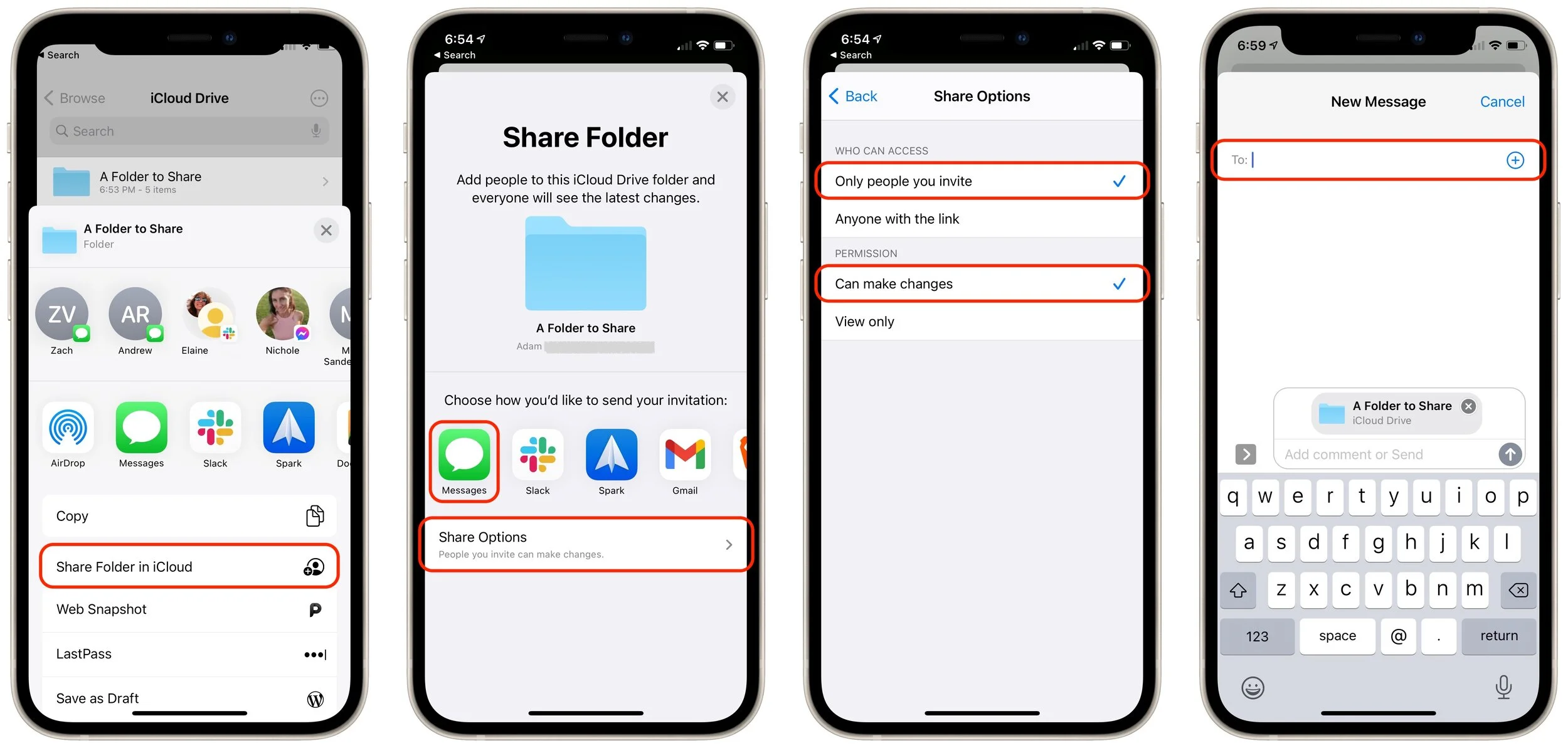
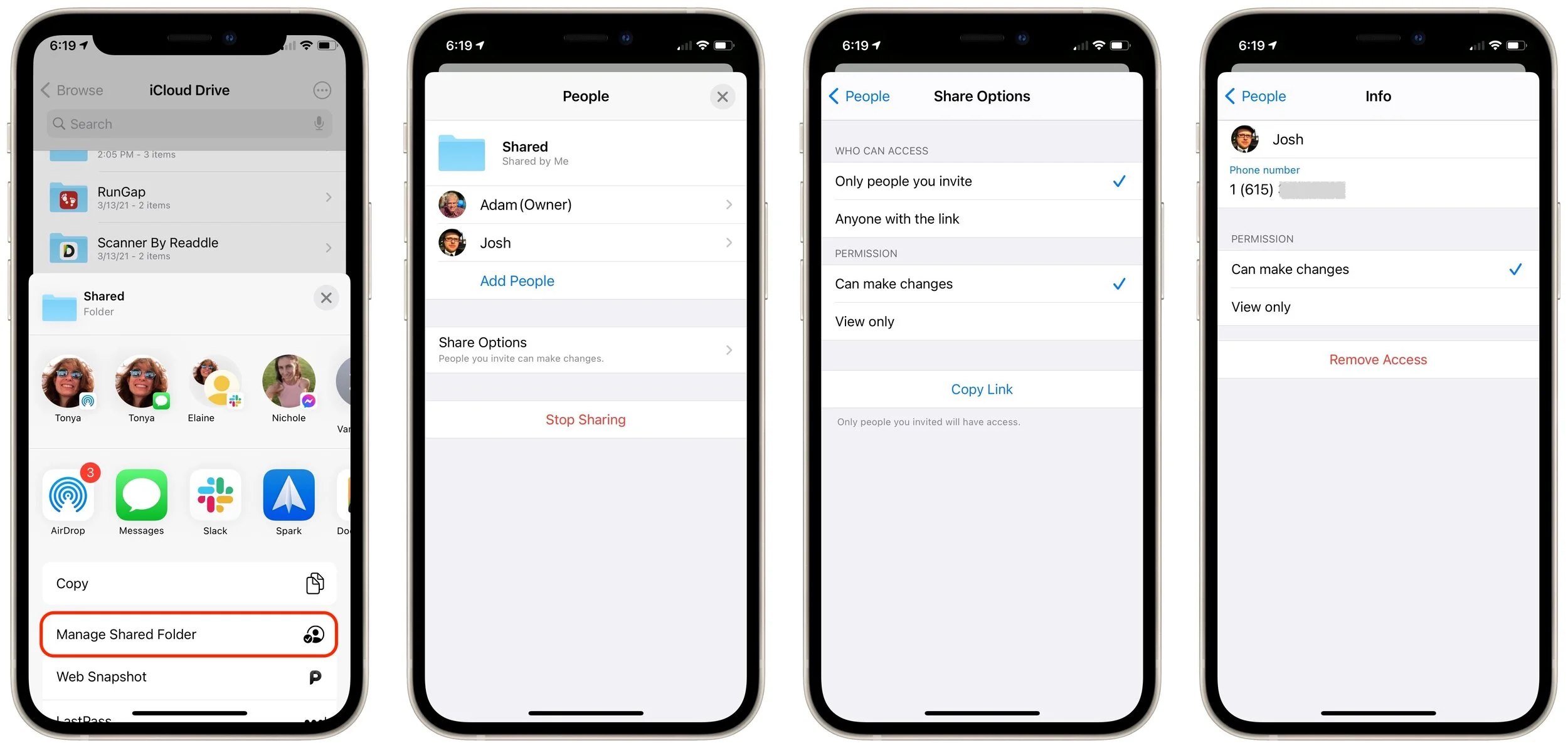
The process is similar in iOS and iPadOS. Follow these instructions in the Files app:
Press and hold on the folder you want to share.
In the sheet that appears, tap Share.
In the Share sheet that appears, tap Share Folder in iCloud.
On the Share Folder screen, first tap Share Options and set Who Can Access and Permission.
Tap Back to return to the Share Folder screen, and tap the app through which you want to send your invitation (Messages below).
Enter the name of your recipient or pick them from your contacts list.
Enter a message to your recipient and send them the link to the shared folder.
Managing a shared folder in the Files app is similar. Once you press and hold on an already shared folder and tap Manage Shared Folder in the Share sheet, you can do the following:
Tap Share Options to change Who Can Access and Permissions options, or to copy the link to the shared folder.
Tap a person’s name to change their permissions or remove access entirely.
Tap Stop Sharing to stop sharing the folder.
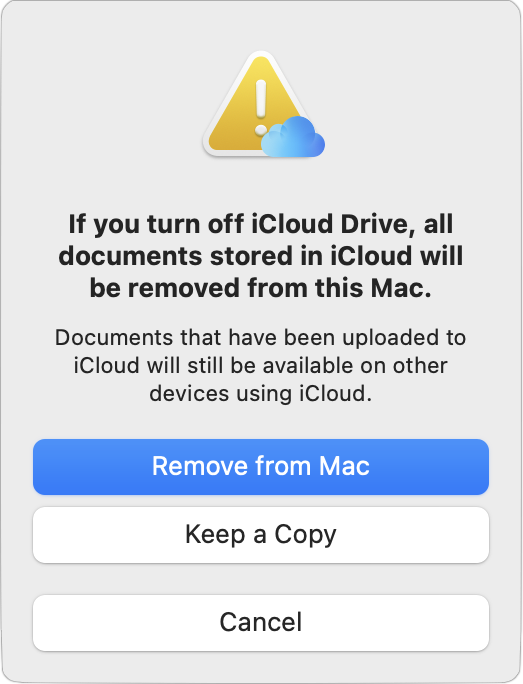
One final tip. Although iCloud Drive generally works well, we’ve occasionally seen it get stuck syncing on the Mac. You may see files or folders fail to sync between devic-es or have a file or folder permanently display the little cloud icon in the Finder that indicates iCloud Drive is updating. To resolve such problems and reset the local state of iCloud Drive, first make a copy of any critical files to the desktop, just in case. Then open System Preferences > Apple ID > iCloud, deselect iCloud Drive, click Re-move from Mac when prompted, and then select iCloud Drive again. Give it some time to resync with iCloud and download new copies of your files.
(Featured image by sendi gibran on Unsplash)
Make Better Documents and Edit More Easily with Show Invisibles
Ever wondered if there’s a way to see the spaces, tabs, and returns that are typically invisible in your word processing and page layout documents? There almost certainly is—read on for our guide to the most popular Mac apps.

Some of the trickiest editing and proofreading problems are related to characters you can’t typically see on the screen: spaces, tabs, and returns. Just because they’re invis-ible doesn’t mean they don’t affect the look of a document, often in negative ways. For instance:
An extra space can cause an awkward jump from one word to the next, or it could push punctuation away from the final word in a clause or sentence. And yes, current convention among professional publishers and typographers calls for one space after a period, not two.
The wrong number of tabs might not be obvious until you add or remove text from the line, at which point having too many or too few tabs will suddenly mess up the formatting.
An extra return causes a line break, something that you might overlook if the return falls naturally where the line would break on its own, but as you add or remove text, the line break could become embarrassing.
These and similar errors are easy to make or to encounter in copied and pasted text. They’re equally easy to fix, but only if you know why they’re happening. To help you identify them, most Mac word processors, page layout programs, and text editors have a command or option called something like “Show Invisibles.”
As you would expect from the name, Show Invisibles replaces previously invisible characters with something you can see. Spaces are generally replaced with a vertical-ly centered dot, tabs with some sort of right-pointing arrow, and returns with some-thing that’s formally known as a pilcrow but more commonly called a paragraph mark. Here’s what they look like in Pages.

Revealing invisible characters is tremendously helpful, but it can also clutter up the display and make text harder to read. So every app that lets you show invisibles also makes it easy to hide them again so you can focus on your text.
Note that even if you can see invisible characters on the screen, they will not show in a printout of the document.
Precisely where you find the Show Invisibles command—and what it’s called—varies from app to app. Here’s where to look in some popular Mac word processing, page layout, and text editing apps:
Pages: In Apple’s Pages, you can reveal invisible characters by choosing View > Show Invisibles. To hide them, choose View > Hide Invisibles—the command changes based on whether or not they’re showing.
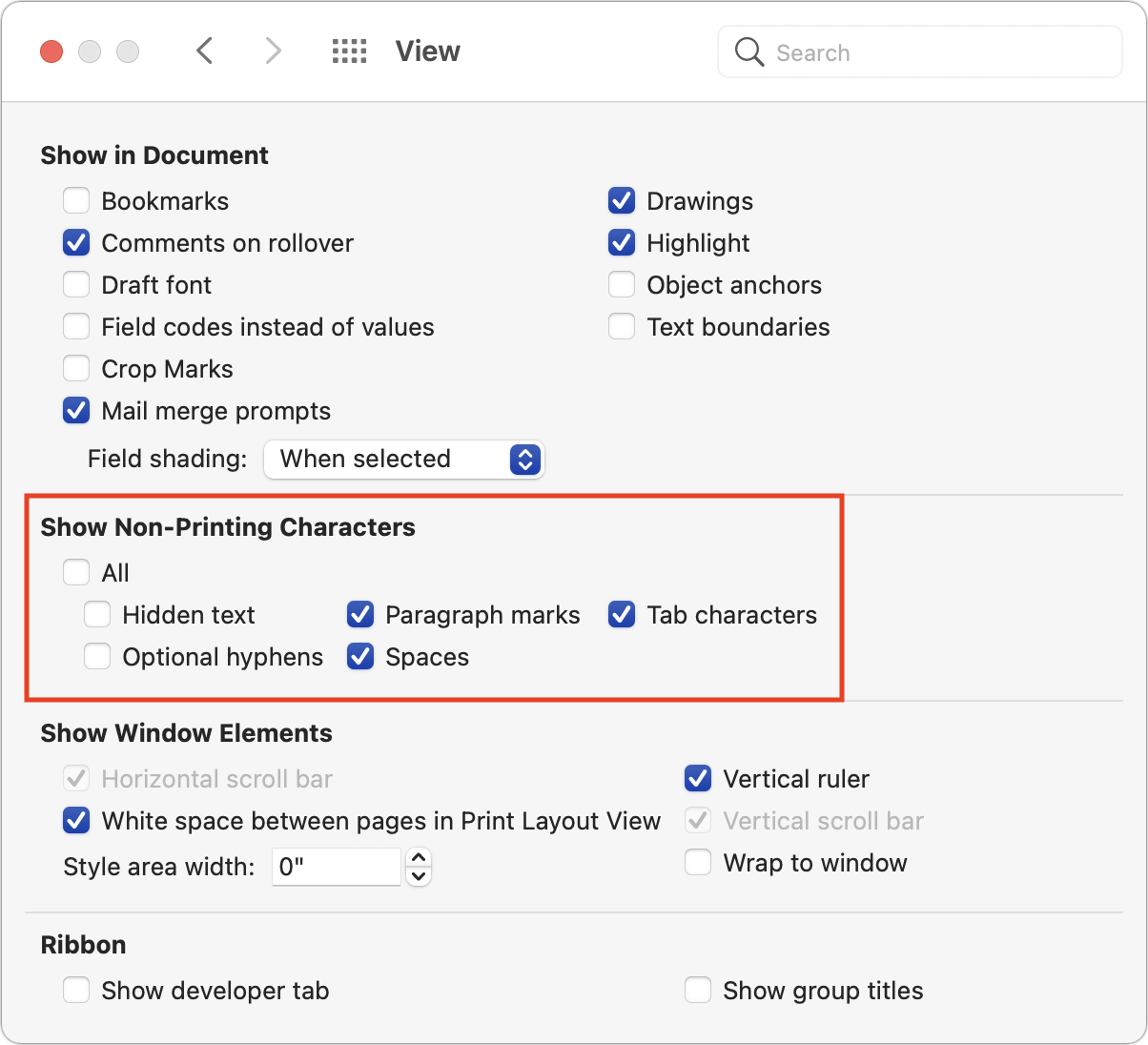
Microsoft Word: In Microsoft’s near-ubiquitous word processor, the primary way you show and hide invisibles is by clicking the ¶ button in the Home toolbar. Click it once to show and again to hide. However, if you always want certain invisible characters to appear, you can select them individually in Word > Preferences > View > Show Non-Printing Characters.
Nisus Writer Pro: In this highly capable, long-standing alternative to Mi-crosoft Word, choose View > Show Invisibles. When selected, it gains a checkmark. Choose it again to conceal the characters and remove the checkmark.
Scrivener: In this word processor aimed at long-form writing and screenwrit-ing, choose View > Text Editing > Show Invisibles. Choose it again to hide them.
Adobe InDesign: In Adobe’s market-leading page-layout app, choose Type > Show Hidden Characters. The command changes when selected. Hide them again by choosing Type > Hide Hidden Characters.
Affinity Publisher: In this inexpensive but surprisingly full-featured compet-itor to InDesign, the command you’re looking for is Text > Show Special Char-acters. When you choose this command, it gains a checkmark. Choose it again to hide invisible characters and remove the checkmark.
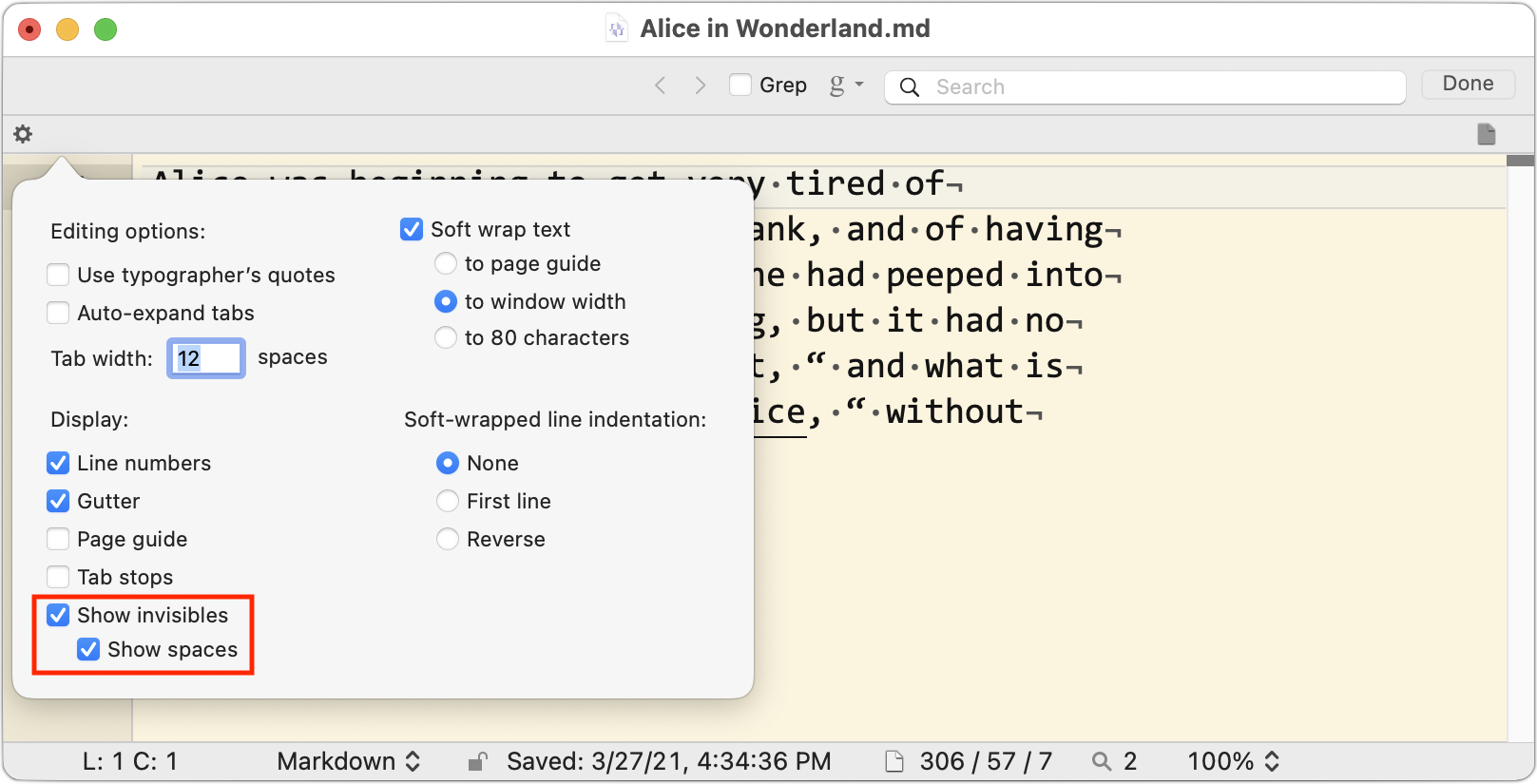
BBEdit: This text-editing powerhouse aimed at developers, bloggers, and Web designers lets you show tabs and returns, spaces, or both. Either choose the Show Invisibles and Show Spaces commands in View > Text Display or click the tiny gear icon in the upper left of the window and select the appropriate checkboxes.
Not all text-focused apps offer a way of displaying these invisible characters. For in-stance, we know of no way of doing this in Apple’s TextEdit. Nor is it possible in the online word processor Google Docs, although you can achieve a similar effect tem-porarily by choosing Edit > Find and Replace, selecting Match Using Regular Expres-sions, and then searching (one at a time) for a space, for \t for tabs, and for \n for re-turns.
Even if you’re using an app not mentioned above, our descriptions of their approach-es should give a sense of what to look for in the interface or the app’s documentation. Enjoy your newfound ability to see beyond the visible!
(Featured image by Aleksandar Pasaric from Pexels)
What to Do If You Run Low on iCloud Storage Space
Running low on iCloud storage space? Rather than automatically paying Apple for a larger iCloud plan, check out these tips on how to recover gigabytes of wasted space.

By default, Apple gives every iCloud user 5 GB of storage space. That disappears quickly, given how it’s shared between iCloud Mail, iCloud Drive, iCloud Photos, Messages, and iCloud-enabled apps.
Apple will, of course, sell you more iCloud space. $0.99 per month gets you 50 GB, $2.99 per month provides 200 GB, and for $9.99 per month, you can use a whopping 2 TB. The latter two plans can even be shared with others in your Family Sharing group.
As we’ve noted elsewhere, using iCloud Photos almost certainly requires you to pay for extra storage. But if you’re paying $2.99 per month and nudge up against the 200 GB limit, you may not be enthused about increasing your payment to $9.99 per month when you’re unlikely to need anywhere near 2 TB.
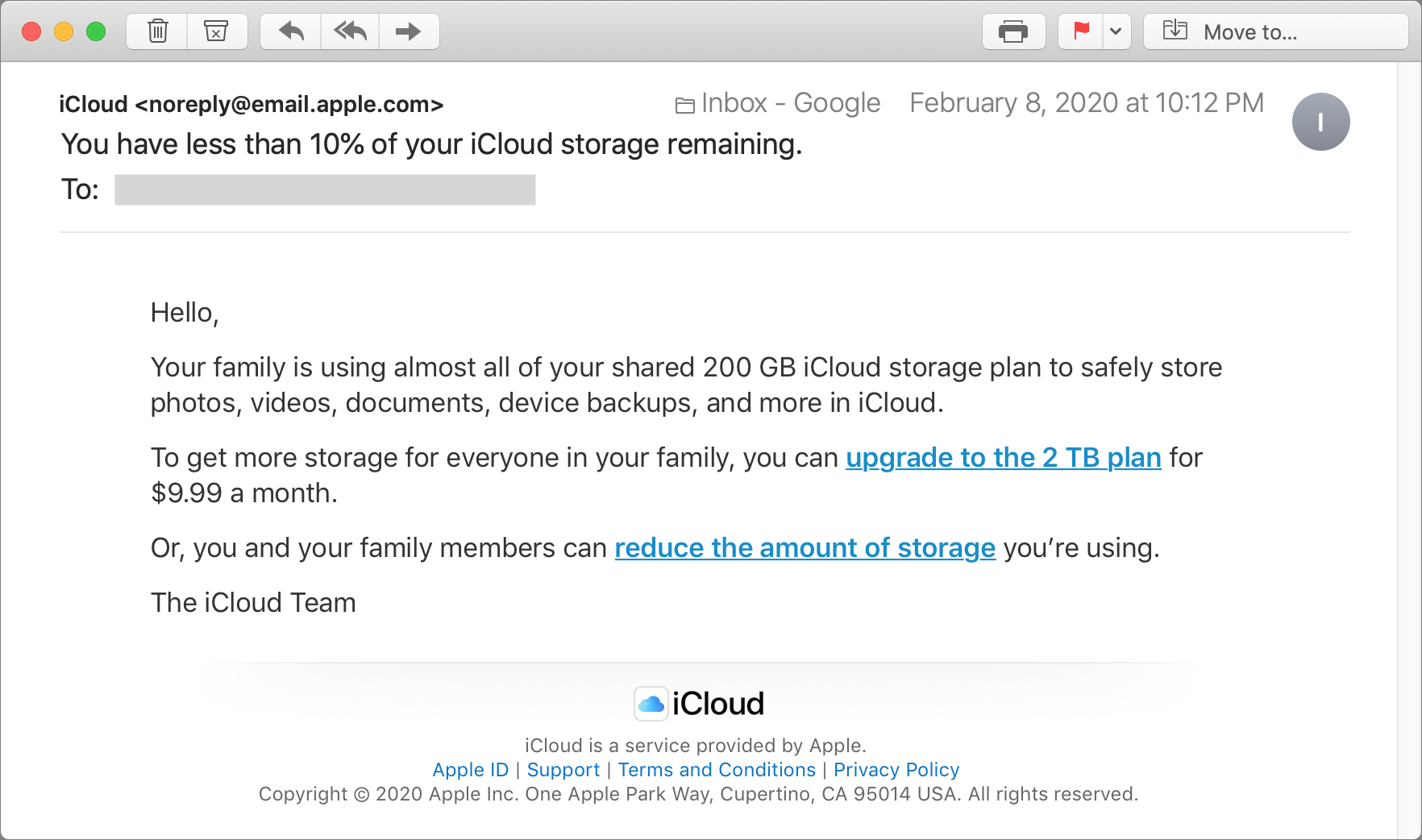
That said, you don’t want to run out of storage space. Email to your iCloud email address will be rejected, photos won’t upload from your iPhone, and app data will fail to sync. Happily, Apple alerts you when you’re running low on space, before things get bad.
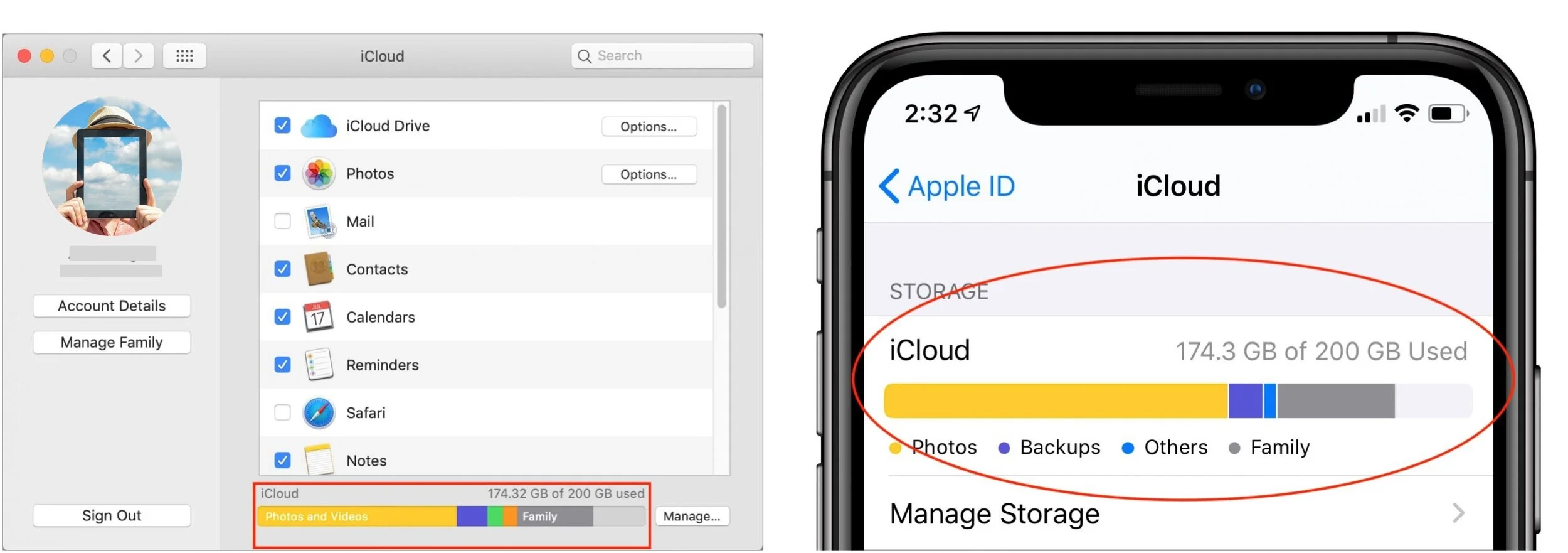
It’s often easy to recover space that’s not being used in a helpful way. First, check how much space you have and how much you’re using. In macOS 10.14 Mojave, look at the graph at the bottom of System Preferences > iCloud. In 10.15 Catalina, the graph is in System Preferences > Apple ID > iCloud. In iOS, you’ll find a similar graph at Settings > Your Name > iCloud.
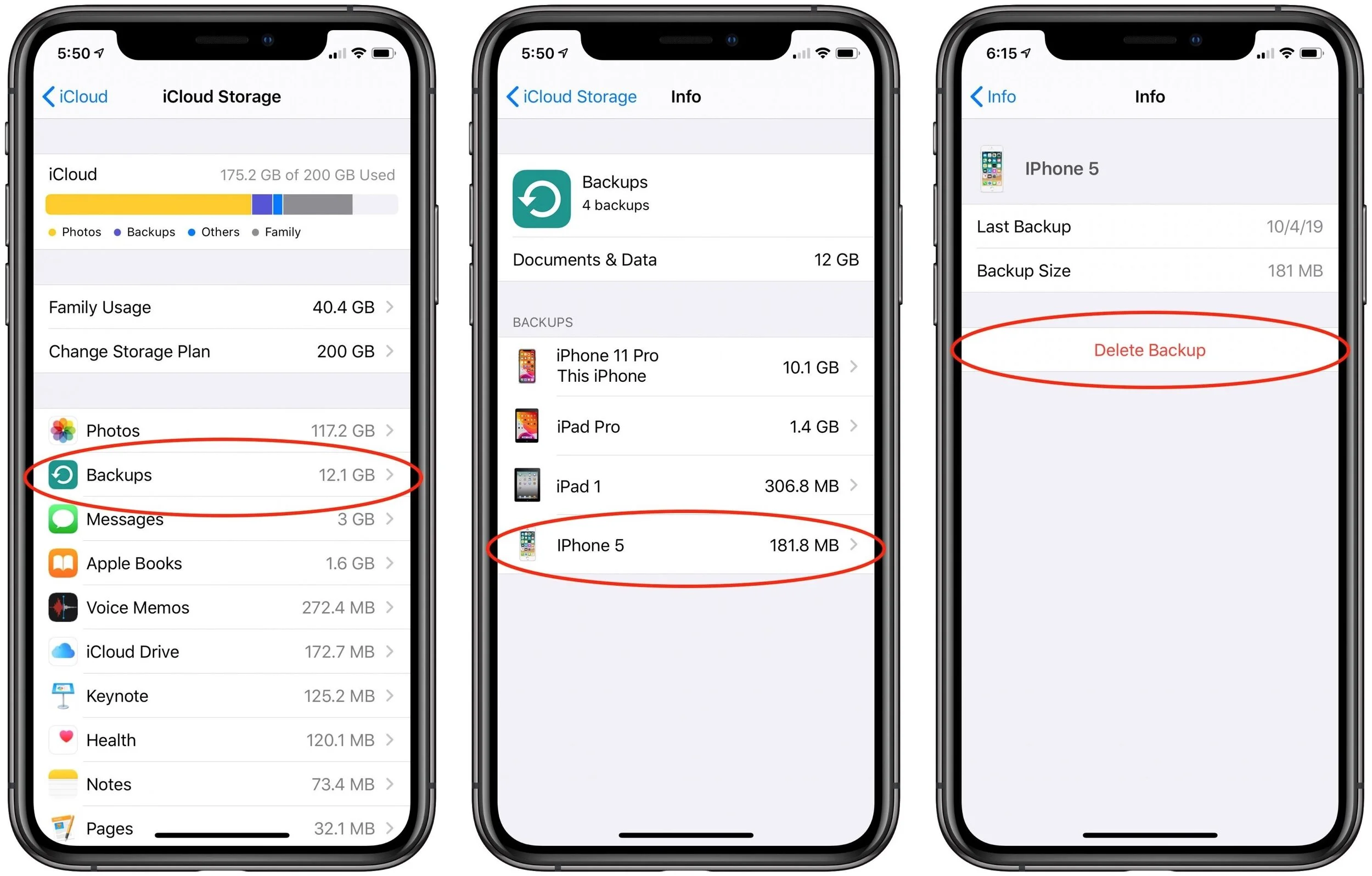
Then, to clear space, work through these five approaches.
1. Remove Unnecessary iCloud Device Backups
The biggest win comes from deleting iCloud device backups for devices you no longer use. It’s common for these to stick around, so if you recently upgraded from an iPhone X to an iPhone 11 Pro, the iPhone X backup is probably still consuming gigabytes.
Navigate to Settings > Your Name > iCloud > Manage Storage > Backups to see what you have. If you find backups for a previous iPhone or iPad, tap it and then tap Delete Backup.
2. Delete Unnecessary Data from iOS Apps
While you’re in the iCloud Storage screen (the leftmost screenshot above), look through the other apps at the top of the list. The Photos app will likely be using the most storage, but all you can do to minimize its space usage is delete unnecessary screenshots, duplicate photos, and accidental videos from Photos. That will likely require lots of manual effort.
However, some other apps—think about third-party camera or video apps—may be using space unnecessarily. Investigate any apps reporting a lot of usage in the iCloud Storage screen, and if possible, clear out the unnecessary data.
Finally, consider Messages. If you regularly trade photos and videos in chats, it could be another place you can save significant space. In the iCloud Storage screen, tap Messages > Top Conversations to see which conversations are the largest. Tap one to switch to Messages, tap the person’s avatar at the top of the conversation, tap the Info button, scroll down to see the photos, and tap See All Photos. Tap Select, tap photos you have no desire to keep within that Messages conversation, and then tap Delete at the bottom-right of the screen.

3. Avoid Backing Up Apps with Massive iCloud Data Stores
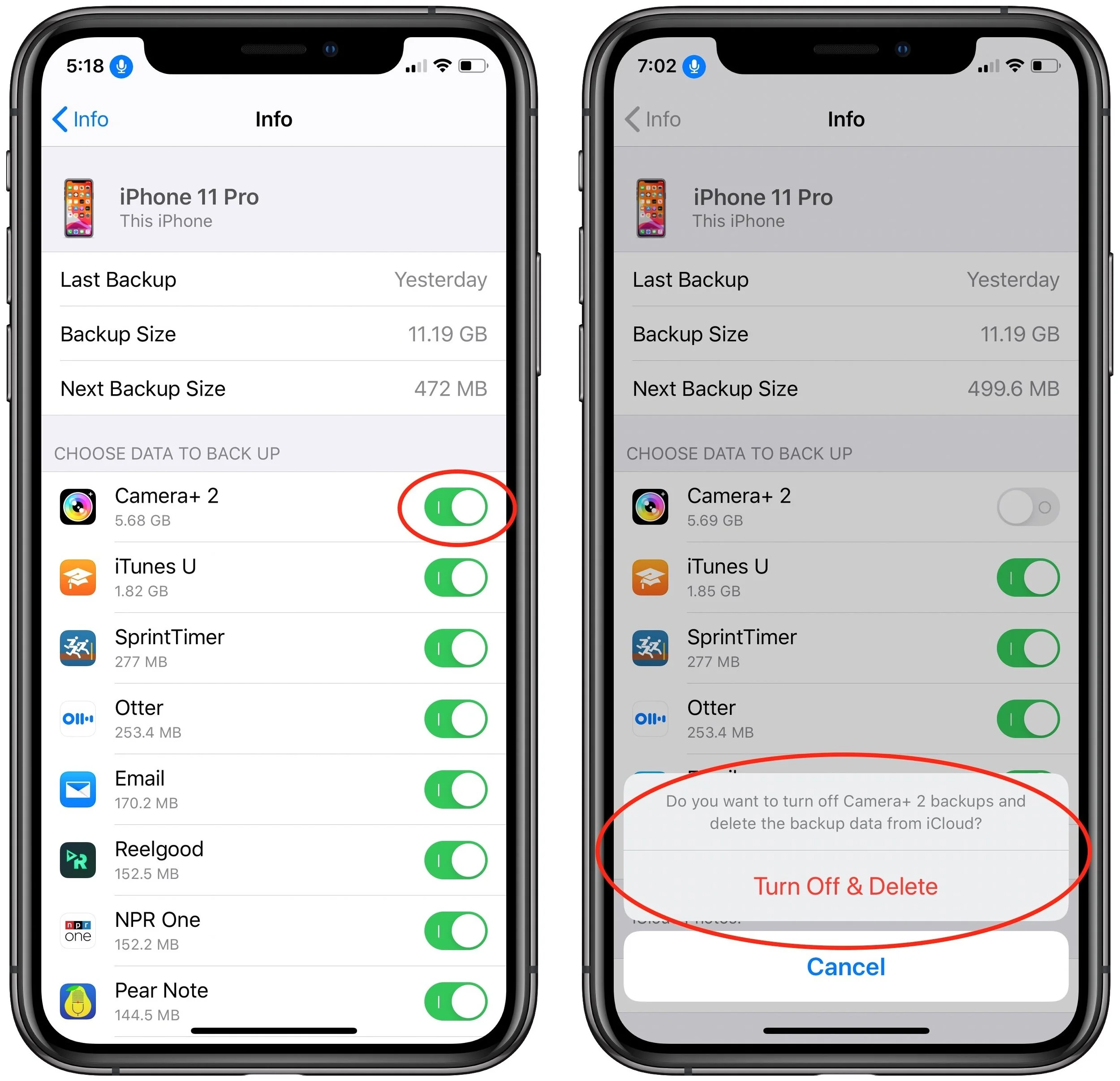
If one of your apps is storing a lot of data that you don’t want to delete, but that you don’t care if it were to be lost, you can prevent it from being backed up by iCloud Backup and reduce the size of your backups.
To find such apps, navigate to Settings > Your Name > iCloud > Manage Storage > Backups and tap the name of the device you’re on. That screen shows which apps consume the most space in your backup. Tap the toggle switch next to an app to stop backing it up and delete its data from your backup.
4. Scan for and Delete Large Files in iCloud Drive
It’s hard to know if you’re likely to be using lots of space in iCloud Drive—it all depends on what iCloud-savvy apps you use and if you store other files in iCloud Drive via the Mac’s Finder or the Files app in iOS.
There’s no need to guess, however, thanks to free Mac apps that help you identify especially large files and folders. Our favorites are GrandPerspective and OmniDiskSweeper. GrandPerspective uses a graphical view so you can see at a glance where your space is going, whereas OmniDiskSweeper opts for a classic text-based approach that gives you hard numbers. In GrandPerspective, choose File > Scan Folder and select iCloud Drive in the sidebar of the Open dialog. For OmniDiskSweeper, choose File > Size Folder.
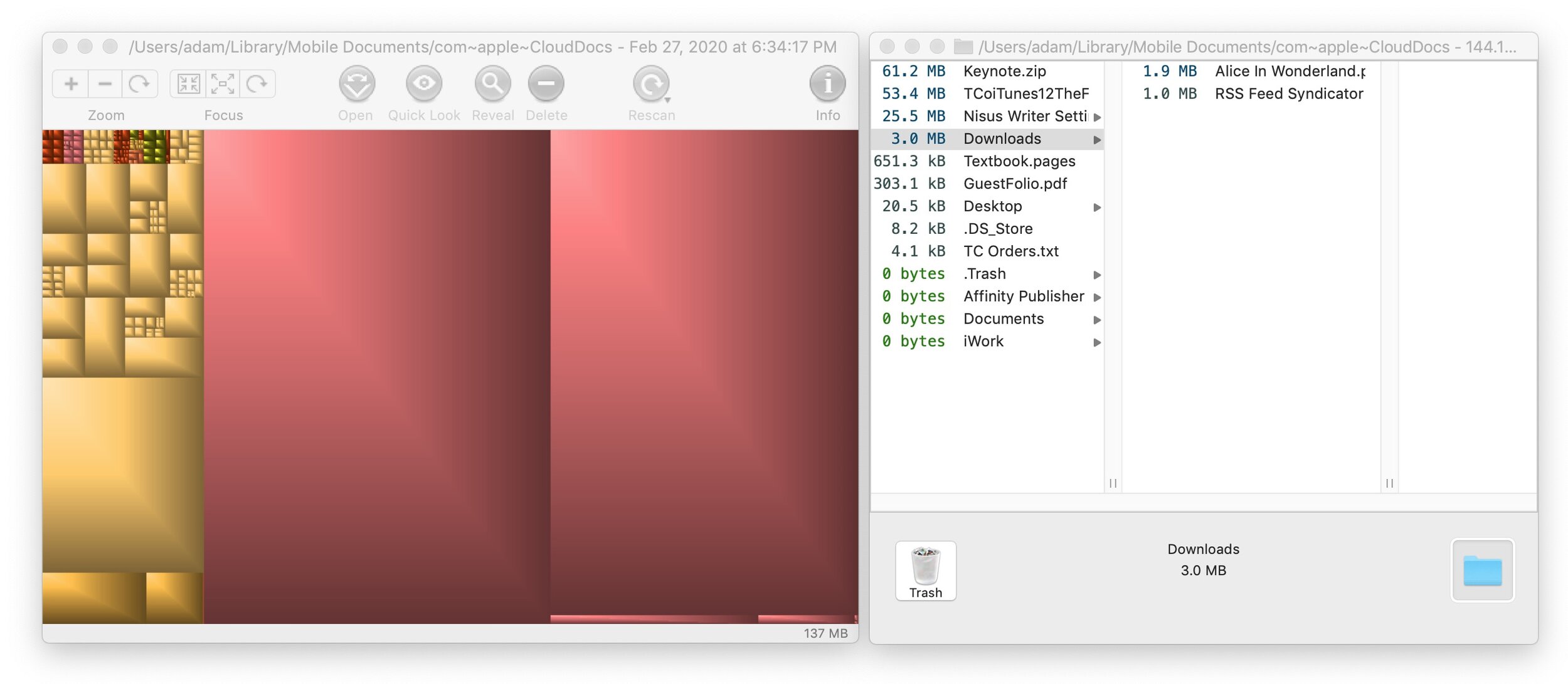
Whichever app you use, it’s easy to select large files or folders and click Delete (GrandPerspective) or Trash (OmniDiskSweeper). You may have to set an option in GrandPerspective > Preferences to enable deletions if its Delete button is disabled.
5. Delete Old Email from iCloud Mail
All the email you store at iCloud counts against your free space, so it can be worth clearing out unwanted old messages (and their large attachments). To delete individual messages using Apple’s Mail, just select them and click the Trash button in the toolbar. Some messages are much bigger than others, however, and to find them, choose View > Sort By > Size. That puts the largest messages at the top.
Of course, deleting messages normally just moves them to the Trash mailbox; to reclaim the space they occupy on iCloud, choose Mailbox > Erase Deleted Items > AccountName. Once you do that, the messages are gone for good.
If you want to remove an entire mailbox and its contents, select it in the sidebar and choose Mailbox > Delete Mailbox. That deletes all of its messages immediately and can’t be undone.
When you put all these space-clearing techniques together, you’ll likely be able to clear enough cruft that you won’t have to pay Apple for more iCloud storage space. But if you’re uncomfortable deleting such data, there’s no shame in upgrading to a larger iCloud storage plan.
You can also stop by GeekHampton and we can assist you with the process and ensure a smooth transition.
(Featured image by stokpic from Pixabay)
How to Choose Between iCloud Photos and My Photo Stream
Apple provides two ways of moving photos from your iPhone to your Mac: iCloud Photos and My Photo Stream. Which should you choose? We run through the pros and cons of each.
For quite a few years, Apple enabled users to download their iPhone or iPad photos to their Macs with a service called My Photo Stream. It wasn’t perfect, but it was free, and it did a decent job of ensuring that photos you took on your iPhone or iPad would end up on your Mac.
Then Apple introduced iCloud Photo Library, later renamed to iCloud Photos, which is a full-featured cloud-based photo syncing service. However, because it stores all your photos in the cloud, most people need to purchase more storage from Apple to use it.
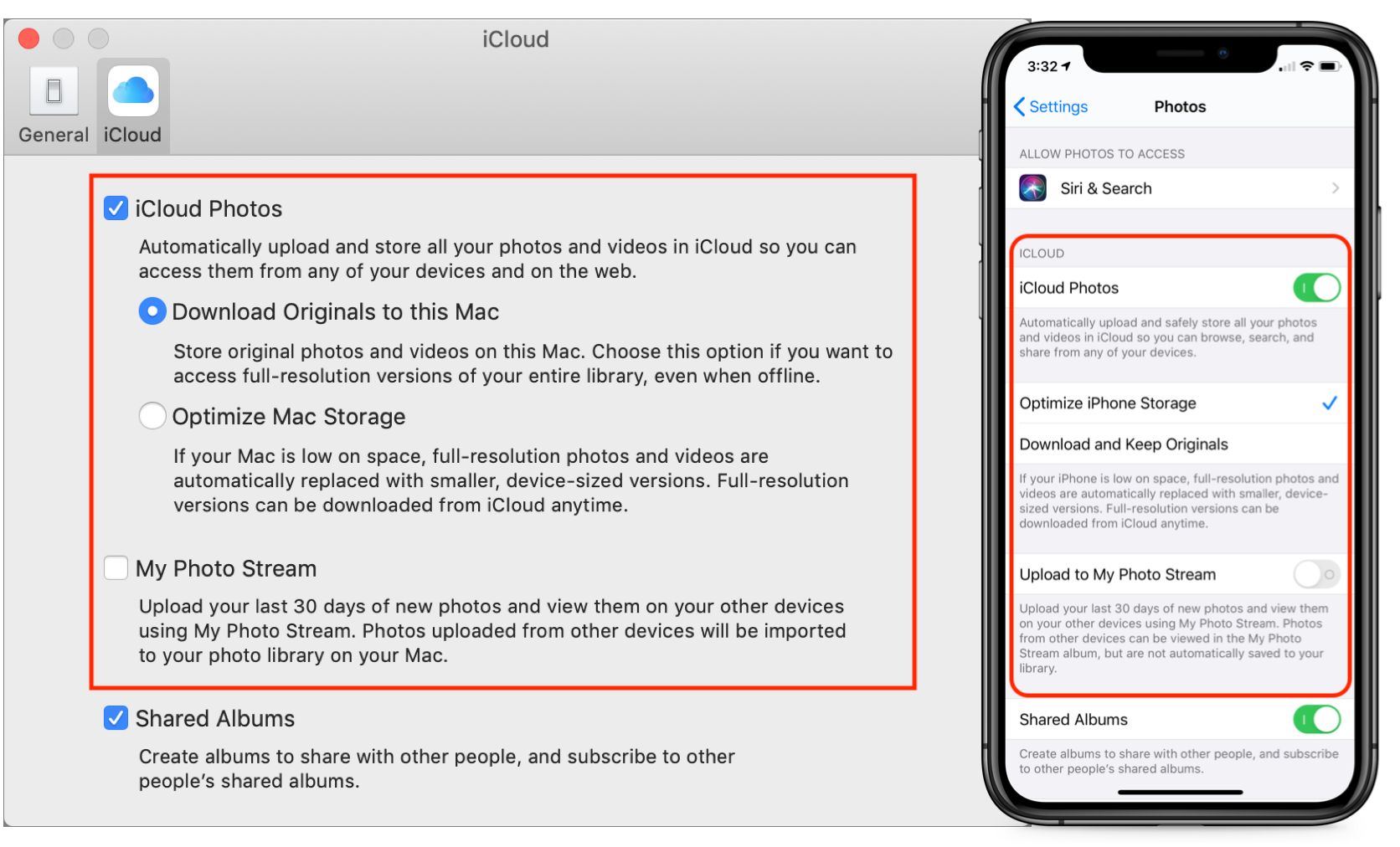
As a result, Apple has kept My Photo Stream around, at least for most existing users. (The company says, “If you recently created your Apple ID, My Photo Stream might not be available. If My Photo Stream isn’t available, use iCloud Photos to keep your photos and videos in iCloud.” Huh.) For those who have a choice, which should you use? (On the Mac, you make that choice in Photos > Preferences > iCloud; in iOS, look in Settings > Photos.)
Cost and Storage Details
The key advantages of My Photo Stream over iCloud Photos are that My Photo Stream is completely free and the storage it uses doesn’t count against your iCloud limits.
On a pure price basis then, My Photo Stream wins. However, it suffers from other limitations that make it less compelling:
My Photo Stream stores your photos on your iOS devices in a lower resolution to save space and transmission time. On the Mac, however, your photos download in full resolution. In contrast, iCloud Photos lets you choose on each device whether you want original images or optimized versions to save space—full-resolution originals are always stored in iCloud itself.
My Photo Stream manages only the last 30 days of photos and only the last 1000 photos. That’s fine for just transferring photos from your iPhone to your Mac for permanent storage, but your other devices will be able to display only your most recent photos. iCloud Photos stores all your photos as long as you have sufficient space.
When you edit a photo while using My Photo Stream, the edits apply only to the photo you edited, not to versions synced with other devices. With iCloud Photos, all edits you make—on any of your devices—sync to all the rest of your devices.
Supported Formats
There’s another big gotcha with My Photo Stream. It supports only photos and images in JPEG, PNG, and TIFF formats, plus most raw formats. That doesn’t sound terrible until you realize that it doesn’t include Live Photos or any video formats. That’s right—My Photo Stream won’t sync your Live Photos or videos from your iPhone to your Mac at all! You’ll have to move them over manually in some other way.
In comparison, iCloud Photos supports the same still image formats as My Photo Stream and adds GIF, HEIF, and more raw formats, along with Live Photos. Plus, it supports MP4 and HEVC videos. In other words, iCloud Photos will sync all your images and videos, regardless of format.
Supported Devices
Finally, My Photo Stream works on the Mac, iPhone, iPad, iPod touch, and Apple TV, and with Windows-based PCs. iCloud Photos extends that list to include the Apple Watch and the iCloud.com Web site. Apple Watch support likely isn’t a dealbreaker for most people, but it can be useful to be able to see all your photos in a Web browser on any computer.
Making the Choice
Technically speaking, you can have both My Photo Stream and iCloud Photos turned on. However, if you’re using iCloud Photos, My Photo Stream doesn’t get you anything, so you should turn it off.
If you’re trying to save money and have more than 5 GB of photos, My Photo Stream works to bring most of your iPhone photos down to your Mac for permanent storage in the Photos app. Just beware that it won’t sync your Live Photos or videos, and any other iOS devices you have will be limited to seeing the last 30 days or 1000 photos.
For most people, though, iCloud Photos is the way to go. It’s easily worth $12 or $36 per year for 50 GB or 200 GB of storage, it syncs all your photos and videos among all your devices, and it even syncs edits.
If you need some assistance or step by step instructions please don’t hesitate to pay us a visit. We would be happy to help.
(Featured image based on originals by Jon Tyson on Unsplash and OpenClipart-Vectors from Pixabay)
Troubleshooting Steps for When Your Mac Won’t Print
Unable to print? Look for a solution in our comprehensive troubleshooting steps.
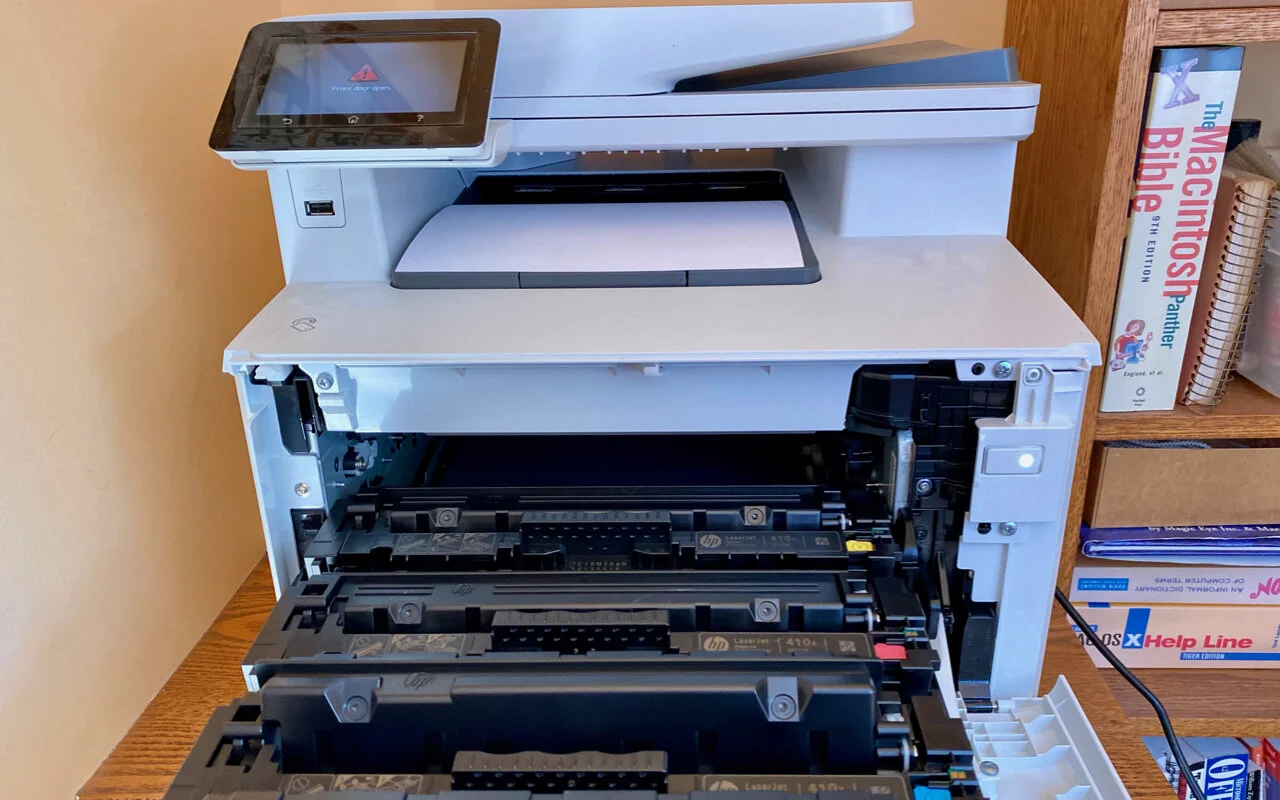
There’s little more frustrating than being unable to print a document when you need it. You choose File > Print, and nothing happens. Or, worse, macOS looks like it’s printing, so you focus on some other task, only to realize 20 minutes later that nothing has come out of the printer. Now what? Try these troubleshooting steps.
Check the Printer’s Print Queue App
Whenever you print, the printer’s Print Queue app appears in your Dock, named for the printer. (If it doesn’t, open System Preferences > Printers & Scanners, select the desired printer and click Open Print Queue.)
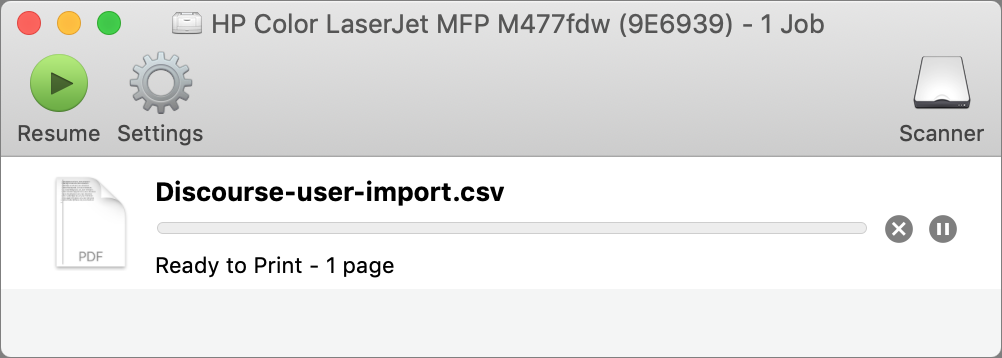
In the Print Queue app, look at the status of the printer and the print job. First off, if you print to multiple printers, does the app correspond with the correct printer? If not, cancel the job by clicking the X button to its right, quit the Print Queue app, print again, and choose the correct printer from the Printer pop-up menu in the Print dialog.
The Print Queue app may also display a useful error message that tells you what’s wrong, such as the printer being offline or not connected. You may also see old print jobs stuck in the queue that are blocking the current job—delete them by clicking the X next to their names.
If something has caused the printer to be paused, click the green Resume button. That won’t work if the printer has paused itself due to a paper jam or low supplies—in such a case, resolve the problem first.
Check the Printer and Its Connection
Error messages may have given you a hint about problems with the printer itself, but they’re not always helpful. Verify the following:
Is the printer turned on? Doh! If necessary, turn it on. Also, try turning it off and back on—this resolves a surprising number of printing problems.
Is the printer connected? It should be connected via either USB or your Wi-Fi or Ethernet network—make sure the cables are plugged in and it’s on the same network as your Mac. Consider restarting your router if there seem to be communication issues.
Does the printer have paper in it? No paper, no printout.
Is there a paper jam? Printers usually squawk about paper jams. Clear it before trying again.
Are any ink or toner cartridges empty? Some printers are notorious for refusing to print if even one ink cartridge is empty, or even low. That can be true even if you’re printing only in black and a color cartridge is empty.
There’s one final check of the printer you can perform: printing a test page directly from the printer (check your printer’s manual for instructions). If that fails, the printer may need servicing.
Check Your Mac’s Printing Setup
The final place to look for a solution to printing problems is in your Mac’s printing subsystem. Problems here can be specific to your document or to its app, or they can be related to the printer driver.
For your first test, try opening your document in Preview as a PDF (in the document’s Print dialog, choose PDF > Open in Preview) and printing it from Preview.
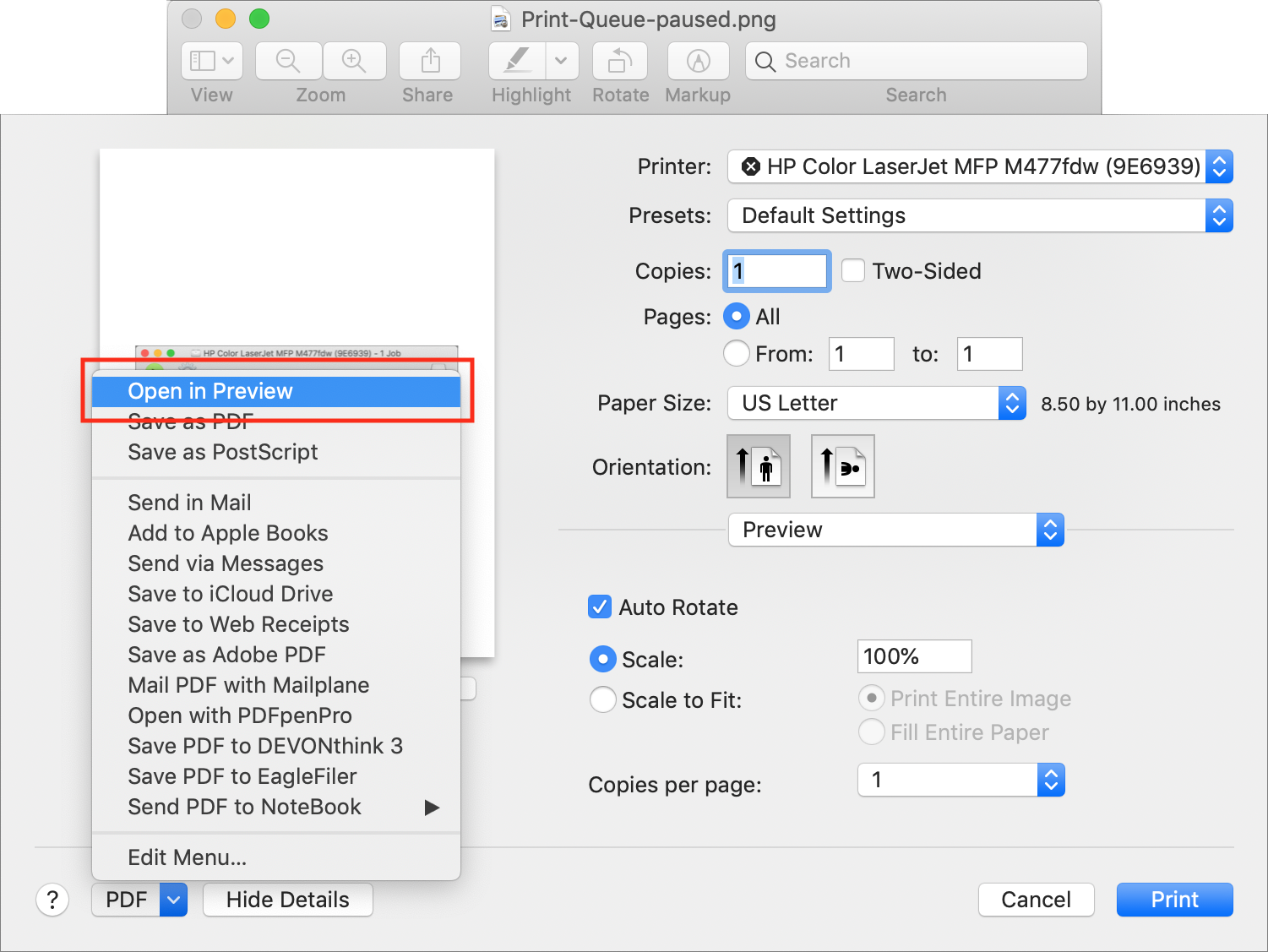
If that works, you know that your Mac can print, so the problem has to do with either the document or the app. To isolate the problem to the document or the app, print another simple document from the app. If that does print, you know the problem is with your document, but since you’ve already gotten a PDF to print of that document, your immediate problem may be already solved. If the problem is with the app, you’ll eventually need to solve it, of course. But most of the time, the problem actually lies with your printer driver.
It’s uncommon for driver updates to come outside of macOS updates these days, but check System Preferences > Software Update just to make sure. You can also check the printer manufacturer’s Web site for updates; Google on “printerNameAndModel Mac driver” to find what’s available. Compare that against what you see when you select the printer in System Preferences > Printers & Scanners and click the Options & Supplies button. If there’s a newer version, download and install it.
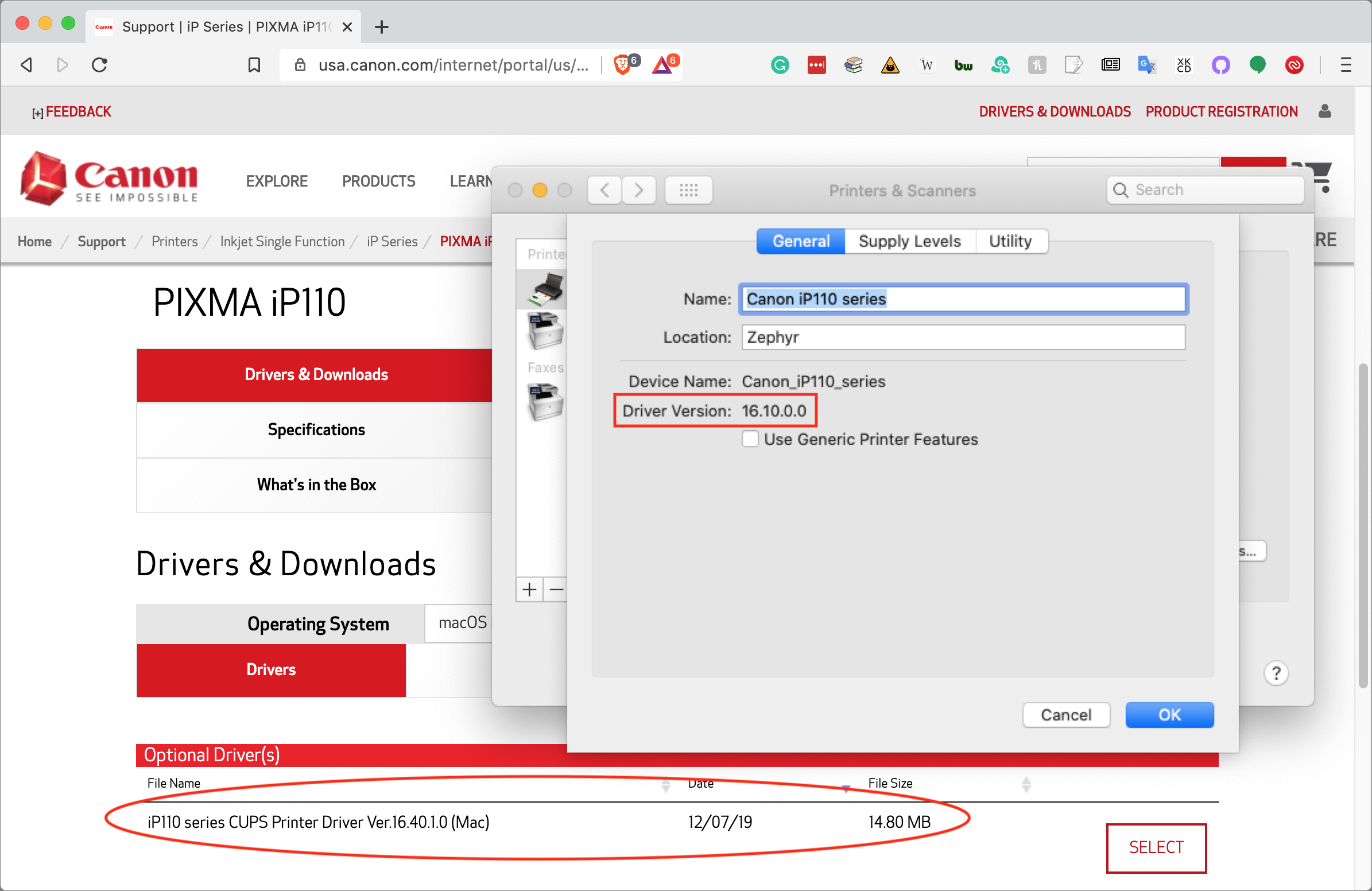
If installing a new version doesn’t work, try deleting the printer from Printers & Scanners and re-adding it. Select the printer in the list and click the – button at the bottom to delete it. Then click the + button and add it back.
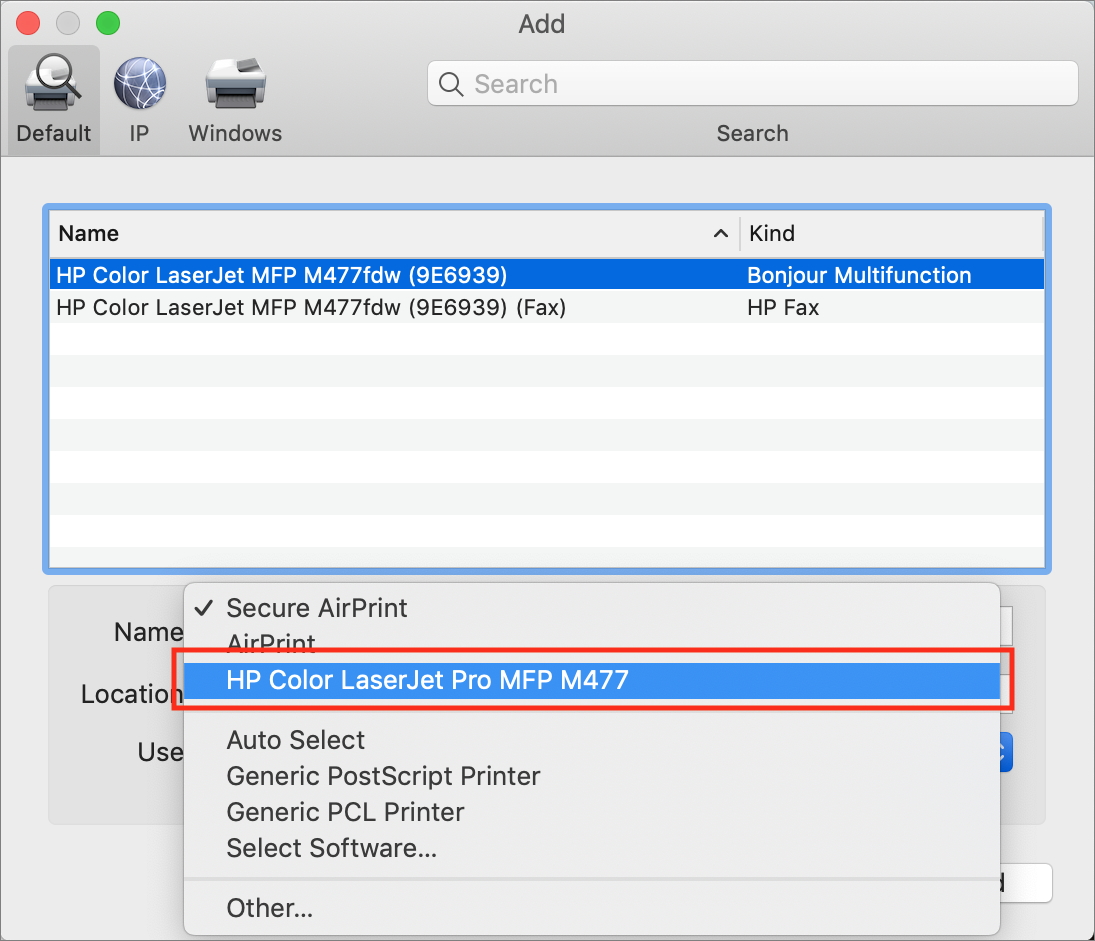
No luck? Try deleting the driver and adding it again, but choose a different option from the Use pop-up menu at the bottom. Start with the name of the printer itself instead of Secure AirPrint to ensure you’re using the manufacturer’s driver instead of Apple’s. If that doesn’t make a difference, try again with Generic PostScript Printer or Generic PCL Printer—beware that they may not provide full functionality beyond basic printing. For the ultimate in trying something different, if it supports your printer, try installing an independent driver from the open-source Gutenprint project.
One note: if possible, avoid using the Printer Sharing feature that’s been in macOS for years. It works, but it requires that the Mac doing the sharing be turned on and awake whenever anyone using the shared printer wants to print.
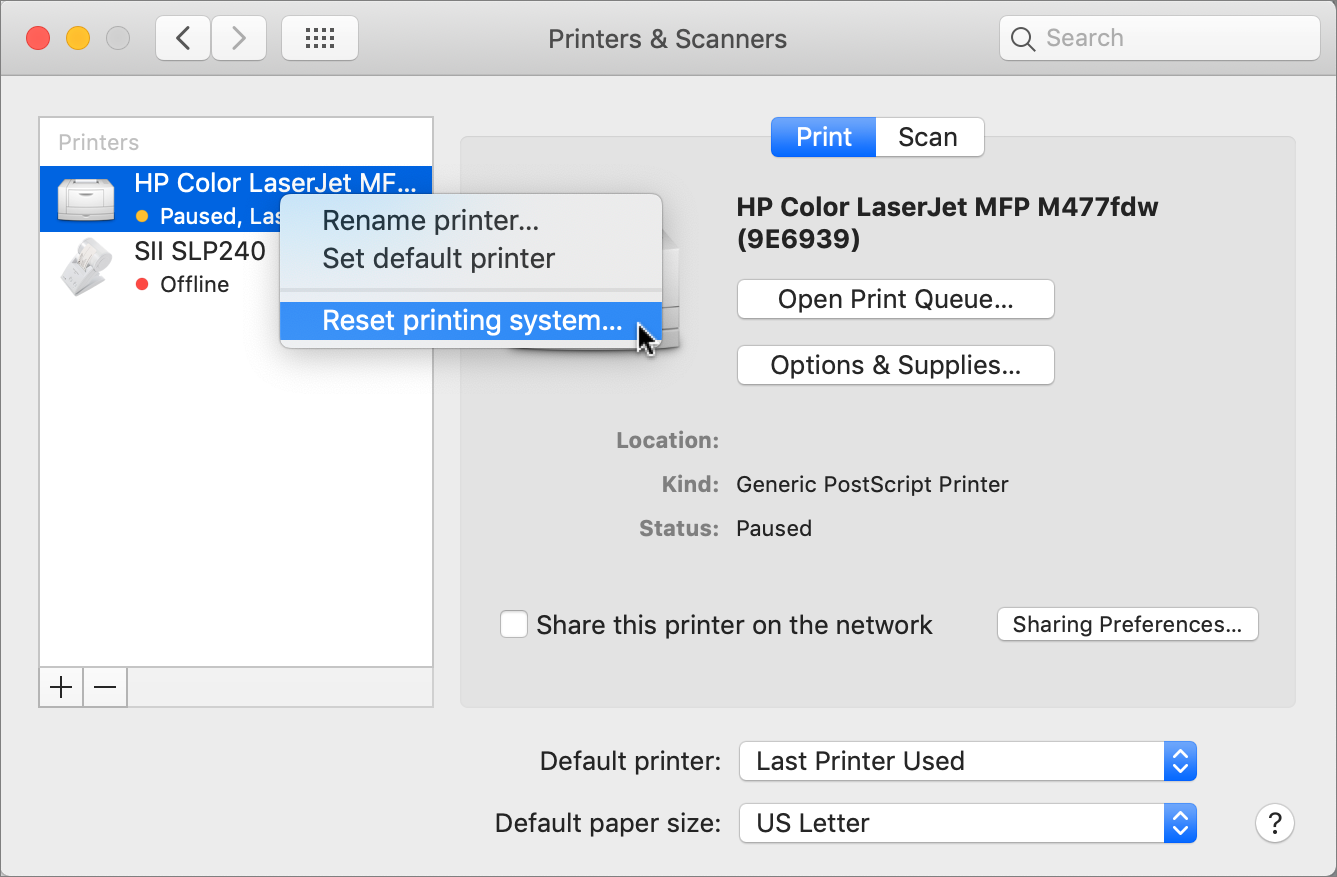
If you’re still stuck, go nuclear. Go back to the Printers & Scanners preferences, Control-click any printer, and choose Reset Printing System. As the warning dialog tells you, doing so will delete all your existing printers, scanners, and faxes, and any pending print jobs. You’re basically resetting your printing system to factory defaults, after which you’ll have to add printers back again.
One of these solutions will almost certainly solve your problem, but if not, give us a ring!
You can also call to schedule an onsite appointment with one of our technicians if you are in need of further assistance.
(Featured image by Adam Engst)
Strategies for Moving from Mojave to Catalina
Considering upgrading to Catalina? Or maybe you have a new Mac that came with it already installed? Read on for strategies for downgrading to Mojave or running both Catalina and Mojave.

For some Mac users, macOS 10.15 Catalina is no longer a choice. That’s because the new 16-inch MacBook Pro and the 2019 Mac Pro that Apple released late last year ship with Catalina installed and can’t run any previous version of macOS.
But for most people, it’s time to consider an upgrade to Catalina. Most backup software now works with Catalina’s bifurcated drive approach that puts the system on a separate, read-only volume from your data and apps. We’ve all had several months to come to terms with the fact that old 32-bit apps won’t even launch in Catalina. And Apple has shipped several updates that bring Catalina to version 10.15.3, addressing most of the complaints users had with the initial release.
If you are ready to try Catalina but still want to use 10.14 Mojave, we have some advice for how to make that happen. This could be the case for someone who has purchased a new Mac that does support Mojave but came with Catalina installed, for someone who wants to test Catalina while still using Mojave, or for someone who wants to move on to Catalina but has a 32-bit app that they aren’t ready to say good-bye to.
Downgrade from Catalina to Mojave on Some New Macs
Apple has started installing Catalina on new Macs other than the 16-inch MacBook Pro and 2019 Mac Pro, but since these older Macs can still run Mojave, it’s possible—if a bit tricky—to downgrade them to Mojave.
System engineer Armin Briegel has worked out a way of downgrading new Macs to Mojave. First, you create a Mojave Installer USB drive. To use that drive to boot a Mac with a T2 security chip, you must allow external booting from the Security Utility on the Recovery partition. Once you’ve booted from your Mojave Installer drive, use Disk Utility to erase the entire internal drive. Then install Mojave.
Use Virtualization to Keep 32-bit Apps Running
For some people, what’s keeping them on Mojave is a single 32-bit app that will never be updated in an appropriate fashion. Quicken 2007 falls into this category, as does the ScanSnap Manager app for the ScanSnap S1300, S1500, and S1500M scanners. Sure, you can get a current version of Quicken, but it may not do precisely what you want, and Fujitsu would be happy to sell you a new ScanSnap scanner that does come with 64-bit software, but then you’ll have to figure out what to do with your old scanner.
So if you’re ready to upgrade to Catalina in general but need to maintain access to one or two apps, one solution is virtualization software: either Parallels Desktop or VMware Fusion. Both apps let you run nearly any operating system—including older versions of macOS like Mojave—in a virtual machine. In essence, they fool the guest operating system, whether it’s Mojave or Windows, into thinking it’s running normally on a computer, when it’s actually running in a virtual environment.
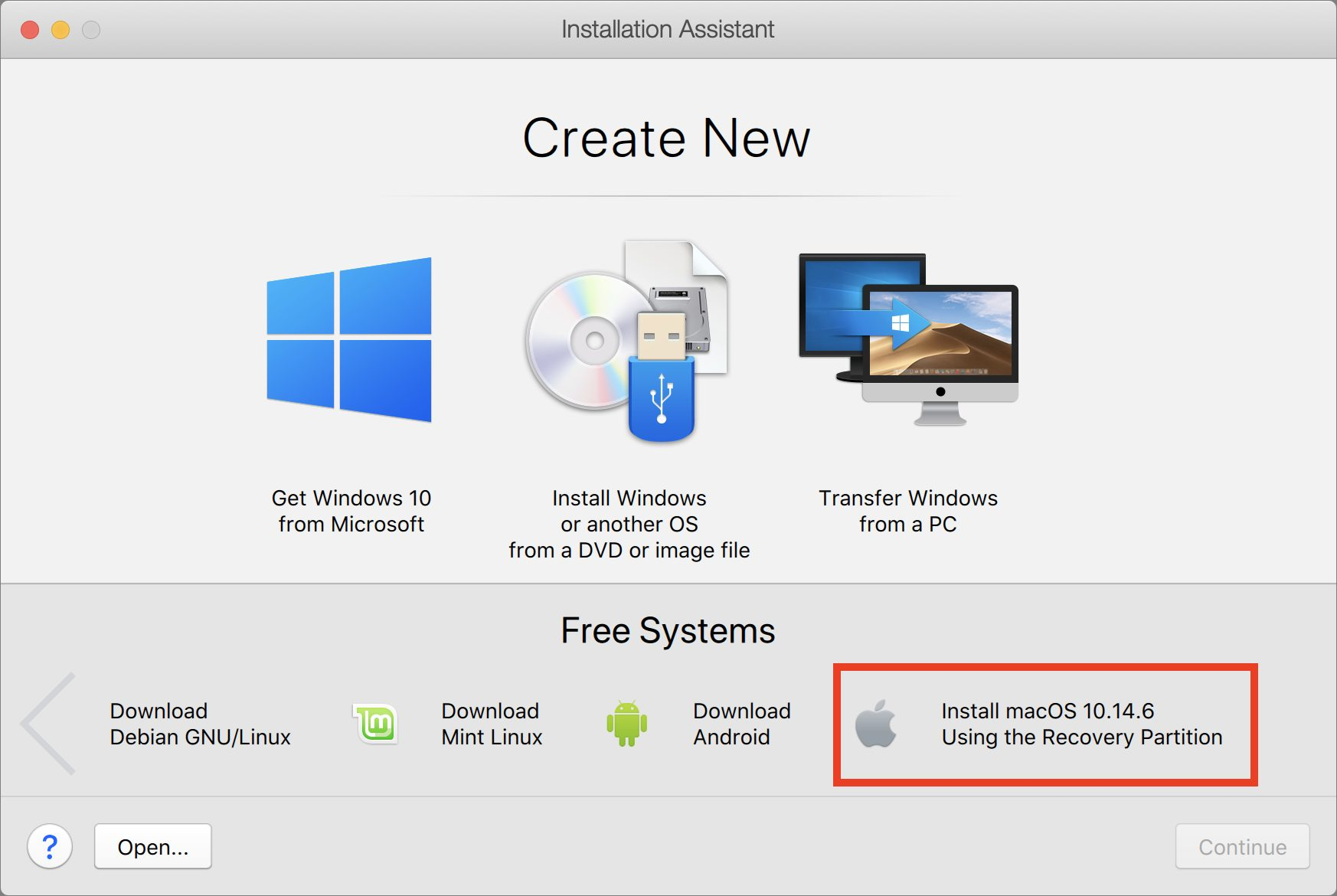
These apps cost about $80, and while there’s a bit of work in setting them up (the screenshot below shows the option for installing Mojave in Parallels Desktop during setup), once you have them configured, it’s easy to run older apps alongside newer ones with little or no performance hit. This approach is also perfect for a 16-inch MacBook Pro or Mac Pro that can’t run Mojave in any other way.
Install Catalina and Mojave on Separate APFS Volumes and Switch Boot
Finally, there’s one other option that lets you switch back and forth between Mojave and Catalina, assuming your Mac supports Mojave. You can create an APFS volume on your internal drive and install another version of macOS on that. It’s easy, and Apple provides full instructions. The only problem with this approach is that you’ll have to restart to switch operating systems, whereas both are available simultaneously with the virtualization solution.
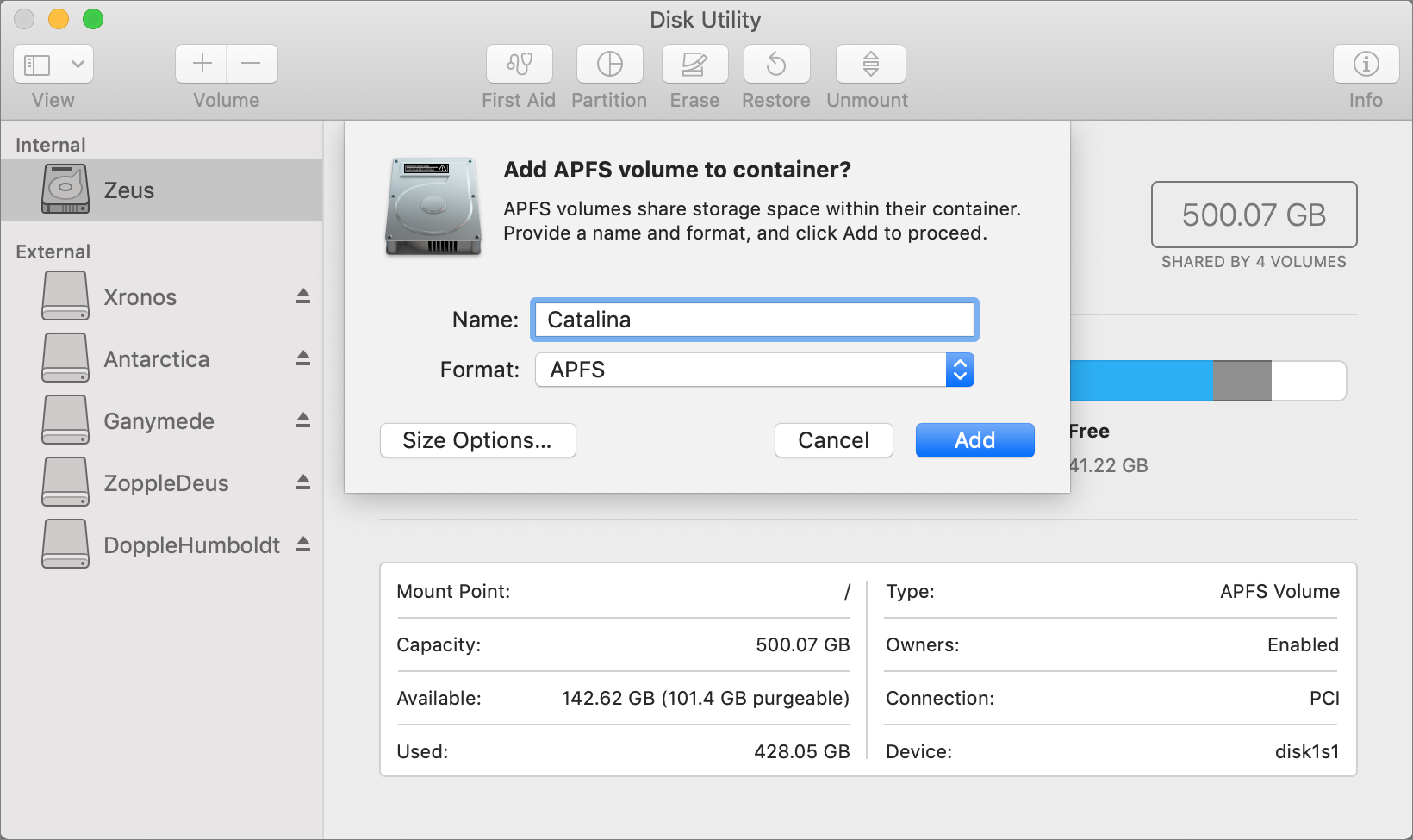
First, make sure you have at least one current backup of your Mac, since it’s foolhardy to adjust your drive structure without one. Next, in Disk Utility, select your internal drive, choose Edit > Add APFS Volume, and click Add. We recommend naming the drive such that it will be clear what’s on it.
Then boot into macOS Recovery and install the desired version of macOS on your new volume. The keys you hold down to get into Recovery determine which version of macOS you’ll get:
Command-R reinstalls the latest version of macOS that was installed on your Mac.
Command-Option-R upgrades to the latest version of macOS that’s compatible with your Mac.
Command-Shift-Option-R reinstalls the version of macOS that came with your Mac, or the closest version still available.
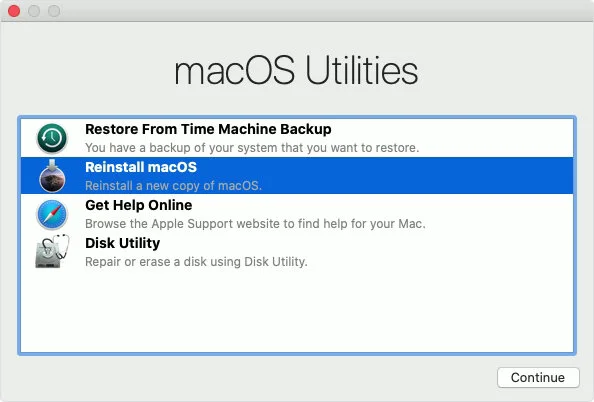
Choose Reinstall macOS from the macOS Utilities window and proceed from there.
Once the installation is complete, to switch from one version of macOS to another, open System Preferences > Startup Disk, choose the desired volume to boot from, and then click Restart. Or, press Option at startup and select the desired volume from the Startup Manager screen.
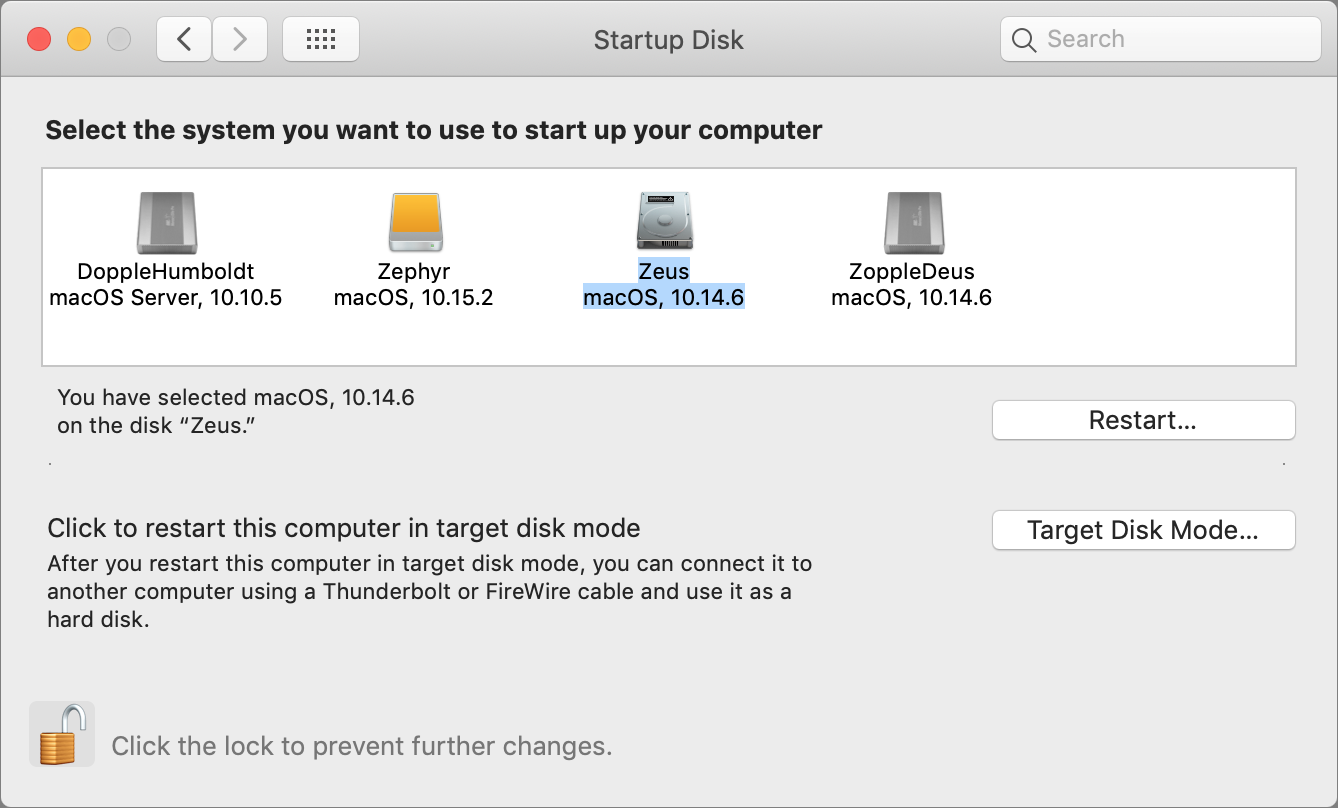
Needless to say, the decision about when and how to upgrade to Catalina isn’t a trivial one, so feel free to contact us to discuss your particular situation or to get help with any of the procedures that we’ve described in this article.
(Featured image by Apple)
To Prevent Spearfishing, Set a PIN or Passcode on Your Cell Phone Account
It’s shockingly easy for someone to take over your cell phone number. Once they’ve done that, they can reset passwords on many of your online accounts. Read on to learn how to protect your cell number with a PIN or passcode.

Spearfishing. It’s no longer just a tropical ocean sport that could provide seafood for dinner. In today’s tech world, spearfishing is when someone targets you specifically, usually with the goal of taking over your online accounts. Once that’s done, the attacker will try to siphon money from your bank account, impersonate you in an attempt to deceive family or colleagues into sending money, or attempt to ruin your reputation.
You’re probably thinking, “No one would ever target me. I’m not interesting enough.” It is true that the people who should worry the most about spearfishing attacks are high profile or have a high net worth, but modern online criminals aren’t that fussy. In particular, they’re more likely to go after older people. Why older people? Older people tend to be relatively well off and less likely to notice the symptoms of a spearfishing attempt. You should also be concerned if you’re a politician or journalist, have ever been involved in an ugly divorce or legal battle, or can easily think of people who have it in for you.
As we’ve said many times, it’s imperative that you use a secure password manager like 1Password or LastPass to create, store, and enter a strong, unique password for each of your online accounts. Plus, we strongly recommend using two-factor authentication—where you have to enter a one-time code in addition to your password—on all accounts that support it, particularly important ones like your email and banking accounts. But even if you do all that, you may be vulnerable to another tactic favored by spearfishers—the cell phone SIM takeover.
Here’s how it works. Every cell phone, including every iPhone, has inside it a SIM card that gives it a phone number. Swap that SIM into a different phone and it will adopt the SIM card’s number. The problem is that support reps at cellular carriers like AT&T, Sprint, T-Mobile, and Verizon can also move your phone number from one SIM card to another. That makes it possible for you to lose your iPhone, buy a new one, and have your phone number associated with the new one. It also lets you port the phone number to a different carrier, if you wish to switch.
All an attacker has to do is call your cellular provider, pretend to be you, say that they’ve lost their iPhone, and ask to have the number ported to a new device (one they control). It’s likely that the support person will ask a few simple questions to verify your identity, but a clever attacker will likely know your address and be able to learn details like your mother’s maiden name, first-grade teacher’s name, and favorite color, all thanks to Facebook. Criminals can acquire even information like your Social Security number through other data breaches.
Once the attacker controls your cell phone number, they can try to reset the password on various accounts, receiving any verification codes that would normally have been texted to your phone. They’ll probably focus on your email account first because, with control over it, they can reset passwords elsewhere even more easily. And once the attacker has access to your accounts, it’s game over, and you’ll be faced with the difficult and complex task of retaking control and mitigating damage.
How can you protect yourself from such an attack? Whenever possible, it’s better to generate authentication codes with an app such as 1Password, Authy, or LastPass. That removes some of your exposure, but for better or worse, your cell phone number is still the most basic form of identity for many things.
The most important thing to do, then, is to set up an additional PIN or passcode that the carrier will ask for before making any changes to your account. You’ll also have to provide it when logging in to your cellular account online. Such a PIN or passcode is different from a two-factor authentication code that changes continuously—you set your PIN or passcode just like you do for your iPhone or ATM card. And, of course, make sure to store that PIN or passcode in your password manager alongside your other credentials so you don’t forget it.
Learn more about how each of the major carriers supports PINs and passcodes at the links below, and if your carrier isn’t listed, call the company’s support line:
AT&T
Sprint
T-Mobile
Verizon
Don’t put this off—if you don’t already have a PIN or passcode on your cellular account, set it up right away.
(Featured image by Gerd Altmann from Pixabay)