
Reduce Your Email Load with Three Features in Apple’s Mail: Mute, Block, and Unsubscribe
Email overload may be a fact of life, but Apple has provided three features in Mail that can reduce some of the load: muting, blocking, and unsubscribing. Start using them today with the instructions here:
Complaining about getting too much email is like complaining about bad traffic—we brought it upon ourselves, and while it’s impossible to escape entirely, it’s worth knowing how to reduce it. Apple is fully cognizant of the issue, too, and has built features into the last couple versions of Mail—on the Mac, iPhone, and iPad—to help out. Here are three that you might find useful in different situations: mute, block, and unsubscribe.
Mute
It’s a huge email conversation about the annual holiday party at work, but you can’t go, and more people keep weighing in. However, since it’s just a ton of addresses on the Cc line, there’s no way to remove yourself, even though you don’t need to be notified of all the back-and-forth.
To help you quiet a too-chatty conversation, Apple added the Mute feature to Mail. On the Mac, select the conversation and choose Message > Mute or click the Mute button in the toolbar. On an iPhone or iPad, touch and hold the message until you get a popover, then tap Mute. You can also swipe left on the message, tap More, and tap Mute.
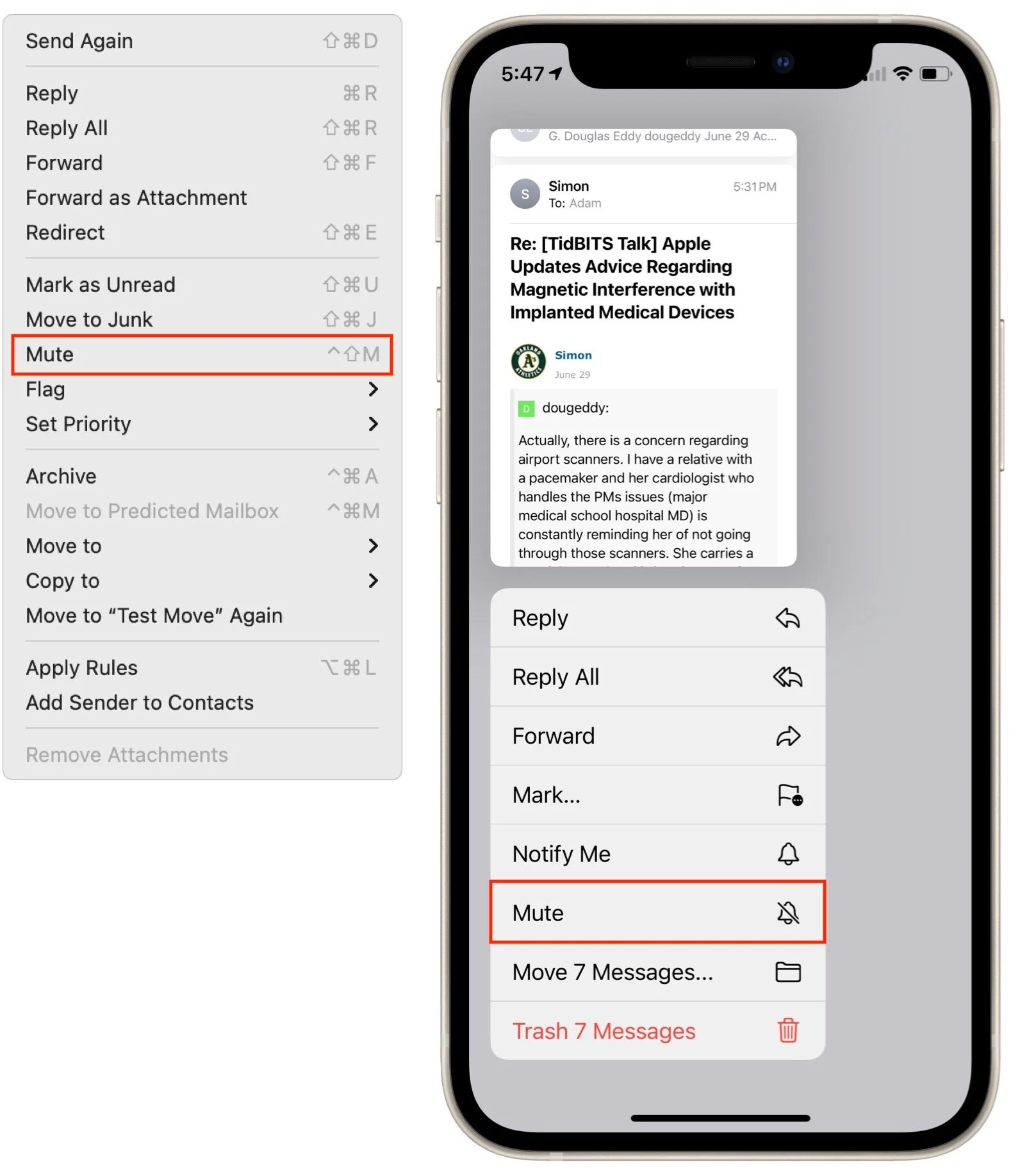
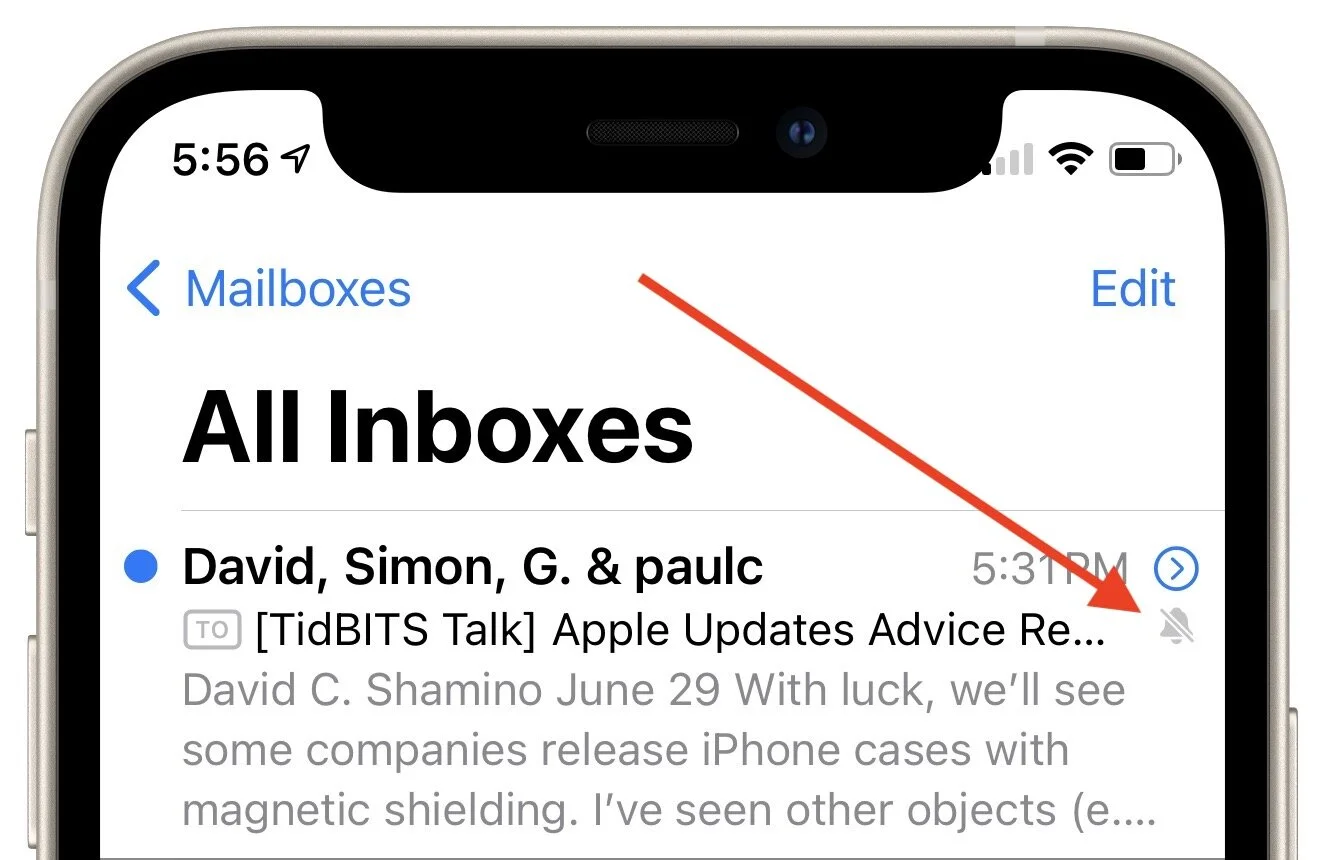
Messages will continue to flow in, but if you normally get notifications of Mail messages, you won’t get notifications for the muted conversation. In Mail, a little bell icon with a slash through it reminds you that the conversation is muted. To unmute a conversation, repeat these steps, but pick Unmute instead.
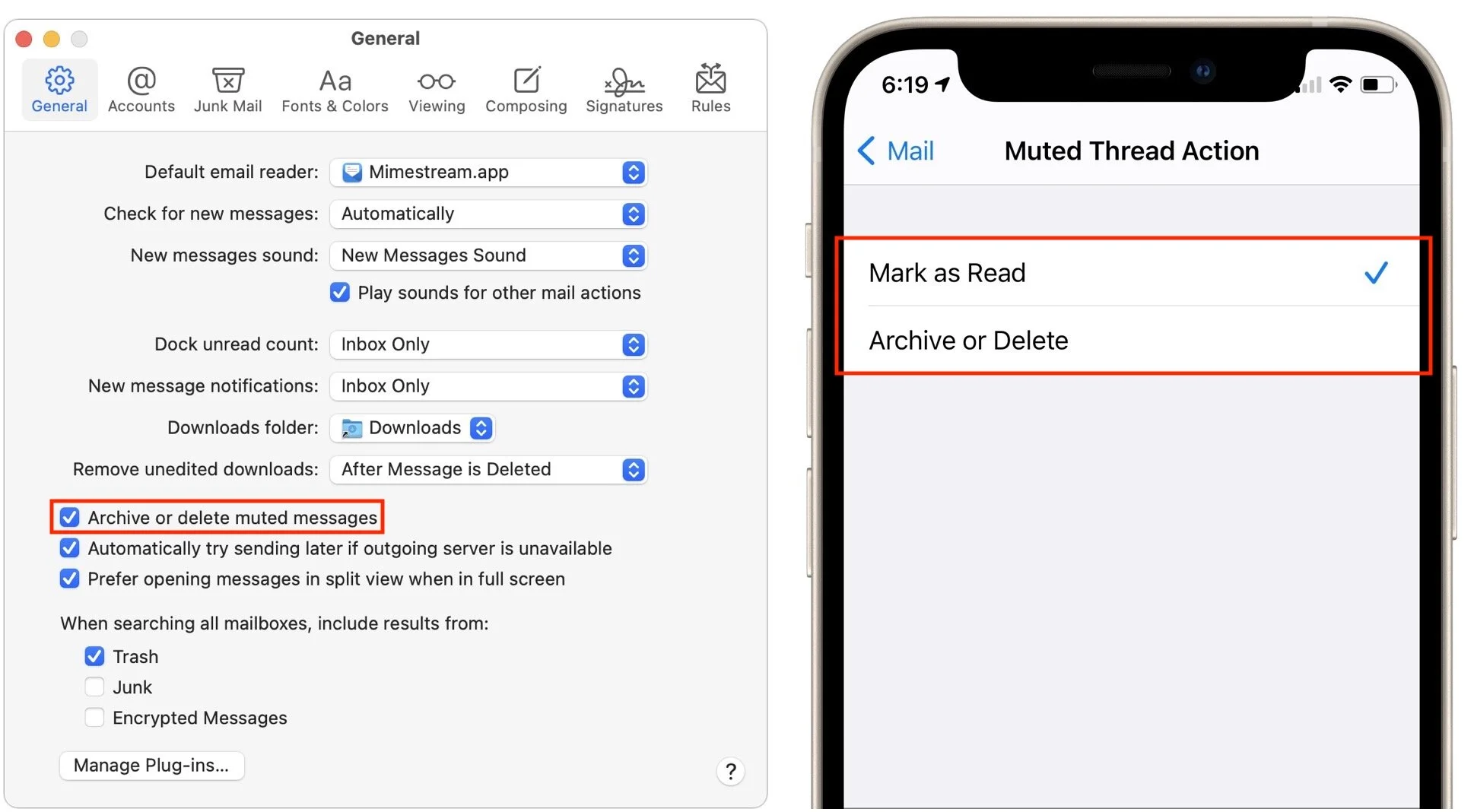
Do you never want to see those muted messages at all? You can discard them automatically. On the Mac, in Mail > Preferences > General, select “Archive or delete muted messages.” In iOS and iPadOS, go to Settings > Mail > Muted Thread Action, where you can choose between Mark as Read and Archive or Delete.
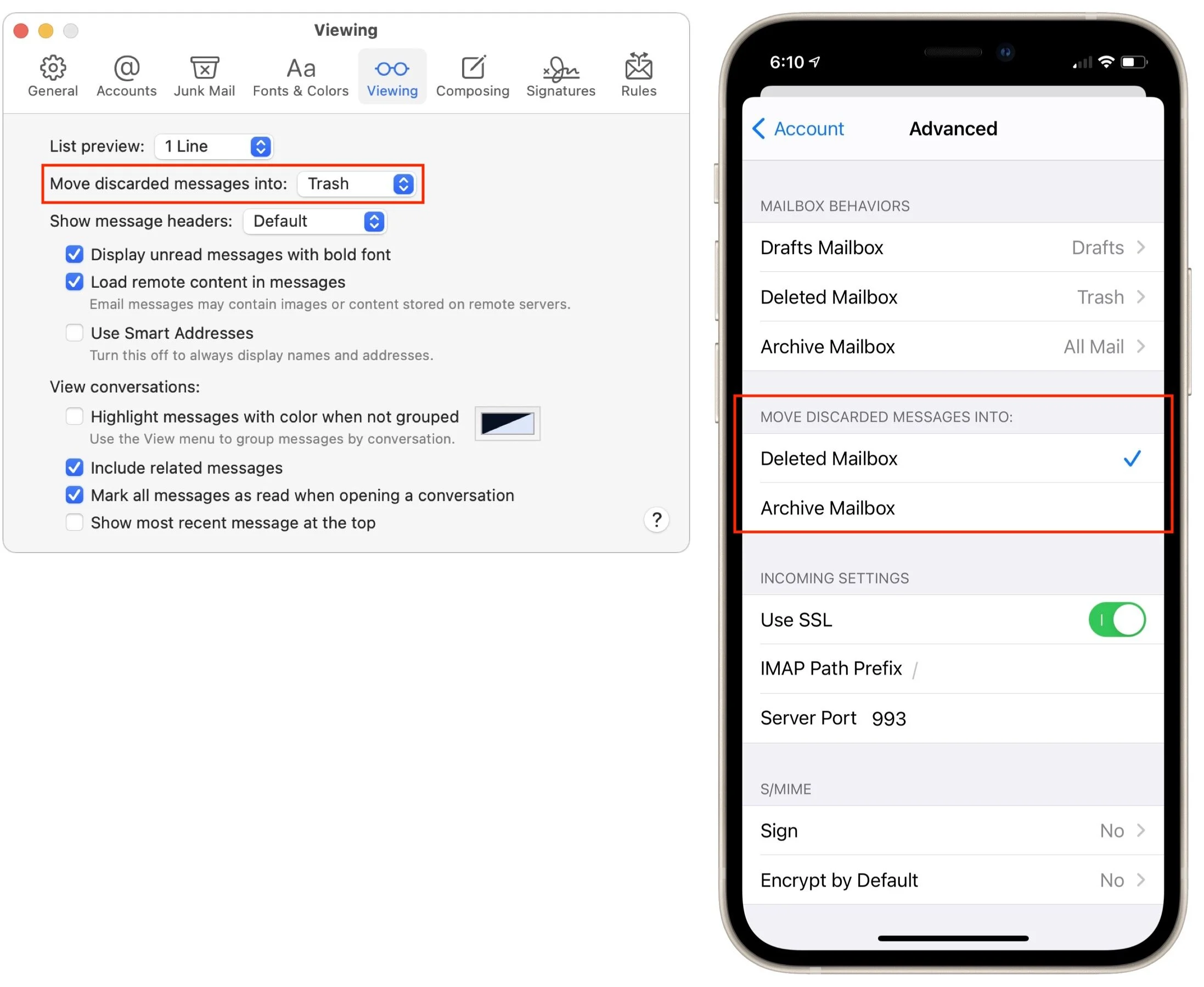
The “archive or delete” wording may seem confusing, but Apple lets you choose whether “discarding” a message archives it (removes it from your Inbox) or deletes it (moves it to the Trash mailbox). On the Mac, look for that setting in Mail > Preferences > Viewing > Move Discarded Messages Into. In iOS and iPadOS, it’s a per-account option in Settings > Mail > Accounts > accountName > Account > Advanced, under Move Discarded Messages Into.
Block
Muting is about conversations, not people. But what if you never want to see email from a particular person ever again? Perhaps it’s an angry ex-housemate, your embezzling ex-business partner, or someone who just won’t stop forwarding politically offensive memes. For such people, Apple provides blocking.
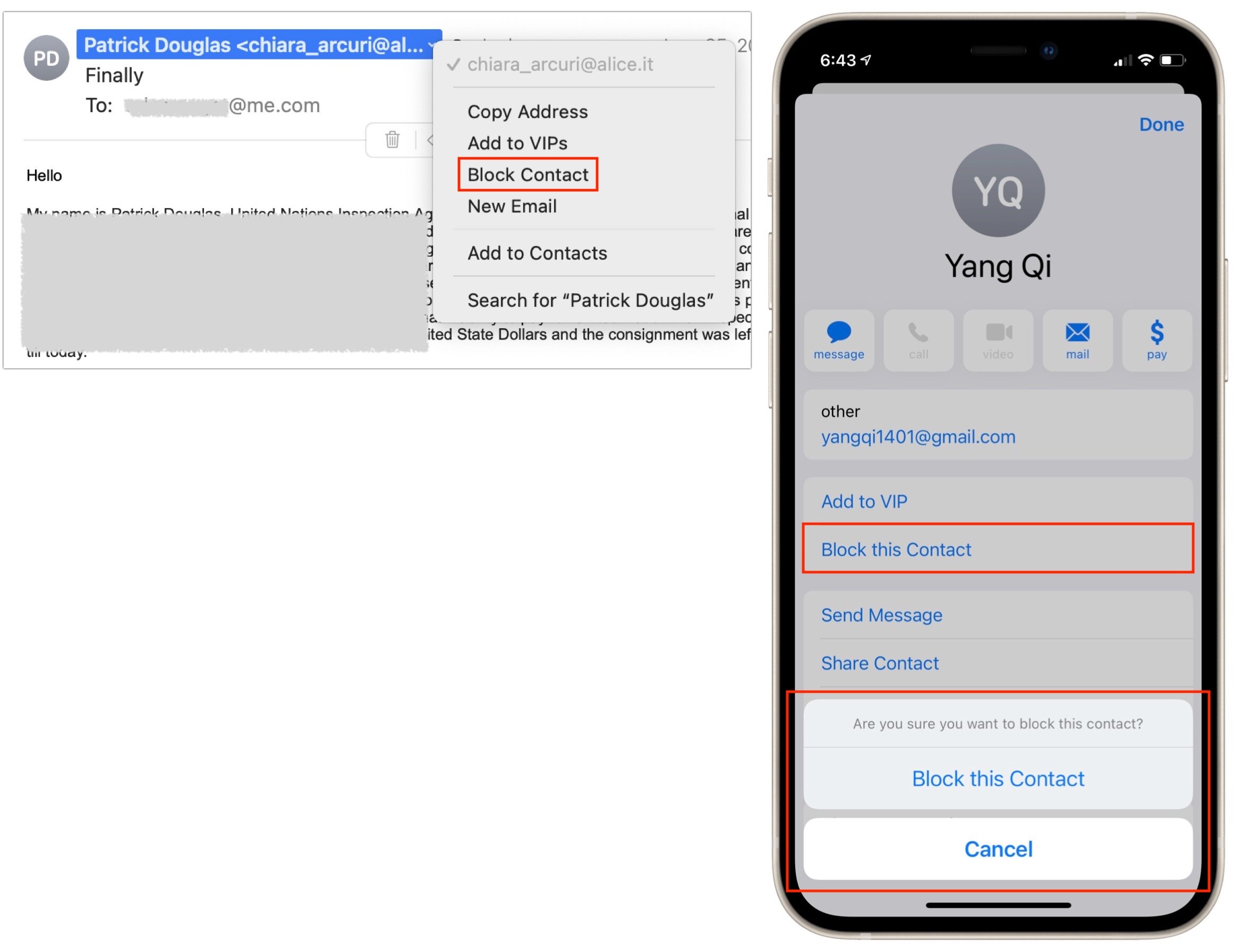
On the Mac, open a message from the offending person, hover the pointer over their name, click the down-pointing arrow, and choose Block Contact. In iOS and iPadOS, tap the person’s name so it turns into a blue link, tap it again to reveal their contact card, tap Block this Contact, and confirm your decision. Should you change your mind, repeat the steps and choose Unblock.
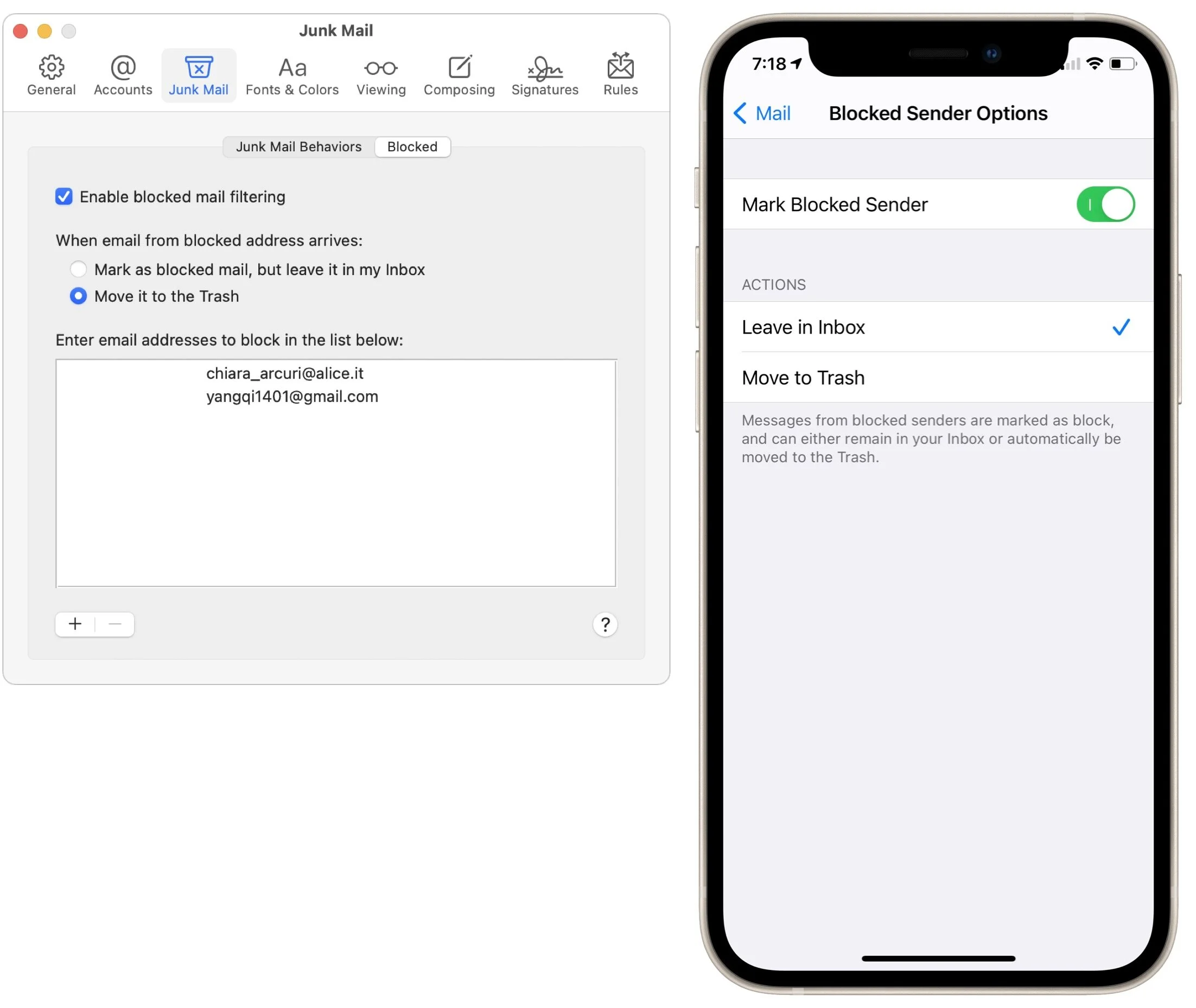
All that changes immediately is that Mail puts a banner at the top of the message that says “This message is from a blocked sender.” However, Mail also provides a button or link to preferences that offer more options. On the Mac, they’re in Mail > Preferences > Junk Mail > Blocked. In iOS and iPadOS, you’ll find them in Settings > Mail > Blocked Sender Options. You can choose between leaving blocked mail in your Inbox or moving it to the trash.
Note that we used spam senders as examples here, but for actual spam, you should instead use the Move to Junk command to mark it as spam and train Mail’s junk mail filter. Blocking is useful only for actual people, and it works only on specific email addresses, so if someone can send from another address, Mail won’t know to block that address until you block it too.
Unsubscribe
It’s all too easy to end up on a bazillion mailing lists these days. That may not be a problem if you find the messages useful and infrequent enough so as not to be annoying. But if you order something online and immediately start receiving two email blasts per week advertising new products, you don’t have to sit there and suffer.
What you shouldn’t do, however, is use the Move to Junk command to mark those messages as spam. If you have a legitimate business relationship with the organization, they’re not doing anything illegal by sending you email, and mark-ing their messages as spam might mistrain Mail’s spam filter to catch related mail you do want. It will also hurt their deliverability rate unnecessarily, and while that’s not your problem, there is a better way.
Whenever Mail detects that a message is from a mailing list, it displays a banner saying so, along with an Unsubscribe link. Click or tap it, confirm your decision, and Mail sends an unsubscribe message from you to the mailing list server.

Alas, between mailing lists not providing the necessary details and Mail not being able to understand everything, this feature is a little weak. When it works, it’s great, but just because an Unsubscribe banner doesn’t appear doesn’t mean you can’t unsubscribe.
Whenever that happens, scroll to the bottom of the message and look for an Unsubscribe link. Click it to visit a website where you can sign off. Alas, as shown below, commercial mail from Apple itself seems to be exempt from Mail’s Unsubscribe banner, and the company has one of the less obvious Unsubscribe links out there.

As helpful as muting and blocking can be, you’ll get the biggest bang for your buck from unsubscribing from mailing lists. Remember, you can always find those companies on the Web should you wish to interact with them again.
(Featured image by Brett Jordan on Unsplash)
Going on Vacation? Learn How to Write an Effective Out-of-Office Message
Vacation season is upon us, and in-person conferences are opening up again. If you’re going away, make sure to write an effective out-of-office message so you don’t end up working remotely the entire time. We have tips at

For many people, increasing vaccination rates mean that long-delayed vacations are now possible, and in-person conferences are slowly starting up again too. But before you head out for the beach or the convention center, you’ll want to write an out-of-office email auto-reply message to send to everyone who tries to get in touch while you’re away. A bit of thought upfront could reduce stress for your correspondents—and ensure that they don’t hunt you down for that burning question.
Before we look at what information should be in an effective out-of-office message, a quick tip. Don’t create a custom rule in Mail or another email app that automatically replies to every message. It is too easy to end up sending replies to every message from a mailing list or to an address that will itself reply back, causing a mail loop where each message generates another reply, ad infinitum. Plus, the Mac has to stay turned on and active while you’re gone or else it will do nothing while you’re gone and then reply to everything when you return to work and turn it on! Instead, set up such auto-responders in the server settings for your email provider, which are better about avoiding mail loops. Here are instructions for Gmail, iCloud, Outlook.com, Spectrum, Xfinity/Comcast, and Yahoo. If you use a different email provider or an email account provided by your employer or school, check with support for additional details.
The key to writing an out-of-office message that satisfies your correspondents is to put yourself in their shoes. What information are they likely to want from you? How will they react when they learn you’re away? Do the answers to these questions vary with different audiences?
There’s no single perfect out-of-office message, but while crafting yours, we strongly recommend including—or at least considering—all the following information.
Reason for the trip: Significant detail isn’t necessary, but there’s a big difference between being on vacation and at a conference. You may be too busy to read and reply to email quickly at the conference, but you’re probably not entirely unavailable, as you would be while canoeing in the Canadian wilderness. Being candid helps set expectations.
Location: Sharing your rough location may be helpful if you’re semi-available but in a radically different time zone. It can also sometimes lead to happy coincidences when a contact realizes you’re in their city. But if you’re trying to unplug and get away, there’s no need to get specific.
Availability: Some of the time, the answer is easy—you’re unavailable. But if you’re semi-available or available in case of emergency, try to set expectations appropriately for how much you want to handle versus sending to colleagues.
Dates: Always include the date range you’ll be gone. Many things can wait, and if your correspondent sees you’ll be back on the 17th, they may just shrug and make a reminder to respond to you after that. Others will realize that they need to scramble on different plans right away.
Alternative contacts: Who’s picking up the slack while you’re gone, or who can help in case of emergency? Put some thought into the different sets of people who send you email and write simple IF/THEN sentences directing them to the right person. “If you need help with print production, contact John Gutenberg at ppress@example.org.” Needless to say, always ask those people if they can field questions about your responsibilities first, in case they’re overscheduled or planning to be away too. If you find yourself listing lots of people, see if you can instead designate a single primary contact.
Provide contact info: Unless you’re in a large organization with a corporate directory and don’t communicate with outsiders much, you’ll want to provide at least an email address, perhaps along with a phone number, for each of the contacts you list.
FAQs: If many of your email questions can be answered with a pointer to a Web page, consider using such links instead of alternative contacts. Correspondents might be happier if a page provided the necessary answer rather than having to wait for a reply from another person.
Here are a few more general tips:
Keep the message short and sweet.
Stay positive—it’s a good opportunity to praise an assistant or colleague—and be careful with humor since you never quite know how others will take it.
Don’t promise to reply within a particular time frame after you get back. Even if that’s your plan, airline flights can get canceled, you might return with a bad case of the flu, or something else might conspire to delay your reply.
Edit carefully to make sure email addresses and phone numbers are correct and to eliminate typos. You don’t know who might send you email while you’re gone, and if it were the head of your company, a key supplier, or a potential investor, such mistakes wouldn’t do your career any favors.
If your email service doesn’t let you set an automatic end date, remember to turn off your out-of-office message as soon as you get back!
(Featured image by Dziana Hasanbekava from Pexels)
Reopening Your Office? Now’s a Great Time to Evaluate Your IT Infrastructure
If you’re having discussions about when and how to reopen your organization’s office, it’s worth thinking—and talking to us—about the role your IT infrastructure plays in such discussions. Learn more below:

As vaccination rates climb, many businesses are starting to think about reopening their offices and bringing back employees who have been working from home for the last year. That’s a big decision that will undoubtedly vary from company to company, but we’d like to suggest a few things to consider. Please contact us early in such deliberations so we can provide guidance before problems crop up.
Full Return or Hybrid Model?
Perhaps the biggest question firms will have to answer is if they’ll require all employees to return or if some can continue to work remotely. Many organizations have discovered that physical presence isn’t as important as they thought it was. In a post-pandemic world, many employees may prefer to continue working from home if they can, at least for a while.
If you decide on a hybrid model, you’ll want to put some thought into what technology you’ll need to enable hybrid meetings, with some people connecting remotely via videoconferencing software and others gathering in person. Large screens, specially mounted cameras, and dedicated speakerphone hardware may be necessary to conduct a hybrid meeting effectively.
With some workers remaining at home, it will also be important to ensure that everyone has appropriate access to on-premises servers. Obviously, that has been a problem for the last year as well, but it may be tempting to revert to old approaches upon reopening an office. That may not be effective in a new hybrid workplace, so check with us on cloud-based alternatives that could work better in the new world order.
Consider Your Physical Space
Particularly if you do decide on a hybrid model, it’s worth evaluating whether you need the same amount and type of space as you did before. There’s no single answer here. You don’t want to downsize your physical space only to discover in a few months that some of those employees who swore that they never wanted to come back feel that they’re missing out. Simultaneously, if your offices are a warren of small, poorly ventilated rooms, employees may be even more hesitant about returning.
Plus, your physical space is inherently related to your IT infrastructure, so don’t ignore the costs surrounding an office move. A new space might require pulling new Ethernet cables, testing Wi-Fi signal strength to ensure sufficient coverage, evaluating the cleanliness of the electrical power, and more.
We don’t mean to dissuade you from moving offices if that’s what makes the most sense for the future of your company, but talk to us before signing any new leases so we can help identify and head off any technical problems with the physical plant.
Finally, this isn’t related to IT, but if your existing office space has been entirely vacant for the last year, it’s worth reading the information that the Centers for Disease Control puts out to help employers create safe and healthy workplaces. Buildings don’t do well with prolonged shutdowns.
Does Network Infrastructure Need Updating?
Before you bring employees back, at least en masse, it’s also worth touching base with us about your IT infrastructure. If you’ve been limping along with sketchy Ethernet cabling, or if you have dirty power that could be damaging your Macs and peripherals, it’s a great time to consider addressing such problems. Pre-pandemic, attempting to install new electrical circuits or pull new network cabling might have been too disruptive, but with an office that’s empty or nearly so, such work can be done more quickly and cheaply.
Similarly, this could be a good time to replace aging computers, printers, or even phone systems. Such infrastructure upgrades and transitions can cause interruptions in normal times, but if you’re bringing people back, wouldn’t it be nice to have the office provide a better IT experience than it did before?
(Featured image by Shuki Harel from Pexels)
The Ten Upcoming Mac/iPhone/iPad Features We Think You’ll Most Like
At its Worldwide Developer Conference keynote, Apple announced a boatload of new features that we’ll see in macOS 12 Monterey, iOS 15, iPadOS 15, and watchOS 8 later this year. Here are the ten features we think you’ll most like:
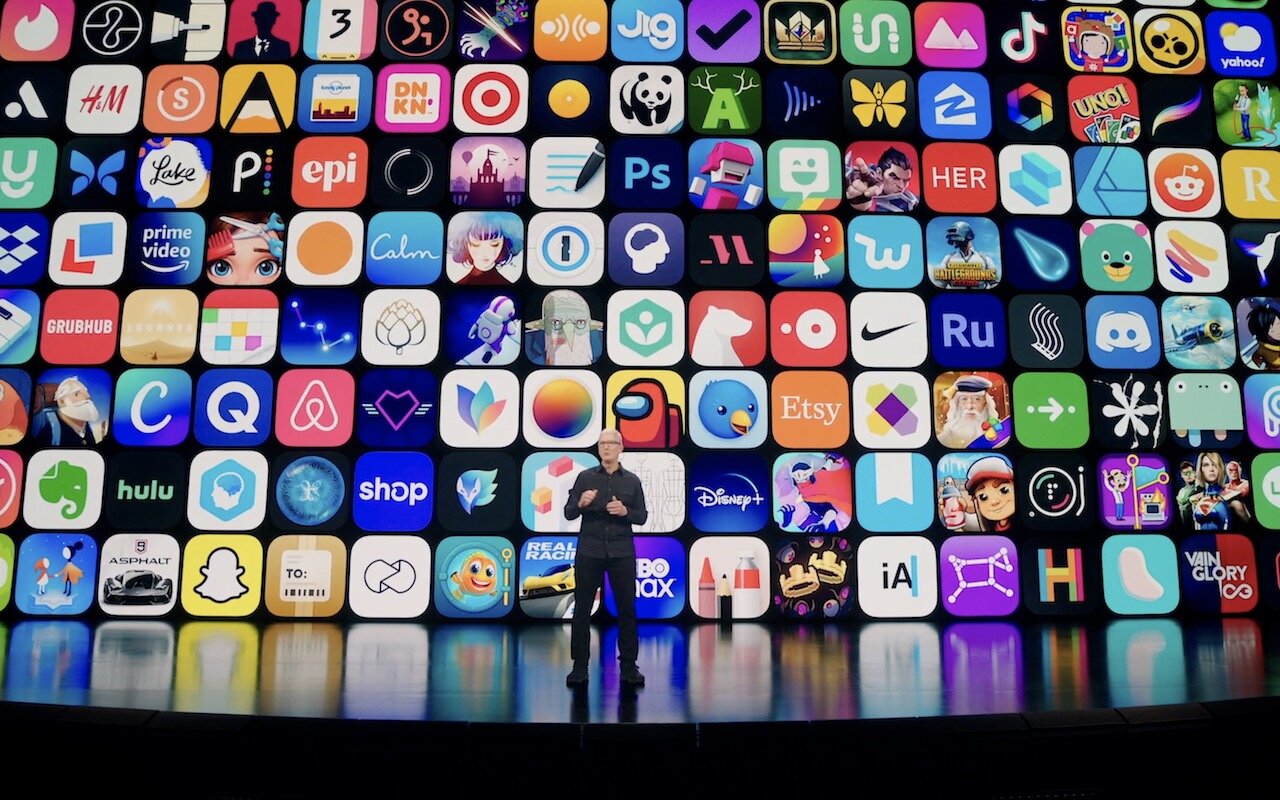
At its Worldwide Developer Conference keynote on June 7th, Apple shared details about what we can expect to see later this year in macOS 12 Monterey, iOS 15, iPadOS 15, watchOS 8, tvOS 15, and HomePod Software 15. It was a firehose of announcements, but one thing became clear: Apple wants to spread its technologies across its entire ecosystem of devices. Although each platform—Mac, iPhone, iPad, Apple Watch, Apple TV, and HomePod—retains its unique qualities, nearly every feature that the company announced works across as many platforms as make sense.
Before we get into the ten features that we think you’ll most like when everything ships in September or October, we should note that Apple was surprisingly silent on one topic: future Apple silicon chips. Many observers had expected Apple to announce an M1X or M2 chip that would power professional laptop and desktop Macs. We’ll have to satisfy ourselves with the impressive performance of the M1-based Macs we have now and wait a little longer for whatever comes next.
On to the hot new features!
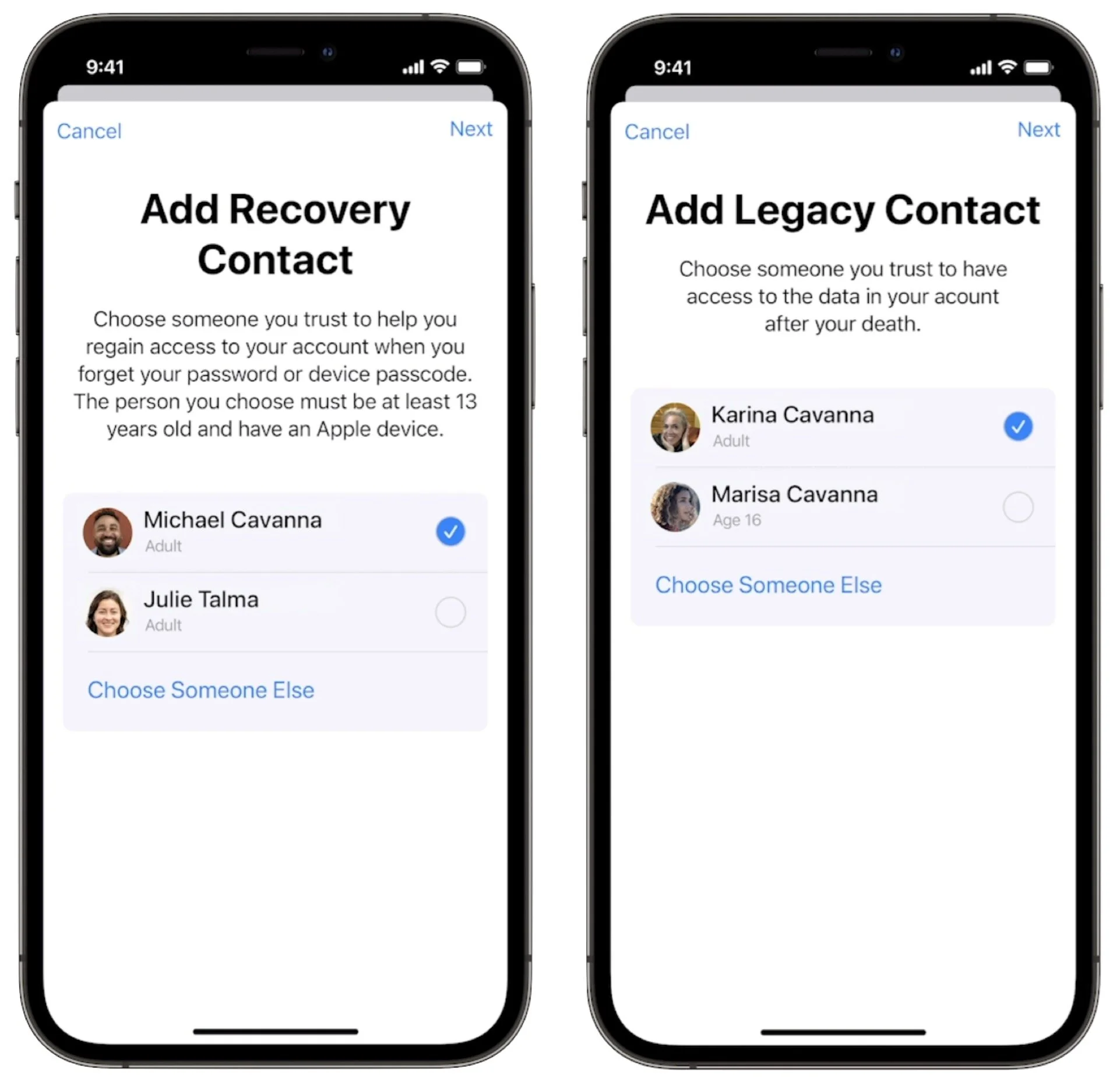
Account Recovery and Legacy Contacts Simplify Recovering Account Data
It’s all too common that people forget their Apple ID passwords and can’t access their accounts. Apple hopes to make that a little less stressful with Account Recovery Contacts. Specify someone as your Account Recovery Contact, and they’ll be able to help you reset your password and regain access to your account, with no need to call us or Apple for assistance.
Also welcome will be the addition of Legacy Contacts. Once this feature is available, everyone should make sure they have appropriate family members or friends set as Legacy Contacts. Then, in the event of your untimely death, your Legacy Contacts can access your account and personal information. Using Legacy Contacts will be far easier than having to provide the legal paperwork to Apple to request access to a deceased family member’s accounts
FaceTime Gains Features That Make It Competitive with Zoom
During the last year, we’ve all spent vastly more time in videoconferencing apps for work, school, and socializing. Alas, Apple’s FaceTime has been a weak entry in that market. With the features Apple is now promising, however, it should compete well with the likes of Zoom, Skype, and Google Meet. FaceTime will finally get a standard grid view, blur your backgrounds with Portrait mode, and offer two microphone modes: Voice Isolation to cut down on background noise (for standard meetings) and Wide Spectrum to leave ambient sound unfiltered (for performances, say). FaceTime will even be able to alert you when you’re talking but muted.
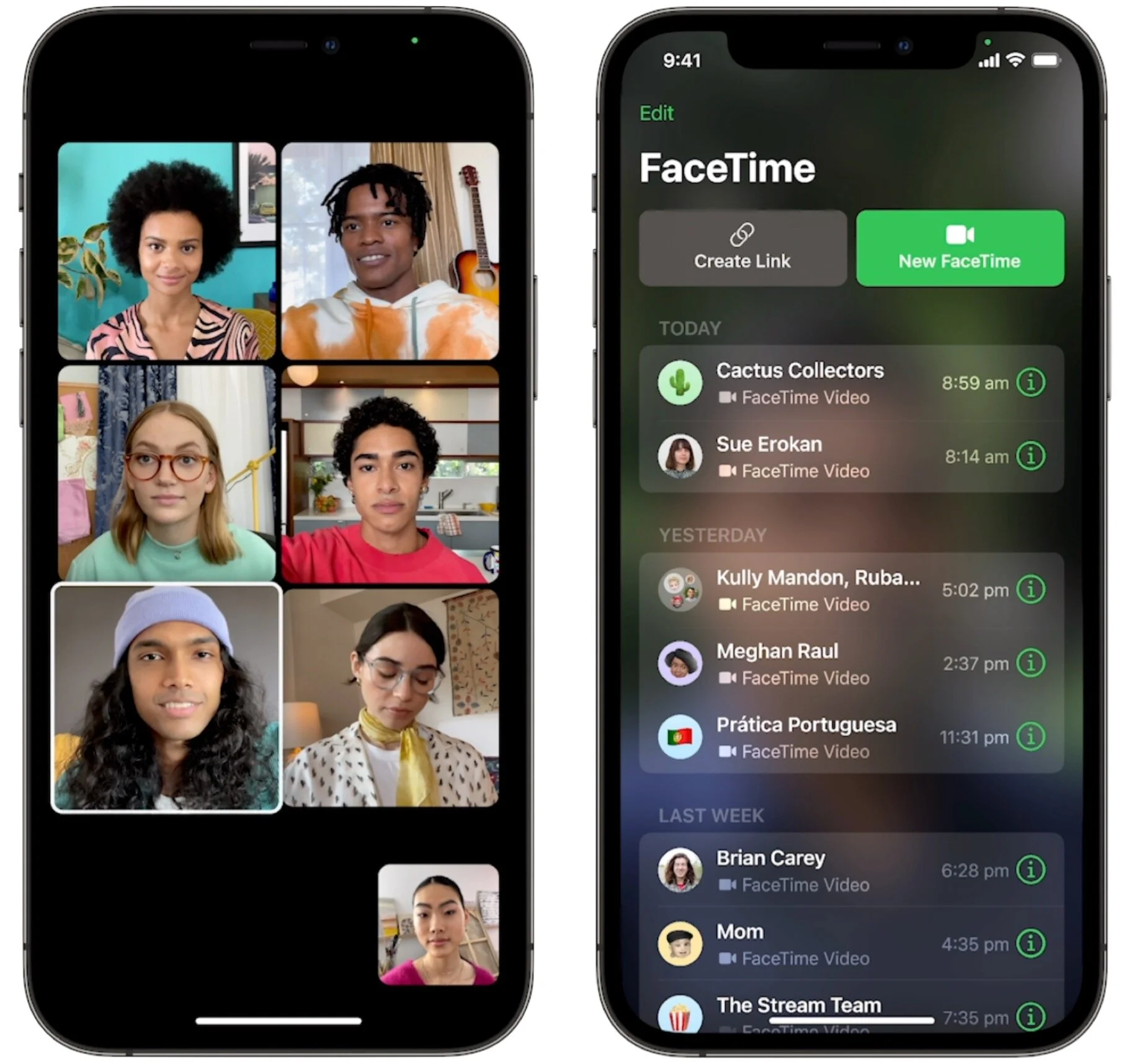
More important yet is the fact that you’ll finally be able to invite Windows and Android users to FaceTime calls using standard Web links. Non-Apple users will have to use a Chrome-based browser like Google Chrome, Microsoft Edge, or Brave. Plus, when you create an event in Calendar, you’ll be able to make a Web link for the call that you can share. And when it’s time for the call, a Join button makes it easy to get in.
Universal Control Lets Macs and iPads Share a Keyboard and Pointing Device
With Sidecar in macOS 10.15 Catalina and iOS 13, Apple made it so you could use an iPad as a secondary screen for a Mac. In macOS 12 Monterey and iPadOS 15, Apple is taking that concept further. With Universal Control, if you merely set a Mac and an iPad next to each other, you’ll be able to use the Mac’s keyboard and mouse or trackpad to work between the two devices (in fact, Universal Control supports up to three). No setup is required—just move your pointer to the edge of the Mac screen and push it “through” the edge to move it to the iPad screen. You can even drag and drop content between devices.

Live Text Lets You Work with Text in Images
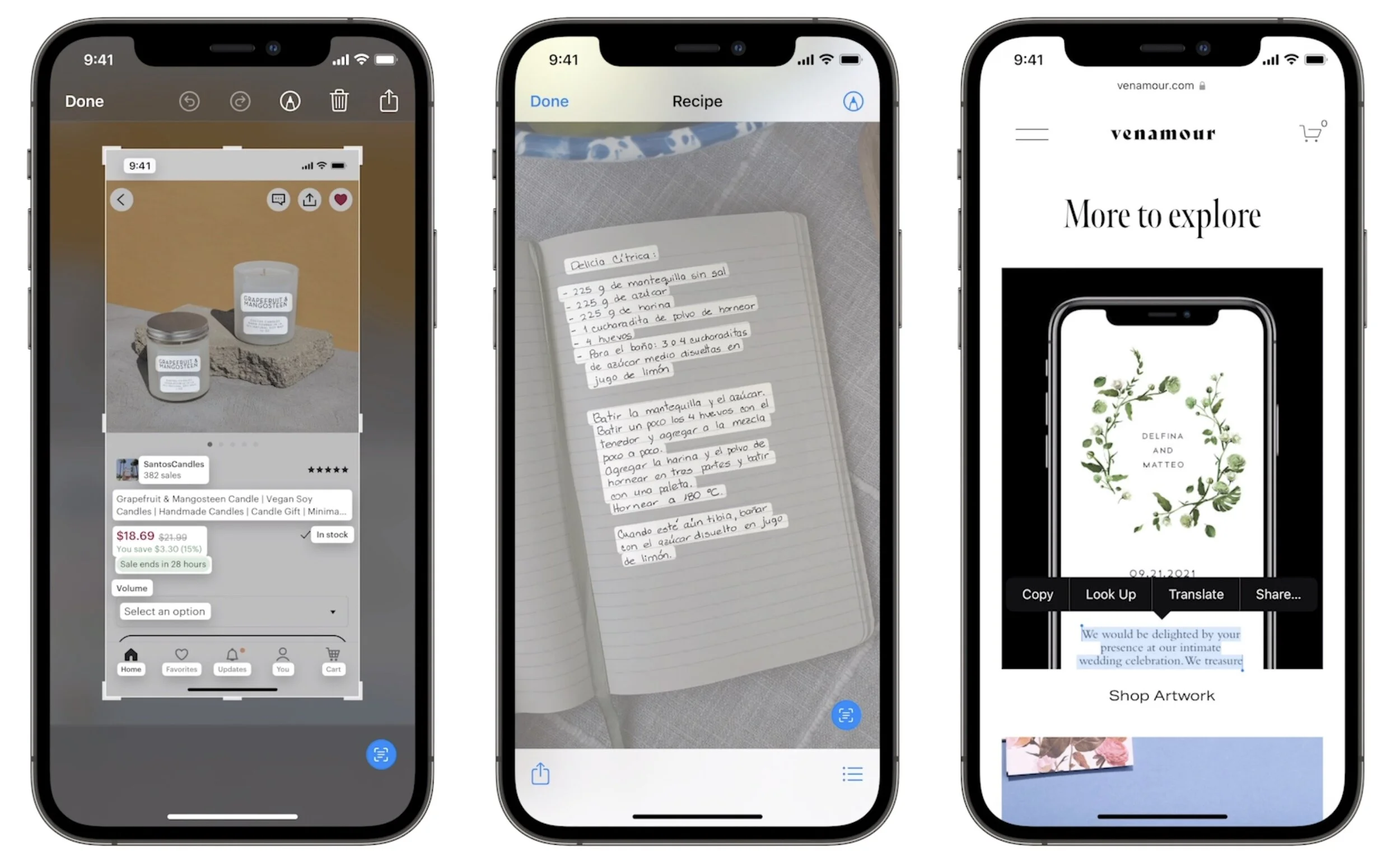
Have you ever taken a photo of something just to capture a phone number or address? We have, for sure. Apple’s new Live Text feature treats text in images just like text you type, so you can use functions like copy and paste, lookup, and translate. Live Text will work in Photos, of course, but also in Quick Look, Safari, and Screenshot, and in live Camera previews on the iPhone. It’s an impressive use of image recognition technologies.
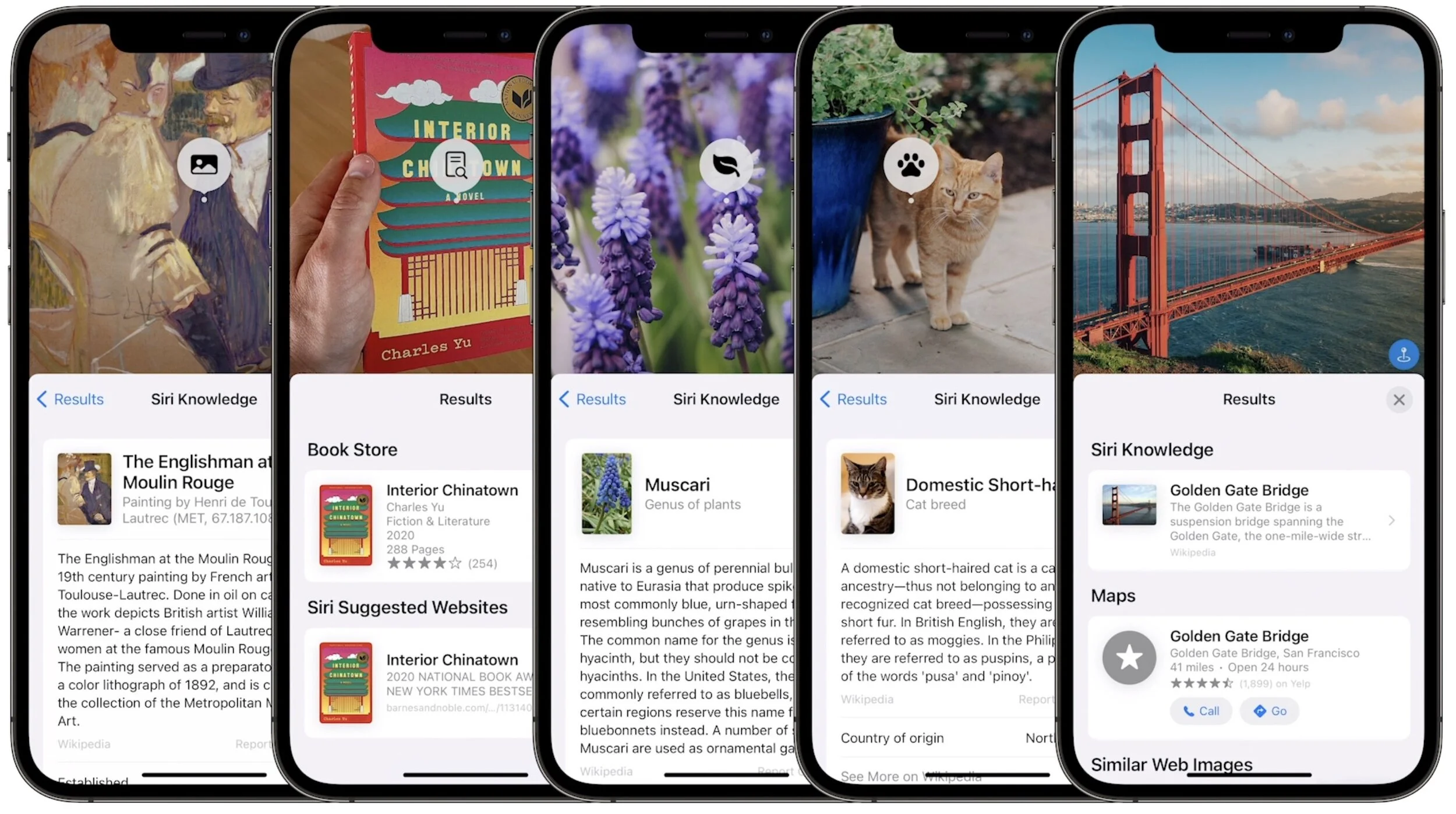
Along the same lines, in Photos, you’ll also be able to use the information button on any photo to highlight recognized objects and scenes and get additional information about them. Apple says you’ll be able to learn more about popular art and landmarks, plants and flowers, books, and pet breeds.
Siri Gets Faster, More Reliable, More Private, and More Useful
Thanks to the ever-increasing power of the Neural Engine in Apple devices, Apple says it will bring all processing of Siri requests onto your device. That may not sound like a big deal, but it means that Siri should work faster, more reliably, and more privately. It will be faster because there’s no need to send speech to and from Apple’s servers for processing. It will make Siri work more reliably when your iPhone doesn’t have strong cell service and enable offline support for many types of requests. And Apple won’t know what you’re saying at all.

Other Siri improvements will include the capability to announce reminders when you’re wearing AirPods, improved conversation context so you can refer to what you just asked, and support for controlling HomeKit devices at specific times. HomeKit developers will even be able to add Siri support to their products through a HomePod.
Improved Multitasking Controls Come to the iPad
The big problem with Apple’s multitasking options on the iPad has been remembering how to use them. With iPadOS 15, Apple hopes to solve that with a new menu that will appear at the top of apps, with buttons for entering full screen, Split View, or Slide Over.

Apple also added a new multiwindow shelf that appears at the bottom of the screen at launch and provides a Dock-like view of all the open windows in that app. If you ignore it, it fades away quickly, but it should help you remember which windows you have open and access them quickly.

The iPad Finally Gets the App Library and Home Screen Widgets
Last year, in iOS 14, Apple introduced the App Library and Home Screen widgets. The App Library holds all your apps so you can declutter your life by removing them from the Home Screen. And Home Screen widgets let you add app-specific widgets that provide at-a-glance information. Sadly, iPadOS 14 didn’t include those features.
iPadOS 15 rectifies that oversight, adding both the App Library and Home Screen widgets, complete with some larger widget sizes for the larger iPad screen. They’ll work just like on the iPhone. It’s about time!

Locate Lost AirPods Pro and AirPods Max with Find My Network Support
As it stands now, you can theoretically find AirPods using the Find My app. However, it shows only the last position of the AirPods at a general level, and you have to get within range of them to play a sound. In the future, however, the AirPods Pro and AirPods Max will support the Find My network, so other people’s devices can report their location generally, and once you get within Bluetooth range, you can play a sound to locate them.
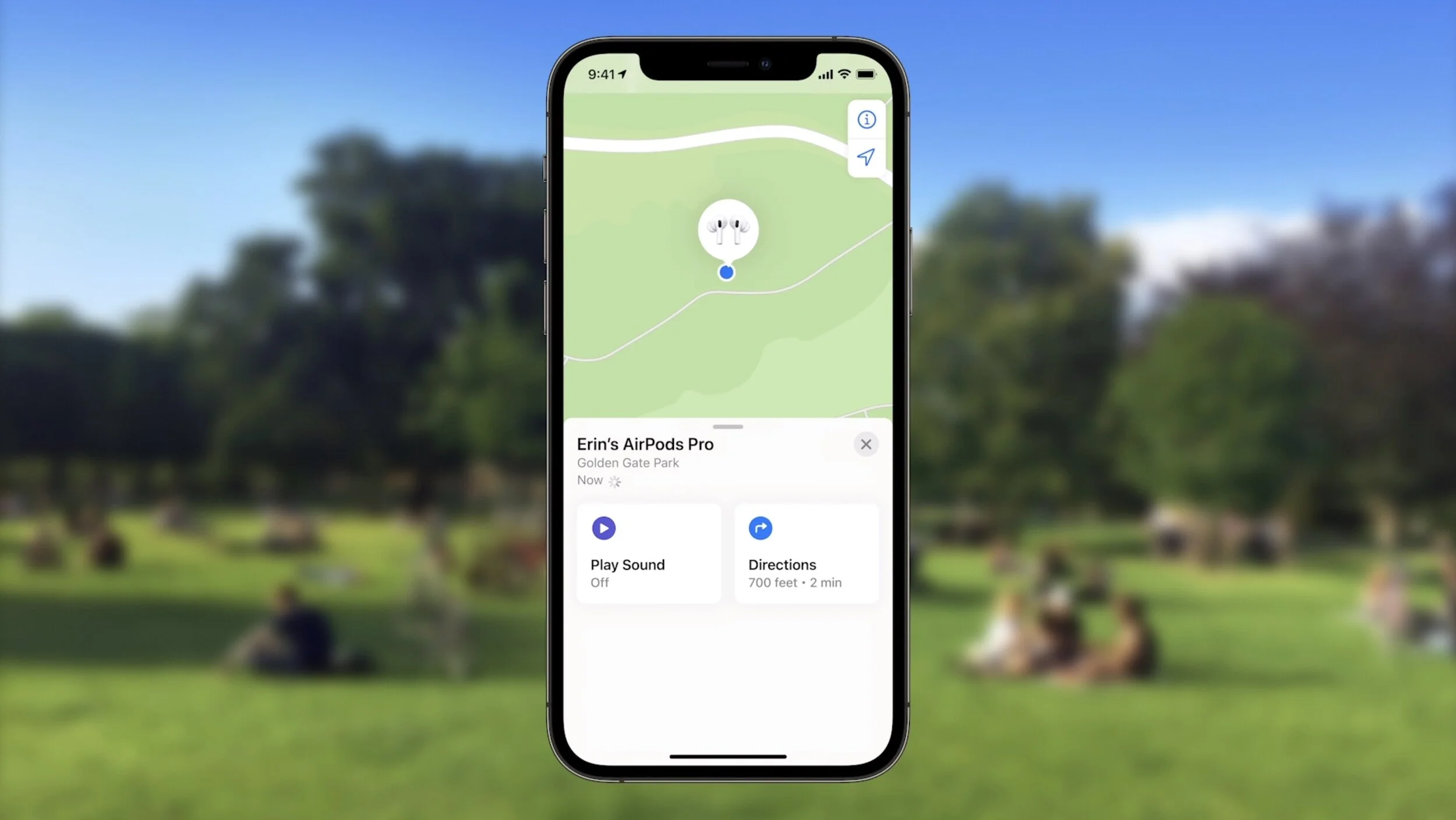
Hopefully, that will happen less often thanks to new separation alerts that, when enabled, will alert you when you leave an Apple device, AirTag, or Find My-compatible item behind.
Private Relay Protects Safari Traffic for iCloud+ Subscribers
Apple has been adding lots of privacy-protecting features over the past few years, but Private Relay goes even further to ensure that even your ISP can’t track where you go on the Web and sell that data to advertisers. Private Relay encrypts your Safari traffic and passes it through two Internet relays. No one—not even Apple—can then use your IP address, location, and browsing activity to create a detailed profile of you. Everyone who pays for extra iCloud storage will transition to the new iCloud+ for the same cost and will get Private Relay for no additional fee.
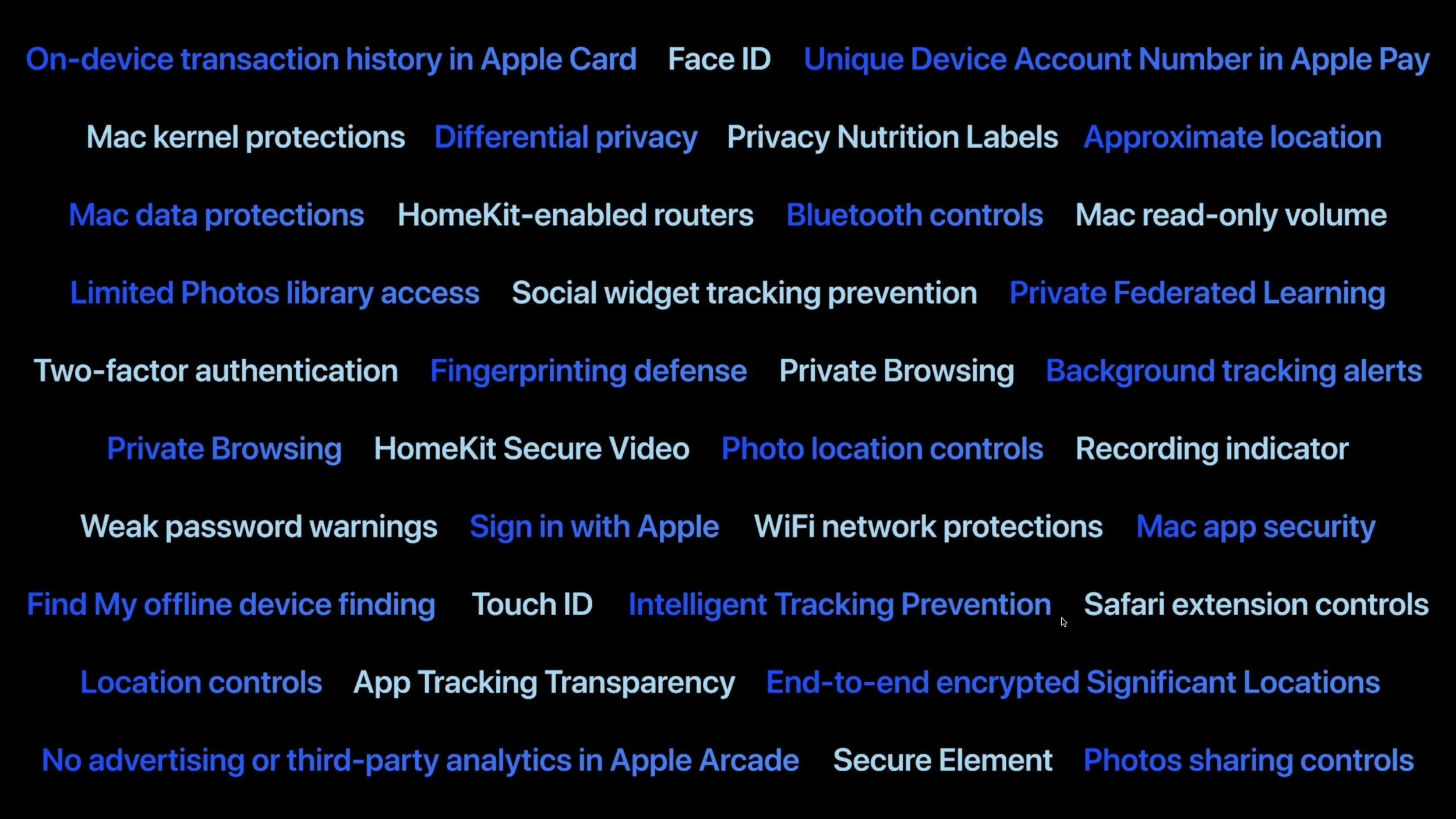
While we’re talking about iCloud, Apple also says that you’ll be able to get custom domain names for iCloud Mail addresses and invite family members to use the same domain with their iCloud Mail accounts.
Use AirPlay to Send Audio or Video to Your Mac
Many people have discovered how neat it is to use AirPlay to display photos or videos from an iPhone or iPad on a TV attached to an Apple TV. Macs could also broadcast their displays to an Apple TV. But what you couldn’t do is use AirPlay to send audio or video from another Apple device to a Mac. With macOS 12 Monterey, that will become possible, enabling you to use a Mac’s large screen to play a video, share a Keynote presentation, and more.

Apple’s upcoming operating system releases boast many other new features, and we plan to explore more of them once everything ships in a few months. We’ll let you know when it’s time to update!
(Featured image by Apple)
What Is the Cloud?
People constantly talk about something being in “the cloud,” but what do they mean? In this post, we look at the features that uniquely describe cloud-based services, along with the pros and cons.

People talk about “the cloud” all the time these days, but what do they really mean? There’s no agreed-on definition, which can render some conversations nearly inscrutable. We can’t pretend to have the final answer—if there will ever be such a thing—but here’s how we think of “the cloud.” (And now we’ll stop quoting it.)
At a basic level, many people seem to equate the cloud with anything that’s online or with the Internet as a whole. That’s not incorrect, since everything in the cloud does take place online and is on the Internet, but it’s also not helpful.
Cloud Services Replace Local Hardware and Software
It’s more useful to think of the cloud as a way of referring to services made available over the Internet as a replacement for hardware or software on your Mac. These services largely fall into three broad categories: storage and backup, data syncing, and apps.
Storage and backup: To add storage directly to your Mac, you’d connect an external hard drive or SSD. Cloud-based services like Dropbox, Google Drive, iCloud Drive, and OneDrive all provide the same basic function—more space to store data. Of course, they also go further, providing syncing between your devices and sharing with other people. Plus, just as you probably use Time Machine to back up to an external drive, you can use Backblaze to back up to the cloud.
Data syncing: Before the cloud was a thing, syncing your contacts, calendar, and email between two Macs generally required either special software (like ChronoSync) or going through the export/import dance. Cloud-based services for such bits of data—including Apple’s iCloud syncing for Calendar and Contacts, and Google Calendar—make it so the same information is available on all your devices all the time. They often provide a Web-based interface as well so you can access your data from someone else’s computer.
Apps: An app like TextEdit runs on your Mac, but cloud-based apps like Google Docs provide app-like functionality while running in a Web browser. These days, many things that can be done directly on a computer can be done in a Web browser: word processing, spreadsheets, image editing, video streaming, video chat, and more.
Cloud Services Rely on “Cloud Computing”
Apps on your Mac use its processor and memory. You might also have used a network server; you use the apps on the server over the network, but they’re running on that particular server. In contrast, cloud services run on massive clusters of computer resources spread across many computers and even multiple data centers. When you’re typing into Google Docs, the processing resources that make that possible don’t come from a single computer dedicated to you—they’re provided to you and millions of others simultaneously by Google’s worldwide computer clusters.
Pros of the Cloud
There’s a lot to like about the cloud and what it makes possible:
It’s accessible from nearly anywhere: As long as you have a high-speed Internet connection, you can access cloud-based services from anywhere in the world. And while not everywhere in the world has high-speed Internet access, it’s becoming more widely available all the time. Heck, you can now use the Internet on many commercial airplanes.
It’s somebody else’s problem: That’s not entirely true, of course, but using a cloud-based service means the staff of the data center deals with failing computers or hard drives, network problems, and other maintenance. You just need a functional computer and Internet connection.
It’s easy to switch devices and even platforms: Moving to a new iPhone or iPad is nearly trivial these days, thanks to being able to restore from an automatically created iCloud backup. And if you use Gmail, for instance, it would work just the same if you wanted to switch from an Android phone to an iPhone.
It’s more flexible: If you decide to try a cloud service, it’s usually just a matter of setting up an account or signing in with an existing one. There’s no need to download and install software, or to clean up after the installer. Plus, if you need more storage space or additional features, it’s usually just a matter of upgrading an account and paying more—you don’t have to buy another hard drive or a whole new app.
Costs are lower and more predictable: Many cloud services are entirely free, like Gmail and Google Docs, whereas others rely on monthly or annual subscriptions. Generally speaking, such subscriptions cost less than buying equivalent desktop software and all their upgrades. Whether or not a cloud app is cheaper, it’s a predictable expense you can build into a budget.
Cons of the Cloud
Of course, not everything about the cloud falls into the silver lining category. Some problems include:
You can’t control when apps are upgraded: With desktop software, you can pick and choose when to upgrade, at least to some extent. Cloud apps, on the other hand, are upgraded whenever the developer wants, sometimes at inconvenient times or in major ways that might be hard for you to use. On the other side of the equation, you don’t have to spend time downloading and installing upgrades, or even thinking about whether to install them.
You have limited control over your data: Although well-run cloud services are significantly less vulnerable to failure, damage, or theft than your Mac is, there’s no avoiding the fact that you can’t do much to prevent such problems. Backing up cloud-based data can be challenging, as can exporting it for use elsewhere.
Subscriptions can add up: Any one cloud service may be reasonably priced, but if you end up with 10–15 subscriptions, the total annual cost may seem exorbitant. To be fair, major software packages used to cost hundreds or even thousands of dollars, and we all use many more apps and services than we did in the past.
Security is a concern: While cloud providers may do a better job than you could of guaranteeing uptime and even backing up data, the fact remains that everything on the cloud is protected by passwords. If you reuse passwords or rely on weak ones, you could be in for a world of hurt. That’s why we always bang the drum for relying on a password manager for strong, unique passwords and turning on two-factor authentication whenever possible.
Privacy can be a problem: Many free and ad-supported cloud services—most notably Facebook and Google—make their money by collecting data about you and using it to sell advertisers access to you. One reason to pay for a cloud service is that then you’re the customer, and as the saying goes, if you’re not the customer, you’re the product.
We’re not here to sell you on the cloud in general or scare you away from using it. In today’s world, there’s almost no way to avoid it, nor should you try to do so. Hopefully, now that you have a better idea of what the cloud really is, you can make more informed decisions about which cloud services can improve your technological life and which ones won’t.
(Featured image by Jordan M. Lomibao on Unsplash)
How to Digitize Your Signature So You’re Ready for Online Document Signing
Did you know that Apple makes it easy to digitize your signature so you can sign digital documents without having to print them first? Use these instructions to make your signature available on all your Apple devices.

Over the last decade, and particularly during the last year of pandemic life, documents have become more likely to arrive in email or as downloads than on paper. If you need to return a signed document on paper, it’s easy to print and sign it before popping it in the mailbox. But what if you need to send it back via email or another online method? You could print, sign, scan, and return the scanned document, but that’s both tedious and wasteful.
Happily, Apple has made it easy to digitize your signature such that you can quickly apply it to digital documents without them ever hitting paper. It’s not difficult to set up, and once your signature is in the system, it remains available for repeated use. Even better, it syncs automatically to all your other Apple devices signed in to the same iCloud account, so it’s available wherever you need it. The process varies a little depending on which Apple devices you have available.
Create Your Signature on an iPad or iPhone
You can create a signature on an iPad or iPhone with your finger or a rubber-tipped stylus, but you’ll get the best results with an Apple Pencil on an iPad. Follow these steps:
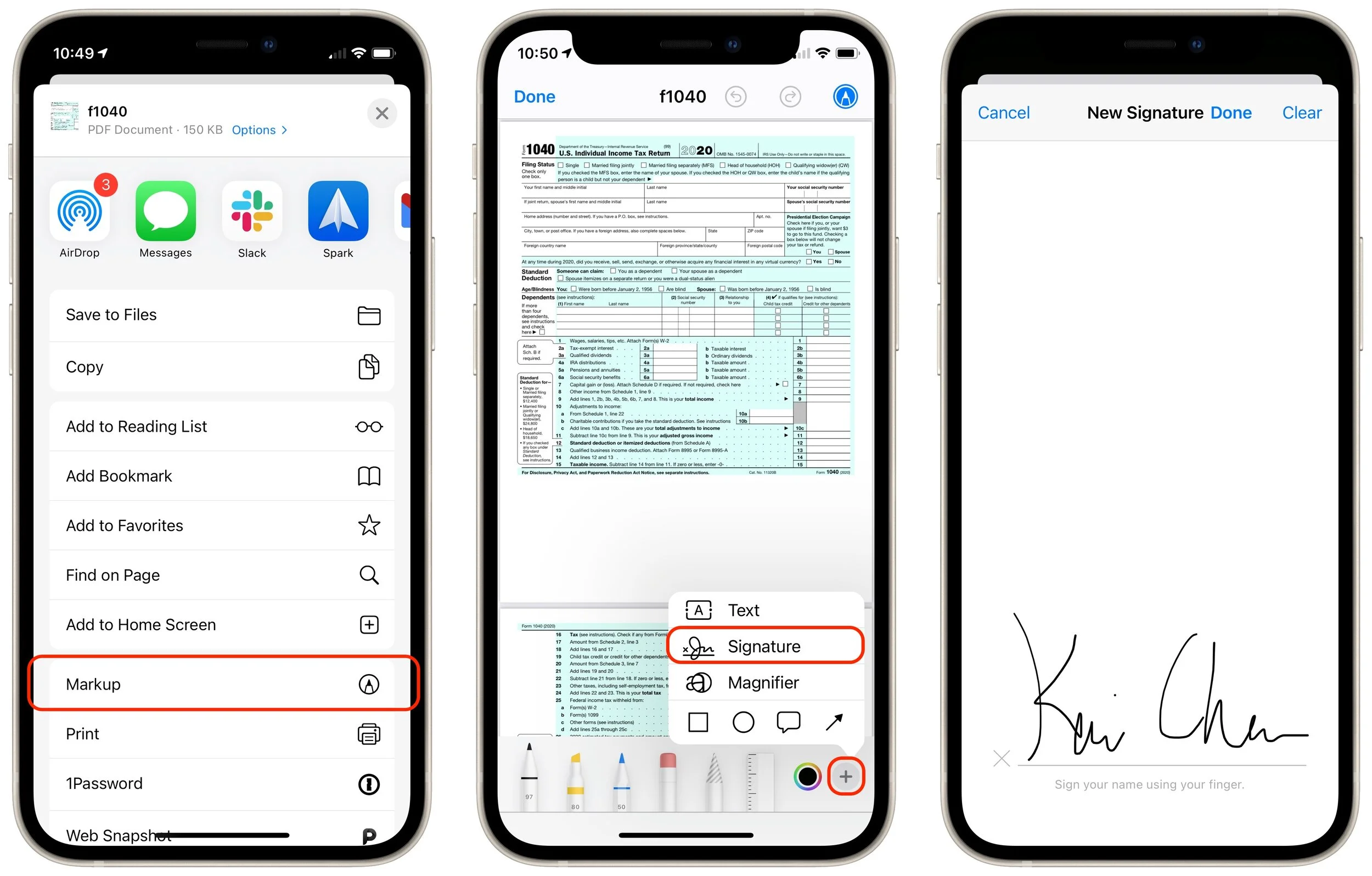
1. Open any PDF in any app, such as this IRS Form 1040 in Safari.
2. Tap the share icon and tap Markup in the share sheet.
3. In the Markup toolbar, tap + and then Signature.
4. Tap Add or Remove Signature and then tap + to add a signature.
5. In the New Signature panel, sign your name. (You can rotate an iPhone to landscape orientation if that’s easier.)
6. If you don’t like your signature, tap Clear and try again.
7. When you have a good signature, tap Done.
8. Close the PDF—there’s no need to save it.
Create Your Signature on a Mac
On a Mac, you create signatures in Preview in one of several different ways. You’ll get the best results from using the camera to scan your signature on a piece of paper, with an iPad and Apple Pencil as the next best. The trackpad approach is the least successful.
1. Open any PDF in Preview, such as the aforementioned IRS Form 1040.
2. Choose Tools > Annotate > Signature > Manage Signatures. (You can also click the Signatures button on the Markup toolbar.)
3. Click Create Signature.
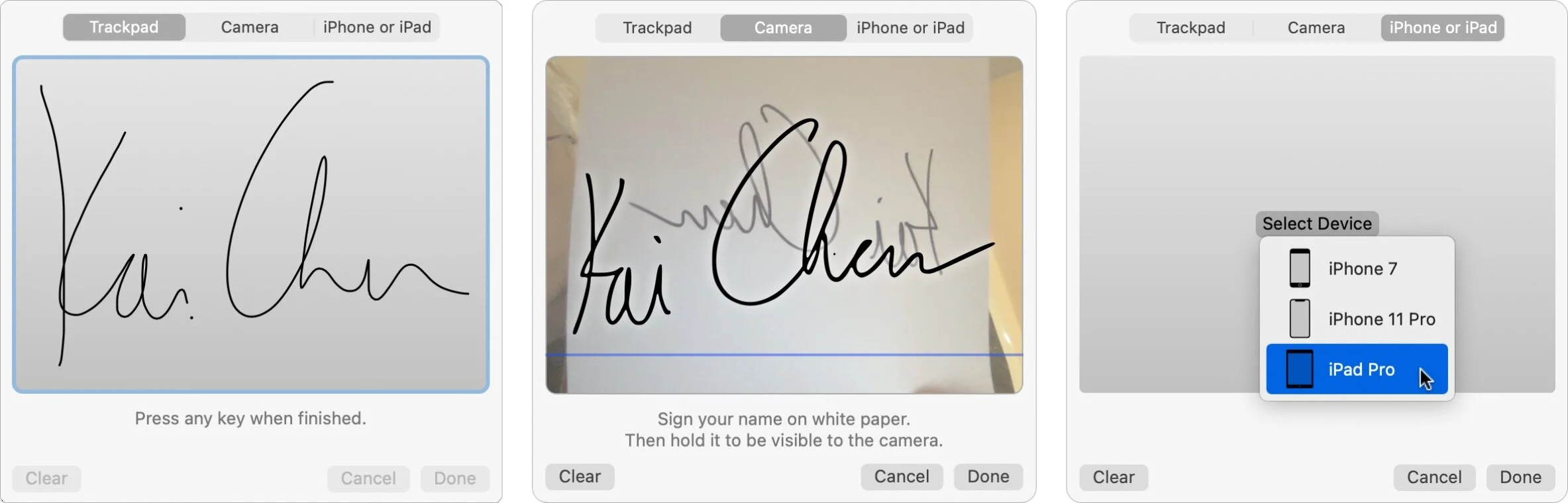
4. Click Trackpad, Camera, or iPhone or iPad to create your signature:
Trackpad: Click the Click Here to Begin button and sign your name with your finger or a rubber-tipped stylus—after you click, lift your finger or stylus and start writing your signature at the left side of the trackpad. Press any key on the keyboard when you’re done, or click Clear and try again if necessary. (Tip: press any key to start and clear too.)
Camera: Sign your name with a black pen on a white piece of paper. Hold it up to the camera, just above the blue line, for automatic recognition. If necessary, click Clear and try again. For best results, use a full-size piece of paper and a fairly thick pen, like a Sharpie.
iPhone or iPad: Click Select Device and pick an available iPhone or iPad. The entire screen of the device becomes a signing surface—you can use whichever orientation is easier. Sign your name using your finger, a rubber-tipped stylus, or for best results, an Apple Pencil on an iPad. Tap Clear if you need to try again.
5. When you’re finished, click Done.
6. Close the PDF.
Although most of us have only one signature, Apple lets you create and sync as many signatures as you like. That could be useful if you have to sign documents for your boss or a member of your family (with their permission, of course).
Once you’ve digitized your signature, you can add it to any PDF form that you receive, either using Markup from an iPhone or iPad share sheet, or in Preview or the Markup tools on a Mac.
(Featured image by energepic.com from Pexels)
What Is This “App Tracking Transparency” Apple Added to iOS 14.5?
New in iOS 14.5 is a privacy-protecting feature called App Tracking Transparency, which forces apps to ask you for permission to track your activities across other apps and websites. Learn more about why you should never allow tracking here:

You’ve likely seen mention of the dispute between Apple and Facebook. It revolves around App Tracking Transparency (ATT), a technology Apple released in iOS 14.5.
The goal of ATT is to give iPhone and iPad users more control over the extent to which app makers can track their data and activities across apps and websites owned by other companies. Before App Tracking Transparency, nothing prevented companies from sucking a vast amount of data about your everyday activities and connecting it to other data to build an insanely detailed picture of who you are and what you do. Apple has written A Day in the Life of Your Data white paper and released the Tracked TV ad to give you a sense of how apps track you. We like to think of app tracking as a fleet of tiny drones constantly hovering over your head, recording your every waking moment for their corporate masters.
Facebook is particularly perturbed by the introduction of App Tracking Transparency because the company makes billions of dollars every year by gleaning as much as it can about you and then selling advertising access to you to companies that want to target people like you. For instance, Facebook knows if you’re a New York City lawyer and divorced mother of two who loves dogs, donates to the Sierra Club, and has Crohn’s disease. Although App Tracking Transparency won’t prevent Facebook from tracking your behavior across its own apps, at least it won’t be able to track you across other companies’ apps and websites.
Once you upgrade to the latest version of iOS and iPadOS, App Tracking Transparency requires that apps ask for permission to track you. However, depending on your current privacy settings, you may never see those requests. In Settings > Privacy > Tracking, if Allow Apps to Request to Track is turned off, you won’t receive any permission requests, and apps won’t be able to track you. Turn that setting on, and you’ll start getting alerts that ask for permission.
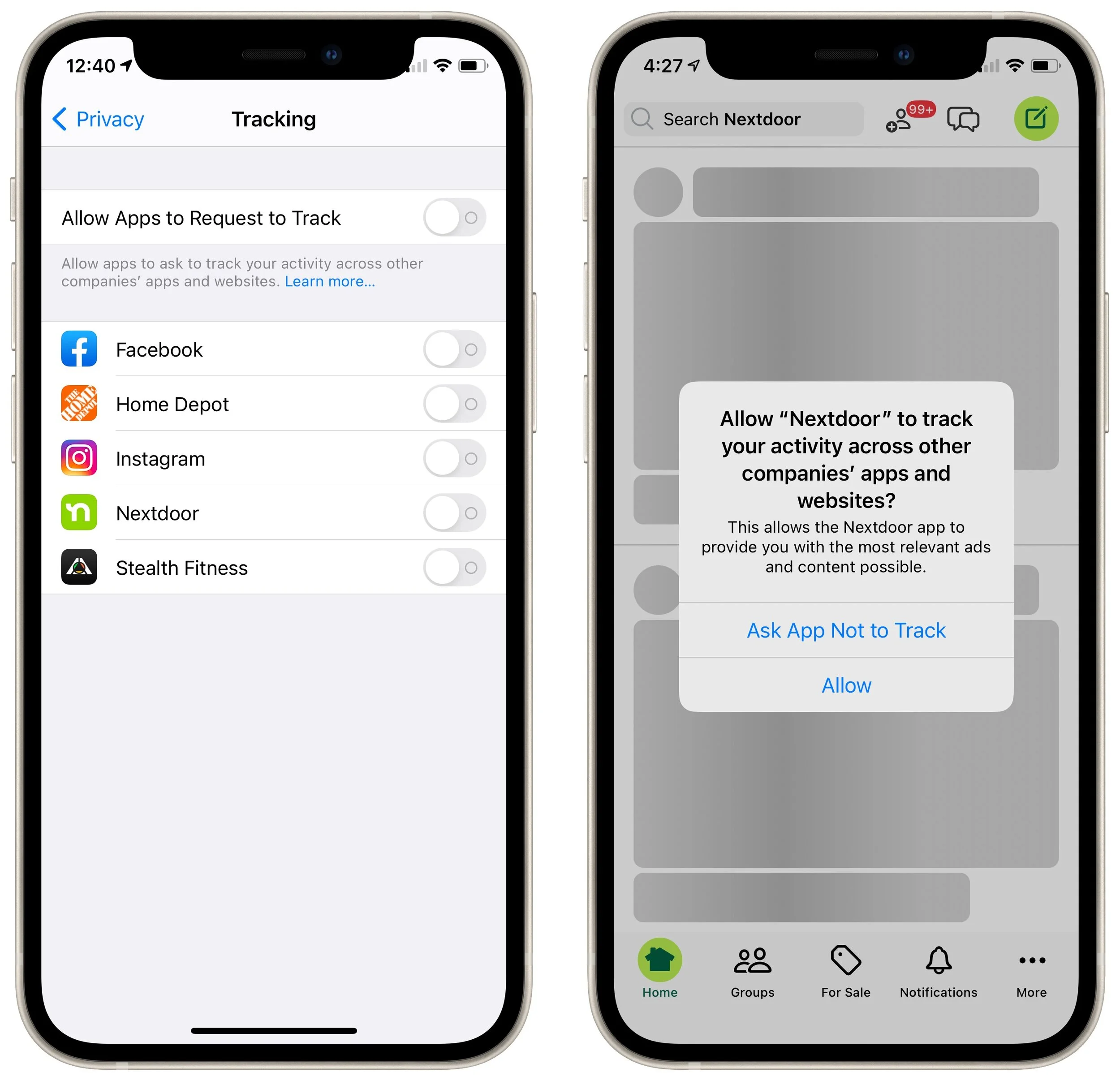
Put bluntly, there is absolutely no reason to allow any app to track you. Apple explicitly says that apps may not withhold features from those who opt out of tracking. So if you turn on the Allow Apps to Request to Track setting, tap Ask App Not to Track whenever you’re prompted. If you accidentally tap Allow, you can always go back to Settings > Privacy > Tracking and turn off the switch to rescind permission.
You might want to enable Allow Apps to Request to Track to see which apps were likely violating your privacy before and are still willing to do so even after App Tracking Transparency has exposed their sleazy business practices. Frankly, we’d encourage you to think about whether you want to use apps from such companies—perhaps the best reason to allow the requests is to identify privacy-abusing apps that you’ll then delete.
Early statistics from analytics company Flurry suggest that 94%–96% of users in the United States have opted out of app tracking, either by tapping Ask App Not to Track or by disabling the Allow Apps to Request to Track. We’re surprised the number is so low.
(Featured image by Glen Carrie on Unsplash)
AirTag Basics and How to Protect Yourself from Stalking
Apple’s new AirTags are great for finding your keys or bag, but they also come with some security and privacy implications—someone could try to track you with a hidden AirTag. Read on to learn how Apple helps you detect such a problem.
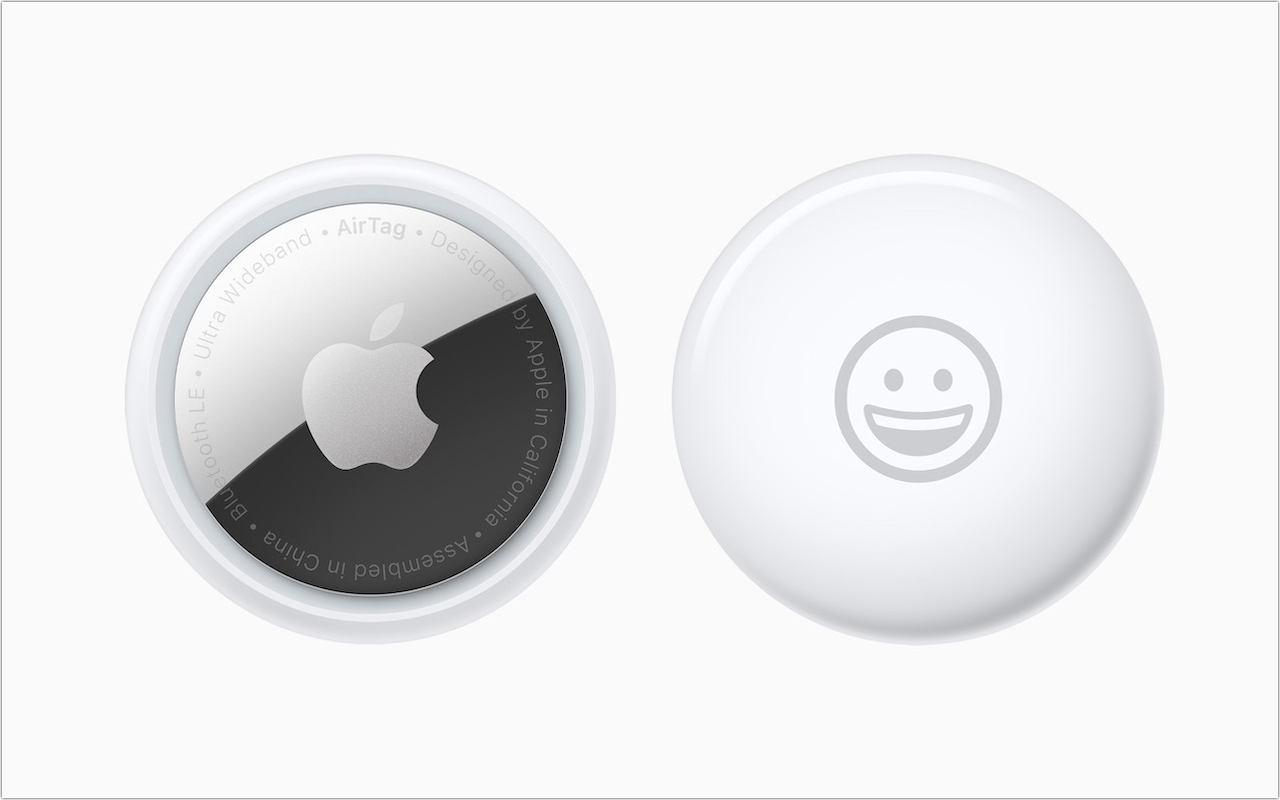
Apple’s new AirTag tracking device is an amazing bit of technology—it’s an elegant disc about the size of a stack of four US quarters that communicates its location with other Apple devices using Bluetooth and Ultra Wideband. Pair an AirTag with your iPhone and put it in your laptop bag, and from then on, you can use the Find My app to find your bag no matter where you’ve left it.
The key to the system is Apple’s Find My network of hundreds of millions of Apple devices, which detect nearby AirTags and report their location to Apple’s servers. It’s all completely private and secure, so only the owner of an AirTag can see where it is. All the devices in the Find My network are anonymous, and location data is encrypted at every step of the way. Not even Apple can locate an AirTag or determine the identity of the device that helps find it.
Plus, if you have an iPhone 11 or iPhone 12 with support for Ultra Wideband, the Find My app can use Precision Finding to give you the direction and distance of your nearby items. (“You’re getting warmer!”) If you need more help to locate an AirTag that’s out of sight, you can make it play a sound.
At $29 for one or $99 for a pack of four, AirTags are an inexpensive way to keep track of keys, purses, suitcases, kids’ backpacks, and more. You could even attach one to your dog’s collar, but it would likely be helpful only in urban areas where people with iPhones would come close enough to your rambling pet.
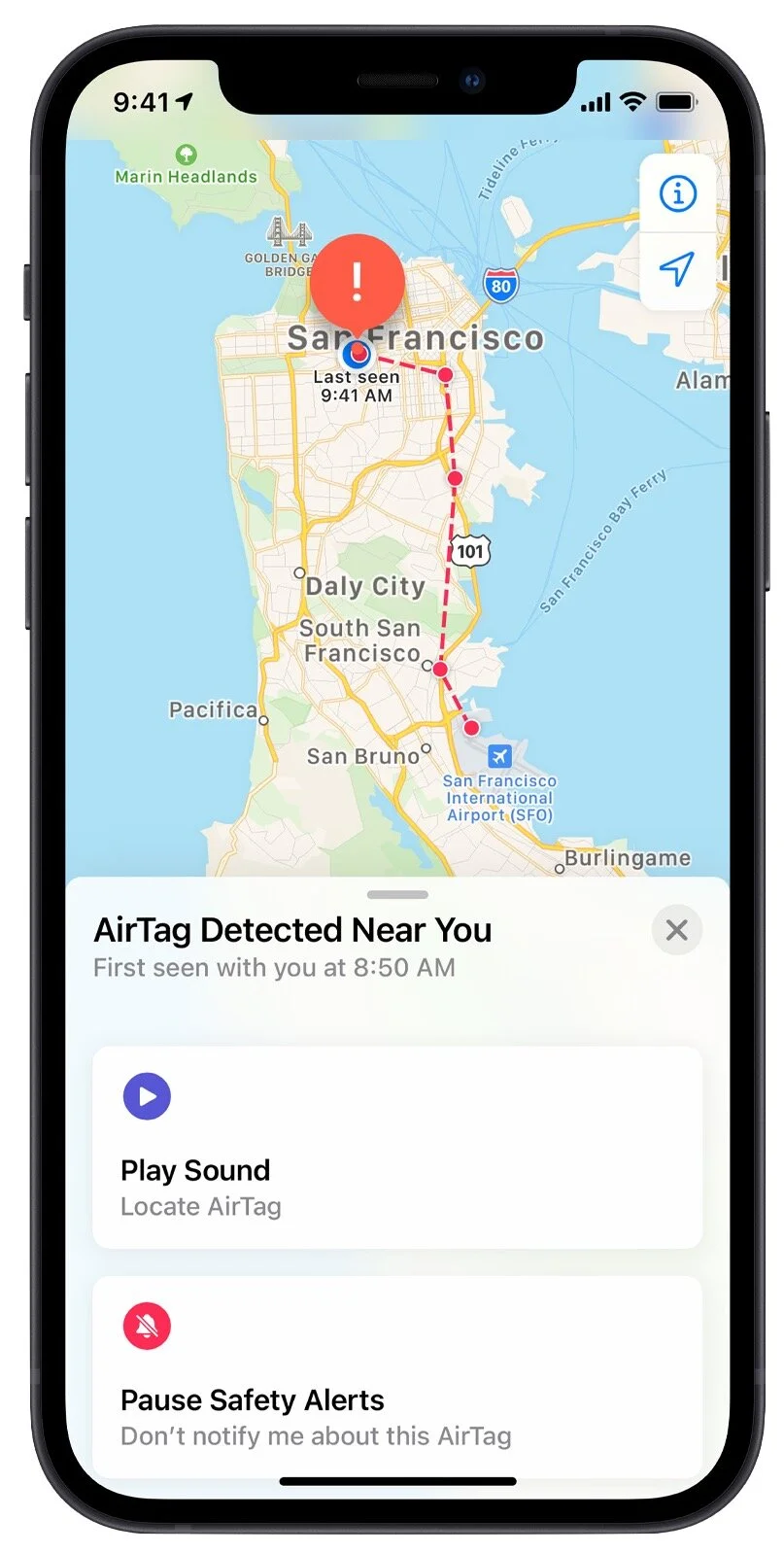
With great power comes great responsibility, though. There are always those who will attempt to use AirTags to track other people’s movements surreptitiously, perhaps a jealous spouse, a vindictive ex, or someone with a creepy crush. It wouldn’t be hard to hide an AirTag in someone’s car, in a seldom-used purse pocket, or in the lining of a coat.
Apple is fully aware of these possibilities and has built three safeguards into the AirTags and the Find My network. Given the potential for abuse, it’s essential that everyone knows what an AirTag is (done!) and how to determine if someone may be using one to track another person (read on!).
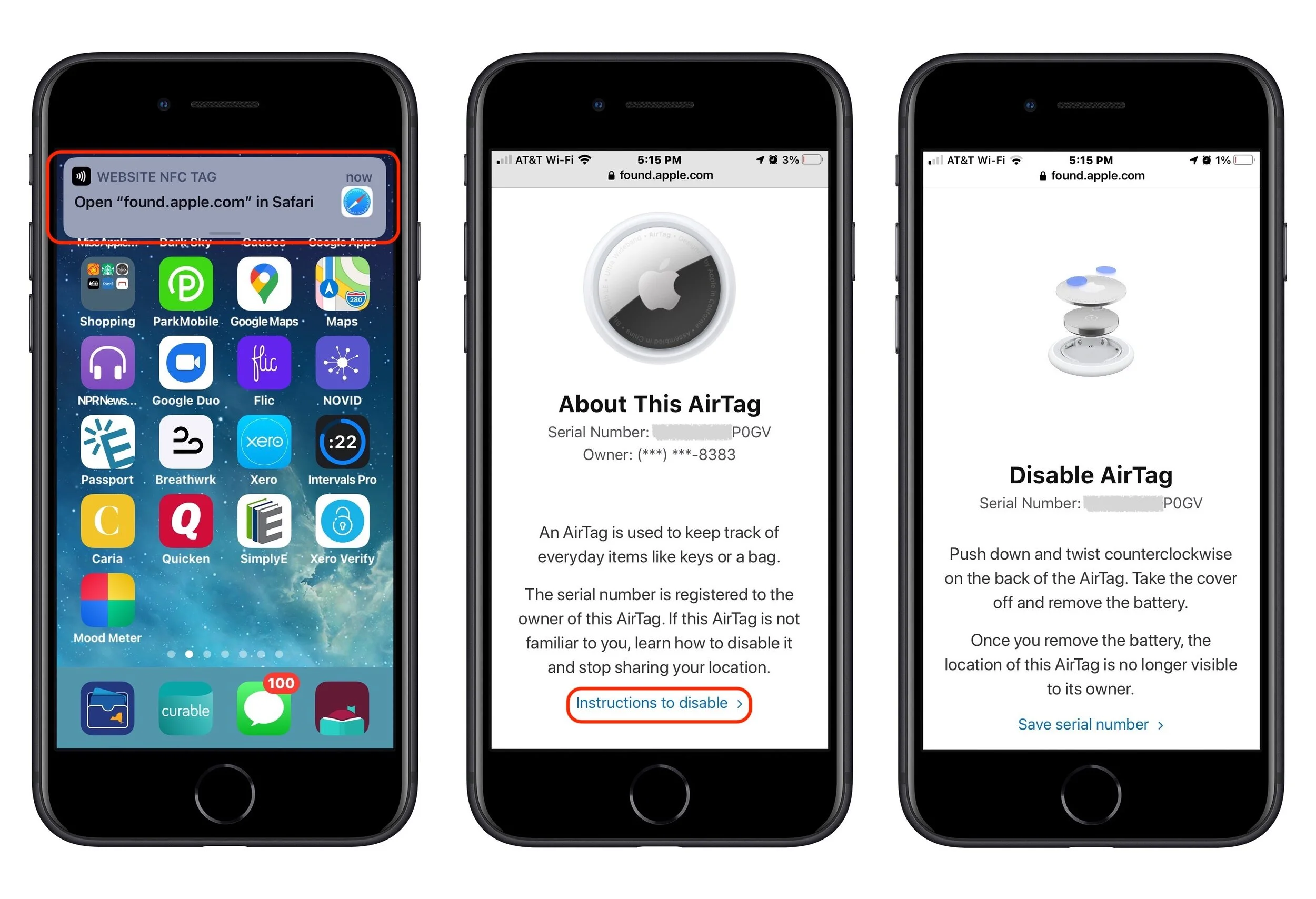
Safety Alerts: If you get an “AirTag Found Moving With You” alert on your iPhone, you know that there’s an AirTag separated from its owner that’s traveling with you. Most likely, it’s in something you’re borrowing or attached to an item that someone left in your car. If you can’t easily find the AirTag, you may be able to make it play a sound. (That won’t work if the owner is in range or if it has been with you overnight such that its identifier has changed since the alert.) If you know why it’s there, you can pause the safety alerts for a day or disable them permanently for those in your Family Sharing group. If the owner has marked it as lost, you can tap Learn About This AirTag to discover its serial number and contact information for the owner. If there’s no good explanation for why the AirTag is with you, you can remove its battery to prevent it from reporting your location.
Safety Sounds: If an AirTag is separated from its owner for 3 days, it will make a sound the next time it moves. There is some concern that 3 days may be too long and that the sound starts only after the AirTag moves. Apple has said it may change the time or tweak the system if the sound isn’t achieving its goal of tattling on maliciously placed AirTags.
NFC identification: Let’s say you find an AirTag after a safety alert or sound. Hold an iPhone or other NFC-capable smartphone to the white side of the AirTag and tap the notification to load a website with the AirTag’s serial number and the last four digits of the owner’s phone number (which may help you or the police identify them). If the owner has marked it as lost, you’ll also see their phone number or email address.
The safety alerts appear only on iPhones, of course, but there are two other requirements that must be true as well. First, the iPhone must be running iOS 14.5 or later to display the alerts, so make sure you update. Second, in Settings > YourName > Find My > Find My iPhone, the Find My network option must be enabled. If you don’t want your iPhone to participate in the Find My network, you can turn that option off, but doing so means you’ll never receive a safety alert either.
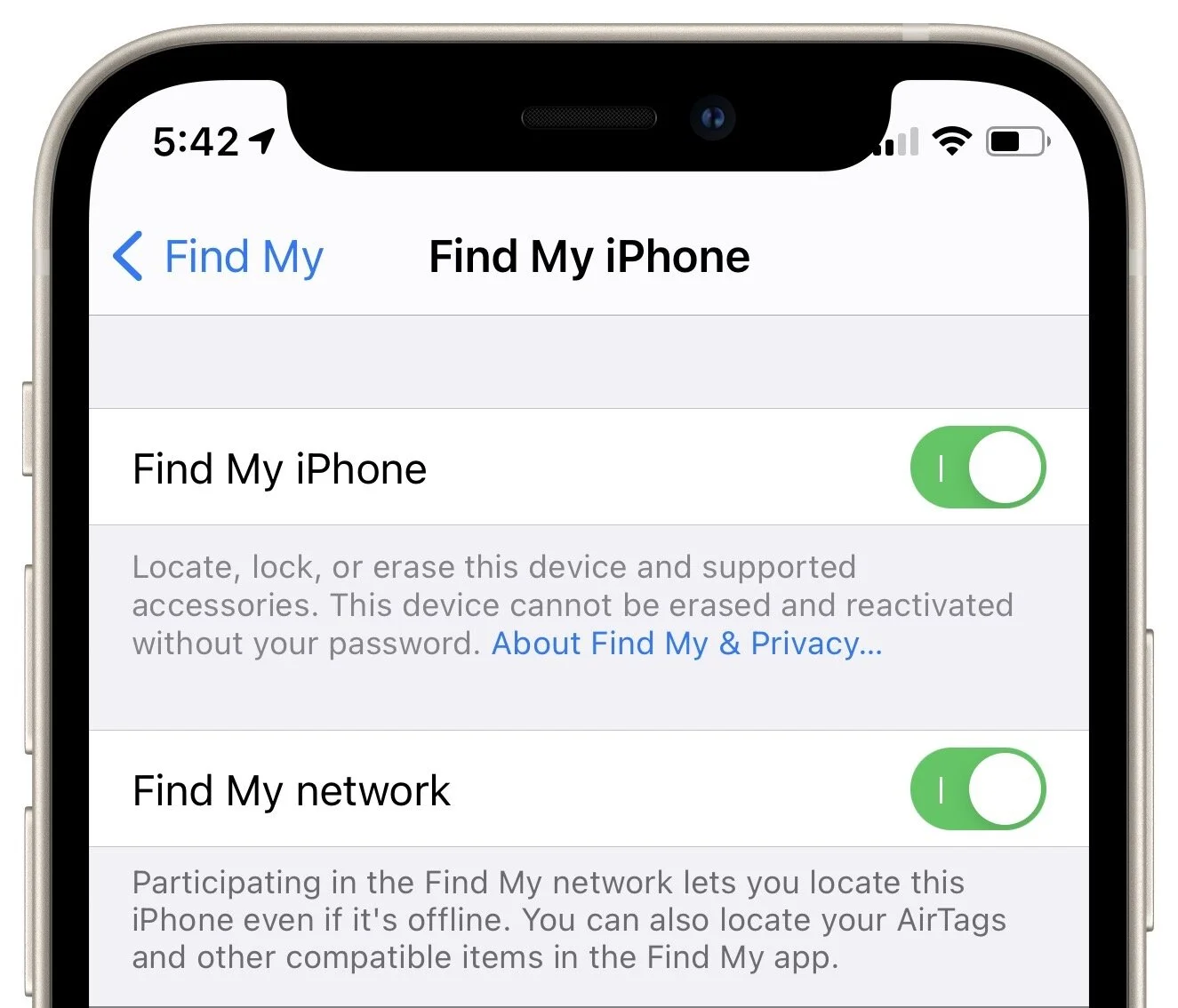
(A quick aside: the Find My iPhone option in that screen is necessary to locate your iPhone if it’s lost or stolen. It also enables Activation Lock, which prevents a thief from erasing and reactivating your iPhone unless they can find your Apple ID password. Always leave Find My iPhone enabled. The Find My network can also help locate iPhones, iPads, Macs, and Apple Watches that are offline and can’t report their location to Find My on their own.)
The ultimate takeaway is that if you ever get a safety alert, hear an AirTag making a sound, or find an unexpected AirTag, hold your iPhone or an NFC-capable Android phone to the white side of the AirTag to load a Web page with more information. If you have reason to believe you’re being stalked, contact local law enforcement and give them the AirTag’s serial number, which they can use, with Apple’s help, to identify the AirTag’s owner.
(Featured image by Apple)