
Manage Email Faster in Mail by Swiping
We can’t reduce your email load, but we can show you how to process it faster by swiping on items in Mail’s message list on your iPhone, iPad, or Mac. Details at:

We all get too much email, and while Mail can’t help you get less (other than by making it easy to unsubscribe from mailing lists), it does provide shortcuts for processing your mail more quickly. Regardless of whether you’re using iOS, iPadOS, or macOS, you can swipe on messages in the message list to perform various actions—some of which you can customize. It’s an efficient way to work through email quickly.
Swiping on the iPhone and iPad
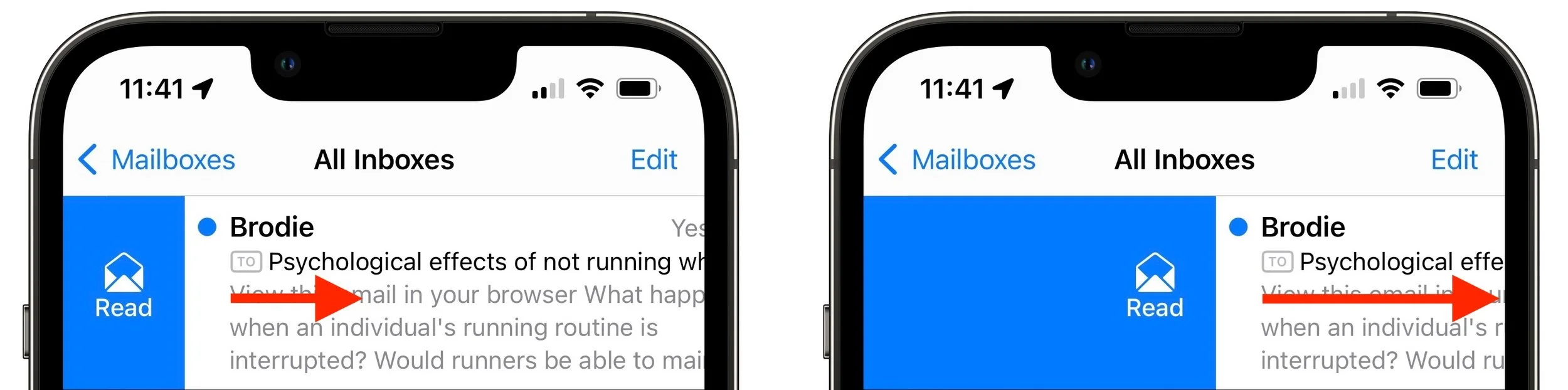
In iOS and iPadOS, when you swipe a short distance right on an unread message (from left to right), Mail displays a Read button. You can either stop swiping and tap it or keep swiping to the right to mark the message as read. If the message has already been read, that button changes to Unread. This swipe is great for those who like marking messages as unread to keep them around for later processing.
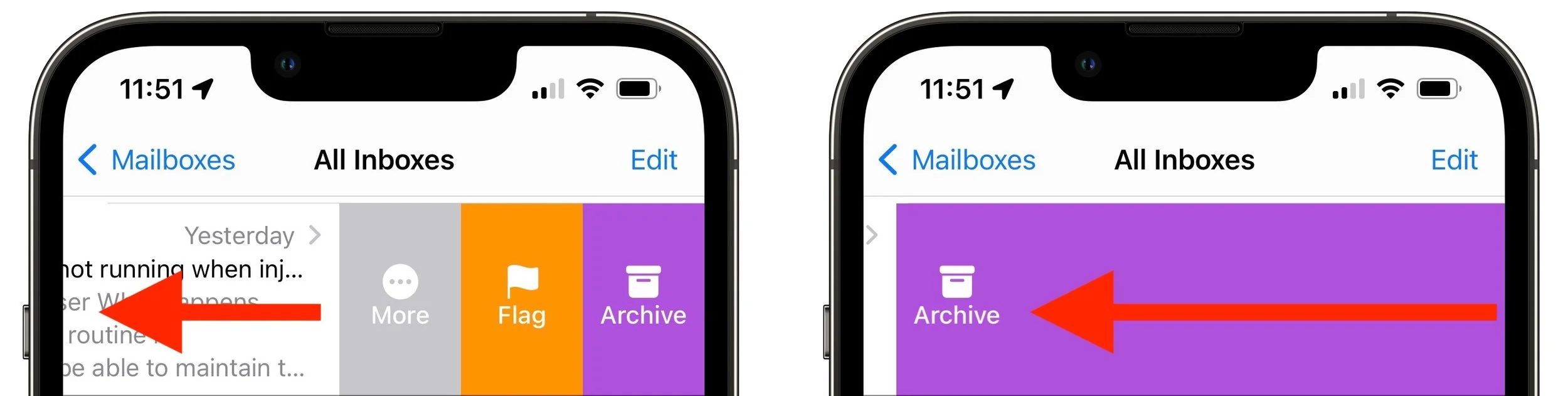
Swipe left (from right to left) a short distance, and you get three buttons, More, Flag, and Archive. (If you see Trash instead of Archive, that’s fine. We talk more about configuring which buttons you see shortly.) Tap Archive to store the message in an Archive mailbox (or All Mail for Gmail users), which is good for getting it out of your face without deleting it. Flag marks the message with a flag so you can find it again easily in Mail’s Flagged mailbox—some people do this to track messages that need replies or other actions. You can also swipe all the way to the left to archive the message with one motion.
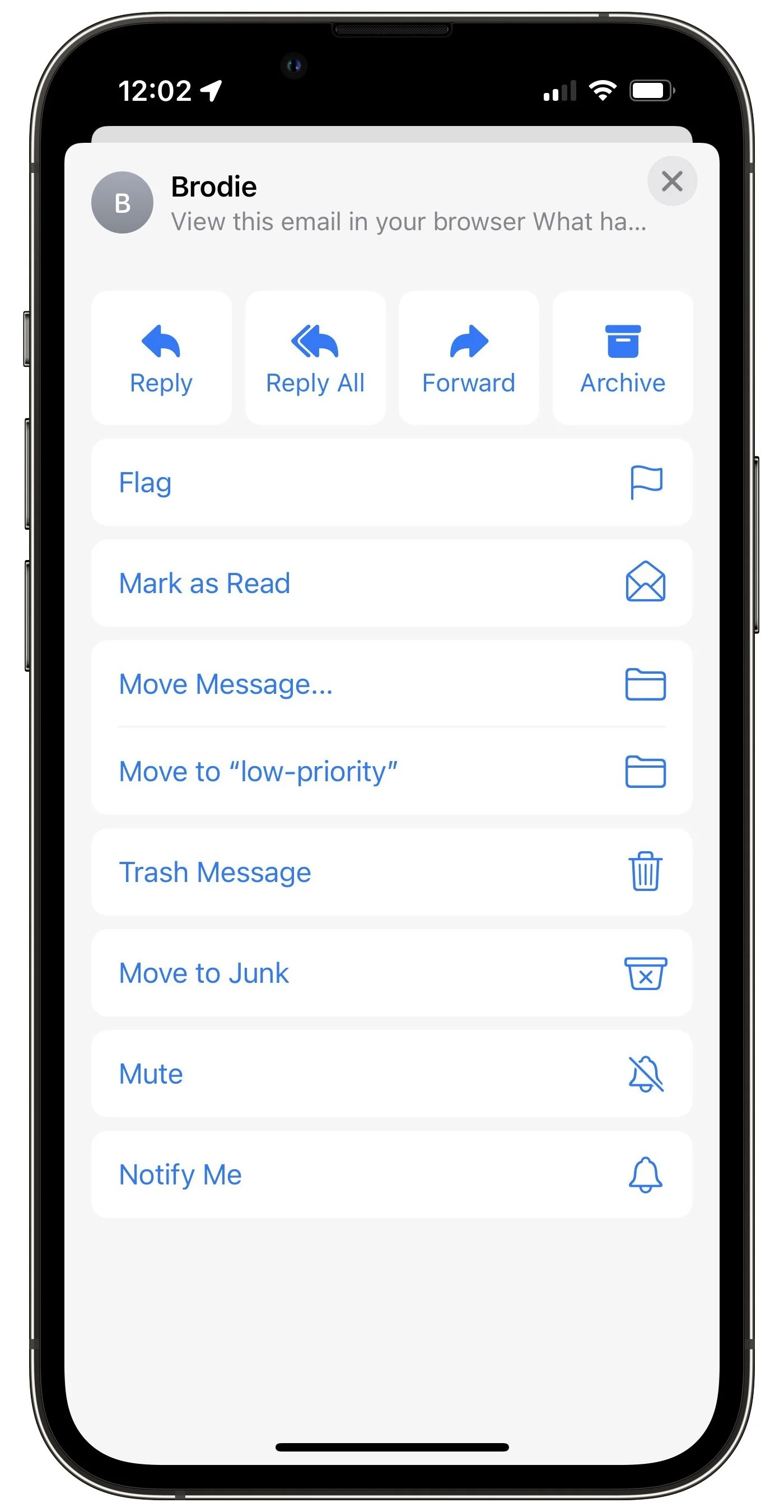
If you tap More, you get a bunch of additional options (depending on the message) that include Reply, Reply All, Forward, Archive, Flag, Mark as Read, Move Message (for filing in another folder), Trash Message, Move to Junk, Mute (to silence notifications from the thread), and Notify Me (which alerts you when anyone replies to the message).
Do you prefer to have your full swipes manage mail in a different way than the default? Go to Settings > Mail > Swipe Options and choose which button appears when you swipe right or left. You can select only one unique action for the middle swipe left button and for the swipe right action.
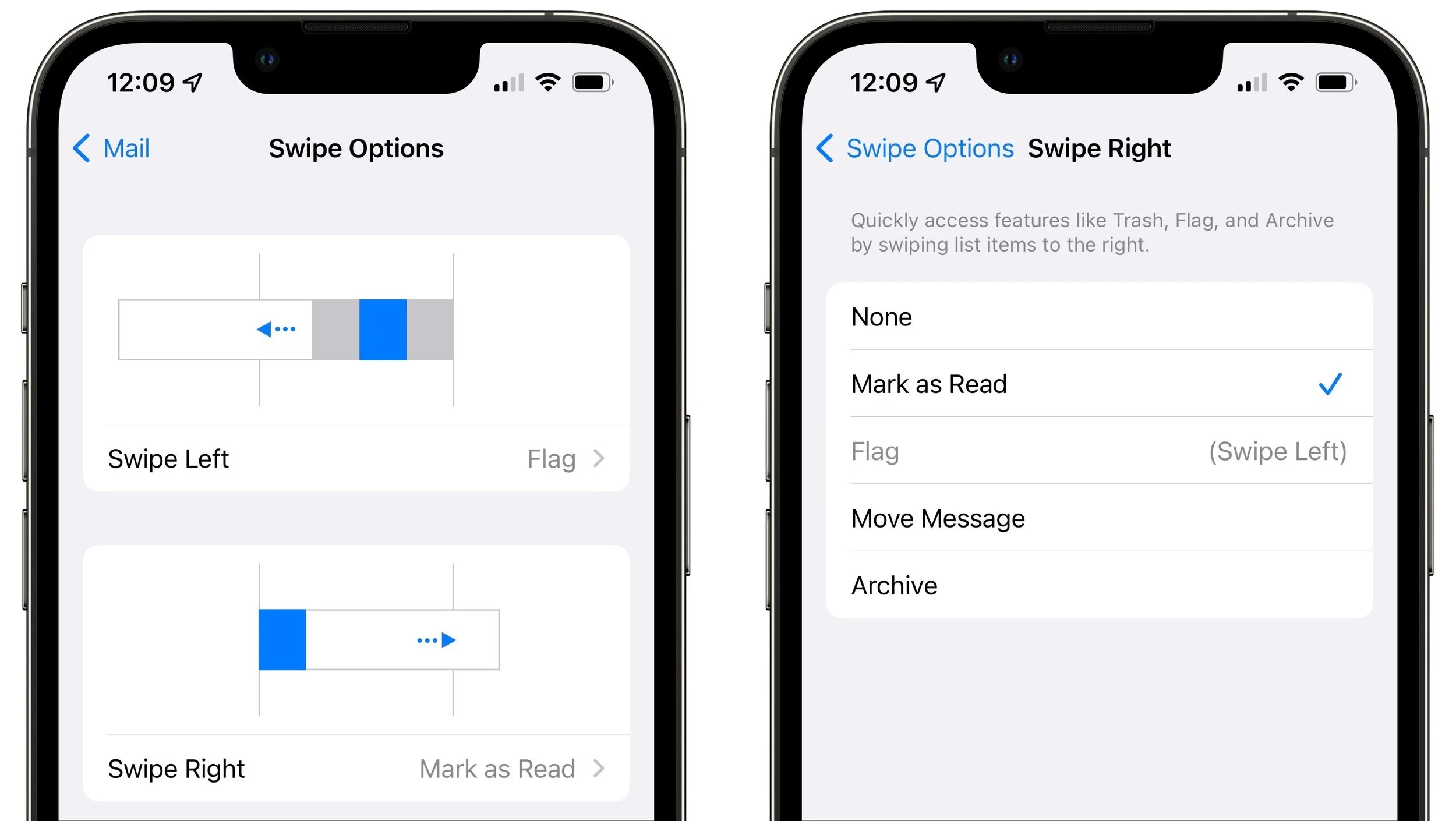
If you prefer to delete messages instead of archiving them, select Archive in the Swipe Right settings and it will become Trash automatically if the account requires swiping left to offer the Archive button. If you use Gmail or some other email providers, you can reverse these settings (so swiping left offers Trash and swiping right gives you Archive) by navigating to Settings > Mail > Accounts > YourAccount > Account > Advanced and selecting Deleted Mailbox under Move Discarded Messages Into.
Remember that you can undo an errant swipe action by swiping left anywhere on the screen with three fingers or by shaking the iPhone or iPad, assuming you’ve left that setting enabled in Settings > Accessibility > Touch.
Swiping on the Mac
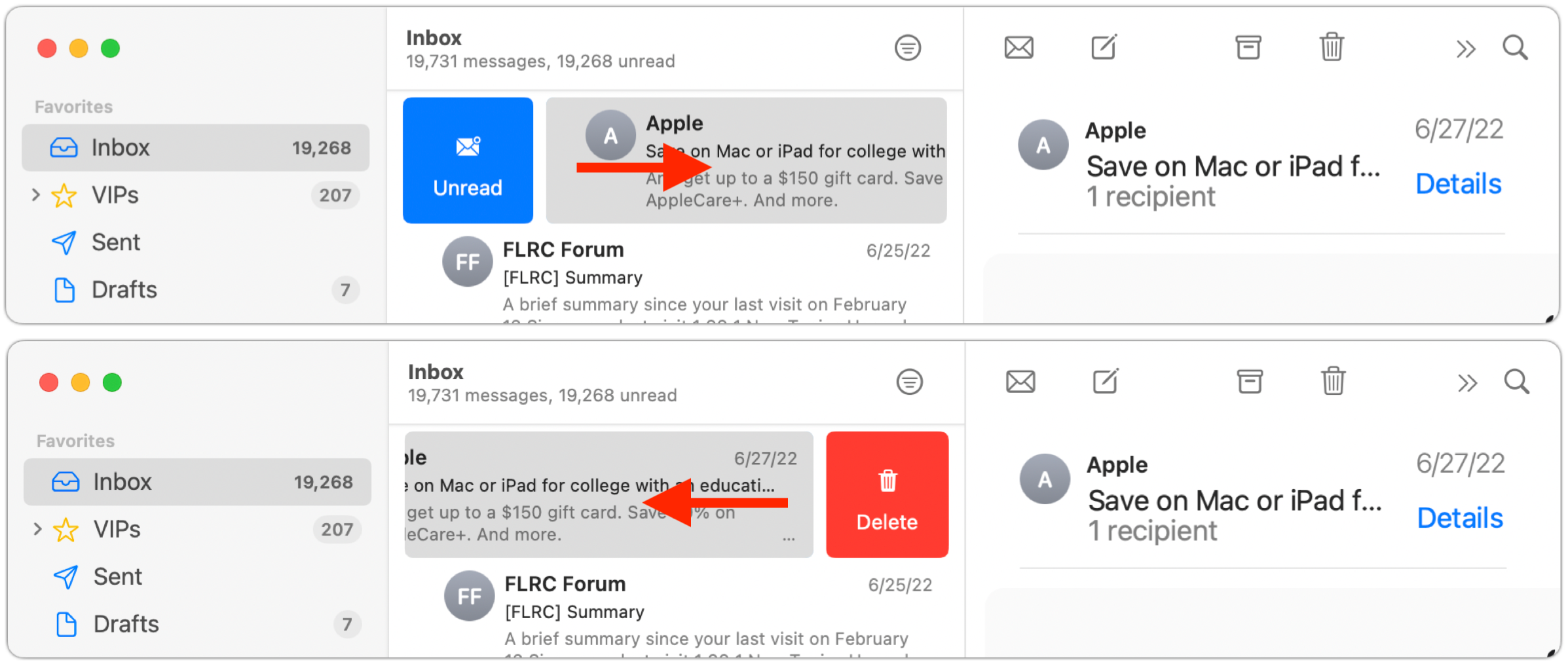
On the Mac, swiping works similarly, but fewer options are available. You can swipe right with two fingers to mark a message as read or unread, depending on its current status, or you can swipe left to delete or archive the message. Short swipes reveal a button you can click; long swipes perform the action without needing an additional click.
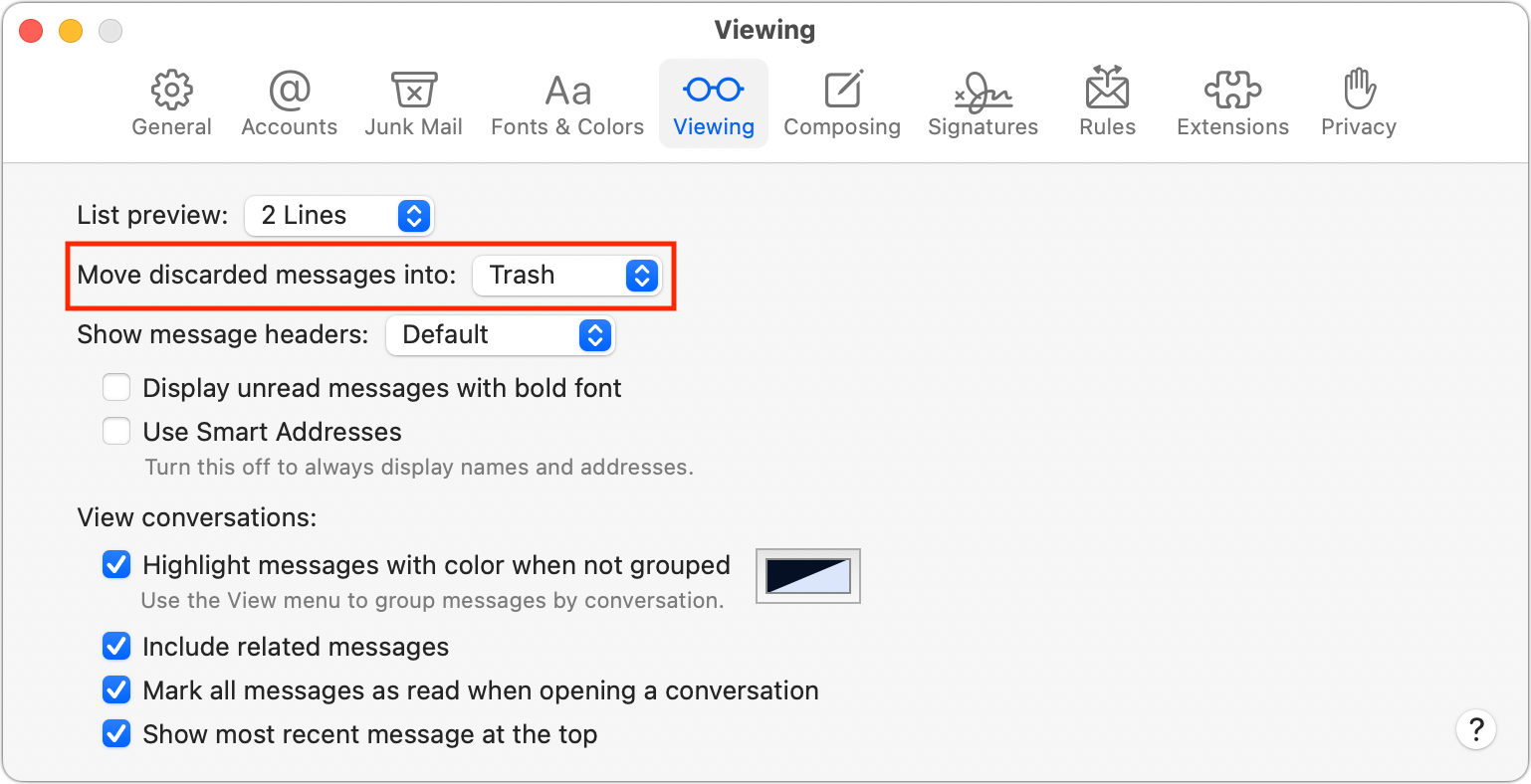
As with Mail in iOS, you can toggle the delete/archive setting by choosing Mail > Preferences > Viewing. Choose Trash or Archive from the Move Discarded Messages Into pop-up menu.
That’s it! Take a few minutes to practice swiping, and before long, you’ll be marking, flagging, and archiving messages with just a flick of the finger.
(Featured image by iStock.com/Pheelings Media)
Picking Group Meeting Times Is Easy with Crab Fit
Having trouble finding the best time for a group to meet? Check out the oddly named Crab Fit, which lets people add their availability and shows the best scheduling overlaps.

Various calendar services let you schedule a meeting based on invited attendees picking preferred times from a set of specified options—Doodle is the most well-known. But the problem with such services is that you have to know which dates and times are likely to work for the people you’re polling. If you want to set up an hour-long meeting sometime in the next week but have no idea what might work for others, you’ll spend an excessive amount of time specifying all the possible options.
A free—if oddly named—Internet service called Crab Fit turns this scheduling problem around. Instead of letting people vote for preset options—none of which may work—Crab Fit asks everyone when they could possibly meet and then reveals which days and times have the most overlap. It’s easy to use and remarkably effective.
You can use Crab Fit to schedule a movie night with friends, a workgroup brainstorming session, or any other event where people need to assemble at the same time. As an example, let’s walk through finding a time for a committee meeting.
Create a Crab Fit Event
Creating an event is straightforward.
1. Name your event.

2. Choose whether you are setting up a specific date or a general day of the week. Most of the time, you’ll want to identify specific dates when your group can meet. You can also switch to days of the week to find a regularly repeating time, such as for a weekly lunch meeting.
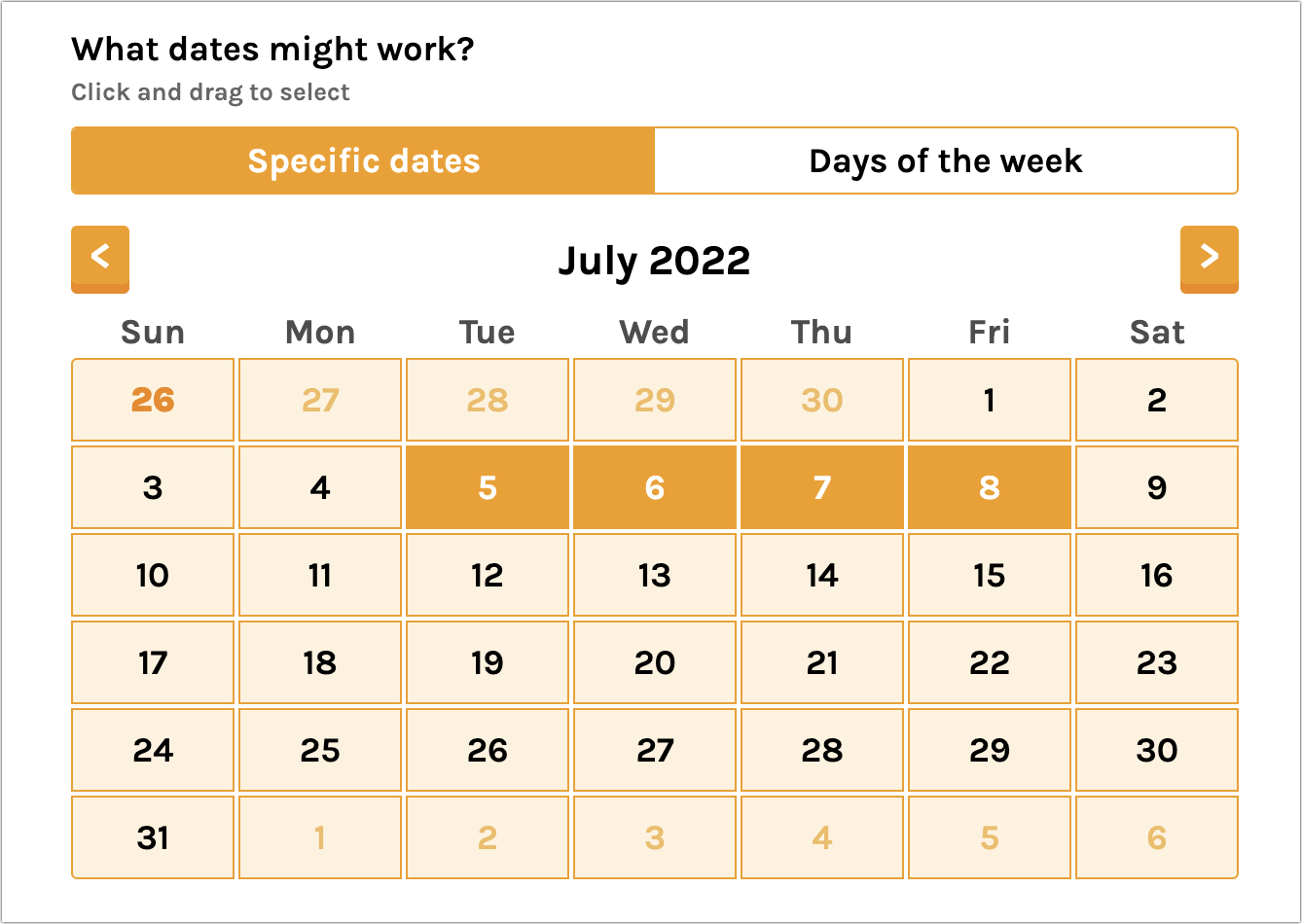
3. Select the dates or days of the week you want to include—you can select individual boxes or drag across a range.
4. Pick the broad range of times that might work for your event. Crab Fit defaults to 9 AM to 5 PM, but you can adjust the sliders for different times to accommodate a breakfast meeting or movie night. If you’re setting up an online event for people across multiple time zones, you can also specify your time zone so others see the options in theirs.
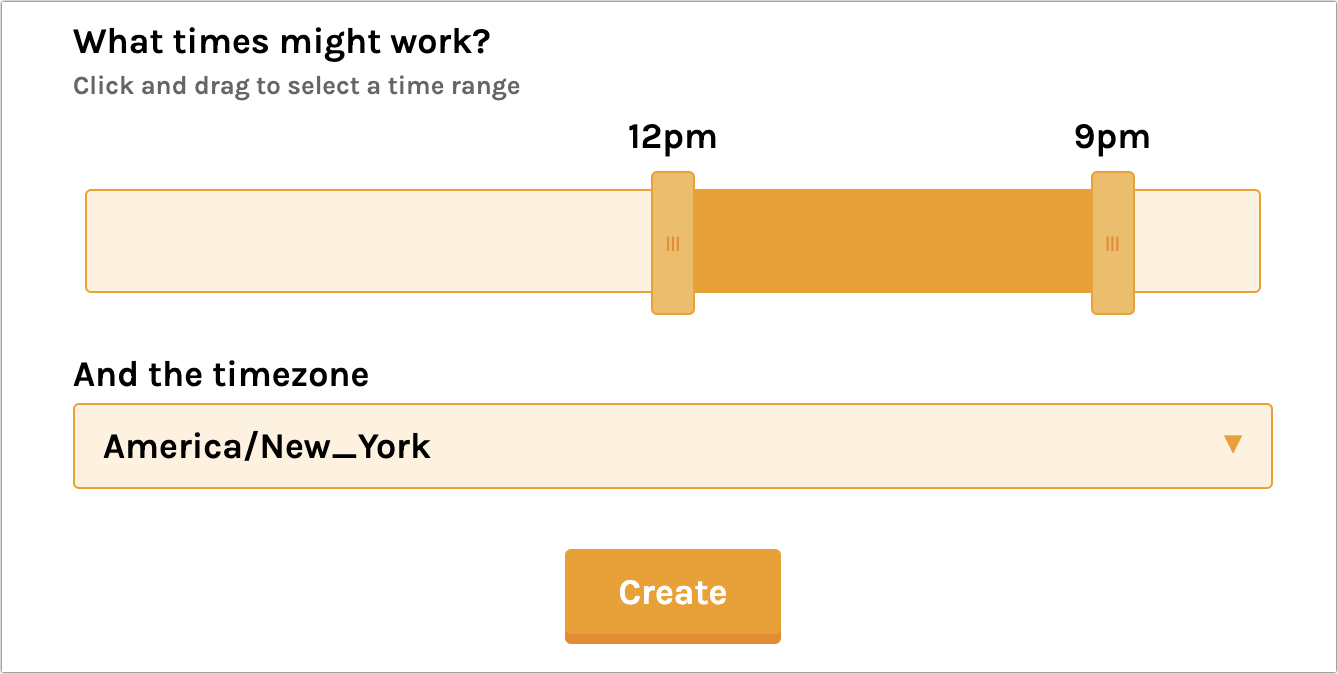
5. Click Create to create the event and load the voting page. Before voting yourself, copy the link to the page—just click it to copy it to the clipboard—or click the email link to create a new email message containing the link.

6. Send the link to the people you want to invite to the meeting however you want: email, Messages, Slack, whatever.
Add Your Availability to a Crab Fit Event
Once you’ve created and shared your event, it’s time to say when you’re available. This process is the same for you as it is for everyone you’re inviting, so if you get invited to a Crab Fit event, the same process applies:
1. Sign in. Don’t worry about having to create yet another account—you’re only providing a name so others know that you’ve voted, and the password is necessary only if you want to ensure that no one else can use your name to change your availability. If you use Crab Fit regularly, you can save your name and password in a password manager and autofill them whenever necessary.
2. If your time zone is different from the one shown, choose your time zone. When you do that, the times in the next step will reflect your local time rather than the times specified when the event was created.

3. Select times when you’re available. You may be able to sync with your Google Calendar or Outlook Calendar (the Google Calendar option didn’t work for us) to select times that aren’t already scheduled, but it’s simple enough to drag to select the times you’re available. While working, you can click the Group Availability tab to see when others have said they’re available—you may wish to adjust your times if you see that the group is already heading toward a consensus that works better or worse for you.
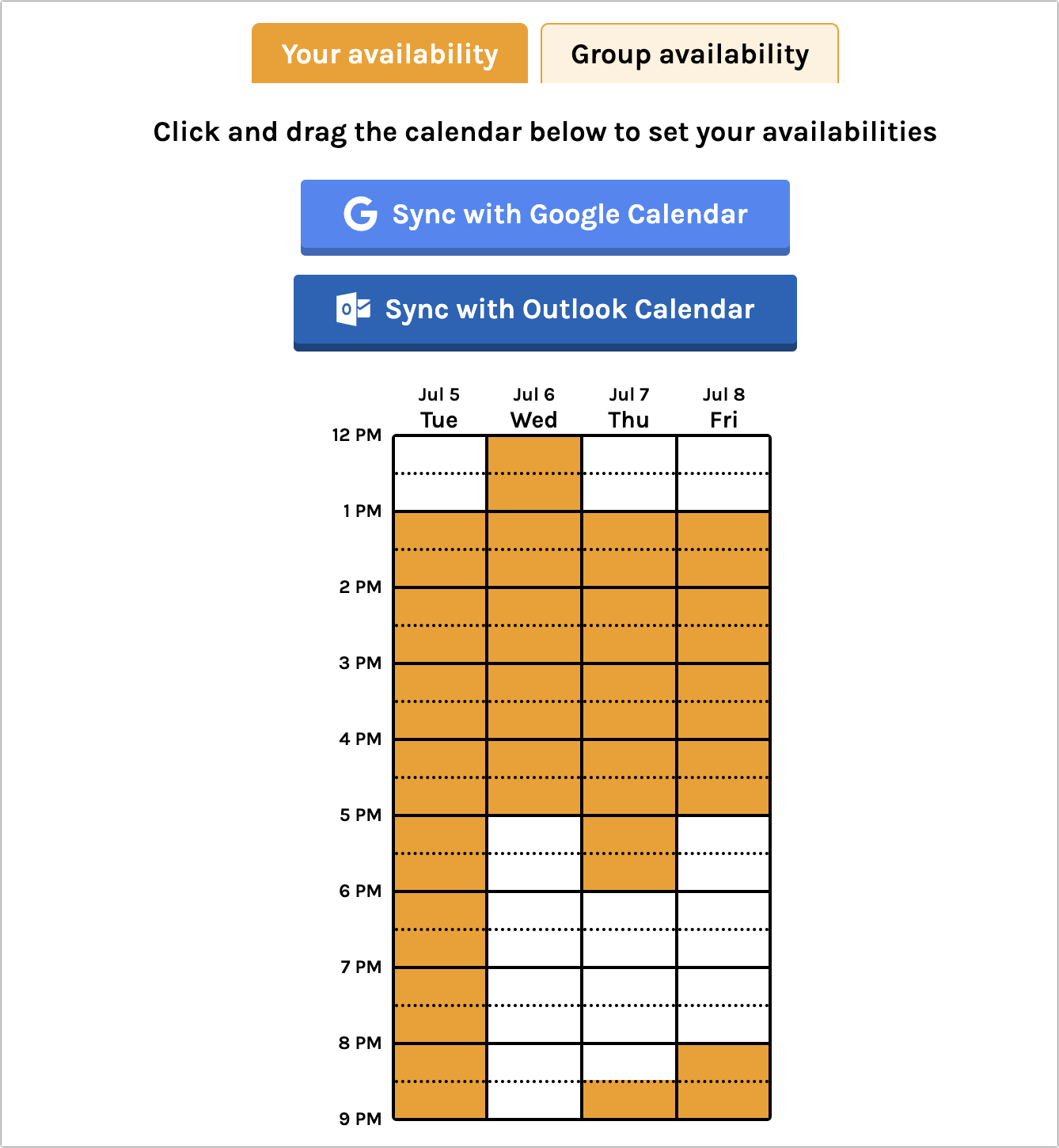
That’s all there is to it—there’s no need to do anything else to submit your available times. The magic happens when all the other people in your group say when they’re available too, following the same steps.
Pick the Best Time to Meet
As the organizer, it’s your job to pick the best time, but everyone can see on the Group Availability tab which times are better and worse—the darker the color, the more overlap between schedules. Hover your pointer (or tap on an iPhone or iPad) over a particular time to see who is available then.
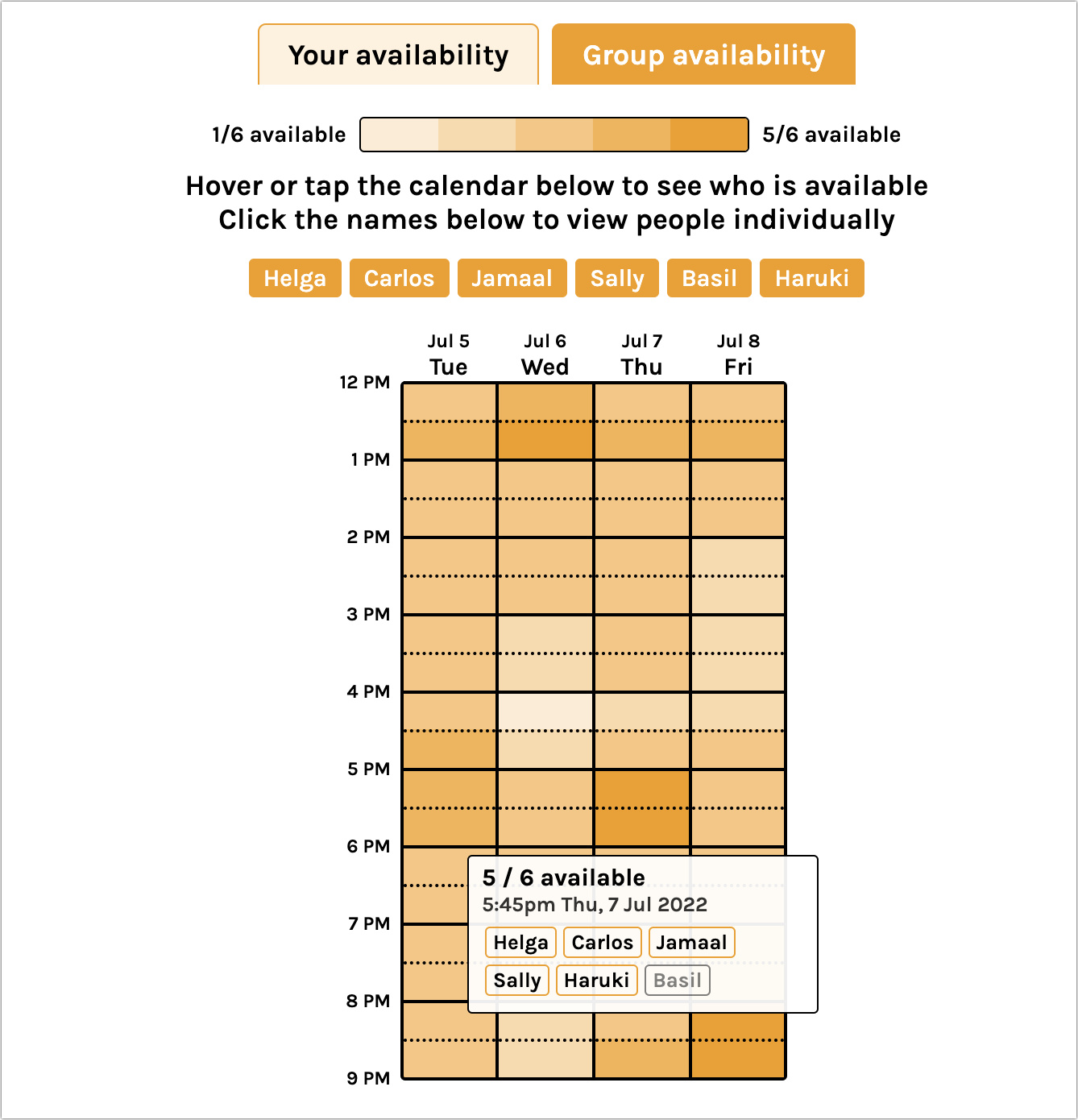
The rest is up to you—Crab Fit doesn’t alert participants or do anything else, so you need to identify the best time and convey that to the people you’ve invited.
When there’s only a single time when everyone can make it, agreeing on it is easy, but you’ll likely have to choose from multiple times that are equally as good for everyone. The hardest situation comes when there are conflicting possibilities, none of which is perfect. In the example above, the best solutions get only five of six people, and who can’t make it differs by time. You’ll have to decide who to leave out.
Regardless, Crab Fit radically simplifies homing in on the best possible meeting time. It works well in desktop Web browsers and the iPhone and iPad. And if there’s some-thing about it that you don’t like, check out When2Meet, which works nearly identically but doesn’t display well on the small iPhone screen.
(Featured image by iStock.com/fizkes)
Get Some Color (On Your Mac) This Summer with the Color Picker
Have you found the macOS color picker confusing? Here’s how to find, set, and share colors.
If you’re over 40, you probably remember the point in The Wizard of Oz where the movie switches from black-and-white to Technicolor (and if not, go see it!). It wasn’t the first color film, but the vibrant images of Dorothy’s ruby slippers, the yellow brick road, and the Emerald City helped make the movie a classic.
On the Mac, whenever you want to fill a drawing with color, colorize some text, or format spreadsheet cells in color, you need to use the Colors window, commonly called the color picker. Like many long-standing elements of the Mac experience, most people have seen and used it, but don’t realize how much it can do. How you bring it up varies by app but usually entails clicking a color button associated with styles or formats.
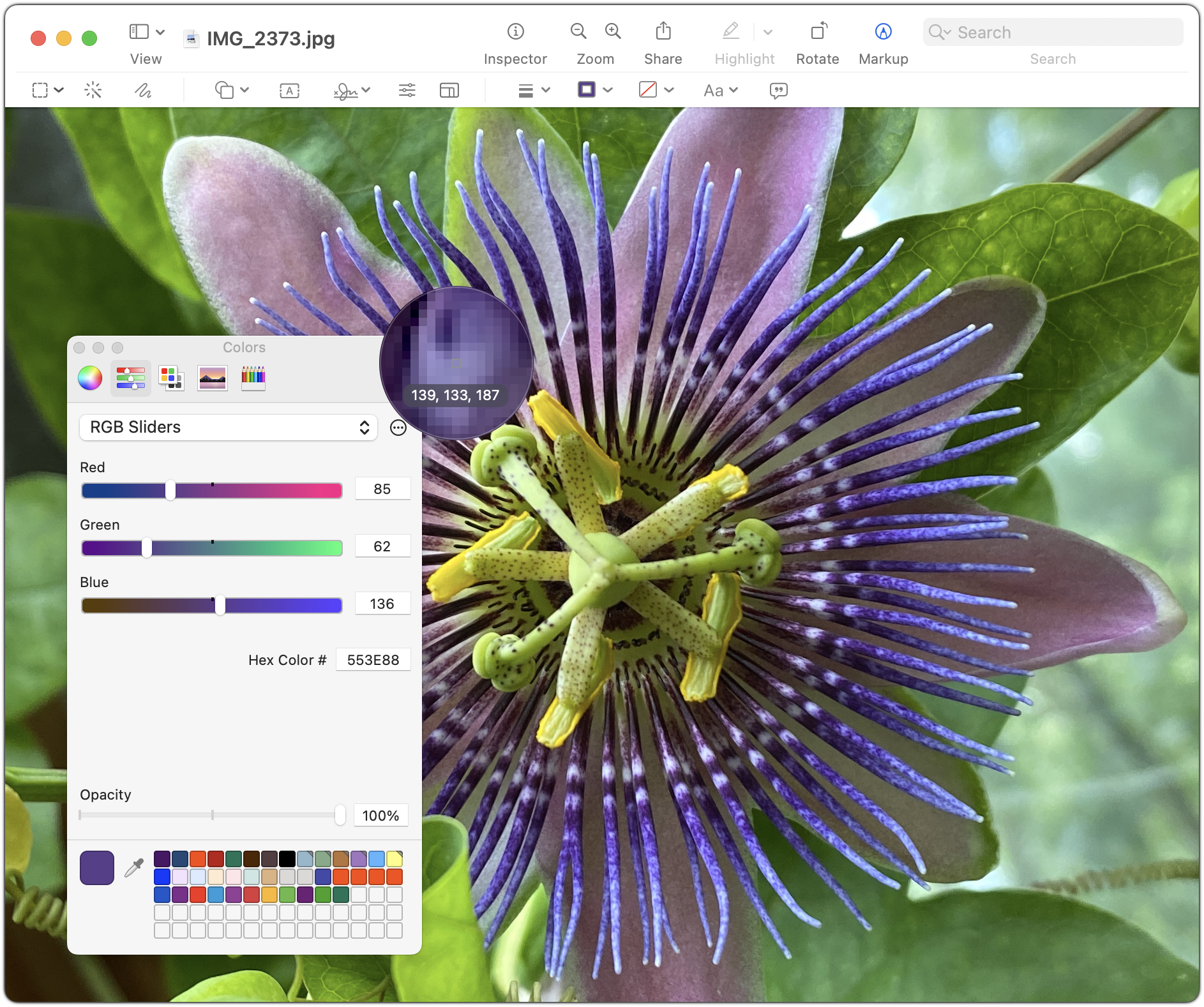
The Colors window has three sections: buttons for the color pickers at the top, their individual controls in the middle, and user-specified swatches at the bottom.
Color Pickers
Click the buttons at the top to switch between these pickers:
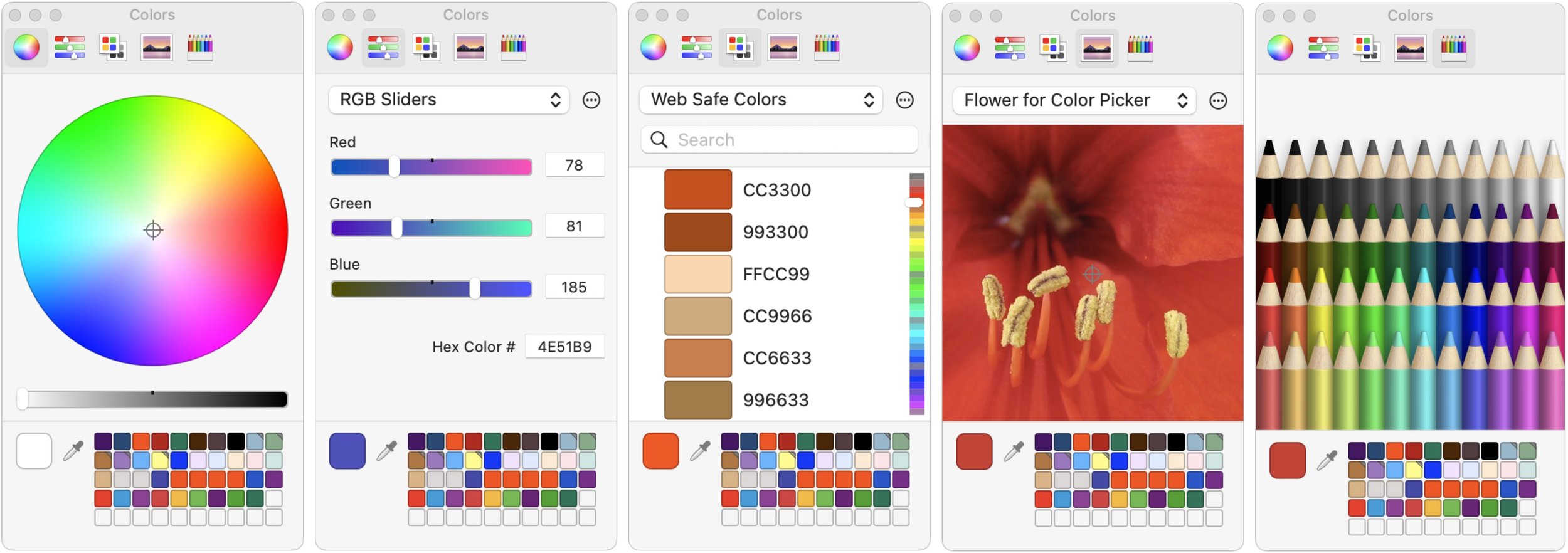
Color Wheel: This picker is useful for exploring a wide range of colors. Pay attention to the brightness slider at the bottom, which changes the colors in the wheel above.
Color Sliders: Use these sliders to specify particular grayscale brightnesses or RGB, CMYK, or HSB colors by number. You can also enter a hex color num-ber directly. Or, you can find a color with another picker or the eyedropper tool and then look up its exact values here. Desktop publishers use this feature a lot, as do Web designers trying to determine hex colors. When matching colors with outside sources, click the gear button to choose the appropriate industry standard color palette before picking a color.
Color Palettes: This picker shows color swatches from different custom palettes. Use the ••• button to make, add, rename, and delete palettes. (Find them in ~/Library/Colors.) The utility of these palettes is that you can share your own color collections, enabling coworkers to use identical colors easily, or you can download and import palettes for different uses, such as land-use categories for maps.
Image Palettes: Click the ••• button here to load a new image, after which you can select any color in that image by clicking it. This picker could be useful for matching colors in a layout with those in a photo.
Pencils: They used to be crayons, but then Apple got sophisticated. Or stopped licensing the names from Crayola.
Within each color picker, it’s usually obvious how to select different colors. Click the wheel, move the sliders, enter red-green-blue percentages, and so on. The selected color, which should be applied to the selection in your drawing or text, appears in the large square color well at the bottom left. If your selection doesn’t pick up the desired color, try dragging the color well in the lower section to a corresponding color box in your app.
Eyedropper
The Colors window offers another extremely useful way to select a color: the eyedropper. Find it in the bottom portion of the window, and click it to see a circular loupe that magnifies anything under it. Move the loupe until the single pixel in the middle is over the color you want, and then click. If you press the Space bar while the loupe is showing, the loupe displays the RGB values of that pixel.
Swatch Drawer
What are those little squares to the right of the eyedropper? That area is called the swatch drawer, and it’s where you store particular color swatches that you want to use repeatedly. To create a swatch, drag the color from the big color well into a swatch square. You can pick a color swatch up and move it around, so you can arrange your swatches in a way you’ll remember. Swatches you store here become available in all Mac apps, so it’s a great way to ensure you’re using the same colors everywhere.
To use a swatch, just click it. It immediately becomes the selected color in the color well and is applied to whatever object you’re editing.
To remove a swatch, drag it to the right of the swatch squares and let go just inside the right edge of the Colors window (if this doesn’t work, expand the window to the right as much as possible before another column of squares appears, then try again).
By default, you see twenty swatch squares in two rows, but the swatch drawer has room for hundreds of squares! Expand just the drawer vertically by dragging the divider line at its top, or expand the entire window vertically or horizontally by dragging any edge or corner.
Now that we’ve looked into the heart of the color picker to provide you with more knowledge, we hope you’ll find the courage to use colors more confidently in your everyday Mac work!
(Featured image by iStock.com/barbdelgado)
The Hardware You’ll Need to Run Apple’s 2022 Operating Systems
Later this year, Apple will release macOS 13 Ventura, iOS 16, iPadOS 16, and watchOS 9. Here’s the hardware you’ll need to run these operating systems—and to support some of the whizzier features.
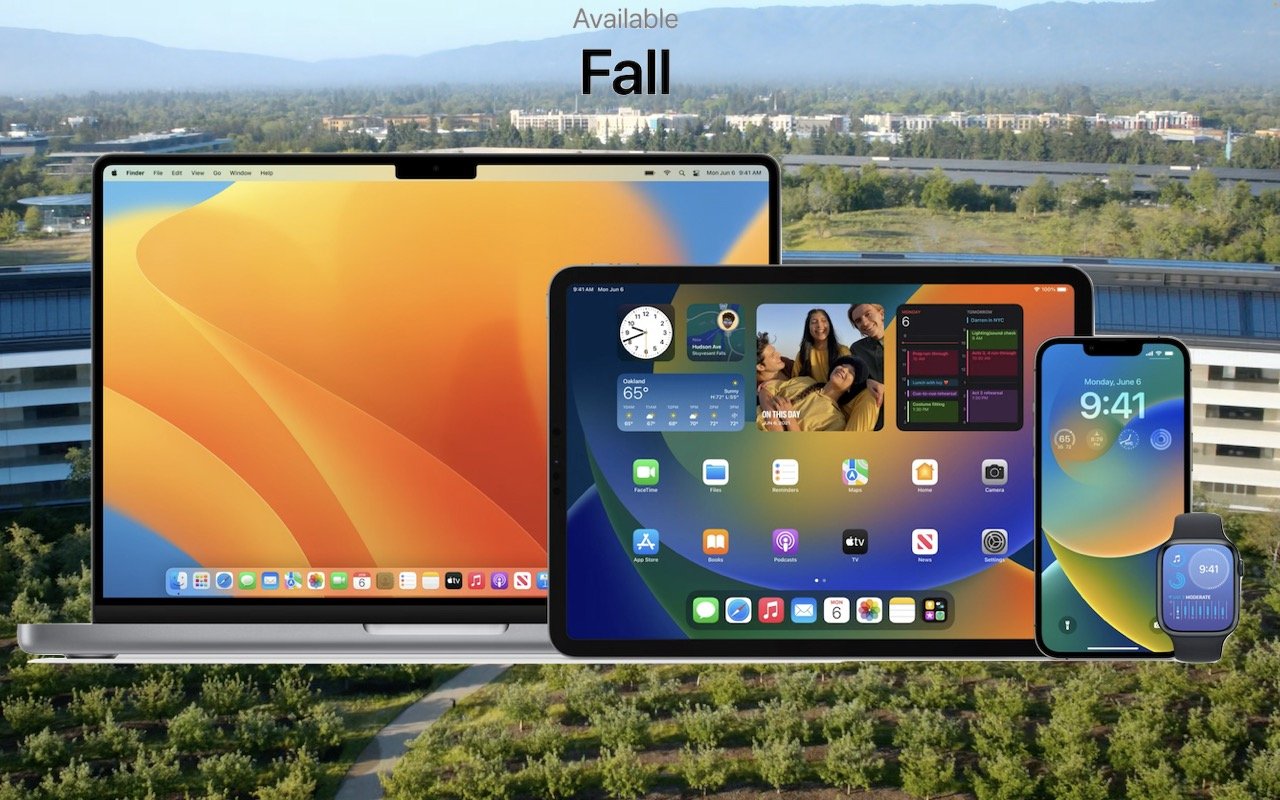
At Apple’s Worldwide Developer Conference in June, the company threw back the curtains on macOS 13 Ventura, iOS 16, iPadOS 16, and watchOS 9. These operating systems won’t be available until September or October of 2022, and we usually recommend waiting some time to upgrade—particularly for macOS.
Even so, it’s not too early to think about how these operating systems might impact your plans to buy new hardware in the next six months. Any Apple device you buy now—or have bought in the last few years—will be able to run the new operating systems. But some devices that can run the current macOS 12 Monterey, iOS 15, iPadOS 15, and watchOS 8 won’t be able to upgrade to their replacements later this year. And some older devices that can upgrade won’t support all the new features.
Here’s what you’ll need and compatibility gotchas to keep in mind.
macOS 13 Ventura
For macOS 13 Ventura, Apple has dropped support for every Mac model released before 2017. That’s in contrast to macOS 12 Monterey, which supported previous generation Macs that came out as early as 2013. If your Mac predates 2017 and you want to run Ventura, think about when it would make sense to buy a new Mac, perhaps in early 2023.
iMac: 2017 and later (late 2015 supported by Monterey)
iMac Pro: 2017 and later
MacBook: 2017 and later (early 2016 supported by Monterey)
MacBook Air: 2018 and later (early 2015 supported by Monterey)
MacBook Pro: 2017 and later (early 2015 supported by Monterey)
Mac mini: 2018 and later (late 2014 supported by Monterey)
Mac Pro: 2019 and later (2013 supported by Monterey)
Mac Studio: 2022
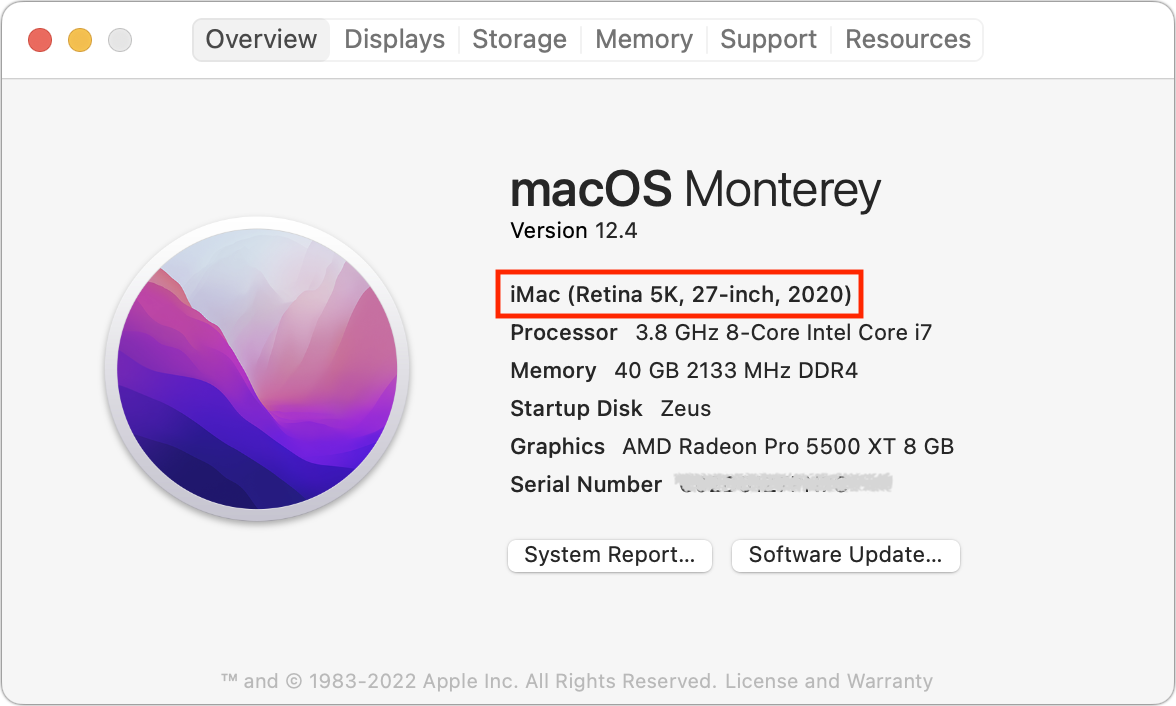
If you’re unsure which Mac you have, choose About This Mac from the Apple menu and look in the first line under the macOS version.
iOS 16
With iOS 16, Apple has maintained the same basic timeframe, supporting all iPhone models released in 2017 and later but dropping everything earlier, along with all iPod touch models. That means you’ll be able to run iOS 16 on these iPhones:
iPhone 13/mini/Pro/Pro Max: A15 Bionic
iPhone 12/mini/Pro/Pro Max: A14 Bionic
iPhone 11/mini/Pro/Pro Max: A13 Bionic
iPhone SE (2nd generation or later): A13 Bionic
iPhone XR/XS/XS Max: A12 Bionic
iPhone X: A11 Bionic
iPhone 8/8 Plus: A11 Bionic
We included each model’s chip family in the list above because that becomes important for particular features we’ll discuss later.
Practically speaking, these iOS 15-compatible devices won’t be able to upgrade to iOS 16:
iPod touch (all models)
iPhone SE (1st generation)
iPhone 6s/6s Plus
iPhone 7/7 Plus
iPadOS 16
Things get more complicated with iPadOS 16 due to there being four different iPad model types with varying capabilities. As with the iPhone models, we’ve included the chip families for reference.
iPad Pro 12.9-inch (1st–5th generation): A9X, A10X Fusion, A12X Bionic, A12Z Bionic, M1
iPad Pro 11-inch (1st–3rd generation): A12X Bionic, A12Z Bionic, M1
iPad Pro 10.5-inch: A10X Fusion
iPad Pro 9.7-inch: A9X
iPad Air (3rd–5th generation): A12 Bionic, A14 Bionic, M1
iPad (5th–8th generation): A9, A10 Fusion, A10 Fusion, A12 Bionic, A13 Bionic
iPad mini (5th and 6th generation): A12 Bionic, A15 Bionic
While that’s a long list, a simpler way to look at it is that only two iPad models that can run iOS 15 now won’t be able to upgrade to iOS 16:
iPad mini (4th generation)
iPad Air (2nd generation)
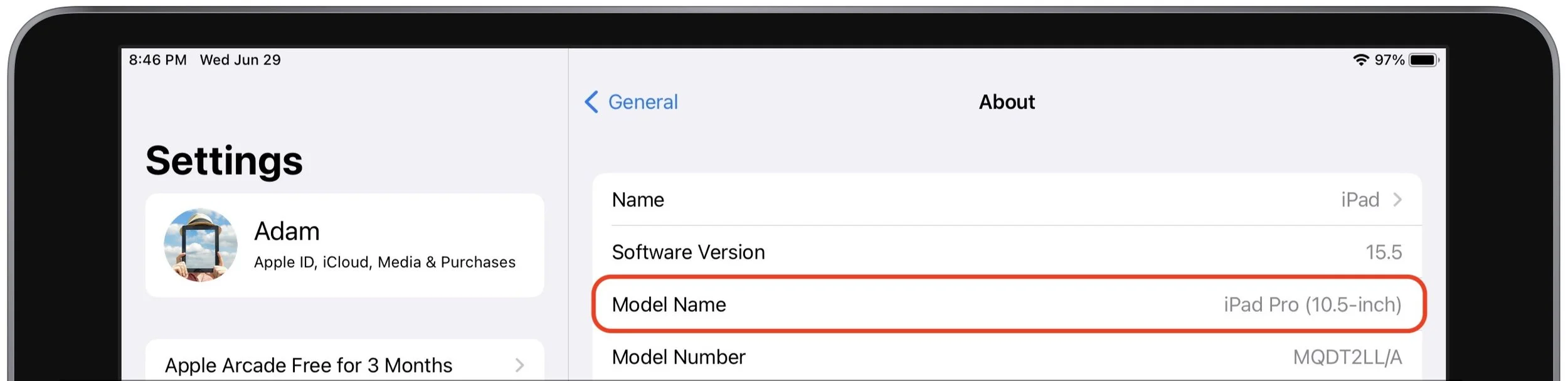
If you’re unsure which iPad model you have (this goes for the iPhone, too), look in Settings > General > About > Model Name.
watchOS 9
The upcoming watchOS 9 has a simple upgrade story. It supports the Apple Watch Series 4 through the Apple Watch Series 7, including the unnumbered Apple Watch SE. (Look in the Watch app on your iPhone if you can’t remember which model you have.) The only current model that won’t be able to upgrade is the Apple Watch Series 3. Although that model is quite old, dropping support for it is somewhat awkward since Apple continues to sell it even today as a low-cost option. If you’re planning to buy an Apple Watch soon, avoid the Series 3.
Feature-Based System Requirements
For some new features in iOS 16 and iPadOS 16, Apple has drawn a line in the sand at the A12 Bionic chip. These features will work on an iPhone or iPad with an A12 Bionic or later, but not on older devices that can still run iOS 16 and iPadOS 16. Some will also work on the Mac. These features include:
Lifting the subject of a photo from its background (also works on all Ventura-compatible Macs)
Live Text support in videos (also works on all Ventura-compatible Macs)
Spotlight search for images by location, people, scenes, text, and contents
Using dictation alongside the onscreen keyboard
Inserting emojis using dictation (in Ventura, requires a Mac with Apple silicon)
Enhanced Siri support for asking an app what voice commands it supports, hanging up calls, inserting emojis in texts, and working offline (these features won’t be available on the Mac in Ventura)
Recognition of birds, insects, and statues in Visual Lookup (also works on all Ventura-compatible Macs)
Some additional features have idiosyncratic system requirements:
Live Captions that automatically generate text for any audio require an iPhone 11 or later, an iPad with A12 Bionic or later, or a Mac with Apple silicon.
Detection Mode in the Magnifier app, which can identify objects like doors, requires an iPhone 12 Pro or iPhone 13 Pro, an iPad Pro 12.9-inch (4th and 5th generation), or an iPad Pro 11-inch (2nd and 3rd generation).
The Camera app will let you blur the foreground in Portrait photos and improves the quality of Cinematic mode videos, but only for the iPhone 13 lineup.
The capability to use an iPhone as a webcam requires an iPhone XR or later.
When using an iPhone as a webcam, the Center Stage and Desk View features (the latter lets you show the other party what’s in front of you on your desk) require an iPhone 11 or later.
The new Studio Light feature that dims the background and lights up your face to simulate external lighting needs an iPhone 12 or later.
The Health app’s capability to scan medicine labels requires an iPhone XR or later.
Dictation can add punctuation automatically if you’re using an iPhone 11 or later, an iPad with an A12 Bionic or later, or a Mac with Apple silicon.
You can shrink iPad user interface elements to be smaller to fit more onto the screen with M1 iPads.
iPadOS 16 supports virtual memory swapping to provide up to 16 GB of memory to demanding apps, but only on M1 iPads.
The new Stage Manager windowing feature requires an M1 iPad in iPadOS 16 but will work with all Ventura-compatible Macs.
It can be disappointing when your fully functional Mac, iPhone, or iPad doesn’t support some snazzy new feature, but it’s better that Apple lets that device upgrade to the latest operating system rather than kicking it off the upgrade train just because it doesn’t have enough processor power for everything.
(Featured image by Apple)
11 Features to Look Forward to in Apple’s 2022 Operating Systems
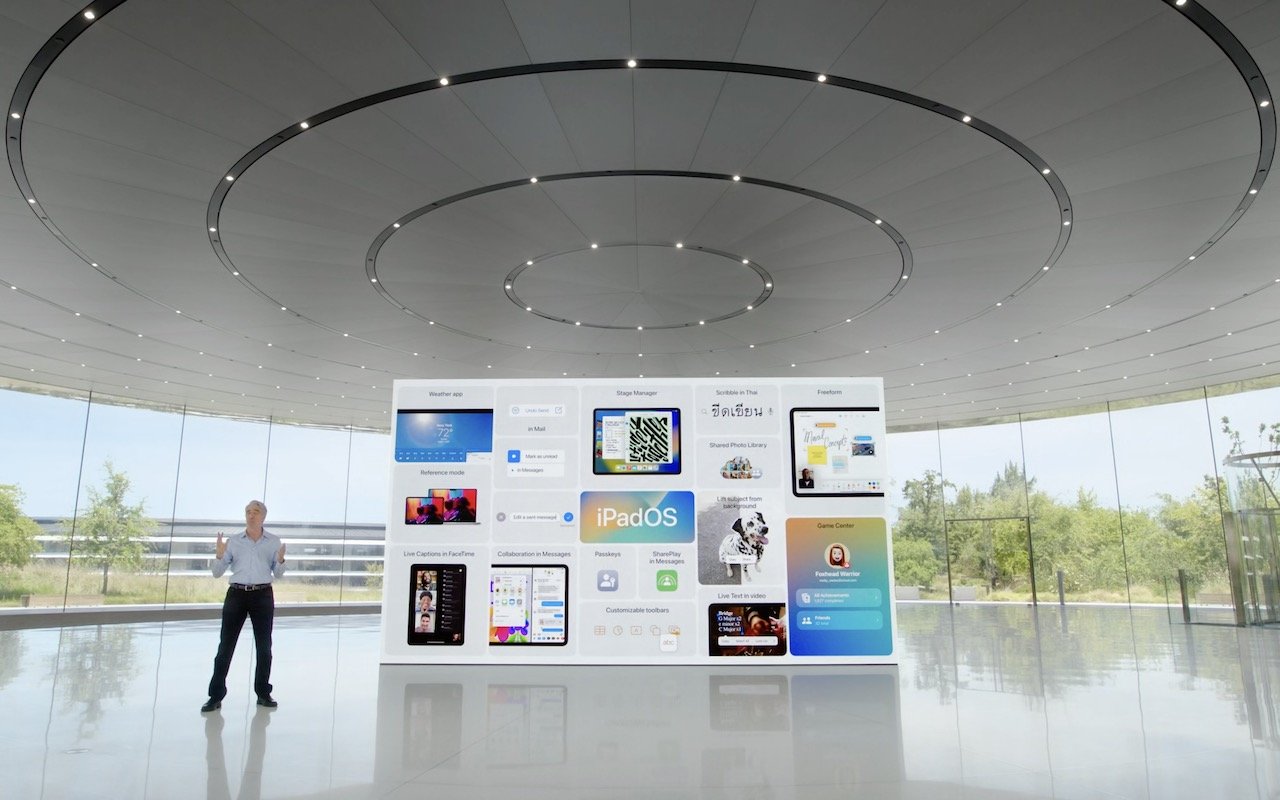
It’s that time of year again. Apple CEO Tim Cook and numerous Apple employees took the virtual stage again at the company’s Worldwide Developer Conference keynote on June 6th to share what we can expect to see later this year in macOS 13 Ventura, iOS 16, iPadOS 16, and watchOS 9. (Almost no mention was made of tvOS or the HomePod, but Apple will undoubtedly move them forward in small ways as well.)
The announcements came thick and fast, and like last year, many of the technologies cut across several of Apple’s operating systems. Before we dive in, however, remember that some older devices won’t be able to upgrade. Here are the basic system requirements, though certain features won’t be available on all devices:
macOS 13 Ventura: iMac, iMac Pro, MacBook, and MacBook Pro from 2017 and later. MacBook Air and Mac mini from 2018 and later. Mac Pro from 2019 and later. Mac Studio from 2022.
iOS 16: Second-generation iPhone SE, iPhone 8, and later
iPadOS 16: Fifth-generation iPad and later, fifth-generation iPad mini and later, third-generation iPad Air and later, and all iPad Pro models
watchOS 9: Apple Watch Series 4 and newer, including the Apple Watch SE
Here are the promised new features we think will have the most impact on your Apple experience. Assume that these features are available on the Mac, iPhone, and iPad unless otherwise specified.
Customizable iPhone Lock Screen
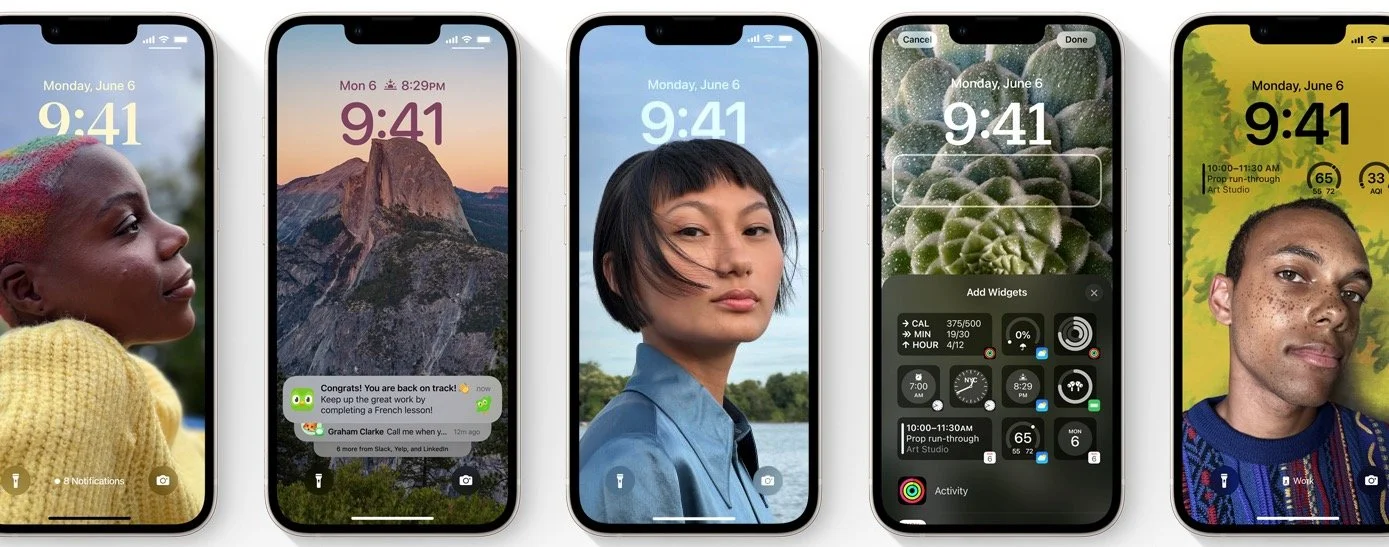
We’ve been able to put a photo on the iPhone’s Lock screen for years, but that’s it. With iOS 16, Apple is opening up lots of customization options along the lines of what you can do to Apple Watch faces. To start, you can customize the font, color, and placement of various options, just like a watch face. Photos dynamically display in front of the time, and you can have a set of photos shuffle throughout the day. Widgets from Apple and third-party developers provide at-a-glance information so you can check the weather, say, without even unlocking your iPhone. Notifications now scroll up from the bottom, and Live Activities help you stay up on the music that’s currently playing or the latest score in the big game.
Messages Gains Editing, Undo Send, and Mark as Unread
At long last, Messages will let us edit messages after sending, undo sending to call a message back, and mark messages as unread. The first two features are essential for clear communication, especially when you’re fixing auto-correct failures, and being able to mark messages as unread ensures that you won’t forget to respond to something that you read when you’re not in a position to reply.

Mail Adds Undo Send, Scheduled Send, Follow-up, and Remind Me
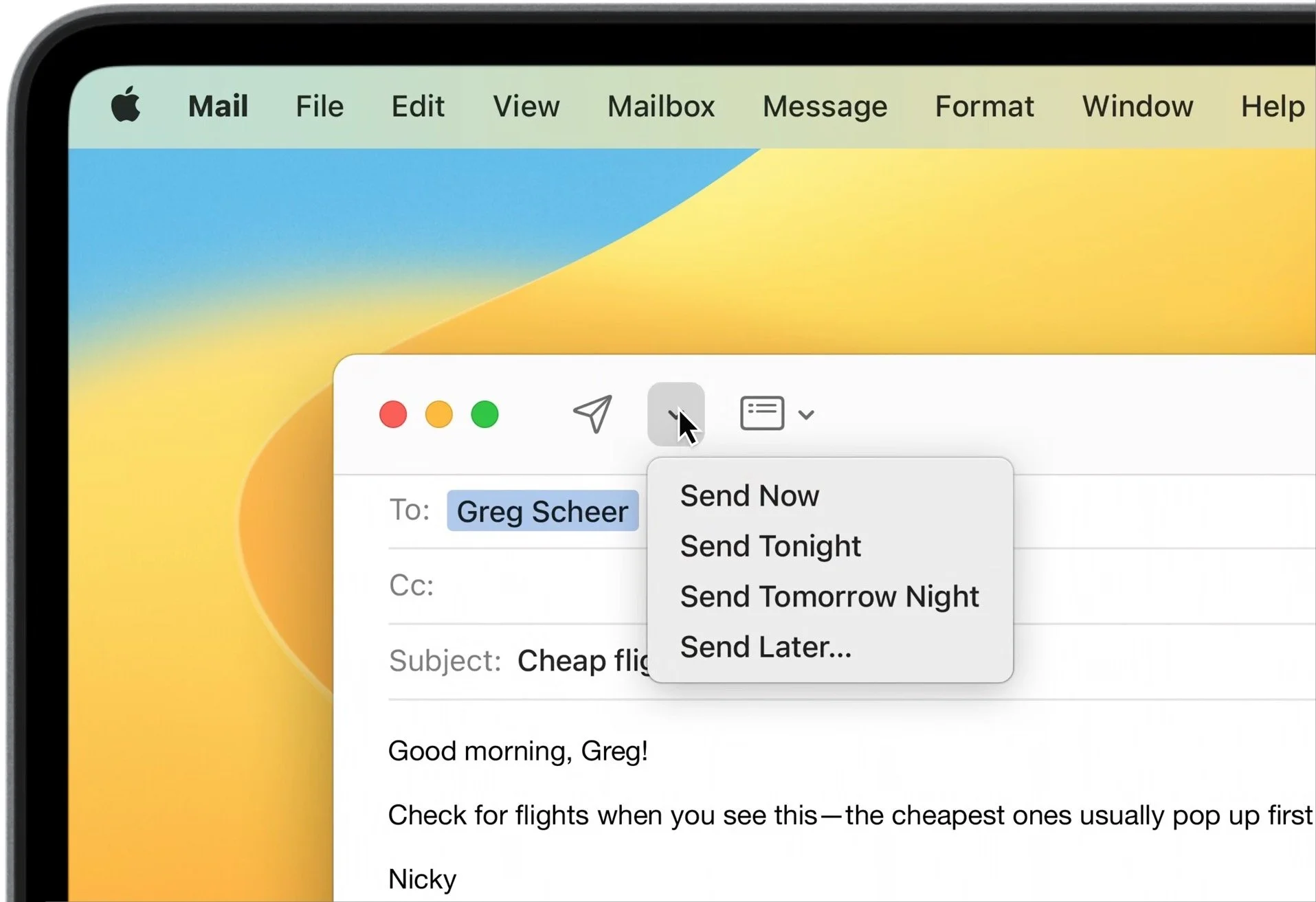
It’s surprising that Apple hasn’t spent more time on Mail in recent years, but that’s changing in 2022, when it will gain some welcome features that are commonplace in other email apps. You’ll be able to undo sending, which is helpful when you remember something to add to a message within 10 seconds after clicking the Send button. For more specific timing, scheduled send lets you specify when a message should go out. This is helpful when you are working on the weekend or late at night but don’t want your coworkers to feel that they need to reply right away. Mail will also move sent messages that haven’t received replies to the top of your inbox so you can follow up, and you can set a reminder to come back to messages that you’ve opened but not dealt with (many of us just mark those as unread).
Multi-Stop Routing in Maps
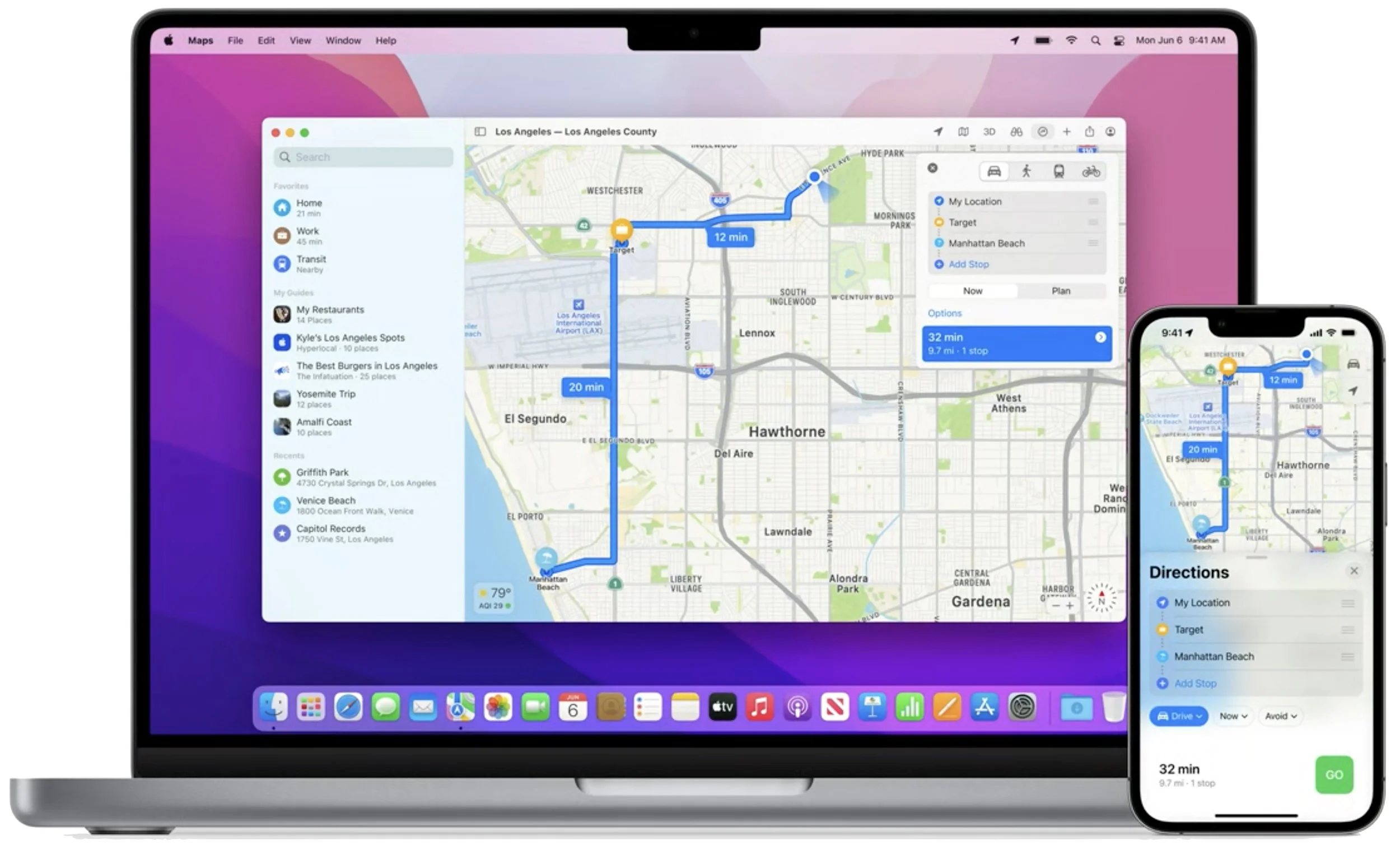
No longer are you limited to a single destination when creating a route in Maps. You’ll be able to specify up to 15 stops on a route, making it easy to build a trip that includes a swing by your favorite diner, a quick visit with an old friend, and a pilgrimage to the World’s Largest Bull in Iowa.
iCloud Shared Photo Library Improves Family Photo Sharing
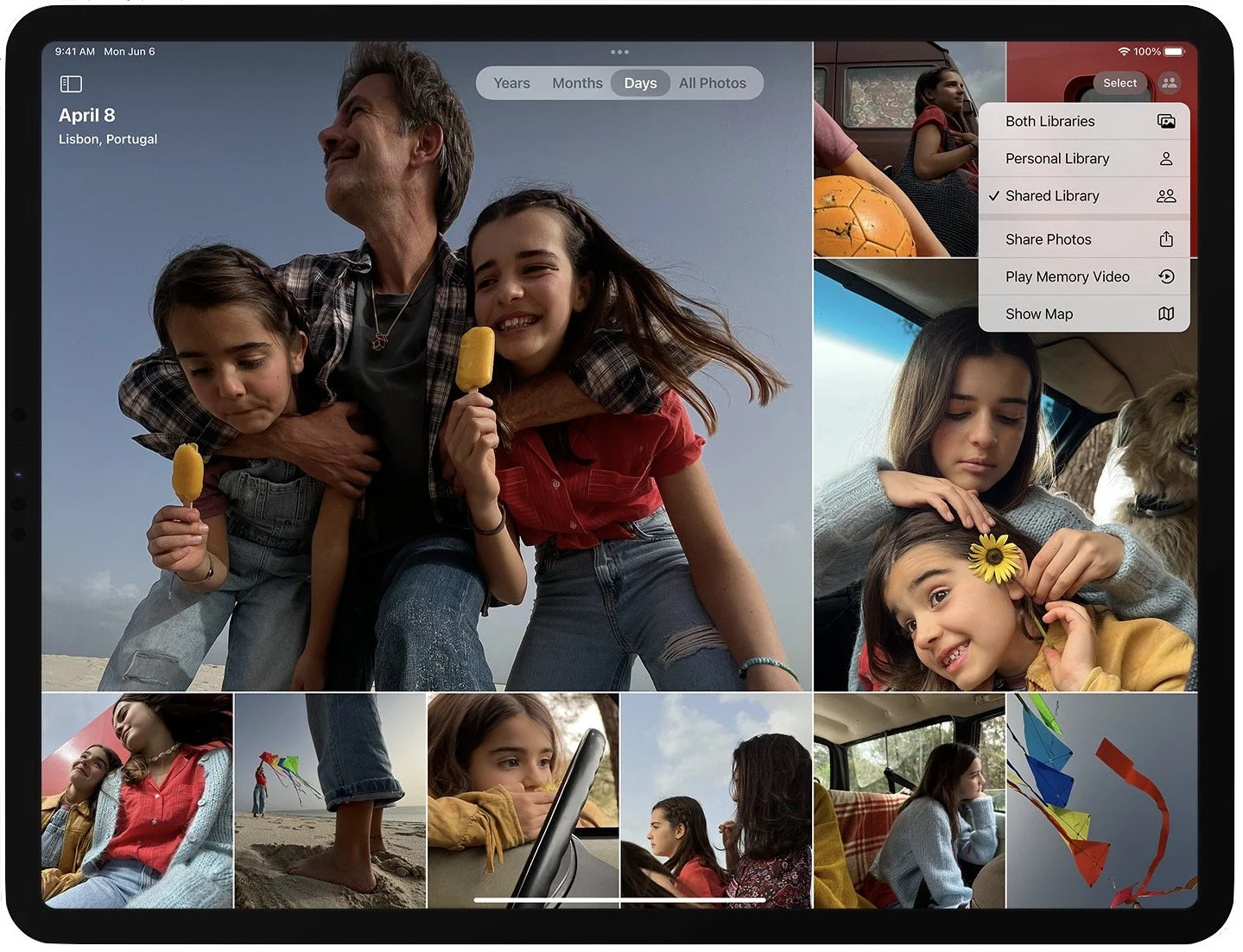
Apple’s latest attempt to help families share photos looks like the best yet—certainly better than the shared Family album that’s created for Family Sharing groups now. It will be a completely separate iCloud photo library shared with up to five other people. You’ll be able to populate it with all your existing photos or a subset based on start date or who’s in them. Everyone will have equal permission to add, edit, favorite, caption, and delete photos, so maintaining and improving it becomes a group activity. Sharing new photos will be easy with a switch in the Camera app, automatic sharing based on proximity to family members, and sharing suggestions in Photos.
Passkeys Aims to Replace Passwords… Eventually
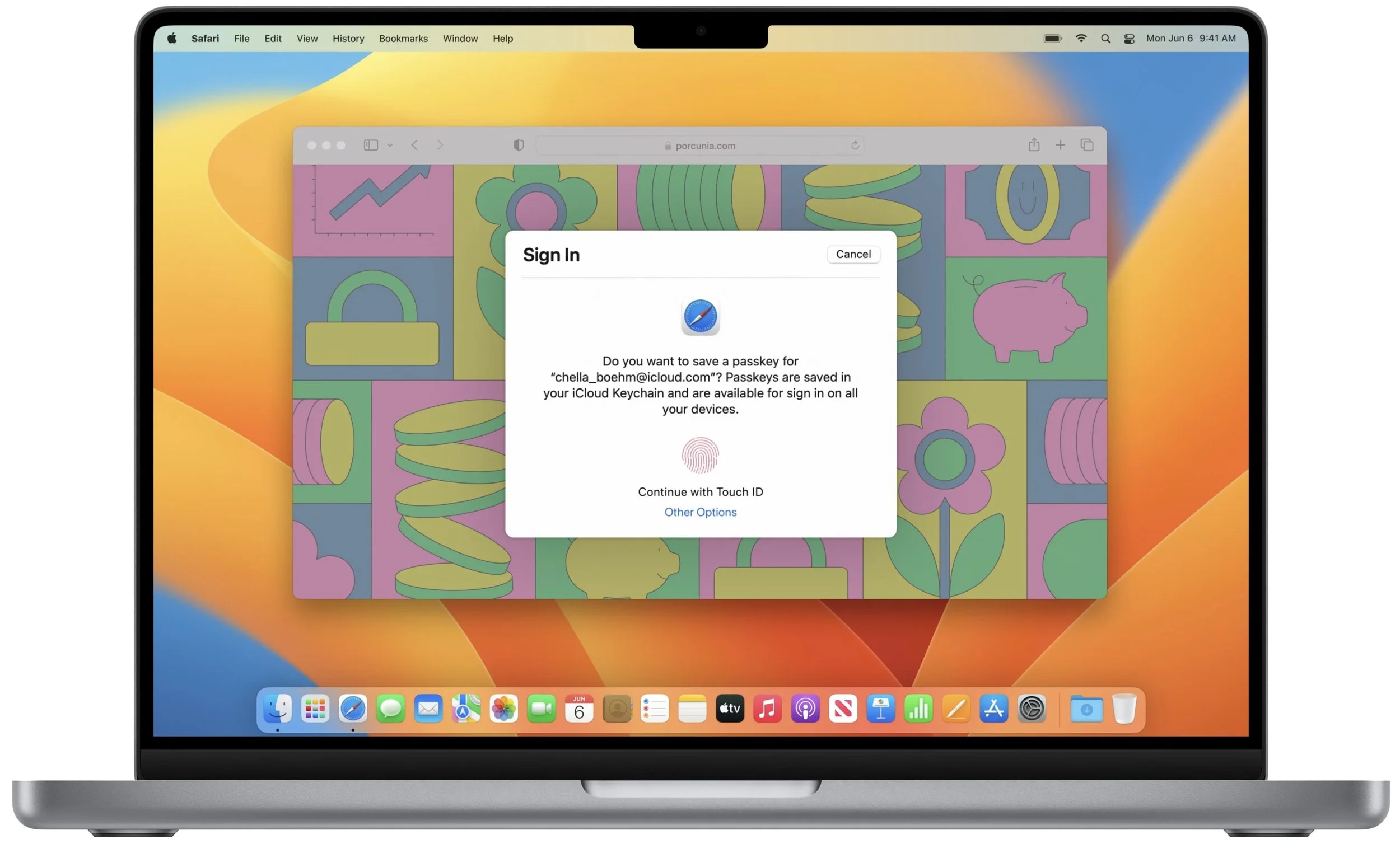
Apple’s new Passkeys technology, which is associated with the work of an industry consortium called the FIDO Alliance to ensure cross-platform support, aims to replace passwords for websites and apps with private passkeys that are stored only on your device and accessed by Touch ID or Face ID. Passkeys are easier to use than passwords and significantly safer because they can’t be stolen from websites and each one is specific to the site for which you create it. They’ll be available on all your Apple devices, syncing end-to-end encrypted through iCloud Keychain.
Use Your iPhone as a Webcam for Your Mac
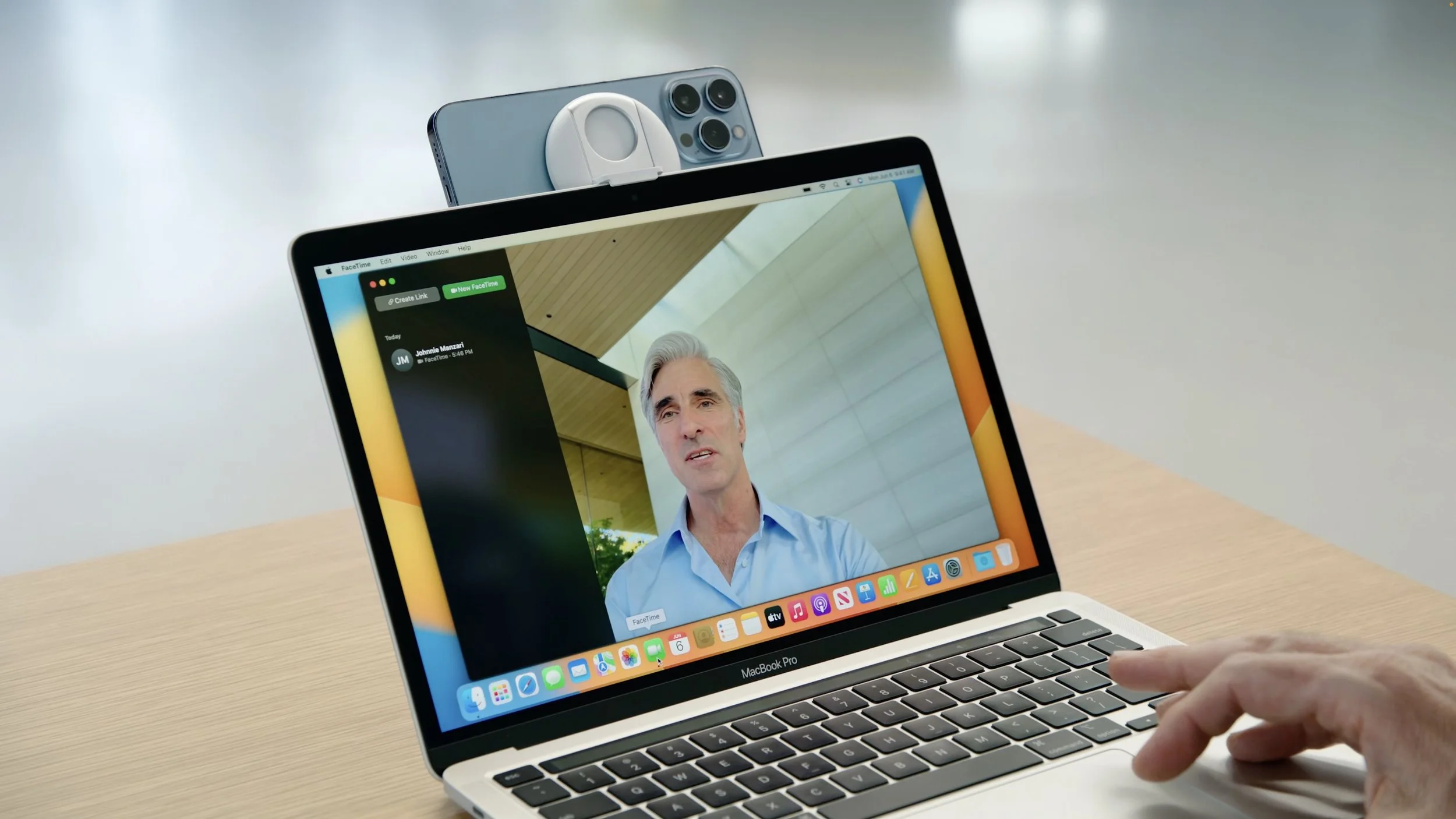
Mac webcams are nowhere near as good as the rear-facing cameras in your iPhone, so Apple is helping us improve our videoconferencing by using an iPhone as a webcam and microphone. The feature, called Continuity Camera, works wired or wirelessly and can automatically switch to using your iPhone as a webcam when you bring it close to your Mac. It provides Portrait mode to blur the background, Center Stage so you can move around, Studio Light to dim the background and illuminate your face, and even Desk View to show what’s on your desk in front of your Mac. Apple says Belkin will be making clips to attach your iPhone to your Mac.
Stage Manager Offers New Window Management Approach
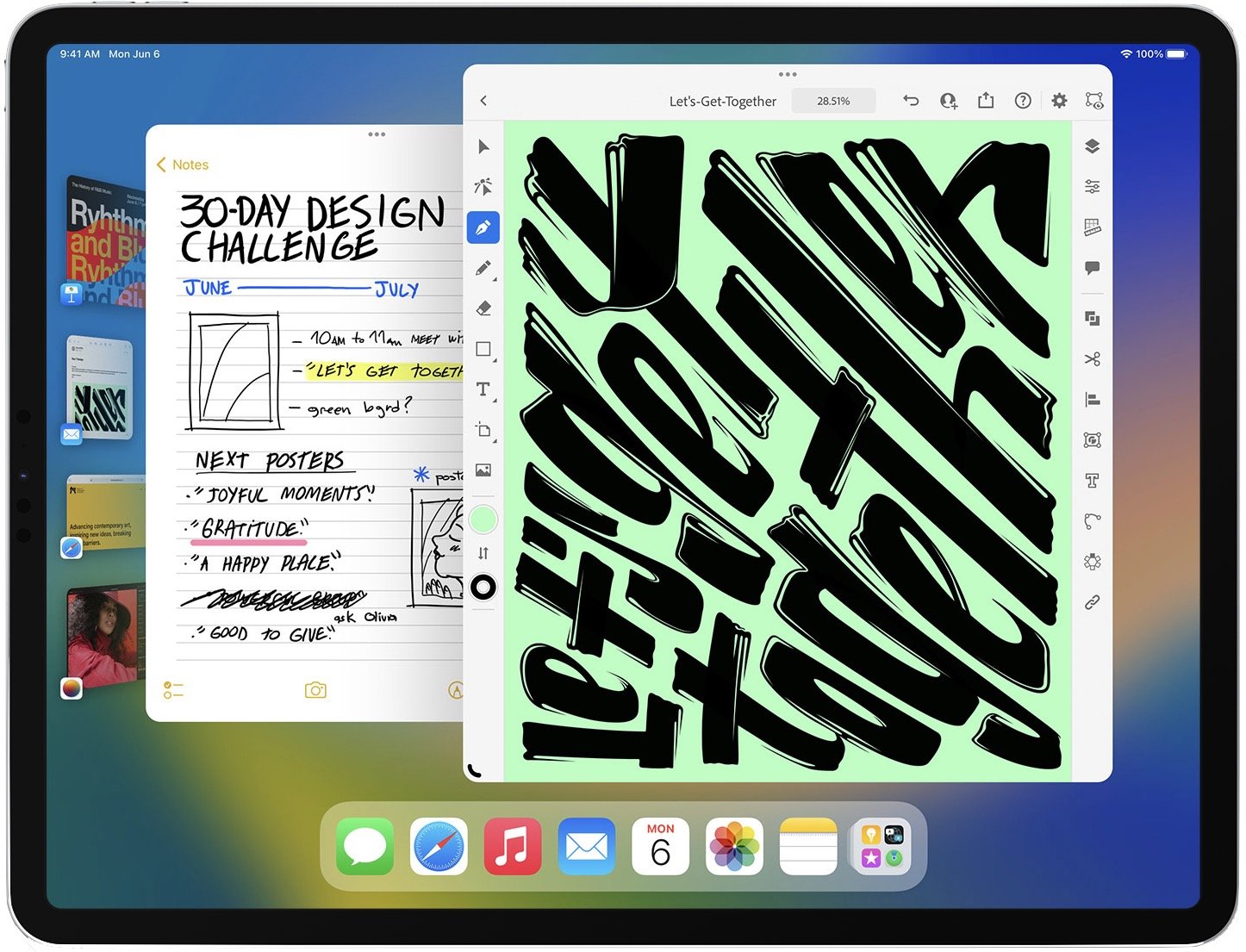
We’re not yet sure what to make of Stage Manager, which is Apple’s new approach to window management on the iPad and Mac. It puts one app in the center of the screen while keeping other apps off to the side, making it easy to flip between apps or show multiple apps at once. It doesn’t replace traditional window management—you have to turn it on in Control Center—so you won’t be forced to change, but it might be welcome, especially on the iPad, where it also enables the use of an external display.
Simultaneous Dictation, Touch Selection, and Keyboard Editing
On the iPhone and iPad, you’ve been able to tap a microphone button to invoke Dictation, a huge boon when you want to send a message without typing. In iOS 16 and iPadOS 16, Apple has radically improved Dictation, so you can now simultaneously talk, type, edit on the keyboard, select text via touch, and use the Apple Pencil (on an iPad). Dictation will also automatically add commas, periods, and question marks as you dictate, and you can insert emojis with voice commands. Sadly, it seems that the Mac gets only the punctuation and emoji capabilities.

Medications App on the Apple Watch
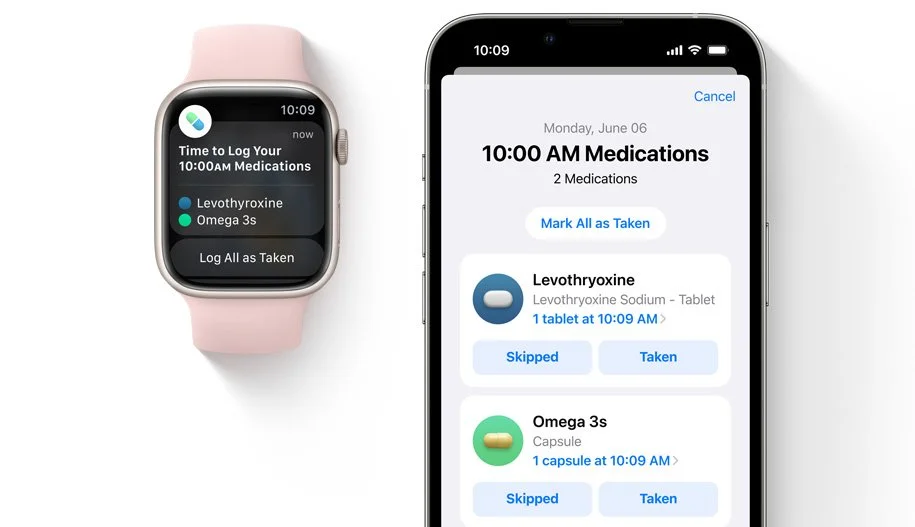
Many of us have to take medications, vitamins, and supplements regularly. To help us better manage our health, Apple is adding the Medications app to watchOS 9. You’ll be able to enter your meds in the Health app on the iPhone, be alerted to any critical interactions between drugs, and have your Apple Watch notify you to take the right pills at the right times.
Weather App Appears on the iPad and Mac
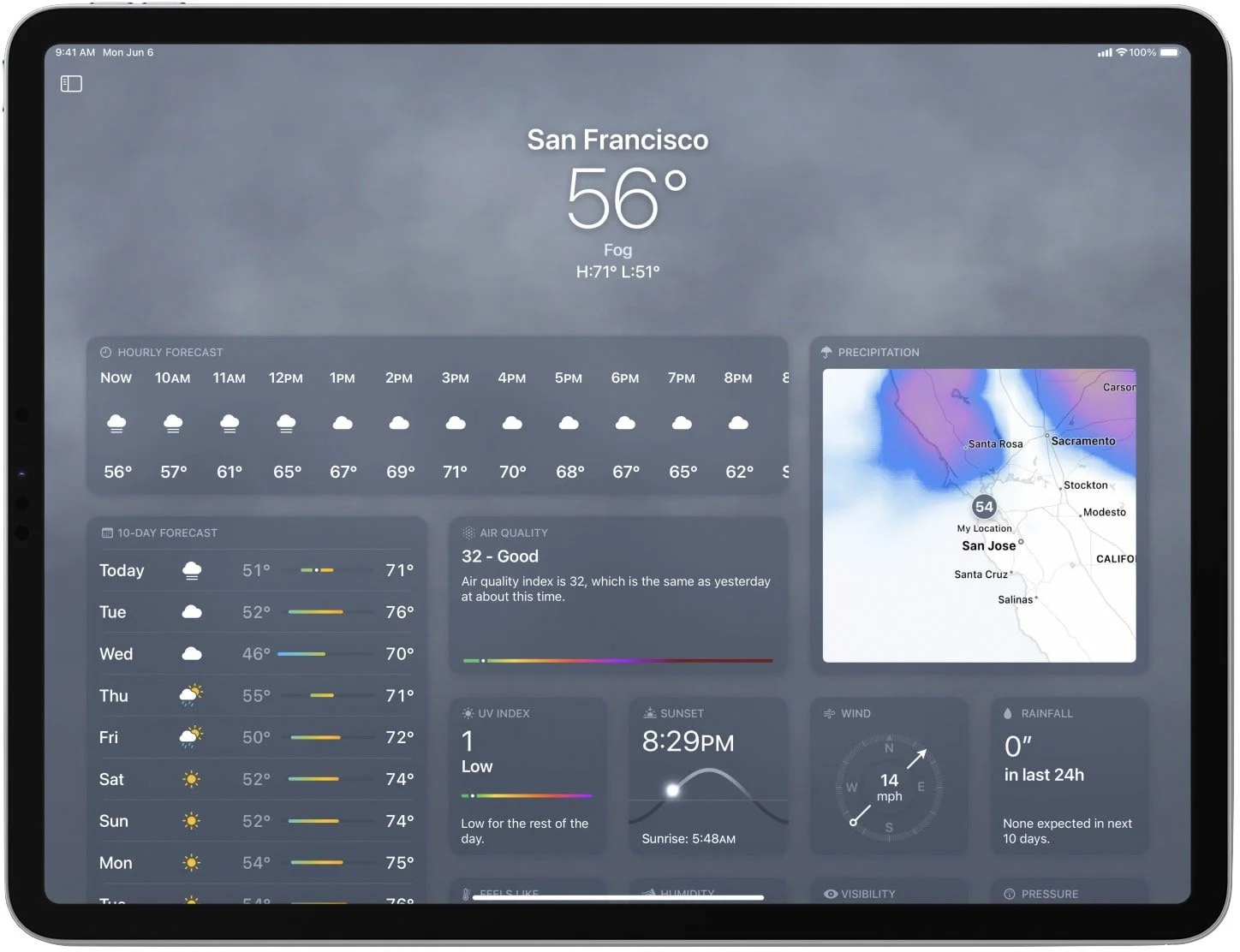
Finally, because our list goes to 11, Apple says it’s bringing the Weather app to the iPad and the Mac. Since Weather has been on the iPhone since the beginning, it’s hard to fathom what took Apple so long. If you haven’t already jumped ship for one of the 17,000 other weather apps out there, you’ll be able to enjoy using Apple’s built-in app in iPadOS 16 and macOS 13 Ventura.
Apple’s upcoming operating system releases boast many other new features, and we plan to explore more of them once everything ships in a few months. We’ll let you know when it’s time to update!
(Featured image by Apple)
Apple Previews M2-Based MacBook Air and Updated 13-Inch MacBook Pro
At its WWDC22 keynote, Apple unveiled a completely redesigned MacBook Air and an updated 13-inch MacBook Pro, both powered by the next-generation M2 chip. Read on for details:

During its Worldwide Developer Conference keynote on June 6th, Apple took a brief break from showing off new features in upcoming operating systems to throw back the curtains on its new M2 chip and a pair of laptops that use it: an all-new MacBook Air and an updated 13-inch MacBook Pro. Apple said that both laptops will be available in July.
Next Generation M2 Chip Boosts Performance, Offers More Memory
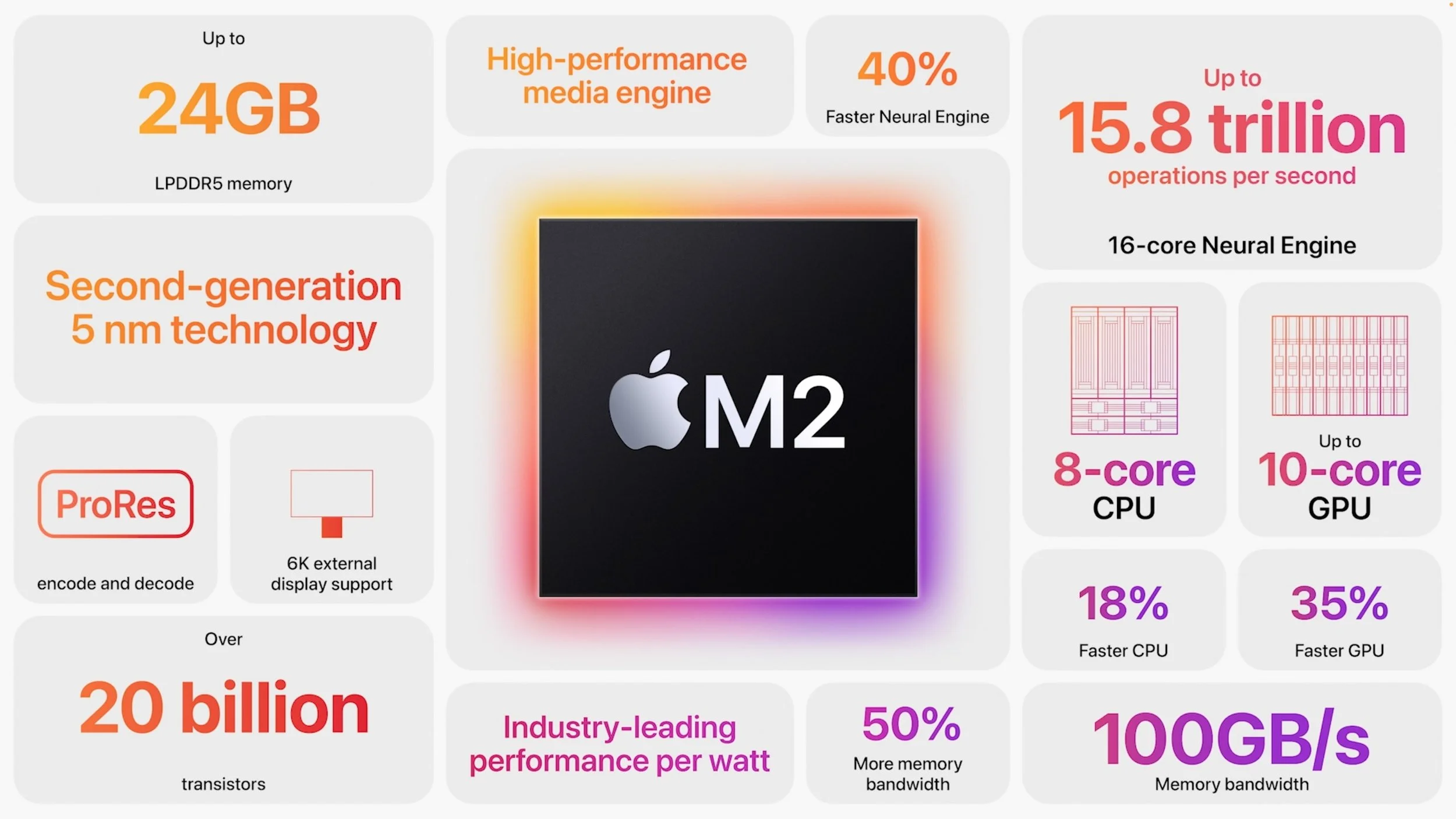
Although we’re still wrapping our heads around the insane performance offered by a Mac Studio with the M1 Ultra chip, Apple is already introducing the next generation of chips to power the Mac line, beginning with the M2. It includes an 8-core CPU and 10-core GPU, and builds on the capabilities of the M1, increasing CPU performance by 18%, GPU performance by 35%, and Neural Engine performance by 40%. It also offers up to 24 GB of unified memory (16 GB max in the M1) and expands memory bandwidth by 50%. Impressive numbers, but still well under the capabilities of the M1 Pro. We expect Apple to release an M2 Pro, M2 Max, and M2 Ultra within the next year or so.
New MacBook Air Brings Complete Redesign
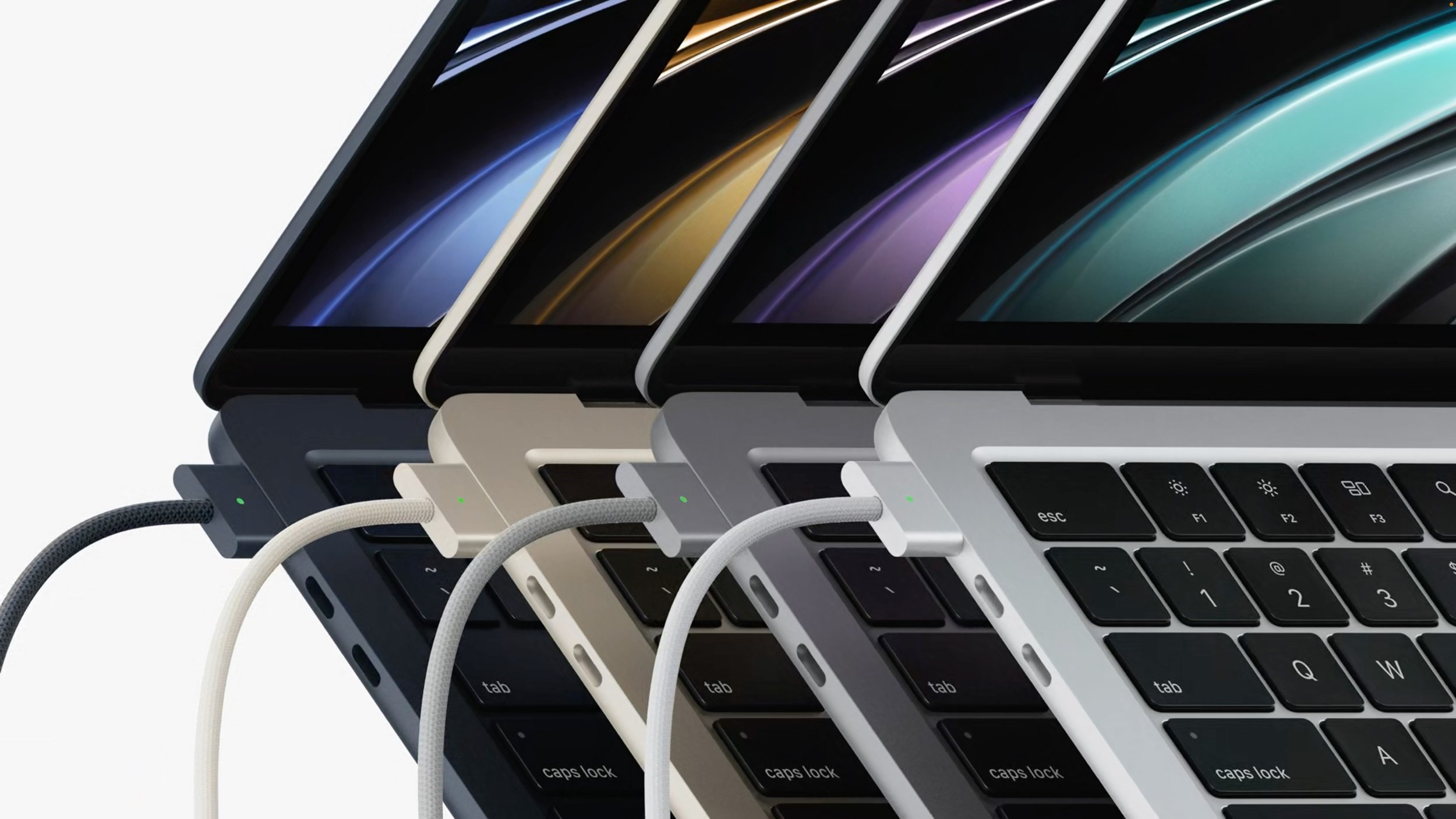
Apple claims the MacBook Air is the world’s best-selling laptop, which isn’t surprising, given the model’s svelte size, zippy performance, and reasonable price point. For this revision, Apple changed the previous wedge-shaped design to a squared-off look that echoes recent Apple products like the 24-inch iMac and iPhone 13. It’s otherwise similar in size to the previous model, though just a touch thinner and lighter. It’s the same width and a bit deeper, likely because it boasts a 13.6-inch screen and a full-height function key row with Touch ID. Happily, it now charges using Apple’s MagSafe 3 technology. You can get the new MacBook Air in four finishes: silver, space gray, starlight, and midnight.
The new MacBook Air’s screen isn’t just bigger, it’s also better. It has a slightly higher resolution of 2560x1664, it’s brighter, and it supports up to 1 billion colors. In other words, it’s gorgeous, and you can supplement it with an external display up to 6K in resolution. Embedded at the top of the screen is a better webcam with a 1080p resolution instead of the previous 720p resolution. Apple also enhanced its audio capabilities with a four-speaker sound system and a three-mic array with directional beamforming.
The price of the M2-based MacBook Air starts at $1199, but additional processing power, memory, and storage are available:
Chip: Choose from either an M2 with an 8-core CPU and 8-core GPU or one with an 8-core CPU and 10-core GPU ($100).
Memory: 8 GB of unified memory is standard, but you can opt for 16 GB ($200) or 24 GB ($400).
Storage: The base level of SSD storage is 256 GB, with upgrades to 512 GB ($200), 1 TB ($400), or 2 TB ($800).
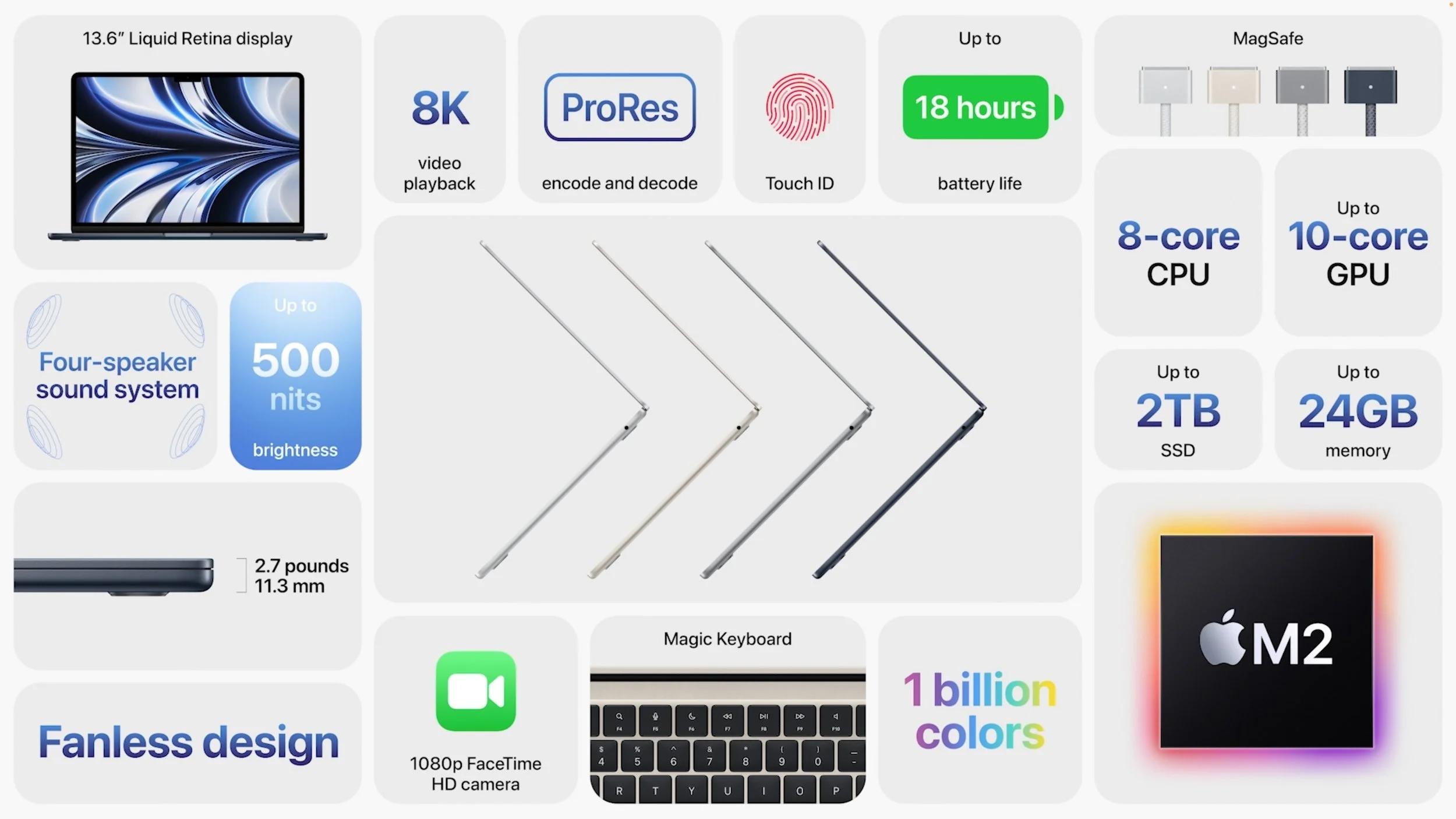
Like the previous M1-based MacBook Air, the new model sports two Thunderbolt/USB 4 ports on the left side (next to the MagSafe port) and a 3.5 mm headphone jack on the right side. It also supports Wi-Fi 6 wireless networking and Bluetooth 5.0.
It comes with a 30-watt USB-C power adapter, or you can pay $20 more for either a 35-watt power adapter with two USB-C ports or a 67-watt USB-C power adapter that supports the M2-based MacBook Air’s fast charging capabilities. If you opt for the higher-end M2 chip and at least 512 GB of storage, you get one of the more-capable power adapters for free.
Although the new MacBook Air is a little more expensive than a comparably configured M1-based MacBook Air, it sports better performance, more memory, a bigger and better screen, a better webcam, a larger function key row, better speakers, and MagSafe 3. Nevertheless, if you’re working on a tight budget, the least expensive M1-based MacBook Air remains available for $999, and it’s still a fine machine.
In the end, it’s hard to go wrong with the new M2-based MacBook Air when upgrading from an Intel-based Mac laptop or supplementing your desktop Mac with a laptop. It’s small, light, powerful, and cost-effective, if not a significant enough jump to warrant upgrading from an M1-based MacBook Air.
Updated 13-inch MacBook Pro Gains M2 Chip
While the new MacBook Air is a complete redesign, the updated 13-inch MacBook Pro is unchanged from its M1-based predecessor, apart from the move to the M2 chip. Since that’s the same chip that’s in the MacBook Air and the price is identical for comparable configurations, the question becomes why you’d buy the 13-inch MacBook Pro instead of the new MacBook Air.
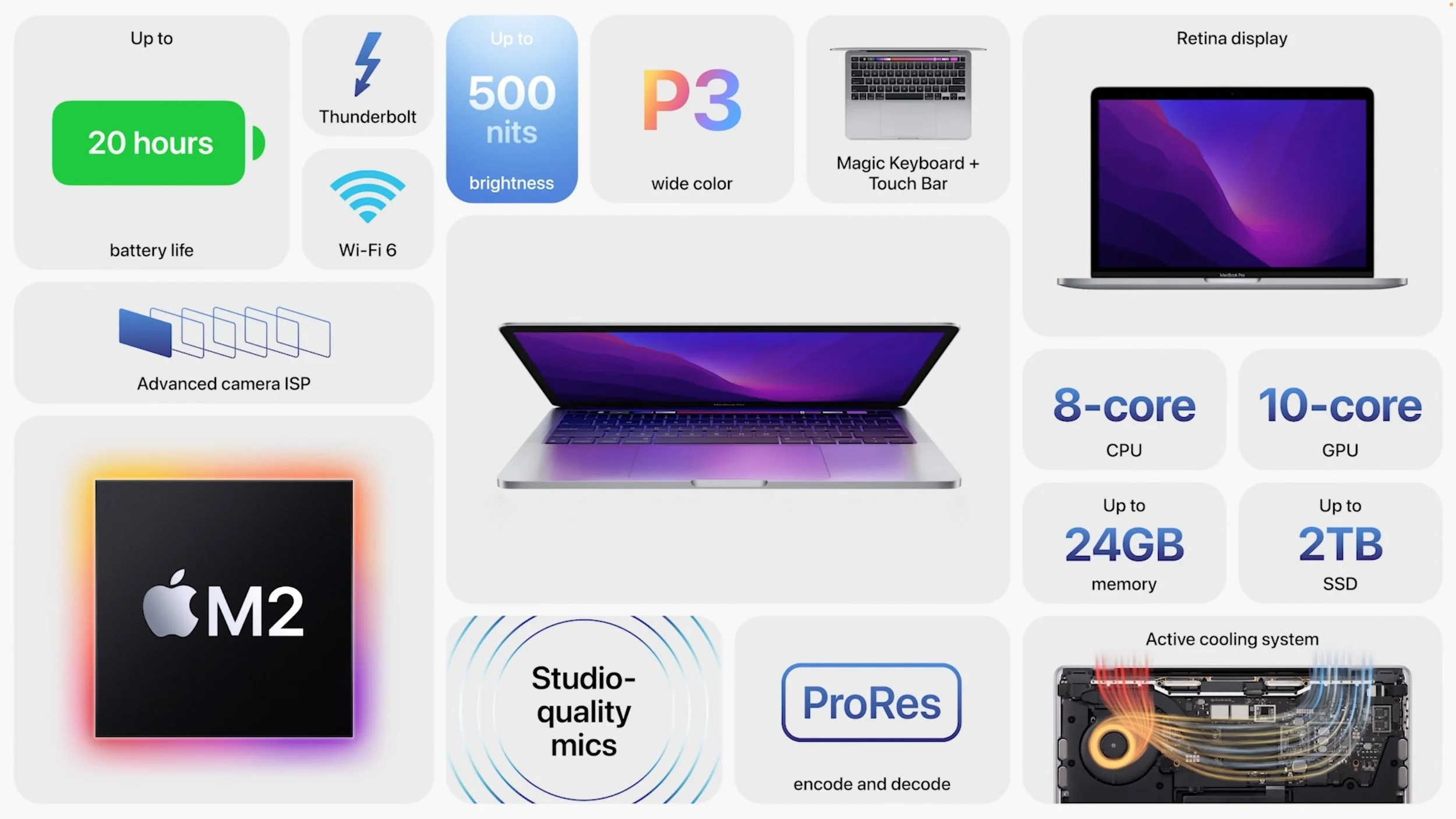
On the plus side, the 13-inch MacBook Pro has cooling fans that enable it to maintain peak performance for sustained loads—the fanless MacBook Air will throttle itself to avoid overheating if you push it for too long. The MacBook Pro’s battery life is likely a little longer, given that it has a large battery. Finally, it has a Touch Bar instead of a function key row, which some may like.
However, the new MacBook Air’s slightly larger screen supports more colors (1 billion versus millions), and the MacBook Air has a better webcam and potentially better speakers. It’s also a little thinner and lighter.
In balance, we recommend the MacBook Air unless you love the MacBook Pro’s Touch Bar, which seems to be on the way out. The 13-inch MacBook Pro starts at $1299 for an 8-core CPU, 10-core GPU M2-based model with 8 GB of unified memory and 256 GB of SSD storage. The build-to-order options are the same as for the MacBook Air.
(Featured image by Apple)
Copy and Paste between Your Apple Devices with Universal Clipboard
Did you know that you can copy and paste content between your Mac, iPhone, and iPad using Universal Clipboard? It should just work, but if not, read on to learn which underlying settings you should adjust.

Everyone is accustomed to using the Copy and Paste commands on the Mac, but fewer people know that you can also copy and paste between your Mac and your iPhone and iPad. Apple calls this feature Universal Clipboard, and it’s so deeply integrated into macOS, iOS, and iPadOS that it can be easy to miss. You won’t find a switch for Universal Clipboard or any other mention of it in System Preferences or Settings.
To use Universal Clipboard, all you have to do is copy some content—a bit of text, an image, a video—on one device, switch to another device, and paste it into an app that can accept the copied content. It’s a great way to move data between your devices. (When going from Mac to Mac, you can also copy and paste en-tire files in the Finder.)
Or at least there’s no fuss if you have the right settings enabled on all your devices—miss even one of these and Universal Clipboard won’t work. Here are the necessary supporting conditions:
Apple ID: Each device must be signed in to iCloud using the same Apple ID. Ensure this is the case in System Preferences > Apple ID on the Mac and in Settings > Your Name on the iPhone and iPad.
Bluetooth: Each device must have Bluetooth turned on. On the Mac, look in System Preferences > Bluetooth (or Control Center, or the Blue-tooth menu); on an iPhone or iPad, check Settings > Bluetooth (or Con-trol Center).
Wi-Fi: Each device must have Wi-Fi turned on and connected to the same Wi-Fi network. It’s unlikely this wouldn’t be the case, but you can verify it in System Preferences > Wi-Fi (or Control Center, or the Wi-Fi menu); on an iPhone or iPad, check Settings > Wi-Fi (or Control Center).
Handoff: Each device must have Handoff enabled. Check that on the Mac in System Preferences > General and on an iPhone or iPad in Settings > General > AirPlay & Handoff. There’s almost no reason to disable Handoff, so it should be on.
Recent devices: Your devices must be relatively recent—from the last 7–10 years—and running at least macOS 10.12 Sierra or iOS 10. In other words, don’t expect Universal Clipboard to work on some ancient Mac-Book or iPad.
If those settings are all correct, but Universal Clipboard still isn’t working, restart your devices and verify that they all have Wi-Fi and Internet connectivity when they come back up.
Most of the time, however, Universal Clipboard just works. It normally transfers the data between devices almost instantly, although if you copy a particularly large image or video on one device and switch to another, you may see a progress dialog while it finishes moving the data. In the screenshot below, Universal Clipboard didn’t even have time to calculate the time remaining before it finished pasting a photo.

Remember that Universal Clipboard simply populates each device’s clipboard just as though you had copied from that device. As soon as you copy something else on any device, it immediately replaces whatever came in from Universal Clipboard. Plus, if you copy something but don’t paste it on another device right away, the clipboard on that device may revert to its previous contents after about 2 minutes.
(Featured image by iStock.com/voyata and Sielan)
The Best Characters to Use When Naming Files and Folders
You might think that you can name a file or folder any way you want, but macOS and Windows have restrictions on which characters you can use, and the prevalence of cloud sharing services makes it all the more important to avoid prohibited characters.
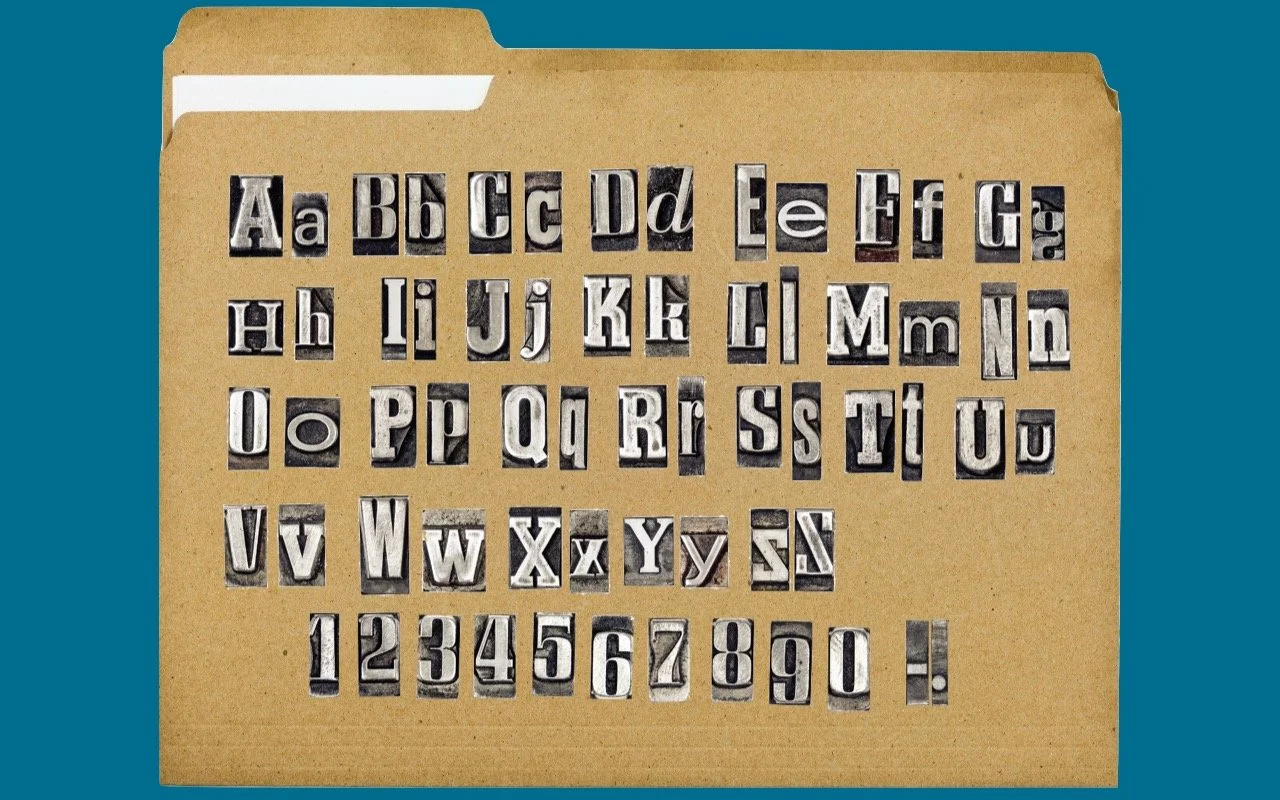
Back in the early 1980s, DOS filenames couldn’t be more than 8 characters long with a period and a 3-character extension. That was limiting, so when Apple developed the Mac operating system in 1984, it allowed longer names and eliminated the need for an extension, although Mac OS X’s Unix roots meant a return of the filename exten-sion in 2001. Since then, filename restrictions have loosened to the point where it’s easy to think that they no longer exist.
If only that were true! In some ways, the situation has become even cloudier, thanks to additional limitations from file-sharing services like Dropbox, OneDrive, and Box. (Google Drive’s native Web interface reportedly has no naming limitations, but files whose names contain Windows or macOS forbidden characters may not sync via Google Drive’s desktop software.) Plus, people tend to move files between operating systems more than ever before—if you’re sending a file from your Mac to a Windows user through Dropbox, you need to make sure that all three can deal with the filename.
At least length isn’t something that you generally have to think about these days, since both macOS and Windows—and the cloud services—accept filenames up to 255 characters in length. Technically speaking, Windows limits directory paths (the enclosing folder names along with the filename) to 255 characters, but even still, that shouldn’t be difficult to avoid.

What could go wrong if you run afoul of a naming restriction? macOS and Windows may simply not let you type the character—for example, you can’t put a colon in a Mac filename. Putting a period at the start of a Mac or Unix filename will hide the file. Cloud sharing services might rename the file, or you might encounter syncing issues where files don’t appear where they should. Certain characters can also cause trouble when files are used at the command line.
Here are the characters to avoid and the operating systems and services that prohibit them:
: (colon): macOS, Windows, Dropbox, OneDrive, Box
. (period): macOS (at the start of a name), Dropbox
/ (forward slash): macOS, Windows, Dropbox, OneDrive, Box
\ (backslash): Windows, Dropbox, OneDrive, Box
< (less than): Windows, Dropbox, OneDrive, Box
> (greater than): Windows, Dropbox, OneDrive, Box
" (double quote): Windows, Dropbox, OneDrive, Box
| (vertical bar or pipe): Windows, Dropbox, OneDrive, Box
? (question mark): Windows, Dropbox, OneDrive, Box
* (asterisk): Windows, Dropbox, OneDrive, Box
^ (caret): Windows (using FAT-formatted drives)
In addition, avoid using special characters like the © (copyright) symbol or emoji 🤷 in filenames. They might work locally, but all bets are off if you share the files in any way.
A few other recommendations:
Avoid unusual punctuation; in particular, note that OneDrive renames filenames containing:
, (comma) to ^J
# (number sign) to ^N
& (ampersand) to ^O
~ (tilde) to ^F
Never start or end file or folder names with a space, and avoid spaces in file-names that will be uploaded to a Web or SFTP server.
Avoid putting more than one period in a filename, and don’t put a period after a filename extension.
Never assume that names are case sensitive—always make sure that similarly named items differ by more than just case.
If all that seems like a lot to keep in mind, here’s the simple rule that will ensure your filenames will work everywhere:
Name files only with uppercase (A-Z) and lowercase (a-z) letters, digits (0-9), and the hyphen (-) and underscore (_), plus a single period (.) and extension.
(Featured image by iStock.com/cosmin4000 and smartstock)