
A Practical Guide to Identifying Phishing Emails
Follow along as we examine three real-world phishing emails and explain how you can tell that they’re fake.
Phishing is becoming an ever more common way for people to get in trouble when using the Internet. A phishing attack is some communication, usually an email, that tries to lure you into revealing login credentials, financial information, or other confidential details.
A State of Phishing report from security firm SlashNext claims that there were more than 255 million phishing attacks in 2022, a 61% increase from the year before. Luckily, according to the Verizon Data Breach Investigations Report for 2022, only 2.9% of employees click through from phishing emails, but with hundreds of millions of email addresses targeted, the raw numbers are still high. We’ve been noticing—and hearing from clients—that phishing emails are also slipping through spam filters more than in the past.
To help you avoid falling prey to phishing tricks, check out our example screenshots below from real phishing emails, complete with annotations calling out the parts of a message that give it away. All phishing emails are trying to lure you into clicking a link or button to a website that will encourage you to enter your password or other confidential information. Once you realize that a message is a phishing attack, you won’t get suckered into clicking a link or revealing your personal information.
Fake Password Expiration Scam
Our first example is a password expiration scam—it’s trying to get you to click a button to keep your password from expiring. What’s ironic about this scam is that passwords should never expire—forcing users to change them regularly is terrible security practice. If a password is strong and unique, there is no reason to change it unless the site suffers a breach. Let’s look at what identifies this message as a phishing attack.
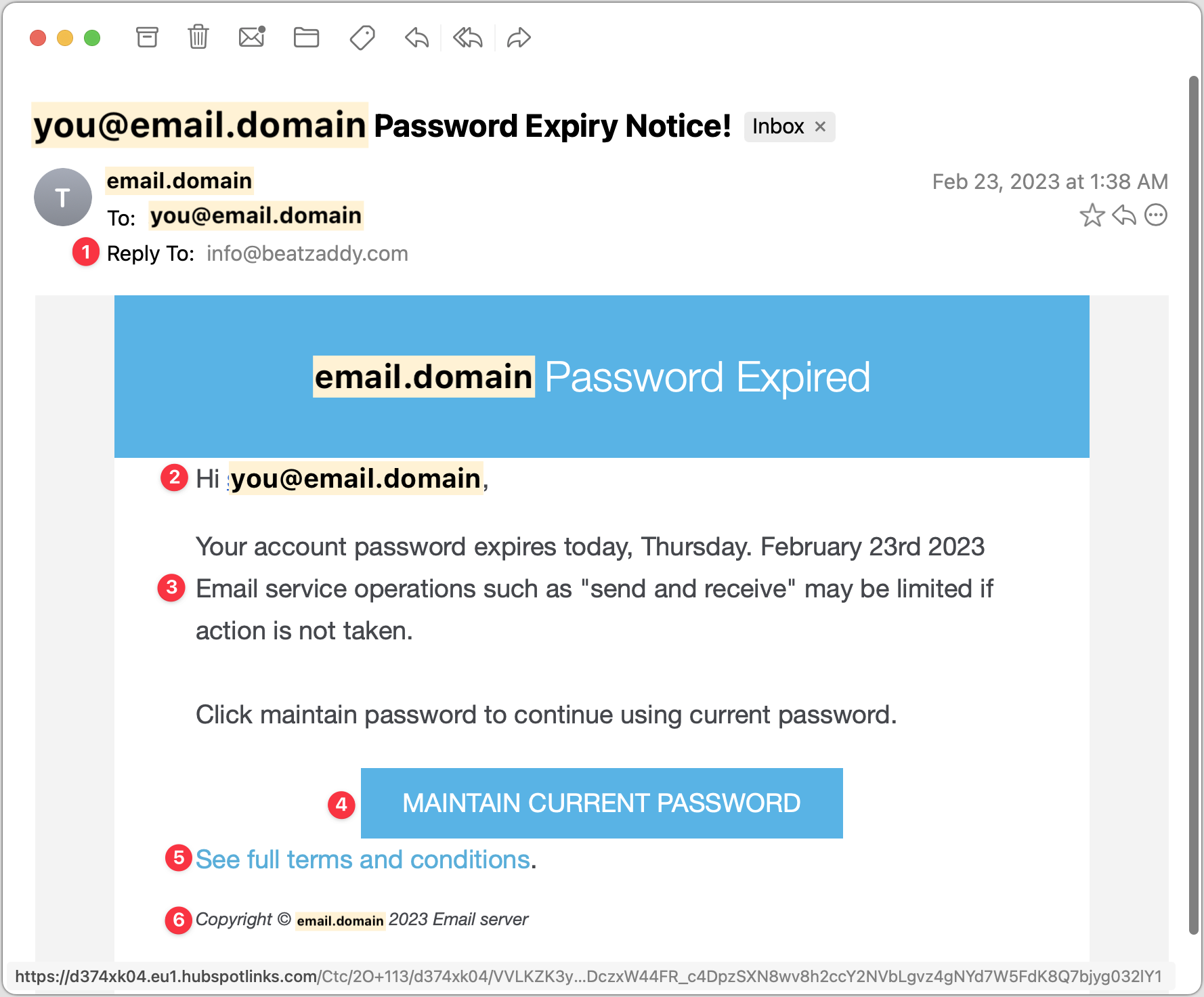
Note that the Reply-To address is generic and doesn’t match either the email domain used throughout the message or even a major email service provider, which would never send such a message.
Using your email address instead of your name is something scammers do to make the message seem personalized. If this email really came from your IT support staff, they’d be more likely to use your name or leave the email address out. And they’d never send such a message either.
The body of the message uses likely words, but they don’t quite sound like a native English speaker wrote them. The phrasing is slightly off, and quoting words like “send and receive” while not quoting the button name feels strange.
Be careful of things that look like buttons—we’re trained to click them without thinking. In many email apps, you can hover the pointer over a button or link to see where it will go. If you look at the URL at the bottom of the window, you can see that it’s completely different from any other domain listed—a clear sign that this is a phishing message.
“See full terms and conditions” is a strange thing to say in a password-expiration message. What terms and conditions could possibly apply? This is an example of someone who’s not a native English speaker throwing in random phrases they’ve seen elsewhere.
The copyright line is a similar tell. No organization would go to the effort of claiming copyright on a simple support message, and even if it did, it would use its name, not “Email server.”
Spurious Account Access Scam
Our second example pretends to be alerting you to a sign-in to your email account, with the goal of trying to scare you into resetting your password. Frankly, this phishing email stands a good chance of fooling people. You have no way of knowing if your account has been compromised, and if it were compromised, resetting your password is the right thing to do. However, never click through from an email to change a password! You can’t tell if you’re on the right site. Instead, navigate to the site manually, log in, and then change the password. Persuasive though this message is, it does make some mistakes.
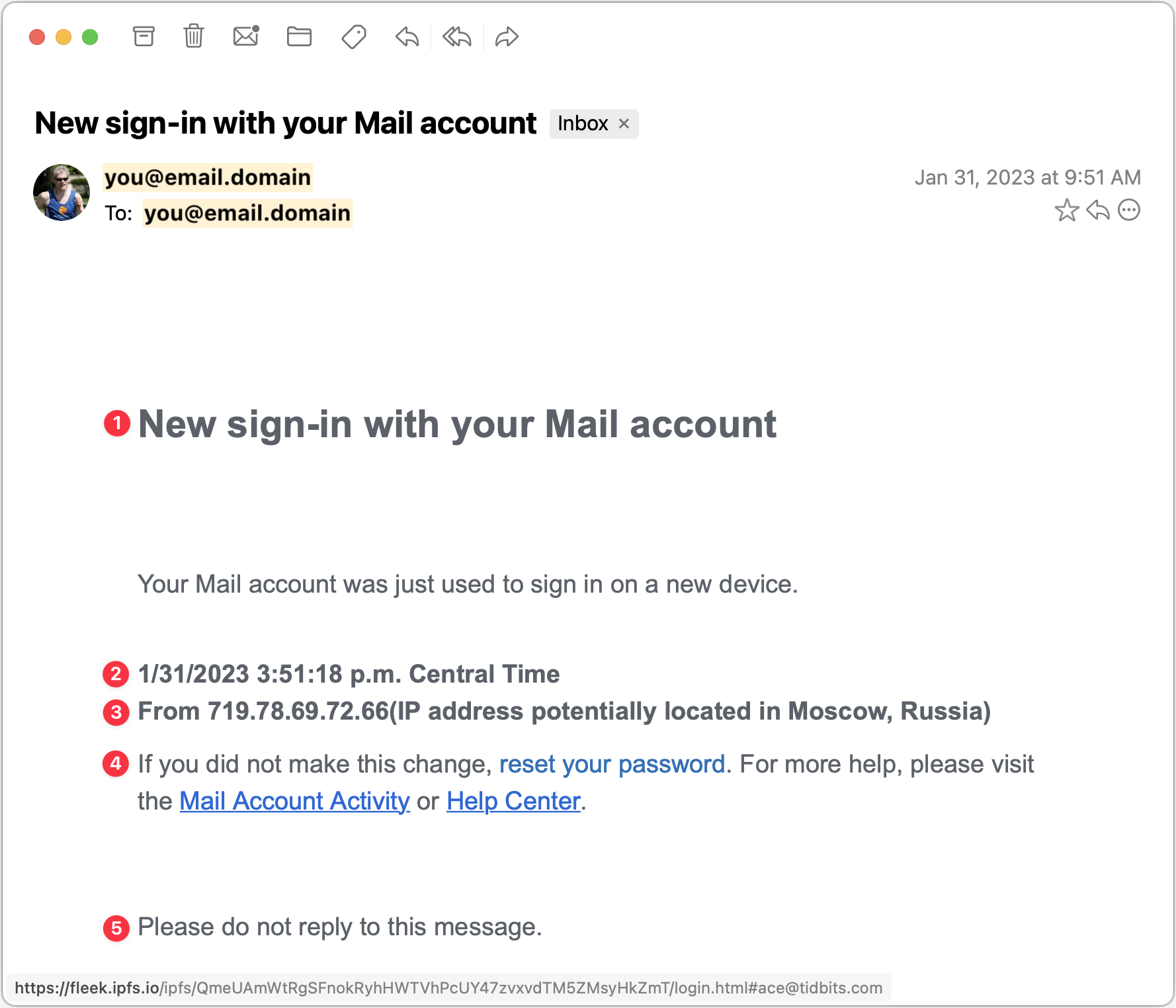
The capitalization of “Mail” in the Subject and this line should give you pause. Most people wouldn’t capitalize the word, or they’d refer to something more specific, like your “Gmail” or “Outlook” account.
Another slight strike against this message is the specificity in the timestamp. There’s no reason to include the seconds or the time zone, and most normal people wouldn’t.
There are three mistakes in this line that could tip off a savvy Internet user. It claims to provide the IP address from which the sign-in occurred, but real IP addresses are four sets of numbers from 0 to 255. This one has five sets of numbers, the first of which is way too high at 719. The missing space before the parenthetical makes it look wrong, and finally, the parenthetical claim that the IP address is located in Moscow is overdoing it by invoking scary Russian hackers.
Note that the “reset your password” link doesn’t have an underline, unlike the other two links. Again, that could happen in a legitimate message, but it’s an-other slight tell. Hovering over the link reveals the fleek.ipfs.io URL at the bottom—clearly nothing associated with your email account and a dead giveaway.
A line saying “Please do not reply to this message” is commonplace in transactional messages, so it makes the message seem more real, but a real warning from an IT department would want to make sure you could contact the support staff.
Fraudulent DocuSign Confirmation
Our final example pretends to be confirmation of a document that you’ve already signed in DocuSign. That’s more clever than trying to get you to sign a document (which we’ve seen in other phishing messages) because most people won’t sign something without looking at it carefully. But you might want to see what document this message is talking about and be suckered into clicking through. What’s trickiest about this message is that it has merely changed some of the text in a real DocuSign message, so someone familiar with DocuSign might think it was real. But there are always giveaways.
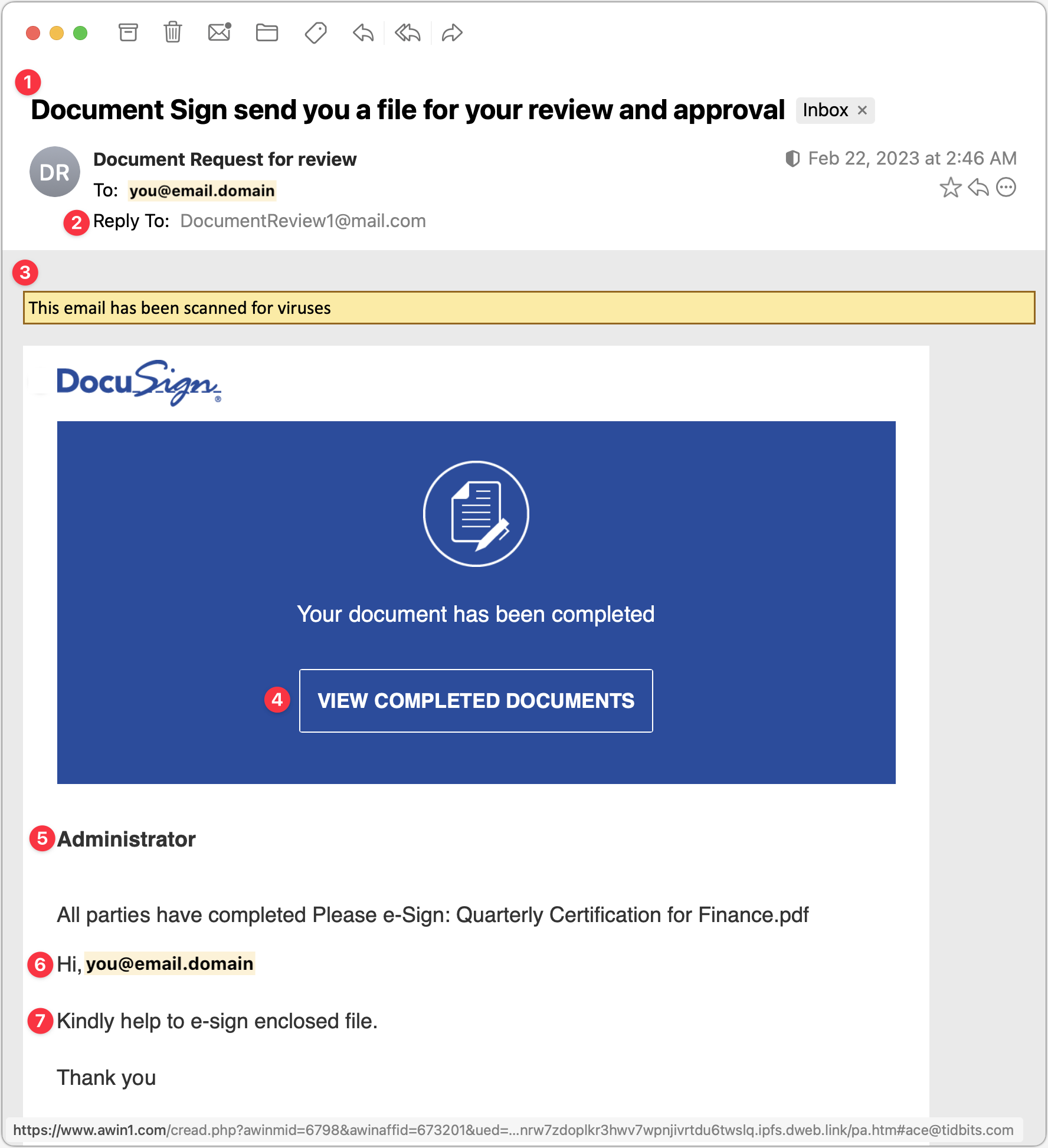
The Subject line of this message is a tell because its grammar is atrocious.
The Reply-To address should also ring warning bells because it’s so generic that it couldn’t possibly go with an organization with which you were signing documents.
The yellow line claiming that the email has been scanned for viruses will likely seem unusual to you—even if an email app presented such a message, it likely wouldn’t do so in the body of the message.
There’s nothing wrong with the View Completed Documents button, which looks exactly as it would in a real DocuSign message. However, hovering over it reveals the URL at the bottom, which has nothing to do with docusign.net.
Someone familiar with DocuSign messages might notice that there’s no email address under “Administrator,” as there should be. But that’s a long shot, we know.
As with an earlier example, personalizing with an email address is a definite tell. A real person would have entered your name there, if anything.
Once again, the phrasing isn’t what a native English speaker would say, but even more problematic is how it asks you to sign the enclosed file, whereas the text and button in the blue box say that the document is completed. The mismatch is a complete giveaway.
We didn’t have room to show the rest of this message, which adds to the verisimilitude by continuing to copy text from a real DocuSign message. The two remaining tells further down are links that are empty when you hover over them and an unknown name in the fine print at the bottom, which reads (bold added for emphasis):
This message was sent to you by sefanya maitimoe who is using the DocuSign Electronic Signature Service. If you would rather not receive email from this sender you may contact the sender with your request.
Overall Advice
Let’s distill what we’ve seen in the examples above into advice you can apply to any message:
Pay close attention to emails that are very simple, like our second example above, because there’s less they might get wrong.
With legitimate-looking messages copied from large firms like DocuSign or PayPal, pay special attention to unfamiliar names and email addresses.
Don’t click anything in an email unless you’ve given it a close-enough look that you’re sure it’s legitimate. It’s too easy to skim and click without thinking, which the scammers count on.
Read the text of messages with an eye for capitalization, spelling, and grammatical mistakes. Scammers could write correct English, but if they don’t speak the language natively, they’re likely to make mistakes.
Evaluate any claim about something happening within your organization against what you know to be true. It’s always better to ask someone if passwords need to be reset or accounts are being deactivated instead of assuming a random email message is true.
Fight the urge to click big, legitimate-looking buttons. They’re easy to make and hard to resist, but if you can preview the URL under one before clicking, it will often reveal the scam.
None of our examples fell into this category, but if an email message is just an image that’s being displayed in the body, it’s certainly fake.
Stay safe out there!
(Featured image by iStock.com/Philip Steury)
The Amazingly Convenient Way to Scan Documents Using Your iPhone or iPad
Do you need to scan something? Your iPhone or iPad can now make light work of scanning short documents into PDF format. Learn how here:
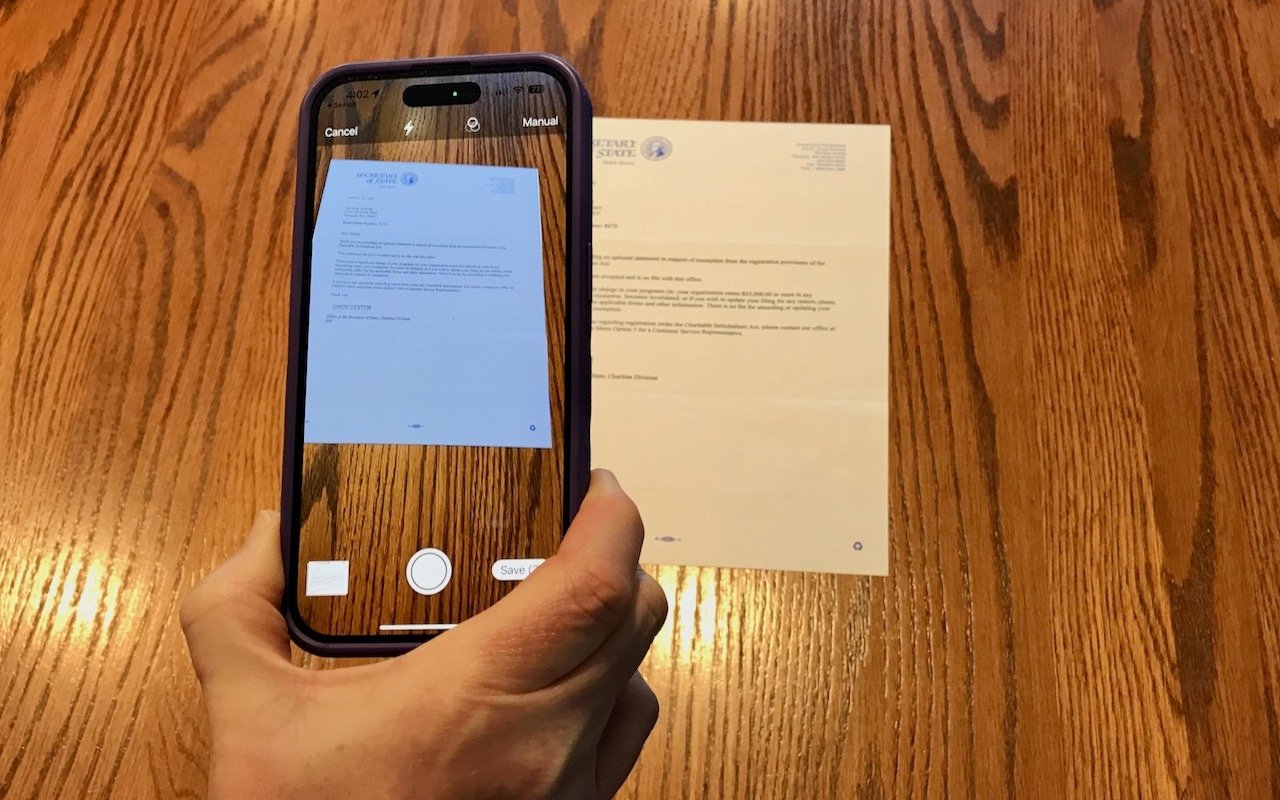
On occasion, we all need to scan a document—an invoice, a recipe, instructions from a book—but far more people have an iPhone or iPad than a hardware scanner. Luckily, Apple has built a scanning capability into iOS, iPadOS, and macOS for some years now. The next time you’re faced with a piece of paper that you need in digital form, follow the instructions below.
Scan Directly with an iPhone or iPad
The little-known key to scanning with an iPhone or iPad is the Files app, which lets you scan one or more pages and save a PDF anywhere you like. Since it’s particularly easy to use iCloud Drive with Files, it’s a good way to create a file you can work with on your Mac later. (You can also scan into a note using the Notes app, but that’s mostly useful for storing information rather than creating files you can upload to the Web, send via email, or share in other ways.)
1. Open the Files app, tap Browse in the toolbar, and navigate to the folder where you want the scanned document to end up.
2. Tap the icon at the upper right and select Scan Documents.
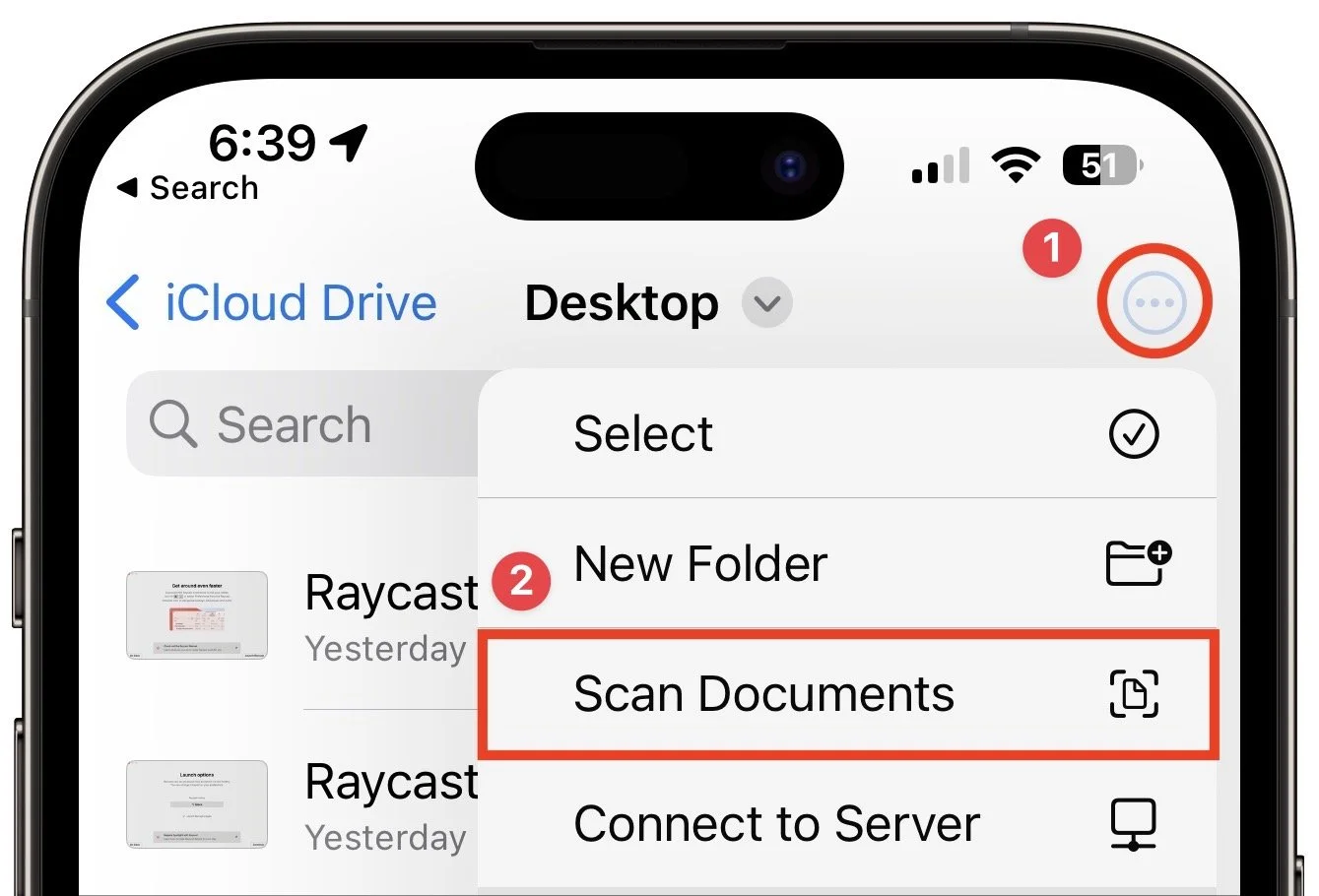
3. The camera viewfinder appears. At the top of the screen, note the controls for the flash (the lightning bolt), the color filter, and the Auto/Manual toggle (below left). Immediately tap Auto to switch to Manual—we recommend using Manual until you’ve become fluid enough with the controls to let your device scan for you. You seldom need to change the flash setting, but you can force the flash on or off if you like. Similarly, the color filter option defaults to a color scan, but you can set it to grayscale or black-and-white if you want. It’s easier to make that change afterward.
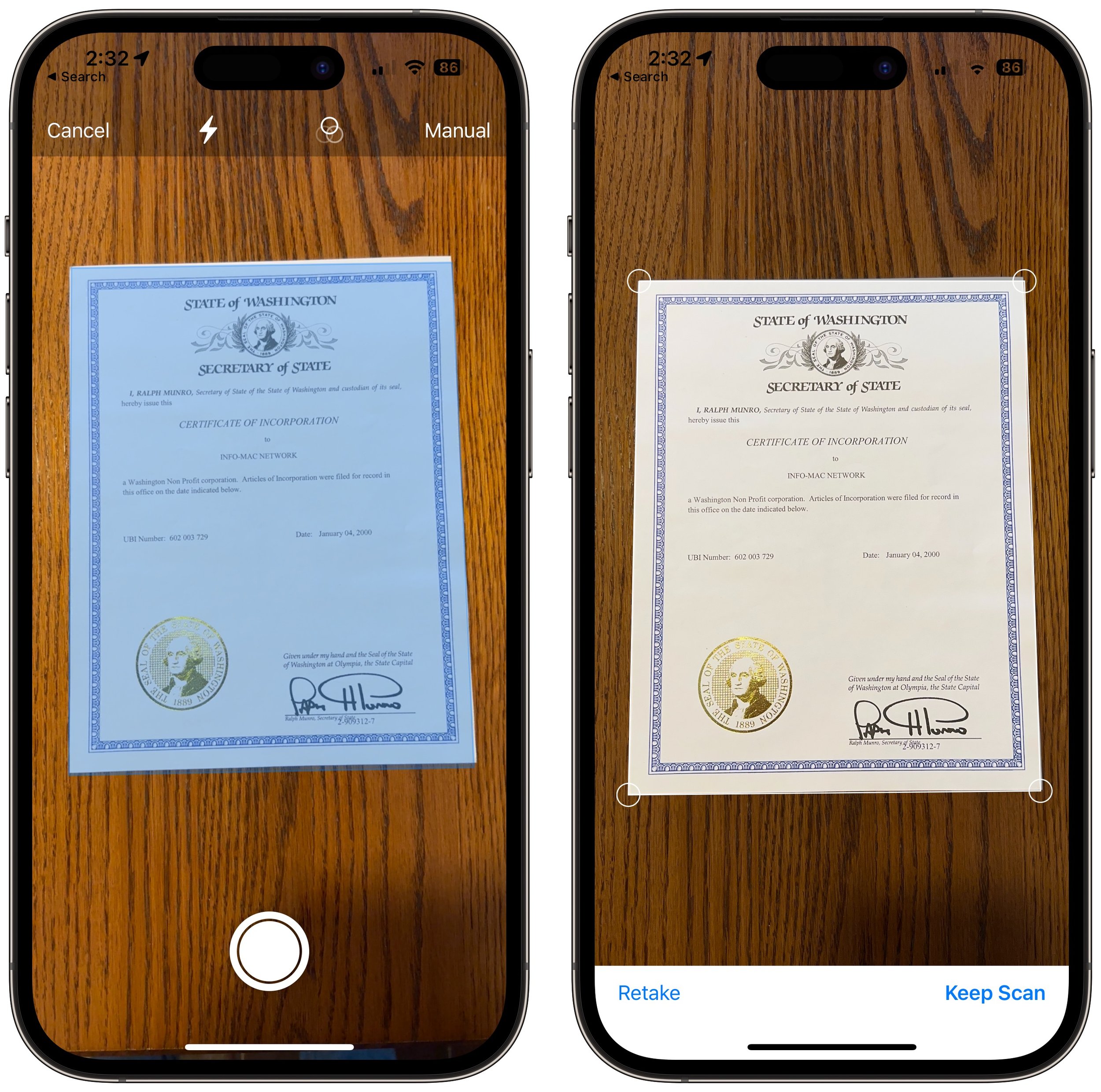
4. Hold the iPhone steady so it can detect the edges of the paper. When it has, tap the round white shutter button to take a photo (above left). In Auto mode, it will just keep taking images for you, which is efficient with multiple pages but stressful if you aren’t ready.
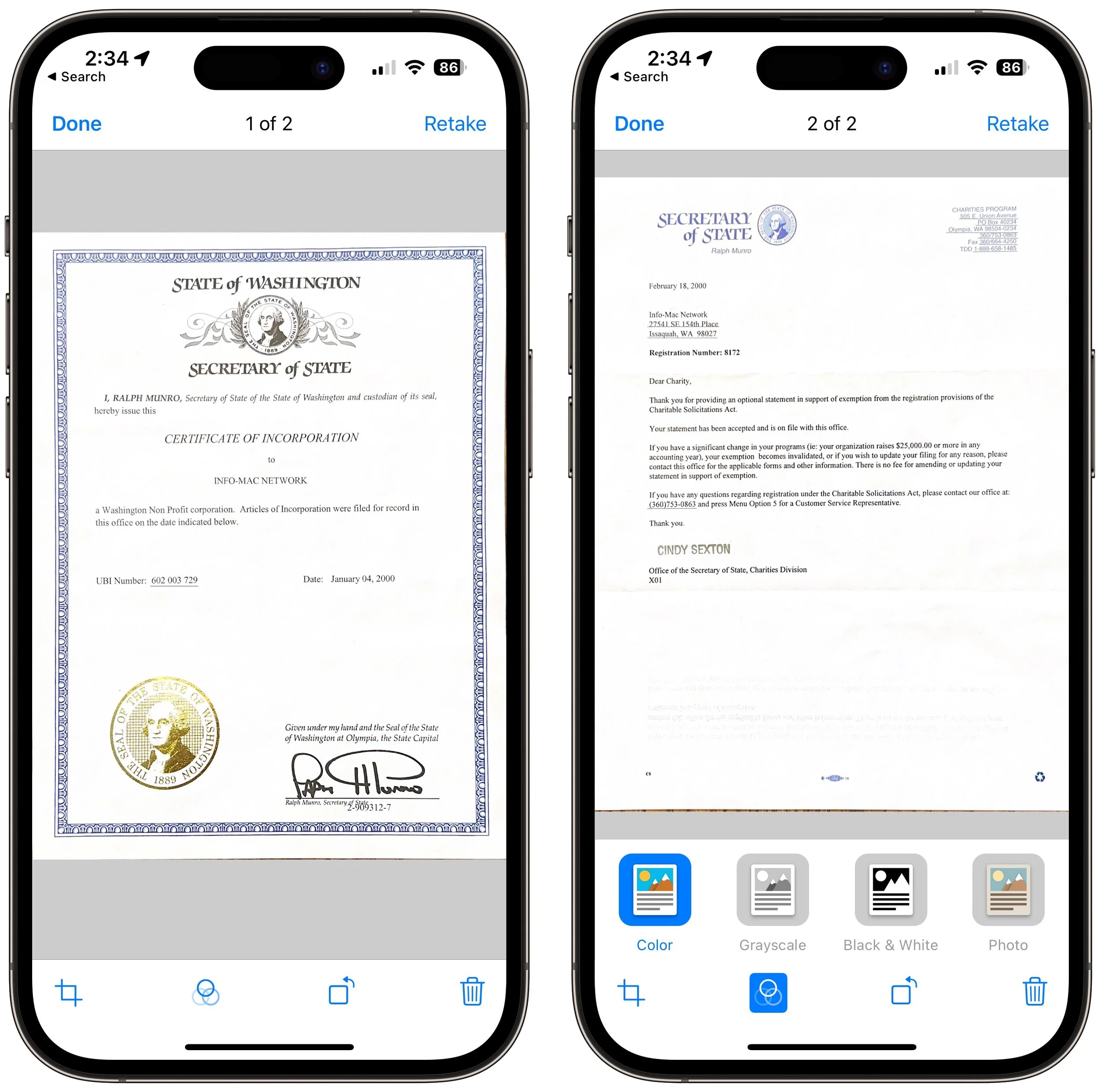
5. Examine the scan to see if it looks good. You can drag the corners to adjust the selection to capture just paper, or if the image isn’t right, tap Retake for a do-over (above right). When you have it as you want it, tap Keep Scan.
6. If you want to scan additional pages, put them in the viewfinder and repeat Steps 4 and 5 (below left). Or, if you’re done, tap Save and jump directly to naming your file (below right).
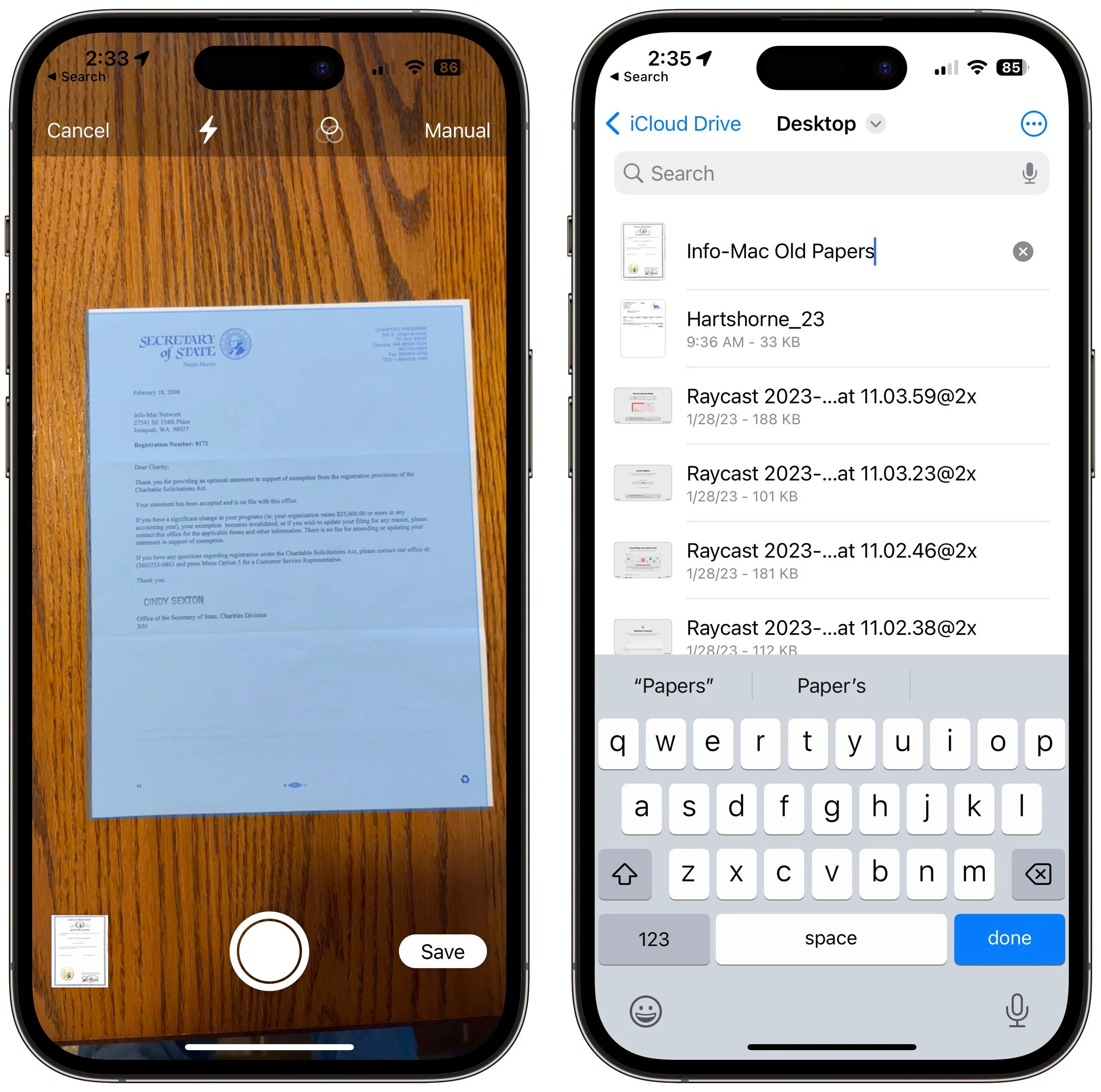
7. If a page isn’t exactly the way you want it, tap the image well to the left of the shutter button to make changes. On the edit page, the crop icon at the bottom returns you to the previous screen to adjust the corners again. The color filter icon lets you choose from Color, Grayscale, Black & White, and Pho-to—stick with color or grayscale for most documents. If the document came in at the wrong orientation, tap the rotate icon. If the image still isn’t to your liking, you can retake it or tap the trash icon to delete it. If you’ve scanned multiple documents, you can swipe between them. Tap Done when you’re finished, and return to Step 6 to save.
Scan to Your Mac with Your iPhone or iPad
It’s easy enough to save a scanned document to iCloud Drive or another file sharing service so you can access it on the Mac or move it from the Files app to the Mac. But if your goal is to scan directly to the Mac, you can do that too.
In Preview, choose File > Import from iPhone > Scan Documents. (Preview will know about all your devices, so it will have sections for each device.) A dialog will appear on the Mac, and your device will immediately switch to the scanning interface.
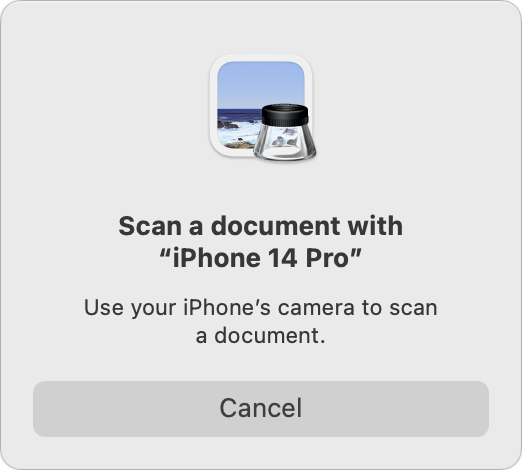
Everything works just as it does if you initiated scanning from the device, including the Auto/Manual switch and the need to tap Save when you’re done. However, instead of saving the document to Files, it will appear as a new document in Preview, where you can work with it like any other PDF and save it to your drive.
Final Thoughts
There are two caveats to scanning documents using your iPhone or iPad:
This approach to scanning does not do optical character recognition (OCR) to make the scanned text selectable—the resulting PDF pages are just images. Online tools can perform OCR on a PDF; we’ve seen good results from AvePDF’s OCR PDF tool. This might not be a good idea with sensitive documents.
Scanned documents tend to be large. If your scan ends up too big to share via email, for instance, other online PDF compression tools can shrink files. If you use AvePDF to OCR your document, another click on its Hyper-Compress PDFs tool can compress the same document by as much as 90%.
Overall, you’ll probably get better quality from a hardware scanner—particularly a flatbed—because it’s easier to position the pages perfectly, the light is stronger and more even, and there’s no need to deskew (straighten) the scanned page images, as Apple’s software attempts to do when you’re not directly over the page. But it’s hard to beat the convenience of a quick scan with your iPhone when quality isn’t paramount.
(Featured image by Adam Engst)
You Can Now Upgrade to macOS 13 Ventura When You’re Ready
Should you upgrade to macOS 13 Ventura? There’s no need to install it today, but we think it’s now safe for those who want to take advantage of the new features and integration with Apple’s other operating systems. Details here:
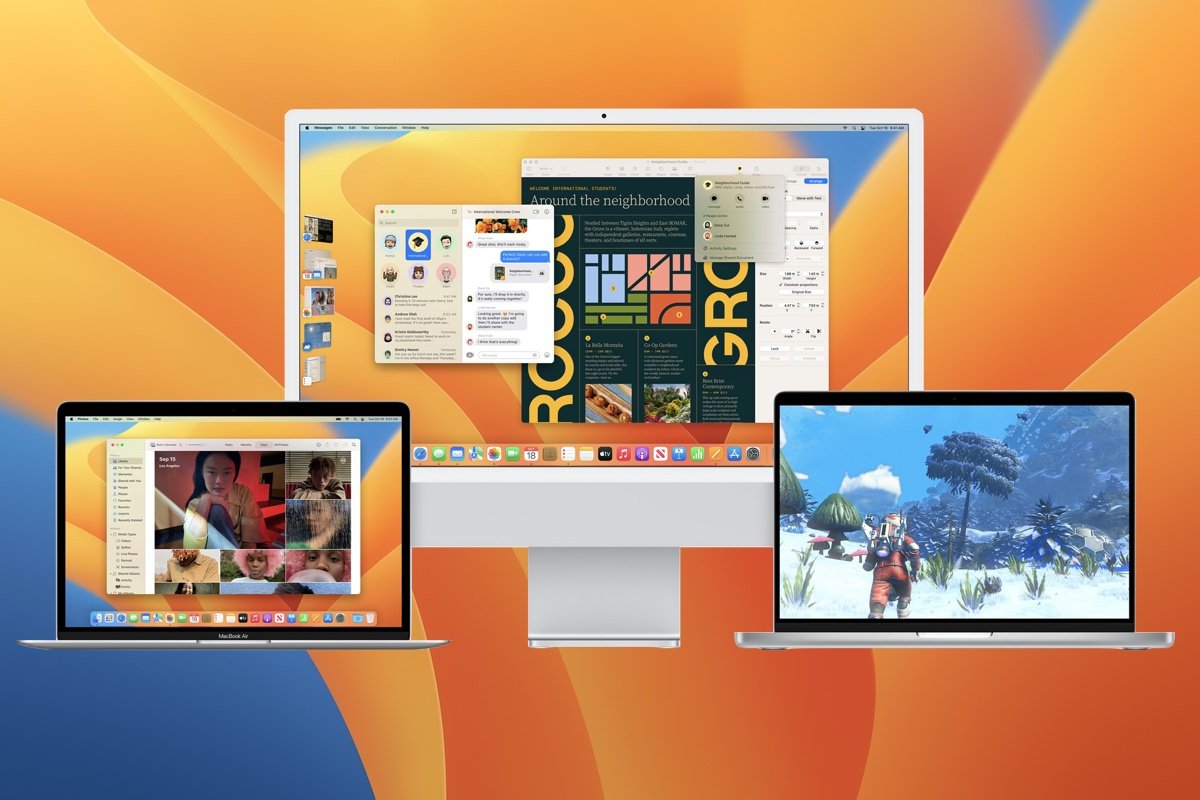
When upgrading to a new version of macOS, we err on the side of caution, at least in our recommendations. (We’ve been using macOS 13 Ventura for some time now and often install beta releases on secondary machines for testing purposes.) Upgrading is easy, but if you upgrade too soon, the new macOS version could make key apps in-operable, create workflow interruptions, or cause other negative consequences. On the other hand, waiting too long can cause problems—it’s important to stay in sight of the cutting edge for security reasons and to take advantage of Apple’s advances. Upgrading is not an if question; it’s a when question.
That when could be now. There’s no reason you must upgrade to macOS 13 Ventura right away, but if you want to, you should now be able to do so without undue interruptions. Ventura has been quite stable and has received only three updates since its initial release in October 2022:
macOS 13.0.1 provided just unspecified bug fixes and two security fixes.
macOS 13.1 introduced the Freeform digital whiteboard app, Advanced Data Protection for iCloud, improved searching for photos in Messages, participant cursors for shared notes in Notes, and the option to play sounds in the Find My app. There were also a couple of bug fixes and important security fixes.
macOS 13.2 added support for Security Keys for Apple ID for those who need the utmost security, fixed a few bugs, and blocked more security vulnerabilities.
Apple may have another feature or two up its sleeve for Ventura, and we’ll undoubtedly see more updates to address bugs and newfound security vulnerabilities, but there’s no significant reason to wait any longer.
That said, you can continue to delay as long as you’re running macOS 11 Big Sur or macOS 12 Monterey and are staying up to date with Apple’s security releases. (Both have received important updates recently.) Earlier versions of macOS no longer receive security fixes, rendering them more vulnerable to attack. Reasons to delay include:
You’re too busy. The upgrade process will take a few hours, and it may take additional time to configure everything properly afterward. When you are ready to upgrade, aim for when a little downtime will be convenient.
You’re still using incompatible software. The jump from Big Sur or Monterey to Ventura isn’t a big one, so most modern apps should have been updated to ensure compatibility with Monterey by now. But if you’re still running macOS 10.14 Mojave or earlier with 32-bit apps, you’ll lose access to them if you upgrade. (That first happened with macOS 10.15 Catalina in 2019.) With Mojave no longer receiving security updates, you need to find replacements for those apps and upgrade soon.
You need consistent versions for workflow reasons. We’re unaware of any examples here, but it’s not inconceivable that a coworker could be stuck on an older version of macOS and thus older versions of shared productivity apps. If your upgrade would force you to update those apps and introduce compatibility issues when collaborating with that coworker, you may have to wait until your coworker can upgrade as well.
Ventura won’t upend your experience of using a Mac, but it has numerous useful features, large and small. Along with the features mentioned above that shipped in updates, the new iCloud Shared Photo Library enables you to share photos and videos with up to five family members in a separate shared library. Stage Manager provides a new paradigm for window management. Messages lets you edit messages, undo sending, and mark conversations as unread. Similarly, Mail lets you undo sending, schedule messages to send later, and get follow-up reminders for replying. For better videoconferencing quality, Continuity Camera enables you to use your iPhone as a webcam, complete with Desk View for showing what’s on your desk during a call. The Mac finally gets its own Weather app. Perhaps even more important, Ventura shares some of these features with Apple’s other operating systems: iOS 16, iPadOS 16, watchOS 9, and tvOS 16. To take full advantage of those features across all your Apple devices, your Mac must be running Ventura.
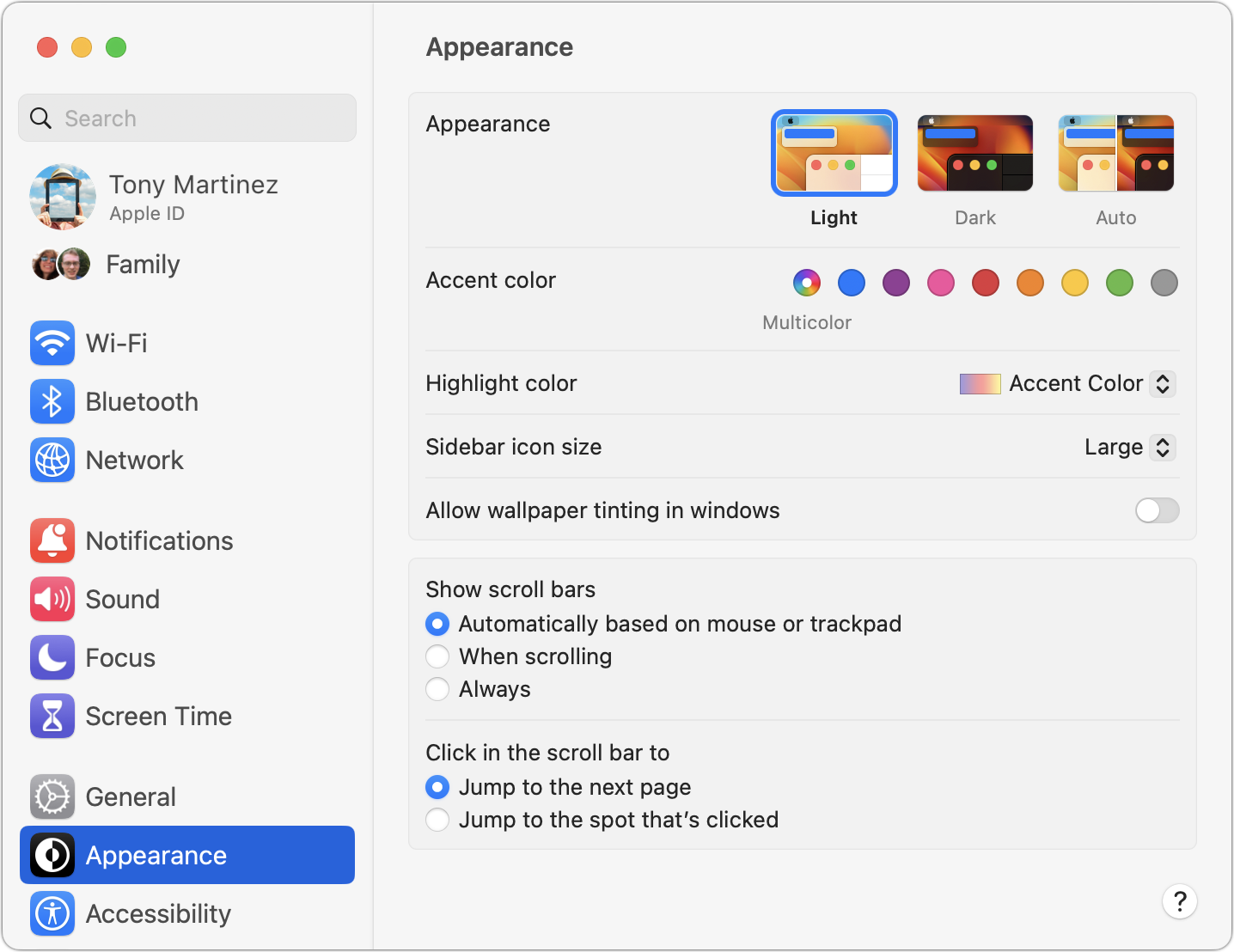
However, we want to be upfront about one downside to upgrading to Ventura. Apple replaced System Preferences with System Settings. While we wouldn’t have described System Preferences as having a stellar user interface, it was at least familiar after decades of use. The new System Settings, which tries to mimic the Settings app in iOS and iPadOS, moves numerous settings around and makes some odd and unfor-tunate design decisions. You may find yourself relying heavily on its search field to find commonly used options.
Before You Upgrade
Once you’ve decided to upgrade to Ventura, you have three main tasks:
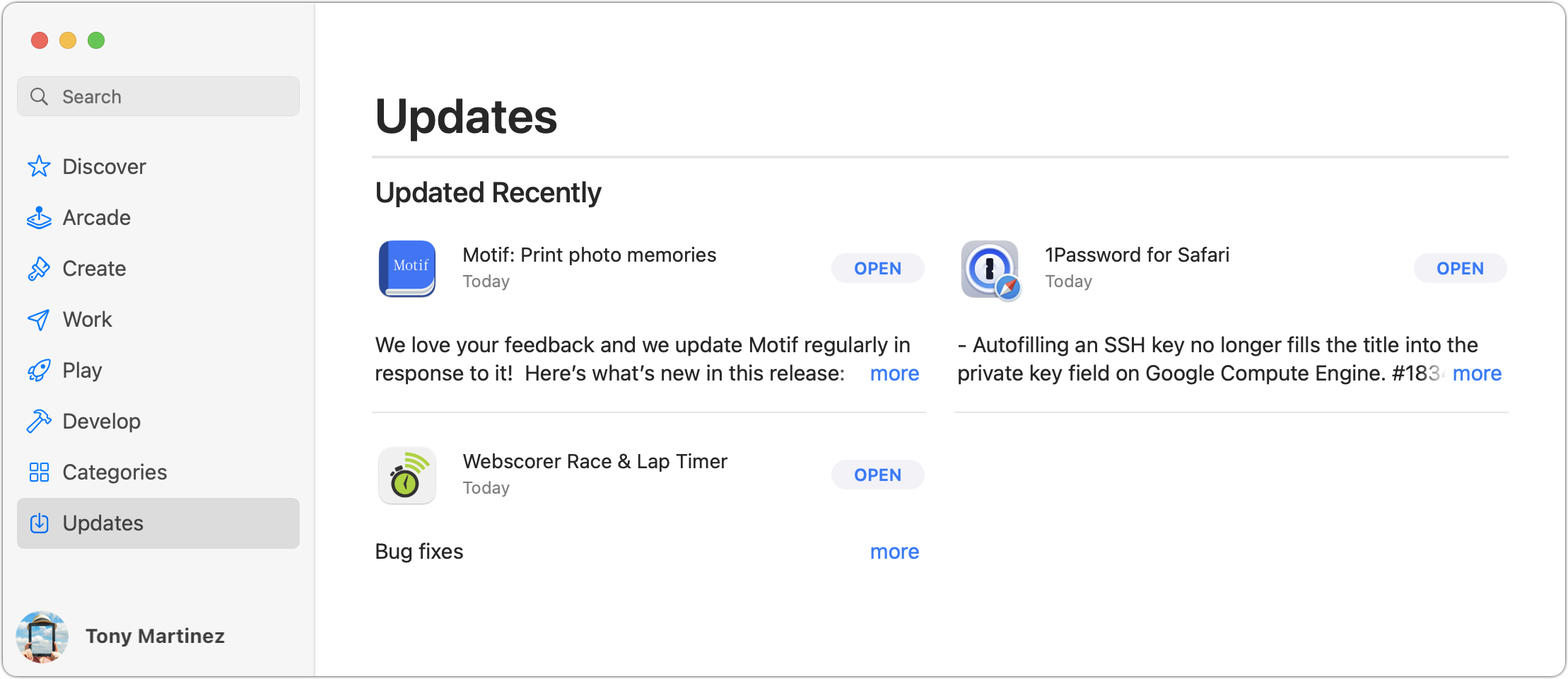
Update apps: Make sure all your apps are as up-to-date as possible. If you regularly put off updates, now’s the time to let them complete so you have Ventura-compatible versions.
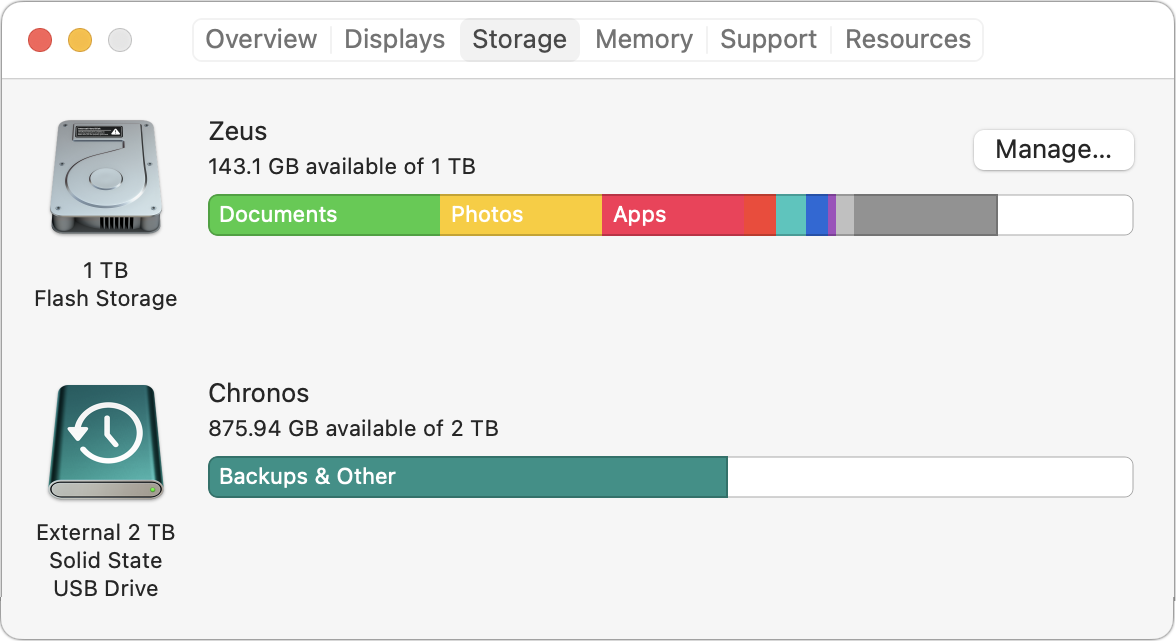
Clear space: Ventura needs about 25 GB of free space to upgrade, and the Ventura installer itself is about 12 GB, so we recommend making sure you have at least 37 GB free. Don’t cut this close—you should always have at least 10–20% free space for virtual memory, cache files, and breathing room. Check by choosing About This Mac from the Apple menu and then clicking Storage.
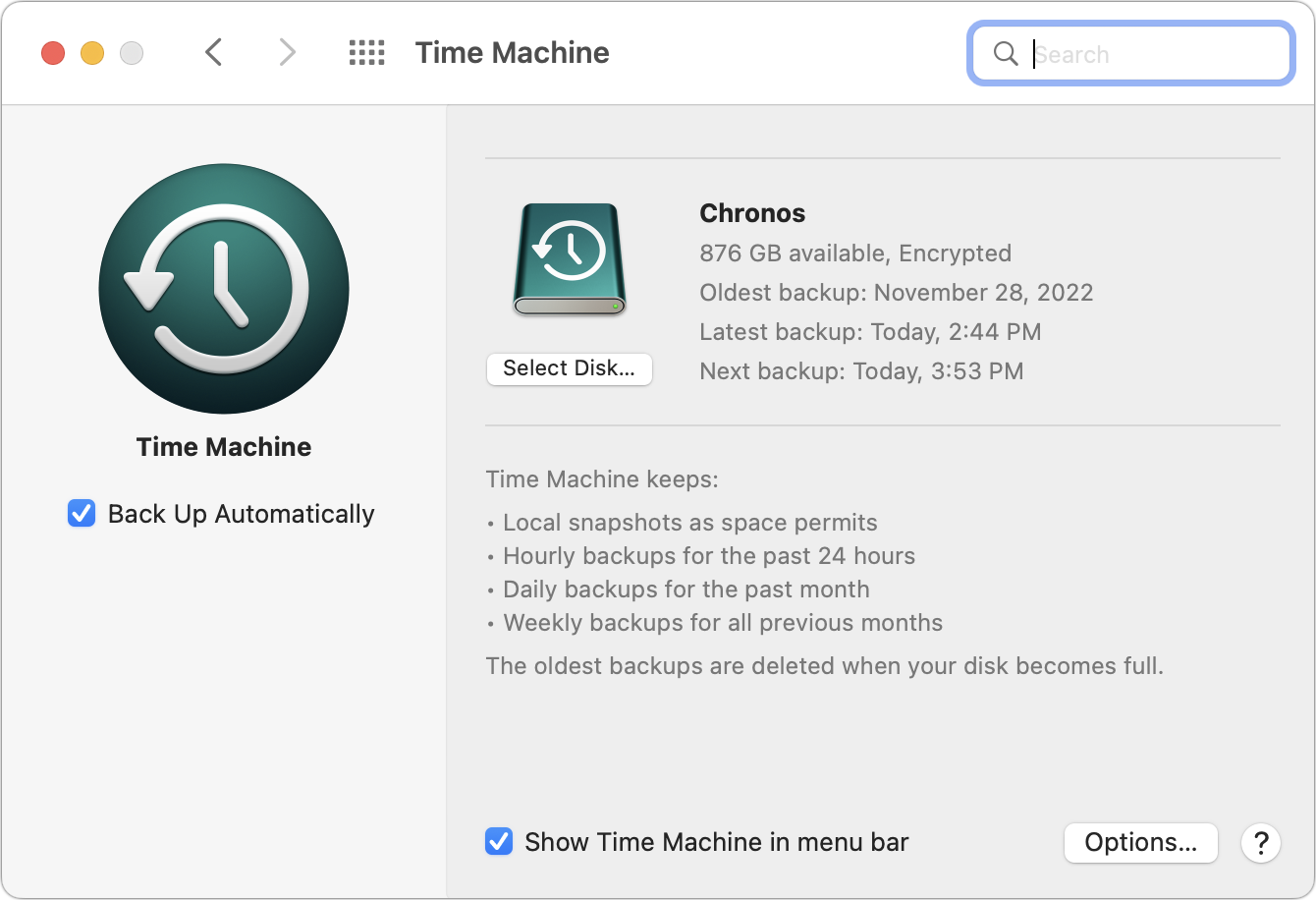
Make a backup: Never, ever install an update to macOS without ensuring that you have at least one current backup first. In an ideal world, you’d have an updated Time Machine backup, a bootable duplicate, and an Internet backup. That way, if something goes wrong, you can easily restore.
Upgrading
After completing the above-listed tasks, ensure you don’t need your Mac for a few hours. There’s no telling exactly how long the upgrade will take, so never start an upgrade if you need the Mac soon.
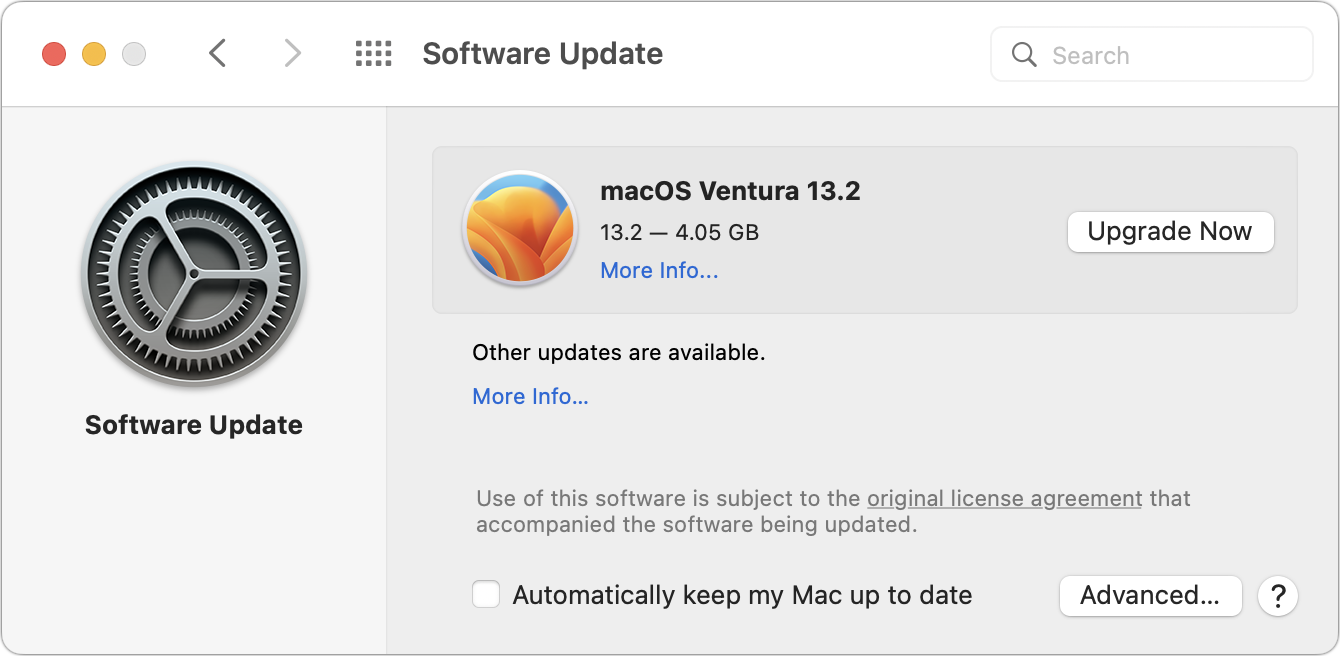
Initiating the upgrade is just a matter of opening System Preferences > Software Update, clicking the Upgrade Now button, and following the instructions. If you’d like more handholding, check out Joe Kissell’s ebook Take Control of Ventura.
After You Upgrade
Part of the reason to set aside plenty of time for your Ventura upgrade is that there are usually cleanup tasks afterward. We can’t predict precisely what you’ll run into, depending on what version of macOS you’re running now and what apps you use, but here are a few situations we’ve noticed in the past:
macOS may need to update its authentication situation by asking for your Apple ID password, your Mac’s password, and if you have another Mac, its password too. Don’t worry that your Mac has been compromised by malware—it’s fine.
Some apps may have to ask for various permissions even though you previously granted them. Again, that’s fine and won’t happen again.
If you use your Apple Watch to unlock your Mac and apps (and you should, it’s great!), you may need to re-enable that in System Settings > Touch ID & Password (it’s an example of something that moved; previously, it was in Sys-tem Preferences > Security & Privacy > General).
If you use Gmail, Google Calendar, or other Google services, you may need to log in to your Google account again.
Websites that usually remember your login state may require that you log in again. If you’re using a password manager like 1Password, that’s easy.
You may have to re-enable text message forwarding to your Mac. You do this on your iPhone in Settings > Messages > Text Message Forwarding.
With all that housekeeping done, it’s time to check out all the new features in Ventura!
(Featured image by Apple)
What Is Google Web & App Activity, and Should You Leave It Enabled?
Did you get an email from Google about your Web & App Activity tracking? It’s legitimate and is a good reminder to customize how Google saves information about you. Read on for more:

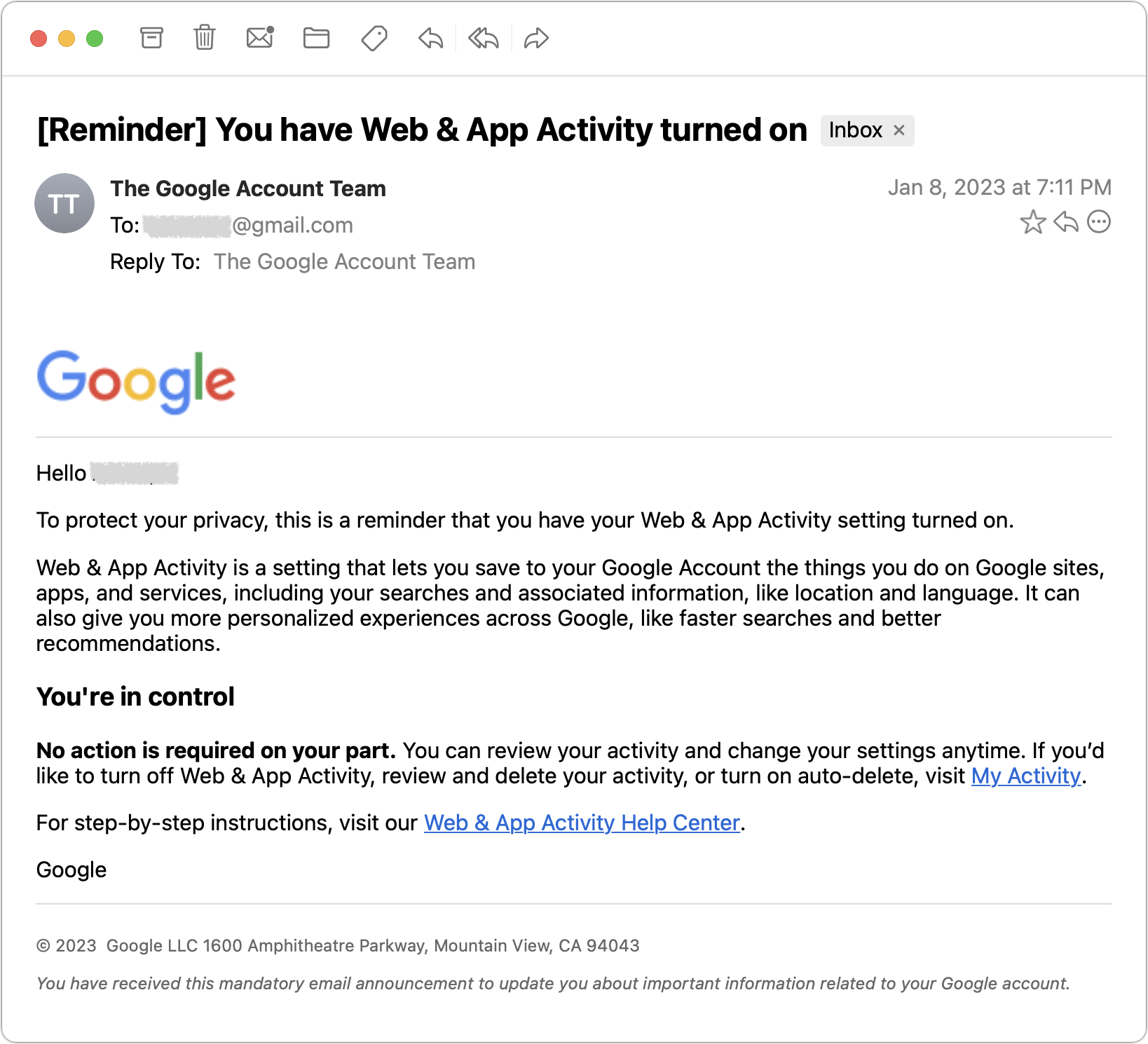
Earlier this year, some of our clients received an email from Google reminding them that they have Web & App Activity turned on. Those with a healthy dose of caution were concerned that it might be a phishing attack, but no, it’s legitimate. Their next questions were often, “Wait, what is Web & App Activity, and do I want it enabled?” Here are some answers.
What Is Web & App Activity at Google?
Simply put, Web & App Activity is a record of almost everything you do on Google sites, apps, and services. It includes your searches and activity in Google Search, Google Maps, Google Assistant, Google News, Google Photos, YouTube, and more. If you use Google Chrome as your browser, it includes your browsing history. It also stores usage and diagnostic information from Android smartphones. What’s less obvious is that Web & App Activity can even include information from sites and apps that partner with Google to show ads or that use Google services. Activity can be saved even when you’re offline or signed out.
That sounds like a lot, and it is! One reason there’s so much is because Google is such a dominant provider of services on the Internet today. Google Search is by far the most popular search engine, only recently has Apple Maps competed head-to-head with Google Maps, YouTube is the main source of video on the Internet, and so on. It’s hard to avoid Google, even if you wanted to, which most people don’t.
In addition to offering a lot of services, there are two more reasons why Google collects so much information about its users: personalization and advertising:
Personalization: When a service knows what you’ve searched for and how you’ve used it in the past, it can adjust its behavior to improve future usage. For instance, Google Search can suggest search results that are nearby you if it knows where you are, and YouTube can recommend videos based on what you’ve watched previously.
Advertising: The bulk of Google’s revenue comes from companies that pay Google to display their ads. We’re talking hundreds of billions of dollars per year, which is why it’s important to Google to learn as much about you as pos-sible in order to give advertisers the best chance of enticing you to click their ads.
For many (most?) people, there’s a tension between personalization and advertising. You want Google to know more about you so its services work better, but you may not want the company to know so much about you that it can charge advertisers a higher price for access to you. Ad-driven companies like Google claim people prefer personalized ads, but most people we talk with dislike having ads—particularly for already purchased items or past vacations—follow them around the Internet. That’s what Apple is channeling with its Tracked video.
How Should You Configure Web & App Activity?
What you should do depends on how much benefit you feel you derive from the personalization of Google apps and services, and what you think about personalized ads. On your Activity Controls page, Google provides a single master switch that lets you pause Web & App Activity, though you’ll have to acknowledge that it may impact your experience of Google sites, apps, and services signed in to your account. Make sure to scroll down on this page to access the settings for Location History, YouTube History, and Personalized Ads.
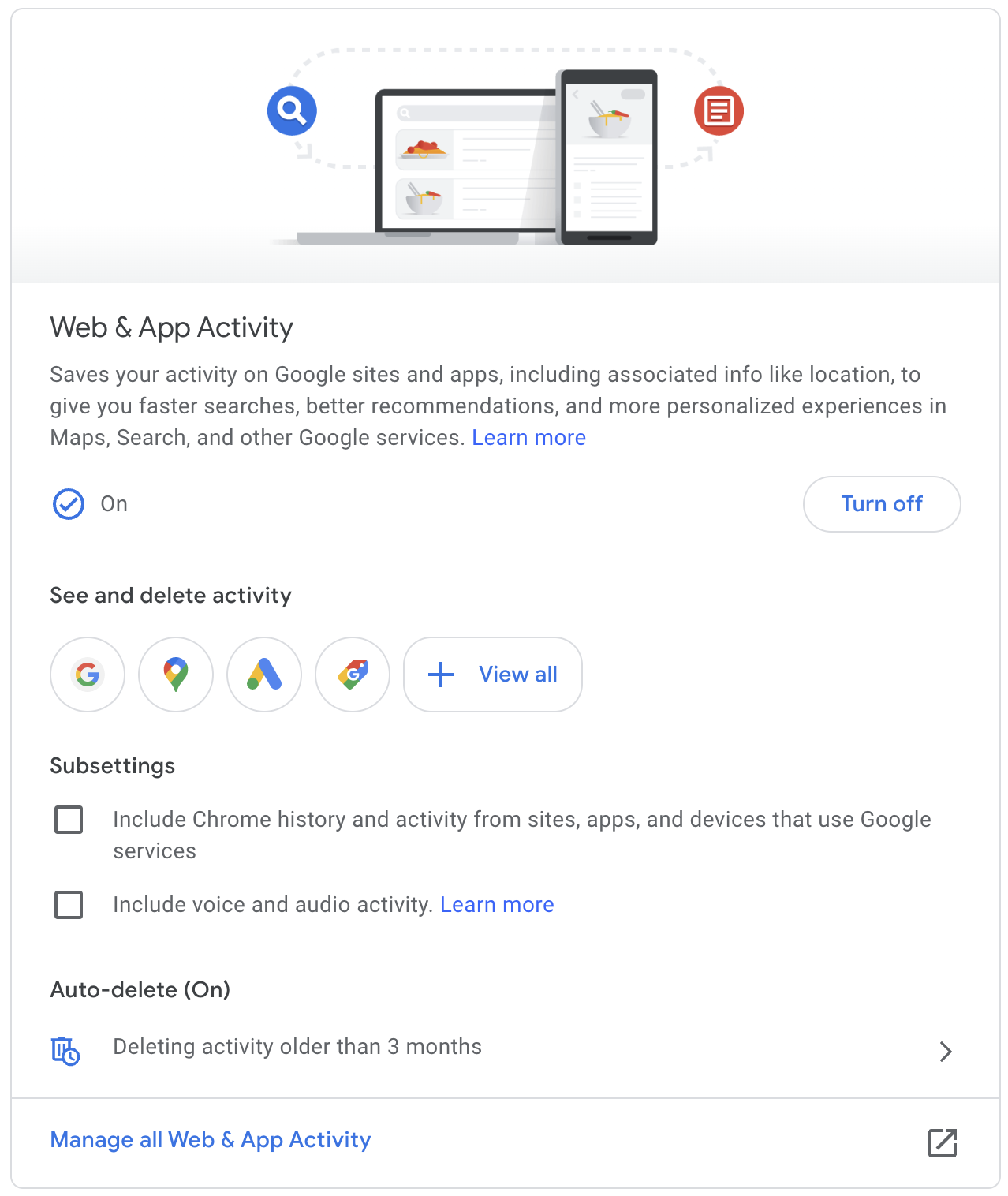
By clicking the icons for each service under “See and delete activity,” you can get a sense of just what Google has recorded about you, and you can delete data manually if it perturbs you. Google can also automatically delete activity older than 3 months, 18 months, or 36 months. The utility of keeping data longer is if you want to review what you did in the past. Google says that auto-deleting data sooner will reduce personalization, but that feels like a stretch.
There are two important subsettings:
Chrome: In the Web & App Activity card, under Subsettings, there’s a check-box for including Google Chrome history and activity from sites, apps, and devices that use Google services. We suggest disabling this—it seems unlikely that it would improve your Internet experience sufficiently to warrant the privacy intrusion.
Audio: You’ll also find another checkbox for voice and audio activity, which Google uses to improve its audio capabilities. The reason to turn this setting off is that human reviewers may listen to your audio samples. Google anonymizes and deletes the data after 7 days, but it may still feel icky to have people listening to your audio clips.
Scrolling down, you hit cards for the three major privacy settings that Google separates from Web & App Activity. (You can also access these on Google’s Data & Privacy page, where you can also start a privacy checkup.)
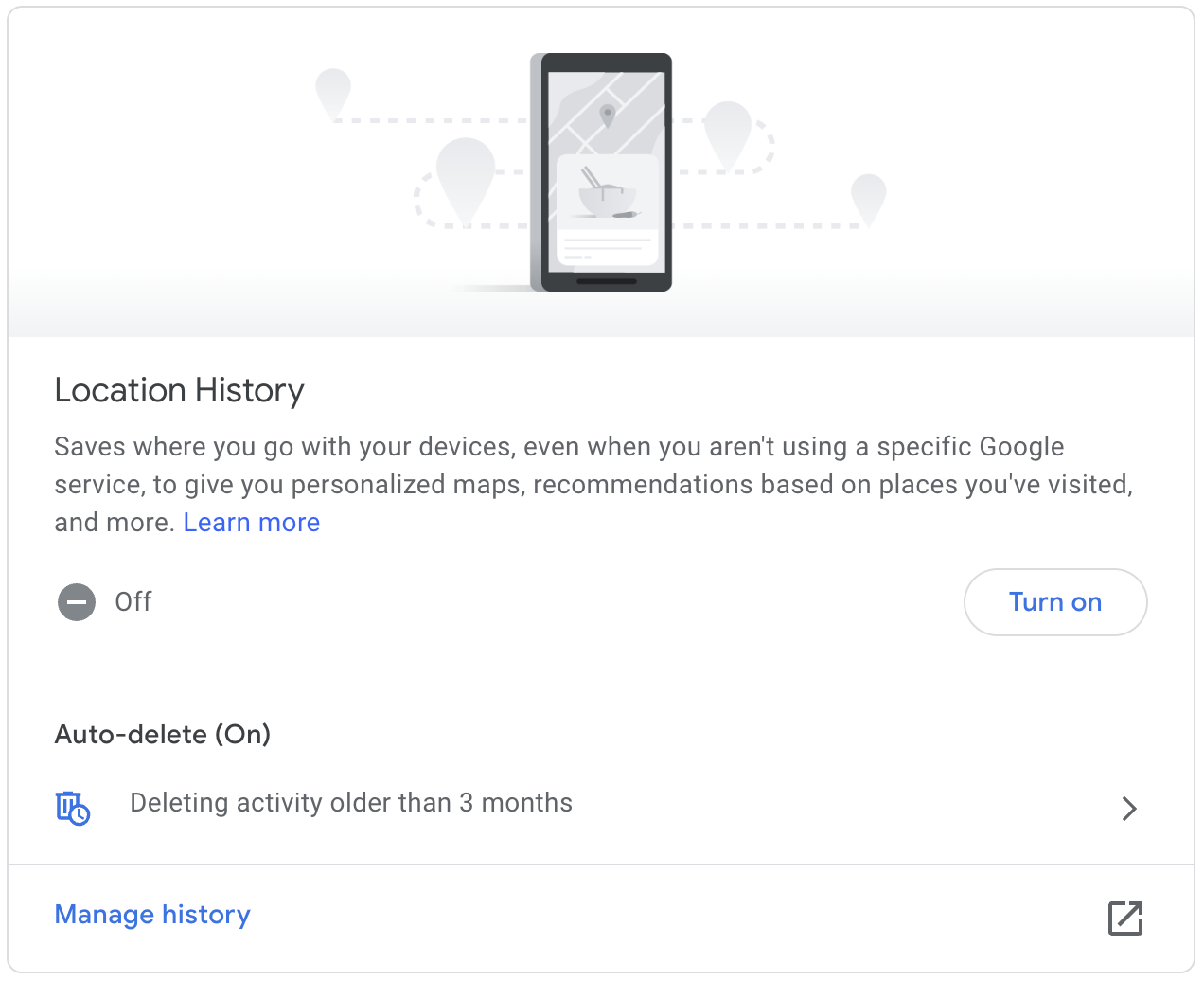
Location History: With this setting on, Google knows where you go with your devices, even when you aren’t using a specific Google service, to give you personalized maps, location-based recommendations, and more. If you look through this data and are creeped out by the fact that it shows your every movement, turn it off.
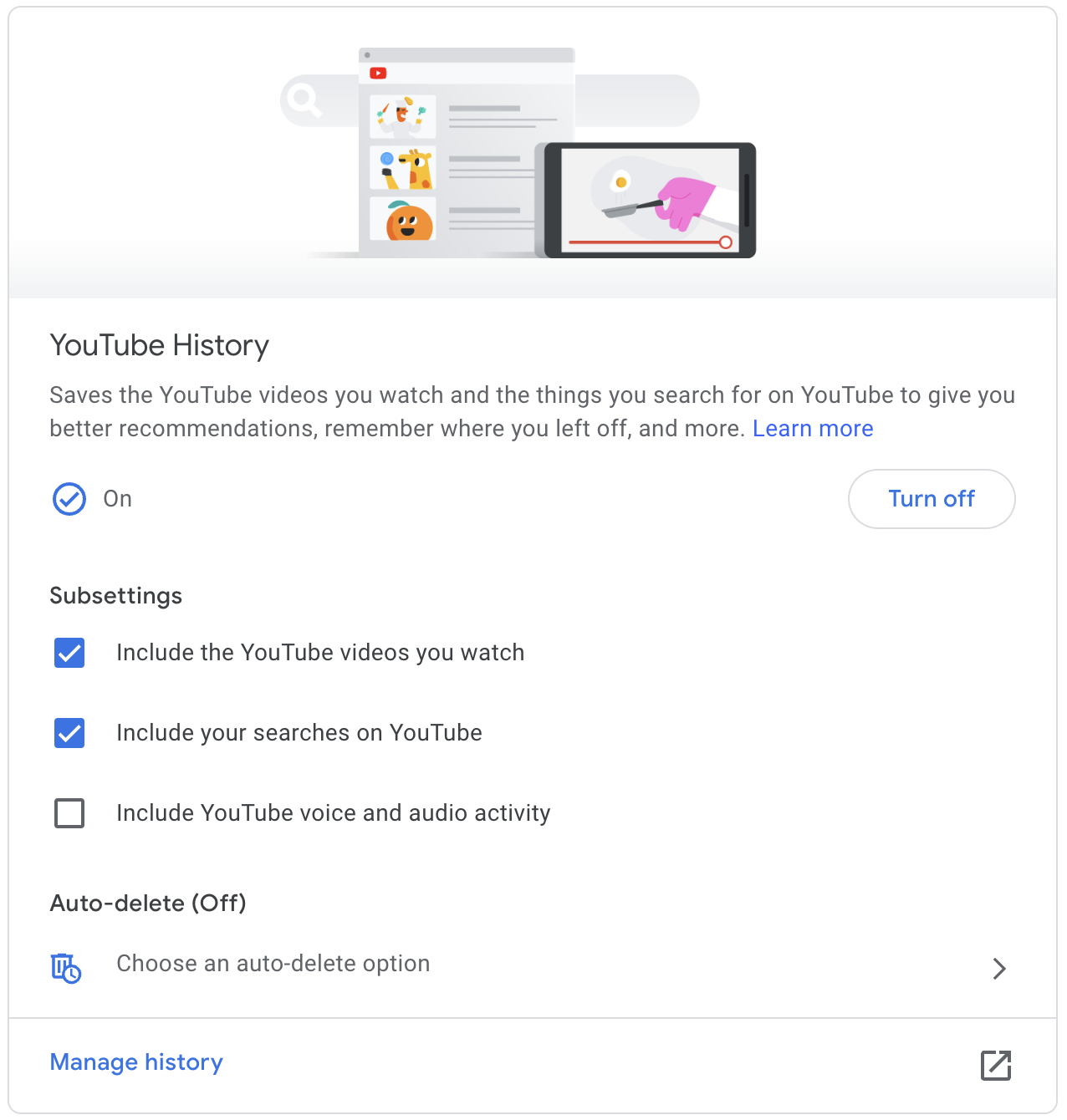
YouTube History: This setting saves the videos you search for and watch to provide better recommendations, remember where you left off, and more. This option may feel innocuous as long as you don’t mind your video watching being associated with your account—if you’re viewing content that would embarrass you if it got out, perhaps disable this setting.
Ads: You can disable personalized ads from Google, which prevents Google from using your information to help advertisers entice you to buy more stuff. You’ll still see the same number of ads, but they should be less aimed at you personally.
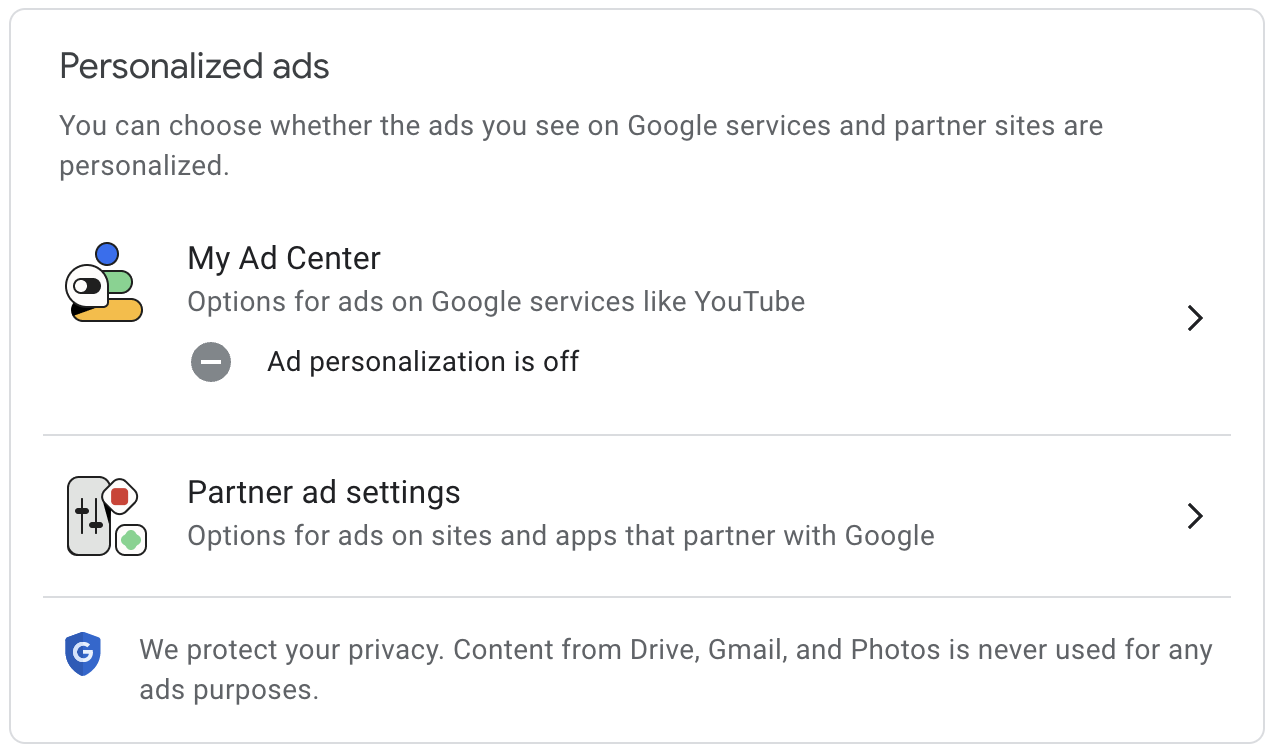
Finally, there’s a grab-bag collection of lesser-known Google services that track your activity. To find these and delete the data they stored about you, go back to the Web & App Activity card, click Manage All Web & App Activity at the bottom, and then click Other Activity in the sidebar. It includes controls for Google Pay, Google Wallet, Google Workspace search history, YouTube channel subscriptions, YouTube “Not interested” feedback, and many other Google-related services. Most of this stuff seems unobjectionable, but delete it if it bothers you.
It’s hard to say if leaving any of these settings on or turning them off make a real difference in your life. If Google collecting all this data bothers you, try disabling everything and see if the lack of personalization makes for a worse experience. Or pick and choose based on things that perturb you more (like location tracking and ads) or less (like YouTube history). There’s no harm in testing!
(Featured image by iStock.com/ValeryBrozhinsky)
Six Ways of Making It Easier to Browse Your Favorite Websites
Open your favorite websites faster with bookmarks, favorites, Home Screen icons, bookmark folders, tab groups, and pinned tabs. Get the details here:
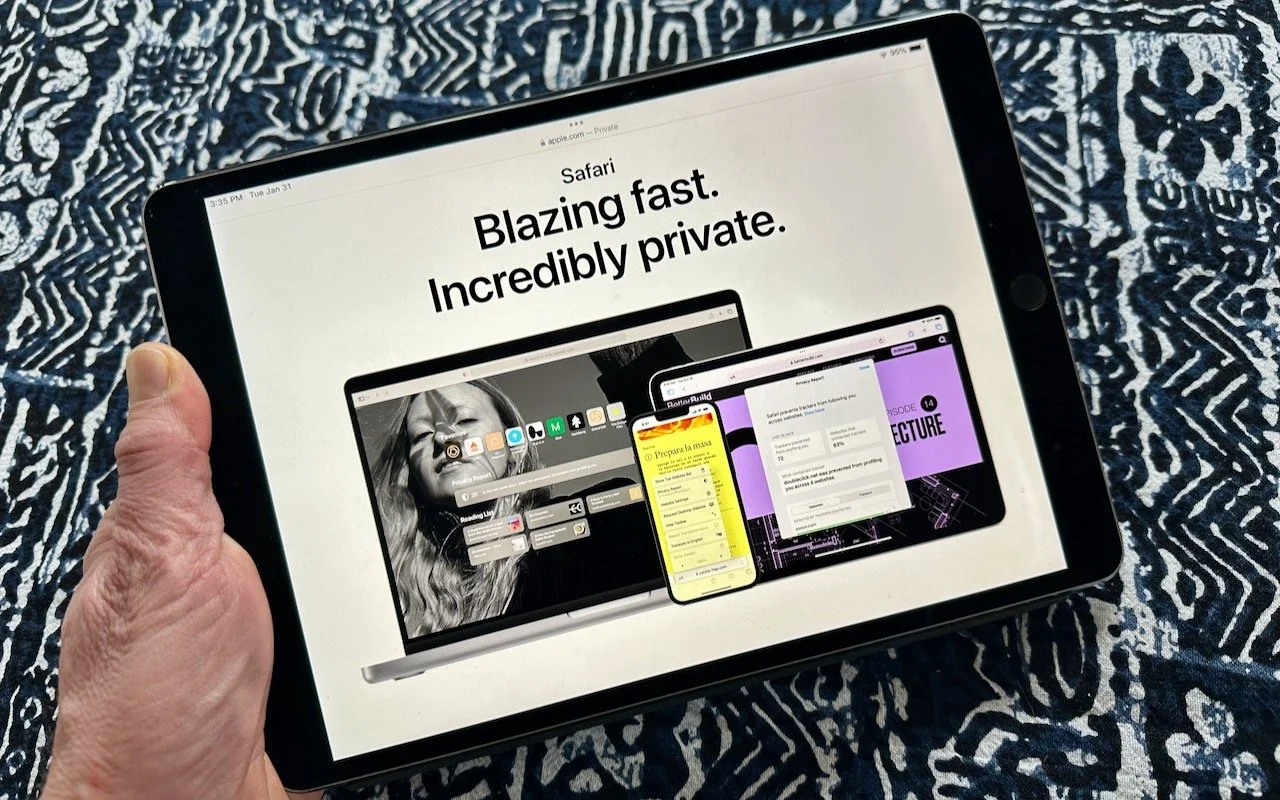
Everyone—or at least everyone reading this article—knows how to use a Web browser. But just because you can click links, search for websites, and type URLs doesn’t mean that you’re surfing the Web as smoothly and effectively as you could. We all have sites that we visit regularly—a local newspaper, perhaps, or a social media service that’s the only place to connect with far-flung family members. Plus, the rise of Web apps like Google Docs means that we may spend hours every day in a Web browser at a particular site.
Here then are six ways that you can make it easier to use the same sites every day. This list is far from comprehensive, but we hope it gets you thinking about how you can spend less time typing URLs and searching for sites. We’ll focus on Safari here, but similar features are available in most Web browsers.
Bookmarks
Many of you probably know about bookmarks, so let this serve as a nudge to remember how useful they can be. Dating from the earliest days of the Web browser, bookmarks are the original way to simplify revisiting a site.
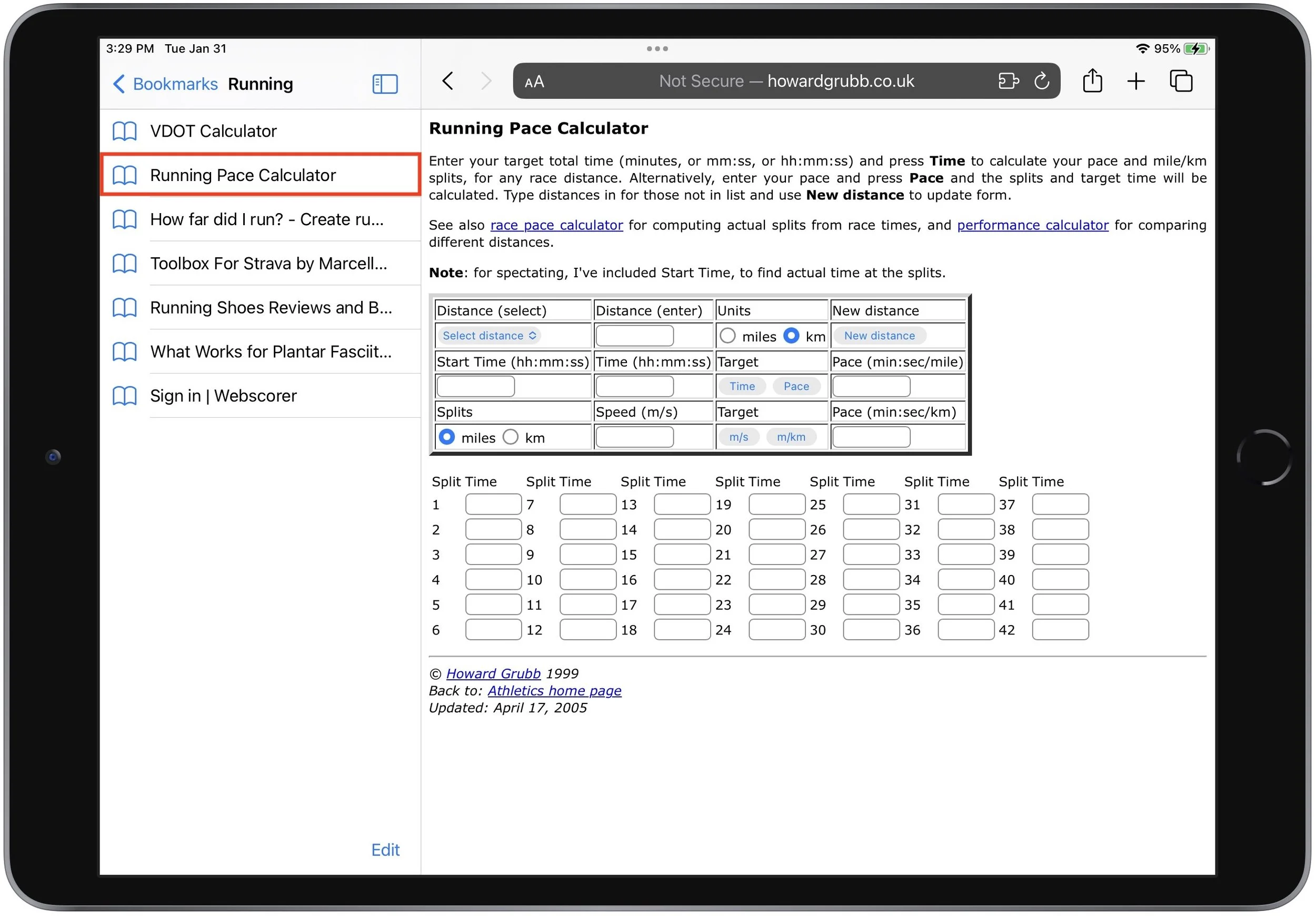
In Safari on the Mac, save a bookmark by navigating to a page and then choosing Bookmarks > Add Bookmark. See your full list in the sidebar by choosing Book-marks > Show Bookmarks. Click one in the list to load it. On an iPhone or iPad, tap the share icon and tap Add Bookmark; on the iPad, you can also drag a tab to the sidebar when it’s displaying bookmarks. You can see and visit your bookmarks by tapping the Bookmark icon in the toolbar (iPhone) or the sidebar (iPad).
Favorites
To make a particular bookmark even easier to access, add it to your Favorites. On the Mac, you can display the Favorites bar underneath the Location bar (View > Show Favorites Bar) and then click bookmarks for quick loading. Create a new favorite by putting a bookmark in the Favorites folder when you create it or by dragging it in later.

On the iPhone and iPad, favorites appear when you tap the Location bar, and adding a favorite is as simple as choosing Add Favorite instead of Add Bookmark in the share sheet.
As long as you have Safari enabled in your iCloud settings, your bookmarks and fa-vorites sync among all your Apple devices.
Home Screen Icons
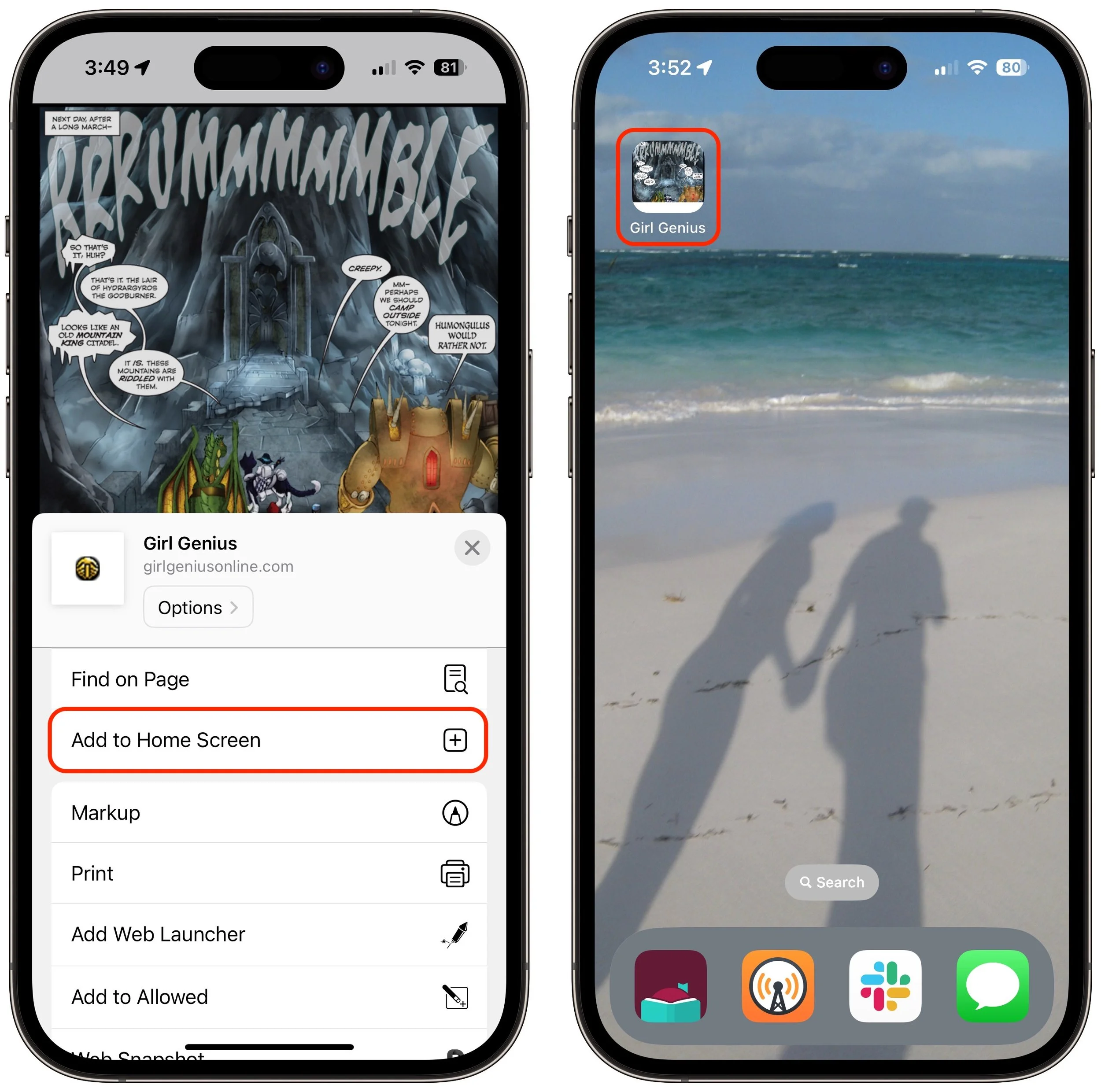
Want to go one step further? You can turn a Web page into a Home Screen icon on the iPhone or iPad. To set this up, just as with a bookmark, you navigate to the page and tap the share icon. Then select Add to Home Screen.
The Mac doesn’t have the same concept of Home Screen icons, but if you drag the URL for a Web page from the Location bar to your Mac’s Desktop, it will turn into a Web Internet Location file with a .webloc extension. It’s a normal file that you could put in the Dock, a Finder window’s toolbar, or anywhere else you want. Open it to load its page.
Bookmark Folders
Bookmarks and favorites are great for a site or two, but what if you want to open the same handful of sites every morning to get your daily dose of news and comics? Put all those sites in the same folder in the Favorites folder, either by adding them to the folder when you create them or by dragging them in afterward.
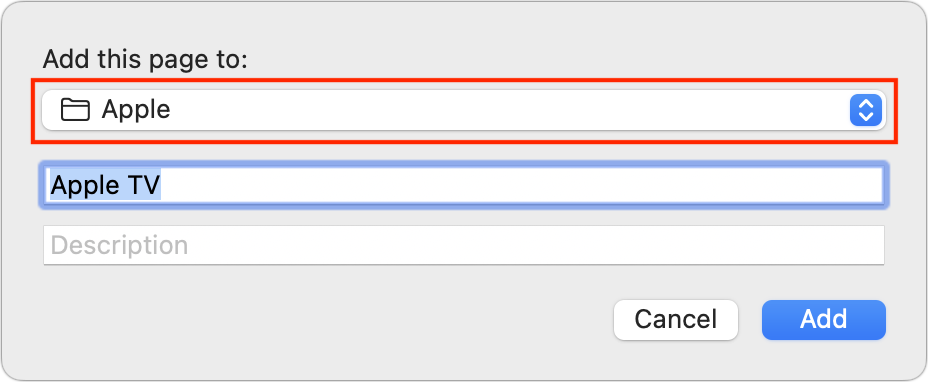
Once you have collected the desired bookmarks, you can open them all in new tabs by clicking the folder on the Favorites bar and choosing Open in New Tabs (or just Command-click it). If you don’t want it on your Favorites bar, the folder can live anywhere in your bookmarks—just Control-click it and choose Open in New Tabs.
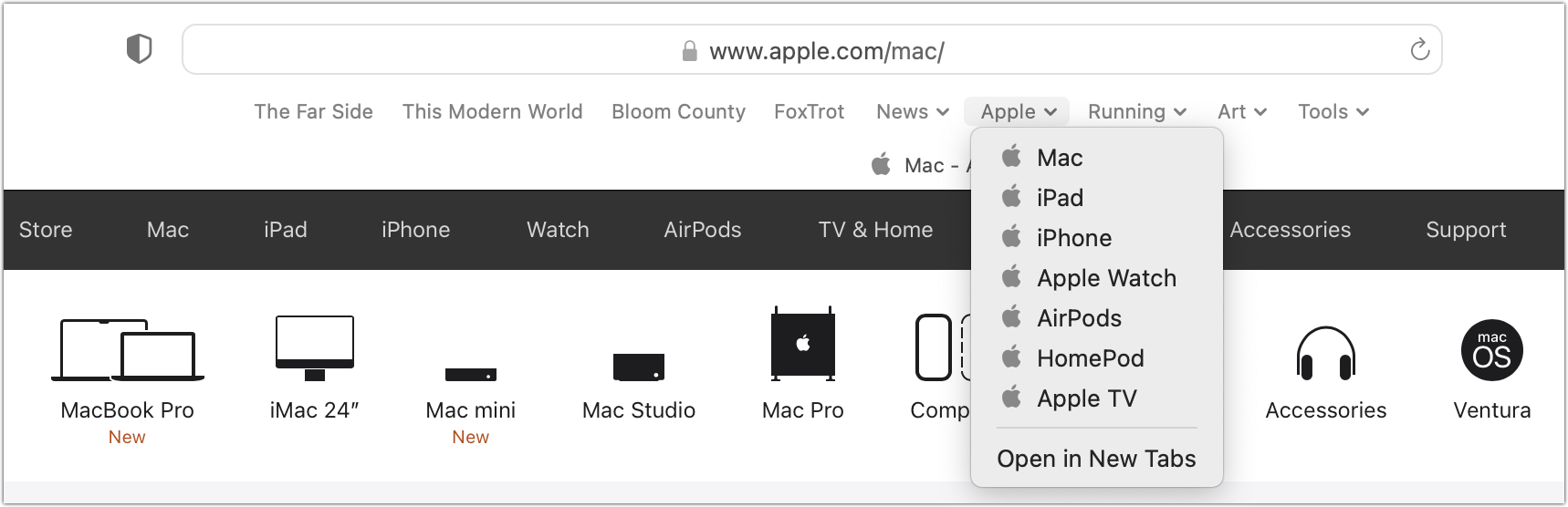
This feature is available on the iPhone and iPad as well. Once the folder is in your Favorites, tap the Location bar and then touch and hold the folder. Choose Open in New Tabs from the menu that appears.
Tab Groups
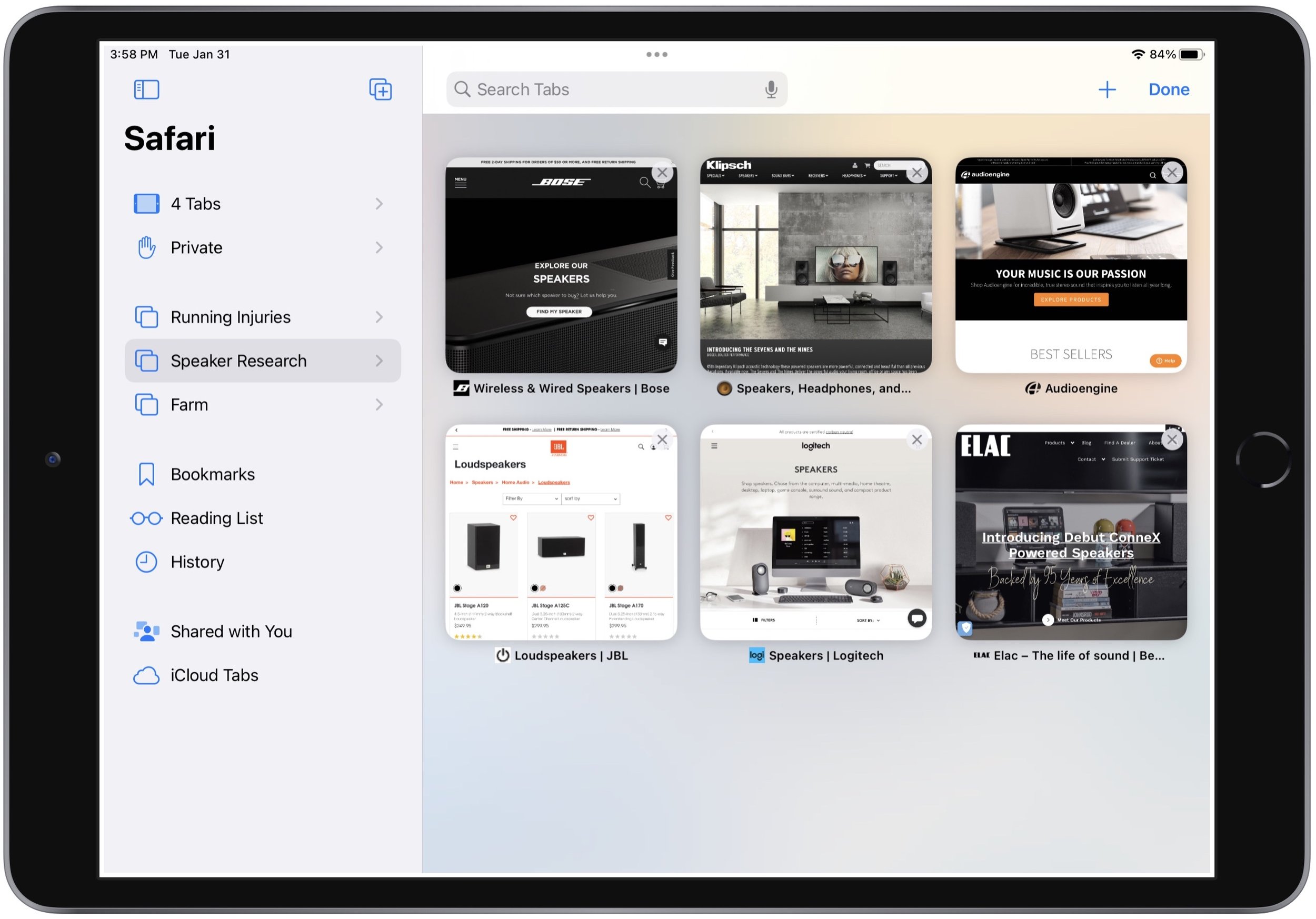
Web browser makers were apparently unsatisfied with letting users open all the bookmarks in a folder in new tabs because they have come up with a similar feature called tab groups. Let’s say you’re researching new speakers to buy, and you want to compare options from different companies. Once you have open tabs for all the sites, you can open the sidebar in Safari on the Mac or iPad and use the Add Tab Group icon at the top to create and name a new tab group.
From then on, it appears in the sidebar, and when you select it, those tabs load automatically, replacing the ones that were there before (which are stored as another group). The feature is also available on the iPhone, where you must tap the tab icon in the toolbar first. Unlike a folder of bookmarks, when you close a tab in a tab group, it disappears, and if you want it back, you have to open it again manually.
Pinned Tabs
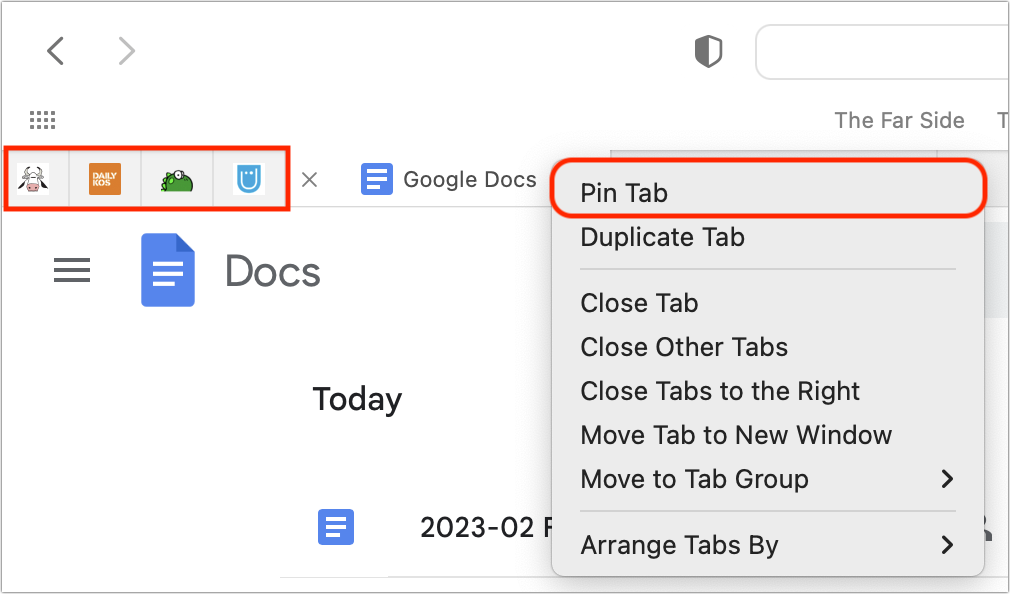
Perhaps you have several sites that are so important to you that you want them open at all times. For such situations, you can pin tabs to those sites. The utility of pinned tabs is that they stay in place even when you open a new window or quit and reopen Safari. Plus, if you click a link to a different website in a pinned tab, it opens in a new tab—pinned tabs always show the website you pinned. On the iPhone, where there’s no tab bar, pinned tabs live at the top of the tab screen. Each tab group can have its own pinned tabs.
To pin a tab in Safari on the Mac or iPad, drag an open tab all the way to the left in the tab bar until it shrinks into a tiny box showing only the site’s favicon. Or, on the Mac, Control-click the tab and choose Pin Tab (shown below). On the iPad, touch and hold the tab and select Pin Tab. To pin a tab on the iPhone, tap the tab icon first and then touch and hold a tab and select Pin Tab.
So there you have it! None of these features are particularly new, but they’re easily overlooked, and from what we’ve seen while watching people browse the Web, lots of people could benefit from them.
(Featured image by Adam Engst)
Apple Powers Mac mini and MacBook Pro with New M2 Chips, Releases New HomePod
Apple has unveiled the M2 Pro and M2 Max chips and announced the M2 Mac mini and M2 Pro Mac mini, plus the M2 Pro and M2 Max models of the 14-inch and 16-inch MacBook Pro. Oh, and a new HomePod! Read all about it at:
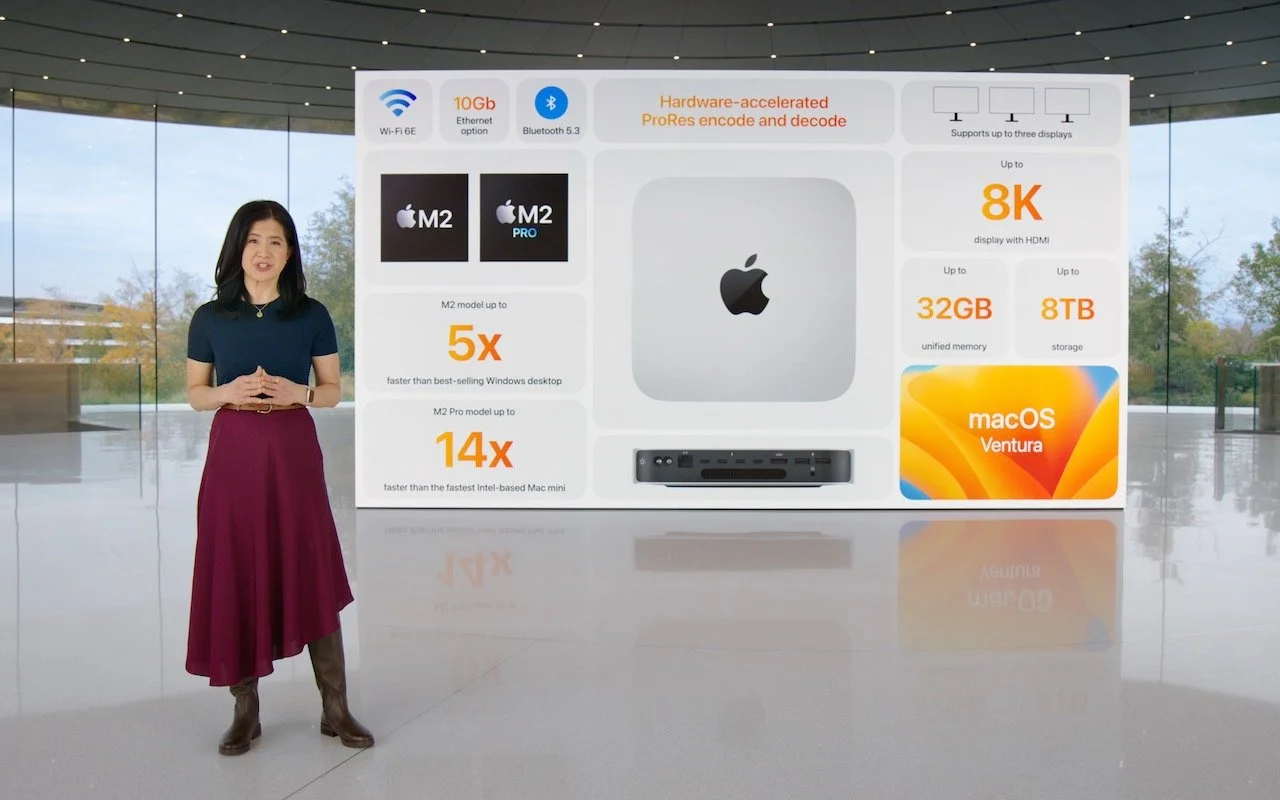
With a handful of press releases buttressed by a 19-minute video, Apple pulled back the curtains on its new M2 Pro and M2 Max chips and announced updated Mac mini and MacBook Pro models that rely on the new chips. There are no significant design or feature changes with these updated models, just faster performance, enhanced external display support, and support for the latest wireless connectivity standards. The new Mac mini and MacBook Pro models are available to order now, with units in stores and orders starting to arrive on January 24th.
Then, in another surprise announcement, Apple announced the second-generation HomePod, which updates the full-size smart speaker with a few new features and likely makes it more cost-effective to produce.
New M2 Mac mini and M2 Pro Mac mini Broaden the Appeal
For many years, the Mac mini has been popular for its small size, low price, and decent performance, bolstered in 2020 by a move from Intel CPUs to Apple’s M1 chip. Apple has now increased the Mac mini’s power even more by letting users choose between the M2 and the new M2 Pro. How much more? It depends greatly on what you’re doing, and Apple offers some comparisons. The improvements will likely be noticeable with the M2 and obvious with the M2 Pro.
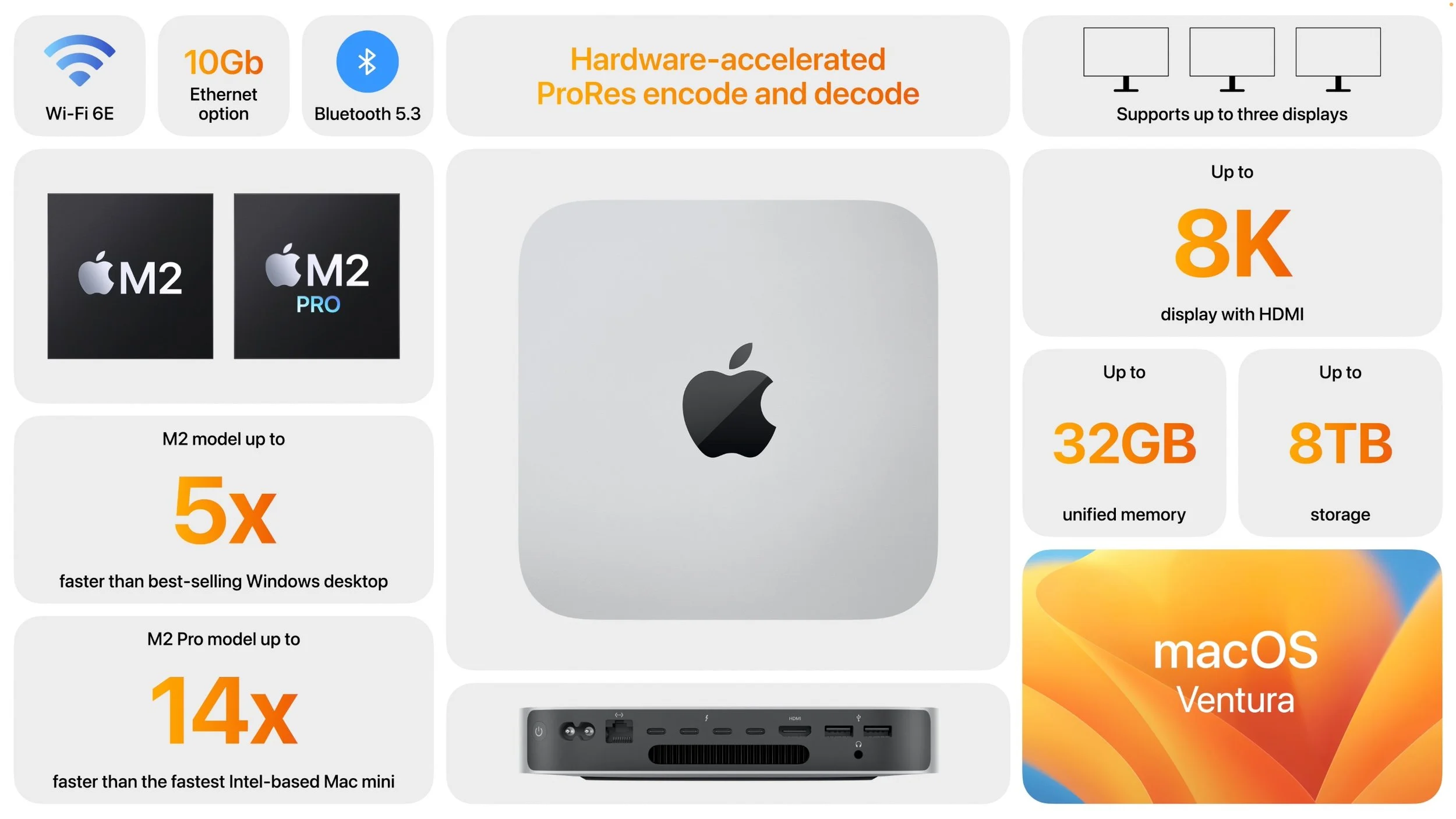
The M2 Mac mini starts at $599—$100 less than the starting price for the M1 Mac mini—and provides an 8-core CPU and 10-core GPU with unified memory configurations of 8 GB, 16 GB (add $200), or 24 GB ($400). In terms of storage, the base level is 256 GB, but you can increase that to 512 GB ($200), 1 TB ($400), or 2 TB ($800). It provides only two Thunderbolt 4 ports.
The M2 Pro Mac mini starts at $1299 for a 10-core CPU and 16-core GPU, but you can bump that up to an M2 Pro with a 12-core CPU and 19-core GPU for $300. You also get 16 GB of unified memory and 512 GB of storage for that base price. 32 GB of memory costs $400 more, and storage upgrades are 1 TB ($200), 2 TB ($600), 4 TB ($1200), and 8 TB ($2400). It offers more connectivity with four Thunderbolt 4 ports. Note that as you configure a powerful M2 Mac mini, you’ll be straying into Mac Studio territory in terms of both price and performance.
Both Mac mini models boast enhanced external display support. Read the tech specs for full details, but in essence, along with multiple monitor support over Thunderbolt, the HDMI port on an M2 Pro Mac mini supports either an 8K display or a 4K display running at a faster refresh rate, which might be a boon in video-focused fields. Other improvements that may be welcome in specific setups include the option to add 10 Gigabit Ethernet for $100, support for Wi-Fi 6E (which can improve throughput over short distances with a new router), and Bluetooth 5.3.
The updated Mac mini replaces both the M1 Mac mini and the Intel-based Mac mini that Apple had left in the lineup until now.
It probably won’t be long before Apple releases an M2 24-inch iMac, too. We know that some are pining for a 27-inch iMac with Apple silicon, and we’ll just have to wait to see if Apple returns to that form factor with either an iMac or iMac Pro. We can also expect M2 versions of the Mac Studio at some point, but we’ll have to wait for Apple to come out with an M2 Ultra chip if it’s to maintain the same lineup as today’s M1 family.
M2 Pro and M2 Max Speed Up 14-inch and 16-inch MacBook Pro
Since their October 2021 release, Apple’s professional laptops, the 14-inch MacBook Pro and 16-inch MacBook Pro, have provided impressive processing power thanks to their M1 Pro and M1 Max chips. Apple has now switched to the new M2 Pro and M2 Max chips, and the company says that both offer 20% more CPU performance, 30% more GPU performance, and 40% more Neural Engine performance than their predecessors. As with the Mac mini, the updated MacBook Pro models also feature enhanced external display support (see the tech specs for full details), Wi-Fi 6E, and Bluetooth 5.3. Finally, Apple estimates they’ll have an hour more battery life.
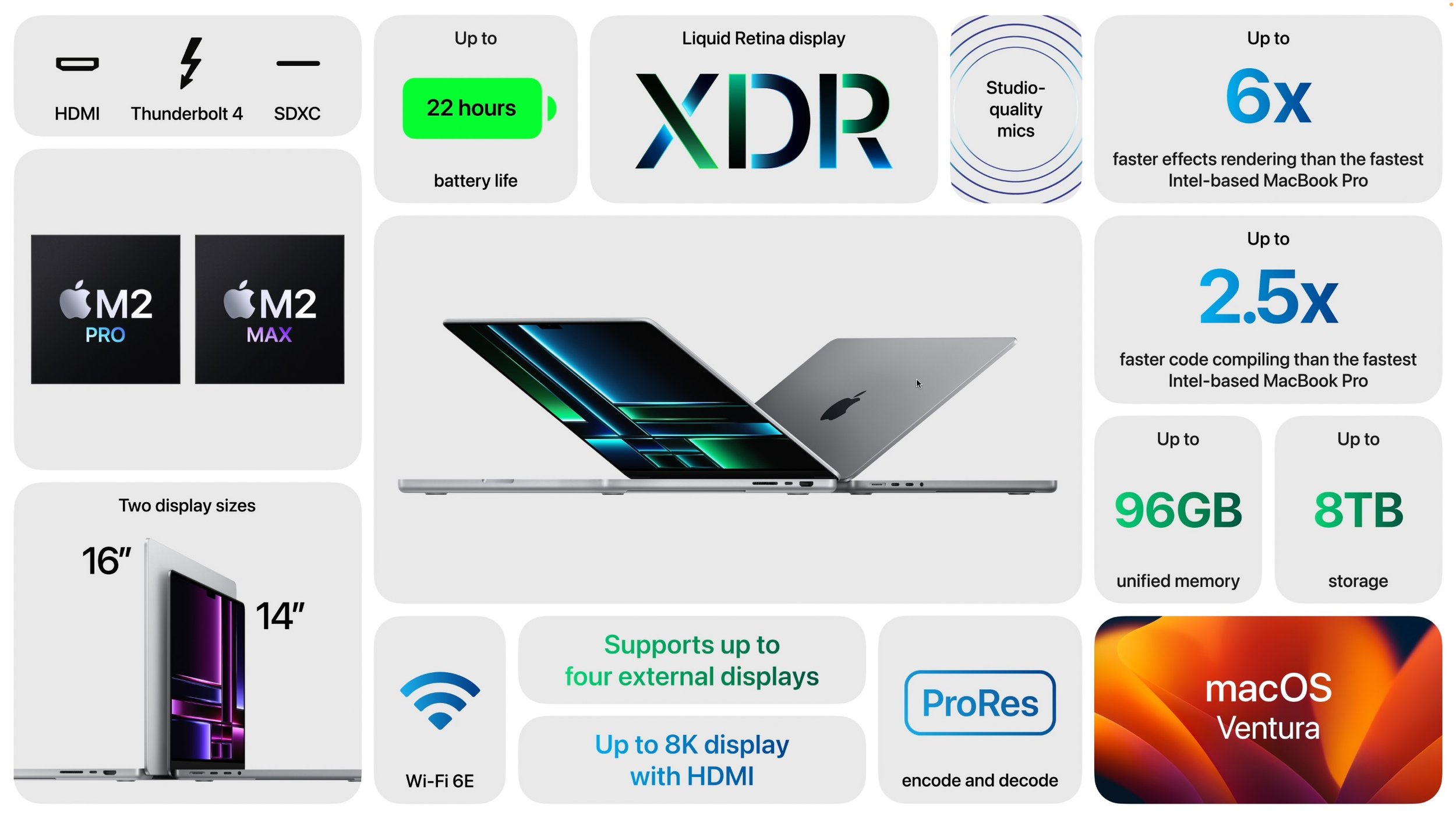
The 14-inch MacBook Pro starts at $1999 for an M2 Pro with a 10-core CPU and 16-core GPU, 16 GB of memory, and 512 GB of storage. Chip upgrades include the 12/19-core (CPU/GPU) M2 Pro ($300), the 12/30 M2 Max ($500), and the 12/38 M2 Max ($700). With memory, the M2 Pro configurations can upgrade to 32 GB ($400), whereas the M2 Max configurations start at 32 GB and let you go to 64 GB ($400) or 96 GB ($800, with the 12/38 M2 Max only).
The 16-inch MacBook Pro costs $2499 for an M2 Pro with a 12-core CPU and 19-core GPU, 16 GB of memory, and 512 GB of storage. Chip upgrades include the 12/30 M2 Max ($200) and the 12/38 M2 Max ($400). Memory is the same as with the 14-inch MacBook Pro, so the M2 Pro configuration can upgrade to 32 GB ($400), and the M2 Max configurations start at 32 GB and let you go to 64 GB ($400) or 96 GB ($800, with the 12/38 M2 Max only).
Given that these new MacBook Pro models provide more performance and battery life for the same prices as before, their release is entirely positive. If you were waiting for an M2 Pro or M2 Max laptop, now’s the time to place an order.
Apple Brings Back the Full-Size HomePod
Apple released the original HomePod in 2018, but even after dropping the price from $349 to $299, sales weren’t strong enough thanks to competition from much cheaper smart speakers from Amazon and Google. Apple discontinued the HomePod in 2021 and focused on the $99 HomePod mini. Now Apple has brought the full-size HomePod back, introducing a second-generation HomePod with a few extra features and the same $299 price. You can order it now in white or midnight, which replaces space gray, and it ships on February 3rd.
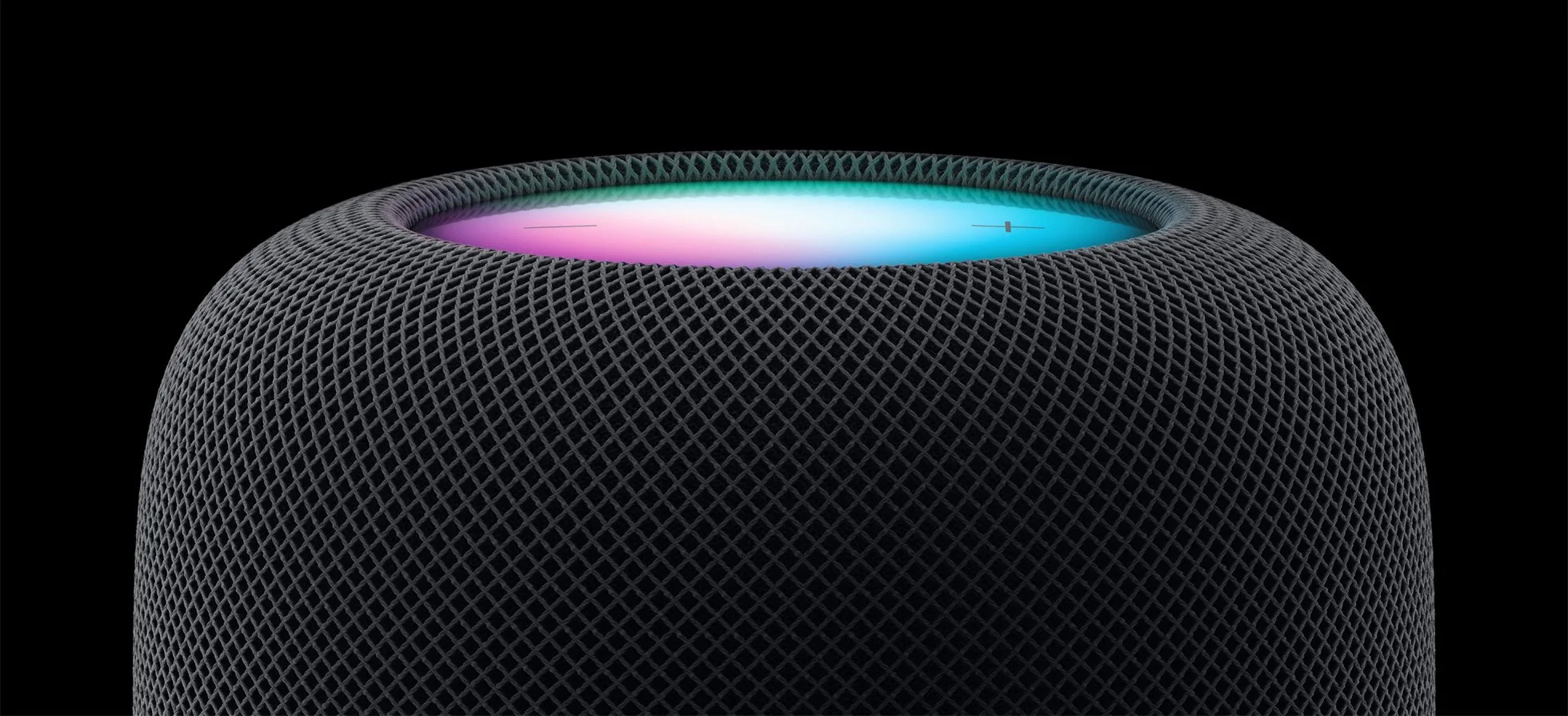
The new HomePod supports spatial audio with Dolby Atmos for music and video, which should enhance the listening experience. For those getting into home automation, it includes a sensor for temperature and humidity, and you’ll be able to use the Home app to create automations to control blinds, fans, and thermostats. It also supports the new Matter home automation standard. Finally, Apple says that a software update in a few months will add Sound Recognition, which will let the HomePod alert you if it hears smoke or carbon monoxide alarms. Wouldn’t you like to know if an alarm is going off while you’re away from home?
One note. You can use two HomePods to create a stereo pair, but both HomePods must be the same model. So you can’t pair an original HomePod with a second-generation HomePod or mix an HomePod mini with either one.
The main question, which we won’t be able to answer until the second-generation HomePod ships, is if it sounds as good as the original HomePod and hears Siri commands as well. That’s a question because Apple redesigned the HomePod’s audio hardware to use fewer tweeters and microphones. Plus, it relies on the S7 chip that powers the Apple Watch Series 7, as opposed to the A8 that first appeared in the iPhone 6. In short, it seems that Apple has worked to cut costs to enable the necessary profit margins. Given that Amazon’s hardware division reportedly lost $10 billion in 2022 by selling Echo smart speakers at cost, Apple’s move seems sensible, at least as long as it doesn’t hurt the HomePod user experience.
(Featured image by Apple)
Copy Gigabytes of Data Between Macs with Target Disk Mode
If you have to move tens or hundreds of gigabytes of data between Macs, give Target Disk Mode a try. It’s fast, easy, and reliable. Details here:
Apple makes it easy to move data between Macs. You can send files via AirDrop, attach them to an email message, put them in a Messages conversation, turn on and connect via File Sharing, or use a file-sharing service like iCloud Drive, Dropbox, or Google Drive as an intermediary, to name just a few of the more obvious approaches.
But what if you have a lot of data—say tens or even hundreds of gigabytes—to transfer from one Mac to another? The techniques listed above might work, but we wouldn’t bet on it. If you had an external drive with sufficient free space handy, you could copy all the data to it from one Mac and then copy the data from it to another Mac. To cut the copy time in half, try Target Disk Mode instead. You may even be able to use Target Disk Mode on an older Mac to transfer an account with Migration Assistant when setting up a new Mac.
What Is Target Disk Mode?
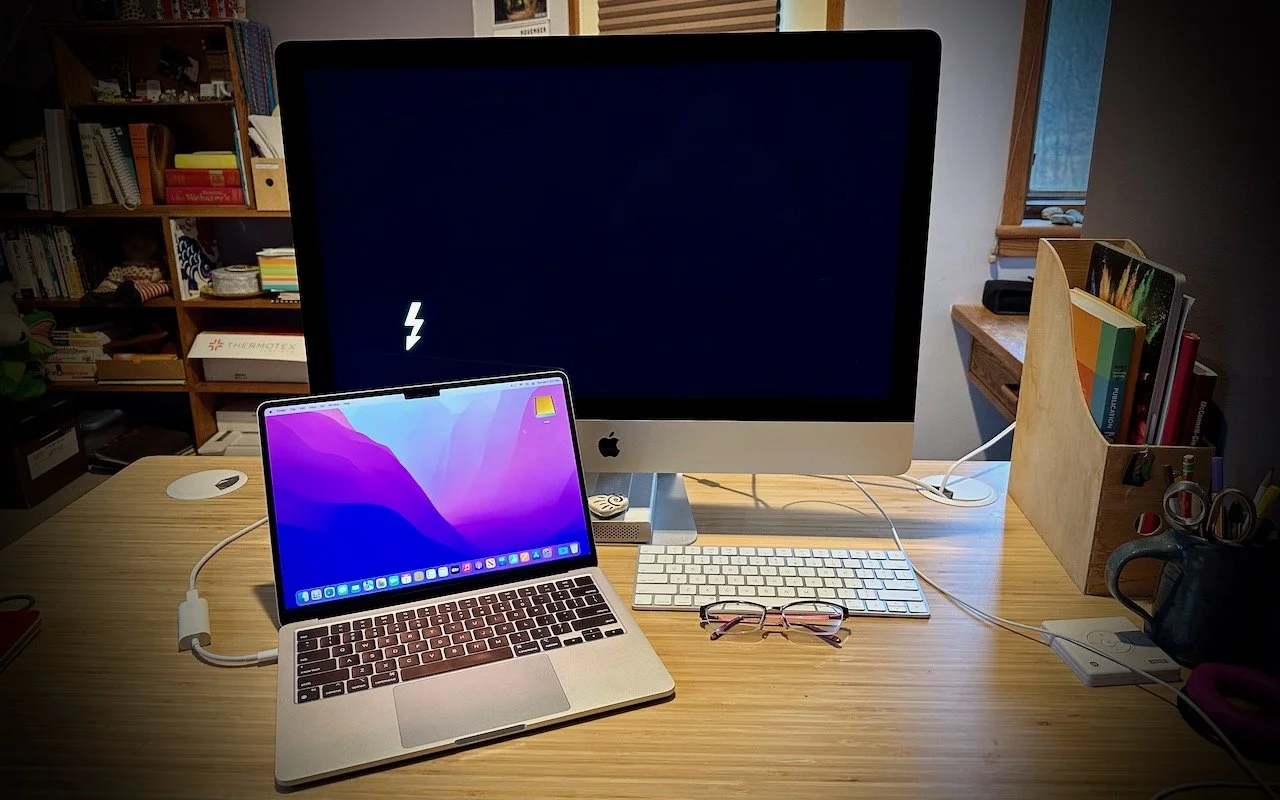
Target Disk Mode is a special boot mode for Intel-based Macs and an option in macOS Recovery on Macs with Apple silicon that enables one Mac to behave like an external drive for another Mac. Target Disk Mode is nearly universal, easy to set up, and one of the fastest methods of moving files between Macs. Let’s unpack that statement:
Nearly universal: Every Mac sold in the last decade supports Target Disk Mode, so you can be sure it will work with any modern Mac. That’s true of both Intel-based Macs and Macs with Apple silicon.
Easy setup: Because Apple has baked Target Disk Mode into the Mac firmware, the version of macOS is irrelevant beyond the Thunderbolt cable requirement discussed below. There’s no software to configure nor any permissions to worry about. Putting a Mac into Target Disk Mode is particularly simple on Intel-based Macs, but it’s also easy on Macs with Apple silicon.
Speed: Because you’re connecting one Mac directly to another using Thunderbolt, you’ll get the fastest transfer speeds available.
If either Mac has macOS 11 Big Sur or later installed, you’ll need to connect them with a Thunderbolt cable—it’s fine to use Apple’s Thunderbolt 3 to Thunderbolt 2 adapter for connecting newer and older Thunderbolt-capable Macs. If both Macs are running an earlier version of macOS, you can use Thunderbolt, USB, or FireWire, depending on the available ports. (Note that the Apple USB-C Charge Cable that comes with the Apple power adapter doesn’t support Target Disk Mode, so if that’s the cable you were planning to use, sorry, but you’ll need to buy a real Thunderbolt cable.)
Step-by-Step Instructions for Intel-based Macs
To put an Intel-based Mac into Target Disk Mode for copying data, follow these steps:
Connect the source Mac to the destination Mac with an appropriate cable.
On the source Mac, either:
Restart the Mac, and once it starts booting, hold down the T key until you see the Target Disk Mode screen with a bouncing Thunderbolt logo.
Open System Settings/Preferences > Startup Disk, click Target Disk Mode, and then click Restart.
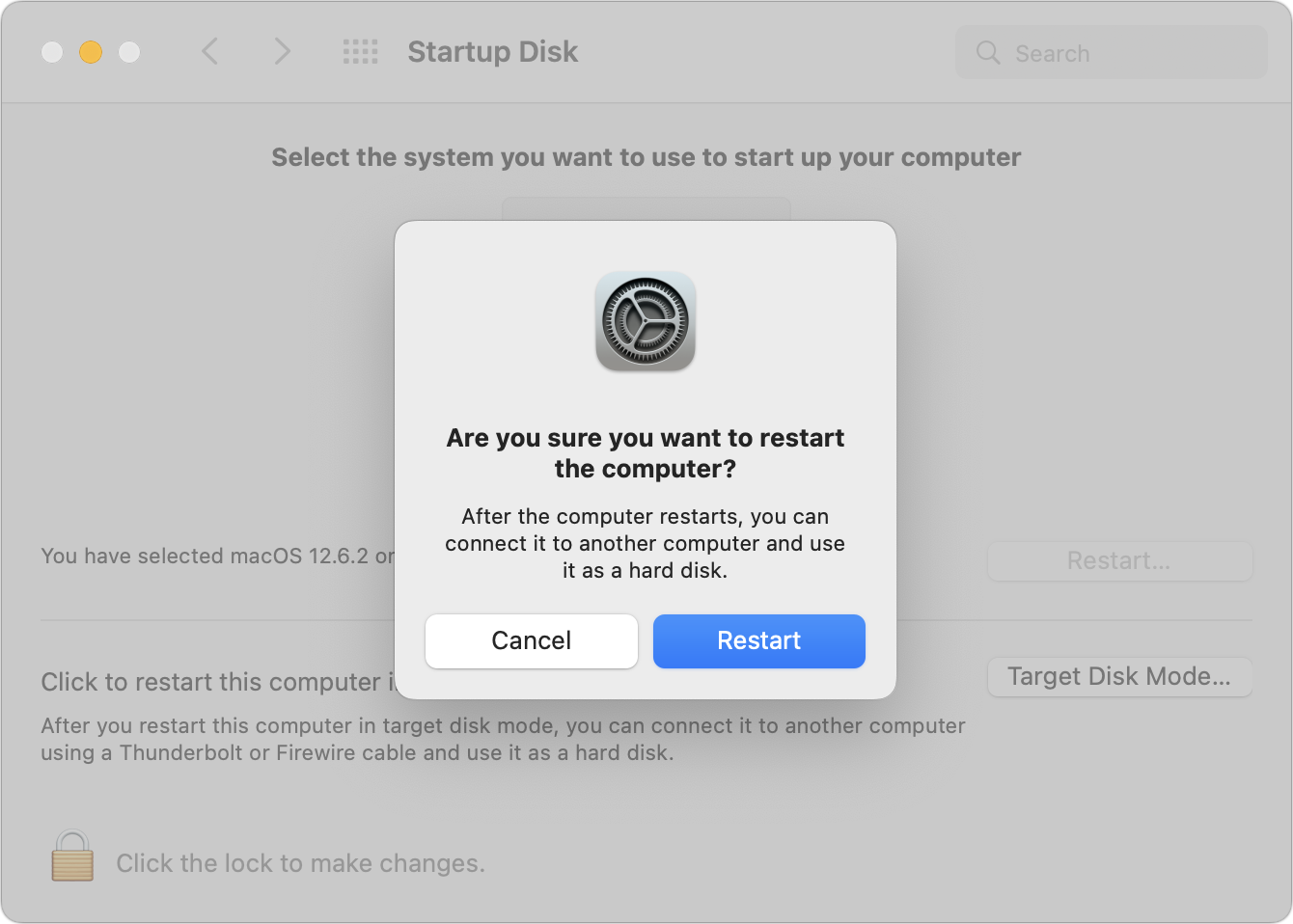
3. The source Mac’s data and applications volume appears on the destination Mac’s Desktop like an external drive; if the source Mac is encrypted with FileVault, give it a minute to appear on the destination Mac, after which you’ll need to enter its password.
4. Transfer the files as you would normally.
5. When you’re done, unmount the source Mac’s drive by dragging it to the Trash in the Dock. Then press and hold the power button on the source Mac for a few seconds to shut it down.
Step-by-Step Instructions for Macs with Apple Silicon
The process is somewhat more involved for Macs with Apple silicon, where the shared drive or volume appears like a network volume:
1. Connect the source Mac to the destination Mac with an appropriate cable.
2. On the Mac with Apple silicon, choose Shut Down from the Apple menu to turn it off.
3. Press and hold the power button until “Loading startup options” appears.
4. Click Options, and then click Continue to enter macOS Recovery.
5. Select a user, click Next, enter the user’s password, and click Continue.
6. Choose Utilities > Share Disk.
7. Select the drive or volume you want to share, and click Start Sharing. (If the drive is encrypted using FileVault, click Unlock and enter the FileVault pass-word first.)
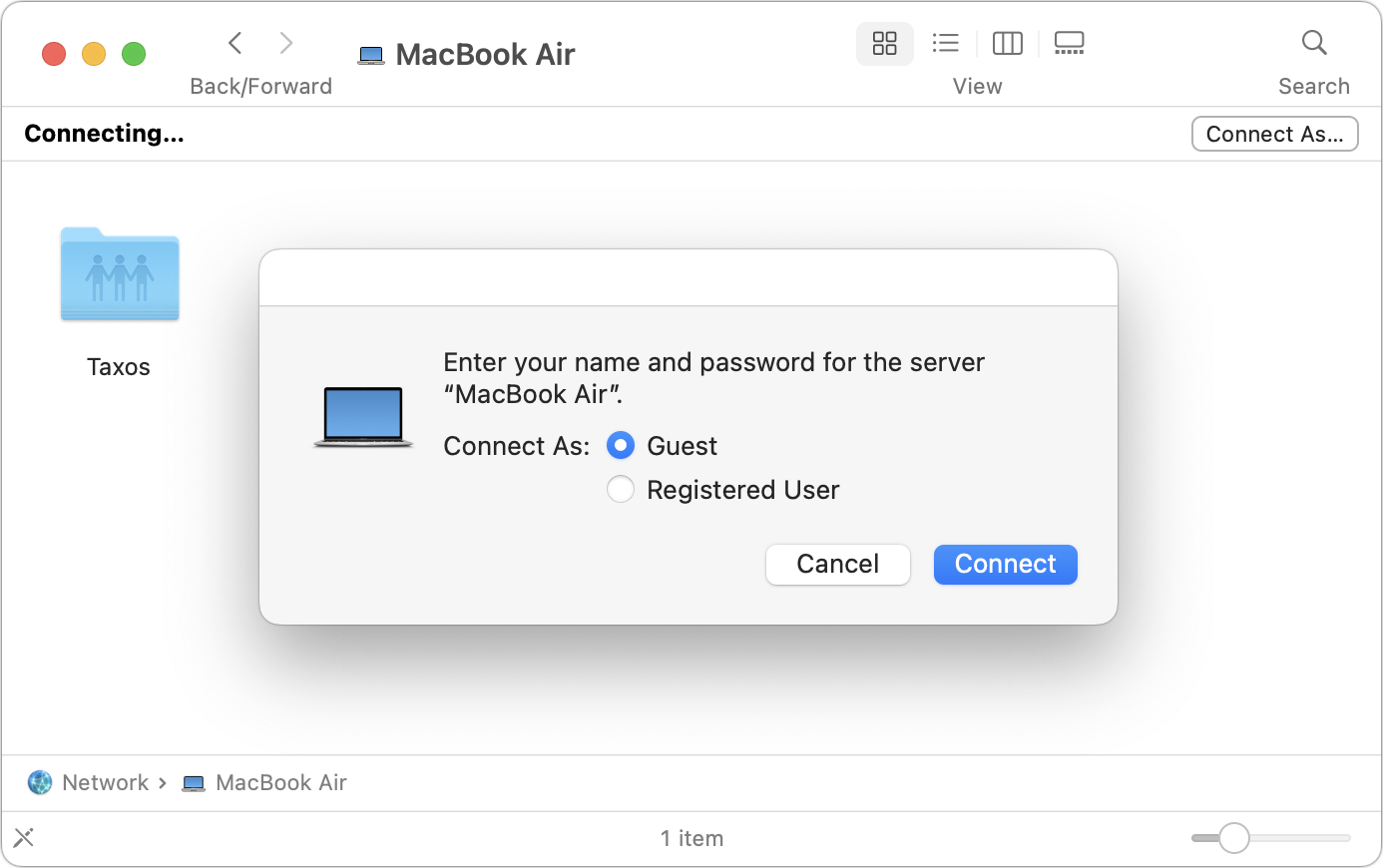
8. On the destination Mac, open a Finder window and click Network (under Locations) at the bottom of the sidebar.
9. In the Network window, double-click the Mac with the shared drive or volume, click Connect As, select Guest in the Connect As window, and then click Connect. The shared drive or volume becomes available like any other external hard drive.
10. Transfer the files as you would normally.
11. When you’re done, unmount the shared drive or volume by dragging it to the Trash, then click Stop Sharing on the source Mac.
Although it’s not something you’ll use every day, Target Disk Mode is one of the un-sung innovations that has made Macs easier to use for decades, and it’s well worth keeping in mind whenever you need to move lots of data between machines.
(Featured image by Adam Engst)
Apple Delivers Promised Features in End-of-Year OS Updates
At the end of 2022, Apple released operating system updates that delivered previously promised features like Freeform, Stage Manager on external displays, Advanced Data Protection for iCloud, and more. See what’s new at:
Every year at its Worldwide Developer Conference in June, Apple previews planned features in the upcoming versions of macOS, iOS, iPadOS, watchOS, and tvOS. However, not all of those features are necessarily ready for the initial releases of those operating systems. In part, that’s because iOS must ship in sync with the latest iPhone models that Apple releases in September, whereas iPadOS and macOS often come out later. Even then, some of Apple’s promised features may not be ready for public consumption until the .1 or .2 updates.
Just before the holidays, Apple released a full set of updates, including iOS 16.2, iPadOS 16.2, macOS 13.1 Ventura, watchOS 9.2, and tvOS 16.2. Between those updates and the ones immediately preceding them, Apple has now delivered on all of its 2022 promises.
Here is a rundown of what’s now possible. Some features are specific to one of Apple’s operating systems; others cut across several and may work only on updated devices or even require that all your devices be upgraded:
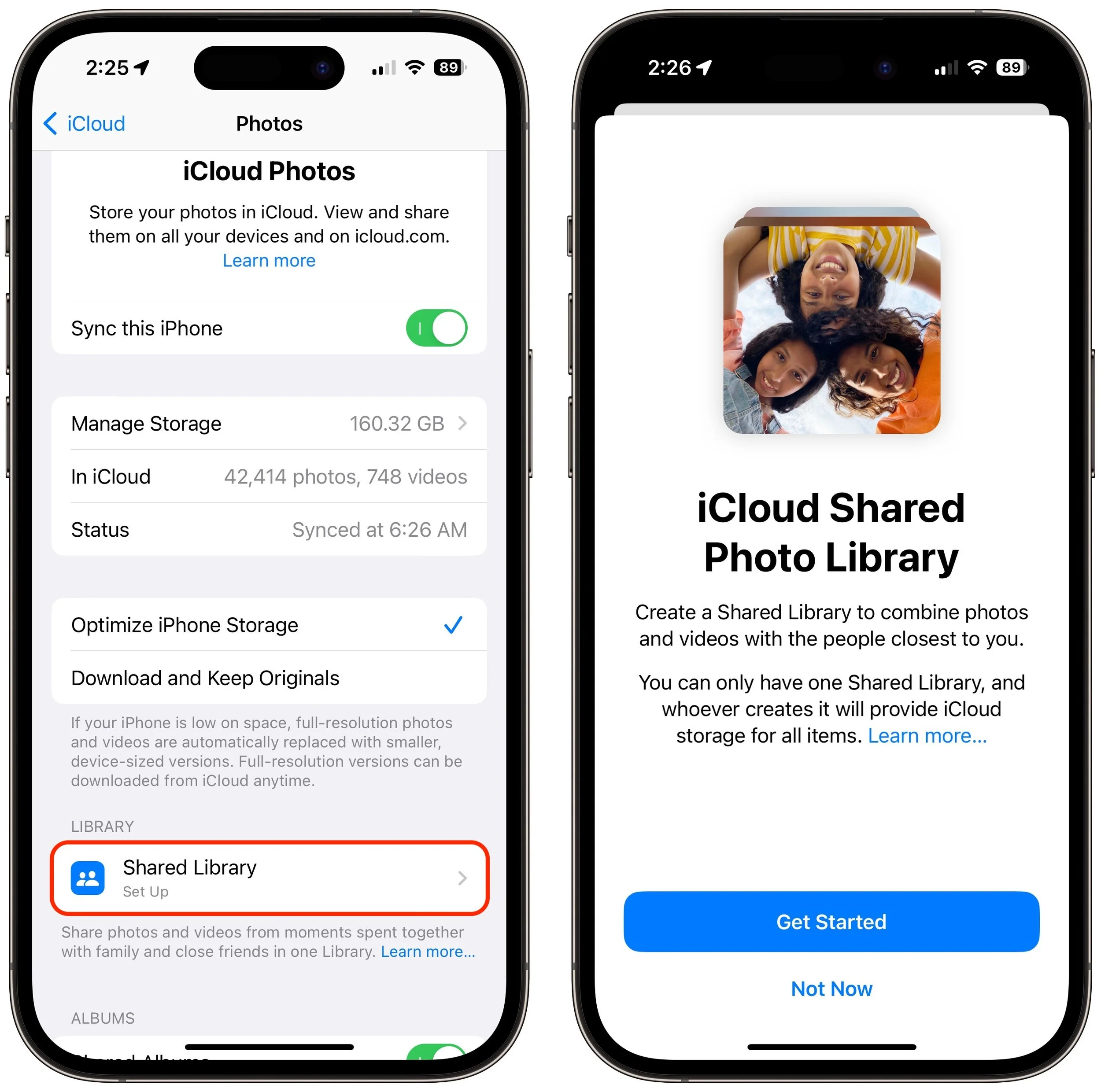
iCloud Shared Photo Library: Starting in iOS 16.1, iPadOS 16.1, and macOS 13.0, you can create another photo library and share it with family and close friends. It’s a great way to create a single shared space for photos and videos, but note that everything you contribute moves out of your Personal Library and into the Shared Library. Plus, everyone with whom you’re sharing has equal permissions to add, edit, and delete content in the Shared Library. The person who creates the Shared Library must have space in iCloud for it; it doesn’t count against anyone else’s iCloud storage.
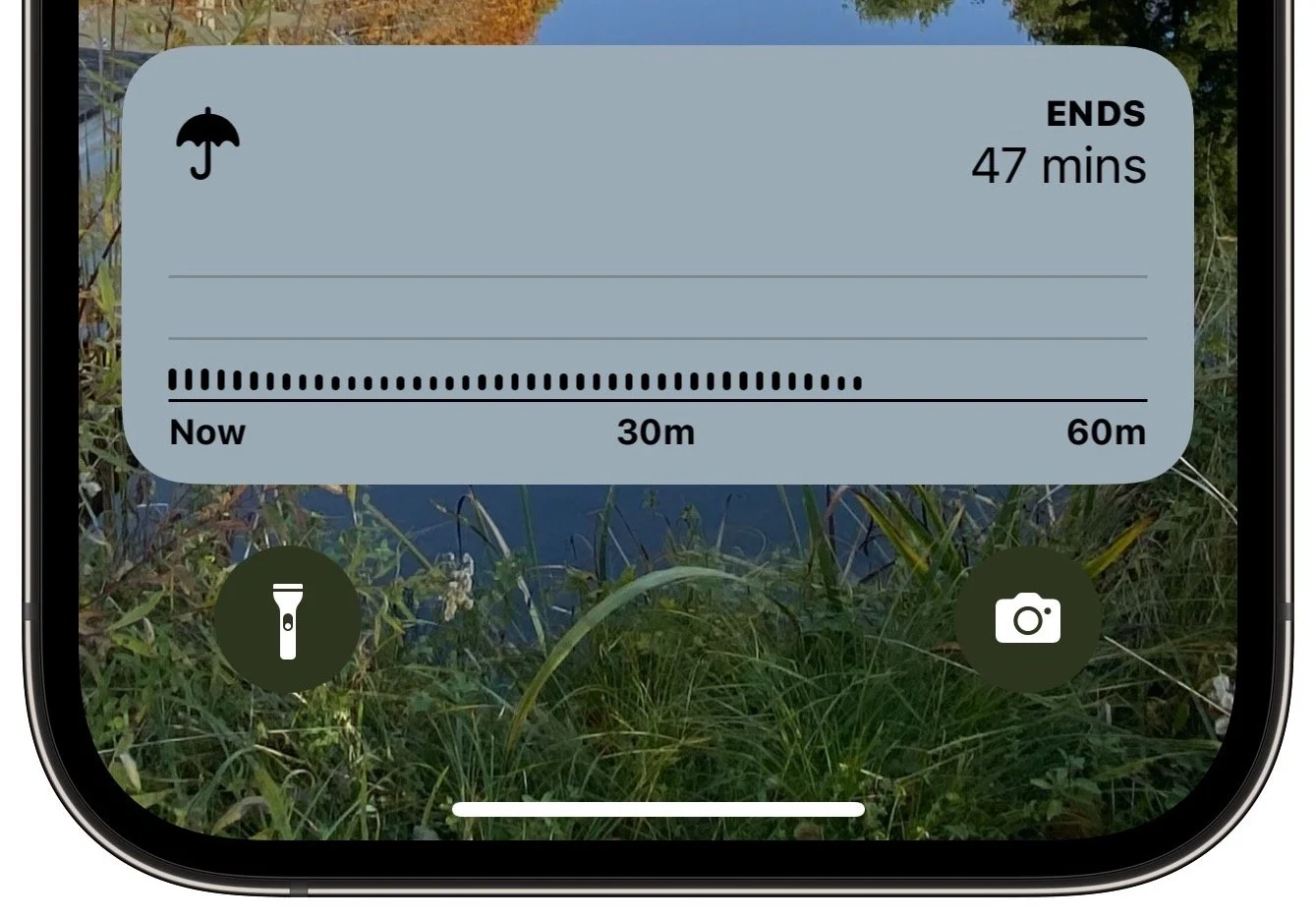
Live Activities: With iOS 16.1, Apple also unveiled Live Activities, a new type of dynamic notification that can appear on the iPhone’s Lock Screen or the iPhone 14 Pro’s Dynamic Island. Live Activities allow apps to display data like live sports scores (from the TV app), active weather (in CARROT Weather, below), flight tracking (in Flighty), and more.
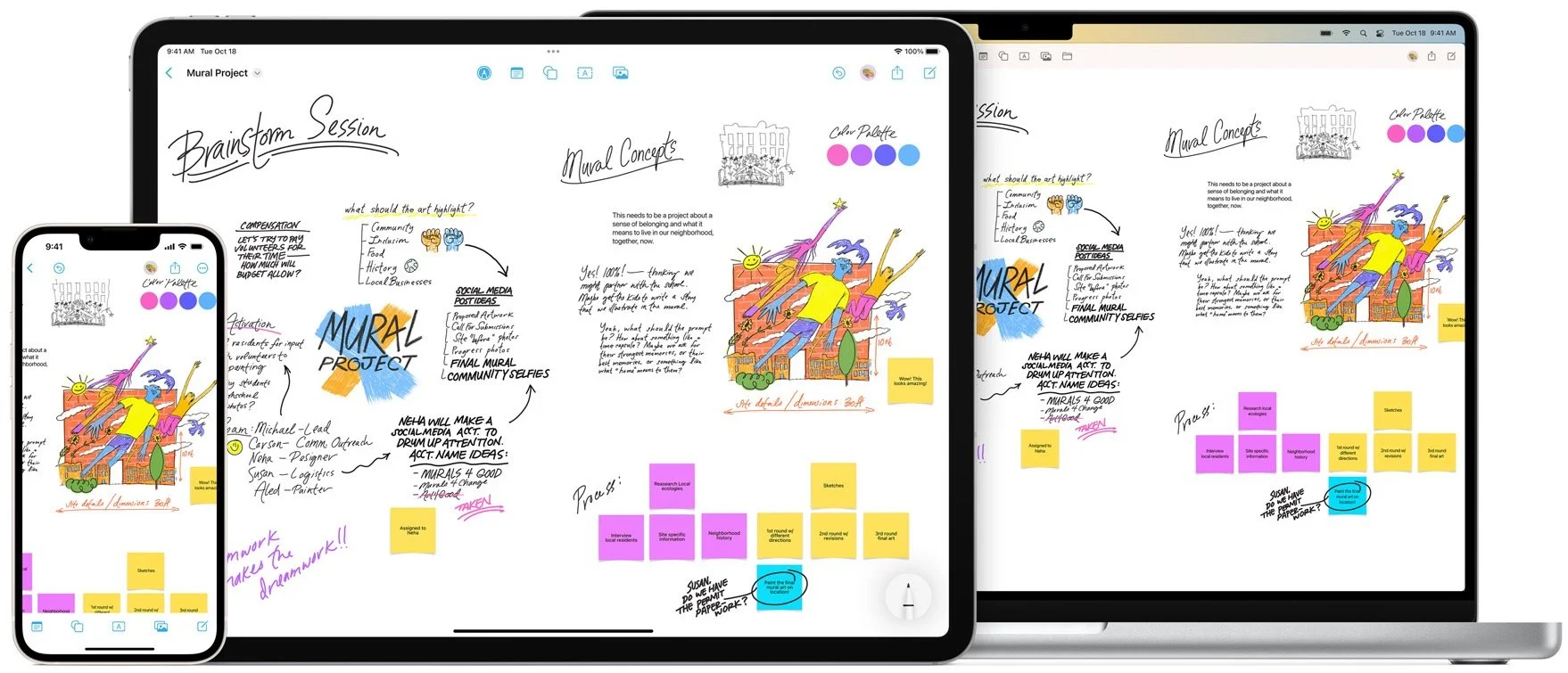
Freeform: The most notable addition in iOS 16.2, iPadOS 16.2, and macOS 13.1 was Freeform, Apple’s digital whiteboard app designed for collaborative brainstorming. It enables users to lay out a wide variety of content on a flexible canvas without worrying about fixed layouts or restrictive page sizes. Boards can contain text, hand-drawn graphics, sticky notes, shapes, and attachments—nearly any file on your Mac, iPad, or iPhone. Data syncs to your other devices through iCloud, and you can invite others (who must also be running a supported operating system) to collaborate on a board in real time.
New Home architecture: Apple promised that the new Home architecture would be more reliable and efficient, although it’s not clear what that means. It does require an explicit upgrade, and once upgraded, devices that aren’t running the latest versions of iOS, iPadOS, macOS, watchOS, tvOS, and HomePod Software won’t be able to access the home. Apple has temporarily removed the option to upgrade after problems were reported, so perhaps wait until the company restores the upgrade and others have had a chance to test it.
Stage Manager on external displays: The feature that initially caused iPadOS 16 to be delayed was Stage Manager, Apple’s new windowing paradigm for the iPad and the Mac. However, even when it first shipped in iPadOS 16.1, Stage Manager didn’t support external displays on the iPad. With iPadOS 16.2, you can finally have four apps in Stage Manager on the iPad display and another four on an external display. However, using Stage Manager on an external display requires an M1 iPad, which means the fifth-generation iPad Air, the third-generation 11-inch iPad Pro and later, and the fifth-generation 12.9-inch iPad Pro and later.
Race Route and automatic track detection: In watchOS 9.2, the new Race Route feature gives you the option of racing your last or best time on any route you’ve run or biked at least twice. Plus, if you start an Outdoor Run workout while at a track, you’re prompted to begin a Track workout that optionally provides track-specific metrics like lap time and pace.
Advanced Data Protection: In a surprise announcement in December, Apple unveiled Advanced Data Protection for iCloud, which extends end-to-end encryption to many more types of data in iCloud. For those concerned about breaches of Apple’s security or overreach by law enforcement, Advanced Data Protection is a very good thing. The downside is that when the feature is enabled, Apple cannot recover your data if you forget your iCloud password. For most people, the standard iCloud data protection remains sufficient. If you want to upgrade, note that all devices that you want to connect to your iCloud account must be running the latest operating system versions, which may not be possible for some otherwise fully functional older devices.
Apple Music Sing: If you’ve been hankering to sing along with your favorite songs, Apple Music Sing is essentially karaoke for Apple Music subscribers on the iPhone, iPad, and third-generation Apple TV. Alcohol not included.
Between these new features and some important security updates, we strongly encourage anyone running iOS 16, iPadOS 16, watchOS 9, and tvOS 16 to update to iOS 16.2, iPadOS 16.2, watchOS 9.2, and tvOS 16.2. And if you’re still running an earlier version of one of those operating systems, you can upgrade to the latest at any time—they’re fine.
Similarly, if you’re already running macOS 13 Ventura—perhaps on a newly purchased Mac— you should update to version 13.1 to take advantage of security fixes. However, if you haven’t yet upgraded from macOS 12 Monterey, perhaps wait a little longer. There has been only one macOS update with bug fixes since the initial release of Ventura, so it feels as though another bug fix update might arrive soon, after which we may recommend general upgrades.
(Featured image based on original by iStock.com/champpixs)