
SPF, DKIM, and DMARC: What They Are and Why You Need Them
To ensure phishers don’t forge email from your domain to use in their attacks on your organization and others, you must implement SPF, DKIM, and DMARC. We explain the basics, and we’re happy to help with the setup.

The ease of sending and receiving email makes it an attractive way to run scams like phishing attacks. One telltale mark of a phishing attack is the sender’s address not matching their purported domain; attacks that appear to come from legitimate email addresses are much more likely to fool the victim.
You can protect your organization’s email accounts from being compromised and used in phishing attacks by training your users to identify forged emails and use password managers, which won’t autofill a password on a malicious site. But how do you prevent bad guys from forging email that looks like it comes from inside your organization? You can’t, but you can reduce the chances that other email servers will accept it. In the process, you’ll enhance the deliverability of legitimate email from your domain.
The rest of this article is aimed at two types of readers. The first is the IT professional who needs an overview of email authentication technologies and pointers to helpful tools. For other readers, this article will give you an idea of what’s involved so you can talk more knowledgeably with your IT staff or better appreciate what they manage for you.
Whether your email is hosted at Microsoft 365 or Google Workspace, or managed by your Internet service provider or IT department, if your organization has its own domain for email addresses—yourname@yourcompany.com—you need to know about and set up three authentication technologies: SPF, DKIM, and DMARC:
SPF, which stands for Sender Policy Framework, lets you specify which servers and domains are allowed to send email for your organization. It allows receiving mail servers to verify that incoming messages from your organization are actually from you.
DKIM, or DomainKeys Internet Mail, adds a digital signature to every message sent from your organization. Receiving mail servers can use your public key to verify that messages actually came from you and were not changed in transit.
DMARC, which expands to Domain-based Message Authentication, Reporting, and Conformance, leverages SPF and DKIM to publish policies that tell receiving mail servers what to do with messages that fail authentication: deliver, quarantine, or reject them. A message fails DMARC authentication only if it fails both SPF and DKIM—only one is necessary for the message to pass DMARC’s checks.
These three authentication technologies exist inside DNS (Domain Name System) records. The primary use of DNS is to link your human-usable domain name with the underlying IP addresses of the servers that manage your Internet presence; for example, matching www.yourcompany.com with an IP address like 192.168.1.23. However, DNS can also contain TXT records with additional information about your domain—you configure SPF, DKIM, and DMARC using TXT records.
These TXT records must be carefully constructed to work correctly—an incorrect configuration could cause email failures. You could build them manually, but it’s safer to use a tool that asks you questions and spits out a correctly formatted TXT record for you to add to your DNS configuration. If all that sounds intimidating, work with your ISP or email service provider, or ask us for help. But here are the basics.
Tools abound for creating SPF, DKIM, and DMARC records, but we recommend those from DMARCLY and EasyDMARC. We’ll use DMARCLY for the examples here, and it provides a comprehensive explanation that’s worth reading if you want more depth.
SPF
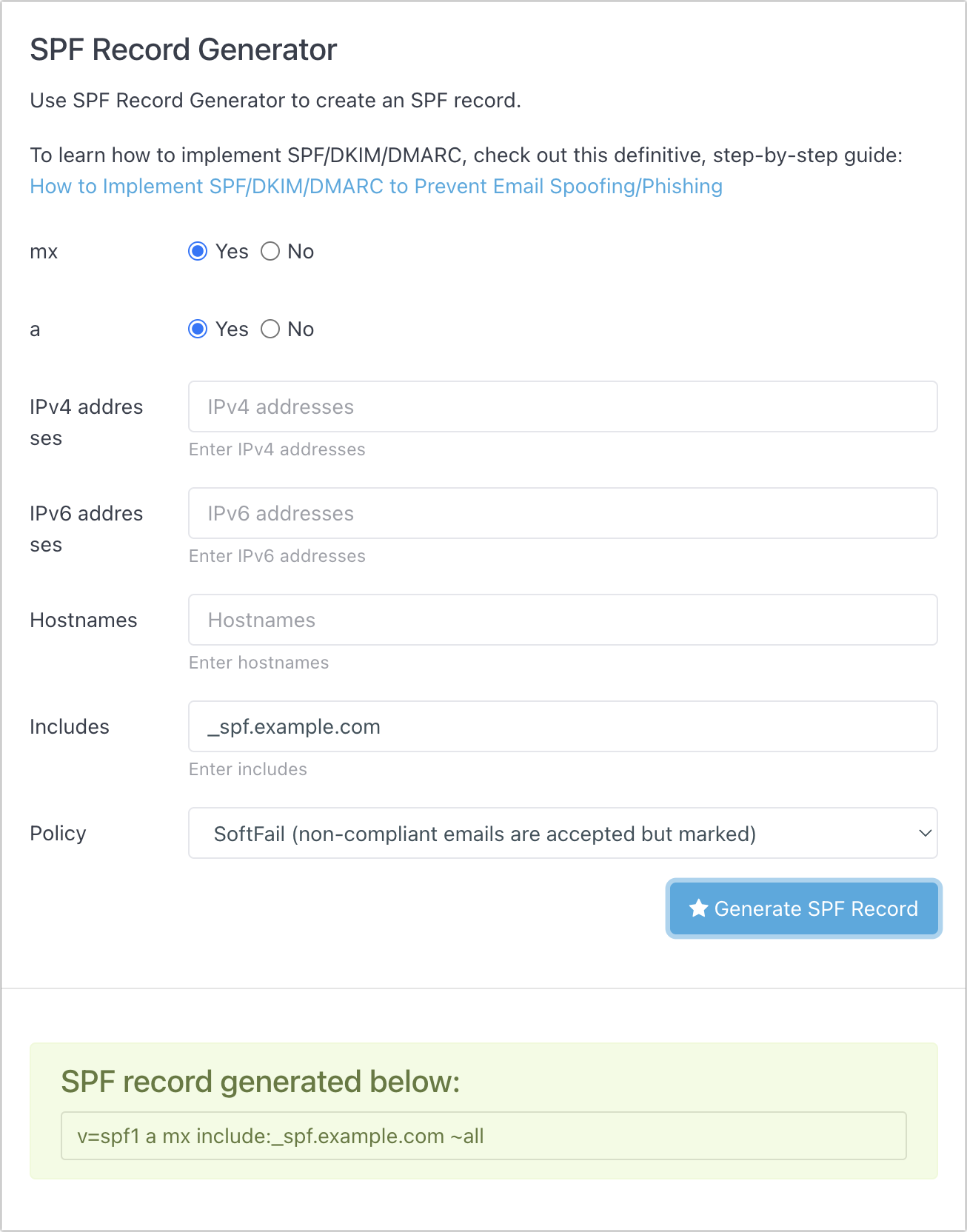
SPF is the oldest of these technologies. To get started, all you need to do in DMARCLY’s SPF Generator tool is specify the names or IP addresses of servers that are allowed to send email from your domain. The mx (mail exchanger) and a radio buttons automatically add the servers listed in your DNS records, and anything you put in the Includes field will allow email sent from anything allowed by a third party that sends email on your behalf. It’s common to put Google, Amazon SES, SendGrid, or other systems there. The IPv4, IPv6, and Hostnames fields let you specify other allowed servers, but aren’t necessary.
The Policy menu is important—you can choose from Fail, SoftFail, and Neutral. Start with Neutral, which should allow messages to be accepted (it prefixes all in the TXT record with a ?). Then bump up to SoftFail (a tilde ~ prefix) to have messages accepted but marked. When you’re confident everything is working correctly, move to Fail, which uses a - prefix.
DKIM
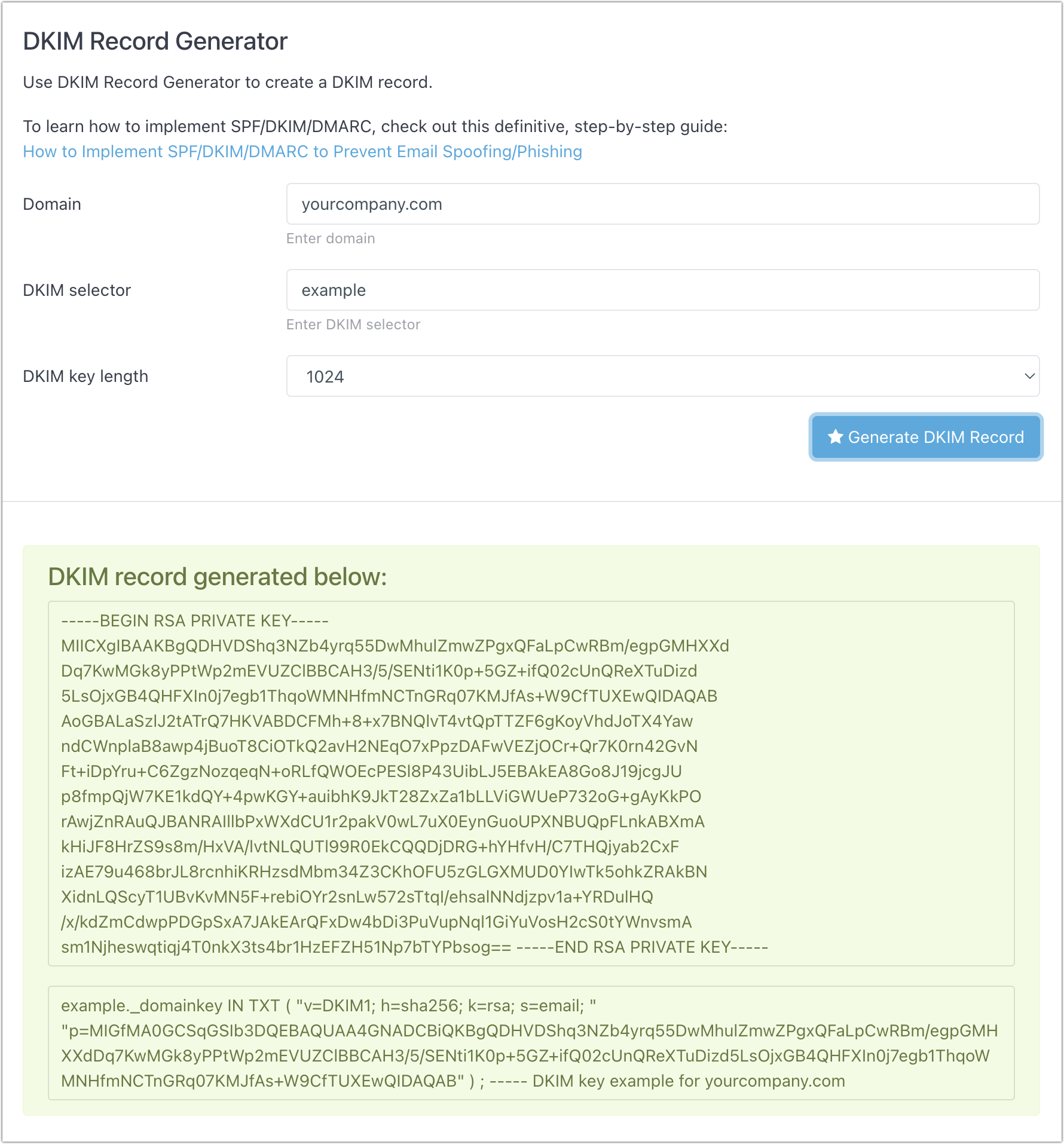
Because it relies on public key cryptography, DKIM is significantly more complicated. Although DMARCLY’s DKIM Generator tool will generate the necessary public and private keys, that’s not helpful unless you have full control over your email server and know how to install the private key to sign all your outgoing email. It’s much more likely that you’ll use a tool managed by the company that hosts your email to create your keys. That tool will automatically install the private key and give you the necessary details to add to a TXT record in your DNS settings.
DMARC
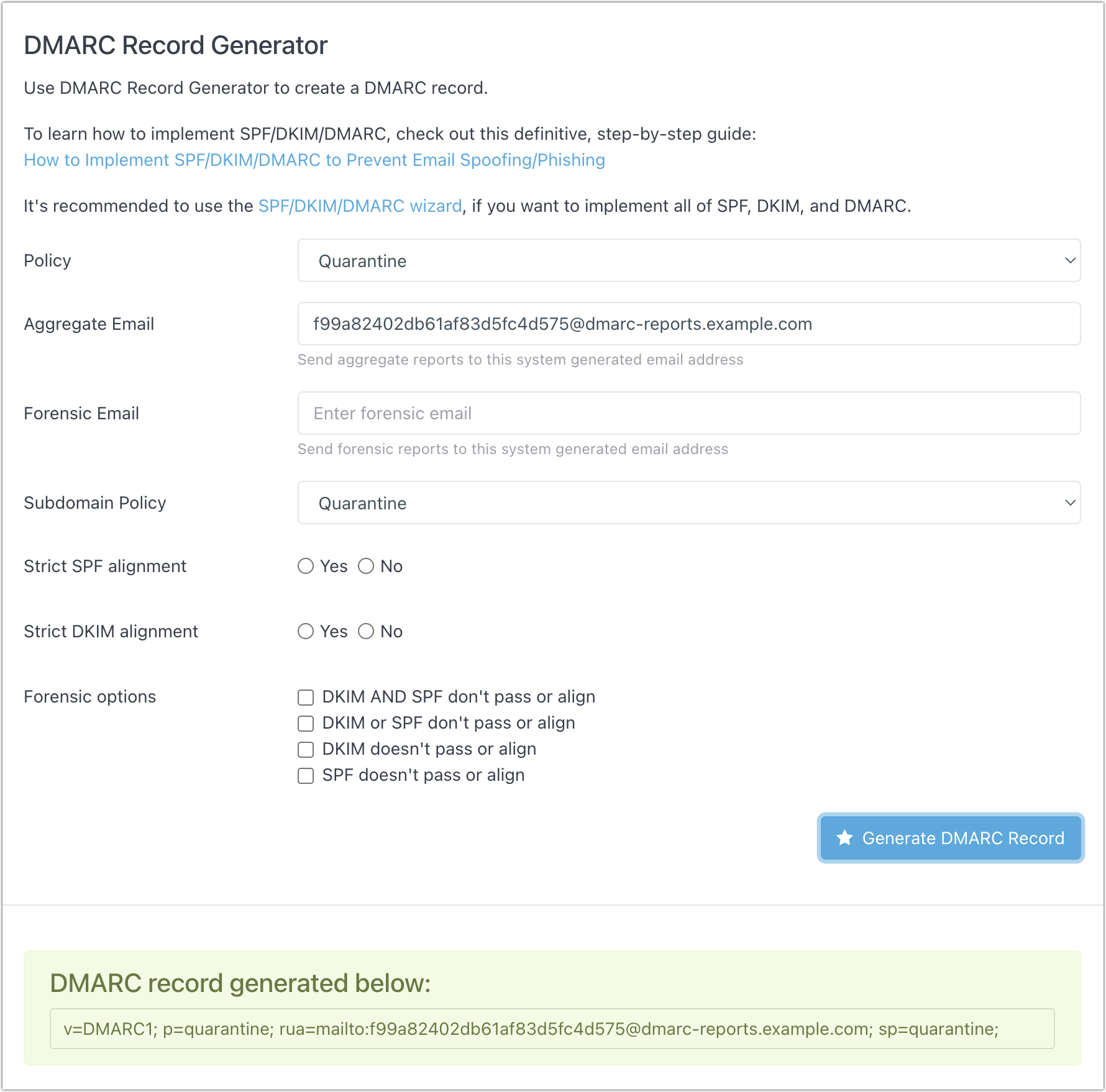
Where SPF and DKIM are all about authenticating email messages, DMARC lets you say what happens when authentication fails. DMARCLY’s DMARC Generator tool makes it easy to generate your DMARC record. For Policy and Subdomain Policy, you can choose None, Quarantine, or Reject—those specify what will happen to messages that fail both SPF and DKIM authentication. Start with None to see what happens in your reporting, move to Quarantine, and if everything seems OK, end up at Reject.
To set up reporting, enter an email address in the Aggregate Email field, but don’t put a personal address there. DMARC reports are daily XML digests that aren’t human-readable, so they should be sent to a service that will parse them and provide you with a dashboard for exploring the problems. DMARCLY and EasyDMARC both offer dashboards, as does the Cloudflare service if you use it for DNS or other tasks. To start, you can leave DMARC’s Strict Alignment and Forensic Options blank.
Configuring DNS
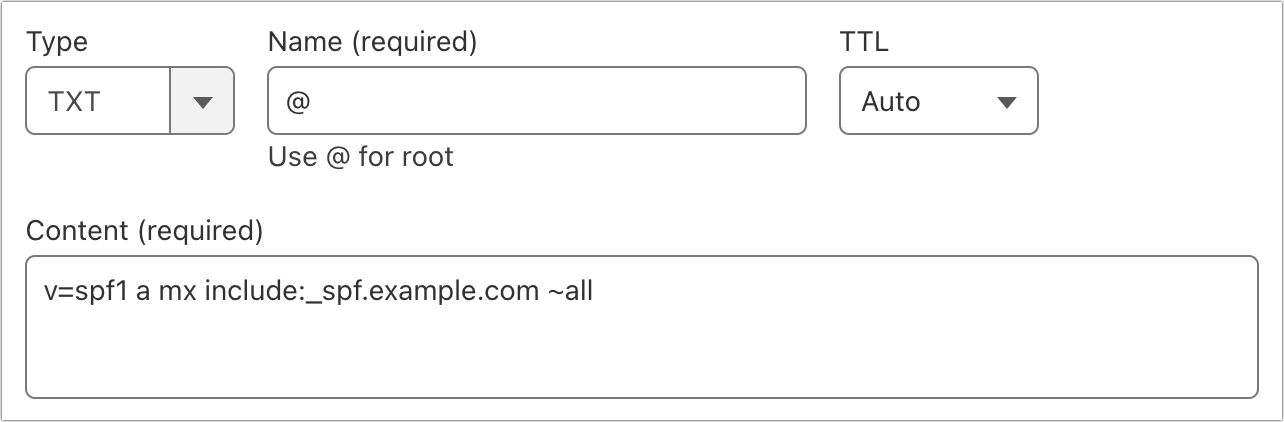
Once you’ve generated your SPF, DKIM, and DMARC records, you have to configure them in your DNS settings. How you do that depends on your DNS host; we’ll show what it looks like Cloudflare. Other DNS hosts should be similar.
For each case, you’re creating a TXT record, but what goes in the Name and Content fields varies:
SPF: The name for an SPF record should be the @ character, signifying the root level of your domain. Paste the text that the SPF Generator tool created in the Content field. You can have only one SPF record for each domain, although you can set up separate SPF records for subdomains.
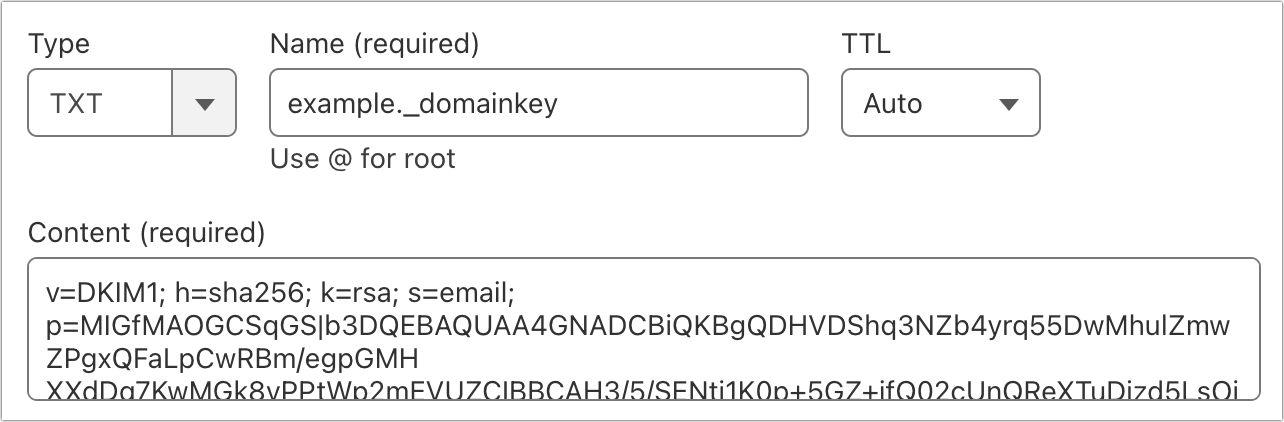
DKIM: You can have as many DKIM records as services that send email on your behalf, so the first part of the name can vary—we show example below. However, the ._domainkey part is required for each DKIM record. For the content, paste the text given to you by the email-sending service. Note that some email services may require you to create one or more CNAME records instead of a TXT record—just follow their instructions.
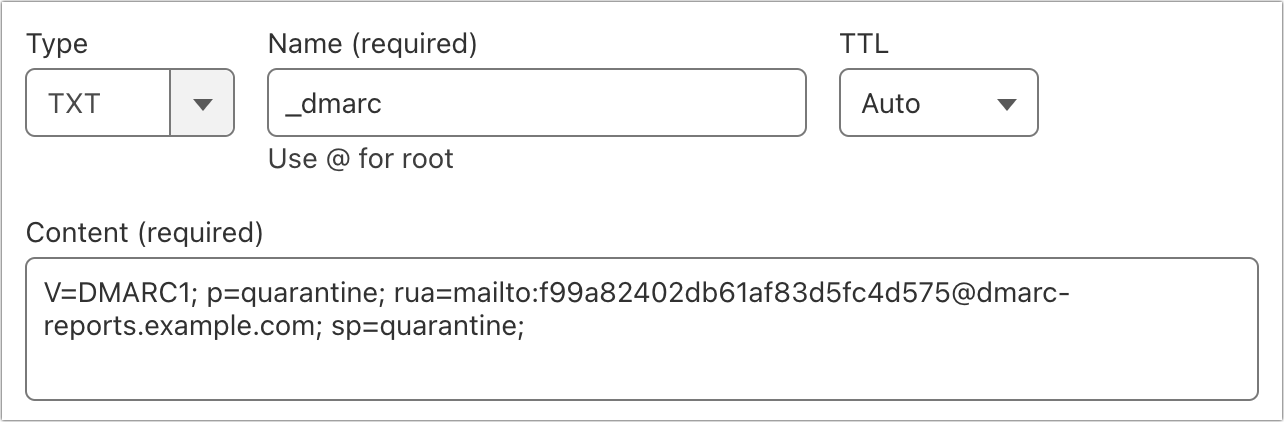
DMARC: For DMARC, the name must be _dmarc. Once again, you’ll paste the text given to you by the DMARC Generator tool in the Content field.
Reporting and Evaluation
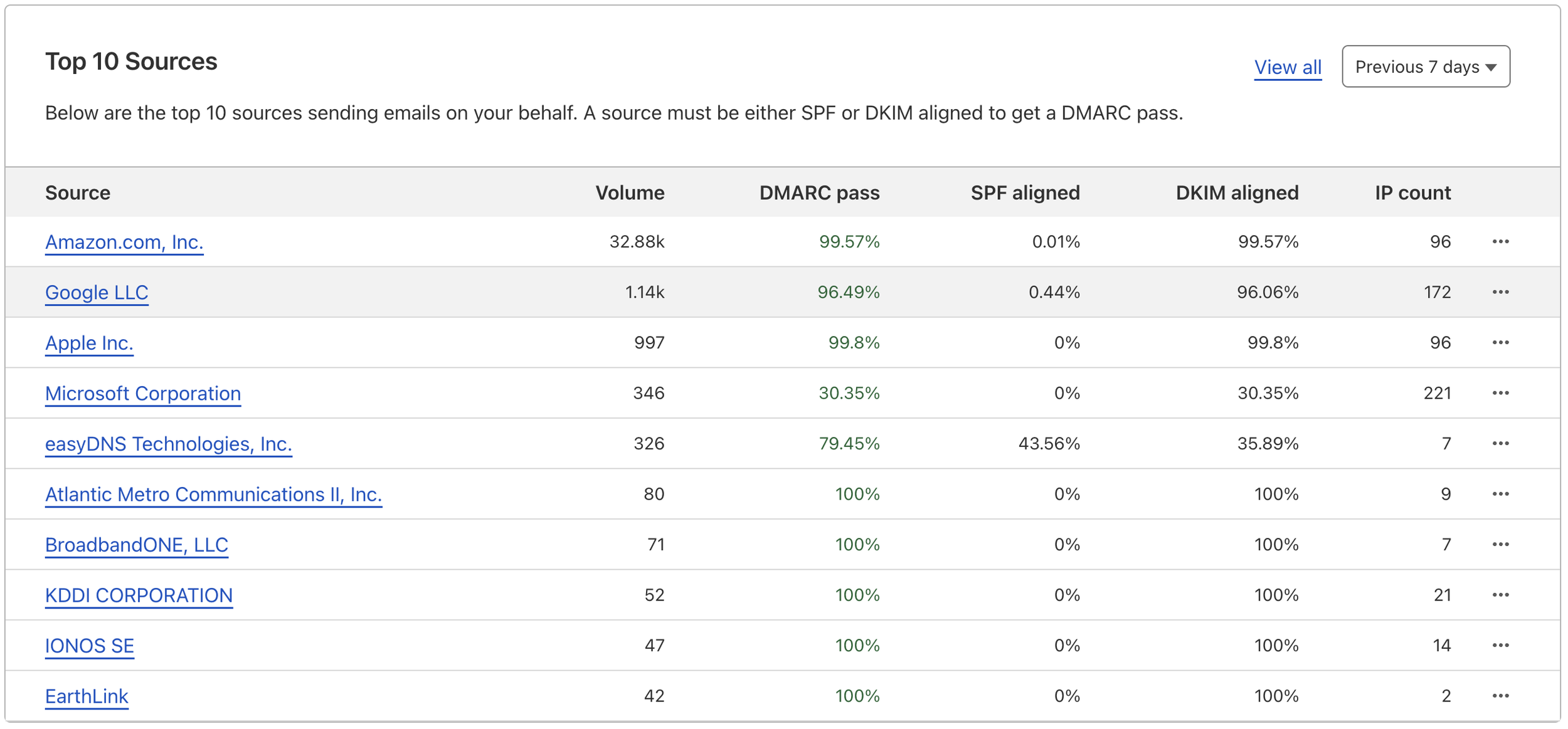
After you set up SPF, DKIM, and DMARC, it’s essential to keep an eye on your email. If you’ve started with SPF in Neutral mode and DMARC in None, nothing should go wrong. You can look through the headers of test messages you send to verify. This DMARCLY article explains what to look for. If you’ve signed up for an aggregate reporting service, you’ll be able to see reports like this one from Cloudflare that show the percentage of email that passes each of the authentication technologies.
If everything looks good and most email passes, change SPF to SoftFail and DMARC to Quarantine. Make sure you can send email to some known personal addresses on Gmail, Yahoo, or iCloud. Also, tell people who send email from your domain to be on the alert if they don’t hear back from someone who typically replies quickly—if a misconfiguration is causing your email to be marked as spam, you want to know about that quickly. If you’re using a DMARC reporting service, look at those reports to see if any email services are sending a lot of messages that fail DMARC.
After you’ve run with those settings for a month or two, bump SPF up to Fail and DMARC to Reject. Continue to monitor your DMARC reporting and pay attention to any complaints from users about the messages they send not arriving.
That’s a lot, we know. Feel free to contact us if you need help with any step of the process.
(Featured image based on an original by iStock.com/Ole_CNX)
Six Reasons Why You Should Restart Your Mac Periodically
You can go for weeks or months without restarting your Mac, but it’s a good idea to restart more frequently to increase security, avoid or resolve problems, get updates, and generally clear your Mac’s decks.
Long ago, before macOS was as stable as it is today, Mac users restarted their Macs regularly. Back then, Macs couldn’t sleep, either, so it was common for users to shut down at the end of the day and start up the next morning, effectively restarting daily.
With modern Macs using the barest trickle of power in sleep and both apps and macOS almost never crashing, many Mac users have gone to the opposite extreme, letting their Macs run for months between restarts. However, such an approach brings with it new problems, and as with so many things, there’s a happy medium.
Why are we banging this particular drum? As an off-the-cuff estimate, about a quarter of the problems reported to us can be solved by a restart. Really! Just click the Apple menu and choose Restart. As long as you save your work first or when prompted, nothing bad will happen.
Here are our top six reasons you should restart periodically:
Improved security: Restarting itself doesn’t generally improve security (although it could theoretically clear malicious code running in memory). However, installing macOS updates requires a restart, and we strongly recommend installing security-focused updates shortly after they’re released. If you resist installing updates because of the need to restart, you’re increasing your risk significantly.
Resolve problems: Modern Macs may be more stable than ever, but things can still get funky. If apps are crashing, peripherals aren’t connecting, you’re seeing visual glitches, or anything else seems wrong, the first troubleshooting step is a restart.
Better performance: We all have a feel for how long different tasks on our Macs take. If icons for launching apps bounce longer than usual, windows draw slowly, or you see the spinning pinwheel repeatedly, restart. Performance problems are often caused by a poorly coded app or out-of-control process causing your Mac to run out of physical memory and switch to slower virtual memory. Restarting clears such issues.
Recover drive space: Another memory-related bonus of restarting is that it can free up drive space. When macOS starts to rely on virtual memory, it creates swap files that can consume gigabytes of space. Restart, and all that space is returned, at least until your app usage requires it again.
Get updates: Most apps notify you of updates at launch, and some automatically download their updates but install them only when you quit. Either way, a restart results in all your apps quitting and relaunching, which ensures they either in-stall or at least notify you of important updates.
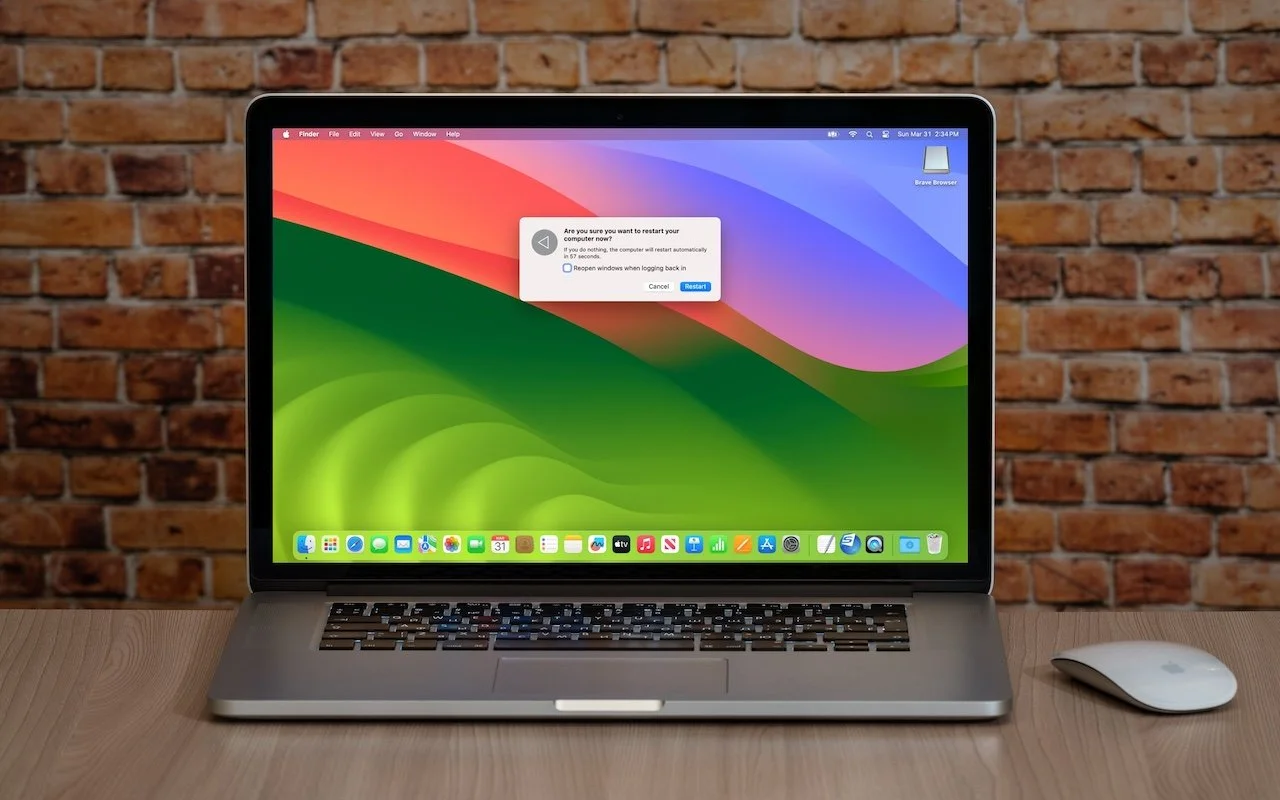
Start fresh: Even if having 20 or more apps open isn’t affecting your Mac’s performance, a clean slate can help you focus on your work better. A simple restart quits everything and lets you start over with just those apps set to launch at log-in. For a completely fresh start, make sure to deselect “Reopen windows when logging back in” in the restart dialog. Of course, if you have a lot of documents open and need to return to them, leave that checkbox selected to pick up exactly where you left off.
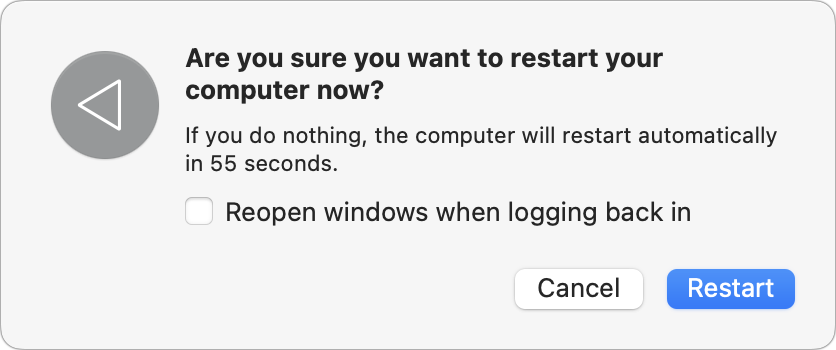
There’s no set schedule on which you should restart, but if you use a Mac at work and like routines, it wouldn’t be problematic to restart on Friday evening as you wind down to leave for the weekend. That way, you’d return to a clean slate on Monday morning. It’s also totally fine to restart whenever it might be helpful.
Just don’t fear the restart—modern Macs, especially those with Apple silicon, restart quickly, and the benefits far outweigh the few minutes of downtime.
(Featured image based on an original by iStock.com/Armastas)
Take Advantage of the Reference Library in Your Mac
When you’re reading on your Mac, there’s no excuse for not knowing what a word means, even when it’s in another language. Apple provides several shortcuts for looking up any word in macOS’s reference books.

You may be used to Mac apps using red underlines to mark misspelled words, but did you know that macOS has also long included a fully featured Dictionary app? It provides quick access to definitions and synonyms in the New Oxford American Dictionary and the Oxford American Writer’s Thesaurus, along with definitions of Apple-specific words like AirDrop and Apple ProRes RAW. But that’s far from all it can do.
Getting on the Same Page
First, some basics. Open the Dictionary app from your Applications folder and type a word or phrase into the Search field. As you type, Dictionary starts looking up words that match what you’ve typed—you don’t even have to press Return. It’s a great way to look up a word when you aren’t quite sure of the complete spelling. If more than one word matches what you’ve typed, click the desired word in the sidebar.
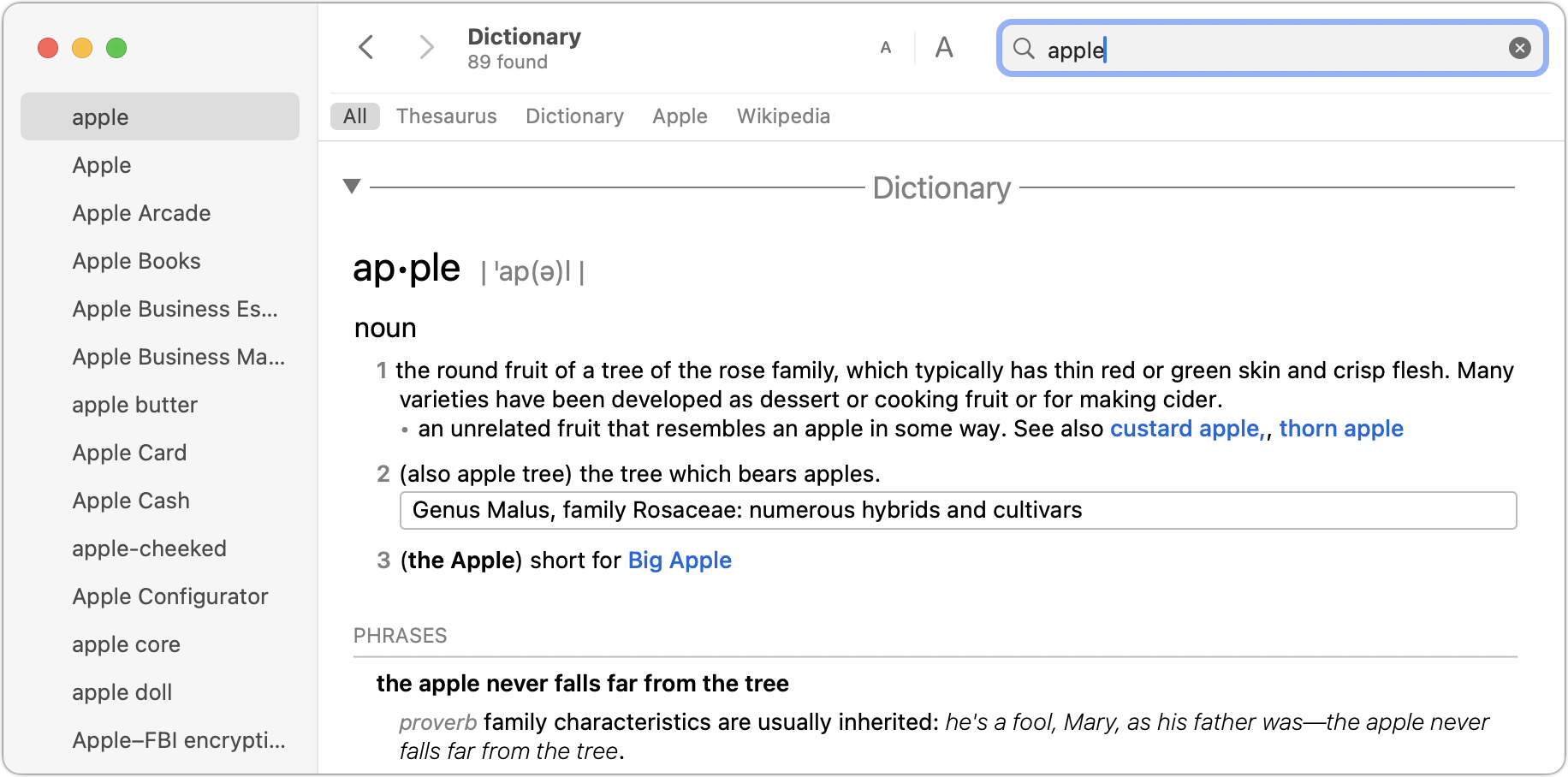
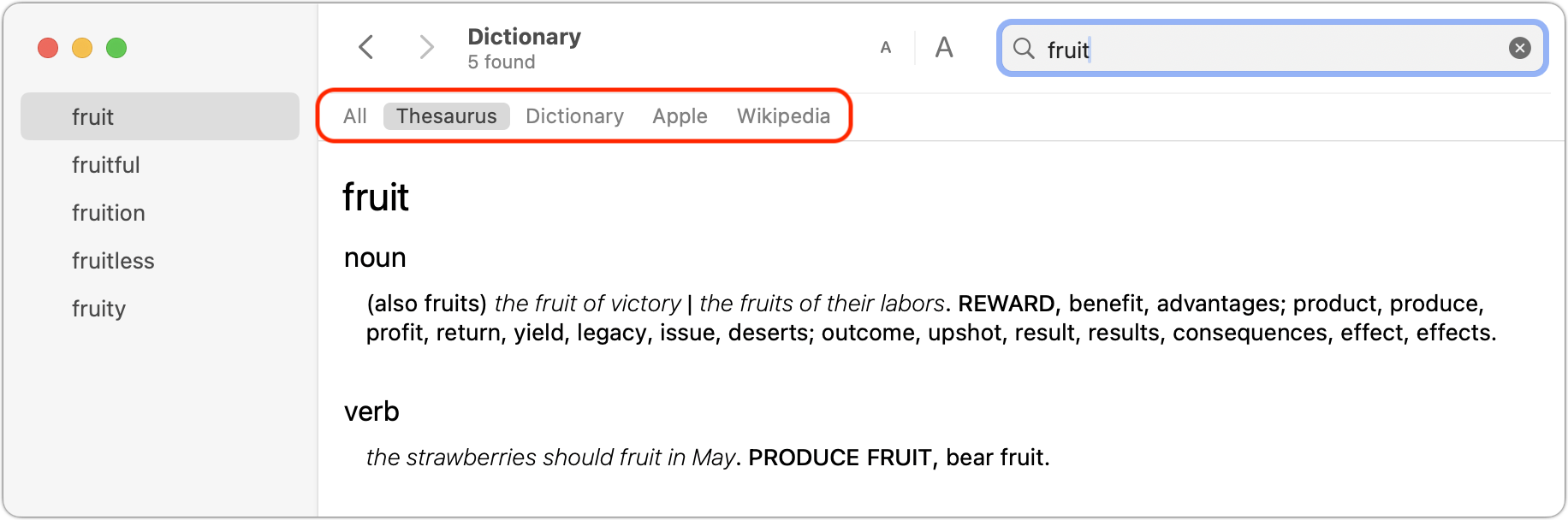
Notice the gray buttons below the toolbar, which represent the references Dictionary will consult for every search, including Wikipedia if your Mac has an Internet connection. In short, Dictionary gives you instant access to a dictionary, a thesaurus, and an encyclopedia containing over 6.8 million articles in English. Click a reference to limit your search to that source, or click All to scan all of them.
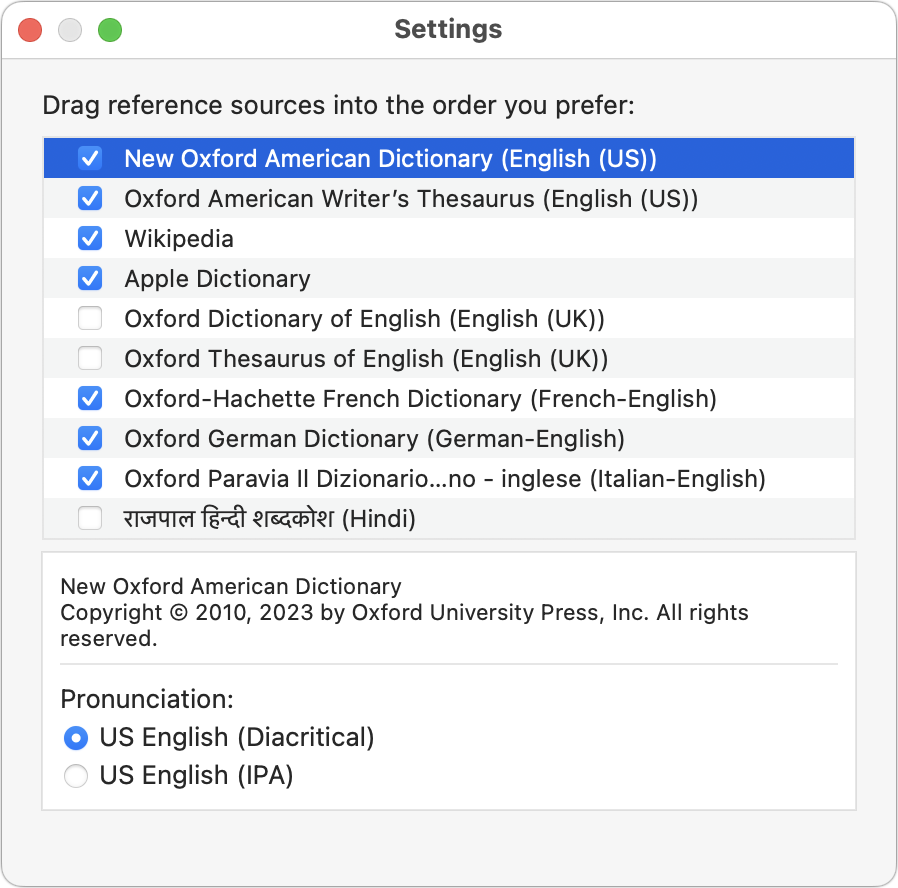
If you want to look up words in another language and get an English definition, Dictionary even provides translation dictionaries alongside a long list of other reference works. Choose Dictionary > Settings and select the ones you’d like to use. Then, drag the selected entries into the order you want them to appear below the toolbar.
Once you’re in a definition, note that you can copy formatted text for use in other apps—always helpful when wading into grammar and usage arguments on the Internet. More generally, you can click nearly any word in Dictionary’s main pane to look it up instantly. If dictionaries had been this much fun in school, we’d all have larger vocabularies! Use the Back and Forward arrow buttons to navigate among your recently looked-up words.
Alternative Lookup Methods
As helpful as the Dictionary app is, you probably don’t want to leave it open all the time. Happily, Apple has provided several shortcuts for looking up words:
Spotlight: Press Command-Space to invoke Spotlight, and enter your search term. If you get too many unhelpful results from Spotlight, deselect unnecessary categories from System Settings > Siri & Spotlight.
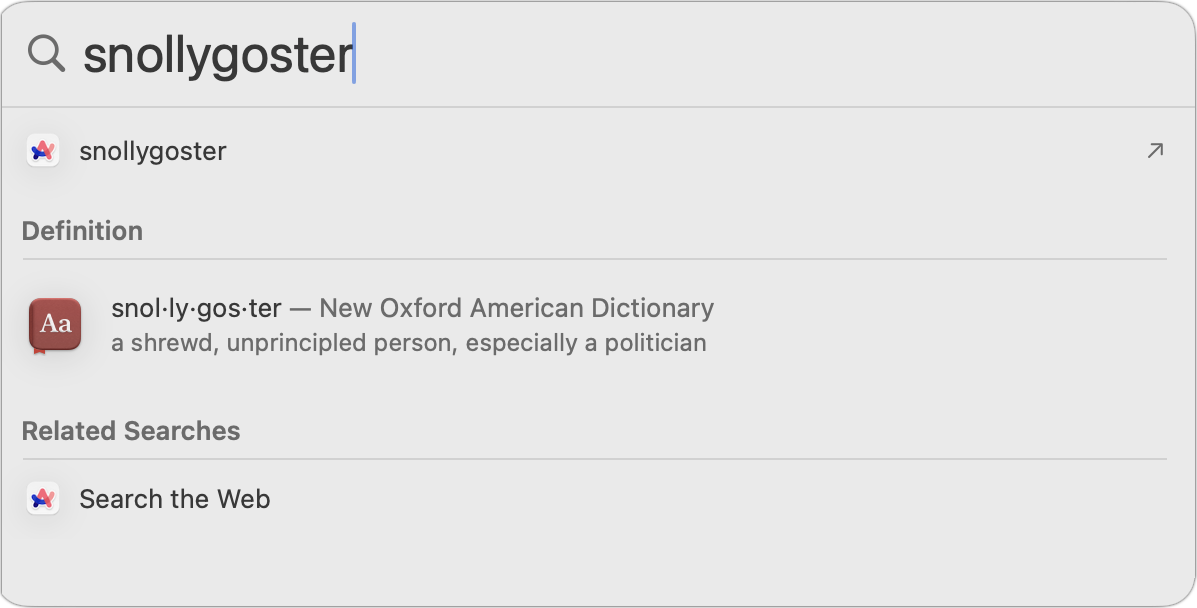
Lookup: Even better, hover over a word or phrase with the pointer and press Command-Control-D—you can also Control-click the word and choose Look Up “word.” If the app supports it, macOS displays a popover with the definition. If you use a trackpad, you can also do a three-finger tap on the selected word—make sure the “Look up & data detectors” checkbox is selected in System Settings > Trackpad > Point & Click.

Now that you know how to take full advantage of the reference works Apple has built into macOS, it’s time to get in touch with your inner logophile—look it up.
(Featured image by iStock.com/Chinnapong)
For the Best Mac Webcam, Use Your iPhone
Many of us spend significant chunks of the workday on video calls, and the best way to improve your onscreen look is with a better webcam, which you can probably find in your pocket. Learn how to use your iPhone as your Mac’s webcam here.
The near-ubiquity of videoconferencing is a lasting effect of the pandemic. The ease of gathering a group virtually usually more than makes up for the downsides. Despite that, many people still appear in video calls with low-resolution, poorly lit video that makes the call less effective.
A better webcam is an easy way to improve your video, and the best readily available webcam may already be in your pocket. That’s because you can use your iPhone and its high-quality cameras as a wired or wireless Mac webcam, thanks to Apple’s Continuity Camera technology.
Your Apple gear likely meets the Continuity Camera system requirements. You need an iPhone XR or later (all iPhones introduced in 2018 or later) running at least iOS 16 and a Mac running macOS 13 Ventura or later. Both must be signed in to the same Apple ID.
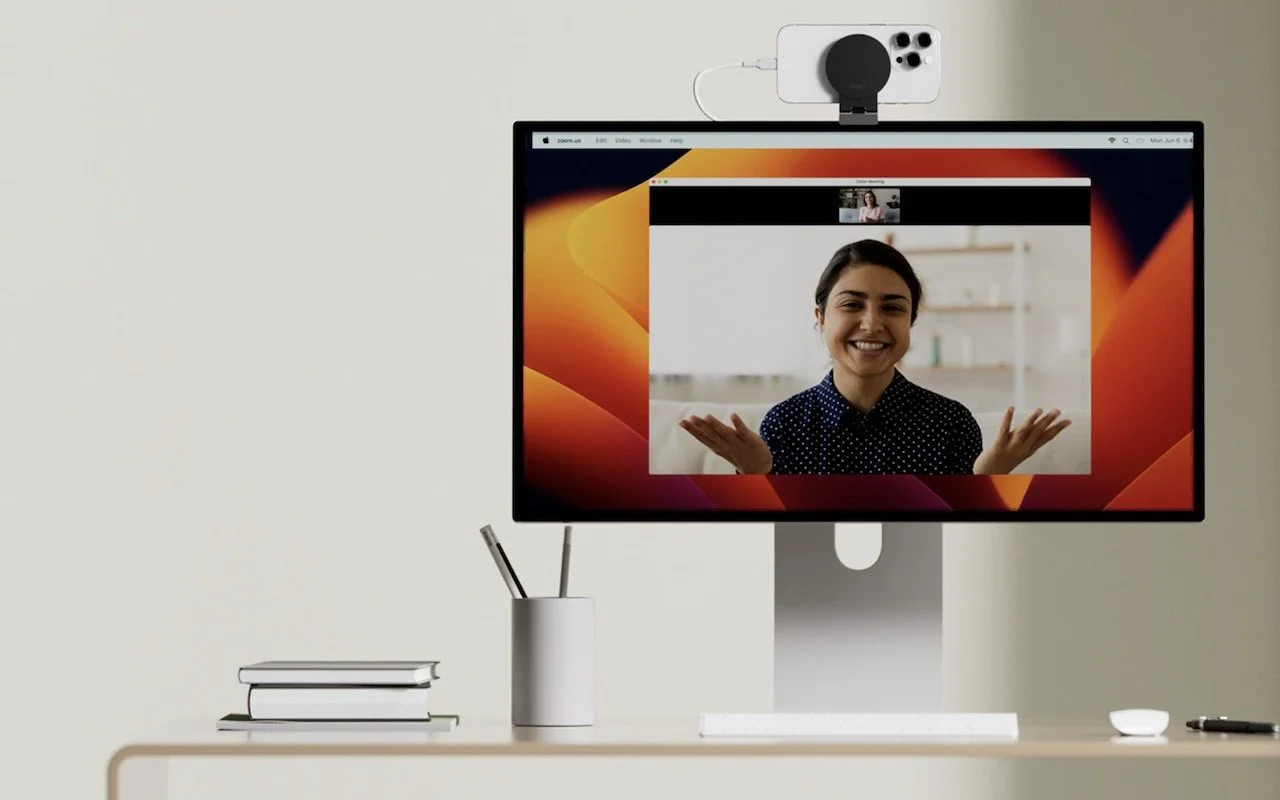
You’ll want a mount that holds your iPhone in landscape orientation (horizontally) at the top of your Mac’s screen, with its rear cameras facing you. The first such mounts for laptops and desktops came from Belkin, but numerous manufacturers now sell inexpensive alternatives that have different industrial designs and support iPhones that can’t use MagSafe. Continuity Camera can drain your battery, so it’s worth plugging in a charger cable or getting a screen mount that also holds a MagSafe charger; look on Etsy for options, such as this one.

Although the samples above show the iPhone’s cameras in the upper-right corner, you can rotate the iPhone to position the cameras in the lower-left corner, which may put them more in line with your eyes and improve eye contact.
(Technically, you can put the iPhone anywhere—a tripod behind your screen would also work—and it doesn’t have to be in landscape orientation. However, apps detect the iPhone as a webcam automatically only when it’s in landscape orientation, and if it’s below or to the side of your screen, the video angle will likely be problematic. You can also take your iPhone off its mount and walk around with it as long as you stay in Bluetooth range of your Mac.)
When the iPhone is locked and in position, its camera and microphone become available to videoconferencing apps like FaceTime, Zoom, and Webex. Your app may start using the iPhone as a camera automatically, but if not, look for a menu or icon that lets you choose the desired camera. Similarly, you can use the iPhone’s mic as your audio input for the call, although the Mac’s built-in mic, AirPods, or other mic may offer equally good or better audio quality.
For the most part, the iPhone acts like a standard webcam. After you end the call, remove it from the mount to use it normally again. Should you need to check something on your iPhone during the call, you can remove it from the mount and either tap the Pause button or just unlock it—your video (and audio, if you’re using the iPhone as a mic too) will pause. To resume, lock and remount your iPhone. You may want to warn the other people on your call first in case something goes wrong and you get disconnected.
Receiving a phone call is a similar situation. Answering the call on the iPhone pauses the audio and video for the videoconference until you end the call, lock the iPhone, and mount it again. You may also be able to answer the call on the Mac, but that also pauses the audio and video, and you may need to choose the iPhone as your camera again afterward.
Ultimately, using your iPhone as a webcam is remarkably easy—Continuity Camera just works in our experience. The only tricky part is finding the screen mount and charger that work best with your Mac and usage patterns.
(Featured image by Belkin)
Changing Passwords Periodically Doesn’t Increase Security
Security experts no longer recommend password expiration policies that require users to change their passwords periodically. Here’s why.
Does your organization or some financial website require you to create a new password periodically? This practice was recommended long ago, but some organizations haven’t kept up with current recommendations that discourage such policies. If you’re bound by a password expiration policy, you can use this article to encourage your IT department or financial institution to update its approach to password security.
The rationale behind password expiration policies was that if an attacker were to steal a password database and decrypt some passwords, they would work for only a limited period, lessening the risk of unauthorized access. Even if an attacker gained access to an account, they could remain undetected only if they didn’t change the password, and that access wouldn’t last indefinitely.
Over time, security experts realized that the problem wasn’t so much how long an attacker could remain undetected but allowing users to set weak passwords that could be decrypted. It turns out that users often choose weaker passwords when they know they will have to change them, perhaps by tweaking a previous password for easier memorization. This fact hasn’t been lost on attackers, making it easier for them to figure out future passwords. In other words, attempting to increase security by requiring users to change passwords paradoxically reduces security.
The National Institute for Standards and Technology (NIST) is a US government agency that develops cybersecurity standards and best practices for the federal government that large corporations and other institutions tend to follow. In 2017, NIST changed its guidelines to say, “Verifiers SHOULD NOT require memorized secrets to be changed arbitrarily (e.g., periodically).” In a FAQ, NIST explains:
Users tend to choose weaker memorized secrets when they know that they will have to change them in the near future. When those changes do occur, they often select a secret that is similar to their old memorized secret by applying a set of common transformations such as increasing a number in the password. This practice provides a false sense of security if any of the previous secrets have been compromised since attackers can apply these same common transformations.
Of course, if there’s evidence of unauthorized access or a breach of the password database, all passwords should be invalidated and everyone should be required to create a new password immediately—that’s entirely different than requiring passwords to be changed on a schedule.
Interestingly, NIST also doesn’t recommend password composition requirements—such as requiring the password to contain a letter, number, and special character—because users tend to devise predictable techniques to meet such requirements, such as appending an exclamation point to every password. Instead, NIST encourages longer passwords because a long password that’s easily remembered and typed can be stronger than a shorter password composed of random characters. Password managers can generally create both types.
If you’re forced to change a website password periodically, it’s easiest to use a password manager to generate and enter a new strong password, and you won’t have to memorize the new password. For the very few passwords you must remember and type manually, aim for longer passwords that won’t trip up your fingers while typing or require numerous switches of iPhone uppercase and numeric keyboards. To aid memorization, perhaps consider choosing words for your password from categories with many possibilities. For instance, if your initial password is gouda-purple-1989-New-York, the next one could be cheddar-black-2011-Des-Moines. Both are strong in their own right, but only you would know the categories used for each portion.
(Featured image based on an original by iStock.com/designer491)
The Importance of Staying Updated
We know it seems like your Apple devices are constantly asking you to install an update. Other than for major upgrades, we recommend updating shortly after updates appear so you can take advantage of bug fixes, security updates, and new features.

Does it feel like your Apple devices are always asking you to install operating system updates? You’re not wrong—from September 2022 to January 2024, we saw the following releases in Apple’s previous set of operating systems:
macOS 13 Ventura: 20 releases
iOS 16: 25 releases
iPadOS 16: 20 releases
watchOS 9: 15 releases
tvOS 16: 12 releases
Apple issued many of those at the same time, but since you might not use all your devices every day, it can seem as though you spend all your time installing updates. As annoying as updating can be, we encourage you to do so soon after you’re notified for three reasons.
Reason One: Fewer Bugs
First, as has always been the case, updates fix bugs. You may not have experienced all the bugs that Apple fixes, but when one blocks something you want to do, the fix comes as a huge relief.
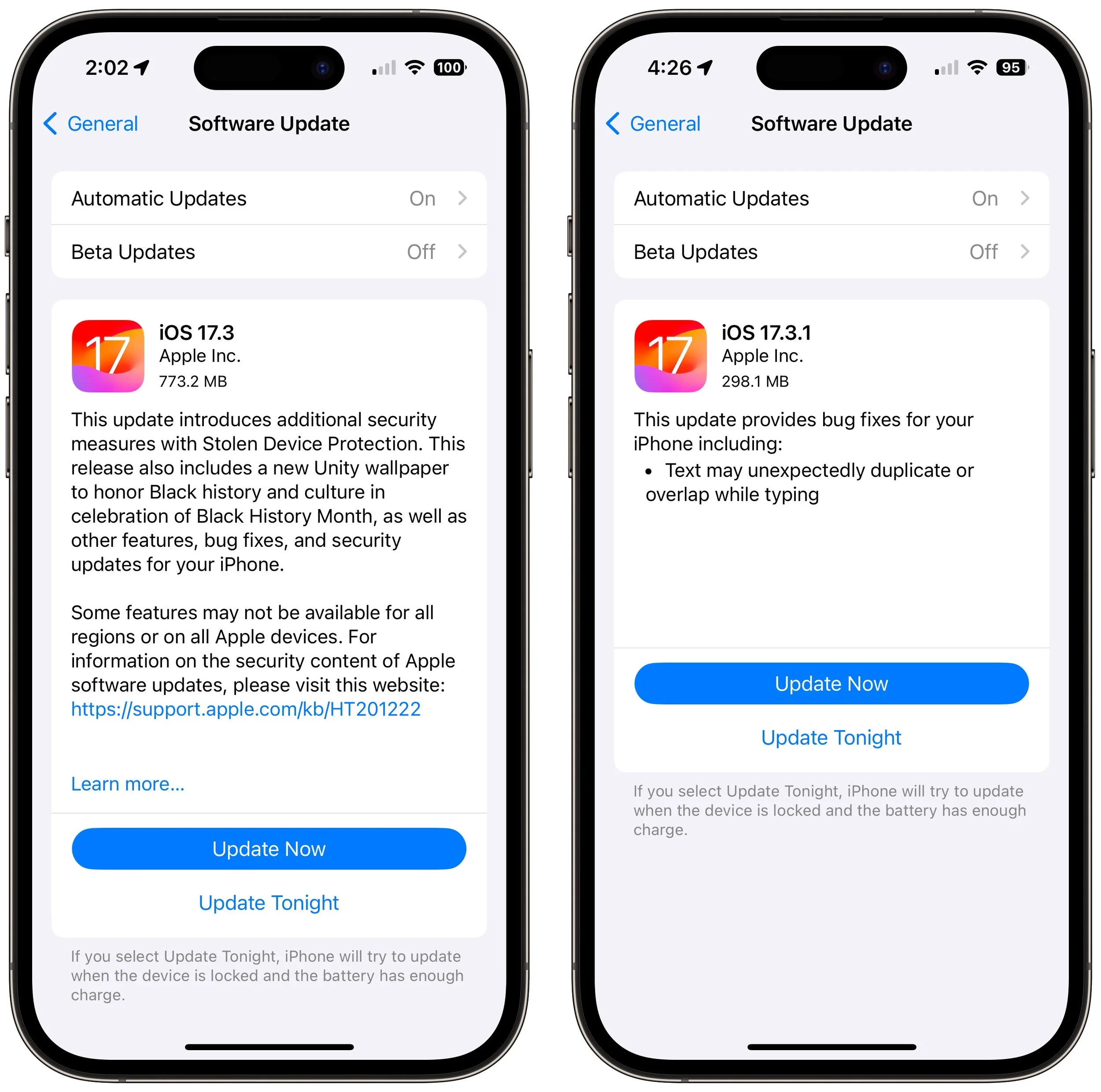
For instance, in a set of releases in January 2024, Apple inadvertently introduced a bug that caused text in many apps, including Mail, Notes, and Safari, to appear to be duplicated and overlap. It was only cosmetic, and switching to another window or resizing the window would make it look right again. But the bug was hugely disconcerting, so Apple fixed it two weeks later in macOS 14.3.1 Sonoma, iOS 17.3.1, iPadOS 17.3.1, and Safari 17.3.1 (which brought the fix to macOS 13 Ventura and macOS 12 Monterey).
Reason Two: Better Security
Second, many of the bugs Apple fixes won’t impact your experience of using your device, but they make it possible for attackers to steal information, install malware, spy on your communications, or even take over your entire device. Nearly all of Apple’s operating system updates contain security fixes to address newly discovered vulnerabilities, and some releases only have security fixes. Apple continues to release security updates for the last two versions of macOS and older versions of iOS and iPadOS as appropriate.
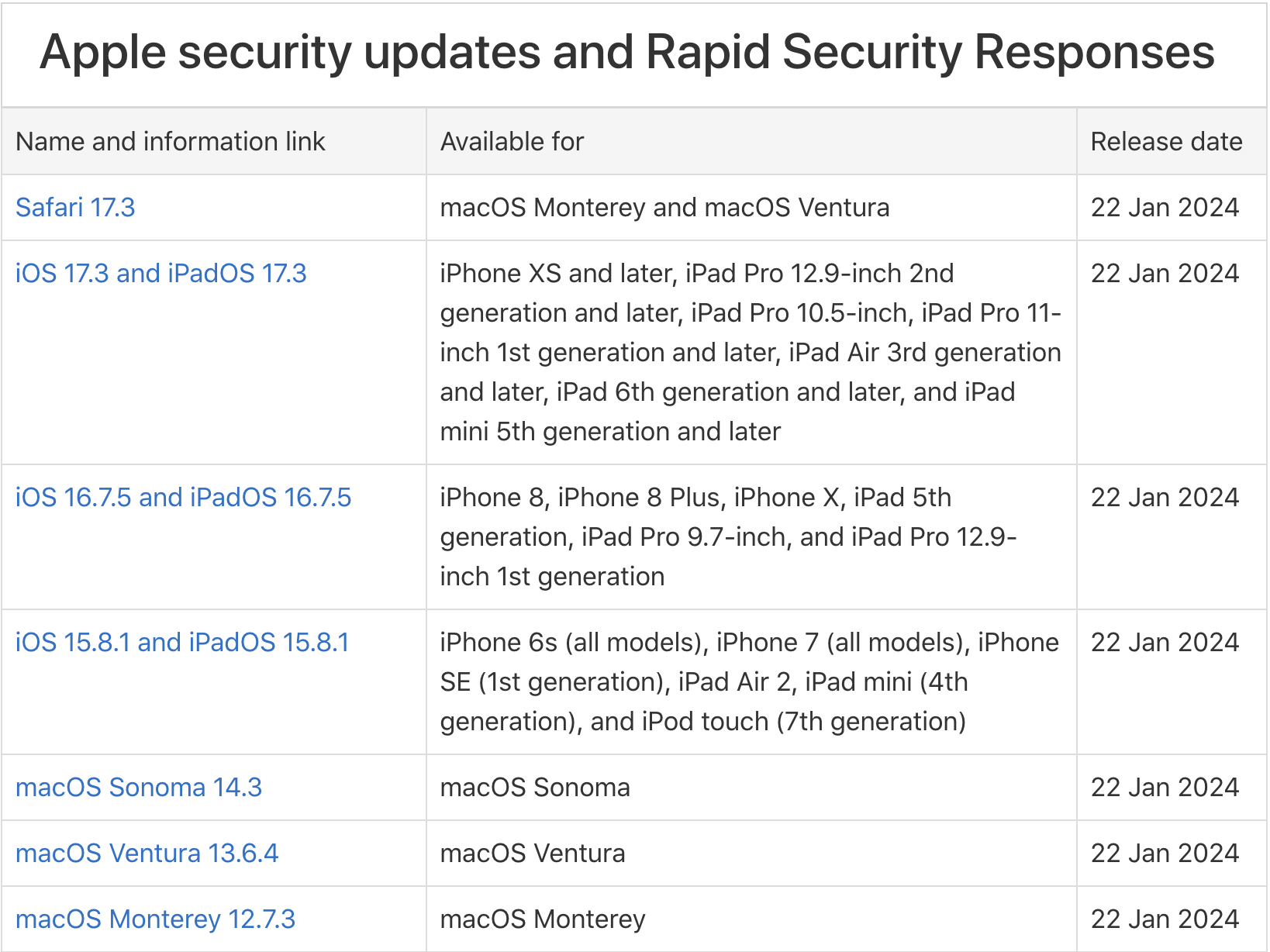
It’s easy to think that you won’t be impacted by security vulnerabilities, but remember that as soon as Apple releases an update outlining what it has fixed, attackers know what vulnerabilities exist in unpatched systems. Apple has to react swiftly to some reported vulnerabilities because blocking them can literally be a matter of life or death when it comes to, for instance, iPhone-using dissidents, activists, or journalists working in opposition to repressive governments that employ spyware against their enemies. (All spyware relies on previously unidentified vulnerabilities.)
However, some security vulnerabilities are more likely to impact regular users. For instance, in macOS 14.2.1, Apple fixed a bug in Screen Sharing. If you were sharing your full screen with someone else and had multiple Spaces, Screen Sharing could show the other person random windows in other Spaces, which could range from embarrassing (adult pictures) to seriously problematic (passwords or financial details).
Reason Three: New Features
Third, on the positive side, many operating system releases introduce welcome new features. When Apple unveils its next set of operating systems at the Worldwide Developer Conference in June, some of the promised features won’t appear with the initial releases. New features that shipped in later releases of macOS 14 Sonoma, iOS 17, iPadOS 17, and watchOS 10 include:
watchOS’s double-tap gesture for tapping the default button in many apps
AirDrop transfers continuing over the Internet when you move out of AirDrop range
Adding NameDrop to share contact info when you bring two devices near each other
Additional options to control when the iPhone screen shuts off in StandBy
The option to choose a specific album for the Lock Screen’s Photo Shuffle wallpaper
HomeKey support for Matter locks
Expanded Favorites in the Music app
A new automatic Favorite Songs playlist in the Music app
The addition of Apple’s Journal app
A Translate option for the Action button in the iPhone 15 Pro models
10-day precipitation forecasts in the Weather app
Sharing of eligible passes in the Wallet app via NameDrop-like proximity
A catch-up arrow in Messages that lets you jump to the first unread message
Multiple timers in the Clock app on the Mac
Stolen Device Protection for the iPhone
Collaborative playlists in Apple Music
Support for streaming content to TVs in select hotel rooms using AirPlay
Just Update It
Updates provide both a carrot (user-facing bug fixes and new features) and a stick (security fixes). That’s why we recommend updating soon after Apple pushes out a new release and why devices under management usually receive updates quickly. Even if a security breach is unlikely, the liability of allowing devices to remain unpatched is too high for most organizations. Installing updates is an easy way to reduce worry about things like compromised accounts and ransomware.
There are three types of operating system releases:
Minor bug fix and security updates: Install these as soon as convenient, usually within a few days. Examples of these include macOS 14.3 to 14.3.1.
Interim feature updates: Because these include bug fixes and security updates alongside the new features, you’ll also want to install these within a few days. An example is iOS 17.2.1 to iOS 17.3.
Major version upgrades: Because Apple always releases security updates for the two versions of macOS before the current one, you can wait a month or three before installing a major upgrade, such as from macOS 13 to macOS 14. However, once you’ve verified that your apps and workflow are compatible with the new version, we recommend upgrading because skipping a major version of macOS often results in a more difficult upgrade experience.
In each of these cases, if you’re worried about how an update might impact your workflow, check online forums for discussions of each update and feel free to ask us what we recommend for your particular situation.
(Featured image by iStock.com/Fokusiert)
Loose Lips Sink Chips: Beware What You Say to AI Chatbots
Privacy concerns are starting to crop up around conversations held with AI chatbots. For safety’s sake, never share anything with a chatbot that you wouldn’t tell a stranger.

Generative AI chatbots like ChatGPT, Microsoft’s Bing/CoPilot, and Google’s Gemini are the vanguard of a significant advance in computing. Among much else, they can be compelling tools for finding just the right word, drafting simple legal documents, starting awkward emails, and coding in unfamiliar languages. Much has been written about how AI chatbots “hallucinate,” making up plausible details that are completely wrong. That’s a real concern, but worries about privacy and confidentiality have gotten less attention.
To be sure, many conversations aren’t sensitive, such as asking for a recommendation of bands similar to The Guess Who or help writing an AppleScript. But increasingly, we’re hearing about people who’ve asked an AI chatbot to analyze or summarize some information and then pasted in the contents of an entire file. Plus, services like ChatPDF and features in Adobe Acrobat let you ask questions about a PDF you provide—it can be a good way to extract content from a lengthy document.
While potentially useful from a productivity standpoint, such situations provide a troubling opportunity to reveal personally sensitive data or confidential corporate information. We’re not talking hypothetically here: Samsung engineers inadvertently leaked confidential information while using ChatPDF to fix errors in their code. What might go wrong?
The most significant concern is that sensitive personal and business information might be used to train future versions of the large language models used by the chat-bots. That information could then be regurgitated to other users in unpredictable contexts. People worry about this partly because early large language models were trained on text that was publicly accessible online but without the knowledge or permission of the authors of that text. As we all know, lots of stuff can unintentionally end up on the Internet.
Although the privacy policies for the best-known AI chatbots say the right things about how uploaded data won’t be used to train future versions, there’s no guarantee that companies will adhere to those policies. Even if they intend to, there’s room for error—conversation history could accidentally be added to a training model. Worse, because chatbot prompts aren’t simple database queries, there’s no easy way to determine if confidential information has made its way into a large language model.
More down to earth, because chatbots store conversation history (some let you turn off that feature), anything added to a conversation is in an uncontrolled environment where at least employees of the chatbot service could see it, and it could be shared with other partners. Such information could also be vulnerable should attackers compromise the service and steal data. These privacy considerations are the main reason to avoid sharing sensitive information with chatbots.
Adding emphasis to that recommendation is the fact that many companies operate under master services agreements that specify how client data must be handled. For instance, a marketing agency tasked with generating an ad campaign for a manufacturer’s new product should avoid using any details about the product in AI-based brainstorming or content generation. If those details were revealed in any way, the agency could be in violation of its contract with the manufacturer and be subject to significant legal and financial penalties.
In the end, although it may feel like you’re having a private conversation with an AI chatbot, don’t share anything you wouldn’t tell a stranger. As Samsung’s engineers discovered, loose lips sink chips.
(Featured image by iStock.com/Ilya Lukichev)
Apple Announces New MacBook Air Lineup with M3 Chip
Apple has announced 13-inch and 15-inch MacBook Air models based on the M3 chip. Along with faster performance, they can drive two external displays when the MacBook Air’s lid is closed.

In November 2023, Apple unveiled the M3 chip in new versions of the 24-inch iMac and MacBook Pro, causing speculation about when other Mac models would be updated to match. If you’ve been longing for a MacBook Air with an M3 chip, your wait is over. (And we expect Apple to update the Mac mini soon.)
Apple has now announced M3 versions of the 13-inch and 15-inch MacBook Air. For most Mac laptop users who don’t need the additional speed of the M3 Pro or M3 Max chips in the MacBook Pro lineup, these new MacBook Air models combine excellent performance with low prices. The 13-inch MacBook Air starts at $1,099, and the 15-inch model starts at $1,299.
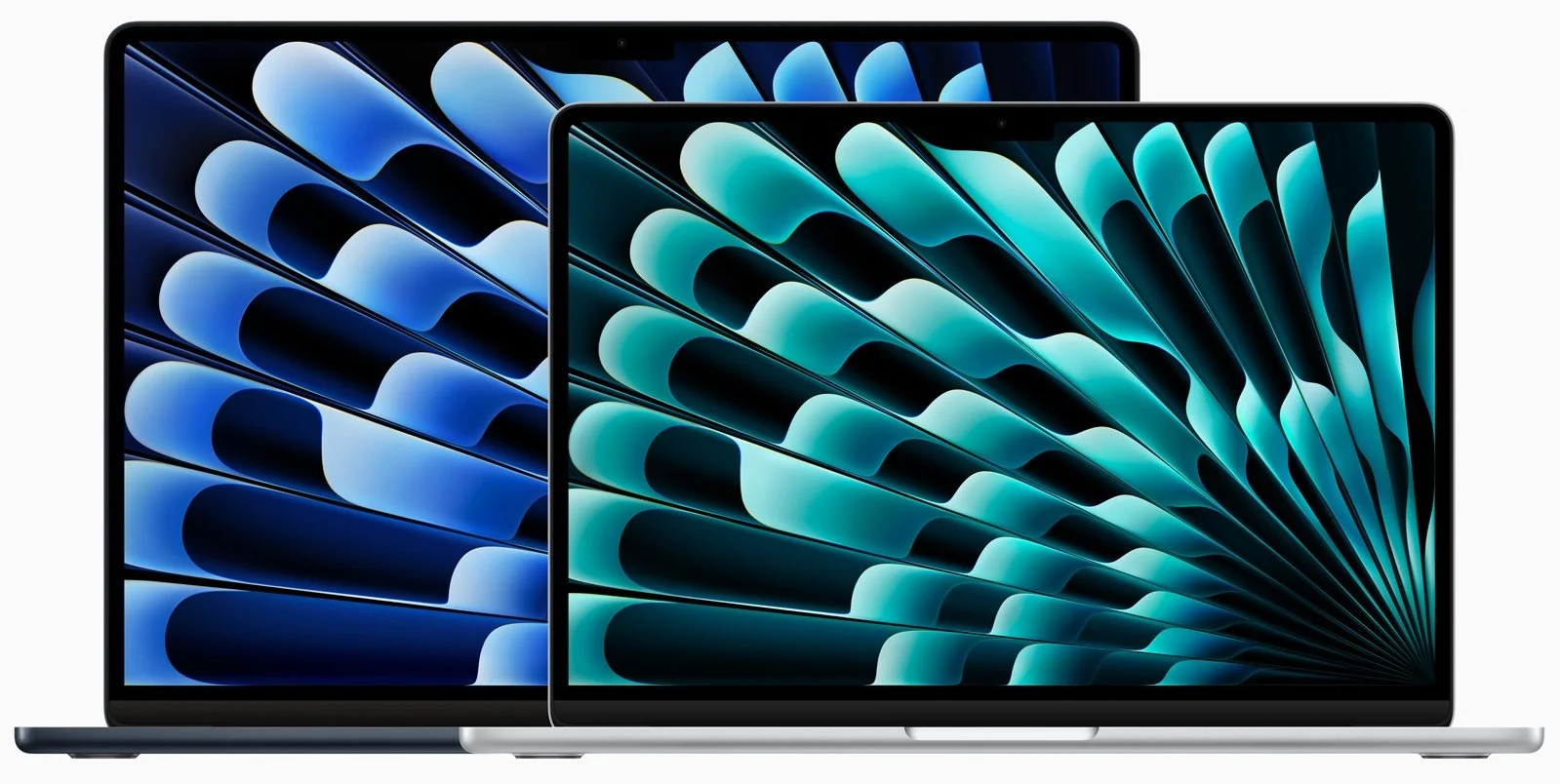
Nothing has changed regarding size, weight, and industrial design, and nearly all the specs remain identical to the previous M2 MacBook Air models. There are three notable differences:
The M3 chip: Although the earlier M1 and M2 chips are no slouches, the M3 chip provides even better performance. Benchmarks suggest a 25% to 35% improvement over the M1, and Apple cites real-world examples where the M3 is 35% to 60% faster than the M1. Compared to the M2, the M3 is probably 10% to 20% faster.
Support for two external displays: Previously, the MacBook Air could drive only one external display. These new models, however, can drive one external display at up to 6K resolution and another at up to 5K resolution, as long as the lid is closed. (Apple says a software update will enable the same capability for the 14-inch M3 MacBook Pro.)

Wi-Fi 6E and Bluetooth 5.3 wireless connectivity: These upgrades aren’t exciting, but they bring the MacBook Air up to par with other recent Apple devices and industry standards. Both provide faster, more robust wireless connectivity, but only when used with other compatible gear.
Should you buy one of these new MacBook Air models? It all depends on what you use now:
Intel-based Mac laptop: In terms of performance, the M3 MacBook Air will blow the doors off any Intel-based Mac laptop, and we strongly encourage you to upgrade. The main area where the MacBook Air might disappoint is in the number of ports. It charges via MagSafe 3 and has two Thunderbolt/USB 4 ports, which are sufficient for an external display and a Time Machine backup drive, for instance. If you need more ports, a Thunderbolt hub is probably in your future.
M1 or M2 MacBook Air or MacBook Pro: Although the M3 chip is faster than the base-level M1 and M2, our experience is that most people with those Macs aren’t suffering from performance problems. So no, don’t upgrade. If you need more performance, a MacBook Pro with an M3 Pro or M3 Max chip makes more sense.
No laptop: For most students getting their first computer or someone who’s adding a laptop to complement a desktop Mac, the M3 MacBook Air models are extremely attractive. We recommend the higher-end MacBook Pro models only for those who anticipate doing processor-intensive audio, video, photo, or development work.
Finally, if you’re pinching pennies, you can still buy the 13-inch M2 MacBook Air starting at $999, and even if you customize it with more memory or storage, you’ll save $100.
You have four decisions to make once you’ve decided to buy a new M3 MacBook Air. We’re happy to consult on your specific situation, but here’s our general advice:
Memory: The base amount of memory on the M3 chip is 8 GB (it’s on the chip and can’t be upgraded later), but you can get versions that come with 16 GB or 24 GB. 8 GB is acceptable for casual use, but 16 GB is safer if you want to run a bunch of apps or may have more involved needs in the future. Get 24 GB only if you use memory-intensive apps.
Storage: The base level of storage is 256 GB, which isn’t much. We know many people with photo libraries larger than that. You can upgrade to 512 GB, 1 TB, or 2 TB. Note that if you have a lot of old, seldom-needed files, it may be better to order only 512 GB of storage, for instance, and buy an inexpensive external SSD for your archives.
Processor: The M3 comes in two versions. Both have 8 CPU cores, but one has only 8 GPU cores, whereas the other has 10 GPU cores. The 8/8 version is available only in the 13-inch MacBook Air and only if you don’t expand memory beyond 8 GB or storage beyond 256 GB. Get the low-end version only if you’re sure you don’t need more memory or storage.
Screen size: You must choose a 13.6-inch or 15.3-inch Liquid Retina screen. The 15-inch screen is undeniably larger and displays more content, but the overall Mac is about an inch (2.25–3.5 cm) larger in both dimensions, and it weighs 3.3 pounds (1.51 kg) compared to 2.7 pounds (1.24 kg) for the 13-inch model. This decision is purely personal preference, and we recommend checking out each one in person before buying.
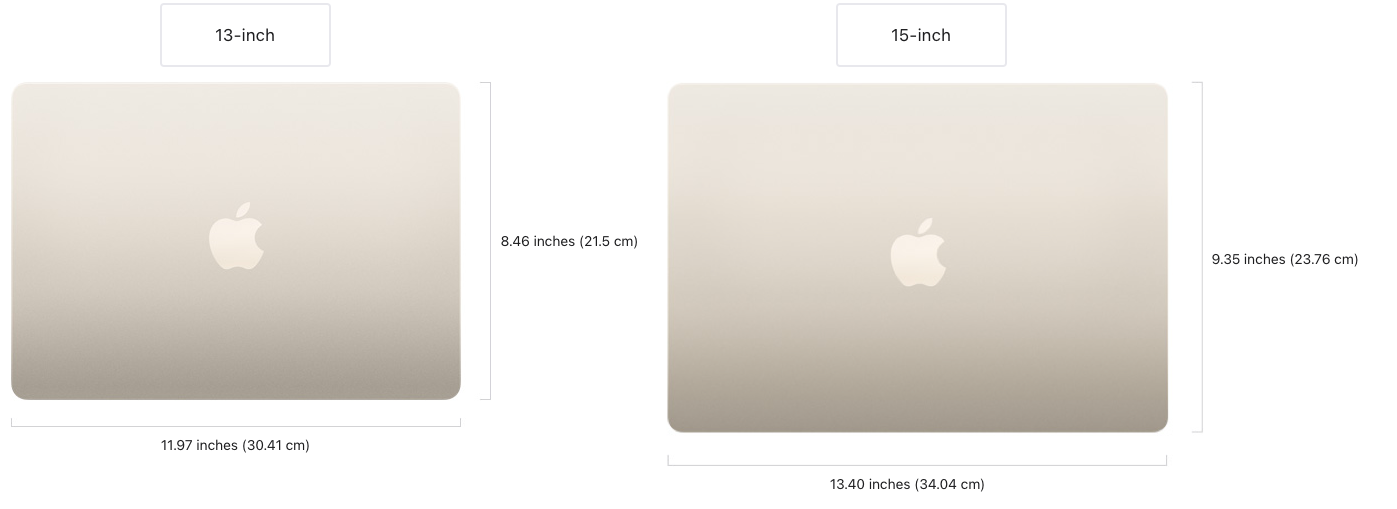
For most Mac laptop users, the M3 MacBook Air models are compelling and well worth a look.
(Featured image by Apple)