
You Can Now Upgrade to macOS 12 Monterey When You’re Ready
Should you upgrade to macOS 12 Monterey? There’s no need to do so immediately, but we think it’s now safe for those who want to take advantage of the new features and integration with Apple’s other operating systems. Details here:
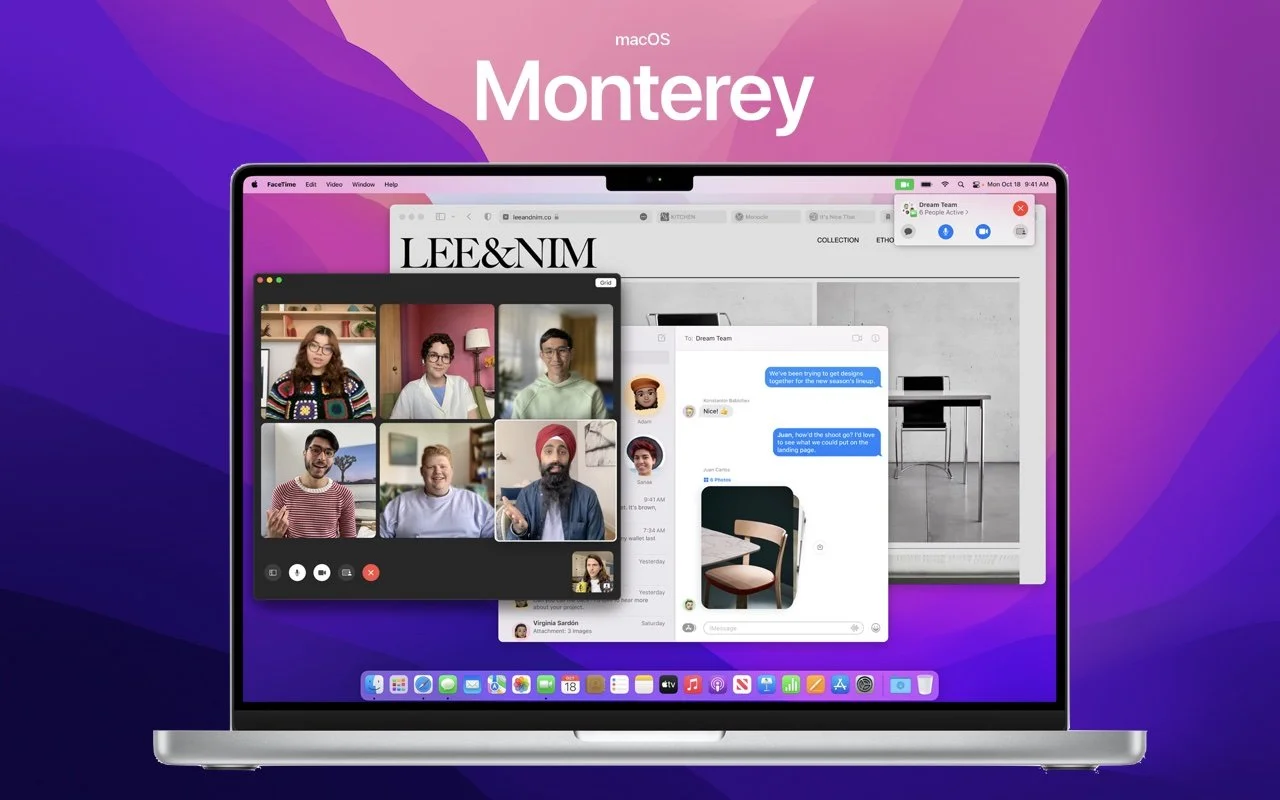
When it comes to upgrading to a new version of macOS, we err on the side of caution, at least in our recommendations. Geekhampton is here to help. (We often install even beta releases on secondary machines for testing purposes.) Upgrading is easy, but if you upgrade too soon, the new version of macOS could render favorite apps inoperable, create workflow interruptions, and have other negative consequences. On the other hand, waiting too long can cause problems—it’s important so you can stay in sight of the cutting edge for security reasons and take advantage of Apple’s advances. Upgrading is not an if question; it’s a when question.
That “when” could be now. There’s no reason you must upgrade to macOS 12 Monterey right away, but if you want to, you should now be able to do so without undue interruptions. Monterey has been quite stable and has needed only two updates since its initial release in October 2021. The macOS 12.1 feature release in December 2021 added support for SharePlay, the Apple Music Voice Plan, Memories improvements in Photos, and Legacy Contacts, along with bug fixes and security updates. The macOS 12.2 maintenance release from January 2022 includes only unspecified bug fixes and some security updates. The upcoming macOS 12.3 will add the long-promised Universal Control feature for controlling multiple Macs and iPads from one keyboard and mouse. After that, Monterey should be feature-complete and will likely receive only bug fixes and security updates.
You can continue to delay as long as you’re running macOS 10.15 Catalina or macOS 11 Big Sur and are staying up to date with Apple’s security updates. Earlier versions of macOS no longer receive security fixes, rendering them more vulnerable to attack. Reasons to delay further include:
You’re too busy. The upgrade process will take a few hours, and it may take additional time to configure everything properly afterward. When you are ready to upgrade, aim for when a little downtime will be convenient.
You’re using incompatible software. The jump from Catalina or Big Sur to Monterey isn’t a big one, so most modern apps should have been updated to ensure compatibility with Monterey by now. But if you’re still running macOS 10.14 Mojave or earlier with 32-bit apps, you’ll lose access to them if you upgrade. (That happened first with Catalina.) With Mojave no longer receiving security updates, you need to find replacements for those apps and upgrade soon.
You need consistent versions for workflow reasons. We’re unaware of any major issues here, but it’s not inconceivable that a coworker could be stuck on an older version of macOS and thus older versions of shared productivity apps. If your upgrade would force you to update those apps and introduce compatibility issues when collaborating with that coworker, you may have to wait until your coworker can upgrade as well.
Monterey won’t upend your experience of using a Mac, but it has numerous welcome features, both large and small. Apple radically improved FaceTime, introduced the Shortcuts app from iOS, added privacy enhancements like iCloud Private Relay and Hide My Email, enables you to copy text from images with Live Text, provides screen sharing in FaceTime calls, lets you always display the menu bar in full-screen mode, and much more. Perhaps even more important, Monterey shares numerous features with Apple’s other operating systems: iOS 15, iPadOS 15, watchOS 8, and tvOS 15. To take full advantage of those features across all your Apple devices, your Mac must be running Monterey.
Before You Upgrade
Once you’ve decided to upgrade to Monterey, you have three main tasks:
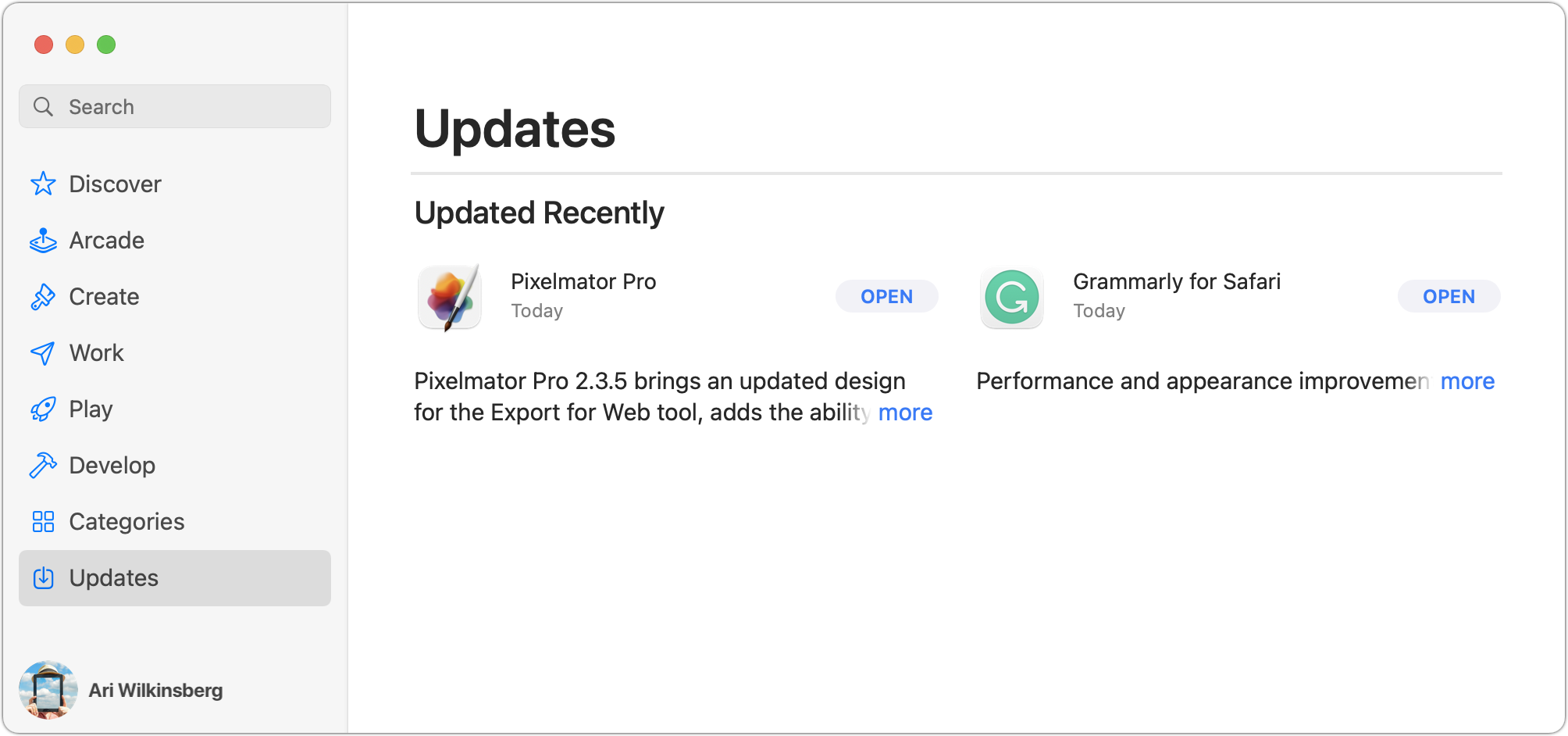
Update apps: Make sure all your apps are as up-to-date as possible. If you regularly put off updates, now’s the time to let them complete so you have Monterey-compatible versions.
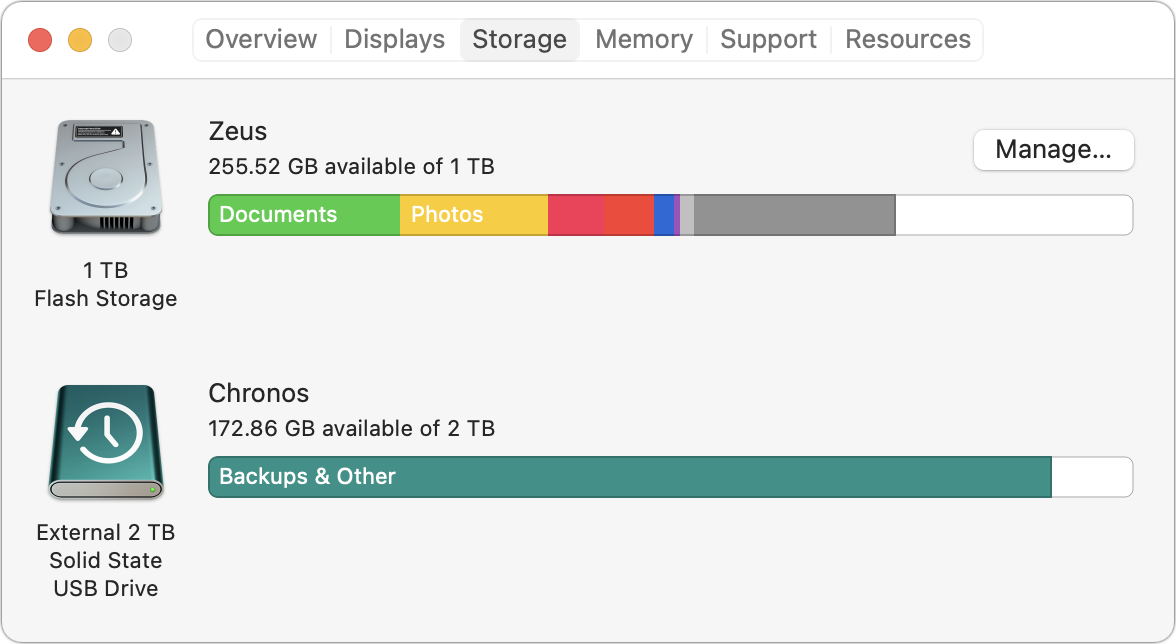
Clear space: Monterey needs about 36 GB of free space to upgrade, and the Monterey installer itself is about 12 GB, so we recommend making sure you have at least 50 GB free. Don’t cut this close—you should always have at least 10–20% free space for virtual memory, cache files, and breathing room.
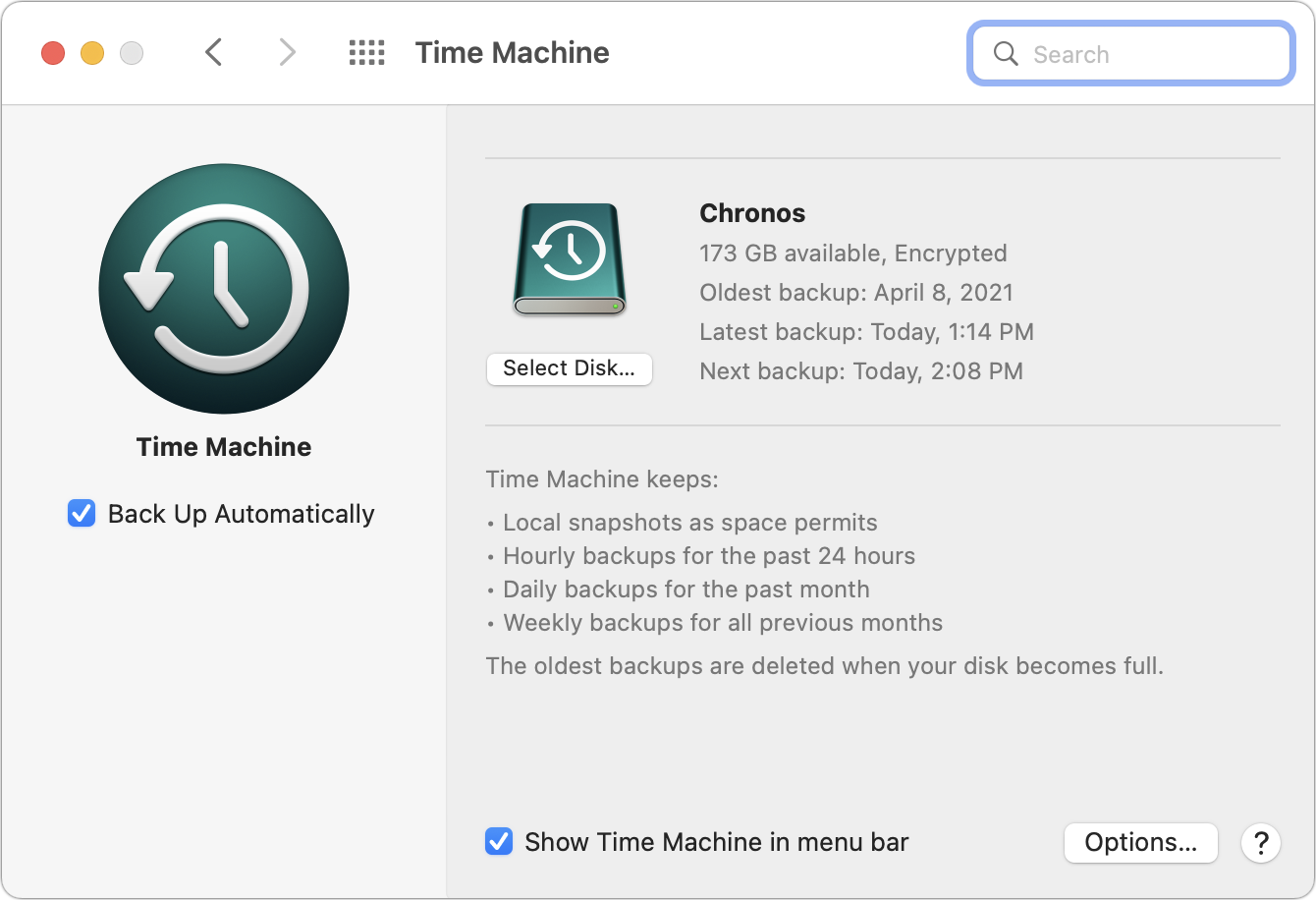
Make a backup: Never, ever install a major upgrade to macOS without ensuring that you have at least one current backup first. In an ideal world, you’d have an updated Time Machine backup, a bootable duplicate, and an Internet backup. That way, if something goes wrong, you can easily restore.
Upgrading
After the above-listed tasks are complete, make sure you don’t need your Mac for a few hours. There’s no telling exactly how long the upgrade will take, so never start an upgrade if you need the Mac soon.
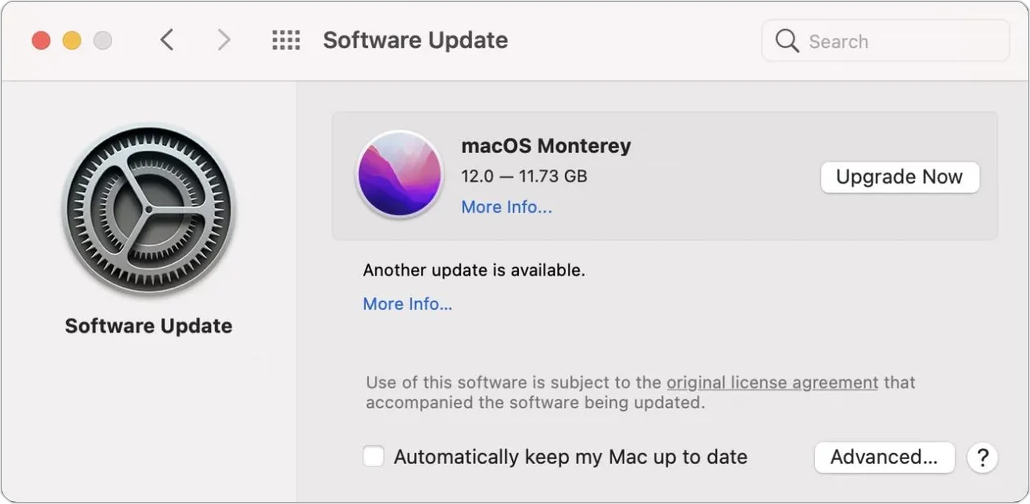
Initiating the upgrade is just a matter of opening System Preferences > Software Update, clicking the Upgrade Now button, and following the instructions. If you’d like more hand-holding, check out Joe Kissell’s ebook Take Control of Monterey.
After You Upgrade
Part of the reason to set aside plenty of time for your Monterey upgrade is that there are usually cleanup tasks afterward. We can’t predict precisely what you’ll run into, depending on what version of macOS you’re running now and what apps you use, but here are a few situations we’ve noticed in the past:
macOS may need to update its authentication situation by asking for your Apple ID password, your Mac’s password, and if you have another Mac, its password too. Don’t worry that this is a security breach—it’s fine.
Some apps may have to ask for permission to access your contacts and calendar even though you previously granted permission. Again, that’s fine and won’t happen again.
If you use your Apple Watch to unlock your Mac and apps (and you should, it’s great!), you may need to re-enable that in System Preferences > Security & Privacy > General.
If you use Gmail, Google Calendar, or other Google services, you may need to log in to your Google account again.
Websites that usually remember your login state may require that you log in again. If you’re using a password manager like 1Password, that’s easy.
You may have to re-enable text message forwarding to your Mac on your iPhone in Settings > Messages > Text Message Forwarding.
With all that housekeeping done, it’s time to check out all the new features in Monterey!
(Featured image by Apple)
Looking for a New Email Provider? Try These Services
Is it time for a new email provider? Our article looks at recommended choices and helps you pick one that meets your needs, whether you’re an everyday user or a business.

If you’re completely happy with your email provider, move on, there’s nothing to see here. But if you’re unhappy with your provider’s reliability, spam filtering, or stability as a business, or if you’re tired of having a 1990s-style address from aol.com or hotmail.com, you can switch. There are innumerable email providers, and many are undoubtedly good at what they do. But we’ve seen these services performing the best over the years. We’ll start with recommendations for business and then look at options for individuals.
Business Accounts
For a business, email is essential. You cannot put up with downtime, lost email, unpredictable spam filters, or any other nonsense. Plus, you need support for custom domains, multiple users, role accounts, two-factor authentication, and an admin console where you can manage it all (or someone can manage it for you). Although there are other providers in this space, the safe choices are Google and Microsoft. (We realize this falls into the category of “No one ever got fired for buying IBM.” It’s basically true in this case—email isn’t an area to experiment with unknown quantities.)
Google Workspace: Previously known as G Suite, Google Workspace brings together Google’s well-known collaboration tools, including Gmail, Calendar, Drive, Docs, Sheets, Forms, Slides, and so on. Pricing starts at $6 per user per month and includes 30 GB of cloud storage per user; $12/user/month increases that to 2 TB. The big win of Google Workspace is that it provides a first-class experience for use within a Web browser. Google also provides iOS apps, and Apple’s Mail apps can access Gmail via IMAP.
Microsoft 365: Previously known as Office 365 (what is it with all this renaming?) Microsoft 365 offers Web and mobile versions of the Office apps (Outlook, Word, Excel, PowerPoint, and OneNote) along with hosted email with a 50 GB per user mailbox. 1 TB of OneDrive cloud storage space is standard, along with online meetings and video calls using Microsoft Teams. The Basic plan costs only $5/user/month, but to get the desktop versions of the Office apps, you need at least the Standard plan, which runs $12.50/user/month.
The main way to decide between Google Workspace and Microsoft 365 is to examine how focused your business is on core productivity apps. If you’re already relying heavily on Word, Excel, and PowerPoint, it makes sense to go with Microsoft. However, if your company is more Web-based or uses a variety of non-Microsoft productivity apps, Google is probably the better option.
Either way, it’s a big decision, and please check with us before making any major moves. Depending on your situation, there may be less obvious reasons to choose one or the other, or even a third option that’s perfect for your situation. Plus, transitioning between providers may require significant work to ensure that you retain all your email archives.
Individual Accounts
For individual users, you want reliability and good spam filtering, and some people might appreciate being able to use a custom domain name. However, most people don’t need support for multiple users, an admin console, or other big-company features. Plus, you probably don’t want to pay much, if anything. Again, tons of companies offer email—many for free—but the ones we recommend are Apple, Google, and Fastmail:
iCloud Mail: Nearly every Apple user has an iCloud account associated with their Apple ID, and with it comes iCloud Mail. It’s a fine choice for basic email, making it easy to access your messages on all your Apple devices and even on the Web at iCloud.com. Apple provides 5 GB of storage for free, which might seem like plenty for email, but it’s shared with iCloud Backup, iCloud Photos, iCloud Drive, and more, so it’s easy to run out. For more storage, upgrade to iCloud+, which costs $0.99 for 50 GB, $2.99 for 200 GB, and $9.99 for 2 TB. With iCloud+, you also get the option of adding a custom domain name, though it’s a rather involved process. The main thing we don’t like about iCloud Mail is that Apple sometimes goes overboard with spam filtering.
Gmail: The most popular email service in the world is Google’s Gmail, with well over 1.5 billion users. Although the default way to access Gmail is through a Web browser on a Mac or the Gmail app on an iPhone or iPad, you can enable IMAP support to access it using Apple’s Mail apps. There’s also a highly regarded new Gmail-specific macOS app in development called Mimestream. Gmail provides 15 GB of storage for free, which is enough to hold most people for quite some time, and more storage is available inexpensively. Gmail’s spam filtering is generally very good, and unlike iCloud, it doesn’t delete any filtered messages without allowing you to see them first.
Fastmail: In contrast with iCloud Mail and Gmail, Fastmail isn’t free—it costs $3/user/month for the Basic plan, but that’s limited to just 2 GB of storage, doesn’t support a custom domain, and requires that you use Fastmail Web and mobile apps. For $5/user/month, the Standard plan increases the storage to 30 GB, lets you set up your own custom domain, and provides full IMAP access so you can use Apple’s Mail or any other standard email app. The big reasons to choose Fastmail are the company’s focus on privacy and to support a firm that does nothing but email.
Although switching your personal email isn’t as difficult as changing email providers is for a business, it’s still not something to be undertaken lightly. Contact us if you need advice on which service provider would be best for you and if you need assistance setting up forwards and bringing your old mail over to your new account.
(Featured image by iStock.com/anyaberkut)
The Hidden Controls in the iPhone’s Camera App
Want to use a timer when taking an iPhone photo or manually control the depth of field in Portrait mode? You’ll need to reveal the Camera app’s hidden controls. Read on to find out how to show them—and what they help you do.

The beauty of the iPhone camera is that it combines the ease of use of a point-and-shoot camera with the image quality of a DSLR. To take a picture, you simply open the Camera app, frame your shot, and tap the shutter button. Simple, but what’s happening behind the scenes is anything but. The iPhone captures multiple images at once, concentrating on variables such as exposure, focus, tone, highlights, shadows, and more. It then merges all that data to produce what it thinks is the best possible image. Impressively, all this computational photography happens in real-time with no perceptible delay. (That said, iOS 15 provides a Prioritize Faster Shooting option in Settings > Camera that adapts—and presumably reduces—the image quality when you rapidly press the shutter multiple times.)
Despite all this automation, Apple still provides numerous manual controls you can employ to take photos the way you want. These controls are hidden, though, so you’re excused if you haven’t noticed them or have been frustrated looking for them. (“Where is that dratted Timer button? It must be here somewhere!”)
First, you have to reveal the controls, which is easy, although you’d never guess how. When you’re in the Camera app, swipe up anywhere on the screen above the shutter button. If you swipe up on the horizontal row of camera mode labels, your swipe can be quite short. However, if you swipe up on the viewfinder image, the Camera app might interpret a short swipe as a tap-and-swipe and display the in-image exposure control instead. On the viewfinder, use a longer, more emphatic swipe ➊. Either way, the camera controls replace the camera modes underneath the viewfinder ➋.
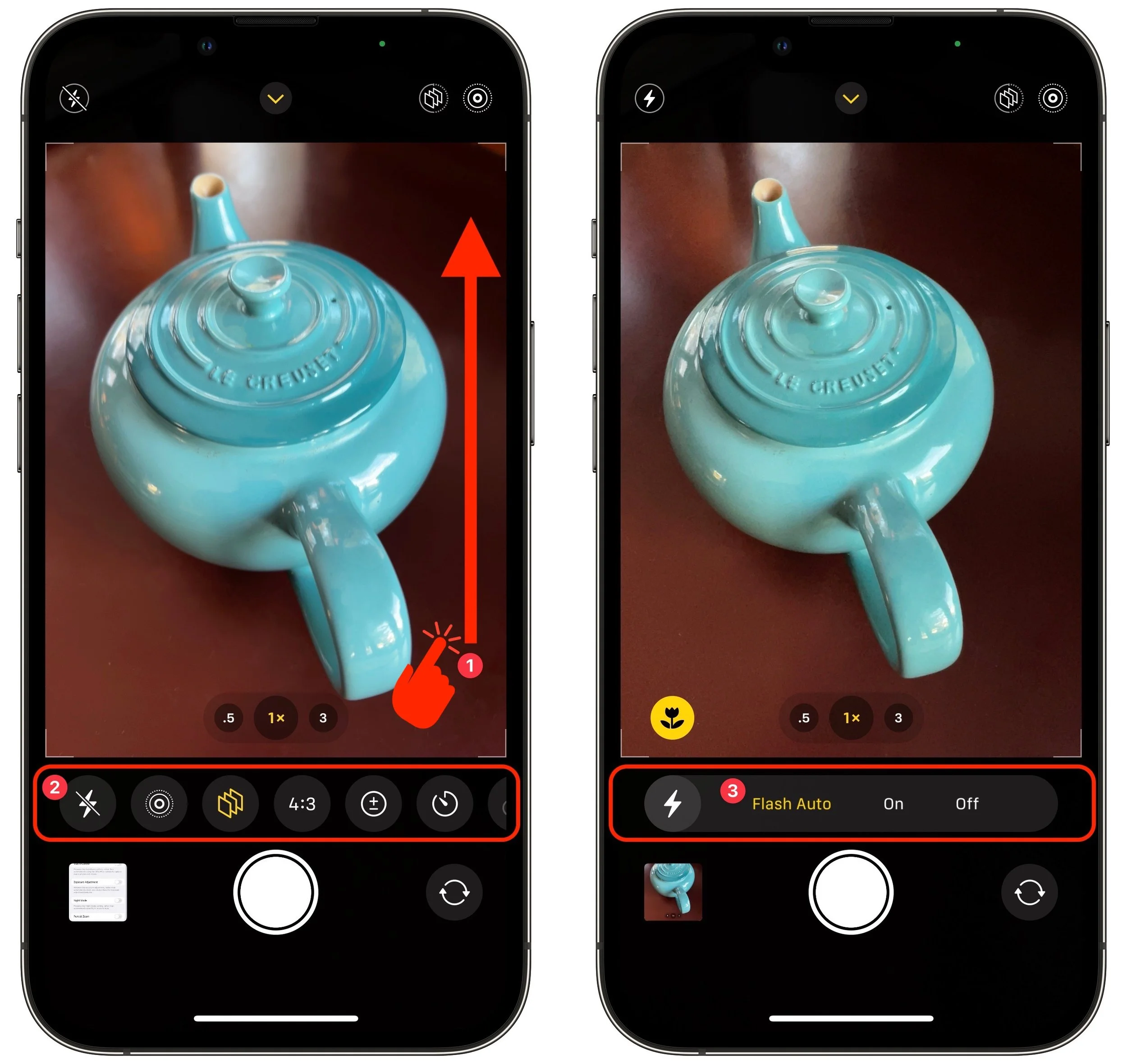
Once you have the controls showing, tap a button to access its options, use a slider or button to adjust the settings ➌, tap the original button to hide the options, and swipe down in the same way you swiped up to hide all the controls. The really confusing bit is that not all the controls may fit on the screen, so if you’re looking for the Timer or Filter buttons on an iPhone 13 Pro, for instance, you may have to swipe left on the controls to bring those buttons into view.
Here’s the full set—note that all except Depth (the rightmost one below) are in Photo mode; some may also appear in other modes. (Not all controls appear on all iPhone models, and the Low Light button, for instance, shows up only in low-light situations.)

Now, let’s look at what the controls make possible:
Flash: Use the Flash control to allow the camera to use the flash as needed or force it to be on or off. You can also control the flash in Video and Slo-Mo modes.

Low Light: Night mode on some of Apple’s high-end iPhones makes it possible to take better pictures in very low-light situations. With this control, you can set a specific amount of time for Night mode’s exposure. The longer the exposure, the lighter the photo, but the more small movements will cause blur and graininess.

Live Photo: Live Photo records 1.5 seconds of video before and after you take a photo, animating the photo slightly. Use this control to set whether the camera takes Live Photos all the time, none of the time, or automatically when it thinks it’s warranted (which is a lot).

Photographic Styles: These custom settings—Rich Contrast, Vibrant, Warm, and Cool—let you apply that distinct look to all your photos automatically. Or stick with Standard and apply the look you want afterward by editing.

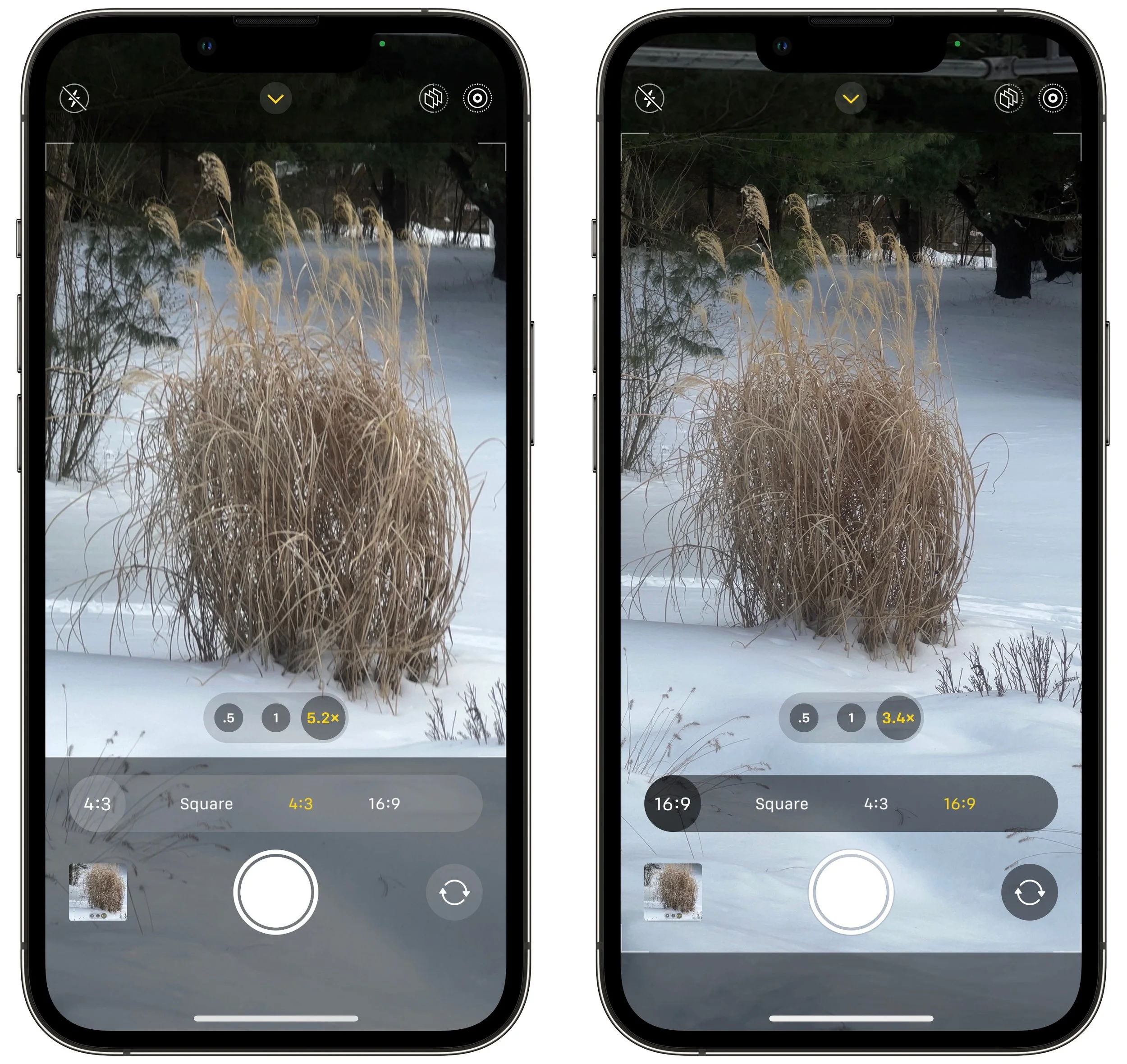
Aspect Ratio: Some iPhones can take photos in multiple aspect ratios. Use this control to choose from the standard 4:3 (below left) ratio, square, and 16:9 (below right). The 16:9 ratio expands the viewfinder to show what it will capture.
Exposure: Although automatic exposure control is usually fine (and you can adjust it afterward as well), you can use this control to increase or decrease the exposure manually. It’s also available in Video, Slo-Mo, and Time-Lapse modes.

Timer: For a hands-free selfie or a group photo that includes the photographer, use this control to set the timer to 3 or 10 seconds, starting from when you tap the shutter button. The iPhone counts down with both flash bursts and an onscreen number.

Filter:The Filter button offers nine options, three each in Vivid, Dramatic, and Mono. You may want to turn one of these on to see its effect while composing the shot. Otherwise, it’s easier to apply them in editing later.

Depth: This control is available only in the Portrait and Cinematic modes, where it lets you increase or decrease the depth of field. If you increase the depth of field, the background becomes sharper; if you decrease it, the background gets blurrier.

Apart from Photographic Styles, which automatically remembers your setting from session to session, the Camera app generally resets any changes you make in the next session. That’s usually what you’d want, but if you would prefer to keep a setting until you change it manually, go to Settings > Camera > Preserve Settings. That screen provides switches that tell the Camera app to preserve specific settings. Pay particular attention to Creative Controls, Exposure Adjustment, Night Mode, and Live Photo—we often make a point of using Preserve Settings with Live Photo so we don’t waste a lot of space unless we actually want to shoot a Live Photo.
In the end, it’s nice that these controls are neither necessary nor cluttering your view most of the time, but they’re extremely useful on occasion. We hope that Apple comes up with a way of hinting at their existence in future versions of iOS.
(Featured image by iStock.com/Darkdiamond67)
Perturbed by the Price of Adobe Creative Cloud? Consider the Affinity Suite
Looking for an affordable alternative to an expensive Adobe Creative Cloud subscription? Check out the Affinity suite: Affinity Designer, Affinity Photo, and Affinity Publisher. Read on for thoughts on how they compare and if Affinity is for you.
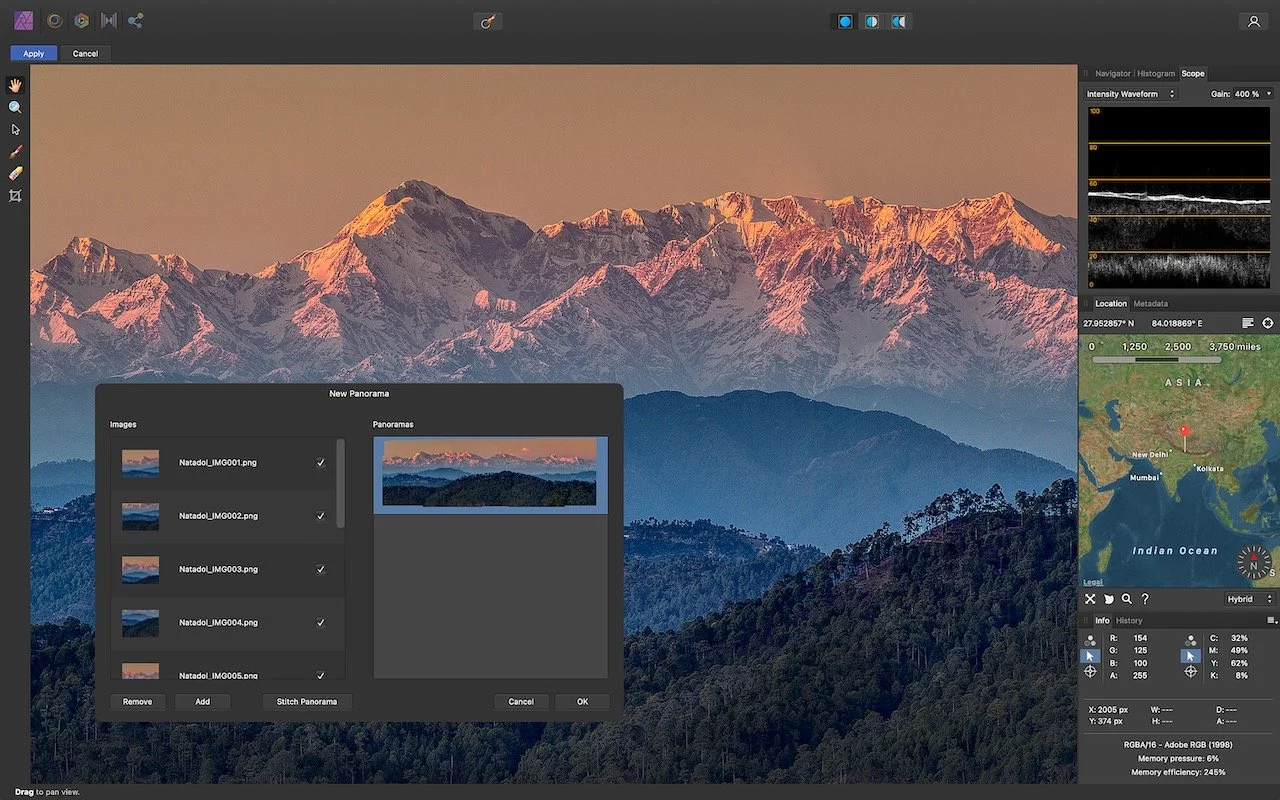
Few would disagree that the most popular image editing software in the world is Adobe Photoshop, the top illustration app is Adobe Illustrator, and the preeminent page layout package is Adobe InDesign. Many design and publishing professionals spend their lives in one or more of these apps.
There’s one problem: cost. Adobe provides access to them only via Creative Cloud subscriptions, where each app costs $21 per month, making it hard to pass up the $53-per-month All Apps bundle that includes all three plus Premiere Pro, Acrobat Pro, and more. That All Apps bundle works out to an eye-watering $636 per year.
For many people, that $636 annual expense is just the cost of doing business. They need the full power of Adobe’s tools, and they need to collaborate with others using native Photoshop, Illustrator, and InDesign files. If you fall into that camp, no worries, and you can stop reading right now.
However, if you’re subscribing to Adobe Creative Cloud merely because you need a capable image editor, illustration app, or page layout package, and you aren’t otherwise deep in the Adobe ecosystem, consider the Affinity suite from Serif: Affinity Photo, Affinity Designer, and Affinity Publisher, each of which costs $55. Once. That’s right, you can buy all three for $165, or just about the same as 3 months of Creative Cloud. Updates are free. Versions for Microsoft Windows are available for $55 too, and Affinity Photo and Affinity Designer also come as $10 iPad apps.
The obvious question is if you could replace Photoshop, Illustrator, and InDesign with Affinity Photo, Affinity Designer, and Affinity Publisher. We can’t answer that for sure—the Adobe apps have so many features that it’s impossible to know which are most important to you and if the Affinity apps’ features are comparable. Some may not match up—we’ve been told that master pages in Affinity Publisher are a bit funkier than master pages in InDesign, for instance. Others may even be better—some people we know find exporting Web graphics from Affinity Designer easier than exporting from Illustrator. And some may not exist at all—it doesn’t seem that Affinity Publisher (the newest addition to the suite) has a Track Changes feature like InDesign.

For instance, just as you can embed Photoshop and Illustrator files in an InDesign layout and then use the Edit Original command to edit them in the other app, you can embed Affinity Photo and Affinity Designer files in Affinity Publisher. Serif’s StudioLink technology provides direct access to the primary tools from Affinity Photo and Affinity Designer right within an Affinity Publisher document. It’s neat.
Overall, the feature sets are similar. Those who would consider switching from Creative Cloud can probably figure out how to accomplish their necessary tasks using the Affinity apps. That’s not to say that they’re clones of Adobe’s apps. In many cases, you might need to learn a new technique for accomplishing some task. Along with full documentation, Serif provides hundreds of tutorial videos and runs an active user forum where people ask questions, make suggestions, and share tutorials. Simple Web searches also often turn up blog posts with useful techniques from Affinity users.
What about moving files back and forth? Affinity Photo can open Photoshop’s proprietary PSD files, although it’s not guaranteed to import everything perfectly. Affinity Designer can open Illustrator documents as long as they were saved with the Create Compatible PDF File option selected. Similarly, it can open Illustrator-created PDF files that many designers send to clients as proofs. And Affinity Designer can open InDesign files that have been saved in IDML (InDesign Markup Language) format. Plus, you can often just copy and paste text and objects between the apps. If you decide to switch, you might want to continue your Creative Cloud subscription while ensuring that your key Adobe files are saved such that the Affinity apps can open them.
On the export side, the Affinity apps can export in many formats, but they’re more for final exports when it’s time to print or publish. You probably wouldn’t want to use the Affinity apps to collaborate on files with those using the Adobe apps. That said, Affinity Photo can export PSD files for use in Photoshop, and Affinity Designer and Affinity Publisher are probably best served by exporting PDF files that Illustrator and InDesign can open. Just don’t expect everything to move between the apps flawlessly.
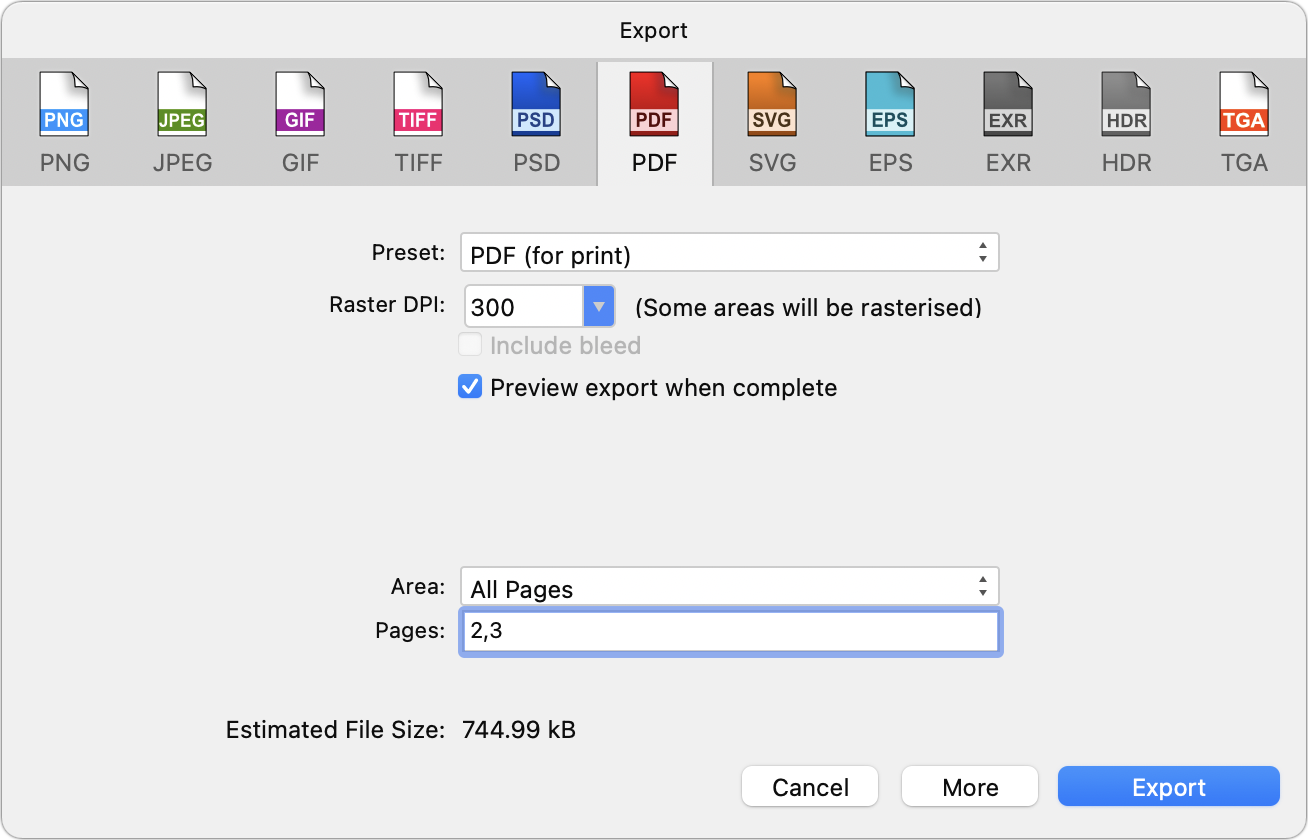
In the end, the decision is yours—we’re merely suggesting the Affinity suite as a cost-saving option if you don’t need everything Creative Cloud provides. Visit the Affinity site, watch Serif’s marketing and tutorial videos, and poke around in the extensive online help. Free trial versions of all the apps are available, and there’s a 14-day money-back guarantee. In the best of all worlds, you’ll save hundreds of dollars per year and find that you like the Affinity apps more than Adobe’s.
(Featured image by Serif)
Plan for the Future by Establishing a Legacy Contact
Apple’s new Legacy Contact feature makes it simpler for you to give a family member access to your iCloud data after your death. Read on to learn how to make someone a Legacy Contact or what to do if you are a Legacy Contact.

Have you heard the expression “hit by a bus”? It’s a somewhat macabre attempt to inject a little levity into planning for the unthinkable event of dying without warning. No one expects to be hit by a bus, but people do die unexpectedly in all sorts of ways. That’s terrible, of course, but it’s also incredibly hard on that person’s family, who suddenly must deal with an overwhelming number of details. Many of those details revolve around the deceased’s digital life—devices, accounts, passwords, subscriptions, and more.
We strongly encourage everyone, regardless of age or infirmity, to think about what your family would want and need to do with your digital presence in the event of your death. The ultimate guide to this topic is Joe Kissell’s book Take Control of Your Digital Legacy, although the current version is a little out of date and is slated for updating in 2022.
The next edition of that book will undoubtedly discuss Apple’s new Legacy Contact feature, introduced in iOS 15.2, iPadOS 15.2, and macOS 12.1 Monterey. It enables you to specify one or more people as a Legacy Contact. Should you die unexpectedly, those people can use an access key along with your death certificate to access much of your Apple content and remove Activation Lock from your devices. (If you have time to prepare for your passing, it’s easier to share all your passwords and passcodes explicitly.) The person or people you set as Legacy Contacts don’t have to be running Apple’s latest operating systems or even be Apple users, though it’s easier if they are. (Like so many other things in life.)
Don’t put off specifying someone as a Legacy Contact, whether it’s a family member or close friend. The entire point of the “hit by a bus” scenario is that it’s both unexpected and could happen at any time. (It’s possible to get access without being a Legacy Contact, but it requires a court order and will undoubtedly be significantly more work.)
Apple provides good directions for the Legacy Contact feature, and while we’ll summarize the steps below, read Apple’s documentation to get the word from the horse’s mouth. Apple’s support pages include:
What Data Can a Legacy Contact Access?
Apple has the full list at the link above, but in short, a Legacy Contact can access anything stored in iCloud, including photos, email, contacts, calendars, messages, files, and more, as well as the contents of iCloud Backup. Not included are licensed media (music, movies, and books), in-app purchases (upgrades, subscriptions, and game currency), payment information (Apple ID payment info or Apple Pay cards), and anything stored in the account holder’s keychain (usernames and passwords, credit card details, and more). A Legacy Contact cannot access the deceased’s devices—Apple is incapable of sharing passcodes. However, Apple can remove Activation Lock so those devices can be erased and reused.
How Do You Add a Legacy Contact?
Adding someone as a Legacy Contact is easy. You must be running iOS 15.2, iPadOS 15.2, or macOS 12.1 Monterey to initiate the process, and two-factor authentication must be turned on for your Apple ID (this is a very good idea anyway).
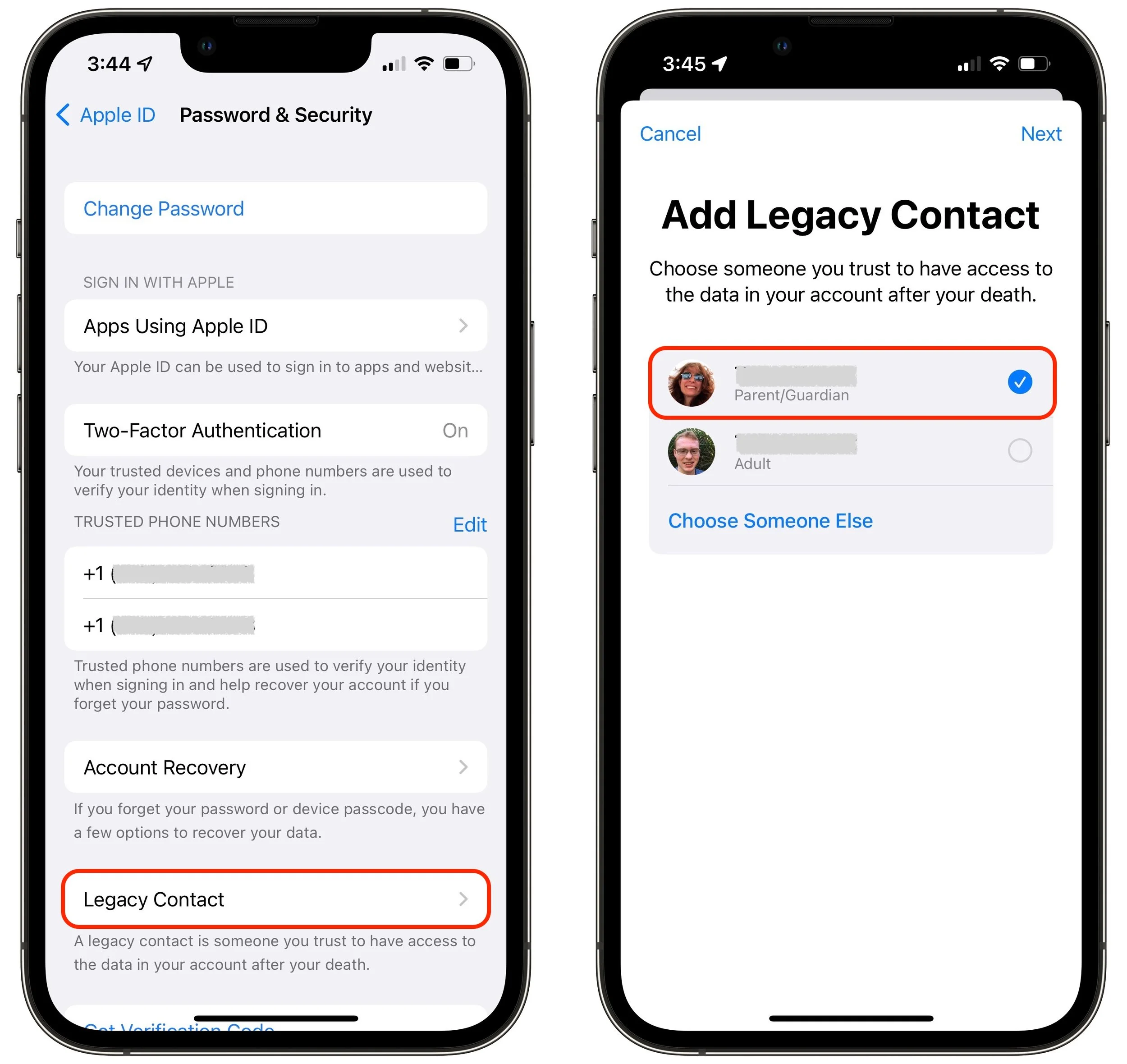
On an iPhone or iPad, go to Settings > Your Name > Password & Security > Legacy Contact > Add Legacy Contact. On a Mac, use System Preferences > Apple ID > Password & Security > Legacy Contact > Manage. You can choose a group member if you’re in a Family Sharing group or pick someone from your contacts list.
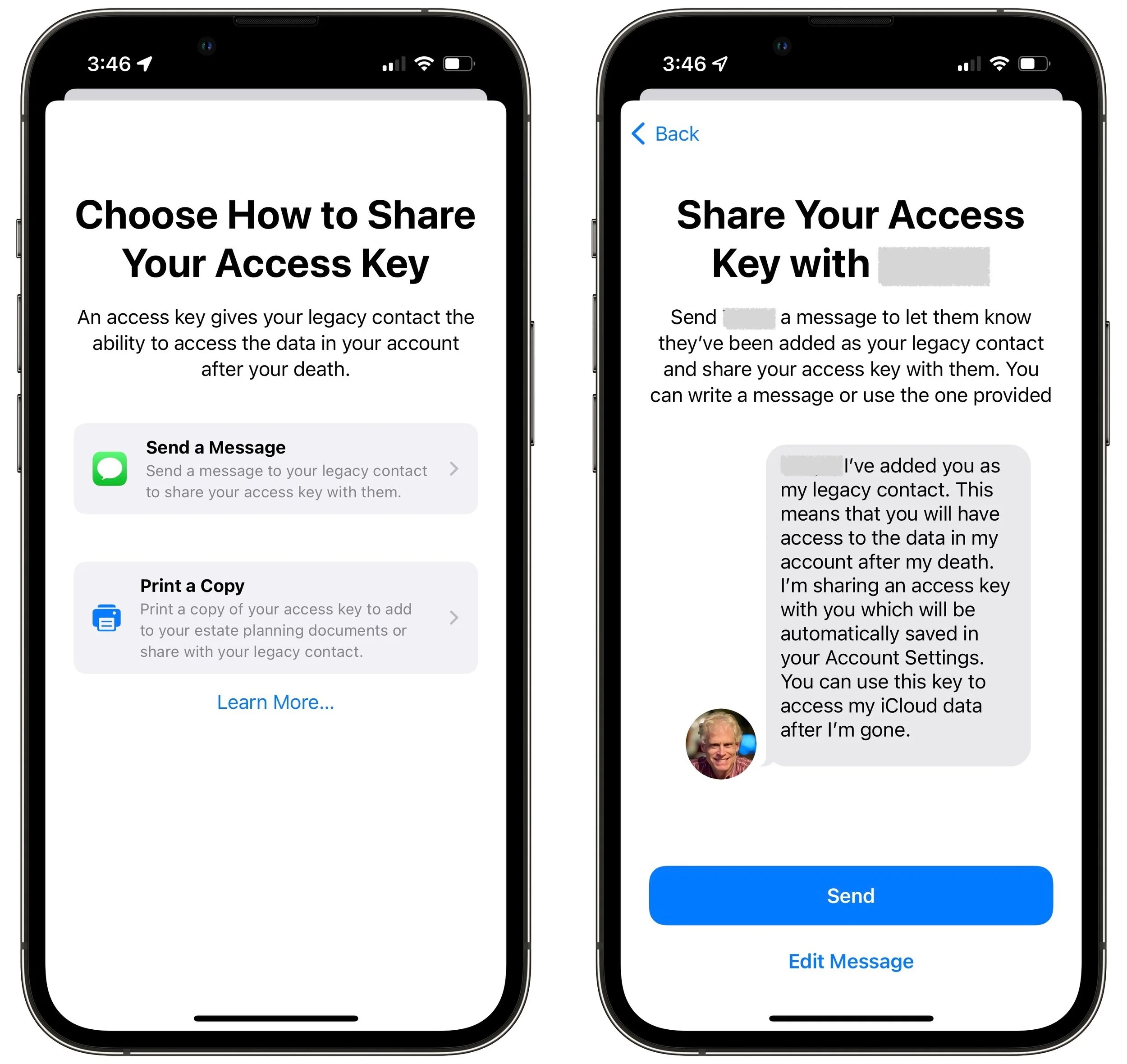
As part of the process of picking someone, Apple allows you to share the access key via Messages if they’re running iOS 15.2, iPadOS 15.2, or macOS 12.1 Monterey. If they accept, a copy of the access key will automatically be stored in their Apple ID settings. If they’re not running a necessary operating system or don’t use an Apple device, you can instead print out an access key QR code and give that to them. You might also want to print a copy to store with your will and other important documents.
It may often be appropriate to act as a Legacy Contact for the people you’re asking to be your Legacy Contacts, particularly with spouses or adult children.
How Does a Legacy Contact Request Account Access?
Let’s assume the worst and pretend that someone who has added you as a Legacy Contact has passed away. To request access to their Apple ID, you need the access key that the person shared with you and a copy of their death certificate. You can find the access key on an iPhone or iPad in Settings > Your Name > Password & Security > Legacy Contact > Contact’s Name, and on the Mac in System Preferences > Apple ID > Password & Security, where you click Manage next to Legacy Contact settings and then Details next to the person’s name. It’s also possible that the person shared the access key as a document stored with their estate planning documents.
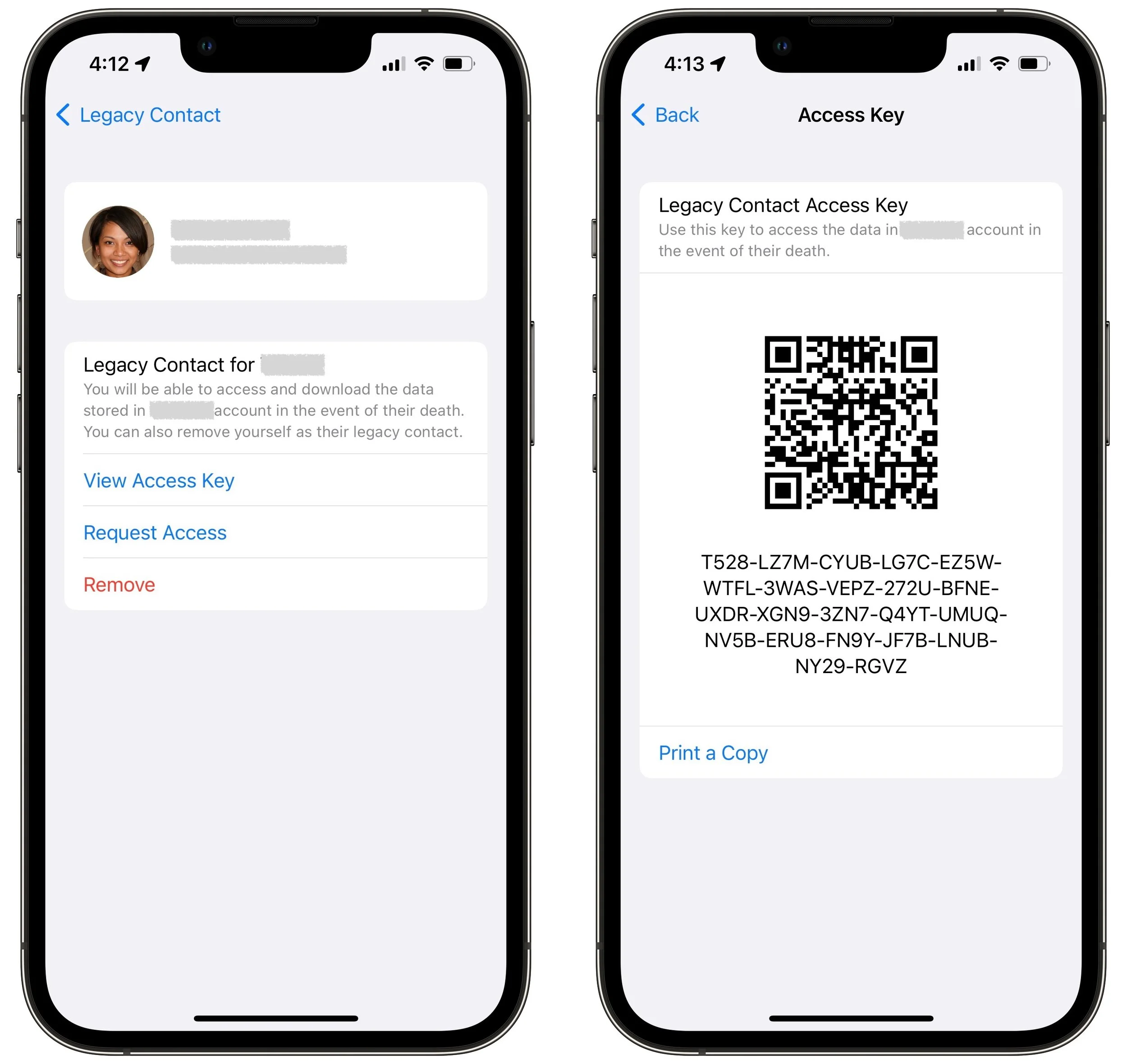
The screens that provide the access key also have a Request Access link. Tap or click that and follow the instructions to upload the death certificate. If you don’t have an appropriate Apple device, you can also do this on the Web at Apple’s Digital Legacy – Request Access page.
Apple evaluates all access requests to make sure they’re legitimate, and once approved, sends you an email with more details and instructions. That email will also include a special Legacy Contact Apple ID that replaces the deceased’s previous Apple ID. You can use that Apple ID to log in to iCloud.com or download data at privacy.apple.com, sign in to an Apple device, or restore an iCloud backup to another Apple device. Having an access request approved also removes Activation Lock from the deceased’s Apple devices so you can restore them to factory settings and set them up again, either fresh or with the Legacy Contact’s Apple ID’s data.
The main limitation is that the Legacy Contact Apple ID is good only for 3 years, after which the legacy account is permanently deleted. So be sure to download everything important fairly quickly—don’t just keep using the Legacy Contact Apple ID or assume that you’ll be able to go back to it at any time.
We sincerely hope that you never have to act as Legacy Contact for a loved one, but we can say from experience that this new feature can only help make an already stressful time more manageable.
Badges? We Don’t Need No Stinkin’ Red Badges (On Our iPhone Apps)
Do you love or hate those red badges on your iPhone Home screen icons? Or maybe you’re indifferent and mostly ignore them? Regardless of your opinion, our article explains how to make the most of them—or eliminate them entirely.
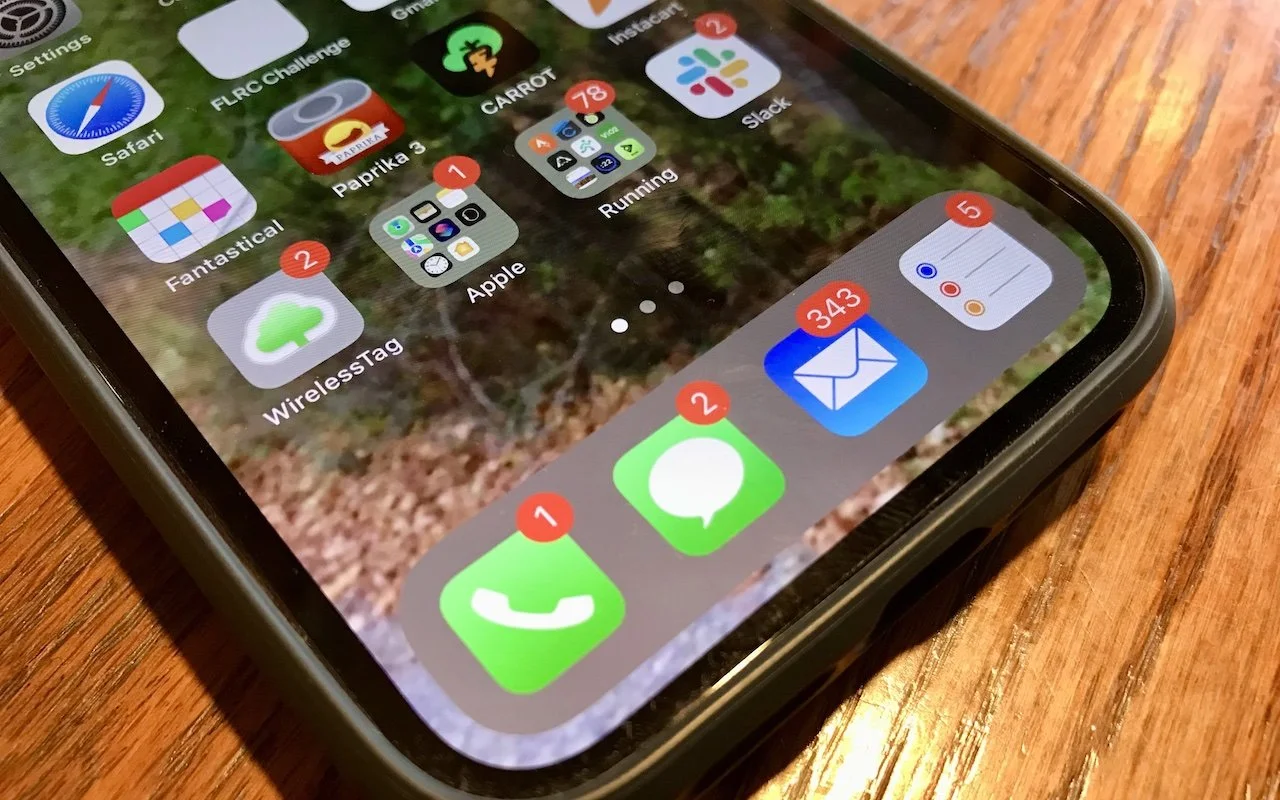
Quick quiz: what does a red number badge on the Phone icon on your iPhone mean? You’d be right if you said that it indicates the number of missed calls or voicemail messages. The Mail and Messages apps also use a red badge to display the number of unread messages; Settings uses one to indicate that software updates are available; and Reminders shows a badge for the number of tasks due today. Third-party apps also use red badges to indicate that some number of somethings await you inside. You’ll also see a red badge on any folder that contains apps that are themselves showing badges—the folder’s badge sums the total of the badges inside.
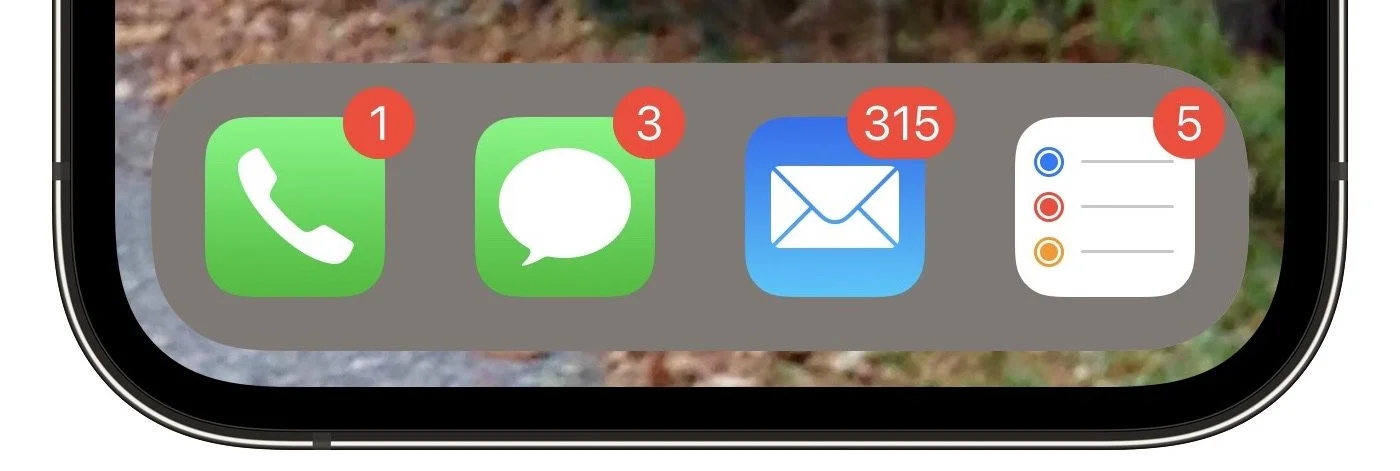
We’re willing to bet that some of you stay on top of your badges at all times, checking the missed calls, reading the messages, and completing the to-dos. Others don’t find the badges helpful and either ignore them or find them somewhat annoying. Who needs to know they have 315 unread email messages?
Here then is our advice on how to ensure that the red badges either provide useful information or get out of your way.
Clear Badges Organically
Being told that you have 17 voicemail messages that you haven’t listened to or 32 unread texts in Messages isn’t helpful—at best, you have to remember that you had only 16 voicemail messages yesterday. There’s no option for dealing with them all at once, but it’s worth taking a few minutes while standing in line or otherwise killing time to clear the badges manually.
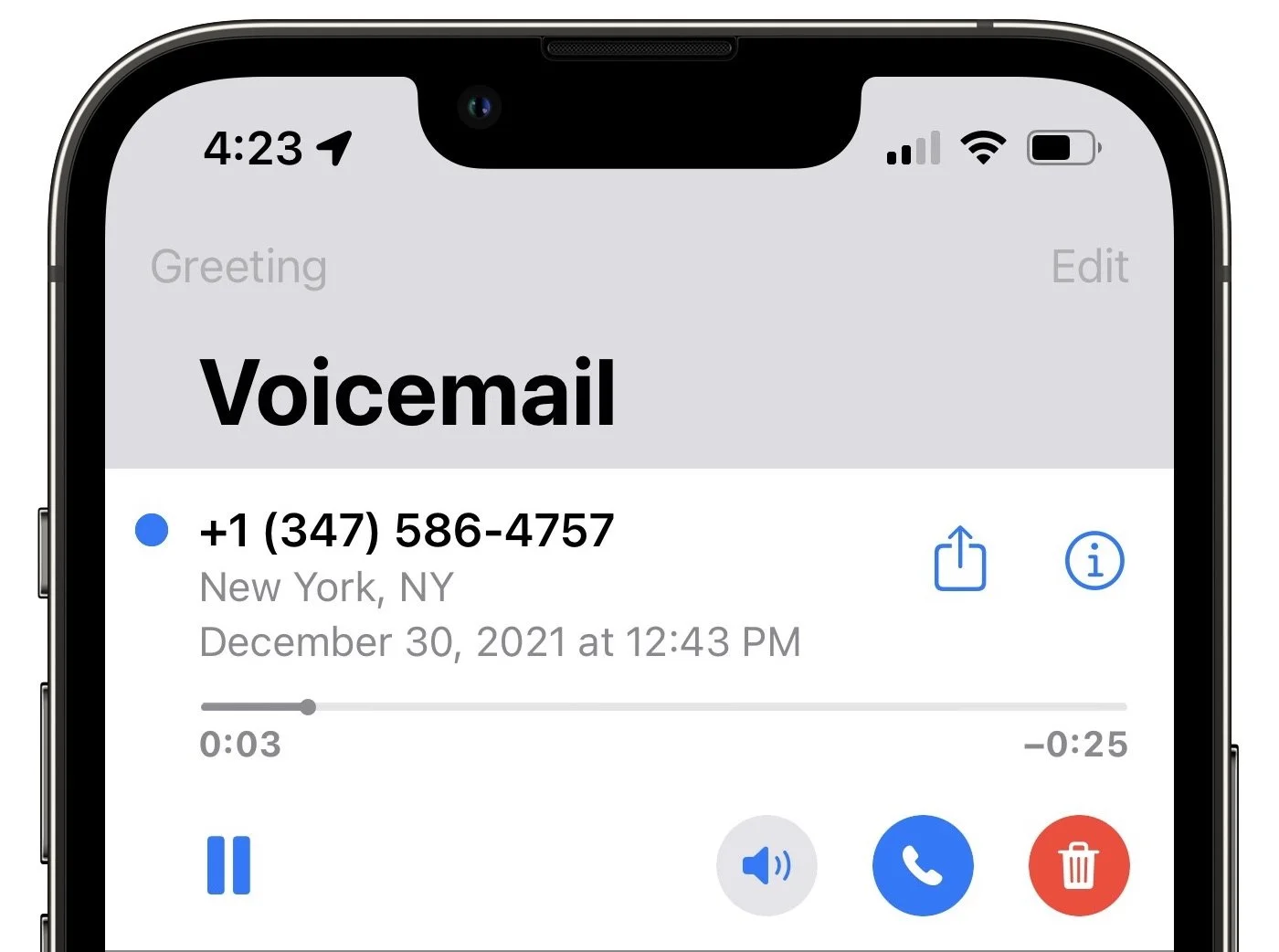
Precisely how you do this depends on the app. In the Phone app, all you have to do to clear the missed calls in the badge is tap Recents at the bottom—that’s enough to mark them as viewed. For voicemails, however, you’ll either have to listen to at least some of the message or delete it by swiping all the way to the left. (Remember that you can drag the playback slider to fast-forward if you want to mark it as listened without actually doing so.)
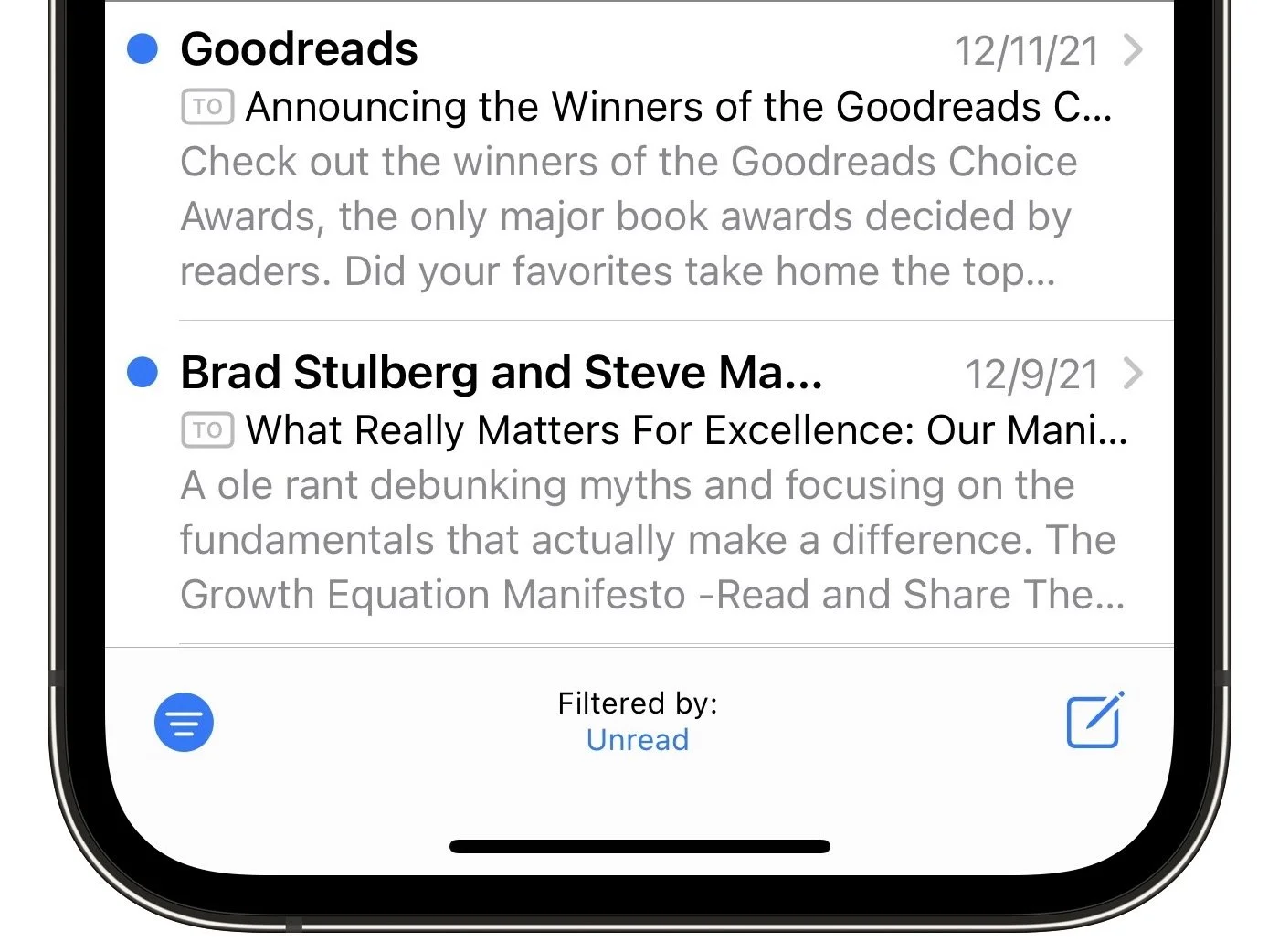
In Messages and Mail, the trick is to read or delete each message. That mostly means just loading it quickly and then moving on, although you can also swipe left to delete unread conversations or email threads. In Messages, you’ll have to scroll through all your conversations, looking for those that have a blue unread dot next to them. In Mail, you can tap the Filter button at the bottom to show only unread messages (tap Filtered By and select Unread if it’s set some other way).
Regardless, the goal is to mark everything as dealt with so the badge goes away, not for the sake of making it go away, but so when it returns with the next unread message or new voicemail, it’s giving you actionable information.
Disable Unnecessary Badges
However, some badge numbers are never useful. Unless you receive very little email, being told you have more than a handful of unread emails will likely just cause stress, not encourage you to deal with those messages. That’s especially true if a session in Mail merely knocks the number down to a still-high value. (“Oh good, now I only have 289 unread messages.”) Or you may just dislike the badges in general—that’s fine too.
Luckily, you can turn the badges off entirely. Go to Settings > Notifications > AppName and disable Badges. You’ll never see that red badge of nagging again.
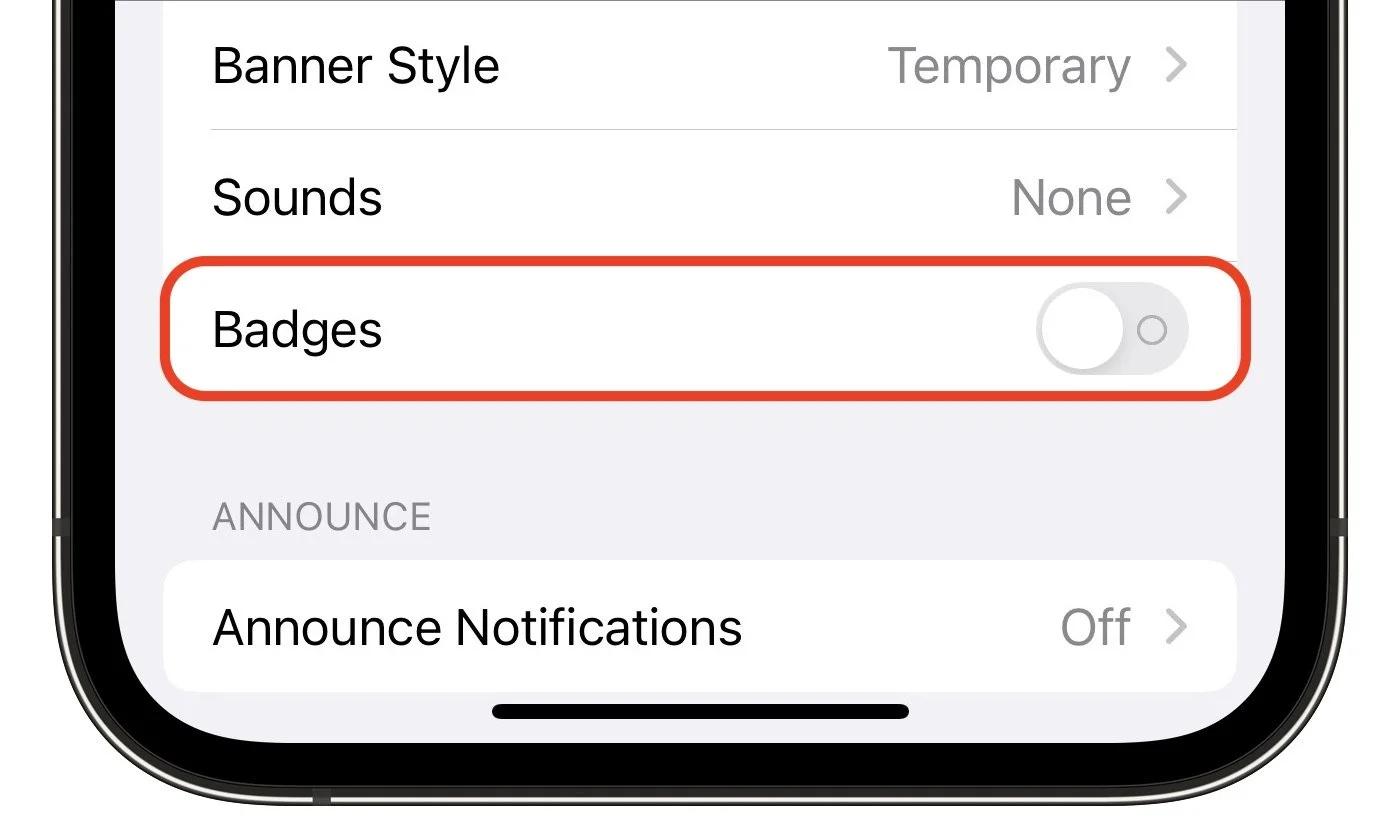
Clear Stuck Badges
Sometimes an app will end up with a red badge even when you’re certain that you’ve done whatever is necessary to clear it. Here are a few things to try:
Update the app: Go to the App Store app, tap your avatar in the upper-right corner, and tap Update All if it appears (pull down to make the App Store check for new updates). It’s generally worth going to Settings > App Store and enabling App Updates so they come in automatically.
Force-quit the app: There’s no reason to force-quit apps unless they’re misbehaving, but a stuck badge counts as bad behavior. Swipe up from the very bottom of the screen and pause to enter the app switcher—or on Touch ID-equipped devices, double-press the Home button—and then swipe up on the card for the app in question to force-quit it.
Restart the iPhone: If all else fails, restart the iPhone. First, press and hold the side button and either volume button (iPhone X, 11, 12, and 13), the side button (iPhone 6, 7, 8, and second-generation iPhone SE ), or the top button (first-generation iPhone SE, iPhone 5, and earlier). Wait until the power off slider appears, drag it, wait 30 seconds, and then press either the side button or the top button to turn the iPhone back on.
Disable that app’s badges: If nothing else works to clear a stuck badge, you can always resort to the steps above to disable badges for that app.
Making sure that app badges are either useful or hidden won’t change your life, but given how often we look at our iPhones, even little tweaks like this can lift your mood.
(Featured image by Adam Engst)
How to Stop Forgetting Your Apple Gear with “Notify When Left Behind”
Tired of forgetting your AirPods or iPhone when leaving home? The Find My app’s new Notify When Left Behind feature can remind you of that fact before you’ve gone too far. Learn more at:

Apple’s Find My technology is a lifesaver when it works, enabling you to locate and potentially retrieve lost or stolen devices. It’s not perfect, even with the addition of the Find My Network, which drafts other nearby Apple devices to relay the location of a lost device, but it’s a heck of a lot better than nothing. Part of the problem is that you have to notice that a device is missing before you can bring Find My into play to see where it might be.
No longer, thanks to the brilliant new Notify When Left Behind feature of iOS 15. Why wait until you notice that your AirPods aren’t in your bag when the Find My app can notify you shortly after you leave their immediate vicinity? Even if that means talking your way back onto an airplane to retrieve your AirPods from the seatback pocket, that’s better than discovering your loss an hour or two later.
Notify When Left Behind doesn’t support all Apple devices—you know that you’re leaving your 27-inch iMac behind whenever you leave home, and HomePods tend to stay put. But it does work with the iPhone, iPad, AirPods, AirTag, and Mac laptops. Somewhat surprisingly left out is the Apple Watch, perhaps because Apple assumes it would always be either charging or on your wrist.
To set up Notify When Left Behind for your devices, follow these steps:
In the Find My app, tap Devices at the bottom of the screen to show all your devices.
Tap the name of the device for which you want to enable Notify When Left Behind.
Scroll up to reveal the Notifications section, and tap Notify When Left Behind.
Enable the Notify When Left Behind switch, then tap Done.
Repeat for each desired device, switching to the Items screen to include AirTags.
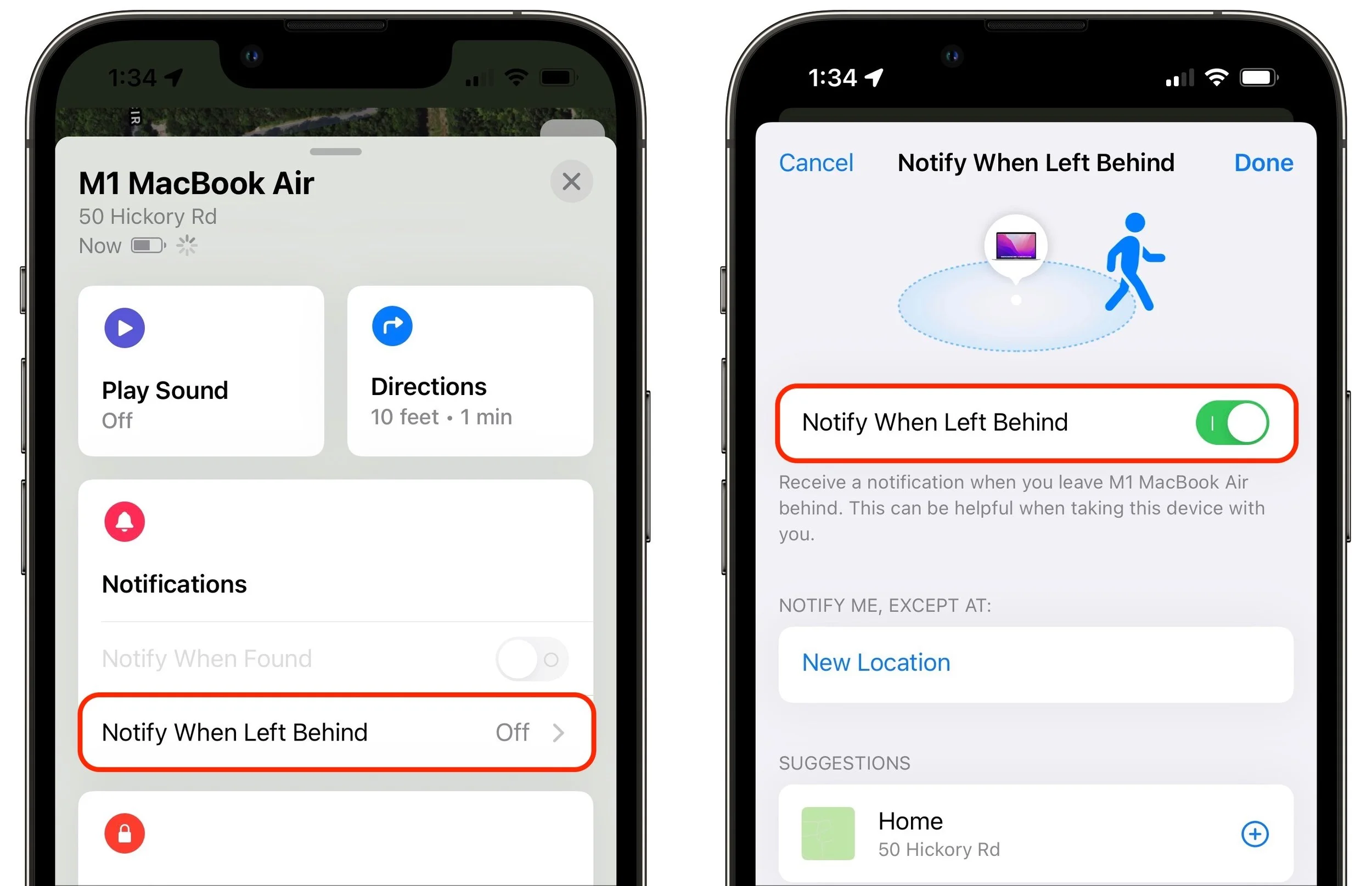
“Wait a second,” you’re thinking. “How can your iPhone tell you that you’ve left it behind if it’s not with you?” Apple is one step ahead of you. The key is your Apple Watch—if you leave your iPhone on your desk at work when going home for the day, your Apple Watch will alert you 5 or 10 minutes later. It may be annoying to go back for it, but it’s better than not realizing until you get home.
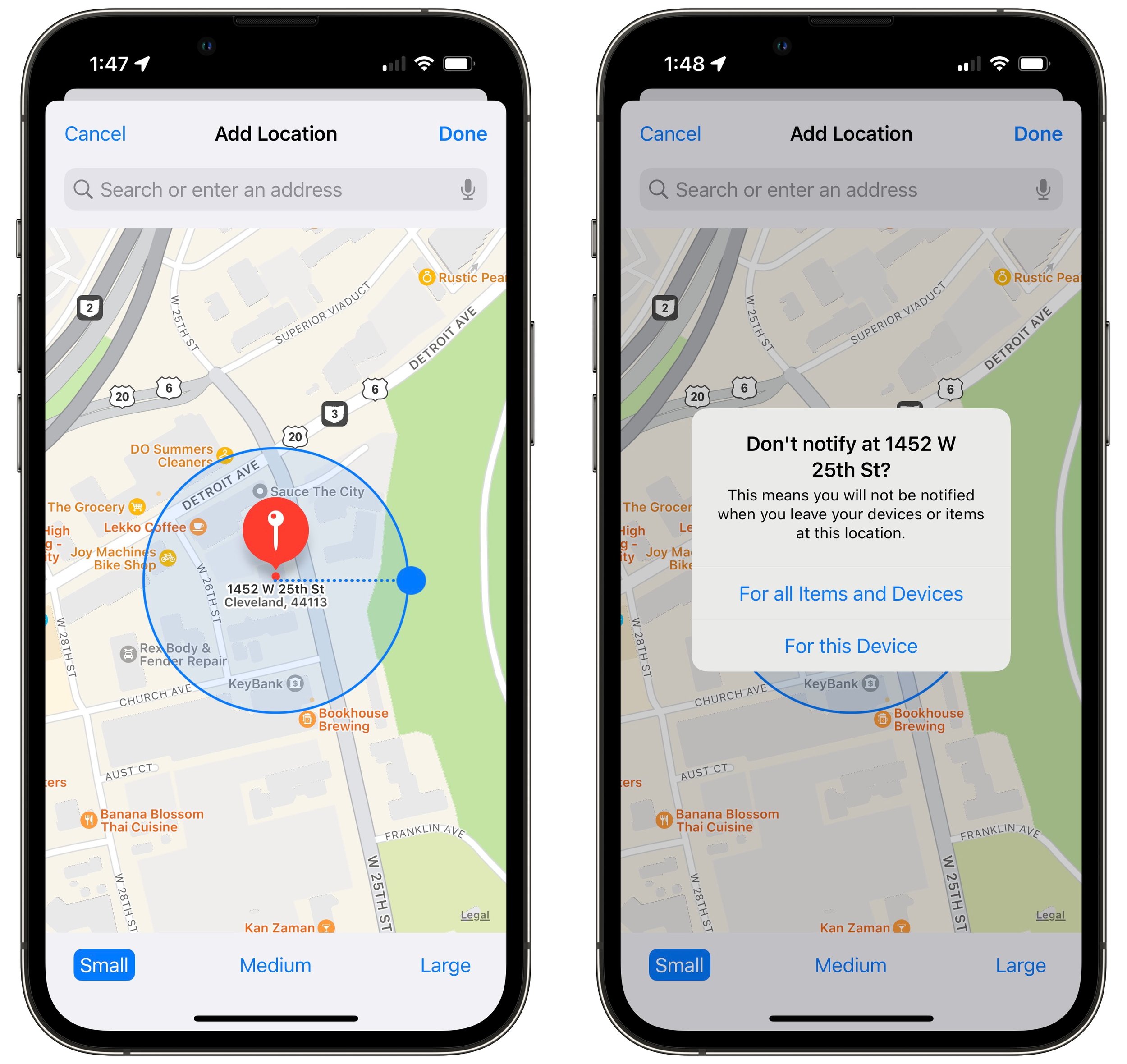
Your next thought is probably, “Won’t it be annoying if my iPhone tells me that I’ve left various devices behind even when I meant to leave them there?” Apple has an answer to that as well. As you can see in the Notify When Left Behind screen above, there’s a Notify Me, Except At section to which you can add places that it’s acceptable to leave your devices. Find My even suggests your Home location; just tap the + button to add it. If you tap New Location, you can scroll the map to any location, press and hold to drop a pin, and then choose a small (300 feet), medium (800 feet), or large (1400 feet) radius to ignore. When you add a custom location, Find My asks if it should apply to just the current device or to all your devices and items.
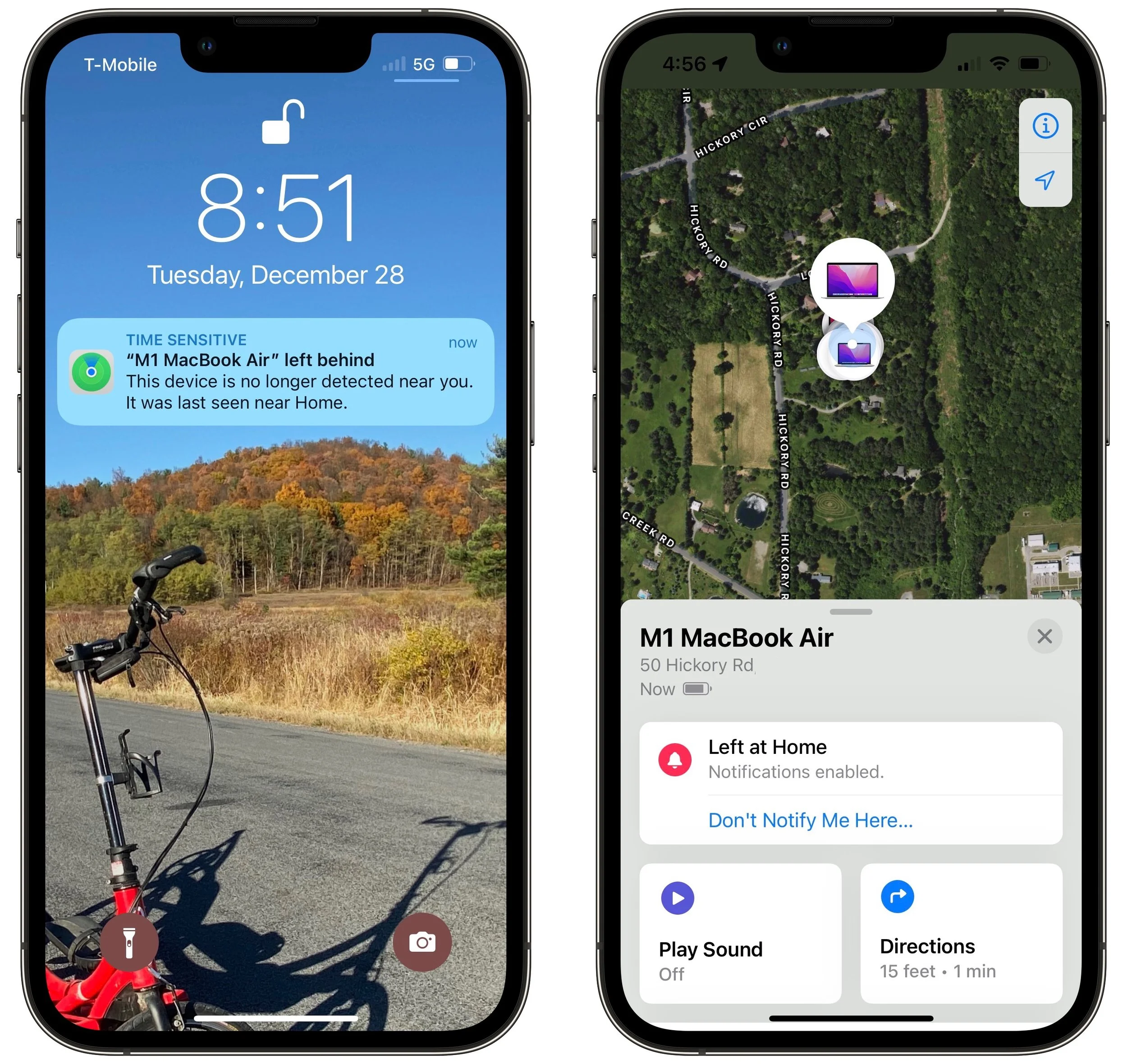
When you actually leave a device behind, you’ll get a notification on your iPhone. Tap it to see where you left the item, which may be all the reminder you need. If you tap Continue to open the Find My app, you can tap Directions to be directed to where the device is or tap Don’t Notify Me Here if the location is a place where you don’t mind leaving your devices.
That’s all there is to Notify When Left Behind. It’s the perfect example of a feature that works quietly in the background to help you avoid problems.
(Featured image by iStock.com/Farknot_Architect)
Print Mailing Labels for Your Holiday Cards with Apple’s Contacts App
Much of the work of sending holiday cards is addressing all those envelopes. However, with the Contacts app on your Mac, you can easily print mailing labels for all your friends and family rather than writing addresses out by hand.
If mailing your holiday cards (which you designed in Photos with a plug-in like Motif or Mimeo Photos, right?) is made harder by having to write addresses on envelopes, you can skip the handwriting step this year. Although many people don’t realize this, it’s easy to print mailing labels on standard label stock using the Contacts app on the Mac. You can even add a personal touch by including a graphic and using a custom color and font choice. Follow these steps:
1. In Contacts, choose File > New Group to create an empty group into which you can collect your card recipients. Name the group something like Holiday Cards.
2. Click All Contacts to see your full collection of contacts, and then drag your recipients from the center column to copy them into the Holiday Cards group. Note that you have to click and hold briefly before Contacts lets you start dragging a contact. You can drag contacts one at a time or select several at once and drag the entire selection. This doesn’t move contacts out of All Contacts—you’re just adding them to the Holiday Cards group, which functions like a playlist in Music.
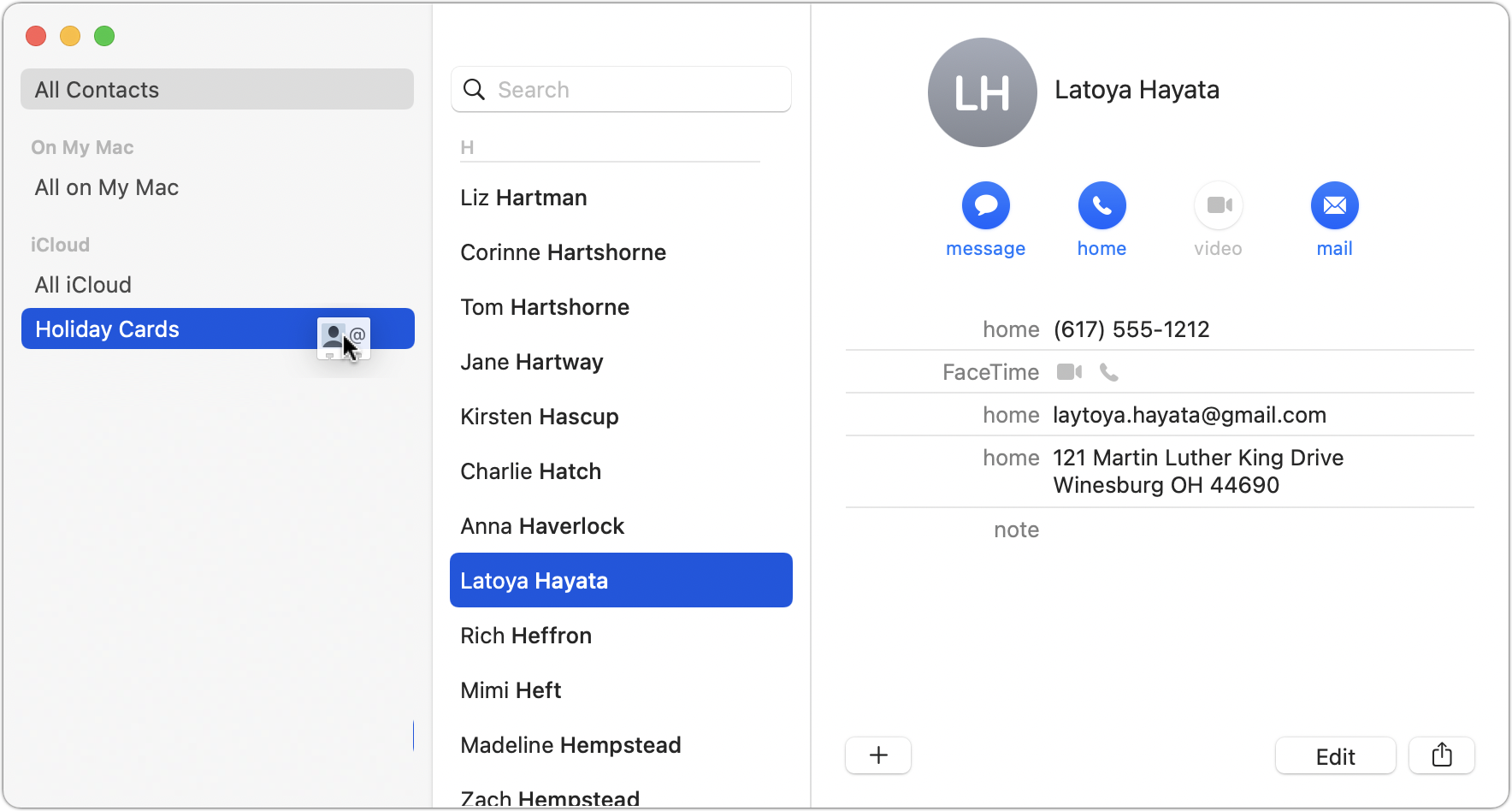
3. Once the Holiday Cards group contains all your recipients, click its name in the sidebar, and then choose File > Print to open the Print dialog.
4. To set up your cards, you need to see details in the Print dialog, so at the bottom of the Print dialog, click the Show Details button (if it’s already called Hide Details, you’re all set). You also need to see the special controls for Contacts, so make sure Contacts is chosen from the pop-up menu underneath the page range fields. Then from the Style pop-up menu, choose Mailing Labels.
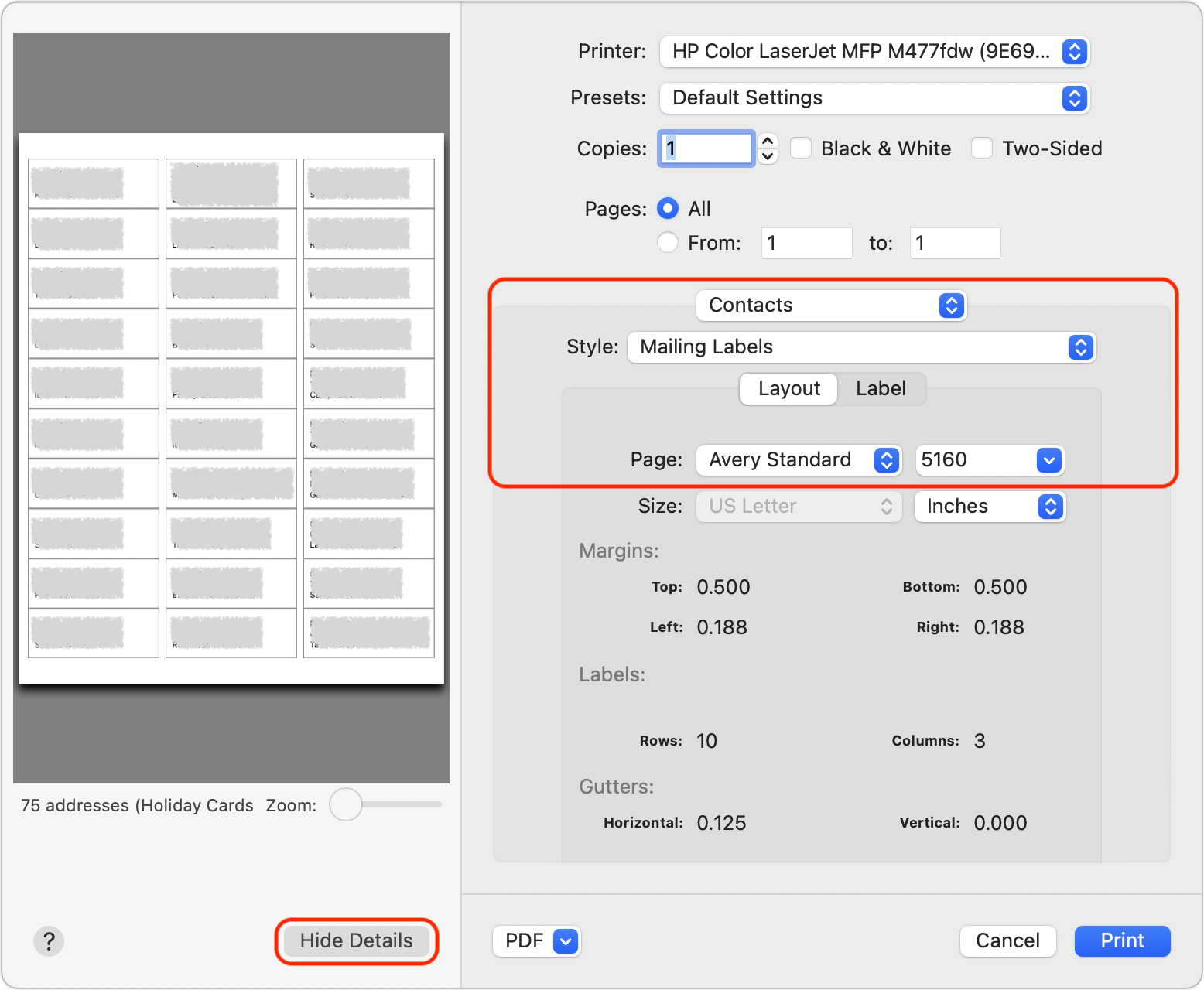
5. Beneath the Style pop-up menu, make sure Layout is selected, and then in the Layout view, from the Page pop-up menus, choose the manufacturer of your labels and the number associated with the labels. (Avery 5160 is a particularly common label type and is readily available at office supply stores and online.)
6. Click Label to switch to the Label view. From the Addresses pop-up menu, choose the type of address you’re using. Home is likely the most appropriate; if you choose All, Contacts will print both Home and Work addresses if available. You can also select the checkboxes for Company and Country here, and if you print the country, you can exclude your own country, which makes it easy to include overseas friends and relatives without printing the country for most people.
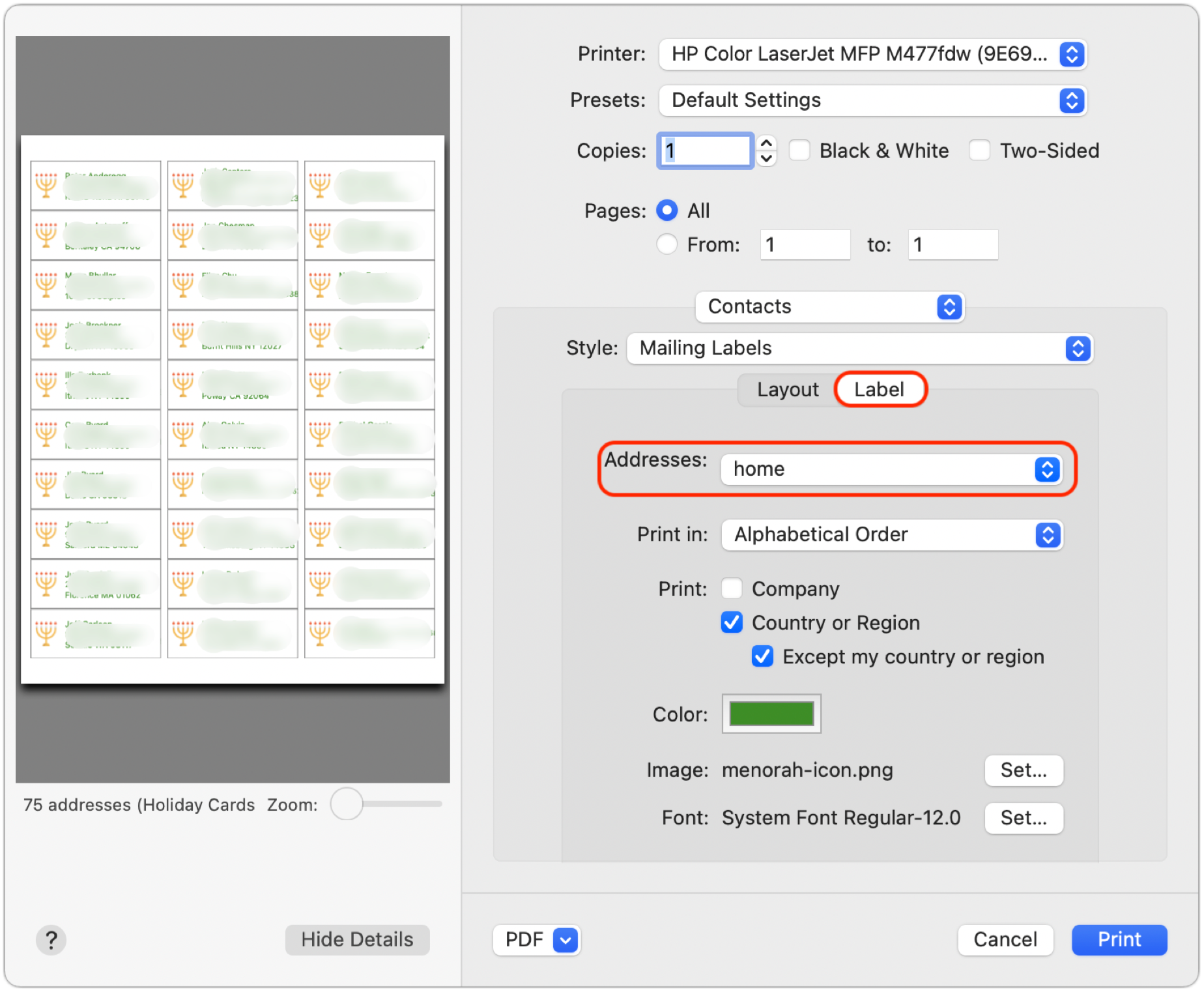
7. Although the defaults are fine, you can change the color of the label text, select a small image to print next to each contact, and change the font.
8. It’s time to print, but not on your label stock just yet! Click the Print button to print a draft of your labels on plain paper. You’ll use this draft for two things—checking the addresses for accuracy and verifying that the labels will print properly on the label stock. To check if the labels will print correctly, stack a page from the draft on top of a sheet of blank labels, and then hold them up to a bright light or sunlit window. You should be able to see whether the positioning is right—it should be in most cases. If not, make sure you’ve chosen the right label in the Print dialog, and if all else fails, create a custom label with your own margins and gutters to make it work. You may also want to increase or decrease the font size, making sure that even your longest addresses will fit.
9. Once you’ve fixed addresses for everyone who has moved recently and verified your positioning, you can print for real on your label stock.
There’s only one limitation to using Contacts to print your labels. If you’re a perfectionist, you might want to customize how the names of couples appear on the label. Even though it has the necessary Spouse relationship field that links contacts together, Contacts doesn’t support different name formats on labels. For instance, if you’re sending a card to a couple who share a last name, you might want the name line to read “Barack and Michelle Obama.” The same goes for couples who don’t share a last name, like “Ellen DeGeneres and Portia de Rossi.” The solution for this picky conundrum is Belight Software’s $9.99 Swift Publisher app, which lets you create label templates using individual fields from Contacts.
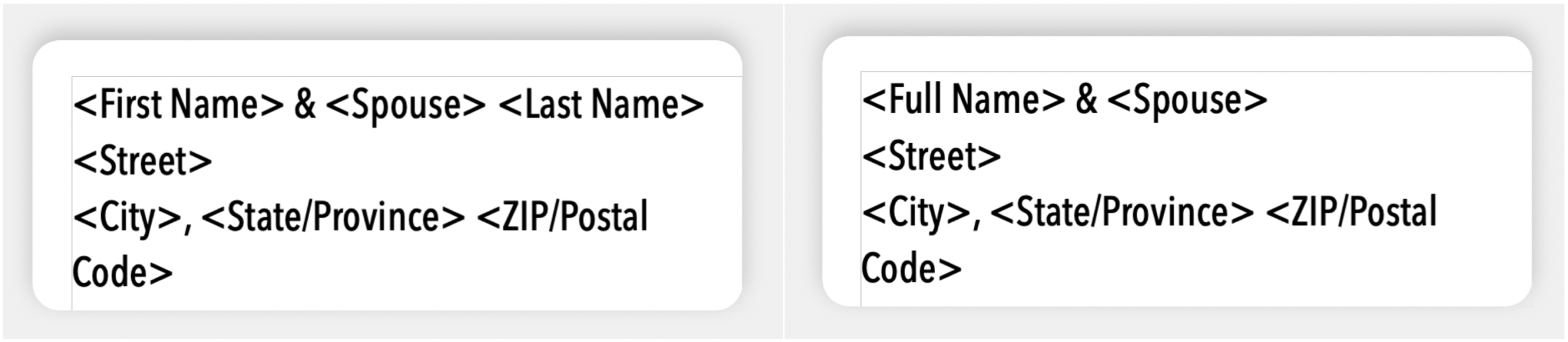
But that’s overkill for most of us, who care more about what’s inside the envelope. Most of the work comes in selecting people, making sure their addresses are right, and updating those that have changed—actually printing labels takes only a few minutes. As you stick your labels on envelopes, you can revel in the knowledge that it will go even faster next year!
(Featured image by iStock.com/Bet_Noire)