
Remove Old-Style Today View Widgets from Your iPhone
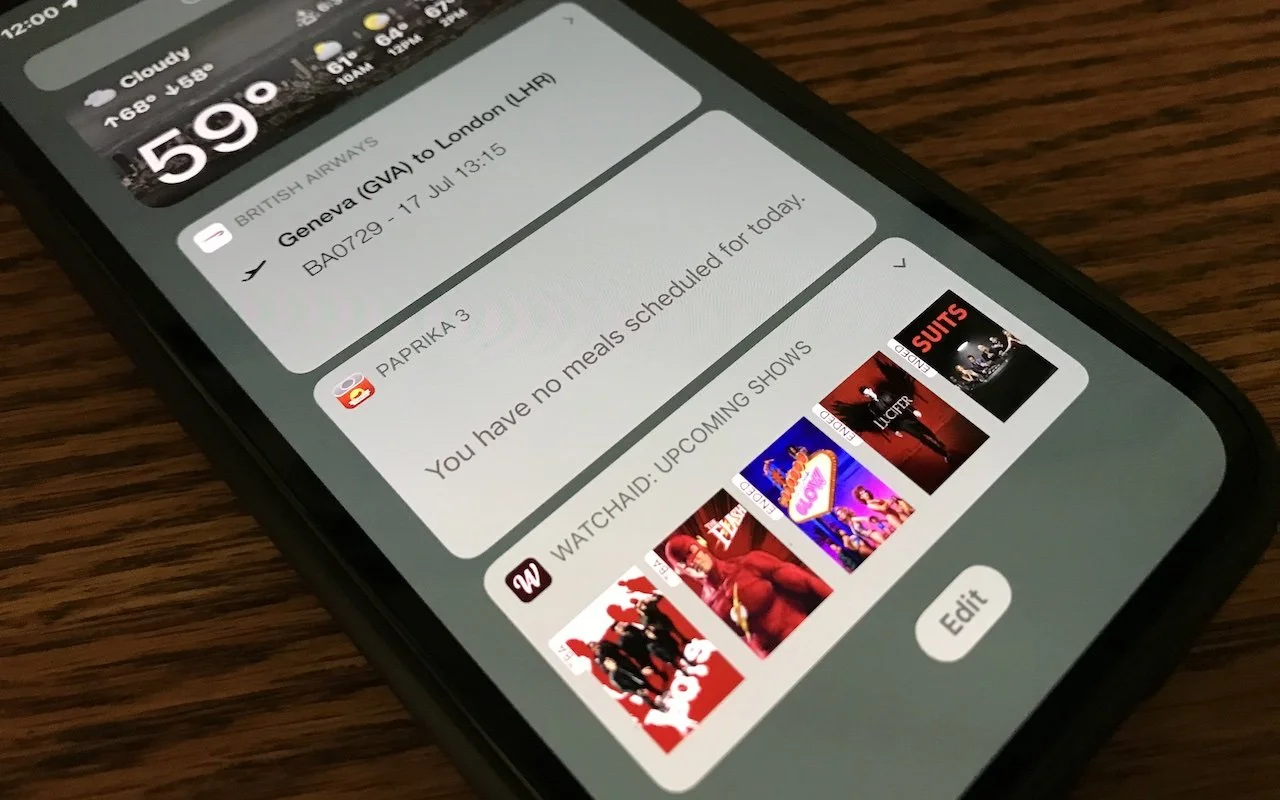
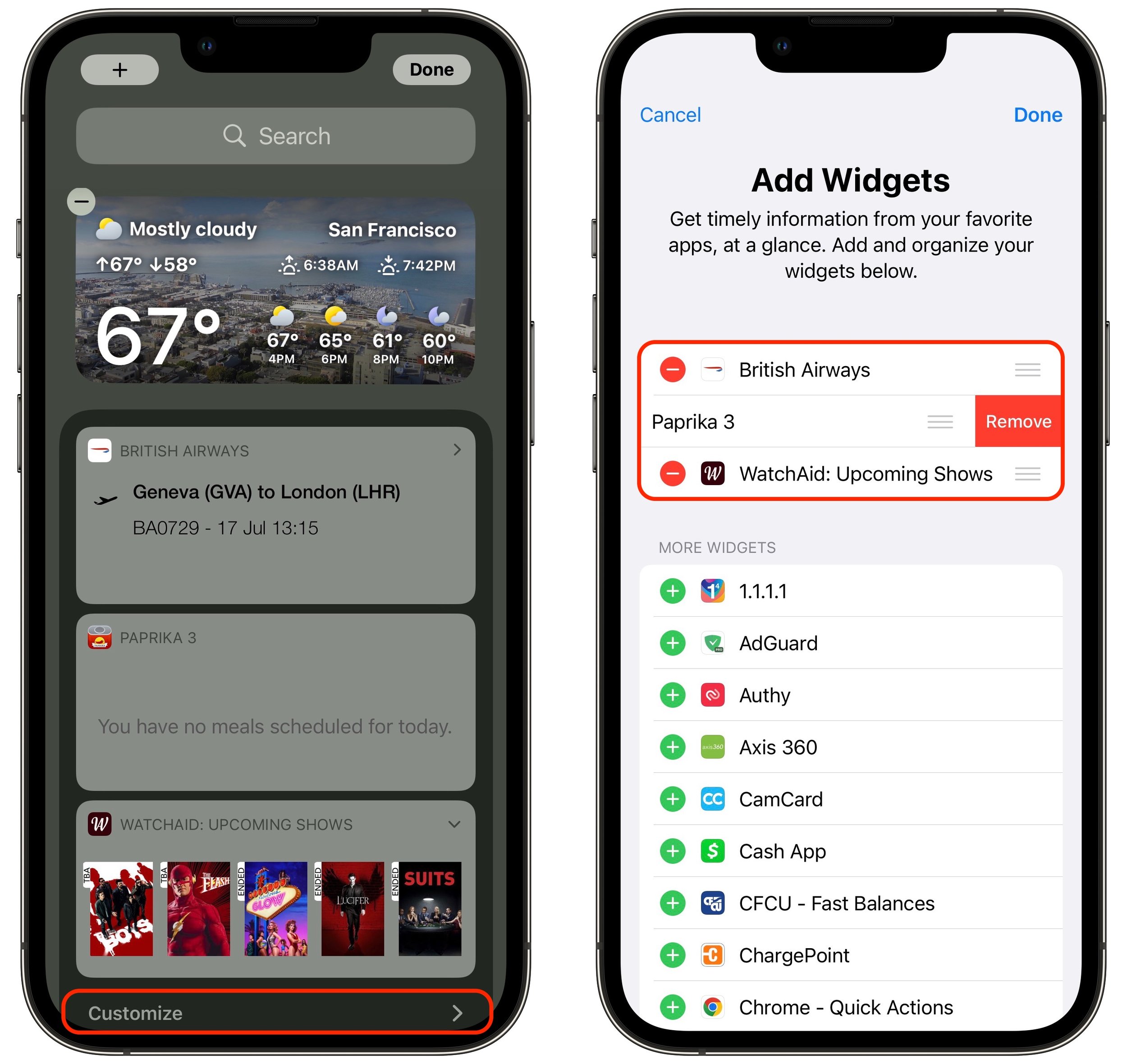
In iOS 14, Apple overhauled widgets, allowing you to add them to your Home screen in addition to the Today View accessible by swiping right on the Home screen. App developers responded with a slew of new widgets, but old-style widgets that are limited to Today View remain available. If you no longer want these older widgets cluttering the bottom of your Today View, here’s how to remove them. Swipe right on the Home screen to enter Today View. At the bottom of Today View, tap the Edit button, and at the bottom of the collection of old-style widgets (new-style widgets wiggle), tap Customize. In the Add Widgets screen, tap the red ⊖ button next to each widget you want to delete and confirm by tapping Remove.
(Featured image by Adam Engst)
Most Pantone Color Books for Adobe Creative Cloud to Require Pantone Connect License

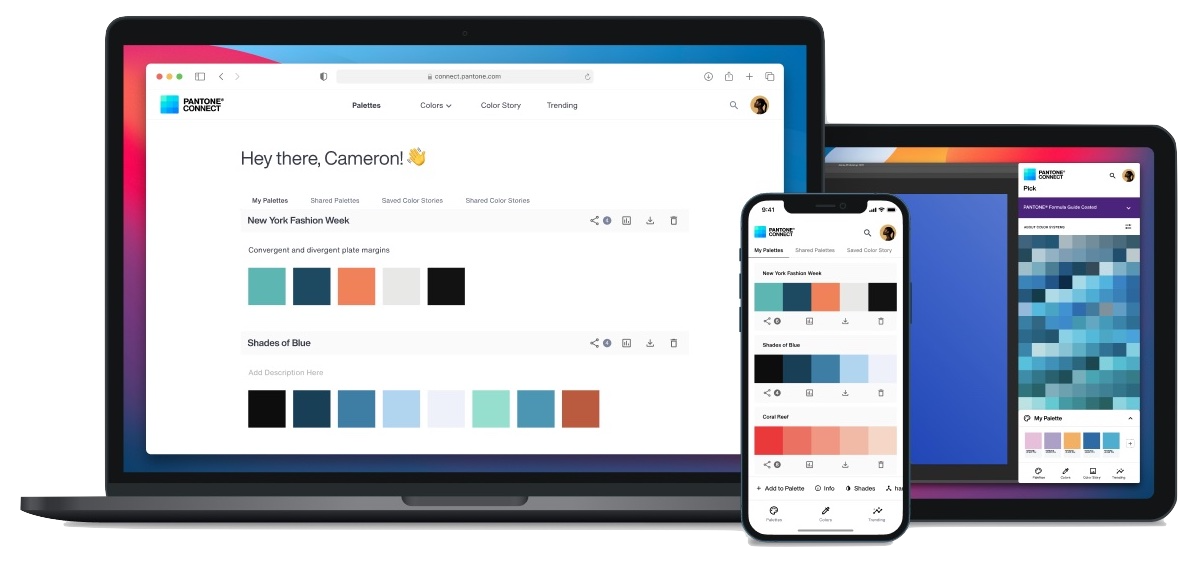
Adobe says that Pantone Color Books will be phased out of Adobe Creative Cloud apps, starting with updates to Illustrator, InDesign, and Photoshop released after August 16, 2022. After November 2022, only three Pantone Color Books will remain: Pantone + CMYK Coated, Pantone + CMYK Uncoated, and Pantone + Metallics Coated. To access all other Pantone Color Libraries, Creative Cloud users will need to purchase a Pantone Connect license and access the libraries through the Pantone Connect plug-in. Pantone Connect costs $59.99 per year or $7.99 per month. For the most part, existing files should continue to work as before, although Adobe offers details of how files in Illustrator, InDesign, and Photoshop may be affected.
(Featured image based on an original by iStock.com/Kanizphoto)
Don’t Trust an App Fully? Hide Your Precise Location from It

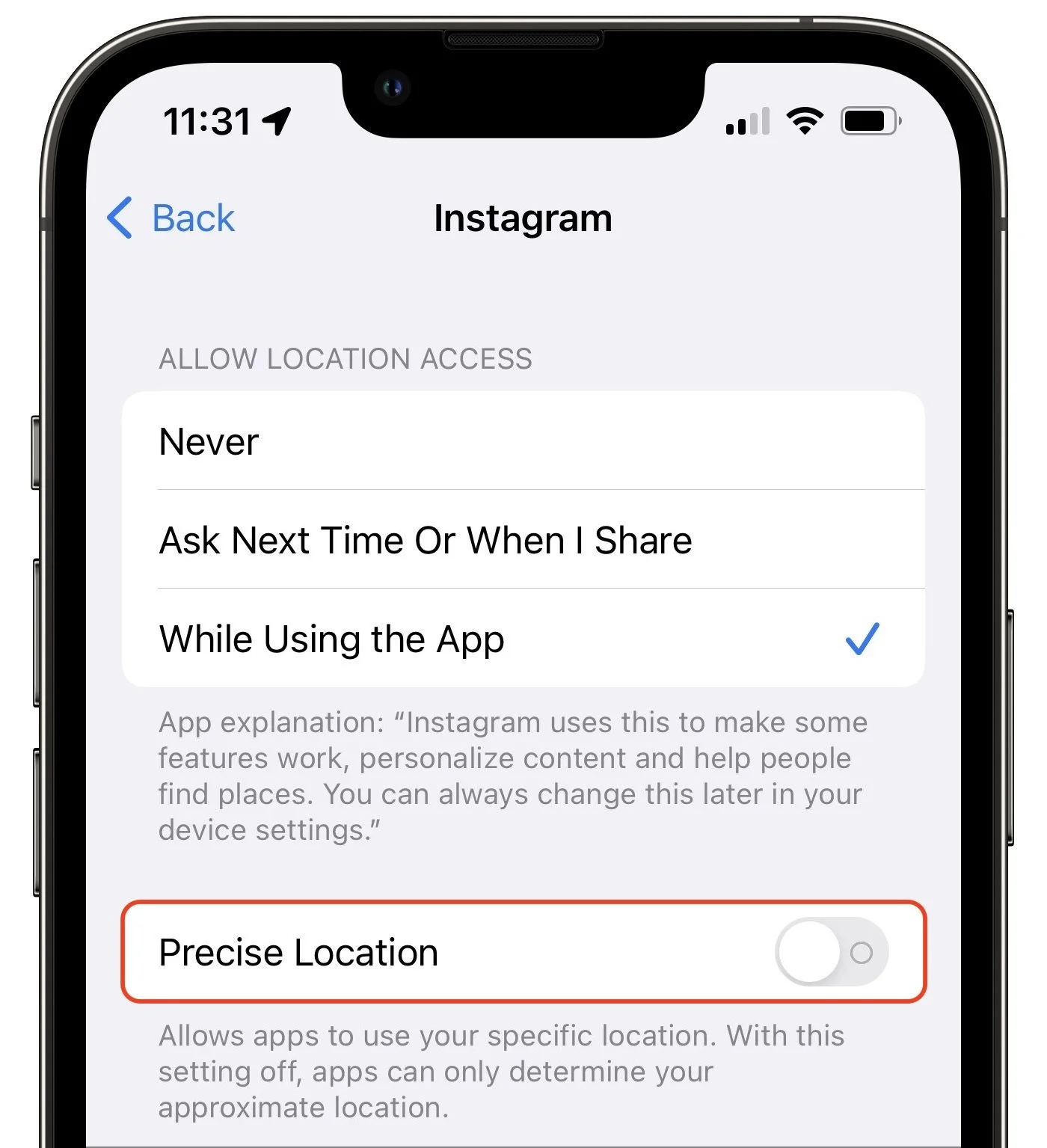
Most of the time, having your iPhone know precisely where you are is good. You want Maps to tell you exactly when to turn, not after you’ve passed an intersection. But too many apps abuse their users’ privacy. We strongly encourage you to stop using such apps entirely, but we acknowledge that it can be hard to give up apps that seem necessary for modern life. Barring that, you could prevent such apps from seeing your location at all, but even that isn’t always feasible. Since iOS 14, Apple has provided another compromise—you can prevent an app from seeing your precise location while still giving it your approximate whereabouts. Go to Settings > Privacy > Location Services, scroll down and tap the app in question, and disable Precise Location.
(Featured image by iStock.com/Melpomenem)
How to Restore Missing SMS Two-Factor Authentication Codes

Many websites, from Adobe to Zendesk, let you receive two-factor authentication codes via SMS text messages. That’s good—any form of two-factor authentication is better than none—but you’re often effectively locked out of your accounts if those text messages don’t arrive. A simple fix is to call your cellular carrier and ask to have any blocks removed from your account. Automated scam and fraud prevention systems may have installed those blocks—it wasn’t necessarily related to anything you did—and the carrier can remove them easily.

(Featured image by iStock.com/tsingha25)
What’s That Little Orange Dot by Control Center in macOS 12 Monterey?

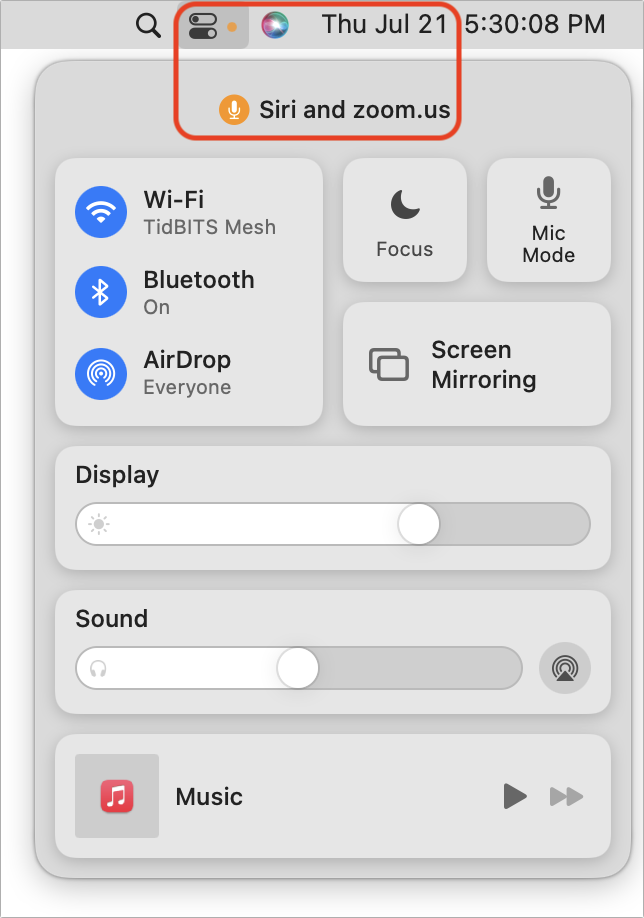
Have you noticed a little orange dot next to the icon for Control Center on the menu bar in macOS 12 Monterey? (And if not, you can’t miss it now.) Apple added that dot to alert you that something is using the Mac’s microphone to listen to the room. Click the Control Center icon to see which apps are using the mic. In nearly all situations, it will be entirely innocuous: Siri needs to listen for the “Hey, Siri” trigger, as in the screenshot below, and the Zoom app needs microphone access to provide audio in a video call. But if you don’t recognize the app that’s listening, you’ll want to look into it to make sure there’s nothing creepy going on.
(Featured image by iStock.com/Mihajlo Maricic)
Go Beyond Get Info with the Finder’s Inspector Window

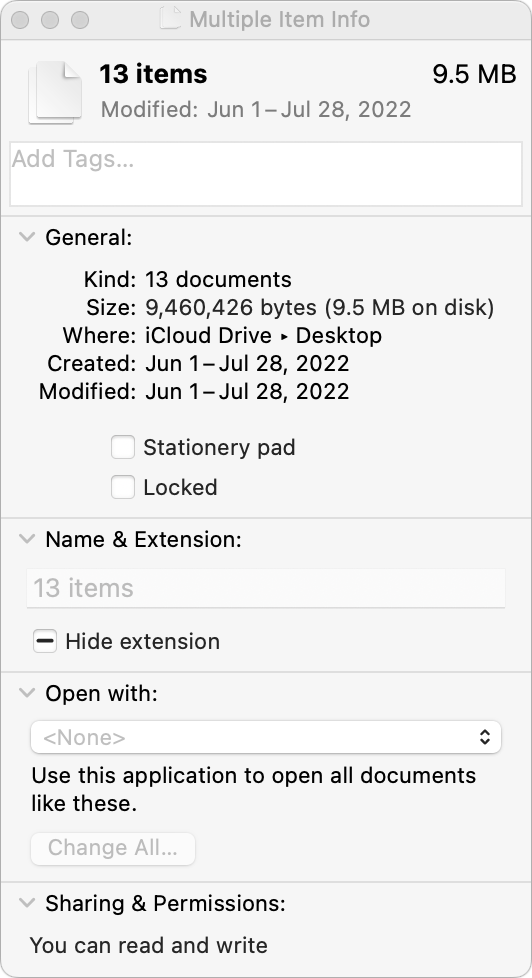
You probably know that selecting a file in the Finder and choosing File > Get Info (Command-I) brings up the Get Info window. This window provides information about the file, including its name, kind, size, creation and modification dates, and much more. You can also use Get Info to hide or show filename extensions, lock and unlock files, and change permissions. But what if you want to do those things to multiple files or figure out how large a set of files is? Turn to the Finder’s Inspector window instead. Select multiple files, hold down the Option key, and choose File > Show Inspector (Command-Option-I). The Inspector window looks and works almost exactly like the Get Info window. As a bonus, if you leave the Inspector window open, it updates to reflect whatever you select in the Finder—that’s faster than opening Get Info repeatedly for different items.
(Featured image by iStock.com/ipuwadol)
What Should I Do If I Get an “AirTag Found Moving With You” Message?
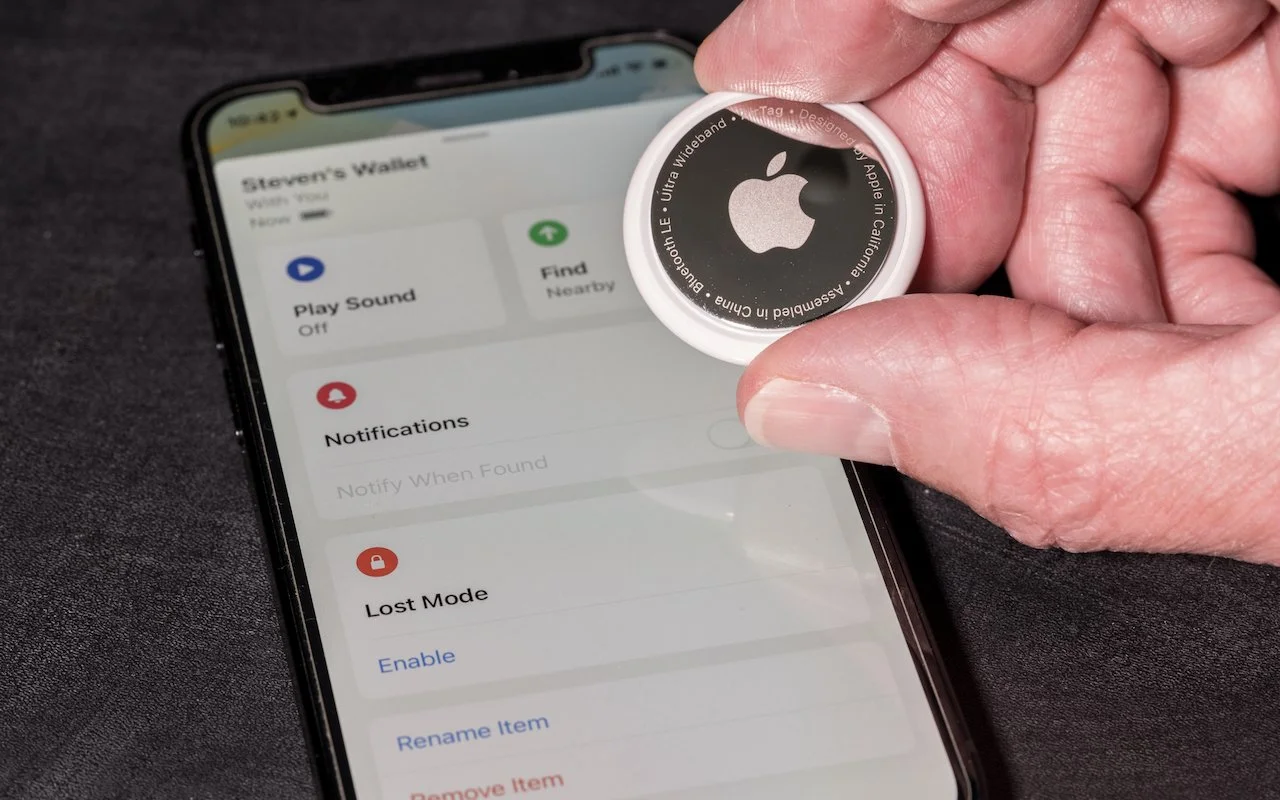
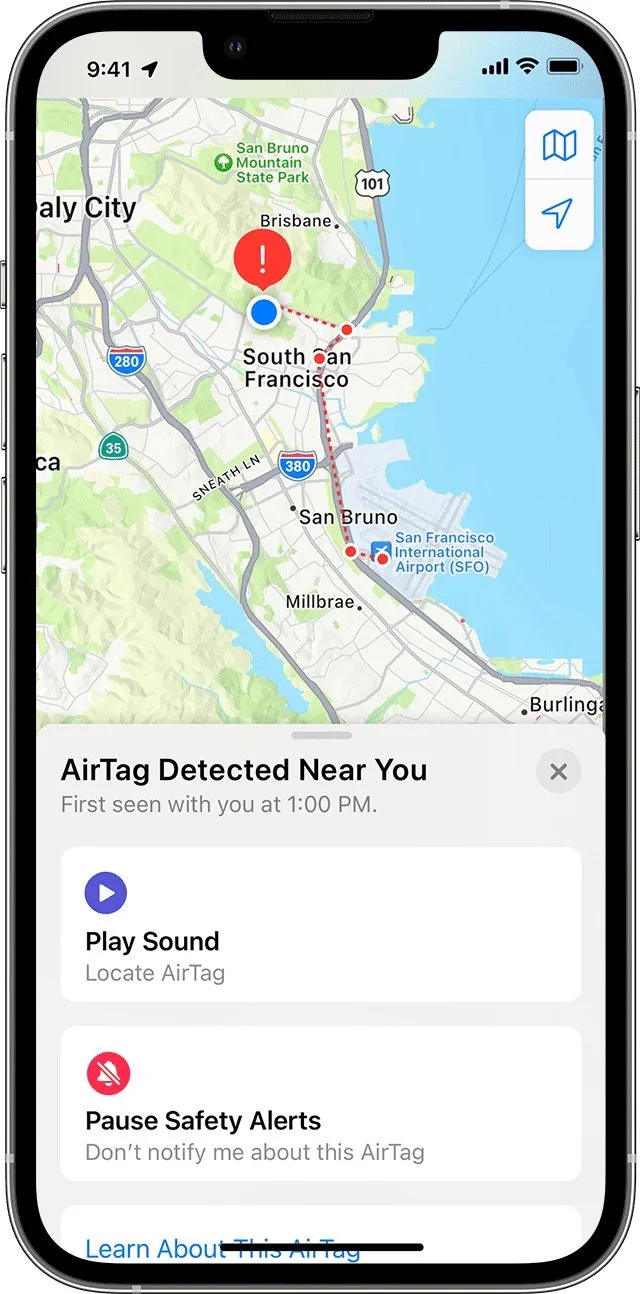
First, don’t panic. Most likely, you’re borrowing something with an Apple AirTag location tracker attached to it, or someone left something with an attached AirTag in your car. Second, tap the alert to open the Find My app, which displays a map showing where the AirTag has been with you, which might shed some light on where it started traveling with you. Third, in the Find My app, tap Play Sound to try to locate the AirTag by its audible alert. Fourth, if you find the AirTag, hold it near your iPhone until a notification appears, and tap that for more information, including the last four digits of the owner’s phone number (search for it in the Contacts app to see if it’s anyone you know). We’re being intentionally brief here—for significantly more detail, including advice on contacting local law enforcement—read Apple’s support article.
(Featured image by iStock.com/BackyardProduction)
Ease Vacation Navigation with Favorite Addresses in Maps

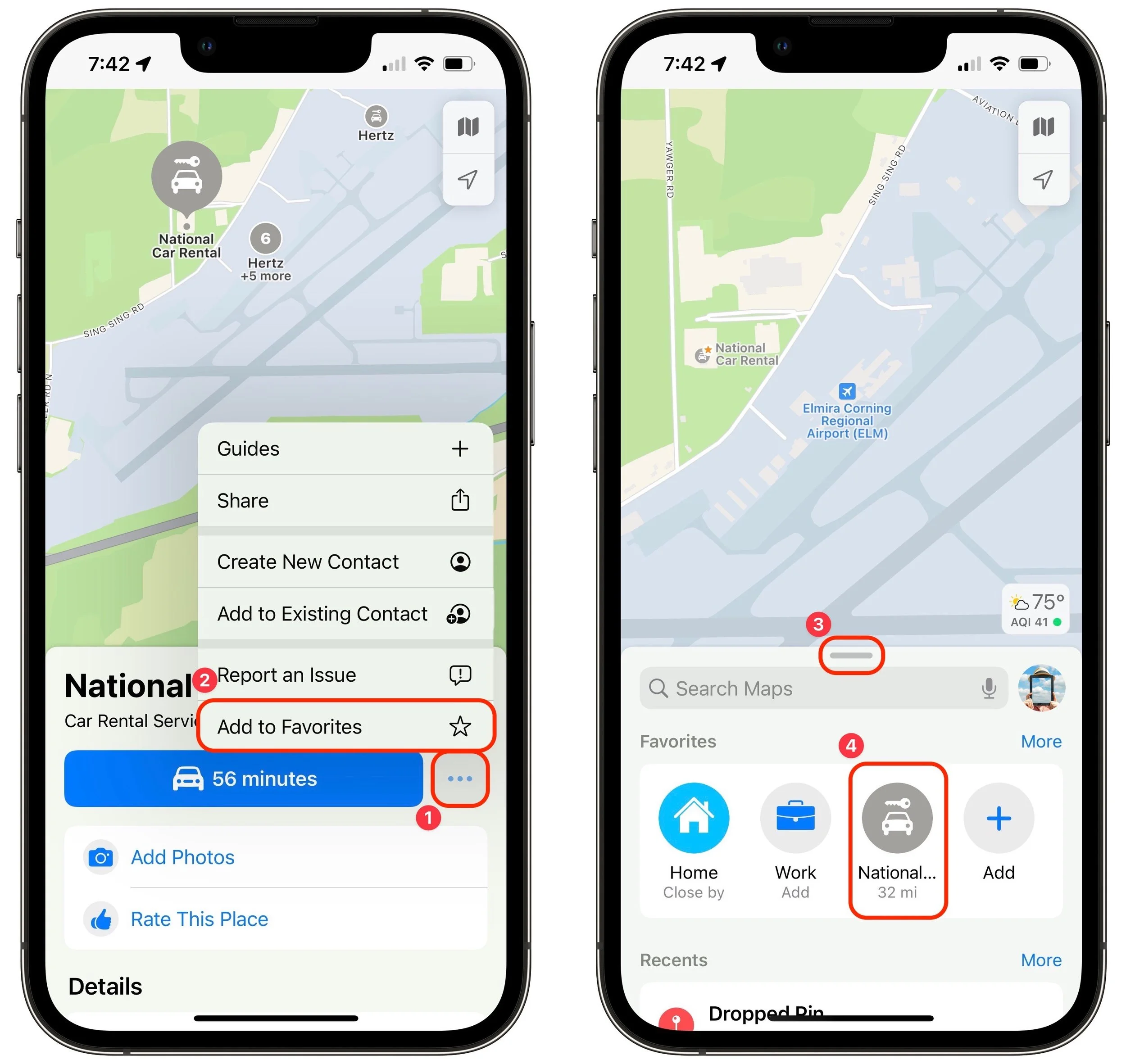
Imagine you’re on vacation, staying at an Airbnb and collecting tourist points in the surrounding area throughout the day. Since you’ll be heading back to your Airbnb regularly but may not remember its address reliably, it’s best to make it a favorite in Maps before you even leave home. That way, you can navigate to it easily without searching repeatedly or looking for it in your Recents list. Similarly, take a few minutes to add other addresses that you know you’ll need, such as the rental car dropoff spot. In Maps on the iPhone, tap the ••• button ➊ next to an address and then Add to Favorites ➋. Then, when it’s time to navigate, swipe up on the search handle ➌ and tap the favorite ➍ to get directions.
(Featured image by iStock.com/Prostock-Studio)