
Find Devices and People from Your HomePod
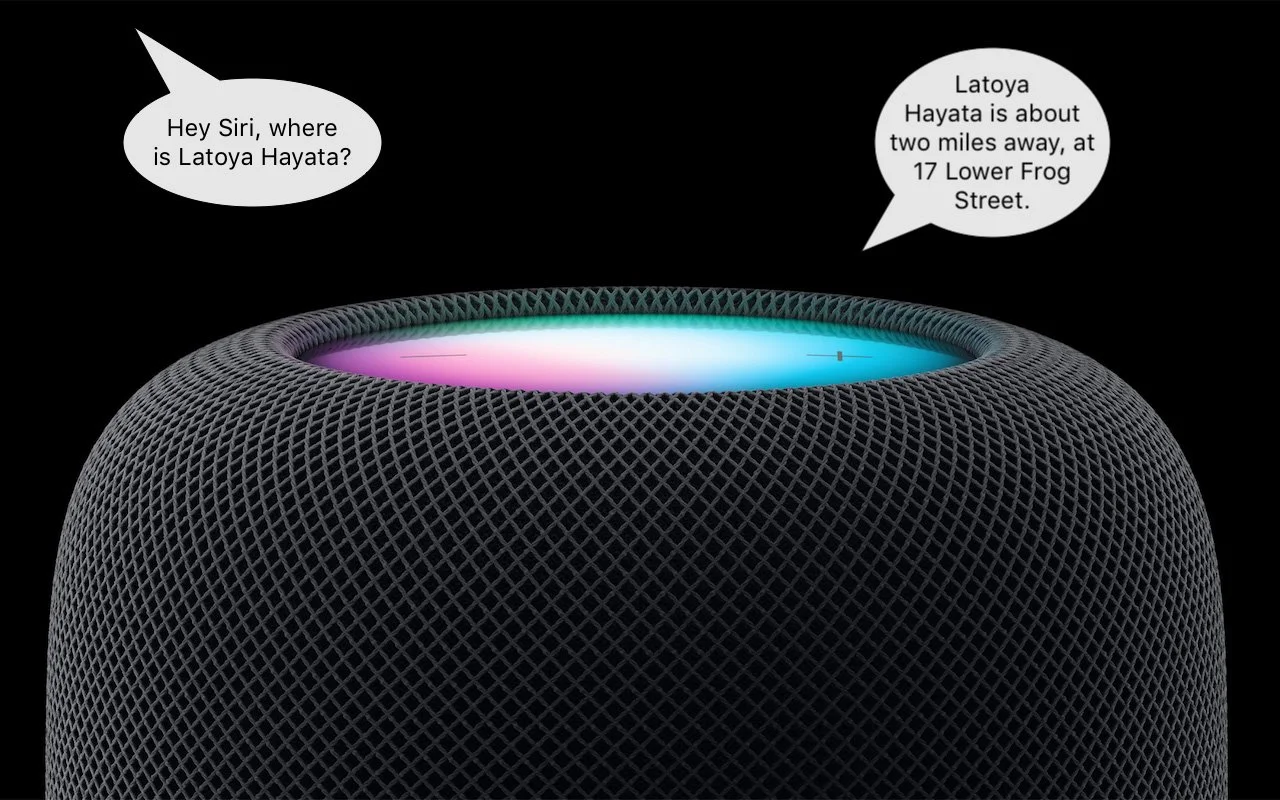
This feature evokes one of those “living in the future” moments for us. The recently released HomePod Software 16.3 now supports Find My, which means you can ask Siri to locate one of your devices or a friend or family member who shares their location with you. If you have a HomePod, ask Siri, “Where is my iPhone?” Assuming your HomePod has updated (and if not, update it manually in the Home app), Siri will respond by causing your iPhone to play a sound. Or ask where someone is—Siri will respond with more details for nearby people and city locations for those far away.
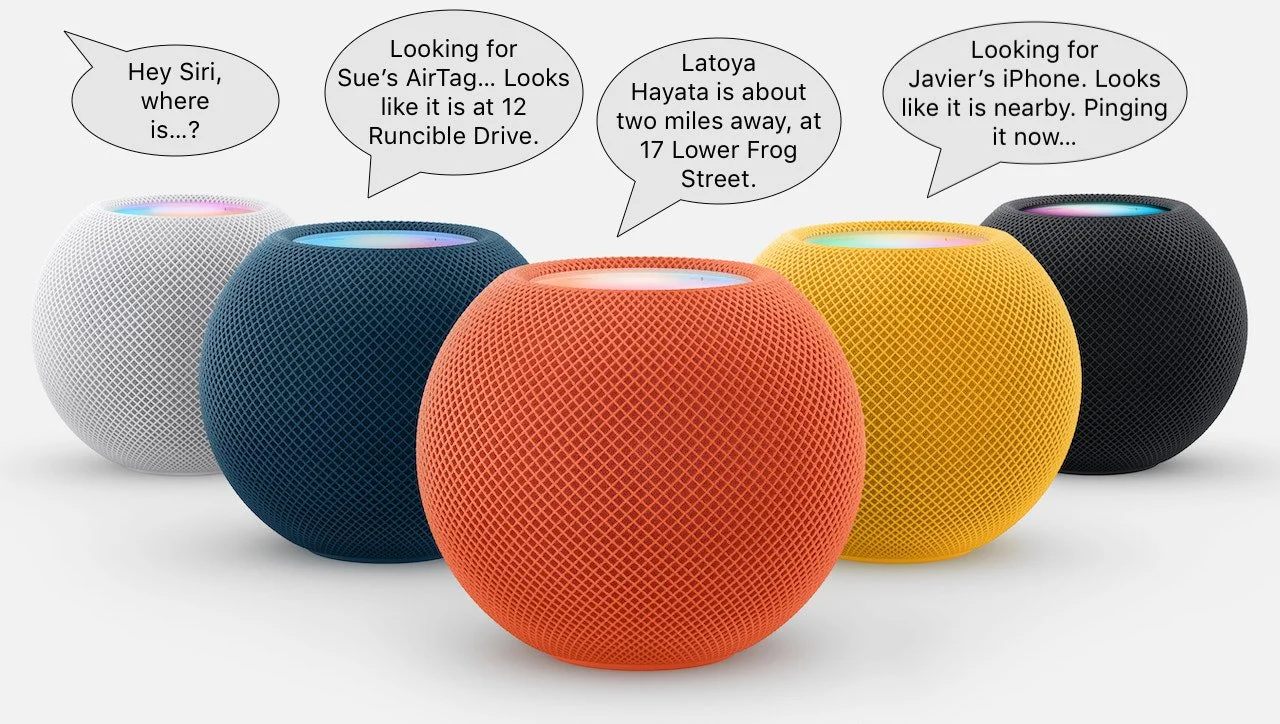
(Featured image based on an original by Apple)
Need to Back Up or Export a Messages Conversation? Try PDF or iMazing

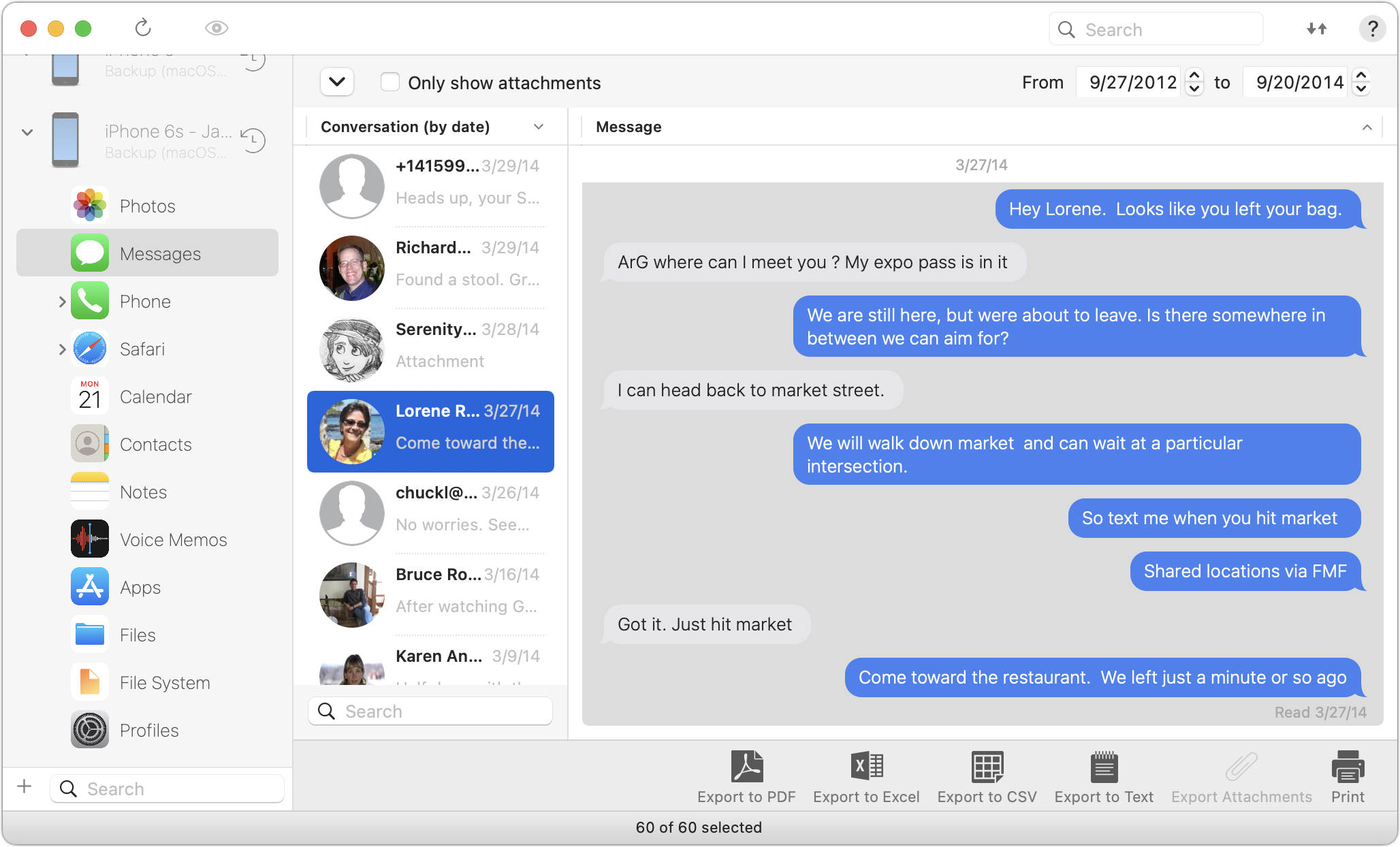
Occasionally, we hear from a client who needs to document a Messages conversation with timestamps, perhaps as part of a lawsuit. The only way to do that on an iPhone or iPad is to take a series of screenshots, but if you have a Mac, there are additional options. The easiest approach is to select the conversation, choose File > Print, and save it as a PDF. If you need a different format, try the macOS iMazing app, which can export all or selected messages from an iPhone backup in PDF, Excel, CSV, and text. It can also export attachments. The trial version lets you extract up to 25 items, and it’s only $39.99 if you have more significant iPhone exporting needs.
(Featured image by iStock.com/Morakot Kawinchan)
Use Quick Look to Preview Spotlight Results in Ventura
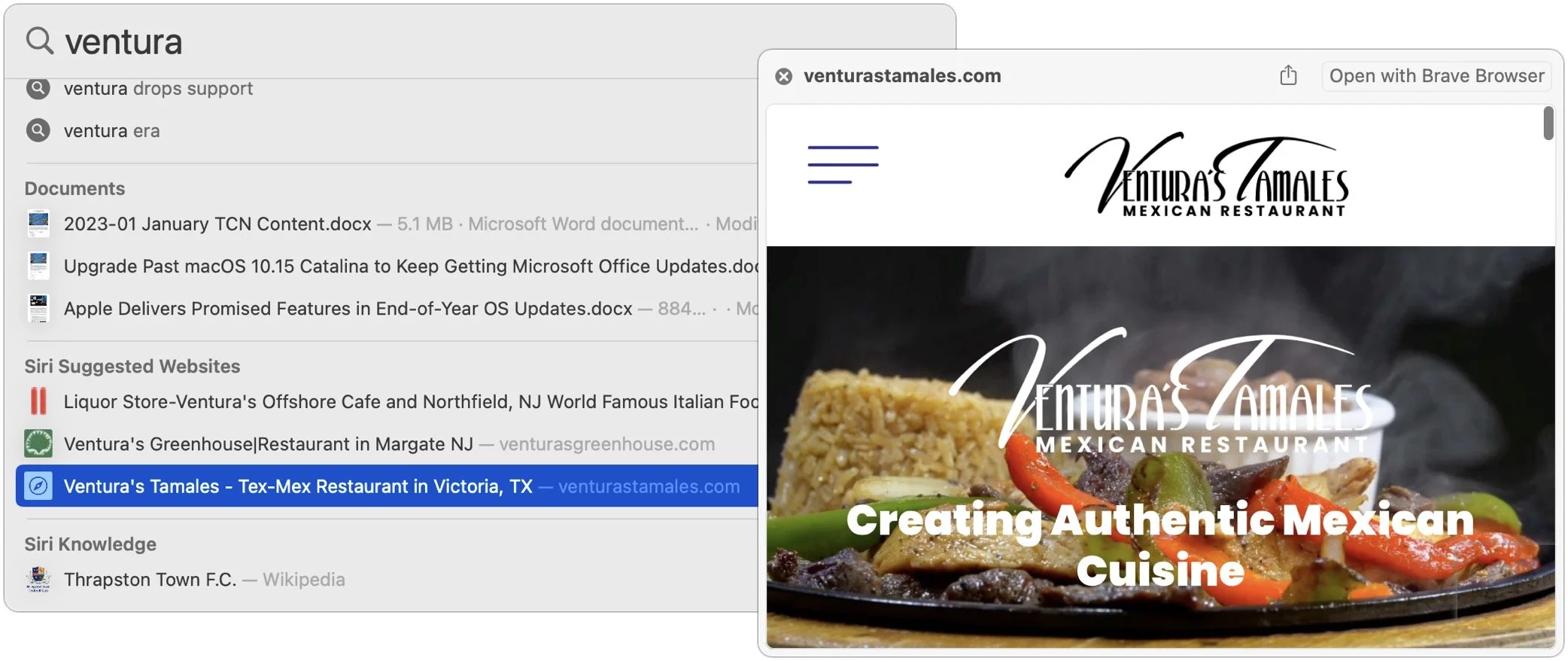
When you search using Spotlight on the Mac, it provides a decent amount of information about each result, including name and other metadata. But what if you want to see what’s behind the search result? In macOS 13 Ventura, Apple added Quick Look support to Spotlight so you can easily preview the search results. Do a search, click or use the arrow keys to select a search result, and then press the Space bar to open it in a Quick Look window. It even renders websites!
(Featured image based on an original by iStock.com/Nastco)
How to Share a Contact Card without Sharing Everything in iOS 16

Apple makes it easy to share contact cards on the iPhone or iPad—just scroll down in a contact and tap Share Contact. But what if you don’t want to share every piece of data on that card? To avoid oversharing in iOS 16 or iPadOS 16, tap Filter Fields at the top of the Share sheet and deselect the private items. If the card has a lot of data and you want to share only a few items, tap Deselect All Fields at the bottom of the sheet and select only what you want to share. Unfortunately, your selections aren’t remembered if you share the same card again later, so be sure to reset your selections each time you share.

(Featured image by iStock.com/diane39)
You Can Use Face ID in iOS 16 on Newer iPhones When You’re Lying on Your Side

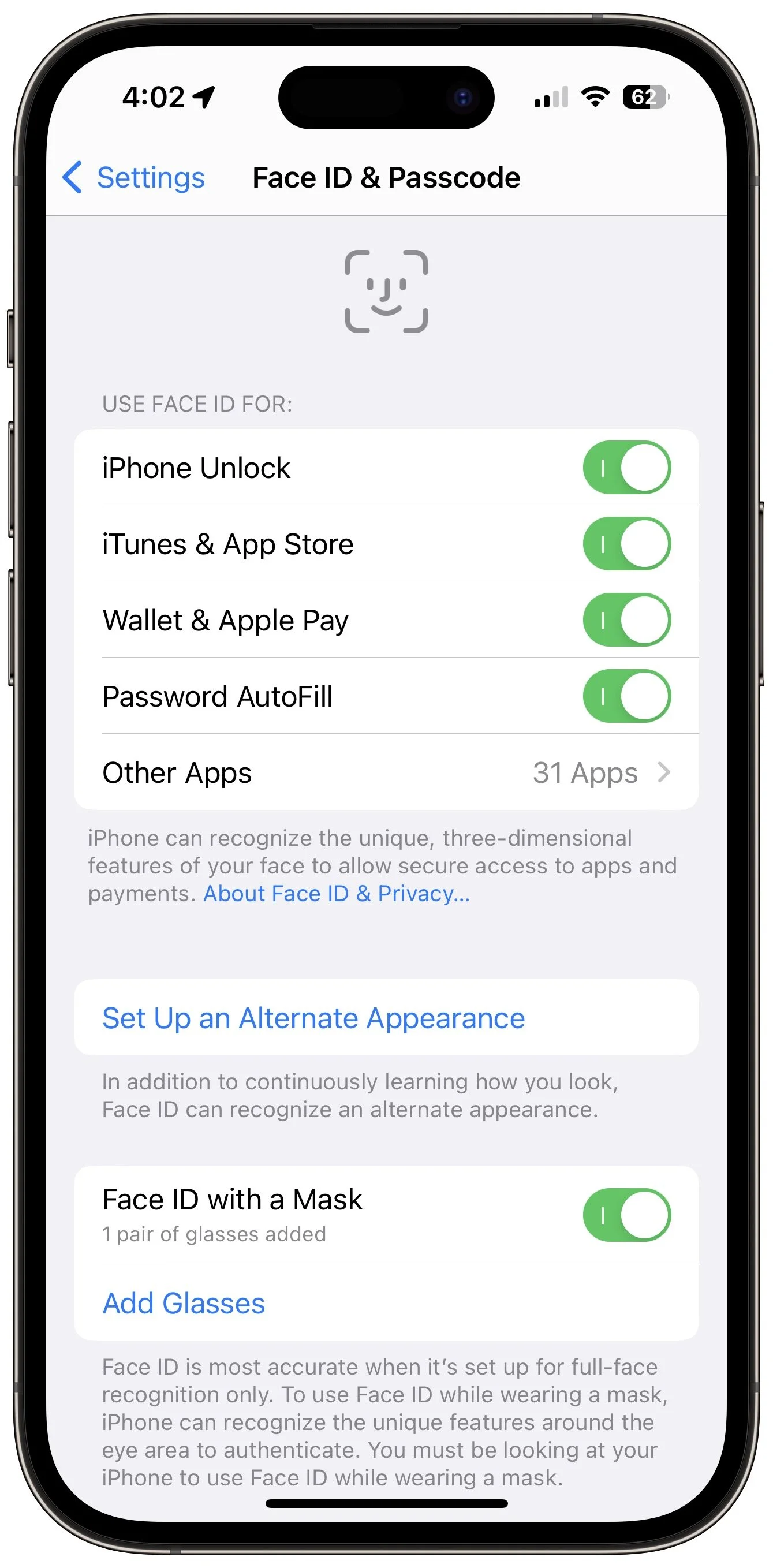
If you’ve ever tried to use Face ID to unlock an iPhone while lying on your side in bed, you may have noticed that it didn’t work. That’s because Face ID used to require that the iPhone be upright, in portrait mode. In iOS 16, however, Apple has improved Face ID so it will unlock your iPhone even when you’re lying on your side and the iPhone is in landscape orientation. Alas, this capability requires an iPhone 13 or iPhone 14, but if you have one of those phones, give it a try in bed tonight—you don’t need to adjust any settings.
(Featured image by iStock.com/Kateryna Onyshchuk)
It’s Time to Try Dictation in iOS 16 and iPadOS 16

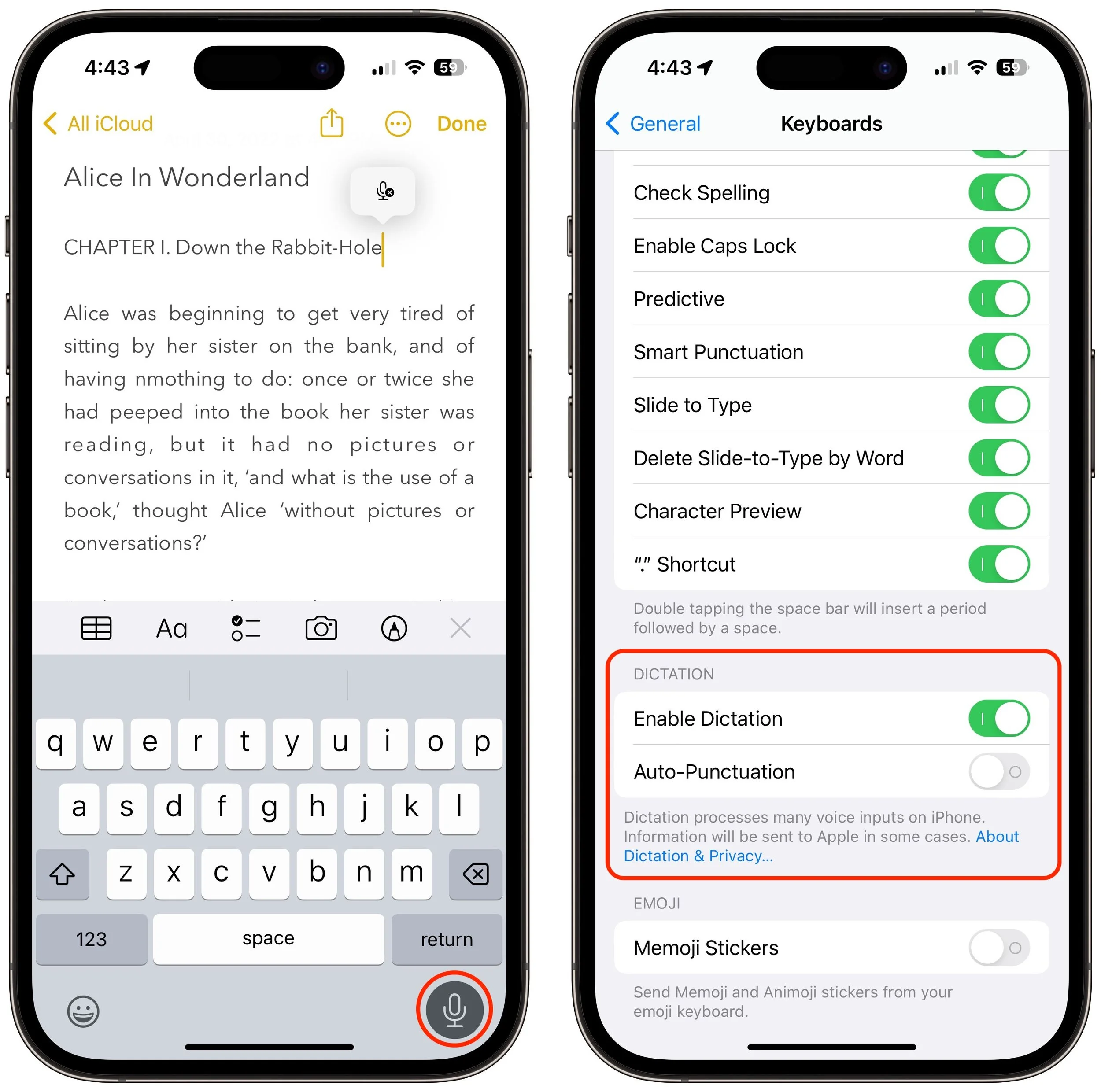
Apple has long provided a microphone button in the keyboard to invoke dictation on the iPhone and iPad. But, it wasn’t always easy to hit, and you had to switch back to the keyboard to fix the inevitable mistakes. (Apple’s dictation is a huge timesaver but far from perfect, particularly with homonyms and proper nouns.) With iOS 16 and iPadOS 16, Apple made the microphone button larger and repositioned it to make it easier to tap. More importantly, the keyboard remains available while dictation is active, enabling you to work with text manually during dictation. You can fix mistakes, reposition the insertion point, select and delete text, and so on. For instance, if dictation inserts the wrong word, double-tap the word to select it and speak the replacement. Or, if you want to add something, tap in the text to move the insertion point and start speaking again. Dictation can even add punctuation for you, but it’s a little haphazard at that, so you might want to disable that option in Settings > General > Keyboard.
(Featured image by iStock.com/fizkes)
Upgrade Past macOS 10.15 Catalina to Keep Getting Microsoft Office Updates

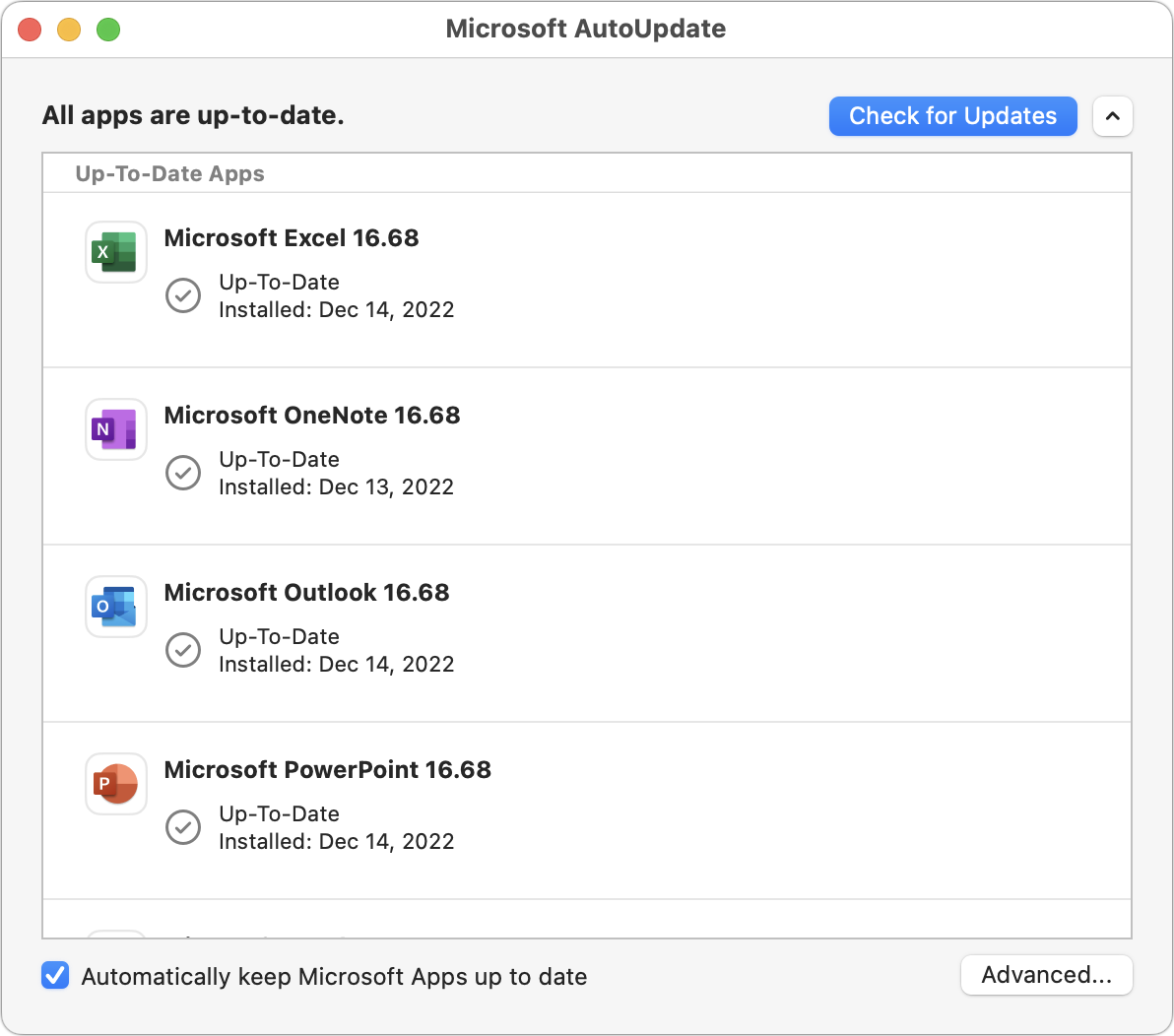
We aren’t quite ready to recommend that everyone upgrade to macOS 13 Ventura, but if you use Microsoft Office with macOS 10.15 Catalina, you should start planning for an upgrade. Microsoft has announced that current versions of its productivity suite—Office for Mac 2019, Office for Mac 2021, and Microsoft 365—will receive updates only if your Mac is running macOS 11 Big Sur, macOS 12 Monterey, or macOS 13 Ventura. If you keep using Catalina, your Office apps will continue to work, but they won’t receive enhancements, bug fixes, or security updates past October’s 16.66 updates. Contact us if you have questions about appropriate upgrade paths.
(Featured image based on an original by iStock.com/jewhyte)
Protect Your Hidden and Recently Deleted Albums in Photos

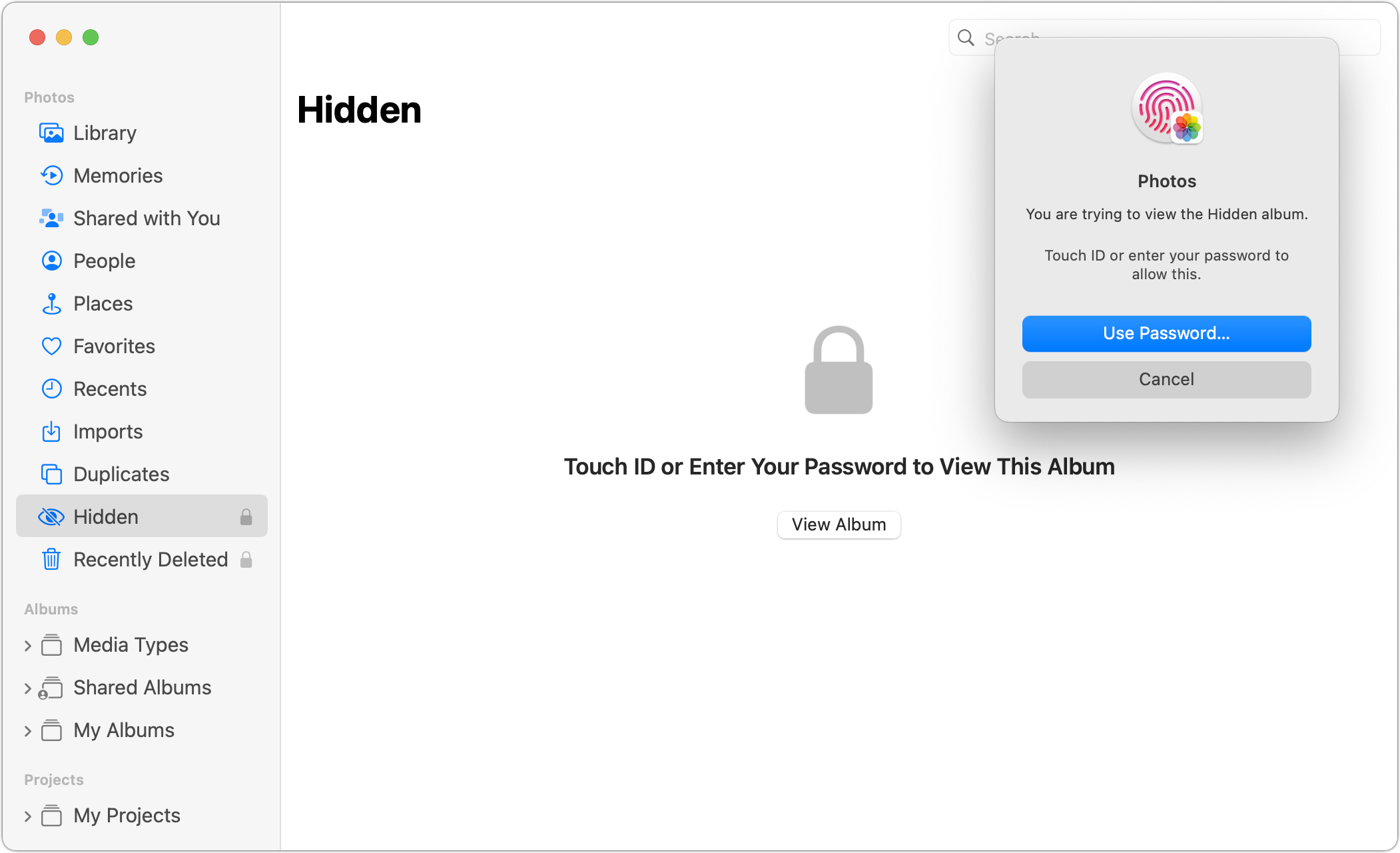
Photos has long provided a hidden album you could use to hold images you wanted to keep a little more private. Until this year, however, it was security through obscurity: anyone who knew to reveal the album in Settings > Photos on an iPhone or iPad or by choosing View > Show Hidden Album on the Mac could see its contents. Now you can protect it—and the Recently Deleted album—with Face ID or Touch ID on an iPhone or iPad, or Touch ID or your password on a Mac. You can enable this feature in iOS 16 or iPadOS 16 using Settings > Photos > Use Face ID/Touch ID; in macOS 13 Ventura, choose Photos > Settings > General and select “Use Touch ID or password.” From then on, opening those albums will require authentication.
(Featured image by iStock.com/Kenishirotie)