
Faster Copying of Two-Factor Authentication Codes from Messages
Need to enter SMS-initiated two-factor authentication codes manually in Web browsers other than Safari? Try this hidden trick for quickly copying and pasting them instead of retyping all those numbers.

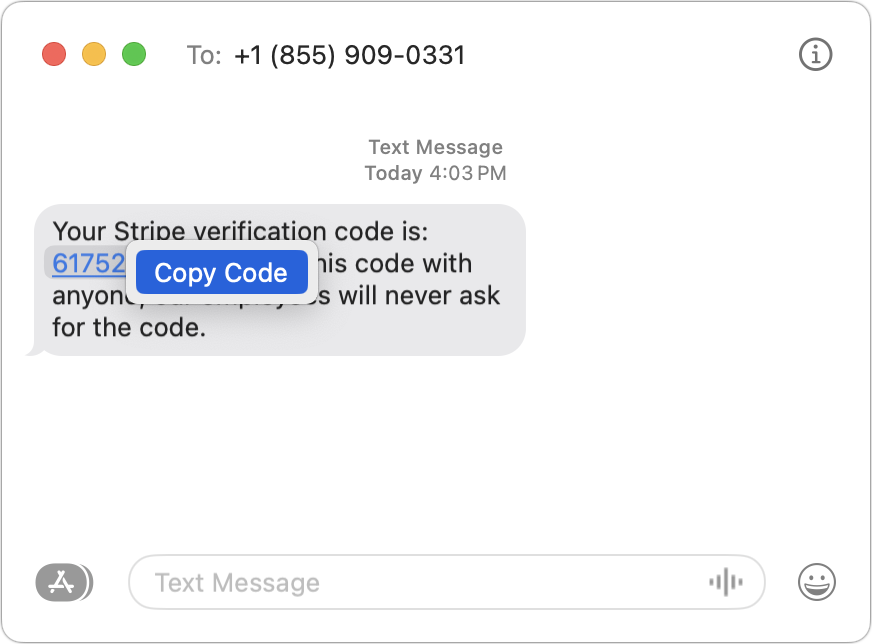
One welcome feature of Safari is its automatic detection and auto-filling of SMS-based two-factor authentication codes you receive in Messages. It allows you to complete your login quickly, without having to retrieve the code from Messages. But what if you use a different Web browser, like Google Chrome, Firefox, Brave, or Arc? Apple doesn’t allow other developers access to those codes in Messages, but Messages itself recognizes the verification code, marking it with an underline. Rather than transcribing the code manually like an animal, you can Control-click the underlined numbers and choose Copy Code. Then, switch to your Web browser and press Command-V to paste it. Not all websites accept pasted codes, but most will, even if they present a custom interface.
(Featured image by iStock.com/Galeanu Mihai)
Frustrated by System Settings? Use the View Menu or Search
If you have trouble finding things in macOS Ventura’s System Settings app, you’re not alone. We have advice to help you navigate alphabetically or jump directly to a deeply nested setting.
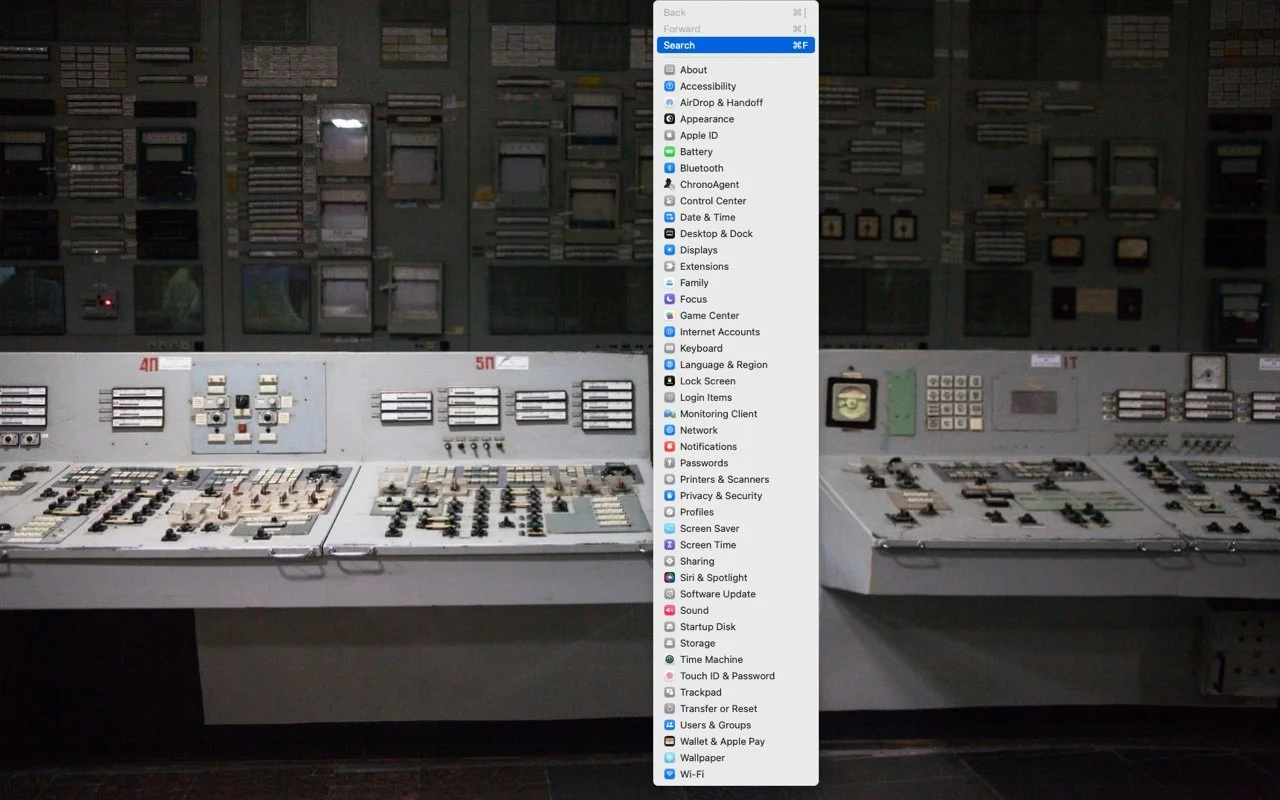
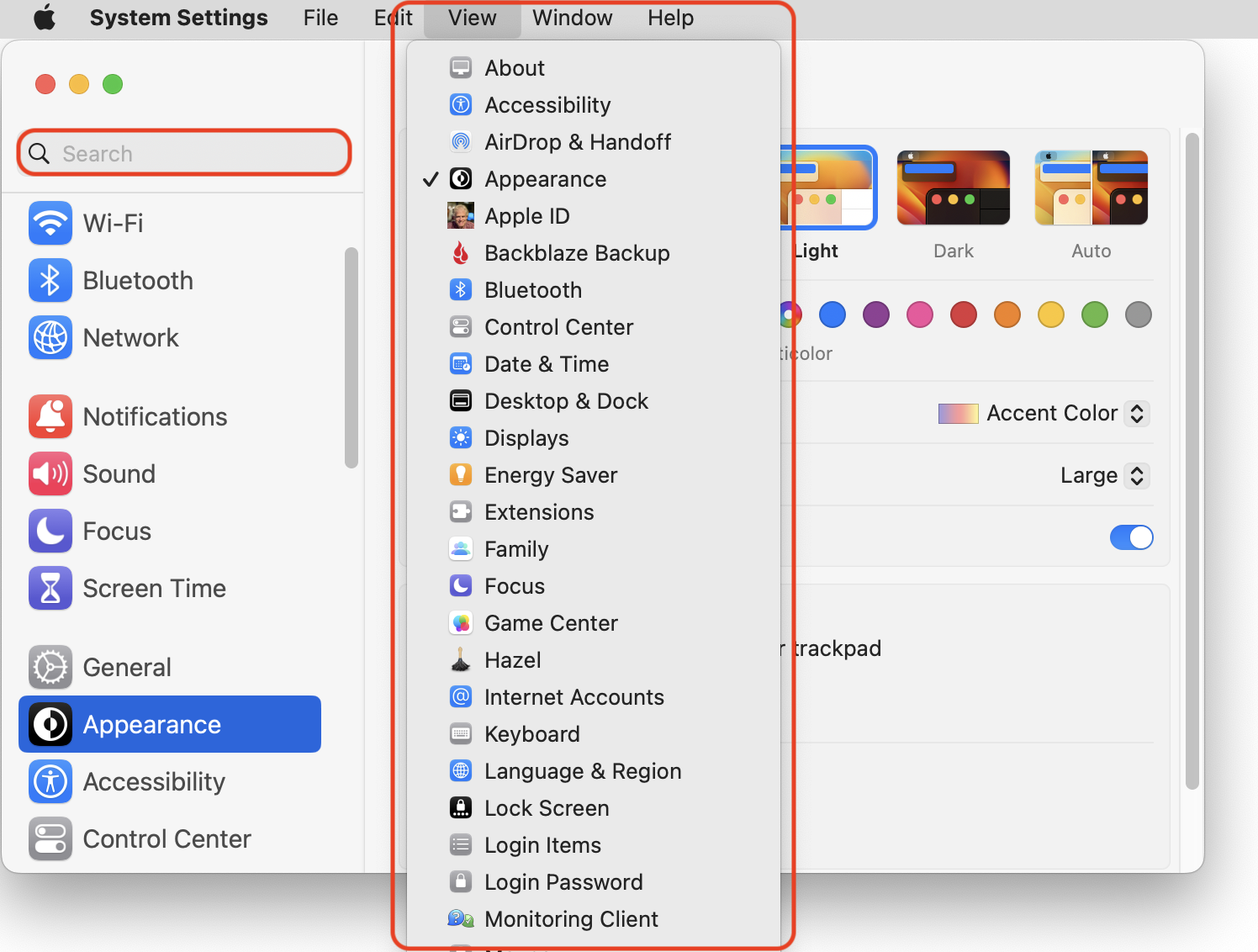
In macOS 13 Ventura, Apple replaced the creaky System Preferences with System Settings, which uses a more iOS-like interface. Many people find System Settings overwhelming, partly because they had memorized where to look in System Preferences (but System Settings has many other design flaws as well—it’s not your fault). We have two recommendations to make it more easily navigable. First, for an alphabetical approach, use the View menu, which lists the panes that way, along with the top-level items in the General settings pane. Second, make heavy use of the search field at the top of the System Settings sidebar—it’s the only way to find some deeply nested settings.
(Featured image based on an original by iStock.com/rootstocks)
Mac Keyboard Shortcuts Performing Unexpected Actions? Check These Settings
Do strange things sometimes happen on your Mac when you inadvertently press certain key combinations? Take a trip through the macOS keyboard shortcuts and turn off those you’ll never use intentionally.

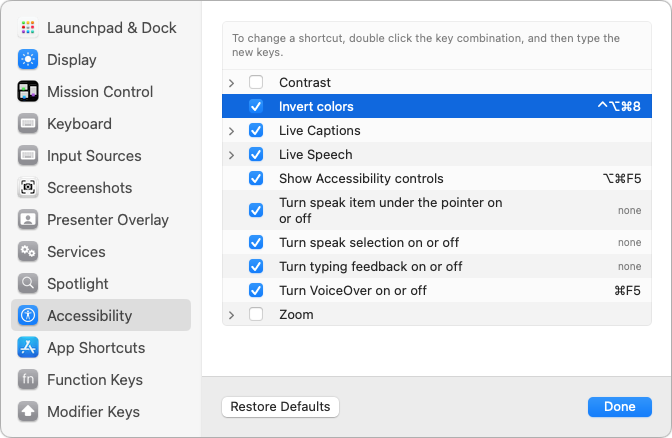
Keyboard shortcuts are a productivity win, but they can cause confusion if something unexpected happens when you inadvertently press some system-wide key combination. For instance, you might be taken aback if you accidentally press Control-Option-Command-8 and all the colors on your Mac screen suddenly invert. Although Apple has pages listing shortcuts and the KeyCue utility can list them all for any app, a good way to see—and manage—what’s active on any Mac is to open System Settings > Keyboard > Keyboard Shortcuts (look in the same place in System Preferences in macOS 12 Monterey and earlier) and scan the categories. Disable shortcuts you’ll never use by deselecting their checkboxes, and redefine others so you’ll remember them.
(Featured image by iStock.com/spaxiax)
Erase Image Content in Preview with Copied Color Blocks
Have you ever needed to remove some content from a screenshot or other illustration? There’s no need for a fancy graphics app—you can do it quickly in Preview with this little-known trick.
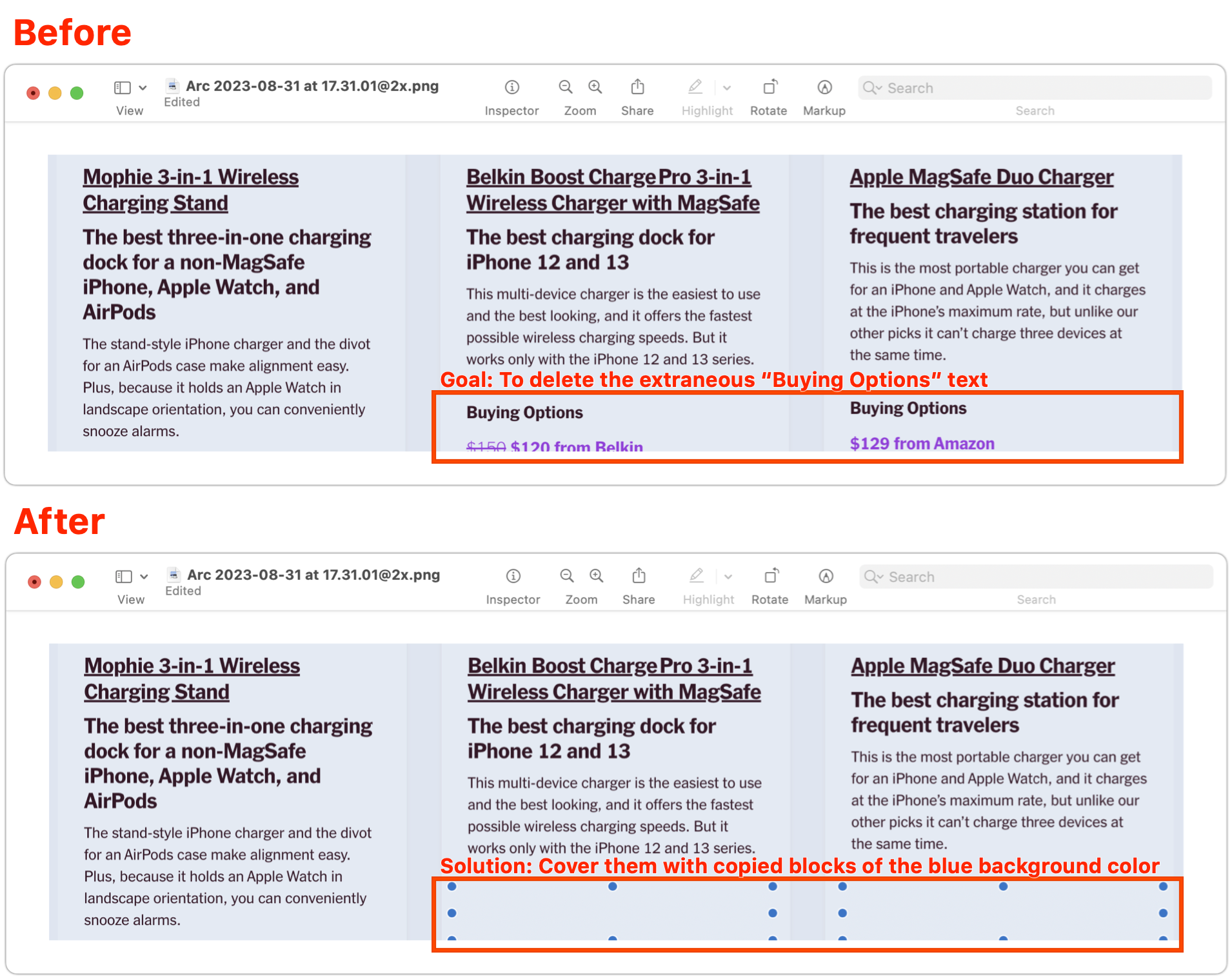
Apple’s Preview is a surprisingly capable graphics editor for making quick changes to screenshots and other illustrations, but it lacks a built-in way to delete content while leaving the background. Here’s the workaround—select a rectangle of the background color, copy it, paste it, and then move it over the undesirable content—as shown in the After screenshot below, where blue selection dots denote the pasted box. As you resize the box, press Shift to prevent it from resizing proportionally, which helps you make it the shape you want. If you need a second box of the same color, Option-drag the first box to copy it. When you save and close, your boxes will be merged into the image, permanently removing the content underneath, so make sure they’re in the right spot before moving on.
(Featured image based on an original by iStock.com/Seetwo)
Beware Executive Imposter Scams Aimed at New Employees
We’re seeing an uptick in scam emails and texts to new hires purporting to be from corporate executives. The best defense is awareness, so we recommend adding security training to your onboarding process.
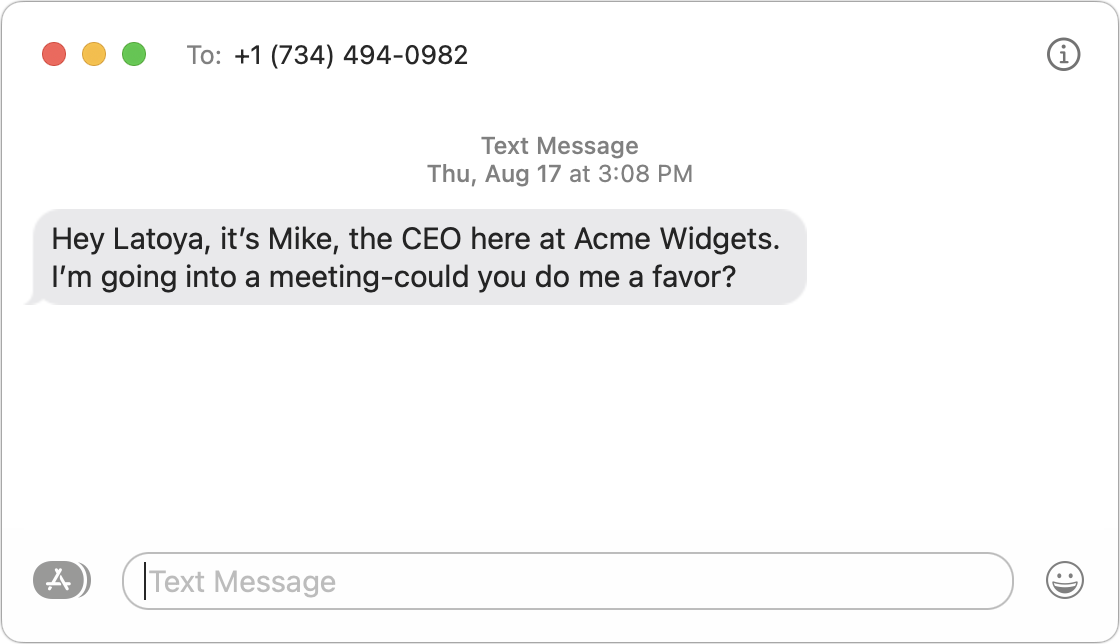
We’re hearing about new hires who receive an email or text from someone claiming to be the CEO of their new company, asking the employee to carry out some small task like sharing personal information, purchasing a gift card for a client, or wiring funds to another business. The new employee, eager to make a good impression and lacking the context of what’s reasonable, is tempted to do as asked. (The scammers seemingly gather the necessary information by scraping LinkedIn for job changes and corporate titles, then cross-referencing with email addresses and phone numbers stolen in data breaches.) To reduce the chances of such a scam succeeding, train new employees during onboarding not to trust unsolicited messages from unfamiliar addresses or numbers, be wary of unusual requests, and check with a trusted source within the company before replying in any way.
(Featured image by iStock.com/Ton Photograph)
How to Protect Your Child’s Hearing from Too-Loud Headphone Audio
Too-loud headphone volume causes hearing loss, but Apple makes it easy to reduce loud sounds played through headphones and prevent kids from bypassing the volume limits.

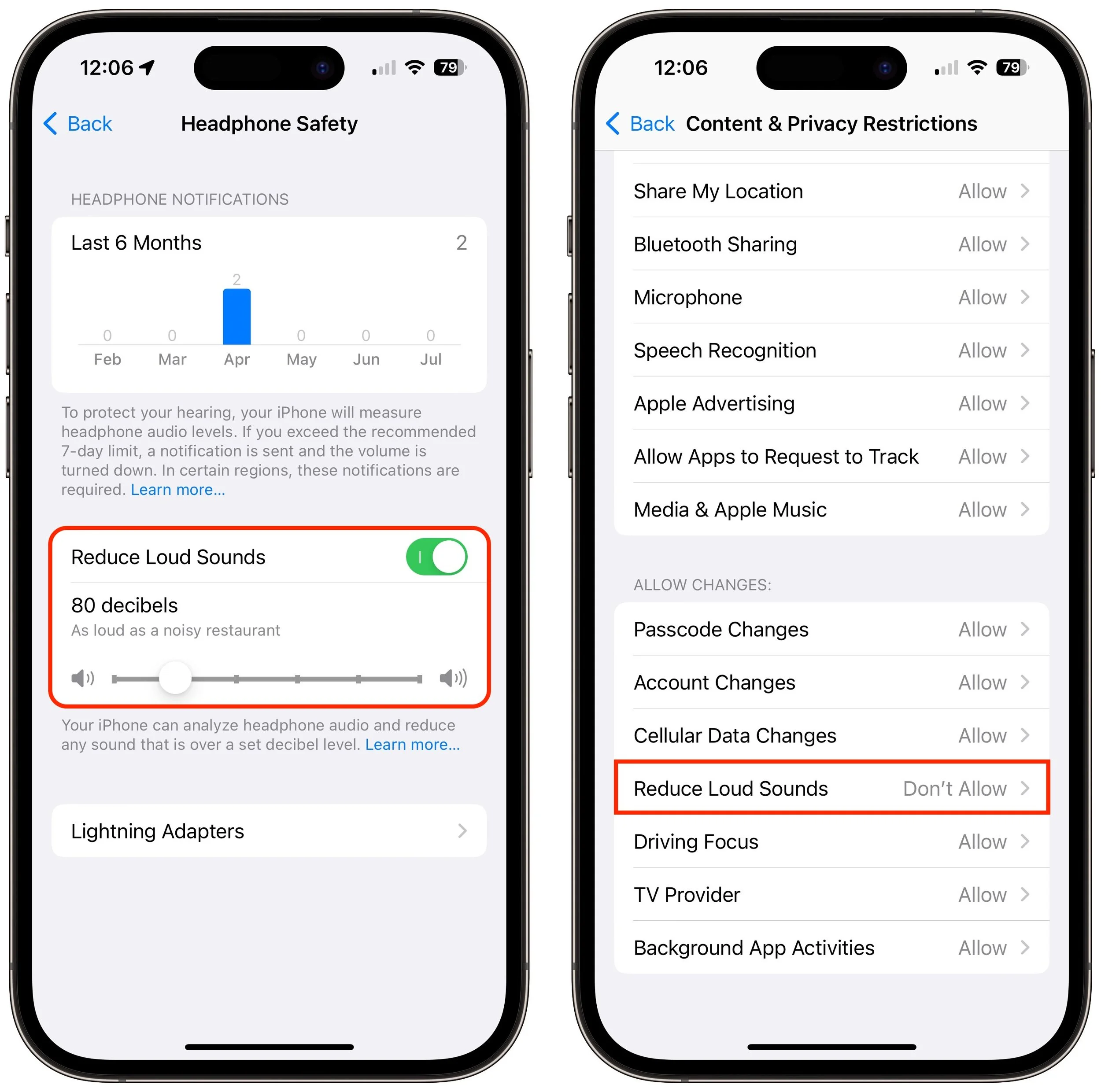
Loud sounds are harmful to everyone, and many parents worry that their children are at risk for hearing loss due to too-loud headphone audio from iPhones and iPads. To lower the likelihood of this happening, Apple provides a Reduce Loud Sounds option in Settings > Sounds & Haptics > Headphone Safety for both iOS and iPadOS. Select it and set a limit, with 80–85 decibels generally considered safe. To keep kids from increasing the limit, go to Settings > Screen Time and set a Screen Time passcode. Then navigate into Content & Privacy Restrictions, enable the switch at the top, and then scroll down and set Reduce Loud Sounds to Don’t Allow. After that, the headphone output from all apps will be capped at the decibel level you specified.
(Featured image by iStock.com/Ivan Zhdanov)
Look Up Apple Device Details in Mactracker
If you ever need to look up technical details about an Apple product, look no further than the Mactracker app, which provides specifications for every Mac, iPhone, iPad, and iPod ever made. It’s an indispensable free download.
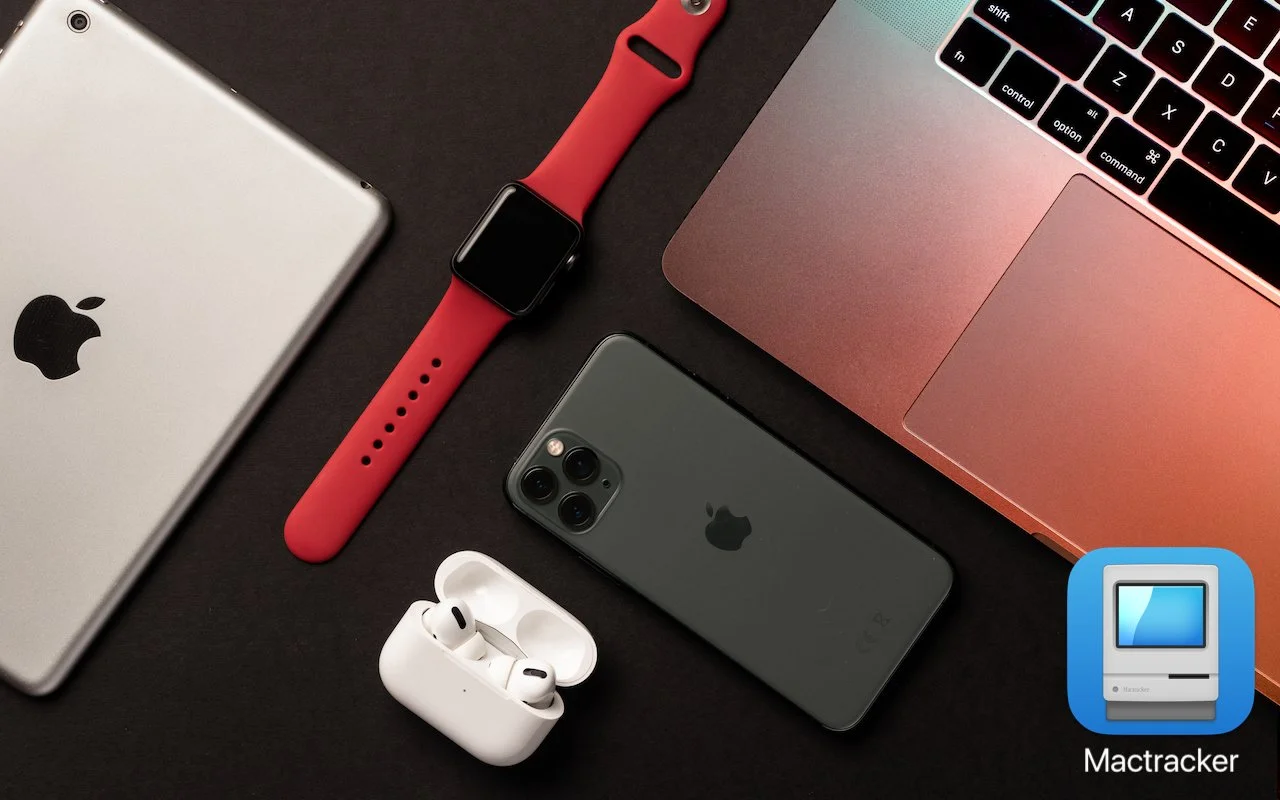
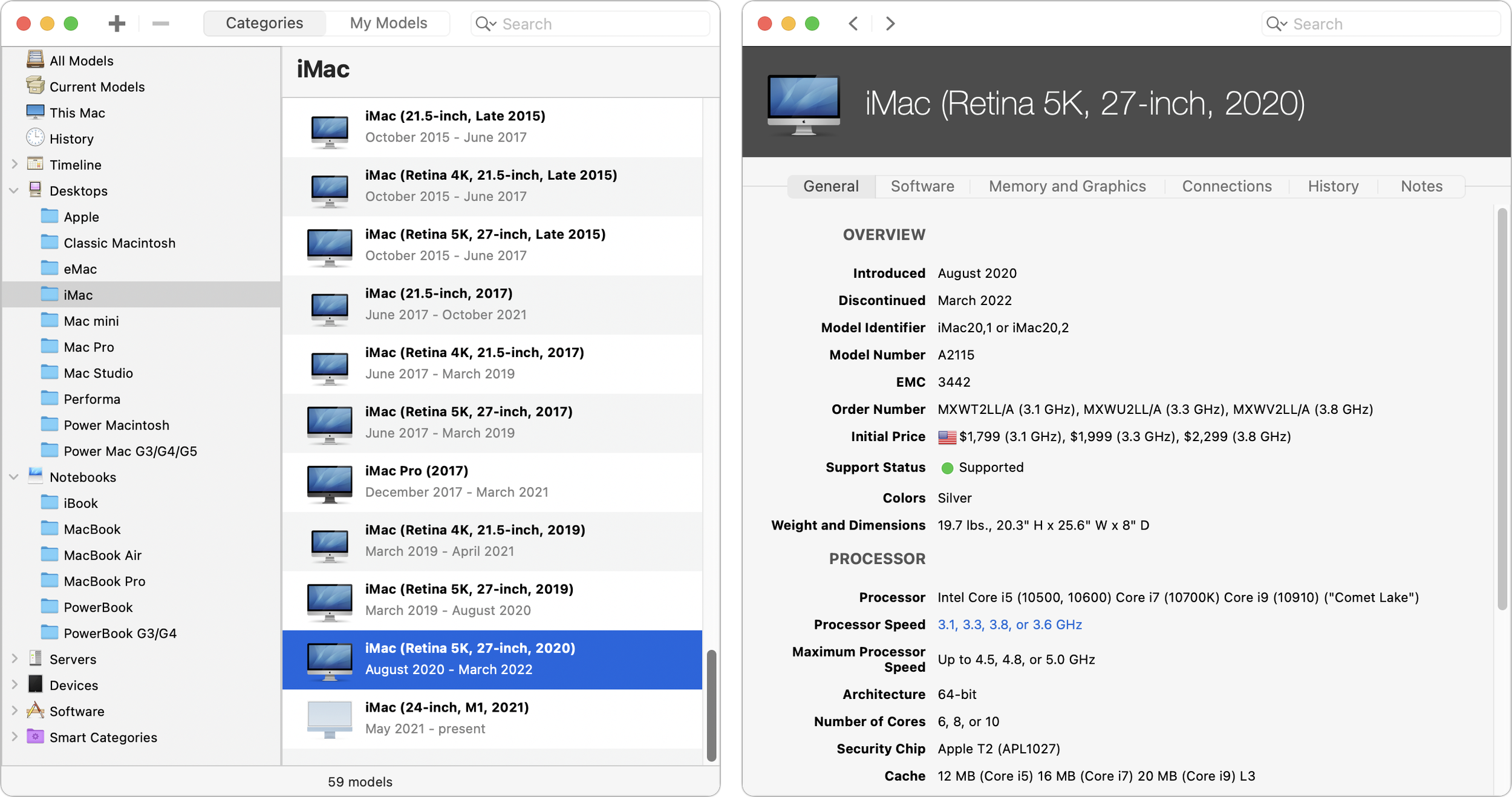
It’s difficult for even those who work with Apple devices daily to remember all the details. What processors were available with the 2020 iMac? What resolutions did the Apple Thunderbolt Display support? What are the differences between the fifth and sixth generations of the iPad mini? To find the answers to these and many other questions quickly, turn to Ian Page’s free Mactracker app, an indispensable repository of information about Apple products. Versions are available for the Mac and the iPhone and iPad.
(Featured image based on an original by iStock.com/Shahid Jamil)
Keep Your Apple Devices Cool in the Summer Heat
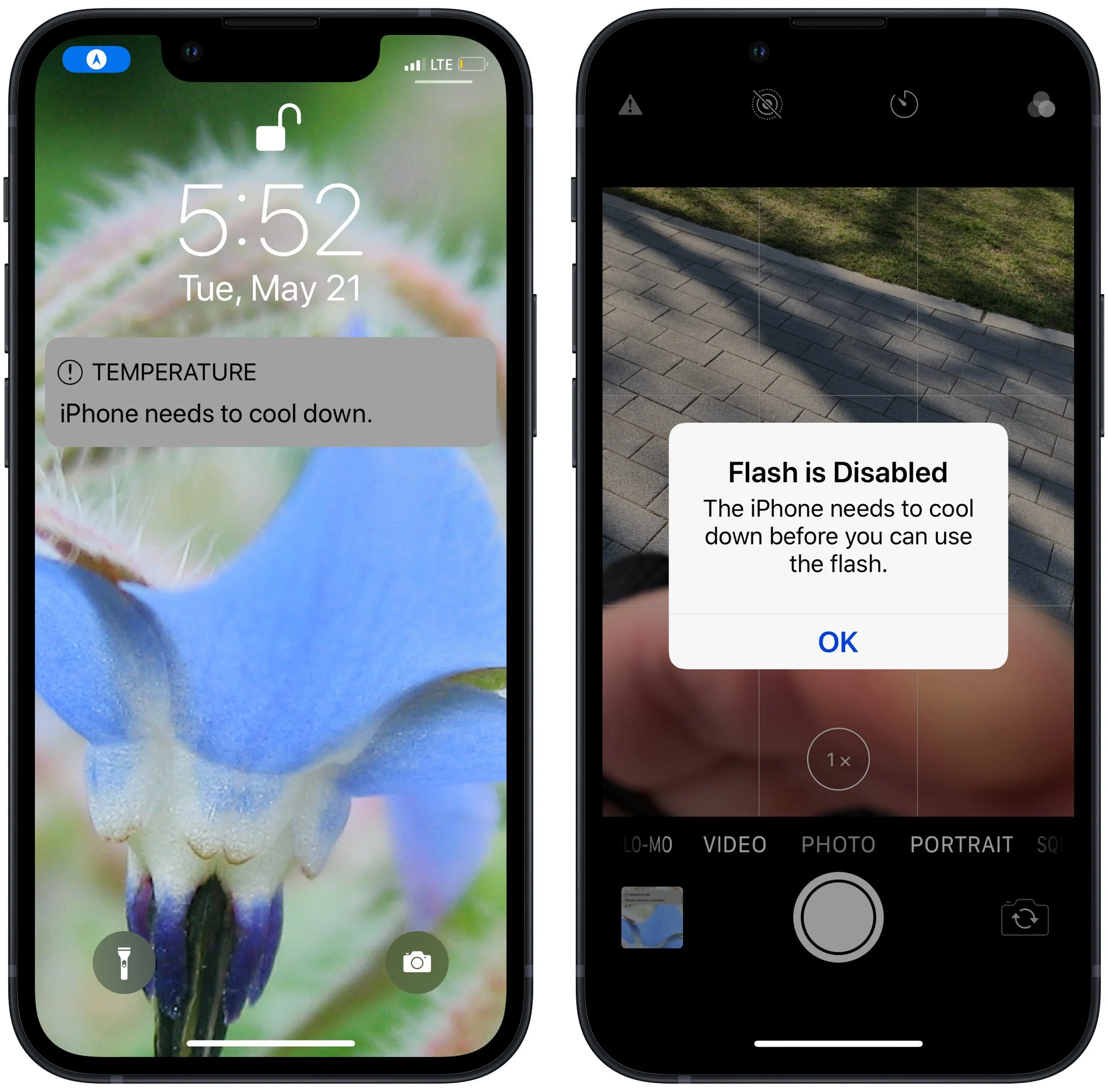
As many parts of the world struggle with record heat waves, remember that excessive heat—operating temperatures over 95ºF/35ºC—is harmful to portable electronic devices like the iPhone, iPad, and Apple Watch. Keep your digital friends cool!
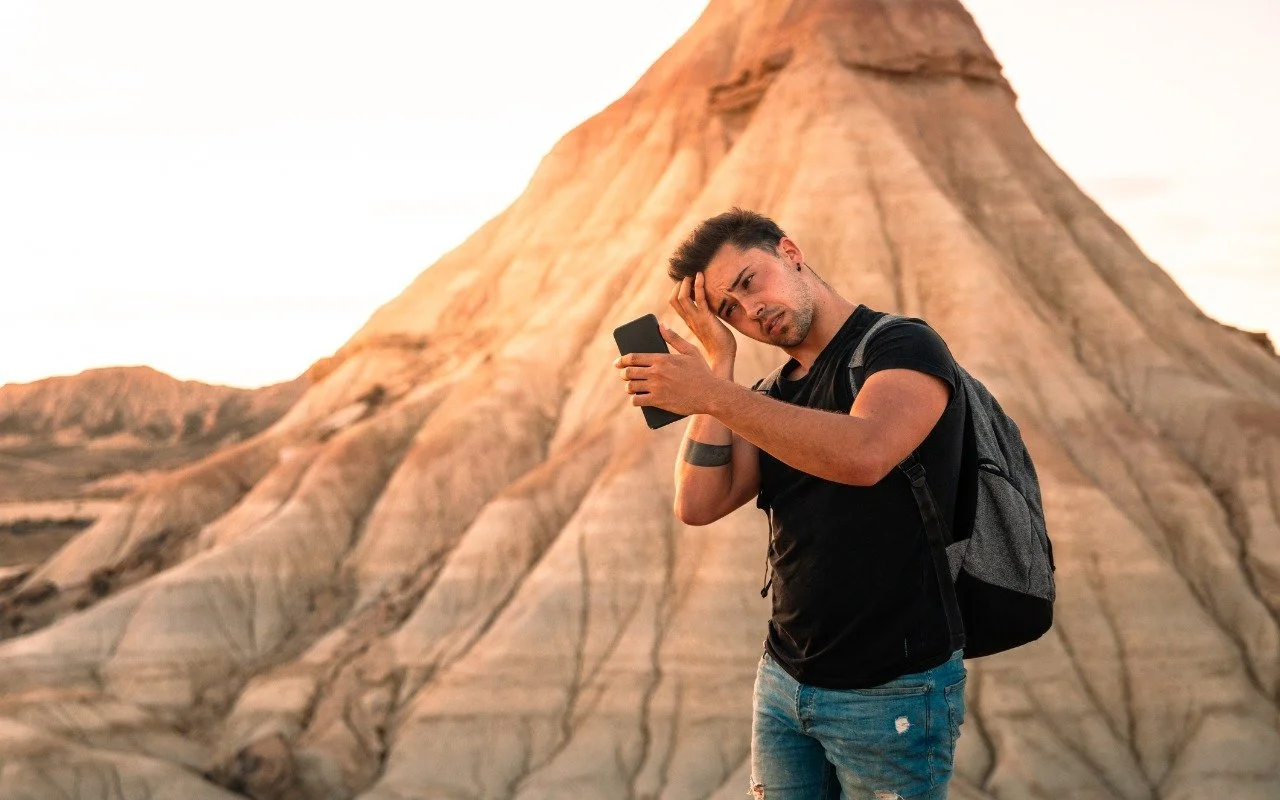
June 2023 was the hottest month on record for the planet, at least until July 2023. Among the many ill effects of such heat are what it does to iPhones, iPads, Macs, Apple Watches, and other digital devices. Excessive heat shortens the overall lifespan of lithium-ion batteries and increases the likelihood of both transient errors and hardware failures—iPhones warn you when they’re getting too hot because of these issues. Apple recommends using nearly all its devices in conditions no hotter than 95ºF/35ºC and storing them in locations that don’t exceed 113ºF/45ºC. (The exception is the adventurous Apple Watch Ultra, which can be worn in temperatures up to 130ºF/55ºC.) The most common place to avoid is a car parked in the sunshine on a hot day, which can easily exceed 130ºF within an hour and rise from there. So don’t leave your iPhone in the car during an afternoon at the beach!
(Featured image by iStock.com/Jorge Garcia Argazkiak)