
Lift Objects from Photos on the iPhone
Starting with iOS 16, Apple made it possible to extract objects from photos. You can drag objects to other apps, copy them, turn them into stickers, and more.
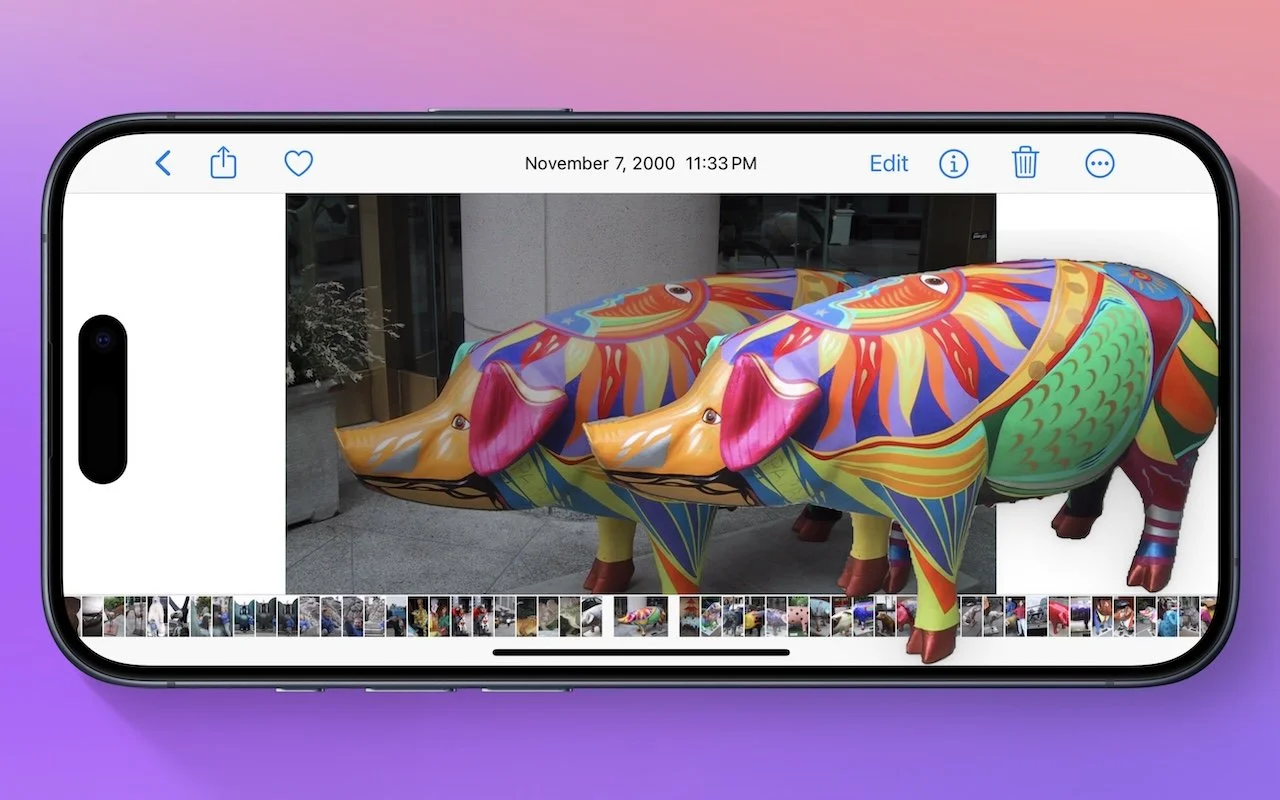
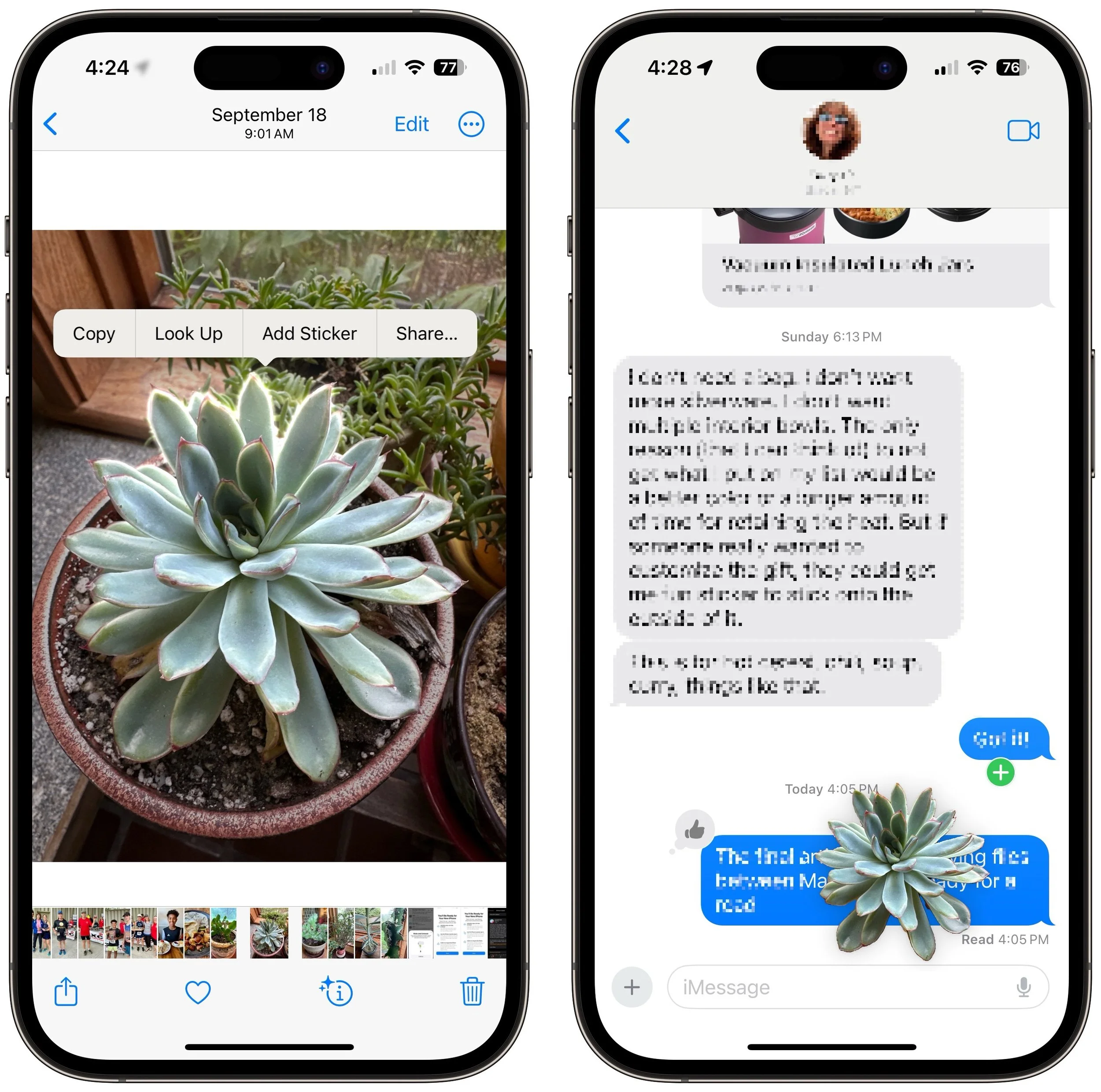
Have you ever wanted to extract an object from a photo for use in another context? Starting with iOS 16 on a relatively recent iPhone, you can do that with many photos. In the Photos app, touch and hold the object, and if Photos can extract it, you’ll see a highlight run around its edges. Raise your finger, and a popover lets you copy the object, look up information about it, turn it into a sticker (in iOS 17), or share it. Or you can start dragging the object, switch apps with your other hand, and drop it into another app, like Messages. With Universal Clipboard, you can even lift an object on an iPhone, copy it, switch to Preview on your Mac, and choose File > New from Clipboard. File this one under Arthur C. Clarke’s Third Law, which states, “Any sufficiently advanced technology is indistinguishable from magic.”
(Featured image by Adam Engst)
The “Hey” Part of “Hey Siri” Is Now Optional
In Apple’s new operating systems for 2023, you can choose to invoke Siri with just “Siri” or the old “Hey Siri”—or turn the feature off entirely. We explain where to find the feature for each of your Apple devices.
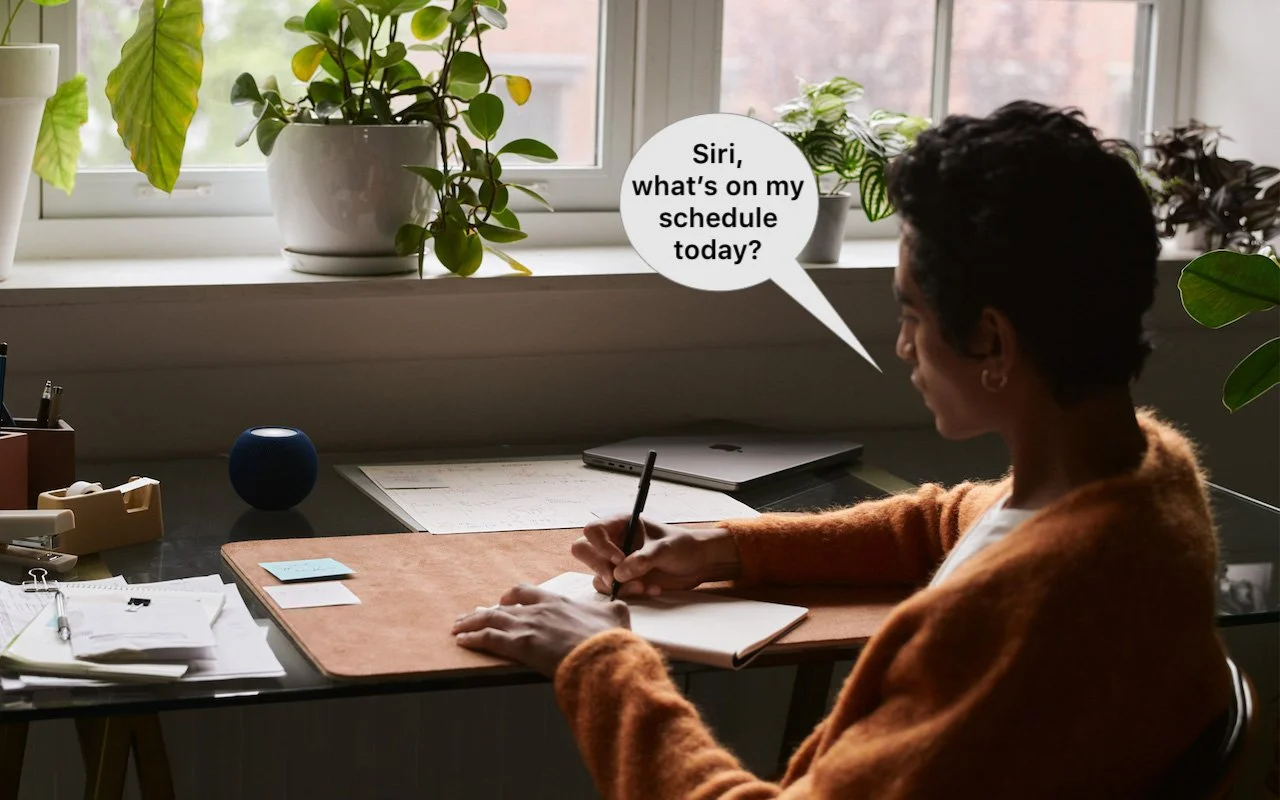
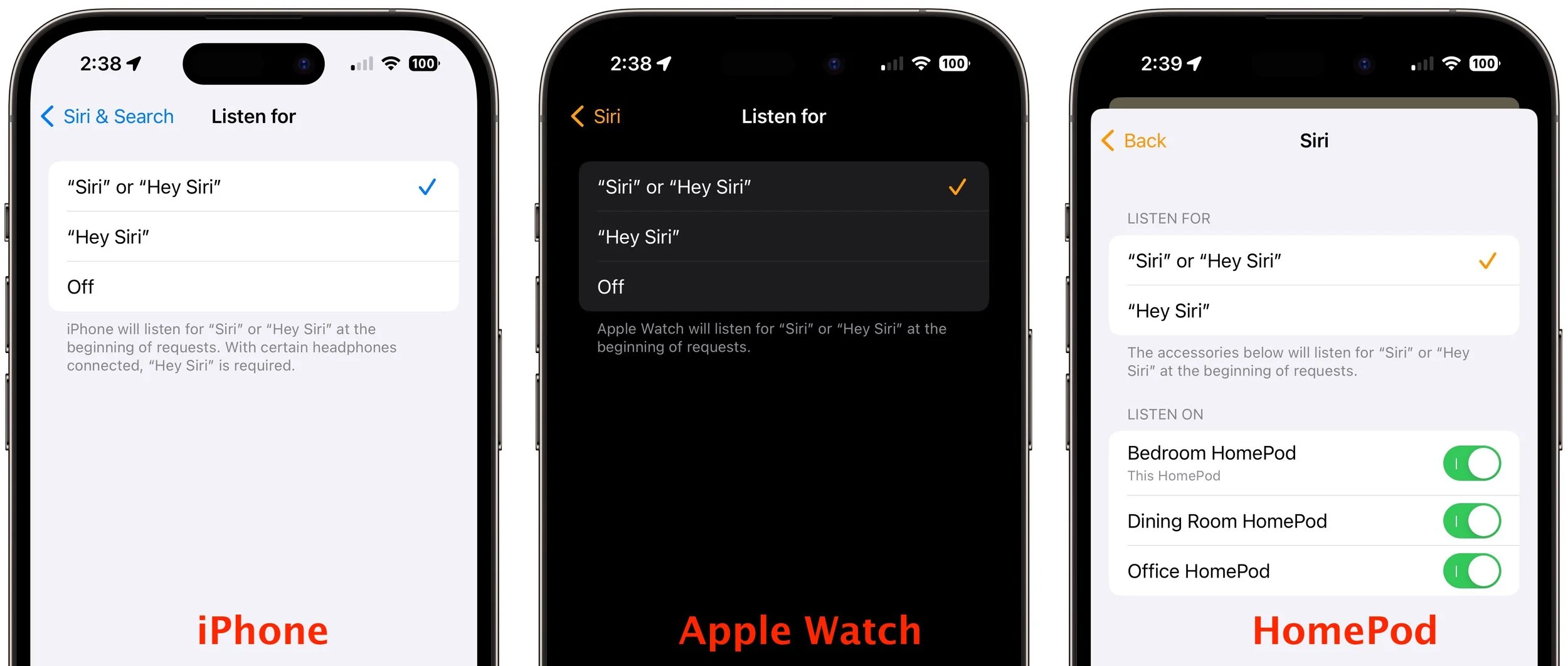
If you use Siri, particularly on a HomePod, you’re probably accustomed to saying “Hey Siri” as the trigger phrase before your requests. In Apple’s new operating systems for 2023, you can now choose to invoke Siri using the traditional “Hey Siri” or just “Siri” (at least in Australia, Canada, the UK, and the US). You might appreciate being able to stop saying “Hey” every time, or you might find that using just “Siri” generates incorrect activations. (And if someone in your family’s name sounds like Siri, you may want to turn the feature off entirely!) There are four places to look:
iOS 17 and iPadOS 17: Settings > Siri & Search > Listen For
macOS 14 Sonoma: System Settings > Siri & Spotlight > Listen For
watchOS 10: Watch app > My Watch > Siri > Listen For
HomePod Software 17: Home app > long-press HomePod > Accessory Settings > Listen For “Siri” or “Hey Siri”
(Featured image based on an original by Apple)
In Your Face App Guarantees That You Notice Appointment Alerts
Are you often late to online meetings or in-person appointments because you were too focused on your work to notice the time? The In Your Face app ensures you’ll never miss an important meeting again.

It’s easy to get caught up in what you’re doing and miss an alert for a Zoom meeting or a reminder to leave for an appointment. The Mac app In Your Face ensures that will never happen again by taking over the entire screen for notifications and requiring that you click a button to dismiss or snooze it. It can also play sounds repeatedly, lets you pick which calendars and reminder lists to use, gives you single-click access to videoconference links in events, and shows ongoing and upcoming events in the menu bar. In Your Face costs $1.99 per month or $19.99 per year, or it’s available in the $9.99 per month Setapp bundle of over 230 Mac apps.

(Featured image by Blue Banana Software)
watchOS 10.1 Brings Double Tap to the Apple Watch Series 9 and Apple Watch Ultra 2
Apple’s promised double-tap gesture is now available in watchOS 10.1 for those with an Apple Watch Series 9 or Apple Watch Ultra 2. Give it a try to perform the primary action in a watchOS app without touching the screen.

Apple recently released watchOS 10.1, with support for the much-ballyhooed double-tap gesture that selects the primary action in many apps without requiring that you touch the screen! It’s available only on the new Apple Watch Series 9 and Apple Watch Ultra 2, where you activate it by raising your wrist and tapping your thumb and index finger together twice. On the main Apple Watch screen, a double tap opens the Smart Stack of widgets you would otherwise get by turning the Digital Crown, and subsequent double taps advance through the widgets. A double tap also activates the primary action in many apps, such as answering and ending phone calls, playing and pausing media, viewing and scrolling through messages, ending timers, stopping and resuming the stopwatch, snoozing an alarm, responding to reminders from the Workout app, and performing the primary action from notifications. Whenever you double tap, you’ll see a hand icon at the top of the screen. If you have a supported Apple Watch model, give it a try!
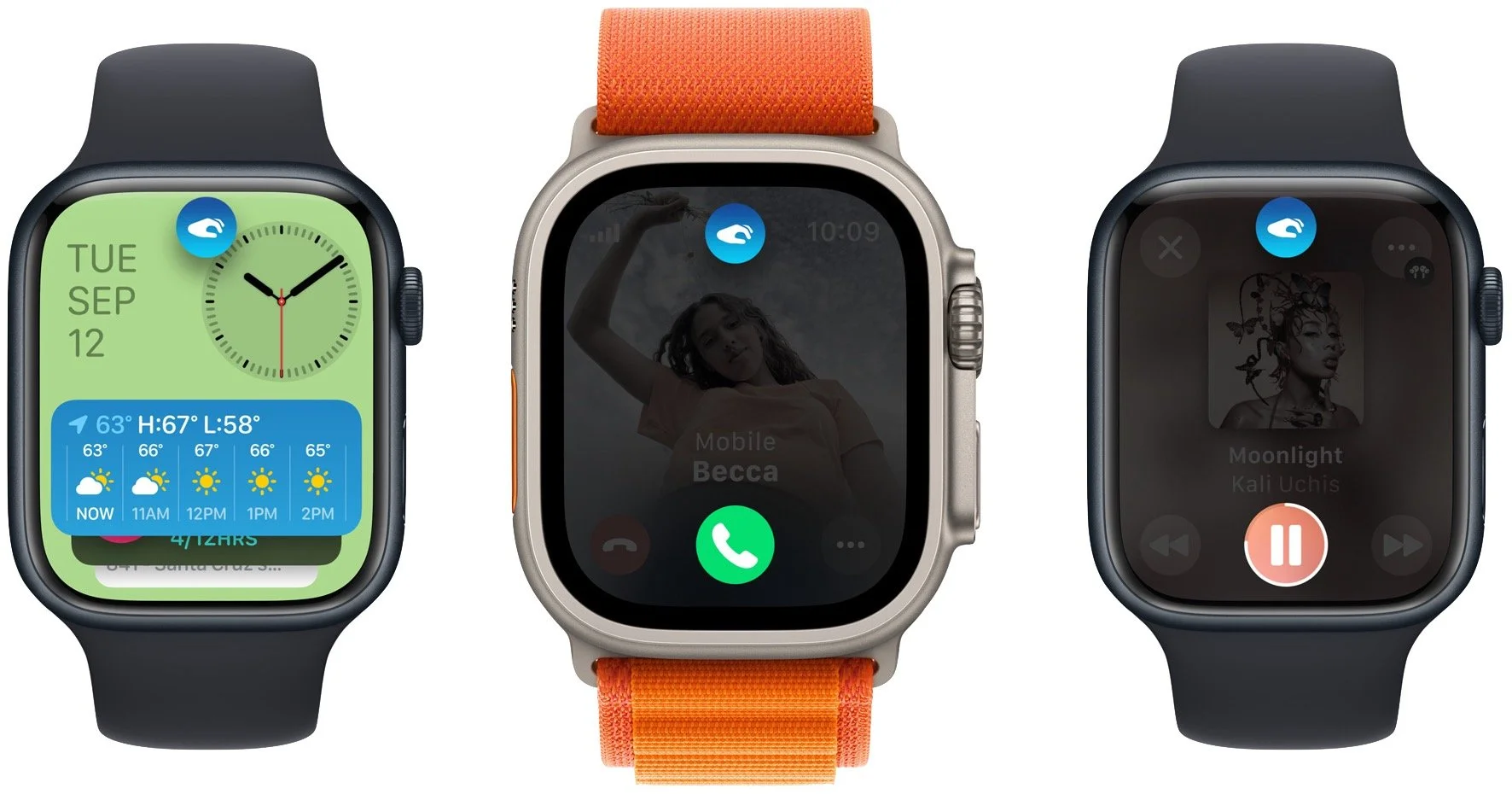
(Featured image by Adam Engst, article image by Apple)
Open the Mac’s Control Center with This Obscure Keyboard Shortcut
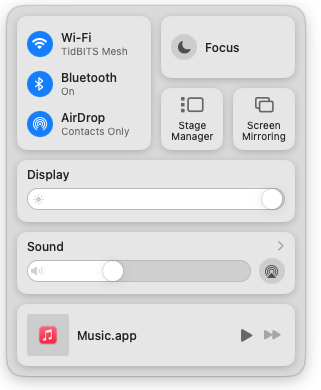
Control Center brings together controls for a collection of core macOS features, but its menu bar icon is small, making it hard for some to click. Luckily, there’s a hidden shortcut to bring it up quickly from the keyboard.
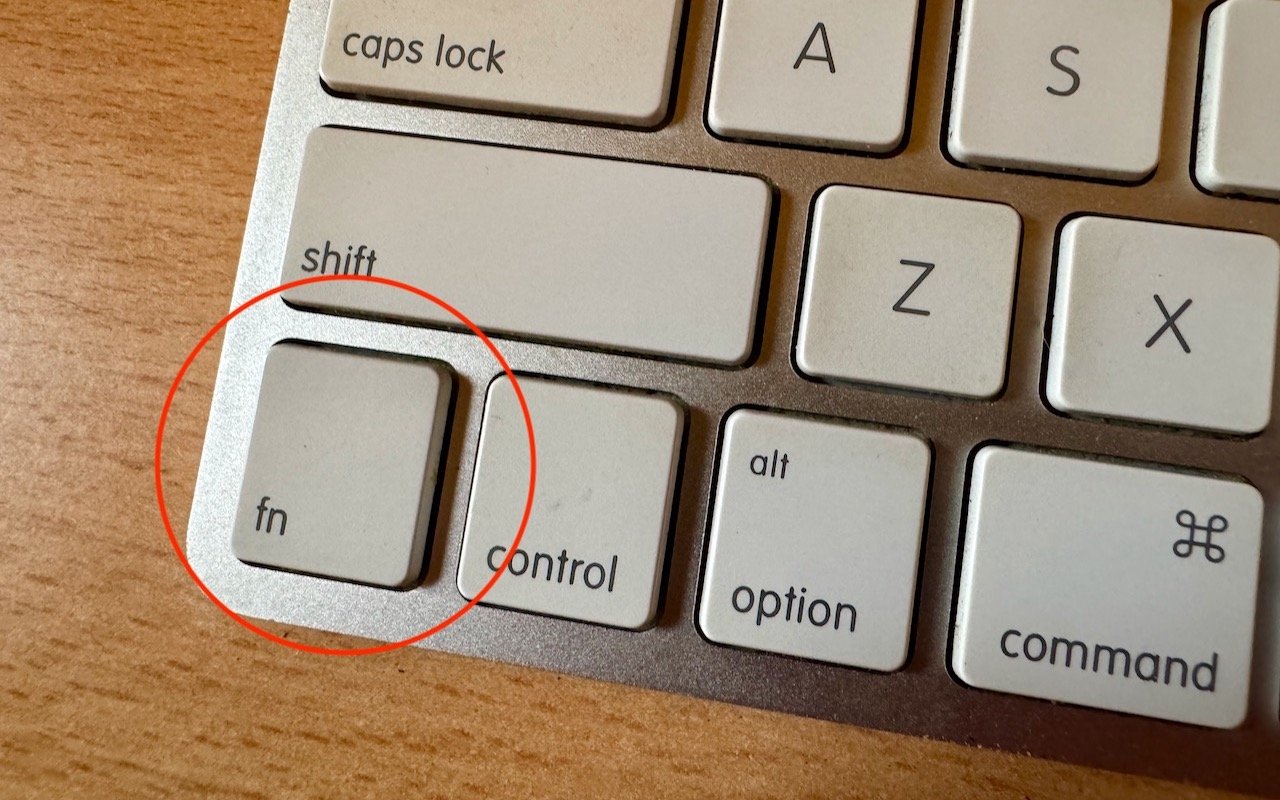
With macOS 13 Ventura, Apple brought Control Center from iOS to the Mac, providing a unified interface for features that users need to turn on and off regularly or that receive frequent adjustments, like screen brightness and audio volume. Clicking the Control Center icon in the menu bar brings it up, but it’s a small, hard-to-hit target. For faster and easier access to Control Center from within any app, press fn-C. (All current Apple keyboards have an fn key, but if you’re using a third-party keyboard that lacks one, you’re out of luck.)
(Featured image by Adam Engst)
Stay Alert! Voice Phishing Used in Recent Ransomware Attacks
Phishing isn’t limited to email and texts anymore—“voice phishing” or “vishing” was used recently in a major ransomware attack on MGM Resorts. The rise in such attacks means that requests over the phone will need much more verification.
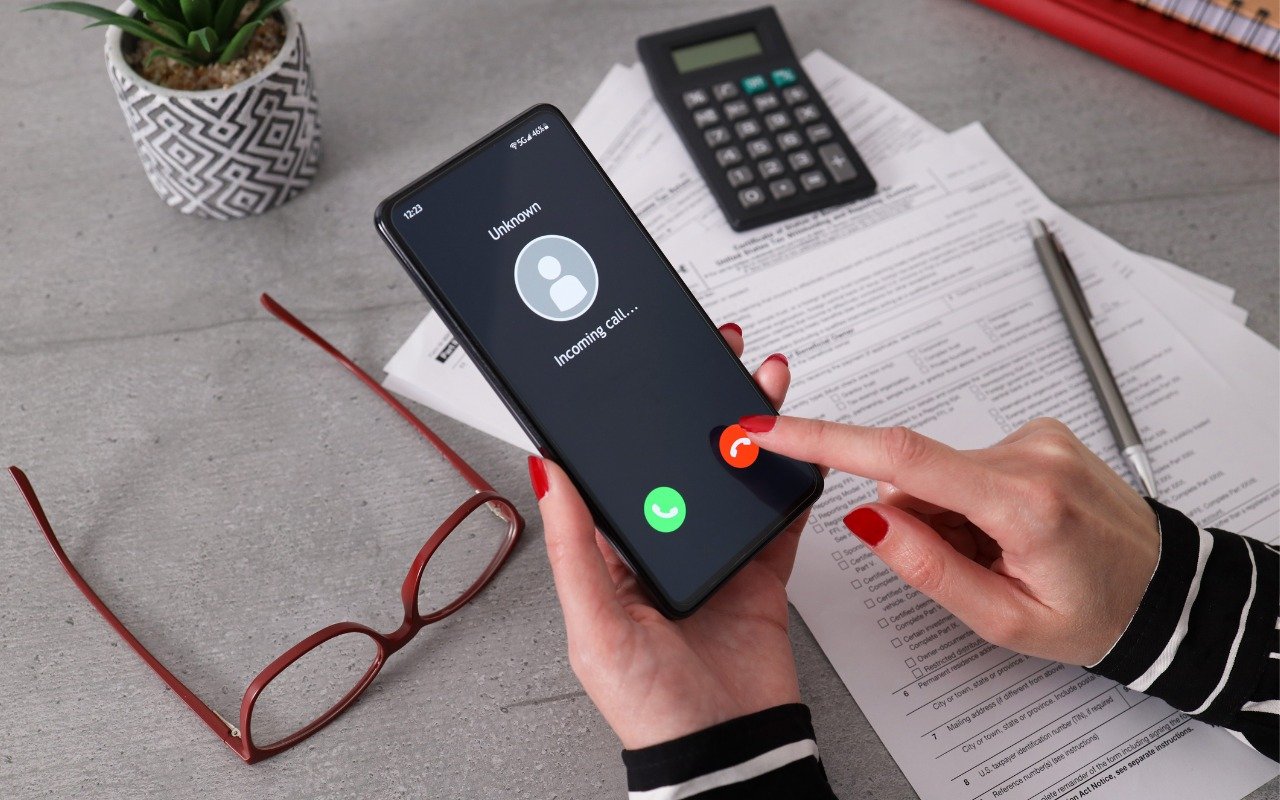
All it took for MGM Resorts International to be compromised with ransomware was a quick phone call, which some now call “voice phishing” or “vishing.” An attacker using LinkedIn information to pose as an employee asked MGM’s help desk for a password change, after which they were able to install ransomware. MGM is now up to $52 million in lost revenues and counting. Two takeaways. First, if you call support for a manual password reset, expect to be asked for a lot of verification, such as a video call where you show your driver’s license. Second, if you receive a call at work from an unknown person asking you to do anything involving money or account credentials, hang up, verify their identity and authorization, and proceed accordingly only if they check out.

(Images by iStock.com/1550539 and HT Ganzo)
Keep a USB Keyboard and Mouse for Troubleshooting
The minimalist approach with a wireless keyboard and mouse is good most of the time, but if things go wrong, it can be handy to have a wired USB keyboard and mouse available for troubleshooting.

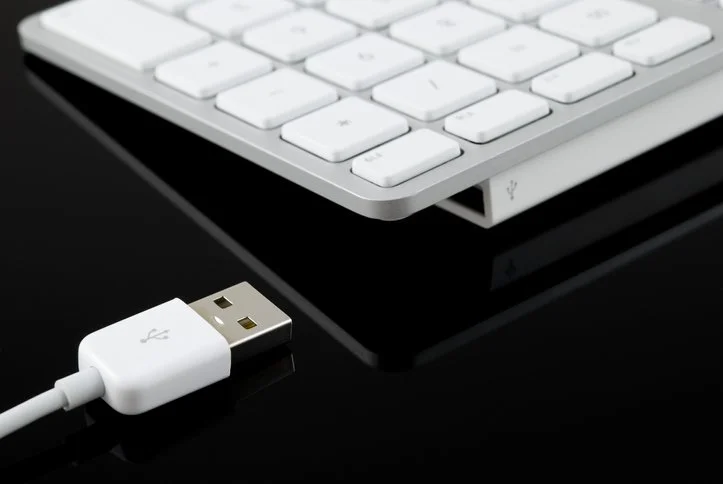
Steve Jobs famously railed against cable clutter, and it’s now easy to use a desktop Mac with a wireless keyboard and mouse, either from Apple or another manufacturer. That’s fine for regular usage, but Bluetooth keyboards and mice aren’t always sufficient. Batteries wear out, pairing can fail, and wireless interference can cause lags or spurious inputs. Plus, if you need to boot into macOS Recovery, wireless input devices may not work. We recommend keeping an extra USB keyboard and mouse—preferably from Apple, but any brand will work—to use in case you have problems with your wireless versions. If you don’t have a keyboard and mouse left over from an old Mac, a friend or family member may be happy to give you theirs, or you can probably find them for next to nothing at a local reuse store.
(Images by iStock.com/Jeffrey Glas and RafalStachura)
Forget Your Just-Changed Passcode? iOS 17’s Passcode Reset Has Your Back
If you change your passcode and can’t remember it (or it was changed for you by a prankster), iOS 17 lets you use your old passcode for 72 hours. It’s a helpful backstop for the results of a memory lapse or mischievous child.

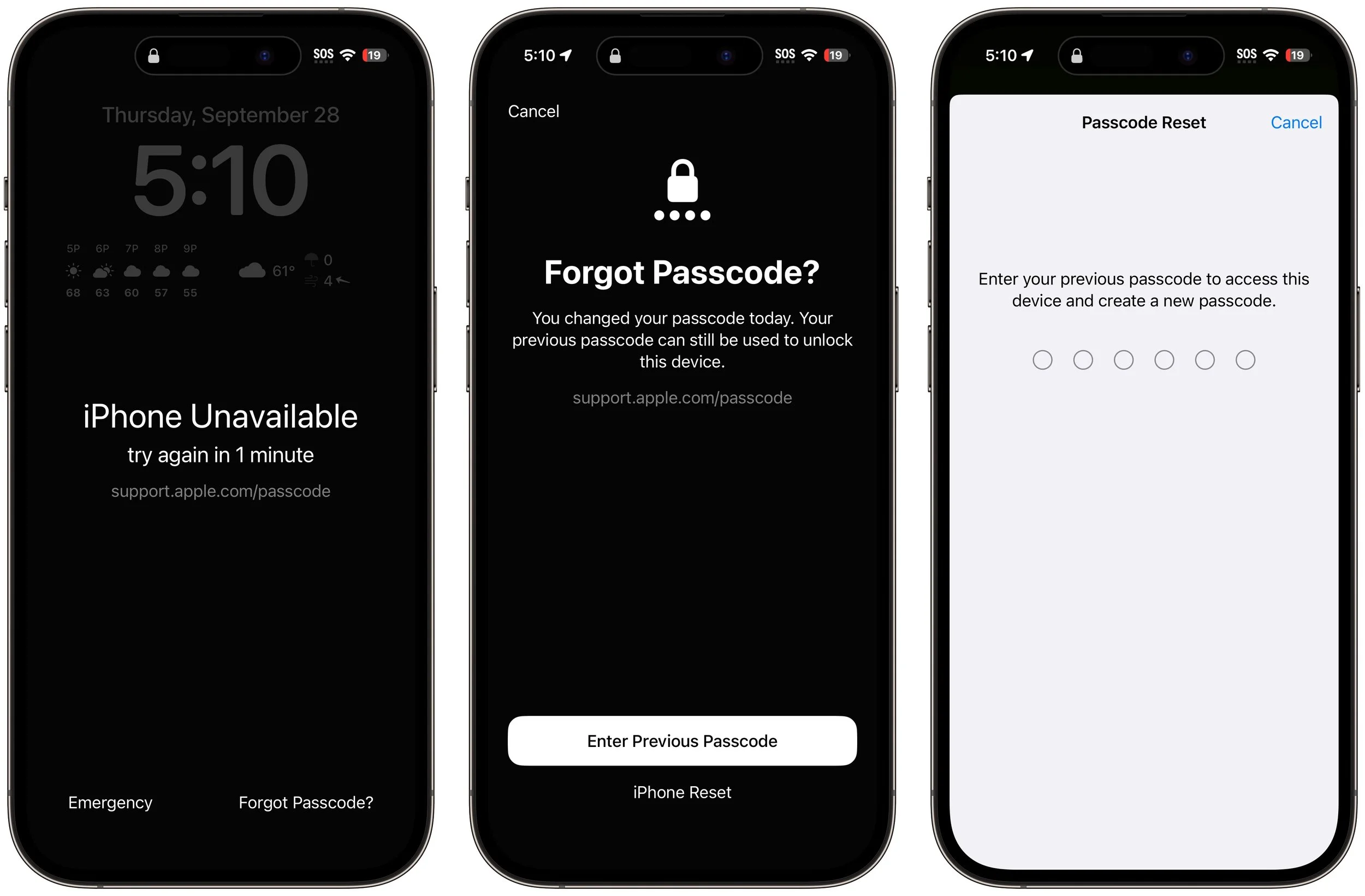
The hardest time to remember your iPhone or iPad passcode is right after you’ve changed it. Generally speaking, there’s no reason to change your passcode, but if you inadvertently or intentionally shared it with someone with whom you wouldn’t trust your bank account information, changing it to something new is a good idea. We could also imagine a child who knows your passcode changing it on you as a prank. For whatever reason, if you can’t enter your new passcode, a new iOS 17 feature called Passcode Reset lets you use your old one for 72 hours. Once you’ve tried the wrong passcode five times, tap Forgot Passcode ➊, enter your old passcode ➋, and create a new one ➌. If you’re certain you know the new one, you can expire the old one sooner in Settings > Face ID/Touch ID & Passcode.
(Featured image by iStock.com/NazariyKarkhut)