
Use the Command Key to Rearrange and Remove Menu Bar Icons
If your Mac’s menu bar is a mess, you can use the Command key to rearrange the icons and remove those you never use.

Is your Mac’s menu bar overwhelmed with icons? They’re helpful little critters, but finding one can be difficult when you have too many and they’re in no particular order. The hidden trick to cleaning up your menu bar relies on the Command key.
Rearrange the menu bar icons in an order that makes sense to you by Command-dragging them around. You can’t move the Control Center icon or put anything to its right, but every other icon is movable.
Delete unnecessary Apple-provided status icons by holding down Command and dragging them off the menu bar. (To put one back, select the “Show icon-name status in menu bar” checkbox in its System Settings screen.) You can’t remove the clock, Control Center, or the Siri icon this way, though you can turn off Siri in System Settings > Siri & Spotlight. Command-dragging to delete doesn’t work for non-Apple apps; instead, look for a preference in the app itself.

(Featured image by iStock.com/Valentyna Yeltsova)
Send Photos in Messages Faster with This Hidden Shortcut
It’s not hard to add a photo to a conversation in Messages, but with this tip, it’s even faster and easier!

On the iPhone and iPad, to send a photo to a Messages chat, tap the ⊕ button and then tap Photos in the list that appears to reveal the photo picker. That’s not difficult, but it requires an extra step you can avoid with this tip. If you’re running iOS 17 or iPadOS 17, instead of tapping the ⊕ button, touch and hold it for a second to bring up the photo picker immediately.

(Featured image based on an original by iStock.com/oatawa)
Did You Know Text Entry Boxes in Web Browsers Are Easy to Expand?
If you want to enter more text than will seemingly fit in a text box on a Web page, you can use a trick to expand the box so you can see what you’re typing.

Have you ever noticed the shading in the corner of text area fields in Safari, Chrome, Firefox, and most other Mac Web browsers? These “handles” let you resize the field—always vertically and sometimes horizontally. That’s handy when the website designer has provided only a small text box and you want to enter more text than will fit. Just drag the handle to make the text box the size you need. Other objects on the page move to accommodate the larger text box. If a text box doesn’t have a resize handle, the site designer doesn’t expect it to need to hold more than a single line of text.

(Featured image based on originals by iStock.com/OlgaCanals and PhotoMelon)
Use 1Password to Enter Your Mac Login Password
1Password is tremendously helpful for entering website passwords, but a little-known feature also enables it to enter your Mac login password for changing system settings, installing apps, and more.

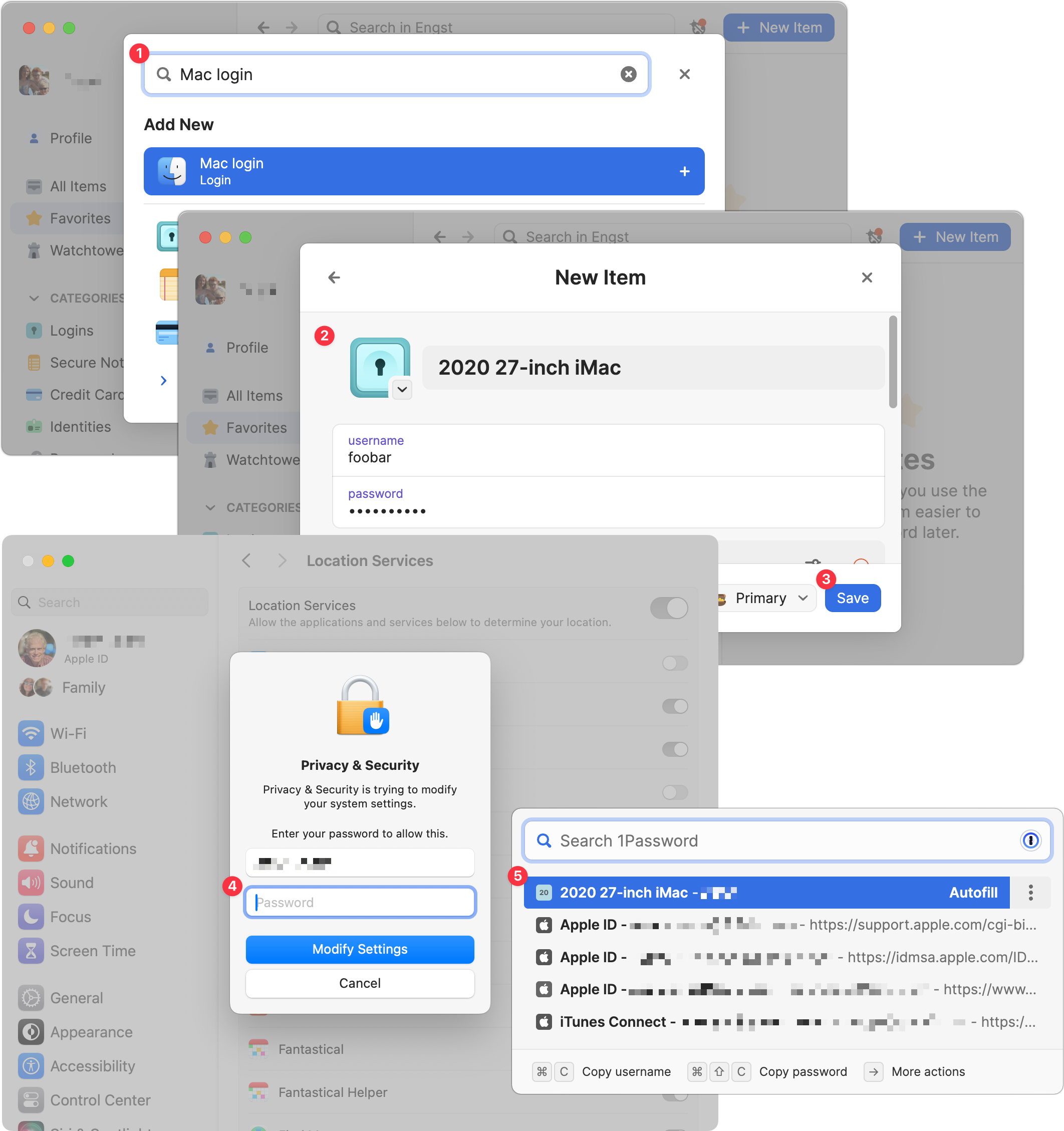
We think of 1Password as being helpful for entering passwords on websites and in iPhone and iPad apps. But its Universal Autofill feature has a hidden capability that lets 1Password enter your Mac login password when you have to provide it to change certain system settings, install apps, format drives in Disk Utility, and more. (But it won’t work to log in at startup before 1Password is running.) To turn this feature on, click the New Item button in 1Password, search for and select “Mac login” ➊, give it a name that will sort alphabetically to the top, like “2020 27-inch iMac” ➋, enter your password, and click Save ➌. From then on, whenever you’re prompted for your Mac login password ➍, press Command-\ (Backslash, located above the Return key), and then click the desired login or press Return to select the topmost item ➎.
(Featured image based on an original by iStock.com/ipuwadol)
Annoyed by Inline Predictive Text Suggestions? Here’s How to Turn Them Off
If you’re not a fan of the new inline text predictions on your iPhone, iPad, or Mac, you can easily turn them off and get back to typing only the words you want to appear.
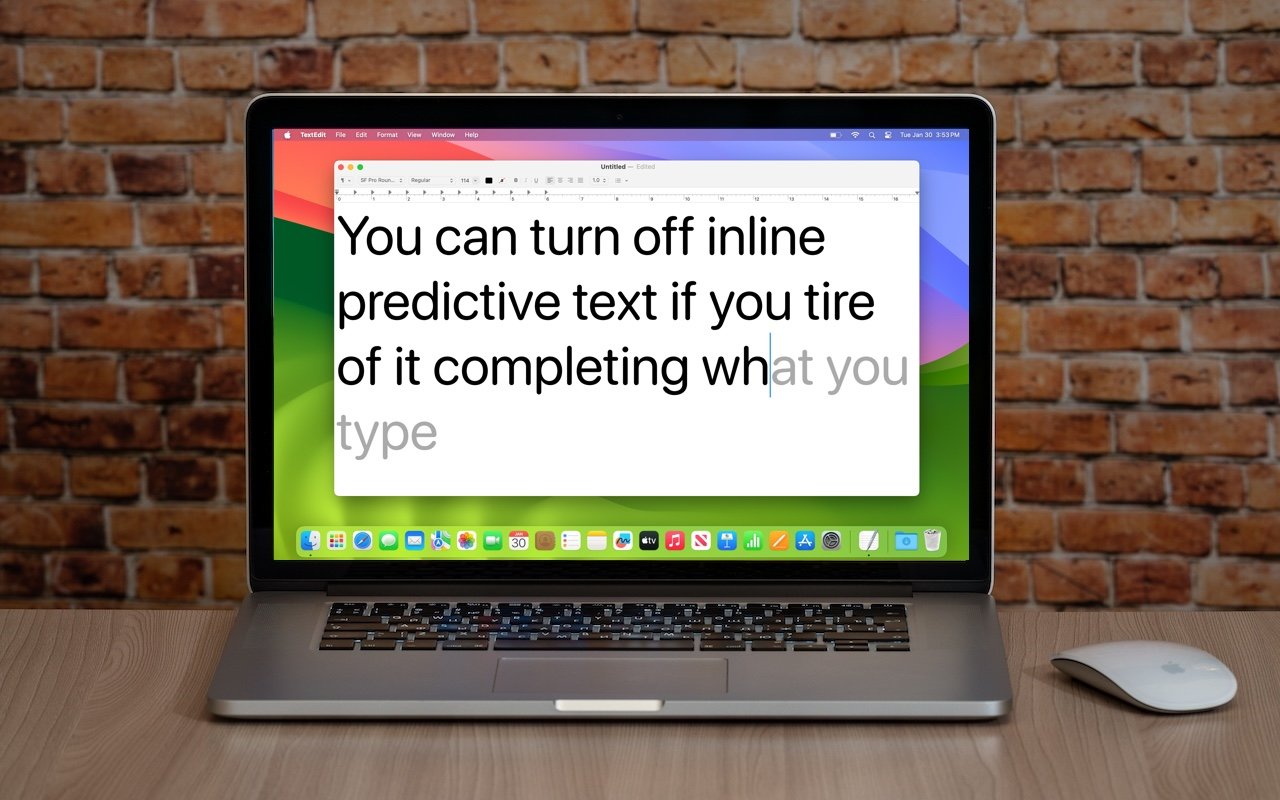
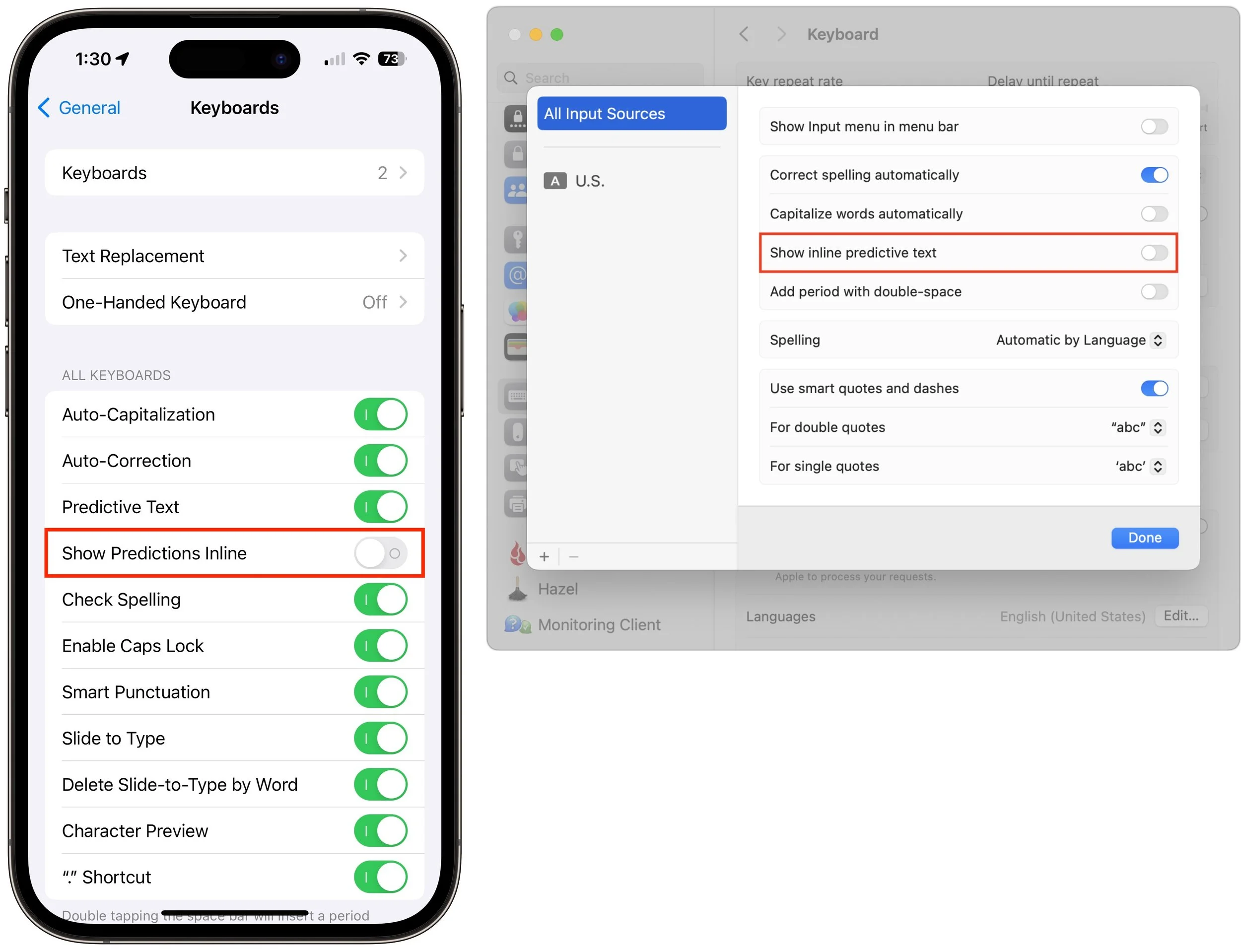
In a slight nod to the hype surrounding generative AI, Apple added inline text prediction capabilities to the iPhone, iPad, and Mac. They can be helpful, particularly on the iPhone and iPad, where it’s often much easier to tap the Space bar than to finish typing a word or sentence. But that’s less true on the Mac, where a fast typist can be slowed down or derailed by the suggestions, and some people dislike having an AI finish their thoughts. The feature is easily turned off. On the iPhone and iPad running at least iOS/iPadOS 17.2, go to Settings > General > Keyboard and switch off Show Predictions Inline. (Leave Predictive Text on to continue to get suggestions above the keyboard.) On the Mac running macOS 14.2 Sonoma or later, open System Settings > Keyboard, click Edit under the Text Input header, turn off “Show inline predictive text,” and click Done.
(Featured image based on an original by iStock.com/Armastas)
After “Mother of All Breaches,” Update Passwords on Compromised Sites
Worried about the “Mother of All Breaches” that has been making the rounds in security news? We share a leak checker that can tell you if your email address was involved and recommend that you update any compromised passwords.

January’s big security news was the Mother of All Breaches, the release of a massive database containing 26 billion records built from previous breaches across numerous websites, including Adobe, Dropbox, LinkedIn, and Twitter. It’s unclear how much of the leaked data is new, but it’s a good reminder to update your passwords for accounts on compromised sites, especially those you reused on another site. Cybernews has a leak checker that reports which breached sites include your data. More generally, password managers often have a feature that checks your passwords against the Have I Been Pwned database of breaches and helps you change compromised passwords—1Password’s is called Watchtower, shown below. You can also search Have I Been Pwned directly. Don’t panic if your email address appears in numerous breaches because some of the theoretically compromised accounts may be defunct sites, trivial sites you used once 10 years ago, or duplicate password manager entries for a site whose password you already updated.

(Featured image by iStock.com/Prae_Studio)
How to Avoid Head-Tracked Spatial Audio for FaceTime Audio Calls
If you’ve ever experienced a weird situation where sound on a FaceTime Audio call moves back and forth between your AirPods, it’s because of spatial audio’s dynamic head tracking. Learn how to turn it off.

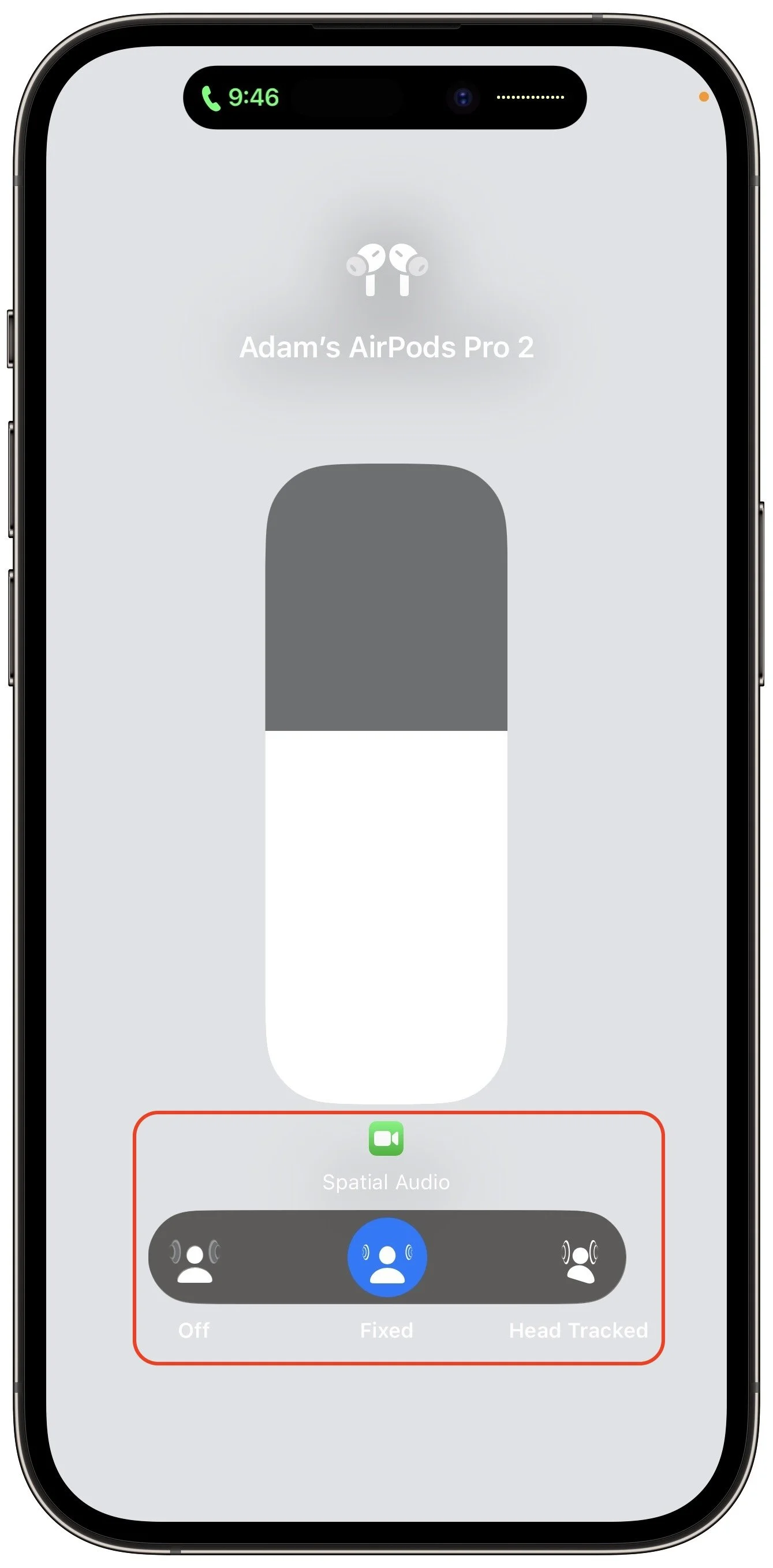
If you listen to a FaceTime Audio call using AirPods and hear the other person’s voice moving annoyingly from side to side as you turn your head, the problem is likely head-tracked spatial audio. In general, spatial audio attempts to make sounds seem to come from all around you, and its dynamic head-tracking option adjusts the audio for each ear to simulate how the sound would change as your head moves. Dynamic head tracking may be desirable for music or movies, but with a FaceTime Audio call, having the other person flip back and forth between your ears can be highly disconcerting. To stop this behavior on an iPhone or iPad, open Control Center, touch and hold the volume control, and tap either Off or Fixed instead of Head Tracked. Spatial audio isn’t an option on Mac FaceTime calls.
(Featured image by iStock.com/1550539)
Too Many Windows Open? Close Them All Quickly with These Tricks
Next time you inadvertently open a large number of windows, you can use these Option-key tricks to close them all quickly.

Have you ever selected a bunch of files and accidentally opened them all by double-clicking one? Or perhaps inadvertently pressed Command-I to get info, ending up with oodles of open Info windows? Here’s a quick way to recover. You can close all the windows in any well-written app with judicious use of the Option key. Press it while clicking the File menu and Close Window becomes Close All Windows. Command-W closes one window; Command-Option-W closes all of that app’s windows. If you’re a mouse person, Option-click the red close button in any window to close all the rest.

(Featured image based on an original by iStock.com/ANGHI)