
Apple Introduces AppleCare One for Multi-Device Coverage
Apple’s new AppleCare One plan allows you to cover multiple devices under a single subscription and even add devices up to 4 years old. At $19.99 per month for three devices, it could save you money and simplify your AppleCare coverage.
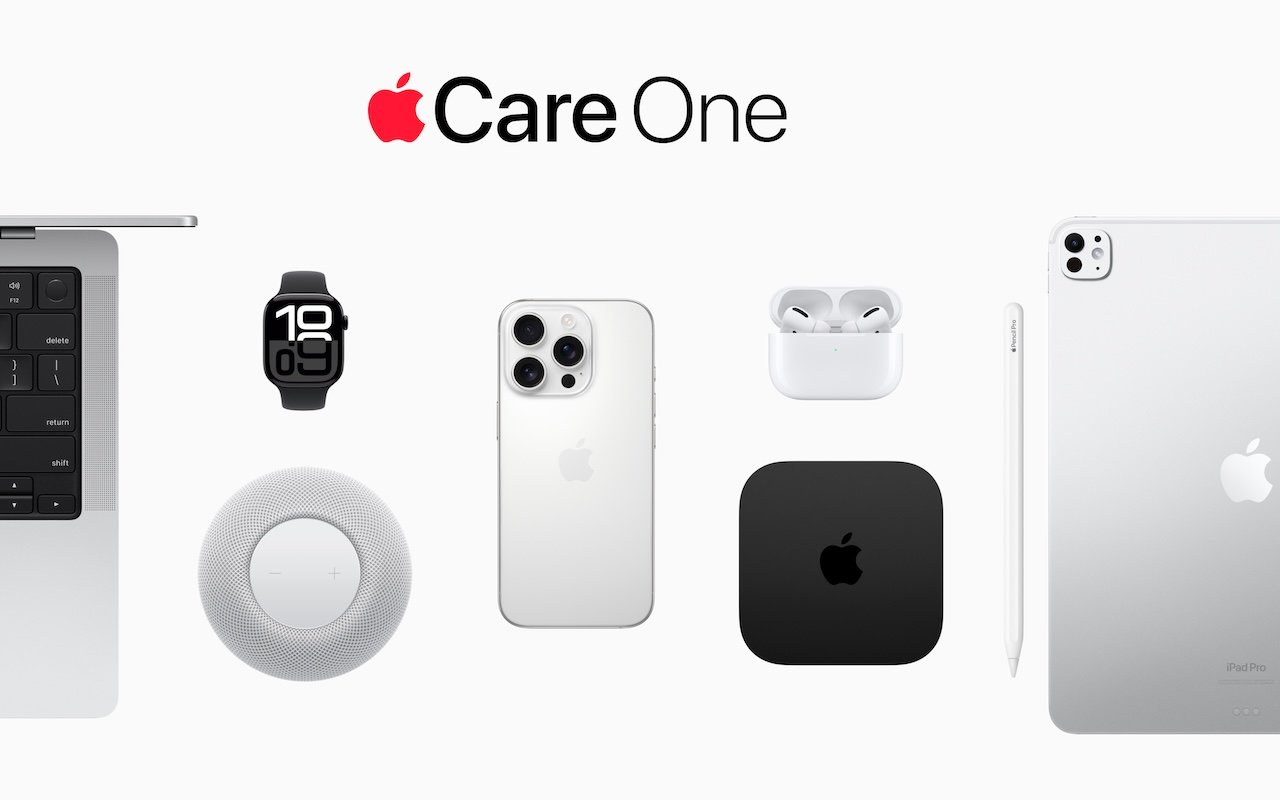
Apple has launched AppleCare One, a new device protection plan that consolidates coverage for multiple Apple devices into a single monthly subscription. For $19.99 per month, US customers can protect up to three devices, with any additional devices costing $5.99 each per month. The plan includes unlimited repairs of accidental damage, battery replacements when capacity drops below 80%, and up to three annual claims for theft or loss of an iPhone, iPad, or Apple Watch. You can add most devices up to 4 years old to your plan, though older devices must be in good condition and may require a diagnostic check. The coverage automatically transfers when you trade in a covered device to Apple and purchase a new one. Keep in mind that AppleCare One is a per-user plan that doesn’t cover multiple users’ devices, and standard service fees and deductibles apply for repairs and replacements.

(Featured image by Apple)
Never Paste Unknown Text into Terminal!
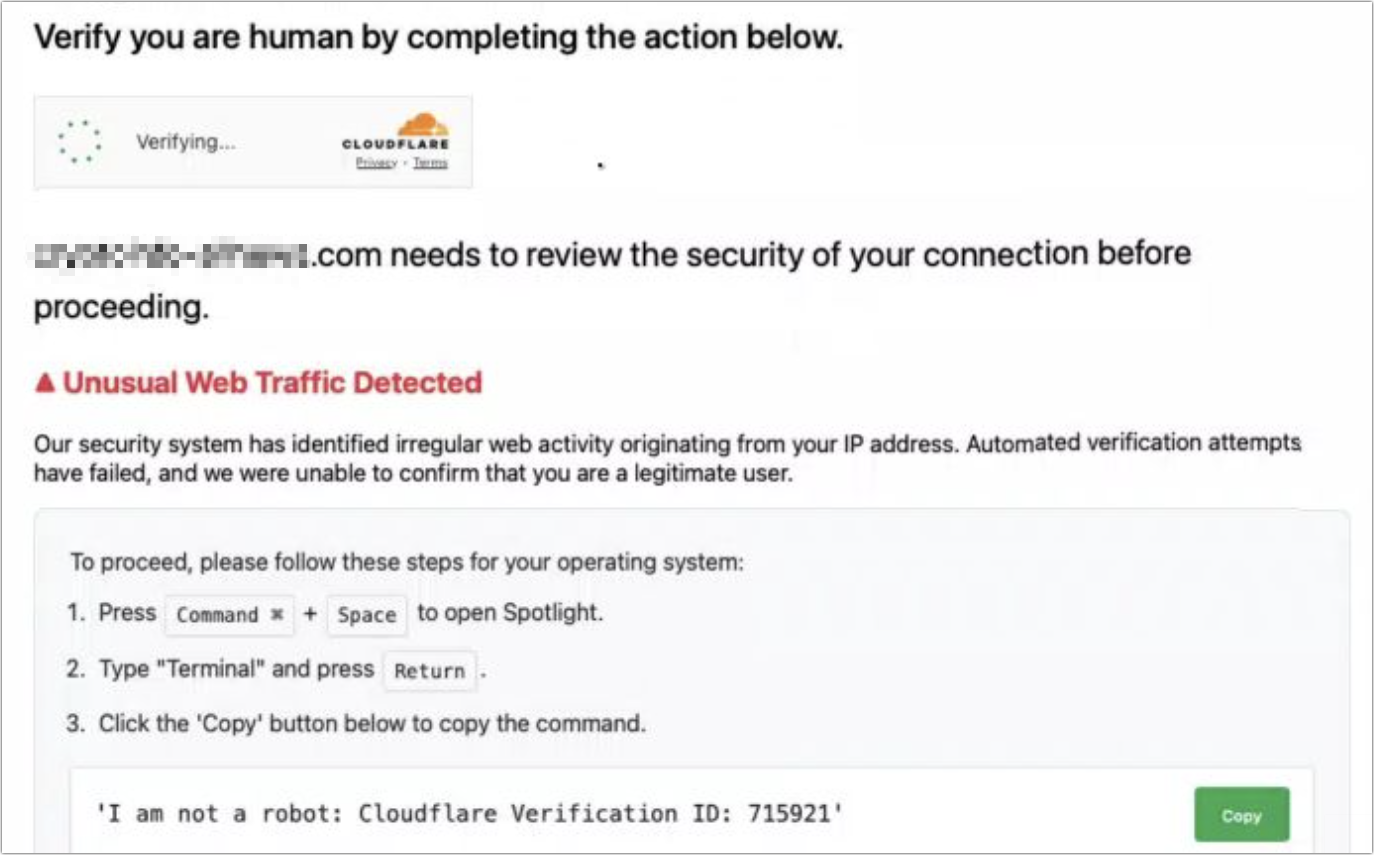
A clever new scam masquerades as a CAPTCHA test, asking users to paste text into Terminal to prove they’re human. Instead, it installs malware designed to steal passwords, browser data, and other sensitive information.

Here’s a new scam to watch for. A client reported running across a suspicious website masquerading as a human verification test. Instead of asking him to click pictures or solve a math equation, this one asked him to copy some text from the page and paste it into Terminal. The text was actually an encoded script that—if pasted into Terminal and executed—would have downloaded and installed malware designed to steal user data. Infected users could lose their login password, browser history and cookies, cryptocurrency wallet information, keychain data, Notes data, and a wide variety of personal files. The moral of the story: never paste unsolicited commands into Terminal. They may seem innocuous or even unintelligible, but they’re fully capable apps that can wreak havoc on your Mac.
(Featured image by iStock.com/stevanovicigor)
Audit How You Appear in Google Search
Curious about how your personal information shows up in Google searches? Google’s Results About You service helps you monitor and manage your digital footprint.
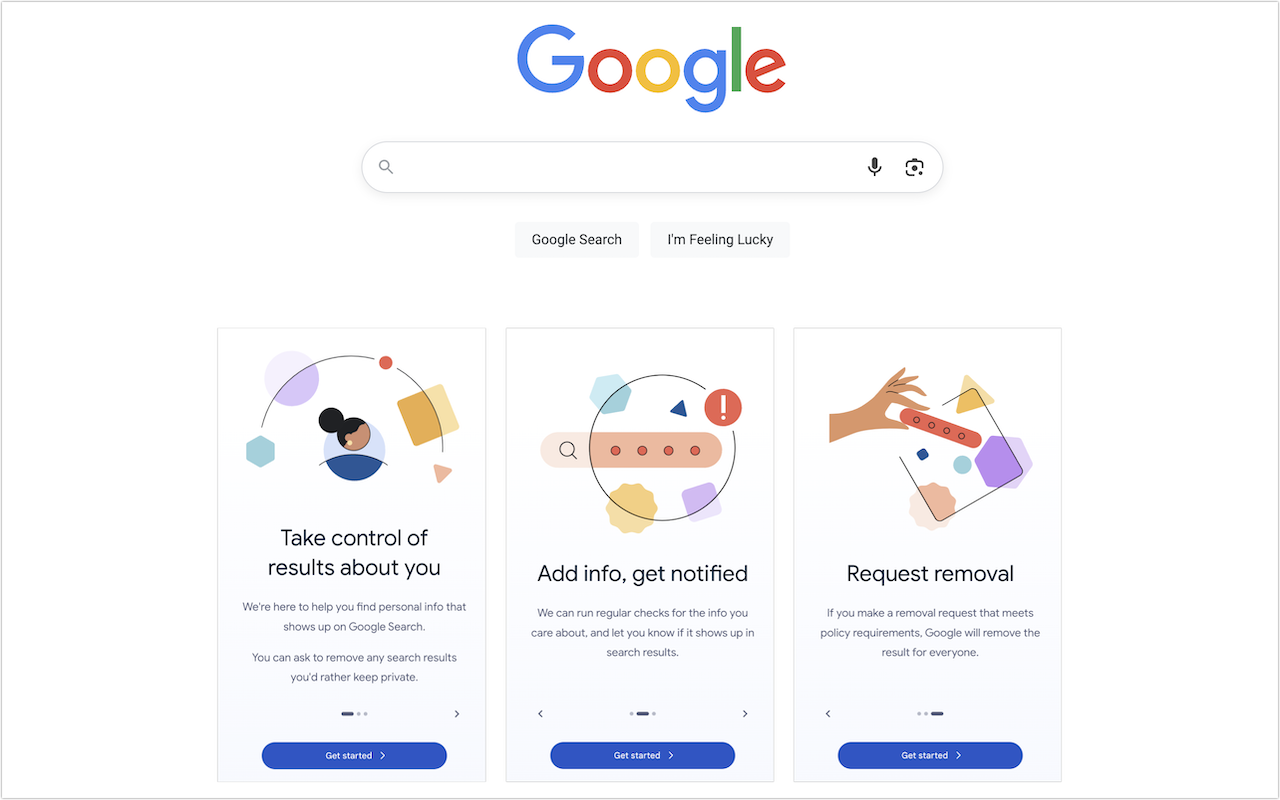
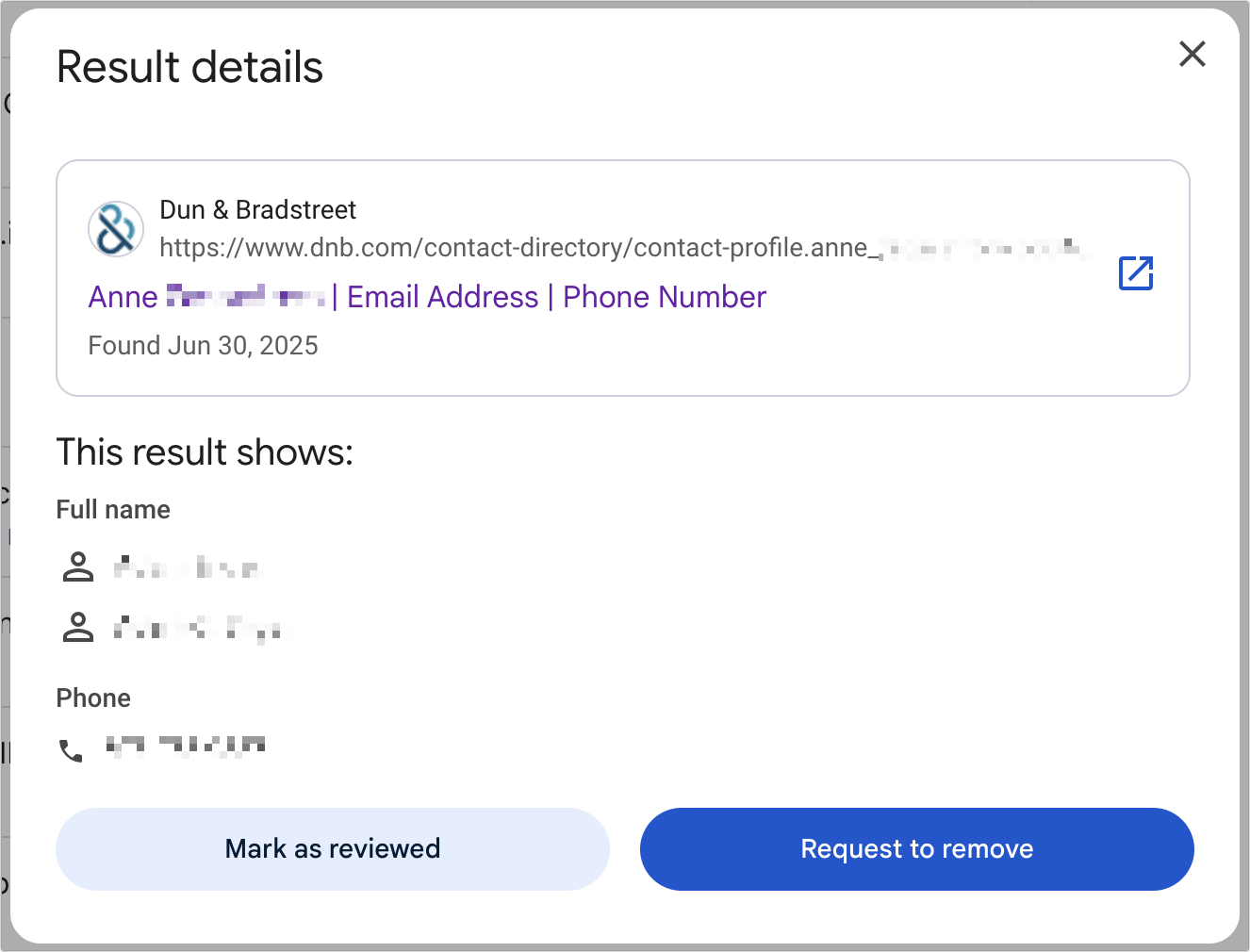
Google has created a free service that lets you see what of your personal and professional information has been published on the Web. Once you provide your name, address, phone numbers, and email addresses to Google’s Results About You website, Google will inform you if that info appears in search results. (Don’t worry, you’re not telling Google anything it doesn’t already know.) It may take a few days or weeks for the initial results to come back, and Google will keep adding more results over time. You can review each page with your information and, if it’s data you would prefer to keep private and it meets Google’s policy requirements, request its removal from the search results. This only removes your data from Google’s search results; to remove it from the Web entirely, you’ll need to contact the website hosting the information.
(Featured image by Google)
16 Billion Passwords Exposed in Recent Data Breach: Turn on 2FA!
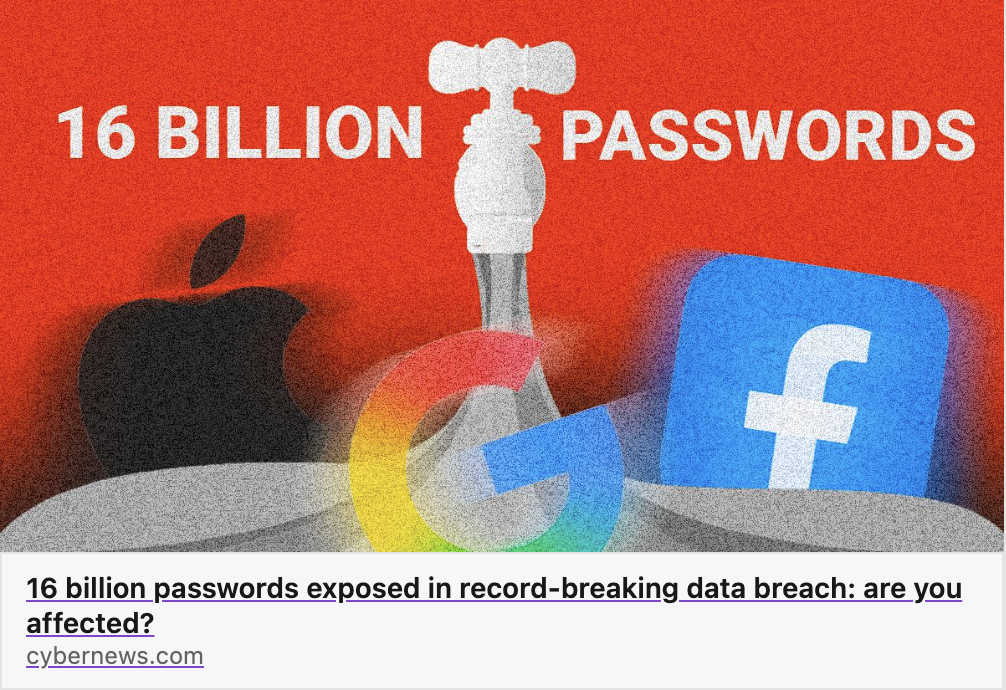
Another day, another breach—this time involving 16 billion passwords. Despite alarming headlines about Apple, Facebook, and Google accounts, there’s no need to panic. Our advice? Use unique passwords and enable 2FA.
Data breaches keep coming, and the latest one revealed by Cybernews involves 16 billion passwords. There’s no way to know for sure if your passwords are included, though it’s always worth checking Have I Been Pwned and paying attention to monitoring features in password managers. Some media reports claim that passwords from accounts at Apple, Facebook, and Google were leaked, but this is likely over-blown. While some accounts at those companies were compromised by infostealers, there were no centralized breaches. Our advice remains the same: use a password manager to ensure that each of your accounts has a strong, unique password and turn on two-factor authentication whenever possible.
(Featured image by iStock.com/tsingha25)
Switch Between Apps Fluidly on Face ID iPhones
The threat of tariffs raising iPhone prices has prompted many upgrades to the iPhone 16 lineup. For those new to Face ID—or anyone who isn’t familiar with it—we have an app-switching tip that everyone should know and use.
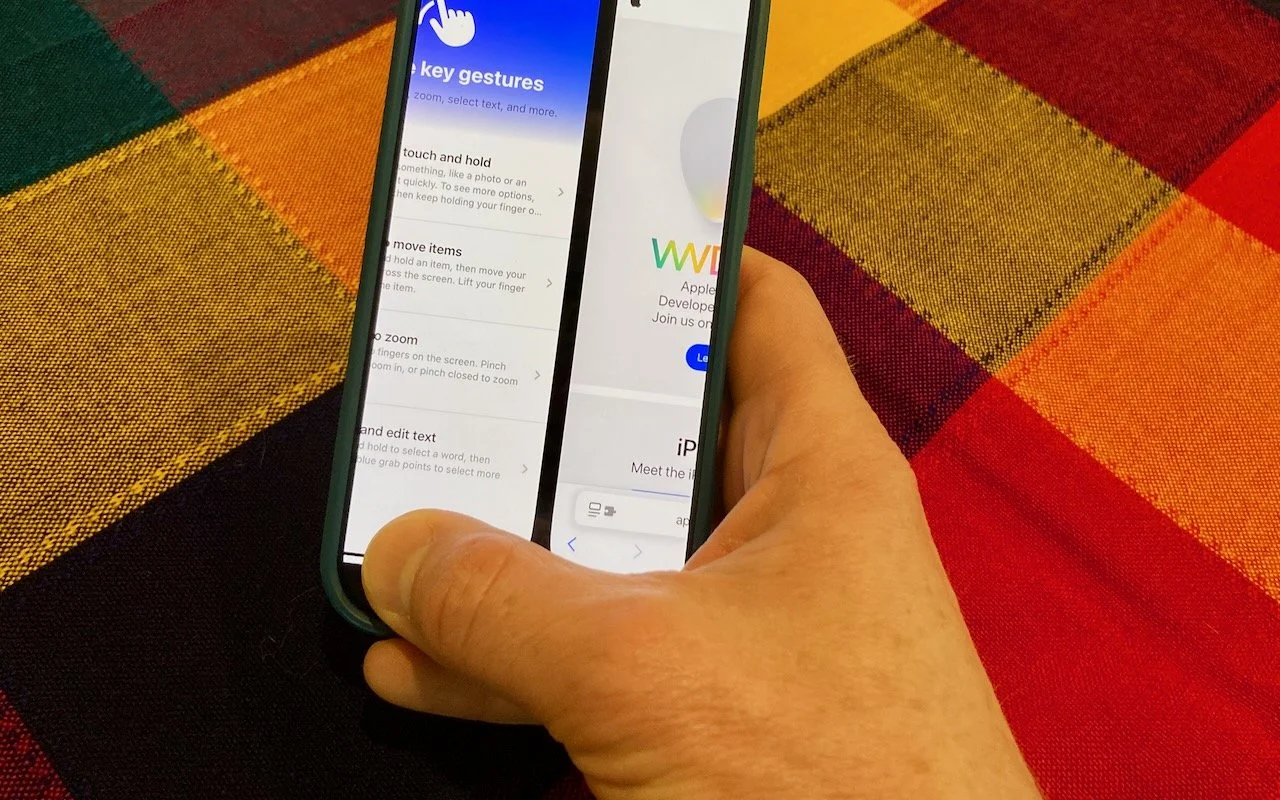
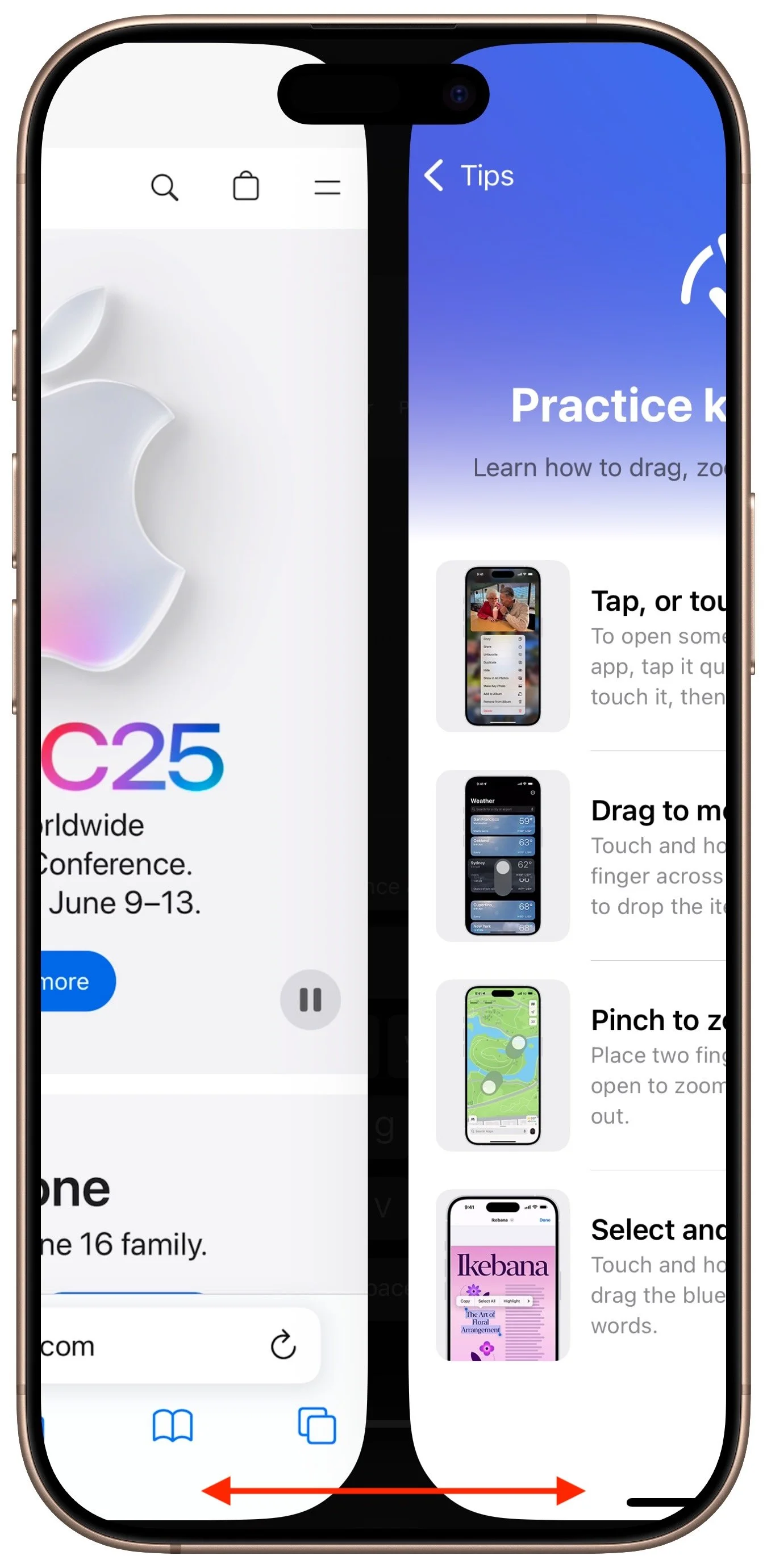
The ongoing threat of tariffs raising the price of iPhones has recently prompted some people to upgrade from an old Touch ID iPhone to a new iPhone 16. Although most have adjusted well to Face ID, few are aware of the app-switching shortcut exclusive to Face ID iPhones. To access the App Switcher on a Face ID iPhone, you must swipe up slightly from the bottom of the screen and then continue the swipe to the right. However, Face ID experts rarely do that. Instead, they just swipe right and left on the bar at the bottom of the screen to switch between apps—it’s much faster and easier, albeit hard to discover.
(Featured image by Adam Engst)
Clean Your iPhone’s Camera Lens
To prevent fingerprint smudges and other grime from impacting the quality of your iPhone photos, clean the lens occasionally with a microfiber cloth or at least the edge of your T-shirt.
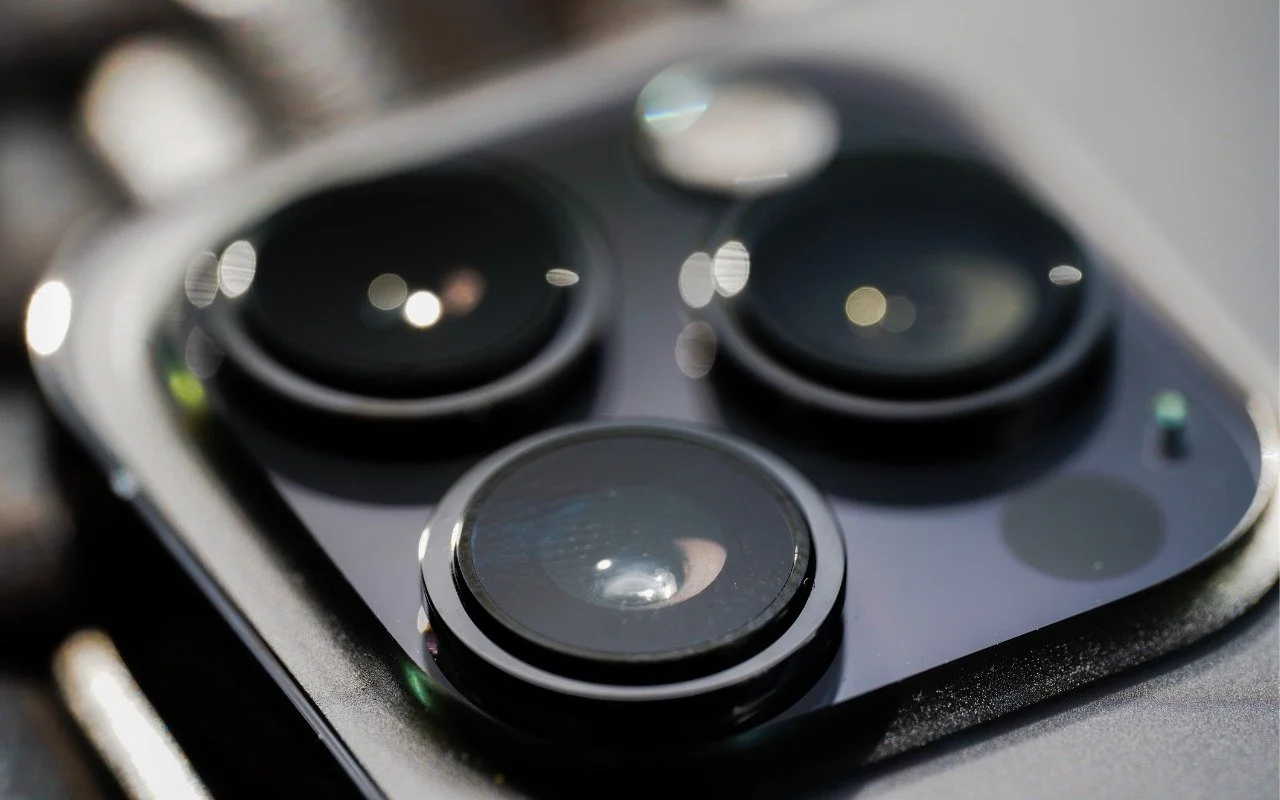
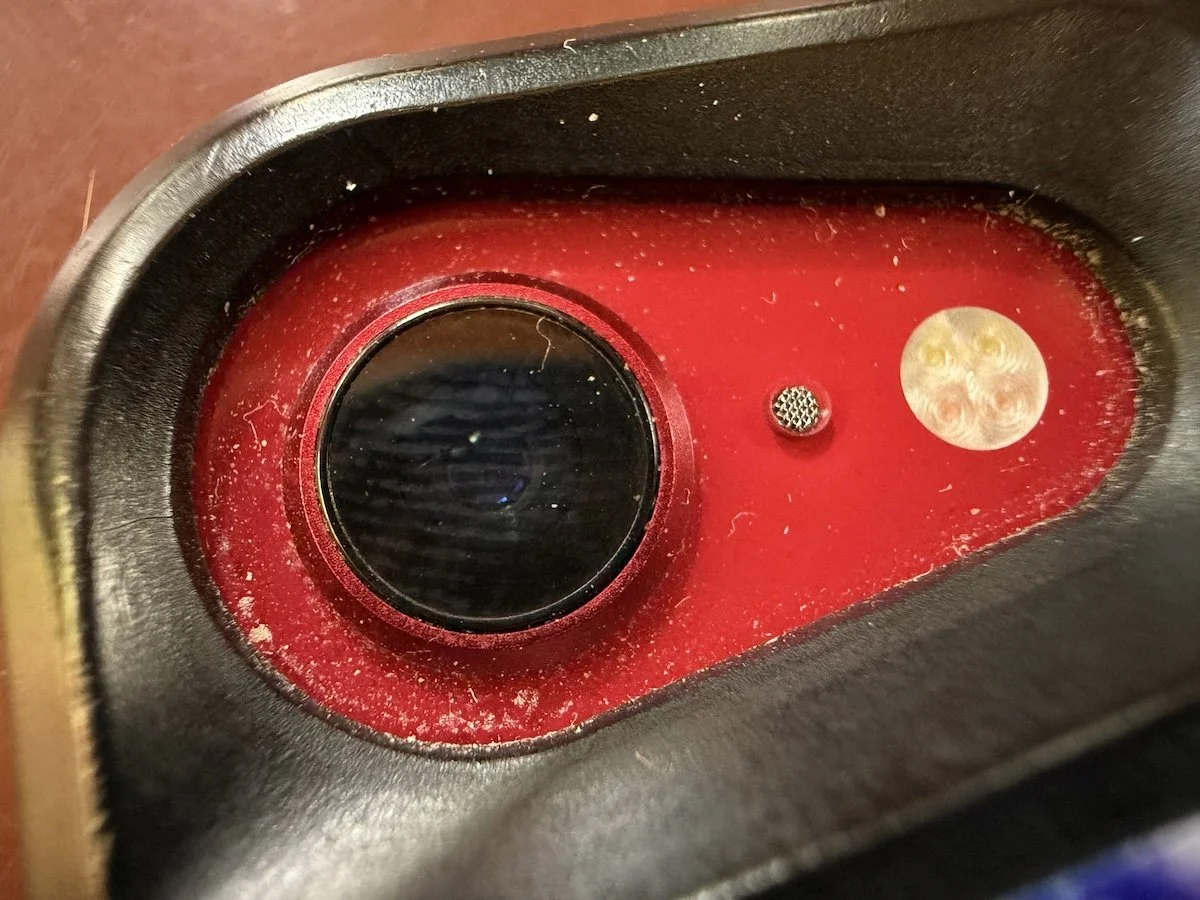
Serious photographers take care of their lenses. The rest of us just stuff our iPhones into our pockets or purses and pay no attention to the fingerprints and grime they collect. If your iPhone’s camera lens is smudged, it will impact the quality of your photos. Take a few seconds to polish it with a microfiber cloth now and then, or, you know, simply wipe it with the edge of your T-shirt. Your photos will thank you.
(Featured image by iStock.com/EyeEm Mobile GmbH)
Make Apple Devices Easier for Family to Access with Secondary Biometrics
Make accessing your iPhone, iPad, and Mac easier for trusted family members by setting them up so they can use Touch ID or Face ID.

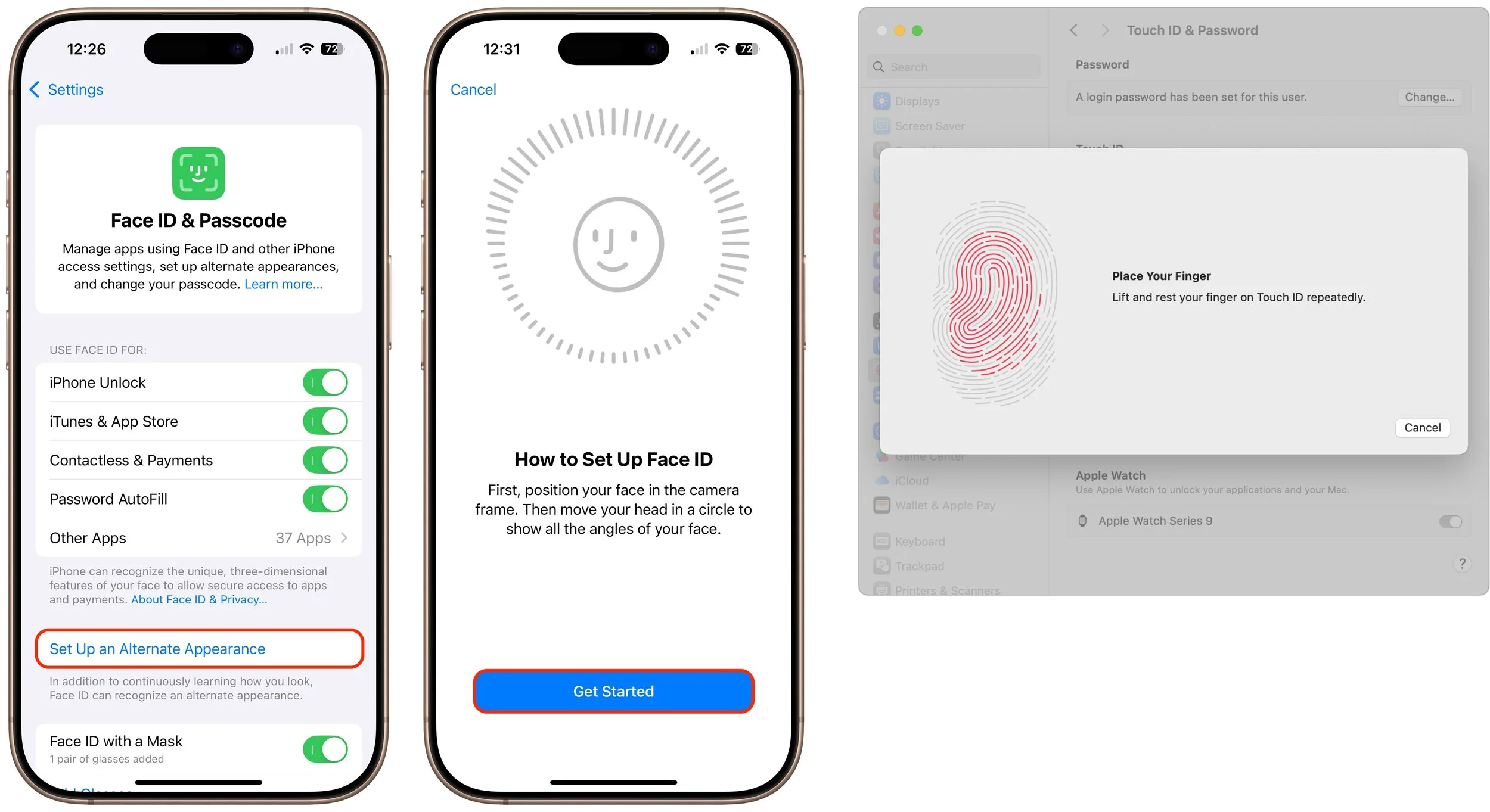
It’s only safe to share your iPhone, iPad, and Mac passcodes and passwords with people you trust completely, which typically includes family members whom you would trust with your healthcare and bank accounts. If those people also use your devices regularly, you can simplify their access by adding their fingerprint to Touch ID or their face to Face ID. Touch ID allows you to add up to five fingerprints, while Face ID provides an option for a second face. Both can be easily set up in Settings > Face/Touch ID & Passcode (iPhone and iPad) and System Settings > Touch ID & Password (Mac).
(Featured image by iStock.com/Giulio Fornasar)
Beware Domain Name Renewal Phishing Attacks
Phishing scams are becoming more sophisticated. A message that seems to come from an Internet domain host and arrives around the time of a domain renewal could deceive even experienced users.
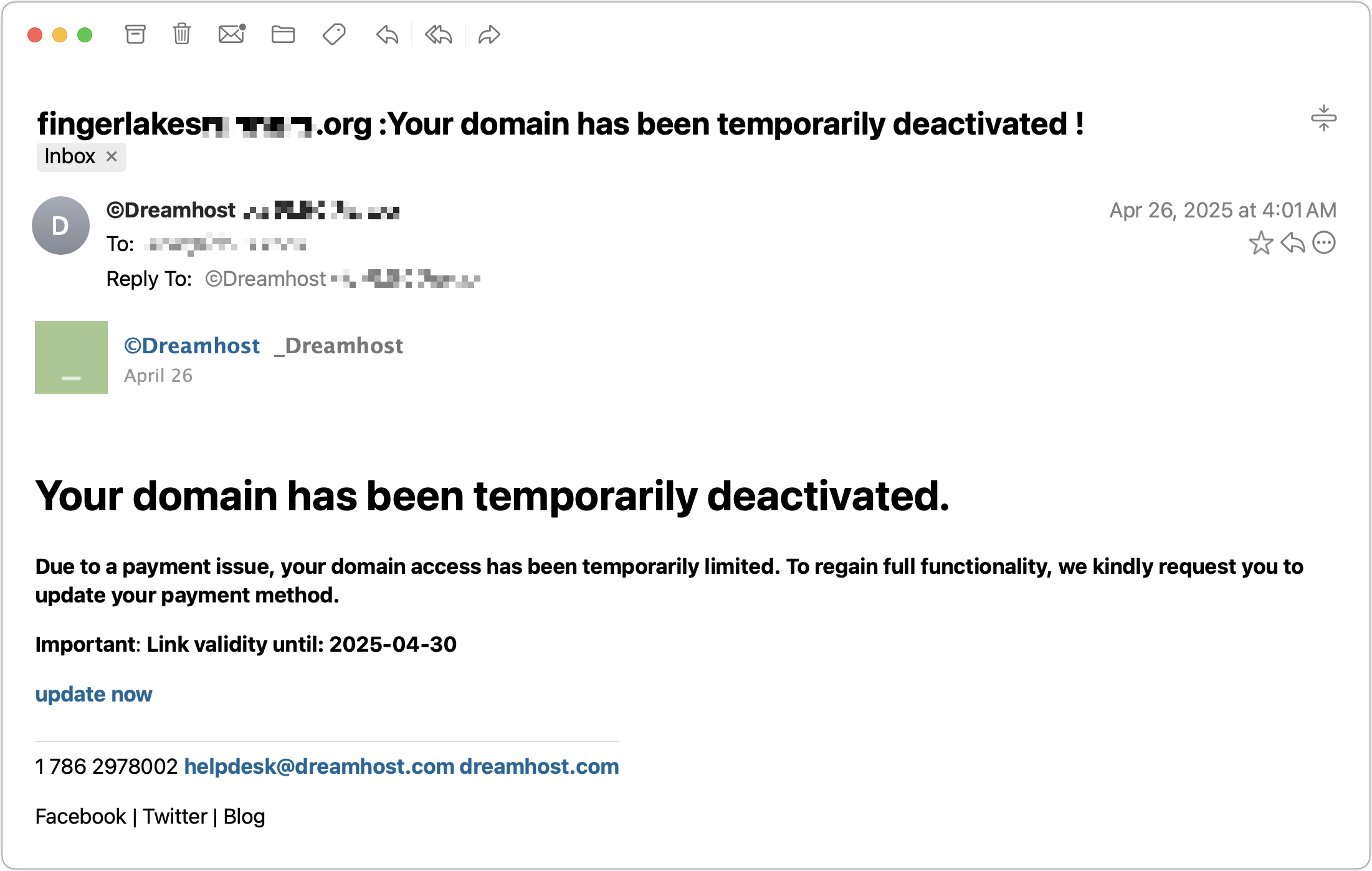
Most phishing attacks are easy to identify, but we’ve just seen one that’s more likely to evade detection. Those who own personal or business Internet domain names—to personalize their email or provide an online presence for their website—may receive fake messages claiming that a domain has been deactivated due to a payment issue. Because scammers can determine when domain names are due to expire and the name of the company hosting the domain, the urgency triggered by a message that appears to be from the domain host and arriving near the renewal date may cause someone to click a link they shouldn’t. This particular one wasn’t even that well crafted and still caused the recipient brief concern until they manually went to DreamHost and verified that nothing was wrong with their domain payment. Stay alert out there!
(Featured image by iStock.com/weerapatkiatdumrong)