
Make Finder Window Columns Resize to Fit Filenames
Tired of truncated filenames in the Finder’s Column view? macOS 26.1 Tahoe adds a simple checkbox to auto-resize columns—and you can enable the same feature in earlier macOS versions with a quick Terminal command or free utility.

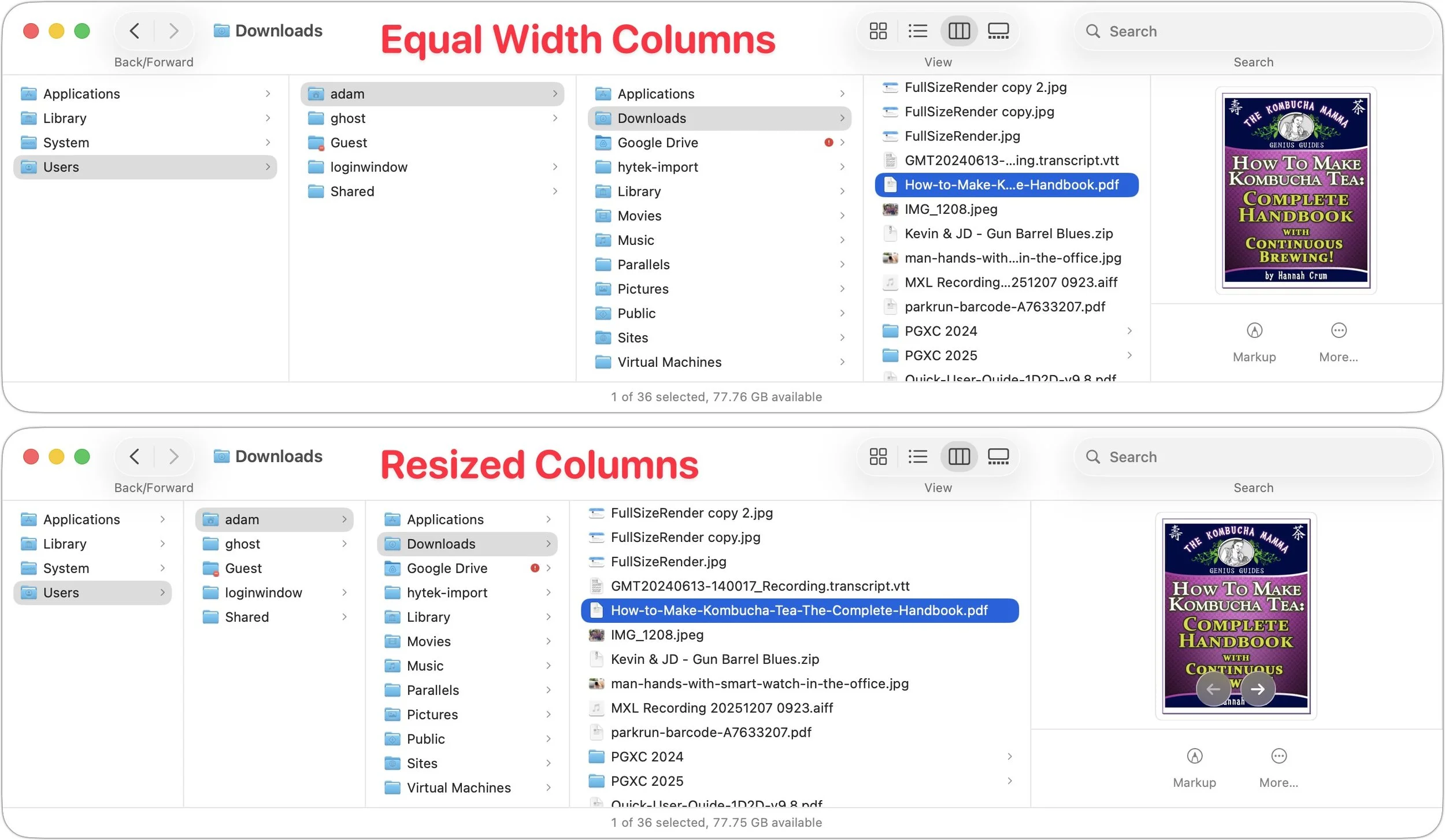
Column view in the Finder has an annoying tendency to either show overly wide columns that waste space or truncate long filenames, forcing you to drag a column divider to see more of the name. In macOS 26.1 Tahoe, Apple added an option to the Finder’s View Options window that automatically adjusts column widths to display the longest visible filename in each column. To activate it, choose View > Show View Options with a column-view window frontmost, then select the “Resize columns to fit filenames” checkbox. If you’re running macOS 13 Ventura through macOS 15 Sequoia, this option is hidden, but you can enable it by pasting this command into Terminal: defaults write com.apple.finder _FXEnableColumnAutoSizing -bool YES; killall Finder. (Change YES to NO to revert the change.) Alternatively, the free TinkerTool 10 utility provides a graphical toggle for these older operating systems—look for “Automatically adapt to file name widths in column mode” in the Finder section.
(Featured image by iStock.com/IPGGutenbergUKLtd)
New Apple Creator Studio Bundles Pro Apps
Apple’s new Creator Studio bundle includes Final Cut Pro, Logic Pro, Pixelmator Pro, and more—plus premium content and AI features in the iWork apps—for $12.99/month or $129/year. Don’t worry—Keynote, Pages, and Numbers stay free for existing features.

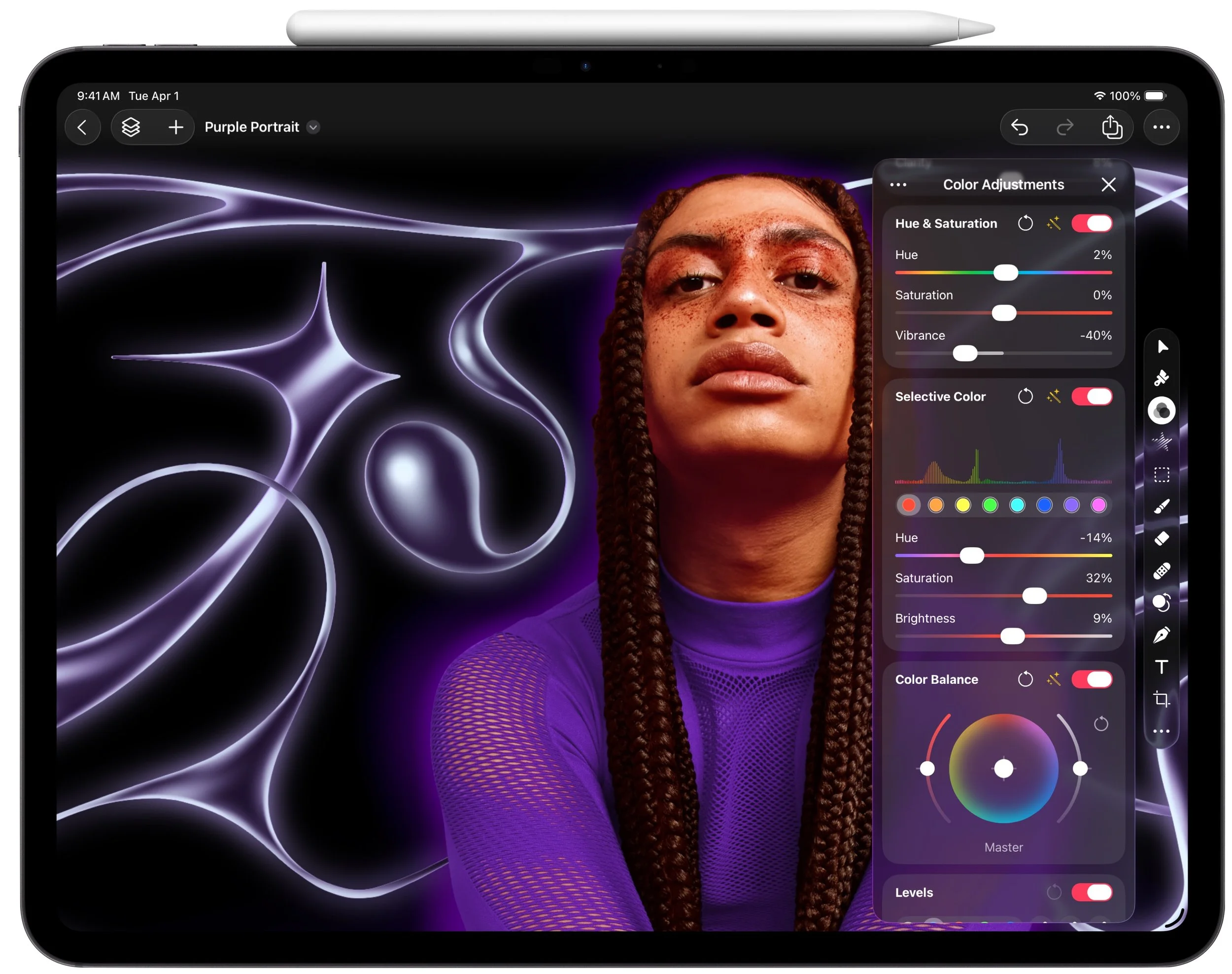
Apple has introduced Apple Creator Studio, a subscription bundle of Final Cut Pro, Logic Pro, Pixelmator Pro, Motion, Compressor, and MainStage, priced at $12.99 per month or $129 per year (with education pricing at $2.99 per month or $29.99 per year). The bundle also includes premium content and a few AI tools for the iWork apps: Keynote, Pages, and Numbers. These apps will prompt you to download the new version 15, but don’t worry—they remain free for all existing features; only the new AI capabilities and premium content require a subscription. You can also still purchase Mac versions of the pro apps, though the iPad versions of Final Cut Pro, Logic Pro, and Pixelmator Pro are now available only to subscribers. Up to six family members can share a Creator Studio subscription via Family Sharing.
(Featured image by Apple)
If Your iPhone’s Lock Screen Clock Is Too Transparent, You Can Fix It
Struggling to read the clock on your iPhone Lock Screen? iOS 26.2 lets you manually adjust the transparency—or switch to a solid background for better readability.
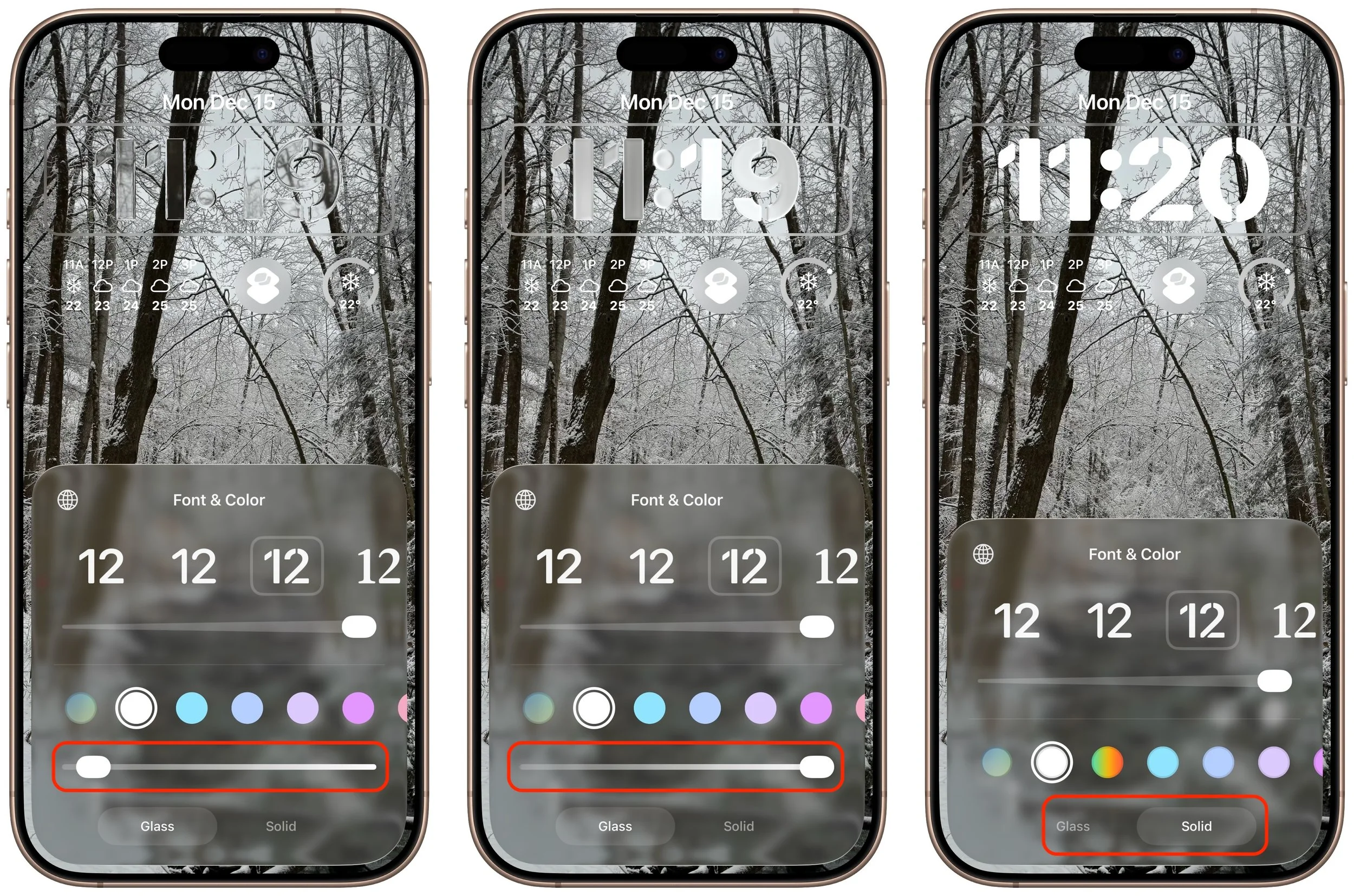
One place where the Liquid Glass transparency in iOS 26 and iPadOS 26 can be annoying is the time display on the Lock Screen. Liquid Glass tries—but often fails—to adjust the clock’s transparency so it’s readable over whatever photo you chose or the Photo Shuffle option displayed. Starting in iOS 26.2 and iPadOS 26.2, you can manually adjust the clock’s transparency: touch and hold the Lock Screen, tap Customize, tap the clock, tap Glass, and drag the Transparency slider (left and middle). If it's still not readable enough, you can switch to the previously available Solid view (right).
(Featured image by iStock.com/Wavebreakmedia)
Try macOS 26.2’s Edge Light for Low-Light Video Calls
Dark room, important video call? macOS 26.2’s Edge Light transforms your Mac’s display into an on-screen ring light, illuminating your face so you’re visible on camera.

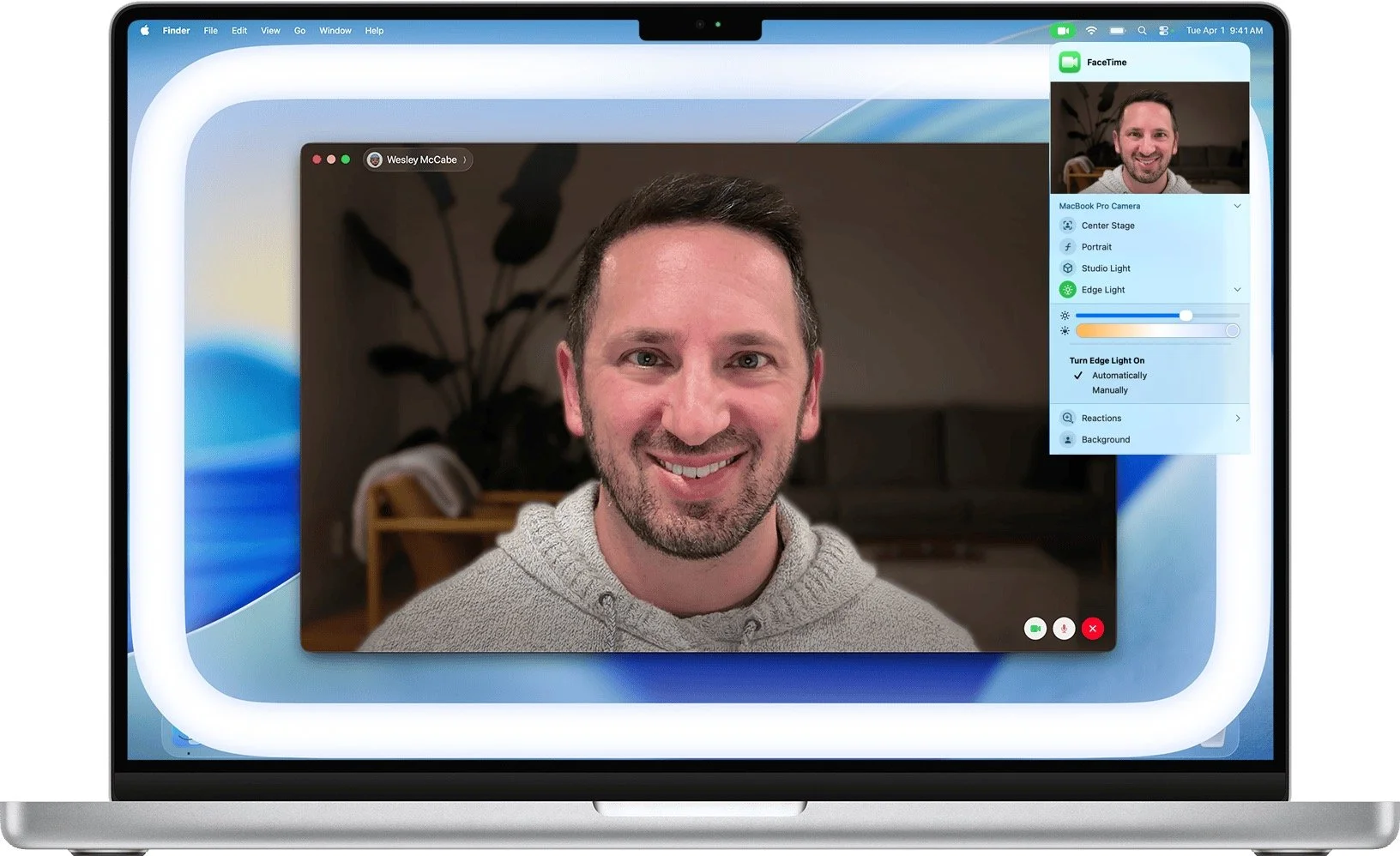
We can’t always guarantee optimal lighting for video calls, especially when using laptops on the go. A new feature in macOS 26.2 Tahoe called Edge Light might help. It’s a video effect that uses the outermost pixels of your Mac’s display to create a bright white rectangle that illuminates your face during video calls. It acts like an on-screen ring light in low-light conditions. You can activate it from the green video camera icon in the menu bar (shown when the camera is active), and on Macs from 2024 and later, you can set it to turn on automatically in low-light environments. Click the disclosure triangle next to Edge Light to adjust the light’s width and color temperature. Mouse awareness allows the light to recede automatically when you move your pointer toward it. While Edge Light won’t replace external lights, it can help make your face visible in otherwise dark rooms.
(Featured image by iStock.com/Dima Berlin)
Control Song Transitions in Apple Music
Apple’s new DJ‑style AutoMix transitions between songs in the Music app aren’t to everyone’s taste (and sometimes flub the jump). Here’s how to switch back to a timed Crossfade or disable transitions in Music on your iPhone, iPad, and Mac.

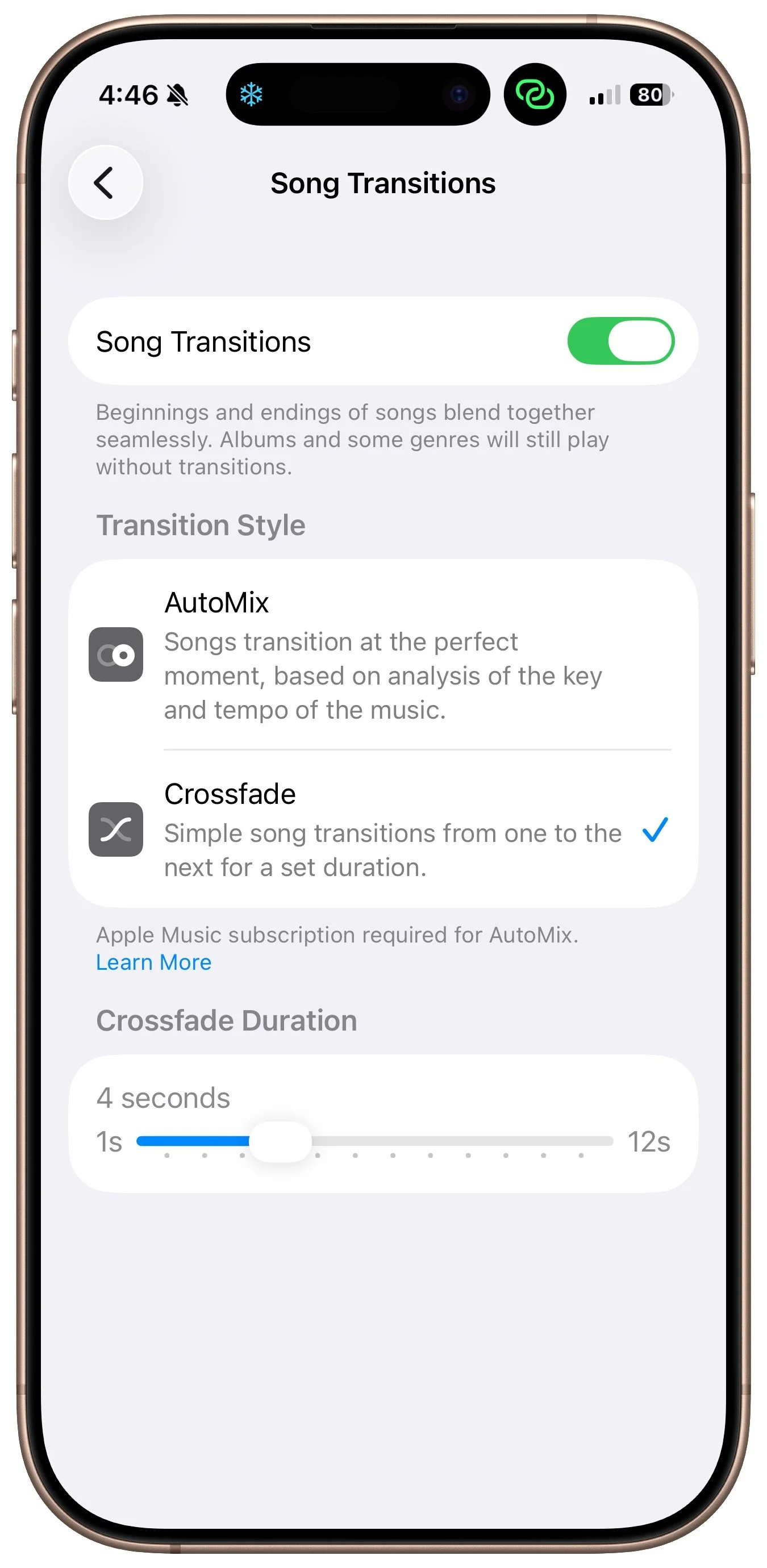
A new feature for Apple Music subscribers in the Music app in iOS 26, iPadOS 26, and macOS 26 is AutoMix, which Apple says causes songs to “transition at the perfect moment, based on analysis of the key and tempo of the music.” It fades between songs as a DJ would, but it’s not always successful. If AutoMix’s transitions aren’t to your taste, navigate to Settings > Apps > Music > Song Transitions in iOS and iPadOS, or Music > Settings > Playback > Song Transitions in macOS, and switch back to the longstanding Crossfade option, which transitions between songs over a user‑specified number of seconds. Or, just turn off the Song Transitions switch and let one song end completely before the next one starts.
(Featured image by iStock.com/lakshmiprasad S)
Clean Up Your Mac’s Login Items for Better Performance
Speed up your Mac’s startup, reduce conflicts, and improve security by cleaning out old login items. It takes just a minute in System Settings.
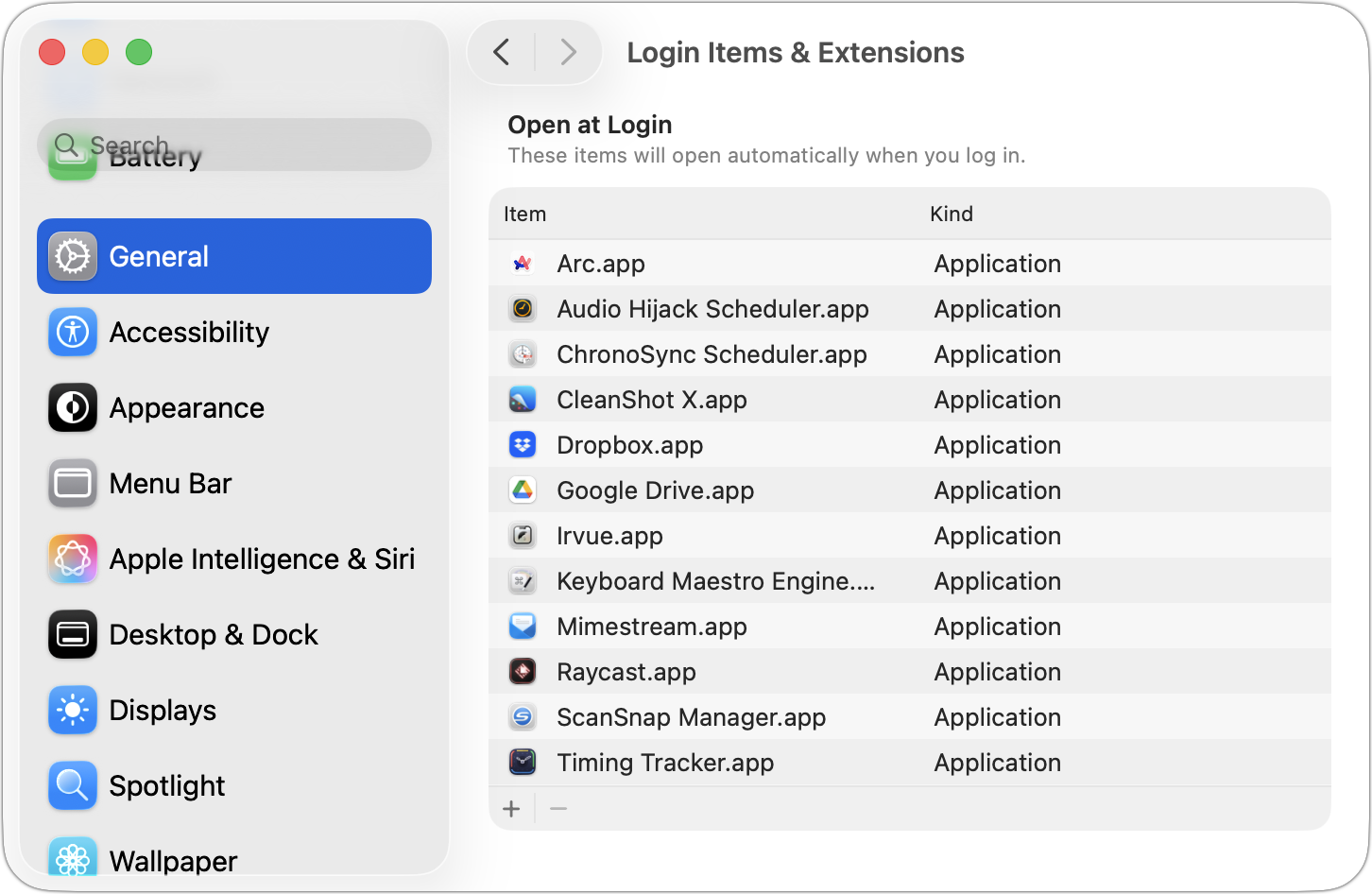
If you use certain apps or documents regularly, you can ensure they’re ready to go after a restart by manually adding them to your Login Items list. Some login items are also added automatically by apps that want to be available at all times. Either way, when the Mac boots, it automatically opens all login items. But it’s easy to end up with login items for apps you no longer use, which can slow down startup and overall performance, increase the risk of conflicts, and even expose you to attacks. We encourage you to review your Mac’s login items periodically and remove any items you’re not using. Just navigate to System Settings > General > Login Items & Extensions, select the unwanted items, and click the minus button. If you make a mistake, drag the app back in from the Finder.
(Featured image by iStock.com/artisteer)
Be Alert for Deepfake Phishing Scams
Phishing has a new face—literally. Scammers can now use AI tools to fake voices and videos that look real. Before you act on an “urgent” request, look for audio or visual clues and verify through another channel.

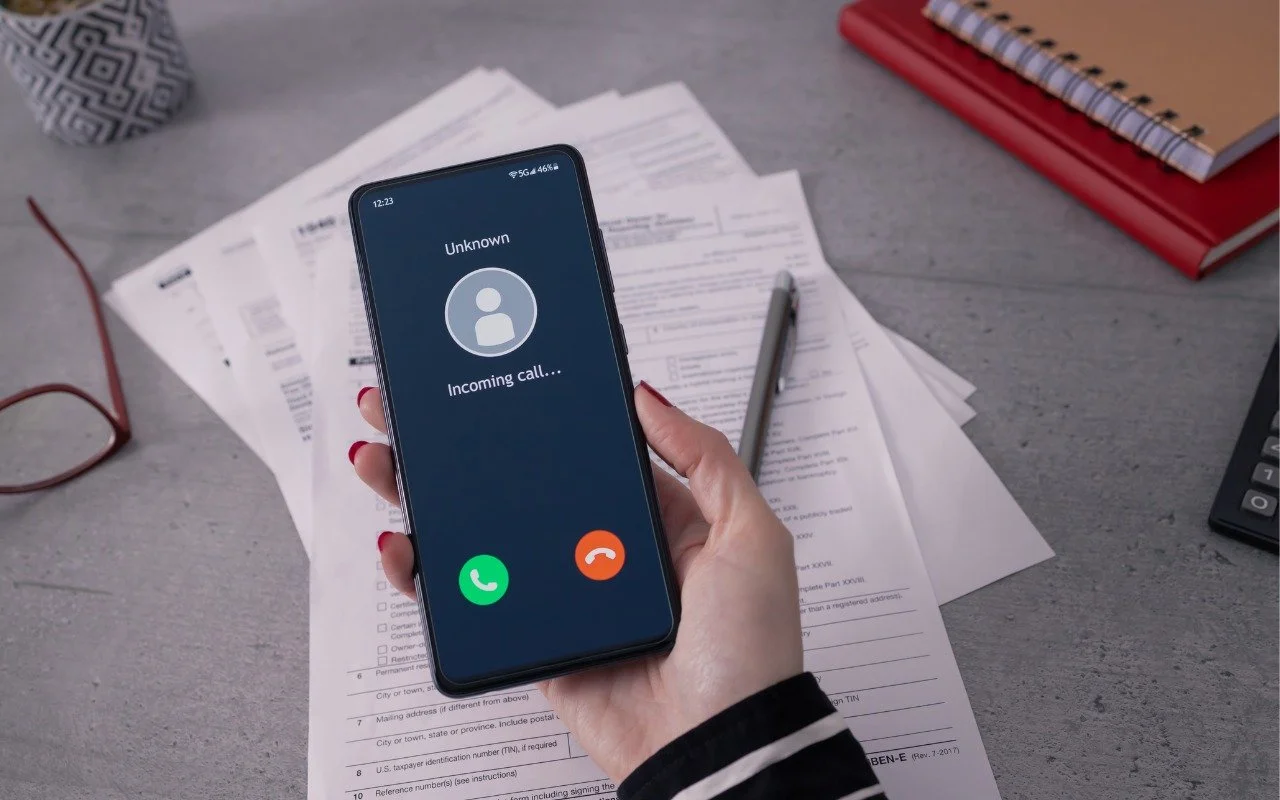
Phishing scams have entered a new, AI-powered phase and can now convincingly mimic real people. Attackers can generate fake voice or video deepfakes to impersonate CEOs authorizing urgent payments, IT staff requesting access, or family members needing help. If you receive a voice or video call from someone you know at an unknown number who urges you to reveal confidential information or send money immediately, slow down, check for telltale signs, and verify before acting. Listen for unnatural pauses, overly smooth phrasing, or odd emotional timing. Visually, look for inconsistent lighting or shadows, artifacts around the hairline, ears, or teeth—or anything that seems “off,” especially around the mouth and eyes when the person moves. For verification, ask for a detail that only they would know. If you’re at all unsure whether the call is legitimate, hang up and contact them—or someone else who will know more—through a separate, trusted channel. A few seconds of skepticism can prevent a costly mistake.
(Featured image by iStock.com/Tero Vesalainen; article image by iStock.com/Boris023)
How to Customize the iPhone and iPad Home Screen with Liquid Glass
Apple’s new Liquid Glass design lets you make iPhone and iPad icons and widgets dark, clear, or tinted. Discover how to access these customization options and see if they enhance your Home Screen.
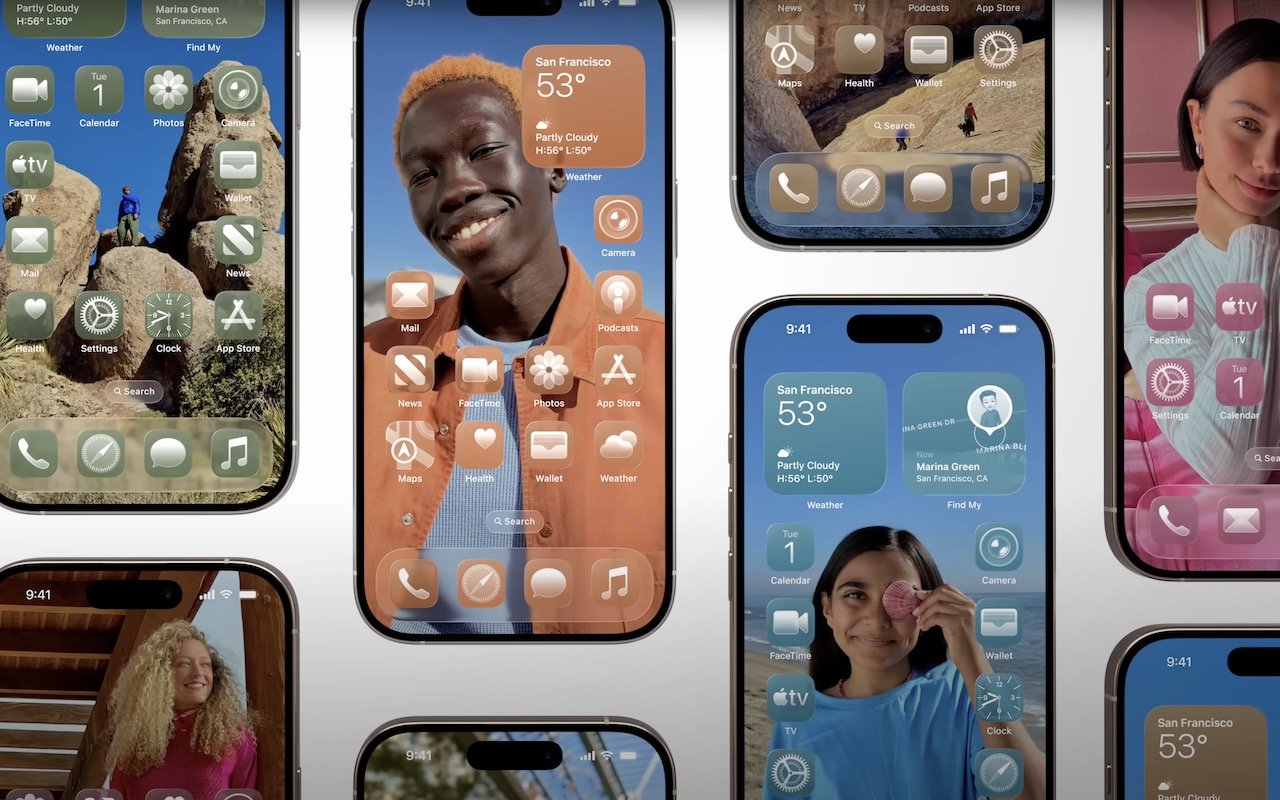
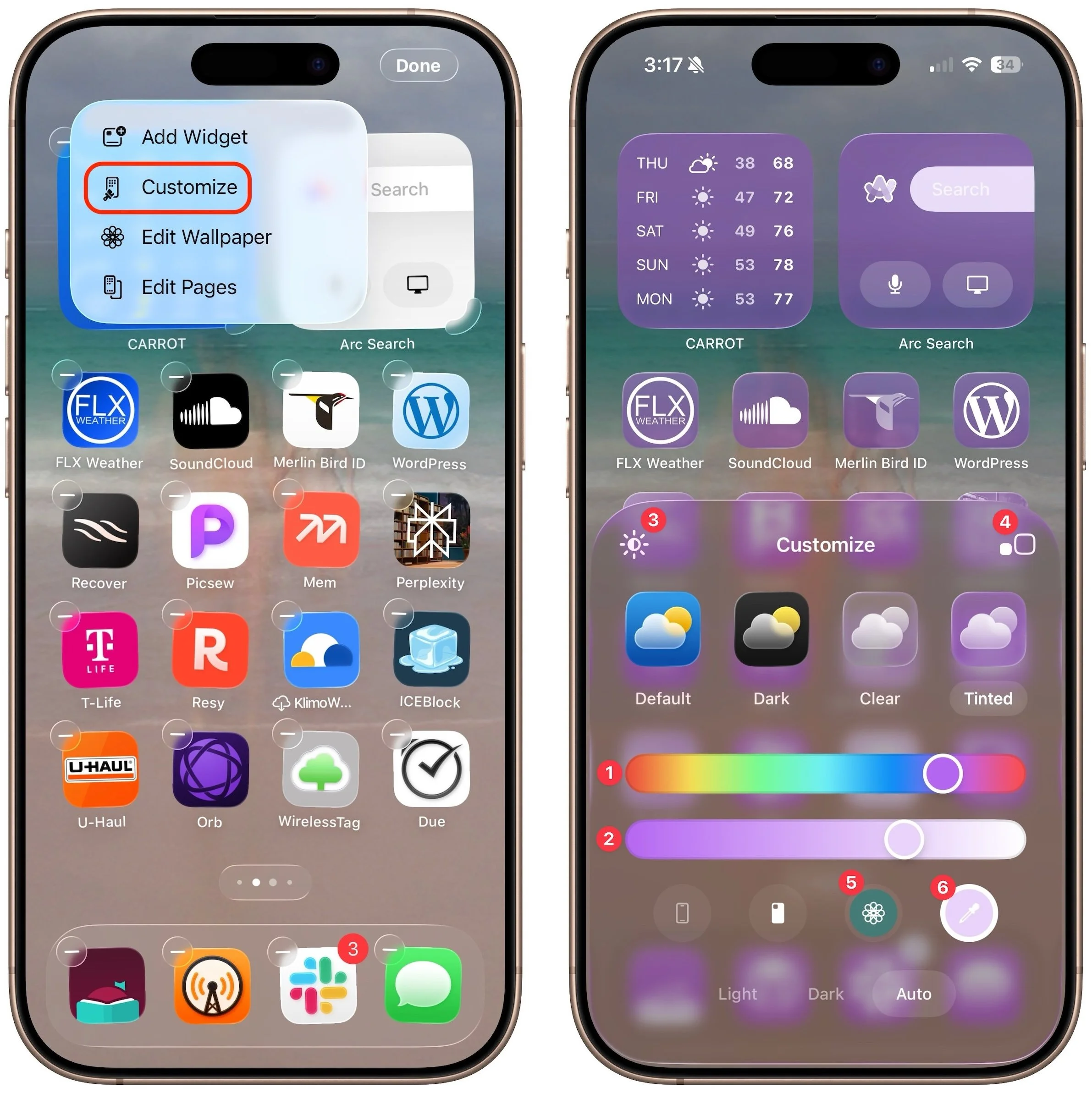
When describing its new Liquid Glass design language, Apple spoke only generally about how users could change the look of icons and widgets on their iPhone and iPad home screens to be dark, clear, or tinted, without specifying how to do that. The trick is to touch and hold an empty spot on the Home screen to enter jiggle mode, tap Edit in the upper-left corner, and select Customize to bring up a set of controls: choose from Default, Dark, Clear, and Tinted. For Tinted, set the color ➊ and opacity ➋ using the sliders, and use the buttons at the top of the Customize panel to change the brightness ➌, expand icons and remove names ➍, and use either the suggested image color ➎ or pick a color with the eye dropper ➏. The effectiveness of a Liquid Glass-enabled Home Screen will depend on how much you rely on color to identify icons at a glance.
(Featured image by Apple)