
macOS 26 Tahoe Introduces New Recovery Assistant
macOS 26 Tahoe brings a new Recovery Assistant, which automatically detects and attempts to resolve Mac problems. Just remember: automated recovery can be helpful, but backups are still essential.
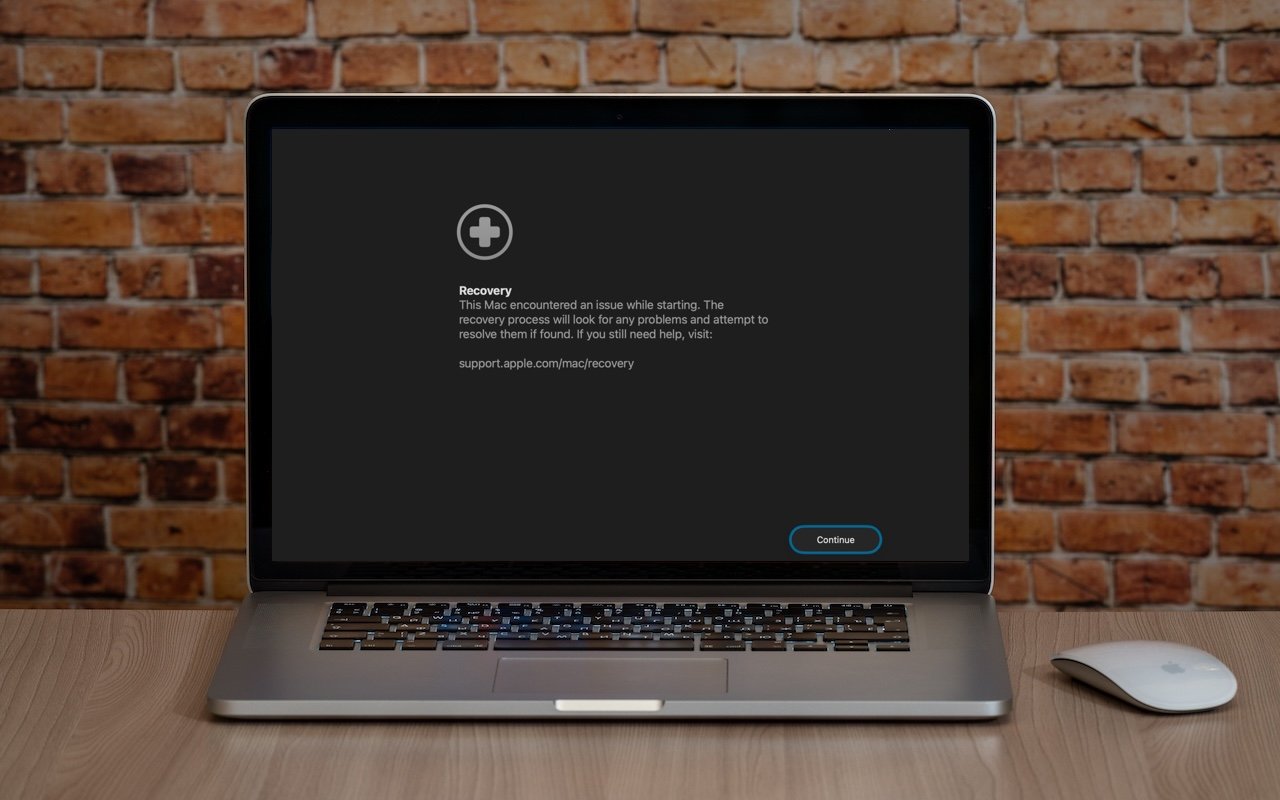
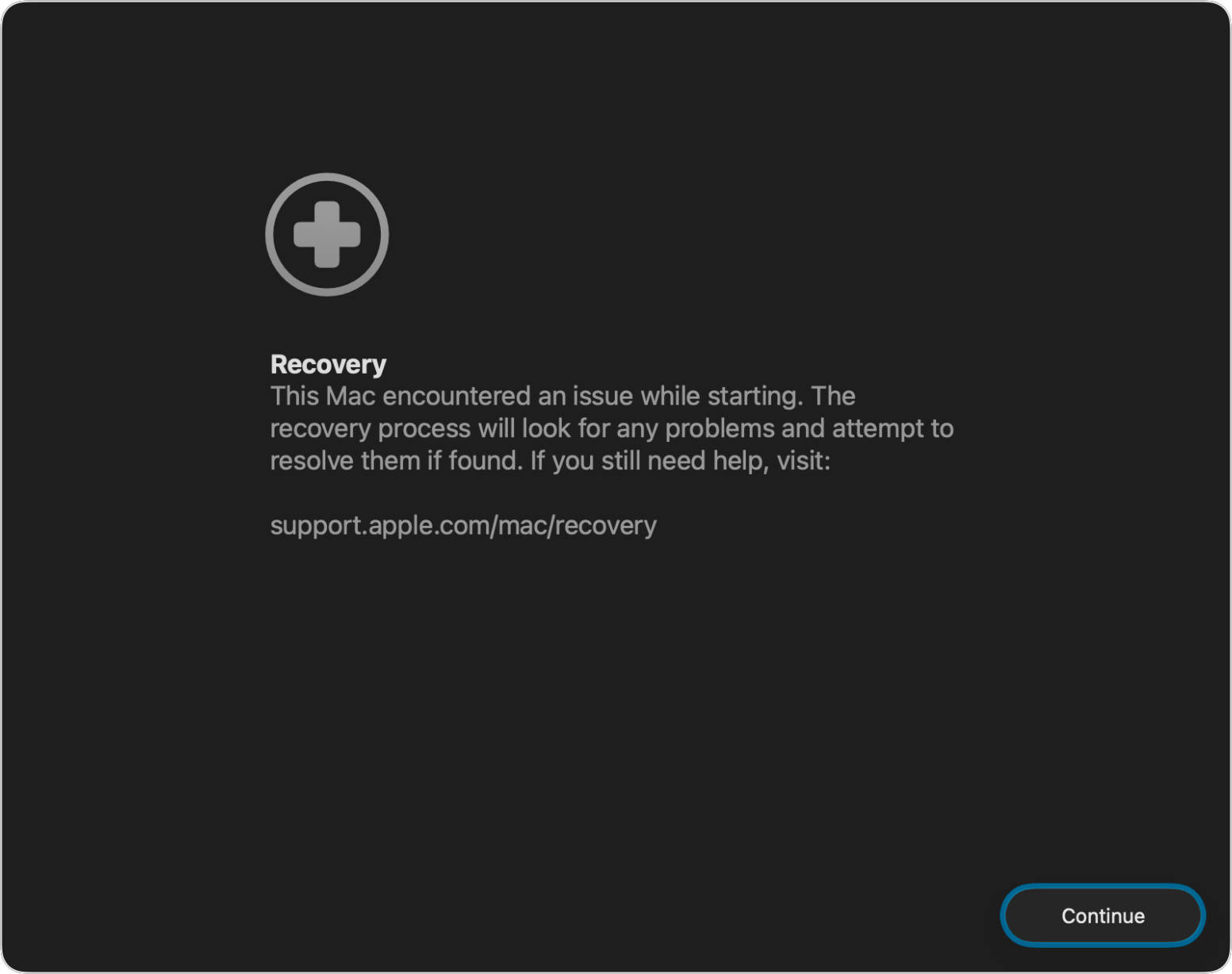
If a Mac running macOS 26 Tahoe experiences certain kinds of problems, it might automatically restart and launch a new Recovery Assistant. It will prompt you to unlock your disk if needed and to connect to a Wi-Fi network—an Internet connection is required. Apple doesn’t specify precisely what Recovery Assistant will do to recover your device, but it will either indicate that it succeeded, that it was unable to recover the device, or that it found no problems. In any case, you’ll need to restart your Mac, after which you may receive a notification to recover your iCloud data; initiate this process in System Settings. While we generally favor Macs being able to fix their own problems, we cannot stress enough how much more important it is to have a current backup than to rely solely on any recovery system.
(Featured image based on an original by iStock.com/Armastas)
Updated Passwords App Adds History
Apple’s Passwords app can now show your password history in macOS 26 Tahoe, iOS 26, and iPadOS 26, helping you track down why that “correct” password isn’t working.

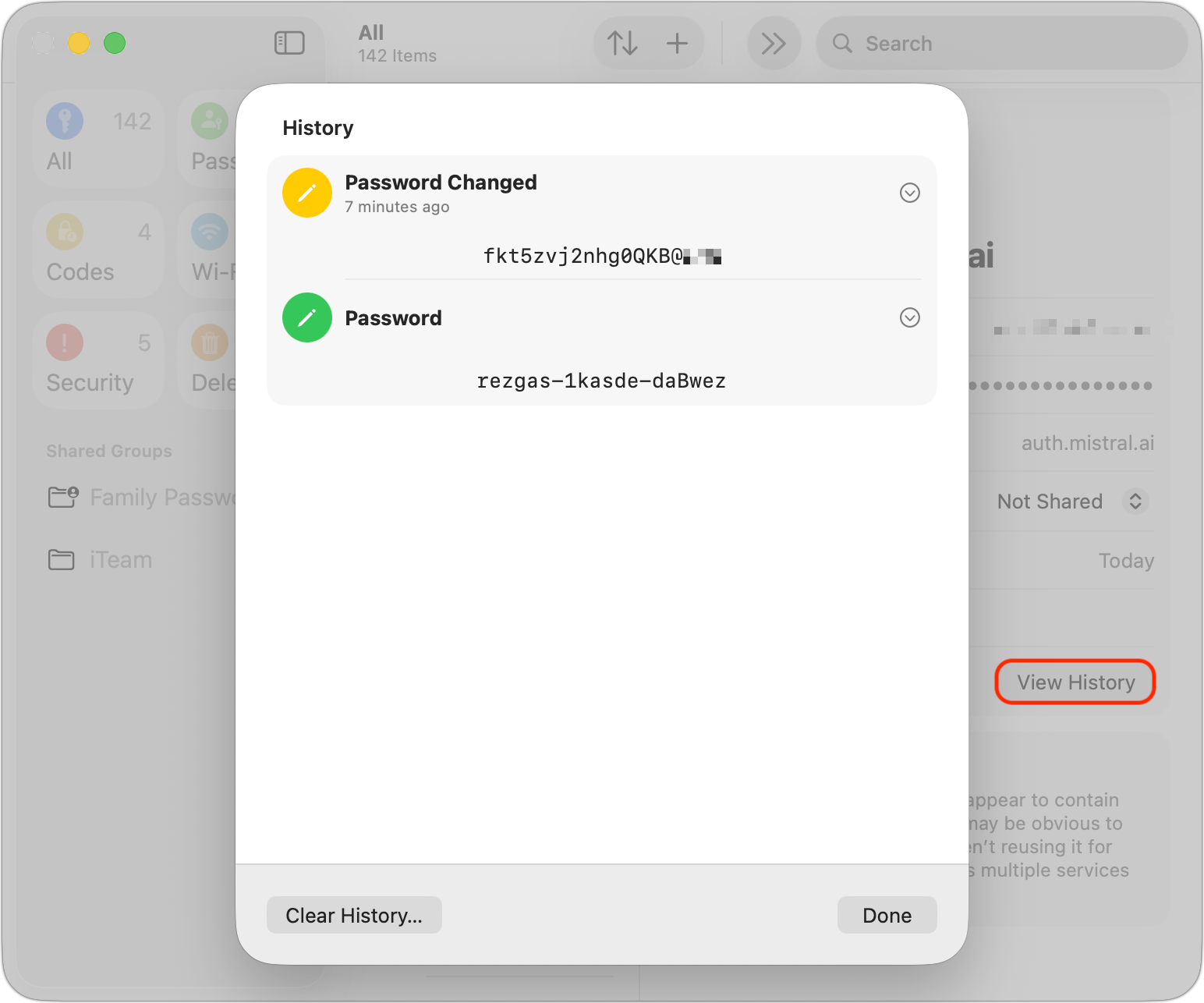
One small way Apple’s Passwords app lagged behind top password managers like 1Password was in its lack of a password history. It’s sometimes helpful—such as when trying to figure out why a seemingly correct password isn’t being accepted—to see previous passwords for a site and when they were changed. In macOS 26 Tahoe, iOS 26, and iPadOS 26, the Passwords app adds that feature. Click or tap View History to review the history of a particular site’s passwords.
(Featured image by iStock.com/designer491)
App Store Gains Accessibility Nutrition Labels
New App Store Accessibility Nutrition Labels show which apps support Apple’s accessibility features—a win for anyone who needs these capabilities now or in the future.
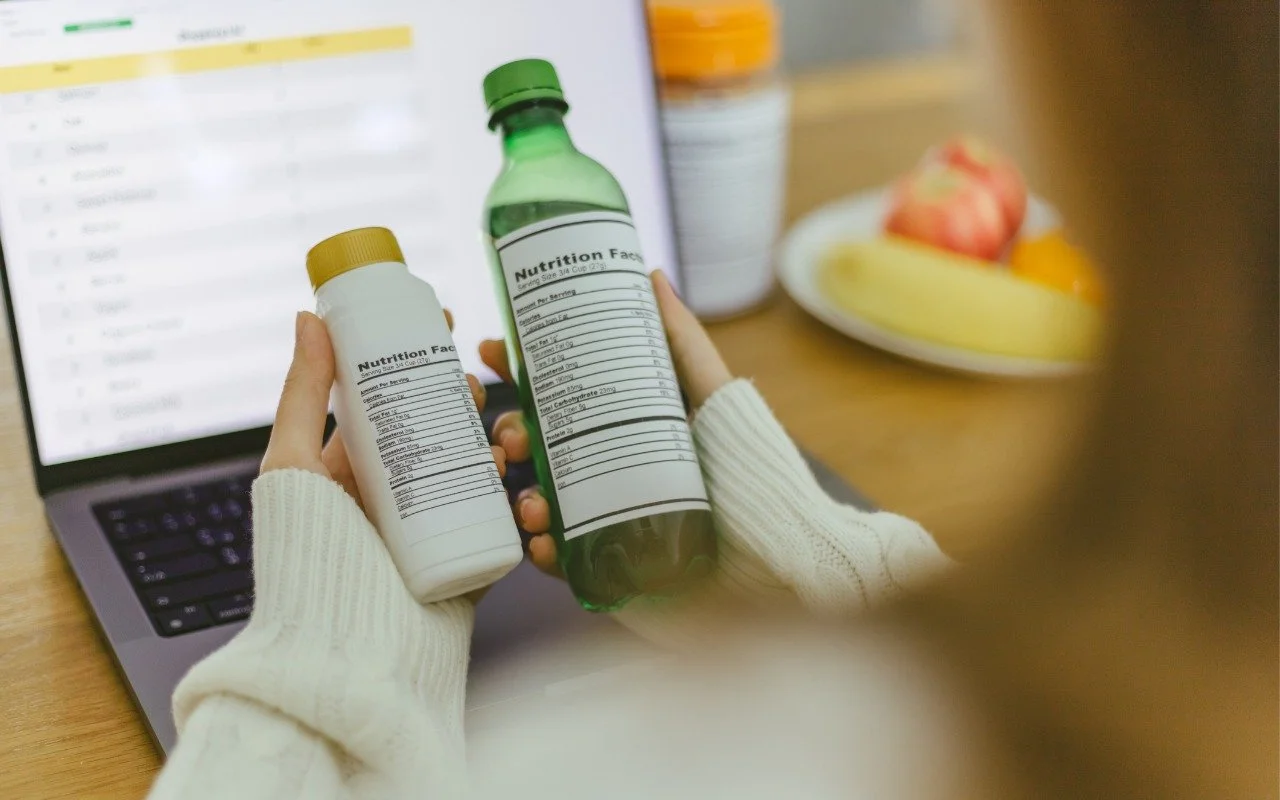
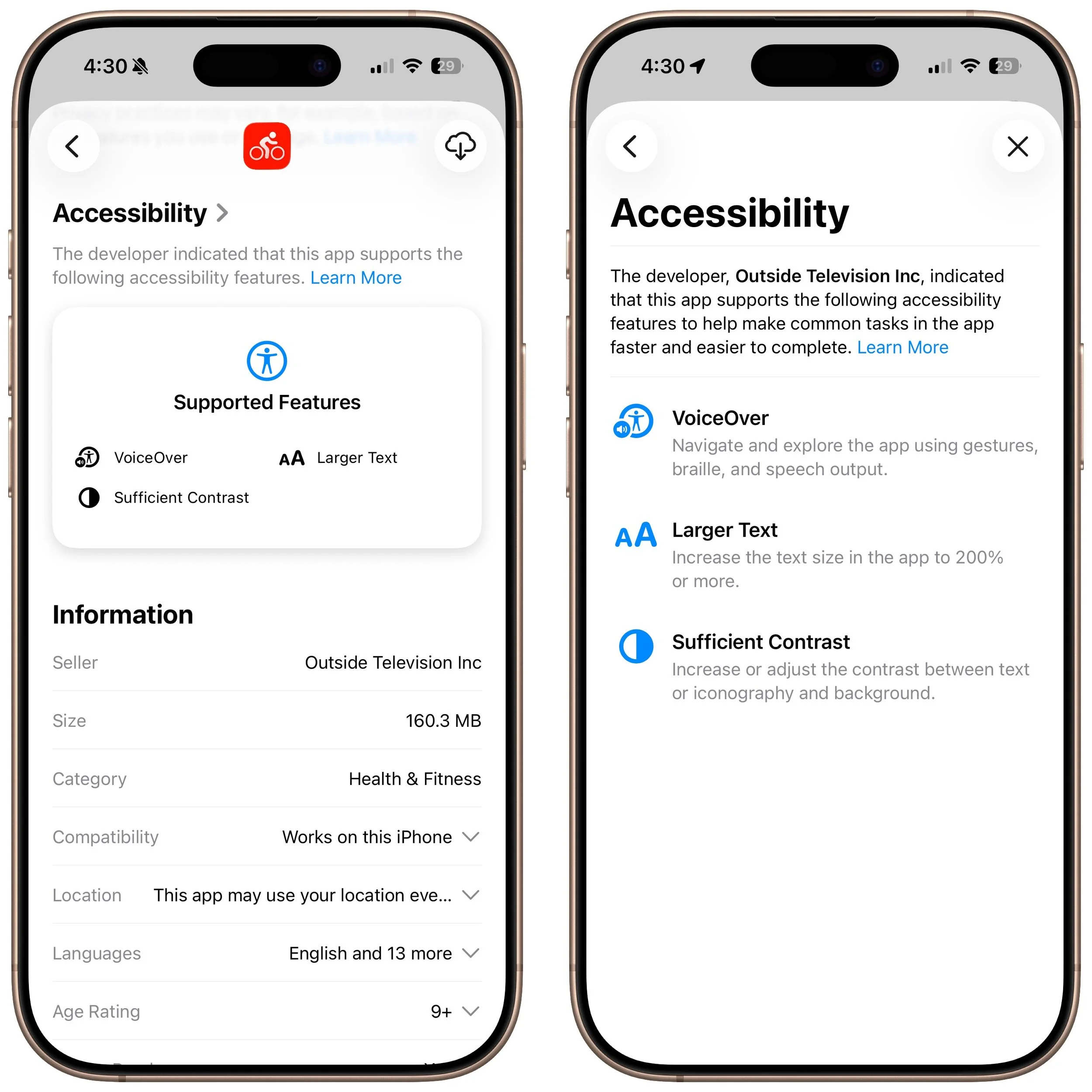
Apple does a good job providing accessibility options for users who experience issues with vision, hearing, motor control, and other accessibility needs. Nearly everyone will benefit from these features at some point in their lives. To encourage support for Apple’s accessibility features and assist users in finding compatible apps, the App Store now includes Accessibility Nutrition Labels that indicate supported features. Developers aren’t required to support or list these features, so it may take some time before many apps display this information. Still, it’s a welcome step forward!
(Featured image by iStock.com/findfootagehq)
How to Display Contacts with Last Names First
Want to display your contacts with the last name shown first? Here’s how to configure your iPhone, iPad, and Mac to display “Anderson, Andy” instead of “Andy Anderson.”
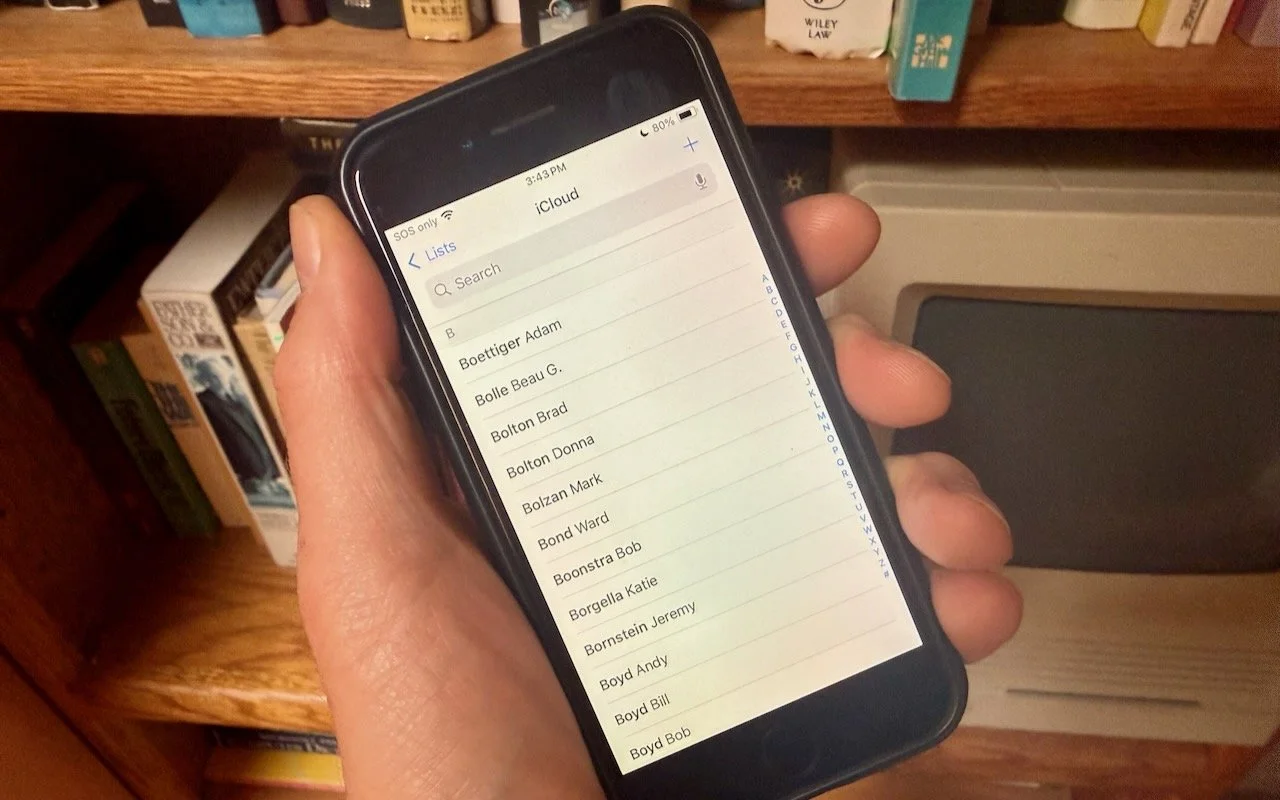
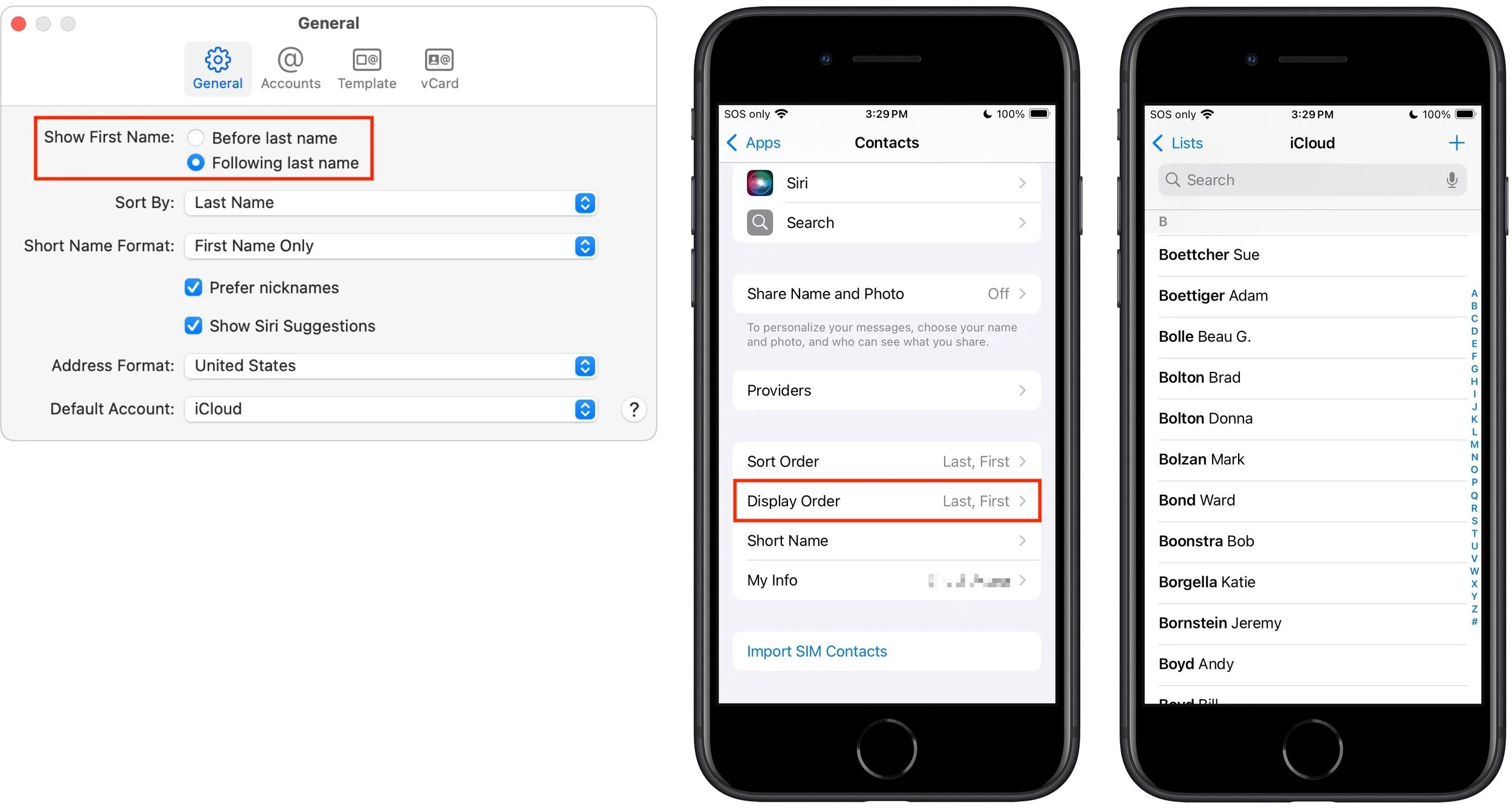
Most people prefer Apple’s default of sorting contacts by last name, so “Andy Anderson” appears near the start of the list and “Liliana Velasco” toward the end. But some would also prefer to display contacts with their last name first, such as “Anderson, Andy,” and “Velasco, Liliana.” That’s not the default, but if it’s what you want, here’s how to accomplish it. On the iPhone and iPad, go to Settings > Apps > Contacts > Display Order and select Last, First. On the Mac, open Contacts > Settings > General and from the Show First Name controls, select Following Last Name.
(Featured image by Adam Engst)
Blood Oxygen Monitoring Returns to Recent US Apple Watches with Software Updates
Apple restored blood oxygen monitoring on recent US Apple Watch models through a creative workaround that processes and displays data on the iPhone instead of the watch. Here’s how to get it working again.
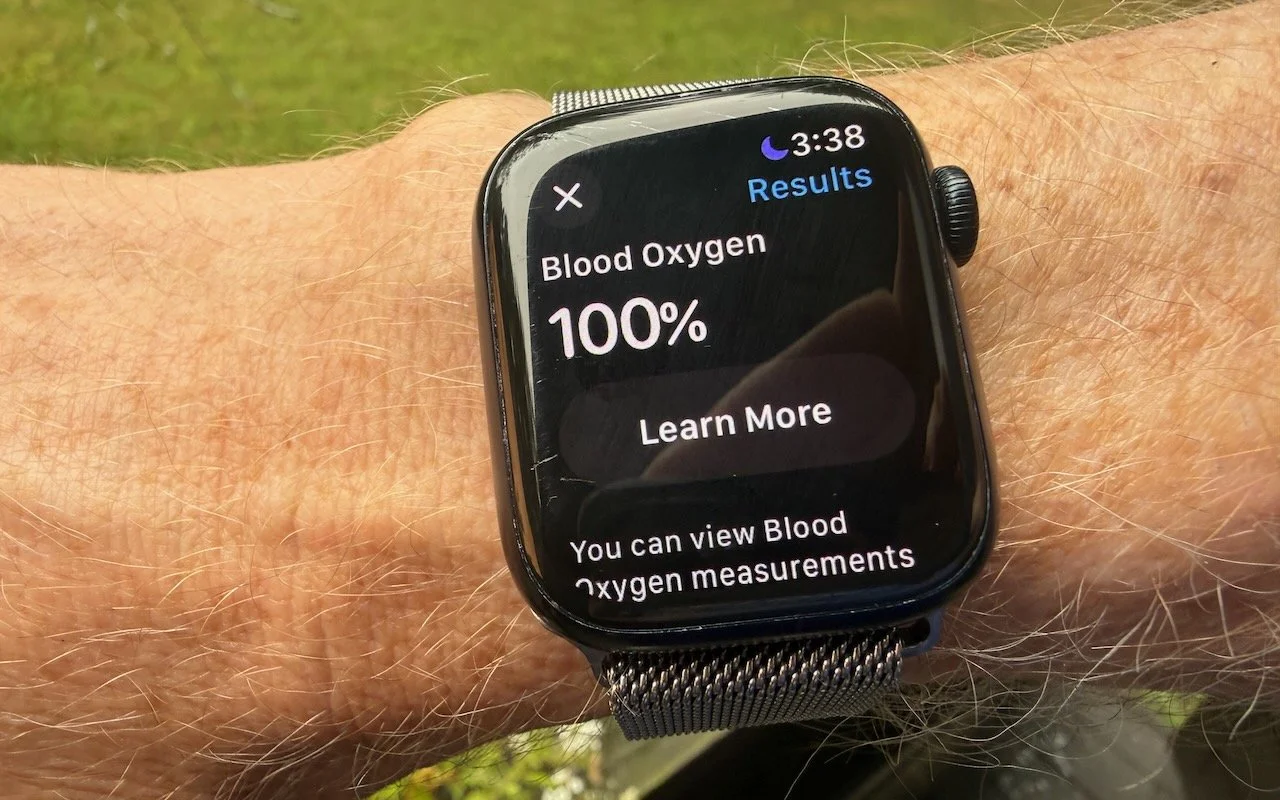
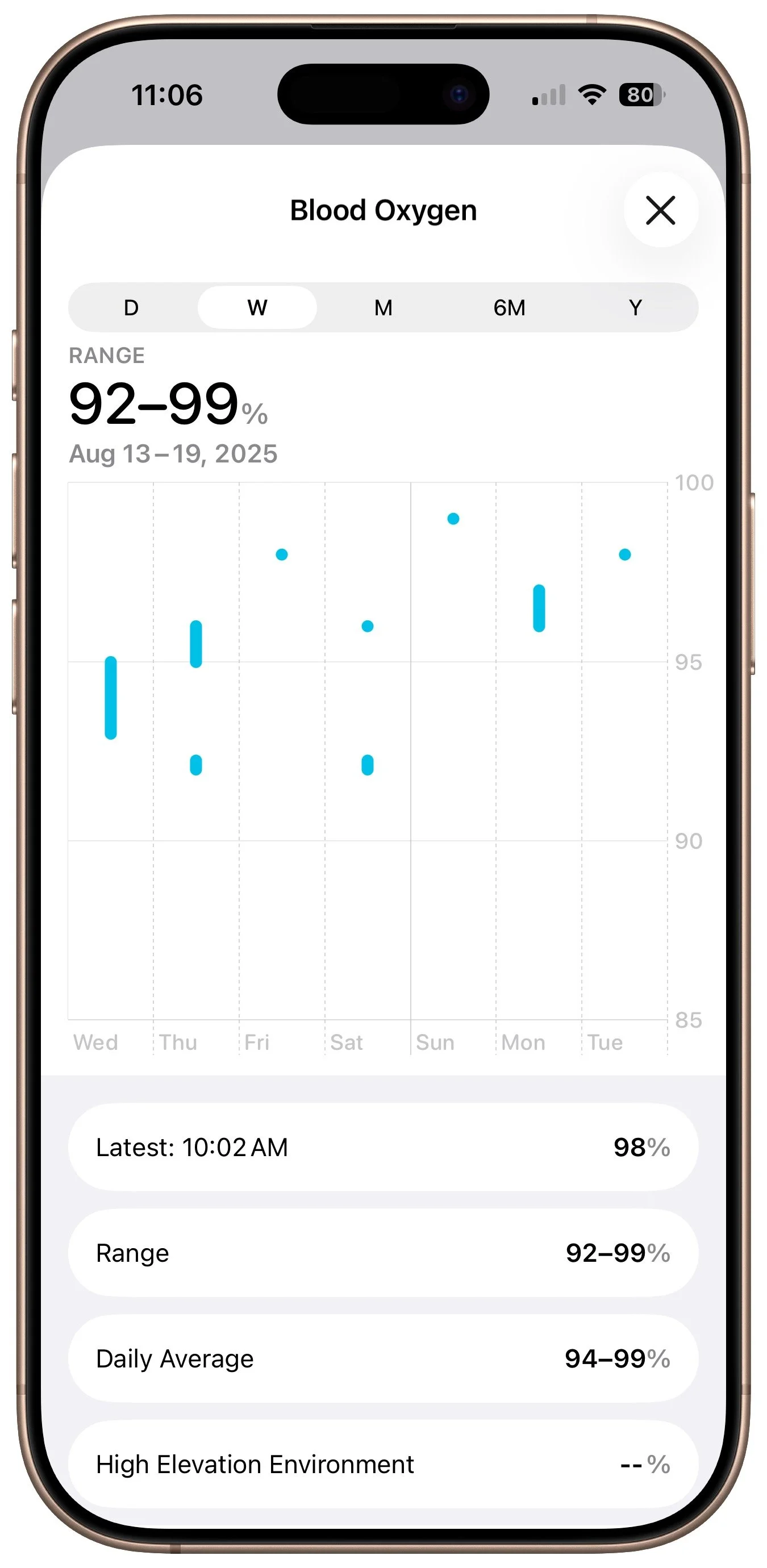
With the release of iOS 18.6.1 and watchOS 11.6.1, Apple restored blood oxygen monitoring capabilities to US Apple Watch Series 9, Series 10, and Ultra 2 models that previously had this feature disabled due to a patent infringement suit by medical device maker Masimo. Apple’s redesign processes blood oxygen data on the paired iPhone rather than on the watch itself. After updating both devices, you can view your blood oxygen readings in the Health app under Browse > Respiratory > Blood Oxygen. If blood oxygen monitoring doesn’t activate immediately after updating, try opening the ECG app on your watch to trigger the necessary software asset download. Apple Watch units that predate the ban and those sold in other countries continue to work as they always have, with the Blood Oxygen app on the watch itself.
(Featured image by Adam Engst)
Press Control-Return in Sequoia to Open Contextual Menus
macOS 15 Sequoia has a new way you can keep your hands on the key-board. Press Control-Return to open contextual menus—no mouse required. Try it out and speed up your workflow on your Mac.

Those who prefer keeping their hands on the keyboard may appreciate Apple’s addition of a new shortcut in macOS 15 Sequoia. Instead of Control-clicking to open a contextual menu with commands to apply to the current selection, you can press Control-Return. Since it’s so new, it doesn’t work in some older apps or those that sidestep standard Apple frameworks, but it’s worth adding to your keyboard repertoire.

(Featured image by iStock.com/Milatas)
Recovering from a Failed Update with a Nearby iPhone or iPad
If your iPhone 16 or A17 Pro iPad mini gets stuck during an update, Apple’s new recovery feature lets you use a nearby iPhone or iPad to get back up and running.
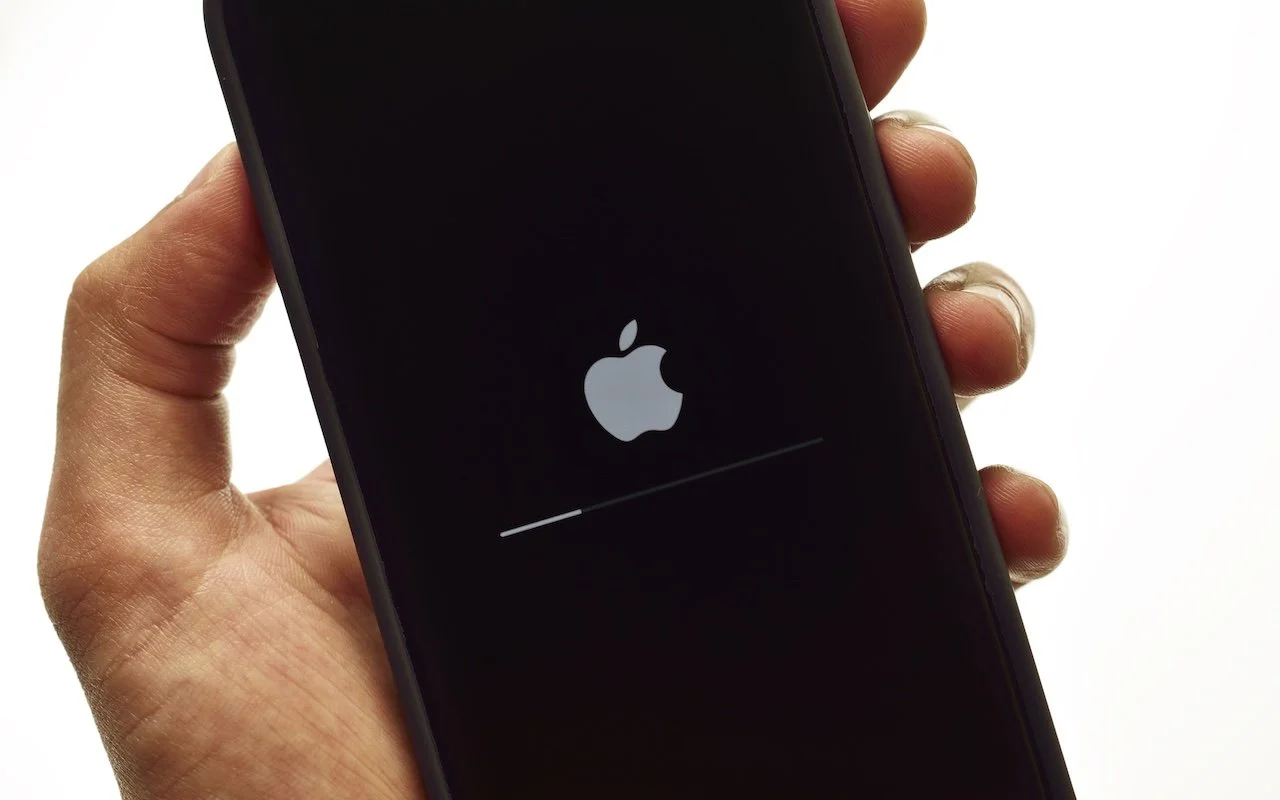
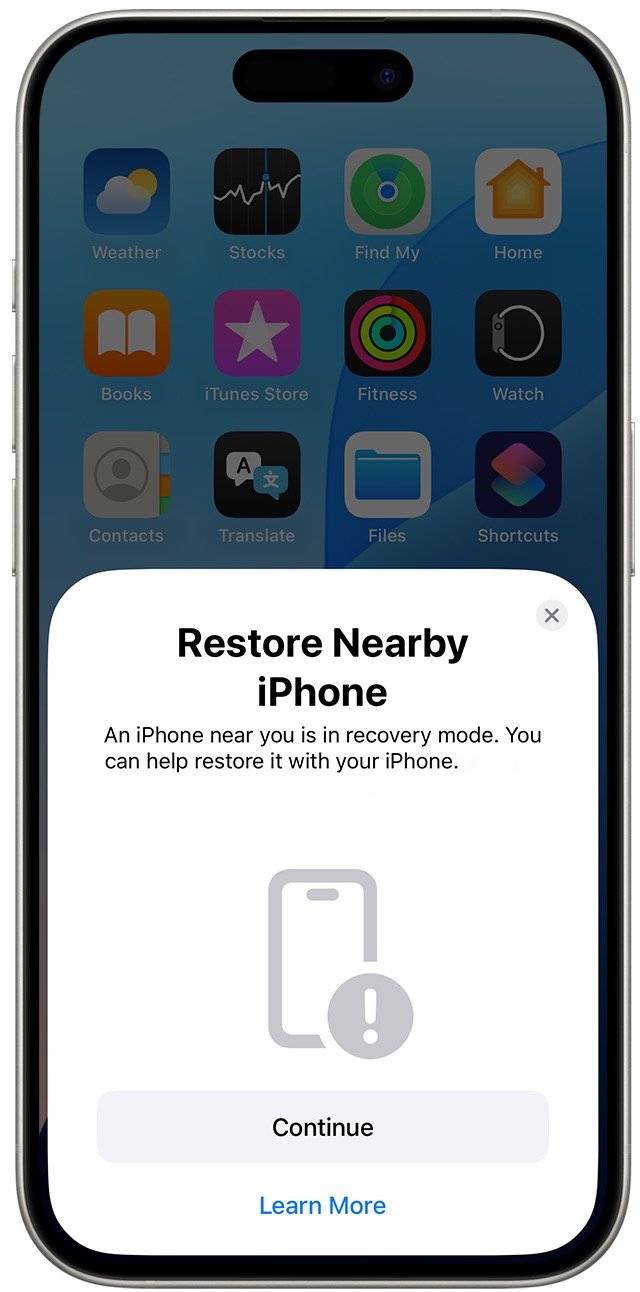
We hope you never need a new recovery option that Apple has added to the iPhone 16 and current iPad mini (with an A17 Pro chip). If a device gets stuck during an iOS or iPadOS update, you may see an animation of devices being moved close together, indicating that it’s in recovery mode. Apple’s new solution to a failed update involves attaching the device in recovery mode to power and placing it next to another unlocked device that’s connected to Wi-Fi and running iOS 18 or iPadOS 18. The working device will display a Restore Nearby iPhone/iPad message. Once you tap Continue and wait for the devices to connect, you’ll be asked to enter a six-digit code from the recovery device on the other device to share its Wi-Fi connection. Tap OK when you see the “Restoring iPhone/iPad” message. It’s best to have both devices connected to power while this is happening. If this new way to recover from a failed update doesn’t work, or if a different iPhone or iPad model has had trouble during an update, you can use a computer to restore the device.
(Featured image by iStock.com/stockforliving)
Dropbox Passwords Ending: Switch to 1Password Now
Dropbox Passwords will shut down on October 28, 2025. Switch to 1Password or another password manager now to avoid losing your stored credentials.

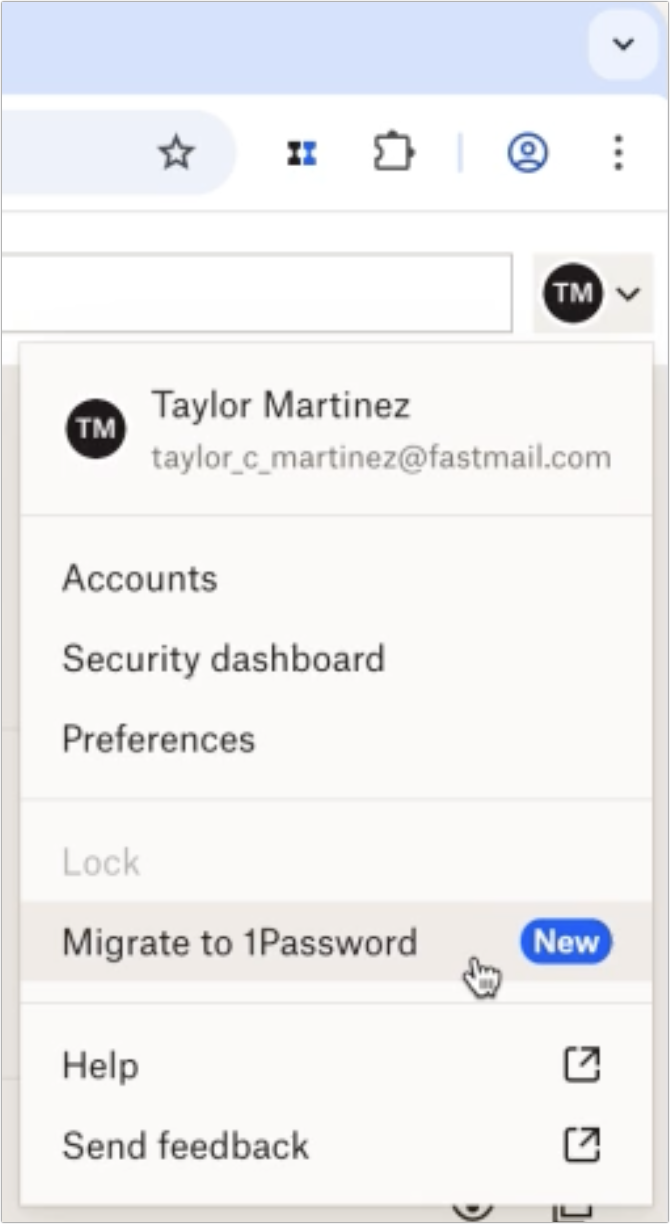
If you use Dropbox Passwords, it’s time to switch to a new password manager. Dropbox has announced it will discontinue the service on October 28, 2025, with key features being disabled in phases starting August 28. After the final shutdown date, all stored passwords will be permanently deleted. Dropbox recommends users switch to 1Password and has made that super easy. Simply click the Dropbox Password extension in your browser and choose Migrate to 1Password. Create a new 1Password account or sign in to an existing one, and then follow the remaining instructions to import your passwords. If you want to use a different password manager, you can probably import a CSV file exported from Dropbox Passwords, possibly after some adjustments to the CSV file’s column headers and order to match your chosen password manager’s expected format. No matter which option you choose, don’t delay!
(Featured image based on an original by Dropbox)