
Choose Default Apps for File Types in iOS 26 and iPadOS 26
iOS 26 and iPadOS 26 finally let you choose which app opens your files—just like on the Mac. Here’s how to use Open With and set new defaults in the Files app.
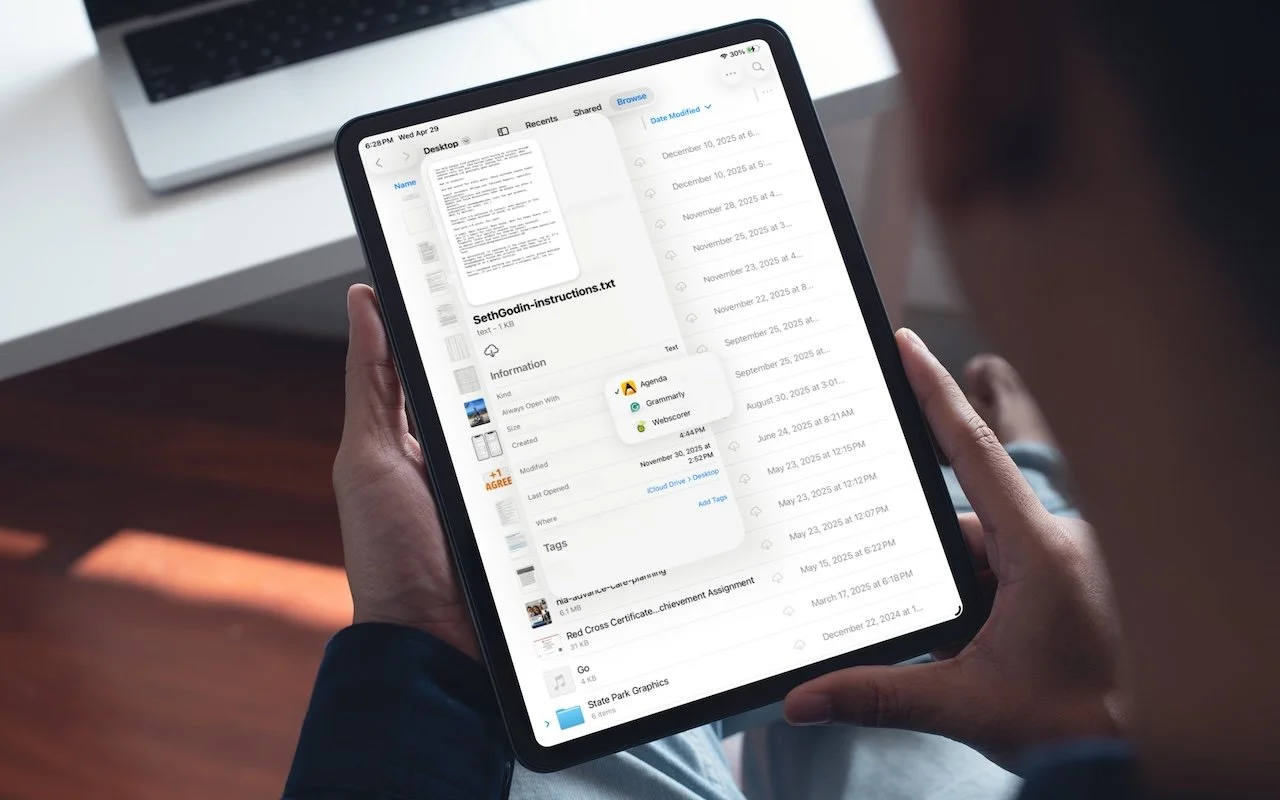
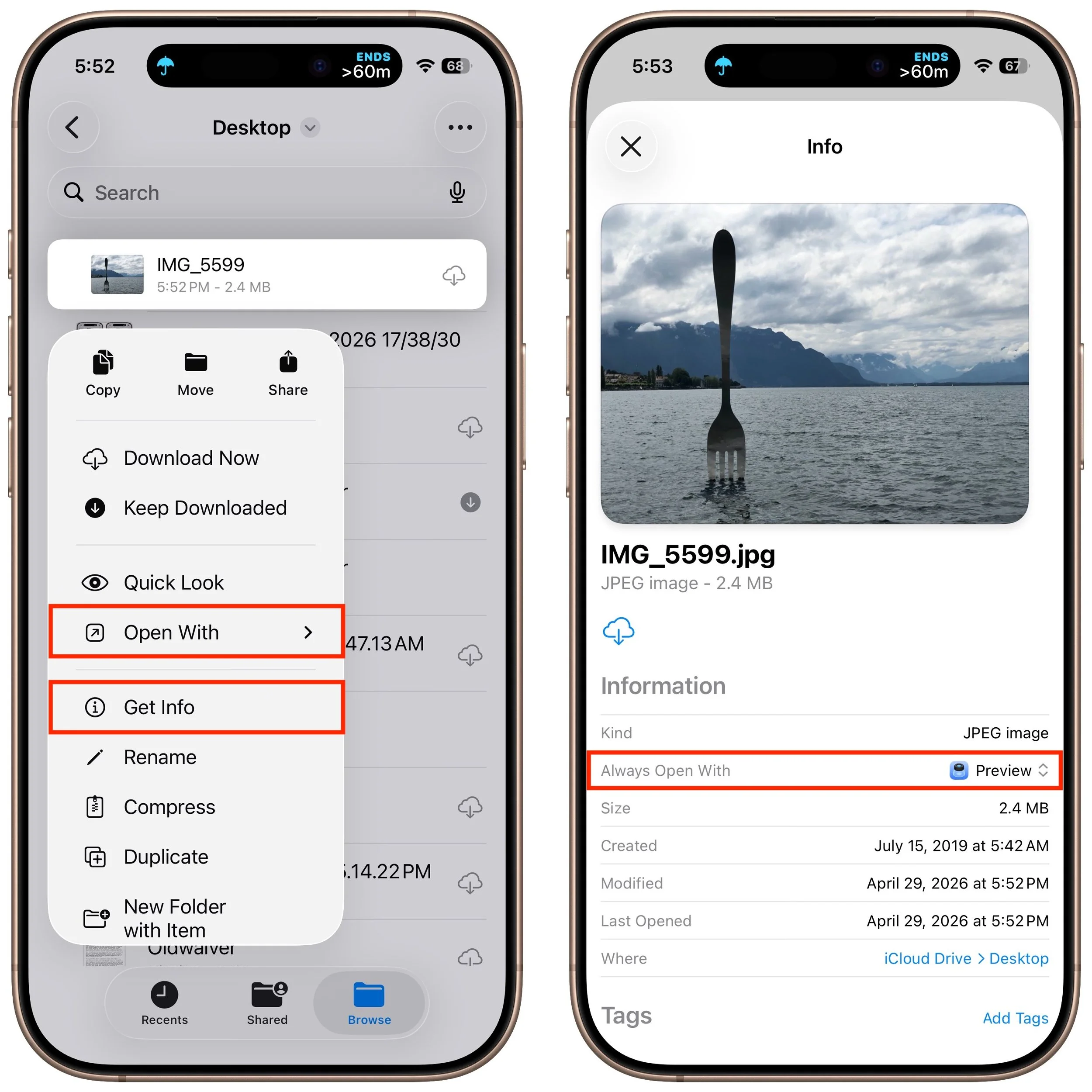
On the Mac, every file type opens in a particular app by default, but it's easy to open a PDF, image, or text file in a different app. In the Finder’s Get Info window, you can also reset the default app so that, for example, JPEGs open in Photoshop or Affinity instead of Preview. That’s all now possible in iOS 26 and iPadOS 26 as well. In the Files app on an iPhone or iPad, touch and hold a file to bring up a menu. Tap Open With, then select an app to open the file once in a different app without changing the default. To reset the default app for that file type, tap Get Info, then select an app from the Always Open With list.
(Featured image based on an original by iStock.com/Tippapatt)
Today’s Fire Prevention Tip: Avoid Cheap Lithium-Ion Batteries
A study found that nearly 8% of cheap lithium-ion batteries have dangerous manufacturing defects that can cause catastrophic failure—even fires—while name-brand cells had none. Stick with reputable brands.

We always recommend buying from reputable manufacturers rather than no-name brands, especially for products with lithium-ion batteries, such as power banks, Bluetooth speakers, flashlights, power tools, e-bikes, and more. In a 2025 study, industrial scanning company Lumafield CT-scanned over 1,000 lithium-ion battery cells from ten different brands, including reputable manufacturers like Samsung and Panasonic, as well as low-cost and outright counterfeit brands sold through retailers like Temu. The results were troubling: nearly 8% of the low-cost and counterfeit batteries had dangerous manufacturing defects that significantly increase the risk of internal short-circuiting and battery overheating, potentially leading to fires. None of the name-brand batteries showed these defects. The few dollars you might save on a no-name battery aren’t worth the risk.

(Featured image by iStock.com/Pradit_Ph)
Intel-Based Apps Will Stop Working in macOS 28
Running macOS 26.4? You may start seeing warnings about Intel-based apps not opening. They won’t stop working until macOS 28, but now’s the time to find replacements. Here’s how to identify which apps need attention.
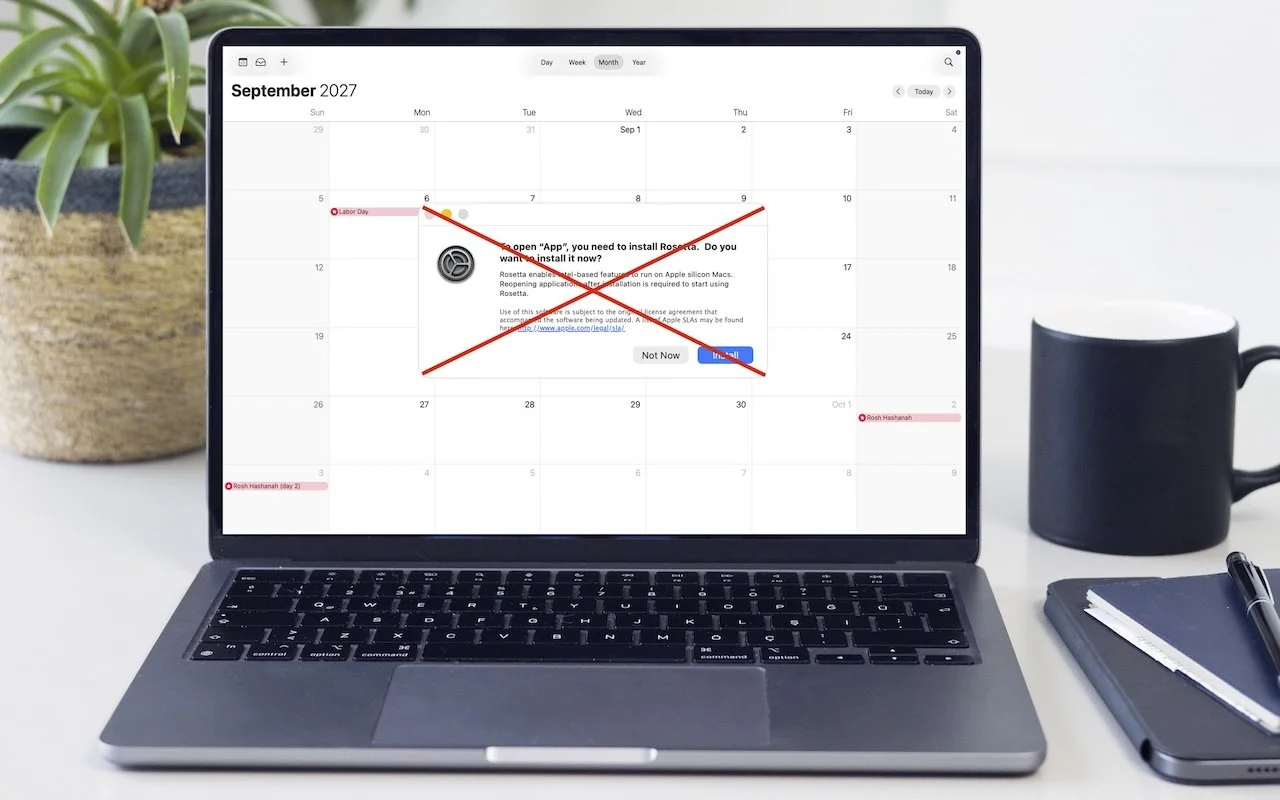
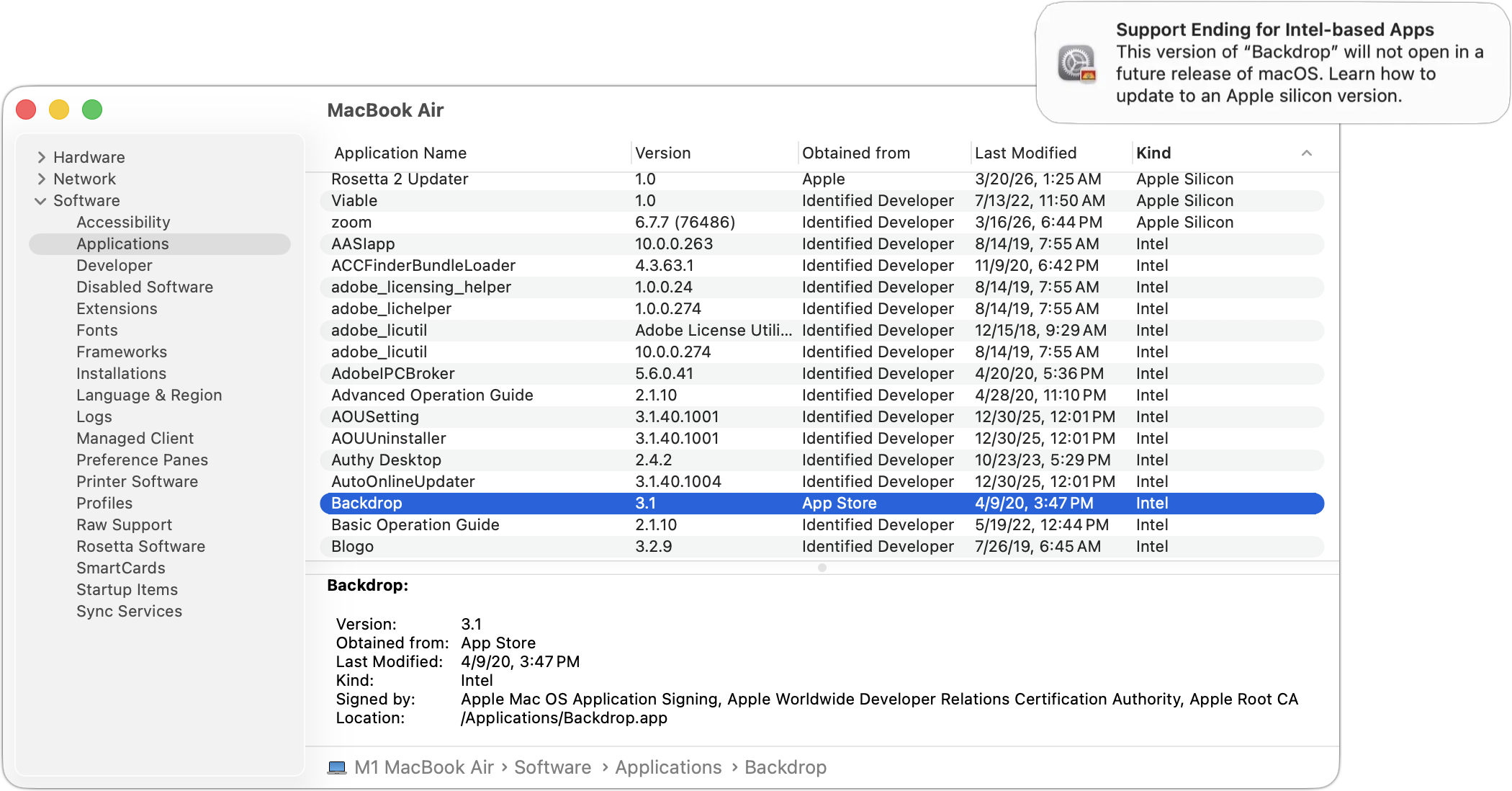
Yes, we know we’re still on macOS 26. In 2025, Apple announced macOS 27 would be the last version to support Rosetta for most Intel-based apps. (Beyond that, Apple will maintain a subset of Rosetta functionality for older, unmaintained gaming titles.) This fact has become relevant because in the just-released macOS 26.4, when you launch apps that rely on Rosetta for Intel compatibility, macOS may start warning you that they won’t open in a future version of macOS. These warnings are just reminders—nothing will change until you upgrade to macOS 28, probably in late 2027 or 2028, giving you plenty of time to find replacements. To identify Intel-based apps now, open System Information from the Utilities folder in your Applications folder, select Applications in the sidebar, and click the Kind column header to sort all your Intel apps together. iMazing’s free Silicon app does the same thing with a nicer interface.
(Featured image based on an original by iStock.com/Kurgenc)
Create AI-Powered Playlists with iOS 26.4’s Playlist Playground
Apple Music’s new Playlist Playground in iOS 26.4 uses AI to create custom playlists based on any mood, genre, or activity you describe. Just type what you’re in the mood for and let the app do the rest.

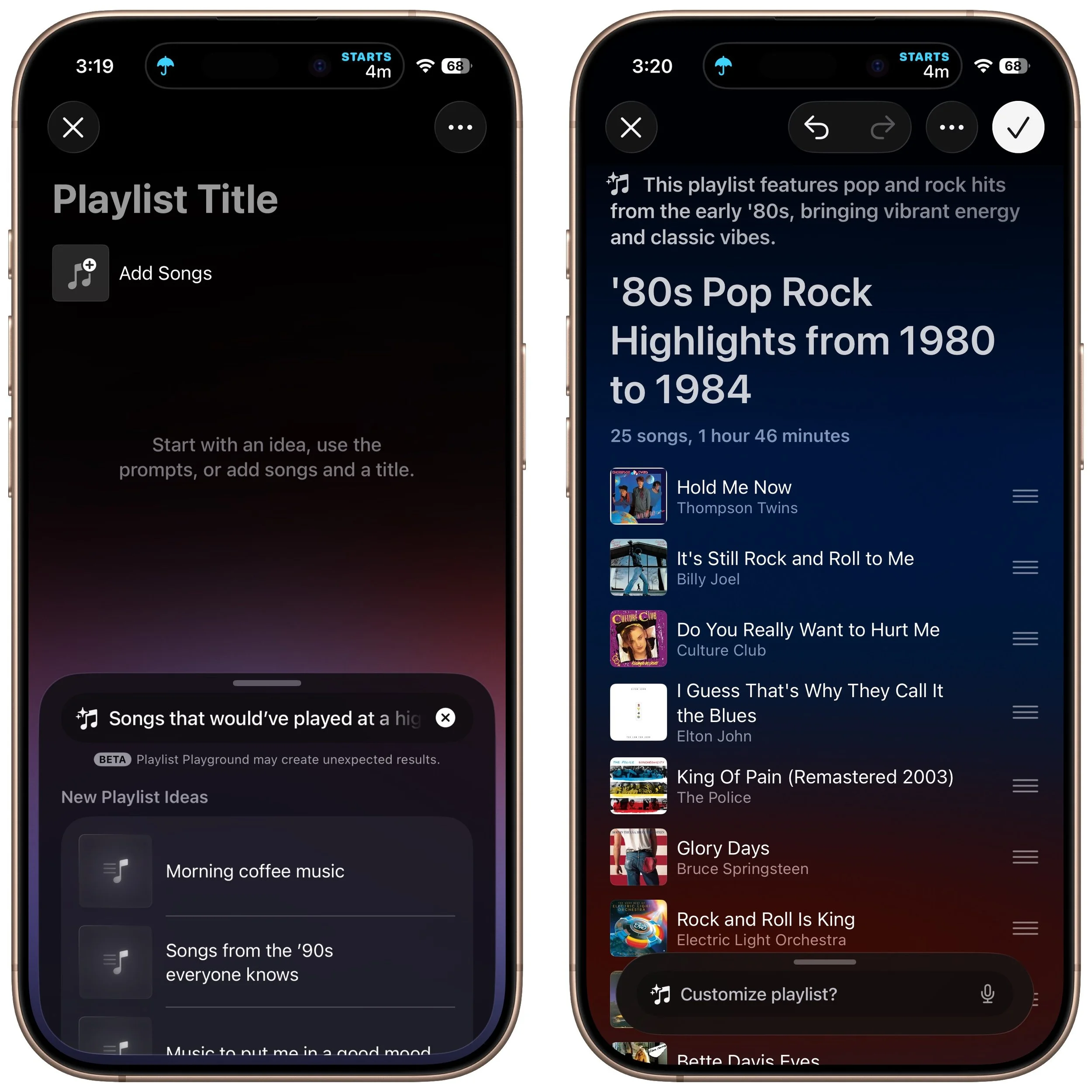
Apple Music subscribers running iOS 26.4 can use the new Playlist Playground feature to create AI-generated playlists tailored to any mood, genre, activity, or era. To try it on your iPhone, open the Music app, tap the Library tab, tap the + button, then tap Create New Playlist. Instead of manually adding songs, tap the search field and enter a natural language description like “songs from a high school dance in the early 1980s” or “positive workout music from after 2010.” Playlist Playground will generate a playlist of songs based on your prompt. You can refine it by giving additional prompts, rearranging songs by dragging the hamburger buttons, or tapping Add Songs at the bottom. When you’re satisfied, tap the checkmark button at the top right to keep the playlist. Playlist Playground requires Sync Library to be enabled in Settings > Apps > Music, and the feature is currently available only in the U.S. and in English.
(Featured image by iStock.com/demaerre)
Check Your Input Source If Your Mac Types Unexpected Characters
Is your Mac typing the wrong characters or rejecting your password? You may have accidentally switched keyboard layouts. Here’s how to check your input source and prevent it from happening again.

If your Mac starts typing unexpected characters—or rejects a password you know is correct—check to see if the Input Source menu appears in the upper-right corner of the screen, indicating that your Mac has more than one keyboard layout available for writing in other languages. Accidentally switching from the standard U.S. keyboard (or whatever you regularly use) to another layout—like the French ABC – AZERTY, which swaps the A and Q keys, among others—can cause keystrokes to produce different characters than expected. This key swapping is particularly confusing in password fields, where you can’t see what’s being typed. To fix it, click the Input Source menu and choose your default. To prevent this problem from recurring, go to System Settings > Keyboard, click Edit next to Input Sources, and delete any keyboard layouts you don’t use. You can also change what the Globe key does in System Settings > Keyboard—you can prevent accidental layout changes by switching it from Change Input Source to Show Emoji & Symbols, Start Dictation, or Do Nothing.

(Featured image based on an original by iStock.com/Armastas)
How to Find and Silence the Browser Tab That’s Playing Audio
Drowning in open tabs and can’t find the one playing sound? Look for the speaker icon on the tab itself, or use Safari’s address bar icon or Chrome’s music note for quick control.

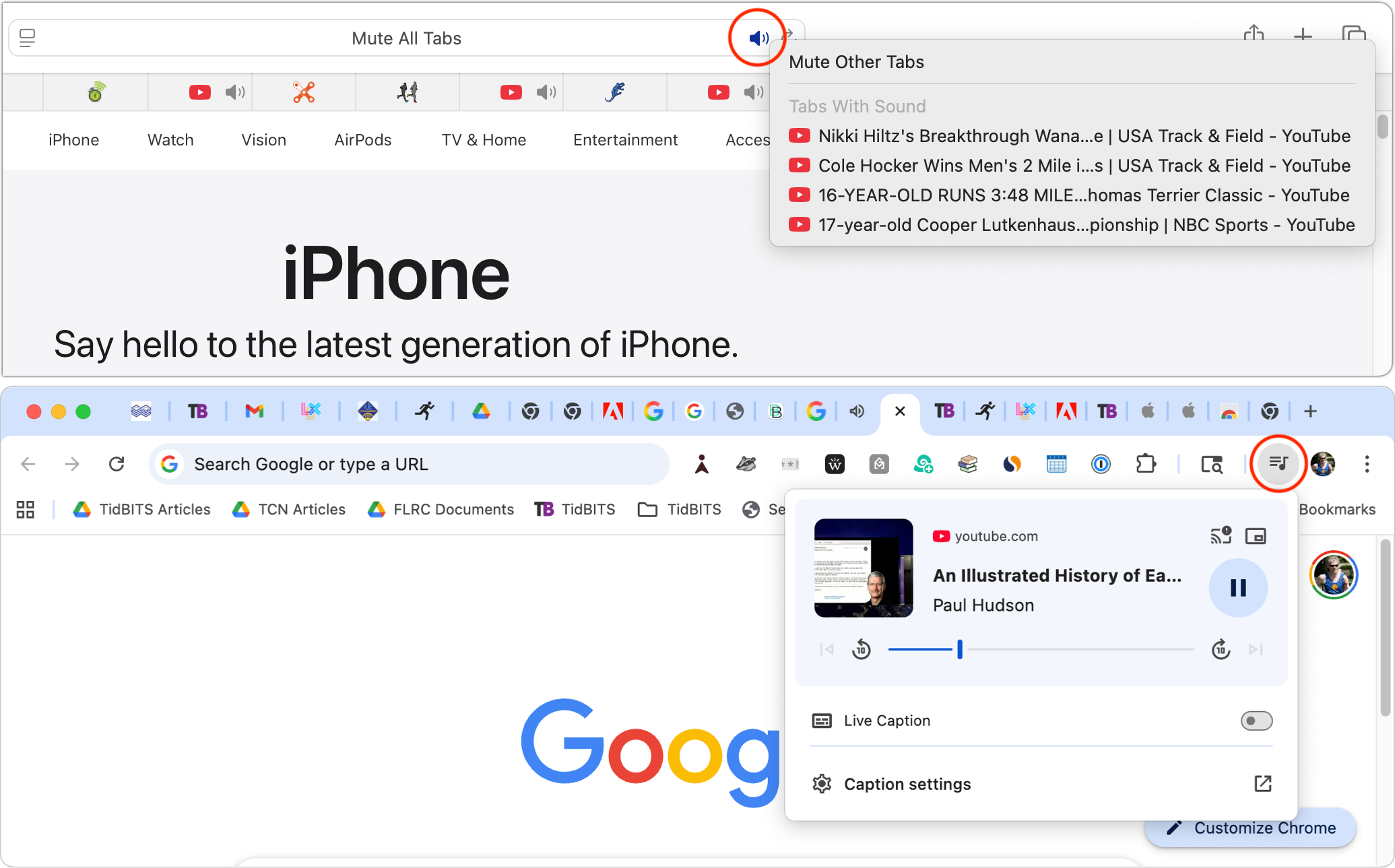
When a Web browser has many tabs open, it can be hard to find the one playing audio if you need to silence it. Worse, when a browser relaunches, it can be tough to identify and silence all the tabs that have automatically started playing audio. Happily, all browsers can help. Tabs with active audio show a speaker icon next to their names; click it to mute the audio. These speaker icons are easier to spot in browsers that display tabs vertically rather than horizontally across the top, where space constraints may prevent the speaker icons from appearing. Safari provides an additional option: a speaker icon on the right side of the address bar (see the top screenshot). Click it to mute all audio, or Control-click it to see which tabs are playing audio. Chromium-based browsers—including Google Chrome, Brave, and Microsoft Edge—display a musical note icon in the upper-right corner of the toolbar (bottom screenshot). Click it to open playback controls and stop playback.
(Featured image based on an original by iStock.com/Khosrork)
Losing Messages or Calls? Look in the Unknown Senders/Callers Filter
Missing texts from unknown numbers? iOS 26 filters them into hidden lists. Here’s where to find them in the Messages app—and how to mark senders as known so you don’t miss important messages. PS: The same applies to calls in the Phone app.

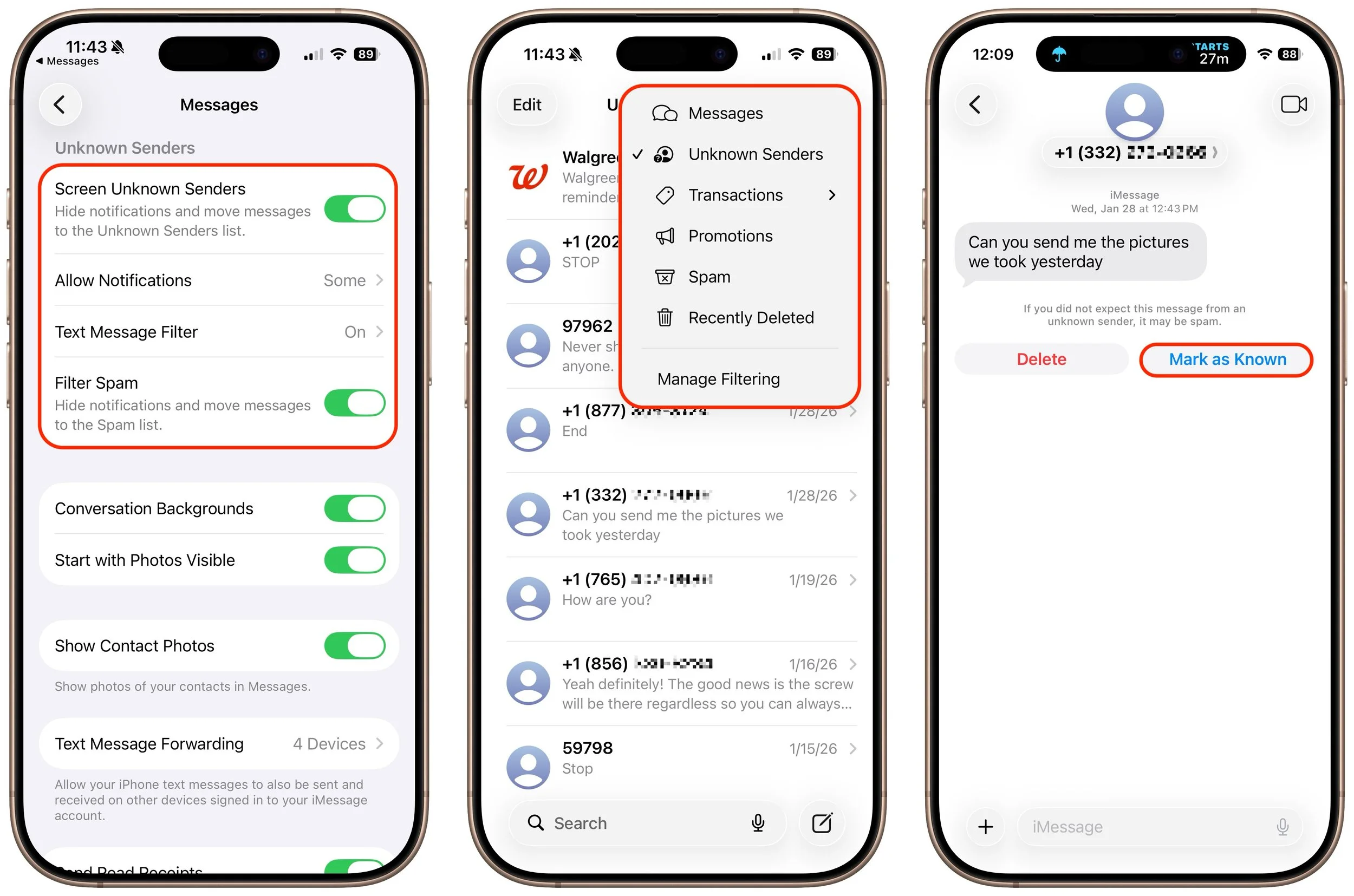
In iOS, iPadOS, and macOS 26, Apple added an option in the Messages app to filter messages from unknown people and those marked as spam by the carrier. To enable filtering, open Messages, tap the Filter button in the upper-right corner, tap Manage Filtering, and turn on Screen Unknown Senders and Filter Spam. Once those are enabled, the Filter menu gains two new options: Unknown Senders and Spam. If a text from an unknown person comes in, the main app icon will get a red badge, but you won’t see the new message in the usual list. Instead, use the Filter menu—which also gets a blue badge—to switch to Unknown Senders or Spam and look in those lists. The Phone app works similarly—enable call filtering in Settings > Apps > Phone under Call Filtering, and unknown callers will appear in separate lists accessible via the Filter button in the Phone app’s Recents or Calls views. To move a conversation out of Unknown Senders, tap Mark as Known.
(Featured image by iStock.com/Liubomyr Vorona)
Customize Folder Colors and Icons in macOS 26 Tahoe
Tired of identical blue folders? macOS 26 Tahoe lets you add colors and icons—including emoji—to folders with a few clicks. Here’s how to make your Finder easier to navigate.

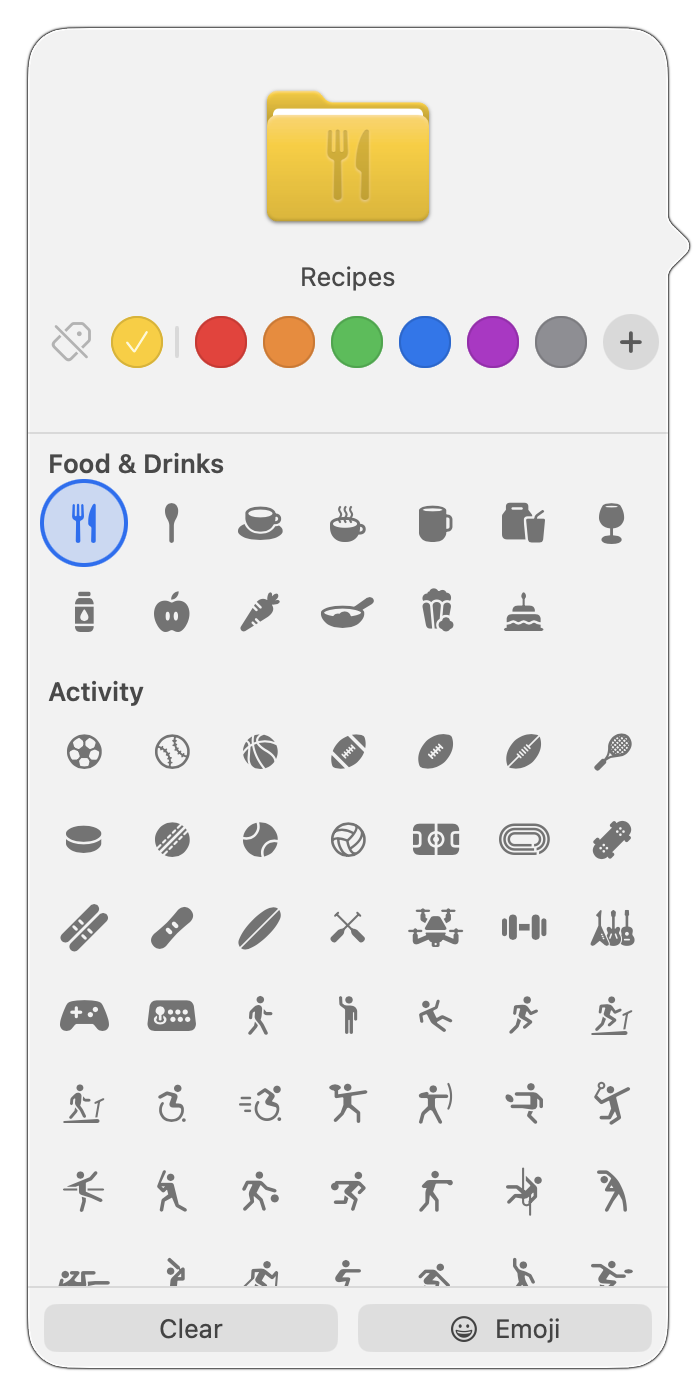
In macOS 26 Tahoe, Apple has made it easier to customize folder appearance in the Finder. Control-click any folder and choose Customize Folder. In the panel that appears, click a colored circle to apply that color and then select an icon to display on the folder. Click the Emoji button to choose from the full set of emoji instead of the icons. A few notes: Customization is available for everything except macOS’s Applications, Library, System, and Users folders. These colors are associated with Finder tags, which you can change in Finder > Settings > Tags. Although the colors and icons should sync via iCloud Drive, don’t assume they’ll survive other cloud-based syncing services or other actions (like archiving) that may not preserve Finder metadata. In other words, they’re mostly useful for individuals, not workgroups.
(Featured image by iStock.com/Christian Ouellet)