
These New Year’s Resolutions Will Improve Your Digital Security in 2023
Get ready for a safer 2023 with New Year’s resolutions that will help you secure your devices, avoid scams, and block malware, as well as benefit from the security and ease of use of password managers.
Happy New Year! For many of us, starting a new year means reflecting on fresh habits we’d like to adopt. Although we certainly support any resolutions you may have made to get enough sleep, eat better, reduce social media usage, and exercise more, could we suggest a few that will improve your digital security and reduce the chances that bad things will happen to you online?
Keep Your Devices Updated
One important thing you can do to protect your security is to install new operating system updates and security updates soon after Apple releases them. Although the details seldom make the news because they’re both highly specific and highly technical, you can get a sense of how important security updates are by the fact that a typical update addresses 20–40 vulnerabilities that Apple or outside researchers have identified. Some are even zero-day vulnerabilities that are already being exploited in the wild.
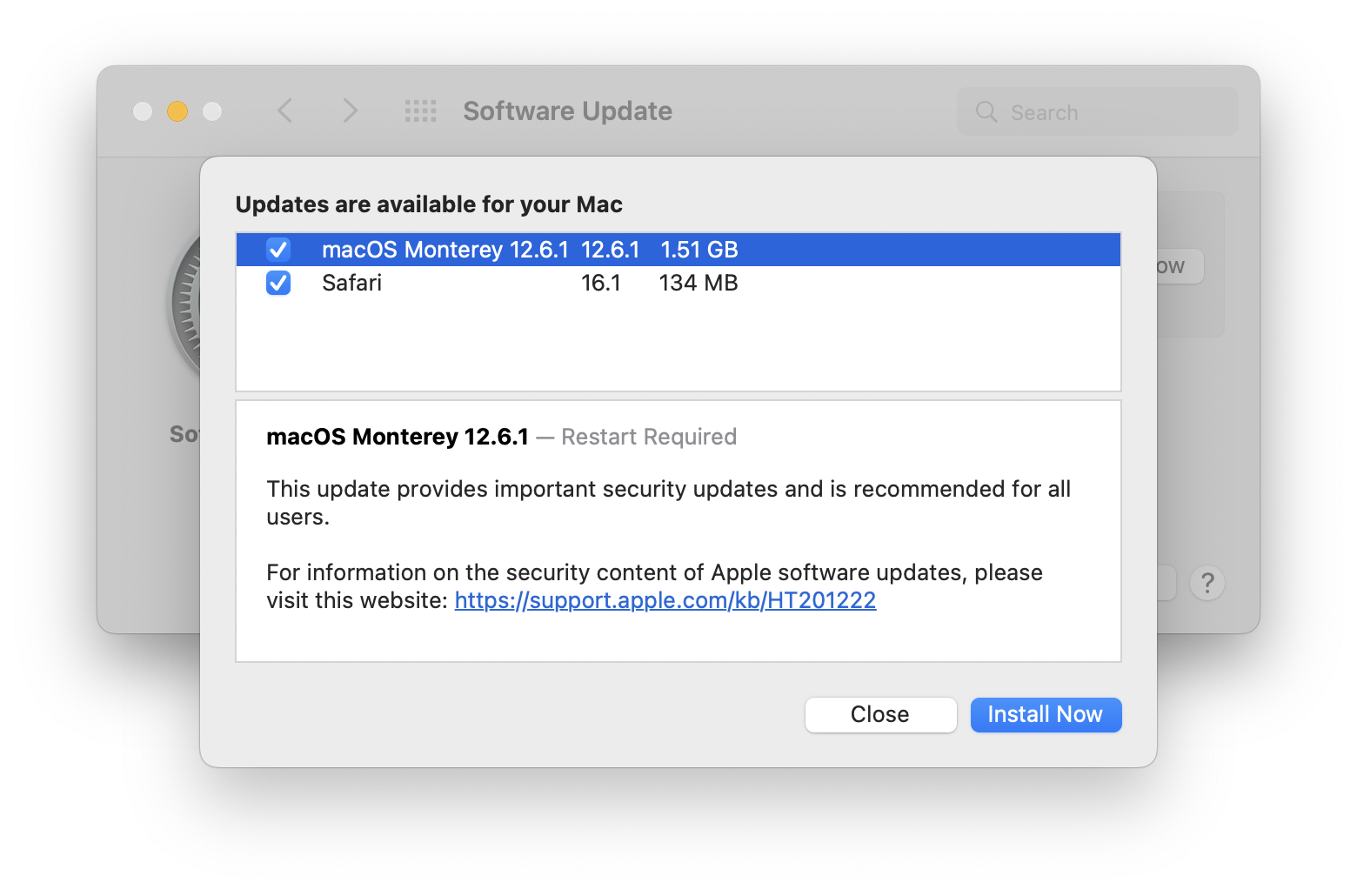
It’s usually a good idea to wait a week or so after an update appears before installing it, on the off chance that it has undesirable side effects. Although such problems are uncommon, when they do happen, Apple pulls the update quickly, fixes it, and releases it again, usually within a few days.
Use a Password Manager
We’ll keep banging the password manager drum until the replacement for passwords, passkeys, have become ubiquitous, and that will take years. Until then, if you’re still typing passwords in by hand or copying and pasting from a list you keep in a file, please switch to a password manager like 1Password or LastPass. Even Apple’s built-in password manager and iCloud Keychain are fine, if not as fully featured as the others. A password manager offers five huge benefits:
It generates strong passwords for you. Mypassword1 can be hacked in seconds.
It stores your passwords securely. An Excel file on your Desktop is a recipe for disaster.
It enters passwords for you. Wouldn’t that be easier than typing them in manually?
It audits existing accounts. How many of your accounts use the same password?
It lets you access passwords on all your devices. Finally, easy logins on your iPhone!
A bonus benefit for families is password sharing. It allows, for example, a married couple to share essential passwords or parents and teens to share specific passwords.
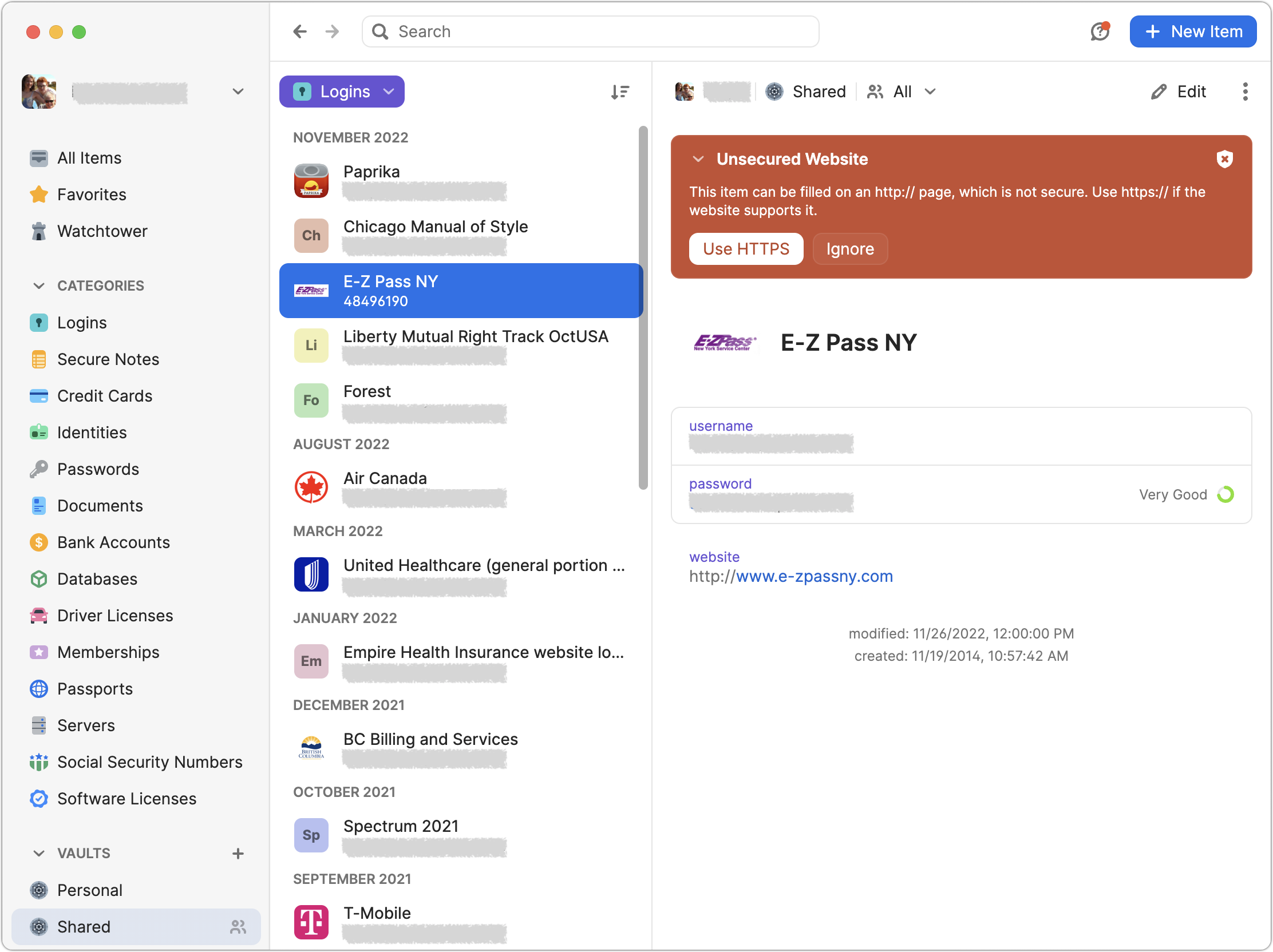
In short, using a password manager is faster, easier, more secure, and just all-around better. If you need help getting started, get in touch.
Beware of Phishing Email
Individuals and businesses alike frequently suffer from security lapses caused by phishing, forged email that fools someone into revealing login credentials, credit card numbers, or other sensitive information. Although spam filters catch many phishing attempts, you must always be on your guard. Here’s what to watch for:
Any email that tries to get you to reveal information, follow a link, or sign a document
Messages from people you don’t know, asking you to take an unusual action
Direct email from a large company for whom you’re an anonymous customer
Forged email from a trusted source asking for sensitive information
All messages that contain numerous spelling and grammar mistakes
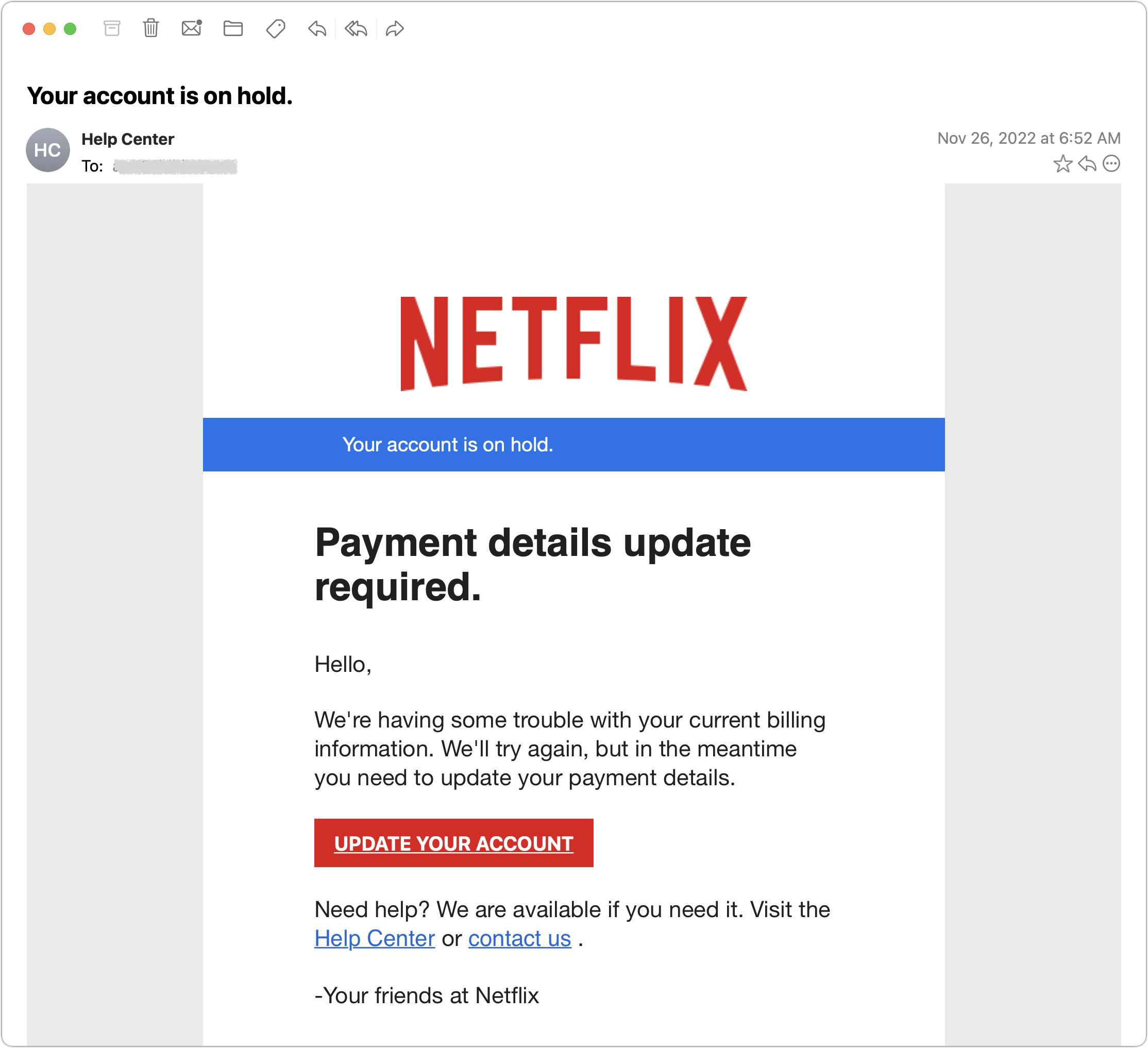
When in doubt, don’t follow the link or reply to the email. Instead, contact the sender another way to see if the message is legit.
Avoid Sketchy Websites
We won’t belabor this one, but suffice it to say that you’re much more likely to pick up malware from sites on the fringes of the Web or that cater to the vices of society. The more you can avoid sites that provide pirated software, “adult” content, gambling opportunities, or sales of illicit substances, the safer you’ll be. That’s not to say that reputable sites haven’t been hacked and used to distribute malware, but it’s far less common.
If you are concerned after spending time in the darker corners of the Web, download a free copy of Malwarebytes or VirusBarrier Scanner and scan for malware manually.
Never Respond to Unsolicited Calls or Texts
Although phishing happens mostly via email, scammers have also taken to using texts and phone calls. Thanks to weaknesses in the telephone system, such texts and calls can appear to come from well-known companies, including Apple and Amazon. Even worse, with so much online ordering, fake text messages pretending to help you track packages are becoming more common.
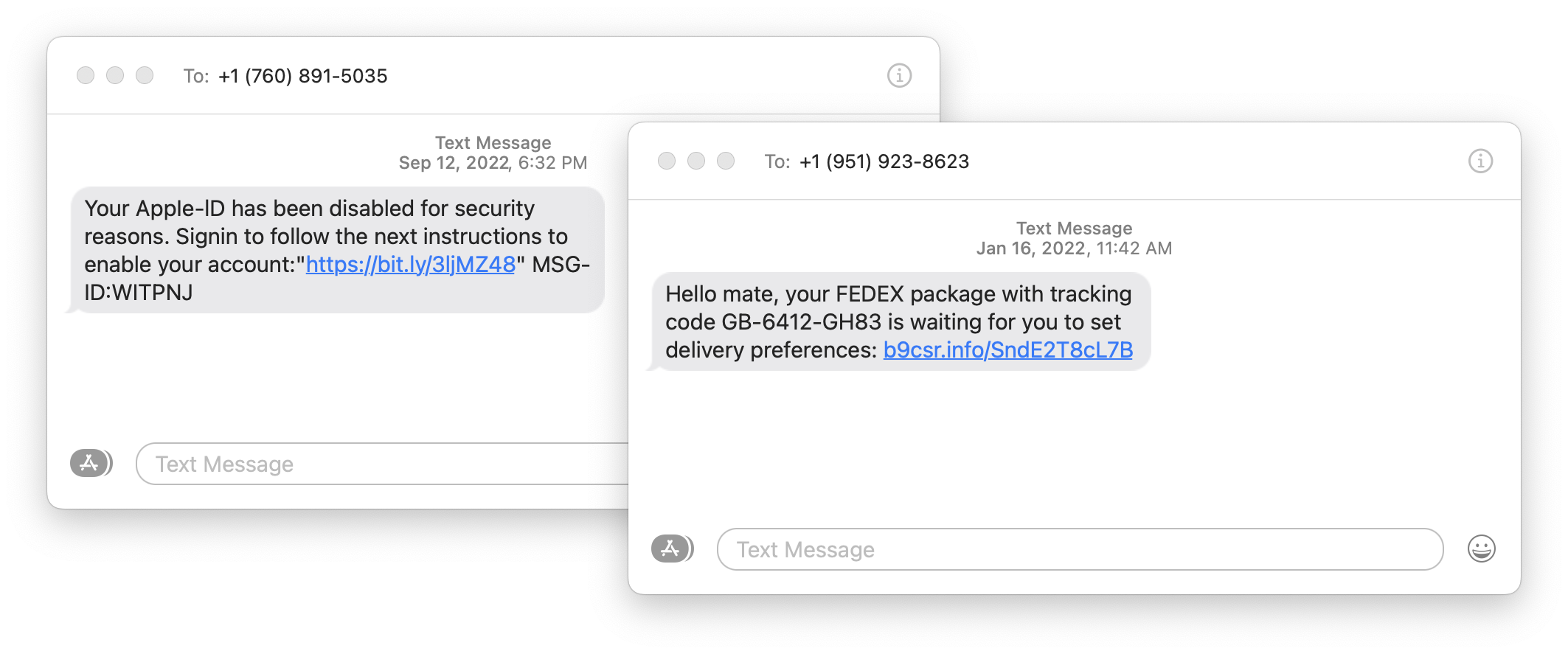
For texts, avoid following links unless you recognize the sender and it makes sense that you’d be receiving such a link. (For instance, Apple can text delivery details related to your orders.) Regardless, never enter login information at a site you’ve reached by following a link because there’s no way to know if it’s real. Instead, if you want to learn more, navigate the company’s site manually by entering its URL, then log in.
For phone calls from companies, unless you’re expecting a call back from a support ticket you opened, don’t answer. Let the call go to voicemail, and if you feel it’s important to respond, look up the company’s phone number elsewhere and talk with someone at that number rather than the one provided by the voicemail.
Let’s raise a glass to staying safe online in 2023!
(Featured image by iStock.com/Bet_Noire)
Merge Duplicate Photos and Videos in iOS 16, iPadOS 16, and Ventura
Plagued by duplicate photos and videos? If you’re running iOS 16, iPadOS 16, or macOS 13 Ventura, you can use the new duplicate finding and merging capability in Photos to clean up your library. Learn how here:
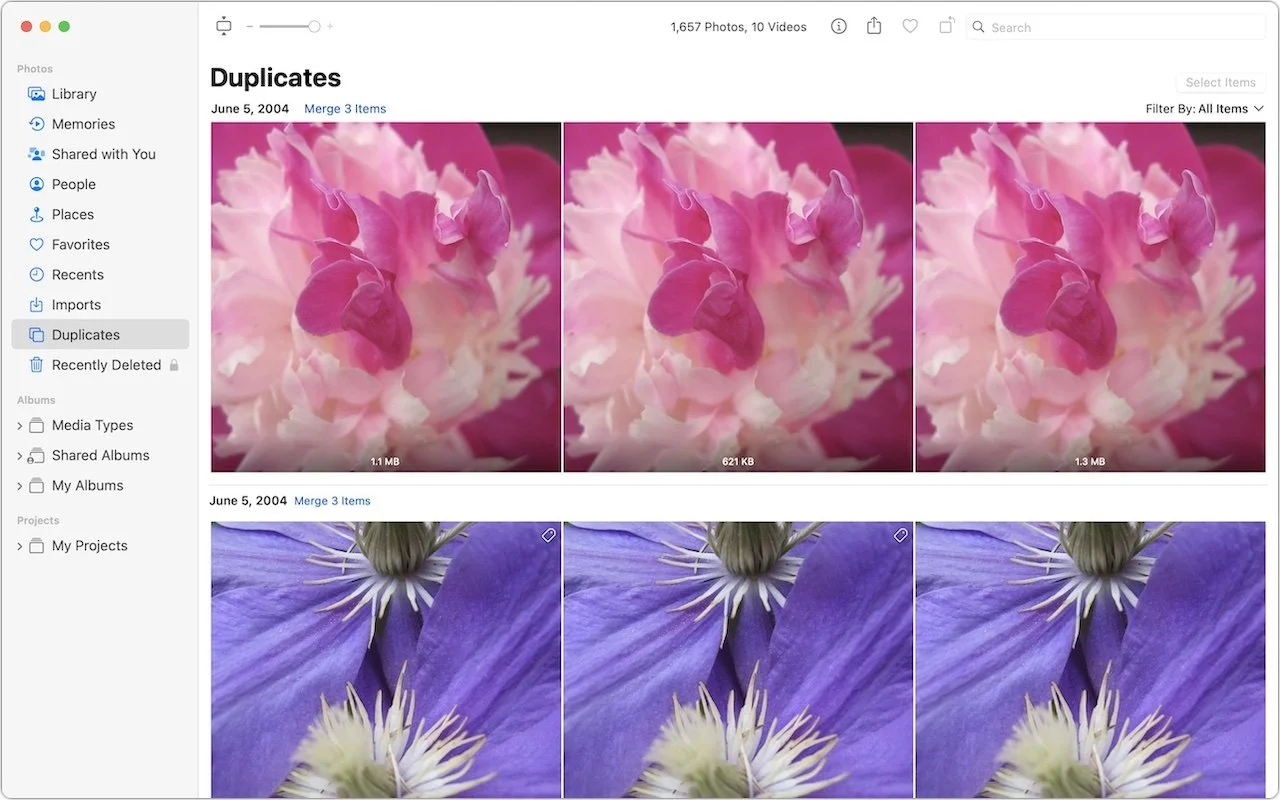
It’s all too easy to end up with duplicate photos and videos in your Photos library. The most common way is to use the Duplicate command, but we’ve seen duplicates appear due to accidentally repeated actions in other apps, repeated screenshots, multiple imports that include the same image (much as Photos tries to prevent this now), and buggy behavior in iCloud Photos.
Identifying duplicate photos and videos is difficult to do manually. Although the human eye is good at noticing when things aren’t the same, it’s much harder to determine if two images are identical. And which of two identical images you want to keep can require that you compare file formats, sizes, and other metadata, which is fussy, tedious work.
Apple has come to the rescue with a new duplicate identification and merging capability in Photos in iOS 16, iPadOS 16, and macOS 13 Ventura. It may not be perfect, but it’s a good start and extremely easy to use.
To get started on the iPhone, tap Albums in the toolbar, scroll down to the Utilities section, and tap Duplicates (left). On the iPad, Duplicates appears in the sidebar under Utilities (middle), and on the Mac, it’s in the sidebar under the top-level Photos section (right).
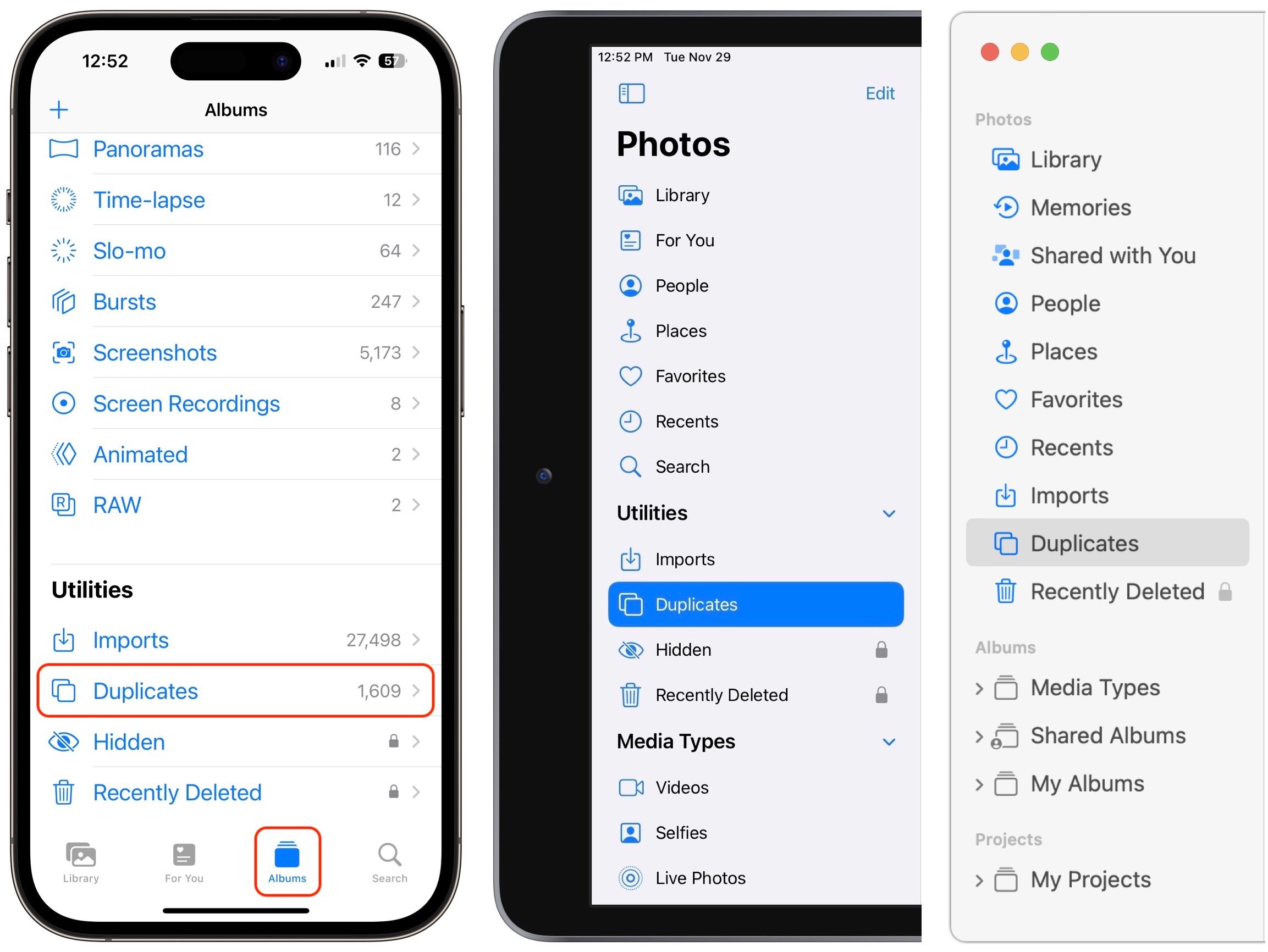
Even if you use iCloud Photos, which syncs your photos and videos between all your devices, you may not see the same number of duplicates on each device. We’re not sure why this is the case—perhaps Apple’s code isn’t identical between platforms—but it may be necessary to run through the merging process on multiple devices to catch everything. Plus, it seems as though Photos identifies new duplicates slowly in the background, so the Duplicates album may not include new duplicates right away.
Regardless, once you’re in the Duplicates album, you’ll see a scrolling list of all duplicate photos and videos. Photos automatically displays the file size on each item so you can see that some are smaller than others. Tap the ••• button at the top right on the iPhone or iPad, or use the Filter By menu on the Mac to show all items, just photos, or just videos. You can also switch between a square grid and one that preserves the aspect ratio of the images—the control is in the ••• menu on the iPhone, the Aspect/Square button on the iPad, and the thumbnail toggle button next to the size slider on the Mac.
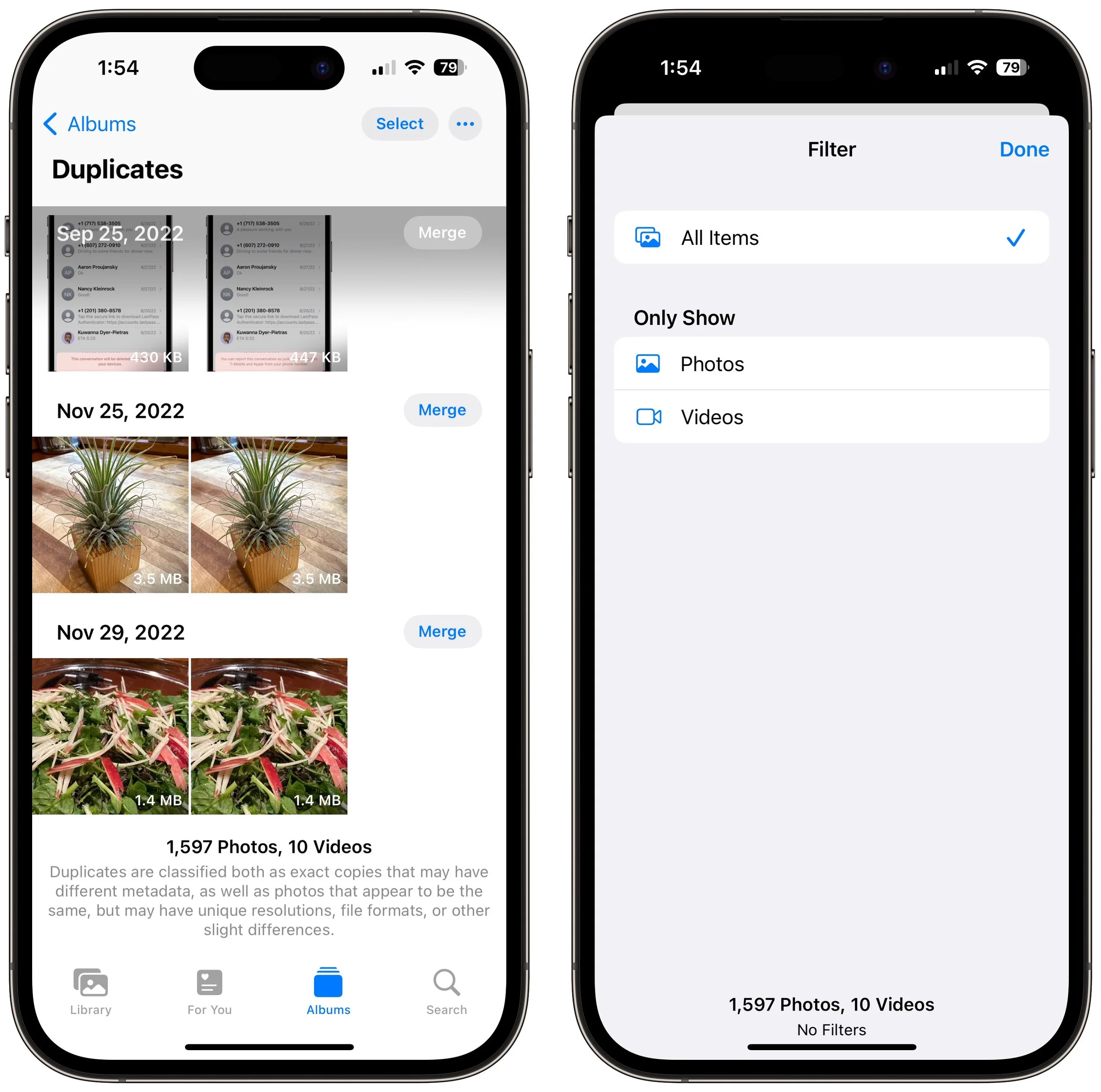
Note that Photos explains at the bottom of the screen what counts as a duplicate. Exact duplicates do, of course, but Photos also matches images that differ in size or other metadata. It may also identify images that are very nearly the same.
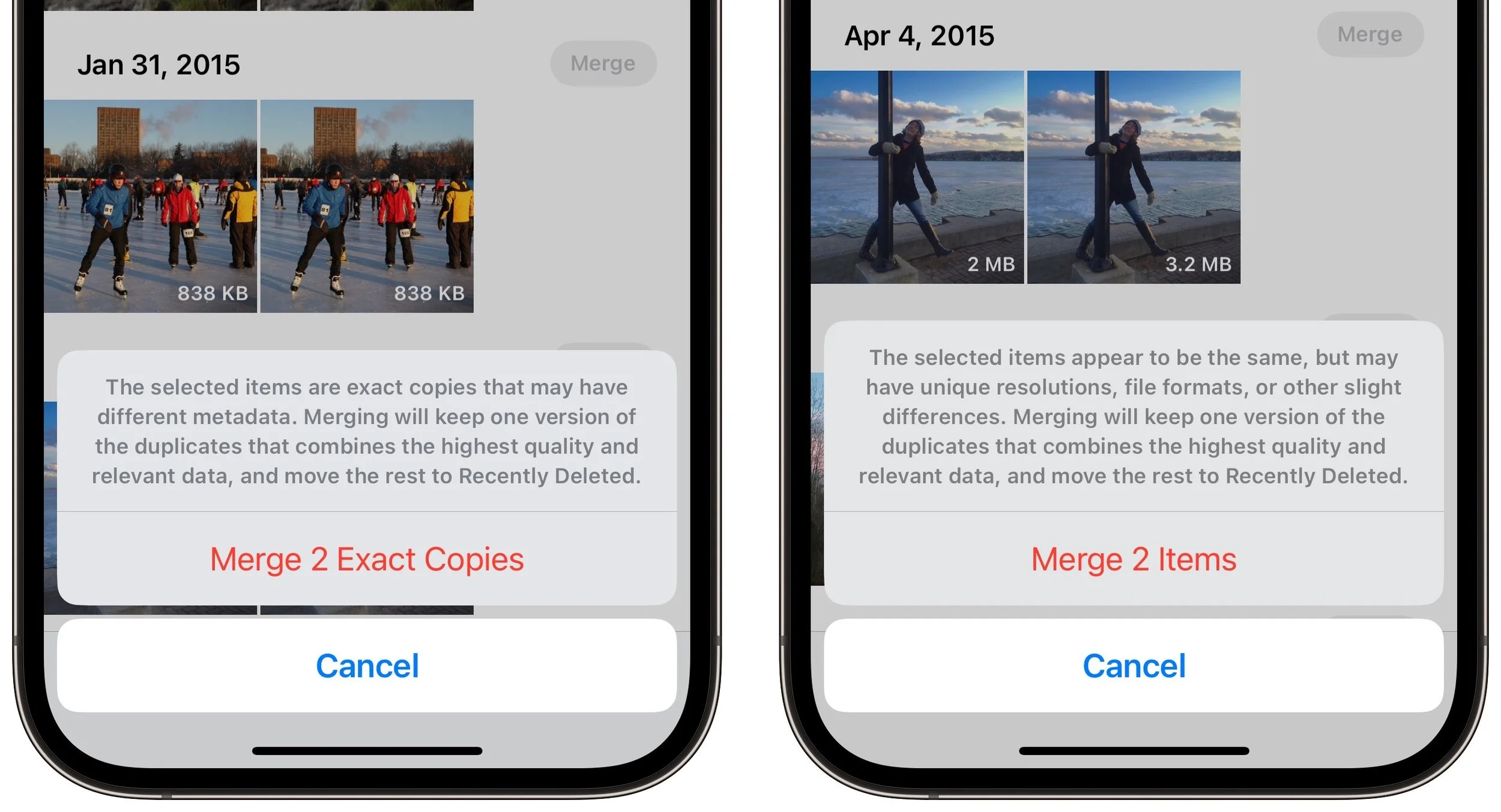
You can tap or click each image in a set to view it at full size, and if you were a glutton for punishment, you could delete one of the images in the set manually with the trash button. But there’s no reason to do that because Photos provides a Merge button (or link, on the Mac) next to each set. Tap or click that, and Photos will keep one version that combines the highest quality and relevant metadata, moving the rest to Recently Deleted. Note that Photos tells you when duplicates are exact (left) or very similar (right).
When you have lots of duplicates, using the Merge button for each set will be time-consuming. Instead, tap the Select button at the top on the iPhone and iPad. Then you can tap to select individual photos (which you could then trash manually; left), tap the Select button next to duplicates to select them (right), or tap the Select All button to select everything. Once you select one or more duplicate sets, a Merge link appears at the bottom. Tap that to merge the selected duplicates.
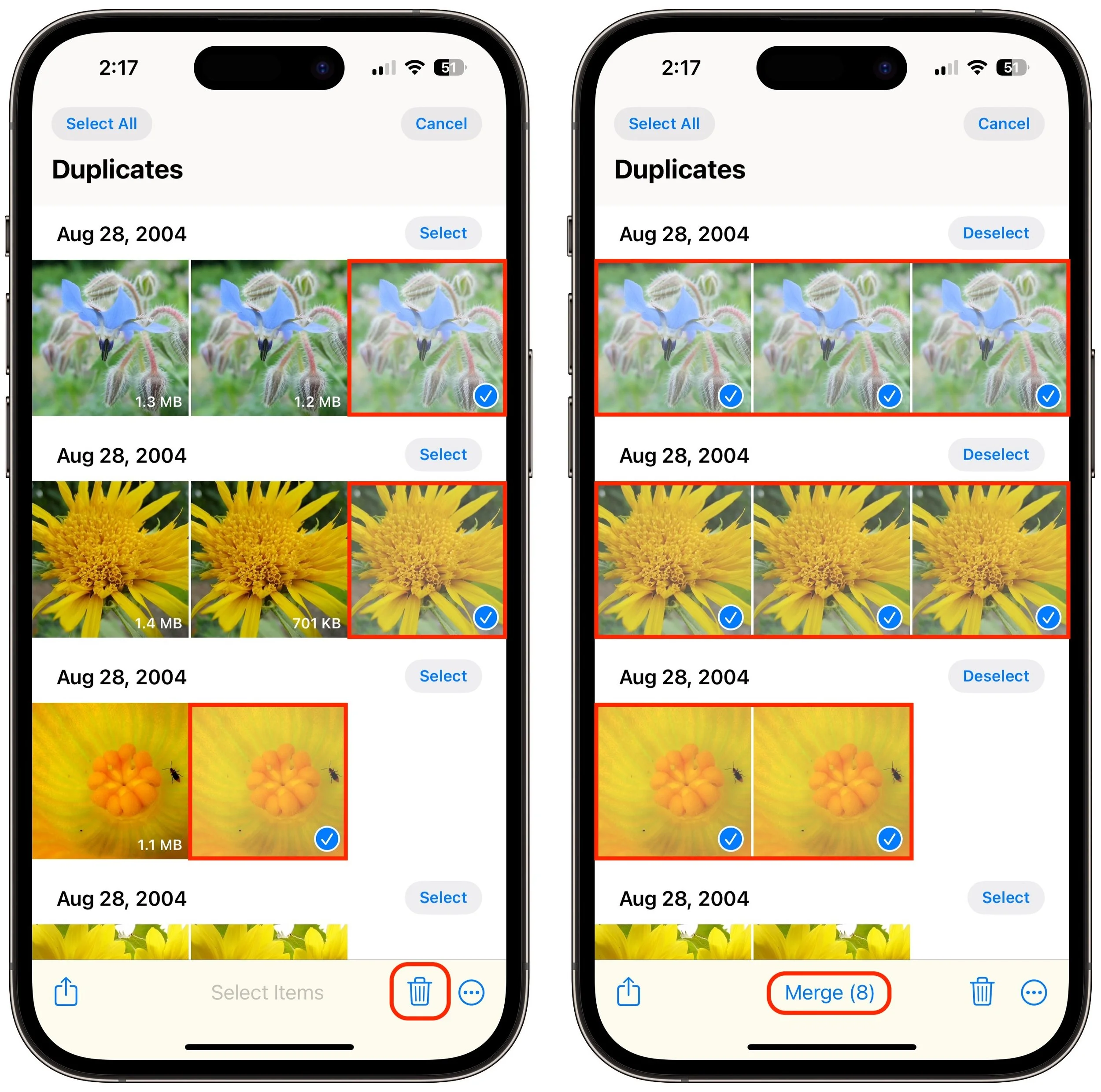
If you don’t want to verify each of the duplicates Photos has found, the process becomes as simple as this:
1. Open the Duplicates album.
2. Tap Select.
3. Tap Select All.
4. Tap Merge (###).
Boom, you’re done, regardless of how many hundreds or thousands of duplicates you had.
In our testing, Photos does a pretty good job, but for another approach, check out PowerPhotos, which uses a different visual comparison engine and may identify more images that are sufficiently similar to qualify as duplicates in your mind. It costs $29.95, but you can use its free trial to see if it will help your duplicate problem.
(Featured image by Adam Engst)
Practice with the Emergency SOS via Satellite Demo, Just in Case
For iPhone 14 owners, the future is here today with Emergency SOS and Find My via satellite, which let you contact emergency services and share your location by talking to a communications satellite. Learn how to try it here:
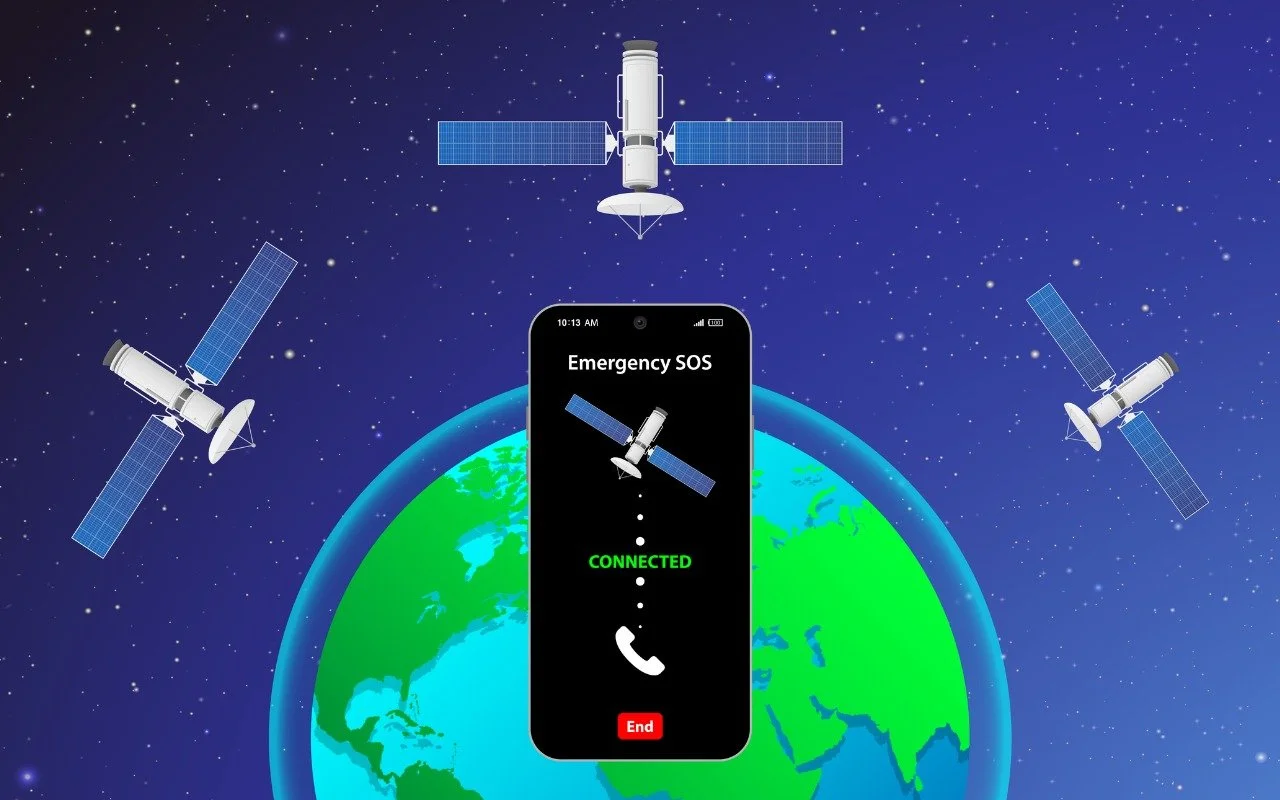
In mid-November, Apple launched its new Emergency SOS via satellite feature for the iPhone 14 lineup. If you have an iPhone 14 and find yourself in an emergency situation in the US or Canada without cellular or Wi-Fi service, you can still contact emergency services. Apple says the service will expand to France, Germany, Ireland, and the UK in December 2022. The service is free for 2 years, and Apple hasn’t said what it will cost after that.
The challenge we users face with Emergency SOS via satellite is that it works only when you have no cellular or Wi-Fi service, and nearly all the time when you’re in such a situation, there’s no emergency. So if something bad does happen when you’re far from civilization, you may not be in the best state of mind to use Emergency SOS for the first time.
Apple has thought of that and provides two ways to get some experience talking to a satellite. One is the Emergency SOS via satellite demo, which you can try anytime. Or, for a real-world test of the system when you have no cellular or Wi-Fi coverage, you can try sharing your location via satellite using the Find My app. Once you’re outside with a clear view of the sky, here’s what to do.
Emergency SOS via Satellite Demo
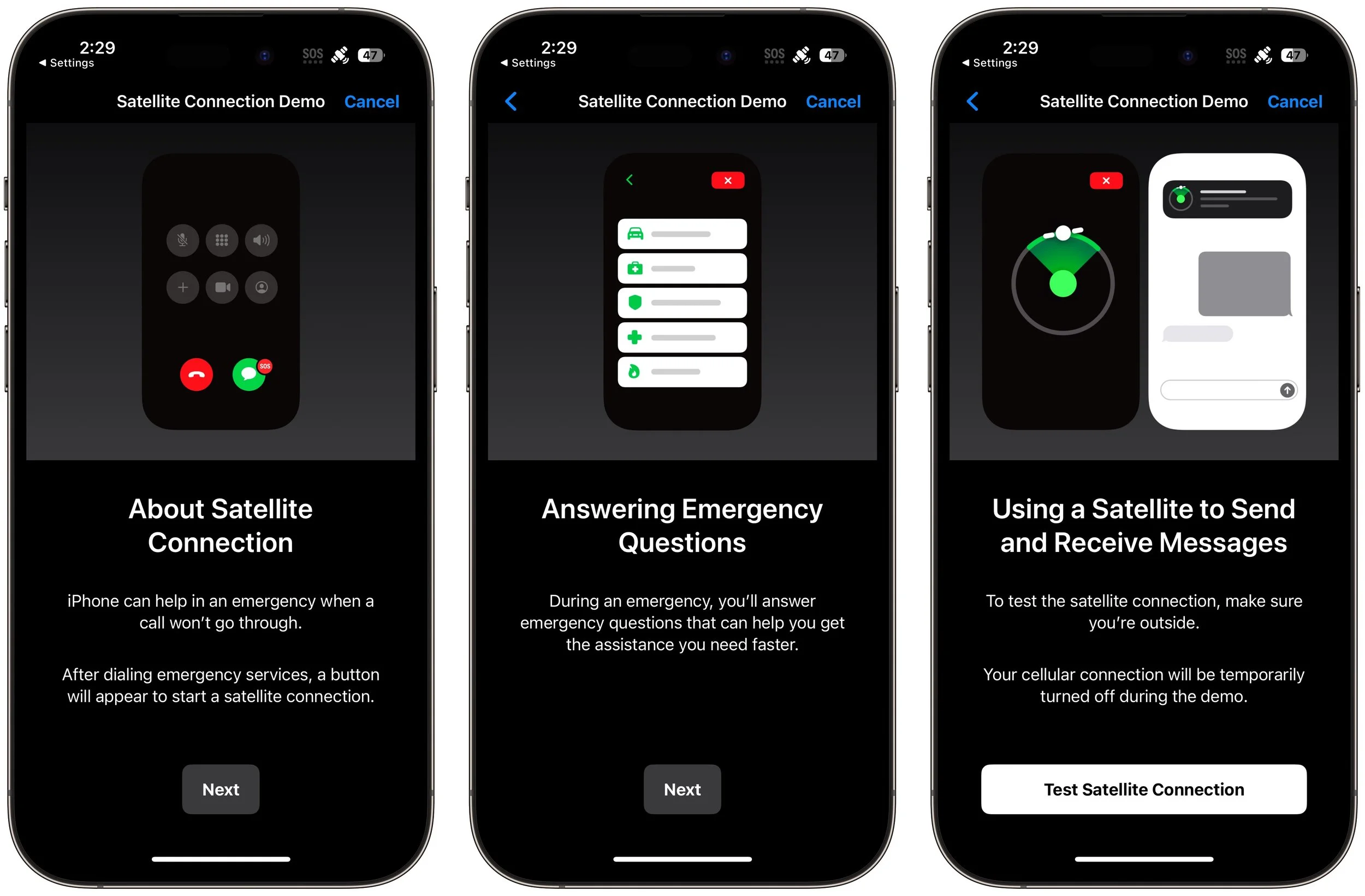
To get started with the Emergency SOS via satellite demo, go to Settings > Emergency SOS, scroll down, and tap Try Demo. First, the iPhone walks you through several screens that turn off cellular, explain how the system works, and tell you that in a real emergency, you’ll answer a series of standard questions to help the dispatcher send the help you need.
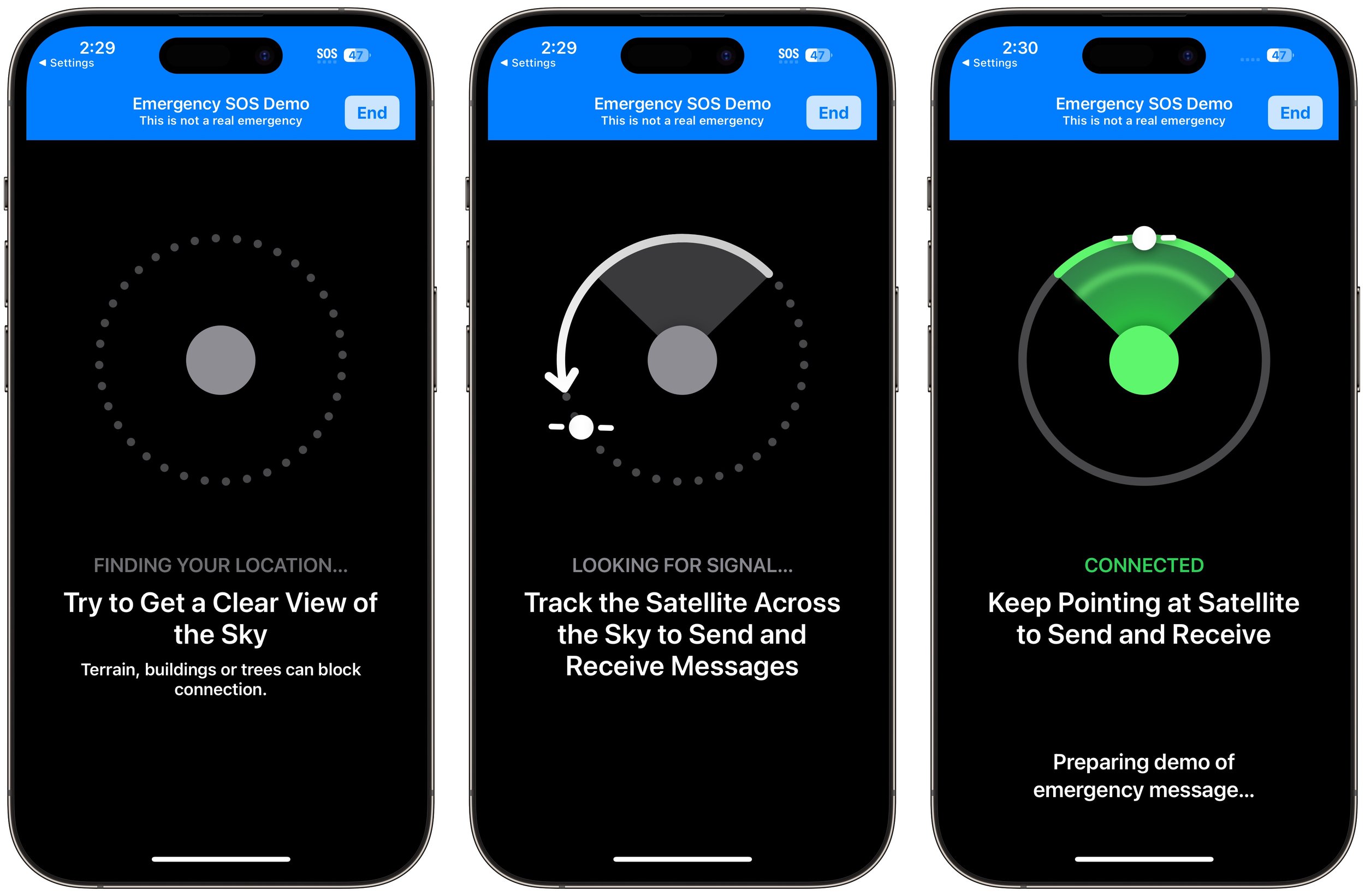
Next, the demo teaches you how to find and connect to a satellite. Along with asking you to turn left or right—follow the arrows on the locator until it turns green—the demo may tell you that you have to wait for a few minutes until another satellite comes into range.
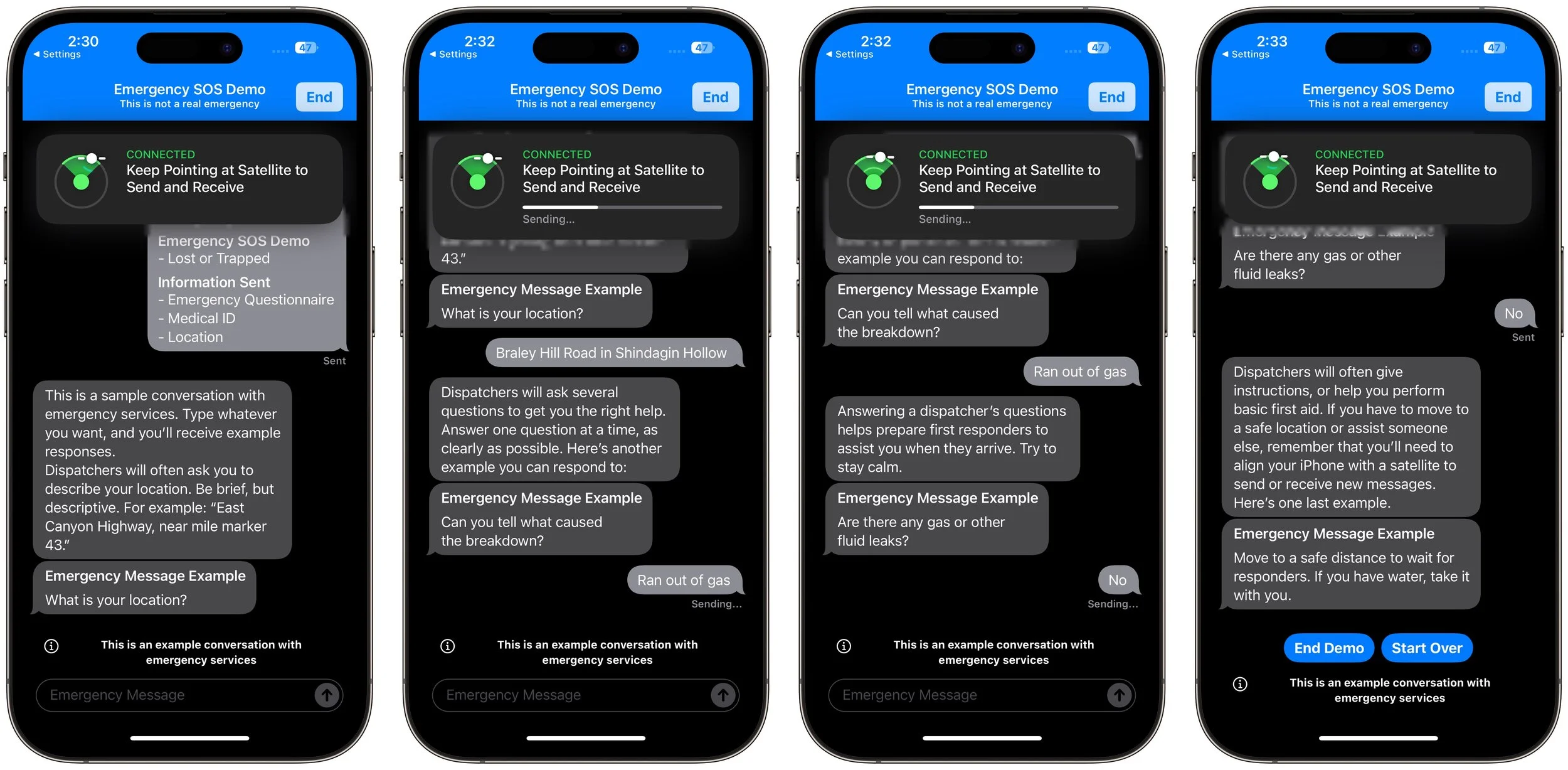
You won’t run through the same questionnaire you would in a real emergency, though. Instead, you get canned texts that mimic the conversation you might have with a real dispatcher. You can reply however you want, but it won’t change the responses. When you finish, tap End Demo.
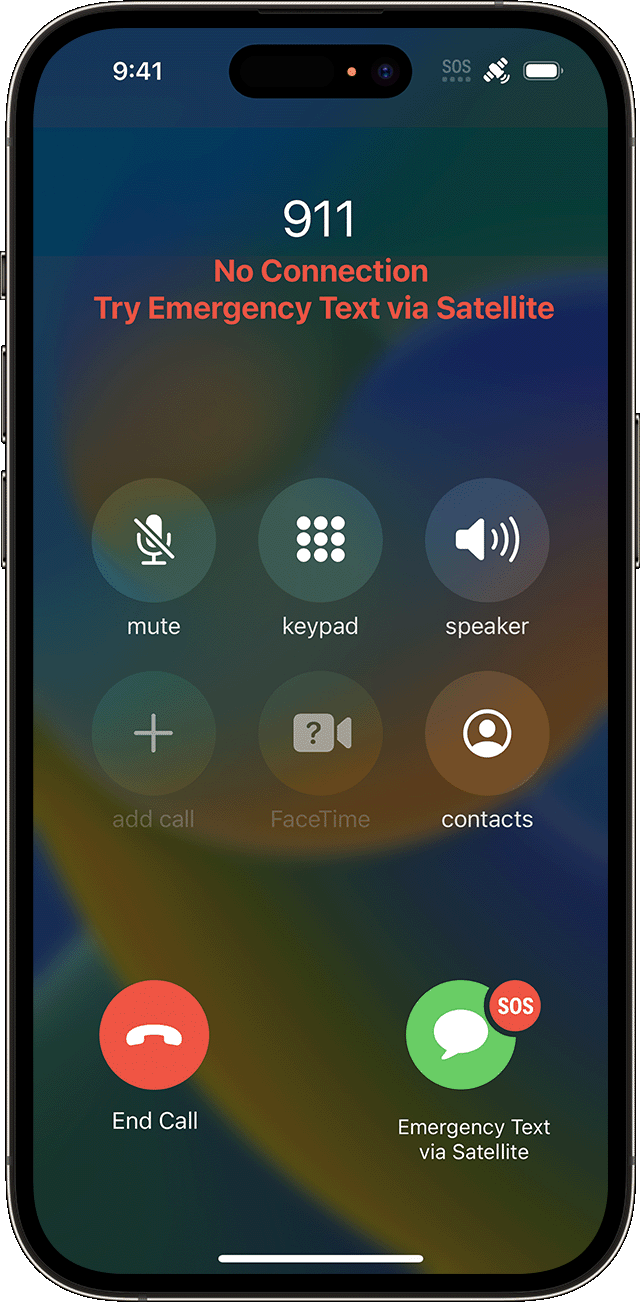
Remember, in a real emergency, you’d dial 911 or invoke Emergency SOS by holding the side button and either volume button until the Emergency SOS slider appears. The call won’t work, but you’ll be able to start the Emergency SOS via satellite process for real.
Share Your Location with Find My via Satellite
As welcome as Emergency SOS via satellite will be if you ever need it, Find My via satellite may have more real-world utility right now. It enables you to share your location manually via the Find My app, regardless of the situation. Once you complete the process, anyone with whom you share your location generally will be able to see the updated-via-satellite location.
To get started in your cellular-free location, open the Find My app, tap Me in the toolbar, and tap Send My Location.
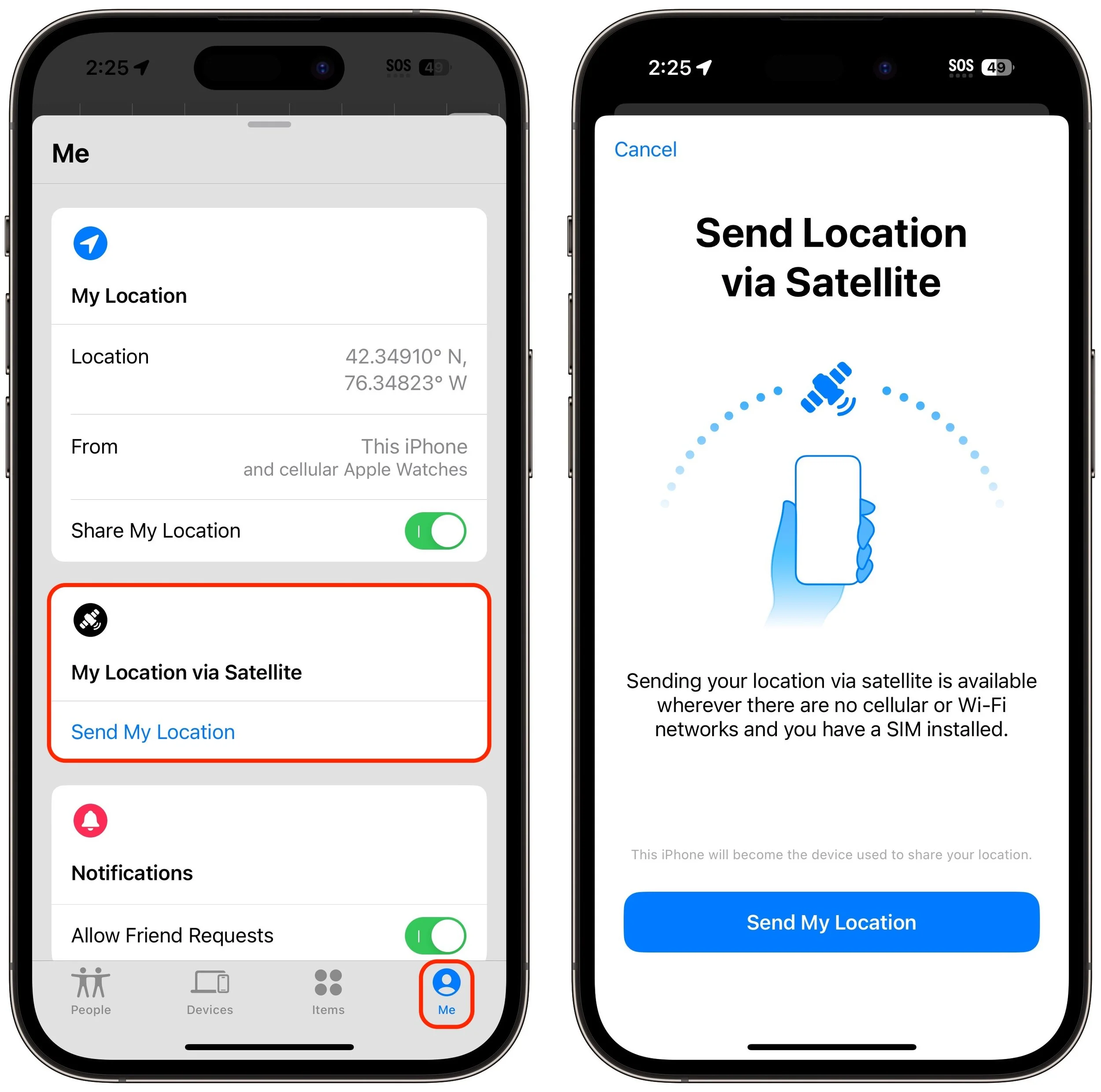
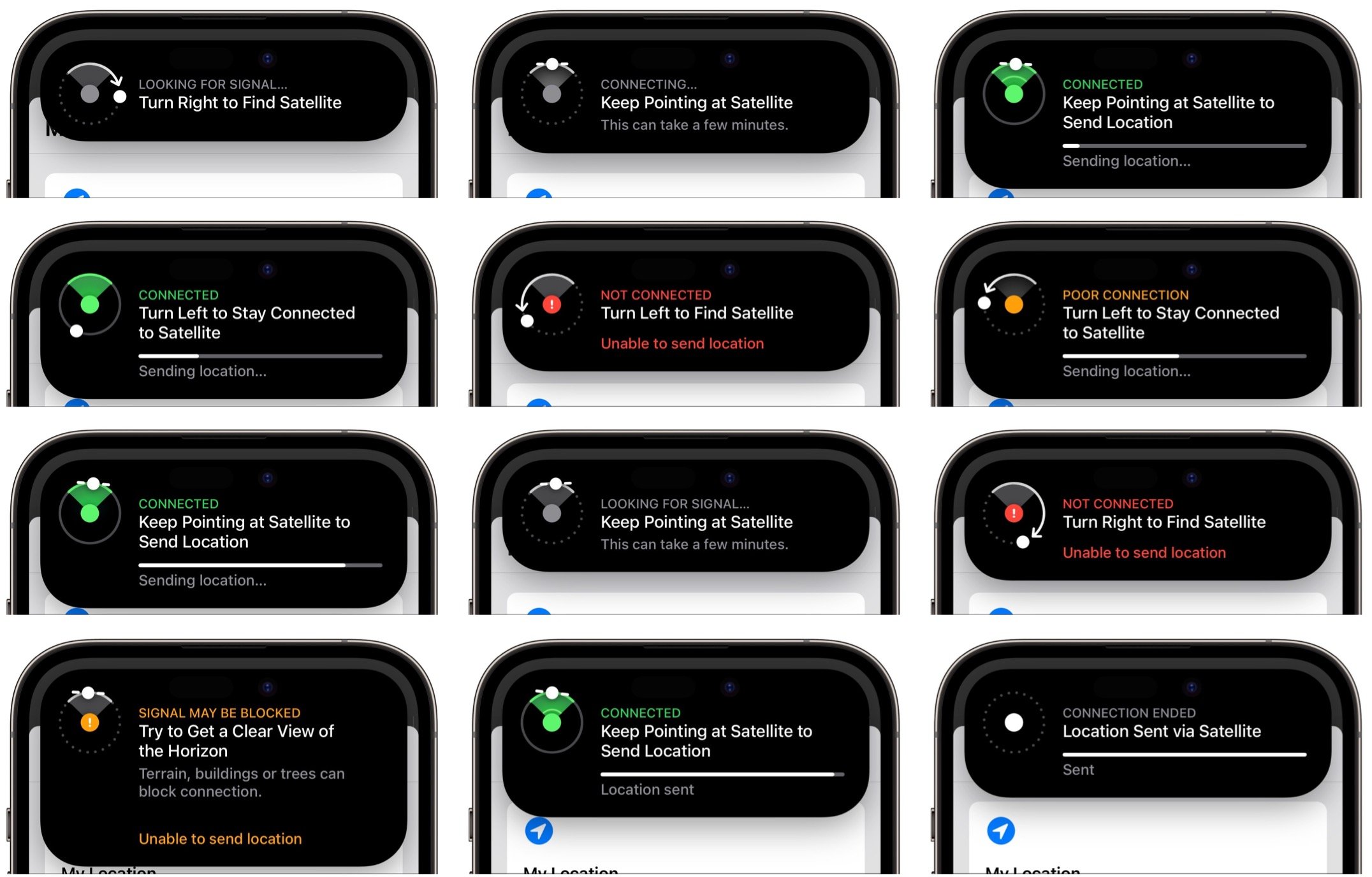
Find My will then start directing you to turn left and right, holding your iPhone up to the sky and pointing it at the satellite. A circular direction-finder shows which way to go and when you’re pointing in the right direction. If it fails (as it did in the lower-left message below), you’ll be directed to get a clear view of the horizon. If you’re in a deep valley, climbing higher may solve the problem, as it did in our test. The process isn’t quick, but the constant feedback and progress bar ensures that you feel like it’s doing something the entire time.
It’s important to realize that no one will be notified of your location, and you have no other way to communicate with people via satellite. So you’ll want to make plans with a friend or family member before you go into a situation where you could need help without having cellular service. Have a conversation beforehand so they know to look for you in Find My if you don’t get in touch by a predetermined time.
It would be nice if you could notify family or friends of your location for situations where you’d like help but don’t need emergency services. In the future, Apple could use the Send My Current Location option in Messages, but that doesn’t work via satellite now. Regardless, Emergency SOS and Find My via satellite are tremendously impressive, and we expect Apple to enhance the iPhone’s satellite communication capabilities in future iPhones and versions of iOS.
(Featured image by iStock.com/AntonioFrancois)
Two Ways to Manage Your Email So You Can Find It Later
What’s the best way to manage your email so you can find specific messages later? There is no right answer, but filing messages in mailboxes works for some, whereas others prefer searching. A middle ground is often best.
We recently wrote about different ways to organize your files, which prompted some people to ask us about the best ways to manage email. Email may have competition from messaging services like Slack and Microsoft Teams, but for many people, it’s still where the most important communications take place. That’s especially true for anyone who has to work with numerous people outside their organization—there’s a reason why business cards nearly always contain an email address.
As with file organization, how you manage and organize your email is all about making it easier to find a specific message or conversation later. The big difference between files and email is that you usually care about how other people will be able to find and work with your files. With email, however, you’re the only person who has to sort through your messages. Imagine you run an ad agency that has the Belvedere Hotel as a client—your organizational structure for files needs to work for all your colleagues, but no one but you needs to find your email message about what should change in the next print ad campaign.
When managing email so you can find what you want later, most people gravitate to filing messages in mailboxes (sometimes called folders) or searching, though we find that a combination is usually best.
Find Email in Mailboxes
Many people have traditionally used a hierarchical filing structure to organize their email, creating a mailbox for each project. (There’s generally little benefit in creating mailboxes for people or date ranges because it’s easy to search for messages from specific people or between certain dates.)
So, much as with files, you might have a top-level mailbox for Clients and a sub-mailbox for each client, including the Belvedere Hotel. You could make additional sub-mailboxes for different Belvedere Hotel projects, but unless you expect to receive a lot of email for each of those projects, increasing the depth of the hierarchy is often unnecessary and extra work.
It’s unnecessary because date sorting options usually make it easy to home in on the message you want even when the mailbox contains hundreds of messages. Plus, the more granular your filing approach, the more manual filing you’ll have to do to ensure that every message ends up in the right place. Worse, many messages will likely cross projects, as could happen in a discussion of a print ad when your contact mentions that they want to reuse the text and graphics in the next email blast too. Should it go in a Print Ads mailbox or an Email Blasts mailbox? Don’t waste time deciding—just leave it in a general Belvedere Hotel mailbox.
How do messages end up in these mailboxes? You can always file messages manually, and you’ll spend some time doing that, no matter what. However, whenever possible, you want to create rules (also known as filters) that file messages automatically. Rules look through every incoming message and take actions—including moving to a mailbox—on messages that match the criteria you specify. For sanity’s sake, you want to make your rules as general as possible.
For instance, you could make a rule that moved messages from your contact at the Belvedere Hotel to your associated mailbox. That would work initially, but it would fail if you regularly work with multiple people there or if someone else fills in while your contact is on vacation. So instead of creating a rule that looks for a specific email address or even a set of email addresses, set your rule to look for all messages from the belvederehotel.com domain.
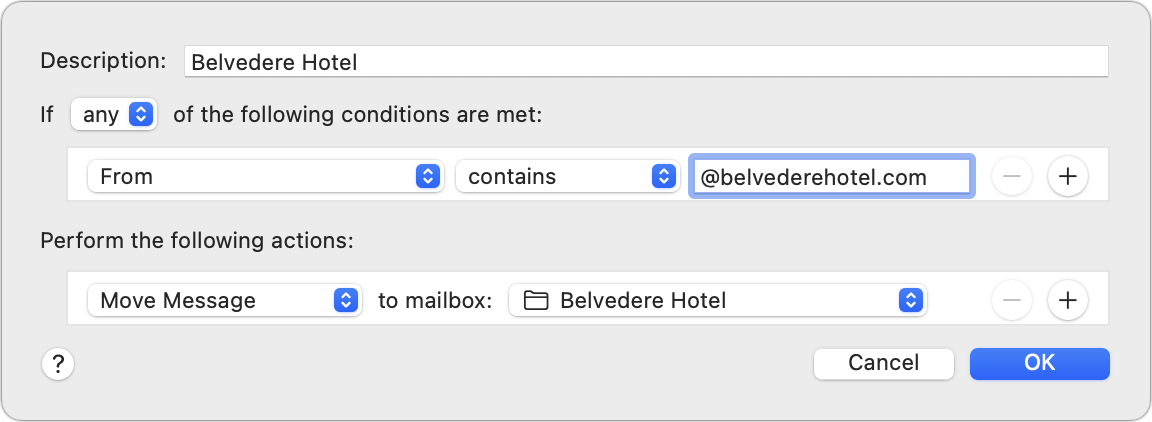
Let’s assume a colleague asks you for details on the latest Belvedere Hotel print ad. How do you find that information? Here’s how we’d go about it:
Open the Belvedere Hotel mailbox, sort by date if necessary, and scroll through the list of recent messages. Most of the time, the message you need to find has arrived recently, and you’ll remember the sender and subject well enough to pick it out.
If you can’t identify the message quickly by scanning, search for it based on the sender or recipient, date, and keywords. Look first within the mailbox where you think the message is located, but if that fails, broaden the search to all your mailboxes.
The reason to start with a scan of the mailbox is that it’s usually the most efficient. However, if you know a message is old or can’t remember the sender, you may be better off starting with a search.
If you can’t easily build rules to move most of your email into the appropriate mailboxes, that’s a hint that a search-first approach might work better for you. You shouldn’t be spending a lot of your time filing email—that’s what computers are for!
Search for Email
When Google launched Gmail in 2004, the company introduced a new way of managing email that leveraged the company’s strength in search. The subsequent popularity of Gmail—which now has over 1.8 billion active users worldwide—means that a great number of people now default to searching when they want to find particular email messages, regardless of which email service they use.
A search-first approach can be fast and effective and doesn’t require that you file messages into mailboxes. For instance, if you always get email about Belvedere Hotel ad campaign details from the same person, it may be faster to search for email from that person first, rather than looking through a mailbox.
Searching rather than browsing for email works best for people whose work doesn’t break down neatly into categories or regularly cuts across multiple projects. But it’s not for everyone. For a search-first approach to be effective:
You must have the sort of brain that remembers details to use as search terms. If you’re more in the “I know it when I see it” camp, you may find searching less effective.
Your email must contain sufficiently unusual keywords that searching for a person and a keyword or two is likely to find the message you want.
You have to keep most messages. That may seem obvious, but if you delete a lot of incoming messages, you’ll likely remember messages you won’t be able to find.
Your email app must search quickly and accurately. Gmail is the gold standard, but other email apps have decent search capabilities.
Although we’re all familiar with searching in Google—and if you like searching the Web, you’ll probably like searching your email—a few tricks will make your email searches more likely to succeed:
Start with a focused search term—usually a person or unique keyword—that’s the most likely to give you the smallest number of results to scan for the message you want.
When searching for a person’s name, if your email app offers to autocomplete to that person’s email address, let it. This is because searching for “smith” is much less likely to work well than “johnqsmith1999@example.com.”
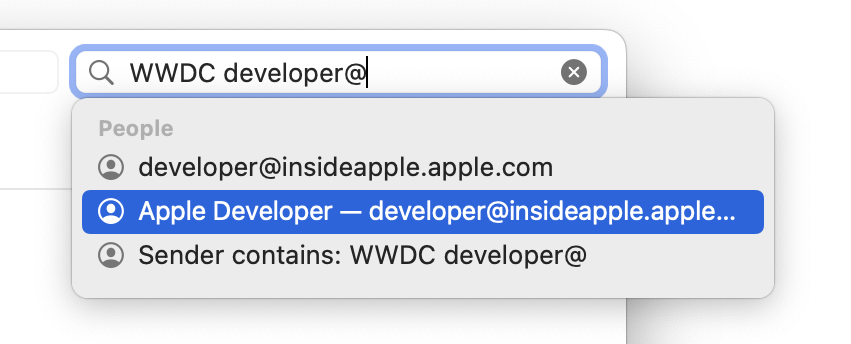
You can specify whether the person for whom you’re searching was the sender or the recipient, which helps reduce the number of results for people who appear regularly in your email.
If you’re looking for an attached file, you can usually specify that your search should return only messages that contain attachments, perhaps even just specific file types.
When you can’t remember much about the contents of the desired message, try to remember surrounding details, such as when the message might have been sent or who else might have received it, and add those terms to your search.
Precisely how you formulate these searches will vary by email app, but check these pages for details on using Mail, Outlook, and Gmail.
Choose the Best of Both Worlds
In reality, neither solely browsing through mailboxes nor relying entirely on search is likely to be satisfying. Those who file everything will find themselves needing to search within mailboxes at times, and those who prefer searching may find that using rules to store easily identified messages in associated mailboxes (mailing lists, for instance, or all email from your organization’s domain) makes searching easier.
(Featured image by iStock.com/anyaberkut)
Mail Gains Welcome Features in iOS 16, iPadOS 16, and macOS 13 Ventura
Mail in iOS 16, iPadOS 16, and macOS 13 Ventura has gained a handful of welcome new features, including Undo Send. Learn all about them at:
Email may not be as sexy a way to communicate as modern-day darlings like Messages, Slack, or Microsoft Teams, but it remains the workhorse of business and personal communications. While Apple’s Mail is a mature app that has long provided the necessary basics, there has been room for improvement. In iOS 16, iPadOS 16, and macOS 13 Ventura, Apple has given us some welcome enhancements, many of which have existed in other email systems for some time.
These features are extremely similar across all of Apple’s platforms, but they may differ in small ways. Don’t worry if you haven’t updated all your devices yet—you can still take advantage of these features on your iPhone or iPad even if you’re cautiously (and appropriately, for now) sticking to macOS 12 Monterey on your Mac.
Undo Send
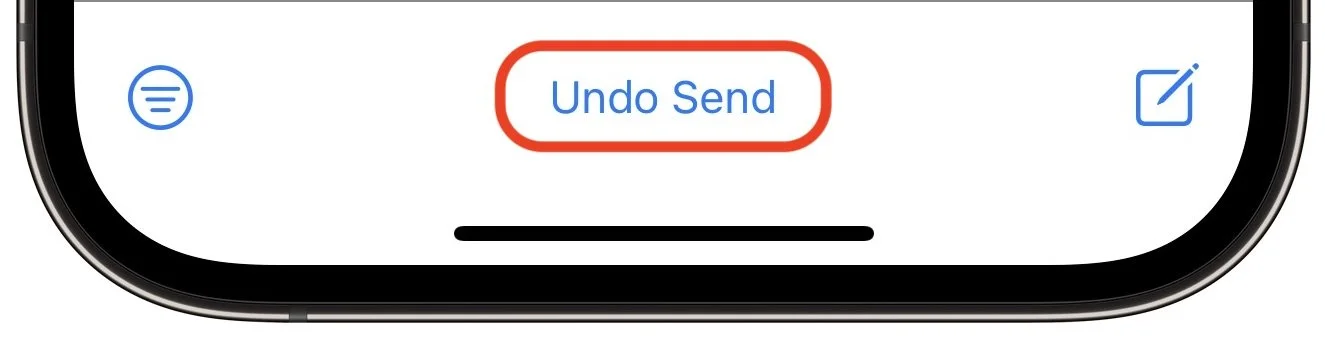
If you’re like us, it’s all too common to send an email and then immediately remember you wanted to add something or Cc someone. Mail now gives you a grace period during which you can unsend a message—10 seconds by default, but configurable to 20 or 30 seconds on the iPhone or iPad in Settings > Mail > Undo Send Delay, or on the Mac in Mail > Settings > Composing.
To unsend a message, tap Undo Send at the bottom of the screen (look in the sidebar on the Mac and iPad). On the Mac, it’s easier to press Command-Z immediately to undo the action. Either way, the message opens for editing again so you can make the desired changes and resend.
Send Later
It’s not always appropriate to send email messages as soon as you finish writing them. Some organizations have policies against sending email significantly outside of business hours to discourage unhealthy work schedules, and you may want to compose a message—a last-minute reminder for event participants, say—well in advance and then schedule it to arrive at an appropriate time. Mail now makes that possible.
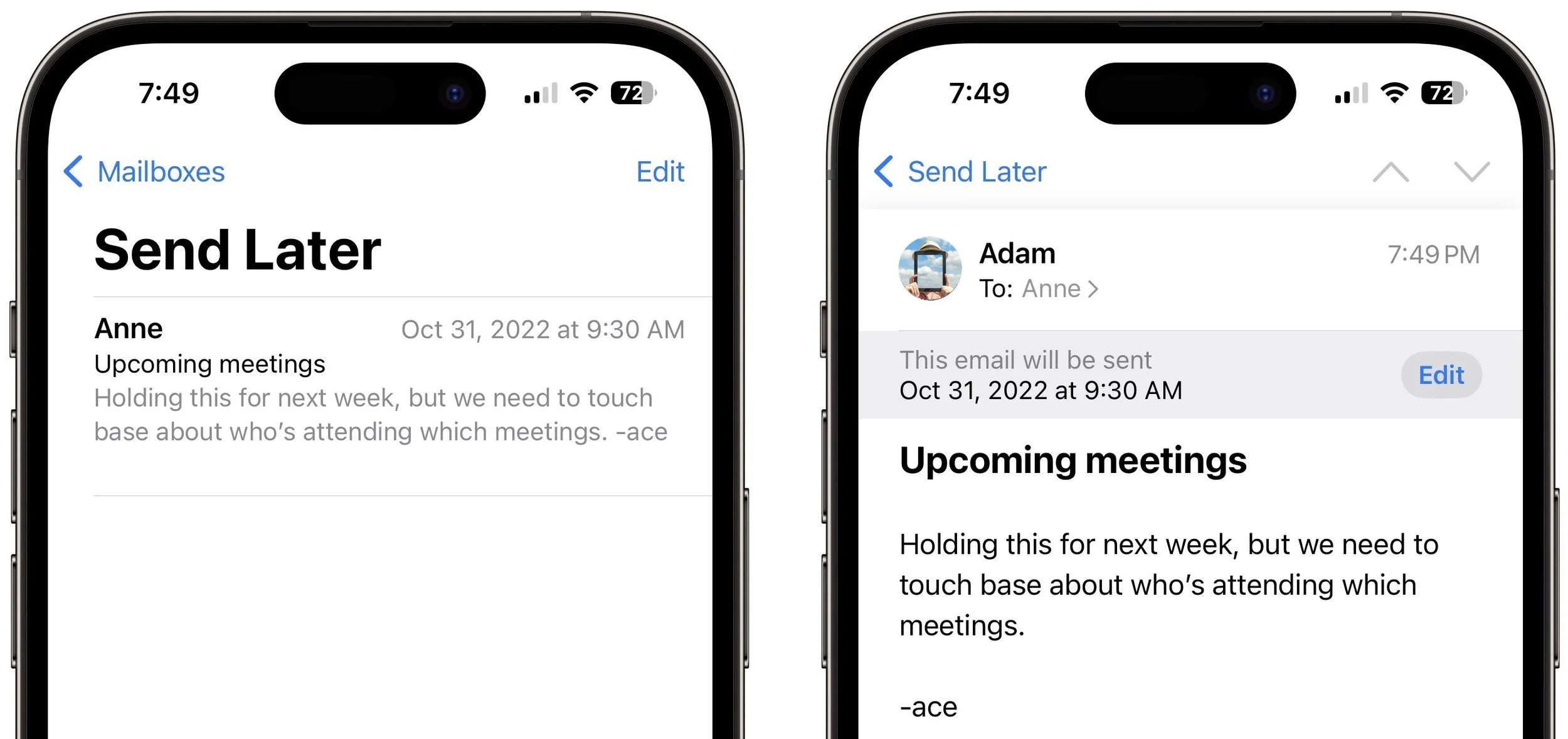
To schedule a message for sending later, touch and hold the Send button on the iPhone or iPad, or click the menu next to the Send button on the Mac. It suggests an appropriate time later in the day or the next day, or you can use Send Later to set a specific date and time. Note that the device on which you’re scheduling the message must be online for the message to be sent, but the scheduled send works fine if the device is asleep.
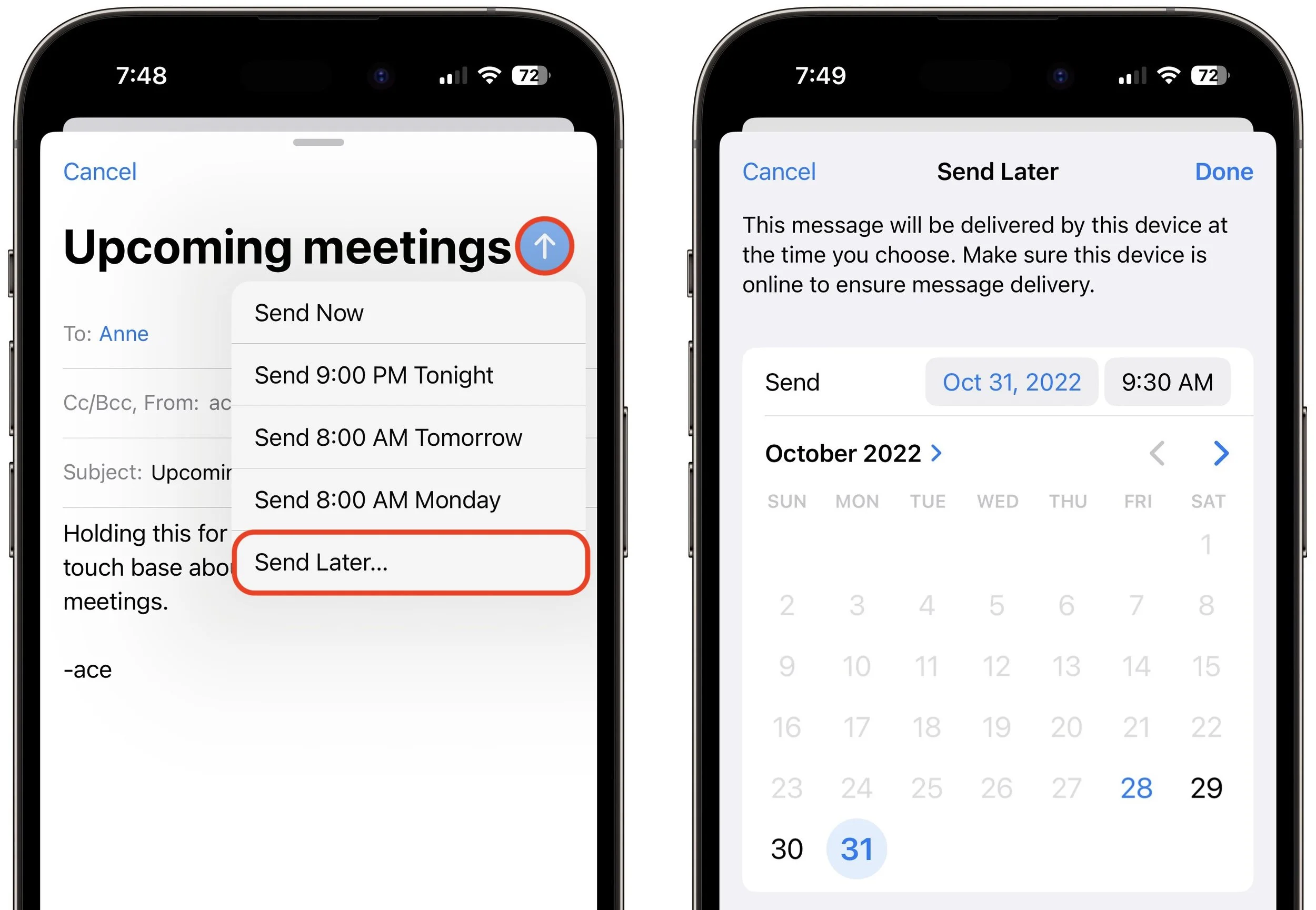
Scheduled messages live in a Send Later mailbox until they’re sent, so if you need to reschedule them, open the message and tap the Edit button in the scheduling banner at the top.
Get Reminders
Some people like to “snooze” email messages so they reappear at the top of the inbox at a later time that may be better. Mail can do this now with its built-in reminder feature, which also temporarily shows the message in a Remind Me mailbox and pops up a notification when the specified time arrives.
To set a reminder, swipe right on it (use two fingers on the Mac) and tap or click Remind Me to choose a reminder schedule of 1 hour, tonight, or tomorrow. You can also specify a precise time and date. If you can’t swipe on a Mac, you can instead Control-click the message and choose a reminder schedule; on an iPhone or iPad, you can also tap the Reply button and then Remind Me.
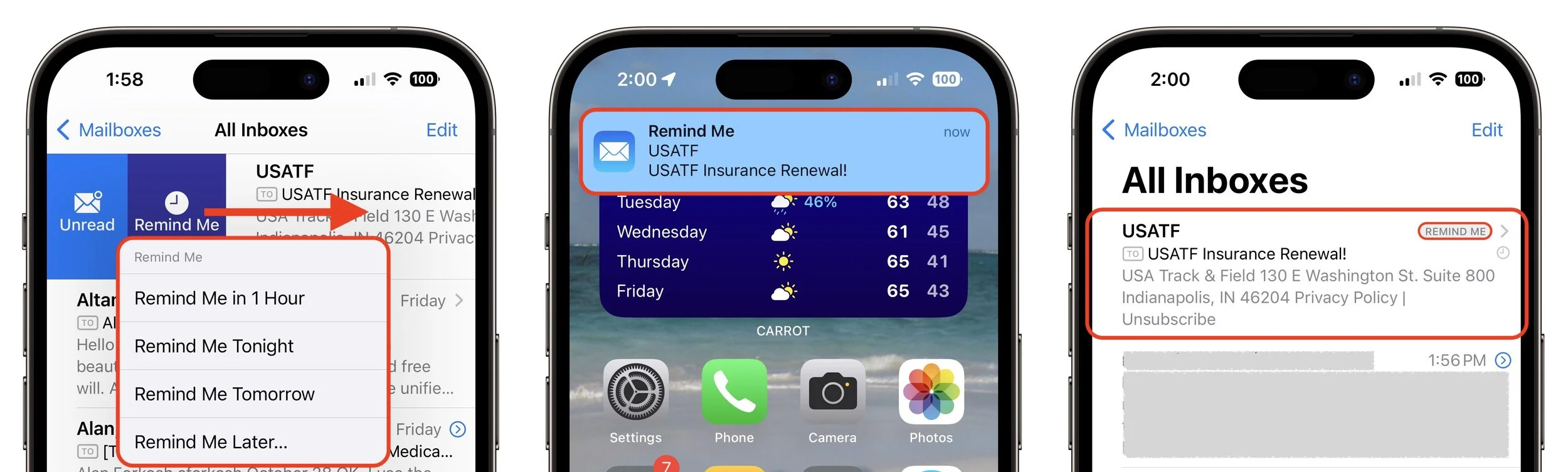
Note that this feature only repositions the message in the inbox, so if you’ve read it, for instance, but you have your inbox filtered to show only unread messages, you won’t see the moved message. It does get a little Remind Me tag in the message list.
Follow-ups
It’s bad enough when you ask someone a question in email, don’t get a response, and have to send a reminder. Worse is when you lose track of the question entirely until it becomes a problem. A new feature in Mail could help. When the app detects that you’ve asked a question, it starts a timer, and if you don’t get a response within 3 days, Mail brings your message back to the top of your inbox with a reminder to follow up. Tap that reminder to send another message to the original recipient.
You don’t have to do anything for the follow-up feature to work, other than compose messages that the feature determines are asking questions. However, there’s no guarantee it will work correctly on every appropriate message, and the feature has no way of knowing if your recipient replied in a completely new conversation or outside of email. If you find it annoying, you can turn it off on the Mac. Go to Mail > Settings > General and deselect “Enable message follow up suggestions.”
Focus Filters
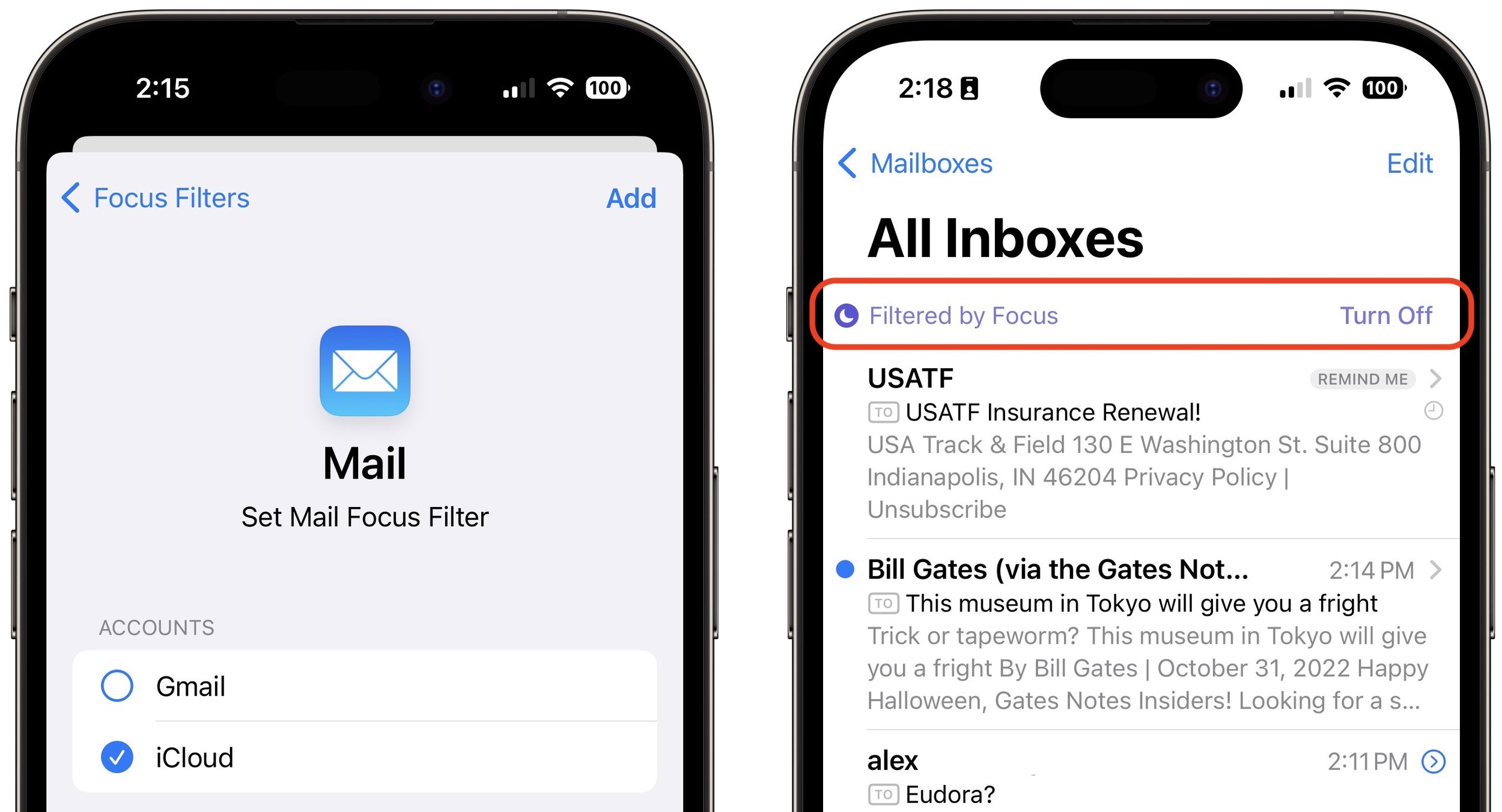
Finally, Mail supports the new Focus Filters, which lets you hide content in specified apps when a certain Focus is active. For instance, if you have a Focus for Personal and another for Work, you might want to specify that your work email account appears only when the Work Focus is active and your personal email account appears only when the Personal Focus is active. It’s logically sensible—you don’t get distracted with personal email at work or work email at home—but it likely isn’t worth the effort unless you have trouble exercising self-control.
To add a Mail account to a Focus Filter, open Focus in Settings or System Settings, select a Focus, tap Add Filter, select Mail, and choose the desired account. After that, when you open Mail, you’ll see only messages from that account, with a Focus Filter banner explaining why and letting you turn it off temporarily.
(Featured image based on an original by iStock.com/Motortion)
What Your Organization Needs to Know About Email Blocklists
If your organization sends a lot of marketing or customer-focused email, you need to be careful about spam blocklists. Here’s what you need to know:
Spam remains one of the scourges of the Internet, although spam filters do a pretty good job of keeping most of it out of email inboxes. However, those spam filters can cause deliverability problems for organizations that send email for marketing or customer outreach. One way that happens is if the IP address—the unique numeric address of every computer on the Internet—of the server that sends your organization’s email lands on a blocklist.
Understanding Blocklists
Blocklist services are conceptually simple. They maintain lists of IP addresses that have been identified as sending spam. Receiving email servers subscribe to those blocklists, and for every connection that’s made, the server checks the blocklist in real-time to see if the incoming message originates from a blocked IP address. If it does, the receiving server rejects the connection, preventing the message from being delivered.
How do sending email servers end up on blocklists? There are several basic ways:
Traps: If you’ve purchased or scraped lists of email addresses (don’t do that!), you may have ended up with dormant addresses or addresses that the block-lists surreptitiously seeded to spammers. If those addresses receive email from you, the blocklist knows you’re not sending just to people who have opted into your mailings. Similarly, if there are many typos in the email addresses on your list, that can raise a flag.
Triggers: Certain words and links in your message can increase the likelihood that a spam filter will catch your message, and some spam filters report back to blocklists. If a draft message sounds spammy or overly promotional when you read it to yourself, that’s a hint that it might trigger a spam filter.
Reports: If too many people mark your messages as spam, that can put you on a blocklist. Sadly, some people use the Junk button instead of unsubscribing from mailings they’ve subscribed to.
Takeover: Although this problem is less common now than it was when more organizations ran their own mail servers, if a hacker compromises your server or account and uses it to send actual spam, that’s almost guaranteed to land you on one or more blocklists.
To avoid ending up on a blocklist, make sure you’re being fastidious about your mailing list. Only add people to it if they have legitimately signed up, make it easy for them to remove themselves with an Unsubscribe link at the end of every message, delete bouncing addresses right away, and avoid spammy language in your messages. It’s not hard—just be a good Internet citizen. And, of course, if you control your own mail server, pay special attention to its security to keep hackers out.
Is Your Organization Already on a Blocklist?
Let’s say your IP address has ended up on a blocklist even though you’ve been good. How would you know? You might hear that people who should have received your mailings didn’t or that your messages were marked as spam. Or you might see your deliverability numbers falling in your sending tool. Neither of those is reliable, though, so we recommend you use MXToolbox’s Blacklist Check, where you can type in your hostname or IP address to see if it’s on any of over 100 blocklists.
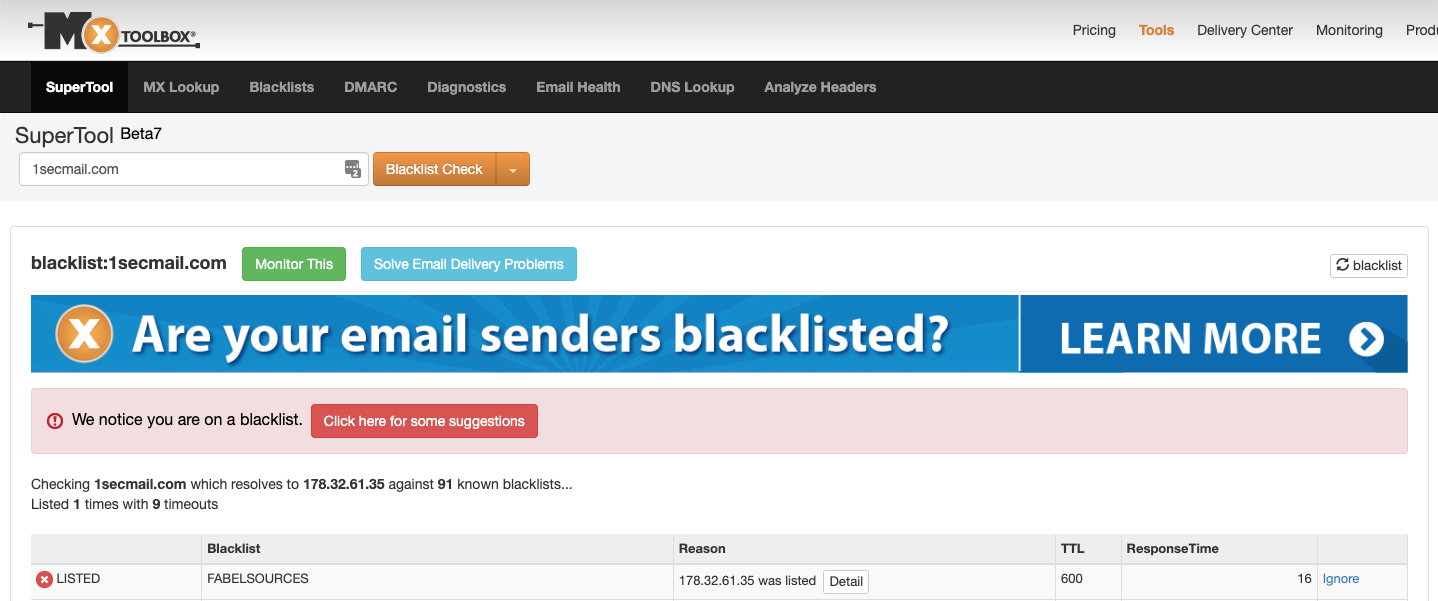
You can use MXToolbox for quick checks against 100+ blocklists whenever you want, but if you sign up for a free account, you can set up a monitor that checks your email server’s hostname or IP address against 30 common blocklists every week and emails you the results. (MXToolbox offers lots of other email and Internet-related tests that can help you monitor and troubleshoot your Internet presence.)
Getting off a Blocklist
Once your IP address is on a blocklist, your goal is to remove it as quickly as possible. Many blocklists automatically remove entries after a certain amount of time, but clicking the Detail button in the MXToolbox blocklist listing will tell you more about the blocklist and potentially how to request a manual delisting.
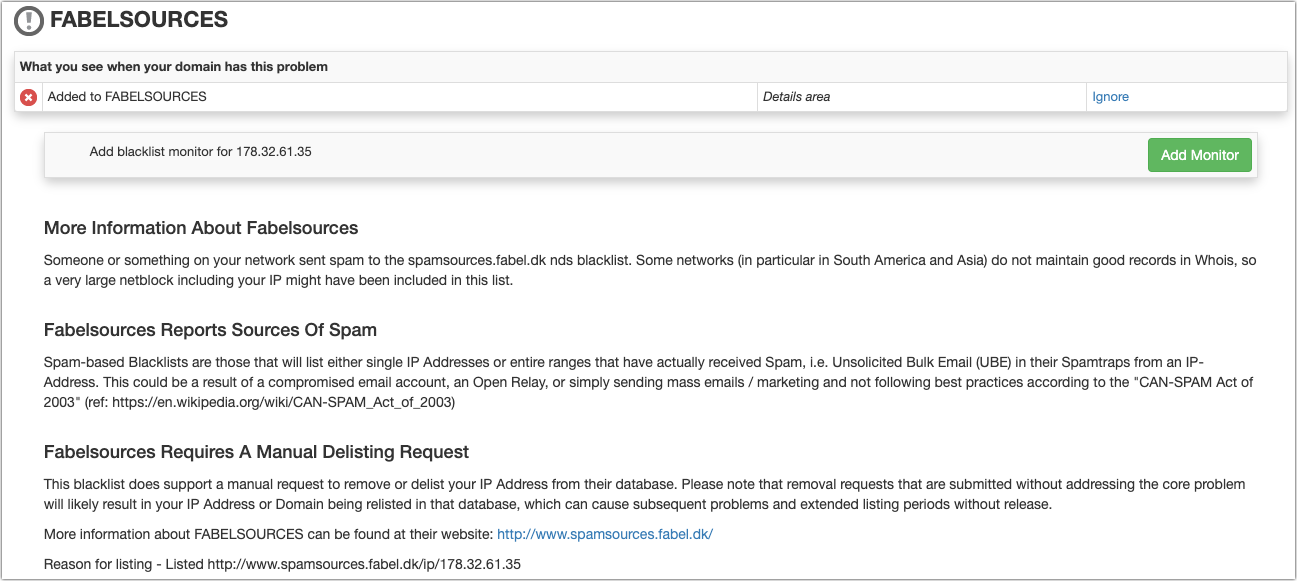
The precise steps will vary by blocklist, but the most important thing is that you resolve whatever issue caused your server to be added in the first place. Once that’s done, you’ll probably need to provide the IP address of the server and an explanation of what happened, either in a Web form or in an email to the blocklist admins.
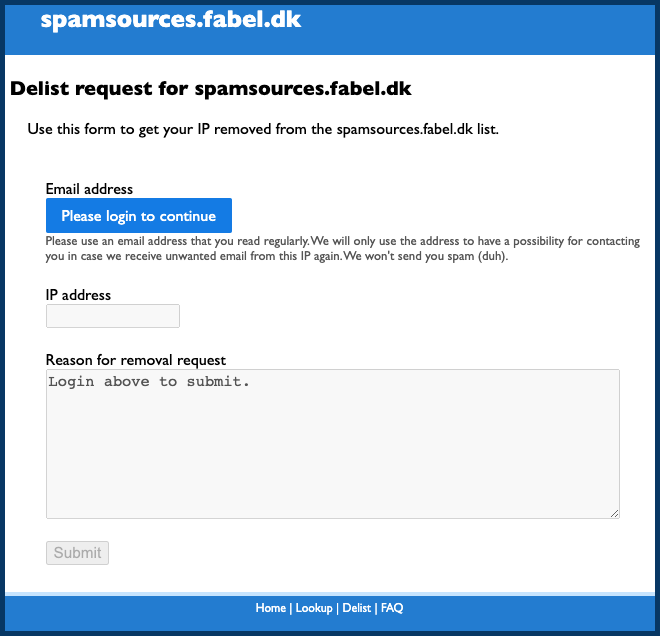
We won’t lie—ending up on a blocklist can be stressful, particularly if your organization relies on sending customer-focused email. But if you keep your list clean and avoid sending spam-like messages, the occasional blocklist listing should be only a temporary blip in your operations.
(Featured image by iStock.com/ipuwadol)
Apple Is Driving the iPhone to eSIM: Here’s What You Need to Know
Apple has gone all-in on eSIM, eliminating the SIM tray from iPhone 14 models sold in the US. What’s eSIM? Glad you asked—read on for the details of the technology and why it’s better than SIM cards.
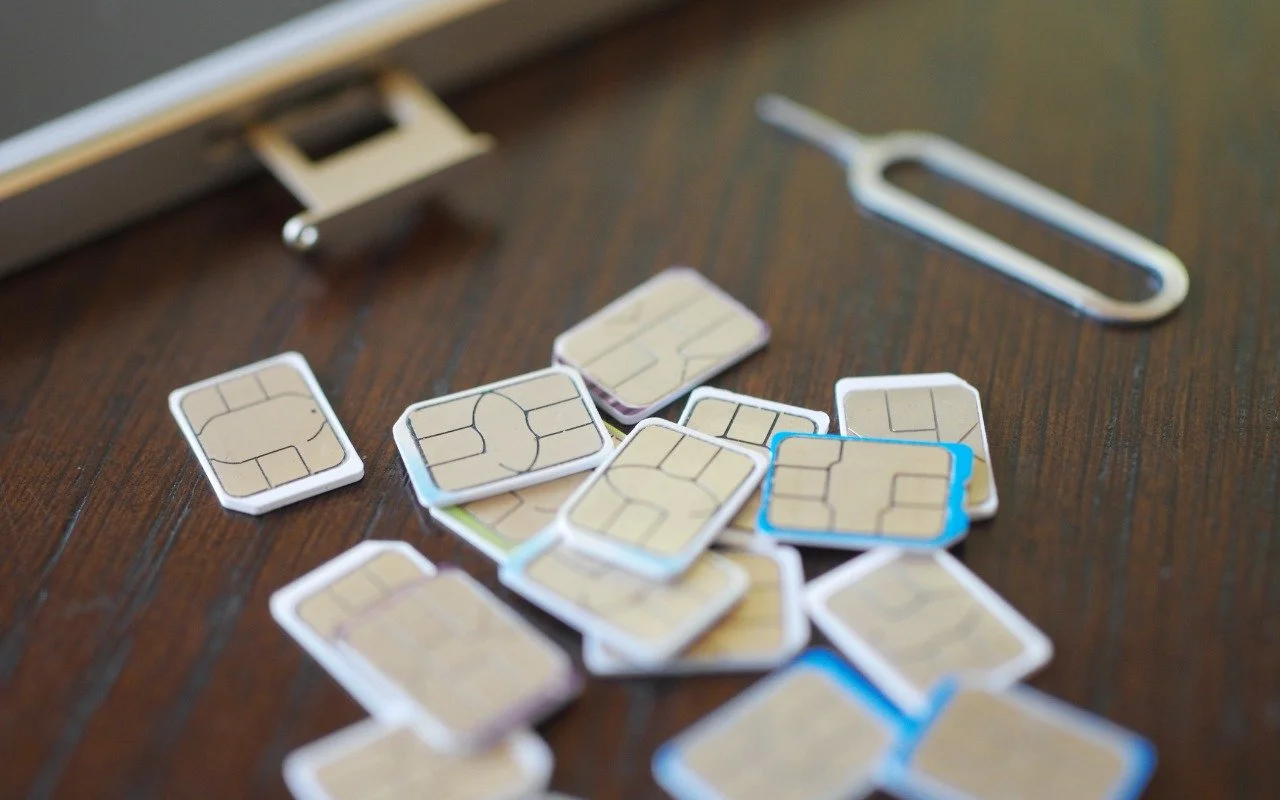
Perhaps the most surprising change in the iPhone 14 line, at least in the United States, was the shift from using removable SIM cards to eSIM.
SIM cards—SIM stands for Subscriber Identity Module—have been a fixture in the mobile phone world for many years because they provide the unique identification necessary to connect a subscriber and a plan with a phone. Because SIM cards are removable, you can use them to transfer an existing plan to a new phone, switch car-riers, or enable temporary service while traveling—all by inserting the appropriate SIM card.
But SIM cards are small, fussy, and require physical interaction, so the industry came up with eSIM, or embedded SIM, where a programmable SIM is integrated into the circuitry of the phone. With eSIM, you can also activate a plan, transfer a plan to a new phone, or change carriers, typically without interacting with customer service. You also don’t have to acquire a physical SIM, figure out how to open your phone’s SIM tray, or insert the tiny SIM card in the correct orientation without dropping or damaging it. Plus, without a SIM slot and tray, iPhones have one less spot where water could get in and one less moving part that could break, and Apple doesn’t have to provide a SIM tool that you’ll likely lose (and replace with a paperclip).
Apple’s eSIM Transition
eSIM support is widespread among US carriers but less so internationally, which is why models of the iPhone 14 sold outside the US retain the SIM tray. The main place where lack of eSIM support is likely to be an issue—at least for the near future—is international travel. Historically, it was easy to purchase a pre-paid SIM card for a local carrier in the airport upon arriving, but that will no longer work for a US iPhone 14. The iPhone is sufficiently popular that international carriers are adding eSIM support, but it’s still possible to travel to a country where you can’t get local service with an iPhone 14 due to the lack of a SIM tray. Apple maintains a list of international carriers that support eSIM in various ways, including with pre-paid plans for travelers, and offers advice on how to use eSIM when traveling. (eSIM isn’t available at all in mainland China, but Apple’s list includes worldwide service providers that sell pre-paid data plans you can use when traveling in China and other countries without eSIM support.)
Apple has been moving toward eSIM for several years, starting with the iPhone XS, iPhone XS Max, and iPhone XR in 2018. Those iPhones—and every model up to the iPhone 14—had both a SIM tray and eSIM, which enabled the use of two separate cellular plans, each with its own phone number. With the iPhone 13, Apple enabled Dual SIM support with eSIM alone, and some carriers started giving customers the option to activate their primary service with eSIM, leaving the SIM tray or the second eSIM available for a second plan. Apple says you can store and switch among up to eight or more eSIMs, two of which can be active at any time, but it’s unclear how that works—an update to iOS might be necessary.
Cellular-capable iPads have had eSIM support since the seventh-generation iPad, fifth-generation iPad mini, third-generation iPad Air, first-generation 11-inch iPad Pro, and third-generation 12.9-inch iPad Pro.
How to Activate an eSIM
Precisely how you activate an account with eSIM varies by carrier and your situation, but Apple describes three basic options:
eSIM Carrier Activation: Some carriers can assign a new eSIM to your iPhone, making it easy to switch to a new iPhone or enable an eSIM-based plan after setup. eSIM Carrier Activation involves following a few simple onscreen instructions where you basically acknowledge that activation is happening. Make sure you can place a phone call afterward, and if you’re switching from a SIM card, remove it and restart your iPhone.
eSIM Quick Transfer: If you’re transferring a SIM or eSIM from an old iPhone to a new one and you have both at hand, you may be able to use eSIM Quick Transfer. It will provide instructions during setup, or you can initiate it after setup with Settings > Cellular > Add Cellular Plan and either selecting a plan from a list or tapping Transfer From Another Device. You can also convert a physical SIM to an eSIM on the same phone if your carrier supports eSIM Quick Transfer; check to see if Settings > Cellular has a Convert to eSIM option. If so, tap it and follow the instructions.
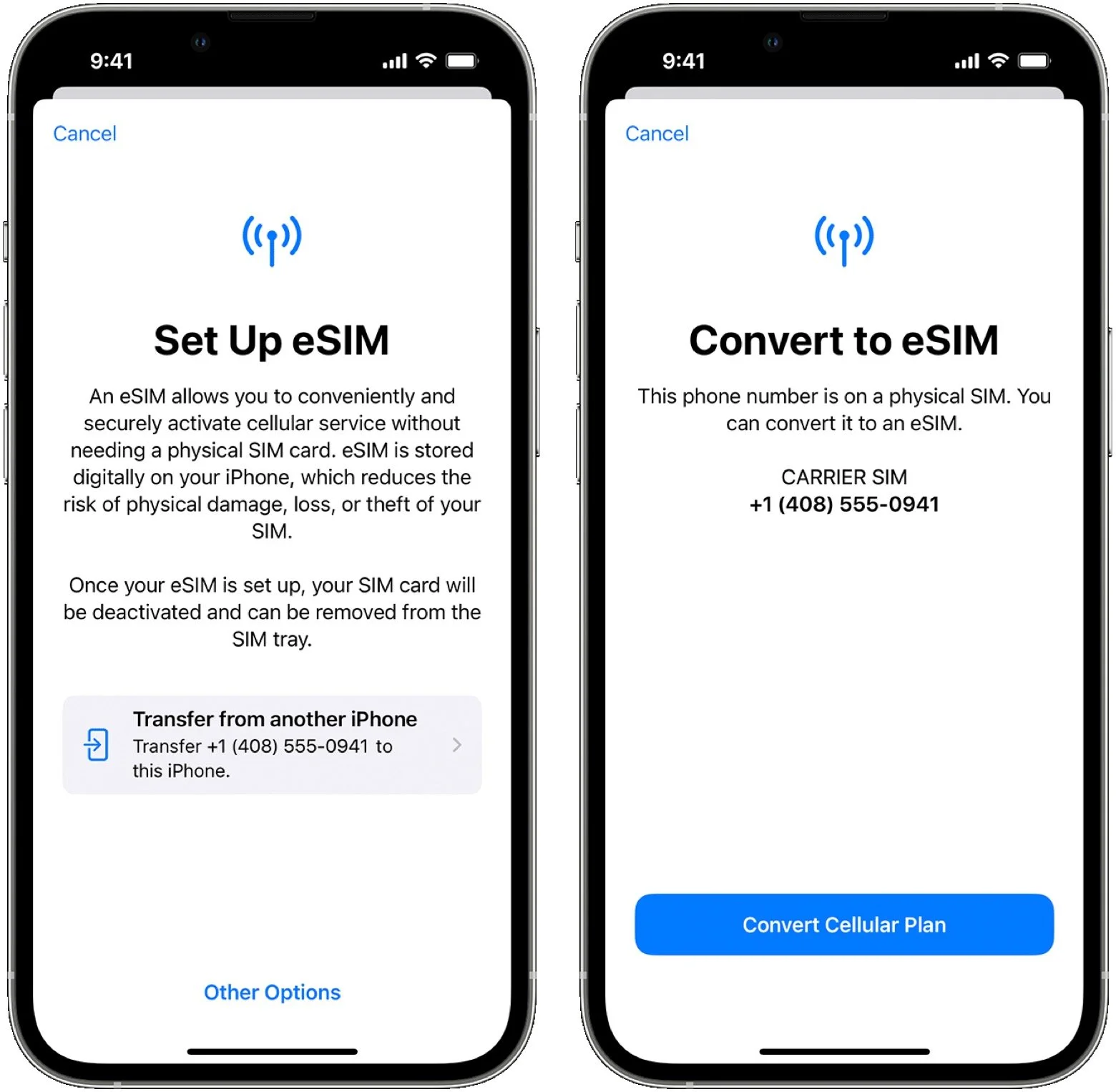
Scan a QR code or use a carrier app: Carriers that don’t support eSIM Carrier Activation or eSIM Quick Transfer initiate setup by providing either a QR code you can scan—during setup or afterward—or a custom app. Either way, follow the iPhone’s instructions to complete the setup.
Although we’ve become accustomed to swapping SIM cards in and out of our iPhones such that eSIM feels new and confusing, it should be a better overall solution that’s easier to set up, less error-prone, and more secure. There may be some short-term annoyance for US iPhone 14 owners who travel internationally, but we anticipate that will dissipate over time as international carriers start supporting eSIM.
(Featured image by iStock.com/fz750)
The Best Apple Gifts for 2022
Looking for the perfect holiday gift for the Apple user in your life? With some products having long shipping times, it’s worth ordering sooner rather than later. Here are our suggestions for the top Apple gifts for 2022.
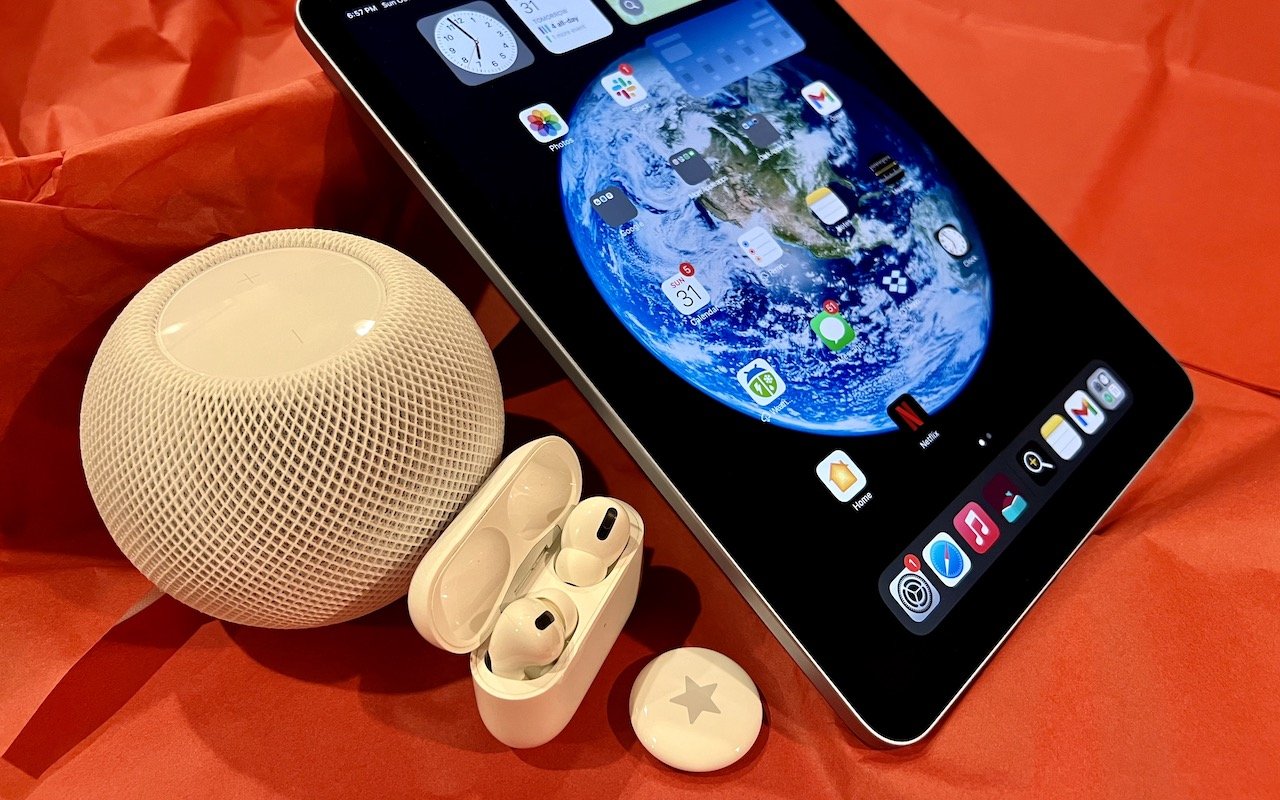
It may seem early to think about holiday shopping, but even as the global supply chain recovers from pandemic-related slowdowns, ship dates remain unpredictable. If you want to make sure you have an Apple something for that special someone, we recommend buying it soon. Here are our recommendations.
AirTag
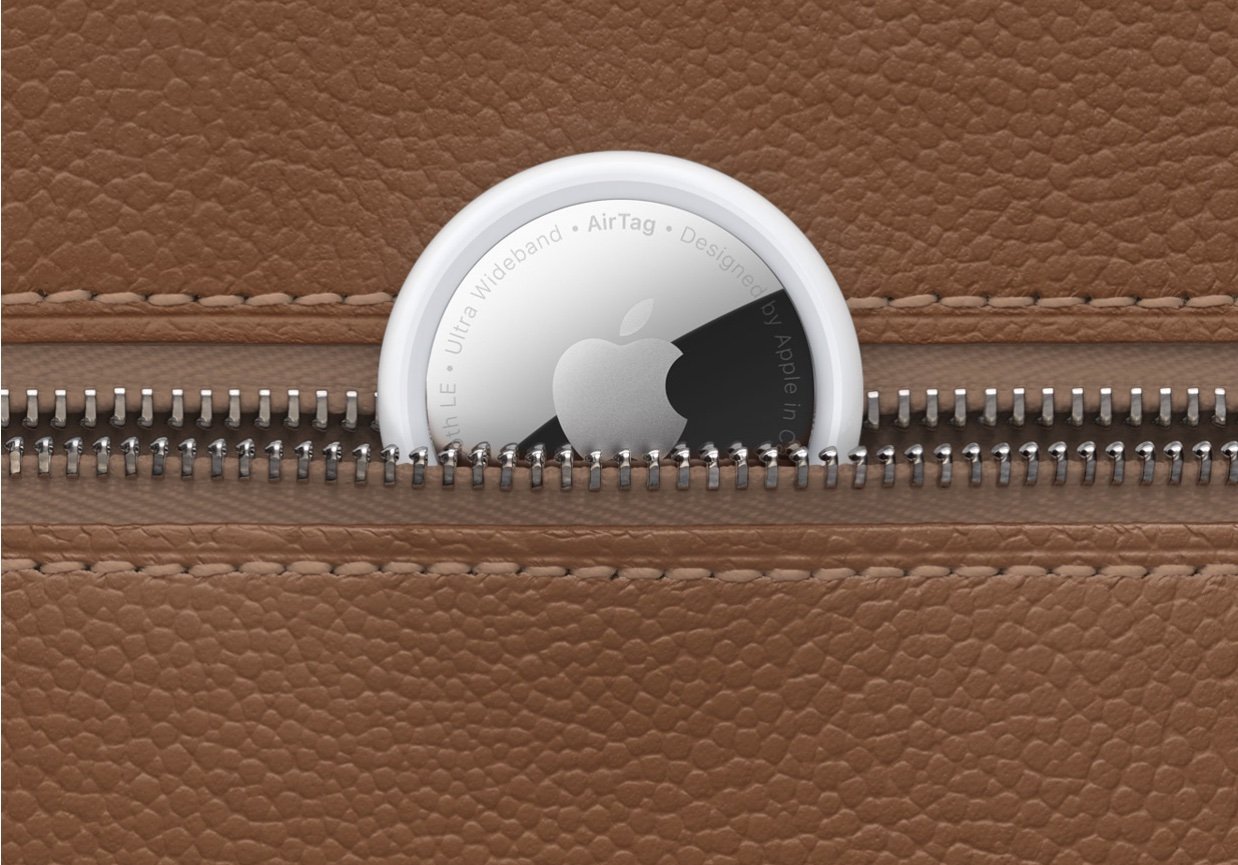
Do you know someone who’s always misplacing their keys, purse, or backpack, or who’s planning a big trip? They might appreciate Apple’s AirTag tracker this holiday season. Attach one to a keyring (with a separate $29 AirTag Loop, $35 AirTag Leather Key Ring, or $39 AirTag Leather Loop) or drop it in a bag, and from then on, they can use the iPhone’s Find My app to see where they left their stuff. AirTag uses the Find My network, so even if the item is far away, passing Apple devices that detect it can securely share its location with you. That makes it especially helpful for tracking down checked luggage that hasn’t arrived at its proper destination. One AirTag costs $29, or you can get a pack of four for $99. You can even have Apple personalize each AirTag with custom text and emoji.
AirPods and AirPods Pro
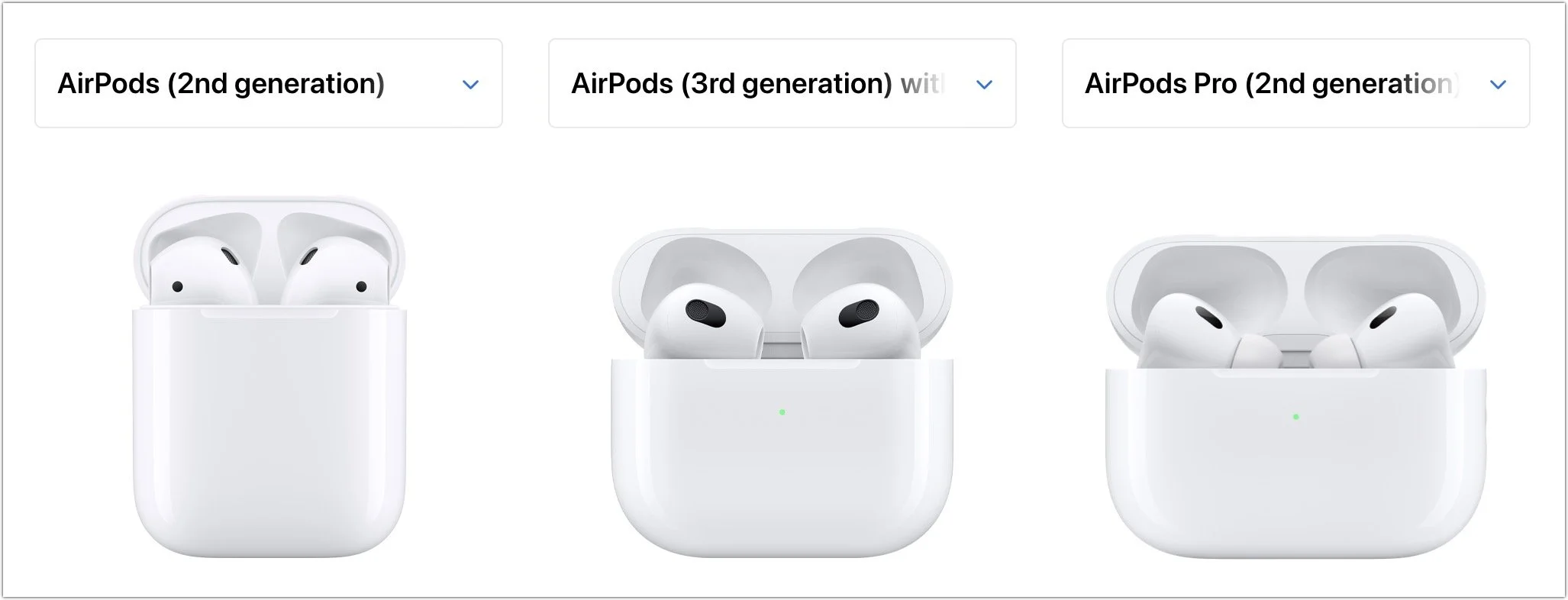
Apple’s wireless earbuds keep getting better. In September, the company released the second-generation AirPods Pro, replacing the original model and supplementing the second-generation AirPods and third-generation AirPods. All three make excellent gifts. The second-generation AirPods cost $129, have a relatively long stalk, and boast up to 5 hours of listening on one charge. The $179 third-generation AirPods shrink the stalk, switch to a force sensor for controls, add support for spatial audio with dynamic head tracking, feature sweat and water resistance, have a MagSafe wireless charging case, and last up to 6 hours on a single charge. For $249, the second-generation AirPods Pro offer major upgrades to Active Noise Cancellation and Transparency mode, provide touch control for media playback and volume adjustments from the stem, and increase battery life to 6 hours. The AirPods Pro now come with a new charging case that’s sweat- and water-resistant, includes a lanyard loop, and can charge from a Lightning cable, MagSafe charger, Qi wireless charger, or Apple Watch charger. All three models support Hey Siri commands and automatically switch between Apple devices. See all the similarities and differences in Apple’s comparison tool.
HomePod mini
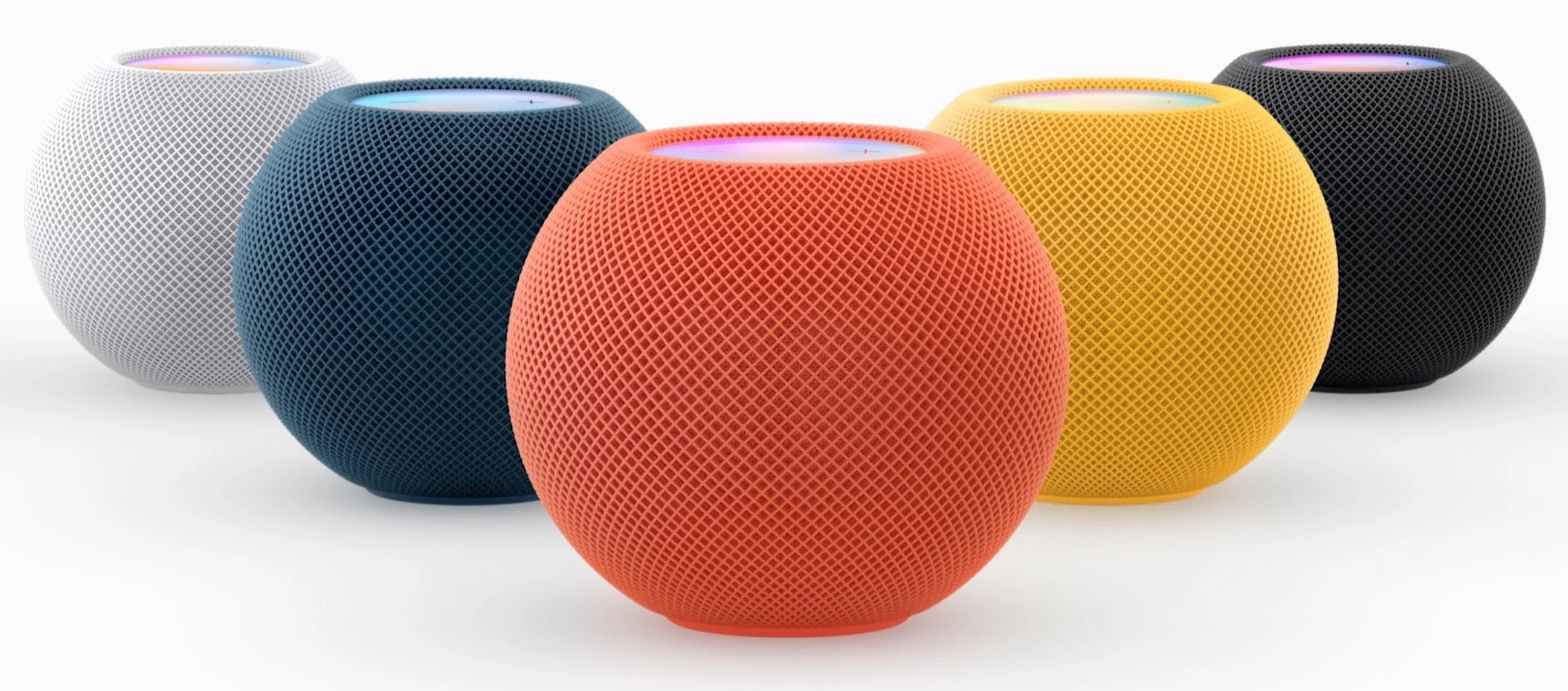
Although the original HomePod didn’t set the world on fire, the $99 HomePod mini has been significantly more popular. The grapefruit-sized HomePod mini may be small, but it produces great sound for its size and can do pretty much everything the larger HomePod could do. You can control it entirely via Siri, pair two for stereo sound, use it as a hub for your HomeKit home automation accessories, and even have it play the sound from your Apple TV. Put a HomePod mini in different rooms in the house, and you can use Intercom to communicate with family members with your voice. If you’re giving it as a gift, remember that it’s best when paired with an Apple Music subscription.
Apple TV 4K
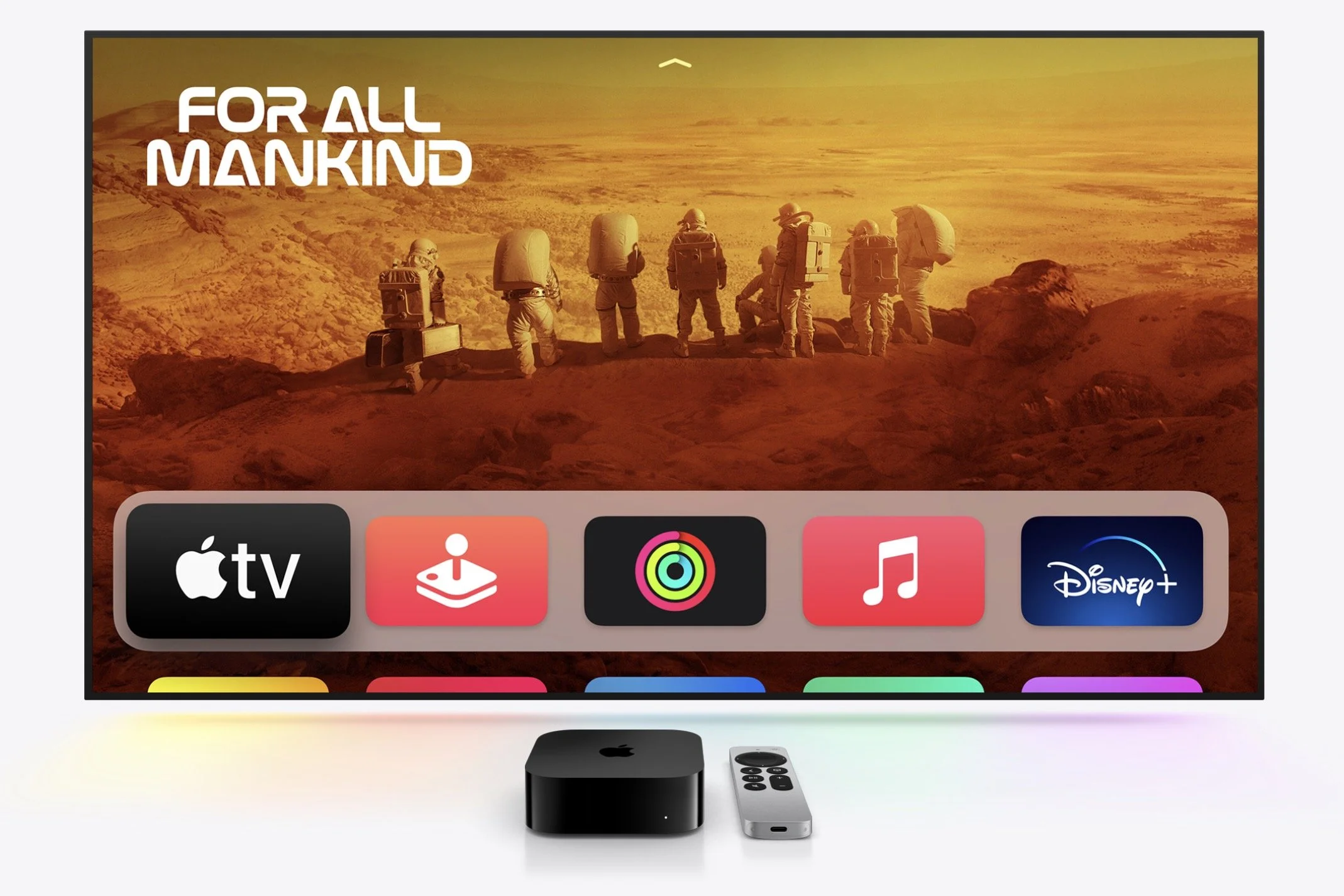
The Apple TV hasn’t changed much over recent years, but this year’s new models are enough better and cheaper to warrant inclusion in this article. If someone on your list would benefit from a streaming media player, consider the new third-generation Apple TV 4K, which has a lot going for it. It now boasts a fast A15 Bionic chip, and the Siri Remote charges via USB-C. For someone who mostly wants to watch TV, the $129 Apple TV 4K (Wi-Fi) model is all they’ll ever need, with 64 GB of storage. For $149, the Apple TV 4K (Wi-Fi + Ethernet) has 128 GB of storage for those who want to load a lot of apps and games, and it includes a Gigabit Ethernet port and support for the Thread home automation protocol.
iPad, iPad mini, and iPad Air
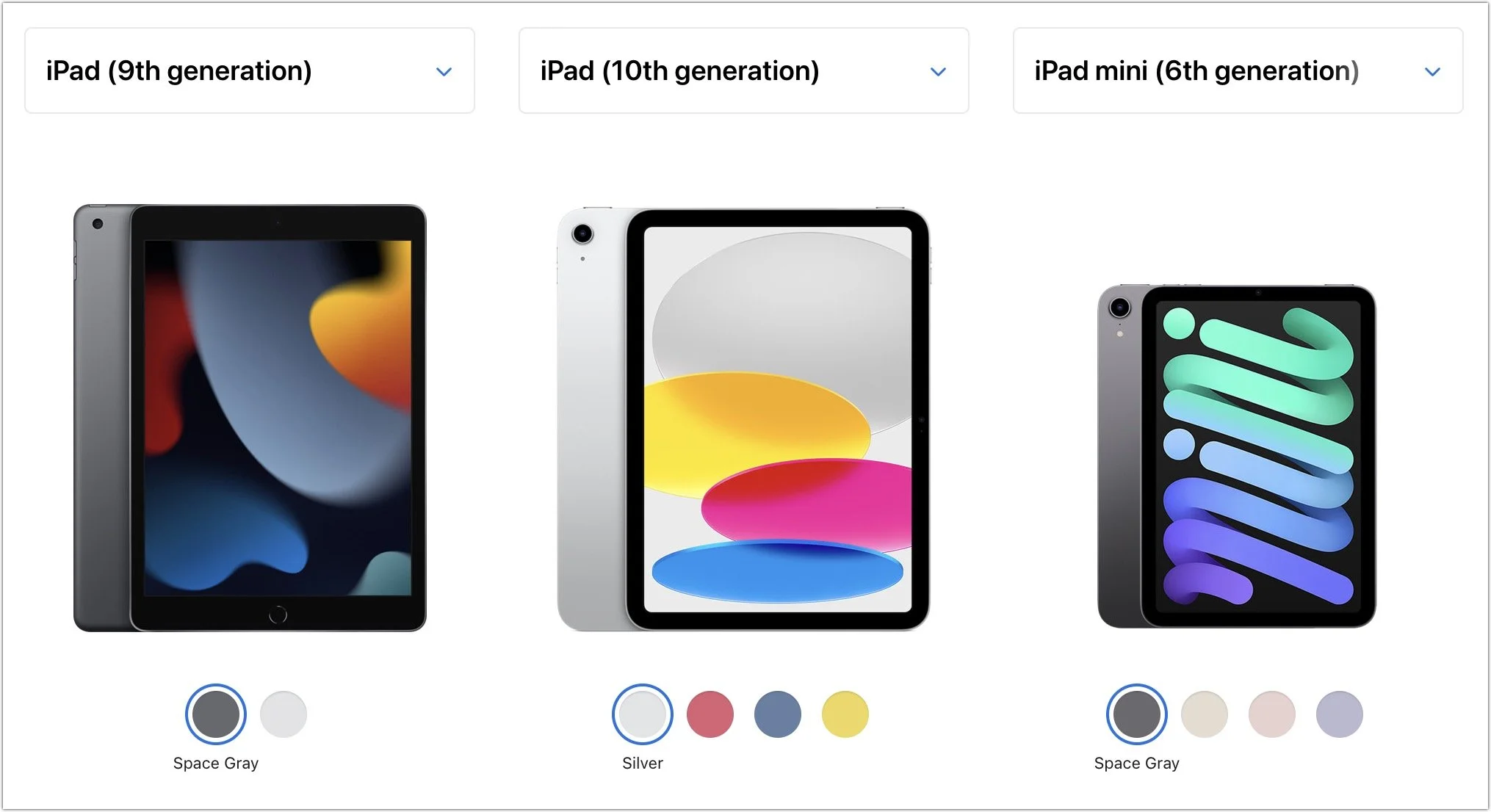
If you’re looking to give an iPad as a gift, Apple has numerous options, with starting prices ranging from $329 to $599.
Ninth-generation iPad: The budget choice for a kid or an adult with basic needs is last year’s ninth-generation iPad, which remains an astonishing bargain at $329. It works with the first-generation Apple Pencil ($99), and those who need to write can add the $159 Smart Keyboard.
Tenth-generation iPad: This year’s redesigned tenth-generation iPad starts at $449, moving Touch ID to the top button, increasing the display size to 10.9 inches, and positioning the front-facing camera on the landscape edge. It pairs with the new $249 Magic Keyboard Folio and the first-generation Apple Pencil.
iPad mini: If you’re looking for something small, the diminutive sixth-generation iPad mini fits the bill at just $499. It’s compatible with the second-generation Apple Pencil ($129), but if you need a keyboard, you’ll have to look to a third-party manufacturer or use a standard Bluetooth wireless keyboard.
iPad Air: For the most power short of the pricey iPad Pro models, consider the fourth-generation iPad Air. It starts at $599 and can handle even the most intensive tasks, especially when coupled with a second-generation Apple Pencil and either a Magic Keyboard ($299) or Smart Keyboard Folio ($179).
Apple Watch Gift Certificate
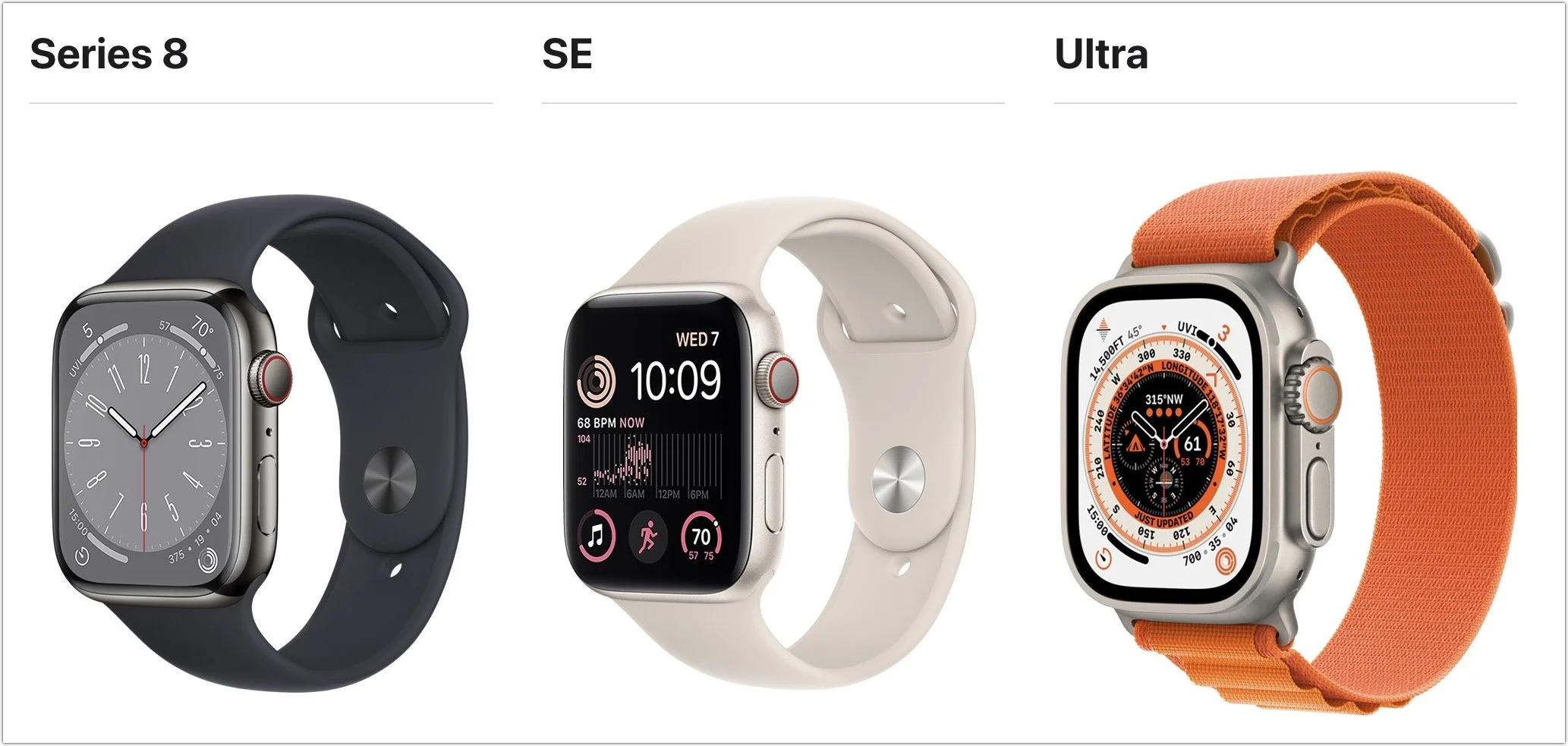
We love the Apple Watch, but be careful when considering it as a gift. There are three rather different models, and Apple provides a dizzying number of options for case size, material, and color, plus the band and color, making it difficult to know what would be most appreciated. Instead of guessing what your recipient would like, we encourage giving a certificate that’s good for a conversation about what to purchase. Then sit down with the recipient to run through all the decisions on the Apple Watch site.
There are three options this year: the updated Apple Watch SE (starting at $249), the new Apple Watch Series 8 (starting at $399), and the big, beefy, adventure-focused Apple Watch Ultra (starting at $799).
Thanks to a larger screen, faster chip, and Apple’s new iPhone and Apple Watch crash detection feature, the Apple Watch SE is more compelling than ever and all that most people need. Consider the Series 8 if you also want a larger Always-On display, blood oxygen sensor, and ECG capabilities, along with a new temperature sensor for cycle tracking. The Apple Watch Ultra puts all those features and more into a 49mm titanium case that features a new Action button that gives you quick access to app-specific commands. Its buttons are larger and easier to press, the Always-On display is brighter, the GPS works better in challenging conditions, and it has a depth gauge and water temperature sensor so it can serve as a dive computer. The Apple Watch Ultra boasts up to 36 hours of battery life in normal usage and up to 60 hours in a forth-coming extended battery optimization mode. It’s an impressive watch, but make sure you like how it looks on your wrist, given how much larger it is than other models. Apple has a helpful comparison tool.
Even though they are worthy gifts, we didn’t include any Macs in this article because they’re quite a bit more expensive and difficult to select without extensive discus-sion of the recipient’s needs. Let us know if you need help choosing the right Mac for someone on your list, but we’re partial to the M1- and M2-based MacBook Air and 24-inch iMac for many users.
(Featured image by Adam Engst)