
Tired of Nonstop Cookie Popups? Dismiss Them Automatically with These Extensions
If you’re as annoyed as we are by constant cookie consent popups on seemingly every website these days, check out our recommendations for browser extensions that can banish them for good.

The European Union has for many years required that websites—at least those serving European users—gain informed consent before storing the personal data of those users. That data includes cookies, which are bits of information stored in Web browsers that websites can read and write. Cookies are widely used for remembering login information, saving user account information, maintaining a shopping cart, and other legitimate purposes. However, they’re also used to target advertising at you by tracking your behavior across websites, which many people consider to be an abuse of user privacy. Hence the EU’s ePrivacy Directive, which resulted in the proliferation of cookie consent popups like this one.

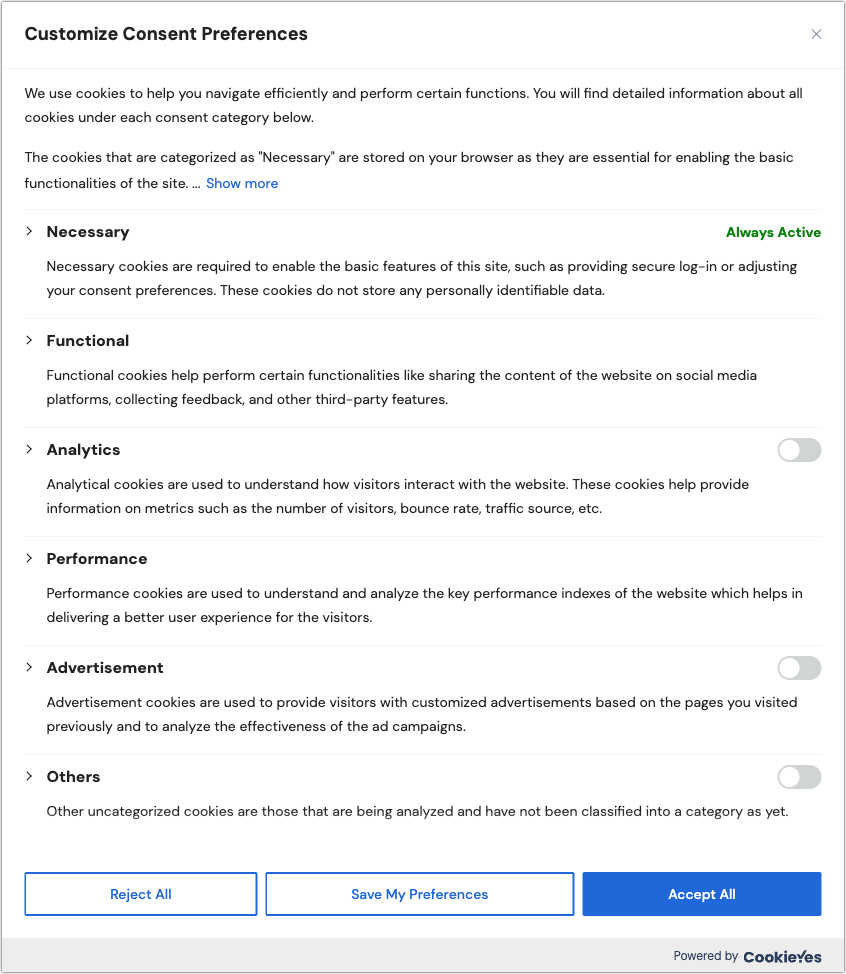
Websites that rely on advertising or user tracking prefer that everyone click Accept All, but because of the EU requirement for informed consent, they have to tell you more about the cookies they use, explain why they want to use them, and allow you to reject types of cookies. Clicking Customize in the cookie consent popup above presents this expanded view. So many details!
On the one hand, thanks to the EU for working to safeguard user privacy. Without laws like the ePrivacy Directive and the overarching General Data Protection Regulation (GDPR), the Web would be even more of a sausage factory that grinds up and sells our personal data.
On the other hand, could cookie consent popups on nearly every website be any more annoying?!? While it’s a nice idea that we provide informed consent for cookies, few people have the time and inclination to read all this and make an informed decision. If you’re like us, you’re probably mashing Reject All as fast as you can. And even that is more effort than you’d prefer to expend.
Happily, there are Web browser extensions that can simplify your life, responding to cookie consent popups automatically using preferences you set once. Why can’t Web browsers do this themselves? They could, and the privacy-focused Brave does, but the W3C’s Platform for Privacy Preferences working group’s recommendations for standardizing behavior around privacy were ignored by browser makers and dropped back in 2006.
Two browser extensions we’ve tested successfully in multiple Mac browsers are Consent-O-Matic and Super Agent. They work by learning how to interact with the common consent popups (many of which come from Consent Management Platforms like Osano and CookieYes) and automatically clicking the switches to match your preferences. More specifically, the Hush extension blocks cookie consent popups in Safari on the iPhone, iPad, and Mac.
Consent-O-Matic
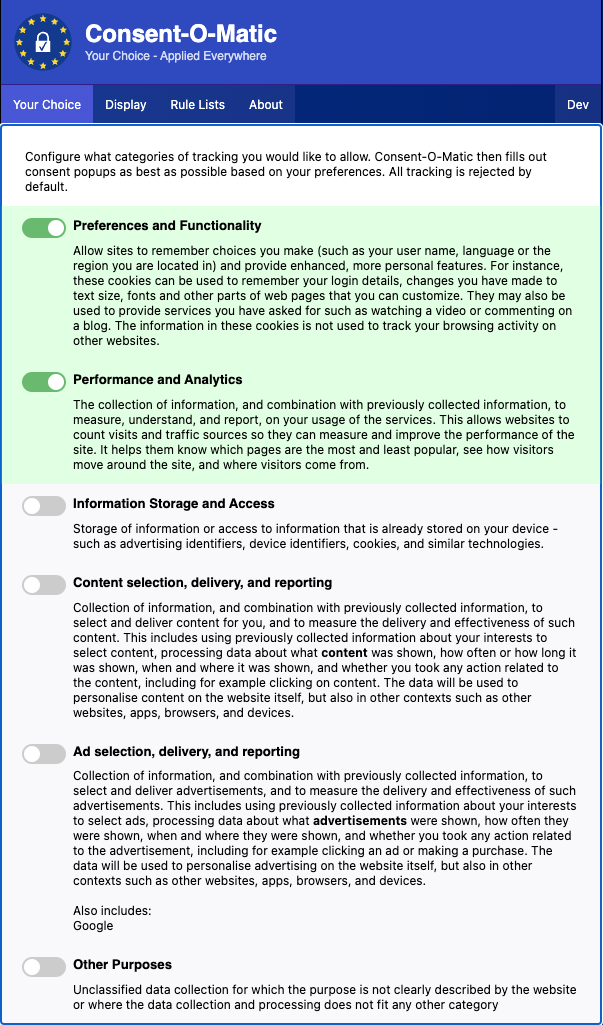
The open-source Consent-O-Matic is free from privacy researchers at Aarhus University. It comes as a Chrome extension that works with Google Chrome (and other Chromium browsers like Arc, Brave, and Edge, shown below), as an add-on for Firefox, and as an extension for Safari on the Mac and Safari in iOS and iPadOS. Consent-O-Matic works reasonably well on the Mac; in testing, it wasn’t effective enough in Safari on the iPhone and iPad to be worth installing. Installation and interface vary by browser—the Chrome extension is shown below.
By default, Consent-O-Matic allows no cookies, though we recommend enabling the Preferences and Functionality option and, if you’re feeling generous toward websites, the Performance and Analytics option. The first option improves your experience on any site where it’s helpful for it to remember information about you, and the second allows the website admins to collect metrics on how the site is being used. If a site doesn’t work correctly with Consent-O-Matic enabled, you can turn off the extension for just that site. In the Display preferences, you can choose whether Consent-O-Matic minimizes consent popups or hides them entirely, and on the About screen, you’ll see how many clicks it has saved you.
Super Agent
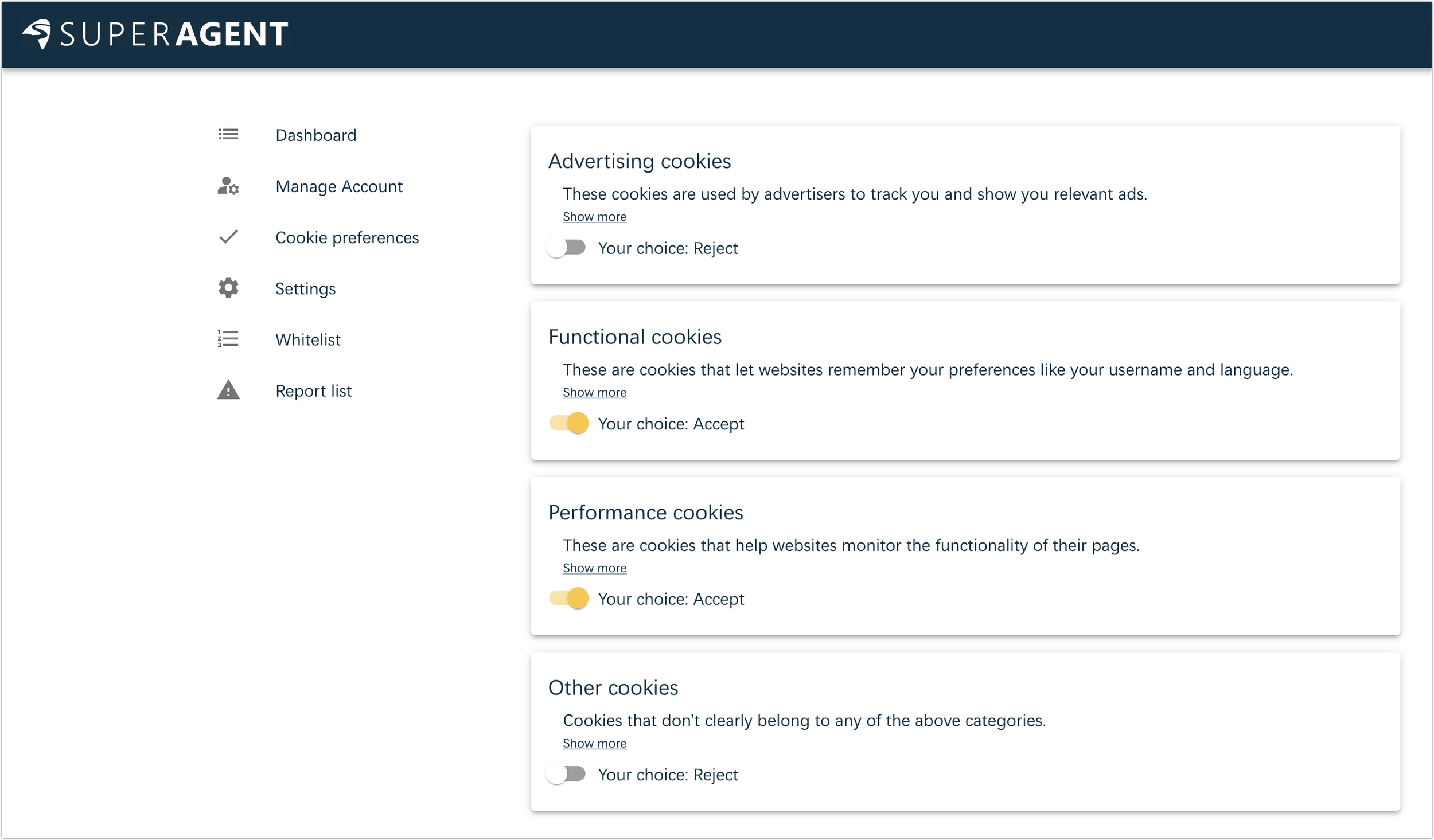
Super Agent seems to focus its paid plans on its version for the iPhone and iPad, but we didn’t find it effective enough there to install. On the Mac, however, Super Agent is free and works well, perhaps a bit more so than Consent-O-Matic. It’s available as a Chrome extension for Google Chrome and other Chromium browsers, as a Firefox add-on, and as a Safari extension. Installation and interface vary by browser—the Chrome extension is shown below.
Your first task in Super Agent is to set your preferences for cookies to accept. Again, we recommend enabling Functional cookies; turn on Performance cookies if you wish. Leave Advertising and Other cookies off.
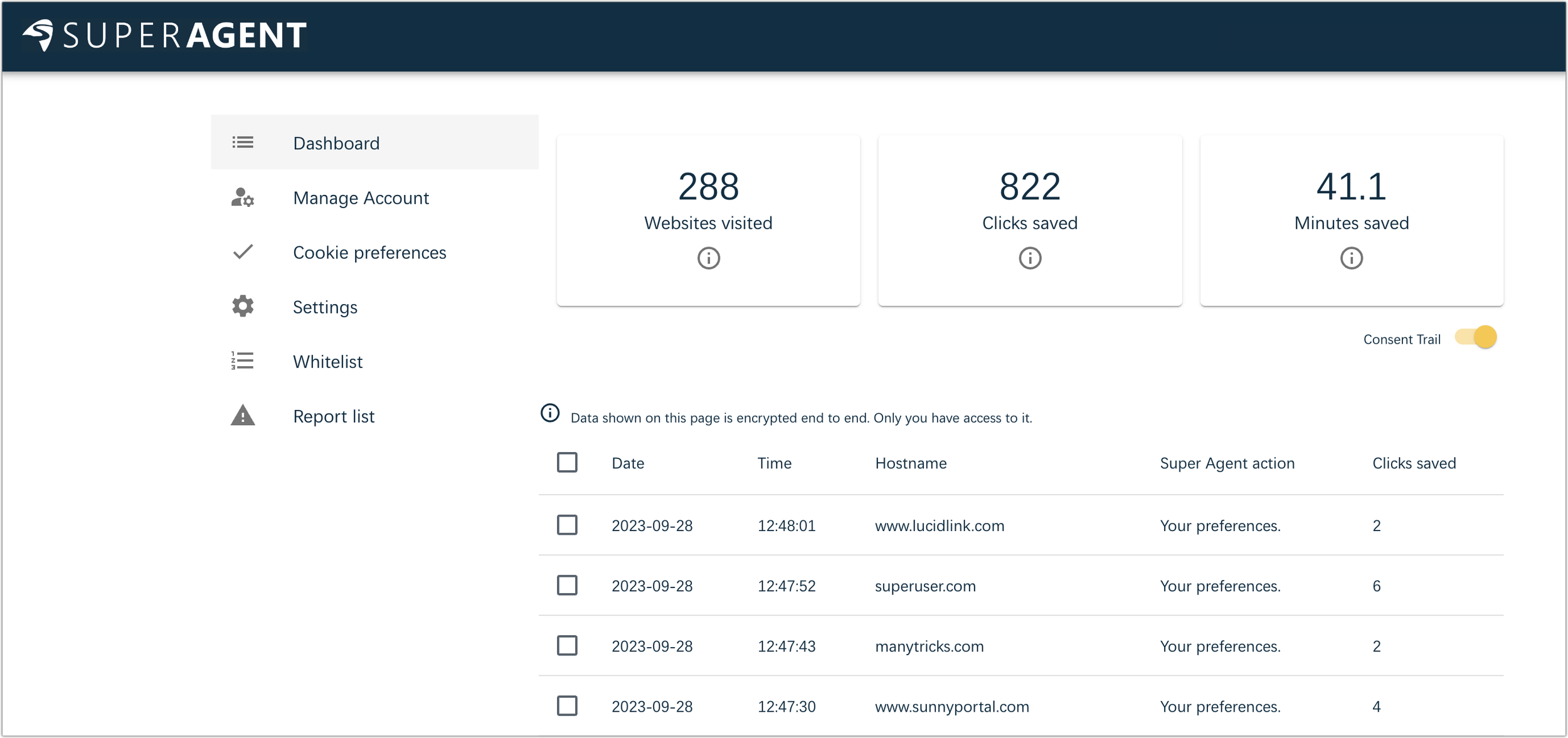
Although it’s not required, you can create a Super Agent account and enable the Consent Trail switch to see a list of the sites whose cookie consent popups Super Agent filled out for you. It’s end-to-end encrypted so that only you can see the data, but if you’re particularly concerned about privacy, don’t turn it on.
Hush
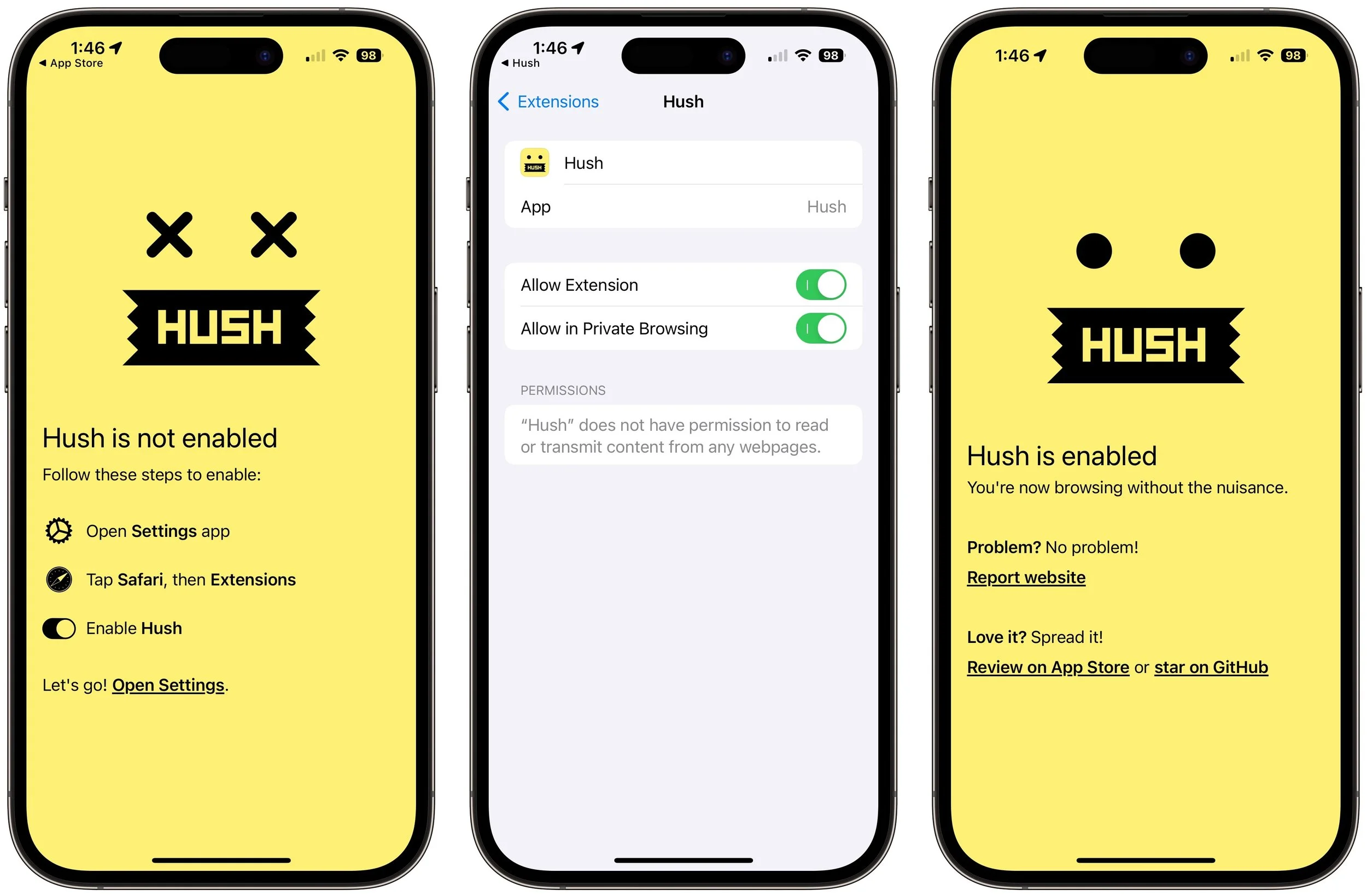
What about the iPhone and iPad, or those who care only about Safari on the Mac? We recommend Joel Arvidsson’s Hush, which bills itself as a nag blocker. It’s a free download from the App Store, and once it’s on your device, you enable it in Settings > Safari > Extensions > Hush (iOS/iPadOS) or Safari > Settings > Extensions (Mac).
That’s it. From then on, it silently blocks cookie consent popups—it doesn’t attempt to register your preferences like Consent-O-Matic and Super Agent. As a result, it might cause problems if a site requires that you accept some cookies for it to function correctly. We haven’t encountered such a site yet, but it’s not impossible. If that happens on an iPhone or iPad, tap the AA button in the Safari address bar and then Turn On Content Blockers; on the Mac, choose View > Reload Without Content Blockers.
The Web is an ever-evolving place, so there’s no guarantee that these extensions will respond to or block every cookie consent popup. But you can report missed sites to the Content-O-Matic and Super Agent developers, and Joel Arvidsson releases regular updates to block more nags and fix partially broken websites.
If you use only Safari for Web browsing, Hush could be all you need on all your Apple devices. Those who rely on other Web browsers on the Mac can pick either Consent-O-Matic or Super Agent to supplement Hush on the iPhone and iPad.
(Featured image by iStock.com/Pla2na)
Is Your Mac Running Low on Disk Space? Here’s How to Delete Unnecessary Files
Is your Mac low on drive space? Learn how to use Apple’s built-in storage management capabilities—perhaps supplemented with a third-party utility—to find and delete gigabytes of unnecessary files.

Between apps, photos, videos, music, and downloads, it’s easy to fill up your Mac’s drive, particularly one with just 128 or 256 GB of drive space. macOS warns you when you get too low on space, but those warnings may come late—for optimum Mac performance, we recommend you keep at least 10–20% of your drive free for new downloads and virtual memory swap files. There are excellent utilities that help you find and delete unnecessary files, such as the free GrandPerspective, the $9.99 DaisyDisk, and the $14.99 WhatSize, but Apple’s built-in storage management capabilities will likely be all you need.
Apple first introduced its Storage Management tool in the System Information app in macOS 10.12 Sierra, making it accessible from the About This Mac dialog. Starting in macOS 13 Ventura, Apple moved those capabilities to System Settings > General > Storage, providing a quick overview of your drive usage at the top. Hover over each colored bar to see how much space is taken up by a particular type of data. The light gray space at the end of the bar is what’s still available.
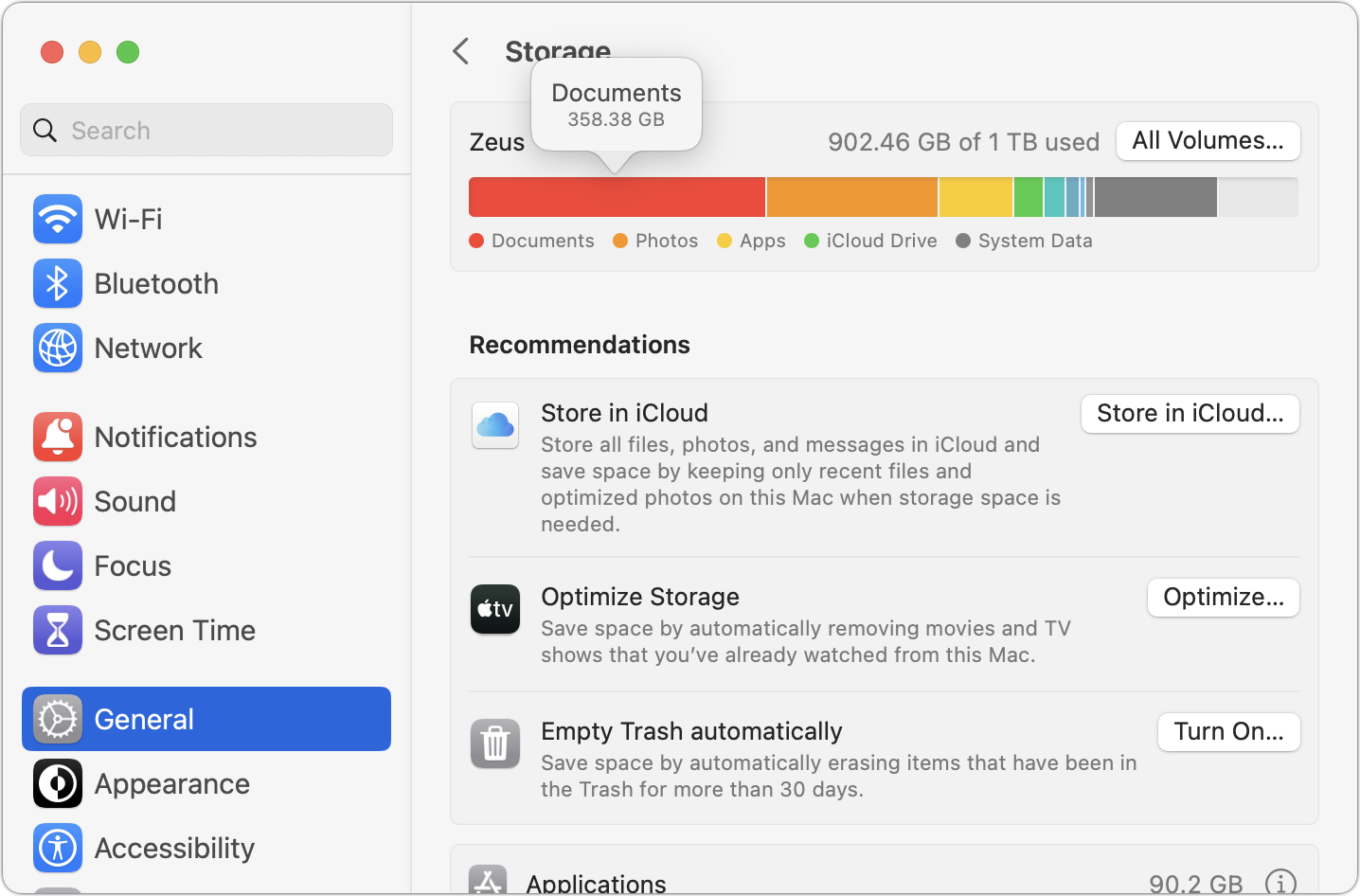
Below the graph, macOS may offer some recommendations for reducing storage over time, but they come with tradeoffs. Storing files in iCloud and optimizing Apple TV videos will replace local files with stubs pointing at a version stored in the cloud. That’s OK, but you then have to download the original before you can use it. Deleting files automatically after they’ve been in the Trash for more than 30 days is also fine but could have undesirable results if you ever want to recover older files from the Trash. Enable these if you wish, but the real work happens farther down on the screen, where you find all the categories of files you can explore. Depending on what apps you use, they will vary a bit between Macs, but they correspond to the colored bars you saw in the storage graph. Double-click each one to see what it displays.
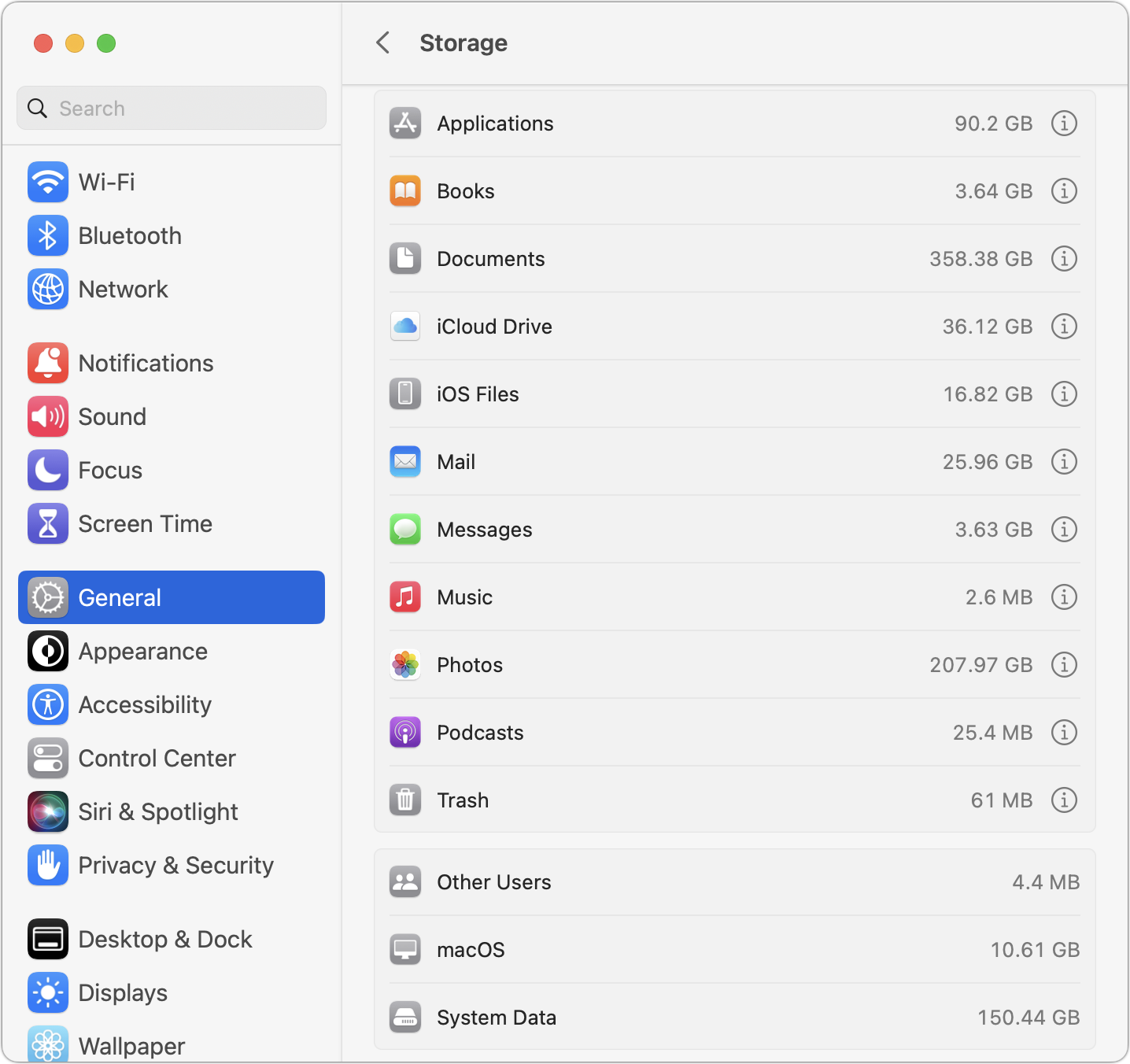
For a few app-specific categories, like Mail and Podcasts, you merely learn how much space the app’s data occupies—to save space, you must delete unnecessary data from within the app itself. iCloud Drive and Photos are similar but also let you enable space optimization, which stores only placeholder files or smaller optimized photos on the Mac, leaving the originals in iCloud for later downloading whenever you access them.
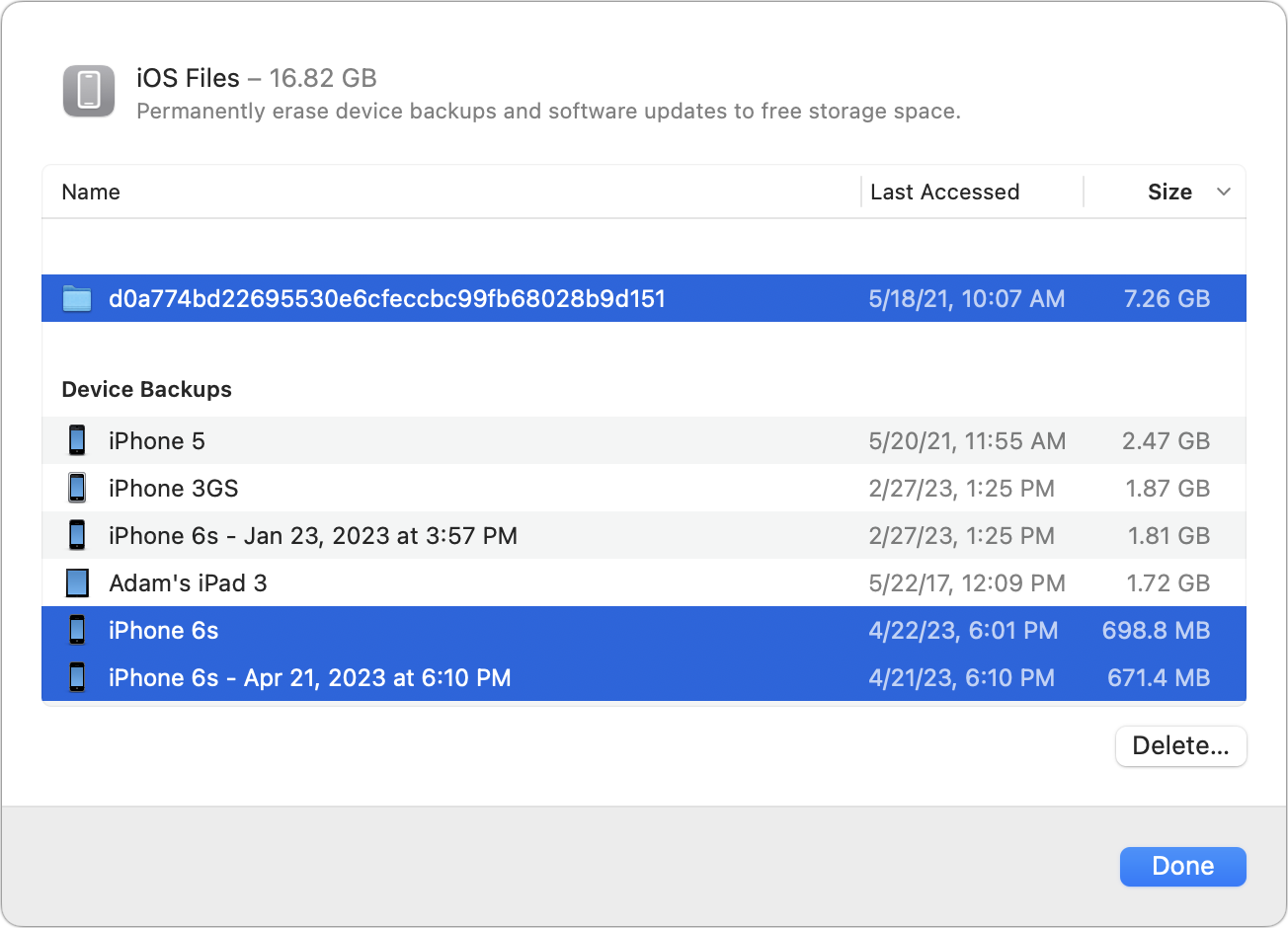
More interesting are the Applications, Documents, and iOS Files categories, each of which may reveal gigabytes of unnecessary data. iOS Files, for instance, shows any device backups and software updates stored on your Mac’s drive. It’s worth keeping the latest backup of devices you still use, but delete any older backups and updates that are just wasting space—well over 8 GB in the screenshot below.
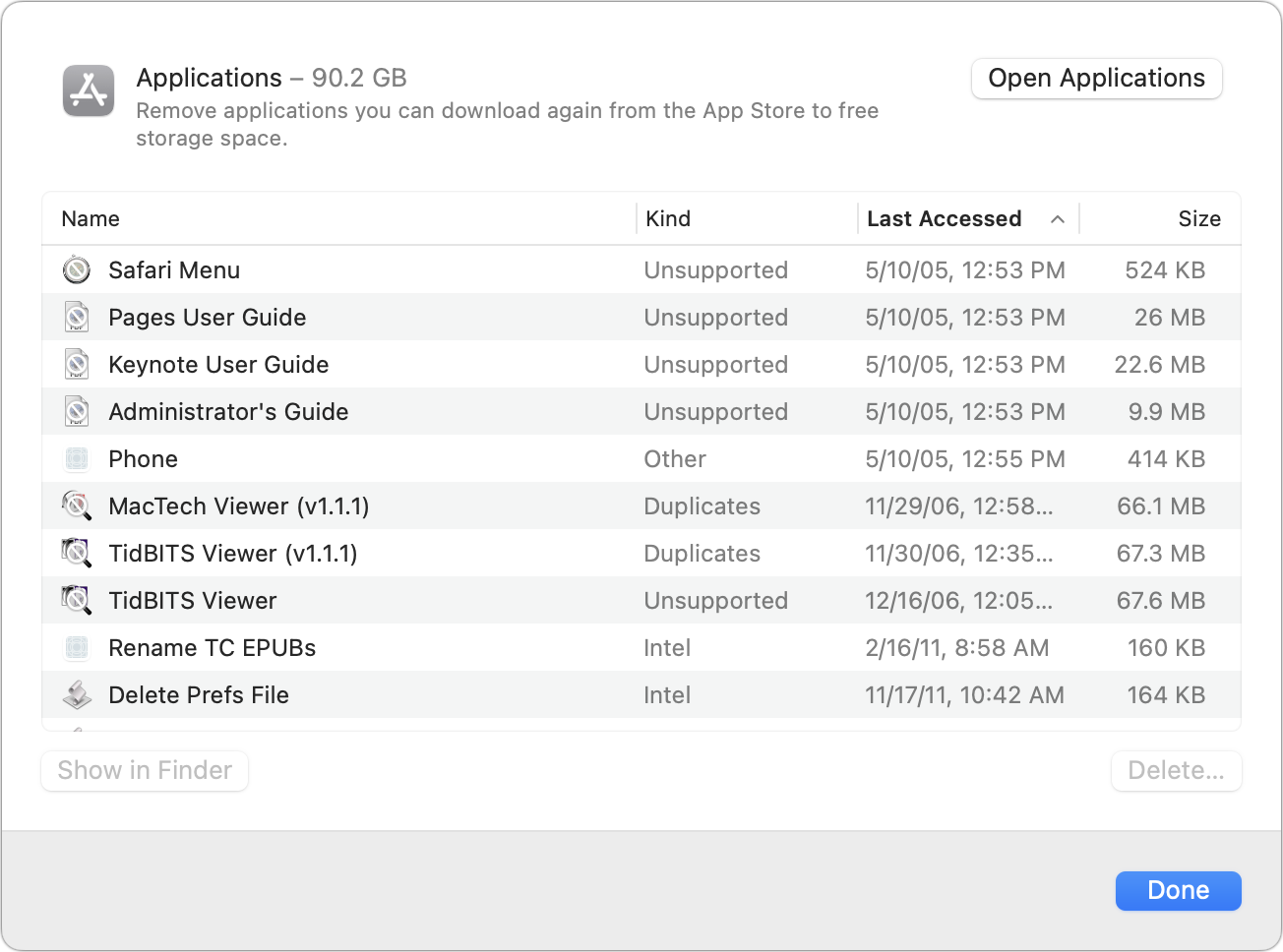
The Applications category lists your apps and is sorted by size by default. But try clicking the column header for Kind and scrolling down. You can probably delete most apps tagged as Unsupported, Duplicates, or Older Versions. Similarly, click the Last Accessed column header to see which apps you haven’t launched in years. Many of them can probably go, too.
In Documents, you’ll see four buttons: Large Files, Downloads, Unsupported Apps, and File Browser.
Large Files shows huge files regardless of where on your drive they’re located.
Downloads shows you the contents of your Downloads folder, much of which you likely don’t need.
Unsupported Apps lists any PowerPC or 32-bit apps that won’t run on your Mac. You can delete them.
File Browser provides a column view sorted by file size and shows sizes next to each item. It’s great for trawling through your drive to see what’s consum-ing all that space.
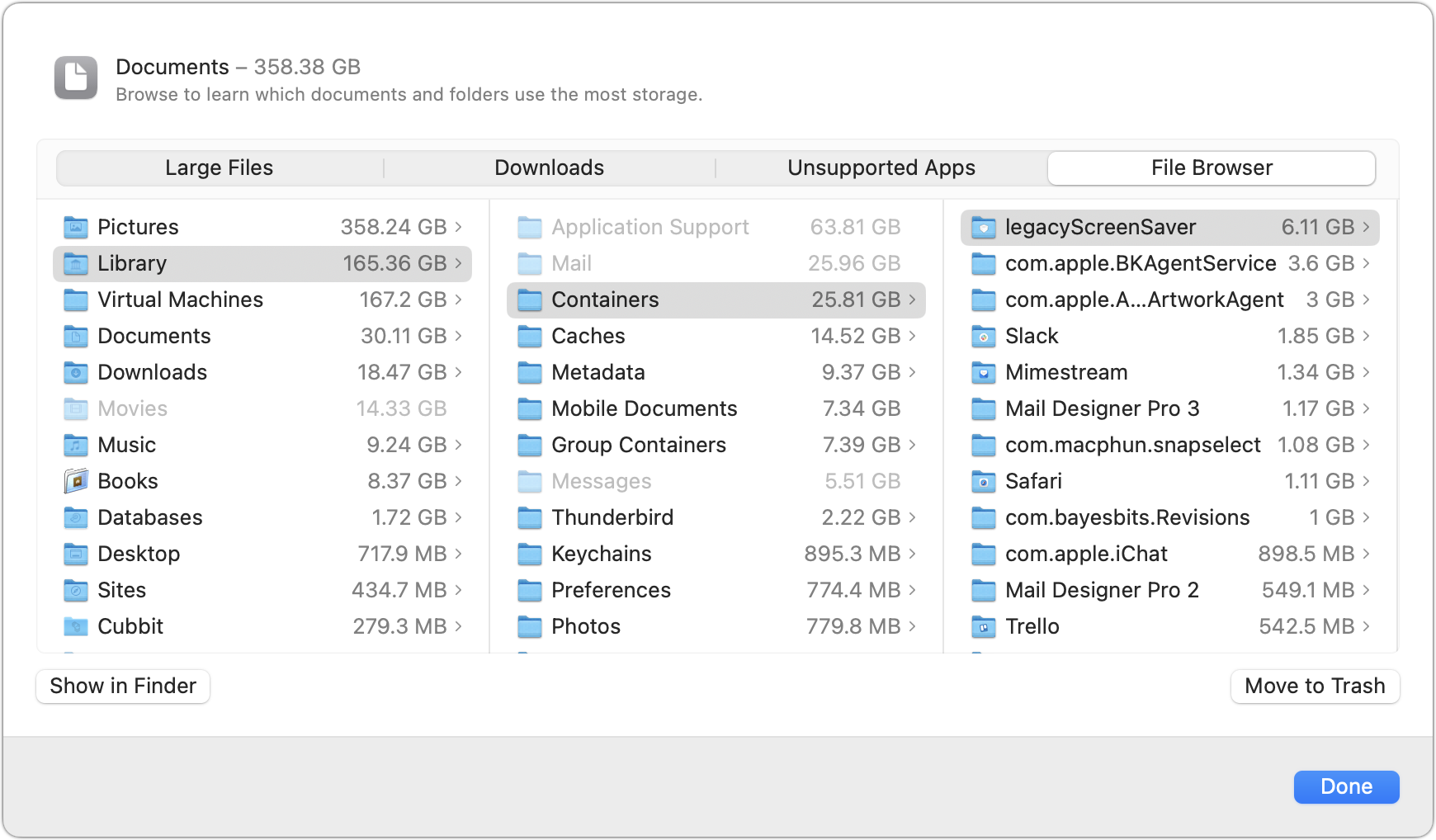
In any of these views, click Delete or Move to Trash to remove the file or Show In Finder to see it in its native habitat, which may help you decide if you should keep or delete the file. To delete multiple files at once, Command-click or Shift-click to select them and then click Delete to remove them all at once.
You may find it worth using GrandPerspective to get a visual overview of how space is used on your drive. After scanning, which can take a long time, it uses tiny colored blocks to represent files, collecting multiple blocks into bigger rectangles to show folder size. Toolbar buttons let you open, preview with Quick Look, reveal location, or delete whatever file block you click. Look in the status bar at the bottom of the window to see the path to the file.
In the screenshot below, the big boxes of color are massive virtual machine disk images, and the selected folder outlined in white at the right contains desktop pictures downloaded by an app that rotates them regularly—gigabytes of old files that can easily be deleted.

If your Mac’s drive has less than 10% free space, consider using Apple’s storage management capabilities—perhaps supplemented with GrandPerspective or another utility—to find and delete files that are wasting space.
Two final notes: Don’t get too wrapped up in the exact numbers in the storage graph matching what the Finder reports, and give the Mac some time to update its free space amounts after deleting files directly or emptying the Trash.
(Featured image based on an original by iStock.com/Bet_Noire)
With Storms Increasing, Protect Your Tech Gear from Damaging Power Fluctuations
How can you protect your tech gear from unexpected power fluctuations? A UPS is best in some scenarios, but a not-too-old surge protector is often sufficient. You can also let your Apple chargers do their job without worrying about what they are plugged into.

It has been a tough year for extreme weather events. While the connection between weather and technology may seem tenuous, heat waves, high winds, and lightning strikes can play havoc with all sorts of powered and networked electronic devices.
Anything that causes power fluctuations—spikes, surges, sags, brownouts, and blackouts—can hurt your tech gear. Protecting your most vulnerable devices doesn’t have to be expensive, but don’t be complacent because you plug your Mac into a cheap surge protector you’ve had since college. And note that many power strips offer no surge protection at all.
First off, why are power fluctuations problematic? There are two scenarios:
Too little power: Sags and brownouts are drops in voltage; a sag is a short-term dip, whereas brownouts last longer. Blackouts are complete power outages. Although they’re less damaging than surges, sags and brownouts can cause electronic devices to behave erratically or crash, and the fluctuation in voltage—particularly when coming back from an outage—can stress components. Losing power entirely will cause you to lose any unsaved work and possibly end up with document or even drive corruption.
Too much power: Spikes and surges are sudden, brief increases in voltage; the difference is that spikes are shorter than surges. Either way, the excessive power can degrade or damage sensitive electronic components, reducing lifespan or causing immediate failures.
The best solution to these scenarios is an uninterruptible power supply (UPS). Put simply, a UPS is a big battery into which you plug your Mac and other peripherals. It then plugs into a wall outlet and monitors the incoming power. If the power surges, falls below a certain threshold, or fails outright, the UPS switches the power source to its internal battery. This happens so quickly that your Mac never even notices.
If your gear is plugged into a UPS when a blackout hits, you get some time to save your work and shut down gracefully, ensuring that you don’t lose data or flirt with drive corruption. A UPS also protects against spikes and surges, filtering out the ex-cess voltage so it can’t harm the devices plugged into it. The downsides to UPSes are that they’re an extra expense, their batteries need replacing every few years, and they take up space under your desk. For a home or small office UPS, consult Wirecutter’s recommendations. For larger installations, contact us.

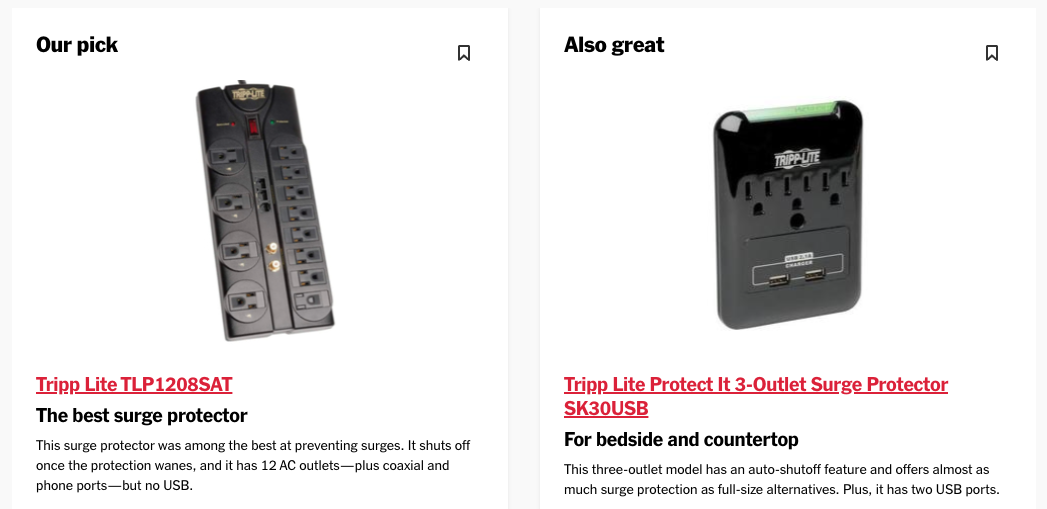
If power outages are rare in your location, you may prefer to rely on a surge protector instead of a UPS. As the name implies, surge protectors filter out voltage spikes and surges so they won’t damage your gear. Surge protectors are smaller and less expensive than UPSes, and while they don’t have batteries to fail, their protection circuitry degrades over time, so they should be replaced every few years as well. Better surge protectors alert you or stop working entirely when they can no longer provide protection. Again, Wirecutter has good recommendations.
If most of your expensive tech gear is battery-powered, you could forgo even a surge protector. Outages aren’t an issue, and a MacBook or iPhone power adapter will protect against most sags, brownouts, spikes, and surges. The power adapter may incur damage, but it’s inexpensive to replace.
One final thought. No UPS, surge protector, or power adapter can protect against a direct lightning strike. Lightning is too fast and too powerful—it’s millions or even hundreds of millions of volts. Even turning your equipment off isn’t sufficient because lightning that has traveled miles through the air to hit the ground can easily jump across an open switch. If lightning strikes are common in your area, unplug your most expensive devices entirely during severe storms.
To sum up:
For a desktop Mac and peripherals, a UPS is a worthwhile investment if you ever suffer from power outages. Also, consider a UPS for essential networking gear—cable modems, routers, switches, and network-attached storage.
If power outages are extremely rare, or for equipment that doesn’t need to remain on during an outage, get a good surge protector. If it doesn’t automatically disable itself when it’s no longer effective, write the date on the bottom and replace it in a few years.
Although there’s no harm in doing so, it’s not necessary to plug battery-powered device chargers into a surge protector or UPS. A spike or surge may damage them, but they’ll probably sacrifice themselves to protect your gear.
When in doubt during severe storms, unplug your most valuable equipment to protect against a direct lightning strike.
(Featured image by iStock.com/HardRockShotz)
When Should You Upgrade to macOS 14 Sonoma, iOS 17, iPadOS 17, watchOS 10, and tvOS 17?
Apple is gearing up to release macOS 14 Sonoma, iOS 17, iPadOS 17, watchOS 10, and tvOS 17. We briefly examine the features worth upgrading for and suggest when to upgrade each of your Apple devices.
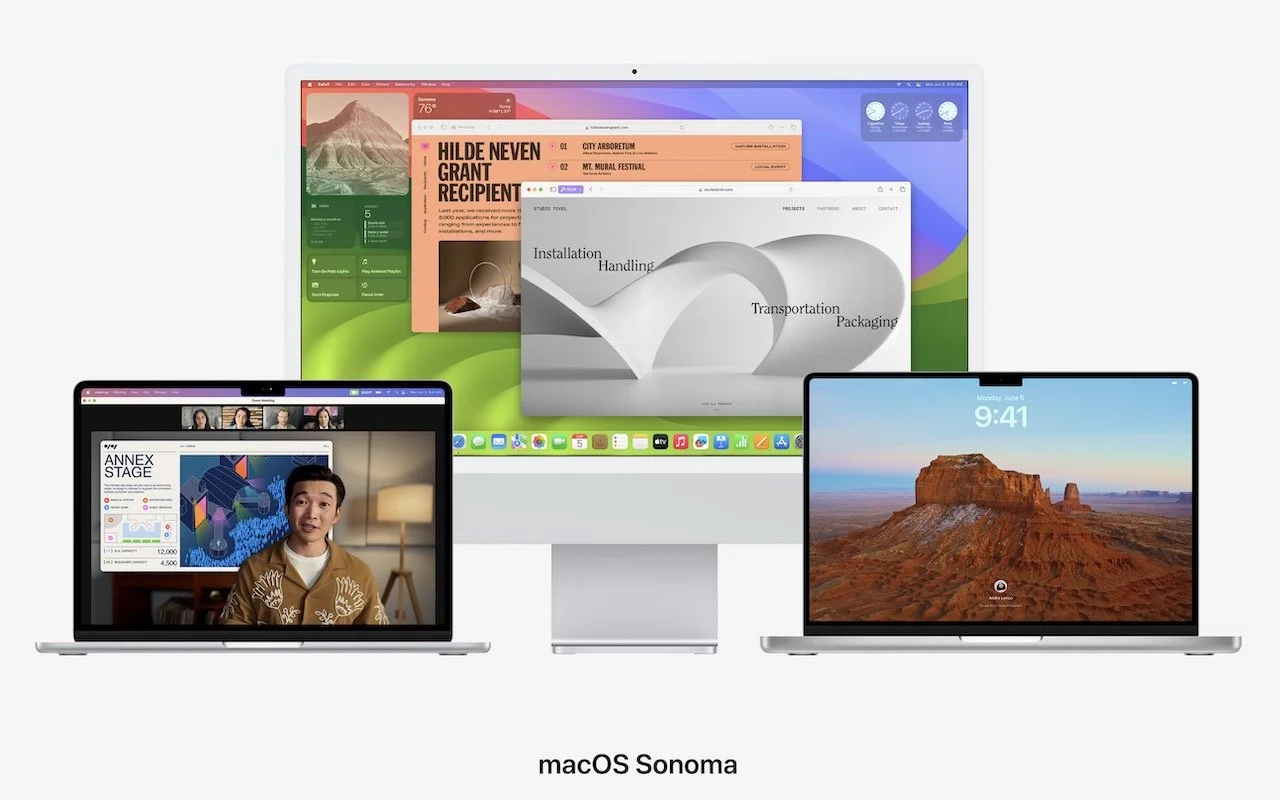
September is upon us, so Apple will soon start releasing major upgrades for all its operating systems. Note that we say “start.” Apple will undoubtedly release iOS 17 and watchOS 10 alongside new iPhone and Apple Watch models in mid-September. The company hasn’t said when it will release iPadOS 17, although it’s likely to accompany iOS 17. macOS 14 Sonoma may wait until the release of new Macs later in the fall. tvOS 17 isn’t interesting enough to worry about much either way.
Apple previewed these releases at its Worldwide Developers Conference in June, and many people have been testing the public betas since. Once Apple judges each of its operating systems to be ready for public consumption, the question arises—when should you upgrade?
Note that we say when and not if. There’s no harm in delaying a major operating system upgrade until Apple has sanded off any rough edges that slipped through testing. But waiting too long puts you at risk from security vulnerabilities, increases compatibility annoyances, and prevents you from taking advantage of new features. Plus, when you buy a new Mac, iPhone, or iPad after these operating systems have shipped, you’ll get the latest version, which could pose problems for your existing apps or compatibility with older hardware or workflows. It’s best to be prepared if you have to replace a device unexpectedly.
Given that we don’t know precisely when each operating system will come out, here’s our recommendation for the general upgrade order that we anticipate and how long we suggest waiting after the release appears, along with a few new features that might sweeten the deal.
Remember, always make a backup before upgrading a Mac, iPhone, or iPad so you can revert if necessary.
iOS 17
It’s usually safe to upgrade iOS fairly quickly because Apple puts significant effort into ensuring that the new iOS version is a good experience for those who buy the new iPhones that come with it. However, because iPhones are so crucial to our everyday lives, it’s worth delaying the upgrade to iOS 17 for a few weeks, just in case. After that, you can install it and enjoy the new features.
Foremost among them for those who make phone calls are contact posters that let you create a full-screen image others will see when you call and live voicemail that transcribes the message as it’s being left. Exchanging contact information is easier with NameDrop, which shares information wirelessly when you bring your iPhone near someone else’s iPhone or Apple Watch. You can also leave audio or video voicemail messages when someone misses your FaceTime call, and you’ll be able to have FaceTime calls on an Apple TV. Messages improves location sharing and can automatically notify friends or family members when you arrive at your destination. Autocorrect should work better, and iOS 17 can even offer inline predictions as you type. The new StandBy mode makes your iPhone more useful when charging on its side by displaying Live Activities, Siri results, and more.
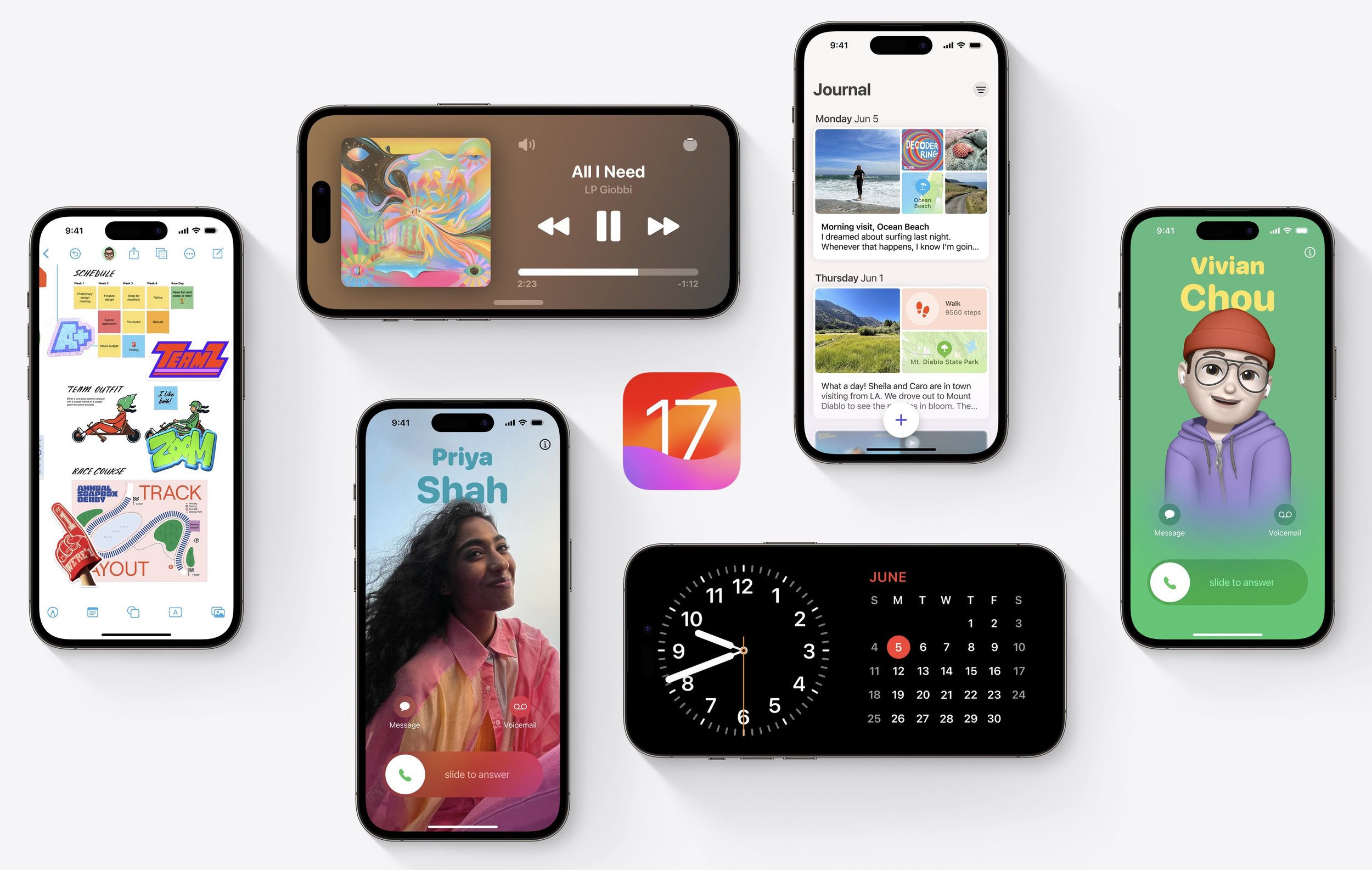
Some of these features, such as the enhanced autocorrect and inline predictions, don’t work on all iPhone models that otherwise support iOS 17. Others, notably NameDrop, require that other people also be running iOS 17. Finally, a few promised features won’t ship with the initial release of iOS 17, including the new Journal app, collaborative playlists in Music, and AirPlay in supported hotel rooms. There’s no reason to delay upgrading for those future features; consider them an incentive to update when they arrive.
watchOS 10
Once you upgrade your iPhone to iOS 17, there’s no reason to delay upgrading your Apple Watch to watchOS 10. Few of the changes are likely to force significant adjustments in your usage patterns.
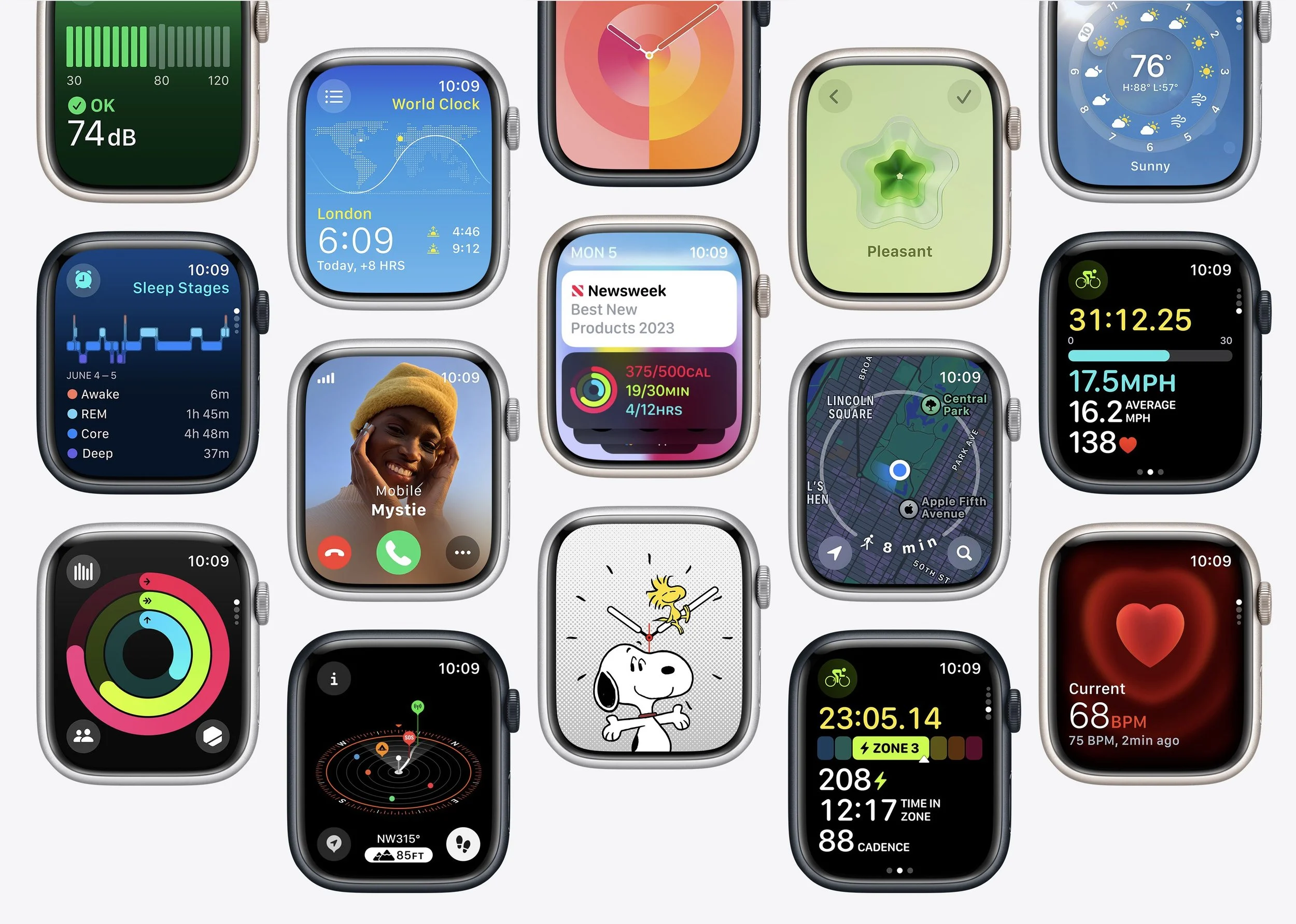
The two new features you may notice quickly are the Smart Stack, a collection of widgets available on any watch face when you turn the Digital Crown, and the new shortcut for activating Control Center from within any app: just press the side button.
Other improvements include a Snoopy watch face, logging of mental health states, tracking of time outdoors for kids to improve vision health, and follow-up medication reminders for missed pills. Serious cyclists will appreciate new metrics when connected to Bluetooth-enabled accessories, a Power Zones view in Workout for those with power meters, and a cycling workout Live Activity for display on handle-bar-mounted iPhones. Hikers get new views in the Compass app, trail information on the watch, topographic maps, and elevation alerts.
iPadOS 17
Last year, Apple delayed the release of iPadOS 16 until October but has made no mention of such a delay this year. Regardless of when iPadOS 17 becomes available, our general advice is that it’s OK to install it shortly after it ships. For the most part, iPadOS is a superset of iOS, so if you’re comfortable upgrading to iOS 17, think of iPadOS 17 similarly. The main caveat is when you rely heavily on a particular app. In that case, check with the developer to ensure your app is compatible before upgrading.
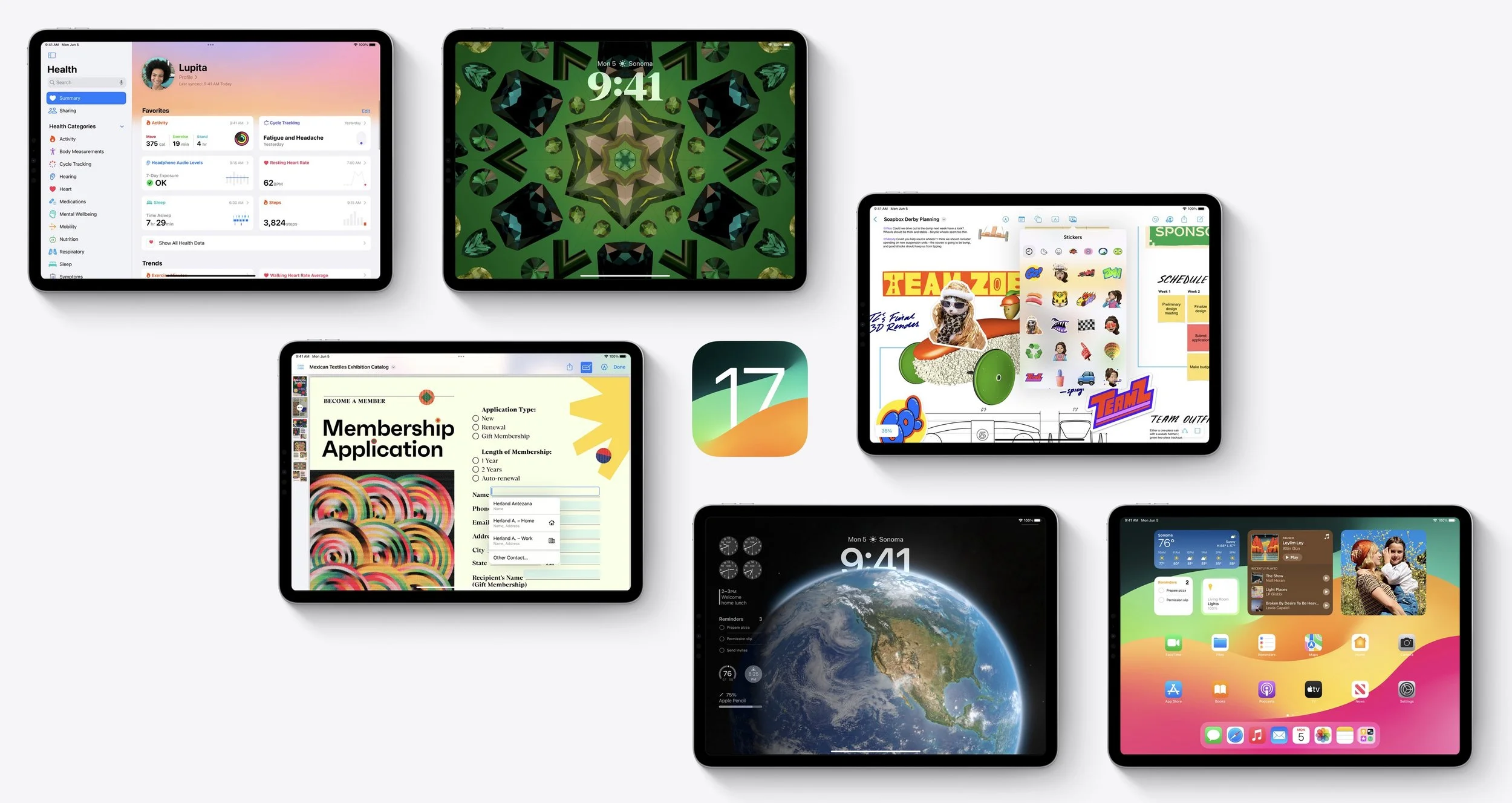
The most noticeable enhancements to iPadOS 17 appear on the Lock screen. As with iPhones running last year’s iOS 16, you can now customize the iPad Lock screen with wallpapers that go beyond what was possible on the iPhone, such as the motion effect for Live Photos on the Lock screen. The Lock screen is more useful and more attractive, thanks to support for Live Activities that provide constantly updating information and widgets that give you at-a-glance access to information like weather, battery levels, and upcoming events.
Also, widgets on the Home screen can be interactive, you can auto-fill PDF forms and collaborate on PDFs with others, the Freeform whiteboard app offers new tools and a Follow Along mode when collaborating, Stage Manager features more flexible layouts, and you can use an external display’s camera for FaceTime calls. Of course, iPadOS 17 also receives most of the changes in iOS 17.
tvOS 17
We don’t know when Apple will release tvOS 17, but it’s probably safe to update within a week or two of release, depending on the level to which you depend on your Apple TV. This year’s upgrade is more compelling than many previous ones, mainly thanks to support for FaceTime calls on the big screen. You’ll use the microphone and camera on an iPhone or iPad (running iOS 17 or iPadOS 17, naturally) to capture audio and video, displaying it all on your TV. It even supports Center Stage, so it will follow you as you move around. Other improvements include a new Control Center, the capability to use an iPhone to find a lost Siri Remote (second generation and later), curated Memories as screen savers, and support for third-party VPNs.

If nothing in that list encourages you to upgrade as soon as tvOS 17 ships, let your Apple TV (the fourth-generation model and later) upgrade itself when it gets around to it, assuming you have automatic updates turned on in Settings > Software Updates.
macOS 14 Sonoma
The hardest upgrade decision revolves around upgrading your Mac to macOS 14 Sonoma, and that assumes you can upgrade, given that Apple has dropped support for iMacs, MacBook Pros, and MacBooks released in 2017. (Consider it an excuse to get a new Mac—you’ll love the M-series Macs.) The problem with upgrading macOS is that Apple’s changes are seldom more compelling than keeping your Mac working the way it is now. It can take a month or three before the apps you use every day all work without compromise.
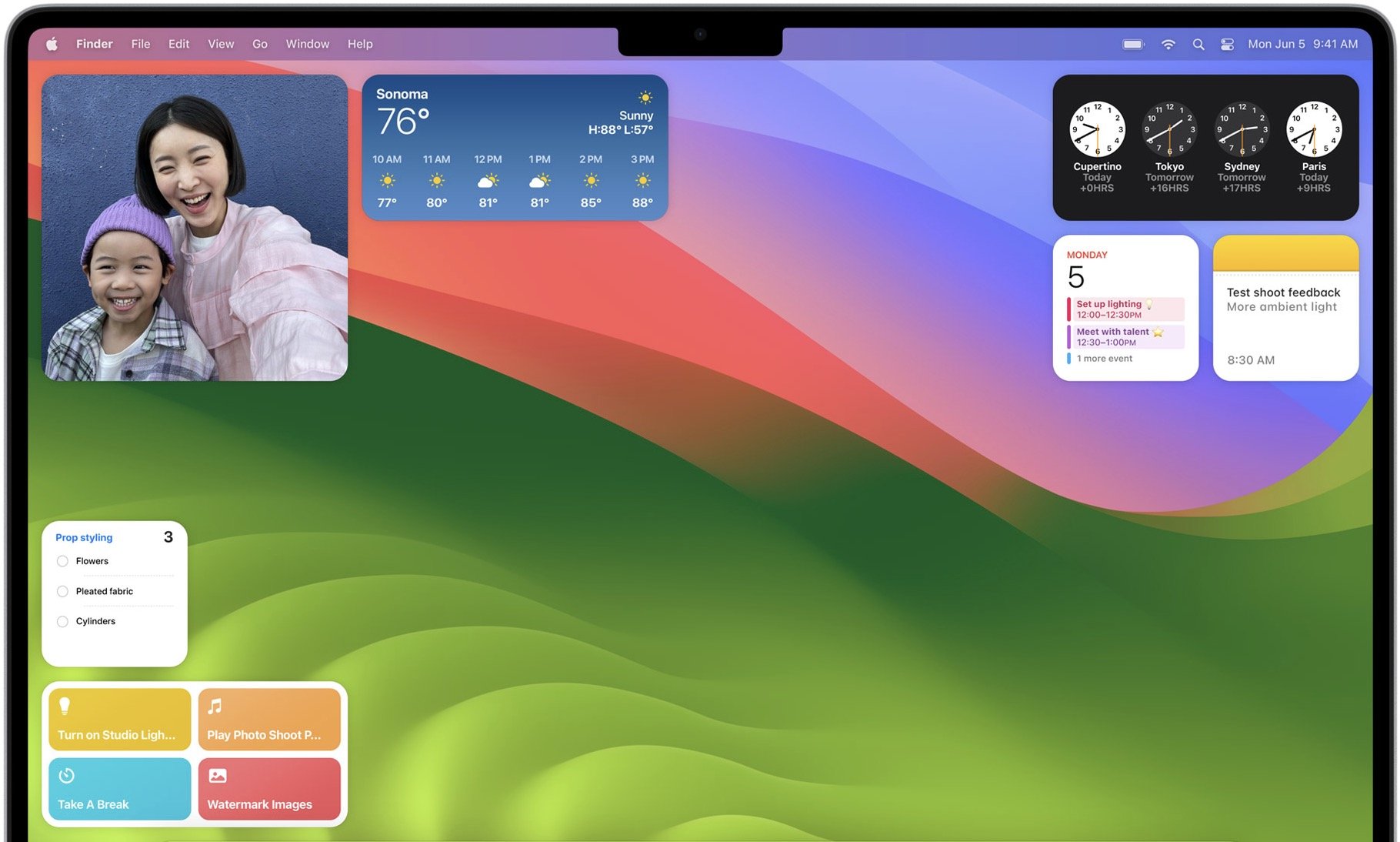
What capabilities does Sonoma promise? If you like widgets on your iPhone, you may also appreciate having them on your Mac desktop—both Mac-native widgets and those loaded and updated wirelessly from your iPhone. In Safari, you can turn websites into apps, and Safari also introduces Profiles that let you separate work and personal browsing history, extensions, Tab Groups, cookies, and favorites. The Presenter Overlay feature enables you to stay visible while sharing your screen. As with iPadOS 17, Preview helps you fill out PDFs faster with AutoFill, pulling your saved information from Contacts. Some of these features require Apple silicon, so your old Intel-based iMac may not match up to a newer Mac.
We always encourage caution when upgrading to a new version of macOS. Wait at least a few months before upgrading your primary Mac to Sonoma. App compatibility isn’t usually a long-term problem with iOS and iPadOS, but many people rely on older Mac apps that may not work in the latest version of macOS. Even once you’re confident that your apps will work properly in Sonoma, there may be workflow or intra-office compatibility concerns if some people upgrade and others don’t. And, of course, unanticipated bugs could crop up at inconvenient times—important work takes place on Macs! Please, do not upgrade to Sonoma without checking with us first. With luck, the start of the new year will have brought both the bug fixes and app updates necessary to give the green light.
(Featured image by Apple)
Apple Announces iPhone 15 Lineup, Apple Watch Series 9, and Apple Watch Ultra 2
At its Wonderlust event, Apple introduced the iPhone 15 lineup, the Apple Watch Series 9, and the Apple Watch Ultra 2. For the most part, they’re incremental upgrades, making them most compelling to those upgrading from much older devices.
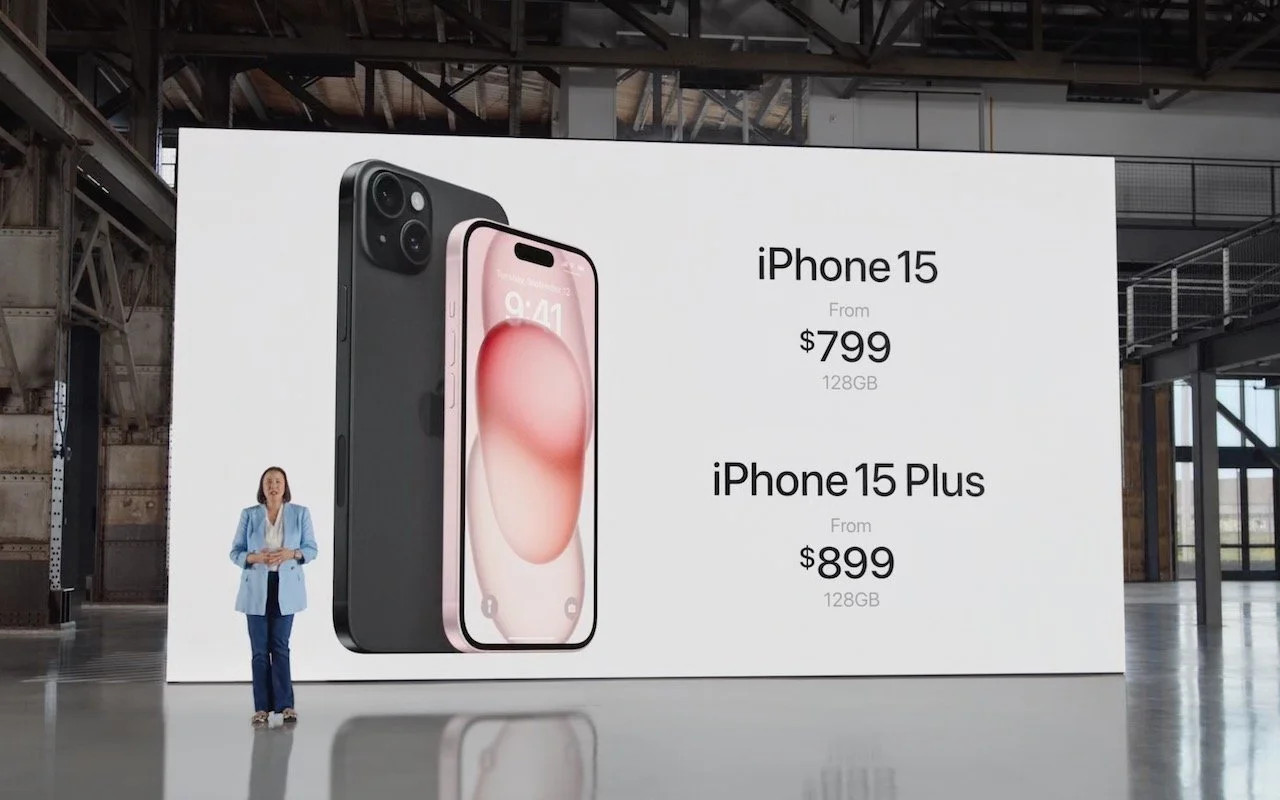
September is here, and with it, Apple’s latest iPhones and Apple Watches. At its Wonderlust event on September 12, Apple threw back the curtains on the new iPhone 15 lineup, Apple Watch Series 9, and Apple Watch Ultra 2. These devices all provide incremental improvements that make them attractive to people planning to purchase a new iPhone or Apple Watch, though they may not be irresistible upgrades for those still happy with older models. You can pre-order any of them starting September 15, with delivery and in-store availability on September 22.
Alongside the announcement, Apple revealed that iOS 17, iPadOS 17, watchOS 10, tvOS 17, and HomePod Software 17 will become available on September 18, with macOS 14 Sonoma arriving on September 26. Wait a week or two before installing this first batch of updates on essential devices to avoid any last-minute bugs, and hold off on Sonoma for a few months or until you’re confident your necessary Mac apps are compatible. Regardless of when you upgrade, make a backup right before in case an unexpected problem forces you to erase and restore.
Let’s look at each of the new products.
iPhone 15 Lineup
Last year, Apple moved to a four-part iPhone lineup that continues this year, with the 6.1-inch iPhone 15 and the 6.7-inch iPhone 15 Plus. On the high end, we get the iPhone 15 Pro and iPhone 15 Pro Max, again in those 6.1-inch and 6.7-inch sizes. The company updated the industrial design with slightly contoured corners. The iPhone 15 models come in five pastel colors with an aluminum enclosure and color-infused back glass, whereas the iPhone 15 Pro models now boast a titanium enclosure in four colors.
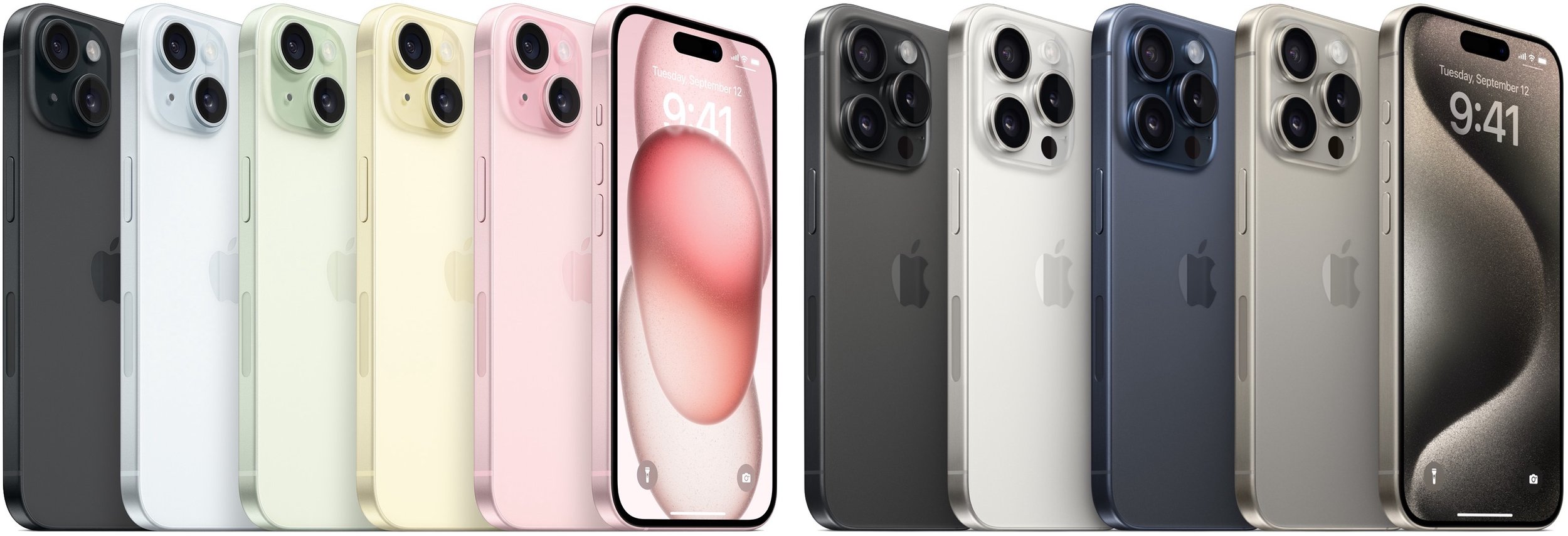
Along with the updated industrial design, all the iPhone 15 models share three notable changes:
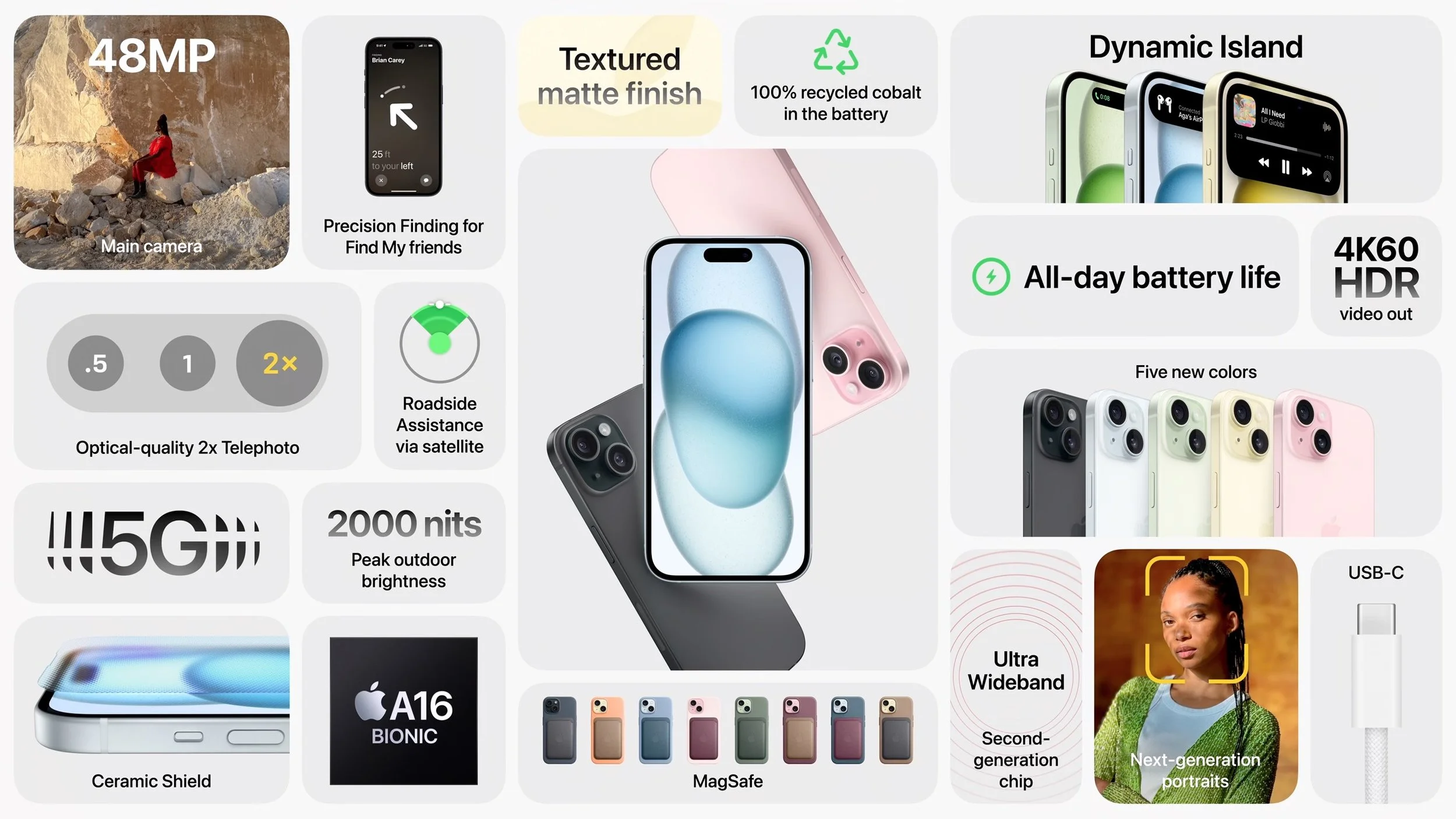
USB-C for charging and data transfer: Driven by new European Union regulations, the iPhone 15 models all trade their Lightning port for a USB-C jack. Although it will be annoying to keep both Lightning and USB-C cables around until all Lightning devices have aged out, many Apple users already have USB-C cables and chargers for iPads and MacBooks.
Roadside Assistance via satellite: This extension of Emergency SOS via satellite allows anyone experiencing vehicle difficulties in a cellular dead zone to get help using satellite messaging. Apple includes access to satellite services for 2 years, and AAA membership in the US includes the roadside service. Those who aren’t AAA members will be able to purchase service separately.
Better Precision Finding: The iPhone 15 and new Apple Watch models all have a second-generation Ultra Wideband chip that lets users employ Precision Finding in the Find My app to locate each other accurately at a much greater range. Apple suggests you can use it to find iPhone 15-equipped friends in a crowd.
Although the iPhone 15 and iPhone 15 Plus aren’t as technologically capable as their Pro siblings, they’re more interesting than the iPhone 14 models they supplant. They receive increased performance thanks to the A16 Bionic chip from the iPhone 14 Pro, and the chip also enables computational photography improvements on top of a new 48-megapixel camera. Also inherited from the iPhone 14 Pro is the Dynamic Island, which displays alerts and Live Activities in the area surrounding the camera and sensor package at the top of the screen, eliminating the need for a notch.
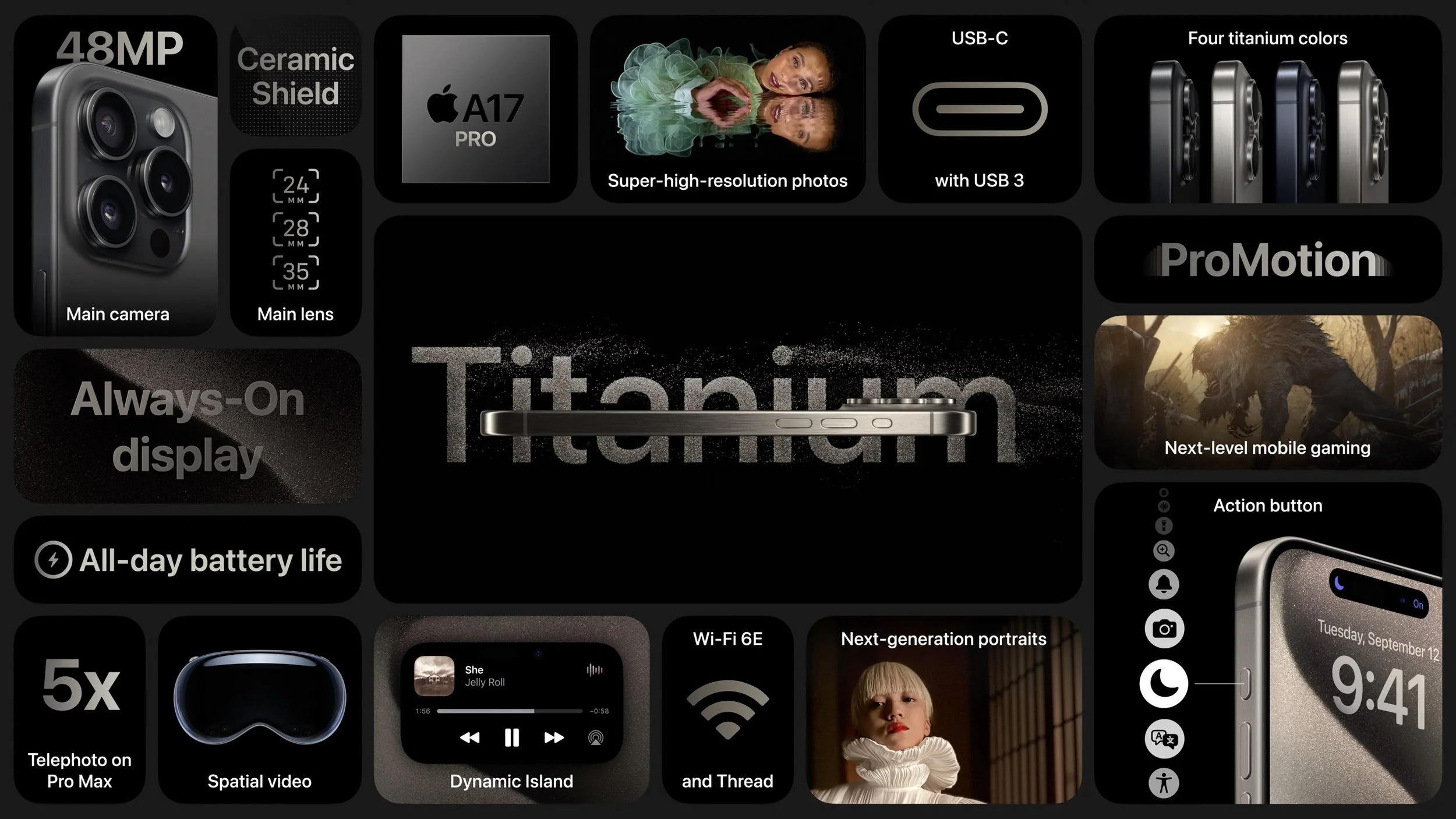
Even though there’s more new on the Pro end, the iPhone 15 Pro and iPhone 15 Pro Max don’t make as significant a jump from their iPhone 14 Pro predecessors. The change everyone will notice is the new Action button that replaces the Ring/Silent switch. You can press and hold it to put an iPhone 15 Pro into silent mode or redefine it to activate Voice Memos, set Focus modes, access the camera or flashlight, enable Accessibility options, or launch a Shortcut.
The 48-megapixel main camera gains additional computational photography capability thanks to the new A17 Pro chip underpinning the iPhone 15 Pro models, but the most noteworthy enhancement is restricted to the iPhone 15 Pro Max. A tetraprism design enables its Telephoto camera to achieve a 5x optical zoom, an unprecedented capability available only for photographers who don’t mind the 6.7-inch form factor.
Several other improvements are technically impressive but likely of interest and utility only to media professionals. The iPhone 15 Pro’s USB-C port supports USB 3 transfer speeds up to 10 gigabits per second (the iPhone 15 is limited to USB 2.0’s pokey 480 megabits per second), and support for Wi-Fi 6e will enable faster wireless transfers. Both will be welcome to those transferring large image, audio, or video files.
Pricing remains basically the same, with the iPhone 15 and iPhone 15 Plus starting at $799 and $899 for 128 GB of storage, with 256 GB and 512 GB options. The iPhone 15 Pro costs $999 for 128 GB, with 256 GB, 512 GB, and 1 TB storage options. The iPhone 15 Pro Max is $1199 for 256 GB, with 512 GB and 1 TB storage options. If those prices are too steep for your budget, the iPhone SE ($429), iPhone 13 ($599), and iPhone 14 ($699) all remain for sale.
It might be worth upgrading from an iPhone 14 to an iPhone 15 for the 48-megapixel camera and Dynamic Island, but it’s harder to recommend an upgrade from an iPhone 14 Pro unless you find the 5x Telephoto camera indispensable. Otherwise, the older your current iPhone, the more you’ll be impressed by the new models.
Apple Watch Series 9 and Apple Watch Ultra 2
Last year brought the release of the beefy Apple Watch Ultra, so it wasn’t surprising that Apple gave us the Apple Watch Ultra 2 this year alongside the Apple Watch Series 9. They have no industrial design changes, and their improvements are driven by the increased performance and efficiency of Apple’s new S9 SiP (a package containing multiple chips).
Most notable among the changes is a new double tap gesture, which relies on the S9’s faster Neural Engine to detect when your index finger and thumb perform a double tap. watchOS 10 interprets the gesture as activating the primary button in an app, so it can be used to answer or end a phone call, stop a timer, play and pause music, snooze an alarm, take a photo, or open and scroll through the new watchOS 10 Smart Stack from the watch face. It will be available next month.
Other S9-driven improvements include:
Brighter displays: The Apple Watch Series 9 can now display up to 2000 nits, and the Apple Watch Ultra 2 can go up to 3000 nits, making them more readable in bright sunlight.
On-device Siri: Siri requests that don’t require information from the Internet can now be processed on the Apple Watch locally, making Siri more helpful for starting workouts or setting timers when there’s no cellular or Wi-Fi connectivity.
More capable and accurate Siri: You can now use Siri to access Health data such as sleep hours, Activity ring progress, and more. Plus, you can use Siri to log health data such as weight, period, or medications taken. These capabilities will be available later this year. Apple also claims 25% more accurate dictation.
Precision Finding and HomePod integration: The second-generation Ultra Wideband chip in the S9 enables the Precision Finding feature that can direct you to a lost iPhone 15 rather than just playing a sound. Also, when you get close to a HomePod, the Apple Watch provides media controls or offers media suggestions in the Smart Stack.
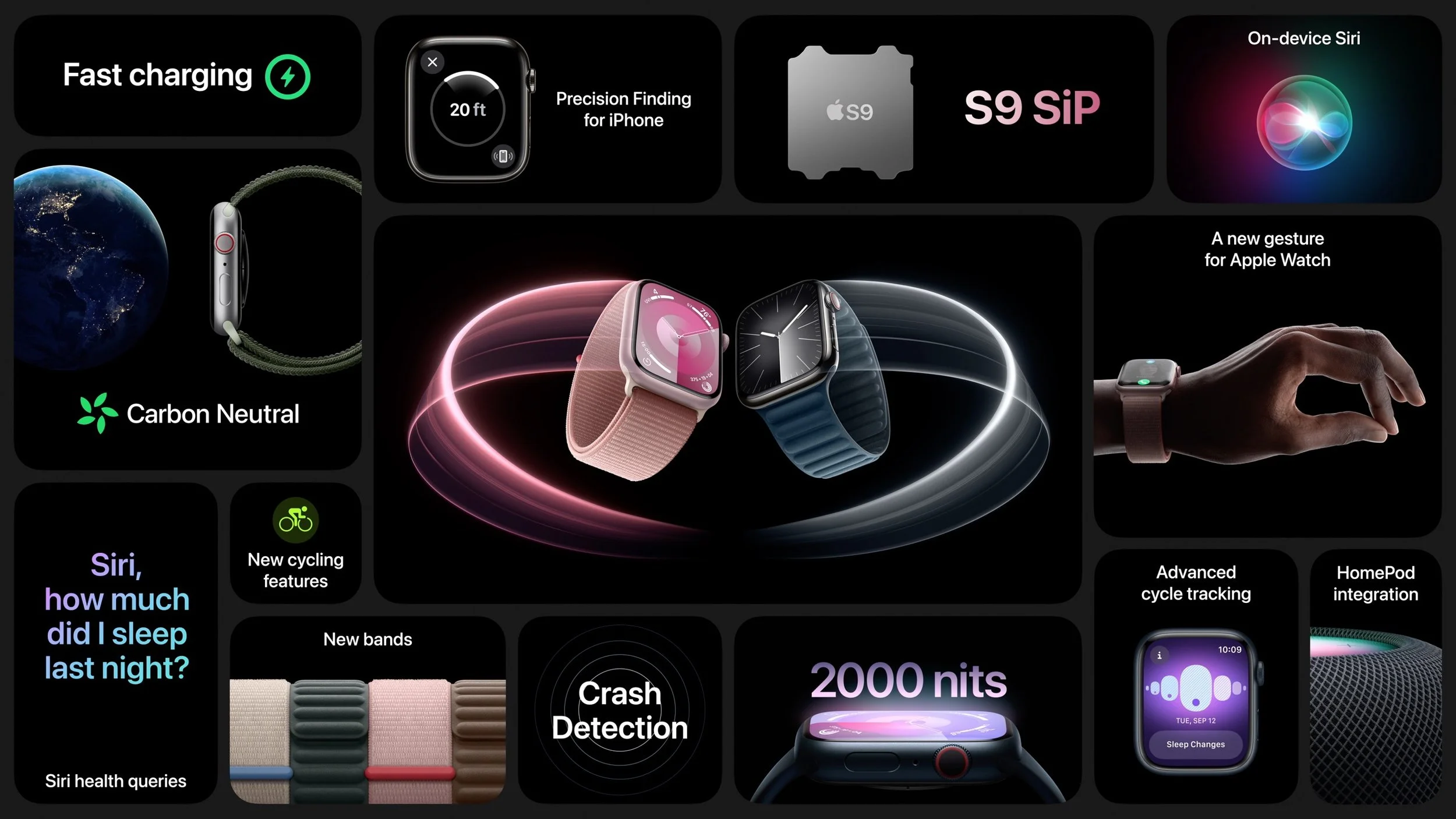
Finally, both the original Apple Watch Ultra and the new model gain a new Modular Ultra watch face that uses the outermost edge of the large display to present real-time data like seconds, altitude, or depth.
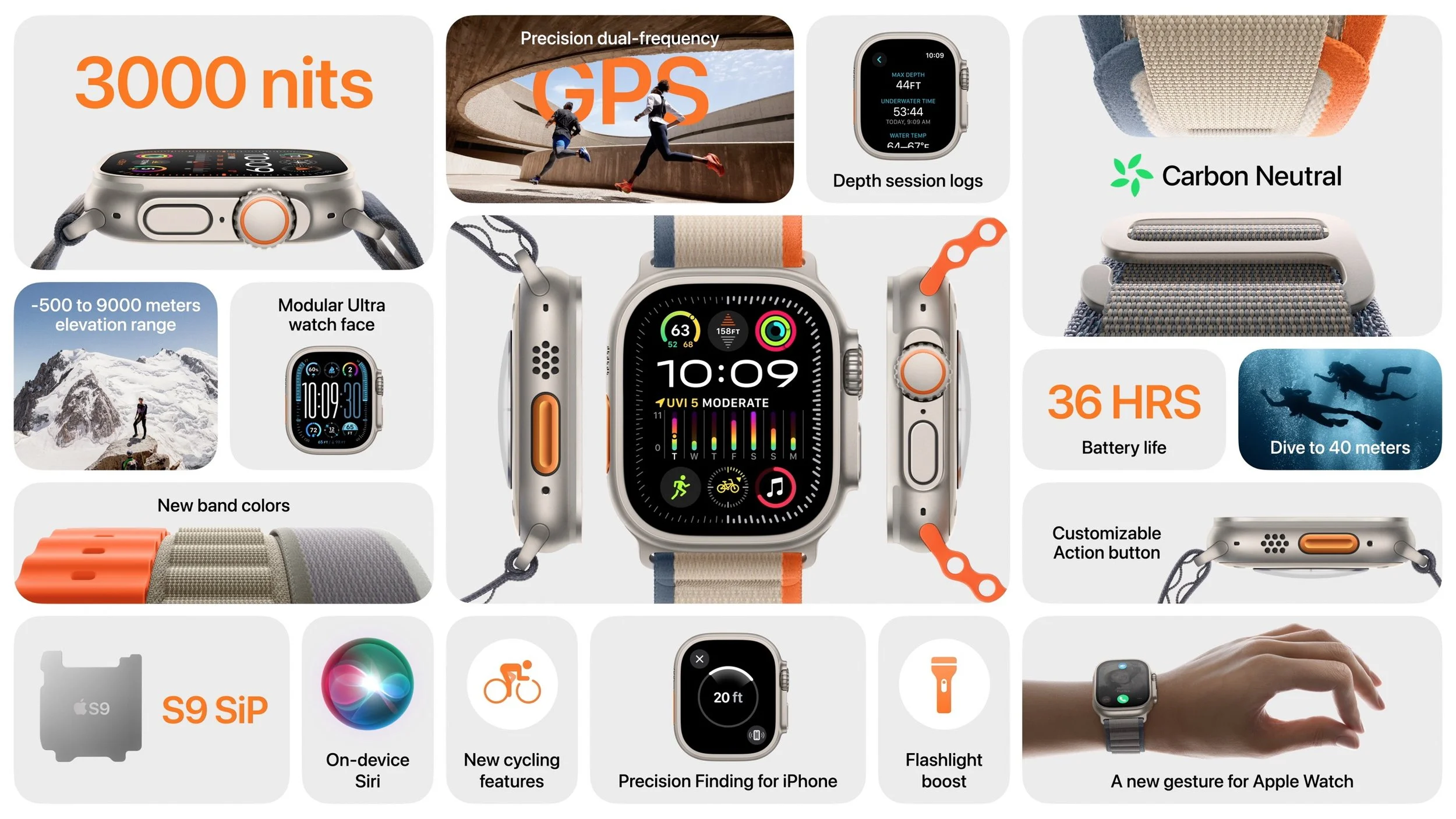
The Apple Watch Series 9 starts at $399 for a 41mm aluminum GPS-only model; 45mm models are $30 more, and cellular connectivity adds $100. It’s available in pink, midnight, starlight, silver, and PRODUCT(RED). In stainless steel, pricing starts at $699 for a 41mm model and includes cellular connectivity; the 45mm models are $50 more. Some textile bands and all stainless steel bands cost an additional $50 to $300. The Apple Watch Ultra 2 remains $799 with an Alpine Loop, Trail Loop, or Ocean Band.
While undoubtedly the most capable watches Apple has ever produced, these new models don’t offer enough new to warrant an upgrade from last year’s models. They’re great for those getting started with the Apple Watch or upgrading from a much older version. Don’t forget that Apple still sells the Apple Watch SE, which lacks the Always-On display and ECG capabilities of the Series 9 but is $150 less expensive. Apple’s comparison page can help you tease out the differences.
(Featured image by Apple)
Things You Need to Know Before Moving to a New iPhone
It’s exciting to get a new iPhone, but take a few minutes to read our advice on what you need to do before—and after—transferring your data from your old iPhone.
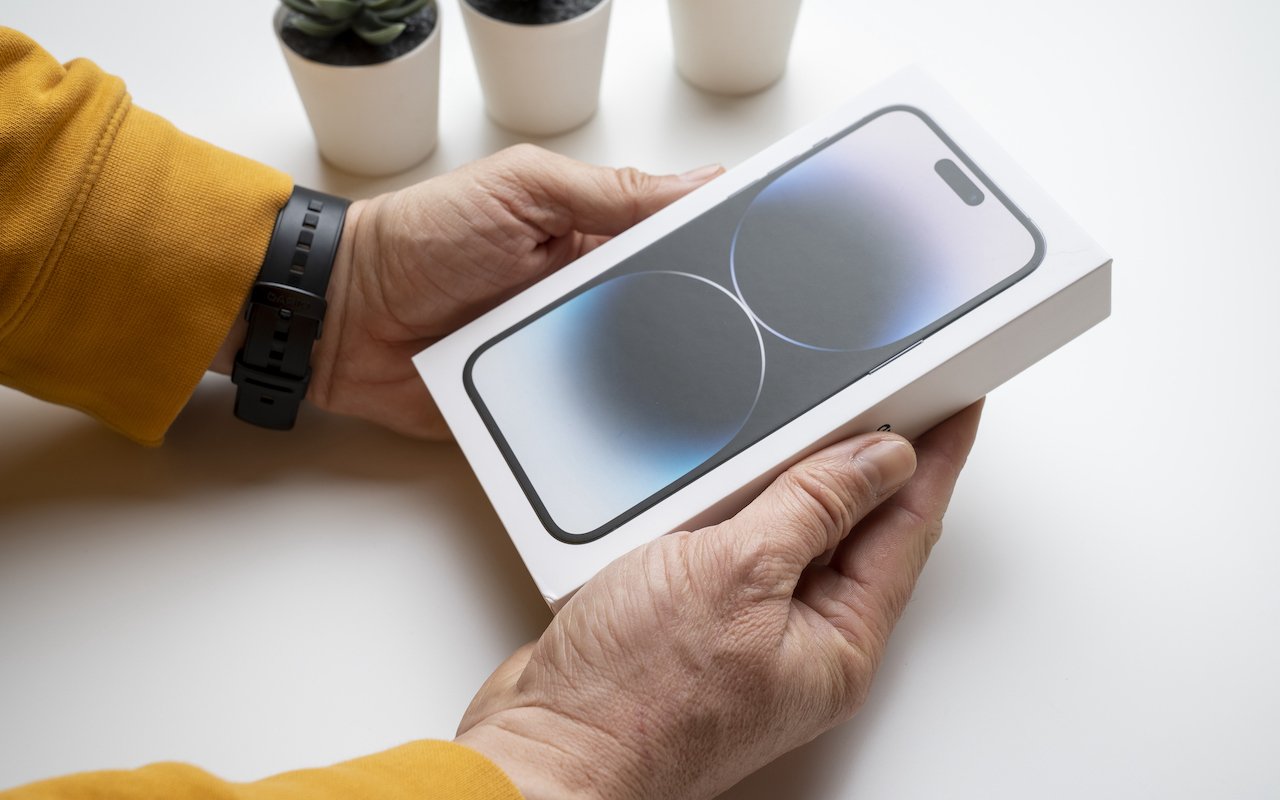
Are you among the millions of people planning to get a new iPhone 15? It’s exciting, we know, but don’t move too fast when getting started with your new iPhone, or you might cause yourself headaches. Instead, follow these instructions when you’re ready to transfer your data—and, for many people, much of your digital life—to the new iPhone. Apple also has a series of videos you can watch.
1. Update your old iPhone to the latest version of iOS. If you have an Apple Watch, update it to the latest version of watchOS. This process can take some time, so it may be best done overnight before you move data to your new iPhone.
2. Make sure you know your Apple ID and password, and if you have an Apple Watch, its passcode. You will likely have to enter them at least once during this process.
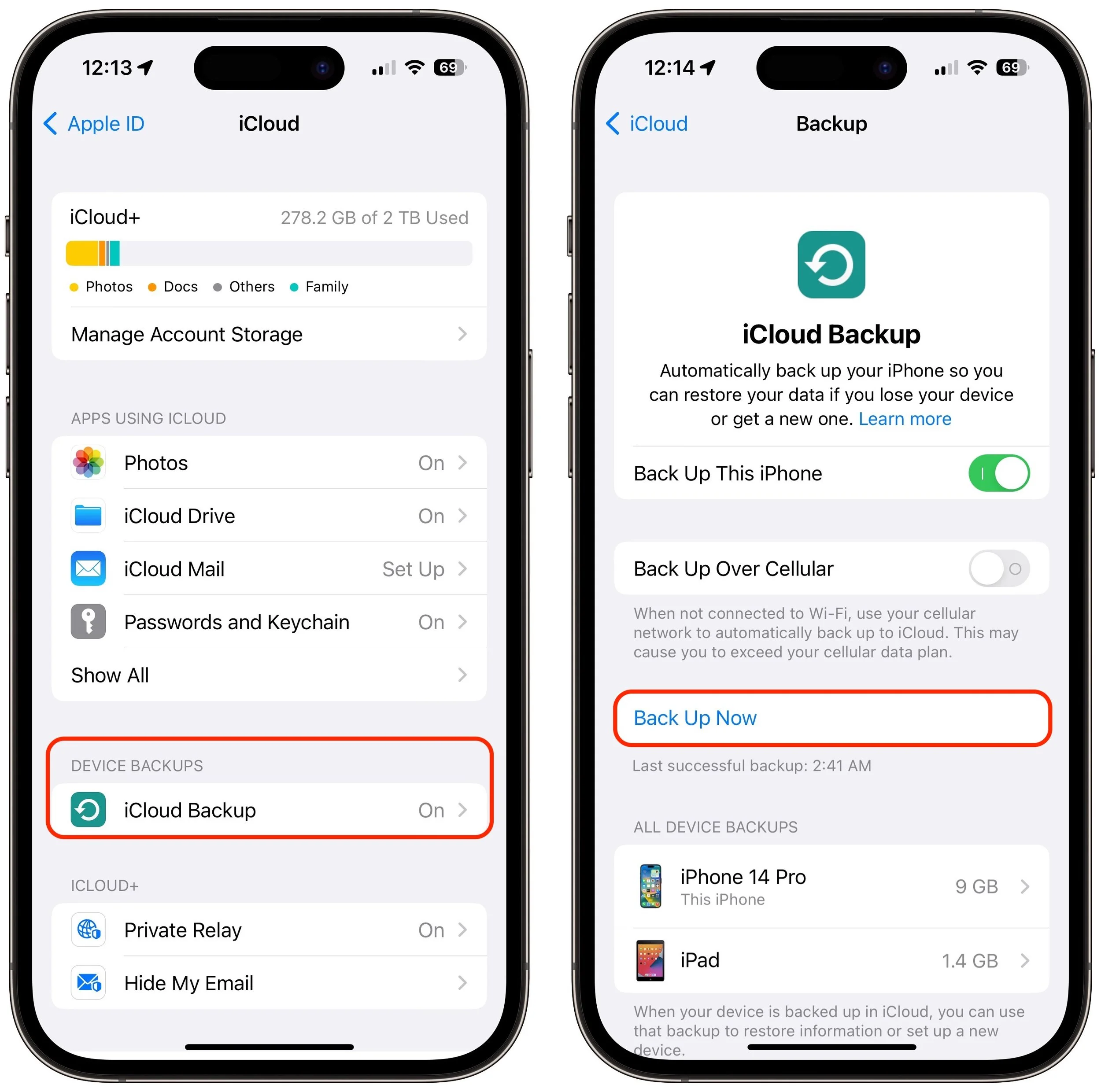
3. Make a backup of your old iPhone to iCloud or your Mac. (If you back up to a Mac, be sure to encrypt the backup, or else it won’t include saved passwords, Wi-Fi settings, browsing history, Health data, and call history.) Or back up to both, for safety’s sake. We prefer iCloud backups because they’re easier and don’t introduce additional variables, like flaky USB cables. Apple will even give you temporary iCloud storage to make a backup when moving to a new iPhone. To initiate an iCloud backup, go to Settings > Your Name > iCloud > iCloud Backup and tap Back Up Now.
4. If you have an Apple Watch, you shouldn’t have to unpair it from your old iPhone to transfer it to the new one, but if the automatic transfer doesn’t work, you can unpair it manually and pair it again later. (If you take the manual route and have a cellular Apple Watch, you’ll be asked if you want to keep or remove your plan. Assuming that you’re keeping your Apple Watch to repair with your new iPhone, keep the plan.)
5. You shouldn’t need to worry about transferring a SIM card. If you order through Apple and connect to your cellular carrier account during purchase, activating the new iPhone should cause it to take over your phone number. The same should be true if you purchase directly through your carrier. Besides, it’s likely that iPhone 15 models sold in the US will rely on eSIM and lack SIM trays like the iPhone 14, so only non-US users might need to transfer the SIM card from the old iPhone to the new one. Even then, it’s better to contact your carrier and get them to activate the new SIM in the new iPhone because old SIMs don’t always support all current cellular features, such as full 5G support.
6. Transfer your data, settings, apps, and purchased content in one of these three ways. None of them will be quick, despite the first one’s name, so do the transfer when you have time:
Quick Start: With the Quick Start feature, content from your old iPhone copies directly from your old iPhone to your new one. We recommend this technique because it’s more likely to preserve app logins, something that’s less true when restoring from an iCloud backup. Put your iPhones next to each other (plugged into power), use the old iPhone to scan the animation on the new one, and then follow the rest of the steps.
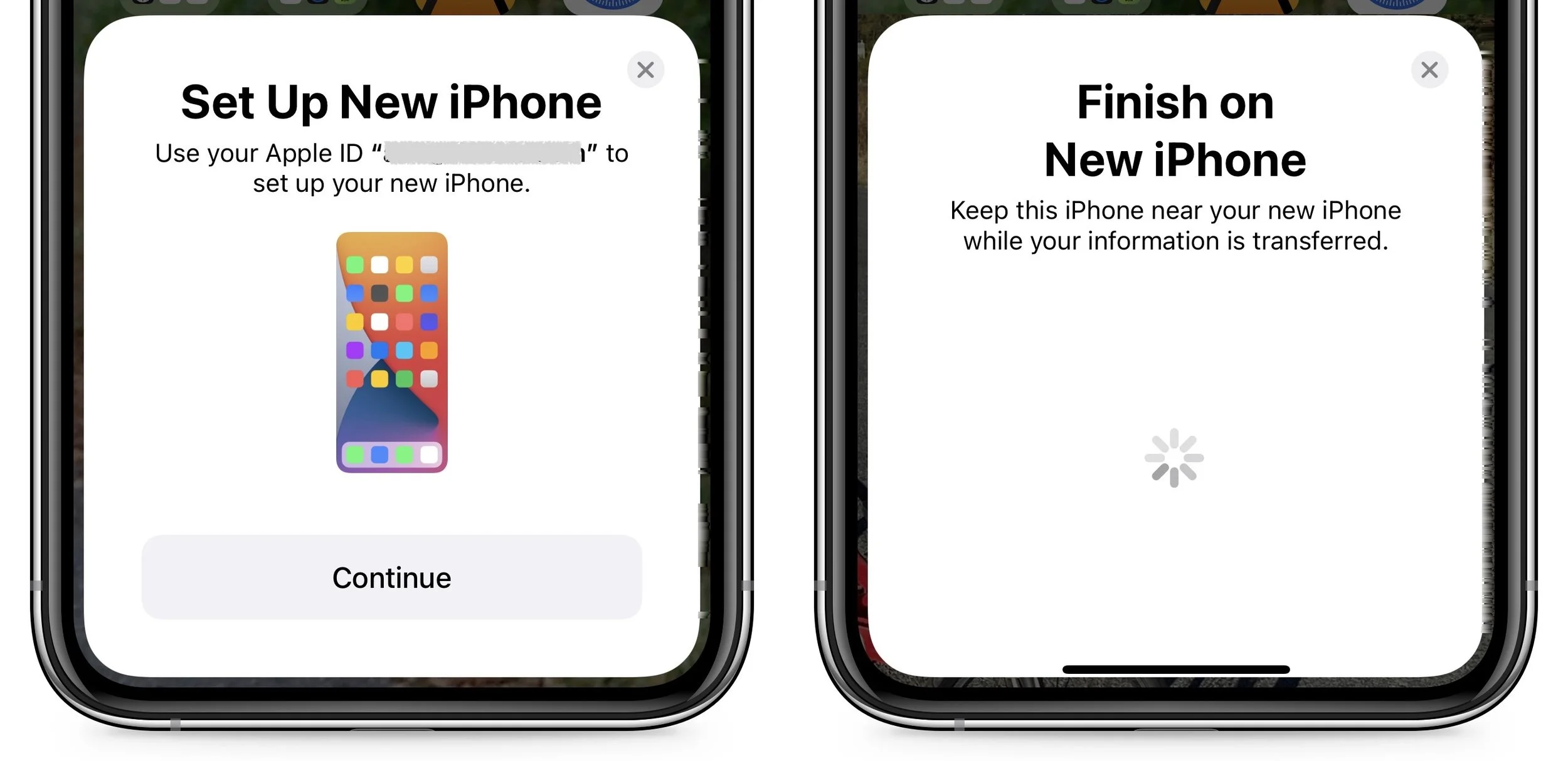
iCloud: With this technique, the new iPhone will download your content from your old iPhone’s iCloud backup. Once you’ve joined a Wi-Fi network on the new iPhone and tapped the Restore from iCloud Backup button, you’ll have to select the correct backup—likely the most recent one you just made. Keep your new iPhone plugged into power the entire time to ensure that all your content syncs during this step.
Finder or iTunes: With this approach, you’ll restore your old iPhone’s content from a backup made to your Mac. Connect your new iPhone to your Mac using an appropriate cable, open a Finder window (or iTunes on an old Mac), select your device, click Restore Backup, and choose the appropriate backup—likely the most recent one.
7. Perform post-transfer tasks. Ensure that you can make and receive a phone call. If necessary, pair your Apple Watch with the new iPhone. You’ll also need to pair your Bluetooth accessories—including AirPods—with your new iPhone. Plus, some app data needs to sync to your new iPhone, so open the Mail, Contacts, and Calendar apps and check if they have your data. It could take a few minutes for them to fill up. Apps may request notification permissions again, and you may need to download content and in-app purchases.
8. Finally, and this post-transfer task is becoming increasingly important, if you use two-factor authentication with an app like 1Password, Authy, or Google Authenticator, ensure you can get your 2FA codes using your new iPhone. 1Password and Authy are good about providing access to your 2FA codes from multiple devices—just log in to your account from each device—but Google Authenticator may require some additional setup since it didn’t originally offer any way to transfer codes to a new phone.
Although Apple works hard to make the process of transferring from an old iPhone to a new one as painless as possible, some things may fail to transfer seamlessly. For that reason, we strongly recommend holding onto your old iPhone for a week or so to ensure the new one can do everything the old one could. During that time, put the new iPhone through its paces with an eye toward checking every app you need.
(Featured image by iStock.com/Jozsef Zoltan Varga)
What Should You Do about an Authentication Code You DIDN’T Request?
Receiving a two-factor authentication code you didn’t request shows that your security is working, but it’s also an indication that someone may have your password and be trying to break into your account.

We strongly encourage using two-factor authentication (2FA) or two-step verification (2SV) with online accounts whenever possible. The details vary slightly, but with either one, after you enter your password, you must enter an authentication code to complete the login. Although it’s always best to get such codes from an authentication app like 1Password (which enters codes for you), Authy, or Google Authenticator, many websites still send codes by the less secure SMS text message or email. They’re better than nothing.
But what if you receive a 2FA code that you didn’t request?
Don’t panic. Although receiving the code means that someone is trying to log in to your account and has your password, the extra authentication step has done its job and protected your account from being compromised.
Never share an authentication code with anyone! A hacker could attempt to break into your account, be foiled by two-factor authentication, and then email or text you with a trumped-up story about why you should send them the code. Authentication codes are short-lived, so if this is going to happen, it will happen right away.
Independently from the message with the code, go to the account website, log in, and change the password. As always, make sure the password is strong, unique, and stored in your password manager. If the account used an old password that was shared with other accounts, change passwords on those accounts as well.
There are a handful of scenarios that could generate such an authentication code:
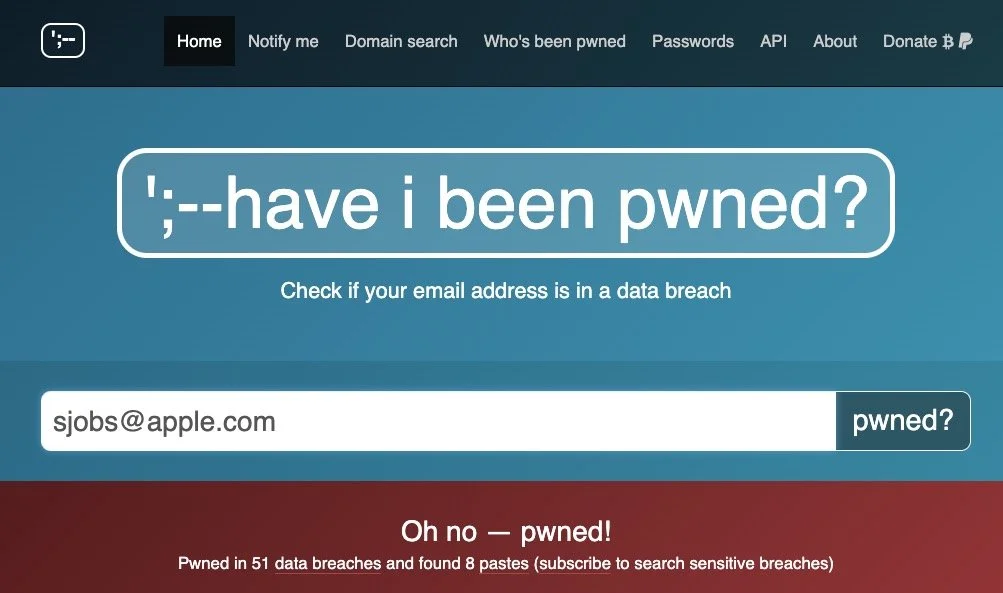
Stolen credentials: The most likely scenario, which the advice above addresses, is when your email address and password have been stolen, probably in a significant site breach. You can check the Have I Been Pwned site to see if your account is floating around on the “dark Web.” Password managers often perform similar checks. Changing the password on any breached sites is essential.
Identity theft: You started receiving authentication codes from TikTok, but you don’t remember creating a TikTok account. Someone might be trying to create an account to impersonate you but cannot complete the account creation without the authentication code. There isn’t much you can do to stop such attempts, although if an account has been created, you should be able to change the password (since it’s using your email address or phone number), log in, and either just let the account sit in your password manager or try to delete it.
Accidental or random triggering: If you have a common email address or phone number, someone could have accidentally entered your address or number instead of theirs while trying to create an account. It’s easy to type marsha32@example.com instead of marsha23@example.com or mistake the Boston 617 area code for the upstate New York 607 area code. If you’re sure you don’t have an account at the site in question and you only get one authentication code, you can probably ignore it.
Regardless of the cause, don’t ignore 2FA codes you didn’t request for sites where you have an account. It’s not hard to change a password, particularly if you use a password manager, and the extra piece of mind is worth the few minutes of work.
(Featured image based on an original by iStock.com/Kateryna Onyshchuk)
Legitimately Worried That You’re Being Targeted Online? Try Lockdown Mode
High-value targets like activists, journalists, and government employees with access to sensitive information should consider enabling Lockdown Mode on their Apple devices to protect against hacking or spying by sophisticated digital attackers.

Most people fall into one of two extremes when it comes to device security. Many believe they’re not interesting enough to be targeted by online attackers and thus don’t take sensible precautions, like making sure every website account is protected with a strong, unique password. (Most attacks these days are bots, so whether you’re interesting is irrelevant.) Then there are those who see a bogeyman around every corner and refuse to use a password manager or biometric authentication because of misplaced concerns about the security of the stored data. (Really, it’s OK.)
Today we want to focus instead on a very small third group: those who, because of who they are or what they do, have a legitimate reason to fear being targeted by sophisticated digital attacks. Such people might include activists trying to raise awareness about human rights abuses in oppressive regimes, political dissidents, muck-raking journalists covering organized crime or government corruption, senior executives in controversial business fields, high-profile government officials, and government employees with access to sensitive information.
For such people, using a password manager and relying on biometric authentication is table stakes. Government intelligence and law enforcement agencies often employ hacking software like Pegasus, which can be installed on target iPhones through zero-click exploits such as simply receiving a malicious text message. Pegasus can read text messages, snoop on calls, collect passwords, track location, access the iPhone’s camera and microphone, and harvest information from apps. Plus, both government agencies and organized crime rings employ hackers to target high-profile targets directly, often through social engineering (pretending to be someone they’re not to gain access to an account or device).
Apple is well aware of the risk to high-value individuals. In November 2021, the company filed a lawsuit against Pegasus maker NSO Group. More practically, Apple introduced Lockdown Mode in iOS 16, iPadOS 16, and macOS 13 Ventura, significantly reducing the attack surface that spyware or hackers could exploit by limiting or blocking specific apps, websites, and features.
Lockdown Mode Limitations
Before we explain how to turn on Lockdown Mode, it’s vital that you understand how it limits your Apple devices:
Messages: Most message attachment types are blocked other than certain images, video, and audio. Lockdown Mode also blocks links and link previews.
Web browsing: Safari blocks complex Web technologies, potentially causing some websites to load slowly or not operate correctly. It may also block Web fonts and images, so sites may not display as designed.
FaceTime: Incoming FaceTime calls are blocked unless you have previously called that person.
Apple services: Invitations to Apple services, such as invitations to join the Home app, are blocked unless you have previously invited that person.
Shared albums: Shared albums disappear entirely from the Photos app, and shared album invitations are blocked.
Device connections: If you want to connect an iPhone or iPad to a computer or accessory, the device must first be unlocked. Similarly, connecting an M-series Mac laptop to an accessory requires explicit approval.
Configuration profiles: Lockdown Mode prevents you from installing configuration profiles, and the device can’t be enrolled in Mobile Device Management.
The inconvenience these restrictions create is well worth the protection Lockdown Mode provides if you’re a sufficiently high-value target. But for the vast majority of Apple users, Lockdown Mode’s limitations would just cause confusion and annoyance.
Turning on Lockdown Mode
First, note that you must enable Lockdown Mode on each of your devices separately.
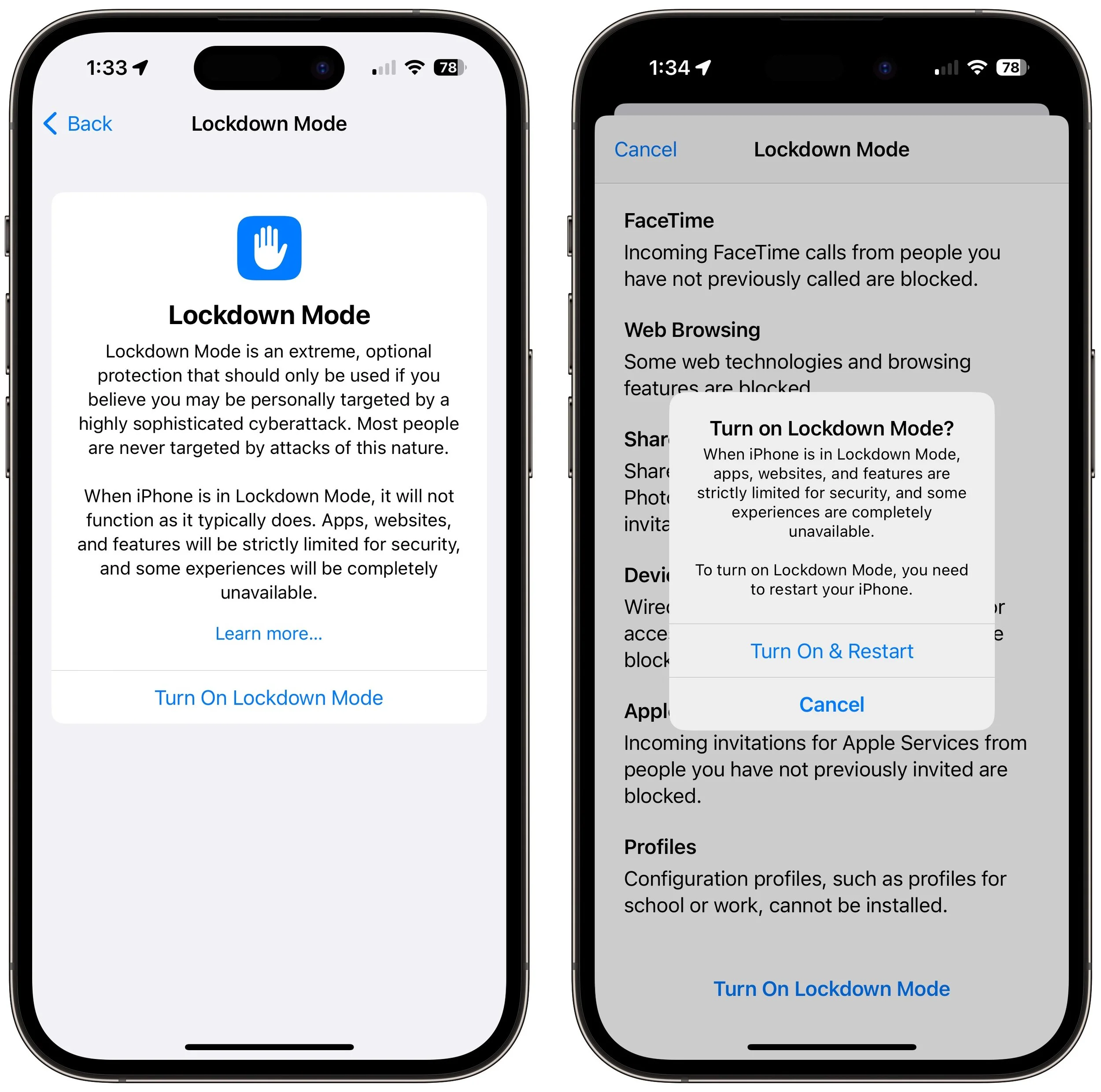
To enable Lockdown Mode on an iPhone or iPad, go to Settings > Privacy & Security > Lockdown Mode (at the bottom) and tap Turn On Lockdown Mode on two separate screens. For the last step, tap Turn On & Restart, and enter your passcode.
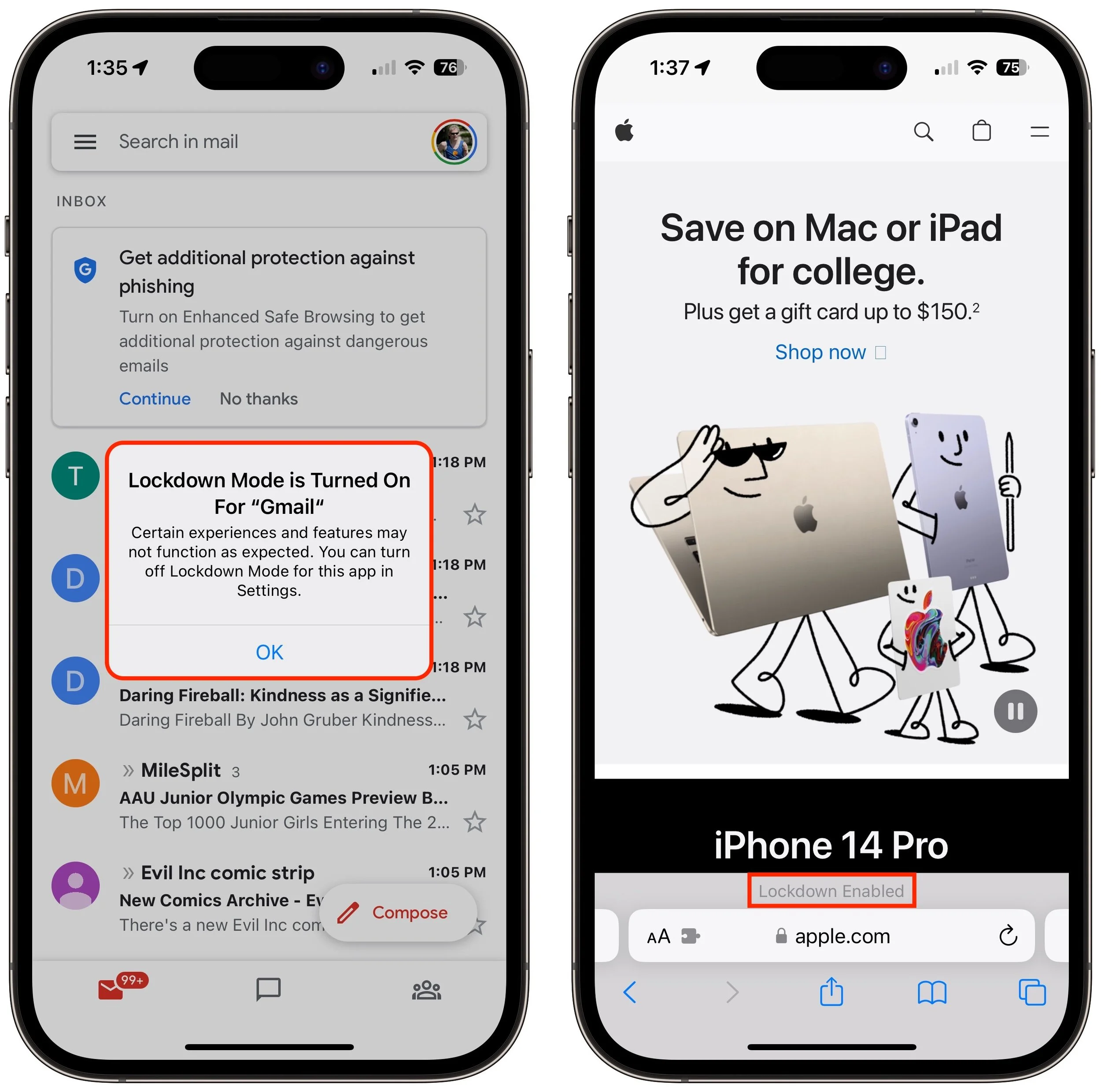
Once your iPhone restarts, it will work mostly the way you expect, apart from the above limitations. You may see notifications when an app has been limited in some way, and a banner appears in Safari to let you know you’re in Lockdown Mode.
On a Mac, turn on Lockdown Mode by going to System Settings > Privacy & Security. Scroll down to Lockdown Mode and click Turn On. Authenticate, then click Turn On & Restart.
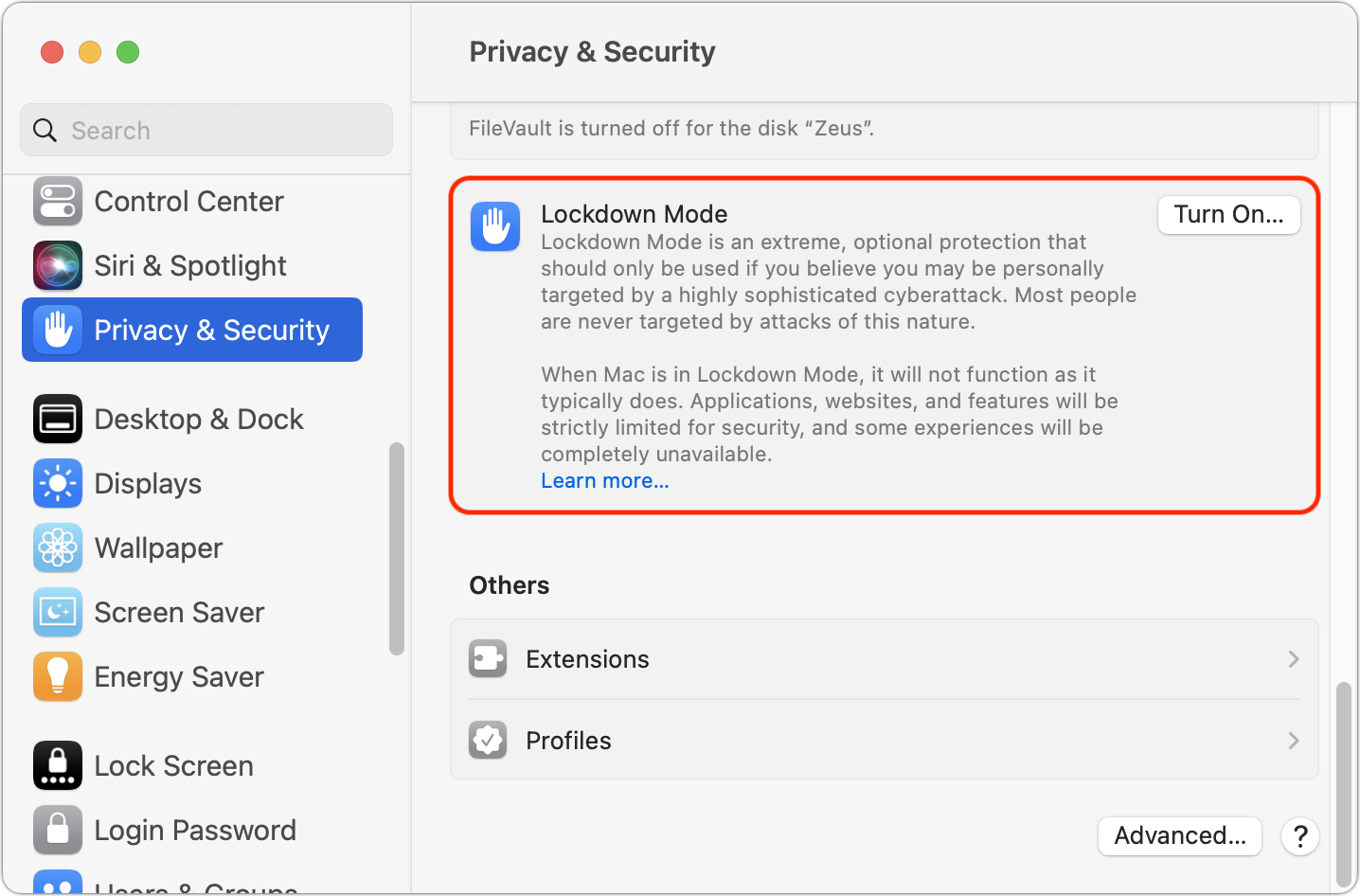
As with the iPhone and iPad, Lockdown Mode mainly makes its presence known by displaying a banner in Safari; you may also receive notifications when an app or feature is limited.
Allow Certain Apps or Websites in Lockdown Mode
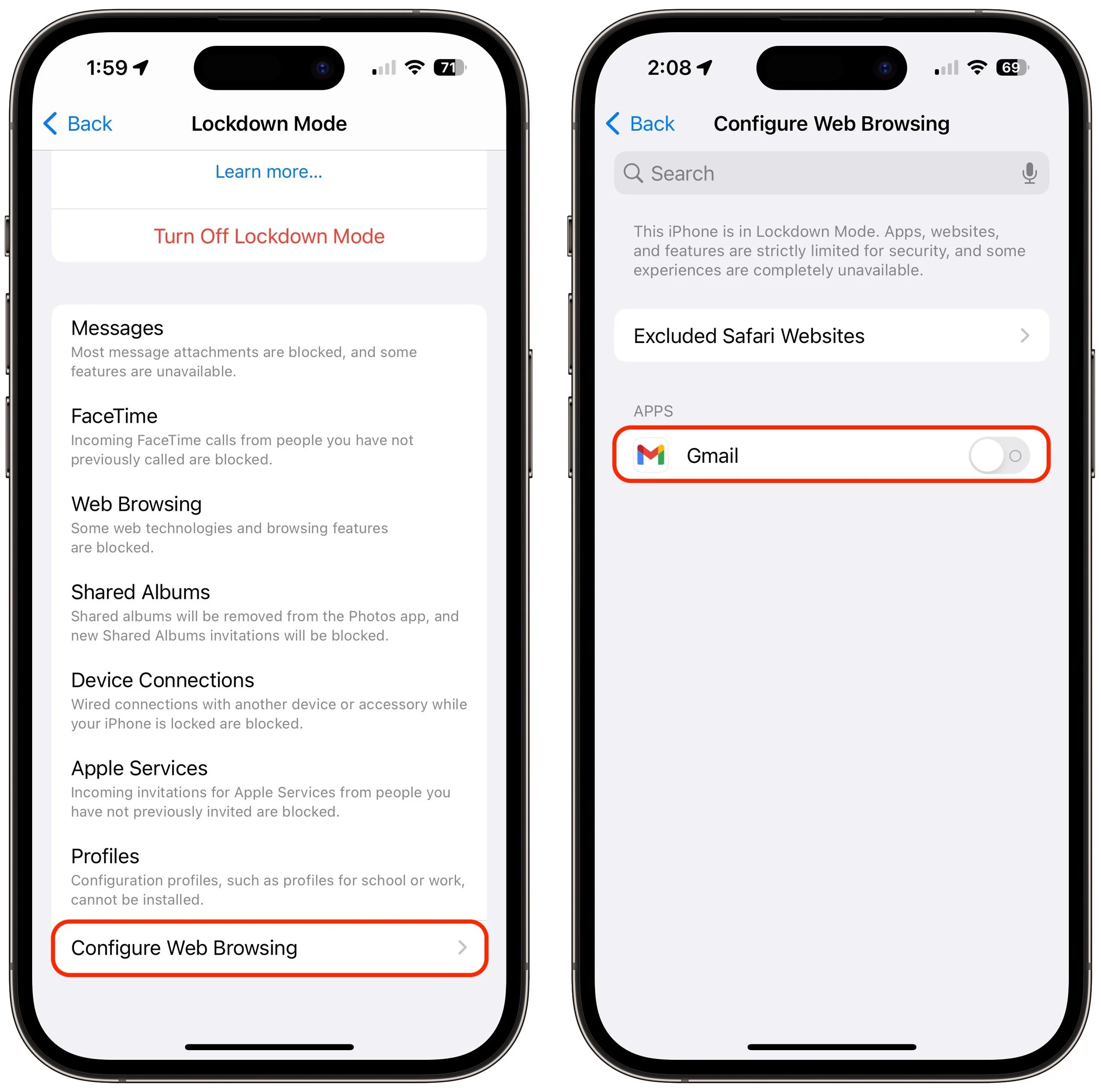
If you discover that a particular app or website isn’t operating correctly in Lockdown Mode, you can exclude it from Lockdown Mode’s protections. You’ll have to decide if it’s worth the added risk. To manage exceptions on the iPhone or iPad, go to Settings > Privacy & Security > Lockdown Mode. Then scroll to the bottom, tap Configure Web Browsing, and on the next screen, turn off the switch for the desired app.
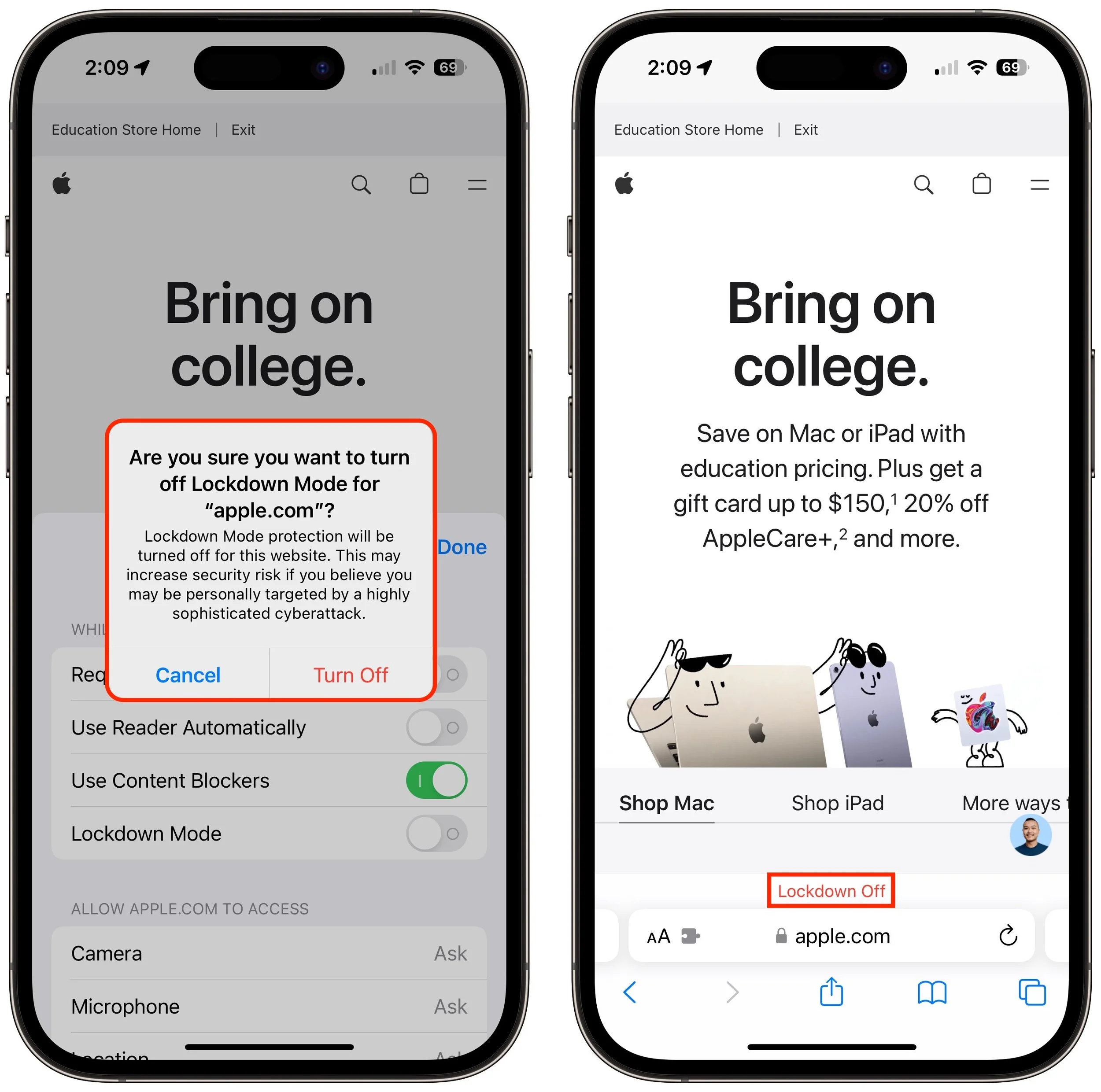
To exclude websites from Lockdown Mode, use Safari. Tap the AA button in the address bar, disable the Lockdown Mode switch, and tap Turn Off. The Lockdown banner changes to Lockdown Off to make sure you know that website is no longer being limited for your protection.
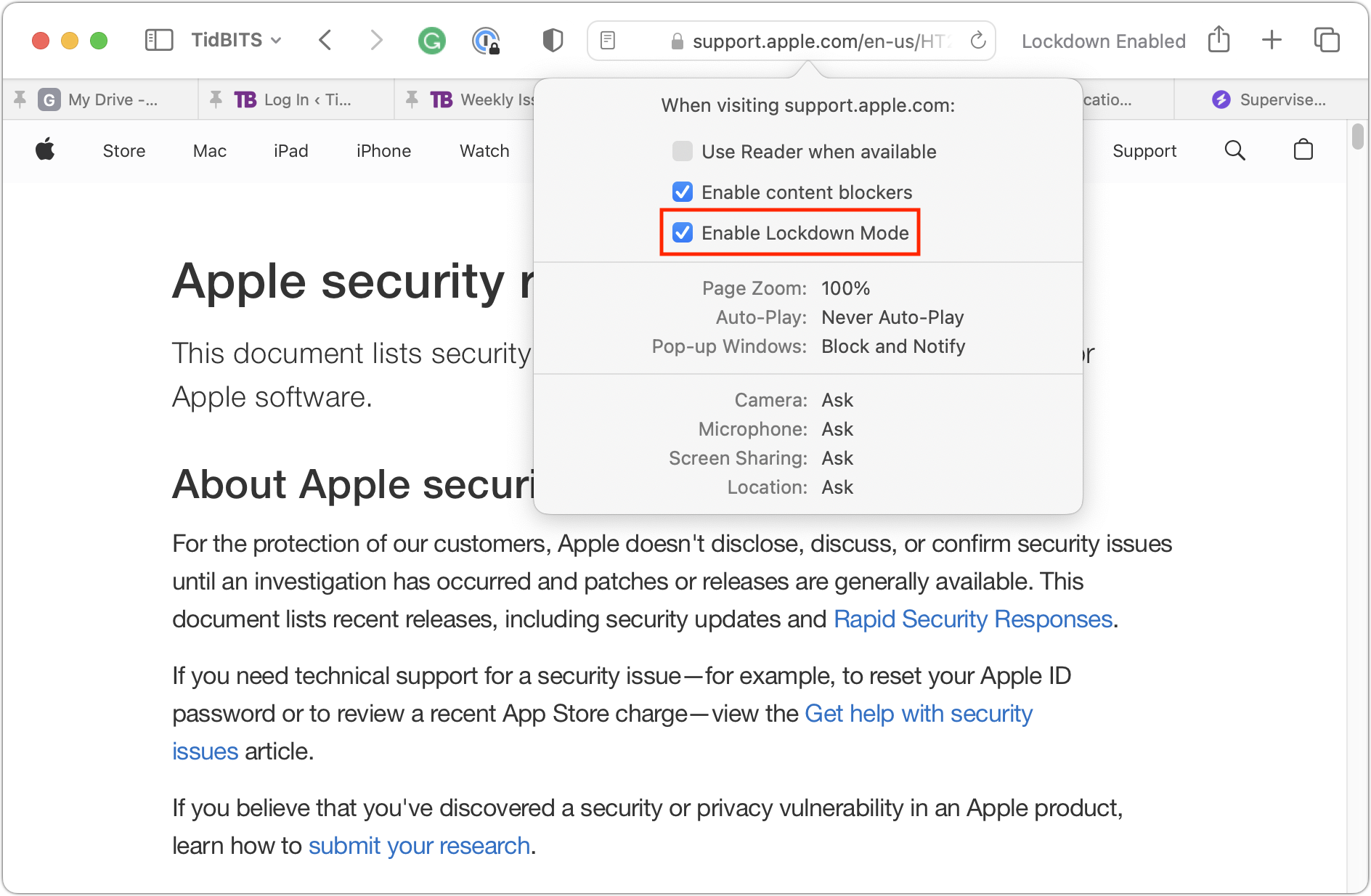
On the Mac, you can exclude websites in Safari, but not apps. While on the site you want to exclude, choose Safari > Settings for website.name. In the popover that appears, deselect Enable Lockdown Mode and then click Turn Off when prompted.
To reiterate, almost no one needs to enable Lockdown Mode. But if you qualify as a high-value target, it’s well worth using Lockdown Mode to reduce the chances that powerful forces will be able to compromise your iPhone, iPad, or Mac.
(Featured image based on originals by iStock.com/Tero Vesalainen and matias giamportone)