
Disable Unused Sharing Options on Your Mac If You’re Not Using Them

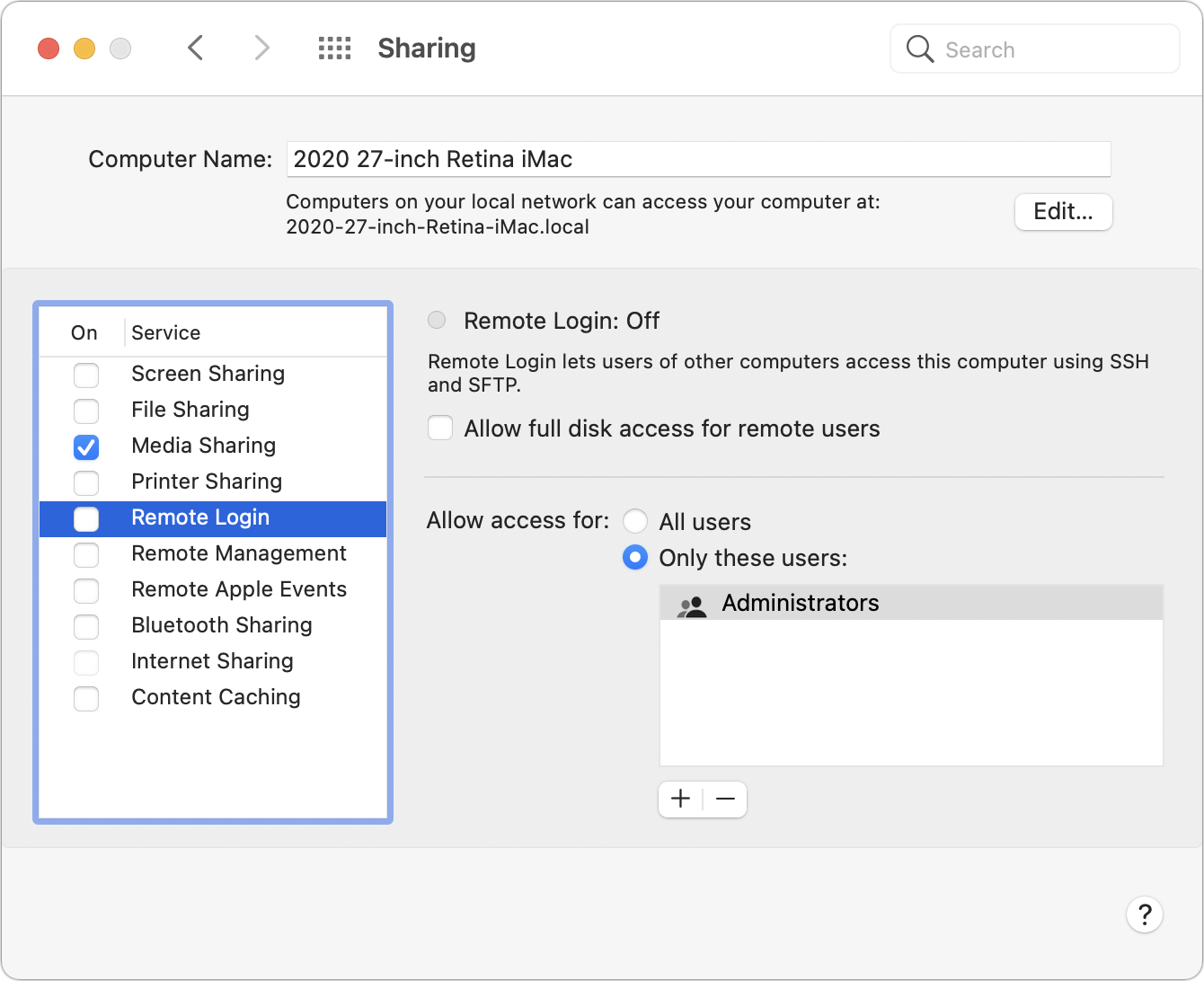
Many security breaches—even high-profile ones—stem from simple oversight. There’s one spot in macOS that has long been particularly susceptible to such lapse: the Sharing pane of System Preferences. In it, you can enable a wide variety of sharing services, some of which could allow another user to access your Mac remotely. They all let you limit access to particular users, but passwords can be stolen, accounts can be compromised, and server software can have bugs. For safety’s sake, if you’re not actively using a sharing service, turn it off. The most important ones to disable when not in use are Screen Sharing, File Sharing, Remote Login, Remote Management, and Remote Apple Events. We also caution against leaving Printer Sharing and Internet Sharing on unnecessarily.
(Featured image by Morgane Perraud on Unsplash)
Name That Tune with Siri or Control Center

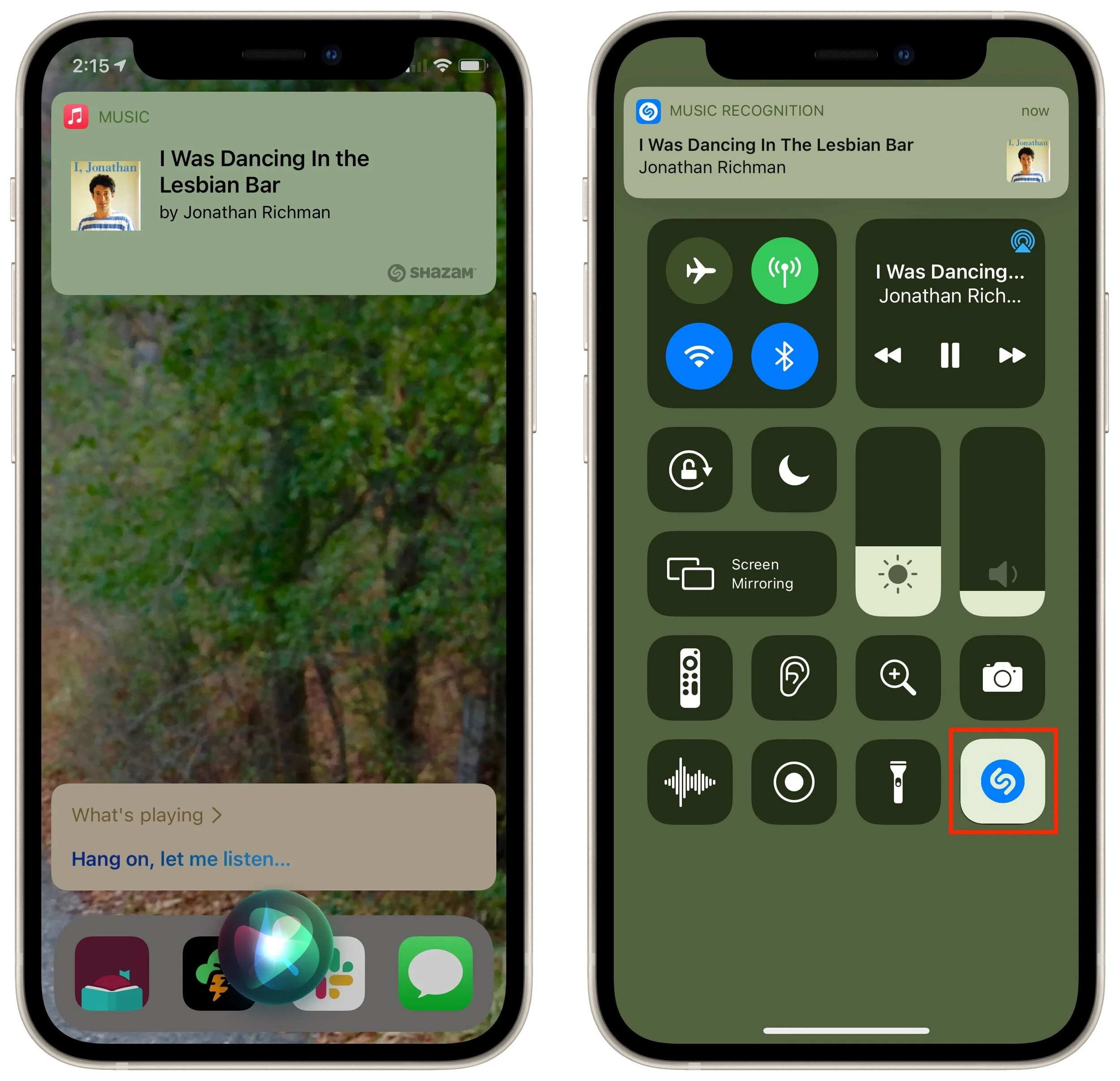
Don’t you hate it when a familiar song is playing but you can’t think of what it’s called? Or worse, when you hear a new track you really like but have no one to ask what it is? Never worry about that again, thanks to your iPhone or iPad. Back in 2018, Apple bought the music identification app Shazam and has since integrated it into iOS. You can still use Shazam, but it’s easier to ask Siri, “What’s playing?” or tap the Music Recognition button in Control Center (add it in Settings > Control Center) and then let your iPhone listen to the music for a few seconds. Siri is easiest, but the Control Center button is perfect in situations where you’d prefer to keep your question quiet. The music recognition feature recognizes only recorded music—no high school glee club versions, sorry—and while not perfect, is often helpful. Tap the notification that appears to open the song in Apple Music.
(Featured image by Laura Balbarde from Pexels)
Pin Your Chats in Messages for Faster Access

A new feature of Messages in both iOS 14 and macOS 11 Big Sur is the option to pin up to nine conversations at the top of the conversation list for easy access. No longer do you have to worry about them scrolling out of sight. On an iPhone or iPad, touch and hold a conversation and tap Pin in the menu that appears; on a Mac, Control-click the conversation and choose Pin. (Remove them by repeating the action and choosing Unpin.) Each of your devices can have different conversations pinned. If you are used to scanning the left side of Messages for blue new-message indicators, also be sure to look for those blue dots amongst your pinned icons at the top of the screen. Also, note that on the Mac, it can be a little too easy to see a notification banner about a new message, switch to Messages, and type in the currently selected (but wrong) conversation.

(Featured image by Polina Zimmerman from Pexels)
Looking for More iOS 14 Widgets? Be Sure to Launch Seldom-Used Apps

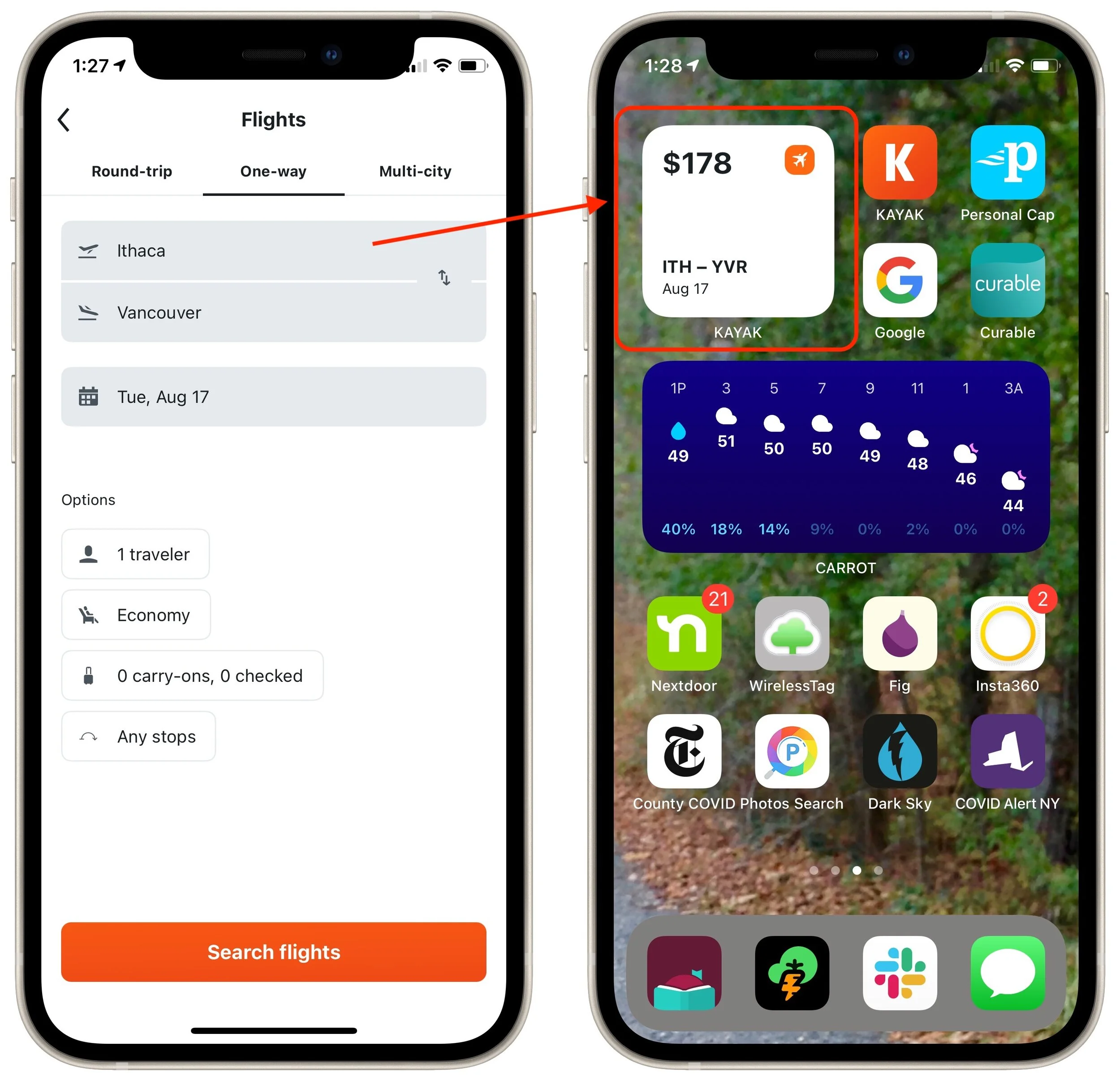
Home screen widgets are one of the coolest features of iOS 14. They enable apps to offer quick access to features or at-a-glance previews of changing information, such as the Weather app’s widget providing a quick look at upcoming weather. What you may not realize, however, is that an app’s widgets become available for adding to your Home screen only if you have launched the app since upgrading to iOS 14. (To see the list, press and hold on an empty part of the Home screen and then tap the + button in a top corner.) For instance, if you haven’t traveled since the pandemic started, you might not realize that the Kayak app has a handy price alert widget. Just launch the app once, and you’ll see its widgets the next time you look through the complete widget list.
(Featured image by Omid Armin on Unsplash)
Two Tricks for Fixing a Mac That’s Restarting Unexpectedly

Although extremely uncommon, it’s not unheard of for a Mac, particularly an older model, to restart unexpectedly. If it happens once, chalk it up to cosmic rays and move on. But if it happens multiple times, try these two things right off. First, use compressed air to remove dust from cooling vents or the inside of the Mac, if you can open it up. Dust can cause heat buildup, which can in turn cause restarts. Second, try plugging the Mac into a different electric circuit or, ideally, into an uninterruptible power supply (UPS). Dirty power can provoke all sorts of undesirable behavior—including unexpected restarts—and shorten the lifespan of the Mac’s electronic com-ponents. Remember, clean air and clean power make for a happy Mac.

(Featured image by Adam Engst)
Share Your Apple Card with People in Your Family Sharing Group

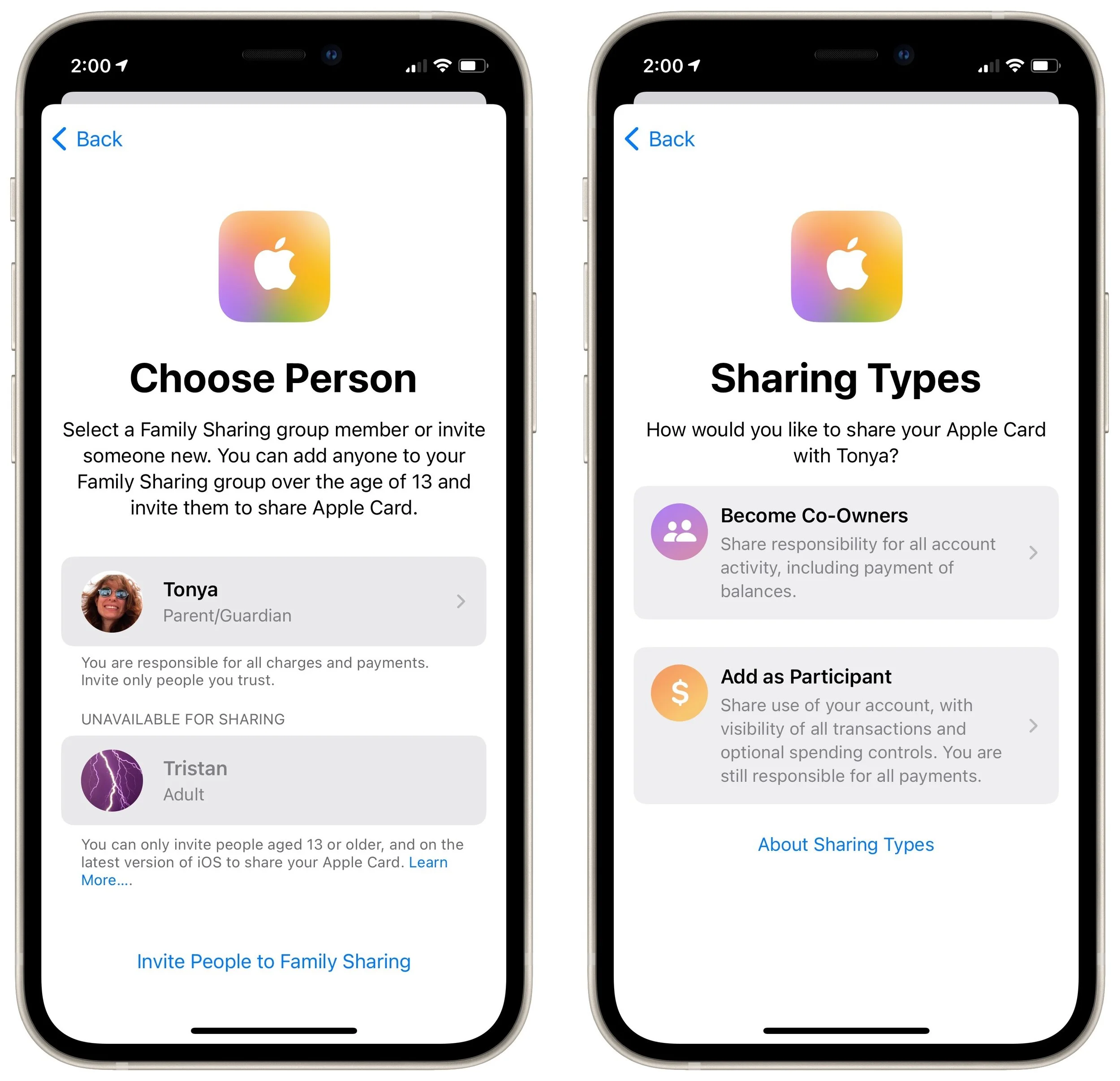
Apple did a good job rethinking some aspects of credit card use with the Apple Card, but one omission was the inability to share it with other family members. With the new Apple Card Family, once everyone has upgraded to iOS 14.6, you can add members of your Family Sharing group to your Apple Card account as either Co-Owners or Participants. Co-Owners can merge their credit lines, manage the account together, and build credit as equals. You can also invite children over 13 and young adults as Participants. For their accounts, you can set spending limits and receive real-time notifications. Participants over 18 can build their own credit, something that can be difficult for young people. To get started, go to the Wallet app on your iPhone, open the Apple Card, tap the ••• button, tap Share My Card, follow any prompts, for the person you want to share with, and select either Co-Owner or Participant.
(Featured image by Apple)
Use Messages to Share Your Current Location Quickly

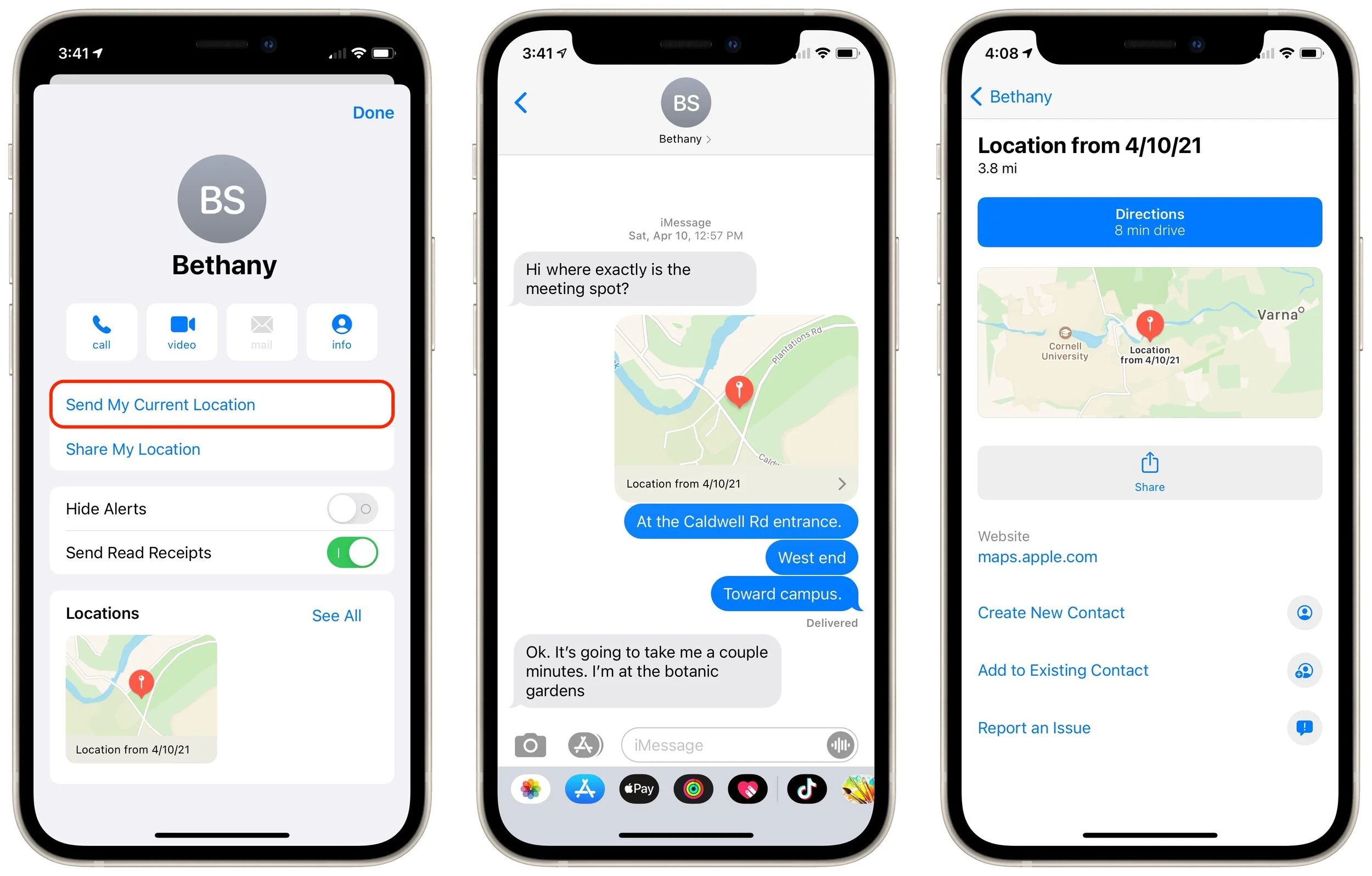
We’ve all gotten that panicked “Where are you?!?” text message at some point. Sometimes it’s an easy question to answer, but at other times, the answer is “Well, right here, wherever that is.” That’s unsatisfying, of course, but using Messages on your iPhone, you can do better. Tap the person’s name at the top of the conversation, tap the Info button, and in the screen that appears, tap Send My Current Location. Messages immediately sends a little thumbnail map showing where you are, and if the recipient taps it, they can see a larger map, get directions, or open it in Maps. It’s a brilliant little feature!
(Featured image by Andrea Piacquadio from Pexels)
Intuit Has Stopped Updating the QuickBooks Online Mac App; Switch to a Web Browser

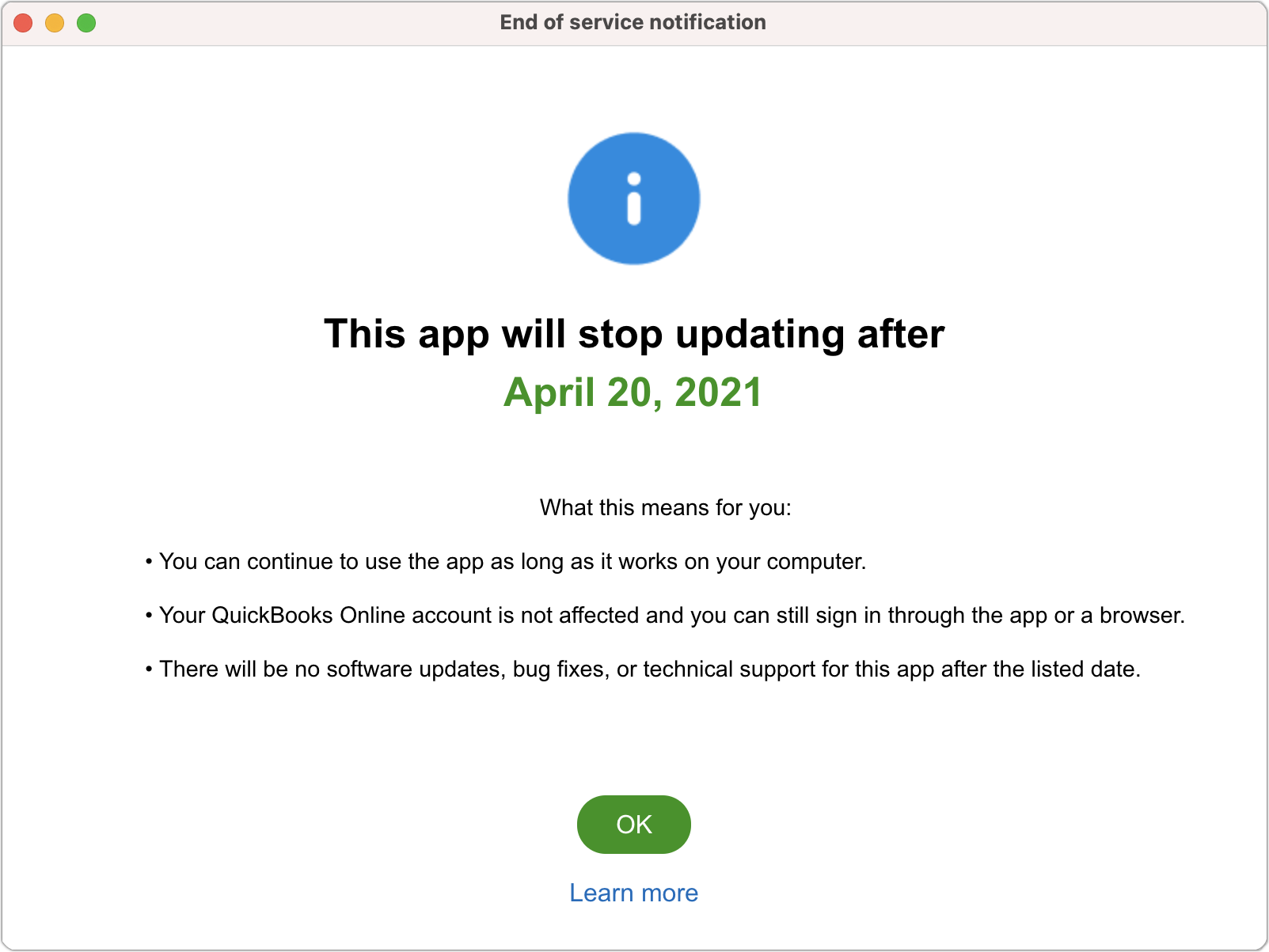
If you’re using QuickBooks Online with the service’s Mac app to manage your business’s accounting, you may have seen a message like the one below announcing that Intuit has stopped updating the QuickBooks Online app. This doesn’t affect your QuickBooks Online account, which you can and should use via a Web browser at qbo.intuit.com now. Even if the QuickBooks Online Mac app continues to work, which it likely will for some time, we recommend that you delete it and switch entirely to a Web browser. It’s not safe to use an unsupported app for financial records because Intuit won’t be fixing any security vulnerabilities going forward.
(Featured image based on an original by RODNAE Productions from Pexels)