
Reveal Your Desktop Quickly with a Keyboard Shortcut
The Mac’s Desktop is a great place for in-progress documents, screenshots, and other things you’re working on, but only if you can get to it easily. Read on for two little-known tricks for temporarily pushing windows aside.
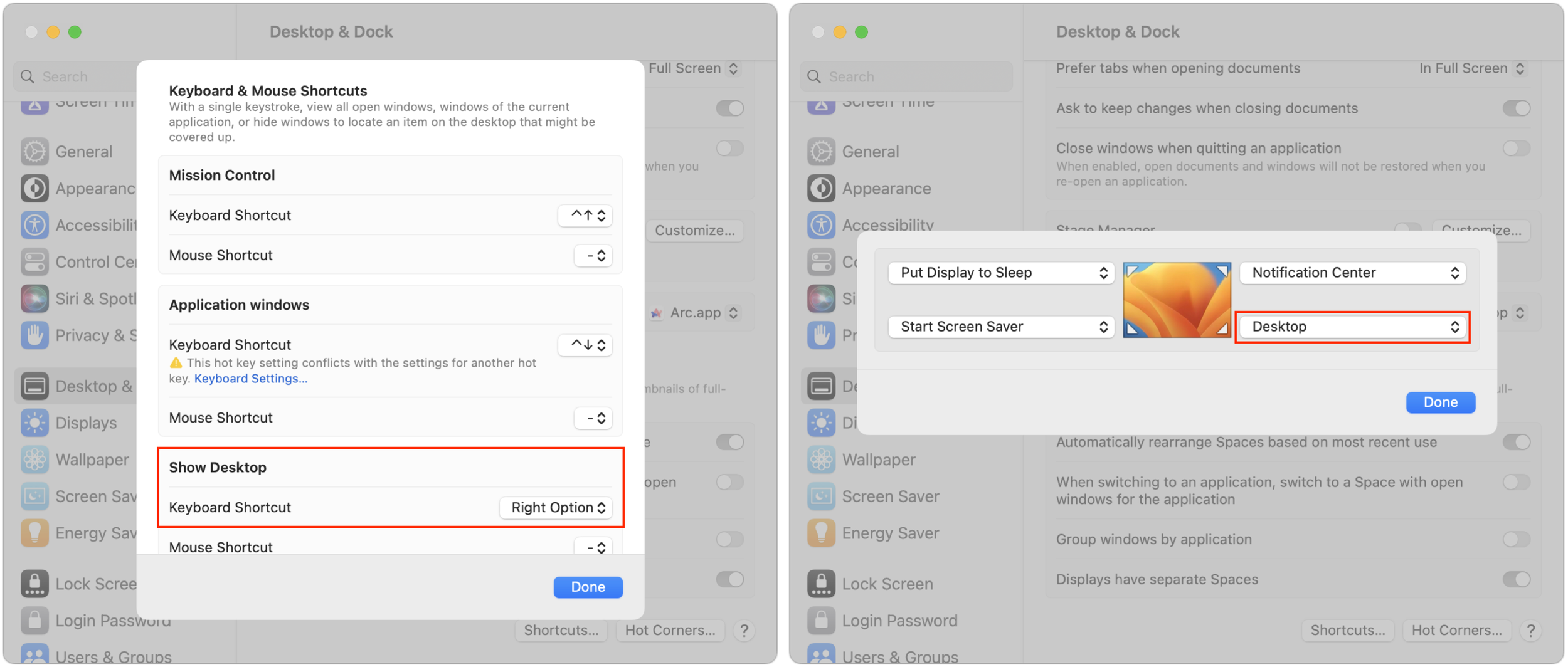
The Mac’s Desktop is a remarkably useful place. It’s a good spot for in-progress documents, screenshots, images dragged out of Web pages, and more. However, app windows tend to obscure the Desktop, making it harder to use. There are two quick ways you can temporarily hide windows, making it easy to access icons on the Desktop. In macOS 13 Ventura, in System Settings > Desktop & Dock, click the Shortcuts button at the bottom and assign a keyboard shortcut to Show Desktop (we like the Right Option key). Or click Hot Corners and choose Desktop for one of the corners. (In macOS 12 Monterey and earlier, look in System Preferences > Mission Control.) Then, press that keyboard shortcut or put your pointer in that corner to move your windows aside temporarily. When you’re done, press the key or move the pointer there again to put the windows back.
(Featured image based on an original by iStock.com/AmnajKhetsamtip)
How to Turn Mail’s Rich Website Previews into Plain Links
Annoyed by how Apple’s Mail on the Mac turns pasted URLs into rich link previews? We offer three ways to avoid them.
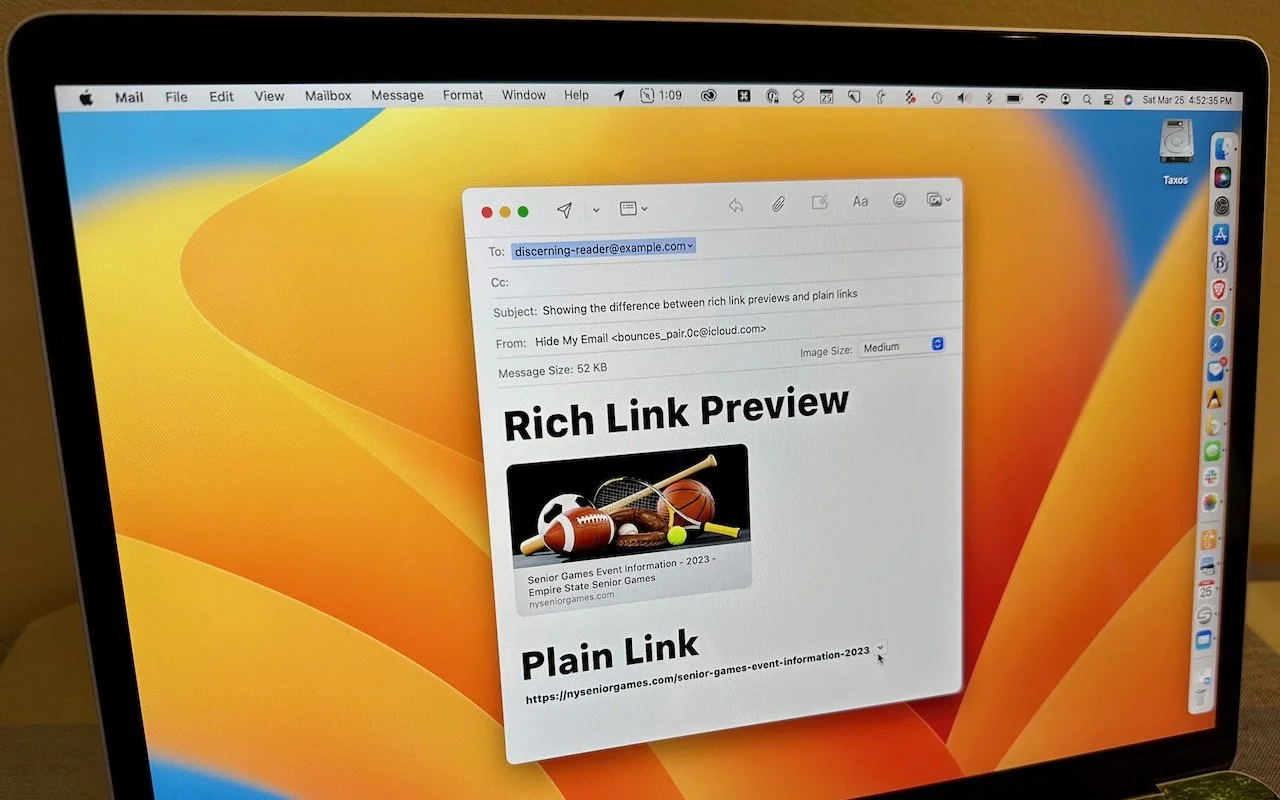
Sometimes apps can be too helpful. Apple’s Mail on the Mac likes to turn pasted URLs into graphically rich previews, and sometimes that’s OK. But other times, the preview is confusing or takes up too much space. Or you may want to send a plain link so the recipient can see its text. There are three ways to avoid rich link previews:
Before pasting a URL into your message, type a space or any other text. Mail converts URLs to rich previews only when they’re on a line by themselves.
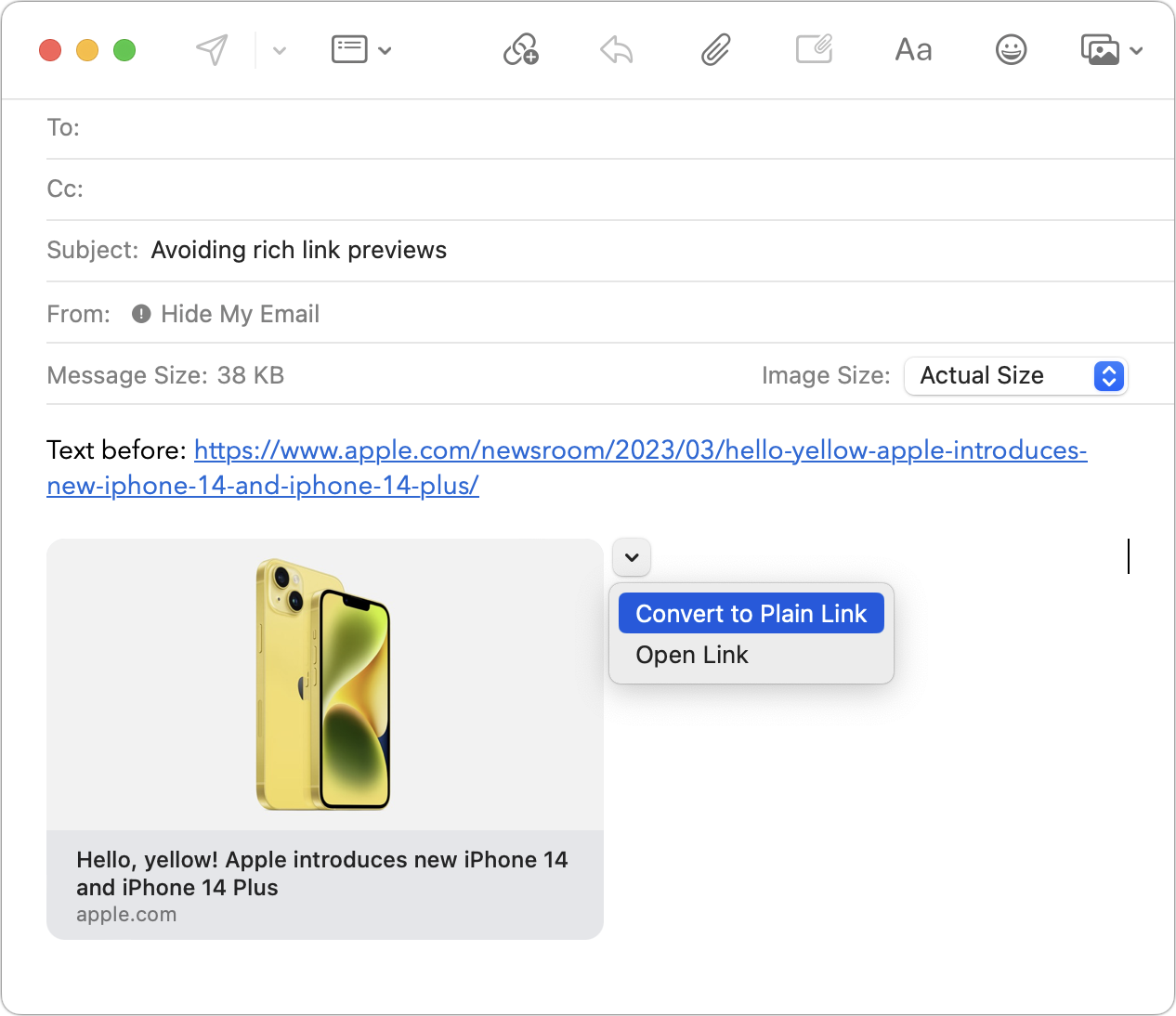
Hover over the preview, click the down-pointing arrow that appears, and choose Convert to Plain Link from the pop-up menu.
In Mail > Settings > Composing, change the Message Format pop-up menu to Plain Text. Although this eliminates rich link previews, it also prevents you from including formatting and images.
(Featured image by Adam Engst)
Classical Music Fans Take Note: Apple Music Classical Is Now Available
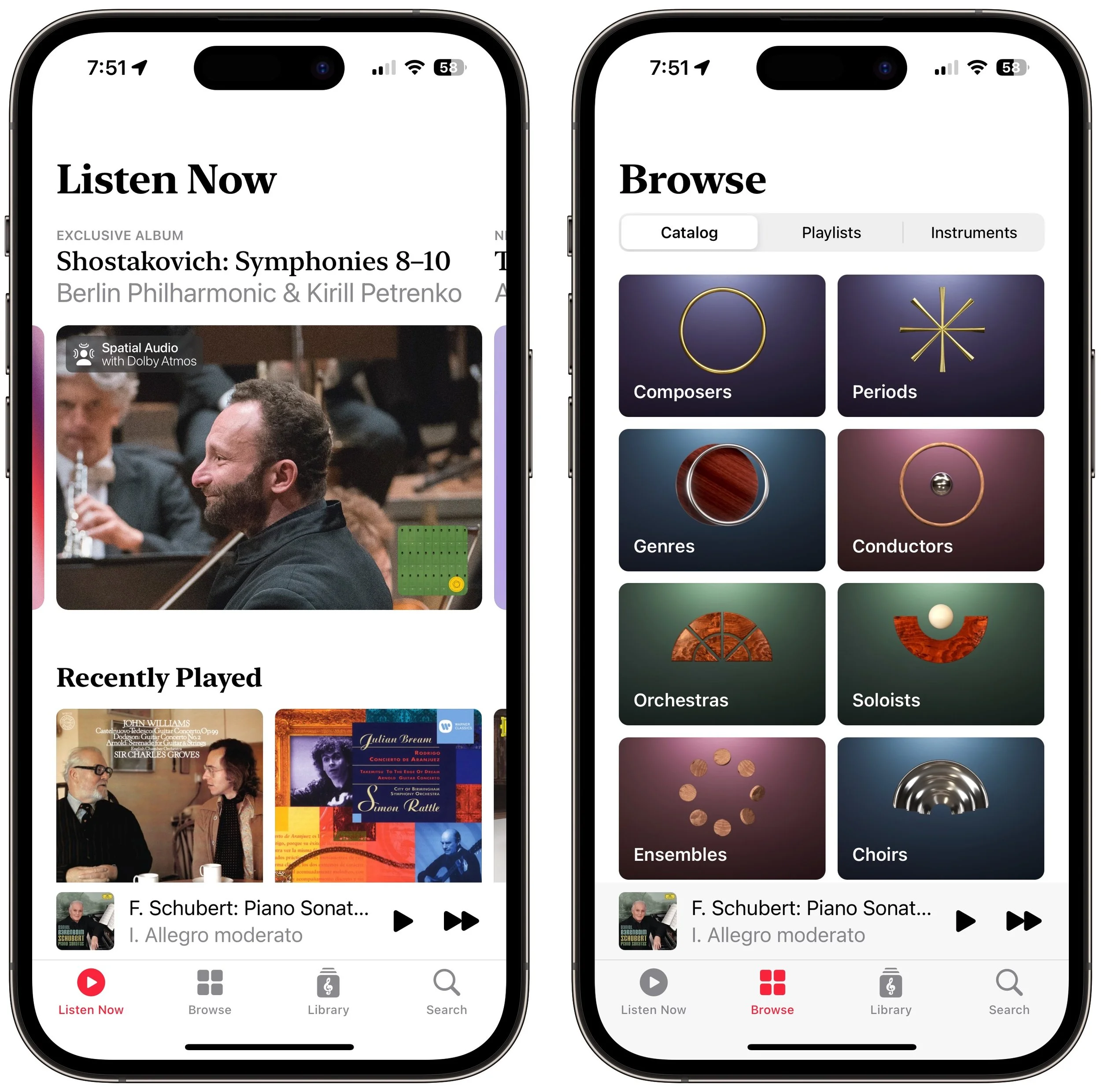
Whether you’re a classical music fan or a neophyte who wants to learn more, check out the new Apple Music Classical app, free for Apple Music subscribers. Its interface is designed for classical music, and it provides access to over 5 million tracks.

Apple has at long last released the promised Apple Music Classical app. It’s a free iPhone app for Apple Music subscribers that looks and works much like the standard Music app. However, Apple has adjusted it extensively under the hood to work better with classical music, where there are many recordings of the same work by different artists. Apple also improved the metadata—normalizing composer names and adding work and movement tags—for the 5 million classical tracks in Apple Music. For instance, you can search by work, composer, conductor, opus number, and key, something that worked poorly before. Apple Music Classical is a significant improvement for classical music fans, and it provides expert recommendations and playlists for those interested in getting started. Alas, there’s no Mac version yet, and the iPad is limited to using the scaled-up iPhone app.
(Featured image by iStock.com/cyano66)
What’s the Difference between Removing and Deleting an App?

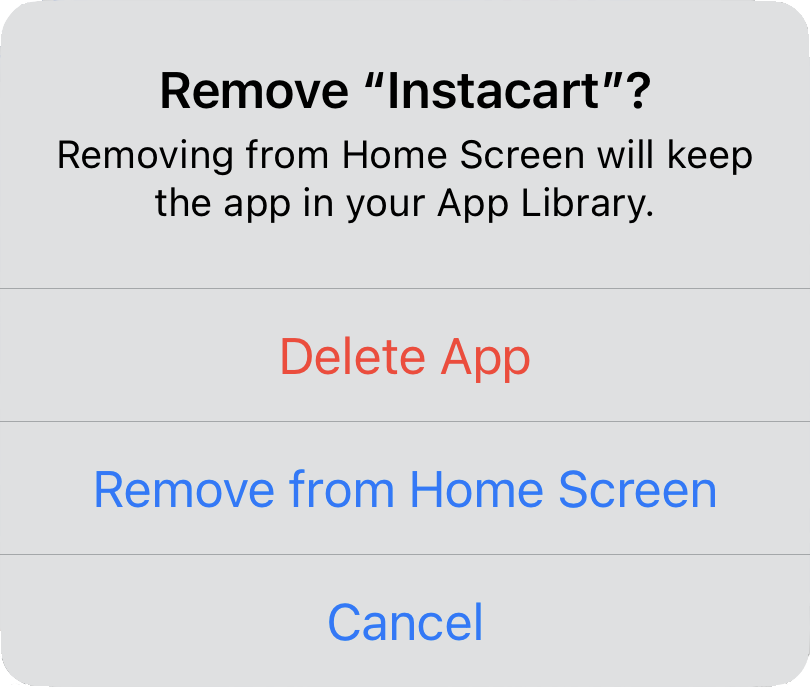
There are many reasons you might want to get rid of apps from your iPhone or iPad. To begin, touch and hold on a blank spot on a Home Screen to enter “jiggle mode.” Then tap the ⊝ icon for any app to see the question about whether to delete the app entirely or merely remove it from the Home Screen. Delete the app if you don’t want to use it anymore or need to reclaim the space it occupies. (You can download it from the App Store again.) Remove the app from the Home Screen if you want to reduce clutter, keep the app on your device, and don’t mind opening it from the App Library (swipe left past all the Home Screens) or from Search (swipe down from the middle of the screen).
(Featured image based on an original by iStock.com/Photosbypatrik)
Quickly Put Lots of Files in a Folder with One Command

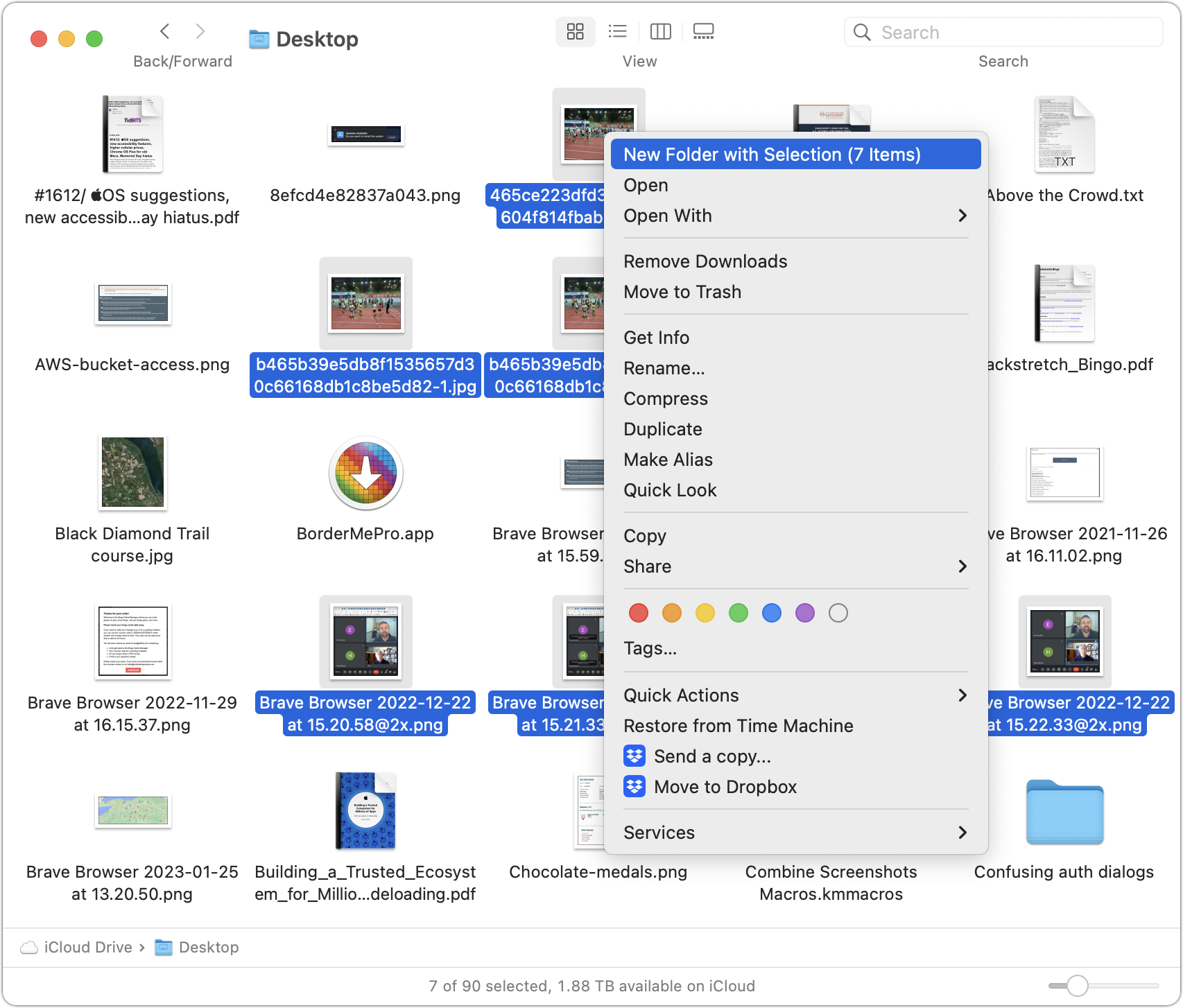
Imagine that you’re working with a bunch of files, and you want to put a set of them in a new folder. You could stop what you’re doing, make a new folder, select all the files, and drag them into the folder, like an animal. Or you could take advantage of a slick Finder command that Apple added in macOS 11 Big Sur. Simply select the files you want to put in a folder, Control-click one of them, and choose New Folder with Selection (X Items) from the top of the contextual menu. A folder called “New Folder With Items” appears, with your selected files inside. This feature may not be life-changing, but some people use it often.
(Featured image by iStock.com/ArLawKa AungTun)
Find Devices and People from Your HomePod
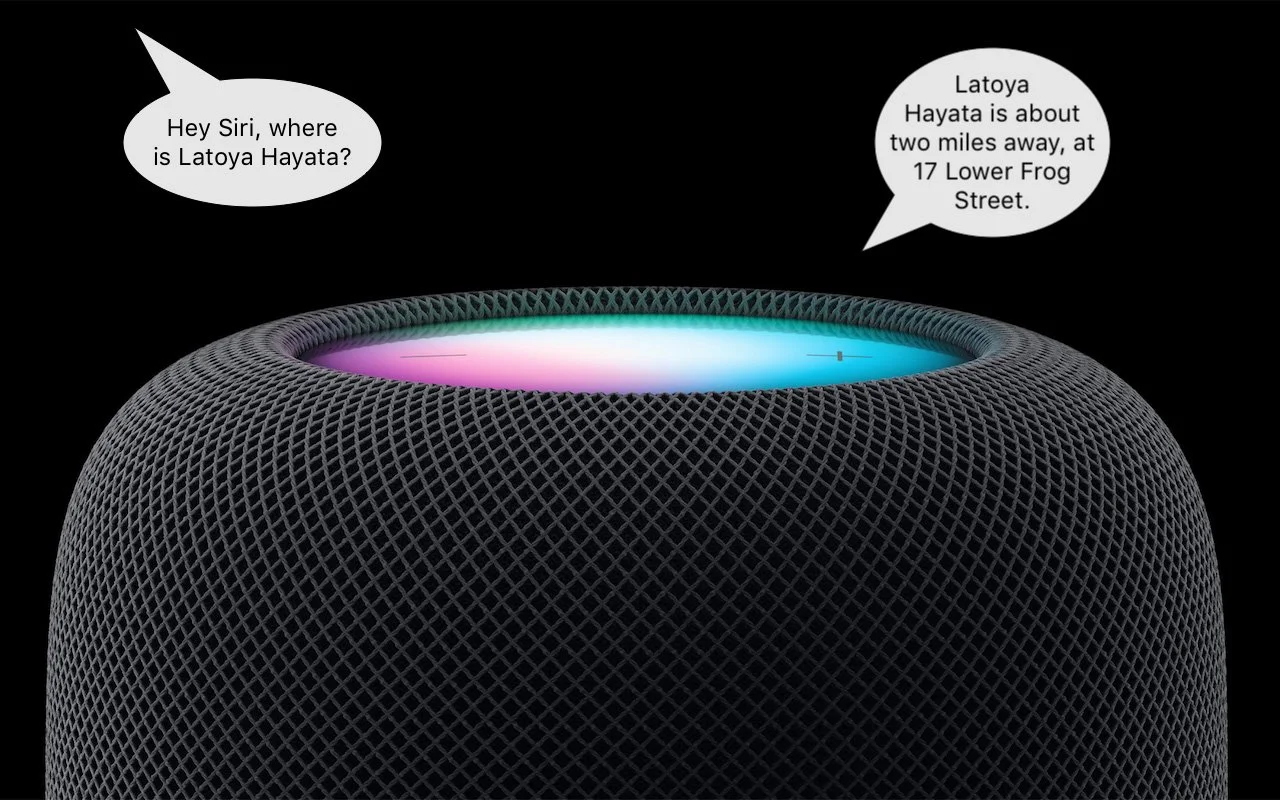
This feature evokes one of those “living in the future” moments for us. The recently released HomePod Software 16.3 now supports Find My, which means you can ask Siri to locate one of your devices or a friend or family member who shares their location with you. If you have a HomePod, ask Siri, “Where is my iPhone?” Assuming your HomePod has updated (and if not, update it manually in the Home app), Siri will respond by causing your iPhone to play a sound. Or ask where someone is—Siri will respond with more details for nearby people and city locations for those far away.
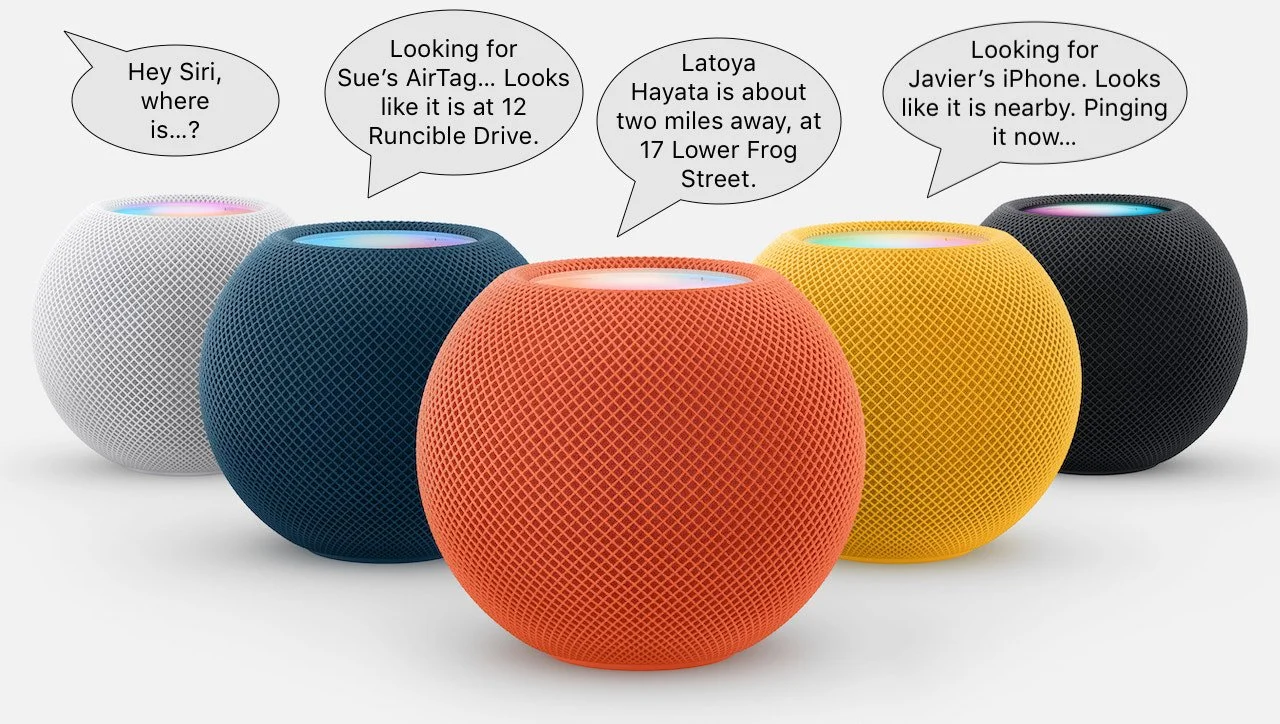
(Featured image based on an original by Apple)
Need to Back Up or Export a Messages Conversation? Try PDF or iMazing

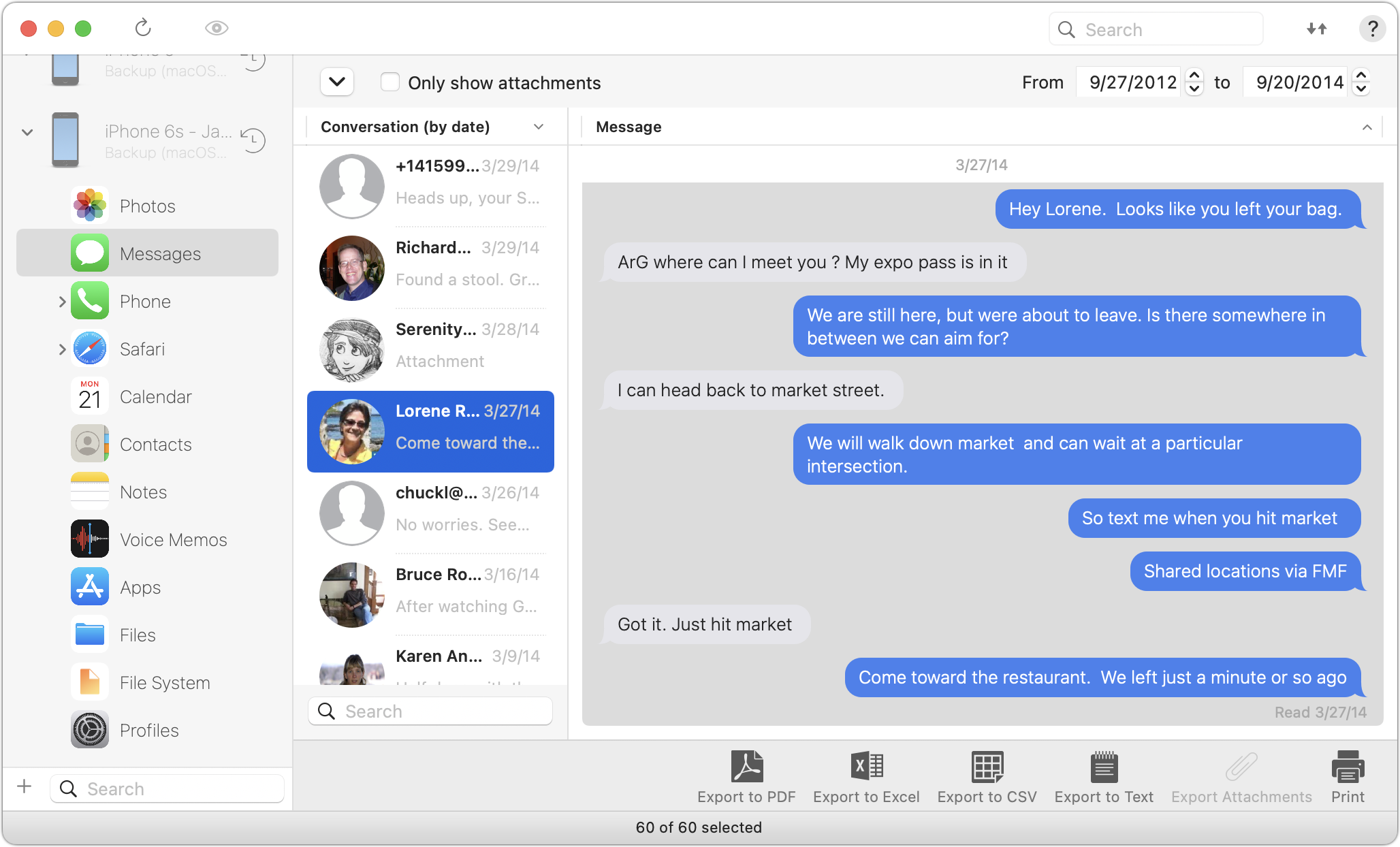
Occasionally, we hear from a client who needs to document a Messages conversation with timestamps, perhaps as part of a lawsuit. The only way to do that on an iPhone or iPad is to take a series of screenshots, but if you have a Mac, there are additional options. The easiest approach is to select the conversation, choose File > Print, and save it as a PDF. If you need a different format, try the macOS iMazing app, which can export all or selected messages from an iPhone backup in PDF, Excel, CSV, and text. It can also export attachments. The trial version lets you extract up to 25 items, and it’s only $39.99 if you have more significant iPhone exporting needs.
(Featured image by iStock.com/Morakot Kawinchan)
Use Quick Look to Preview Spotlight Results in Ventura

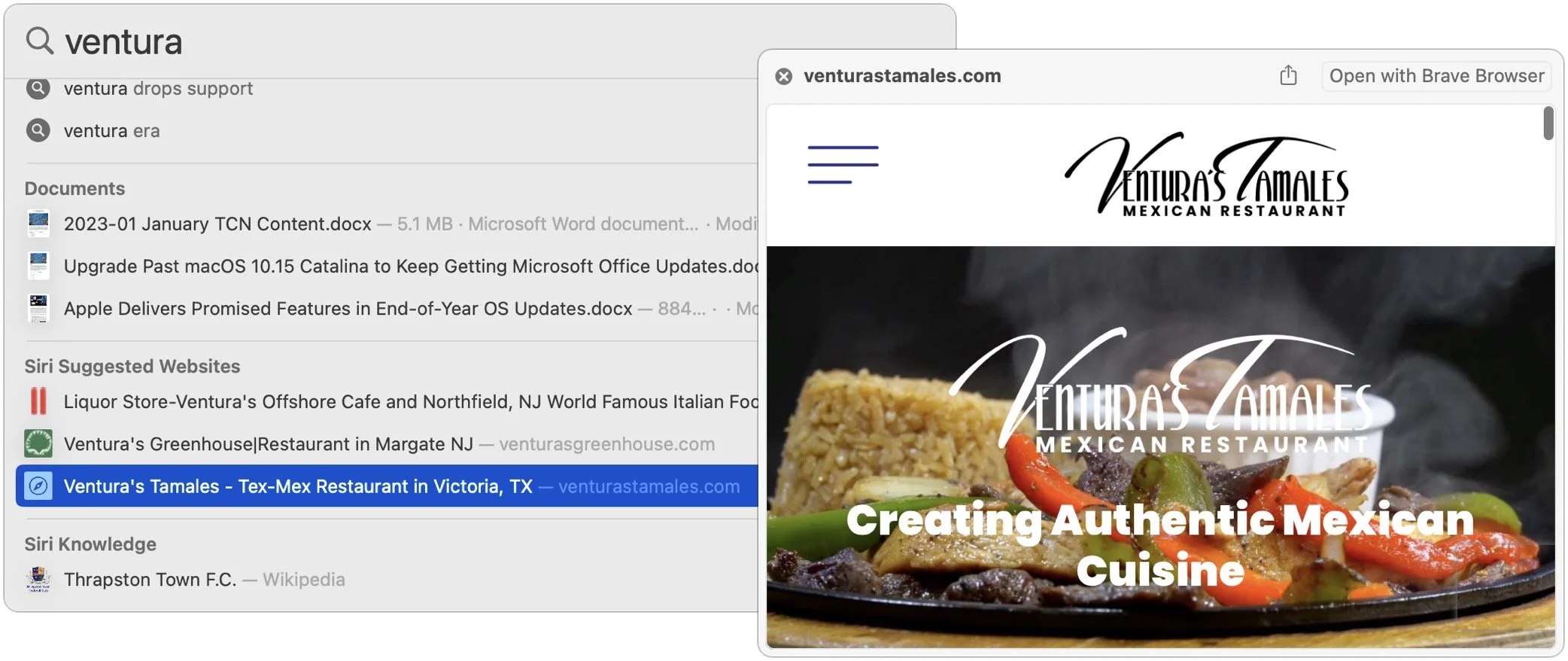
When you search using Spotlight on the Mac, it provides a decent amount of information about each result, including name and other metadata. But what if you want to see what’s behind the search result? In macOS 13 Ventura, Apple added Quick Look support to Spotlight so you can easily preview the search results. Do a search, click or use the arrow keys to select a search result, and then press the Space bar to open it in a Quick Look window. It even renders websites!
(Featured image based on an original by iStock.com/Nastco)