
Don’t Assume That Top Google Search Results Are Guaranteed Safe
You know that the phrase “I read it on the Internet, so it must be true” is absurd, but you should extend that skepticism to Google search results. We’ve seen two recent instances of malicious content bubbling to the top of searches. Trust but verify.

We hate to encourage paranoia, but all is not well with Google Search. Recently, we've heard of multiple instances where people were nearly taken advantage of due to relying on the top result in a Google search. In one case, a user called a purported HP support phone number directly from the search results but ended up speaking with a scammer. In another, a user thought they were downloading the latest version of Dropbox but got malware instead. In neither case could we reproduce the error, but they may have resulted from “SEO poisoning,” a malicious technique in which cybercriminals manipulate search engine optimization (SEO) strategies to elevate harmful websites in search results. In short, don’t assume that a site at the top of Google search results is guaranteed safe when downloading software or contacting a company. It’s best to navigate directly to a company’s official website before trusting that corporate information and software downloads are legitimate.

(Featured image based on an original by iStock.com/Armastas)
Apple Updates Mac Studio with M4 Max and M3 Ultra Chips
Apple has updated the Mac Studio by swapping the M2 Max and M2 Ultra chips for the M4 Max and new M3 Ultra. The M3 Ultra version also offers a new memory ceiling of 512 GB and a new storage max of 16 TB. It’s a monster machine.

In the first update to the Mac Studio since 2023, Apple has refreshed its professional powerhouse with new chip options and support for speedy Thunderbolt 5 peripherals. Previously, the Mac Studio was powered by the M2 Max and M2 Ultra; Apple has now replaced them with the M4 Max, which debuted last year in the MacBook Pro line, and the new M3 Ultra, which melds two M3 Max chips for the ultimate performance. According to Apple, the M3 Ultra version of the Mac Studio ($3,999) is up to 2.6 times faster than the initial M1 Ultra version and nearly twice as fast as the M4 Max configuration ($1,999) for workloads that take advantage of high CPU and GPU core counts. The M3 Ultra Mac Studio starts with 96 GB of unified memory and can be configured with up to 512 GB, plus up to 16 TB of storage, both more than ever before. If you need the fastest Mac possible, look no further.

(Featured image by Apple)
Apple Speed Bumps iPad with A16 and iPad Air with M3
Apple’s latest iPad and iPad Air updates make them faster and more appealing without increasing prices. If you’re in the market for an iPad, the iPad remains a steal and the iPad Air offers all the performance most people will ever need.

Apple has updated the iPad and iPad Air and introduced a new keyboard for the iPad Air.
The primary change to the 11th-generation iPad ($349) is the move from the previous model’s A14 Bionic chip to the A16, which is nearly 30% faster but still won’t support Apple Intelligence or some recent games. Apple also increased the base stor-age from 64 GB to 128 GB, dropped the Nano-SIM slot from the cellular models, and updated the wireless capabilities to support current protocol versions. Although the screen remains the same 10.9-inch diagonal size, Apple now refers to it as the “11-inch iPad.” It remains an excellent and affordable entry-level device.
The 7th generation of Apple’s flagship 11-inch ($599) and 13-inch ($799) iPad Air sees only a single change—swapping the previous model’s M2 chip for the M3 to increase performance, particularly for gaming and video creation. Separately, Apple introduced a less expensive Magic Keyboard for iPad Air that adds a 14-key function row and sports a larger trackpad, though it lacks the previous model’s backlit keys and trackpad haptics. The keyboard costs $269 for the 11-inch iPad Air or $319 for the 13-inch model.

(Featured image by Apple)
HomePods Can Alert You of Smoke and Carbon Monoxide Alarms
Apple’s HomePods can recognize the sound of a nearby smoke or carbon monoxide alarm and notify your iPhone, alerting you when you’re away and allowing you to inform emergency services and neighbors.

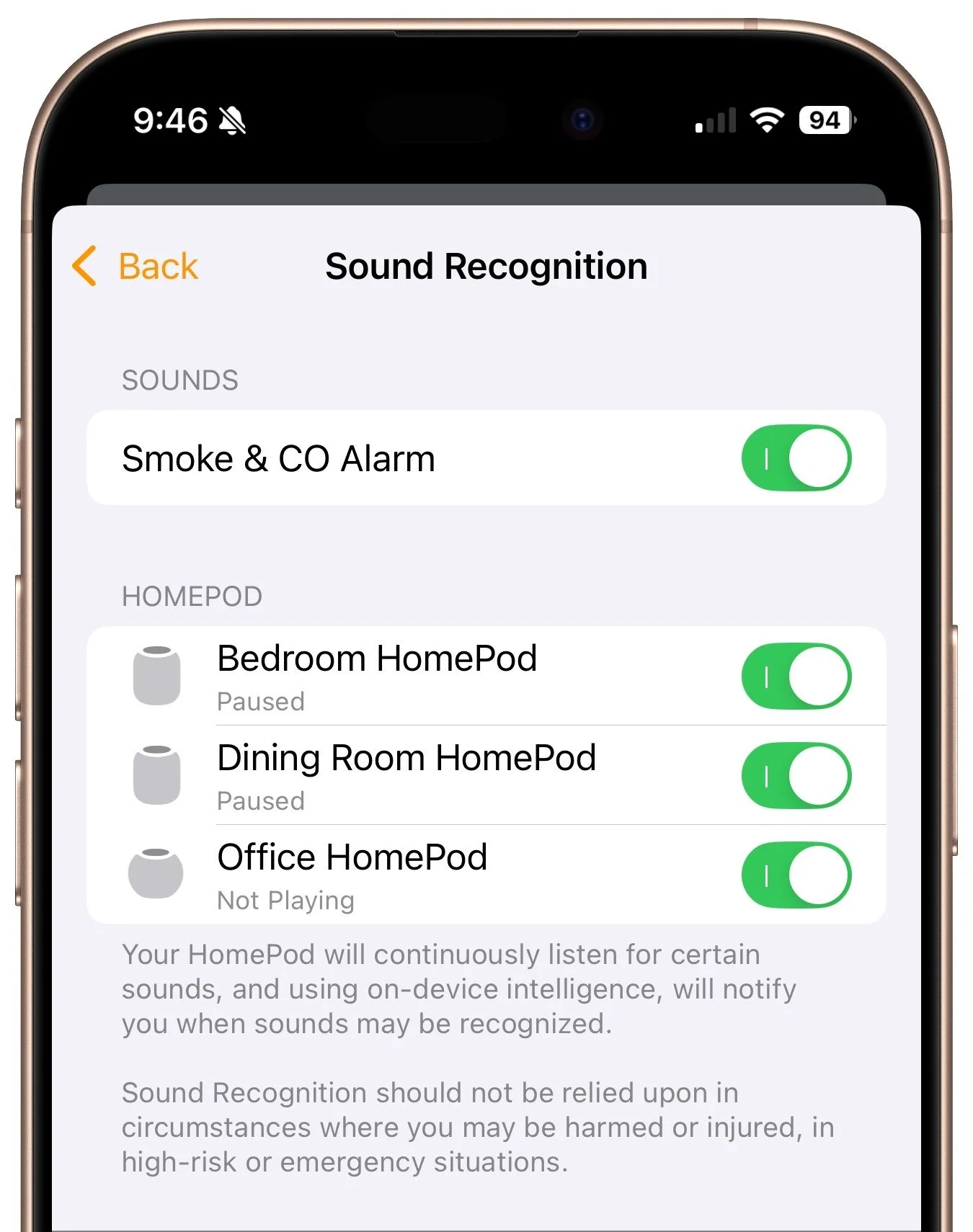
Although we think about HomePods as being useful for playing audio and responding to Siri commands for HomeKit devices, they can do more. HomePods can send a notification to your iPhone if their built-in microphones recognize the piercing squeals from smoke and carbon monoxide alarms. If you are away from home, that notification could help you alert neighbors and call 911, shaving minutes off response times. To turn the feature on, open the Home app, tap the ••• button in the upper-right corner, navigate to Safety & Security > Sound Recognition, and turn on the switches for Smoke & CO Alarm and any HomePods you have.
(Featured image by iStock.com/BrianAJackson)
Create Links to Selected Text in Long Web Pages
You can now create a link directly to text anywhere on a Web page with the handy Copy Link to Highlight command in many Web browsers. Here’s how to invoke the command and an example of why it’s so useful.

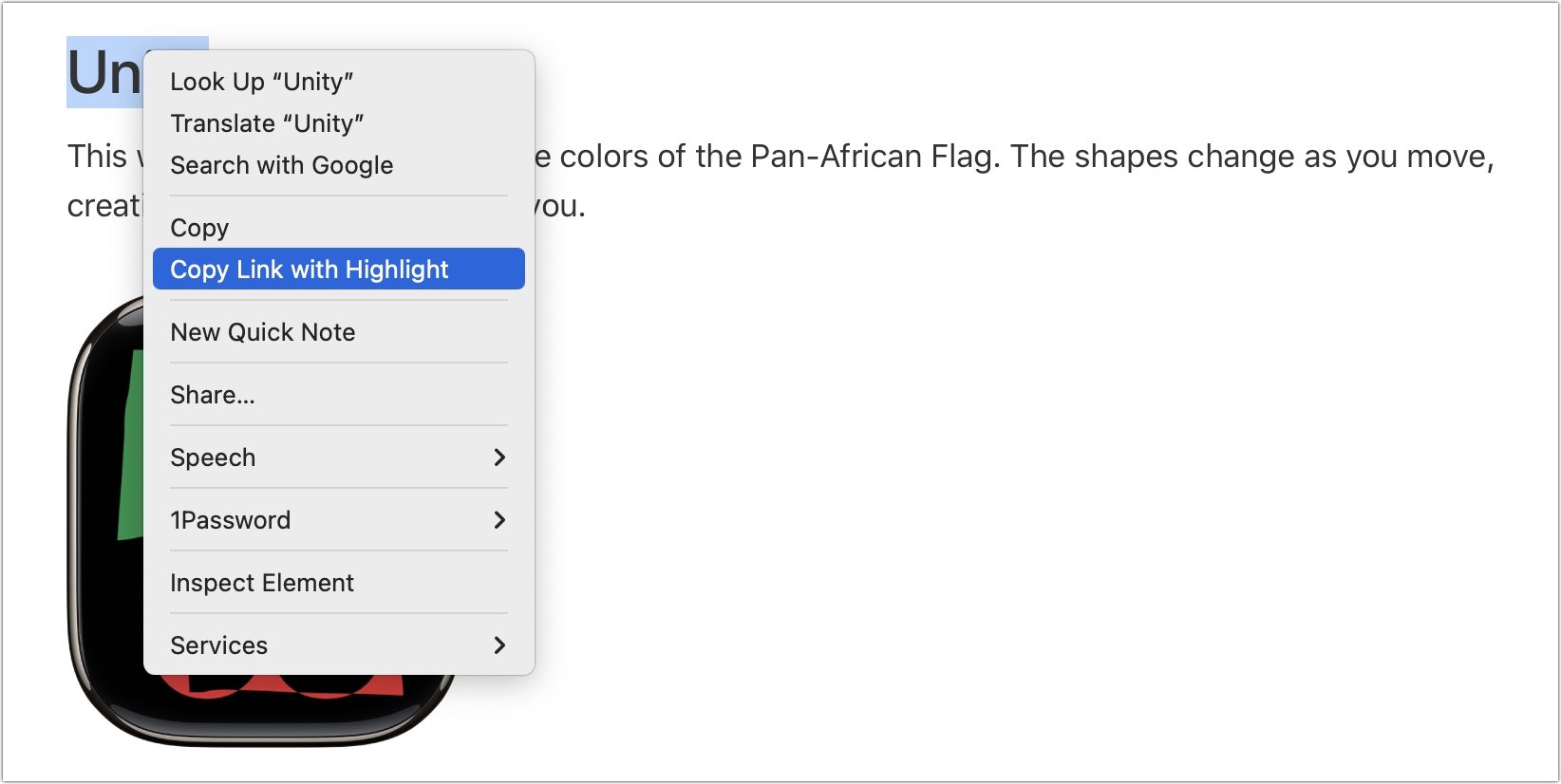
If you have Control- or right-clicked on text in a Web browser in the last year or two, you may have seen an oddly named command: Copy Link to Highlight. When you choose it, it puts a URL on your clipboard, not just to that page, as Copy Link Address would, but also to the selected text. You can use this URL to make a link or share it directly, and when someone follows it, their browser scrolls to the selected text, simplifying navigation on a long page. For example, compare this link to Apple’s long Apple Watch faces page with this one that points directly to the Unity watch face most of the way down. All Web browsers can follow these links, but Google Chrome was the first to let you make them, and you’ll also find the feature in Arc, Microsoft Edge, and Vivaldi. Apple recently got on board with Safari 18’s Copy Link with Highlight command. The Link to Text Fragment extension adds the feature to other Chromium browsers and Firefox.
(Featured image by iStock.com/Arkadiusz Warguła)
For Moments of Joy, Use watchOS 11’s Photos Watch Face
Let’s take a step back from how technology can enhance productivity to appreciate watchOS 11’s new Photos watch face. The way it unearths photos from your photo library on every wrist raise is delightful.

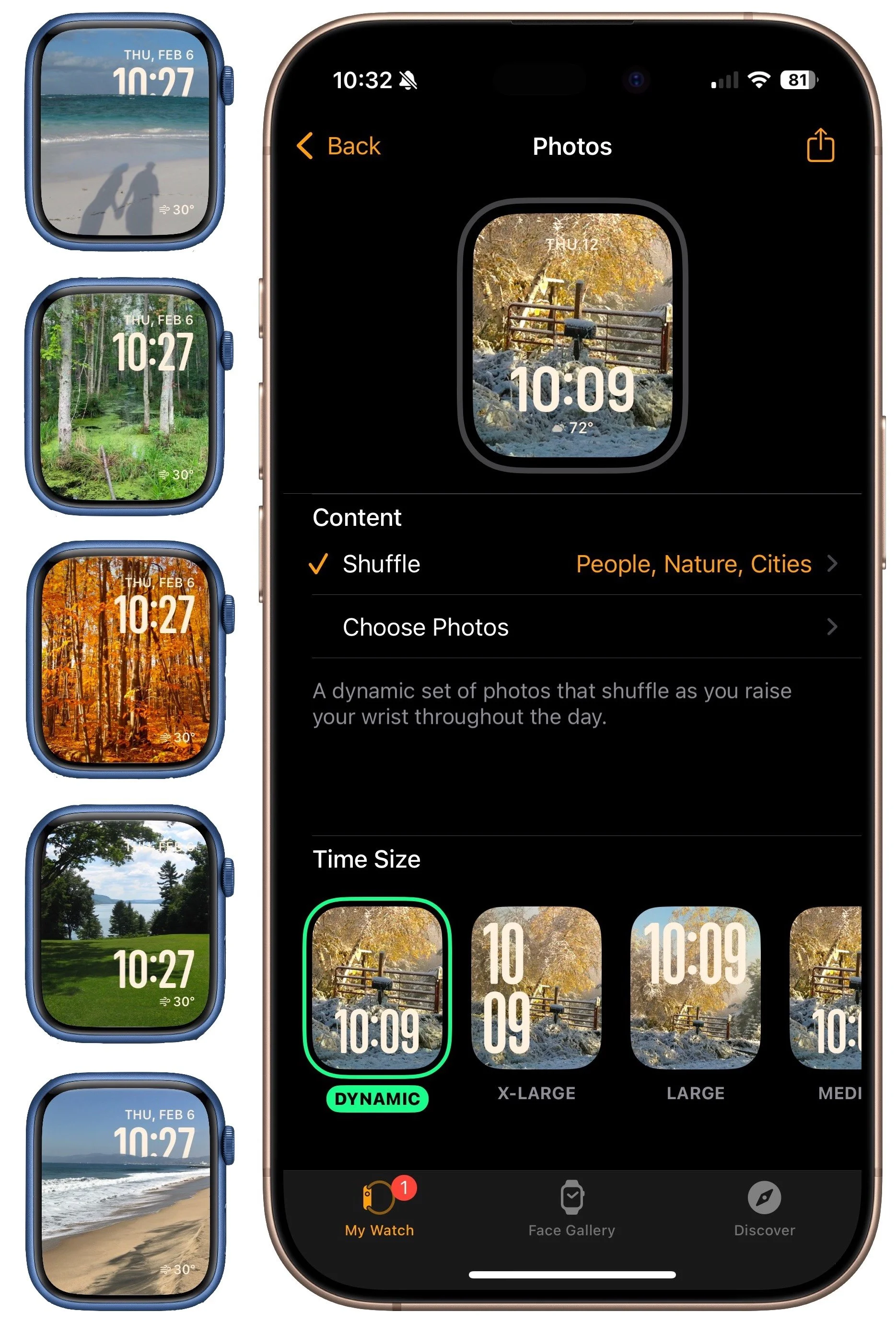
We’re taking a brief break from helping you become more productive to recommend a feature that could spark moments of joy for Apple Watch users. In watchOS 11, the new Photos watch face can display a photo from a shuffled set of images each time you raise your wrist (or tap the screen). Like the Lock Screen customization feature on the iPhone and iPad, the Photos face can dynamically select images of your favorite people, nature, and cities from your photo library. (You can also choose photos manually.) The time appears in an appropriate spot and size. Before the Photos face, we often relied on the complication-heavy Modular face, but we now find being surprised by lovely images from our photo library to be delightful. To add the Photos face to your Apple Watch, open the Watch app on your iPhone, tap Face Gallery, and tap the Photos face. Then, choose where the content will come from, select the time size, and add any desired complications. Once it’s on the Apple Watch, you can tweak style settings there too.
(Featured image by Adam Engst)
iOS 18 and iPadOS 18 Offer Better PDF Handling in Mail
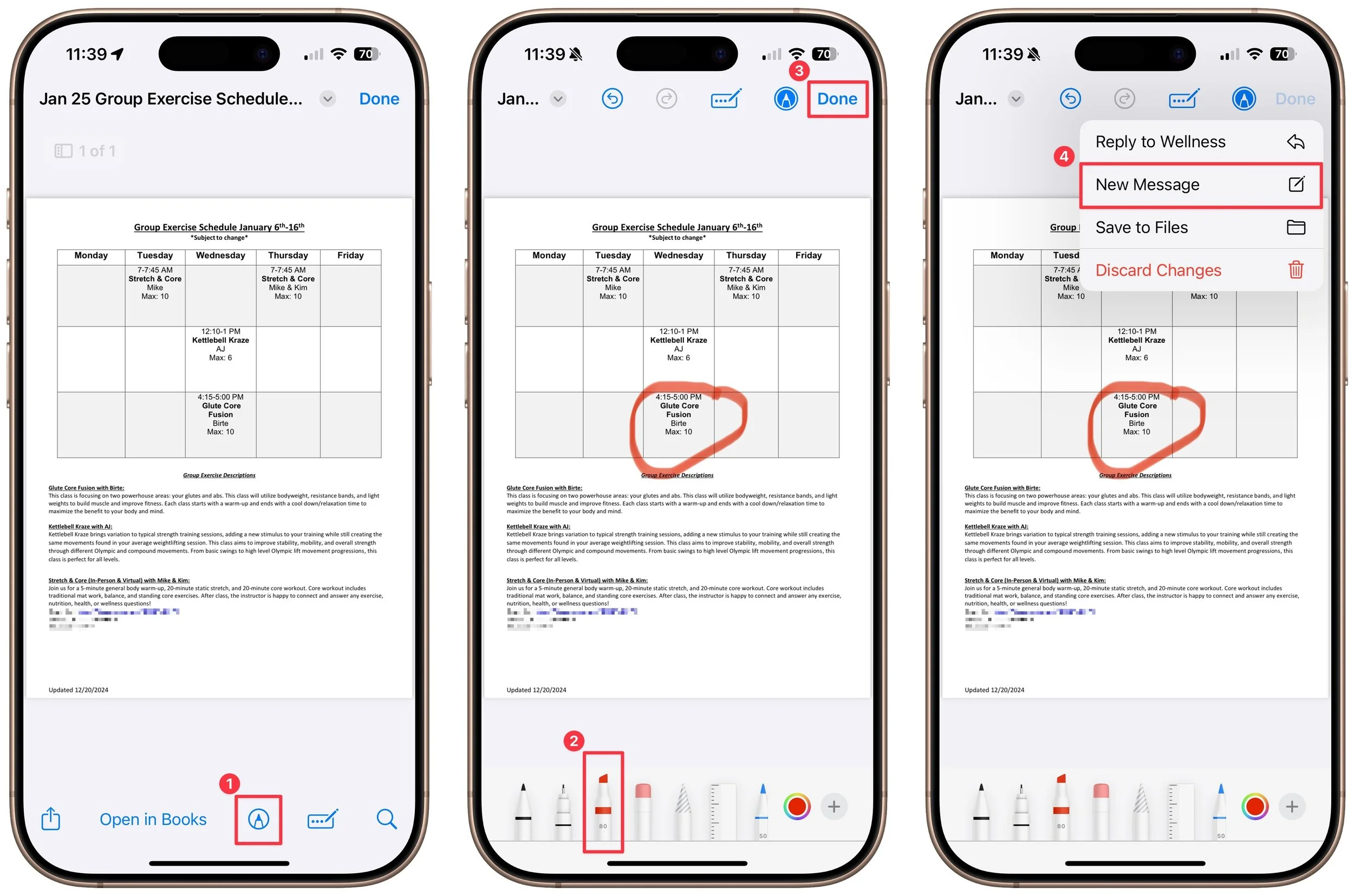
Have you ever needed to sign or annotate a PDF you received in the Mail app on your iPhone? With iOS 18 and iPadOS 18, you can manage PDFs directly in Mail. Once you’re finished, you can attach the modified PDF to a reply or a new message.
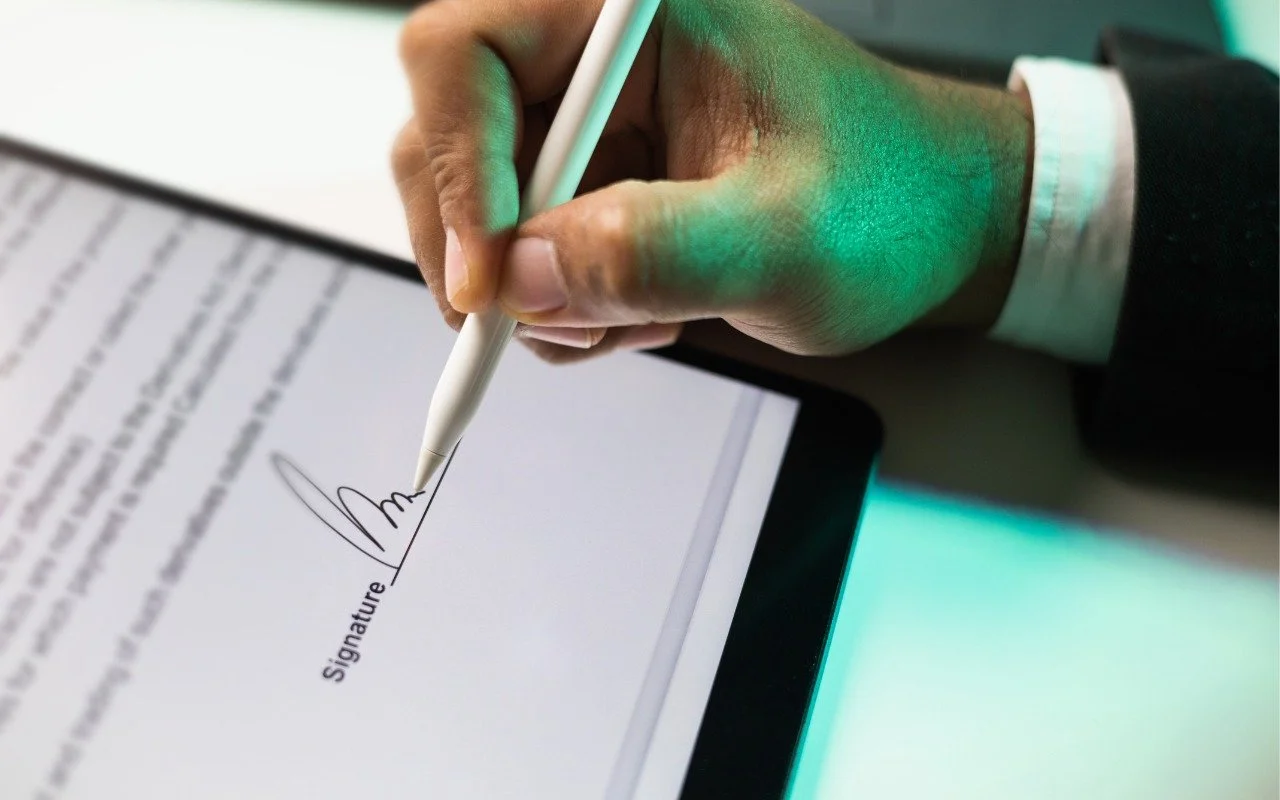
You can now work directly with PDFs received in the Mail app using a little-known feature in iOS 18 and iPadOS 18. Tap a PDF attachment in a message and use the Markup and Form Fill buttons at the bottom to access the PDF markup and filling tools. After modifying your PDF, tapping the Done button gives you options for what to do with the PDF: include it in a reply, create a new message with it, save it to Files, or discard the changes.
(Featured image by iStock.com/chanakon laorob)
Apple Brings Back the Calculator App’s Repeat Feature
Did you know that Apple’s Calculator app can repeat the last operation when you press = multiple times, which is helpful for tasks like calculating compound interest? Although this feature had briefly disappeared, it’s back now.

In iOS 18, iPadOS 18, and macOS 15 Sequoia, Apple removed a standard feature of the Calculator app that allowed users to press the = button multiple times to repeat the last mathematical operation. Following user complaints, the company reinstated this feature in iOS 18.3, iPadOS 18.3, and macOS 15.3. Now, to calculate the compound interest from investing $1,000 at 5%, you can multiply 1000 by 1.05 and press = repeatedly to see how your investment would grow. (To open the history sidebar on the Mac, choose View > Show History; on the iPhone, tap the hamburger button in the upper-left corner.)

(Featured image by iStock.com/drasko)